# 如何在 C# 中存取所有 PDF DOM 物件
要在 C# 中存取 PDF DOM 物件,請使用 IronPDF 的 `ObjectModel` 屬性,這提供對 PDF 文件中文字、影像和路徑物件的程式存取,允許您直接讀取、修改、翻譯、縮放和移除元素。
*as-heading:2(快速入門:使用 IronPDF 存取和更新 PDF DOM 元素)*
開始使用 IronPDF 的 DOM 存取功能操作 PDF 文件。 本指南展示如何存取 PDF DOM、選取頁面及修改文字物件。 載入您的 PDF,存取所需頁面,並透過幾行程式碼更新內容。
```cs
:title=Access and modify PDF DOM objects in one line!
var objs = IronPdf.ChromePdfRenderer.RenderUrlAsPdf("https://example.com").Pages.First().ObjectModel;
```
<div class="hsg-featured-snippet">
<h3>最小工作流程 (5步)</h3>
<ol>
<li><a class="js-modal-open" data-modal-id="trial-license-after-download" href="https://nuget.org/packages/IronPdf">下載 C# 程式庫來存取 PDF DOM 物件</a></li>
<li>匯入或渲染目標 PDF 文件</li>
<li>存取 PDF 的 <code>Pages</code> 集合並選擇所需頁面</li>
<li>使用 <strong>ObjectModel</strong> 屬性來檢視和互動 DOM 物件</li>
<li>儲存或匯出已修改的 PDF 文件</li>
</ol>
</div>
## 如何存取 PDF 中的 DOM 物件?
`ObjectModel` 從 `PdfPage` 物件取得。 首先,匯入目標 PDF 並存取其 `Pages` 屬性。 然後從中選擇任一頁面以存取 `ObjectModel` 屬性。 這使您能夠程式化地與 PDF 內容互動,類似於操作 HTML DOM 元素。
在處理 PDF DOM 物件時,您可存取 PDF 文件的底層結構。 這包括文字元素、影像、向量圖形(`paths`)及構成 PDF 視覺表示的其他內容。 IronPDF 提供將物件導向的方法來操作 PDF,並能與 C# 應用程式整合。
```csharp
using IronPdf;
using System.Linq;

// Instantiate Renderer
ChromePdfRenderer renderer = new ChromePdfRenderer();

// Create a PDF from a URL
PdfDocument pdf = renderer.RenderUrlAsPdf("https://ironpdf.com/");

// Access DOM Objects
var objects = pdf.Pages.First().ObjectModel;
```
<div class="content-img-align-center">
<div class="center-image-wrapper">
<img src="/static-assets/pdf/how-to/access-pdf-dom-object/debug.webp" alt="IronPDF 除錯器顯示帶有邊界框座標及轉換屬性的 TextObjects 集合" class="img-responsive add-shadow" />
</div>
</div>
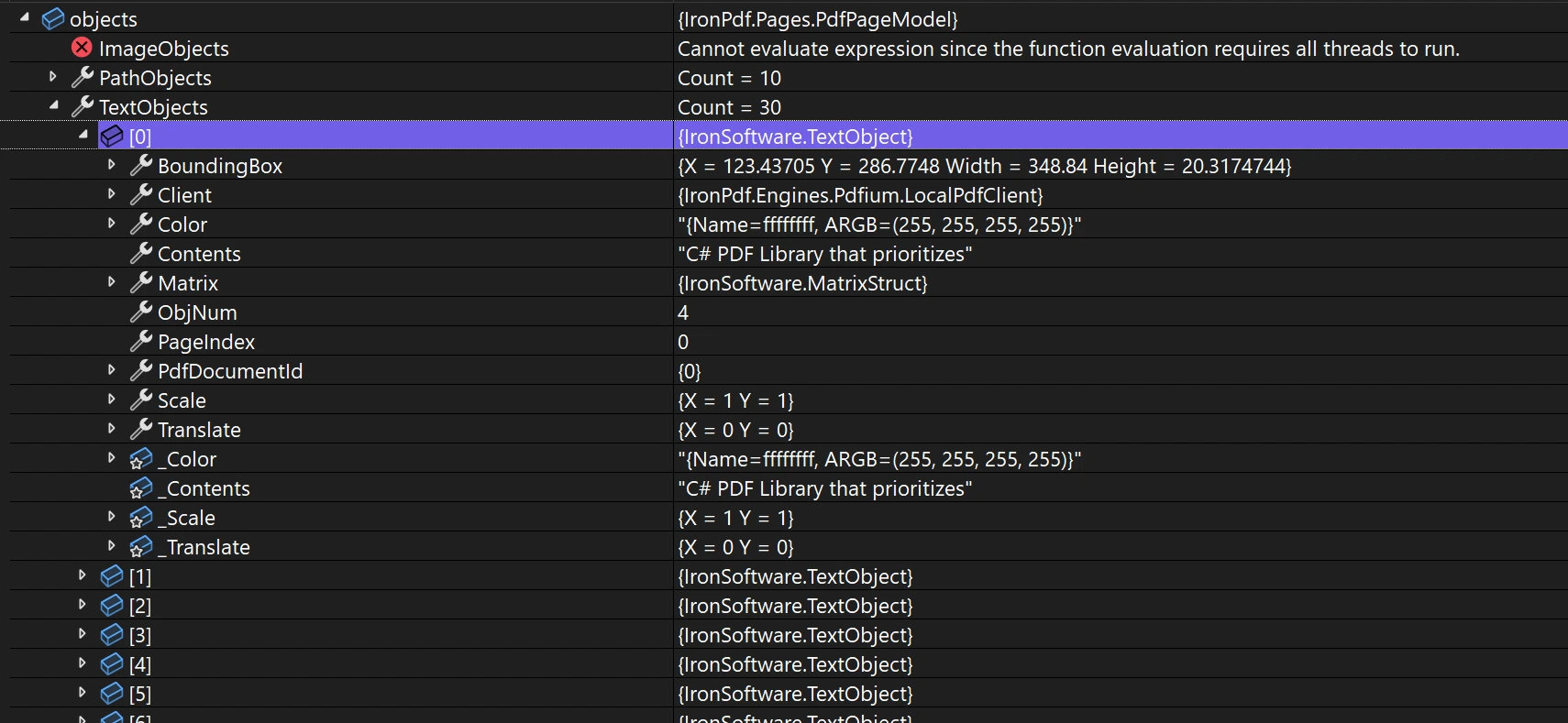
`ObjectModel` 屬性包含 `PathObject` 和 `TextObject`。 每個物件都包含有關其頁面索引、邊界框、`Scale` 和 `Translation` 的資訊。 這些資訊可以被修改。 有關[渲染選項](https://ironpdf.com/how-to/rendering-options/),您可以自訂這些物件的顯示方式。 在處理 [自訂頁邊距](https://ironpdf.com/how-to/custom-margins/)時,理解物件定位非常重要。
**`<ImageObject>`:**
- `Height`:影像的高度
- `Width`:影像的寬度
- `ExportBytesAsJpg`:將影像匯出為 JPG 位元組陣列的方法
**`<PathObject>`:**
- `FillColor`:路徑的填充顏色
- `StrokeColor`:路徑的描邊顏色
- `Points`:定義路徑的點集合
**`<TextObject>`:**
- `Color`:文字的顏色
- `Contents`:實際的 `Text` 內容
每個物件型別都提供了針對其內容型別量身訂做的方法和屬性。 當您需要[擷取文字和影像](https://ironpdf.com/how-to/extract-text-and-images/)或修改特定內容時,這些物件提供了細粒度的控制。 這在處理[PDF 表單](https://ironpdf.com/how-to/create-forms/)時非常有用,您需要程式化操作表單欄位時。
### 如何檢索字形資訊和邊界框?
當使用自訂字體指定確切字形時,檢索邊界框和字形資訊至關重要。 IronPDF 提供這些資訊,以便在現有 PDF 上[繪製文字和位圖](https://ironpdf.com/how-to/draw-text-and-bitmap/)時精確定位。
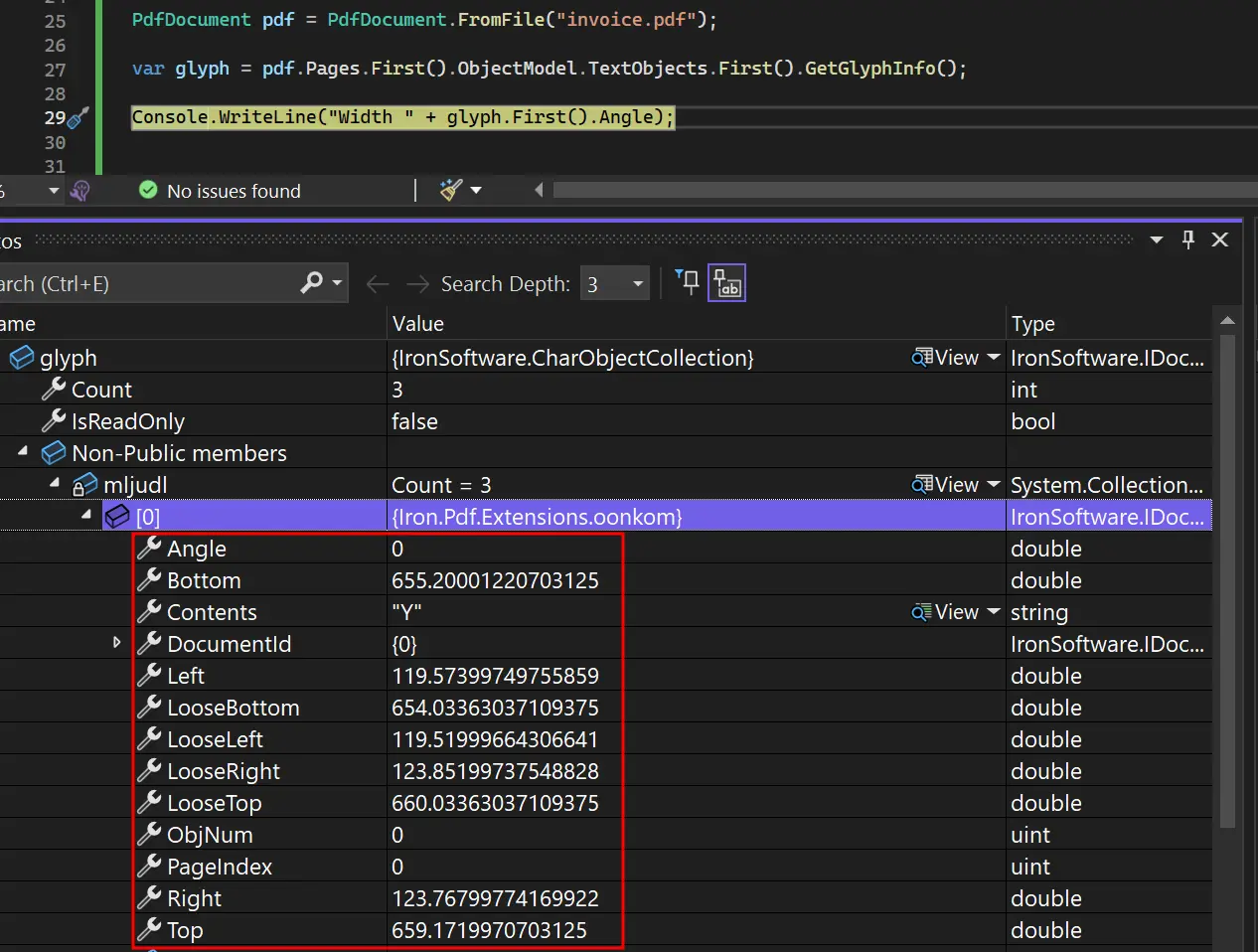
從 `PdfPage` 物件中存取 `ObjectModel`。 然後存取 `TextObjects` 集合。 呼叫 `GetGlyphInfo` 方法來檢索字形和邊界框資訊。
```cs
using IronPdf;
using System.Linq;
PdfDocument pdf = PdfDocument.FromFile("invoice.pdf");
var glyph = pdf.Pages.First().ObjectModel.TextObjects.First().GetGlyphInfo();
```
<div class="content-img-align-center">
<div class="center-image-wrapper">
<img src="/static-assets/pdf/how-to/access-pdf-dom-object/glyphinformation.webp" alt="除錯器顯示 PDF 字形物件屬性,包括座標、邊界和文字內容的詳細資訊" class="img-responsive add-shadow" />
</div>
</div>
字形資訊包括定位資料、字體度量和字元特定的詳細資訊,適用於進階 PDF 操作。 這允許建立處理複雜排版和佈局需求的 PDF 處理應用程式。 在處理 [自訂字體](https://ironpdf.com/how-to/manage-fonts/)時,這種字形層級的存取可以確保跨系統的精確渲染。
<hr />
## 如何翻譯 PDF 物件?
透過重新定位文字或影像等元素來調整 PDF 佈局。 透過改變其 `Translate` 屬性移動物件。 此功能是 IronPDF [PDF 轉換功能](https://ironpdf.com/how-to/transform-pdf-pages/)的一部分。
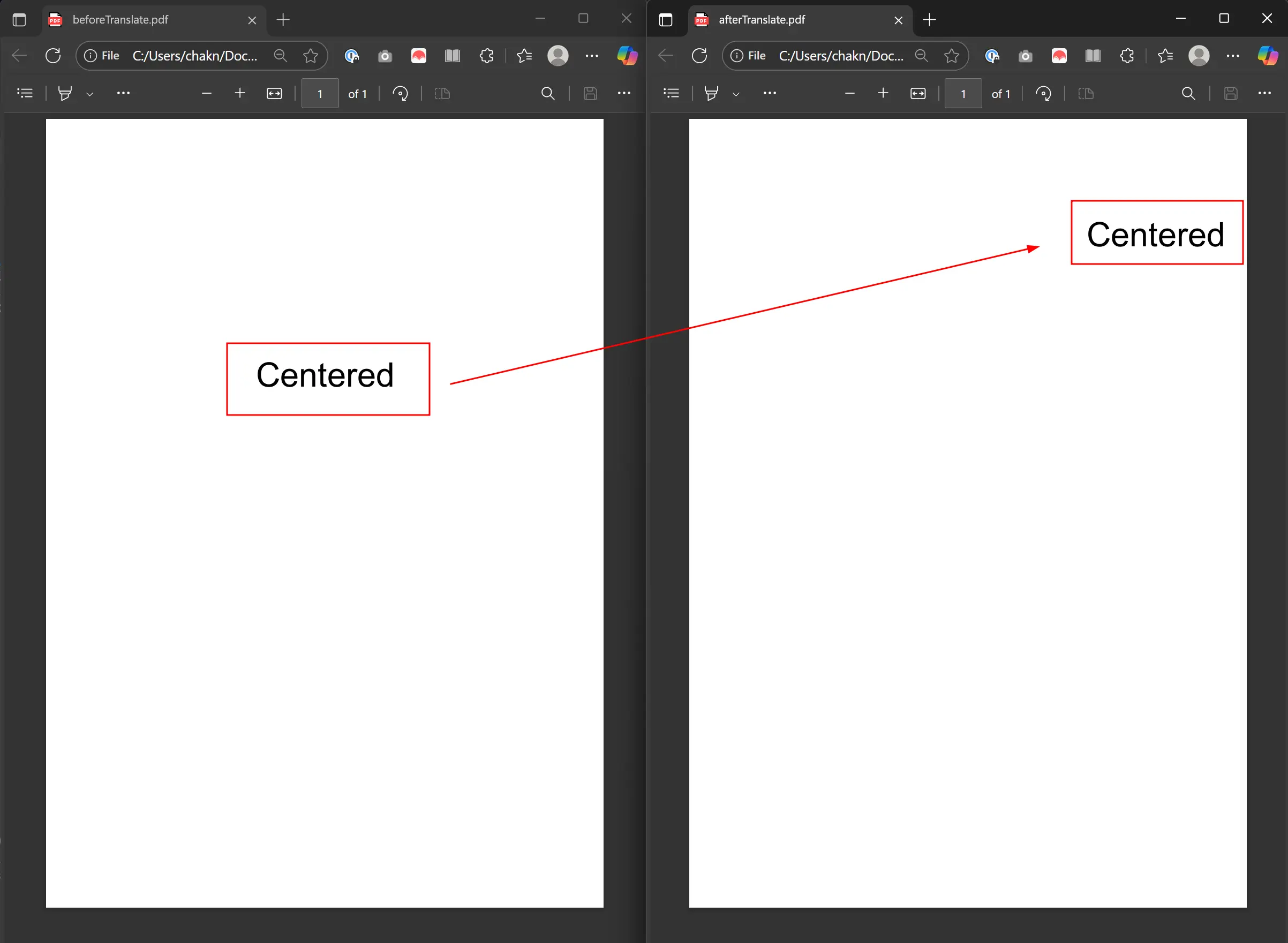
下面的例子使用 CSS Flexbox 渲染 HTML 以將文字置中。 它存取第一個 `TextObject`,並給 `Translate` 屬性分配一個新的 `PointF` 來翻譯它。 這會將文字向右移動 200 點,向上移動 150 點。更多範例請存取[翻譯 PDF 物件範例頁面](https://ironpdf.com/examples/translate-pdf-objects/)。
### 我應該使用什麼程式來翻譯物件?
```csharp
using IronPdf;
using System.Drawing;
using System.Linq;
// Setup the Renderer
var renderer = new ChromePdfRenderer();
// We use CSS Flexbox to perfectly center the text vertically and horizontally.
var html = @"
<div style='display: flex; justify-content: center; align-items: center; font-size: 48px;'>
Centered
</div>";
// Render the HTML to a PDF
PdfDocument pdf = renderer.RenderHtmlAsPdf(html);
// Save the original PDF to see the "before" state
pdf.SaveAs("BeforeTranslate.pdf");
// Access the first text object on the first page
// In this simple HTML, this will be our "Centered" text block.
var textObject = pdf.Pages.First().ObjectModel.TextObjects.First();
// Apply the translation
// This moves the object 200 points to the right and 150 points up from its original position.
textObject.Translate = new PointF(200, 150);
// Save the modified PDF to see the "after" state
pdf.SaveAs("AfterTranslate.pdf");
```
### 翻譯結果看起來如何?
輸出顯示 "Centered" 從其原始位置向右移動 200 點並向上移動 150 點。
<div class="content-img-align-center">
<div class="center-image-wrapper">
<img src="/static-assets/pdf/how-to/access-pdf-dom-object/translate.webp" alt="PDF 翻譯前後的比較顯示保存的文字定位和格式" class="img-responsive add-shadow" />
</div>
</div>
翻譯操作保留物件的原始屬性,如字體、大小和顏色,而僅更改位置。 這非常適合在不影響外觀的情況下調整佈局。 在重新定位動態產生的內容時,此功能適用於[頁首和頁尾](https://ironpdf.com/how-to/headers-and-footers/)。
<hr />
## 如何縮放 PDF 物件?
using `Scale` 屬性調整 PDF 物件大小。 該屬性充當乘數。 大於 1 的值會增加大小,而在 0 到 1 之間的值則會減少大小。 縮放對於動態佈局和調整內容以適合頁面尺寸至關重要。 欲取得更多範例,請參閱[縮放 PDF 物件指南](https://ironpdf.com/examples/scale-pdf-objects/)。
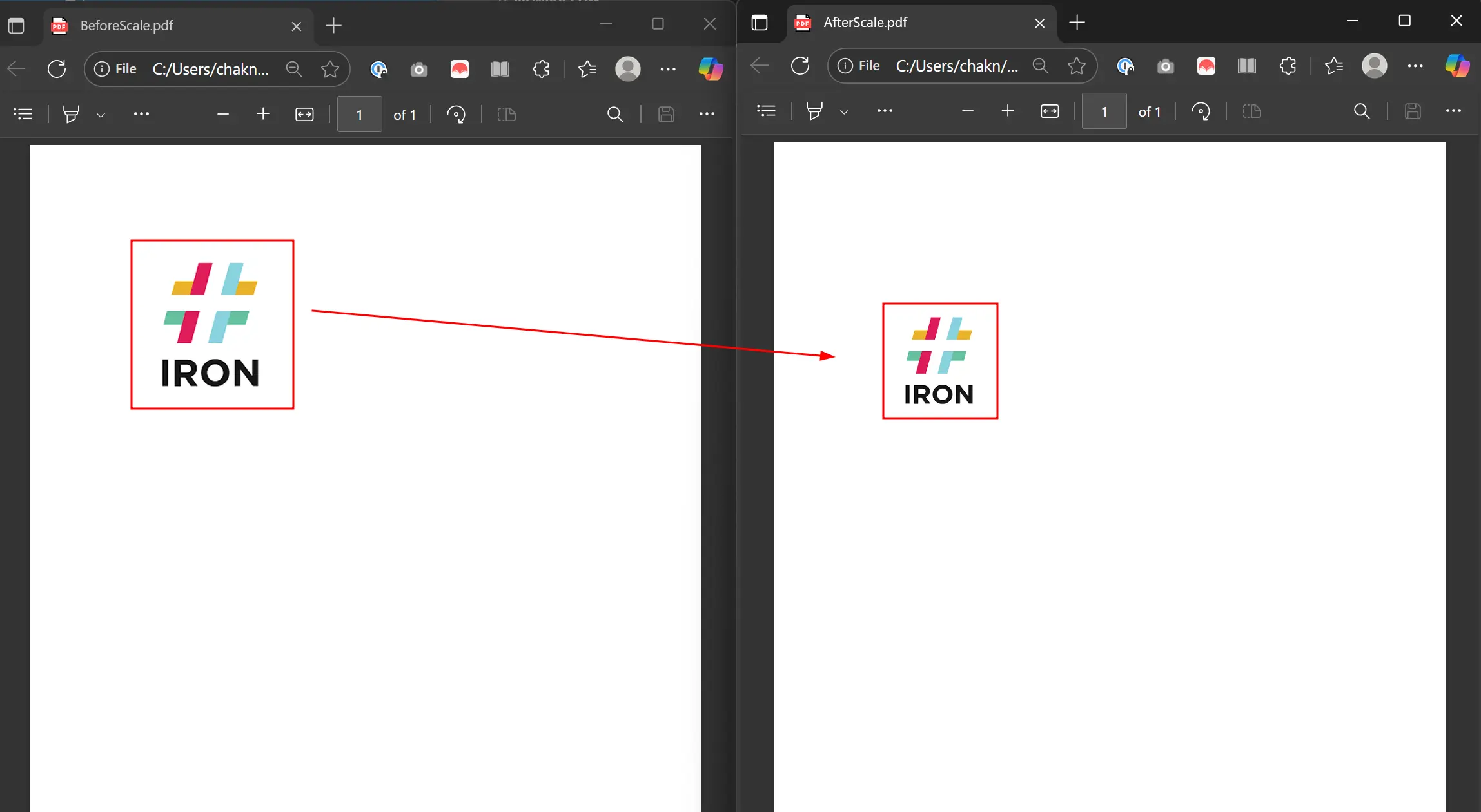
範例中渲染包含圖像的 HTML。 它存取第一個 `ImageObject`,並通過為 `Scale` 指定一個新的 `PointF`,將其縮放到 70%,在兩個軸上使用 0.7。
### 縮放 PDF 物件的程式碼是什麼?
```csharp
using IronPdf;
using System.Linq;
// Setup the Renderer
var renderer = new ChromePdfRenderer();
// The image is placed in a div to give it some space on the page.
string html = @"<img src='https://encrypted-tbn0.gstatic.com/images?q=tbn:ANd9GcTi8LuOR6_A98euPLs-JRwoLU7Nc31nVP15rw&s'>";
// Render the HTML to a PDF
PdfDocument pdf = renderer.RenderHtmlAsPdf(html);
// Save the PDF before scaling for comparison
pdf.SaveAs("BeforeScale.pdf");
// Access the first image object on the first page
var image = pdf.Pages.First().ObjectModel.ImageObjects.First();
// We scale the image to 70% of its original size on both the X and Y axes.
image.Scale = new System.Drawing.PointF(0.7f, 0.7f);
// Save the modified PDF to see the result
pdf.SaveAs("AfterScale.pdf");
```
對 X 和 Y 軸應用不同的縮放因子以進行非均勻縮放。 這在將內容適合特定尺寸時非常有用。 在處理[自訂紙張尺寸](https://ironpdf.com/how-to/custom-paper-size/)時,縮放幫助確保內容符合頁面邊界。
### 實踐中縮放看起來如何?
輸出顯示圖像縮小到其原始大小的 70%。
<div class="content-img-align-center">
<div class="center-image-wrapper">
<img src="/static-assets/pdf/how-to/access-pdf-dom-object/scale.webp" alt="PDF 縮放演示:IRON 從大尺寸(左)縮小到小尺寸(右),箭頭顯示轉換" class="img-responsive add-shadow" />
</div>
</div>
<hr />
## 如何移除 PDF 物件?
透過存取如 `ImageObjects` 或 `TextObjects` 的 PDF DOM 集合來移除物件。 在集合上呼叫 `RemoveAt` ,並傳遞要刪除的物件索引。 這對於刪除內容或簡化文件很有用。 欲了解更多,請參閱[移除 PDF 物件範例](https://ironpdf.com/examples/remove-pdf-objects/)。
程式碼載入 BeforeScale.pdf 並從第一頁移除第一張圖片。
### 我應該使用什麼程式來移除物件?
```csharp
using IronPdf;
using System.Linq;
// Load the PDF file we created in the Scale example
PdfDocument pdf = PdfDocument.FromFile("BeforeScale.pdf");
// Access DOM Objects
var objects = pdf.Pages.First().ObjectModel;
// Remove first image
objects.ImageObjects.RemoveAt(0);
// Save the modified PDF
pdf.SaveAs("removedFirstImage.pdf");
```
### 當我移除多個物件時會發生什麼?
移除後,剩餘物件的索引會發生變化。 在移除多個物件時,請按反向順序移除以保持正確的索引。 這種技術有助於在您從敏感文件中[刪除文字](https://ironpdf.com/how-to/redact-text/)時。
## 如何結合多個 DOM 操作?
IronPDF 的 DOM 存取功能使得復雜文件處理工作流程成為可能。 結合操作以實現復雜轉換:
### 什麼時候應該使用結合操作?
```csharp
// Example of combining multiple DOM operations
using IronPdf;
using System.Linq;
PdfDocument pdf = PdfDocument.FromFile("complex-document.pdf");
// Iterate through all pages
foreach (var page in pdf.Pages)
{
var objects = page.ObjectModel;
// Process text objects
foreach (var textObj in objects.TextObjects)
{
// Change color of specific text
if (textObj.Contents.Contains("Important"))
{
textObj.FillColor = IronSoftware.Drawing.Color.Red;
}
}
// Scale down all images by 50%
foreach (var imgObj in objects.ImageObjects)
{
imgObj.Scale = new System.Drawing.PointF(0.5f, 0.5f);
}
}
pdf.SaveAs("processed-document.pdf");
```
### 結合操作的常見使用案例是什麼?
結合 DOM 操作在以下情況下效果良好:
1. **批量文件處理:**處理文件以標準化格式或刪除敏感內容
2. **動態報告生成:**用實時資料修改模板 PDF,同時控制佈局
3. **內容遷移:**從 PDF 中提取並重新組織內容到新佈局
4. **可及性改進:**通過修改文字大小、對比度或間隔來增強文件
這些技術允許強大的 PDF 處理應用程式,能夠處理複雜的修改。 欲管理文件屬性,請參閱[元資料管理指南](https://ironpdf.com/how-to/metadata/)。
## DOM 存取與其他 PDF 操作方法如何比較?
處理 PDF DOM 比傳統方法具有優勢:
```csharp
// Example: Selective content modification based on criteria
using IronPdf;
using System.Linq;
PdfDocument report = PdfDocument.FromFile("quarterly-report.pdf");
foreach (var page in report.Pages)
{
var textObjects = page.ObjectModel.TextObjects;
// Highlight negative values in financial reports
foreach (var text in textObjects)
{
if (text.Contents.StartsWith("-$") || text.Contents.Contains("Loss"))
{
text.FillColor = IronSoftware.Drawing.Color.Red;
}
}
}
report.SaveAs("highlighted-report.pdf");
```
這種細粒度的控制是僅用[HTML 轉 PDF](https://ironpdf.com/how-to/html-to-pdf-responsive-css/) 轉換無法實現的,使 DOM 存取成為複雜 PDF 處理的必要條件。
準備好看看您還能做什麼嗎? 請在此處查看教程頁面:[編輯 PDF](https://ironpdf.com/tutorials/csharp-edit-pdf-complete-tutorial/)
ObjectModel 從 PdfPage 物件取得。 首先,匯入目標 PDF 並存取其 Pages 屬性。 然後從中選擇任一頁面以存取 ObjectModel 屬性。 這使您能夠程式化地與 PDF 內容互動,類似於操作 HTML DOM 元素。
在處理 PDF DOM 物件時,您可存取 PDF 文件的底層結構。 這包括文字元素、影像、向量圖形(paths)及構成 PDF 視覺表示的其他內容。 IronPDF 提供將物件導向的方法來操作 PDF,並能與 C# 應用程式整合。
using IronPdf;using System.Linq;// Instantiate RendererChromePdfRenderer renderer = new ChromePdfRenderer();// Create a PDF from a URLPdfDocument pdf = renderer.RenderUrlAsPdf("https://ironpdf.com/");// Access DOM Objectsvar objects = pdf.Pages.First().ObjectModel;
using IronPdf;
using System.Linq;

// Instantiate Renderer
ChromePdfRenderer renderer = new ChromePdfRenderer();

// Create a PDF from a URL
PdfDocument pdf = renderer.RenderUrlAsPdf("https://ironpdf.com/");

// Access DOM Objects
var objects = pdf.Pages.First().ObjectModel;
ImportsIronPdfImportsSystem.Linq' Instantiate RendererPrivate renderer As New ChromePdfRenderer()' Create a PDF from a URLPrivate pdf AsPdfDocument = renderer.RenderUrlAsPdf("https://ironpdf.com/")' Access DOM ObjectsPrivate objects = pdf.Pages.First().ObjectModel
Imports IronPdf
Imports System.Linq

' Instantiate Renderer
Private renderer As New ChromePdfRenderer()

' Create a PDF from a URL
Private pdf As PdfDocument = renderer.RenderUrlAsPdf("https://ironpdf.com/")

' Access DOM Objects
Private objects = pdf.Pages.First().ObjectModel
using IronPdf;using System.Linq;PdfDocument pdf = PdfDocument.FromFile("invoice.pdf");var glyph = pdf.Pages.First().ObjectModel.TextObjects.First().GetGlyphInfo();
using IronPdf;
using System.Linq;

PdfDocument pdf = PdfDocument.FromFile("invoice.pdf");

var glyph = pdf.Pages.First().ObjectModel.TextObjects.First().GetGlyphInfo();
ImportsIronPdfImportsSystem.LinqDim pdf AsPdfDocument = PdfDocument.FromFile("invoice.pdf")Dim glyph = pdf.Pages.First().ObjectModel.TextObjects.First().GetGlyphInfo()
Imports IronPdf
Imports System.Linq

Dim pdf As PdfDocument = PdfDocument.FromFile("invoice.pdf")

Dim glyph = pdf.Pages.First().ObjectModel.TextObjects.First().GetGlyphInfo()
字形資訊包括定位資料、字體度量和字元特定的詳細資訊,適用於進階 PDF 操作。 這允許建立處理複雜排版和佈局需求的 PDF 處理應用程式。 在處理 自訂字體時,這種字形層級的存取可以確保跨系統的精確渲染。
如何翻譯 PDF 物件?
透過重新定位文字或影像等元素來調整 PDF 佈局。 透過改變其 Translate 屬性移動物件。 此功能是 IronPDF PDF 轉換功能的一部分。
下面的例子使用 CSS Flexbox 渲染 HTML 以將文字置中。 它存取第一個 TextObject,並給 Translate 屬性分配一個新的 PointF 來翻譯它。 這會將文字向右移動 200 點,向上移動 150 點。更多範例請存取翻譯 PDF 物件範例頁面。
我應該使用什麼程式來翻譯物件?
using IronPdf;using System.Drawing;using System.Linq;// Setup the Renderervar renderer = new ChromePdfRenderer();// We use CSS Flexbox to perfectly center the text vertically and horizontally.var html = @"<div style='display: flex; justify-content: center; align-items: center; font-size: 48px;'> Centered</div>";// Render the HTML to a PDFPdfDocument pdf = renderer.RenderHtmlAsPdf(html);// Save the original PDF to see the "before" statepdf.SaveAs("BeforeTranslate.pdf");// Access the first text object on the first page// In this simple HTML, this will be our "Centered" text block.var textObject = pdf.Pages.First().ObjectModel.TextObjects.First();// Apply the translation// This moves the object 200 points to the right and 150 points up from its original position.textObject.Translate = new PointF(200, 150);// Save the modified PDF to see the "after" statepdf.SaveAs("AfterTranslate.pdf");
using IronPdf;
using System.Drawing;
using System.Linq;

// Setup the Renderer
var renderer = new ChromePdfRenderer();

// We use CSS Flexbox to perfectly center the text vertically and horizontally.
var html = @"
<div style='display: flex; justify-content: center; align-items: center; font-size: 48px;'>
    Centered
</div>";

// Render the HTML to a PDF
PdfDocument pdf = renderer.RenderHtmlAsPdf(html);

// Save the original PDF to see the "before" state
pdf.SaveAs("BeforeTranslate.pdf");

// Access the first text object on the first page
// In this simple HTML, this will be our "Centered" text block.
var textObject = pdf.Pages.First().ObjectModel.TextObjects.First();

// Apply the translation
// This moves the object 200 points to the right and 150 points up from its original position.
textObject.Translate = new PointF(200, 150);

// Save the modified PDF to see the "after" state
pdf.SaveAs("AfterTranslate.pdf");
ImportsIronPdfImportsSystem.DrawingImportsSystem.Linq' Setup the RendererDim renderer As New ChromePdfRenderer()' We use CSS Flexbox to perfectly center the text vertically and horizontally.Dim html AsString = "<div style='display: flex; justify-content: center; align-items: center; font-size: 48px;'> Centered</div>"' Render the HTML to a PDFDim pdf AsPdfDocument = renderer.RenderHtmlAsPdf(html)' Save the original PDF to see the "before" statepdf.SaveAs("BeforeTranslate.pdf")' Access the first text object on the first page' In this simple HTML, this will be our "Centered" text block.Dim textObject = pdf.Pages.First().ObjectModel.TextObjects.First()' Apply the translation' This moves the object 200 points to the right and 150 points up from its original position.textObject.Translate = New PointF(200, 150)' Save the modified PDF to see the "after" statepdf.SaveAs("AfterTranslate.pdf")
Imports IronPdf
Imports System.Drawing
Imports System.Linq

' Setup the Renderer
Dim renderer As New ChromePdfRenderer()

' We use CSS Flexbox to perfectly center the text vertically and horizontally.
Dim html As String = "
<div style='display: flex; justify-content: center; align-items: center; font-size: 48px;'>
    Centered
</div>"

' Render the HTML to a PDF
Dim pdf As PdfDocument = renderer.RenderHtmlAsPdf(html)

' Save the original PDF to see the "before" state
pdf.SaveAs("BeforeTranslate.pdf")

' Access the first text object on the first page
' In this simple HTML, this will be our "Centered" text block.
Dim textObject = pdf.Pages.First().ObjectModel.TextObjects.First()

' Apply the translation
' This moves the object 200 points to the right and 150 points up from its original position.
textObject.Translate = New PointF(200, 150)

' Save the modified PDF to see the "after" state
pdf.SaveAs("AfterTranslate.pdf")
using IronPdf;using System.Linq;// Setup the Renderervar renderer = new ChromePdfRenderer();// The image is placed in a div to give it some space on the page.string html = @"<img src='https://encrypted-tbn0.gstatic.com/images?q=tbn:ANd9GcTi8LuOR6_A98euPLs-JRwoLU7Nc31nVP15rw&s'>";// Render the HTML to a PDFPdfDocument pdf = renderer.RenderHtmlAsPdf(html);// Save the PDF before scaling for comparisonpdf.SaveAs("BeforeScale.pdf");// Access the first image object on the first pagevar image = pdf.Pages.First().ObjectModel.ImageObjects.First();// We scale the image to 70% of its original size on both the X and Y axes.image.Scale = new System.Drawing.PointF(0.7f, 0.7f);// Save the modified PDF to see the resultpdf.SaveAs("AfterScale.pdf");
using IronPdf;
using System.Linq;

// Setup the Renderer
var renderer = new ChromePdfRenderer();

// The image is placed in a div to give it some space on the page.
string html = @"<img src='https://encrypted-tbn0.gstatic.com/images?q=tbn:ANd9GcTi8LuOR6_A98euPLs-JRwoLU7Nc31nVP15rw&s'>";

// Render the HTML to a PDF
PdfDocument pdf = renderer.RenderHtmlAsPdf(html);

// Save the PDF before scaling for comparison
pdf.SaveAs("BeforeScale.pdf");

// Access the first image object on the first page
var image = pdf.Pages.First().ObjectModel.ImageObjects.First();

// We scale the image to 70% of its original size on both the X and Y axes.
image.Scale = new System.Drawing.PointF(0.7f, 0.7f);

// Save the modified PDF to see the result
pdf.SaveAs("AfterScale.pdf");
ImportsIronPdfImportsSystem.LinqImportsSystem.Drawing' Setup the RendererDim renderer As New ChromePdfRenderer()' The image is placed in a div to give it some space on the page.Dim html AsString = "<img src='https://encrypted-tbn0.gstatic.com/images?q=tbn:ANd9GcTi8LuOR6_A98euPLs-JRwoLU7Nc31nVP15rw&s'>"' Render the HTML to a PDFDim pdf AsPdfDocument = renderer.RenderHtmlAsPdf(html)' Save the PDF before scaling for comparisonpdf.SaveAs("BeforeScale.pdf")' Access the first image object on the first pageDim image = pdf.Pages.First().ObjectModel.ImageObjects.First()' We scale the image to 70% of its original size on both the X and Y axes.image.Scale = New PointF(0.7F, 0.7F)' Save the modified PDF to see the resultpdf.SaveAs("AfterScale.pdf")
Imports IronPdf
Imports System.Linq
Imports System.Drawing

' Setup the Renderer
Dim renderer As New ChromePdfRenderer()

' The image is placed in a div to give it some space on the page.
Dim html As String = "<img src='https://encrypted-tbn0.gstatic.com/images?q=tbn:ANd9GcTi8LuOR6_A98euPLs-JRwoLU7Nc31nVP15rw&s'>"

' Render the HTML to a PDF
Dim pdf As PdfDocument = renderer.RenderHtmlAsPdf(html)

' Save the PDF before scaling for comparison
pdf.SaveAs("BeforeScale.pdf")

' Access the first image object on the first page
Dim image = pdf.Pages.First().ObjectModel.ImageObjects.First()

' We scale the image to 70% of its original size on both the X and Y axes.
image.Scale = New PointF(0.7F, 0.7F)

' Save the modified PDF to see the result
pdf.SaveAs("AfterScale.pdf")
對 X 和 Y 軸應用不同的縮放因子以進行非均勻縮放。 這在將內容適合特定尺寸時非常有用。 在處理自訂紙張尺寸時,縮放幫助確保內容符合頁面邊界。
透過存取如 ImageObjects 或 TextObjects 的 PDF DOM 集合來移除物件。 在集合上呼叫 RemoveAt ,並傳遞要刪除的物件索引。 這對於刪除內容或簡化文件很有用。 欲了解更多,請參閱移除 PDF 物件範例。
程式碼載入 BeforeScale.pdf 並從第一頁移除第一張圖片。
我應該使用什麼程式來移除物件?
using IronPdf;using System.Linq;// Load the PDF file we created in the Scale examplePdfDocument pdf = PdfDocument.FromFile("BeforeScale.pdf");// Access DOM Objectsvar objects = pdf.Pages.First().ObjectModel;// Remove first imageobjects.ImageObjects.RemoveAt(0);// Save the modified PDFpdf.SaveAs("removedFirstImage.pdf");
using IronPdf;
using System.Linq;

// Load the PDF file we created in the Scale example
PdfDocument pdf = PdfDocument.FromFile("BeforeScale.pdf");

// Access DOM Objects
var objects = pdf.Pages.First().ObjectModel;

// Remove first image
objects.ImageObjects.RemoveAt(0);

// Save the modified PDF
pdf.SaveAs("removedFirstImage.pdf");
ImportsIronPdfImportsSystem.Linq' Load the PDF file we created in the Scale exampleDim pdf AsPdfDocument = PdfDocument.FromFile("BeforeScale.pdf")' Access DOM ObjectsDim objects = pdf.Pages.First().ObjectModel' Remove first imageobjects.ImageObjects.RemoveAt(0)' Save the modified PDFpdf.SaveAs("removedFirstImage.pdf")
Imports IronPdf
Imports System.Linq

' Load the PDF file we created in the Scale example
Dim pdf As PdfDocument = PdfDocument.FromFile("BeforeScale.pdf")

' Access DOM Objects
Dim objects = pdf.Pages.First().ObjectModel

' Remove first image
objects.ImageObjects.RemoveAt(0)

' Save the modified PDF
pdf.SaveAs("removedFirstImage.pdf")
// Example of combining multiple DOM operationsusing IronPdf;using System.Linq;PdfDocument pdf = PdfDocument.FromFile("complex-document.pdf");// Iterate through all pagesforeach (var page in pdf.Pages){ var objects = page.ObjectModel; // Process text objects foreach (var textObj in objects.TextObjects) { // Change color of specific text if (textObj.Contents.Contains("Important")) { textObj.FillColor = IronSoftware.Drawing.Color.Red; } } // Scale down all images by 50% foreach (var imgObj in objects.ImageObjects) { imgObj.Scale = new System.Drawing.PointF(0.5f, 0.5f); }}pdf.SaveAs("processed-document.pdf");
// Example of combining multiple DOM operations
using IronPdf;
using System.Linq;

PdfDocument pdf = PdfDocument.FromFile("complex-document.pdf");

// Iterate through all pages
foreach (var page in pdf.Pages)
{
    var objects = page.ObjectModel;

    // Process text objects
    foreach (var textObj in objects.TextObjects)
    {
        // Change color of specific text
        if (textObj.Contents.Contains("Important"))
        {
            textObj.FillColor = IronSoftware.Drawing.Color.Red;
        }
    }

    // Scale down all images by 50%
    foreach (var imgObj in objects.ImageObjects)
    {
        imgObj.Scale = new System.Drawing.PointF(0.5f, 0.5f);
    }
}

pdf.SaveAs("processed-document.pdf");
C#
結合操作的常見使用案例是什麼?
結合 DOM 操作在以下情況下效果良好:
**批量文件處理:**處理文件以標準化格式或刪除敏感內容
**動態報告生成:**用實時資料修改模板 PDF,同時控制佈局
**內容遷移:**從 PDF 中提取並重新組織內容到新佈局
**可及性改進:**通過修改文字大小、對比度或間隔來增強文件
這些技術允許強大的 PDF 處理應用程式,能夠處理複雜的修改。 欲管理文件屬性,請參閱元資料管理指南。
DOM 存取與其他 PDF 操作方法如何比較?
處理 PDF DOM 比傳統方法具有優勢:
// Example: Selective content modification based on criteriausing IronPdf;using System.Linq;PdfDocument report = PdfDocument.FromFile("quarterly-report.pdf");foreach (var page in report.Pages){ var textObjects = page.ObjectModel.TextObjects; // Highlight negative values in financial reports foreach (var text in textObjects) { if (text.Contents.StartsWith("-$") || text.Contents.Contains("Loss")) { text.FillColor = IronSoftware.Drawing.Color.Red; } }}report.SaveAs("highlighted-report.pdf");
// Example: Selective content modification based on criteria
using IronPdf;
using System.Linq;

PdfDocument report = PdfDocument.FromFile("quarterly-report.pdf");

foreach (var page in report.Pages)
{
    var textObjects = page.ObjectModel.TextObjects;

    // Highlight negative values in financial reports
    foreach (var text in textObjects)
    {
        if (text.Contents.StartsWith("-$") || text.Contents.Contains("Loss"))
        {
            text.FillColor = IronSoftware.Drawing.Color.Red;
        }
    }
}

report.SaveAs("highlighted-report.pdf");
C#
這種細粒度的控制是僅用HTML 轉 PDF 轉換無法實現的,使 DOM 存取成為複雜 PDF 處理的必要條件。
What is the method to scale PDF objects using IronPDF?
PDF objects can be scaled using the `Scale` property in IronPDF's `ObjectModel`, allowing you to adjust the dimensions of elements such as images or text by specifying scale factors.
How can I translate PDF objects in IronPDF?
Translate PDF objects in IronPDF by adjusting their `Translate` property. This repositioning enables layout adjustments without altering the visual style of the objects.
How do I distinguish CAD features in a PDF without layers using IronPDF?
IronPDF allows you to differentiate CAD features without layers by analyzing the `PathObject` attributes such as `StrokeWidth`, `LineCap`, and `DashPattern`.
What are some common use cases for combined PDF DOM operations using IronPDF?
Combined PDF DOM operations are useful for batch document processing, dynamic report generation, content migration, and improving document accessibility, allowing complex modifications using IronPDF.