# How to Access All PDF DOM Objects in C#
To access PDF DOM objects in C#, use IronPDF's `ObjectModel` property which provides programmatic access to text, images, and path objects within PDF documents, allowing you to read, modify, translate, scale, and remove elements directly.
*as-heading:2(Quickstart: Access and Update PDF DOM Elements with IronPDF)*
Start manipulating PDF documents using IronPDF's DOM access features. This guide shows how to access the PDF DOM, select a page, and modify text objects. Load your PDF, access the desired page, and update content with a few lines of code.
```cs
:title=Access and modify PDF DOM objects in one line!
var objs = new IronPdf.ChromePdfRenderer().RenderUrlAsPdf("https://example.com").Pages.First().ObjectModel;
```
<div class="hsg-featured-snippet">
<h3>Minimal Workflow (5 steps)</h3>
<ol>
<li><a class="js-modal-open" data-modal-id="trial-license-after-download" href="https://nuget.org/packages/IronPdf">Download the C# library to access PDF DOM Objects</a></li>
<li>Import or render the targeted PDF document</li>
<li>Access the PDF's <code>Pages</code> collection and select the desired page</li>
<li>Use the <strong>ObjectModel</strong> property to view and interact with the DOM objects</li>
<li>Save or export the modified PDF document</li>
</ol>
</div>
## How Do I Access DOM Objects in PDFs?
The `ObjectModel` is accessed from the `PdfPage` object. First, import the target PDF and access its `Pages` property. From there, select any page to access the `ObjectModel` property. This enables interaction with PDF content programmatically, similar to working with HTML DOM elements.
When working with PDF DOM objects, you access the underlying structure of the PDF document. This includes text elements, images, vector graphics (`paths`), and other content that makes up the visual representation of your PDF. IronPDF provides an object-oriented approach to PDF manipulation that integrates with C# applications.
```csharp
using IronPdf;
using System.Linq;

// Instantiate Renderer
ChromePdfRenderer renderer = new ChromePdfRenderer();

// Create a PDF from a URL
PdfDocument pdf = renderer.RenderUrlAsPdf("https://ironpdf.com/");

// Access DOM Objects
var objects = pdf.Pages.First().ObjectModel;
```
<div class="content-img-align-center">
<div class="center-image-wrapper">
<img src="/static-assets/pdf/how-to/access-pdf-dom-object/debug.webp" alt="IronPDF debugger showing TextObjects collection with BoundingBox coordinates and transformation properties" class="img-responsive add-shadow" />
</div>
</div>
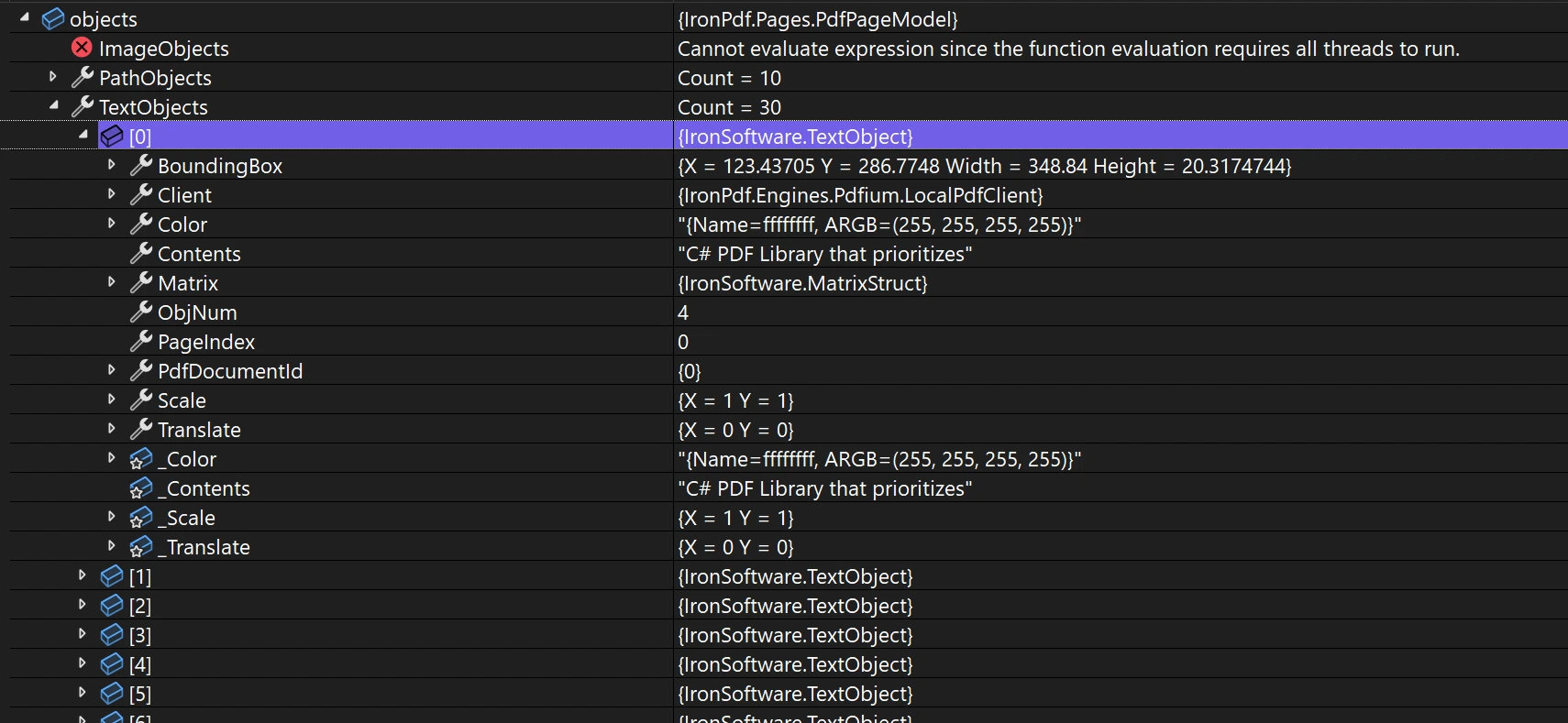
The `ObjectModel` property contains `ImageObject`, `PathObject`, and `TextObject`. Each object contains information about its page index, bounding box, `Scale`, and `Translate`. This information can be modified. For [rendering options](https://ironpdf.com/how-to/rendering-options/), you can customize how these objects display. When working with [custom margins](https://ironpdf.com/how-to/custom-margins/), understanding object positioning is important.
**`<ImageObject>`:**
- `Height`: Height of the image
- `Width`: Width of the image
- `ExportBytesAsJpg`: Method to export the image as JPG byte array
**`<PathObject>`:**
- `FillColor`: The fill color of the path
- `StrokeColor`: The stroke color of the path
- `Points`: Collection of points defining the path
- `StrokeWidth`: Line thickness in PDF user-space units
- `LineCap`: Endpoint style (`Butt`, `Round`, or `ProjectingSquare`)
- `LineJoin`: Corner style (`Miter`, `Round`, or `Bevel`)
- `DashPattern`: Alternating dash and gap lengths; empty for a solid line
- `DashPhase`: Offset into the dash pattern
- `OcgId`: Id of the layer the path belongs to, or `-1` when it is outside every layer
- `GetLayer()`: Returns the matching `PdfLayer`, or `null`
**`<TextObject>`:**
- `Color`: The color of the text
- `Contents`: The actual `Text` content
- `OcgId`: Id of the layer the text belongs to, or `-1` when it is outside every layer
- `GetLayer()`: Returns the matching `PdfLayer`, or `null`
Each object type provides methods and properties tailored to their content type. When you need to [extract text and images](https://ironpdf.com/how-to/extract-text-and-images/) or modify specific content, these objects provide granular control. This is useful when working with [PDF forms](https://ironpdf.com/how-to/create-forms/) where you need to manipulate form fields programmatically.
### How Can I Retrieve Glyph Information and Bounding Boxes?
When specifying exact glyphs with custom fonts, retrieving bounding box and glyph information is essential. IronPDF provides this information for pixel-perfect positioning when [drawing text and bitmaps](https://ironpdf.com/how-to/draw-text-and-bitmap/) on existing PDFs.
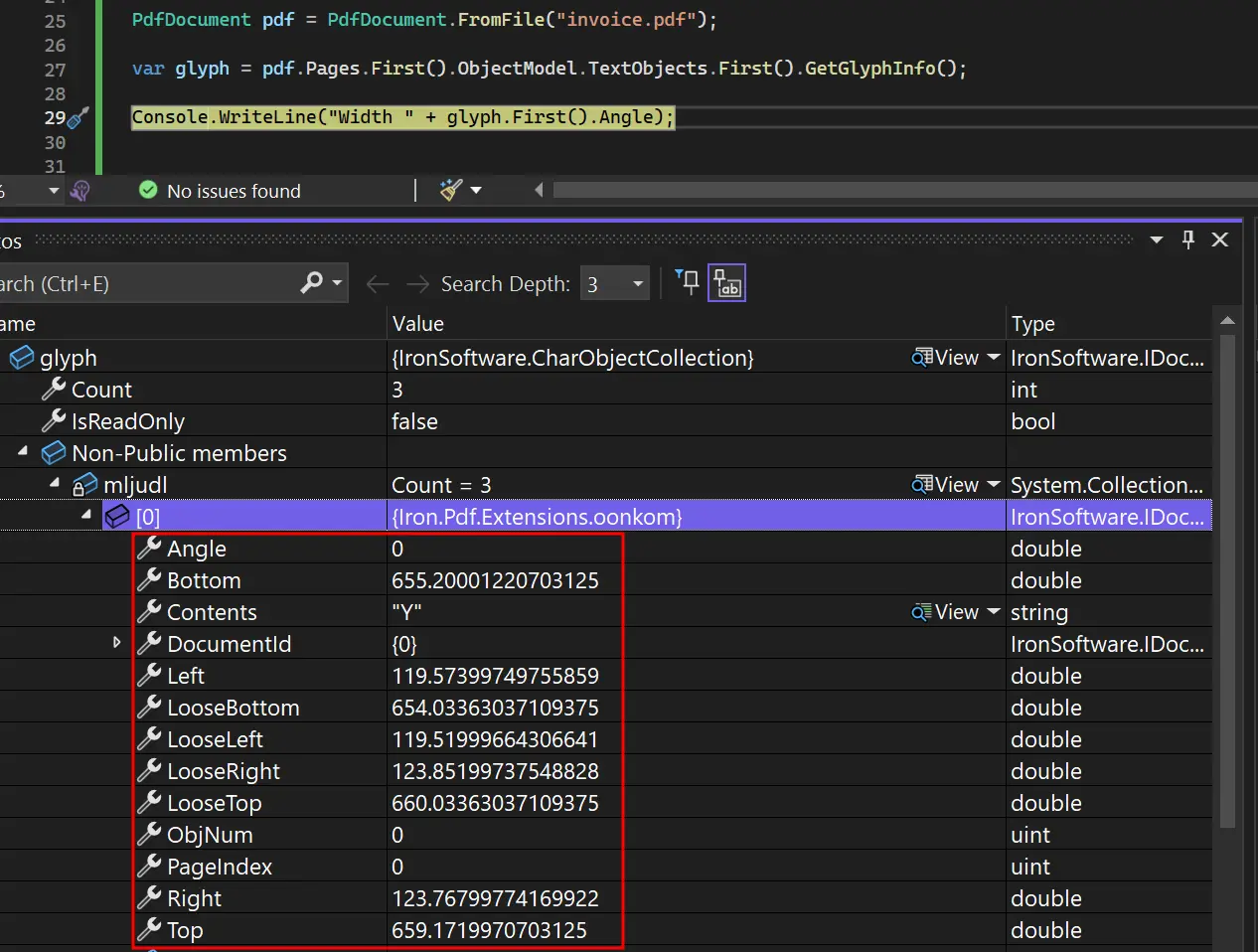
Access the `ObjectModel` from the `PdfPage` object. Then access the `TextObjects` collection. Call the `GetGlyphInfo` method to retrieve glyph and bounding box information.
```cs
using IronPdf;
using System.Linq;
PdfDocument pdf = PdfDocument.FromFile("invoice.pdf");
var glyph = pdf.Pages.First().ObjectModel.TextObjects.First().GetGlyphInfo();
```
<div class="content-img-align-center">
<div class="center-image-wrapper">
<img src="/static-assets/pdf/how-to/access-pdf-dom-object/glyphinformation.webp" alt="Debugger showing PDF glyph object properties including coordinates, bounds, and text content details" class="img-responsive add-shadow" />
</div>
</div>
The glyph information includes positioning data, font metrics, and character-specific details for advanced PDF manipulation. This allows creation of PDF processing applications that handle complex typography and layout requirements. When working with [custom fonts](https://ironpdf.com/how-to/manage-fonts/), this glyph-level access ensures accurate rendering across systems.
<hr />
## How Do I Work With PDF Layers (Optional Content Groups)?
A layered PDF stacks its content on labelled sheets, the way tracing-paper overlays sit on a drawing. These sheets are Optional Content Groups (OCGs), the layers Acrobat shows in its Layers panel, and the `PdfDocument.Layers` collection hands you the whole stack. From it you can enumerate the layers, look one up by `Id` or `Name`, walk the parent/child tree with `ChildrenOf`, and read content scoped to a single layer. Reading layers is read-only: it never renames, reorders, or toggles them. Each `PdfLayer` exposes `Id`, `Name`, `IsVisible`, `DefaultVisible`, and `ParentId`.
```csharp
using IronPdf;
using IronSoftware;
using System;
// Load a layered PDF, such as a CAD plan, engineering drawing, or map export
using PdfDocument pdf = new PdfDocument("blueprint.pdf");
// Enumerate every Optional Content Group (OCG) layer in the document
Console.WriteLine($"Document has {pdf.Layers.Count} layers");
foreach (PdfLayer layer in pdf.Layers)
{
Console.WriteLine($" {layer.Id}: \"{layer.Name}\" visible={layer.IsVisible} parent={layer.ParentId}");
}
// Look a layer up by name (case-sensitive) and extract just its text
PdfLayer titleBlock = pdf.Layers.FindByName("Title Block");
if (titleBlock != null)
{
string headerText = pdf.ExtractTextFromLayer(titleBlock.Id);
Console.WriteLine(headerText);
}
```
Beyond `ExtractTextFromLayer`, you can pull several layers at once with `ExtractTextFromLayers`, or reach the objects themselves with `GetTextObjectsByLayer` and `GetPathObjectsByLayer`. For layer-scoped text as part of a wider extraction workflow, see the guide on [extracting text and images](https://ironpdf.com/how-to/extract-text-and-images/).
[[i:(Layer names are case-sensitive, so `FindByName("title block")` will not match `"Title Block"`. A PDF with no layers returns an empty collection rather than `null`, so you can enumerate `pdf.Layers` without a null check.)]]
### How Do I Distinguish CAD Features by Stroke Style?
Some drawings carry no layer information at all. PDFs exported from surveying and CAD tools frequently ship without OCGs, so features have to be told apart by how their lines are drawn. Every `PathObject` reports its graphics state (`StrokeWidth`, `LineCap`, `LineJoin`, `DashPattern`, and `DashPhase`), which is enough to separate a dashed boundary from a solid contour, or a thick road from a thin one.
```csharp
using IronPdf;
using IronSoftware;
using System;
using System.Linq;
// PDFs from surveying and CAD tools often have no layer information.
// Distinguish features by each path's graphics-state attributes instead.
using PdfDocument pdf = new PdfDocument("survey-drawing.pdf");
var paths = pdf.Pages.First().ObjectModel.PathObjects;
foreach (PathObject path in paths)
{
bool isDashed = path.DashPattern.Count > 0;
Console.WriteLine(
$"width={path.StrokeWidth} cap={path.LineCap} join={path.LineJoin} " +
$"dashed={isDashed} color={path.StrokeColor}");
}
```
Each path prints its stroke width, cap, join, dashed state, and color to the console, so a dashed boundary and a solid contour are told apart even though the PDF carries no layers.
<hr />
## How Can I Translate PDF Objects?
Adjust PDF layout by repositioning elements like text or images. Move objects by changing their `Translate` property. This functionality is part of IronPDF's [PDF transformation capabilities](https://ironpdf.com/how-to/transform-pdf-pages/).
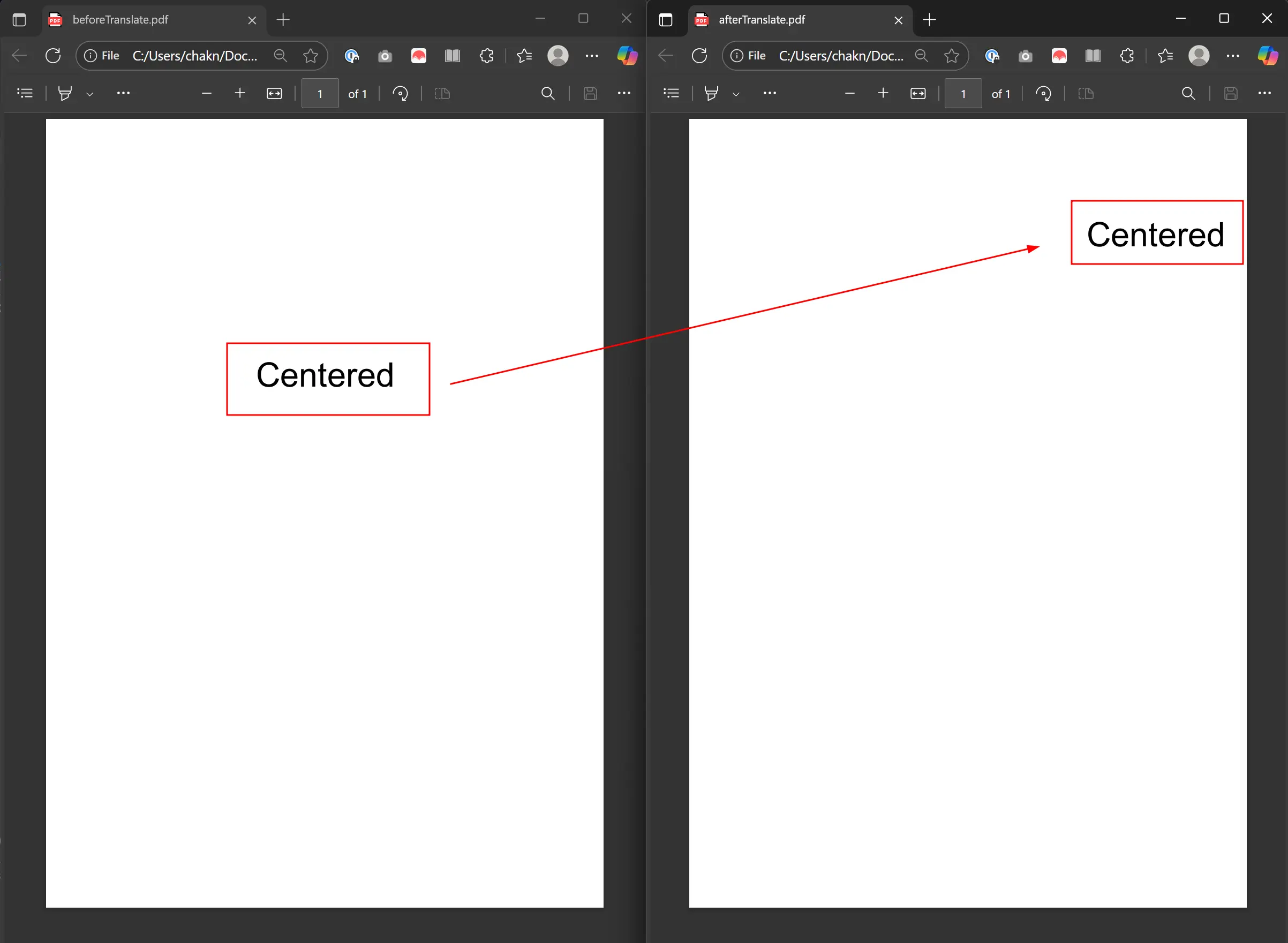
The example below renders HTML using CSS Flexbox to center text. It accesses the first `TextObject` and translates it by assigning a new `PointF` to the `Translate` property. This shifts the text 200 points right and 150 points up. For more examples, visit the [translate PDF objects example page](https://ironpdf.com/examples/translate-pdf-objects/).
### What Code Do I Use to Translate Objects?
```csharp
using IronPdf;
using System.Drawing;
using System.Linq;
// Setup the Renderer
var renderer = new ChromePdfRenderer();
// We use CSS Flexbox to perfectly center the text vertically and horizontally.
var html = @"
<div style='display: flex; justify-content: center; align-items: center; font-size: 48px;'>
Centered
</div>";
// Render the HTML to a PDF
PdfDocument pdf = renderer.RenderHtmlAsPdf(html);
// Save the original PDF to see the "before" state
pdf.SaveAs("BeforeTranslate.pdf");
// Access the first text object on the first page
// In this simple HTML, this will be our "Centered" text block.
var textObject = pdf.Pages.First().ObjectModel.TextObjects.First();
// Apply the translation
// This moves the object 200 points to the right and 150 points up from its original position.
textObject.Translate = new PointF(200, 150);
// Save the modified PDF to see the "after" state
pdf.SaveAs("AfterTranslate.pdf");
```
#### Output
The output shows "Centered" shifted 200 points right and 150 points up from its original position.
<div class="content-img-align-center">
<div class="center-image-wrapper">
<img src="/static-assets/pdf/how-to/access-pdf-dom-object/translate.webp" alt="Before and after PDF translation comparison showing preserved text positioning and formatting" class="img-responsive add-shadow" />
</div>
</div>
Translation operations maintain the object's original properties like font, size, and color while only changing position. This is ideal for layout adjustments without affecting visual appearance. This feature works with [headers and footers](https://ironpdf.com/how-to/headers-and-footers/) when repositioning dynamically generated content.
<hr />
## How Do I Scale PDF Objects?
Resize PDF objects using the `Scale` property. This property acts as a multiplier. Values greater than 1 increase size, while values between 0 and 1 decrease it. Scaling is essential for dynamic layouts and adjusting content to fit page dimensions. See the [scale PDF objects guide](https://ironpdf.com/examples/scale-pdf-objects/) for more examples.
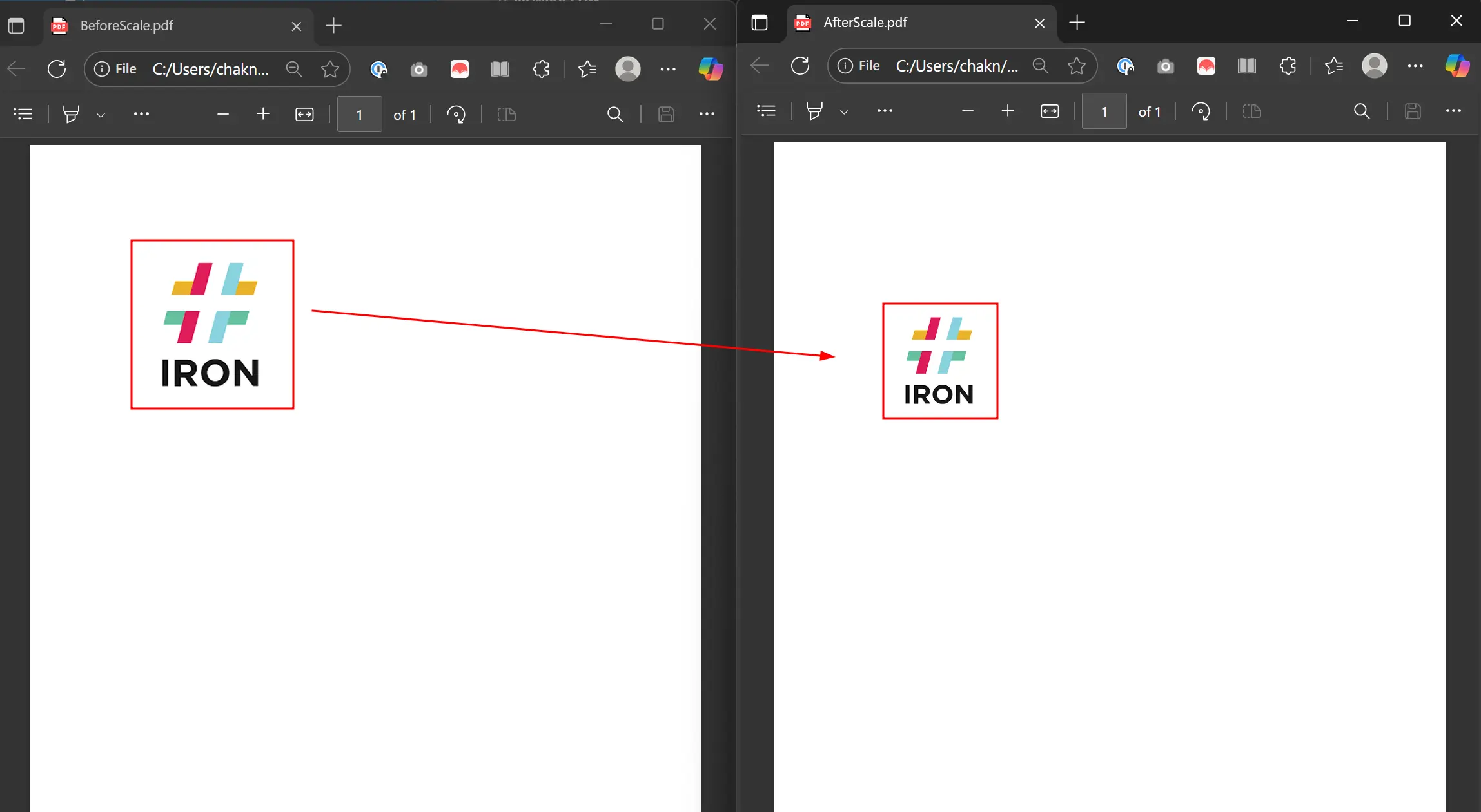
The example renders HTML containing an image. It accesses the first `ImageObject` and scales it to 70% by assigning `Scale` a new `PointF` with 0.7 for both axes.
### What's the Code for Scaling PDF Objects?
```csharp
using IronPdf;
using System.Linq;
// Setup the Renderer
var renderer = new ChromePdfRenderer();
// The image is placed in a div to give it some space on the page.
string html = @"<img src='https://encrypted-tbn0.gstatic.com/images?q=tbn:ANd9GcTi8LuOR6_A98euPLs-JRwoLU7Nc31nVP15rw&s'>";
// Render the HTML to a PDF
PdfDocument pdf = renderer.RenderHtmlAsPdf(html);
// Save the PDF before scaling for comparison
pdf.SaveAs("BeforeScale.pdf");
// Access the first image object on the first page
var image = pdf.Pages.First().ObjectModel.ImageObjects.First();
// We scale the image to 70% of its original size on both the X and Y axes.
image.Scale = new System.Drawing.PointF(0.7f, 0.7f);
// Save the modified PDF to see the result
pdf.SaveAs("AfterScale.pdf");
```
Apply different scaling factors to X and Y axes independently for non-uniform scaling. This is useful for fitting content into specific dimensions. When working with [custom paper sizes](https://ironpdf.com/how-to/custom-paper-size/), scaling helps ensure content fits within page boundaries.
#### Output
The output shows the image scaled to 70% of its original size.
<div class="content-img-align-center">
<div class="center-image-wrapper">
<img src="/static-assets/pdf/how-to/access-pdf-dom-object/scale.webp" alt="PDF scaling demo: IRON logo scaled from large size (left) to small size (right) with arrow showing transformation" class="img-responsive add-shadow" />
</div>
</div>
<hr />
## How Can I Remove PDF Objects?
Remove objects by accessing the PDF DOM collection like `ImageObjects` or `TextObjects`. Call `RemoveAt` on the collection, passing the index of the object to delete. This is useful for redacting content or simplifying documents. Learn more at the [remove PDF objects example](https://ironpdf.com/examples/remove-pdf-objects/).
The code loads BeforeScale.pdf and removes the first image from the first page.
### What Code Should I Use to Remove Objects?
#### Input
A PDF containing an embedded product image.
<iframe loading="lazy" src="/static-assets/pdf/how-to/access-pdf-dom-object/image-document.pdf#view=fit" width="100%" height="500px">
</iframe>
```csharp
using IronPdf;
using System.Linq;
// Load the PDF file we created in the Scale example
PdfDocument pdf = PdfDocument.FromFile("BeforeScale.pdf");
// Access DOM Objects
var objects = pdf.Pages.First().ObjectModel;
// Remove first image
objects.ImageObjects.RemoveAt(0);
// Save the modified PDF
pdf.SaveAs("removedFirstImage.pdf");
```
#### Output
The first image object has been removed from the page, leaving the rest of the content in place.
<iframe loading="lazy" src="/static-assets/pdf/how-to/access-pdf-dom-object/removedFirstImage.pdf#view=fit" width="100%" height="500px">
</iframe>
### What Happens When I Remove Multiple Objects?
Indices of remaining objects shift after removal. When removing multiple objects, remove them in reverse order to maintain correct indices. This technique helps when you [redact text](https://ironpdf.com/how-to/redact-text/) from sensitive documents.
## How Do I Combine Multiple DOM Operations?
IronPDF's DOM access enables sophisticated document processing workflows. Combine operations for complex transformations:
### When Should I Use Combined Operations?
#### Input
The source PDF contains text marked "Important" and an image.
<iframe loading="lazy" src="/static-assets/pdf/how-to/access-pdf-dom-object/complex-document.pdf#view=fit" width="100%" height="500px">
</iframe>
```csharp
// Example of combining multiple DOM operations
using IronPdf;
using System.Linq;
PdfDocument pdf = PdfDocument.FromFile("complex-document.pdf");
// Iterate through all pages
foreach (var page in pdf.Pages)
{
var objects = page.ObjectModel;
// Process text objects
foreach (var textObj in objects.TextObjects)
{
// Change color of specific text
if (textObj.Contents.Contains("Important"))
{
textObj.FillColor = IronSoftware.Drawing.Color.Red;
}
}
// Scale down all images by 50%
foreach (var imgObj in objects.ImageObjects)
{
imgObj.Scale = new System.Drawing.PointF(0.5f, 0.5f);
}
}
pdf.SaveAs("processed-document.pdf");
```
#### Output
The "Important" text is red and the image is scaled to 50 percent.
<iframe loading="lazy" src="/static-assets/pdf/how-to/access-pdf-dom-object/processed-document.pdf#view=fit" width="100%" height="500px">
</iframe>
### What Are Common Use Cases for Combined Operations?
Combined DOM operations work well for:
1. **Batch Document Processing:** Process documents to standardize formatting or remove sensitive content
2. **Dynamic Report Generation:** Modify template PDFs with real-time data while controlling layout
3. **Content Migration:** Extract and reorganize content from PDFs into new layouts
4. **Accessibility Improvements:** Enhance documents by modifying text size, contrast, or spacing
These techniques enable powerful PDF processing applications that handle complex modifications. For managing document properties, see the [metadata management guide](https://ironpdf.com/how-to/metadata/).
## How Does DOM Access Compare to Other PDF Manipulation Methods?
Working with PDF DOM provides advantages over traditional approaches:
#### Input
The source quarterly report lists two figures marked as losses.
<iframe loading="lazy" src="/static-assets/pdf/how-to/access-pdf-dom-object/quarterly-report.pdf#view=fit" width="100%" height="500px">
</iframe>
```csharp
// Example: Selective content modification based on criteria
using IronPdf;
using System.Linq;
PdfDocument report = PdfDocument.FromFile("quarterly-report.pdf");
foreach (var page in report.Pages)
{
var textObjects = page.ObjectModel.TextObjects;
// Highlight negative values in financial reports
foreach (var text in textObjects)
{
if (text.Contents.StartsWith("-$") || text.Contents.Contains("Loss"))
{
text.FillColor = IronSoftware.Drawing.Color.Red;
}
}
}
report.SaveAs("highlighted-report.pdf");
```
#### Output
Every value starting with -$ or containing "Loss" is colored red.
<iframe loading="lazy" src="/static-assets/pdf/how-to/access-pdf-dom-object/highlighted-report.pdf#view=fit" width="100%" height="500px">
</iframe>
This granular control isn't possible with [HTML to PDF conversion](https://ironpdf.com/how-to/html-to-pdf-responsive-css/) alone, making DOM access essential for sophisticated PDF processing.
Ready to see what else you can do? Check out the tutorial page here: [Edit PDFs](https://ironpdf.com/tutorials/csharp-edit-pdf-complete-tutorial/)
To access PDF DOM objects in C#, use IronPDF's ObjectModel property which provides programmatic access to text, images, and path objects within PDF documents, allowing you to read, modify, translate, scale, and remove elements directly.
Quickstart: Access and Update PDF DOM Elements with IronPDF
Start manipulating PDF documents using IronPDF's DOM access features. This guide shows how to access the PDF DOM, select a page, and modify text objects. Load your PDF, access the desired page, and update content with a few lines of code.
1Install IronPDF with NuGet Package Manager
PM > Install-Package IronPdf
Install-Package IronPdf
2Copy and run this code snippet.
var objs = new IronPdf.ChromePdfRenderer().RenderUrlAsPdf("https://example.com").Pages.First().ObjectModel;
var objs = new IronPdf.ChromePdfRenderer().RenderUrlAsPdf("https://example.com").Pages.First().ObjectModel;
C#
3Deploy to test on your live environment
Start using IronPDF in your project today with a free trial
Access the PDF's Pages collection and select the desired page
Use the ObjectModel property to view and interact with the DOM objects
Save or export the modified PDF document
How Do I Access DOM Objects in PDFs?
The ObjectModel is accessed from the PdfPage object. First, import the target PDF and access its Pages property. From there, select any page to access the ObjectModel property. This enables interaction with PDF content programmatically, similar to working with HTML DOM elements.
When working with PDF DOM objects, you access the underlying structure of the PDF document. This includes text elements, images, vector graphics (paths), and other content that makes up the visual representation of your PDF. IronPDF provides an object-oriented approach to PDF manipulation that integrates with C# applications.
using IronPdf;using System.Linq;// Instantiate RendererChromePdfRenderer renderer = new ChromePdfRenderer();// Create a PDF from a URLPdfDocument pdf = renderer.RenderUrlAsPdf("https://ironpdf.com/");// Access DOM Objectsvar objects = pdf.Pages.First().ObjectModel;
using IronPdf;
using System.Linq;

// Instantiate Renderer
ChromePdfRenderer renderer = new ChromePdfRenderer();

// Create a PDF from a URL
PdfDocument pdf = renderer.RenderUrlAsPdf("https://ironpdf.com/");

// Access DOM Objects
var objects = pdf.Pages.First().ObjectModel;
ImportsIronPdfImportsSystem.Linq' Instantiate RendererPrivate renderer As New ChromePdfRenderer()' Create a PDF from a URLPrivate pdf AsPdfDocument = renderer.RenderUrlAsPdf("https://ironpdf.com/")' Access DOM ObjectsPrivate objects = pdf.Pages.First().ObjectModel
Imports IronPdf
Imports System.Linq

' Instantiate Renderer
Private renderer As New ChromePdfRenderer()

' Create a PDF from a URL
Private pdf As PdfDocument = renderer.RenderUrlAsPdf("https://ironpdf.com/")

' Access DOM Objects
Private objects = pdf.Pages.First().ObjectModel
The ObjectModel property contains ImageObject, PathObject, and TextObject. Each object contains information about its page index, bounding box, Scale, and Translate. This information can be modified. For rendering options, you can customize how these objects display. When working with custom margins, understanding object positioning is important.
<ImageObject>:
Height: Height of the image
Width: Width of the image
ExportBytesAsJpg: Method to export the image as JPG byte array
<PathObject>:
FillColor: The fill color of the path
StrokeColor: The stroke color of the path
Points: Collection of points defining the path
StrokeWidth: Line thickness in PDF user-space units
LineCap: Endpoint style (Butt, Round, or ProjectingSquare)
LineJoin: Corner style (Miter, Round, or Bevel)
DashPattern: Alternating dash and gap lengths; empty for a solid line
DashPhase: Offset into the dash pattern
OcgId: Id of the layer the path belongs to, or -1 when it is outside every layer
GetLayer(): Returns the matching PdfLayer, or null
<TextObject>:
Color: The color of the text
Contents: The actual Text content
OcgId: Id of the layer the text belongs to, or -1 when it is outside every layer
GetLayer(): Returns the matching PdfLayer, or null
Each object type provides methods and properties tailored to their content type. When you need to extract text and images or modify specific content, these objects provide granular control. This is useful when working with PDF forms where you need to manipulate form fields programmatically.
How Can I Retrieve Glyph Information and Bounding Boxes?
When specifying exact glyphs with custom fonts, retrieving bounding box and glyph information is essential. IronPDF provides this information for pixel-perfect positioning when drawing text and bitmaps on existing PDFs.
Access the ObjectModel from the PdfPage object. Then access the TextObjects collection. Call the GetGlyphInfo method to retrieve glyph and bounding box information.
using IronPdf;using System.Linq;PdfDocument pdf = PdfDocument.FromFile("invoice.pdf");var glyph = pdf.Pages.First().ObjectModel.TextObjects.First().GetGlyphInfo();
using IronPdf;
using System.Linq;

PdfDocument pdf = PdfDocument.FromFile("invoice.pdf");

var glyph = pdf.Pages.First().ObjectModel.TextObjects.First().GetGlyphInfo();
ImportsIronPdfImportsSystem.LinqDim pdf AsPdfDocument = PdfDocument.FromFile("invoice.pdf")Dim glyph = pdf.Pages.First().ObjectModel.TextObjects.First().GetGlyphInfo()
Imports IronPdf
Imports System.Linq

Dim pdf As PdfDocument = PdfDocument.FromFile("invoice.pdf")

Dim glyph = pdf.Pages.First().ObjectModel.TextObjects.First().GetGlyphInfo()
The glyph information includes positioning data, font metrics, and character-specific details for advanced PDF manipulation. This allows creation of PDF processing applications that handle complex typography and layout requirements. When working with custom fonts, this glyph-level access ensures accurate rendering across systems.
How Do I Work With PDF Layers (Optional Content Groups)?
A layered PDF stacks its content on labelled sheets, the way tracing-paper overlays sit on a drawing. These sheets are Optional Content Groups (OCGs), the layers Acrobat shows in its Layers panel, and the PdfDocument.Layers collection hands you the whole stack. From it you can enumerate the layers, look one up by Id or Name, walk the parent/child tree with ChildrenOf, and read content scoped to a single layer. Reading layers is read-only: it never renames, reorders, or toggles them. Each PdfLayer exposes Id, Name, IsVisible, DefaultVisible, and ParentId.
using IronPdf;using IronSoftware;using System;// Load a layered PDF, such as a CAD plan, engineering drawing, or map exportusing PdfDocument pdf = new PdfDocument("blueprint.pdf");// Enumerate every Optional Content Group (OCG) layer in the documentConsole.WriteLine($"Document has {pdf.Layers.Count} layers");foreach (PdfLayer layer in pdf.Layers){Console.WriteLine($" {layer.Id}: \"{layer.Name}\" visible={layer.IsVisible} parent={layer.ParentId}");}// Look a layer up by name (case-sensitive) and extract just its textPdfLayer titleBlock = pdf.Layers.FindByName("Title Block");if (titleBlock != null){ string headerText = pdf.ExtractTextFromLayer(titleBlock.Id);Console.WriteLine(headerText);}
using IronPdf;
using IronSoftware;
using System;

// Load a layered PDF, such as a CAD plan, engineering drawing, or map export
using PdfDocument pdf = new PdfDocument("blueprint.pdf");

// Enumerate every Optional Content Group (OCG) layer in the document
Console.WriteLine($"Document has {pdf.Layers.Count} layers");
foreach (PdfLayer layer in pdf.Layers)
{
    Console.WriteLine($"  {layer.Id}: \"{layer.Name}\"  visible={layer.IsVisible}  parent={layer.ParentId}");
}

// Look a layer up by name (case-sensitive) and extract just its text
PdfLayer titleBlock = pdf.Layers.FindByName("Title Block");
if (titleBlock != null)
{
    string headerText = pdf.ExtractTextFromLayer(titleBlock.Id);
    Console.WriteLine(headerText);
}
C#
Beyond ExtractTextFromLayer, you can pull several layers at once with ExtractTextFromLayers, or reach the objects themselves with GetTextObjectsByLayer and GetPathObjectsByLayer. For layer-scoped text as part of a wider extraction workflow, see the guide on extracting text and images.
Please note: Layer names are case-sensitive, so FindByName("title block") will not match "Title Block". A PDF with no layers returns an empty collection rather than null, so you can enumerate pdf.Layers without a null check.
How Do I Distinguish CAD Features by Stroke Style?
Some drawings carry no layer information at all. PDFs exported from surveying and CAD tools frequently ship without OCGs, so features have to be told apart by how their lines are drawn. Every PathObject reports its graphics state (StrokeWidth, LineCap, LineJoin, DashPattern, and DashPhase), which is enough to separate a dashed boundary from a solid contour, or a thick road from a thin one.
using IronPdf;using IronSoftware;using System;using System.Linq;// PDFs from surveying and CAD tools often have no layer information.// Distinguish features by each path's graphics-state attributes instead.using PdfDocument pdf = new PdfDocument("survey-drawing.pdf");var paths = pdf.Pages.First().ObjectModel.PathObjects;foreach (PathObject path in paths){ bool isDashed = path.DashPattern.Count > 0;Console.WriteLine( $"width={path.StrokeWidth} cap={path.LineCap} join={path.LineJoin} " + $"dashed={isDashed} color={path.StrokeColor}");}
using IronPdf;
using IronSoftware;
using System;
using System.Linq;

// PDFs from surveying and CAD tools often have no layer information.
// Distinguish features by each path's graphics-state attributes instead.
using PdfDocument pdf = new PdfDocument("survey-drawing.pdf");

var paths = pdf.Pages.First().ObjectModel.PathObjects;
foreach (PathObject path in paths)
{
    bool isDashed = path.DashPattern.Count > 0;
    Console.WriteLine(
        $"width={path.StrokeWidth}  cap={path.LineCap}  join={path.LineJoin}  " +
        $"dashed={isDashed}  color={path.StrokeColor}");
}
C#
Each path prints its stroke width, cap, join, dashed state, and color to the console, so a dashed boundary and a solid contour are told apart even though the PDF carries no layers.
How Can I Translate PDF Objects?
Adjust PDF layout by repositioning elements like text or images. Move objects by changing their Translate property. This functionality is part of IronPDF's PDF transformation capabilities.
The example below renders HTML using CSS Flexbox to center text. It accesses the first TextObject and translates it by assigning a new PointF to the Translate property. This shifts the text 200 points right and 150 points up. For more examples, visit the translate PDF objects example page.
What Code Do I Use to Translate Objects?
using IronPdf;using System.Drawing;using System.Linq;// Setup the Renderervar renderer = new ChromePdfRenderer();// We use CSS Flexbox to perfectly center the text vertically and horizontally.var html = @"<div style='display: flex; justify-content: center; align-items: center; font-size: 48px;'> Centered</div>";// Render the HTML to a PDFPdfDocument pdf = renderer.RenderHtmlAsPdf(html);// Save the original PDF to see the "before" statepdf.SaveAs("BeforeTranslate.pdf");// Access the first text object on the first page// In this simple HTML, this will be our "Centered" text block.var textObject = pdf.Pages.First().ObjectModel.TextObjects.First();// Apply the translation// This moves the object 200 points to the right and 150 points up from its original position.textObject.Translate = new PointF(200, 150);// Save the modified PDF to see the "after" statepdf.SaveAs("AfterTranslate.pdf");
using IronPdf;
using System.Drawing;
using System.Linq;

// Setup the Renderer
var renderer = new ChromePdfRenderer();

// We use CSS Flexbox to perfectly center the text vertically and horizontally.
var html = @"
<div style='display: flex; justify-content: center; align-items: center; font-size: 48px;'>
    Centered
</div>";

// Render the HTML to a PDF
PdfDocument pdf = renderer.RenderHtmlAsPdf(html);

// Save the original PDF to see the "before" state
pdf.SaveAs("BeforeTranslate.pdf");

// Access the first text object on the first page
// In this simple HTML, this will be our "Centered" text block.
var textObject = pdf.Pages.First().ObjectModel.TextObjects.First();

// Apply the translation
// This moves the object 200 points to the right and 150 points up from its original position.
textObject.Translate = new PointF(200, 150);

// Save the modified PDF to see the "after" state
pdf.SaveAs("AfterTranslate.pdf");
ImportsIronPdfImportsSystem.DrawingImportsSystem.Linq' Setup the RendererDim renderer As New ChromePdfRenderer()' We use CSS Flexbox to perfectly center the text vertically and horizontally.Dim html AsString = "<div style='display: flex; justify-content: center; align-items: center; font-size: 48px;'> Centered</div>"' Render the HTML to a PDFDim pdf AsPdfDocument = renderer.RenderHtmlAsPdf(html)' Save the original PDF to see the "before" statepdf.SaveAs("BeforeTranslate.pdf")' Access the first text object on the first page' In this simple HTML, this will be our "Centered" text block.Dim textObject = pdf.Pages.First().ObjectModel.TextObjects.First()' Apply the translation' This moves the object 200 points to the right and 150 points up from its original position.textObject.Translate = New PointF(200, 150)' Save the modified PDF to see the "after" statepdf.SaveAs("AfterTranslate.pdf")
Imports IronPdf
Imports System.Drawing
Imports System.Linq

' Setup the Renderer
Dim renderer As New ChromePdfRenderer()

' We use CSS Flexbox to perfectly center the text vertically and horizontally.
Dim html As String = "
<div style='display: flex; justify-content: center; align-items: center; font-size: 48px;'>
    Centered
</div>"

' Render the HTML to a PDF
Dim pdf As PdfDocument = renderer.RenderHtmlAsPdf(html)

' Save the original PDF to see the "before" state
pdf.SaveAs("BeforeTranslate.pdf")

' Access the first text object on the first page
' In this simple HTML, this will be our "Centered" text block.
Dim textObject = pdf.Pages.First().ObjectModel.TextObjects.First()

' Apply the translation
' This moves the object 200 points to the right and 150 points up from its original position.
textObject.Translate = New PointF(200, 150)

' Save the modified PDF to see the "after" state
pdf.SaveAs("AfterTranslate.pdf")
Output
The output shows "Centered" shifted 200 points right and 150 points up from its original position.
Translation operations maintain the object's original properties like font, size, and color while only changing position. This is ideal for layout adjustments without affecting visual appearance. This feature works with headers and footers when repositioning dynamically generated content.
How Do I Scale PDF Objects?
Resize PDF objects using the Scale property. This property acts as a multiplier. Values greater than 1 increase size, while values between 0 and 1 decrease it. Scaling is essential for dynamic layouts and adjusting content to fit page dimensions. See the scale PDF objects guide for more examples.
The example renders HTML containing an image. It accesses the first ImageObject and scales it to 70% by assigning Scale a new PointF with 0.7 for both axes.
What's the Code for Scaling PDF Objects?
using IronPdf;using System.Linq;// Setup the Renderervar renderer = new ChromePdfRenderer();// The image is placed in a div to give it some space on the page.string html = @"<img src='https://encrypted-tbn0.gstatic.com/images?q=tbn:ANd9GcTi8LuOR6_A98euPLs-JRwoLU7Nc31nVP15rw&s'>";// Render the HTML to a PDFPdfDocument pdf = renderer.RenderHtmlAsPdf(html);// Save the PDF before scaling for comparisonpdf.SaveAs("BeforeScale.pdf");// Access the first image object on the first pagevar image = pdf.Pages.First().ObjectModel.ImageObjects.First();// We scale the image to 70% of its original size on both the X and Y axes.image.Scale = new System.Drawing.PointF(0.7f, 0.7f);// Save the modified PDF to see the resultpdf.SaveAs("AfterScale.pdf");
using IronPdf;
using System.Linq;

// Setup the Renderer
var renderer = new ChromePdfRenderer();

// The image is placed in a div to give it some space on the page.
string html = @"<img src='https://encrypted-tbn0.gstatic.com/images?q=tbn:ANd9GcTi8LuOR6_A98euPLs-JRwoLU7Nc31nVP15rw&s'>";

// Render the HTML to a PDF
PdfDocument pdf = renderer.RenderHtmlAsPdf(html);

// Save the PDF before scaling for comparison
pdf.SaveAs("BeforeScale.pdf");

// Access the first image object on the first page
var image = pdf.Pages.First().ObjectModel.ImageObjects.First();

// We scale the image to 70% of its original size on both the X and Y axes.
image.Scale = new System.Drawing.PointF(0.7f, 0.7f);

// Save the modified PDF to see the result
pdf.SaveAs("AfterScale.pdf");
ImportsIronPdfImportsSystem.LinqImportsSystem.Drawing' Setup the RendererDim renderer As New ChromePdfRenderer()' The image is placed in a div to give it some space on the page.Dim html AsString = "<img src='https://encrypted-tbn0.gstatic.com/images?q=tbn:ANd9GcTi8LuOR6_A98euPLs-JRwoLU7Nc31nVP15rw&s'>"' Render the HTML to a PDFDim pdf AsPdfDocument = renderer.RenderHtmlAsPdf(html)' Save the PDF before scaling for comparisonpdf.SaveAs("BeforeScale.pdf")' Access the first image object on the first pageDim image = pdf.Pages.First().ObjectModel.ImageObjects.First()' We scale the image to 70% of its original size on both the X and Y axes.image.Scale = New PointF(0.7F, 0.7F)' Save the modified PDF to see the resultpdf.SaveAs("AfterScale.pdf")
Imports IronPdf
Imports System.Linq
Imports System.Drawing

' Setup the Renderer
Dim renderer As New ChromePdfRenderer()

' The image is placed in a div to give it some space on the page.
Dim html As String = "<img src='https://encrypted-tbn0.gstatic.com/images?q=tbn:ANd9GcTi8LuOR6_A98euPLs-JRwoLU7Nc31nVP15rw&s'>"

' Render the HTML to a PDF
Dim pdf As PdfDocument = renderer.RenderHtmlAsPdf(html)

' Save the PDF before scaling for comparison
pdf.SaveAs("BeforeScale.pdf")

' Access the first image object on the first page
Dim image = pdf.Pages.First().ObjectModel.ImageObjects.First()

' We scale the image to 70% of its original size on both the X and Y axes.
image.Scale = New PointF(0.7F, 0.7F)

' Save the modified PDF to see the result
pdf.SaveAs("AfterScale.pdf")
Apply different scaling factors to X and Y axes independently for non-uniform scaling. This is useful for fitting content into specific dimensions. When working with custom paper sizes, scaling helps ensure content fits within page boundaries.
Output
The output shows the image scaled to 70% of its original size.
How Can I Remove PDF Objects?
Remove objects by accessing the PDF DOM collection like ImageObjects or TextObjects. Call RemoveAt on the collection, passing the index of the object to delete. This is useful for redacting content or simplifying documents. Learn more at the remove PDF objects example.
The code loads BeforeScale.pdf and removes the first image from the first page.
What Code Should I Use to Remove Objects?
Input
A PDF containing an embedded product image.
using IronPdf;using System.Linq;// Load the PDF file we created in the Scale examplePdfDocument pdf = PdfDocument.FromFile("BeforeScale.pdf");// Access DOM Objectsvar objects = pdf.Pages.First().ObjectModel;// Remove first imageobjects.ImageObjects.RemoveAt(0);// Save the modified PDFpdf.SaveAs("removedFirstImage.pdf");
using IronPdf;
using System.Linq;

// Load the PDF file we created in the Scale example
PdfDocument pdf = PdfDocument.FromFile("BeforeScale.pdf");

// Access DOM Objects
var objects = pdf.Pages.First().ObjectModel;

// Remove first image
objects.ImageObjects.RemoveAt(0);

// Save the modified PDF
pdf.SaveAs("removedFirstImage.pdf");
ImportsIronPdfImportsSystem.Linq' Load the PDF file we created in the Scale exampleDim pdf AsPdfDocument = PdfDocument.FromFile("BeforeScale.pdf")' Access DOM ObjectsDim objects = pdf.Pages.First().ObjectModel' Remove first imageobjects.ImageObjects.RemoveAt(0)' Save the modified PDFpdf.SaveAs("removedFirstImage.pdf")
Imports IronPdf
Imports System.Linq

' Load the PDF file we created in the Scale example
Dim pdf As PdfDocument = PdfDocument.FromFile("BeforeScale.pdf")

' Access DOM Objects
Dim objects = pdf.Pages.First().ObjectModel

' Remove first image
objects.ImageObjects.RemoveAt(0)

' Save the modified PDF
pdf.SaveAs("removedFirstImage.pdf")
Output
The first image object has been removed from the page, leaving the rest of the content in place.
What Happens When I Remove Multiple Objects?
Indices of remaining objects shift after removal. When removing multiple objects, remove them in reverse order to maintain correct indices. This technique helps when you redact text from sensitive documents.
My favorite library of this kind is IronPDF. It allows for fast and efficient manipulation of PDF files. It also has many valuable features, like exporting to PDF/A format and digitally signing PDF documents.
IronOCR means we can save $40,000 annually from manual processing, while enhancing productivity and freeing up resources for high-impact tasks. I would highly recommend it.
The IronSuite play a crucial role in our operations. These are tools that increase efficiencies across the business including creating floor plans and improving inventory management.
IronPDF's DOM access enables sophisticated document processing workflows. Combine operations for complex transformations:
When Should I Use Combined Operations?
Input
The source PDF contains text marked "Important" and an image.
// Example of combining multiple DOM operationsusing IronPdf;using System.Linq;PdfDocument pdf = PdfDocument.FromFile("complex-document.pdf");// Iterate through all pagesforeach (var page in pdf.Pages){ var objects = page.ObjectModel; // Process text objects foreach (var textObj in objects.TextObjects) { // Change color of specific text if (textObj.Contents.Contains("Important")) { textObj.FillColor = IronSoftware.Drawing.Color.Red; } } // Scale down all images by 50% foreach (var imgObj in objects.ImageObjects) { imgObj.Scale = new System.Drawing.PointF(0.5f, 0.5f); }}pdf.SaveAs("processed-document.pdf");
// Example of combining multiple DOM operations
using IronPdf;
using System.Linq;

PdfDocument pdf = PdfDocument.FromFile("complex-document.pdf");

// Iterate through all pages
foreach (var page in pdf.Pages)
{
    var objects = page.ObjectModel;

    // Process text objects
    foreach (var textObj in objects.TextObjects)
    {
        // Change color of specific text
        if (textObj.Contents.Contains("Important"))
        {
            textObj.FillColor = IronSoftware.Drawing.Color.Red;
        }
    }

    // Scale down all images by 50%
    foreach (var imgObj in objects.ImageObjects)
    {
        imgObj.Scale = new System.Drawing.PointF(0.5f, 0.5f);
    }
}

pdf.SaveAs("processed-document.pdf");
C#
Output
The "Important" text is red and the image is scaled to 50 percent.
What Are Common Use Cases for Combined Operations?
Combined DOM operations work well for:
Batch Document Processing: Process documents to standardize formatting or remove sensitive content
Dynamic Report Generation: Modify template PDFs with real-time data while controlling layout
Content Migration: Extract and reorganize content from PDFs into new layouts
Accessibility Improvements: Enhance documents by modifying text size, contrast, or spacing
These techniques enable powerful PDF processing applications that handle complex modifications. For managing document properties, see the metadata management guide.
How Does DOM Access Compare to Other PDF Manipulation Methods?
Working with PDF DOM provides advantages over traditional approaches:
Input
The source quarterly report lists two figures marked as losses.
// Example: Selective content modification based on criteriausing IronPdf;using System.Linq;PdfDocument report = PdfDocument.FromFile("quarterly-report.pdf");foreach (var page in report.Pages){ var textObjects = page.ObjectModel.TextObjects; // Highlight negative values in financial reports foreach (var text in textObjects) { if (text.Contents.StartsWith("-$") || text.Contents.Contains("Loss")) { text.FillColor = IronSoftware.Drawing.Color.Red; } }}report.SaveAs("highlighted-report.pdf");
// Example: Selective content modification based on criteria
using IronPdf;
using System.Linq;

PdfDocument report = PdfDocument.FromFile("quarterly-report.pdf");

foreach (var page in report.Pages)
{
    var textObjects = page.ObjectModel.TextObjects;

    // Highlight negative values in financial reports
    foreach (var text in textObjects)
    {
        if (text.Contents.StartsWith("-$") || text.Contents.Contains("Loss"))
        {
            text.FillColor = IronSoftware.Drawing.Color.Red;
        }
    }
}

report.SaveAs("highlighted-report.pdf");
C#
Output
Every value starting with -$ or containing "Loss" is colored red.
This granular control isn't possible with HTML to PDF conversion alone, making DOM access essential for sophisticated PDF processing.
Ready to see what else you can do? Check out the tutorial page here: Edit PDFs
Frequently Asked Questions
How can I access PDF DOM objects in C#?
Access PDF DOM objects in C# using IronPDF by utilizing the `ObjectModel` property. This allows you to programmatically read, modify, and manipulate text, images, and path objects within a PDF document.
What is the `ObjectModel` property in IronPDF?
The `ObjectModel` property in IronPDF provides access to the PDF DOM, allowing interaction with elements such as text objects, image objects, and path objects on a specified PDF page.
How do I modify PDF text objects using IronPDF?
Modify PDF text objects in IronPDF by accessing them via the `ObjectModel` and `TextObjects` collection, where you can change properties like color or content using provided methods.
Can I extract glyph and bounding box information from PDFs using IronPDF?
Yes, IronPDF allows you to retrieve glyph and bounding box information by accessing the `TextObjects` and using the `GetGlyphInfo` method, essential for precise text positioning.
Is it possible to work with layers in a PDF using IronPDF?
IronPDF provides support for handling Optional Content Groups (OCGs) or layers within a PDF, allowing enumeration and content extraction scoped to specific layers.
How do I remove objects from a PDF using IronPDF?
You can remove objects like images or text from a PDF by accessing the corresponding collection in the `ObjectModel` and using the `RemoveAt` function to delete an object by index.
What is the method to scale PDF objects using IronPDF?
PDF objects can be scaled using the `Scale` property in IronPDF's `ObjectModel`, allowing you to adjust the dimensions of elements such as images or text by specifying scale factors.
How can I translate PDF objects in IronPDF?
Translate PDF objects in IronPDF by adjusting their `Translate` property. This repositioning enables layout adjustments without altering the visual style of the objects.
How do I distinguish CAD features in a PDF without layers using IronPDF?
IronPDF allows you to differentiate CAD features without layers by analyzing the `PathObject` attributes such as `StrokeWidth`, `LineCap`, and `DashPattern`.
What are some common use cases for combined PDF DOM operations using IronPDF?
Combined PDF DOM operations are useful for batch document processing, dynamic report generation, content migration, and improving document accessibility, allowing complex modifications using IronPDF.
Curtis Chau holds a Bachelor’s degree in Computer Science (Carleton University) and specializes in front-end development with expertise in Node.js, TypeScript, JavaScript, and React. Passionate about crafting intuitive and aesthetically pleasing user interfaces, Curtis enjoys working with modern frameworks and creating well-structured, visually appealing manuals.