
Convert ASPX Pages to PDF in C# ASP.NET

Convert ASPX pages to PDF in C# using IronPDF's AspxToPdf.RenderThisPageAsPdf() method, which instantly transforms any ASP.NET web form into a downloadable PDF document with preserved styling, links, and forms. Whether generating invoices, reports, or documentation, this approach ensures pixel-perfect rendering using Chrome-based rendering technology.
This tutorial guides you step-by-step through ASPX to PDF conversion. Save ASPX pages as PDFs in ASP.NET web applications with complete control over headers, footers, and page formatting.
Convert ASPX files to PDF automatically using .NET code - no manual browser printing required. This server-based approach converts ASPX content and saves it as PDF using IronPDF's rendering capabilities.
Apply settings including file behavior and names, add headers and footers, change print options, add page breaks, combine async and multithreading, and more. IronPDF supports advanced features like PDF/A compliance and digital signatures for enterprise requirements.
Quickstart: Convert ASPX to PDF in SecondsGet started with IronPDF to effortlessly convert ASPX files to PDFs. This quick example demonstrates rendering an ASPX page directly into a PDF document with just one line of code. Perfect for developers looking to simplify their workflow and enhance their ASP.NET applications.
-
1Install IronPDF with NuGet Package Manager
-
2Copy and run this code snippet.
IronPdf.AspxToPdf.RenderThisPageAsPdf();C# -
3Deploy to test on your live environment
Start using IronPDF in your project today with a free trial
Minimal Workflow (5 steps)
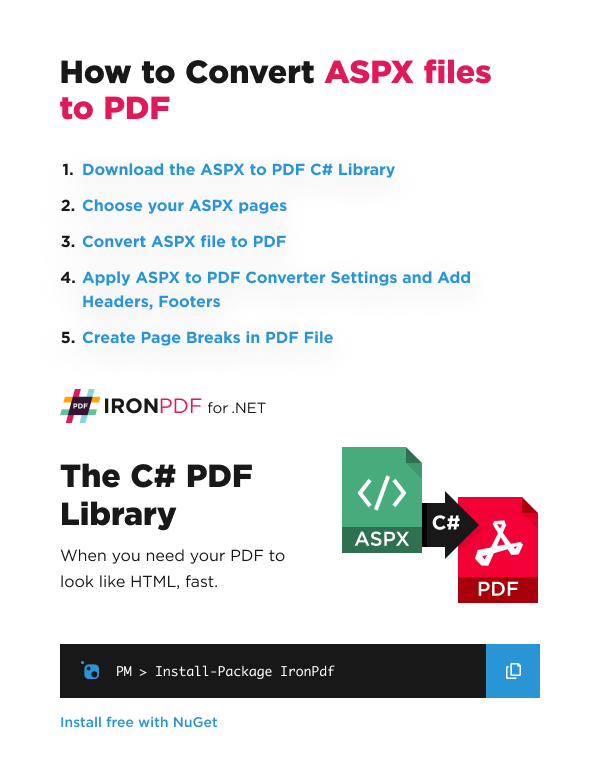
- Download the ASPX to PDF C# Library
- Choose your ASPX pages
- Convert ASPX file to PDF
- Apply converter settings and add headers, footers
- Create page breaks in PDF file
How do I convert ASPX files to PDF?
Microsoft Web Form Applications for ASP.NET are commonly used to develop sophisticated websites, online banking, intranets, and accounting systems. One common feature of ASP.NET (ASPX) websites is generating dynamic PDF files such as invoices, tickets, or management reports for users to download.
This tutorial shows how to use IronPDF to turn any ASP.NET web form into a PDF (ASP.NET to PDF). HTML, normally rendered as a web page, will render as a PDF for download or viewing in a web browser. The attached source project demonstrates webpage to PDF conversion in ASP.NET using C#.
We achieve HTML to PDF conversion when rendering webpages using IronPDF and its AspxToPdf Class (/object-reference/api/IronPdf.AspxToPdf.html). This process maintains all CSS styling, JavaScript functionality, and even web fonts in the resulting PDF.
How do I install the ASPX file converter from IronPDF?
In Visual Studio, right-click on your project solution explorer and select "Manage NuGet Packages...". From there, search for IronPDF and install the latest version. Click OK to any dialog boxes that appear. The ASPX-to-PDF Web Forms workflow also requires the IronPdf.Extensions.ASPX NuGet Package to be installed.
The AspxToPdf Web Forms workflow runs on .NET Framework only (Framework 4.6.2 and above) - it is not available in .NET Core because ASPX is superseded by the MVC model. It also works in VB.NET projects. For .NET Core and .NET 8+ projects, use the MVC CSHTML-to-PDF path instead. For detailed installation instructions across different platforms, check our installation overview guide.
When should I install via DLL instead of NuGet?
Alternatively, download the IronPDF DLL and manually install it to the project or GAC from Download IronPDF Package. For Windows-specific installations, see our Windows installation guide.
Remember to add this statement to the top of any cs class file using IronPDF:
using IronPdf;Imports IronPdfHow do I convert ASP.NET webpages to PDF?
Start with a normal ASPX "Web Form," which renders as HTML. Later convert the ASPX page to PDF file format.
In the attached example source code, we rendered a business invoice "Invoice.aspx," a simple HTML business invoice rendered as an ASP.NET Page. For more complex scenarios involving authentication and cookies, IronPDF provides comprehensive solutions.
The HTML page contains CSS3 stylesheets and may also include images and JavaScript. IronPDF supports JavaScript execution before rendering, ensuring dynamic content is captured accurately.
To render this ASP.NET Web Page to a PDF instead of HTML, open the C# (or VB.NET) code and add this to the Page_Load event:
IronPdf.AspxToPdf.RenderThisPageAsPdf(IronPdf.AspxToPdf.FileBehavior.InBrowser);IronPdf.AspxToPdf.RenderThisPageAsPdf(IronPdf.AspxToPdf.FileBehavior.InBrowser)This is all that's required; the HTML now renders as a PDF. Hyperlinks, StyleSheets, Images, and even HTML forms are preserved. This is similar to the output if the user printed the HTML to a PDF in their browser. IronPDF is built upon Chromium web browser technology that powers Google Chrome.
The complete C# code reads like this:
using System;
using System.Collections.Generic;
using System.Linq;
using System.Web;
using System.Web.UI;
using System.Web.UI.WebControls;
using IronPdf;

namespace AspxToPdfTutorial
{
    public partial class Invoice : System.Web.UI.Page
    {
        protected void Page_Load(object sender, EventArgs e)
        {
            IronPdf.AspxToPdf.RenderThisPageAsPdf(IronPdf.AspxToPdf.FileBehavior.InBrowser);
        }
    }
}Imports System
Imports System.Collections.Generic
Imports System.Linq
Imports System.Web
Imports System.Web.UI
Imports System.Web.UI.WebControls
Imports IronPdf
Namespace AspxToPdfTutorial
Partial Public Class Invoice
Inherits System.Web.UI.Page
Protected Sub Page_Load(ByVal sender As Object, ByVal e As EventArgs)
IronPdf.AspxToPdf.RenderThisPageAsPdf(IronPdf.AspxToPdf.FileBehavior.InBrowser)
End Sub
End Class
End NamespaceHow do I apply ASPX file to PDF converter settings?
Many options exist to tweak and perfect PDF generation from ASPX files using .NET Web Forms. These settings control everything from paper size to margin configuration.
These options are documented in full online at IronPDF API Reference.
How do I control PDF display behavior?
"InBrowser" file behavior attempts to show the PDF directly in the user's browser. This is a common feature of modern, standards-compliant browsers.
IronPdf.AspxToPdf.RenderThisPageAsPdf(IronPdf.AspxToPdf.FileBehavior.InBrowser);IronPdf.AspxToPdf.RenderThisPageAsPdf(IronPdf.AspxToPdf.FileBehavior.InBrowser)"Attachment" file behavior causes the PDF to be downloaded.
IronPdf.AspxToPdf.RenderThisPageAsPdf(IronPdf.AspxToPdf.FileBehavior.Attachment);IronPdf.AspxToPdf.RenderThisPageAsPdf(IronPdf.AspxToPdf.FileBehavior.Attachment)How do I customize the PDF filename?
Set the PDF document filename by adding an additional parameter. This controls the filename when users download or save the file.
IronPdf.AspxToPdf.RenderThisPageAsPdf(IronPdf.AspxToPdf.FileBehavior.Attachment, "Invoice.pdf");Imports IronPdf
AspxToPdf.RenderThisPageAsPdf(AspxToPdf.FileBehavior.Attachment, "Invoice.pdf")What PDF print options can I configure?
Control PDF output by adding an instance of the ChromePdfRenderer Class. ChromePdfRenderer API Reference
var AspxToPdfOptions = new IronPdf.ChromePdfRenderOptions()
{
    EnableJavaScript = false,
    //.. many more options available
};
IronPdf.AspxToPdf.RenderThisPageAsPdf(IronPdf.AspxToPdf.FileBehavior.Attachment, "Invoice.pdf", AspxToPdfOptions);Dim AspxToPdfOptions = New IronPdf.ChromePdfRenderOptions() With {.EnableJavaScript = False}
IronPdf.AspxToPdf.RenderThisPageAsPdf(IronPdf.AspxToPdf.FileBehavior.Attachment, "Invoice.pdf", AspxToPdfOptions)The PDF rendering options available include:
CreatePdfFormsFromHtml: Turns ASPX forms into editable PDF forms. See creating PDF forms.CssMediaType:ScreenorPrintCSS Styles. See comparison images.CustomCssUrl: Apply custom CSS to HTML before rendering. Local file path or remote URL.EnableMathematicalLaTex: Enable/disable LaTeX element rendering.EnableJavaScript: Execute JavaScript before rendering. Ideal for Ajax/Angular apps. See WaitFor guide.Javascript: Custom JavaScript to execute after HTML loads but before rendering.JavascriptMessageListener: Callback for browser JavaScript console messages.FirstPageNumber: Starting page number for headers/footers. Default is 1.TableOfContents: Generate TOC at element with id "IronPDF-toc". See TOC guide.TextHeader: Set header content as text. Supports mail-merge and auto-linking URLs.TextFooter: Set footer content as text. Supports mail-merge and auto-linking URLs.HtmlHeader: Set header content using HTML.HtmlFooter: Set footer content using HTML.MarginBottom: Bottom margin in millimeters. Zero for borderless.MarginLeft: Left margin in millimeters. Zero for borderless.MarginRight: Right margin in millimeters. Zero for borderless.MarginTop: Top margin in millimeters. Zero for borderless.UseMarginsOnHeaderAndFooter: Use main document margins for headers/footers.PaperFit: Virtual paper layout manager. Includes options for Chrome behavior, zoom, responsive CSS3, scale-to-page, and continuous feed. See viewport guide.PaperOrientation: PDF orientation - Landscape or Portrait.PageRotation: Rotate pages from existing document. See orientation examples.PaperSize: Output paper size using System.Drawing.Printing.PaperKind.SetCustomPaperSizeinCentimeters: Set paper size in centimeters.SetCustomPaperSizeInInches: Set paper size in inches.SetCustomPaperSizeinMilimeters: Set paper size in millimeters.SetCustomPaperSizeinPixelsOrPoints: Set paper size in pixels or points.ForcePaperSize: Force exact paper size by resizing after generation.PrintHtmlBackgrounds: Print HTML image backgrounds.GrayScale: Output grayscale PDF. See grayscale conversion.WaitFor: Configuration for wait mechanisms:PageLoad: Default render without waiting.RenderDelay: Arbitrary wait time.Fonts: Wait for fonts to load.JavaScript: Trigger render with JavaScript function.HTML elements: Wait for specific elements by ID, name, tag, or selector.NetworkIdle: Wait for network idle (0, 2, or custom).
Title: PDF document title metadata. See metadata guide.InputEncoding: Character encoding. UTF-8 is default. See UTF-8 guide.RequestContext: Request context for render.Timeout: Render timeout in seconds.

My favorite library of this kind is IronPDF. It allows for fast and efficient manipulation of PDF files. It also has many valuable features, like exporting to PDF/A format and digitally signing PDF documents.

IronOCR means we can save $40,000 annually from manual processing, while enhancing productivity and freeing up resources for high-impact tasks. I would highly recommend it.

The IronSuite play a crucial role in our operations. These are tools that increase efficiencies across the business including creating floor plans and improving inventory management.

How do I add headers and footers to ASPX PDFs?
Using IronPDF, headers and footers can be added to the PDF output. For advanced examples, see our complete headers and footers guide.
The simplest way is with the TextHeaderFooter class, which supports basic layout with dynamic data such as current time and page numbering.
How do I implement headers and footers?
using IronSoftware.Drawing;
using System;
using System.Collections.Generic;
using System.Linq;
using System.Web;
using System.Web.UI;
using System.Web.UI.WebControls;

namespace AspxToPdfTutorial
{
    public partial class Invoice : System.Web.UI.Page
    {
        protected void Page_Load(object sender, EventArgs e)
        {
            var AspxToPdfOptions = new IronPdf.ChromePdfRenderOptions()
            {
                TextHeader = new IronPdf.TextHeaderFooter()
                {
                    CenterText = "Invoice",
                    DrawDividerLine = false,
                    Font = FontTypes.Arial,
                    FontSize = 12
                },
                TextFooter = new IronPdf.TextHeaderFooter()
                {
                    LeftText = "{date} - {time}",
                    RightText = "Page {page} of {total-pages}",
                    Font = IronSoftware.Drawing.FontTypes.Arial,
                    FontSize = 12,
                },
            };
            IronPdf.AspxToPdf.RenderThisPageAsPdf(IronPdf.AspxToPdf.FileBehavior.Attachment, "Invoice.pdf", AspxToPdfOptions);
        }
    }
}Imports IronSoftware.Drawing
Imports System
Imports System.Collections.Generic
Imports System.Linq
Imports System.Web
Imports System.Web.UI
Imports System.Web.UI.WebControls
Namespace AspxToPdfTutorial
Partial Public Class Invoice
Inherits System.Web.UI.Page
Protected Sub Page_Load(ByVal sender As Object, ByVal e As EventArgs)
Dim AspxToPdfOptions = New IronPdf.ChromePdfRenderOptions() With {
.TextHeader = New IronPdf.TextHeaderFooter() With {
.CenterText = "Invoice",
.DrawDividerLine = False,
.Font = FontTypes.Arial,
.FontSize = 12
},
.TextFooter = New IronPdf.TextHeaderFooter() With {
.LeftText = "{date} - {time}",
.RightText = "Page {page} of {total-pages}",
.Font = IronSoftware.Drawing.FontTypes.Arial,
.FontSize = 12
}
}
IronPdf.AspxToPdf.RenderThisPageAsPdf(IronPdf.AspxToPdf.FileBehavior.Attachment, "Invoice.pdf", AspxToPdfOptions)
End Sub
End Class
End NamespaceAlternatively, generate HTML headers and footers using the HtmlHeaderFooter class, which supports CSS, images, and hyperlinks.
using System;
using System.Collections.Generic;
using System.Linq;
using System.Web;
using System.Web.UI;
using System.Web.UI.WebControls;

namespace AspxToPdfTutorial
{
    public partial class Invoice : System.Web.UI.Page
    {
        protected void Page_Load(object sender, EventArgs e)
        {
            var AspxToPdfOptions = new IronPdf.ChromePdfRenderOptions()
            {
                MarginTop = 50, // make sufficiant space for an HTML header
                HtmlHeader = new IronPdf.HtmlHeaderFooter()
                {
                    HtmlFragment = "<div style='text-align:right'><em style='color:pink'>page {page} of {total-pages}</em></div>"
                }
            };
            IronPdf.AspxToPdf.RenderThisPageAsPdf(IronPdf.AspxToPdf.FileBehavior.Attachment, "MyDocument.pdf", AspxToPdfOptions);
        }
    }
}Imports System
Imports System.Collections.Generic
Imports System.Linq
Imports System.Web
Imports System.Web.UI
Imports System.Web.UI.WebControls
Namespace AspxToPdfTutorial
Partial Public Class Invoice
Inherits System.Web.UI.Page
Protected Sub Page_Load(ByVal sender As Object, ByVal e As EventArgs)
Dim AspxToPdfOptions = New IronPdf.ChromePdfRenderOptions() With {
.MarginTop = 50,
.HtmlHeader = New IronPdf.HtmlHeaderFooter() With {.HtmlFragment = "<div style='text-align:right'><em style='color:pink'>page {page} of {total-pages}</em></div>"}
}
IronPdf.AspxToPdf.RenderThisPageAsPdf(IronPdf.AspxToPdf.FileBehavior.Attachment, "MyDocument.pdf", AspxToPdfOptions)
End Sub
End Class
End NamespaceAs seen in our examples, merge dynamic text or HTML into headers/footers using placeholders:
{page}: Current page number.{total-pages}: Total number of pages.{url}: Web URL from which the PDF was rendered.{date}: Today's date in system format.{time}: Time in 24-hour format.{html-title}: Title from ASPX head tag.{pdf-title}: Document filename.
How do I add page breaks to PDF files?
While HTML commonly flows into a long page, PDFs simulate digital paper and are broken into consistent pages. Adding this code to your ASPX page automatically creates a page break in the generated PDF. For advanced page break control, see our page breaks guide.
<!-- :path=/static-assets/pdf/content-code-examples/how-to/aspx-to-pdf-6.cs -->
<div style='page-break-after: always;'> </div>How can I improve performance with async and multithreading?
IronPDF was built for .NET Framework 4.6.2 or .NET Core 2 and above. In Framework 4.6.2 or above projects, async capabilities improve performance when working with multiple documents.
Combining async with multithreaded CPUs and the Parallel.ForEach command significantly improves bulk PDF processing. For enterprise deployments, see our performance optimization guide.
Where can I watch the ASPX to PDF tutorial video?
Tutorial Quick Access
Explore this Tutorial on GitHub
The code for this C# ASPX-To-PDF project is available in C# and VB.NET on GitHub as an ASP.NET website project. Please go ahead and fork us on GitHub for more help using IronPDF. Feel free to share this with anyone who might be asking, 'How do I Convert ASPX to PDF?'
C# ASPX to PDF Website ProjectAdvanced ASP.NET Page to PDF Samples in C# for creating PDFsASP.NET PDF Examples in VB.NET for creating PDFs

Download C# PDF Quickstart guide
To make developing PDFs in your .NET applications easier, we have compiled a quick-start guide as a PDF document. This "Cheat-Sheet" provides quick access to common functions and examples for generating and editing PDFs in C# and VB.NET, and will help save time getting started using IronPDF in your .NET project.
DownloadView the API Reference
Explore the API Reference for IronPDF, outlining the details of all of IronPDF's features, namespaces, classes, methods fields, and enums.
View the IronPDF API Reference
Frequently Asked Questions
How can I convert ASPX pages to PDF in C# using IronPDF?
You can use IronPDF's `AspxToPdf.RenderThisPageAsPdf()` method to instantly transform any ASP.NET web form into a downloadable PDF document while preserving styling, links, and forms.
What steps are involved in converting ASPX files to PDF using IronPDF?
The process involves downloading the IronPDF library, choosing your ASPX pages, converting the ASPX file to PDF, applying converter settings like headers and footers, and creating page breaks if necessary.
What are the benefits of using IronPDF for ASPX to PDF conversion?
IronPDF allows for a server-based conversion process that ensures pixel-perfect rendering using a Chrome-based rendering engine and supports advanced features like digital signatures and PDF/A compliance.
Can I customize PDF display behavior using IronPDF?
Yes, you can control the PDF display behavior. For instance, `InBrowser` allows viewing directly in the browser, while `Attachment` triggers a download. You can also specify a custom filename for downloaded PDFs.
How do I add headers and footers to PDFs generated from ASPX files?
With IronPDF, you can add headers and footers using the `TextHeaderFooter` or `HtmlHeaderFooter` classes, allowing for text or HTML elements, including dynamic data like page numbers and current date.
What PDF print options can I configure in IronPDF?
IronPDF lets you configure various options such as JavaScript execution, CSS media types, paper size and orientation, margins, and more to tailor the PDF output according to your needs.
Is it possible to handle asynchronous and multithreading PDF generation with IronPDF?
Yes, IronPDF supports asynchronous operations and multithreading, enhancing performance during bulk PDF processing, especially in enterprise deployments.
How does IronPDF support complex ASP.NET scenarios like authentication?
IronPDF offers comprehensive solutions to manage complex scenarios including handling authentication and cookies, allowing for accurate and secure PDF generation.
What is the recommended way to install IronPDF for ASPX-to-PDF conversion?
The recommended installation is via NuGet in Visual Studio, but you can also install using the IronPDF DLL for custom setups. For ASPX workflows, ensure the required NuGets, like IronPdf.Extensions.ASPX, are installed.
How can I download a quick-start guide for using IronPDF?
You can download our C# PDF Quickstart guide, which provides a comprehensive introduction to generating and editing PDFs in your .NET applications using IronPDF.

Curtis Chau holds a Bachelor’s degree in Computer Science (Carleton University) and specializes in front-end development with expertise in Node.js, TypeScript, JavaScript, and React. Passionate about crafting intuitive and aesthetically pleasing user interfaces, Curtis enjoys working with modern frameworks and creating well-structured, visually appealing manuals.













