# How to Convert Views to PDFs in ASP.NET MVC with C#
IronPDF enables you to convert ASP.NET MVC Views to PDF documents using the `ChromePdfRenderer.RenderView()` method with just a few lines of code. The `IronPdf.Extensions.Mvc.Framework` package provides straightforward integration with ASP.NET MVC projects for rendering CSHTML views as PDFs.
A View is a component in the ASP.NET framework used for generating HTML markup in web applications. It is part of the Model-View-Controller (MVC) pattern, commonly used in ASP.NET MVC and ASP.NET Core MVC applications. Views are responsible for presenting data to the user by rendering HTML content dynamically. The power of IronPDF's [Chrome PDF Rendering Engine](https://ironpdf.com/how-to/ironpdf-2021-chrome-rendering-engine-eap/) ensures that your views are rendered with pixel-perfect accuracy, maintaining all styling, layouts, and interactive elements.
ASP.NET Web Application (.NET Framework) MVC is a web application framework provided by Microsoft. It follows a structured architectural pattern known as Model-View-Controller (MVC) to organize and simplify the development of web applications.
- Model: Manages data, business logic, and data integrity.
- View: Presents the user interface and renders information.
- Controller: Handles user input, processes requests, and orchestrates interactions between Model and View.
IronPDF simplifies the process of creating PDF files from Views within an ASP.NET MVC project. This makes PDF generation easy and direct in ASP.NET MVC. Whether you're generating invoices, reports, or any document from your web views, IronPDF provides the tools needed for professional PDF output. For a comprehensive setup guide, visit the [Installation Overview](https://ironpdf.com/get-started/installation-overview/) page.
*as-heading:2(Quickstart: Convert ASP.NET MVC View to PDF Effortlessly)*
Learn how to quickly convert your ASP.NET MVC Views into PDF documents using IronPDF. With just a few lines of code, you can render your CSHTML views to high-quality PDFs, enhancing your application's functionality. IronPDF simplifies the process, making it accessible for developers at all levels. Get started by integrating IronPDF into your ASP.NET Core projects to effortlessly generate PDFs from your Views.
```cs
:title=Generate PDFs Instantly with IronPDF
// Install-Package IronPdf.Extensions.Mvc.Framework
ChromePdfRenderer renderer = new ChromePdfRenderer();
PdfDocument pdf = renderer.RenderView(this.HttpContext, "~/Views/Home/Persons.cshtml", persons);
```
<div class="hsg-featured-snippet">
<h3>Minimal Workflow (5 steps)</h3>
<ol>
<li><a class="js-modal-open" data-modal-id="trial-license-after-download" href="https://www.nuget.org/packages/IronPdf/">Download the C# library for converting Views to PDFs in ASP.NET MVC</a></li>
<li>Add a model class for the data</li>
<li>Create a "Person" action in the controller and use the <code>RenderView</code> method</li>
<li>Add a View using the MVC 5 View Scaffolded</li>
<li>Download the sample project for a quick start</li>
</ol>
</div>
## What Extension Package Do I Need?
### Why Does IronPDF Require an Extension Package?
The **IronPdf.Extensions.Mvc.Framework package** is an extension of the main **IronPDF** package. Both the `IronPdf.Extensions.Mvc.Framework` and `IronPdf` packages are required to render Views to PDF documents in ASP.NET MVC. This separation allows for optimized functionality specific to the MVC framework while maintaining the core PDF rendering capabilities.
### How to Install the Extension Package?
```shell
:InstallCmd Install-Package IronPdf.Extensions.Mvc.Framework
```
<link rel="stylesheet" type="text/css" href="/front/css/content__install-components__extended.css" media="print" onload="this.media='all'; this.onload=null;" />
<div class="products-download-section">
<div class="js-modal-open product-item nuget" style="width: fit-content; margin-left: auto; margin-right: auto;" data-modal-id="trial-license-after-download">
<div class="product-image">
<img class="img-responsive add-shadow" alt="C# NuGet Library for PDF" src="/img/nuget-logo.svg" />
</div>
<div class="product-info">
<h3>Install with <span>NuGet</span></h3>
</div>
<div class="js-open-modal-ignore copy-nuget-section" data-toggle="tooltip" data-placement="bottom" title="" data-original-title="Click to copy">
<div class="copy-nuget-row">
<pre class="install-script">Install-Package IronPdf.Extensions.Mvc.Framework</pre>
<div class="copy-button">
<button class="btn btn-default copy-nuget-script" type="button" data-toggle="popover" data-placement="bottom" data-content="Copied." aria-label="Copy the Package Manager command" data-original-title="" title="">
<span class="far fa-copy"></span>
</button>
</div>
</div>
</div>
<div class="nuget-link">nuget.org/packages/IronPdf.Extensions.Mvc.Framework/</div>
</div>
</div>
## How Do I Render Views to PDFs?
### What Project Type Do I Need?
To convert Views into PDF files, you need an ASP.NET Web Application (.NET Framework) MVC project. IronPDF supports various MVC versions and provides extensive [Rendering Options](https://ironpdf.com/how-to/rendering-options/) to customize your PDF output according to your requirements.
## How Do I Add a Model Class?
### Where Should I Create the Model?
- Navigate to the "Models" folder
- Create a new C# class file named `Person`. This class serves as a model to represent individual data. Use the following code:
```cs
namespace ViewToPdfMVCSample.Models
{
public class Person
{
public int Id { get; set; }
public string Name { get; set; }
public string Title { get; set; }
public string Description { get; set; }
}
}
```
## How Do I Edit the Controller?
### What Code Should I Add to the Controller?
Navigate to the "Controllers" folder and open the `HomeController` file. Add the `Persons` action using the following code:
In the provided code, the `ChromePdfRenderer` class is first created. To use the `RenderView` method, provide it with an `HttpContext`, specify the path to the "Persons.cshtml" file, and provide a `List<Person>` containing the necessary data. When rendering the View, you can utilize `RenderingOptions` to customize margins, add [custom text and HTML headers and footers](/how-to/headers-and-footers/), and apply [page numbers](/how-to/page-numbers/) to the resulting PDF document.
[[i:(The PDF document can be downloaded to the machine using the following code: `File(pdf.BinaryData, "application/pdf", "viewToPdfMVC.pdf")`.)]]
```cs
using IronPdf;
using System.Collections.Generic;
using System.Web.Mvc;
using ViewToPdfMVCSample.Models;
namespace ViewToPdfMVCSample.Controllers
{
public class HomeController : Controller
{
public ActionResult Index()
{
return View();
}
// GET: Person
public ActionResult Persons()
{
// Create a list of Person objects
var persons = new List<Person>
{
new Person { Name = "Alice", Title = "Mrs.", Description = "Software Engineer" },
new Person { Name = "Bob", Title = "Mr.", Description = "Software Engineer" },
new Person { Name = "Charlie", Title = "Mr.", Description = "Software Engineer" }
};
if (HttpContext.Request.HttpMethod == "POST")
{
// Define the path to the View file
var viewPath = "~/Views/Home/Persons.cshtml";
// Instantiate the ChromePdfRenderer
ChromePdfRenderer renderer = new ChromePdfRenderer();
// Render the view to a PDF document
PdfDocument pdf = renderer.RenderView(this.HttpContext, viewPath, persons);
// Set headers to view the PDF in-browser
Response.Headers.Add("Content-Disposition", "inline");
// Return the generated PDF file
return File(pdf.BinaryData, "application/pdf");
}
return View(persons);
}
public ActionResult About()
{
ViewBag.Message = "Your application description page.";
return View();
}
public ActionResult Contact()
{
ViewBag.Message = "Your contact page.";
return View();
}
}
}
```
### How Can I Customize PDF Rendering Options?
For more advanced scenarios, you can customize the PDF output using various rendering options. Here's an example with custom margins, paper size, and additional settings:
```cs
// Advanced rendering with custom options
public ActionResult PersonsAdvanced()
{
var persons = GetPersonsList();
if (HttpContext.Request.HttpMethod == "POST")
{
var viewPath = "~/Views/Home/Persons.cshtml";
// Configure the renderer with custom options
ChromePdfRenderer renderer = new ChromePdfRenderer();
// Set custom rendering options
renderer.RenderingOptions.MarginTop = 40;
renderer.RenderingOptions.MarginBottom = 40;
renderer.RenderingOptions.MarginLeft = 20;
renderer.RenderingOptions.MarginRight = 20;
// Set custom paper size
renderer.RenderingOptions.PaperSize = IronPdf.Rendering.PdfPaperSize.A4;
renderer.RenderingOptions.PaperOrientation = IronPdf.Rendering.PdfPaperOrientation.Portrait;
// Add header and footer
renderer.RenderingOptions.TextHeader.DrawDividerLine = true;
renderer.RenderingOptions.TextHeader.CenterText = "{pdf-title}";
renderer.RenderingOptions.TextHeader.Font = IronPdf.Font.FontTypes.Helvetica;
renderer.RenderingOptions.TextHeader.FontSize = 12;
renderer.RenderingOptions.TextFooter.DrawDividerLine = true;
renderer.RenderingOptions.TextFooter.Font = IronPdf.Font.FontTypes.Arial;
renderer.RenderingOptions.TextFooter.FontSize = 10;
renderer.RenderingOptions.TextFooter.RightText = "{page} of {total-pages}";
// Enable JavaScript execution if needed
renderer.RenderingOptions.EnableJavaScript = true;
renderer.RenderingOptions.RenderDelay = 500; // Wait for JS to execute
// Render the view to PDF
PdfDocument pdf = renderer.RenderView(this.HttpContext, viewPath, persons);
// Optional: Apply compression to reduce file size
pdf.CompressImages(60);
Response.Headers.Add("Content-Disposition", "inline");
return File(pdf.BinaryData, "application/pdf");
}
return View("Persons", persons);
}
```
For more information on optimizing margins, visit our guide on [Set Custom Margins](https://ironpdf.com/how-to/custom-margins/). If you need to work with specific paper dimensions, check out our [Custom Paper Size](https://ironpdf.com/how-to/custom-paper-size/) documentation.
### What Can I Do with the Generated PDF?
Once you obtain the `PdfDocument` object through the `RenderView` method, you can make various improvements and adjustments to it. You can convert the PDF to [PDFA](/how-to/pdfa/) or [PDFUA](/how-to/pdfua/) formats, apply [digital signatures](/how-to/signing/) to the created PDF, or [merge and split](/how-to/merge-or-split-pdfs/) PDF documents as required. The library enables you to rotate pages, insert [annotations](/how-to/annotations/) or [bookmarks](/how-to/bookmarks/), and [apply distinct watermarks](/tutorials/csharp-edit-pdf-complete-tutorial/#add-a-watermark-to-a-pdf) to your PDF files.
For file size optimization, consider using [PDF Compression](https://ironpdf.com/how-to/pdf-compression/) techniques. When dealing with JavaScript-heavy content, our [JavaScript rendering guide](https://ironpdf.com/how-to/javascript-to-pdf/) provides detailed information on handling custom render delays. For various export options, see our guide on [Save & Export PDF Documents](https://ironpdf.com/how-to/export-save-pdf-csharp/).
## How Do I Add a View?
### What Steps Should I Follow to Create the View?
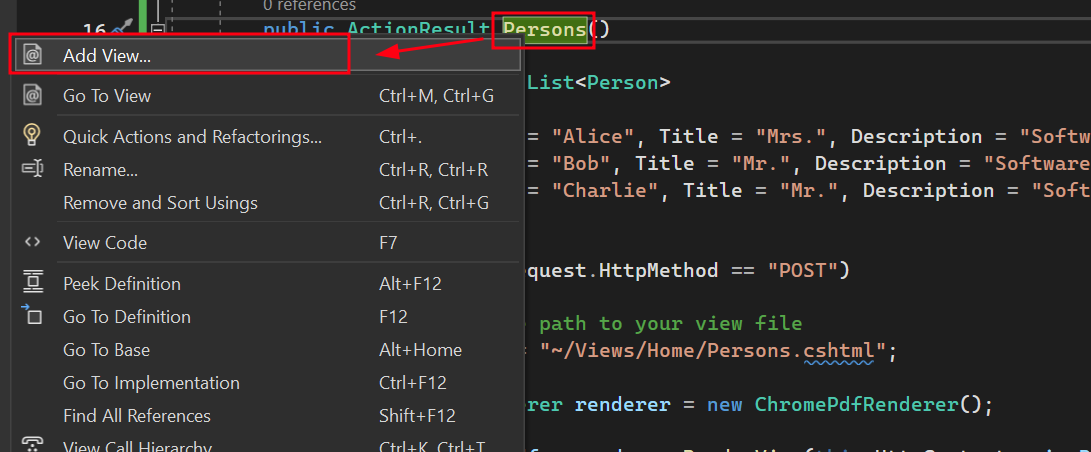
- Right-click on the newly added Person action and select "Add View."

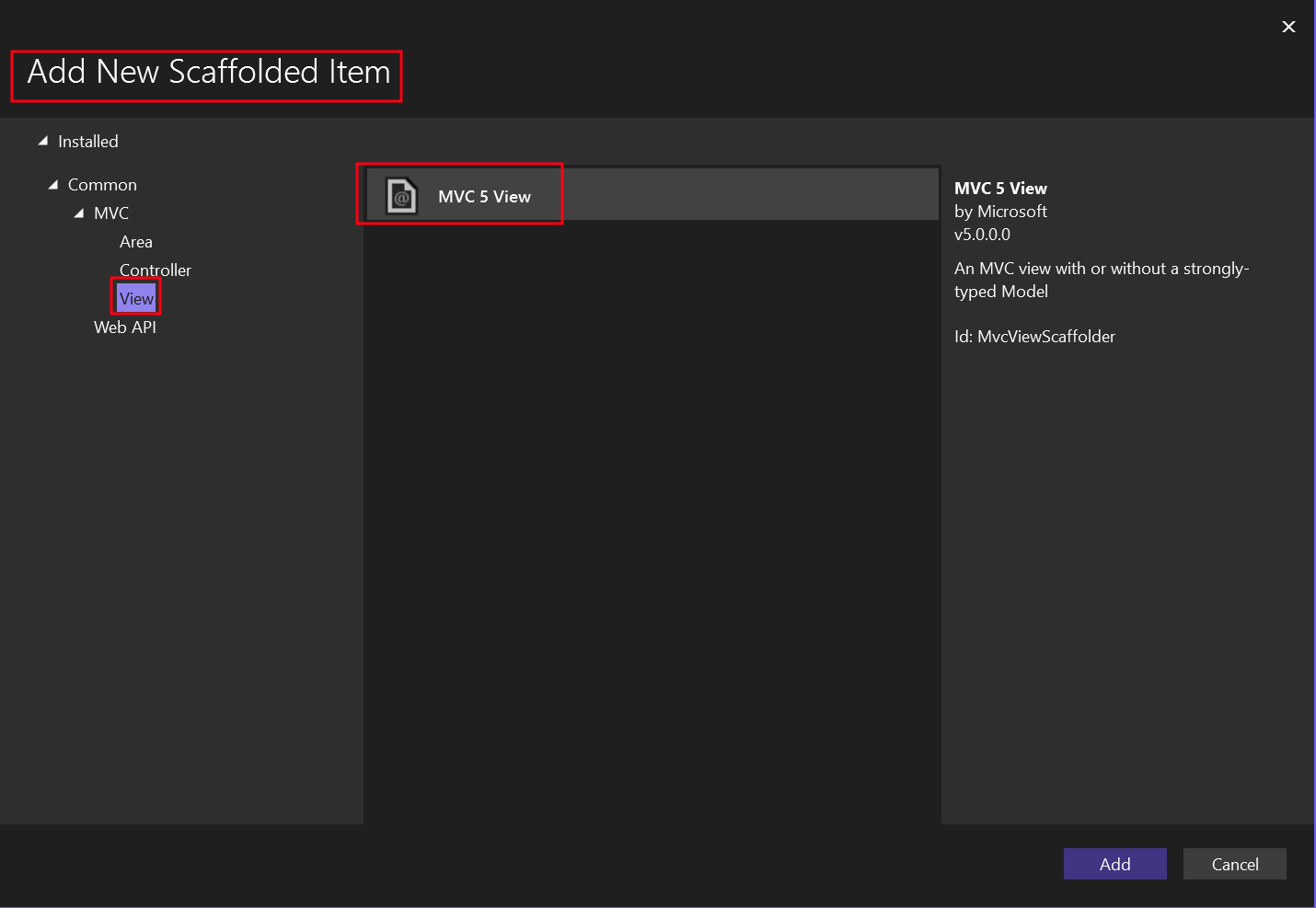
- Choose "MVC 5 View" for the new Scaffolded item.

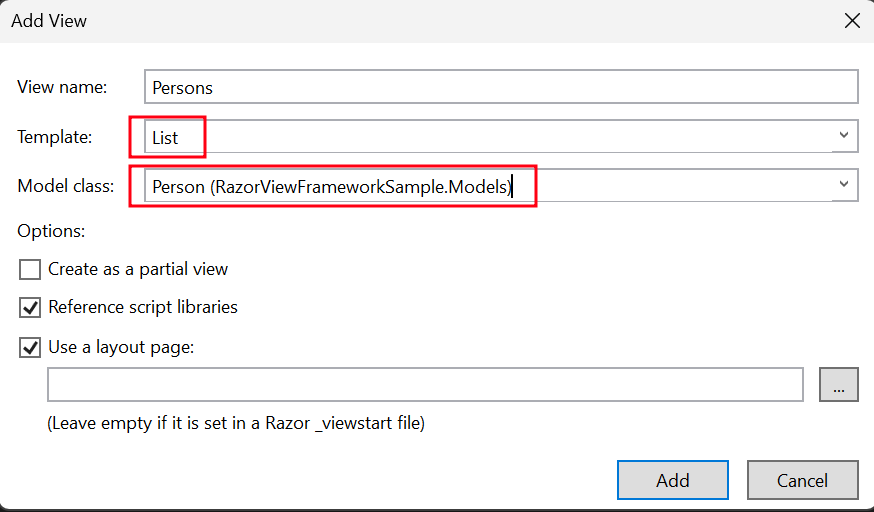
- Select the "List" template and the `Person` model class.

This creates a .cshtml file named "Persons."
### How to Add a Print Button to the View?
- Navigate to the "Views" folder -> "Home" folder -> "Persons.cshtml" file.
To add a button that invokes the `Persons` action, use the code below:
```html
@using (Html.BeginForm("Persons", "Home", FormMethod.Post))
{
<input type="submit" value="Print Person" />
}
```
## How Do I Add a Section to the Top Navigation Bar?
### Where Should I Update the Navigation?
- In the "Views" folder, navigate to the "Shared" folder -> "_Layout.cshtml" file. Place the "Person" navigation item after "Home."
Ensure that the values for the `ActionLink` method match exactly with our file name, which is "Persons."
```html
<nav class="navbar navbar-expand-sm navbar-toggleable-sm navbar-dark bg-dark">
<div class="container">
@Html.ActionLink("Application name", "Index", "Home", new { area = "" }, new { @class = "navbar-brand" })
<button type="button" class="navbar-toggler" data-bs-toggle="collapse" data-bs-target=".navbar-collapse" title="Toggle navigation" aria-controls="navbarSupportedContent" aria-expanded="false" aria-label="Toggle navigation">
<span class="navbar-toggler-icon"></span>
</button>
<div class="collapse navbar-collapse d-sm-inline-flex justify-content-between">
<ul class="navbar-nav flex-grow-1">
<li>@Html.ActionLink("Home", "Index", "Home", new { area = "" }, new { @class = "nav-link" })</li>
<li>@Html.ActionLink("Persons", "Persons", "Home", new { area = "" }, new { @class = "nav-link" })</li>
<li>@Html.ActionLink("About", "About", "Home", new { area = "" }, new { @class = "nav-link" })</li>
<li>@Html.ActionLink("Contact", "Contact", "Home", new { area = "" }, new { @class = "nav-link" })</li>
</ul>
</div>
</div>
</nav>
```
### How to Run and Test the Project?
#### Run the Project
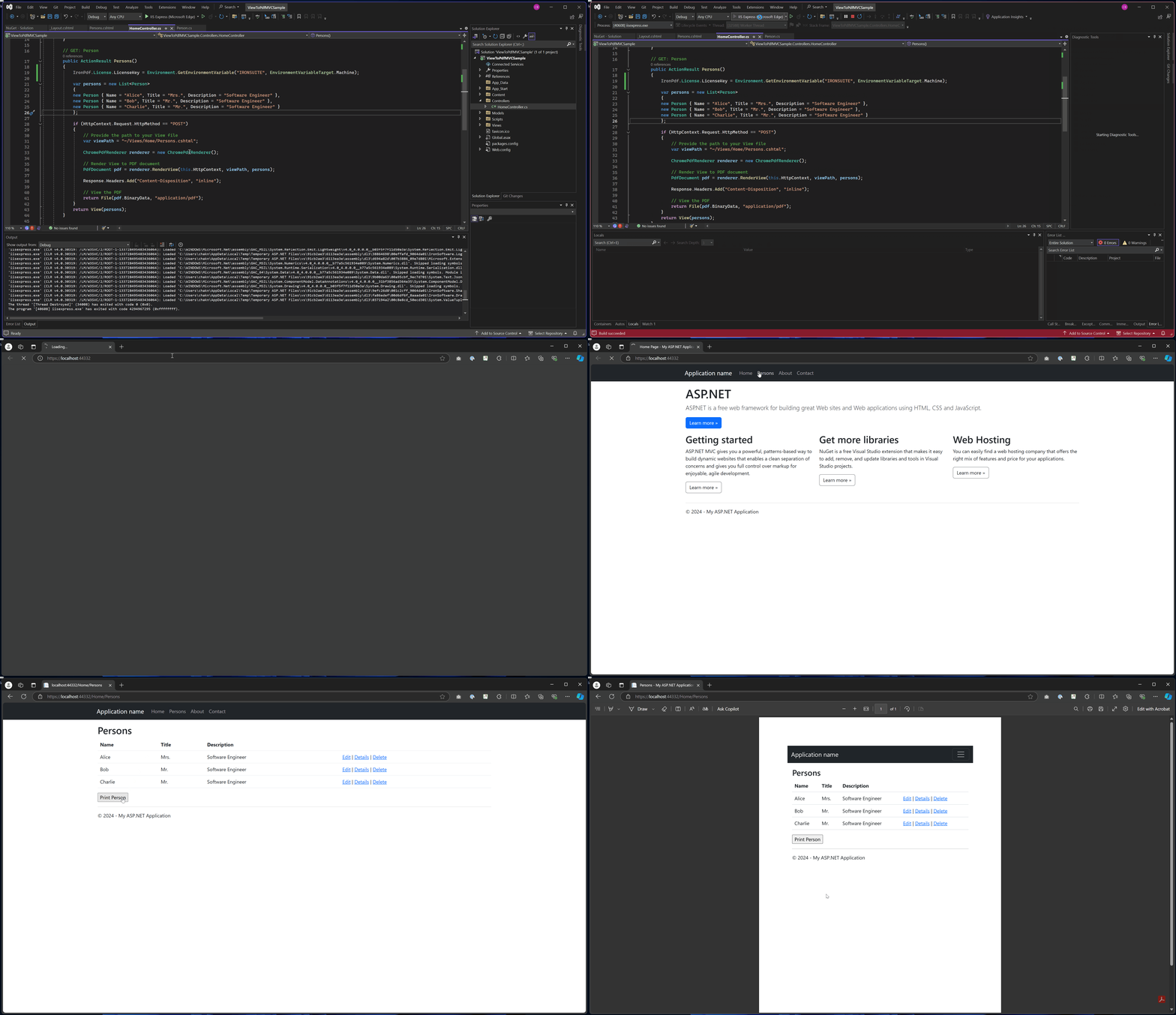
This shows you how to run the project and generate a PDF document.
<img src="/static-assets/pdf/how-to/cshtml-to-pdf-mvc-framework/viewToPdfMVCProjectRun.gif" alt="Visual Studio showing ASP.NET MVC HomeController with Persons action method and PDF generation code" class="img-responsive add-shadow" style="margin-bottom: 30px;"/>
#### Output PDF
<iframe loading="lazy" src="/static-assets/pdf/how-to/cshtml-to-pdf-mvc-framework/Persons.pdf" width="100%" height="400px">
</iframe>
## Where Can I Download the Complete Project?
### What Does the Sample Project Include?
You can download the complete code for this guide. It comes as a zipped file that you can open in Visual Studio as an ASP.NET Web Application (.NET Framework) MVC project. The sample includes all the necessary configurations, model classes, controllers, and views to get you started quickly with PDF generation in your MVC applications.
[Download the MVC sample project for PDF conversion](/static-assets/pdf/how-to/cshtml-to-pdf-mvc-framework/ViewToPdfMVCSample.zip)
IronPDF enables you to convert ASP.NET MVC Views to PDF documents using the ChromePdfRenderer.RenderView() method with just a few lines of code. The IronPdf.Extensions.Mvc.Framework package provides straightforward integration with ASP.NET MVC projects for rendering CSHTML views as PDFs.
A View is a component in the ASP.NET framework used for generating HTML markup in web applications. It is part of the Model-View-Controller (MVC) pattern, commonly used in ASP.NET MVC and ASP.NET Core MVC applications. Views are responsible for presenting data to the user by rendering HTML content dynamically. The power of IronPDF's Chrome PDF Rendering Engine ensures that your views are rendered with pixel-perfect accuracy, maintaining all styling, layouts, and interactive elements.
ASP.NET Web Application (.NET Framework) MVC is a web application framework provided by Microsoft. It follows a structured architectural pattern known as Model-View-Controller (MVC) to organize and simplify the development of web applications.
Model: Manages data, business logic, and data integrity.
View: Presents the user interface and renders information.
Controller: Handles user input, processes requests, and orchestrates interactions between Model and View.
IronPDF simplifies the process of creating PDF files from Views within an ASP.NET MVC project. This makes PDF generation easy and direct in ASP.NET MVC. Whether you're generating invoices, reports, or any document from your web views, IronPDF provides the tools needed for professional PDF output. For a comprehensive setup guide, visit the Installation Overview page.
Quickstart: Convert ASP.NET MVC View to PDF Effortlessly
Learn how to quickly convert your ASP.NET MVC Views into PDF documents using IronPDF. With just a few lines of code, you can render your CSHTML views to high-quality PDFs, enhancing your application's functionality. IronPDF simplifies the process, making it accessible for developers at all levels. Get started by integrating IronPDF into your ASP.NET Core projects to effortlessly generate PDFs from your Views.
1Install IronPDF with NuGet Package Manager
PM > Install-Package IronPdf
Install-Package IronPdf
2Copy and run this code snippet.
// Install-Package IronPdf.Extensions.Mvc.FrameworkChromePdfRenderer renderer = new ChromePdfRenderer();PdfDocument pdf = renderer.RenderView(this.HttpContext, "~/Views/Home/Persons.cshtml", persons);
// Install-Package IronPdf.Extensions.Mvc.Framework
ChromePdfRenderer renderer = new ChromePdfRenderer();
PdfDocument pdf = renderer.RenderView(this.HttpContext, "~/Views/Home/Persons.cshtml", persons);
' Install-Package IronPdf.Extensions.Mvc.FrameworkDim renderer As New ChromePdfRenderer()Dim pdf AsPdfDocument = renderer.RenderView(Me.HttpContext, "~/Views/Home/Persons.cshtml", persons)
' Install-Package IronPdf.Extensions.Mvc.Framework
Dim renderer As New ChromePdfRenderer()
Dim pdf As PdfDocument = renderer.RenderView(Me.HttpContext, "~/Views/Home/Persons.cshtml", persons)
3Deploy to test on your live environment
Start using IronPDF in your project today with a free trial
Create a "Person" action in the controller and use the RenderView method
Add a View using the MVC 5 View Scaffolded
Download the sample project for a quick start
What Extension Package Do I Need?
Why Does IronPDF Require an Extension Package?
The IronPdf.Extensions.Mvc.Framework package is an extension of the main IronPDF package. Both the IronPdf.Extensions.Mvc.Framework and IronPdf packages are required to render Views to PDF documents in ASP.NET MVC. This separation allows for optimized functionality specific to the MVC framework while maintaining the core PDF rendering capabilities.
To convert Views into PDF files, you need an ASP.NET Web Application (.NET Framework) MVC project. IronPDF supports various MVC versions and provides extensive Rendering Options to customize your PDF output according to your requirements.
How Do I Add a Model Class?
Where Should I Create the Model?
Navigate to the "Models" folder
Create a new C# class file named Person. This class serves as a model to represent individual data. Use the following code:
namespace ViewToPdfMVCSample.Models{ public class Person { public intId { get; set; } public stringName { get; set; } public stringTitle { get; set; } public stringDescription { get; set; } }}
namespace ViewToPdfMVCSample.Models
{
public class Person
{
public int Id { get; set; }
public string Name { get; set; }
public string Title { get; set; }
public string Description { get; set; }
}
}
NamespaceViewToPdfMVCSample.Models Public Class Person Public Property Id() AsInteger Public Property Name() AsString Public Property Title() AsString Public Property Description() AsString End ClassEndNamespace
Namespace ViewToPdfMVCSample.Models
Public Class Person
Public Property Id() As Integer
Public Property Name() As String
Public Property Title() As String
Public Property Description() As String
End Class
End Namespace
How Do I Edit the Controller?
What Code Should I Add to the Controller?
Navigate to the "Controllers" folder and open the HomeController file. Add the Persons action using the following code:
In the provided code, the ChromePdfRenderer class is first created. To use the RenderView method, provide it with an HttpContext, specify the path to the "Persons.cshtml" file, and provide a List<Person> containing the necessary data. When rendering the View, you can utilize RenderingOptions to customize margins, add custom text and HTML headers and footers, and apply page numbers to the resulting PDF document.
Please note: The PDF document can be downloaded to the machine using the following code: File(pdf.BinaryData, "application/pdf", "viewToPdfMVC.pdf").
using IronPdf;using System.Collections.Generic;using System.Web.Mvc;using ViewToPdfMVCSample.Models;namespace ViewToPdfMVCSample.Controllers{ public class HomeController : Controller { public ActionResultIndex() { returnView(); } // GET: Person public ActionResultPersons() { // Create a list of Person objects var persons = new List<Person> { new Person { Name = "Alice", Title = "Mrs.", Description = "Software Engineer" }, new Person { Name = "Bob", Title = "Mr.", Description = "Software Engineer" }, new Person { Name = "Charlie", Title = "Mr.", Description = "Software Engineer" } }; if (HttpContext.Request.HttpMethod == "POST") { // Define the path to the View file var viewPath = "~/Views/Home/Persons.cshtml"; // Instantiate the ChromePdfRenderer ChromePdfRenderer renderer = new ChromePdfRenderer(); // Render the view to a PDF document PdfDocument pdf = renderer.RenderView(this.HttpContext, viewPath, persons); // Set headers to view the PDF in-browserResponse.Headers.Add("Content-Disposition", "inline"); // Return the generated PDF file returnFile(pdf.BinaryData, "application/pdf"); } returnView(persons); } public ActionResultAbout() {ViewBag.Message = "Your application description page."; returnView(); } public ActionResultContact() {ViewBag.Message = "Your contact page."; returnView(); } }}
using IronPdf;
using System.Collections.Generic;
using System.Web.Mvc;
using ViewToPdfMVCSample.Models;
namespace ViewToPdfMVCSample.Controllers
{
public class HomeController : Controller
{
public ActionResult Index()
{
return View();
}
// GET: Person
public ActionResult Persons()
{
// Create a list of Person objects
var persons = new List<Person>
{
new Person { Name = "Alice", Title = "Mrs.", Description = "Software Engineer" },
new Person { Name = "Bob", Title = "Mr.", Description = "Software Engineer" },
new Person { Name = "Charlie", Title = "Mr.", Description = "Software Engineer" }
};
if (HttpContext.Request.HttpMethod == "POST")
{
// Define the path to the View file
var viewPath = "~/Views/Home/Persons.cshtml";
// Instantiate the ChromePdfRenderer
ChromePdfRenderer renderer = new ChromePdfRenderer();
// Render the view to a PDF document
PdfDocument pdf = renderer.RenderView(this.HttpContext, viewPath, persons);
// Set headers to view the PDF in-browser
Response.Headers.Add("Content-Disposition", "inline");
// Return the generated PDF file
return File(pdf.BinaryData, "application/pdf");
}
return View(persons);
}
public ActionResult About()
{
ViewBag.Message = "Your application description page.";
return View();
}
public ActionResult Contact()
{
ViewBag.Message = "Your contact page.";
return View();
}
}
}
ImportsIronPdfImportsSystem.Collections.GenericImportsSystem.Web.MvcImportsViewToPdfMVCSample.ModelsNamespaceViewToPdfMVCSample.Controllers Public Class HomeControllerInheritsController Public Function Index() AsActionResult ReturnView() End Function ' GET: Person Public Function Persons() AsActionResult ' Create a list of Person objects'INSTANT VB NOTE: The local variable persons was renamed since Visual Basic will not allow local variables with the same name as their enclosing function or property: Dim persons_Conflict = New List(OfPerson) From { New PersonWith { .Name = "Alice", .Title = "Mrs.", .Description = "Software Engineer" }, New PersonWith { .Name = "Bob", .Title = "Mr.", .Description = "Software Engineer" }, New PersonWith { .Name = "Charlie", .Title = "Mr.", .Description = "Software Engineer" } } IfHttpContext.Request.HttpMethod = "POST" Then ' Define the path to the View file Dim viewPath = "~/Views/Home/Persons.cshtml" ' Instantiate the ChromePdfRenderer Dim renderer As New ChromePdfRenderer() ' Render the view to a PDF document Dim pdf AsPdfDocument = renderer.RenderView(Me.HttpContext, viewPath, persons_Conflict) ' Set headers to view the PDF in-browser Response.Headers.Add("Content-Disposition", "inline") ' Return the generated PDF file ReturnFile(pdf.BinaryData, "application/pdf") End If ReturnView(persons_Conflict) End Function Public Function About() AsActionResultViewBag.Message = "Your application description page." ReturnView() End Function Public Function Contact() AsActionResultViewBag.Message = "Your contact page." ReturnView() End Function End ClassEndNamespace
Imports IronPdf
Imports System.Collections.Generic
Imports System.Web.Mvc
Imports ViewToPdfMVCSample.Models
Namespace ViewToPdfMVCSample.Controllers
Public Class HomeController
Inherits Controller
Public Function Index() As ActionResult
Return View()
End Function
' GET: Person
Public Function Persons() As ActionResult
' Create a list of Person objects
'INSTANT VB NOTE: The local variable persons was renamed since Visual Basic will not allow local variables with the same name as their enclosing function or property:
Dim persons_Conflict = New List(Of Person) From {
New Person With {
.Name = "Alice",
.Title = "Mrs.",
.Description = "Software Engineer"
},
New Person With {
.Name = "Bob",
.Title = "Mr.",
.Description = "Software Engineer"
},
New Person With {
.Name = "Charlie",
.Title = "Mr.",
.Description = "Software Engineer"
}
}
If HttpContext.Request.HttpMethod = "POST" Then
' Define the path to the View file
Dim viewPath = "~/Views/Home/Persons.cshtml"
' Instantiate the ChromePdfRenderer
Dim renderer As New ChromePdfRenderer()
' Render the view to a PDF document
Dim pdf As PdfDocument = renderer.RenderView(Me.HttpContext, viewPath, persons_Conflict)
' Set headers to view the PDF in-browser
Response.Headers.Add("Content-Disposition", "inline")
' Return the generated PDF file
Return File(pdf.BinaryData, "application/pdf")
End If
Return View(persons_Conflict)
End Function
Public Function About() As ActionResult
ViewBag.Message = "Your application description page."
Return View()
End Function
Public Function Contact() As ActionResult
ViewBag.Message = "Your contact page."
Return View()
End Function
End Class
End Namespace
How Can I Customize PDF Rendering Options?
For more advanced scenarios, you can customize the PDF output using various rendering options. Here's an example with custom margins, paper size, and additional settings:
// Advanced rendering with custom optionspublic ActionResultPersonsAdvanced(){ var persons = GetPersonsList(); if (HttpContext.Request.HttpMethod == "POST") { var viewPath = "~/Views/Home/Persons.cshtml"; // Configure the renderer with custom options ChromePdfRenderer renderer = new ChromePdfRenderer(); // Set custom rendering options renderer.RenderingOptions.MarginTop = 40; renderer.RenderingOptions.MarginBottom = 40; renderer.RenderingOptions.MarginLeft = 20; renderer.RenderingOptions.MarginRight = 20; // Set custom paper size renderer.RenderingOptions.PaperSize = IronPdf.Rendering.PdfPaperSize.A4; renderer.RenderingOptions.PaperOrientation = IronPdf.Rendering.PdfPaperOrientation.Portrait; // Add header and footer renderer.RenderingOptions.TextHeader.DrawDividerLine = true; renderer.RenderingOptions.TextHeader.CenterText = "{pdf-title}"; renderer.RenderingOptions.TextHeader.Font = IronPdf.Font.FontTypes.Helvetica; renderer.RenderingOptions.TextHeader.FontSize = 12; renderer.RenderingOptions.TextFooter.DrawDividerLine = true; renderer.RenderingOptions.TextFooter.Font = IronPdf.Font.FontTypes.Arial; renderer.RenderingOptions.TextFooter.FontSize = 10; renderer.RenderingOptions.TextFooter.RightText = "{page} of {total-pages}"; // Enable JavaScript execution if needed renderer.RenderingOptions.EnableJavaScript = true; renderer.RenderingOptions.RenderDelay = 500; // Wait for JS to execute // Render the view to PDF PdfDocument pdf = renderer.RenderView(this.HttpContext, viewPath, persons); // Optional: Apply compression to reduce file size pdf.CompressImages(60);Response.Headers.Add("Content-Disposition", "inline"); returnFile(pdf.BinaryData, "application/pdf"); } returnView("Persons", persons);}
// Advanced rendering with custom options
public ActionResult PersonsAdvanced()
{
var persons = GetPersonsList();
if (HttpContext.Request.HttpMethod == "POST")
{
var viewPath = "~/Views/Home/Persons.cshtml";
// Configure the renderer with custom options
ChromePdfRenderer renderer = new ChromePdfRenderer();
// Set custom rendering options
renderer.RenderingOptions.MarginTop = 40;
renderer.RenderingOptions.MarginBottom = 40;
renderer.RenderingOptions.MarginLeft = 20;
renderer.RenderingOptions.MarginRight = 20;
// Set custom paper size
renderer.RenderingOptions.PaperSize = IronPdf.Rendering.PdfPaperSize.A4;
renderer.RenderingOptions.PaperOrientation = IronPdf.Rendering.PdfPaperOrientation.Portrait;
// Add header and footer
renderer.RenderingOptions.TextHeader.DrawDividerLine = true;
renderer.RenderingOptions.TextHeader.CenterText = "{pdf-title}";
renderer.RenderingOptions.TextHeader.Font = IronPdf.Font.FontTypes.Helvetica;
renderer.RenderingOptions.TextHeader.FontSize = 12;
renderer.RenderingOptions.TextFooter.DrawDividerLine = true;
renderer.RenderingOptions.TextFooter.Font = IronPdf.Font.FontTypes.Arial;
renderer.RenderingOptions.TextFooter.FontSize = 10;
renderer.RenderingOptions.TextFooter.RightText = "{page} of {total-pages}";
// Enable JavaScript execution if needed
renderer.RenderingOptions.EnableJavaScript = true;
renderer.RenderingOptions.RenderDelay = 500; // Wait for JS to execute
// Render the view to PDF
PdfDocument pdf = renderer.RenderView(this.HttpContext, viewPath, persons);
// Optional: Apply compression to reduce file size
pdf.CompressImages(60);
Response.Headers.Add("Content-Disposition", "inline");
return File(pdf.BinaryData, "application/pdf");
}
return View("Persons", persons);
}
' Advanced rendering with custom optionsPublic Function PersonsAdvanced() AsActionResult Dim persons = GetPersonsList() IfHttpContext.Request.HttpMethod = "POST" Then Dim viewPath = "~/Views/Home/Persons.cshtml" ' Configure the renderer with custom options Dim renderer As New ChromePdfRenderer() ' Set custom rendering options renderer.RenderingOptions.MarginTop = 40 renderer.RenderingOptions.MarginBottom = 40 renderer.RenderingOptions.MarginLeft = 20 renderer.RenderingOptions.MarginRight = 20 ' Set custom paper size renderer.RenderingOptions.PaperSize = IronPdf.Rendering.PdfPaperSize.A4 renderer.RenderingOptions.PaperOrientation = IronPdf.Rendering.PdfPaperOrientation.Portrait ' Add header and footer renderer.RenderingOptions.TextHeader.DrawDividerLine = True renderer.RenderingOptions.TextHeader.CenterText = "{pdf-title}" renderer.RenderingOptions.TextHeader.Font = IronPdf.Font.FontTypes.Helvetica renderer.RenderingOptions.TextHeader.FontSize = 12 renderer.RenderingOptions.TextFooter.DrawDividerLine = True renderer.RenderingOptions.TextFooter.Font = IronPdf.Font.FontTypes.Arial renderer.RenderingOptions.TextFooter.FontSize = 10 renderer.RenderingOptions.TextFooter.RightText = "{page} of {total-pages}" ' Enable JavaScript execution if needed renderer.RenderingOptions.EnableJavaScript = True renderer.RenderingOptions.RenderDelay = 500 ' Wait for JS to execute ' Render the view to PDF Dim pdf AsPdfDocument = renderer.RenderView(Me.HttpContext, viewPath, persons) ' Optional: Apply compression to reduce file size pdf.CompressImages(60) Response.Headers.Add("Content-Disposition", "inline") ReturnFile(pdf.BinaryData, "application/pdf") End If ReturnView("Persons", persons)End Function
' Advanced rendering with custom options
Public Function PersonsAdvanced() As ActionResult
Dim persons = GetPersonsList()
If HttpContext.Request.HttpMethod = "POST" Then
Dim viewPath = "~/Views/Home/Persons.cshtml"
' Configure the renderer with custom options
Dim renderer As New ChromePdfRenderer()
' Set custom rendering options
renderer.RenderingOptions.MarginTop = 40
renderer.RenderingOptions.MarginBottom = 40
renderer.RenderingOptions.MarginLeft = 20
renderer.RenderingOptions.MarginRight = 20
' Set custom paper size
renderer.RenderingOptions.PaperSize = IronPdf.Rendering.PdfPaperSize.A4
renderer.RenderingOptions.PaperOrientation = IronPdf.Rendering.PdfPaperOrientation.Portrait
' Add header and footer
renderer.RenderingOptions.TextHeader.DrawDividerLine = True
renderer.RenderingOptions.TextHeader.CenterText = "{pdf-title}"
renderer.RenderingOptions.TextHeader.Font = IronPdf.Font.FontTypes.Helvetica
renderer.RenderingOptions.TextHeader.FontSize = 12
renderer.RenderingOptions.TextFooter.DrawDividerLine = True
renderer.RenderingOptions.TextFooter.Font = IronPdf.Font.FontTypes.Arial
renderer.RenderingOptions.TextFooter.FontSize = 10
renderer.RenderingOptions.TextFooter.RightText = "{page} of {total-pages}"
' Enable JavaScript execution if needed
renderer.RenderingOptions.EnableJavaScript = True
renderer.RenderingOptions.RenderDelay = 500 ' Wait for JS to execute
' Render the view to PDF
Dim pdf As PdfDocument = renderer.RenderView(Me.HttpContext, viewPath, persons)
' Optional: Apply compression to reduce file size
pdf.CompressImages(60)
Response.Headers.Add("Content-Disposition", "inline")
Return File(pdf.BinaryData, "application/pdf")
End If
Return View("Persons", persons)
End Function
For more information on optimizing margins, visit our guide on Set Custom Margins. If you need to work with specific paper dimensions, check out our Custom Paper Size documentation.
What Can I Do with the Generated PDF?
Once you obtain the PdfDocument object through the RenderView method, you can make various improvements and adjustments to it. You can convert the PDF to PDFA or PDFUA formats, apply digital signatures to the created PDF, or merge and split PDF documents as required. The library enables you to rotate pages, insert annotations or bookmarks, and apply distinct watermarks to your PDF files.
For file size optimization, consider using PDF Compression techniques. When dealing with JavaScript-heavy content, our JavaScript rendering guide provides detailed information on handling custom render delays. For various export options, see our guide on Save & Export PDF Documents.
My favorite library of this kind is IronPDF. It allows for fast and efficient manipulation of PDF files. It also has many valuable features, like exporting to PDF/A format and digitally signing PDF documents.
IronOCR means we can save $40,000 annually from manual processing, while enhancing productivity and freeing up resources for high-impact tasks. I would highly recommend it.
In the "Views" folder, navigate to the "Shared" folder -> "_Layout.cshtml" file. Place the "Person" navigation item after "Home."
Ensure that the values for the ActionLink method match exactly with our file name, which is "Persons."
<nav class="navbar navbar-expand-sm navbar-toggleable-sm navbar-dark bg-dark"> <div class="container"> @Html.ActionLink("Application name", "Index", "Home", new { area = "" }, new { @class = "navbar-brand" }) <button type="button" class="navbar-toggler" data-bs-toggle="collapse" data-bs-target=".navbar-collapse" title="Toggle navigation" aria-controls="navbarSupportedContent" aria-expanded="false" aria-label="Toggle navigation"> <span class="navbar-toggler-icon"></span> </button> <div class="collapse navbar-collapse d-sm-inline-flex justify-content-between"> <ul class="navbar-nav flex-grow-1"> <li>@Html.ActionLink("Home", "Index", "Home", new { area = "" }, new { @class = "nav-link" })</li> <li>@Html.ActionLink("Persons", "Persons", "Home", new { area = "" }, new { @class = "nav-link" })</li> <li>@Html.ActionLink("About", "About", "Home", new { area = "" }, new { @class = "nav-link" })</li> <li>@Html.ActionLink("Contact", "Contact", "Home", new { area = "" }, new { @class = "nav-link" })</li> </ul> </div> </div></nav>
<nav class="navbar navbar-expand-sm navbar-toggleable-sm navbar-dark bg-dark">
<div class="container">
@Html.ActionLink("Application name", "Index", "Home", new { area = "" }, new { @class = "navbar-brand" })
<button type="button" class="navbar-toggler" data-bs-toggle="collapse" data-bs-target=".navbar-collapse" title="Toggle navigation" aria-controls="navbarSupportedContent" aria-expanded="false" aria-label="Toggle navigation">
<span class="navbar-toggler-icon"></span>
</button>
<div class="collapse navbar-collapse d-sm-inline-flex justify-content-between">
<ul class="navbar-nav flex-grow-1">
<li>@Html.ActionLink("Home", "Index", "Home", new { area = "" }, new { @class = "nav-link" })</li>
<li>@Html.ActionLink("Persons", "Persons", "Home", new { area = "" }, new { @class = "nav-link" })</li>
<li>@Html.ActionLink("About", "About", "Home", new { area = "" }, new { @class = "nav-link" })</li>
<li>@Html.ActionLink("Contact", "Contact", "Home", new { area = "" }, new { @class = "nav-link" })</li>
</ul>
</div>
</div>
</nav>
HTML
How to Run and Test the Project?
Run the Project
This shows you how to run the project and generate a PDF document.
Output PDF
Where Can I Download the Complete Project?
What Does the Sample Project Include?
You can download the complete code for this guide. It comes as a zipped file that you can open in Visual Studio as an ASP.NET Web Application (.NET Framework) MVC project. The sample includes all the necessary configurations, model classes, controllers, and views to get you started quickly with PDF generation in your MVC applications.
How can I convert CSHTML views to PDF in ASP.NET MVC?
You can use IronPDF to convert CSHTML views to PDF documents in ASP.NET MVC by leveraging the ChromePdfRenderer.RenderView() method. This allows you to render views as PDFs with precise accuracy while maintaining layout and styling.
What is the IronPdf.Extensions.Mvc.Framework package used for?
The IronPdf.Extensions.Mvc.Framework package is an extension of the main IronPDF package, specifically designed for rendering ASP.NET MVC views to PDF documents. This package provides integration tailored to MVC projects while retaining the core PDF functionalities.
What types of projects are supported for rendering views to PDFs using IronPDF?
IronPDF supports ASP.NET Web Application (.NET Framework) MVC projects, allowing you to convert views into PDF files within these projects.
How can I install the IronPdf.Extensions.Mvc.Framework package?
You can install the IronPdf.Extensions.Mvc.Framework package using the NuGet Package Manager in Visual Studio with the command: Install-Package IronPdf.Extensions.Mvc.Framework.
What are the key steps to generate a PDF from an ASP.NET MVC view?
To generate a PDF from an ASP.NET MVC view, you need to download the C# library, add a model class, create a controller action using the RenderView method, and scaffold a view using MVC 5.
How do I customize PDF rendering options in IronPDF?
IronPDF allows you to customize PDF rendering through various options such as setting custom margins, paper sizes, adding headers and footers, and enabling JavaScript execution. This can be achieved by configuring the ChromePdfRenderer.RenderingOptions.
Can I apply digital signatures to PDFs generated with IronPDF?
Yes, with IronPDF, you can apply digital signatures to your PDF documents for added security and validation.
What additional features can IronPDF offer for PDF enhancements?
IronPDF offers features like converting PDFs to PDFA or PDFUA, merging or splitting PDF documents, rotating pages, adding annotations or bookmarks, and applying watermarks.
How can I optimize PDF sizes using IronPDF?
You can optimize PDF sizes using IronPDF's compression techniques, which allow for reduced file sizes while maintaining quality.
Where can I find a sample project for PDF conversion in ASP.NET MVC?
You can download a complete sample project from the IronPDF website, which includes all necessary configurations to help you quickly start with PDF generation in ASP.NET MVC applications.
Curtis Chau holds a Bachelor’s degree in Computer Science (Carleton University) and specializes in front-end development with expertise in Node.js, TypeScript, JavaScript, and React. Passionate about crafting intuitive and aesthetically pleasing user interfaces, Curtis enjoys working with modern frameworks and creating well-structured, visually appealing manuals.