



C#でASP.NET MVCのビューをPDFに変換する方法

IronPDF を使用すると、わずか数行のコードで、ChromePdfRenderer.RenderView() メソッドを使用してASP.NET MVC ビューを PDF ドキュメントに変換できます。 IronPdf.Extensions.Mvc.FrameworkパッケージはASP.NET MVCプロジェクトとシームレスに統合し、CSHTMLビューをPDFとしてレンダリングします。
ビューは、ウェブアプリケーションでHTMLマークアップを生成するために使用されるASP.NETフレームワークのコンポーネントです。 これは、ASP.NET MVCおよびASP.NET Core MVCアプリケーションで一般的に使用されているModel-View-Controller(MVC)パターンの一部です。 ビューは、動的にHTMLコンテンツをレンダリングすることでユーザーにデータを提示する責任を負います。 IronPDFのクロムPDFレンダリングエンジンのパワーは、すべてのスタイル、レイアウト、インタラクティブ要素を維持しながら、ビューがピクセルパーフェクトな精度でレンダリングされることを保証します。
ASP.NET Web アプリケーション (.NET Framework) MVC は、Microsoft が提供する Web アプリケーションフレームワークです。 これは、モデル-ビュー-コントローラー (MVC) として知られる構造化されたアーキテクチャ パターンに従い、ウェブアプリケーションの開発を整理して効率化します。
- モデル: データ、ビジネス ロジック、およびデータ整合性を管理します。
- ビュー: ユーザーインターフェイスを提示し、情報をレンダリングします。
- コントローラ: ユーザーの入力を処理し、リクエストを処理し、モデルとビュー間のインタラクションを編成します。
IronPDF は、ASP.NET MVC プロジェクト内でビューから PDF ファイルを作成するプロセスを簡素化します。 これにより、ASP.NET MVC での PDF 生成が簡単かつ直接的になります。 IronPDFは請求書やレポート、あるいはウェブビューからあらゆるドキュメントを生成する場合でも、プロフェッショナルなPDF出力に必要なツールを提供します。 包括的なセットアップガイドについては、インストールの概要ページをご覧ください。
クイックスタート: ASP.NET MVC ビューを簡単に PDF に変換する
IronPDF を使用して、ASP.NET MVC ビューを PDF ドキュメントにすばやく変換する方法を学びましょう。 数行のコードで CSHTML ビューを高品質なPDFにレンダリングし、アプリケーションの機能を強化できます。 IronPDF はプロセスを簡素化し、すべてのレベルの開発者が利用しやすくしています。 ASP.NET Core プロジェクトに IronPDF を統合し、ビューからPDFを簡単に生成することから始めてください。

最小限のワークフロー(5ステップ)
- ASP.NETのMVCでビューをPDFに変換するためのC#ライブラリをダウンロードする。
- データ用のモデルクラスを追加する
- コントローラに "Person "アクションを作成し、`RenderView`メソッドを使用します。
- MVC 5 View Scaffoldedを使用してViewを追加
- クイックスタート用のサンプルプロジェクトをダウンロード
どの拡張パッケージが必要ですか?
なぜIronPDFには拡張パッケージが必要なのですか?
IronPdf.Extensions.Mvc.Framework パッケージ は、IronPdf 主パッケージの拡張機能です。 IronPdf.Extensions.Mvc.Framework と IronPdfパッケージの両方が、ASP.NET MVCでPDFドキュメントにビューをレンダリングするために必要です。 この分離により、コアのPDFレンダリング機能を維持しながら、MVCフレームワーク特有の機能を最適化することができます。
拡張パッケージのインストール方法
インストール-パッケージ IronPdf.Extensions.Mvc.Framework

Install with NuGet
Install-Package IronPdf.Extensions.Mvc.Framework
ビューを PDF にレンダリングするには?
どのようなプロジェクトタイプが必要ですか?
Views を PDF ファイルに変換するには、ASP.NET Web アプリケーション (.NET Framework) MVC プロジェクトが必要です。 IronPDFは様々なMVCバージョンをサポートし、要件に応じてPDF出力をカスタマイズするための広範なレンダリングオプションを提供します。
モデルクラスを追加するにはどうすればよいですか?
どこでモデルを作成すればよいですか?
- Models "フォルダに移動する
- "Person "という名前の新しいC#クラスファイルを作成します。このクラスは、個々のデータを表すモデルとして機能します。 以下のコードを使用してください:
:path=/static-assets/pdf/content-code-examples/how-to/cshtml-to-pdf-mvc-framework-model.csnamespace ViewToPdfMVCSample.Models
{
public class Person
{
public int Id { get; set; }
public string Name { get; set; }
public string Title { get; set; }
public string Description { get; set; }
}
}Namespace ViewToPdfMVCSample.Models
Public Class Person
Public Property Id() As Integer
Public Property Name() As String
Public Property Title() As String
Public Property Description() As String
End Class
End Namespaceコントローラーを編集するには?
どのようなコードをコントローラに追加すればよいですか?
Controllers "フォルダに移動し、"HomeController "ファイルを開きます。以下のコードを使用して、"Persons "アクションを追加します:
提供されたコードでは、ChromePdfRenderer クラスが最初に作成されます。 RenderView メソッドを使用するには、HttpContext を提供し、"Persons.cshtml"ファイルへのパスを指定し、必要なデータを含む List<Person> を提供します。 ビューをレンダリングするとき、RenderingOptionsを利用して、マージンをカスタマイズし、カスタムテキストとHTMLヘッダーとフッターを追加し、ページ番号を結果のPDFドキュメントに適用することができます。
File(pdf.BinaryData, "application/pdf", "viewToPdfMVC.pdf").using IronPdf;
using System.Collections.Generic;
using System.Web.Mvc;
using ViewToPdfMVCSample.Models;
namespace ViewToPdfMVCSample.Controllers
{
public class HomeController : Controller
{
public ActionResult Index()
{
return View();
}
// GET: Person
public ActionResult Persons()
{
// Create a list of Person objects
var persons = new List<Person>
{
new Person { Name = "Alice", Title = "Mrs.", Description = "Software Engineer" },
new Person { Name = "Bob", Title = "Mr.", Description = "Software Engineer" },
new Person { Name = "Charlie", Title = "Mr.", Description = "Software Engineer" }
};
if (HttpContext.Request.HttpMethod == "POST")
{
// Define the path to the View file
var viewPath = "~/Views/Home/Persons.cshtml";
// Instantiate the ChromePdfRenderer
ChromePdfRenderer renderer = new ChromePdfRenderer();
// Render the view to a PDF document
PdfDocument pdf = renderer.RenderView(this.HttpContext, viewPath, persons);
// Set headers to view the PDF in-browser
Response.Headers.Add("Content-Disposition", "inline");
// Return the generated PDF file
return File(pdf.BinaryData, "application/pdf");
}
return View(persons);
}
public ActionResult About()
{
ViewBag.Message = "Your application description page.";
return View();
}
public ActionResult Contact()
{
ViewBag.Message = "Your contact page.";
return View();
}
}
}using IronPdf;
using System.Collections.Generic;
using System.Web.Mvc;
using ViewToPdfMVCSample.Models;
namespace ViewToPdfMVCSample.Controllers
{
public class HomeController : Controller
{
public ActionResult Index()
{
return View();
}
// GET: Person
public ActionResult Persons()
{
// Create a list of Person objects
var persons = new List<Person>
{
new Person { Name = "Alice", Title = "Mrs.", Description = "Software Engineer" },
new Person { Name = "Bob", Title = "Mr.", Description = "Software Engineer" },
new Person { Name = "Charlie", Title = "Mr.", Description = "Software Engineer" }
};
if (HttpContext.Request.HttpMethod == "POST")
{
// Define the path to the View file
var viewPath = "~/Views/Home/Persons.cshtml";
// Instantiate the ChromePdfRenderer
ChromePdfRenderer renderer = new ChromePdfRenderer();
// Render the view to a PDF document
PdfDocument pdf = renderer.RenderView(this.HttpContext, viewPath, persons);
// Set headers to view the PDF in-browser
Response.Headers.Add("Content-Disposition", "inline");
// Return the generated PDF file
return File(pdf.BinaryData, "application/pdf");
}
return View(persons);
}
public ActionResult About()
{
ViewBag.Message = "Your application description page.";
return View();
}
public ActionResult Contact()
{
ViewBag.Message = "Your contact page.";
return View();
}
}
}Imports IronPdf
Imports System.Collections.Generic
Imports System.Web.Mvc
Imports ViewToPdfMVCSample.Models
Namespace ViewToPdfMVCSample.Controllers
Public Class HomeController
Inherits Controller
Public Function Index() As ActionResult
Return View()
End Function
' GET: Person
Public Function Persons() As ActionResult
' Create a list of Person objects
'INSTANT VB NOTE: The local variable persons was renamed since Visual Basic will not allow local variables with the same name as their enclosing function or property:
Dim persons_Conflict = New List(Of Person) From {
New Person With {
.Name = "Alice",
.Title = "Mrs.",
.Description = "Software Engineer"
},
New Person With {
.Name = "Bob",
.Title = "Mr.",
.Description = "Software Engineer"
},
New Person With {
.Name = "Charlie",
.Title = "Mr.",
.Description = "Software Engineer"
}
}
If HttpContext.Request.HttpMethod = "POST" Then
' Define the path to the View file
Dim viewPath = "~/Views/Home/Persons.cshtml"
' Instantiate the ChromePdfRenderer
Dim renderer As New ChromePdfRenderer()
' Render the view to a PDF document
Dim pdf As PdfDocument = renderer.RenderView(Me.HttpContext, viewPath, persons_Conflict)
' Set headers to view the PDF in-browser
Response.Headers.Add("Content-Disposition", "inline")
' Return the generated PDF file
Return File(pdf.BinaryData, "application/pdf")
End If
Return View(persons_Conflict)
End Function
Public Function About() As ActionResult
ViewBag.Message = "Your application description page."
Return View()
End Function
Public Function Contact() As ActionResult
ViewBag.Message = "Your contact page."
Return View()
End Function
End Class
End NamespacePDFレンダリング オプションをカスタマイズするにはどうすればよいですか?
より高度なシナリオでは、さまざまなレンダリングオプションを使用してPDF出力をカスタマイズできます。 以下は、余白、用紙サイズ、その他の設定をカスタマイズした例です:
// Advanced rendering with custom options
public ActionResult PersonsAdvanced()
{
    var persons = GetPersonsList();

    if (HttpContext.Request.HttpMethod == "POST")
    {
        var viewPath = "~/Views/Home/Persons.cshtml";

        // Configure the renderer with custom options
        ChromePdfRenderer renderer = new ChromePdfRenderer();

        // Set custom rendering options
        renderer.RenderingOptions.MarginTop = 40;
        renderer.RenderingOptions.MarginBottom = 40;
        renderer.RenderingOptions.MarginLeft = 20;
        renderer.RenderingOptions.MarginRight = 20;

        // Set custom paper size
        renderer.RenderingOptions.PaperSize = IronPdf.Rendering.PdfPaperSize.A4;
        renderer.RenderingOptions.PaperOrientation = IronPdf.Rendering.PdfPaperOrientation.Portrait;

        // Add header and footer
        renderer.RenderingOptions.TextHeader.DrawDividerLine = true;
        renderer.RenderingOptions.TextHeader.CenterText = "{pdf-title}";
        renderer.RenderingOptions.TextHeader.Font = IronPdf.Font.FontTypes.Helvetica;
        renderer.RenderingOptions.TextHeader.FontSize = 12;

        renderer.RenderingOptions.TextFooter.DrawDividerLine = true;
        renderer.RenderingOptions.TextFooter.Font = IronPdf.Font.FontTypes.Arial;
        renderer.RenderingOptions.TextFooter.FontSize = 10;
        renderer.RenderingOptions.TextFooter.RightText = "{page} of {total-pages}";

        // Enable JavaScript execution if needed
        renderer.RenderingOptions.EnableJavaScript = true;
        renderer.RenderingOptions.RenderDelay = 500; // Wait for JS to execute

        // Render the view to PDF
        PdfDocument pdf = renderer.RenderView(this.HttpContext, viewPath, persons);

        // Optional: Apply compression to reduce file size
        pdf.CompressImages(60);

        Response.Headers.Add("Content-Disposition", "inline");
        return File(pdf.BinaryData, "application/pdf");
    }

    return View("Persons", persons);
}
// Advanced rendering with custom options
public ActionResult PersonsAdvanced()
{
var persons = GetPersonsList();
if (HttpContext.Request.HttpMethod == "POST")
{
var viewPath = "~/Views/Home/Persons.cshtml";
// Configure the renderer with custom options
ChromePdfRenderer renderer = new ChromePdfRenderer();
// Set custom rendering options
renderer.RenderingOptions.MarginTop = 40;
renderer.RenderingOptions.MarginBottom = 40;
renderer.RenderingOptions.MarginLeft = 20;
renderer.RenderingOptions.MarginRight = 20;
// Set custom paper size
renderer.RenderingOptions.PaperSize = IronPdf.Rendering.PdfPaperSize.A4;
renderer.RenderingOptions.PaperOrientation = IronPdf.Rendering.PdfPaperOrientation.Portrait;
// Add header and footer
renderer.RenderingOptions.TextHeader.DrawDividerLine = true;
renderer.RenderingOptions.TextHeader.CenterText = "{pdf-title}";
renderer.RenderingOptions.TextHeader.Font = IronPdf.Font.FontTypes.Helvetica;
renderer.RenderingOptions.TextHeader.FontSize = 12;
renderer.RenderingOptions.TextFooter.DrawDividerLine = true;
renderer.RenderingOptions.TextFooter.Font = IronPdf.Font.FontTypes.Arial;
renderer.RenderingOptions.TextFooter.FontSize = 10;
renderer.RenderingOptions.TextFooter.RightText = "{page} of {total-pages}";
// Enable JavaScript execution if needed
renderer.RenderingOptions.EnableJavaScript = true;
renderer.RenderingOptions.RenderDelay = 500; // Wait for JS to execute
// Render the view to PDF
PdfDocument pdf = renderer.RenderView(this.HttpContext, viewPath, persons);
// Optional: Apply compression to reduce file size
pdf.CompressImages(60);
Response.Headers.Add("Content-Disposition", "inline");
return File(pdf.BinaryData, "application/pdf");
}
return View("Persons", persons);
}Imports System.Web.Mvc
Imports IronPdf
' Advanced rendering with custom options
Public Function PersonsAdvanced() As ActionResult
Dim persons = GetPersonsList()
If HttpContext.Request.HttpMethod = "POST" Then
Dim viewPath = "~/Views/Home/Persons.cshtml"
' Configure the renderer with custom options
Dim renderer As New ChromePdfRenderer()
' Set custom rendering options
renderer.RenderingOptions.MarginTop = 40
renderer.RenderingOptions.MarginBottom = 40
renderer.RenderingOptions.MarginLeft = 20
renderer.RenderingOptions.MarginRight = 20
' Set custom paper size
renderer.RenderingOptions.PaperSize = IronPdf.Rendering.PdfPaperSize.A4
renderer.RenderingOptions.PaperOrientation = IronPdf.Rendering.PdfPaperOrientation.Portrait
' Add header and footer
renderer.RenderingOptions.TextHeader.DrawDividerLine = True
renderer.RenderingOptions.TextHeader.CenterText = "{pdf-title}"
renderer.RenderingOptions.TextHeader.Font = IronPdf.Font.FontTypes.Helvetica
renderer.RenderingOptions.TextHeader.FontSize = 12
renderer.RenderingOptions.TextFooter.DrawDividerLine = True
renderer.RenderingOptions.TextFooter.Font = IronPdf.Font.FontTypes.Arial
renderer.RenderingOptions.TextFooter.FontSize = 10
renderer.RenderingOptions.TextFooter.RightText = "{page} of {total-pages}"
' Enable JavaScript execution if needed
renderer.RenderingOptions.EnableJavaScript = True
renderer.RenderingOptions.RenderDelay = 500 ' Wait for JS to execute
' Render the view to PDF
Dim pdf As PdfDocument = renderer.RenderView(Me.HttpContext, viewPath, persons)
' Optional: Apply compression to reduce file size
pdf.CompressImages(60)
Response.Headers.Add("Content-Disposition", "inline")
Return File(pdf.BinaryData, "application/pdf")
End If
Return View("Persons", persons)
End Function余白の最適化について詳しくは、カスタム余白の設定のガイドをご覧ください。 特定の用紙寸法で作業する必要がある場合は、カスタム用紙サイズドキュメントをご覧ください。
生成されたPDFで何ができますか?
RenderView メソッドを通じてPdfDocumentオブジェクトを取得したら、さまざまな改善や調整を行うことができます。 必要に応じて、PDFをPDFAまたはPDFUA形式に変換したり、作成されたPDFに電子署名を適用したり、PDF文書をマージしたり分割したりすることができます。 このライブラリを使用すると、ページを回転させたり、注釈やしおりを挿入したり、PDFファイルに明確な透かしを入れたりすることができます。
ファイルサイズの最適化については、IronPDF圧縮テクニックの使用を検討してください。 JavaScriptを多用するコンテンツを扱う場合、JavaScriptレンダリングガイドでは、カスタムレンダー遅延の処理に関する詳細な情報を提供しています。 さまざまなエクスポートオプションについては、PDFドキュメントの保存とエクスポートの包括的なガイドをご覧ください。
どのようにビューを追加しますか?
どのような手順でビューを作成すればよいですか?
- 新しく追加されたPersonアクションを右クリックし、"Add View "を選択します。
![Visual Studio のコンテキスト メニューには、Persons() アクション メソッドを右クリックしたときに [ビューの追加...] オプションが表示されます。](/static-assets/pdf/how-to/cshtml-to-pdf-mvc-framework/right-click-on-Persons.webp)
- 新しいスキャフォールド アイテムには"MVC 5 ビュー"を選択します。
![Visual Studio の MVC 5 ビュー テンプレートが選択された [新しいスキャフォールディング項目の追加] ダイアログ](/static-assets/pdf/how-to/cshtml-to-pdf-mvc-framework/select-scaffold.webp)
- "リスト"テンプレートと"Person"モデルクラスを選択します。
![Visual Studio の [ビューの追加] ダイアログに、リスト テンプレートと Person モデル クラスを使用した Persons ビュー構成が表示されます。](/static-assets/pdf/how-to/cshtml-to-pdf-mvc-framework/add-view.webp)
これにより、"Persons "という名前の.cshtmlファイルが作成されます。
印刷ボタンをビューに追加するには?
- Views "フォルダ -> "Home "フォルダ -> "Persons.cshtml "ファイルに移動します。
"Persons"アクションを呼び出すボタンを追加するには、以下のコードを使用します:
@using (Html.BeginForm("Persons", "Home", FormMethod.Post))
{
    <input type="submit" value="Print Person" />
}
@using (Html.BeginForm("Persons", "Home", FormMethod.Post))
{
<input type="submit" value="Print Person" />
}トップナビゲーションバーにセクションを追加するにはどうすればよいですか?
ナビゲーションのどこを更新すればよいですか?
- Views "フォルダで、"Shared "フォルダ -> "_Layout.cshtml "ファイルに移動します。"Home "の後に "Person "ナビゲーションアイテムを配置します。
ActionLinkメソッドの値が、私たちのファイル名("Persons")と正確に一致するようにしてください。
<nav class="navbar navbar-expand-sm navbar-toggleable-sm navbar-dark bg-dark">
    <div class="container">
        @Html.ActionLink("Application name", "Index", "Home", new { area = "" }, new { @class = "navbar-brand" })
        <button type="button" class="navbar-toggler" data-bs-toggle="collapse" data-bs-target=".navbar-collapse" title="Toggle navigation" aria-controls="navbarSupportedContent" aria-expanded="false" aria-label="Toggle navigation">
            <span class="navbar-toggler-icon"></span>
        </button>
        <div class="collapse navbar-collapse d-sm-inline-flex justify-content-between">
            <ul class="navbar-nav flex-grow-1">
                <li>@Html.ActionLink("Home", "Index", "Home", new { area = "" }, new { @class = "nav-link" })</li>
                <li>@Html.ActionLink("Persons", "Persons", "Home", new { area = "" }, new { @class = "nav-link" })</li>
                <li>@Html.ActionLink("About", "About", "Home", new { area = "" }, new { @class = "nav-link" })</li>
                <li>@Html.ActionLink("Contact", "Contact", "Home", new { area = "" }, new { @class = "nav-link" })</li>
            </ul>
        </div>
    </div>
</nav>
<nav class="navbar navbar-expand-sm navbar-toggleable-sm navbar-dark bg-dark">
<div class="container">
@Html.ActionLink("Application name", "Index", "Home", new { area = "" }, new { @class = "navbar-brand" })
<button type="button" class="navbar-toggler" data-bs-toggle="collapse" data-bs-target=".navbar-collapse" title="Toggle navigation" aria-controls="navbarSupportedContent" aria-expanded="false" aria-label="Toggle navigation">
<span class="navbar-toggler-icon"></span>
</button>
<div class="collapse navbar-collapse d-sm-inline-flex justify-content-between">
<ul class="navbar-nav flex-grow-1">
<li>@Html.ActionLink("Home", "Index", "Home", new { area = "" }, new { @class = "nav-link" })</li>
<li>@Html.ActionLink("Persons", "Persons", "Home", new { area = "" }, new { @class = "nav-link" })</li>
<li>@Html.ActionLink("About", "About", "Home", new { area = "" }, new { @class = "nav-link" })</li>
<li>@Html.ActionLink("Contact", "Contact", "Home", new { area = "" }, new { @class = "nav-link" })</li>
</ul>
</div>
</div>
</nav>プロジェクトを実行してテストするには?
プロジェクトを実行する
これは、プロジェクトを実行し、PDFドキュメントを生成する方法を示しています。
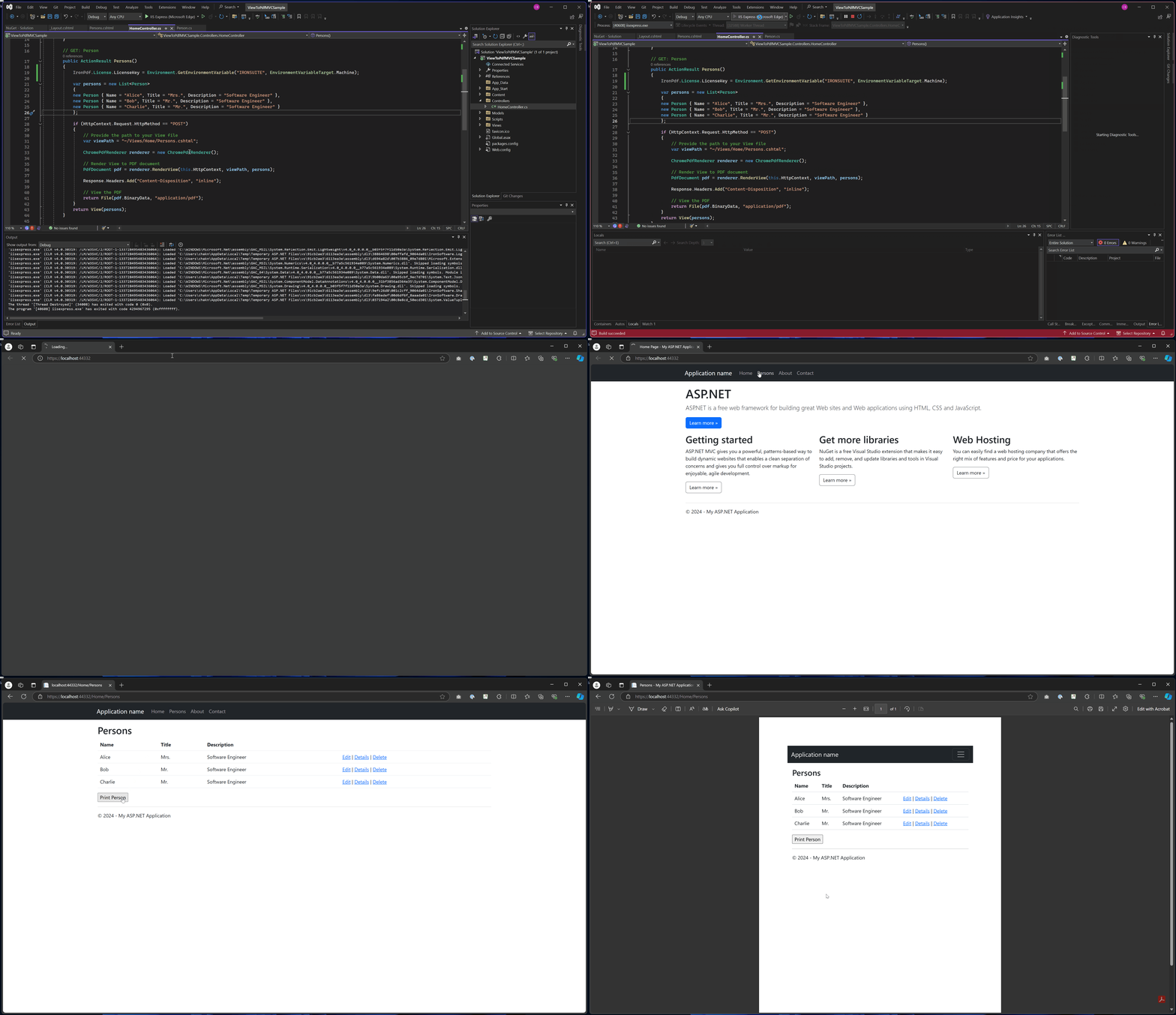
出力PDF
完全なプロジェクトはどこでダウンロードできますか?
サンプルプロジェクトには何が含まれますか?
このガイドの完全なコードをダウンロードできます。ASP.NET Web Application (.NET Framework) MVCプロジェクトとしてVisual Studioで開くことができるzipファイルとして提供されます。 サンプルには、MVCアプリケーションでPDF生成をすぐに始められるように、必要な構成、モデルクラス、コントローラ、ビューがすべて含まれています。
よくある質問
ASP.NET MVCでCSHTMLビューをPDFに変換する方法を教えてください。
ASP.NETのMVCでIronPDFのChromePdfRenderer.RenderView()メソッドを使ってCSHTMLビューをPDFに変換することができます。IronPDF.Extensions.Mvc.Frameworkパッケージをインストールし、レンダリングメソッドを使用するだけで、数行のコードでビューを高品質なPDFドキュメントに変換できます。
ビューをPDFとしてレンダリングするために必要な最小限のコードは何ですか?
ビューをPDFとしてレンダリングするための最小限のコードは次の通りです: var pdf = new IronPDF.ChromePdfRenderer.RenderRazorToPdf(this.ControllerContext); IronPDFを使ったこの一行のコードで、現在のビューがPDFドキュメントに変換されます。
ASP.NET MVC PDF生成にはどの拡張パッケージが必要ですか。
ASP.NET MVCアプリケーションには、IronPDF.Extensions.Mvc.Frameworkパッケージが必要です。このエクステンションはASP.NET MVCプロジェクトとのシームレスな統合を提供し、IronPDFのメインパッケージと連携してビューからPDFへの変換機能を実現します。
ビューをPDFに変換するために使用されるレンダリングエンジンは何ですか?
IronPDFはChrome PDFレンダリングエンジンを使用しており、ビューをPDFに変換する際にピクセルパーフェクトな精度を保証します。このエンジンは元のCSHTMLビューのスタイル、レイアウト、インタラクティブ要素を最終的なPDF出力で維持します。
MVCビューから請求書やレポートを作成できますか?
IronPDFはMVCビューから請求書やレポート、その他のドキュメントを生成するのに最適です。このライブラリはProfessionalなPDF出力機能を提供し、Webアプリケーションのビューから直接ビジネス文書を作成するのに理想的です。
ビューからPDFへの変換を実装するための基本的な手順は何ですか?
基本的な実装には5つのステップがあります:1) IronPDFライブラリのダウンロードとインストール、2) データのモデルクラスの追加、3) RenderViewメソッドを使用したコントローラアクションの作成、4) MVC 5 View Scaffoldingを使用したビューの追加、5) IronPDFのレンダリングメソッドを使用した変換の実行。
PDF出力は元のビューのスタイルを維持しますか?
IronPDFのChromeレンダリングエンジンは、CSHTMLビューのすべてのCSSスタイル、レイアウト、インタラクティブ要素をPDF出力に保持します。これにより、ピクセルパーフェクトな精度を提供し、元のウェブビューの視覚的整合性を維持します。


まだスクロールしていますか?
すぐに証拠が欲しいですか? PM > Install-Package IronPdf
サンプルを実行するHTML が PDF に変換されるのを確認します。
















 無料で始めましょう
 無料で始めましょう
 無料ライブデモを予約





 クレジットカードやアカウントの作成は不要です。










