
IronPDF C#でPDFをフラット化する方法

IronPDF は Flatten() メソッドを用いて C# で PDF ドキュメントを平坦化し、インタラクティブなフォームフィールドを静的コンテンツに変換するため、ドキュメントの変更ができなくなります。
PDF文書には、ラジオボタン、チェックボックス、テキストボックス、リストなどの記入可能なウィジェットを備えたインタラクティブなフォームが含まれることがよくあります。 これらのドキュメントをセキュリティやアーカイブ目的で編集不可にするには、PDFファイルをフラット化します。これは、ビジネスアプリケーション、法的文書、または永久記録が必要なシナリオでのPDFフォームの処理時に適用されます。
クイックスタート:数行でPDFをフラット化するIronPDFを使用してPDFドキュメントをフラット化し、すべてのインタラクティブ性を削除して、永久的で編集不可能なコンテンツを作成します。 このC#スニペットは、既存のPDFをロードし、すべての記入可能なウィジェットを削除し、保護されたドキュメントを保存します。
-
1Install IronPDF with NuGet Package Manager
-
2このコード スニペットをコピーして実行します。
var pdf = IronPdf.PdfDocument.FromFile("input.pdf"); pdf.Flatten(); pdf.SaveAs("flattened.pdf");C# -
3実際の環境でテストするためにデプロイする
今日プロジェクトで IronPDF を使い始めましょう無料トライアル
最小限のワークフロー(5ステップ)
- NuGetパッケージマネージャからIronPDFをインストールする。
- 既存のPDFを読み込むか、HTMLから新規作成
Flattenメソッドを呼び出す- フラット化されたPDFドキュメントを保存する
- フォームフィールドが削除されていることを確認する
C#で PDF ドキュメントをフラットにするにはどうすればよいですか?
IronPDFをインストールしたら、単一のメソッド呼び出しでPDFファイルをフラット化できます。 プロセスは、既存のPDFドキュメントおよびHTMLファイルからレンダリングされるPDFでも機能します。
以下のコード例では、PdfDocument クラスを使用して既存の PDF を読み込みます。 動的な PDF の生成には、平坦化する前に ChromePdfRenderer クラスでフォームをレンダリングします。
PDF ファイルを平坦化するには、Flatten メソッドを呼び出します。 これにより、ラジオボタン、チェックボックス、テキストフィールドを含むすべてのインタラクティブなウィジェットが削除され、ドキュメントが編集不可能になります。
入力
using IronPdf;

// Select the desired PDF File
PdfDocument pdf = PdfDocument.FromFile("before.pdf");

// Flatten the pdf
pdf.Flatten();

// Save as a new file
pdf.SaveAs("after_flatten.pdf");Imports IronPdf
' Select the desired PDF File
Private pdf As PdfDocument = PdfDocument.FromFile("before.pdf")
' Flatten the pdf
pdf.Flatten()
' Save as a new file
pdf.SaveAs("after_flatten.pdf")出力
複雑なシナリオでは、特定のページをフラット化したり、フラット化する前にフォームデータを設定したりします。 フラット化するページだけを指定するには、0始まりのページインデックスのリストを渡します:
using IronPdf;

// Load a PDF with fillable forms
PdfDocument pdf = PdfDocument.FromFile("form-document.pdf");

// Optionally, pre-fill form fields by name before flattening
pdf.Form.FindFormField("name").Value = "John Doe";
pdf.Form.FindFormField("email").Value = "john@example.com";

// Flatten only pages 1-3, passing their zero-based indexes
pdf.Flatten(new[] { 0, 1, 2 });

// Save the result
pdf.SaveAs("flattened-form.pdf");PDFがフラット化されたことを確認する方法
以下の出力は、翻訳前と翻訳後の状態を示しています。 最初のPDFには、編集可能なフォームフィールドが含まれています。 フラット化メソッドが実行された後、ドキュメントは編集不可能になります。 このコードは、Blazorアプリを含む任意 for .NETプロジェクトで機能します。
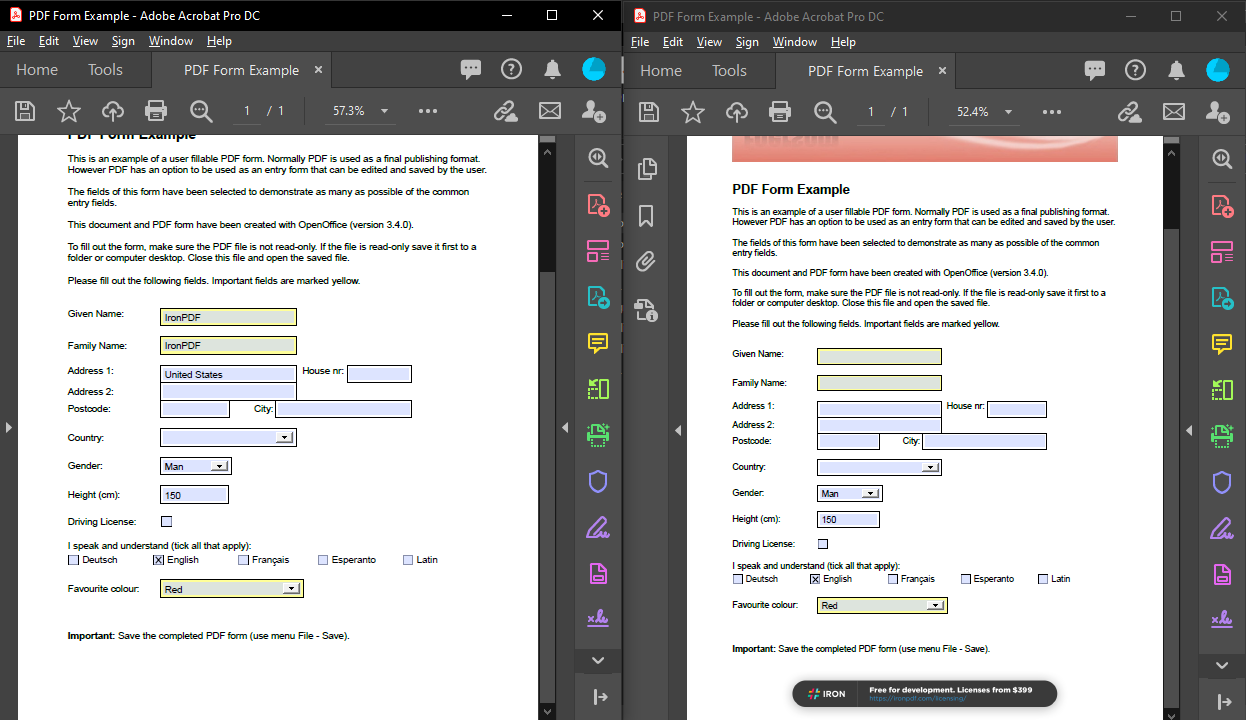
フォームは Flatten メソッドを使用した後、検出されなくなります。
平坦化の成功を確認するには、フォームのフィールド数をチェックしてください:
using IronPdf;

// Load the flattened PDF
PdfDocument flattenedPdf = PdfDocument.FromFile("flattened.pdf");

// FormFieldCollection exposes Count directly on the Form property
if (flattenedPdf.Form.Count == 0)
{
    Console.WriteLine("PDF has been successfully flattened - no interactive fields remain.");
}
else
{
    Console.WriteLine($"Warning: {flattenedPdf.Form.Count} form fields still exist.");
}
私のお気に入りのこの種のライブラリはIronPDFです。PDFファイルの迅速で効率的な操作が可能です。また、PDF/A形式へのエクスポートやPDF文書へのデジタル署名といった多くの貴重な機能も備えています。


フラット化後、フォームフィールドはどうなりますか?
PDFドキュメントをフラット化すると、すべてのインタラクティブなフォーム要素がページコンテンツの一部になります。 フォームフィールドは静的なテキストとグラフィックに変わります:
- テキストフィールドは、ページ上の通常のテキストになります。
- チェックボックスとラジオボタンは、選択された状態を示す静的な画像になります。
- ドロップダウンメニューは、選択された値のみをプレーンテキストとして表示します。
- デジタル署名は視覚的に保持されますが、暗号検証は失われます。
このプロセスは不可逆的です。 将来の編集機能が必要な場合は、元のインタラクティブPDFのコピーを保管してください。 フラット化は、ページをイメージにラスター化するとは異なり、テキストとベクターコンテンツを選択可能に保ちます。ラスター化は各ページをフラットなピクチャに変換します。 セキュリティと編集性の両方が必要な文書には、フラット化の代わりにPDF権限とパスワードを使用してください。
いつPDFドキュメントをフラット化するべきですか?
フラット化する一般的なケース:
1.法的文書のアーカイブ:契約書や合意書を署名後に平坦化し、内容の改変を防ぎ、法的整合性を維持します。
2.レポート配布:改ざんを防ぐため、配布前に計算フィールドを含む財務報告書やデータシートを平らにします。
3.フォーム提出処理:ユーザーがオンラインフォームに記入した後、PDFを平坦化することで永続的な記録を作成します。
4.印刷の最適化:プリンタがインタラクティブ要素を処理しないため、平坦化されたPDFはより確実に印刷されます。
- ファイルサイズの削減: フォームフィールドデータ構造を削除することでフラット化がファイルサイズを削減できます。これによりPDF圧縮と良く組み合わせることができます。
複数の入力済みフォームをアーカイブするバッチ処理の例です:
using IronPdf;
using System.IO;

public class BatchPdfFlattener
{
    public static void FlattenAllPdfsInDirectory(string sourceDir, string outputDir)
    {
        // Ensure output directory exists
        Directory.CreateDirectory(outputDir);

        // Get all PDF files in source directory
        string[] pdfFiles = Directory.GetFiles(sourceDir, "*.pdf");

        foreach (string pdfFile in pdfFiles)
        {
            try
            {
                // Load the PDF
                PdfDocument pdf = PdfDocument.FromFile(pdfFile);

                // Flatten the document
                pdf.Flatten();

                // Save to output directory with "_flattened" suffix
                string fileName = Path.GetFileNameWithoutExtension(pdfFile);
                string outputPath = Path.Combine(outputDir, $"{fileName}_flattened.pdf");
                pdf.SaveAs(outputPath);

                Console.WriteLine($"Flattened: {fileName}");
            }
            catch (Exception ex)
            {
                Console.WriteLine($"Error processing {pdfFile}: {ex.Message}");
            }
        }
    }
}Imports IronPdf
Imports System.IO
Public Class BatchPdfFlattener
Public Shared Sub FlattenAllPdfsInDirectory(sourceDir As String, outputDir As String)
' Ensure output directory exists
Directory.CreateDirectory(outputDir)
' Get all PDF files in source directory
Dim pdfFiles As String() = Directory.GetFiles(sourceDir, "*.pdf")
For Each pdfFile As String In pdfFiles
Try
' Load the PDF
Dim pdf As PdfDocument = PdfDocument.FromFile(pdfFile)
' Flatten the document
pdf.Flatten()
' Save to output directory with "_flattened" suffix
Dim fileName As String = Path.GetFileNameWithoutExtension(pdfFile)
Dim outputPath As String = Path.Combine(outputDir, $"{fileName}_flattened.pdf")
pdf.SaveAs(outputPath)
Console.WriteLine($"Flattened: {fileName}")
Catch ex As Exception
Console.WriteLine($"Error processing {pdfFile}: {ex.Message}")
End Try
Next
End Sub
End Class結論
平坦化は、PDF のインタラクティブなフォームフィールドを静的なページコンテンツに変換し、Flatten() 呼び出しひとつでドキュメントをさらに編集できないようにロックします。 後でデータを変更する可能性がある場合は、非フラット化されたコピーを保持します。この操作は元に戻せませんから。
最初にフィールドを埋める必要がある場合は、フラット化する前にフォームの値を設定します; 結合または分割することでロックされたドキュメントを組み立てます。
ライブラリのクイックアクセス

次に何ができるのかを見てみましょうか? チュートリアルのページはこちらをご覧ください:追加機能。
よくある質問
PDFのフラット化とはどういう意味ですか?
PDFをフラット化すると、チェックボックス、テキストボックス、ラジオボタンのようなすべてのインタラクティブなフォームフィールドが、静的で編集不可能なコンテンツに変換されます。IronPDFはこの機能を提供し、ドキュメントの整合性を確保し、それ以上の変更を防ぎます。
C#でPDFをフラットにするには?
IronPDFを使用すると、次の3文でPDFをフラット化できます: var pdf = IronPdf.PdfDocument.FromFile("input.pdf"); その後、pdf.Flatten(); 次にpdf.SaveAs("flattened.pdf")。これにより、PDFが読み込まれ、すべてのインタラクティブ要素が削除され、セキュアなドキュメントが保存されます。
ドキュメント全体ではなく、特定のページをフラット化できますか?
はい、ゼロベースのページインデックスのリストをFlattenメソッドに渡します。たとえば、pdf.Flatten(new[] { 0, 1, 2 })はページ0、1、および2のみをフラット化し、残りのページはインタラクティブのままにします。
フラット化できるフォームフィールドの種類は?
IronPDFはラジオボタン、チェックボックス、テキストフィールド、ドロップダウンリスト、その他記入可能なフォーム要素を含むすべてのインタラクティブウィジェットを平坦化し、恒久的な静的コンテンツに変換することができます。
PDFを平坦化する前にフォームフィールドを埋めることはできますか?
はい、IronPDFはフラット化する前にフォームフィールドを事前に入力することを許可します。フラット化メソッドを呼び出す前に、pdf.Form.FindFormField("name").Value = "John Doe"のように値を設定して、完成した編集不可能なドキュメントを作成できます。
PDFのフラット化処理で使用するレンダリングエンジンは何ですか?
IronPDFはChromeレンダリングエンジンを使用し、複雑なフォームの正確なレンダリングを保証します。
なぜPDF文書を平坦化する必要があるのですか?
IronPDFでPDFを平坦化することは、セキュリティ、アーカイブ目的、法的文書、あるいはフォームデータのさらなる変更を防ぐ必要のある永久的な文書保存を必要とするシナリオに不可欠です。
Is the flattening process reversible in IronPDF?
No, the flattening process is irreversible. It permanently converts interactive elements into non-editable content, so it's crucial to keep an original unflattened copy if future edits are needed.
Do flattened PDFs still retain selectable text and vector graphics?
Yes, while form fields are converted to static content, IronPDF retains selectable text and vector graphics within the document.
Can interactive elements like digital signatures be preserved upon flattening?
Digital signatures are preserved visually after flattening in IronPDF, but cryptographic validation is lost, meaning they remain visible yet are no longer valid signatures.

Curtis Chauは、カールトン大学でコンピュータサイエンスの学士号を取得し、Node.js、TypeScript、JavaScript、およびReactに精通したフロントエンド開発を専門としています。直感的で美しいユーザーインターフェースを作成することに情熱を持ち、Curtisは現代のフレームワークを用いた開発や、構造の良い視覚的に魅力的なマニュアルの作成を楽しんでいます。













