var signature = new IronPdf.Signing.PdfSignature("certificate.pfx", "password");IronPdf.PdfDocument.FromFile("document.pdf").Sign(signature).SaveAs("signed.pdf");
var signature = new IronPdf.Signing.PdfSignature("certificate.pfx", "password");
IronPdf.PdfDocument.FromFile("document.pdf").Sign(signature).SaveAs("signed.pdf");
using System.Security.Cryptography.X509Certificates;// Load the certificate from a PKCS#12 file (.pfx or .p12)// The Exportable flag allows the private key to be used for signingvar certificate = new X509Certificate2( "company-signing-cert.pfx", "certificate-password",X509KeyStorageFlags.Exportable);
using System.Security.Cryptography.X509Certificates;

// Load the certificate from a PKCS#12 file (.pfx or .p12)
// The Exportable flag allows the private key to be used for signing
var certificate = new X509Certificate2(
    "company-signing-cert.pfx",
    "certificate-password",
    X509KeyStorageFlags.Exportable
);
ImportsSystem.Security.Cryptography.X509Certificates' Load the certificate from a PKCS#12 file (.pfx or .p12)' The Exportable flag allows the private key to be used for signingDim certificate As New X509Certificate2( "company-signing-cert.pfx", "certificate-password",X509KeyStorageFlags.Exportable)
Imports System.Security.Cryptography.X509Certificates

' Load the certificate from a PKCS#12 file (.pfx or .p12)
' The Exportable flag allows the private key to be used for signing
Dim certificate As New X509Certificate2(
    "company-signing-cert.pfx",
    "certificate-password",
    X509KeyStorageFlags.Exportable
)
using IronPdf;using IronPdf.Signing;// Load the PDF document that needs to be signedPdfDocument pdf = PdfDocument.FromFile("contract.pdf");// Create a signature object using the certificate file path and passwordvar signature = new PdfSignature("certificate.pfx", "password");// Apply the cryptographic signature to the document// This embeds an invisible digital signature in the PDF structurepdf.Sign(signature);// Save the signed document to a new filepdf.SaveAs("contract-signed.pdf");
using IronPdf;
using IronPdf.Signing;

// Load the PDF document that needs to be signed
PdfDocument pdf = PdfDocument.FromFile("contract.pdf");

// Create a signature object using the certificate file path and password
var signature = new PdfSignature("certificate.pfx", "password");

// Apply the cryptographic signature to the document
// This embeds an invisible digital signature in the PDF structure
pdf.Sign(signature);

// Save the signed document to a new file
pdf.SaveAs("contract-signed.pdf");
ImportsIronPdfImportsIronPdf.Signing' Load the PDF document that needs to be signedDim pdf AsPdfDocument = PdfDocument.FromFile("contract.pdf")' Create a signature object using the certificate file path and passwordDim signature As New PdfSignature("certificate.pfx", "password")' Apply the cryptographic signature to the document' This embeds an invisible digital signature in the PDF structurepdf.Sign(signature)' Save the signed document to a new filepdf.SaveAs("contract-signed.pdf")
Imports IronPdf
Imports IronPdf.Signing

' Load the PDF document that needs to be signed
Dim pdf As PdfDocument = PdfDocument.FromFile("contract.pdf")

' Create a signature object using the certificate file path and password
Dim signature As New PdfSignature("certificate.pfx", "password")

' Apply the cryptographic signature to the document
' This embeds an invisible digital signature in the PDF structure
pdf.Sign(signature)

' Save the signed document to a new file
pdf.SaveAs("contract-signed.pdf")
using IronPdf;using IronPdf.Signing;// One-line approach for signing PDFs// Useful for batch processing where you don't need to manipulate the documentvar signature = new PdfSignature("certificate.pfx", "password");PdfDocument.FromFile("document.pdf").Sign(signature).SaveAs("document-signed.pdf");
using IronPdf;
using IronPdf.Signing;

// One-line approach for signing PDFs
// Useful for batch processing where you don't need to manipulate the document
var signature = new PdfSignature("certificate.pfx", "password");
PdfDocument.FromFile("document.pdf").Sign(signature).SaveAs("document-signed.pdf");
ImportsIronPdfImportsIronPdf.Signing' One-line approach for signing PDFs' Useful for batch processing where you don't need to manipulate the documentDim signature As New PdfSignature("certificate.pfx", "password")PdfDocument.FromFile("document.pdf").Sign(signature).SaveAs("document-signed.pdf")
Imports IronPdf
Imports IronPdf.Signing

' One-line approach for signing PDFs
' Useful for batch processing where you don't need to manipulate the document
Dim signature As New PdfSignature("certificate.pfx", "password")
PdfDocument.FromFile("document.pdf").Sign(signature).SaveAs("document-signed.pdf")
using IronPdf;using IronPdf.Signing;using System;// Load the document to be signedPdfDocument pdf = PdfDocument.FromFile("invoice.pdf");// Create a signature with the company certificatevar signature = new PdfSignature("certificate.pfx", "password"){ // Add metadata to create an audit trail // This information appears in the signature panel of PDF readersSigningReason = "Invoice Approval",SigningLocation = "New York Office",SigningContact = "accounts@company.com",SignatureDate = DateTime.UtcNow};// Apply the signature with all metadata includedpdf.Sign(signature);pdf.SaveAs("invoice-approved.pdf");
using IronPdf;
using IronPdf.Signing;
using System;

// Load the document to be signed
PdfDocument pdf = PdfDocument.FromFile("invoice.pdf");

// Create a signature with the company certificate
var signature = new PdfSignature("certificate.pfx", "password")
{
    // Add metadata to create an audit trail
    // This information appears in the signature panel of PDF readers
    SigningReason = "Invoice Approval",
    SigningLocation = "New York Office",
    SigningContact = "accounts@company.com",
    SignatureDate = DateTime.UtcNow
};

// Apply the signature with all metadata included
pdf.Sign(signature);
pdf.SaveAs("invoice-approved.pdf");
ImportsIronPdfImportsIronPdf.SigningImportsSystem' Load the document to be signedDim pdf AsPdfDocument = PdfDocument.FromFile("invoice.pdf")' Create a signature with the company certificateDim signature As New PdfSignature("certificate.pfx", "password") With { ' Add metadata to create an audit trail ' This information appears in the signature panel of PDF readers .SigningReason = "Invoice Approval", .SigningLocation = "New York Office", .SigningContact = "accounts@company.com", .SignatureDate = DateTime.UtcNow}' Apply the signature with all metadata includedpdf.Sign(signature)pdf.SaveAs("invoice-approved.pdf")
Imports IronPdf
Imports IronPdf.Signing
Imports System

' Load the document to be signed
Dim pdf As PdfDocument = PdfDocument.FromFile("invoice.pdf")

' Create a signature with the company certificate
Dim signature As New PdfSignature("certificate.pfx", "password") With {
    ' Add metadata to create an audit trail
    ' This information appears in the signature panel of PDF readers
    .SigningReason = "Invoice Approval",
    .SigningLocation = "New York Office",
    .SigningContact = "accounts@company.com",
    .SignatureDate = DateTime.UtcNow
}

' Apply the signature with all metadata included
pdf.Sign(signature)
pdf.SaveAs("invoice-approved.pdf")
using IronPdf;using IronPdf.Signing;using System;// Load the document to signPdfDocument pdf = PdfDocument.FromFile("agreement.pdf");var signature = new PdfSignature("certificate.pfx", "password"){SigningReason = "Agreement Execution", // Configure a trusted timestamp server (RFC 3161 compliant) // This provides cryptographic proof of when the document was signedTimestampHashAlgorithm = TimestampHashAlgorithms.SHA256,TimeStampUrl = "http://timestamp.digicert.com"};// Apply the signature with the trusted timestamppdf.Sign(signature);pdf.SaveAs("agreement-timestamped.pdf");
using IronPdf;
using IronPdf.Signing;
using System;

// Load the document to sign
PdfDocument pdf = PdfDocument.FromFile("agreement.pdf");
var signature = new PdfSignature("certificate.pfx", "password")
{
    SigningReason = "Agreement Execution",
    // Configure a trusted timestamp server (RFC 3161 compliant)
    // This provides cryptographic proof of when the document was signed
    TimestampHashAlgorithm = TimestampHashAlgorithms.SHA256,
    TimeStampUrl = "http://timestamp.digicert.com"
};

// Apply the signature with the trusted timestamp
pdf.Sign(signature);
pdf.SaveAs("agreement-timestamped.pdf");
ImportsIronPdfImportsIronPdf.SigningImportsSystem' Load the document to signDim pdf AsPdfDocument = PdfDocument.FromFile("agreement.pdf")Dim signature As New PdfSignature("certificate.pfx", "password") With { .SigningReason = "Agreement Execution", ' Configure a trusted timestamp server (RFC 3161 compliant) ' This provides cryptographic proof of when the document was signed .TimestampHashAlgorithm = TimestampHashAlgorithms.SHA256, .TimeStampUrl = "http://timestamp.digicert.com"}' Apply the signature with the trusted timestamppdf.Sign(signature)pdf.SaveAs("agreement-timestamped.pdf")
Imports IronPdf
Imports IronPdf.Signing
Imports System

' Load the document to sign
Dim pdf As PdfDocument = PdfDocument.FromFile("agreement.pdf")
Dim signature As New PdfSignature("certificate.pfx", "password") With {
    .SigningReason = "Agreement Execution",
    ' Configure a trusted timestamp server (RFC 3161 compliant)
    ' This provides cryptographic proof of when the document was signed
    .TimestampHashAlgorithm = TimestampHashAlgorithms.SHA256,
    .TimeStampUrl = "http://timestamp.digicert.com"
}

' Apply the signature with the trusted timestamp
pdf.Sign(signature)
pdf.SaveAs("agreement-timestamped.pdf")
using IronPdf;using IronPdf.Signing;using IronSoftware.Drawing;// Load the document to signPdfDocument pdf = PdfDocument.FromFile("contract.pdf");var signature = new PdfSignature("certificate.pfx", "password"){SigningReason = "Contract Approval",SigningLocation = "Head Office"};// Define the position and size for the visible signature image// Rectangle parameters: x position, y position, width, height (in points)// Points are measured from the bottom-left corner of the pagevar signatureArea = new Rectangle(150, 100, 200, 50);// Load and attach the visual signature image// The image will appear at the specified location on the documentsignature.LoadSignatureImageFromFile( "signature-image.png", // Path to the signature image file 0, // Page index (0 = first page) signatureArea // Position and dimensions);// Apply both the cryptographic signature and visual representationpdf.Sign(signature);pdf.SaveAs("contract-visually-signed.pdf");
using IronPdf;
using IronPdf.Signing;
using IronSoftware.Drawing;

// Load the document to sign
PdfDocument pdf = PdfDocument.FromFile("contract.pdf");
var signature = new PdfSignature("certificate.pfx", "password")
{
    SigningReason = "Contract Approval",
    SigningLocation = "Head Office"
};

// Define the position and size for the visible signature image
// Rectangle parameters: x position, y position, width, height (in points)
// Points are measured from the bottom-left corner of the page
var signatureArea = new Rectangle(150, 100, 200, 50);

// Load and attach the visual signature image
// The image will appear at the specified location on the document
signature.LoadSignatureImageFromFile(
    "signature-image.png",   // Path to the signature image file
    0,                       // Page index (0 = first page)
    signatureArea            // Position and dimensions
);

// Apply both the cryptographic signature and visual representation
pdf.Sign(signature);
pdf.SaveAs("contract-visually-signed.pdf");
ImportsIronPdfImportsIronPdf.SigningImportsIronSoftware.Drawing' Load the document to signDim pdf AsPdfDocument = PdfDocument.FromFile("contract.pdf")Dim signature As New PdfSignature("certificate.pfx", "password") With { .SigningReason = "Contract Approval", .SigningLocation = "Head Office"}' Define the position and size for the visible signature image' Rectangle parameters: x position, y position, width, height (in points)' Points are measured from the bottom-left corner of the pageDim signatureArea As New Rectangle(150, 100, 200, 50)' Load and attach the visual signature image' The image will appear at the specified location on the documentsignature.LoadSignatureImageFromFile( "signature-image.png", ' Path to the signature image file 0, ' Page index (0 = first page) signatureArea ' Position and dimensions)' Apply both the cryptographic signature and visual representationpdf.Sign(signature)pdf.SaveAs("contract-visually-signed.pdf")
Imports IronPdf
Imports IronPdf.Signing
Imports IronSoftware.Drawing

' Load the document to sign
Dim pdf As PdfDocument = PdfDocument.FromFile("contract.pdf")
Dim signature As New PdfSignature("certificate.pfx", "password") With {
    .SigningReason = "Contract Approval",
    .SigningLocation = "Head Office"
}

' Define the position and size for the visible signature image
' Rectangle parameters: x position, y position, width, height (in points)
' Points are measured from the bottom-left corner of the page
Dim signatureArea As New Rectangle(150, 100, 200, 50)

' Load and attach the visual signature image
' The image will appear at the specified location on the document
signature.LoadSignatureImageFromFile(
    "signature-image.png",   ' Path to the signature image file
    0,                       ' Page index (0 = first page)
    signatureArea            ' Position and dimensions
)

' Apply both the cryptographic signature and visual representation
pdf.Sign(signature)
pdf.SaveAs("contract-visually-signed.pdf")
出力
座標系は、ページの左下隅から測定したポイント(1/72インチ)を使用します。 標準的なUSレターページ(612 x 792ポイント)の場合、署名を右下に配置するには、署名サイズと適切な余白の両方を考慮する必要があります。
署名画像をさまざまなソースから読み込むための別の方法があります:
using IronPdf.Signing;using IronSoftware.Drawing;using System.IO;// Create signature objectvar signature = new PdfSignature("certificate.pfx", "password");var signatureArea = new Rectangle(400, 50, 150, 75);// Method 1: Load signature image directly from a file pathsignature.LoadSignatureImageFromFile("signature.png", 0, signatureArea);// Method 2: Load from a stream (useful for database-stored images)using (FileStream imageStream = File.OpenRead("signature.png")){ signature.LoadSignatureImageFromStream(imageStream, 0, signatureArea);}// Method 3: Load from AnyBitmap (IronSoftware's cross-platform image type)AnyBitmap signatureBitmap = AnyBitmap.FromFile("signature.png");using (var stream = signatureBitmap.ToStream()){ signature.LoadSignatureImageFromStream(stream, 0, signatureArea);}
using IronPdf.Signing;
using IronSoftware.Drawing;
using System.IO;

// Create signature object
var signature = new PdfSignature("certificate.pfx", "password");
var signatureArea = new Rectangle(400, 50, 150, 75);

// Method 1: Load signature image directly from a file path
signature.LoadSignatureImageFromFile("signature.png", 0, signatureArea);

// Method 2: Load from a stream (useful for database-stored images)
using (FileStream imageStream = File.OpenRead("signature.png"))
{
    signature.LoadSignatureImageFromStream(imageStream, 0, signatureArea);
}

// Method 3: Load from AnyBitmap (IronSoftware's cross-platform image type)
AnyBitmap signatureBitmap = AnyBitmap.FromFile("signature.png");
using (var stream = signatureBitmap.ToStream())
{
    signature.LoadSignatureImageFromStream(stream, 0, signatureArea);
}
ImportsIronPdf.SigningImportsIronSoftware.DrawingImportsSystem.IO' Create signature objectDim signature As New PdfSignature("certificate.pfx", "password")Dim signatureArea As New Rectangle(400, 50, 150, 75)' Method 1: Load signature image directly from a file pathsignature.LoadSignatureImageFromFile("signature.png", 0, signatureArea)' Method 2: Load from a stream (useful for database-stored images)Using imageStream AsFileStream = File.OpenRead("signature.png") signature.LoadSignatureImageFromStream(imageStream, 0, signatureArea)EndUsing' Method 3: Load from AnyBitmap (IronSoftware's cross-platform image type)Dim signatureBitmap AsAnyBitmap = AnyBitmap.FromFile("signature.png")Using stream AsStream = signatureBitmap.ToStream() signature.LoadSignatureImageFromStream(stream, 0, signatureArea)EndUsing
Imports IronPdf.Signing
Imports IronSoftware.Drawing
Imports System.IO

' Create signature object
Dim signature As New PdfSignature("certificate.pfx", "password")
Dim signatureArea As New Rectangle(400, 50, 150, 75)

' Method 1: Load signature image directly from a file path
signature.LoadSignatureImageFromFile("signature.png", 0, signatureArea)

' Method 2: Load from a stream (useful for database-stored images)
Using imageStream As FileStream = File.OpenRead("signature.png")
    signature.LoadSignatureImageFromStream(imageStream, 0, signatureArea)
End Using

' Method 3: Load from AnyBitmap (IronSoftware's cross-platform image type)
Dim signatureBitmap As AnyBitmap = AnyBitmap.FromFile("signature.png")
Using stream As Stream = signatureBitmap.ToStream()
    signature.LoadSignatureImageFromStream(stream, 0, signatureArea)
End Using
using IronPdf;using IronPdf.Signing;// Load a multi-page documentPdfDocument pdf = PdfDocument.FromFile("multi-page-contract.pdf");// Create signature - digital signatures protect the entire document// regardless of page countvar signature = new PdfSignature("certificate.pfx", "password");// Sign and save the document// The signature applies to all pages in the documentpdf.Sign(signature);pdf.SaveAs("contract-signed-last-page.pdf");
using IronPdf;
using IronPdf.Signing;

// Load a multi-page document
PdfDocument pdf = PdfDocument.FromFile("multi-page-contract.pdf");

// Create signature - digital signatures protect the entire document
// regardless of page count
var signature = new PdfSignature("certificate.pfx", "password");

// Sign and save the document
// The signature applies to all pages in the document
pdf.Sign(signature);
pdf.SaveAs("contract-signed-last-page.pdf");
ImportsIronPdfImportsIronPdf.Signing' Load a multi-page documentDim pdf AsPdfDocument = PdfDocument.FromFile("multi-page-contract.pdf")' Create signature - digital signatures protect the entire document' regardless of page countDim signature As New PdfSignature("certificate.pfx", "password")' Sign and save the document' The signature applies to all pages in the documentpdf.Sign(signature)pdf.SaveAs("contract-signed-last-page.pdf")
Imports IronPdf
Imports IronPdf.Signing

' Load a multi-page document
Dim pdf As PdfDocument = PdfDocument.FromFile("multi-page-contract.pdf")

' Create signature - digital signatures protect the entire document
' regardless of page count
Dim signature As New PdfSignature("certificate.pfx", "password")

' Sign and save the document
' The signature applies to all pages in the document
pdf.Sign(signature)
pdf.SaveAs("contract-signed-last-page.pdf")
using IronPdf;using IronPdf.Editing;using IronPdf.Signing;using IronSoftware.Drawing;// Load the documentPdfDocument pdf = PdfDocument.FromFile("agreement.pdf");// Create an image stamp for initials that will appear on every pagevar initialsStamp = new ImageStamper("initials.png"){HorizontalAlignment = HorizontalAlignment.Right,VerticalAlignment = VerticalAlignment.Bottom,HorizontalOffset = new Length(50, MeasurementUnit.Points),VerticalOffset = new Length(50, MeasurementUnit.Points)};// Apply initials stamp to all pagespdf.ApplyStamp(initialsStamp);// Now apply the cryptographic signature with a full signature image on the last pagevar signature = new PdfSignature("certificate.pfx", "password");var signatureArea = new Rectangle(100, 100, 200, 100);signature.SignatureImage = new PdfSignatureImage( "full-signature.png", pdf.PageCount - 1, // Last page only signatureArea);// Sign the entire document cryptographicallypdf.Sign(signature);pdf.SaveAs("agreement-initialed-and-signed.pdf");
using IronPdf;
using IronPdf.Editing;
using IronPdf.Signing;
using IronSoftware.Drawing;

// Load the document
PdfDocument pdf = PdfDocument.FromFile("agreement.pdf");

// Create an image stamp for initials that will appear on every page
var initialsStamp = new ImageStamper("initials.png")
{
    HorizontalAlignment = HorizontalAlignment.Right,
    VerticalAlignment = VerticalAlignment.Bottom,
    HorizontalOffset = new Length(50, MeasurementUnit.Points),
    VerticalOffset = new Length(50, MeasurementUnit.Points)
};

// Apply initials stamp to all pages
pdf.ApplyStamp(initialsStamp);

// Now apply the cryptographic signature with a full signature image on the last page
var signature = new PdfSignature("certificate.pfx", "password");
var signatureArea = new Rectangle(100, 100, 200, 100);
signature.SignatureImage = new PdfSignatureImage(
    "full-signature.png",
    pdf.PageCount - 1,    // Last page only
    signatureArea
);

// Sign the entire document cryptographically
pdf.Sign(signature);
pdf.SaveAs("agreement-initialed-and-signed.pdf");
ImportsIronPdfImportsIronPdf.EditingImportsIronPdf.SigningImportsIronSoftware.Drawing' Load the documentDim pdf AsPdfDocument = PdfDocument.FromFile("agreement.pdf")' Create an image stamp for initials that will appear on every pageDim initialsStamp As New ImageStamper("initials.png") With { .HorizontalAlignment = HorizontalAlignment.Right, .VerticalAlignment = VerticalAlignment.Bottom, .HorizontalOffset = New Length(50, MeasurementUnit.Points), .VerticalOffset = New Length(50, MeasurementUnit.Points)}' Apply initials stamp to all pagespdf.ApplyStamp(initialsStamp)' Now apply the cryptographic signature with a full signature image on the last pageDim signature As New PdfSignature("certificate.pfx", "password")Dim signatureArea As New Rectangle(100, 100, 200, 100)signature.SignatureImage = New PdfSignatureImage( "full-signature.png", pdf.PageCount - 1, ' Last page only signatureArea)' Sign the entire document cryptographicallypdf.Sign(signature)pdf.SaveAs("agreement-initialed-and-signed.pdf")
Imports IronPdf
Imports IronPdf.Editing
Imports IronPdf.Signing
Imports IronSoftware.Drawing

' Load the document
Dim pdf As PdfDocument = PdfDocument.FromFile("agreement.pdf")

' Create an image stamp for initials that will appear on every page
Dim initialsStamp As New ImageStamper("initials.png") With {
    .HorizontalAlignment = HorizontalAlignment.Right,
    .VerticalAlignment = VerticalAlignment.Bottom,
    .HorizontalOffset = New Length(50, MeasurementUnit.Points),
    .VerticalOffset = New Length(50, MeasurementUnit.Points)
}

' Apply initials stamp to all pages
pdf.ApplyStamp(initialsStamp)

' Now apply the cryptographic signature with a full signature image on the last page
Dim signature As New PdfSignature("certificate.pfx", "password")
Dim signatureArea As New Rectangle(100, 100, 200, 100)
signature.SignatureImage = New PdfSignatureImage(
    "full-signature.png",
    pdf.PageCount - 1,    ' Last page only
    signatureArea
)

' Sign the entire document cryptographically
pdf.Sign(signature)
pdf.SaveAs("agreement-initialed-and-signed.pdf")
using IronPdf;using IronPdf.Signing;// Load the purchase order documentPdfDocument pdf = PdfDocument.FromFile("purchase-order.pdf");// First signer: Department Manager approves the purchase ordervar managerSignature = new PdfSignature("certificate.pfx", "password"){SigningReason = "Manager Approval",SigningLocation = "Department A"};// Sign the document and save// This preserves the original state while adding the signaturepdf.Sign(managerSignature);pdf.SaveAs("po-manager-approved.pdf");
using IronPdf;
using IronPdf.Signing;

// Load the purchase order document
PdfDocument pdf = PdfDocument.FromFile("purchase-order.pdf");

// First signer: Department Manager approves the purchase order
var managerSignature = new PdfSignature("certificate.pfx", "password")
{
    SigningReason = "Manager Approval",
    SigningLocation = "Department A"
};

// Sign the document and save
// This preserves the original state while adding the signature
pdf.Sign(managerSignature);
pdf.SaveAs("po-manager-approved.pdf");
ImportsIronPdfImportsIronPdf.Signing' Load the purchase order documentDim pdf AsPdfDocument = PdfDocument.FromFile("purchase-order.pdf")' First signer: Department Manager approves the purchase orderDim managerSignature As New PdfSignature("certificate.pfx", "password") With { .SigningReason = "Manager Approval", .SigningLocation = "Department A"}' Sign the document and save' This preserves the original state while adding the signaturepdf.Sign(managerSignature)pdf.SaveAs("po-manager-approved.pdf")
Imports IronPdf
Imports IronPdf.Signing

' Load the purchase order document
Dim pdf As PdfDocument = PdfDocument.FromFile("purchase-order.pdf")

' First signer: Department Manager approves the purchase order
Dim managerSignature As New PdfSignature("certificate.pfx", "password") With {
    .SigningReason = "Manager Approval",
    .SigningLocation = "Department A"
}

' Sign the document and save
' This preserves the original state while adding the signature
pdf.Sign(managerSignature)
pdf.SaveAs("po-manager-approved.pdf")
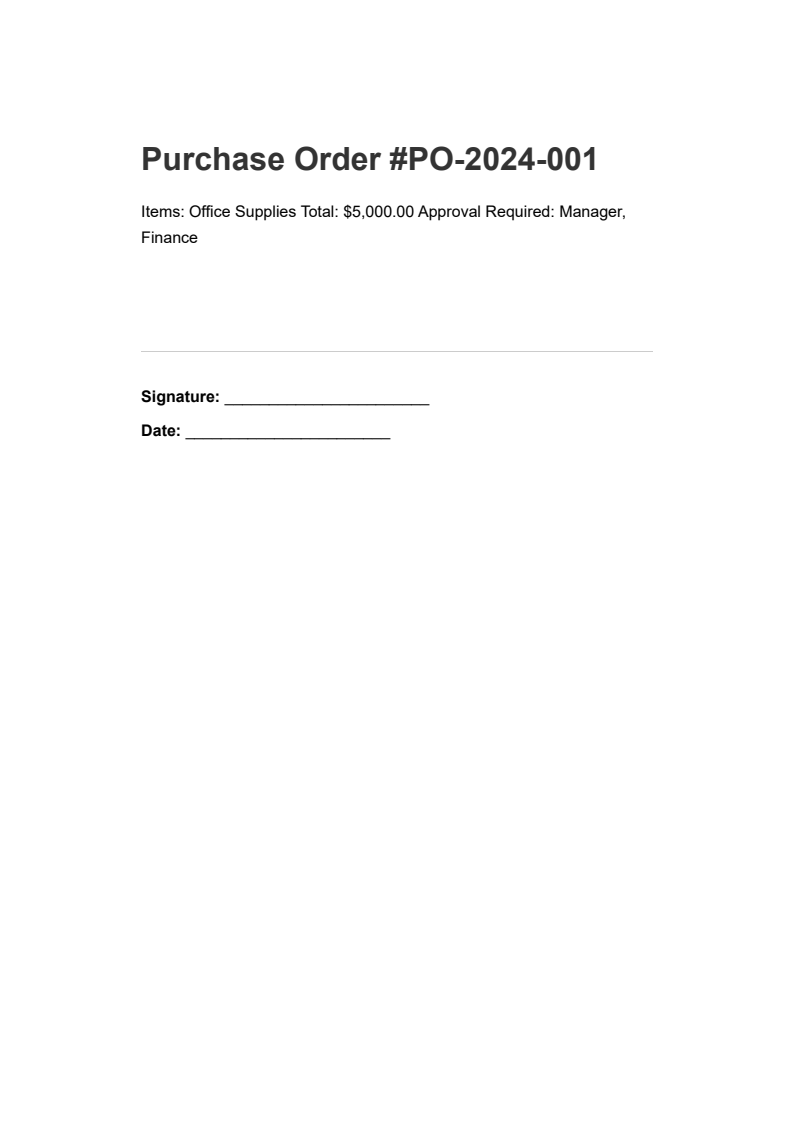
入力
purchase-order.pdf - 承認待ちの発注書
出力
文書が次の承認者に移ると、その承認者は文書を読み込み、自分の署名を追加します:
using IronPdf;using IronPdf.Signing;// Load the document that already has the manager's signaturePdfDocument pdf = PdfDocument.FromFile("po-manager-approved.pdf");// Second signer: Finance department verifies budget availabilityvar financeSignature = new PdfSignature("certificate.pfx", "password"){SigningReason = "Finance Approval",SigningLocation = "Finance Department"};// Add the second signature// Both signatures remain independently verifiablepdf.Sign(financeSignature);pdf.SaveAs("po-finance-approved.pdf");
using IronPdf;
using IronPdf.Signing;

// Load the document that already has the manager's signature
PdfDocument pdf = PdfDocument.FromFile("po-manager-approved.pdf");

// Second signer: Finance department verifies budget availability
var financeSignature = new PdfSignature("certificate.pfx", "password")
{
    SigningReason = "Finance Approval",
    SigningLocation = "Finance Department"
};

// Add the second signature
// Both signatures remain independently verifiable
pdf.Sign(financeSignature);
pdf.SaveAs("po-finance-approved.pdf");
ImportsIronPdfImportsIronPdf.Signing' Load the document that already has the manager's signatureDim pdf AsPdfDocument = PdfDocument.FromFile("po-manager-approved.pdf")' Second signer: Finance department verifies budget availabilityDim financeSignature As New PdfSignature("certificate.pfx", "password") With { .SigningReason = "Finance Approval", .SigningLocation = "Finance Department"}' Add the second signature' Both signatures remain independently verifiablepdf.Sign(financeSignature)pdf.SaveAs("po-finance-approved.pdf")
Imports IronPdf
Imports IronPdf.Signing

' Load the document that already has the manager's signature
Dim pdf As PdfDocument = PdfDocument.FromFile("po-manager-approved.pdf")

' Second signer: Finance department verifies budget availability
Dim financeSignature As New PdfSignature("certificate.pfx", "password") With {
    .SigningReason = "Finance Approval",
    .SigningLocation = "Finance Department"
}

' Add the second signature
' Both signatures remain independently verifiable
pdf.Sign(financeSignature)
pdf.SaveAs("po-finance-approved.pdf")
using IronPdf;using System;// Load a signed documentPdfDocument pdf = PdfDocument.FromFile("contract-signed.pdf");// Verify all existing signatures in the document// Returns true only if ALL signatures are valid and untamperedbool isValid = pdf.VerifyPdfSignatures();Console.WriteLine($"Signatures Valid: {isValid}");// Get signature detailsvar signatures = pdf.GetVerifiedSignatures();Console.WriteLine($"Number of Signatures: {signatures.Count}");
using IronPdf;
using System;

// Load a signed document
PdfDocument pdf = PdfDocument.FromFile("contract-signed.pdf");

// Verify all existing signatures in the document
// Returns true only if ALL signatures are valid and untampered
bool isValid = pdf.VerifyPdfSignatures();

Console.WriteLine($"Signatures Valid: {isValid}");

// Get signature details
var signatures = pdf.GetVerifiedSignatures();
Console.WriteLine($"Number of Signatures: {signatures.Count}");
ImportsIronPdfImportsSystem' Load a signed documentDim pdf AsPdfDocument = PdfDocument.FromFile("contract-signed.pdf")' Verify all existing signatures in the document' Returns true only if ALL signatures are valid and untamperedDim isValid AsBoolean = pdf.VerifyPdfSignatures()Console.WriteLine($"Signatures Valid: {isValid}")' Get signature detailsDim signatures = pdf.GetVerifiedSignatures()Console.WriteLine($"Number of Signatures: {signatures.Count}")
Imports IronPdf
Imports System

' Load a signed document
Dim pdf As PdfDocument = PdfDocument.FromFile("contract-signed.pdf")

' Verify all existing signatures in the document
' Returns true only if ALL signatures are valid and untampered
Dim isValid As Boolean = pdf.VerifyPdfSignatures()

Console.WriteLine($"Signatures Valid: {isValid}")

' Get signature details
Dim signatures = pdf.GetVerifiedSignatures()
Console.WriteLine($"Number of Signatures: {signatures.Count}")
より詳細な検査については、検証済みの各署名に関する情報を取得できます:
using IronPdf;using System;// Load a document with multiple signaturesPdfDocument pdf = PdfDocument.FromFile("multi-signed-document.pdf");// Retrieve detailed information about each verified signaturevar verifiedSignatures = pdf.GetVerifiedSignatures();// Iterate through all signatures to build an audit trailforeach (var sig in verifiedSignatures){Console.WriteLine($"Signer: {sig.SignerName}");Console.WriteLine($"Reason: {sig.SigningReason}");Console.WriteLine($"Location: {sig.SigningLocation}");Console.WriteLine($"Date: {sig.SigningDate}");Console.WriteLine($"Contact: {sig.SigningContact}");Console.WriteLine("---");}
using IronPdf;
using System;

// Load a document with multiple signatures
PdfDocument pdf = PdfDocument.FromFile("multi-signed-document.pdf");

// Retrieve detailed information about each verified signature
var verifiedSignatures = pdf.GetVerifiedSignatures();

// Iterate through all signatures to build an audit trail
foreach (var sig in verifiedSignatures)
{
    Console.WriteLine($"Signer: {sig.SignerName}");
    Console.WriteLine($"Reason: {sig.SigningReason}");
    Console.WriteLine($"Location: {sig.SigningLocation}");
    Console.WriteLine($"Date: {sig.SigningDate}");
    Console.WriteLine($"Contact: {sig.SigningContact}");
    Console.WriteLine("---");
}
ImportsIronPdfImportsSystem' Load a document with multiple signaturesDim pdf AsPdfDocument = PdfDocument.FromFile("multi-signed-document.pdf")' Retrieve detailed information about each verified signatureDim verifiedSignatures = pdf.GetVerifiedSignatures()' Iterate through all signatures to build an audit trailFor Each sig In verifiedSignaturesConsole.WriteLine($"Signer: {sig.SignerName}")Console.WriteLine($"Reason: {sig.SigningReason}")Console.WriteLine($"Location: {sig.SigningLocation}")Console.WriteLine($"Date: {sig.SigningDate}")Console.WriteLine($"Contact: {sig.SigningContact}")Console.WriteLine("---")Next
Imports IronPdf
Imports System

' Load a document with multiple signatures
Dim pdf As PdfDocument = PdfDocument.FromFile("multi-signed-document.pdf")

' Retrieve detailed information about each verified signature
Dim verifiedSignatures = pdf.GetVerifiedSignatures()

' Iterate through all signatures to build an audit trail
For Each sig In verifiedSignatures
    Console.WriteLine($"Signer: {sig.SignerName}")
    Console.WriteLine($"Reason: {sig.SigningReason}")
    Console.WriteLine($"Location: {sig.SigningLocation}")
    Console.WriteLine($"Date: {sig.SigningDate}")
    Console.WriteLine($"Contact: {sig.SigningContact}")
    Console.WriteLine("---")
Next
using IronPdf;using System;// Load a signed document and verifyPdfDocument pdf = PdfDocument.FromFile("contract-signed.pdf");// Check if all signatures are still validbool isValid = pdf.VerifyPdfSignatures();if (isValid){Console.WriteLine("Document has not been tampered with");Console.WriteLine("All signatures are valid");}else{Console.WriteLine("WARNING: Document may have been tampered with!");Console.WriteLine("One or more signatures are invalid");}
using IronPdf;
using System;

// Load a signed document and verify
PdfDocument pdf = PdfDocument.FromFile("contract-signed.pdf");

// Check if all signatures are still valid
bool isValid = pdf.VerifyPdfSignatures();

if (isValid)
{
    Console.WriteLine("Document has not been tampered with");
    Console.WriteLine("All signatures are valid");
}
else
{
    Console.WriteLine("WARNING: Document may have been tampered with!");
    Console.WriteLine("One or more signatures are invalid");
}
ImportsIronPdfImportsSystem' Load a signed document and verifyDim pdf AsPdfDocument = PdfDocument.FromFile("contract-signed.pdf")' Check if all signatures are still validDim isValid AsBoolean = pdf.VerifyPdfSignatures()If isValid ThenConsole.WriteLine("Document has not been tampered with")Console.WriteLine("All signatures are valid")ElseConsole.WriteLine("WARNING: Document may have been tampered with!")Console.WriteLine("One or more signatures are invalid")End If
Imports IronPdf
Imports System

' Load a signed document and verify
Dim pdf As PdfDocument = PdfDocument.FromFile("contract-signed.pdf")

' Check if all signatures are still valid
Dim isValid As Boolean = pdf.VerifyPdfSignatures()

If isValid Then
    Console.WriteLine("Document has not been tampered with")
    Console.WriteLine("All signatures are valid")
Else
    Console.WriteLine("WARNING: Document may have been tampered with!")
    Console.WriteLine("One or more signatures are invalid")
End If
using IronPdf;// Load a signed documentPdfDocument pdf = PdfDocument.FromFile("signed-template.pdf");// Remove all digital signatures from the document// This strips signature data but does not restore previous document statepdf.RemoveSignatures();// Save as an unsigned versionpdf.SaveAs("unsigned-template.pdf");
using IronPdf;

// Load a signed document
PdfDocument pdf = PdfDocument.FromFile("signed-template.pdf");

// Remove all digital signatures from the document
// This strips signature data but does not restore previous document state
pdf.RemoveSignatures();

// Save as an unsigned version
pdf.SaveAs("unsigned-template.pdf");
ImportsIronPdf' Load a signed documentDim pdf AsPdfDocument = PdfDocument.FromFile("signed-template.pdf")' Remove all digital signatures from the document' This strips signature data but does not restore previous document statepdf.RemoveSignatures()' Save as an unsigned versionpdf.SaveAs("unsigned-template.pdf")
Imports IronPdf

' Load a signed document
Dim pdf As PdfDocument = PdfDocument.FromFile("signed-template.pdf")

' Remove all digital signatures from the document
' This strips signature data but does not restore previous document state
pdf.RemoveSignatures()

' Save as an unsigned version
pdf.SaveAs("unsigned-template.pdf")
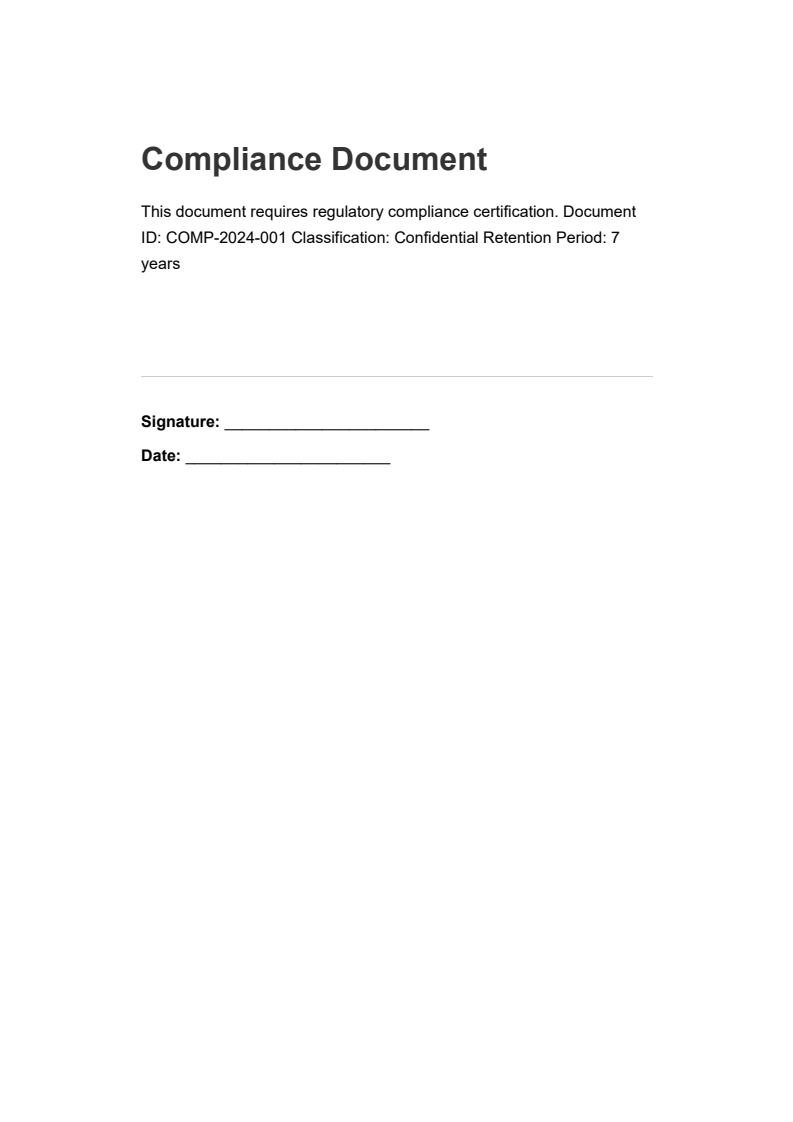
using IronPdf;using IronPdf.Signing;using System;// Load the compliance documentPdfDocument pdf = PdfDocument.FromFile("compliance-document.pdf");var signature = new PdfSignature("certificate.pfx", "password"){ // Add comprehensive metadata for audit trail requirementsSigningReason = "21 CFR Part 11 Compliance Certification",SigningLocation = "Quality Assurance Department",SigningContact = "compliance@company.com",SignatureDate = DateTime.UtcNow, // Configure a trusted timestamp for regulatory compliance // The timestamp proves when the signature was appliedTimestampHashAlgorithm = TimestampHashAlgorithms.SHA256,TimeStampUrl = "http://timestamp.digicert.com"};// Apply the signature with timestamp and full metadatapdf.Sign(signature);pdf.SaveAs("compliance-document-certified.pdf");
using IronPdf;
using IronPdf.Signing;
using System;

// Load the compliance document
PdfDocument pdf = PdfDocument.FromFile("compliance-document.pdf");
var signature = new PdfSignature("certificate.pfx", "password")
{
    // Add comprehensive metadata for audit trail requirements
    SigningReason = "21 CFR Part 11 Compliance Certification",
    SigningLocation = "Quality Assurance Department",
    SigningContact = "compliance@company.com",
    SignatureDate = DateTime.UtcNow,
    // Configure a trusted timestamp for regulatory compliance
    // The timestamp proves when the signature was applied
    TimestampHashAlgorithm = TimestampHashAlgorithms.SHA256,
    TimeStampUrl = "http://timestamp.digicert.com"
};

// Apply the signature with timestamp and full metadata
pdf.Sign(signature);
pdf.SaveAs("compliance-document-certified.pdf");
ImportsIronPdfImportsIronPdf.SigningImportsSystem' Load the compliance documentDim pdf AsPdfDocument = PdfDocument.FromFile("compliance-document.pdf")Dim signature As New PdfSignature("certificate.pfx", "password") With { ' Add comprehensive metadata for audit trail requirements .SigningReason = "21 CFR Part 11 Compliance Certification", .SigningLocation = "Quality Assurance Department", .SigningContact = "compliance@company.com", .SignatureDate = DateTime.UtcNow, ' Configure a trusted timestamp for regulatory compliance ' The timestamp proves when the signature was applied .TimestampHashAlgorithm = TimestampHashAlgorithms.SHA256, .TimeStampUrl = "http://timestamp.digicert.com"}' Apply the signature with timestamp and full metadatapdf.Sign(signature)pdf.SaveAs("compliance-document-certified.pdf")
Imports IronPdf
Imports IronPdf.Signing
Imports System

' Load the compliance document
Dim pdf As PdfDocument = PdfDocument.FromFile("compliance-document.pdf")
Dim signature As New PdfSignature("certificate.pfx", "password") With {
    ' Add comprehensive metadata for audit trail requirements
    .SigningReason = "21 CFR Part 11 Compliance Certification",
    .SigningLocation = "Quality Assurance Department",
    .SigningContact = "compliance@company.com",
    .SignatureDate = DateTime.UtcNow,
    ' Configure a trusted timestamp for regulatory compliance
    ' The timestamp proves when the signature was applied
    .TimestampHashAlgorithm = TimestampHashAlgorithms.SHA256,
    .TimeStampUrl = "http://timestamp.digicert.com"
}

' Apply the signature with timestamp and full metadata
pdf.Sign(signature)
pdf.SaveAs("compliance-document-certified.pdf")
using IronPdf;using IronPdf.Signing;// Load a form document that needs signingPdfDocument pdf = PdfDocument.FromFile("approval-form.pdf");// Sign with specific permissions for document lifecycle management// AdditionalSignaturesAndFormFillingAllowed permits form completion and additional signatures after signingpdf.SignWithFile( "approver-cert.pfx", "password", null,SignaturePermissions.AdditionalSignaturesAndFormFillingAllowed);// Save the signed document with form-filling permissions enabledpdf.SaveAs("approval-form-signed.pdf");
using IronPdf;
using IronPdf.Signing;

// Load a form document that needs signing
PdfDocument pdf = PdfDocument.FromFile("approval-form.pdf");

// Sign with specific permissions for document lifecycle management
// AdditionalSignaturesAndFormFillingAllowed permits form completion and additional signatures after signing
pdf.SignWithFile(
    "approver-cert.pfx",
    "password",
    null,
    SignaturePermissions.AdditionalSignaturesAndFormFillingAllowed
);

// Save the signed document with form-filling permissions enabled
pdf.SaveAs("approval-form-signed.pdf");
ImportsIronPdfImportsIronPdf.Signing' Load a form document that needs signingDim pdf AsPdfDocument = PdfDocument.FromFile("approval-form.pdf")' Sign with specific permissions for document lifecycle management' AdditionalSignaturesAndFormFillingAllowed permits form completion and additional signatures after signingpdf.SignWithFile( "approver-cert.pfx", "password", Nothing,SignaturePermissions.AdditionalSignaturesAndFormFillingAllowed)' Save the signed document with form-filling permissions enabledpdf.SaveAs("approval-form-signed.pdf")
Imports IronPdf
Imports IronPdf.Signing

' Load a form document that needs signing
Dim pdf As PdfDocument = PdfDocument.FromFile("approval-form.pdf")

' Sign with specific permissions for document lifecycle management
' AdditionalSignaturesAndFormFillingAllowed permits form completion and additional signatures after signing
pdf.SignWithFile(
    "approver-cert.pfx",
    "password",
    Nothing,
    SignaturePermissions.AdditionalSignaturesAndFormFillingAllowed
)

' Save the signed document with form-filling permissions enabled
pdf.SaveAs("approval-form-signed.pdf")
How do I start using IronPDF for digital signatures in a .NET application?
To start using IronPDF for digital signatures, download the comprehensive sample project from IronPDF’s website. This project includes everything you need to implement and test digital signature features in your .NET application.


 NuGetでインストール