# Sign PDF Programmatically in C# .NET 10: Digital Signature Guide
**Digital signatures** in **C# .NET** authenticate PDF documents with **X.509 certificate-based cryptography**, providing tamper detection, non-repudiation, and long-term validity that visual signature images alone cannot deliver. IronPDF makes it straightforward for .NET developers to programmatically **sign**, **verify**, and **secure PDFs**, covering everything from basic certificate signing and visual signature rendering to **multi-party approval workflows**, timestamp server integration, and **regulatory compliance** with frameworks like eIDAS and the ESIGN Act.
*as-heading:2(TL;DR: Quickstart Guide)*
This tutorial covers programmatically signing, verifying, and securing PDF documents with X.509 certificates in C#, from single signatures to multi-party approval chains.
- **Who this is for:** .NET developers building document signing into contract management, invoice processing, or compliance systems.
- **What you'll build:** Certificate-based *PDF signing* (`.pfx`/`.p12`), visual signature overlays, multi-party sequential workflows, signature verification, tamper detection, and permission-controlled document locking.
- **Where it runs:** .NET 10, .NET 8 LTS, .NET Framework 4.6.2+, and .NET Standard 2.0.
- **When to use this approach:** When you need to *sign PDFs programmatically* at scale without routing through third-party signing portals.
- **Why it matters technically:** Cryptographic signatures provide tamper evidence, non-repudiation, and long-term validity that visual signature images can't offer.
To follow along with the code examples in this tutorial, check out the [quick installation guide](https://ironpdf.com/docs/) to get IronPDF set up in your project. Sign your first PDF with just a few lines of code:
```cs
:title=Instant PDF Signing with IronPDF
var signature = new IronPdf.Signing.PdfSignature("certificate.pfx", "password");
IronPdf.PdfDocument.FromFile("document.pdf").Sign(signature).SaveAs("signed.pdf");
```
After you've purchased or signed up for a 30-day trial of IronPDF, add your license key at the start of your application.
```cs
IronPdf.License.LicenseKey = "KEY";
```
!!!--LIBRARY_START_TRIAL_BLOCK--!!!
!!!--LIBRARY_NUGET_INSTALL_BLOCK--!!!
*as-heading:2(Table of Contents)*
- **TL;DR: Quickstart Guide**
- [Quick Overview](#anchor-tldr-quickstart-guide)
- **Digital vs Visual Signatures**
- [What Is the Difference Between Digital Signatures and Visual Signatures?](#anchor-what-is-the-difference-between-digital-signatures-and-visual-signatures-in-pdf-documents)
- **Set Up Digital Signature Infrastructure**
- [What Certificate Formats Does IronPDF Support?](#anchor-what-certificate-formats-does-ironpdf-support-for-pdf-signing)
- **Apply Digital Signatures Programmatically**
- [Basic Certificate Signing in C#](#anchor-what-does-basic-certificate-signing-look-like-in-c)
- [Configure Signature Metadata for Audit Trails](#anchor-how-should-signature-metadata-be-configured-for-audit-trails)
- [Timestamp Servers and Signature Validity](#anchor-what-role-do-timestamp-servers-play-in-signature-validity-over-time)
- [Invisible vs Visible Signatures](#anchor-when-should-signatures-be-invisible-versus-visible-on-the-document)
- **Add Visual Signature Appearances**
- [Load and Position Signature Images](#anchor-how-can-signature-images-be-loaded-and-positioned)
- [Signature Positioning Across Multiple Pages](#anchor-how-does-signature-positioning-work-across-multiple-pages)
- **Multi Party Signing Workflows**
- [Sequential Signing and Incremental Saving](#anchor-what-is-sequential-signing-and-how-does-incremental-saving-enable-it)
- [Verify Existing Signatures](#anchor-how-can-you-verify-existing-signatures-before-adding-new-ones)
- [Detect Tampered Documents](#anchor-how-does-ironpdf-detect-tampered-documents)
- **Regulatory Compliance for PDF Signatures**
- [Key Regulatory Frameworks](#anchor-what-are-the-key-regulatory-frameworks-for-digital-signatures)
- [Certificate Requirements for Regulated Industries](#anchor-what-certificate-requirements-apply-to-regulated-industries)
- [Signature Permission Control](#anchor-how-does-signature-permission-control-support-document-lifecycle-management)
- **Build vs Buy: Custom Signing or External Services**
- [Factors Favoring Internal Signing](#anchor-what-factors-favor-building-internal-signing-capabilities)
- [Scenarios Favoring Hosted Solutions](#anchor-what-scenarios-favor-hosted-signing-solutions)
- [Evaluate Your Signing Infrastructure Needs](#anchor-how-can-development-teams-evaluate-their-signing-infrastructure-needs)
<a id="anchor-quickstart-sign-your-first-pdf"></a>
---
## What is the difference between Digital Signatures and Visual Signatures in PDF documents?
People often use "digital signature" and "electronic signature" interchangeably, but they work quite differently when it comes to document security. A digital signature uses cryptographic techniques to encrypt a hash of the document's contents with a private key. Anyone with access to the corresponding public key can then verify that the document hasn't changed since signing.
A visual signature, on the other hand, is simply an image placed on a PDF page. It could be a scanned handwritten signature, a company logo, or a stylized text version of a name. While visual signatures help documents look "signed" to human readers, they offer no cryptographic protection against tampering.
In practice, business applications often need both types working together. A legal contract might require the cryptographic protection of a certificate-based digital signature to ensure document integrity, plus a visible signature block so recipients can see who signed and when.
The following table summarizes the key differences between these signature types:
<div class="content-table dotnet-core-pdf-table">
<table>
<tbody>
<tr class="tr-head">
<th class="tcol1">Characteristic</th>
<th class="tcol2">Digital Signature</th>
<th class="tcol3">Visual Signature</th>
</tr>
<tr>
<td>Cryptographic Protection</td>
<td>Uses PKI and X.509 certificates to create tamper-evident seal</td>
<td>None, image can be removed or replaced</td>
</tr>
<tr>
<td>Non Repudiation</td>
<td>Signer cannot credibly deny signing</td>
<td>Provides no technical proof of identity</td>
</tr>
<tr>
<td>Tamper Detection</td>
<td>Any modification invalidates the signature</td>
<td>No way to detect if document was altered</td>
</tr>
<tr>
<td>Legal Standing</td>
<td>Recognized under regulations like ESIGN Act and eIDAS</td>
<td>May satisfy "intent to sign" requirements only</td>
</tr>
<tr>
<td>Verification</td>
<td>Can be validated programmatically or in PDF readers</td>
<td>Requires visual inspection only</td>
</tr>
<tr>
<td>Certificate Required</td>
<td>Yes, requires .pfx or .p12 certificate file</td>
<td>No, any image file works</td>
</tr>
</tbody>
</table>
</div>
For most business use cases, digital signatures with an accompanying visual representation provide the strongest combination of security and usability. The cryptographic layer ensures document integrity while the visual layer provides a familiar signing experience for recipients.
---
## How can Development Teams set up Digital Signature Infrastructure?
Implementing digital signatures requires two things: X.509 certificates for signing and some knowledge of how certificate management works in production. This section walks through each component.
### What Certificate Formats does IronPDF support for PDF Signing?
Digital signatures rely on X.509 certificates, which contain a public and private key pair along with identity information about the certificate holder. These credentials typically have validity periods of one to three years. IronPDF works with certificates in the standard PKCS#12 format, usually stored as `.pfx` or `.p12` files. These files bundle the private key (needed for signing) with the public certificate (needed for verification) into a single password-protected container.
Enterprise environments usually obtain certificates from one of several sources:
**Commercial Certificate Authorities** such as DigiCert, Sectigo, or GlobalSign issue certificates that are automatically trusted by major PDF readers.
**Internal PKI Infrastructure** allows organizations to issue their own certificates, though recipients may need to manually trust the issuing CA.
**Self-Signed Certificates** work for prototyping but will display warnings in PDF readers unless manually trusted.
When loading a certificate for IronPDF, the `X509KeyStorageFlags.Exportable` flag must be specified. This lets the cryptographic subsystem access the private key for signing. Here's how to load a certificate properly:
```csharp
using System.Security.Cryptography.X509Certificates;
// Load the certificate from a PKCS#12 file (.pfx or .p12)
// The Exportable flag allows the private key to be used for signing
var certificate = new X509Certificate2(
"company-signing-cert.pfx",
"certificate-password",
X509KeyStorageFlags.Exportable
);
```
**Example Output:**
```txt
Certificate loaded successfully
Subject: CN=Test Signer, O=Test Organization, C=US
Issuer: CN=Test Signer, O=Test Organization, C=US
Valid From: 2026-01-27 7:50:04 AM
Valid To: 2027-01-27 8:00:03 AM
Thumbprint: 41355DE5ADD66CD64B2B99FF2CF87B9C87BD412F
Has Private Key: True
```
In production, pull certificate passwords from secure configuration systems like Azure Key Vault, AWS Secrets Manager, or HashiCorp Vault instead of hardcoding them. Store the certificate files with proper access controls and never commit them to version control.
---
## How can Developers apply Digital Signatures to PDF Documents Programmatically?
The basic signing workflow in IronPDF involves creating a `PdfSignature` object from a certificate and applying it to a PDF. This section covers the signing process along with options for adding metadata and configuring signature behavior.
### What does Basic Certificate Signing look like in C#?
The simplest signing scenario is loading an existing PDF, creating a signature from a certificate, and saving the signed result. IronPDF handles all the cryptographic operations under the hood:
```csharp
using IronPdf;
using IronPdf.Signing;
// Load the PDF document that needs to be signed
PdfDocument pdf = PdfDocument.FromFile("contract.pdf");
// Create a signature object using the certificate file path and password
var signature = new PdfSignature("certificate.pfx", "password");
// Apply the cryptographic signature to the document
// This embeds an invisible digital signature in the PDF structure
pdf.Sign(signature);
// Save the signed document to a new file
pdf.SaveAs("contract-signed.pdf");
```
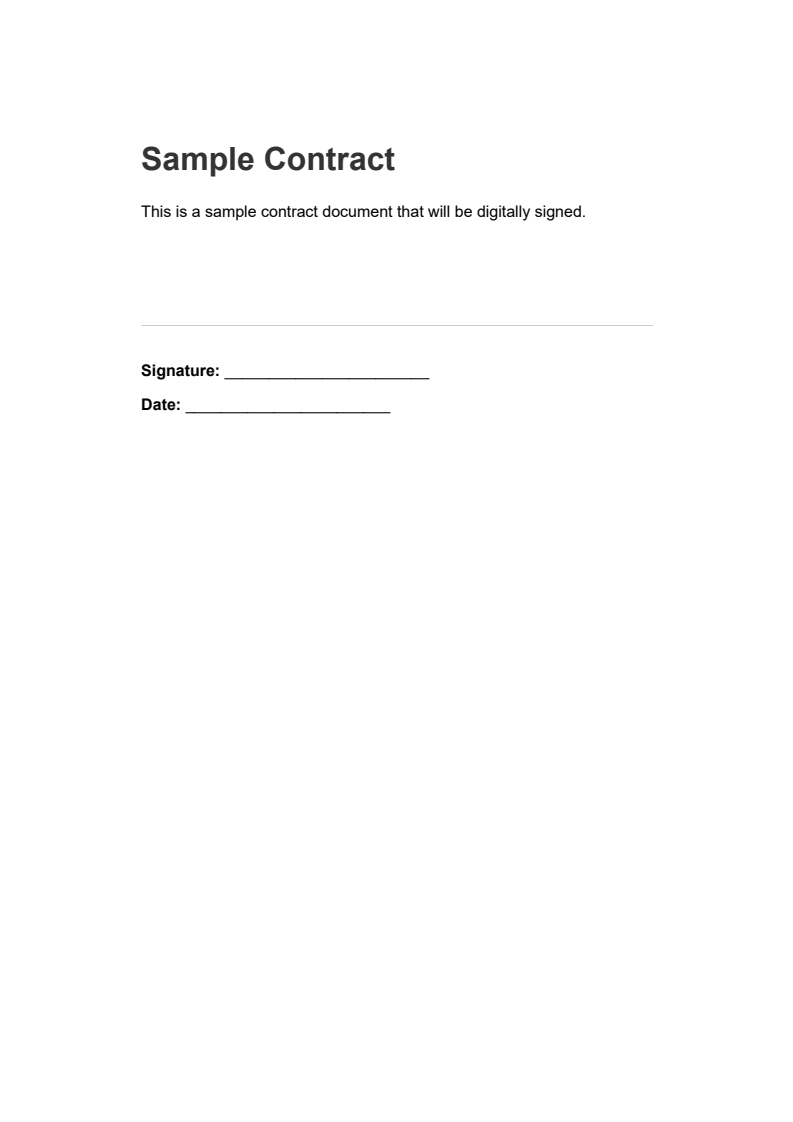
#### Input
<div class="content-img-align-center">
<div class="center-image-wrapper">
<a rel="nofollow" href="/static-assets/pdf/tutorials/pdf-digital-signatures-csharp-guide/contract-input.png" target="_blank"><img src="/static-assets/pdf/tutorials/pdf-digital-signatures-csharp-guide/contract-input.png" alt="contract.pdf - Sample contract before signing" class="img-responsive add-shadow" style="max-width: 400px;" /></a>
<p class="content__image-caption">contract.pdf - Sample contract before signing</p>
</div>
</div>
#### Output
<iframe loading="lazy" src="/static-assets/pdf/tutorials/pdf-digital-signatures-csharp-guide/contract-signed.pdf" width="100%" height="500px">
</iframe>
This creates a PDF with an invisible digital signature embedded in it. When opened in Adobe Acrobat or another signature-aware PDF reader, the document displays signature validation info showing whether the signature is valid and whether the document has been modified since signing.
For scenarios that only require signing a document without loading it into memory for other changes, IronPDF has an efficient one-line approach:
```csharp
using IronPdf;
using IronPdf.Signing;
// One-line approach for signing PDFs
// Useful for batch processing where you don't need to manipulate the document
var signature = new PdfSignature("certificate.pfx", "password");
PdfDocument.FromFile("document.pdf").Sign(signature).SaveAs("document-signed.pdf");
```
This is especially handy for batch processing when signing lots of documents without making other changes.
### How should Signature Metadata be configured for Audit Trails?
Digital signatures can carry metadata that gives context about the signing event. This info shows up in the signature panel of PDF readers and adds to the document's audit trail. IronPDF supports several standard metadata fields:
```csharp
using IronPdf;
using IronPdf.Signing;
using System;
// Load the document to be signed
PdfDocument pdf = PdfDocument.FromFile("invoice.pdf");
// Create a signature with the company certificate
var signature = new PdfSignature("certificate.pfx", "password")
{
// Add metadata to create an audit trail
// This information appears in the signature panel of PDF readers
SigningReason = "Invoice Approval",
SigningLocation = "New York Office",
SigningContact = "accounts@company.com",
SignatureDate = DateTime.UtcNow
};
// Apply the signature with all metadata included
pdf.Sign(signature);
pdf.SaveAs("invoice-approved.pdf");
```
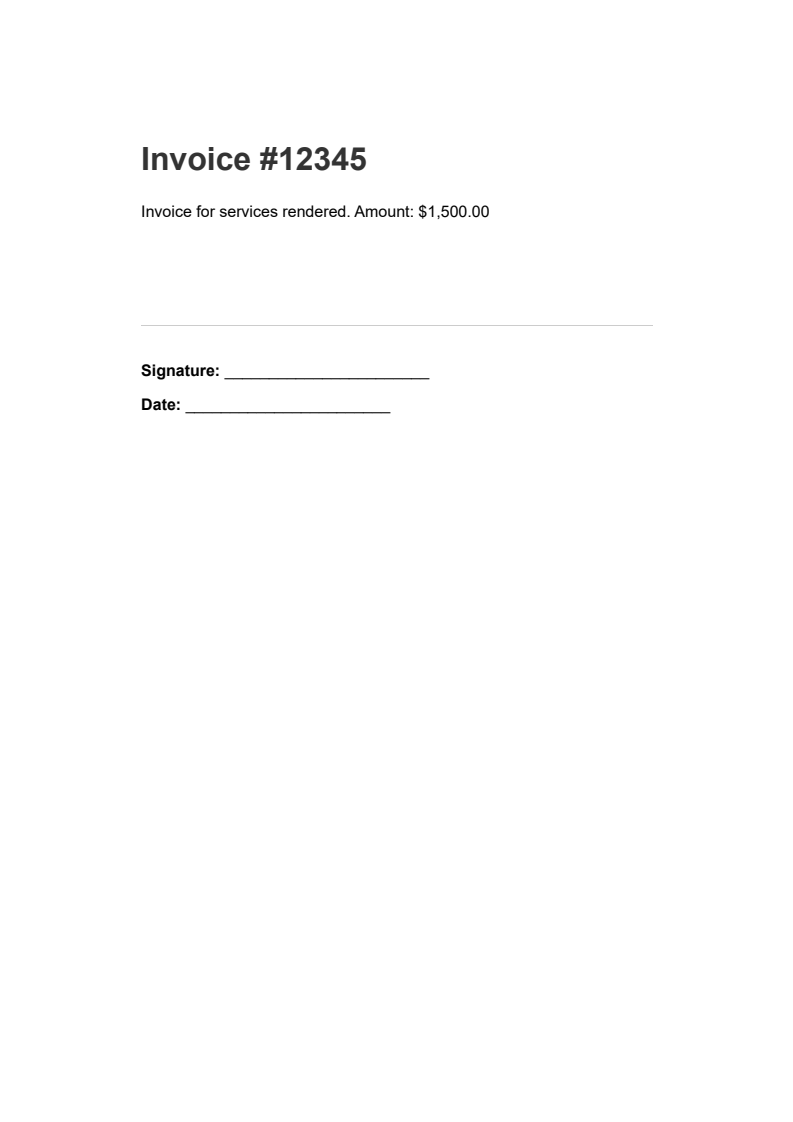
#### Input
<div class="content-img-align-center">
<div class="center-image-wrapper">
<a rel="nofollow" href="/static-assets/pdf/tutorials/pdf-digital-signatures-csharp-guide/invoice-input.png" target="_blank"><img src="/static-assets/pdf/tutorials/pdf-digital-signatures-csharp-guide/invoice-input.png" alt="invoice.pdf - Invoice before signing" class="img-responsive add-shadow" style="max-width: 400px;" /></a>
<p class="content__image-caption">invoice.pdf - Invoice before signing</p>
</div>
</div>
#### Output
<iframe loading="lazy" src="/static-assets/pdf/tutorials/pdf-digital-signatures-csharp-guide/invoice-approved.pdf" width="100%" height="500px">
</iframe>
The metadata fields serve different purposes in document workflows:
<div class="content-table dotnet-core-pdf-table">
<table>
<tbody>
<tr class="tr-head">
<th class="tcol1">Metadata Field</th>
<th class="tcol2">Purpose</th>
<th class="tcol3">Example Value</th>
</tr>
<tr>
<td><code>SigningReason</code></td>
<td>Explains why the document was signed</td>
<td>"Contract approval", "Audit certification"</td>
</tr>
<tr>
<td><code>SigningLocation</code></td>
<td>Records where the signing occurred</td>
<td>"New York Office", "Remote Home Office"</td>
</tr>
<tr>
<td><code>SigningContact</code></td>
<td>Provides contact information for inquiries</td>
<td>"legal@company.com", "+1 555 0123"</td>
</tr>
<tr>
<td><code>SignatureDate</code></td>
<td>Timestamps the signing event</td>
<td><code>DateTime.UtcNow</code></td>
</tr>
</tbody>
</table>
</div>
In enterprise settings, these fields often tie into operational data. An invoice approval system might set the signing reason to the purchase order number, while a contract management system might include the contract ID and approval stage.
### What role do Timestamp Servers play in Signature Validity over time?
Digital signatures include a timestamp showing when the document was signed, but this timestamp comes from the signing computer's local clock. For signatures that may need verification years down the road, or when proving the exact signing time matters legally, a trusted timestamp from an external Time Stamping Authority (TSA) provides much stronger evidence.
A timestamp server provides cryptographic proof that a document existed in its current form at a specific moment. Even if the signing certificate later expires or gets revoked, the timestamp shows the signature was valid when it was applied. IronPDF supports RFC 3161 timestamp servers:
```csharp
using IronPdf;
using IronPdf.Signing;
using System;
// Load the document to sign
PdfDocument pdf = PdfDocument.FromFile("agreement.pdf");
var signature = new PdfSignature("certificate.pfx", "password")
{
SigningReason = "Agreement Execution",
// Configure a trusted timestamp server (RFC 3161 compliant)
// This provides cryptographic proof of when the document was signed
TimestampHashAlgorithm = TimestampHashAlgorithms.SHA256,
TimeStampUrl = "http://timestamp.digicert.com"
};
// Apply the signature with the trusted timestamp
pdf.Sign(signature);
pdf.SaveAs("agreement-timestamped.pdf");
```
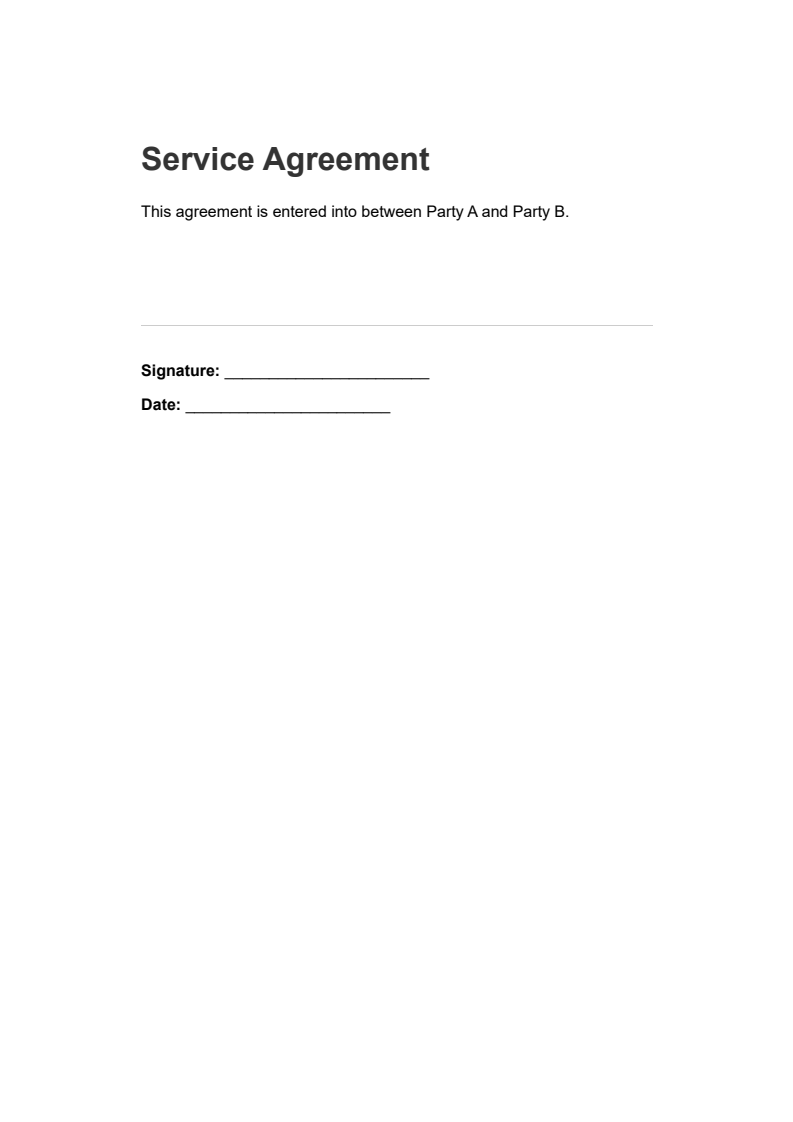
#### Input
<div class="content-img-align-center">
<div class="center-image-wrapper">
<a rel="nofollow" href="/static-assets/pdf/tutorials/pdf-digital-signatures-csharp-guide/agreement-input.png" target="_blank"><img src="/static-assets/pdf/tutorials/pdf-digital-signatures-csharp-guide/agreement-input.png" alt="agreement.pdf - Service agreement before signing" class="img-responsive add-shadow" style="max-width: 400px;" /></a>
<p class="content__image-caption">agreement.pdf - Service agreement before signing</p>
</div>
</div>
#### Output
<iframe loading="lazy" src="/static-assets/pdf/tutorials/pdf-digital-signatures-csharp-guide/agreement-timestamped.pdf" width="100%" height="500px">
</iframe>
Several public timestamp servers are available for general use, including ones operated by major certificate authorities. Larger organizations may also run their own internal timestamp servers that follow company security policies.
The choice of hash algorithm matters for extended validity. SHA 256 is the current standard, though IronPDF also supports SHA 512 for stricter security requirements. Older algorithms like SHA 1 should be avoided since they're no longer considered cryptographically secure.
### When should Signatures be Invisible versus Visible on the document?
Digital signatures can be applied in two modes: invisible signatures that exist only in the PDF's cryptographic structure, or visible signatures that also display a graphical representation on a designated page. The choice depends on the document's purpose and the expectations of its recipients.
Invisible signatures work well for automated document processing where human review is not expected, situations where the existing document layout should not change, and multi-signature workflows where visible signatures would clutter the document.
Visible signatures are preferred when recipients expect to see visual evidence of signing, when workflows require signature placement in particular locations, or when the document will be printed and the signature should appear on paper.
The next section covers visual signature implementation in detail.
---
## How are Visual Signature Appearances added to Digitally Signed PDFs?
Many business processes have grown up around visible signature blocks, and recipients often expect to see where and when a document was signed. IronPDF allows you to apply cryptographic protection while also showing a visible signature on the page, giving you the best of both worlds.
### How can Signature Images be loaded and positioned?
A visual signature is typically an image (like a scanned handwritten signature, company seal, or styled text block) placed at a specific spot on a PDF page. IronPDF's `LoadSignatureImageFromFile` method handles the positioning and rendering:
```csharp
using IronPdf;
using IronPdf.Signing;
using IronSoftware.Drawing;
// Load the document to sign
PdfDocument pdf = PdfDocument.FromFile("contract.pdf");
var signature = new PdfSignature("certificate.pfx", "password")
{
SigningReason = "Contract Approval",
SigningLocation = "Head Office"
};
// Define the position and size for the visible signature image
// Rectangle parameters: x position, y position, width, height (in points)
// Points are measured from the bottom-left corner of the page
var signatureArea = new Rectangle(150, 100, 200, 50);
// Load and attach the visual signature image
// The image will appear at the specified location on the document
signature.LoadSignatureImageFromFile(
"signature-image.png", // Path to the signature image file
0, // Page index (0 = first page)
signatureArea // Position and dimensions
);
// Apply both the cryptographic signature and visual representation
pdf.Sign(signature);
pdf.SaveAs("contract-visually-signed.pdf");
```
#### Output
<iframe loading="lazy" src="/static-assets/pdf/tutorials/pdf-digital-signatures-csharp-guide/contract-visually-signed.pdf" width="100%" height="500px">
</iframe>
The coordinate system uses points (1/72 of an inch) measured from the bottom left corner of the page. For a standard US Letter page (612 x 792 points), placing a signature near the bottom right means accounting for both the signature size and appropriate margins.
Alternative methods exist for loading signature images from different sources:
```csharp
using IronPdf.Signing;
using IronSoftware.Drawing;
using System.IO;
// Create signature object
var signature = new PdfSignature("certificate.pfx", "password");
var signatureArea = new Rectangle(400, 50, 150, 75);
// Method 1: Load signature image directly from a file path
signature.LoadSignatureImageFromFile("signature.png", 0, signatureArea);
// Method 2: Load from a stream (useful for database-stored images)
using (FileStream imageStream = File.OpenRead("signature.png"))
{
signature.LoadSignatureImageFromStream(imageStream, 0, signatureArea);
}
// Method 3: Load from AnyBitmap (IronSoftware's cross-platform image type)
AnyBitmap signatureBitmap = AnyBitmap.FromFile("signature.png");
using (var stream = signatureBitmap.ToStream())
{
signature.LoadSignatureImageFromStream(stream, 0, signatureArea);
}
```
Supported image formats include PNG, JPEG, GIF, BMP, TIFF, and WebP. PNG files with transparency work great for signature images since the transparent background lets the underlying document content show through.
### How does Signature Positioning work across Multiple Pages?
When signing multi-page documents, the digital signature protects the entire document regardless of page count. A single cryptographic signature covers all pages in the PDF:
```csharp
using IronPdf;
using IronPdf.Signing;
// Load a multi-page document
PdfDocument pdf = PdfDocument.FromFile("multi-page-contract.pdf");
// Create signature - digital signatures protect the entire document
// regardless of page count
var signature = new PdfSignature("certificate.pfx", "password");
// Sign and save the document
// The signature applies to all pages in the document
pdf.Sign(signature);
pdf.SaveAs("contract-signed-last-page.pdf");
```
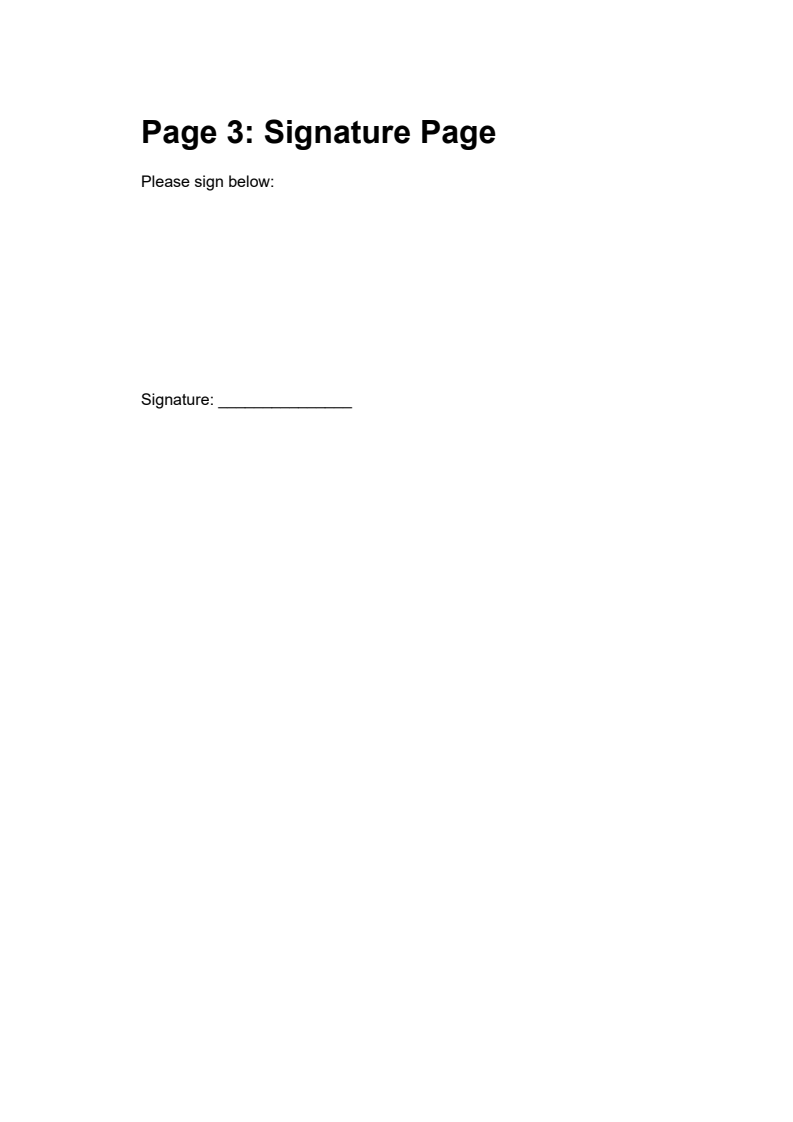
#### Input
<div class="content-img-align-center">
<div class="center-image-wrapper">
<a rel="nofollow" href="/static-assets/pdf/tutorials/pdf-digital-signatures-csharp-guide/multi-page-contract-input-last.png" target="_blank"><img src="/static-assets/pdf/tutorials/pdf-digital-signatures-csharp-guide/multi-page-contract-input-last.png" alt="multi-page-contract.pdf (last page) - Signature page before signing" class="img-responsive add-shadow" style="max-width: 400px;" /></a>
<p class="content__image-caption">multi-page-contract.pdf (last page) - Signature page before signing</p>
</div>
</div>
#### Output
<iframe loading="lazy" src="/static-assets/pdf/tutorials/pdf-digital-signatures-csharp-guide/contract-signed-last-page.pdf" width="100%" height="500px">
</iframe>
For signatures on multiple pages (like initials on each page of a legal agreement), developers can apply image stamps separately from the cryptographic signature:
```csharp
using IronPdf;
using IronPdf.Editing;
using IronPdf.Signing;
using IronSoftware.Drawing;
// Load the document
PdfDocument pdf = PdfDocument.FromFile("agreement.pdf");
// Create an image stamp for initials that will appear on every page
var initialsStamp = new ImageStamper("initials.png")
{
HorizontalAlignment = HorizontalAlignment.Right,
VerticalAlignment = VerticalAlignment.Bottom,
HorizontalOffset = new Length(50, MeasurementUnit.Points),
VerticalOffset = new Length(50, MeasurementUnit.Points)
};
// Apply initials stamp to all pages
pdf.ApplyStamp(initialsStamp);
// Now apply the cryptographic signature with a full signature image on the last page
var signature = new PdfSignature("certificate.pfx", "password");
var signatureArea = new Rectangle(100, 100, 200, 100);
signature.SignatureImage = new PdfSignatureImage(
"full-signature.png",
pdf.PageCount - 1, // Last page only
signatureArea
);
// Sign the entire document cryptographically
pdf.Sign(signature);
pdf.SaveAs("agreement-initialed-and-signed.pdf");
```
This approach separates the visual elements (which can appear on multiple pages) from the cryptographic signature (which protects the entire document).
---
## How do Multi-Party Signing Workflows function in Enterprise Applications?
Complex business processes often need multiple signatures from different people, applied in a specific order. A purchase order might need approval from a department manager, then finance review, then executive sign-off. IronPDF supports these workflows through incremental saving and signature permissions.
### What is Sequential Signing and how does Incremental Saving enable it?
PDF documents can store multiple revisions internally, similar to version control. Each time someone signs, that signature applies to the document's state at that moment. Later signers add their signatures to new revisions, creating a chain of approvals where each signature can be verified independently.
```csharp
using IronPdf;
using IronPdf.Signing;
// Load the purchase order document
PdfDocument pdf = PdfDocument.FromFile("purchase-order.pdf");
// First signer: Department Manager approves the purchase order
var managerSignature = new PdfSignature("certificate.pfx", "password")
{
SigningReason = "Manager Approval",
SigningLocation = "Department A"
};
// Sign the document and save
// This preserves the original state while adding the signature
pdf.Sign(managerSignature);
pdf.SaveAs("po-manager-approved.pdf");
```
#### Input
<div class="content-img-align-center">
<div class="center-image-wrapper">
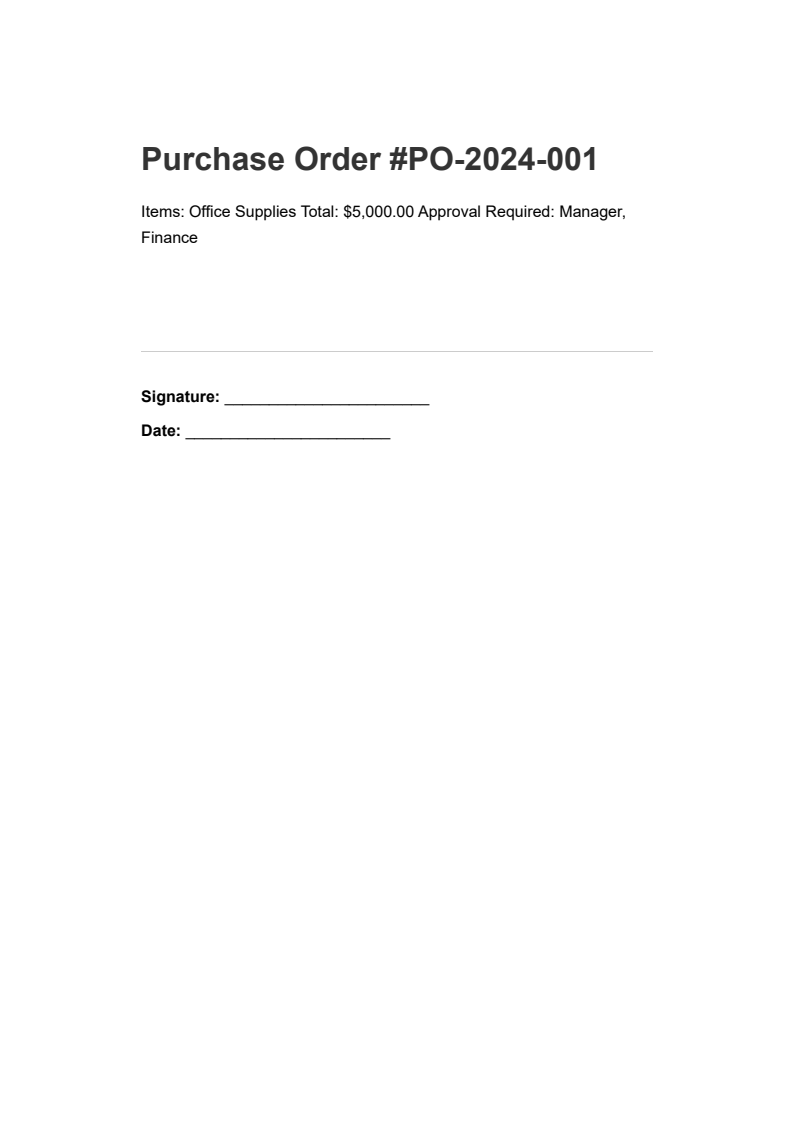
<a rel="nofollow" href="/static-assets/pdf/tutorials/pdf-digital-signatures-csharp-guide/purchase-order-input.png" target="_blank"><img src="/static-assets/pdf/tutorials/pdf-digital-signatures-csharp-guide/purchase-order-input.png" alt="purchase-order.pdf - Purchase order awaiting approval" class="img-responsive add-shadow" style="max-width: 400px;" /></a>
<p class="content__image-caption">purchase-order.pdf - Purchase order awaiting approval</p>
</div>
</div>
#### Output
<iframe loading="lazy" src="/static-assets/pdf/tutorials/pdf-digital-signatures-csharp-guide/po-manager-approved.pdf" width="100%" height="500px">
</iframe>
When the document moves to the next approver, they load it and add their own signature:
```csharp
using IronPdf;
using IronPdf.Signing;
// Load the document that already has the manager's signature
PdfDocument pdf = PdfDocument.FromFile("po-manager-approved.pdf");
// Second signer: Finance department verifies budget availability
var financeSignature = new PdfSignature("certificate.pfx", "password")
{
SigningReason = "Finance Approval",
SigningLocation = "Finance Department"
};
// Add the second signature
// Both signatures remain independently verifiable
pdf.Sign(financeSignature);
pdf.SaveAs("po-finance-approved.pdf");
```
#### Output
<iframe loading="lazy" src="/static-assets/pdf/tutorials/pdf-digital-signatures-csharp-guide/po-finance-approved.pdf" width="100%" height="500px">
</iframe>
Each revision maintains its own signature, and PDF readers can display the full history of who signed when.
### How can you verify Existing Signatures before Adding new ones?
Before adding a new signature to a document, your code should verify that existing signatures are still valid. A document modified outside the proper workflow might have invalid signatures, which could indicate tampering or process violations.
```csharp
using IronPdf;
using System;
// Load a signed document
PdfDocument pdf = PdfDocument.FromFile("contract-signed.pdf");
// Verify all existing signatures in the document
// Returns true only if ALL signatures are valid and untampered
bool isValid = pdf.VerifyPdfSignatures();
Console.WriteLine($"Signatures Valid: {isValid}");
// Get signature details
var signatures = pdf.GetVerifiedSignatures();
Console.WriteLine($"Number of Signatures: {signatures.Count}");
```
For more detailed inspection, you can retrieve information about each verified signature:
```csharp
using IronPdf;
using System;
// Load a document with multiple signatures
PdfDocument pdf = PdfDocument.FromFile("multi-signed-document.pdf");
// Retrieve detailed information about each verified signature
var verifiedSignatures = pdf.GetVerifiedSignatures();
// Iterate through all signatures to build an audit trail
foreach (var sig in verifiedSignatures)
{
Console.WriteLine($"Signer: {sig.SignerName}");
Console.WriteLine($"Reason: {sig.SigningReason}");
Console.WriteLine($"Location: {sig.SigningLocation}");
Console.WriteLine($"Date: {sig.SigningDate}");
Console.WriteLine($"Contact: {sig.SigningContact}");
Console.WriteLine("---");
}
```
This information enables you to build audit trails, verify approval chains, and ensure documents have all required signatures before moving to the next stage.
### How does IronPDF detect Tampered Documents?
The `VerifyPdfSignatures()` method returns `false` if any signature in the document is invalid. This usually happens when content was modified after the document was signed, when the signature data itself was corrupted, when the certificate has been revoked, or when the certificate was not yet valid at the time it was used.
```csharp
using IronPdf;
using System;
// Load a signed document and verify
PdfDocument pdf = PdfDocument.FromFile("contract-signed.pdf");
// Check if all signatures are still valid
bool isValid = pdf.VerifyPdfSignatures();
if (isValid)
{
Console.WriteLine("Document has not been tampered with");
Console.WriteLine("All signatures are valid");
}
else
{
Console.WriteLine("WARNING: Document may have been tampered with!");
Console.WriteLine("One or more signatures are invalid");
}
```
For applications requiring signature removal (perhaps to create an unsigned copy for redistribution), IronPDF has the `RemoveSignatures()` method:
```csharp
using IronPdf;
// Load a signed document
PdfDocument pdf = PdfDocument.FromFile("signed-template.pdf");
// Remove all digital signatures from the document
// This strips signature data but does not restore previous document state
pdf.RemoveSignatures();
// Save as an unsigned version
pdf.SaveAs("unsigned-template.pdf");
```
Note that removing signatures does not recover any previous document state. The method simply strips the signature data from the current document version.
---
## What Technical Capabilities support Regulatory Compliance for PDF Signatures?
Digital signature regulations differ across jurisdictions and industries, but they share common technical needs around certificate validation, timestamping, and signature metadata. Instead of attempting to interpret specific legal mandates (which you should discuss with qualified legal counsel), this section focuses on the technical capabilities that compliance frameworks generally demand.
### What are the key Regulatory Frameworks for Digital Signatures?
The following table summarizes common regulatory frameworks and their general technical requirements:
<div class="content-table dotnet-core-pdf-table">
<table>
<tbody>
<tr class="tr-head">
<th class="tcol1">Framework</th>
<th class="tcol2">Jurisdiction</th>
<th class="tcol3">Key Technical Requirements</th>
</tr>
<tr>
<td>ESIGN Act</td>
<td>United States</td>
<td>Intent to sign, consent to electronic records, record retention</td>
</tr>
<tr>
<td>UETA</td>
<td>US States</td>
<td>Similar to ESIGN, applies to intrastate transactions</td>
</tr>
<tr>
<td>eIDAS</td>
<td>European Union</td>
<td>Three signature levels (simple, advanced, qualified); qualified requires QSCD</td>
</tr>
<tr>
<td>21 CFR Part 11</td>
<td>US FDA</td>
<td>Electronic signatures must be linked to electronic records, audit trails required</td>
</tr>
</tbody>
</table>
</div>
These frameworks generally recognize digital signatures as legally equivalent to handwritten signatures when properly implemented. The evidentiary value of a digital signature often depends on proving that the signature was valid when it was applied, which is where trusted timestamps become essential for document retention over years or decades.
```csharp
using IronPdf;
using IronPdf.Signing;
using System;
// Load the compliance document
PdfDocument pdf = PdfDocument.FromFile("compliance-document.pdf");
var signature = new PdfSignature("certificate.pfx", "password")
{
// Add comprehensive metadata for audit trail requirements
SigningReason = "21 CFR Part 11 Compliance Certification",
SigningLocation = "Quality Assurance Department",
SigningContact = "compliance@company.com",
SignatureDate = DateTime.UtcNow,
// Configure a trusted timestamp for regulatory compliance
// The timestamp proves when the signature was applied
TimestampHashAlgorithm = TimestampHashAlgorithms.SHA256,
TimeStampUrl = "http://timestamp.digicert.com"
};
// Apply the signature with timestamp and full metadata
pdf.Sign(signature);
pdf.SaveAs("compliance-document-certified.pdf");
```
#### Input
<div class="content-img-align-center">
<div class="center-image-wrapper">
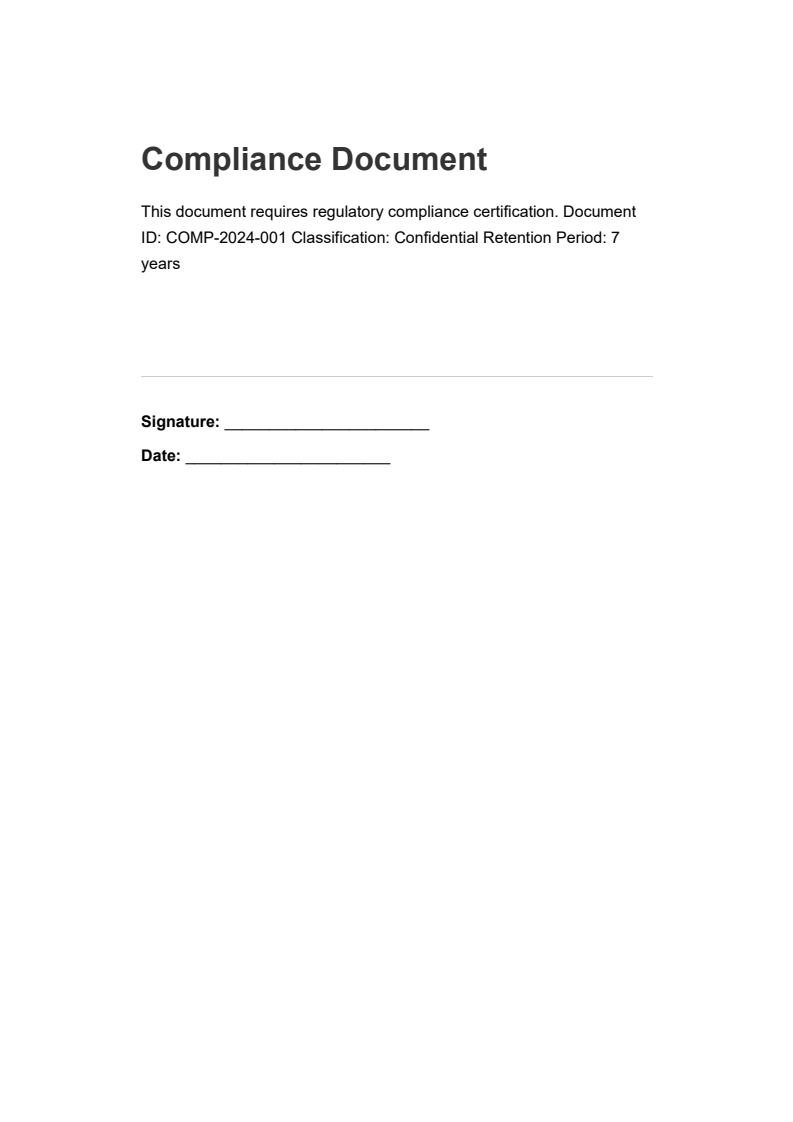
<a rel="nofollow" href="/static-assets/pdf/tutorials/pdf-digital-signatures-csharp-guide/compliance-document-input.png" target="_blank"><img src="/static-assets/pdf/tutorials/pdf-digital-signatures-csharp-guide/compliance-document-input.png" alt="compliance-document.pdf - Compliance document awaiting certification" class="img-responsive add-shadow" style="max-width: 400px;" /></a>
<p class="content__image-caption">compliance-document.pdf - Compliance document awaiting certification</p>
</div>
</div>
#### Output
<iframe loading="lazy" src="/static-assets/pdf/tutorials/pdf-digital-signatures-csharp-guide/compliance-document-certified.pdf" width="100%" height="500px">
</iframe>
### What Certificate Requirements apply to Regulated Industries?
Different regulatory contexts may specify criteria for the certificates used in signing. These criteria might include issuance by accredited authorities, minimum key lengths (usually 2048-bit RSA or equivalent), particular extended key usage attributes, or hardware-based key storage using HSM or smart card solutions.
IronPDF works with any X.509 certificate that meets standard format specs, allowing you to use certificates from your preferred certificate authority. For environments requiring hardware-protected keys, IronPDF supports PKCS#11 based HSM integration through its `HsmSigner` functionality.
Those in regulated industries should work with their legal and compliance departments to nail down what's needed, then set up signing infrastructure to match.
### How does Signature Permission Control support Document Lifecycle Management?
After signing, documents sometimes need to stay editable for specific purposes, like letting additional signers add their signatures or allowing form fields to be filled. IronPDF's `SignaturePermissions` enumeration controls what changes are allowed after signing:
```csharp
using IronPdf;
using IronPdf.Signing;
// Load a form document that needs signing
PdfDocument pdf = PdfDocument.FromFile("approval-form.pdf");
// Sign with specific permissions for document lifecycle management
// AdditionalSignaturesAndFormFillingAllowed permits form completion and additional signatures after signing
pdf.SignWithFile(
"approver-cert.pfx",
"password",
null,
SignaturePermissions.AdditionalSignaturesAndFormFillingAllowed
);
// Save the signed document with form-filling permissions enabled
pdf.SaveAs("approval-form-signed.pdf");
```
The available permission levels are:
<div class="content-table dotnet-core-pdf-table">
<table>
<tbody>
<tr class="tr-head">
<th class="tcol1">Permission Level</th>
<th class="tcol2">Allowed Changes After Signing</th>
</tr>
<tr>
<td><code>NoChangesAllowed</code></td>
<td>Document is completely locked</td>
</tr>
<tr>
<td><code>AdditionalSignaturesAndFormFillingAllowed</code></td>
<td>Form filling and additional signatures permitted</td>
</tr>
<tr>
<td><code>AdditionalSignaturesFormFillingAndAnnotationsAllowed</code></td>
<td>Form filling, additional signatures, plus annotations permitted</td>
</tr>
</tbody>
</table>
</div>
The appropriate permission level depends on the document's role. A completed agreement might use `NoChangesAllowed`, while an approval form still in progress might use `AdditionalSignaturesAndFormFillingAllowed` to allow form filling and additional signatures from other approvers.
---
## When does building Custom Signing make more sense than using External Services?
Anyone implementing document signing faces a fundamental architecture decision: build signing capabilities into their own applications or use hosted signing services. Both approaches have their place, and the right choice depends on volume, customization demands, compliance considerations, and total cost of ownership.
### What factors favor building Internal Signing Capabilities?
Here are some scenarios where building signing functionality directly into applications makes sense:
**High document volumes** make per transaction pricing expensive at scale. Businesses processing thousands of documents monthly often find that perpetual license libraries like IronPDF provide better financial sense than per signature API fees. A one-time license investment pays for itself quickly compared to ongoing transaction costs.
**Unique process requirements** arise when external signing services come with their own paradigms. Teams with unusual approval flows, specialized document handling, or integration demands that don't fit standard offerings often find building their own solution easier than trying to adapt to a service's limitations.
**Data sovereignty and security policies** prevent some companies from sending documents to external services due to regulations, security policies, or contractual obligations. Keeping the signing process in-house ensures documents stay within corporate boundaries throughout.
**Offline or air-gapped environments** cannot rely on hosted solutions that need network connectivity. Applications that must work in disconnected settings (field service apps, classified systems, or places with spotty internet) need locally implemented signing capabilities.
**Cost predictability** matters because subscription-based pricing creates ongoing expenses that accumulate. Perpetual library licenses provide stable costs that finance departments can plan around without worrying about volume swings or price hikes.
### What scenarios favor Hosted Signing Solutions?
Hosted solutions work well in different circumstances:
**Low volume with diverse signing parties** occurs when documents need signatures from people outside your company who don't have their own certificates. Services that handle identity verification and certificate issuance reduce friction. Building that infrastructure internally rarely pays off for occasional use.
**Rapid deployment** matters when you need to get signing up and running fast without dev resources to build from scratch. These platforms come with ready-made user interfaces and email notifications that provide turnkey capabilities.
**Compliance delegation** becomes valuable when vendors specialize in specific regulatory frameworks and can provide certifications or attestations that would be expensive to obtain independently.
The decision often comes down to whether signing is a core competency worth investing in or a commodity function better left to specialists. Businesses that handle documents as a central part of their operations (law firms, financial institutions, healthcare providers, government agencies) usually get better returns from owning their signing infrastructure. Those where document signing is secondary may prefer the simplicity of outsourced options.
### How can Development Teams evaluate their Signing Infrastructure Needs?
Before committing to either approach, consider these factors:
**Current and projected volume** drives your cost analysis. How many documents need signatures now, and how will that change over time?
**Integration considerations** influence your architecture. How will signing fit into existing applications and workflows? Libraries offer maximum flexibility, while external platforms may require adapting to their APIs and user interfaces.
**Signing party types** affect complexity. Will documents be signed only by internal users with managed certificates, or will you need to accommodate outside signers as well?
**Compliance landscape** dictates technical requirements. What regulations apply, and how do they affect your implementation choices? Some mandates are easier to meet with services; others require internal control.
**Technical resources** determine feasibility. Does the team have the bandwidth to implement and maintain signing functionality, or would that pull focus from core development priorities?
---
## Next Steps
Building digital signatures into .NET applications means understanding both the cryptographic fundamentals and the practical needs that drive business document processing. [IronPDF](https://ironpdf.com/) provides the technical foundation for [certificate-based signing](/how-to/signing/), [visual signature rendering](/how-to/signing/), multi-party workflow support, and [signature verification](/tutorials/csharp-pdf-security-complete-tutorial/) while leaving the architectural decisions about when and how to use these features to developers who know their specific requirements.
The capabilities covered in this guide provide the building blocks for solid signing implementations, whether you're automating contract execution, implementing approval chains, or meeting compliance requirements. For enterprise environments that require hardware-backed key storage, the [HSM signing guide](/how-to/signing-pdf-with-hsm/) extends these patterns to PKCS#11 devices. When signatures are part of a broader document security strategy, combine them with [password protection and permissions](/how-to/pdf-permissions-passwords/) and [PDF encryption](/tutorials/encrypt-pdf-csharp/) for layered defense.
Ready to start building? [Download IronPDF](download-modal) and try it with a free trial. You can evaluate certificate-based signing, signature verification, and multi-party workflows with your actual documents before making any purchasing decisions. If you have questions about signing architecture or compliance integration, [reach out to our engineering support team](/troubleshooting/engineering-request-pdf/).
Digital signatures in C# .NET authenticate PDF documents with X.509 certificate-based cryptography, providing tamper detection, non-repudiation, and long-term validity that visual signature images alone cannot deliver. IronPDF makes it straightforward for .NET developers to programmatically sign, verify, and secure PDFs, covering everything from basic certificate signing and visual signature rendering to multi-party approval workflows, timestamp server integration, and regulatory compliance with frameworks like eIDAS and the ESIGN Act.
TL;DR: Quickstart Guide
This tutorial covers programmatically signing, verifying, and securing PDF documents with X.509 certificates in C#, from single signatures to multi-party approval chains.
Who this is for: .NET developers building document signing into contract management, invoice processing, or compliance systems.
What you'll build: Certificate-based PDF signing (.pfx/.p12), visual signature overlays, multi-party sequential workflows, signature verification, tamper detection, and permission-controlled document locking.
Where it runs: .NET 10, .NET 8 LTS, .NET Framework 4.6.2+, and .NET Standard 2.0.
When to use this approach: When you need to sign PDFs programmatically at scale without routing through third-party signing portals.
Why it matters technically: Cryptographic signatures provide tamper evidence, non-repudiation, and long-term validity that visual signature images can't offer.
To follow along with the code examples in this tutorial, check out the quick installation guide to get IronPDF set up in your project. Sign your first PDF with just a few lines of code:
1Install IronPDF with NuGet Package Manager
PM > Install-Package IronPdf
Install-Package IronPdf
2Copy and run this code snippet.
var signature = new IronPdf.Signing.PdfSignature("certificate.pfx", "password");IronPdf.PdfDocument.FromFile("document.pdf").Sign(signature).SaveAs("signed.pdf");
var signature = new IronPdf.Signing.PdfSignature("certificate.pfx", "password");
IronPdf.PdfDocument.FromFile("document.pdf").Sign(signature).SaveAs("signed.pdf");
C#
3Deploy to test on your live environment
Start using IronPDF in your project today with a free trial
After you've purchased or signed up for a 30-day trial of IronPDF, add your license key at the start of your application.
What is the difference between Digital Signatures and Visual Signatures in PDF documents?
People often use "digital signature" and "electronic signature" interchangeably, but they work quite differently when it comes to document security. A digital signature uses cryptographic techniques to encrypt a hash of the document's contents with a private key. Anyone with access to the corresponding public key can then verify that the document hasn't changed since signing.
A visual signature, on the other hand, is simply an image placed on a PDF page. It could be a scanned handwritten signature, a company logo, or a stylized text version of a name. While visual signatures help documents look "signed" to human readers, they offer no cryptographic protection against tampering.
In practice, business applications often need both types working together. A legal contract might require the cryptographic protection of a certificate-based digital signature to ensure document integrity, plus a visible signature block so recipients can see who signed and when.
The following table summarizes the key differences between these signature types:
Characteristic
Digital Signature
Visual Signature
Cryptographic Protection
Uses PKI and X.509 certificates to create tamper-evident seal
None, image can be removed or replaced
Non Repudiation
Signer cannot credibly deny signing
Provides no technical proof of identity
Tamper Detection
Any modification invalidates the signature
No way to detect if document was altered
Legal Standing
Recognized under regulations like ESIGN Act and eIDAS
May satisfy "intent to sign" requirements only
Verification
Can be validated programmatically or in PDF readers
Requires visual inspection only
Certificate Required
Yes, requires .pfx or .p12 certificate file
No, any image file works
For most business use cases, digital signatures with an accompanying visual representation provide the strongest combination of security and usability. The cryptographic layer ensures document integrity while the visual layer provides a familiar signing experience for recipients.
How can Development Teams set up Digital Signature Infrastructure?
Implementing digital signatures requires two things: X.509 certificates for signing and some knowledge of how certificate management works in production. This section walks through each component.
What Certificate Formats does IronPDF support for PDF Signing?
Digital signatures rely on X.509 certificates, which contain a public and private key pair along with identity information about the certificate holder. These credentials typically have validity periods of one to three years. IronPDF works with certificates in the standard PKCS#12 format, usually stored as .pfx or .p12 files. These files bundle the private key (needed for signing) with the public certificate (needed for verification) into a single password-protected container.
Enterprise environments usually obtain certificates from one of several sources:
Commercial Certificate Authorities such as DigiCert, Sectigo, or GlobalSign issue certificates that are automatically trusted by major PDF readers.
Internal PKI Infrastructure allows organizations to issue their own certificates, though recipients may need to manually trust the issuing CA.
Self-Signed Certificates work for prototyping but will display warnings in PDF readers unless manually trusted.
When loading a certificate for IronPDF, the X509KeyStorageFlags.Exportable flag must be specified. This lets the cryptographic subsystem access the private key for signing. Here's how to load a certificate properly:
using System.Security.Cryptography.X509Certificates;// Load the certificate from a PKCS#12 file (.pfx or .p12)// The Exportable flag allows the private key to be used for signingvar certificate = new X509Certificate2( "company-signing-cert.pfx", "certificate-password",X509KeyStorageFlags.Exportable);
using System.Security.Cryptography.X509Certificates;

// Load the certificate from a PKCS#12 file (.pfx or .p12)
// The Exportable flag allows the private key to be used for signing
var certificate = new X509Certificate2(
    "company-signing-cert.pfx",
    "certificate-password",
    X509KeyStorageFlags.Exportable
);
ImportsSystem.Security.Cryptography.X509Certificates' Load the certificate from a PKCS#12 file (.pfx or .p12)' The Exportable flag allows the private key to be used for signingDim certificate As New X509Certificate2( "company-signing-cert.pfx", "certificate-password",X509KeyStorageFlags.Exportable)
Imports System.Security.Cryptography.X509Certificates

' Load the certificate from a PKCS#12 file (.pfx or .p12)
' The Exportable flag allows the private key to be used for signing
Dim certificate As New X509Certificate2(
    "company-signing-cert.pfx",
    "certificate-password",
    X509KeyStorageFlags.Exportable
)
Example Output:
Certificate loaded successfully
  Subject: CN=Test Signer, O=Test Organization, C=US
  Issuer: CN=Test Signer, O=Test Organization, C=US
  Valid From: 2026-01-27 7:50:04 AM
  Valid To: 2027-01-27 8:00:03 AM
  Thumbprint: 41355DE5ADD66CD64B2B99FF2CF87B9C87BD412F
  Has Private Key: True
Certificate loaded successfully
  Subject: CN=Test Signer, O=Test Organization, C=US
  Issuer: CN=Test Signer, O=Test Organization, C=US
  Valid From: 2026-01-27 7:50:04 AM
  Valid To: 2027-01-27 8:00:03 AM
  Thumbprint: 41355DE5ADD66CD64B2B99FF2CF87B9C87BD412F
  Has Private Key: True
Text
In production, pull certificate passwords from secure configuration systems like Azure Key Vault, AWS Secrets Manager, or HashiCorp Vault instead of hardcoding them. Store the certificate files with proper access controls and never commit them to version control.
How can Developers apply Digital Signatures to PDF Documents Programmatically?
The basic signing workflow in IronPDF involves creating a PdfSignature object from a certificate and applying it to a PDF. This section covers the signing process along with options for adding metadata and configuring signature behavior.
What does Basic Certificate Signing look like in C#?
The simplest signing scenario is loading an existing PDF, creating a signature from a certificate, and saving the signed result. IronPDF handles all the cryptographic operations under the hood:
using IronPdf;using IronPdf.Signing;// Load the PDF document that needs to be signedPdfDocument pdf = PdfDocument.FromFile("contract.pdf");// Create a signature object using the certificate file path and passwordvar signature = new PdfSignature("certificate.pfx", "password");// Apply the cryptographic signature to the document// This embeds an invisible digital signature in the PDF structurepdf.Sign(signature);// Save the signed document to a new filepdf.SaveAs("contract-signed.pdf");
using IronPdf;
using IronPdf.Signing;

// Load the PDF document that needs to be signed
PdfDocument pdf = PdfDocument.FromFile("contract.pdf");

// Create a signature object using the certificate file path and password
var signature = new PdfSignature("certificate.pfx", "password");

// Apply the cryptographic signature to the document
// This embeds an invisible digital signature in the PDF structure
pdf.Sign(signature);

// Save the signed document to a new file
pdf.SaveAs("contract-signed.pdf");
ImportsIronPdfImportsIronPdf.Signing' Load the PDF document that needs to be signedDim pdf AsPdfDocument = PdfDocument.FromFile("contract.pdf")' Create a signature object using the certificate file path and passwordDim signature As New PdfSignature("certificate.pfx", "password")' Apply the cryptographic signature to the document' This embeds an invisible digital signature in the PDF structurepdf.Sign(signature)' Save the signed document to a new filepdf.SaveAs("contract-signed.pdf")
Imports IronPdf
Imports IronPdf.Signing

' Load the PDF document that needs to be signed
Dim pdf As PdfDocument = PdfDocument.FromFile("contract.pdf")

' Create a signature object using the certificate file path and password
Dim signature As New PdfSignature("certificate.pfx", "password")

' Apply the cryptographic signature to the document
' This embeds an invisible digital signature in the PDF structure
pdf.Sign(signature)

' Save the signed document to a new file
pdf.SaveAs("contract-signed.pdf")
Input
contract.pdf - Sample contract before signing
Output
This creates a PDF with an invisible digital signature embedded in it. When opened in Adobe Acrobat or another signature-aware PDF reader, the document displays signature validation info showing whether the signature is valid and whether the document has been modified since signing.
For scenarios that only require signing a document without loading it into memory for other changes, IronPDF has an efficient one-line approach:
using IronPdf;using IronPdf.Signing;// One-line approach for signing PDFs// Useful for batch processing where you don't need to manipulate the documentvar signature = new PdfSignature("certificate.pfx", "password");PdfDocument.FromFile("document.pdf").Sign(signature).SaveAs("document-signed.pdf");
using IronPdf;
using IronPdf.Signing;

// One-line approach for signing PDFs
// Useful for batch processing where you don't need to manipulate the document
var signature = new PdfSignature("certificate.pfx", "password");
PdfDocument.FromFile("document.pdf").Sign(signature).SaveAs("document-signed.pdf");
ImportsIronPdfImportsIronPdf.Signing' One-line approach for signing PDFs' Useful for batch processing where you don't need to manipulate the documentDim signature As New PdfSignature("certificate.pfx", "password")PdfDocument.FromFile("document.pdf").Sign(signature).SaveAs("document-signed.pdf")
Imports IronPdf
Imports IronPdf.Signing

' One-line approach for signing PDFs
' Useful for batch processing where you don't need to manipulate the document
Dim signature As New PdfSignature("certificate.pfx", "password")
PdfDocument.FromFile("document.pdf").Sign(signature).SaveAs("document-signed.pdf")
This is especially handy for batch processing when signing lots of documents without making other changes.
How should Signature Metadata be configured for Audit Trails?
Digital signatures can carry metadata that gives context about the signing event. This info shows up in the signature panel of PDF readers and adds to the document's audit trail. IronPDF supports several standard metadata fields:
using IronPdf;using IronPdf.Signing;using System;// Load the document to be signedPdfDocument pdf = PdfDocument.FromFile("invoice.pdf");// Create a signature with the company certificatevar signature = new PdfSignature("certificate.pfx", "password"){ // Add metadata to create an audit trail // This information appears in the signature panel of PDF readersSigningReason = "Invoice Approval",SigningLocation = "New York Office",SigningContact = "accounts@company.com",SignatureDate = DateTime.UtcNow};// Apply the signature with all metadata includedpdf.Sign(signature);pdf.SaveAs("invoice-approved.pdf");
using IronPdf;
using IronPdf.Signing;
using System;

// Load the document to be signed
PdfDocument pdf = PdfDocument.FromFile("invoice.pdf");

// Create a signature with the company certificate
var signature = new PdfSignature("certificate.pfx", "password")
{
    // Add metadata to create an audit trail
    // This information appears in the signature panel of PDF readers
    SigningReason = "Invoice Approval",
    SigningLocation = "New York Office",
    SigningContact = "accounts@company.com",
    SignatureDate = DateTime.UtcNow
};

// Apply the signature with all metadata included
pdf.Sign(signature);
pdf.SaveAs("invoice-approved.pdf");
ImportsIronPdfImportsIronPdf.SigningImportsSystem' Load the document to be signedDim pdf AsPdfDocument = PdfDocument.FromFile("invoice.pdf")' Create a signature with the company certificateDim signature As New PdfSignature("certificate.pfx", "password") With { ' Add metadata to create an audit trail ' This information appears in the signature panel of PDF readers .SigningReason = "Invoice Approval", .SigningLocation = "New York Office", .SigningContact = "accounts@company.com", .SignatureDate = DateTime.UtcNow}' Apply the signature with all metadata includedpdf.Sign(signature)pdf.SaveAs("invoice-approved.pdf")
Imports IronPdf
Imports IronPdf.Signing
Imports System

' Load the document to be signed
Dim pdf As PdfDocument = PdfDocument.FromFile("invoice.pdf")

' Create a signature with the company certificate
Dim signature As New PdfSignature("certificate.pfx", "password") With {
    ' Add metadata to create an audit trail
    ' This information appears in the signature panel of PDF readers
    .SigningReason = "Invoice Approval",
    .SigningLocation = "New York Office",
    .SigningContact = "accounts@company.com",
    .SignatureDate = DateTime.UtcNow
}

' Apply the signature with all metadata included
pdf.Sign(signature)
pdf.SaveAs("invoice-approved.pdf")
Input
invoice.pdf - Invoice before signing
Output
The metadata fields serve different purposes in document workflows:
In enterprise settings, these fields often tie into operational data. An invoice approval system might set the signing reason to the purchase order number, while a contract management system might include the contract ID and approval stage.
What role do Timestamp Servers play in Signature Validity over time?
Digital signatures include a timestamp showing when the document was signed, but this timestamp comes from the signing computer's local clock. For signatures that may need verification years down the road, or when proving the exact signing time matters legally, a trusted timestamp from an external Time Stamping Authority (TSA) provides much stronger evidence.
A timestamp server provides cryptographic proof that a document existed in its current form at a specific moment. Even if the signing certificate later expires or gets revoked, the timestamp shows the signature was valid when it was applied. IronPDF supports RFC 3161 timestamp servers:
using IronPdf;using IronPdf.Signing;using System;// Load the document to signPdfDocument pdf = PdfDocument.FromFile("agreement.pdf");var signature = new PdfSignature("certificate.pfx", "password"){SigningReason = "Agreement Execution", // Configure a trusted timestamp server (RFC 3161 compliant) // This provides cryptographic proof of when the document was signedTimestampHashAlgorithm = TimestampHashAlgorithms.SHA256,TimeStampUrl = "http://timestamp.digicert.com"};// Apply the signature with the trusted timestamppdf.Sign(signature);pdf.SaveAs("agreement-timestamped.pdf");
using IronPdf;
using IronPdf.Signing;
using System;

// Load the document to sign
PdfDocument pdf = PdfDocument.FromFile("agreement.pdf");
var signature = new PdfSignature("certificate.pfx", "password")
{
    SigningReason = "Agreement Execution",
    // Configure a trusted timestamp server (RFC 3161 compliant)
    // This provides cryptographic proof of when the document was signed
    TimestampHashAlgorithm = TimestampHashAlgorithms.SHA256,
    TimeStampUrl = "http://timestamp.digicert.com"
};

// Apply the signature with the trusted timestamp
pdf.Sign(signature);
pdf.SaveAs("agreement-timestamped.pdf");
ImportsIronPdfImportsIronPdf.SigningImportsSystem' Load the document to signDim pdf AsPdfDocument = PdfDocument.FromFile("agreement.pdf")Dim signature As New PdfSignature("certificate.pfx", "password") With { .SigningReason = "Agreement Execution", ' Configure a trusted timestamp server (RFC 3161 compliant) ' This provides cryptographic proof of when the document was signed .TimestampHashAlgorithm = TimestampHashAlgorithms.SHA256, .TimeStampUrl = "http://timestamp.digicert.com"}' Apply the signature with the trusted timestamppdf.Sign(signature)pdf.SaveAs("agreement-timestamped.pdf")
Imports IronPdf
Imports IronPdf.Signing
Imports System

' Load the document to sign
Dim pdf As PdfDocument = PdfDocument.FromFile("agreement.pdf")
Dim signature As New PdfSignature("certificate.pfx", "password") With {
    .SigningReason = "Agreement Execution",
    ' Configure a trusted timestamp server (RFC 3161 compliant)
    ' This provides cryptographic proof of when the document was signed
    .TimestampHashAlgorithm = TimestampHashAlgorithms.SHA256,
    .TimeStampUrl = "http://timestamp.digicert.com"
}

' Apply the signature with the trusted timestamp
pdf.Sign(signature)
pdf.SaveAs("agreement-timestamped.pdf")
Input
agreement.pdf - Service agreement before signing
Output
Several public timestamp servers are available for general use, including ones operated by major certificate authorities. Larger organizations may also run their own internal timestamp servers that follow company security policies.
The choice of hash algorithm matters for extended validity. SHA 256 is the current standard, though IronPDF also supports SHA 512 for stricter security requirements. Older algorithms like SHA 1 should be avoided since they're no longer considered cryptographically secure.
When should Signatures be Invisible versus Visible on the document?
Digital signatures can be applied in two modes: invisible signatures that exist only in the PDF's cryptographic structure, or visible signatures that also display a graphical representation on a designated page. The choice depends on the document's purpose and the expectations of its recipients.
Invisible signatures work well for automated document processing where human review is not expected, situations where the existing document layout should not change, and multi-signature workflows where visible signatures would clutter the document.
Visible signatures are preferred when recipients expect to see visual evidence of signing, when workflows require signature placement in particular locations, or when the document will be printed and the signature should appear on paper.
The next section covers visual signature implementation in detail.
How are Visual Signature Appearances added to Digitally Signed PDFs?
Many business processes have grown up around visible signature blocks, and recipients often expect to see where and when a document was signed. IronPDF allows you to apply cryptographic protection while also showing a visible signature on the page, giving you the best of both worlds.
How can Signature Images be loaded and positioned?
A visual signature is typically an image (like a scanned handwritten signature, company seal, or styled text block) placed at a specific spot on a PDF page. IronPDF's LoadSignatureImageFromFile method handles the positioning and rendering:
using IronPdf;using IronPdf.Signing;using IronSoftware.Drawing;// Load the document to signPdfDocument pdf = PdfDocument.FromFile("contract.pdf");var signature = new PdfSignature("certificate.pfx", "password"){SigningReason = "Contract Approval",SigningLocation = "Head Office"};// Define the position and size for the visible signature image// Rectangle parameters: x position, y position, width, height (in points)// Points are measured from the bottom-left corner of the pagevar signatureArea = new Rectangle(150, 100, 200, 50);// Load and attach the visual signature image// The image will appear at the specified location on the documentsignature.LoadSignatureImageFromFile( "signature-image.png", // Path to the signature image file 0, // Page index (0 = first page) signatureArea // Position and dimensions);// Apply both the cryptographic signature and visual representationpdf.Sign(signature);pdf.SaveAs("contract-visually-signed.pdf");
using IronPdf;
using IronPdf.Signing;
using IronSoftware.Drawing;

// Load the document to sign
PdfDocument pdf = PdfDocument.FromFile("contract.pdf");
var signature = new PdfSignature("certificate.pfx", "password")
{
    SigningReason = "Contract Approval",
    SigningLocation = "Head Office"
};

// Define the position and size for the visible signature image
// Rectangle parameters: x position, y position, width, height (in points)
// Points are measured from the bottom-left corner of the page
var signatureArea = new Rectangle(150, 100, 200, 50);

// Load and attach the visual signature image
// The image will appear at the specified location on the document
signature.LoadSignatureImageFromFile(
    "signature-image.png",   // Path to the signature image file
    0,                       // Page index (0 = first page)
    signatureArea            // Position and dimensions
);

// Apply both the cryptographic signature and visual representation
pdf.Sign(signature);
pdf.SaveAs("contract-visually-signed.pdf");
ImportsIronPdfImportsIronPdf.SigningImportsIronSoftware.Drawing' Load the document to signDim pdf AsPdfDocument = PdfDocument.FromFile("contract.pdf")Dim signature As New PdfSignature("certificate.pfx", "password") With { .SigningReason = "Contract Approval", .SigningLocation = "Head Office"}' Define the position and size for the visible signature image' Rectangle parameters: x position, y position, width, height (in points)' Points are measured from the bottom-left corner of the pageDim signatureArea As New Rectangle(150, 100, 200, 50)' Load and attach the visual signature image' The image will appear at the specified location on the documentsignature.LoadSignatureImageFromFile( "signature-image.png", ' Path to the signature image file 0, ' Page index (0 = first page) signatureArea ' Position and dimensions)' Apply both the cryptographic signature and visual representationpdf.Sign(signature)pdf.SaveAs("contract-visually-signed.pdf")
Imports IronPdf
Imports IronPdf.Signing
Imports IronSoftware.Drawing

' Load the document to sign
Dim pdf As PdfDocument = PdfDocument.FromFile("contract.pdf")
Dim signature As New PdfSignature("certificate.pfx", "password") With {
    .SigningReason = "Contract Approval",
    .SigningLocation = "Head Office"
}

' Define the position and size for the visible signature image
' Rectangle parameters: x position, y position, width, height (in points)
' Points are measured from the bottom-left corner of the page
Dim signatureArea As New Rectangle(150, 100, 200, 50)

' Load and attach the visual signature image
' The image will appear at the specified location on the document
signature.LoadSignatureImageFromFile(
    "signature-image.png",   ' Path to the signature image file
    0,                       ' Page index (0 = first page)
    signatureArea            ' Position and dimensions
)

' Apply both the cryptographic signature and visual representation
pdf.Sign(signature)
pdf.SaveAs("contract-visually-signed.pdf")
Output
The coordinate system uses points (1/72 of an inch) measured from the bottom left corner of the page. For a standard US Letter page (612 x 792 points), placing a signature near the bottom right means accounting for both the signature size and appropriate margins.
Alternative methods exist for loading signature images from different sources:
using IronPdf.Signing;using IronSoftware.Drawing;using System.IO;// Create signature objectvar signature = new PdfSignature("certificate.pfx", "password");var signatureArea = new Rectangle(400, 50, 150, 75);// Method 1: Load signature image directly from a file pathsignature.LoadSignatureImageFromFile("signature.png", 0, signatureArea);// Method 2: Load from a stream (useful for database-stored images)using (FileStream imageStream = File.OpenRead("signature.png")){ signature.LoadSignatureImageFromStream(imageStream, 0, signatureArea);}// Method 3: Load from AnyBitmap (IronSoftware's cross-platform image type)AnyBitmap signatureBitmap = AnyBitmap.FromFile("signature.png");using (var stream = signatureBitmap.ToStream()){ signature.LoadSignatureImageFromStream(stream, 0, signatureArea);}
using IronPdf.Signing;
using IronSoftware.Drawing;
using System.IO;

// Create signature object
var signature = new PdfSignature("certificate.pfx", "password");
var signatureArea = new Rectangle(400, 50, 150, 75);

// Method 1: Load signature image directly from a file path
signature.LoadSignatureImageFromFile("signature.png", 0, signatureArea);

// Method 2: Load from a stream (useful for database-stored images)
using (FileStream imageStream = File.OpenRead("signature.png"))
{
    signature.LoadSignatureImageFromStream(imageStream, 0, signatureArea);
}

// Method 3: Load from AnyBitmap (IronSoftware's cross-platform image type)
AnyBitmap signatureBitmap = AnyBitmap.FromFile("signature.png");
using (var stream = signatureBitmap.ToStream())
{
    signature.LoadSignatureImageFromStream(stream, 0, signatureArea);
}
ImportsIronPdf.SigningImportsIronSoftware.DrawingImportsSystem.IO' Create signature objectDim signature As New PdfSignature("certificate.pfx", "password")Dim signatureArea As New Rectangle(400, 50, 150, 75)' Method 1: Load signature image directly from a file pathsignature.LoadSignatureImageFromFile("signature.png", 0, signatureArea)' Method 2: Load from a stream (useful for database-stored images)Using imageStream AsFileStream = File.OpenRead("signature.png") signature.LoadSignatureImageFromStream(imageStream, 0, signatureArea)EndUsing' Method 3: Load from AnyBitmap (IronSoftware's cross-platform image type)Dim signatureBitmap AsAnyBitmap = AnyBitmap.FromFile("signature.png")Using stream AsStream = signatureBitmap.ToStream() signature.LoadSignatureImageFromStream(stream, 0, signatureArea)EndUsing
Imports IronPdf.Signing
Imports IronSoftware.Drawing
Imports System.IO

' Create signature object
Dim signature As New PdfSignature("certificate.pfx", "password")
Dim signatureArea As New Rectangle(400, 50, 150, 75)

' Method 1: Load signature image directly from a file path
signature.LoadSignatureImageFromFile("signature.png", 0, signatureArea)

' Method 2: Load from a stream (useful for database-stored images)
Using imageStream As FileStream = File.OpenRead("signature.png")
    signature.LoadSignatureImageFromStream(imageStream, 0, signatureArea)
End Using

' Method 3: Load from AnyBitmap (IronSoftware's cross-platform image type)
Dim signatureBitmap As AnyBitmap = AnyBitmap.FromFile("signature.png")
Using stream As Stream = signatureBitmap.ToStream()
    signature.LoadSignatureImageFromStream(stream, 0, signatureArea)
End Using
Supported image formats include PNG, JPEG, GIF, BMP, TIFF, and WebP. PNG files with transparency work great for signature images since the transparent background lets the underlying document content show through.
How does Signature Positioning work across Multiple Pages?
When signing multi-page documents, the digital signature protects the entire document regardless of page count. A single cryptographic signature covers all pages in the PDF:
using IronPdf;using IronPdf.Signing;// Load a multi-page documentPdfDocument pdf = PdfDocument.FromFile("multi-page-contract.pdf");// Create signature - digital signatures protect the entire document// regardless of page countvar signature = new PdfSignature("certificate.pfx", "password");// Sign and save the document// The signature applies to all pages in the documentpdf.Sign(signature);pdf.SaveAs("contract-signed-last-page.pdf");
using IronPdf;
using IronPdf.Signing;

// Load a multi-page document
PdfDocument pdf = PdfDocument.FromFile("multi-page-contract.pdf");

// Create signature - digital signatures protect the entire document
// regardless of page count
var signature = new PdfSignature("certificate.pfx", "password");

// Sign and save the document
// The signature applies to all pages in the document
pdf.Sign(signature);
pdf.SaveAs("contract-signed-last-page.pdf");
ImportsIronPdfImportsIronPdf.Signing' Load a multi-page documentDim pdf AsPdfDocument = PdfDocument.FromFile("multi-page-contract.pdf")' Create signature - digital signatures protect the entire document' regardless of page countDim signature As New PdfSignature("certificate.pfx", "password")' Sign and save the document' The signature applies to all pages in the documentpdf.Sign(signature)pdf.SaveAs("contract-signed-last-page.pdf")
Imports IronPdf
Imports IronPdf.Signing

' Load a multi-page document
Dim pdf As PdfDocument = PdfDocument.FromFile("multi-page-contract.pdf")

' Create signature - digital signatures protect the entire document
' regardless of page count
Dim signature As New PdfSignature("certificate.pfx", "password")

' Sign and save the document
' The signature applies to all pages in the document
pdf.Sign(signature)
pdf.SaveAs("contract-signed-last-page.pdf")
Input
multi-page-contract.pdf (last page) - Signature page before signing
Output
For signatures on multiple pages (like initials on each page of a legal agreement), developers can apply image stamps separately from the cryptographic signature:
using IronPdf;using IronPdf.Editing;using IronPdf.Signing;using IronSoftware.Drawing;// Load the documentPdfDocument pdf = PdfDocument.FromFile("agreement.pdf");// Create an image stamp for initials that will appear on every pagevar initialsStamp = new ImageStamper("initials.png"){HorizontalAlignment = HorizontalAlignment.Right,VerticalAlignment = VerticalAlignment.Bottom,HorizontalOffset = new Length(50, MeasurementUnit.Points),VerticalOffset = new Length(50, MeasurementUnit.Points)};// Apply initials stamp to all pagespdf.ApplyStamp(initialsStamp);// Now apply the cryptographic signature with a full signature image on the last pagevar signature = new PdfSignature("certificate.pfx", "password");var signatureArea = new Rectangle(100, 100, 200, 100);signature.SignatureImage = new PdfSignatureImage( "full-signature.png", pdf.PageCount - 1, // Last page only signatureArea);// Sign the entire document cryptographicallypdf.Sign(signature);pdf.SaveAs("agreement-initialed-and-signed.pdf");
using IronPdf;
using IronPdf.Editing;
using IronPdf.Signing;
using IronSoftware.Drawing;

// Load the document
PdfDocument pdf = PdfDocument.FromFile("agreement.pdf");

// Create an image stamp for initials that will appear on every page
var initialsStamp = new ImageStamper("initials.png")
{
    HorizontalAlignment = HorizontalAlignment.Right,
    VerticalAlignment = VerticalAlignment.Bottom,
    HorizontalOffset = new Length(50, MeasurementUnit.Points),
    VerticalOffset = new Length(50, MeasurementUnit.Points)
};

// Apply initials stamp to all pages
pdf.ApplyStamp(initialsStamp);

// Now apply the cryptographic signature with a full signature image on the last page
var signature = new PdfSignature("certificate.pfx", "password");
var signatureArea = new Rectangle(100, 100, 200, 100);
signature.SignatureImage = new PdfSignatureImage(
    "full-signature.png",
    pdf.PageCount - 1,    // Last page only
    signatureArea
);

// Sign the entire document cryptographically
pdf.Sign(signature);
pdf.SaveAs("agreement-initialed-and-signed.pdf");
ImportsIronPdfImportsIronPdf.EditingImportsIronPdf.SigningImportsIronSoftware.Drawing' Load the documentDim pdf AsPdfDocument = PdfDocument.FromFile("agreement.pdf")' Create an image stamp for initials that will appear on every pageDim initialsStamp As New ImageStamper("initials.png") With { .HorizontalAlignment = HorizontalAlignment.Right, .VerticalAlignment = VerticalAlignment.Bottom, .HorizontalOffset = New Length(50, MeasurementUnit.Points), .VerticalOffset = New Length(50, MeasurementUnit.Points)}' Apply initials stamp to all pagespdf.ApplyStamp(initialsStamp)' Now apply the cryptographic signature with a full signature image on the last pageDim signature As New PdfSignature("certificate.pfx", "password")Dim signatureArea As New Rectangle(100, 100, 200, 100)signature.SignatureImage = New PdfSignatureImage( "full-signature.png", pdf.PageCount - 1, ' Last page only signatureArea)' Sign the entire document cryptographicallypdf.Sign(signature)pdf.SaveAs("agreement-initialed-and-signed.pdf")
Imports IronPdf
Imports IronPdf.Editing
Imports IronPdf.Signing
Imports IronSoftware.Drawing

' Load the document
Dim pdf As PdfDocument = PdfDocument.FromFile("agreement.pdf")

' Create an image stamp for initials that will appear on every page
Dim initialsStamp As New ImageStamper("initials.png") With {
    .HorizontalAlignment = HorizontalAlignment.Right,
    .VerticalAlignment = VerticalAlignment.Bottom,
    .HorizontalOffset = New Length(50, MeasurementUnit.Points),
    .VerticalOffset = New Length(50, MeasurementUnit.Points)
}

' Apply initials stamp to all pages
pdf.ApplyStamp(initialsStamp)

' Now apply the cryptographic signature with a full signature image on the last page
Dim signature As New PdfSignature("certificate.pfx", "password")
Dim signatureArea As New Rectangle(100, 100, 200, 100)
signature.SignatureImage = New PdfSignatureImage(
    "full-signature.png",
    pdf.PageCount - 1,    ' Last page only
    signatureArea
)

' Sign the entire document cryptographically
pdf.Sign(signature)
pdf.SaveAs("agreement-initialed-and-signed.pdf")
This approach separates the visual elements (which can appear on multiple pages) from the cryptographic signature (which protects the entire document).
My favorite library of this kind is IronPDF. It allows for fast and efficient manipulation of PDF files. It also has many valuable features, like exporting to PDF/A format and digitally signing PDF documents.
IronOCR means we can save $40,000 annually from manual processing, while enhancing productivity and freeing up resources for high-impact tasks. I would highly recommend it.
How do Multi-Party Signing Workflows function in Enterprise Applications?
Complex business processes often need multiple signatures from different people, applied in a specific order. A purchase order might need approval from a department manager, then finance review, then executive sign-off. IronPDF supports these workflows through incremental saving and signature permissions.
What is Sequential Signing and how does Incremental Saving enable it?
PDF documents can store multiple revisions internally, similar to version control. Each time someone signs, that signature applies to the document's state at that moment. Later signers add their signatures to new revisions, creating a chain of approvals where each signature can be verified independently.
using IronPdf;using IronPdf.Signing;// Load the purchase order documentPdfDocument pdf = PdfDocument.FromFile("purchase-order.pdf");// First signer: Department Manager approves the purchase ordervar managerSignature = new PdfSignature("certificate.pfx", "password"){SigningReason = "Manager Approval",SigningLocation = "Department A"};// Sign the document and save// This preserves the original state while adding the signaturepdf.Sign(managerSignature);pdf.SaveAs("po-manager-approved.pdf");
using IronPdf;
using IronPdf.Signing;

// Load the purchase order document
PdfDocument pdf = PdfDocument.FromFile("purchase-order.pdf");

// First signer: Department Manager approves the purchase order
var managerSignature = new PdfSignature("certificate.pfx", "password")
{
    SigningReason = "Manager Approval",
    SigningLocation = "Department A"
};

// Sign the document and save
// This preserves the original state while adding the signature
pdf.Sign(managerSignature);
pdf.SaveAs("po-manager-approved.pdf");
ImportsIronPdfImportsIronPdf.Signing' Load the purchase order documentDim pdf AsPdfDocument = PdfDocument.FromFile("purchase-order.pdf")' First signer: Department Manager approves the purchase orderDim managerSignature As New PdfSignature("certificate.pfx", "password") With { .SigningReason = "Manager Approval", .SigningLocation = "Department A"}' Sign the document and save' This preserves the original state while adding the signaturepdf.Sign(managerSignature)pdf.SaveAs("po-manager-approved.pdf")
Imports IronPdf
Imports IronPdf.Signing

' Load the purchase order document
Dim pdf As PdfDocument = PdfDocument.FromFile("purchase-order.pdf")

' First signer: Department Manager approves the purchase order
Dim managerSignature As New PdfSignature("certificate.pfx", "password") With {
    .SigningReason = "Manager Approval",
    .SigningLocation = "Department A"
}

' Sign the document and save
' This preserves the original state while adding the signature
pdf.Sign(managerSignature)
pdf.SaveAs("po-manager-approved.pdf")
Input
purchase-order.pdf - Purchase order awaiting approval
Output
When the document moves to the next approver, they load it and add their own signature:
using IronPdf;using IronPdf.Signing;// Load the document that already has the manager's signaturePdfDocument pdf = PdfDocument.FromFile("po-manager-approved.pdf");// Second signer: Finance department verifies budget availabilityvar financeSignature = new PdfSignature("certificate.pfx", "password"){SigningReason = "Finance Approval",SigningLocation = "Finance Department"};// Add the second signature// Both signatures remain independently verifiablepdf.Sign(financeSignature);pdf.SaveAs("po-finance-approved.pdf");
using IronPdf;
using IronPdf.Signing;

// Load the document that already has the manager's signature
PdfDocument pdf = PdfDocument.FromFile("po-manager-approved.pdf");

// Second signer: Finance department verifies budget availability
var financeSignature = new PdfSignature("certificate.pfx", "password")
{
    SigningReason = "Finance Approval",
    SigningLocation = "Finance Department"
};

// Add the second signature
// Both signatures remain independently verifiable
pdf.Sign(financeSignature);
pdf.SaveAs("po-finance-approved.pdf");
ImportsIronPdfImportsIronPdf.Signing' Load the document that already has the manager's signatureDim pdf AsPdfDocument = PdfDocument.FromFile("po-manager-approved.pdf")' Second signer: Finance department verifies budget availabilityDim financeSignature As New PdfSignature("certificate.pfx", "password") With { .SigningReason = "Finance Approval", .SigningLocation = "Finance Department"}' Add the second signature' Both signatures remain independently verifiablepdf.Sign(financeSignature)pdf.SaveAs("po-finance-approved.pdf")
Imports IronPdf
Imports IronPdf.Signing

' Load the document that already has the manager's signature
Dim pdf As PdfDocument = PdfDocument.FromFile("po-manager-approved.pdf")

' Second signer: Finance department verifies budget availability
Dim financeSignature As New PdfSignature("certificate.pfx", "password") With {
    .SigningReason = "Finance Approval",
    .SigningLocation = "Finance Department"
}

' Add the second signature
' Both signatures remain independently verifiable
pdf.Sign(financeSignature)
pdf.SaveAs("po-finance-approved.pdf")
Output
Each revision maintains its own signature, and PDF readers can display the full history of who signed when.
How can you verify Existing Signatures before Adding new ones?
Before adding a new signature to a document, your code should verify that existing signatures are still valid. A document modified outside the proper workflow might have invalid signatures, which could indicate tampering or process violations.
using IronPdf;using System;// Load a signed documentPdfDocument pdf = PdfDocument.FromFile("contract-signed.pdf");// Verify all existing signatures in the document// Returns true only if ALL signatures are valid and untamperedbool isValid = pdf.VerifyPdfSignatures();Console.WriteLine($"Signatures Valid: {isValid}");// Get signature detailsvar signatures = pdf.GetVerifiedSignatures();Console.WriteLine($"Number of Signatures: {signatures.Count}");
using IronPdf;
using System;

// Load a signed document
PdfDocument pdf = PdfDocument.FromFile("contract-signed.pdf");

// Verify all existing signatures in the document
// Returns true only if ALL signatures are valid and untampered
bool isValid = pdf.VerifyPdfSignatures();

Console.WriteLine($"Signatures Valid: {isValid}");

// Get signature details
var signatures = pdf.GetVerifiedSignatures();
Console.WriteLine($"Number of Signatures: {signatures.Count}");
ImportsIronPdfImportsSystem' Load a signed documentDim pdf AsPdfDocument = PdfDocument.FromFile("contract-signed.pdf")' Verify all existing signatures in the document' Returns true only if ALL signatures are valid and untamperedDim isValid AsBoolean = pdf.VerifyPdfSignatures()Console.WriteLine($"Signatures Valid: {isValid}")' Get signature detailsDim signatures = pdf.GetVerifiedSignatures()Console.WriteLine($"Number of Signatures: {signatures.Count}")
Imports IronPdf
Imports System

' Load a signed document
Dim pdf As PdfDocument = PdfDocument.FromFile("contract-signed.pdf")

' Verify all existing signatures in the document
' Returns true only if ALL signatures are valid and untampered
Dim isValid As Boolean = pdf.VerifyPdfSignatures()

Console.WriteLine($"Signatures Valid: {isValid}")

' Get signature details
Dim signatures = pdf.GetVerifiedSignatures()
Console.WriteLine($"Number of Signatures: {signatures.Count}")
For more detailed inspection, you can retrieve information about each verified signature:
using IronPdf;using System;// Load a document with multiple signaturesPdfDocument pdf = PdfDocument.FromFile("multi-signed-document.pdf");// Retrieve detailed information about each verified signaturevar verifiedSignatures = pdf.GetVerifiedSignatures();// Iterate through all signatures to build an audit trailforeach (var sig in verifiedSignatures){Console.WriteLine($"Signer: {sig.SignerName}");Console.WriteLine($"Reason: {sig.SigningReason}");Console.WriteLine($"Location: {sig.SigningLocation}");Console.WriteLine($"Date: {sig.SigningDate}");Console.WriteLine($"Contact: {sig.SigningContact}");Console.WriteLine("---");}
using IronPdf;
using System;

// Load a document with multiple signatures
PdfDocument pdf = PdfDocument.FromFile("multi-signed-document.pdf");

// Retrieve detailed information about each verified signature
var verifiedSignatures = pdf.GetVerifiedSignatures();

// Iterate through all signatures to build an audit trail
foreach (var sig in verifiedSignatures)
{
    Console.WriteLine($"Signer: {sig.SignerName}");
    Console.WriteLine($"Reason: {sig.SigningReason}");
    Console.WriteLine($"Location: {sig.SigningLocation}");
    Console.WriteLine($"Date: {sig.SigningDate}");
    Console.WriteLine($"Contact: {sig.SigningContact}");
    Console.WriteLine("---");
}
ImportsIronPdfImportsSystem' Load a document with multiple signaturesDim pdf AsPdfDocument = PdfDocument.FromFile("multi-signed-document.pdf")' Retrieve detailed information about each verified signatureDim verifiedSignatures = pdf.GetVerifiedSignatures()' Iterate through all signatures to build an audit trailFor Each sig In verifiedSignaturesConsole.WriteLine($"Signer: {sig.SignerName}")Console.WriteLine($"Reason: {sig.SigningReason}")Console.WriteLine($"Location: {sig.SigningLocation}")Console.WriteLine($"Date: {sig.SigningDate}")Console.WriteLine($"Contact: {sig.SigningContact}")Console.WriteLine("---")Next
Imports IronPdf
Imports System

' Load a document with multiple signatures
Dim pdf As PdfDocument = PdfDocument.FromFile("multi-signed-document.pdf")

' Retrieve detailed information about each verified signature
Dim verifiedSignatures = pdf.GetVerifiedSignatures()

' Iterate through all signatures to build an audit trail
For Each sig In verifiedSignatures
    Console.WriteLine($"Signer: {sig.SignerName}")
    Console.WriteLine($"Reason: {sig.SigningReason}")
    Console.WriteLine($"Location: {sig.SigningLocation}")
    Console.WriteLine($"Date: {sig.SigningDate}")
    Console.WriteLine($"Contact: {sig.SigningContact}")
    Console.WriteLine("---")
Next
This information enables you to build audit trails, verify approval chains, and ensure documents have all required signatures before moving to the next stage.
How does IronPDF detect Tampered Documents?
The VerifyPdfSignatures() method returns false if any signature in the document is invalid. This usually happens when content was modified after the document was signed, when the signature data itself was corrupted, when the certificate has been revoked, or when the certificate was not yet valid at the time it was used.
using IronPdf;using System;// Load a signed document and verifyPdfDocument pdf = PdfDocument.FromFile("contract-signed.pdf");// Check if all signatures are still validbool isValid = pdf.VerifyPdfSignatures();if (isValid){Console.WriteLine("Document has not been tampered with");Console.WriteLine("All signatures are valid");}else{Console.WriteLine("WARNING: Document may have been tampered with!");Console.WriteLine("One or more signatures are invalid");}
using IronPdf;
using System;

// Load a signed document and verify
PdfDocument pdf = PdfDocument.FromFile("contract-signed.pdf");

// Check if all signatures are still valid
bool isValid = pdf.VerifyPdfSignatures();

if (isValid)
{
    Console.WriteLine("Document has not been tampered with");
    Console.WriteLine("All signatures are valid");
}
else
{
    Console.WriteLine("WARNING: Document may have been tampered with!");
    Console.WriteLine("One or more signatures are invalid");
}
ImportsIronPdfImportsSystem' Load a signed document and verifyDim pdf AsPdfDocument = PdfDocument.FromFile("contract-signed.pdf")' Check if all signatures are still validDim isValid AsBoolean = pdf.VerifyPdfSignatures()If isValid ThenConsole.WriteLine("Document has not been tampered with")Console.WriteLine("All signatures are valid")ElseConsole.WriteLine("WARNING: Document may have been tampered with!")Console.WriteLine("One or more signatures are invalid")End If
Imports IronPdf
Imports System

' Load a signed document and verify
Dim pdf As PdfDocument = PdfDocument.FromFile("contract-signed.pdf")

' Check if all signatures are still valid
Dim isValid As Boolean = pdf.VerifyPdfSignatures()

If isValid Then
    Console.WriteLine("Document has not been tampered with")
    Console.WriteLine("All signatures are valid")
Else
    Console.WriteLine("WARNING: Document may have been tampered with!")
    Console.WriteLine("One or more signatures are invalid")
End If
For applications requiring signature removal (perhaps to create an unsigned copy for redistribution), IronPDF has the RemoveSignatures() method:
using IronPdf;// Load a signed documentPdfDocument pdf = PdfDocument.FromFile("signed-template.pdf");// Remove all digital signatures from the document// This strips signature data but does not restore previous document statepdf.RemoveSignatures();// Save as an unsigned versionpdf.SaveAs("unsigned-template.pdf");
using IronPdf;

// Load a signed document
PdfDocument pdf = PdfDocument.FromFile("signed-template.pdf");

// Remove all digital signatures from the document
// This strips signature data but does not restore previous document state
pdf.RemoveSignatures();

// Save as an unsigned version
pdf.SaveAs("unsigned-template.pdf");
ImportsIronPdf' Load a signed documentDim pdf AsPdfDocument = PdfDocument.FromFile("signed-template.pdf")' Remove all digital signatures from the document' This strips signature data but does not restore previous document statepdf.RemoveSignatures()' Save as an unsigned versionpdf.SaveAs("unsigned-template.pdf")
Imports IronPdf

' Load a signed document
Dim pdf As PdfDocument = PdfDocument.FromFile("signed-template.pdf")

' Remove all digital signatures from the document
' This strips signature data but does not restore previous document state
pdf.RemoveSignatures()

' Save as an unsigned version
pdf.SaveAs("unsigned-template.pdf")
Note that removing signatures does not recover any previous document state. The method simply strips the signature data from the current document version.
What Technical Capabilities support Regulatory Compliance for PDF Signatures?
Digital signature regulations differ across jurisdictions and industries, but they share common technical needs around certificate validation, timestamping, and signature metadata. Instead of attempting to interpret specific legal mandates (which you should discuss with qualified legal counsel), this section focuses on the technical capabilities that compliance frameworks generally demand.
What are the key Regulatory Frameworks for Digital Signatures?
The following table summarizes common regulatory frameworks and their general technical requirements:
Framework
Jurisdiction
Key Technical Requirements
ESIGN Act
United States
Intent to sign, consent to electronic records, record retention
UETA
US States
Similar to ESIGN, applies to intrastate transactions
eIDAS
European Union
Three signature levels (simple, advanced, qualified); qualified requires QSCD
21 CFR Part 11
US FDA
Electronic signatures must be linked to electronic records, audit trails required
These frameworks generally recognize digital signatures as legally equivalent to handwritten signatures when properly implemented. The evidentiary value of a digital signature often depends on proving that the signature was valid when it was applied, which is where trusted timestamps become essential for document retention over years or decades.
using IronPdf;using IronPdf.Signing;using System;// Load the compliance documentPdfDocument pdf = PdfDocument.FromFile("compliance-document.pdf");var signature = new PdfSignature("certificate.pfx", "password"){ // Add comprehensive metadata for audit trail requirementsSigningReason = "21 CFR Part 11 Compliance Certification",SigningLocation = "Quality Assurance Department",SigningContact = "compliance@company.com",SignatureDate = DateTime.UtcNow, // Configure a trusted timestamp for regulatory compliance // The timestamp proves when the signature was appliedTimestampHashAlgorithm = TimestampHashAlgorithms.SHA256,TimeStampUrl = "http://timestamp.digicert.com"};// Apply the signature with timestamp and full metadatapdf.Sign(signature);pdf.SaveAs("compliance-document-certified.pdf");
using IronPdf;
using IronPdf.Signing;
using System;

// Load the compliance document
PdfDocument pdf = PdfDocument.FromFile("compliance-document.pdf");
var signature = new PdfSignature("certificate.pfx", "password")
{
    // Add comprehensive metadata for audit trail requirements
    SigningReason = "21 CFR Part 11 Compliance Certification",
    SigningLocation = "Quality Assurance Department",
    SigningContact = "compliance@company.com",
    SignatureDate = DateTime.UtcNow,
    // Configure a trusted timestamp for regulatory compliance
    // The timestamp proves when the signature was applied
    TimestampHashAlgorithm = TimestampHashAlgorithms.SHA256,
    TimeStampUrl = "http://timestamp.digicert.com"
};

// Apply the signature with timestamp and full metadata
pdf.Sign(signature);
pdf.SaveAs("compliance-document-certified.pdf");
ImportsIronPdfImportsIronPdf.SigningImportsSystem' Load the compliance documentDim pdf AsPdfDocument = PdfDocument.FromFile("compliance-document.pdf")Dim signature As New PdfSignature("certificate.pfx", "password") With { ' Add comprehensive metadata for audit trail requirements .SigningReason = "21 CFR Part 11 Compliance Certification", .SigningLocation = "Quality Assurance Department", .SigningContact = "compliance@company.com", .SignatureDate = DateTime.UtcNow, ' Configure a trusted timestamp for regulatory compliance ' The timestamp proves when the signature was applied .TimestampHashAlgorithm = TimestampHashAlgorithms.SHA256, .TimeStampUrl = "http://timestamp.digicert.com"}' Apply the signature with timestamp and full metadatapdf.Sign(signature)pdf.SaveAs("compliance-document-certified.pdf")
Imports IronPdf
Imports IronPdf.Signing
Imports System

' Load the compliance document
Dim pdf As PdfDocument = PdfDocument.FromFile("compliance-document.pdf")
Dim signature As New PdfSignature("certificate.pfx", "password") With {
    ' Add comprehensive metadata for audit trail requirements
    .SigningReason = "21 CFR Part 11 Compliance Certification",
    .SigningLocation = "Quality Assurance Department",
    .SigningContact = "compliance@company.com",
    .SignatureDate = DateTime.UtcNow,
    ' Configure a trusted timestamp for regulatory compliance
    ' The timestamp proves when the signature was applied
    .TimestampHashAlgorithm = TimestampHashAlgorithms.SHA256,
    .TimeStampUrl = "http://timestamp.digicert.com"
}

' Apply the signature with timestamp and full metadata
pdf.Sign(signature)
pdf.SaveAs("compliance-document-certified.pdf")
What Certificate Requirements apply to Regulated Industries?
Different regulatory contexts may specify criteria for the certificates used in signing. These criteria might include issuance by accredited authorities, minimum key lengths (usually 2048-bit RSA or equivalent), particular extended key usage attributes, or hardware-based key storage using HSM or smart card solutions.
IronPDF works with any X.509 certificate that meets standard format specs, allowing you to use certificates from your preferred certificate authority. For environments requiring hardware-protected keys, IronPDF supports PKCS#11 based HSM integration through its HsmSigner functionality.
Those in regulated industries should work with their legal and compliance departments to nail down what's needed, then set up signing infrastructure to match.
How does Signature Permission Control support Document Lifecycle Management?
After signing, documents sometimes need to stay editable for specific purposes, like letting additional signers add their signatures or allowing form fields to be filled. IronPDF's SignaturePermissions enumeration controls what changes are allowed after signing:
using IronPdf;using IronPdf.Signing;// Load a form document that needs signingPdfDocument pdf = PdfDocument.FromFile("approval-form.pdf");// Sign with specific permissions for document lifecycle management// AdditionalSignaturesAndFormFillingAllowed permits form completion and additional signatures after signingpdf.SignWithFile( "approver-cert.pfx", "password", null,SignaturePermissions.AdditionalSignaturesAndFormFillingAllowed);// Save the signed document with form-filling permissions enabledpdf.SaveAs("approval-form-signed.pdf");
using IronPdf;
using IronPdf.Signing;

// Load a form document that needs signing
PdfDocument pdf = PdfDocument.FromFile("approval-form.pdf");

// Sign with specific permissions for document lifecycle management
// AdditionalSignaturesAndFormFillingAllowed permits form completion and additional signatures after signing
pdf.SignWithFile(
    "approver-cert.pfx",
    "password",
    null,
    SignaturePermissions.AdditionalSignaturesAndFormFillingAllowed
);

// Save the signed document with form-filling permissions enabled
pdf.SaveAs("approval-form-signed.pdf");
ImportsIronPdfImportsIronPdf.Signing' Load a form document that needs signingDim pdf AsPdfDocument = PdfDocument.FromFile("approval-form.pdf")' Sign with specific permissions for document lifecycle management' AdditionalSignaturesAndFormFillingAllowed permits form completion and additional signatures after signingpdf.SignWithFile( "approver-cert.pfx", "password", Nothing,SignaturePermissions.AdditionalSignaturesAndFormFillingAllowed)' Save the signed document with form-filling permissions enabledpdf.SaveAs("approval-form-signed.pdf")
Imports IronPdf
Imports IronPdf.Signing

' Load a form document that needs signing
Dim pdf As PdfDocument = PdfDocument.FromFile("approval-form.pdf")

' Sign with specific permissions for document lifecycle management
' AdditionalSignaturesAndFormFillingAllowed permits form completion and additional signatures after signing
pdf.SignWithFile(
    "approver-cert.pfx",
    "password",
    Nothing,
    SignaturePermissions.AdditionalSignaturesAndFormFillingAllowed
)

' Save the signed document with form-filling permissions enabled
pdf.SaveAs("approval-form-signed.pdf")
Form filling, additional signatures, plus annotations permitted
The appropriate permission level depends on the document's role. A completed agreement might use NoChangesAllowed, while an approval form still in progress might use AdditionalSignaturesAndFormFillingAllowed to allow form filling and additional signatures from other approvers.
When does building Custom Signing make more sense than using External Services?
Anyone implementing document signing faces a fundamental architecture decision: build signing capabilities into their own applications or use hosted signing services. Both approaches have their place, and the right choice depends on volume, customization demands, compliance considerations, and total cost of ownership.
What factors favor building Internal Signing Capabilities?
Here are some scenarios where building signing functionality directly into applications makes sense:
High document volumes make per transaction pricing expensive at scale. Businesses processing thousands of documents monthly often find that perpetual license libraries like IronPDF provide better financial sense than per signature API fees. A one-time license investment pays for itself quickly compared to ongoing transaction costs.
Unique process requirements arise when external signing services come with their own paradigms. Teams with unusual approval flows, specialized document handling, or integration demands that don't fit standard offerings often find building their own solution easier than trying to adapt to a service's limitations.
Data sovereignty and security policies prevent some companies from sending documents to external services due to regulations, security policies, or contractual obligations. Keeping the signing process in-house ensures documents stay within corporate boundaries throughout.
Offline or air-gapped environments cannot rely on hosted solutions that need network connectivity. Applications that must work in disconnected settings (field service apps, classified systems, or places with spotty internet) need locally implemented signing capabilities.
Cost predictability matters because subscription-based pricing creates ongoing expenses that accumulate. Perpetual library licenses provide stable costs that finance departments can plan around without worrying about volume swings or price hikes.
What scenarios favor Hosted Signing Solutions?
Hosted solutions work well in different circumstances:
Low volume with diverse signing parties occurs when documents need signatures from people outside your company who don't have their own certificates. Services that handle identity verification and certificate issuance reduce friction. Building that infrastructure internally rarely pays off for occasional use.
Rapid deployment matters when you need to get signing up and running fast without dev resources to build from scratch. These platforms come with ready-made user interfaces and email notifications that provide turnkey capabilities.
Compliance delegation becomes valuable when vendors specialize in specific regulatory frameworks and can provide certifications or attestations that would be expensive to obtain independently.
The decision often comes down to whether signing is a core competency worth investing in or a commodity function better left to specialists. Businesses that handle documents as a central part of their operations (law firms, financial institutions, healthcare providers, government agencies) usually get better returns from owning their signing infrastructure. Those where document signing is secondary may prefer the simplicity of outsourced options.
How can Development Teams evaluate their Signing Infrastructure Needs?
Before committing to either approach, consider these factors:
Current and projected volume drives your cost analysis. How many documents need signatures now, and how will that change over time?
Integration considerations influence your architecture. How will signing fit into existing applications and workflows? Libraries offer maximum flexibility, while external platforms may require adapting to their APIs and user interfaces.
Signing party types affect complexity. Will documents be signed only by internal users with managed certificates, or will you need to accommodate outside signers as well?
Compliance landscape dictates technical requirements. What regulations apply, and how do they affect your implementation choices? Some mandates are easier to meet with services; others require internal control.
Technical resources determine feasibility. Does the team have the bandwidth to implement and maintain signing functionality, or would that pull focus from core development priorities?
Next Steps
Building digital signatures into .NET applications means understanding both the cryptographic fundamentals and the practical needs that drive business document processing. IronPDF provides the technical foundation for certificate-based signing, visual signature rendering, multi-party workflow support, and signature verification while leaving the architectural decisions about when and how to use these features to developers who know their specific requirements.
The capabilities covered in this guide provide the building blocks for solid signing implementations, whether you're automating contract execution, implementing approval chains, or meeting compliance requirements. For enterprise environments that require hardware-backed key storage, the HSM signing guide extends these patterns to PKCS#11 devices. When signatures are part of a broader document security strategy, combine them with password protection and permissions and PDF encryption for layered defense.
Ready to start building? Download IronPDF and try it with a free trial. You can evaluate certificate-based signing, signature verification, and multi-party workflows with your actual documents before making any purchasing decisions. If you have questions about signing architecture or compliance integration, reach out to our engineering support team.
Frequently Asked Questions
What are digital signatures in C# and how do they work?
Digital signatures in C# typically involve using X.509 certificate-based cryptography to authenticate PDF documents. They provide security features such as tamper detection, non-repudiation, and long-term validity. IronPDF allows .NET developers to programmatically sign, verify, and secure PDFs using digital signatures.
Why should I use IronPDF for digital signatures in my C# application?
IronPDF is designed for .NET developers who need to programmatically apply digital signatures to PDFs. It provides easy-to-use methods for adding cryptographic signatures, supports multiple formats, and includes features like visual signature overlays and multi-party workflows.
What is the difference between digital and visual signatures in PDFs?
A digital signature uses cryptographic techniques to ensure document integrity and authentication. In contrast, a visual signature is simply an image placed on the PDF for visual appeal. Digital signatures offer security features like non-repudiation, whereas visual signatures serve as a visual cue without cryptographic protection.
Can IronPDF handle multi-party signing workflows?
Yes, IronPDF supports multi-party signing workflows. It accommodates sequential signing and incremental saving, allowing multiple signers to add their digital signatures to a PDF while preserving document integrity and ensuring that each signature can be independently verified.
How does IronPDF verify the validity of digital signatures?
IronPDF verifies digital signatures by checking the cryptographic integrity of the document and the associated certificate. It can validate whether a document has been tampered with after signing and ensure that all signatures remain valid.
What certificate formats are supported by IronPDF for PDF signing?
IronPDF supports certificates in the PKCS#12 format, commonly stored as .pfx or .p12 files. These formats bundle a private key needed for signing and a public certificate used for verification.
How are timestamp servers used in digital signatures with IronPDF?
Timestamp servers provide a trusted timestamp to prove the exact time a document was signed, enhancing its legal validity. IronPDF integrates with RFC 3161 compliant timestamp servers to add this feature to digital signatures.
How can developers add visual signatures to a PDF using IronPDF?
Developers can use IronPDF to add visual signatures by loading an image and specifying its position on the PDF document. This can be done programmatically, choosing whether the signature appears on a specific page or multiple pages.
What role does IronPDF play in regulatory compliance regarding digital signatures?
IronPDF helps with regulatory compliance by supporting digital signature features required by frameworks like eIDAS, ESIGN Act, and others. It allows for proper implementation of certificate validation, trusted timestamps, and signature metadata.
How do I start using IronPDF for digital signatures in a .NET application?
To start using IronPDF for digital signatures, download the comprehensive sample project from IronPDF’s website. This project includes everything you need to implement and test digital signature features in your .NET application.
Curtis Chau holds a Bachelor’s degree in Computer Science (Carleton University) and specializes in front-end development with expertise in Node.js, TypeScript, JavaScript, and React. Passionate about crafting intuitive and aesthetically pleasing user interfaces, Curtis enjoys working with modern frameworks and creating well-structured, visually appealing manuals.


 Install with NuGet