
Header and Content Misalignment

When rendering HTML to PDF, the header and footer can sit flush against the page edge while the body content is pushed inward, most visibly along the left and right margins. This happens even with MarginLeft = 0 set and UseMarginsOnHeaderAndFooter enabled.
The cause is Chrome's default styling. Its rendering engine applies an 8-pixel margin to the <body> element of every page. That default is fine for normal web content, but it leaves a visible 8px gap between your content and the edge of the PDF, regardless of the MarginLeft = 0 you pass to ChromePdfRenderer.RenderingOptions. The header and footer are unaffected: with margins set to 0, they align directly to the page edge as expected, so only the body drifts out of line.
This snippet reproduces the mismatch:
var renderer = new ChromePdfRenderer();
renderer.RenderingOptions.HtmlHeader = new HtmlHeaderFooter()
{
    HtmlFragment = "<h1>This is header</h1>"
};
renderer.RenderingOptions.MarginLeft = 0;
renderer.RenderingOptions.UseMarginsOnHeaderAndFooter = UseMargins.Left;
var pdf = renderer.RenderHtmlAsPdf("<h1>Hello World</h1>");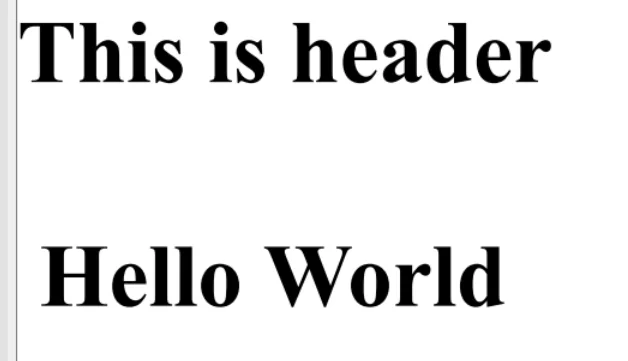
Solution
Override Chrome's default <body> margin so the content lines up with the header and footer across the full page width. Apply negative margins to cancel the built-in 8px offset:
body {
margin-left: -8px;
margin-right: -8px;
}The negative values neutralize Chrome's default padding so the header, body, and footer all align to the same edge. Applied inline, the corrected render looks like this:
var renderer = new ChromePdfRenderer();
renderer.RenderingOptions.HtmlHeader = new HtmlHeaderFooter()
{
    HtmlFragment = "<h1>This is header</h1>"
};
renderer.RenderingOptions.MarginLeft = 0;
renderer.RenderingOptions.UseMarginsOnHeaderAndFooter = UseMargins.Left;
var pdf = renderer.RenderHtmlAsPdf("<h1 style=\"margin-left: -8;\">Hello World</h1>");  //adjust margin left to -8 px to cancel out default Chrome margin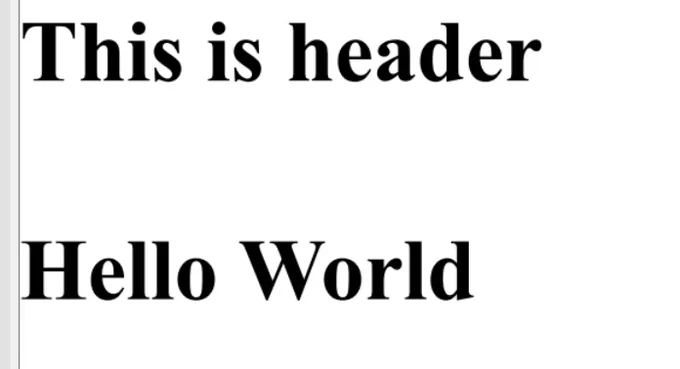
Debug Tips
- Prefer a clean slate: instead of negative margins, apply a CSS reset or set
margin: 0explicitly on the<body>element to remove the default offset at the source. - Scope of the behavior: the 8px gap shows up whenever HTML is rendered through headless Chrome, including IronPDF, Puppeteer, and the Chrome DevTools Protocol, so the same fix applies across those tools.

Curtis Chau holds a Bachelor’s degree in Computer Science (Carleton University) and specializes in front-end development with expertise in Node.js, TypeScript, JavaScript, and React. Passionate about crafting intuitive and aesthetically pleasing user interfaces, Curtis enjoys working with modern frameworks and creating well-structured, visually appealing manuals.













