
Batch PDF Processing in C#: Automate Document Workflows at Scale

Batch PDF processing in C# with IronPDF enables .NET developers to automate document workflows at scale - from parallel HTML-to-PDF conversion and bulk merging/splitting to async PDF pipelines with built-in error handling, retry logic, and checkpointing. IronPDF's thread-safe Chromium engine and IDisposable-based memory management make it purpose-built for high-throughput PDF automation, whether you're running on-premise, in Azure Functions, AWS Lambda, or Kubernetes.
This tutorial covers scalable PDF automation in C# - from parallel conversion and bulk operations to cloud deployment and resilient pipeline patterns.
- Who this is for: .NET developers and architects responsible for document-heavy workflows - document migration projects, daily report generation pipelines, compliance remediation sweeps, or archive digitization efforts where sequential processing is not feasible.
- What you'll build: Parallel HTML-to-PDF conversion with
Parallel.ForEach, batch merge and split operations, async pipelines withSemaphoreSlimfor concurrency control, error handling with skip-on-failure and retry logic, checkpoint/resume patterns for crash recovery, and cloud deployment configurations for Azure Functions, AWS Lambda, and Kubernetes. - Where it runs: .NET 6+, .NET Framework 4.6.2+, .NET Standard 2.0. All rendering uses IronPDF's embedded Chromium engine - no headless browser dependencies or external services required.
- When to use this approach: When you need to process more PDFs than sequential execution allows - document migration at scale, scheduled batch jobs with tight time windows, or multi-tenant platforms with variable document loads.
- Why it matters technically: IronPDF's
ChromePdfRendereris thread-safe and stateless per render, meaning multiple threads can safely share a single renderer instance. Combined with .NET's Task Parallel Library andIDisposableonPdfDocument, you get predictable memory behavior and CPU saturation without race conditions or memory leaks.
Batch convert an entire directory of HTML files to PDF with just a few lines of code:
-
1Install IronPDF with NuGet Package Manager
-
2Copy and run this code snippet.
using IronPdf; using System.IO; using System.Threading.Tasks; var renderer = new ChromePdfRenderer(); var htmlFiles = Directory.GetFiles("input/", "*.html"); Parallel.ForEach(htmlFiles, htmlFile => { var pdf = renderer.RenderHtmlFileAsPdf(htmlFile); pdf.SaveAs($"output/{Path.GetFileNameWithoutExtension(htmlFile)}.pdf"); });C# -
3Deploy to test on your live environment
Start using IronPDF in your project today with a free trial
After you've purchased or signed up for a 30-day trial of IronPDF, add your license key at the start of your application.
IronPdf.License.LicenseKey = "KEY";Imports IronPdf
IronPdf.License.LicenseKey = "KEY"Start using IronPDF in your project today with a free trial.
 Install with NuGet
- Understanding the Problem
- Foundation
- Core Operations
- Resilience
- Performance
- Deployment
- Putting It All Together
When You Have Thousands of PDFs to Process
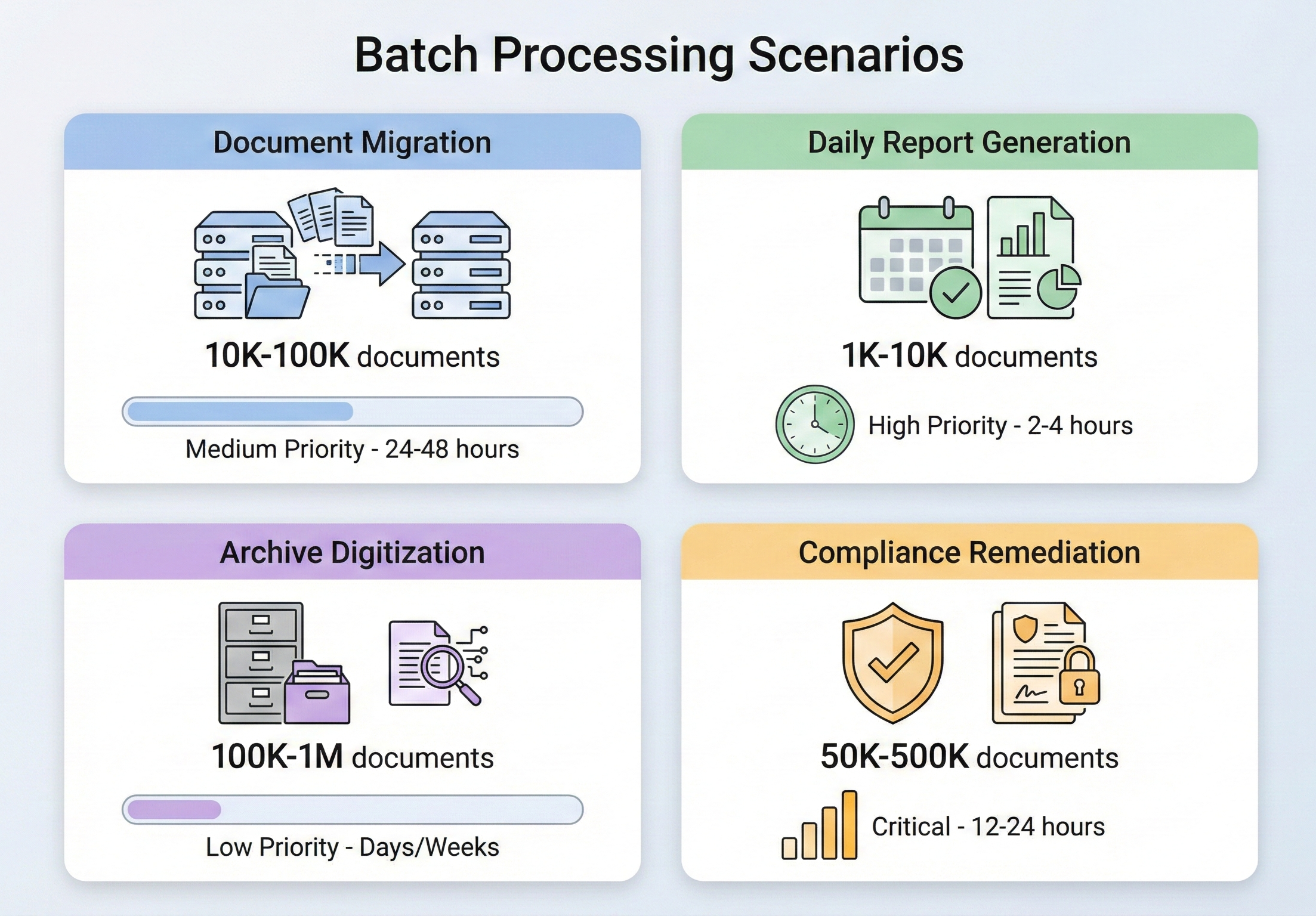
Batch PDF processing isn't a niche requirement - it's a routine part of enterprise document management. The scenarios that call for it come up across every industry, and they share a common trait: doing things one at a time isn't an option.
Document migration projects are one of the most common triggers. When an organization moves from one document management system to another, thousands (sometimes millions) of documents need to be converted, reformatted, or re-tagged. An insurance company migrating from a legacy claims system might need to convert 500,000 TIFF-based claim documents to searchable PDFs. A law firm moving to a new case management platform might need to merge scattered correspondence into unified case files. These are one-time jobs, but they're massive in scope and unforgiving of errors.
Daily report generation is the steady-state version of the same problem. Financial institutions that produce end-of-day portfolio reports for thousands of clients, logistics companies that generate shipping manifests for every outbound container, healthcare systems that create daily patient summaries across hundreds of departments - all of these generate PDF output at a scale where sequential processing would blow past acceptable time windows. When 10,000 reports need to be ready by 6 AM and the data isn't final until midnight, you don't have six hours to render them one by one.
Archive digitization sits at the intersection of migration and compliance. Government agencies, universities, and corporations with decades of paper records face mandates to digitize and archive documents in standards-compliant formats (typically PDF/A). The volumes are staggering - NARA alone receives millions of pages of federal records for permanent preservation - and the process needs to be reliable enough that you don't discover gaps years later.
Compliance remediation is often the most urgent trigger. When an audit reveals that your document archive doesn't meet a newly enforced standard - say, your stored invoices don't comply with PDF/A-3 for e-invoicing regulations, or your medical records lack the accessibility tagging required by Section 508 - you need to process your entire existing archive against the new standard. The pressure is high, the timeline is tight, and the volume is whatever your archive happens to contain.
In every one of these scenarios, the core challenge is the same: how do you process a large number of PDF operations reliably, efficiently, and without running out of memory or leaving half-finished work behind when something goes wrong?
IronPDF Batch Processing Architecture
Before diving into specific operations, it's important to understand how IronPDF is designed to handle concurrent workloads and what architectural decisions you should make when building a batch pipeline on top of it.
Installing IronPDF
Install IronPDF via NuGet:
Or using the .NET CLI:
IronPDF supports .NET Framework 4.6.2+, .NET Core, .NET 5 through .NET 10, and .NET Standard 2.0. It runs on Windows, Linux, macOS, and Docker containers, making it suitable for both on-premises batch jobs and cloud-native deployment.
For production batch processing, set your license key with License.LicenseKey at application startup before any PDF operations begin. This ensures every rendering call across all threads has access to the full feature set without per-file watermarks.
Concurrency Control and Thread Safety
IronPDF's Chromium-based rendering engine is thread-safe. You can create multiple ChromePdfRenderer instances across threads, or share a single instance - IronPDF handles the internal synchronization. The official recommendation for batch processing is to use .NET's built-in Parallel.ForEach, which distributes work across all available CPU cores automatically.
That said, "thread-safe" doesn't mean "use unlimited threads." Each concurrent PDF rendering operation consumes memory (the Chromium engine needs working space for DOM parsing, CSS layout, and image rasterization), and launching too many parallel operations on a memory-constrained system will degrade performance or cause OutOfMemoryException. The right level of concurrency depends on your hardware: a 16-core server with 64 GB RAM can comfortably handle 8-12 concurrent renders; a 4-core VM with 8 GB might be limited to 2-4. Control this with ParallelOptions.MaxDegreeOfParallelism - set it to roughly half your available CPU cores as a starting point, then adjust based on observed memory pressure.
Memory Management at Scale
Memory management is the single most important concern in batch PDF processing. Every PdfDocument object holds the full binary content of a PDF in memory, and failing to dispose of these objects will cause memory to grow linearly with the number of files processed.
The critical rule: always use using statements or explicitly call Dispose() on PdfDocument objects. IronPDF's PdfDocument implements IDisposable, and failing to dispose is the most common cause of memory issues in batch scenarios. Each iteration of your processing loop should create a PdfDocument, do its work, and dispose - never accumulate PdfDocument objects in a list or collection unless you have a specific reason and enough memory to handle it.
Beyond disposal, consider these memory management strategies for large batches:
Process in chunks rather than loading everything at once. If you need to process 50,000 files, don't enumerate them all into a list and then iterate - process them in batches of 100 or 500, allowing the garbage collector to reclaim memory between chunks.
Force garbage collection between chunks for extremely large batches. While you should generally let the GC manage itself, batch processing is one of the rare scenarios where calling GC.Collect() between chunk boundaries can prevent memory pressure from building up.
Monitor memory consumption using GC.GetTotalMemory() or process-level metrics. If memory usage exceeds a threshold (e.g., 80% of available RAM), pause processing to let the GC catch up.
Progress Reporting and Logging
When a batch job takes hours to complete, visibility into its progress isn't optional - it's essential. At minimum, you should log the start and completion of each file, track success/failure counts, and provide an estimated time remaining. Use Interlocked.Increment for thread-safe counters when running parallel operations, and log at regular intervals (every 50 or 100 files) rather than on every single file to avoid flooding your output. Track your elapsed time with System.Diagnostics.Stopwatch and calculate a running files-per-second rate to give a meaningful ETA.
For production batch jobs, consider writing progress to a persistent store (database, file, or message queue) so that monitoring dashboards can display real-time status without connecting to the batch process directly.
Common Batch Operations
With the architectural foundation in place, let's walk through the most common batch operations and their IronPDF implementations.
Batch HTML to PDF Conversion
HTML-to-PDF conversion is the most common batch operation. Whether you're generating invoices from templates, converting a library of HTML documentation to PDF, or rendering dynamic reports from a web application, the pattern is the same: iterate over your inputs, render each one, and save the output.
Input (5 HTML Files)
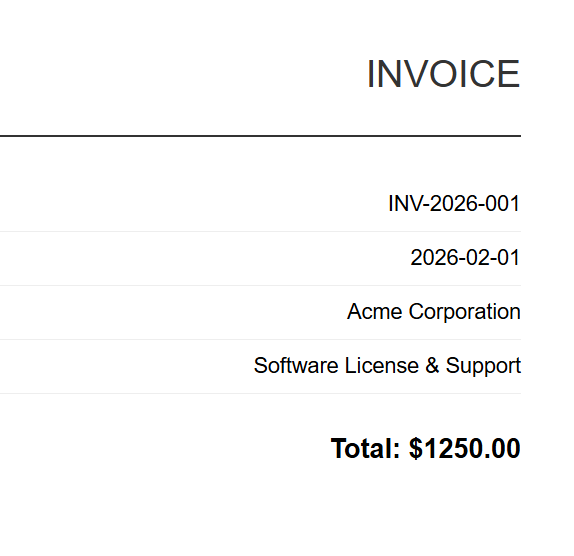
INV-2026-001
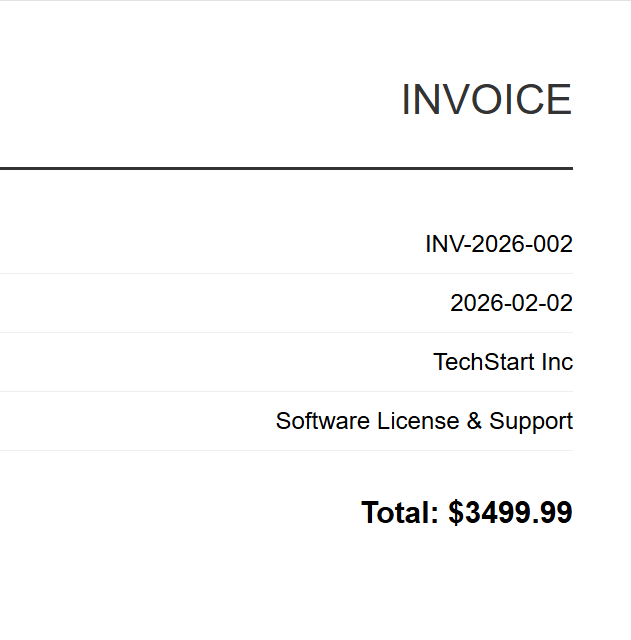
INV-2026-002
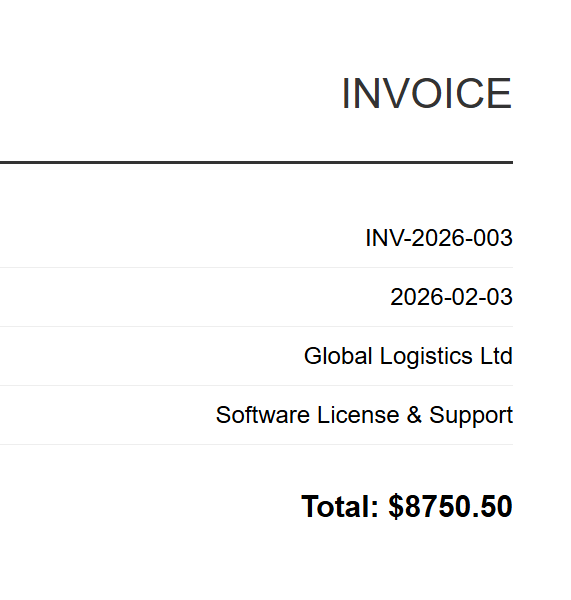
INV-2026-003
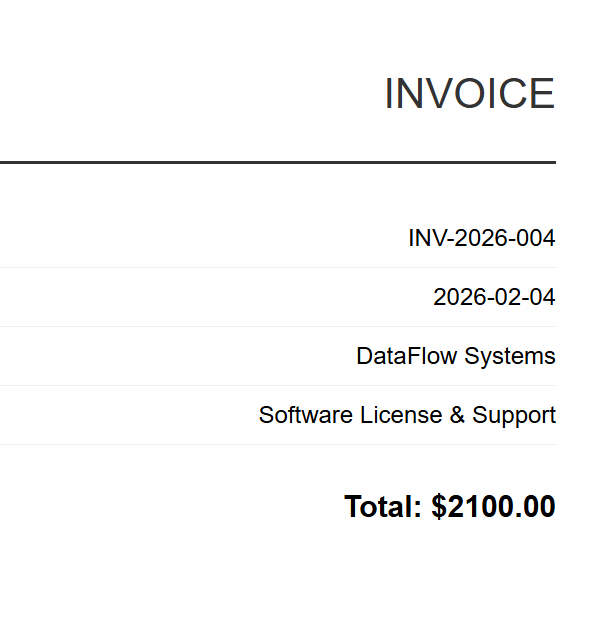
INV-2026-004
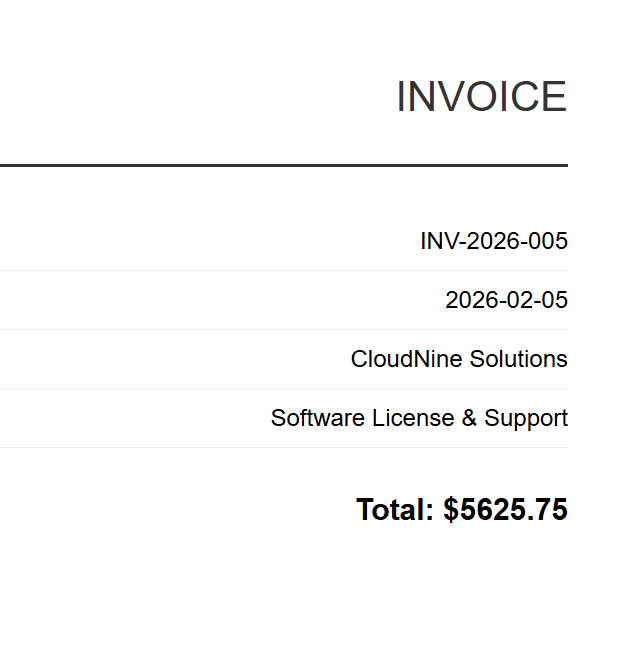
INV-2026-005
The implementation uses ChromePdfRenderer with Parallel.ForEach to process all HTML files concurrently, controlling parallelism through MaxDegreeOfParallelism to balance throughput against memory consumption. Each file is rendered with RenderHtmlFileAsPdf and saved to the output directory, with progress tracking via thread-safe Interlocked counters.
using IronPdf;
using System;
using System.IO;
using System.Threading.Tasks;
using System.Threading;

// Configure paths
string inputFolder = "input/";
string outputFolder = "output/";

Directory.CreateDirectory(outputFolder);

string[] htmlFiles = Directory.GetFiles(inputFolder, "*.html");
Console.WriteLine($"Found {htmlFiles.Length} HTML files to convert");

// Create renderer instance (thread-safe, can be shared)
var renderer = new ChromePdfRenderer();

// Track progress
int processed = 0;
int failed = 0;

// Process in parallel with controlled concurrency
var options = new ParallelOptions
{
    MaxDegreeOfParallelism = Environment.ProcessorCount / 2
};

Parallel.ForEach(htmlFiles, options, htmlFile =>
{
    try
    {
        string fileName = Path.GetFileNameWithoutExtension(htmlFile);
        string outputPath = Path.Combine(outputFolder, $"{fileName}.pdf");

        using var pdf = renderer.RenderHtmlFileAsPdf(htmlFile);
        pdf.SaveAs(outputPath);

        Interlocked.Increment(ref processed);
        Console.WriteLine($"[OK] {fileName}.pdf");
    }
    catch (Exception ex)
    {
        Interlocked.Increment(ref failed);
        Console.WriteLine($"[ERROR] {Path.GetFileName(htmlFile)}: {ex.Message}");
    }
});

Console.WriteLine($"\nComplete: {processed} succeeded, {failed} failed");Imports IronPdf
Imports System
Imports System.IO
Imports System.Threading.Tasks
Imports System.Threading
' Configure paths
Dim inputFolder As String = "input/"
Dim outputFolder As String = "output/"
Directory.CreateDirectory(outputFolder)
Dim htmlFiles As String() = Directory.GetFiles(inputFolder, "*.html")
Console.WriteLine($"Found {htmlFiles.Length} HTML files to convert")
' Create renderer instance (thread-safe, can be shared)
Dim renderer As New ChromePdfRenderer()
' Track progress
Dim processed As Integer = 0
Dim failed As Integer = 0
' Process in parallel with controlled concurrency
Dim options As New ParallelOptions With {
.MaxDegreeOfParallelism = Environment.ProcessorCount \ 2
}
Parallel.ForEach(htmlFiles, options, Sub(htmlFile)
Try
Dim fileName As String = Path.GetFileNameWithoutExtension(htmlFile)
Dim outputPath As String = Path.Combine(outputFolder, $"{fileName}.pdf")
Using pdf = renderer.RenderHtmlFileAsPdf(htmlFile)
pdf.SaveAs(outputPath)
End Using
Interlocked.Increment(processed)
Console.WriteLine($"[OK] {fileName}.pdf")
Catch ex As Exception
Interlocked.Increment(failed)
Console.WriteLine($"[ERROR] {Path.GetFileName(htmlFile)}: {ex.Message}")
End Try
End Sub)
Console.WriteLine($"\nComplete: {processed} succeeded, {failed} failed")Output
Each HTML invoice renders to a corresponding PDF. Above shows INV-2026-001.pdf - one of 5 batch outputs.
For template-based generation (e.g., invoices, reports), you'll typically merge data into an HTML template before rendering. The approach is straightforward: load your HTML template once, use string.Replace to inject per-record data (customer name, totals, dates), and pass the populated HTML to RenderHtmlAsPdf inside your parallel loop. IronPDF also provides RenderHtmlAsPdfAsync for scenarios where you want to use async/await instead of Parallel.ForEach - we'll cover async patterns in detail in a later section.
Batch PDF Merge
Merging groups of PDFs into combined documents is common in legal (merging case file documents), financial (combining monthly statements into quarterly reports), and publishing workflows.
using IronPdf;
using System;
using System.IO;
using System.Linq;
using System.Collections.Generic;

string inputFolder = "documents/";
string outputFolder = "merged/";

Directory.CreateDirectory(outputFolder);

// Group PDFs by prefix (e.g., "invoice-2026-01-*.pdf" -> one merged file)
var pdfFiles = Directory.GetFiles(inputFolder, "*.pdf");
var groups = pdfFiles
    .GroupBy(f => Path.GetFileName(f).Split('-').Take(3).Aggregate((a, b) => $"{a}-{b}"))
    .Where(g => g.Count() > 1);

Console.WriteLine($"Found {groups.Count()} groups to merge");

foreach (var group in groups)
{
    string groupName = group.Key;
    var filesToMerge = group.OrderBy(f => f).ToList();

    Console.WriteLine($"Merging {filesToMerge.Count} files into {groupName}.pdf");

    try
    {
        // Load all PDFs for this group
        var pdfDocs = new List<PdfDocument>();
        foreach (string filePath in filesToMerge)
        {
            pdfDocs.Add(PdfDocument.FromFile(filePath));
        }

        // Merge all documents
        using var merged = PdfDocument.Merge(pdfDocs);
        merged.SaveAs(Path.Combine(outputFolder, $"{groupName}-merged.pdf"));

        // Dispose source documents
        foreach (var doc in pdfDocs)
        {
            doc.Dispose();
        }

        Console.WriteLine($"  [OK] Created {groupName}-merged.pdf ({merged.PageCount} pages)");
    }
    catch (Exception ex)
    {
        Console.WriteLine($"  [ERROR] {groupName}: {ex.Message}");
    }
}

Console.WriteLine("\nMerge complete");Imports IronPdf
Imports System
Imports System.IO
Imports System.Linq
Imports System.Collections.Generic
Module Program
Sub Main()
Dim inputFolder As String = "documents/"
Dim outputFolder As String = "merged/"
Directory.CreateDirectory(outputFolder)
' Group PDFs by prefix (e.g., "invoice-2026-01-*.pdf" -> one merged file)
Dim pdfFiles = Directory.GetFiles(inputFolder, "*.pdf")
Dim groups = pdfFiles _
.GroupBy(Function(f) Path.GetFileName(f).Split("-"c).Take(3).Aggregate(Function(a, b) $"{a}-{b}")) _
.Where(Function(g) g.Count() > 1)
Console.WriteLine($"Found {groups.Count()} groups to merge")
For Each group In groups
Dim groupName As String = group.Key
Dim filesToMerge = group.OrderBy(Function(f) f).ToList()
Console.WriteLine($"Merging {filesToMerge.Count} files into {groupName}.pdf")
Try
' Load all PDFs for this group
Dim pdfDocs As New List(Of PdfDocument)()
For Each filePath As String In filesToMerge
pdfDocs.Add(PdfDocument.FromFile(filePath))
Next
' Merge all documents
Using merged = PdfDocument.Merge(pdfDocs)
merged.SaveAs(Path.Combine(outputFolder, $"{groupName}-merged.pdf"))
End Using
' Dispose source documents
For Each doc In pdfDocs
doc.Dispose()
Next
Console.WriteLine($" [OK] Created {groupName}-merged.pdf ({merged.PageCount} pages)")
Catch ex As Exception
Console.WriteLine($" [ERROR] {groupName}: {ex.Message}")
End Try
Next
Console.WriteLine(vbCrLf & "Merge complete")
End Sub
End ModuleFor merging large numbers of files, be mindful of memory: the PdfDocument.Merge method loads all source documents into memory simultaneously. If you're merging hundreds of large PDFs, consider merging in stages - combine groups of 10-20 files into intermediate documents, then merge the intermediates.
Batch PDF Split
Splitting multipage PDFs into individual pages (or page ranges) is the inverse of merging. Common in mailroom processing, where a scanned batch of documents needs to be separated into individual records, and in print workflows where composite documents need to be broken apart.
Input
The code below demonstrates extracting individual pages using CopyPage in a parallel loop, creating separate PDF files for each page. An alternative SplitByRange helper function shows how to extract page ranges rather than individual pages, useful for chunking large documents into smaller segments.
using IronPdf;
using System;
using System.IO;
using System.Threading.Tasks;

string inputFolder = "multipage/";
string outputFolder = "split/";

Directory.CreateDirectory(outputFolder);

string[] pdfFiles = Directory.GetFiles(inputFolder, "*.pdf");
Console.WriteLine($"Found {pdfFiles.Length} PDFs to split");

var options = new ParallelOptions
{
    MaxDegreeOfParallelism = Environment.ProcessorCount / 2
};

Parallel.ForEach(pdfFiles, options, pdfFile =>
{
    string baseName = Path.GetFileNameWithoutExtension(pdfFile);

    try
    {
        using var pdf = PdfDocument.FromFile(pdfFile);
        int pageCount = pdf.PageCount;

        Console.WriteLine($"Splitting {baseName}.pdf ({pageCount} pages)");

        // Extract each page as a separate PDF
        for (int i = 0; i < pageCount; i++)
        {
            using var singlePage = pdf.CopyPage(i);
            string outputPath = Path.Combine(outputFolder, $"{baseName}-page-{i + 1:D3}.pdf");
            singlePage.SaveAs(outputPath);
        }

        Console.WriteLine($"  [OK] Created {pageCount} files from {baseName}.pdf");
    }
    catch (Exception ex)
    {
        Console.WriteLine($"  [ERROR] {baseName}: {ex.Message}");
    }
});

// Alternative: Extract page ranges instead of individual pages
void SplitByRange(string inputFile, string outputFolder, int pagesPerChunk)
{
    using var pdf = PdfDocument.FromFile(inputFile);
    string baseName = Path.GetFileNameWithoutExtension(inputFile);
    int totalPages = pdf.PageCount;
    int chunkNumber = 1;

    for (int startPage = 0; startPage < totalPages; startPage += pagesPerChunk)
    {
        int endPage = Math.Min(startPage + pagesPerChunk - 1, totalPages - 1);
        using var chunk = pdf.CopyPages(startPage, endPage);
        chunk.SaveAs(Path.Combine(outputFolder, $"{baseName}-chunk-{chunkNumber:D3}.pdf"));
        chunkNumber++;
    }
}

Console.WriteLine("\nSplit complete");Imports IronPdf
Imports System
Imports System.IO
Imports System.Threading.Tasks
Module Program
Sub Main()
Dim inputFolder As String = "multipage/"
Dim outputFolder As String = "split/"
Directory.CreateDirectory(outputFolder)
Dim pdfFiles As String() = Directory.GetFiles(inputFolder, "*.pdf")
Console.WriteLine($"Found {pdfFiles.Length} PDFs to split")
Dim options As New ParallelOptions With {
.MaxDegreeOfParallelism = Environment.ProcessorCount \ 2
}
Parallel.ForEach(pdfFiles, options, Sub(pdfFile)
Dim baseName As String = Path.GetFileNameWithoutExtension(pdfFile)
Try
Using pdf = PdfDocument.FromFile(pdfFile)
Dim pageCount As Integer = pdf.PageCount
Console.WriteLine($"Splitting {baseName}.pdf ({pageCount} pages)")
' Extract each page as a separate PDF
For i As Integer = 0 To pageCount - 1
Using singlePage = pdf.CopyPage(i)
Dim outputPath As String = Path.Combine(outputFolder, $"{baseName}-page-{i + 1:D3}.pdf")
singlePage.SaveAs(outputPath)
End Using
Next
Console.WriteLine($" [OK] Created {pageCount} files from {baseName}.pdf")
End Using
Catch ex As Exception
Console.WriteLine($" [ERROR] {baseName}: {ex.Message}")
End Try
End Sub)
' Alternative: Extract page ranges instead of individual pages
Sub SplitByRange(inputFile As String, outputFolder As String, pagesPerChunk As Integer)
Using pdf = PdfDocument.FromFile(inputFile)
Dim baseName As String = Path.GetFileNameWithoutExtension(inputFile)
Dim totalPages As Integer = pdf.PageCount
Dim chunkNumber As Integer = 1
For startPage As Integer = 0 To totalPages - 1 Step pagesPerChunk
Dim endPage As Integer = Math.Min(startPage + pagesPerChunk - 1, totalPages - 1)
Using chunk = pdf.CopyPages(startPage, endPage)
chunk.SaveAs(Path.Combine(outputFolder, $"{baseName}-chunk-{chunkNumber:D3}.pdf"))
chunkNumber += 1
End Using
Next
End Using
End Sub
Console.WriteLine(vbCrLf & "Split complete")
End Sub
End ModuleOutput
Page 2 extracted as standalone PDF (annual-report-page-2.pdf)
IronPDF's CopyPage and CopyPages methods create new PdfDocument objects containing the specified pages. Remember to dispose of both the source document and each extracted page document after saving.
Batch Compression
When storage costs matter or when you need to transmit PDFs over bandwidth-constrained connections, batch compression can dramatically reduce your archive footprint. IronPDF provides two compression approaches: CompressImages for reducing image quality/size, and CompressStructTree for removing structural metadata. The newer CompressAndSaveAs API (introduced in version 2025.12) provides superior compression by combining multiple optimization techniques.
using IronPdf;
using System;
using System.IO;
using System.Threading.Tasks;
using System.Threading;

string inputFolder = "originals/";
string outputFolder = "compressed/";

Directory.CreateDirectory(outputFolder);

string[] pdfFiles = Directory.GetFiles(inputFolder, "*.pdf");
Console.WriteLine($"Found {pdfFiles.Length} PDFs to compress");

long totalOriginalSize = 0;
long totalCompressedSize = 0;
int processed = 0;

var options = new ParallelOptions
{
    MaxDegreeOfParallelism = Environment.ProcessorCount / 2
};

Parallel.ForEach(pdfFiles, options, pdfFile =>
{
    string fileName = Path.GetFileName(pdfFile);
    string outputPath = Path.Combine(outputFolder, fileName);

    try
    {
        long originalSize = new FileInfo(pdfFile).Length;
        Interlocked.Add(ref totalOriginalSize, originalSize);

        using var pdf = PdfDocument.FromFile(pdfFile);

        // Apply compression with JPEG quality setting (0-100, lower = more compression)
        pdf.CompressAndSaveAs(outputPath, 60);

        long compressedSize = new FileInfo(outputPath).Length;
        Interlocked.Add(ref totalCompressedSize, compressedSize);
        Interlocked.Increment(ref processed);

        double reduction = (1 - (double)compressedSize / originalSize) * 100;
        Console.WriteLine($"[OK] {fileName}: {originalSize / 1024}KB → {compressedSize / 1024}KB ({reduction:F1}% reduction)");
    }
    catch (Exception ex)
    {
        Console.WriteLine($"[ERROR] {fileName}: {ex.Message}");
    }
});

double totalReduction = (1 - (double)totalCompressedSize / totalOriginalSize) * 100;
Console.WriteLine($"\nCompression complete:");
Console.WriteLine($"  Files processed: {processed}");
Console.WriteLine($"  Total original: {totalOriginalSize / 1024 / 1024}MB");
Console.WriteLine($"  Total compressed: {totalCompressedSize / 1024 / 1024}MB");
Console.WriteLine($" Overall reduction: {totalReduction:F1}%");Imports IronPdf
Imports System
Imports System.IO
Imports System.Threading.Tasks
Imports System.Threading
Module Program
Sub Main()
Dim inputFolder As String = "originals/"
Dim outputFolder As String = "compressed/"
Directory.CreateDirectory(outputFolder)
Dim pdfFiles As String() = Directory.GetFiles(inputFolder, "*.pdf")
Console.WriteLine($"Found {pdfFiles.Length} PDFs to compress")
Dim totalOriginalSize As Long = 0
Dim totalCompressedSize As Long = 0
Dim processed As Integer = 0
Dim options As New ParallelOptions With {
.MaxDegreeOfParallelism = Environment.ProcessorCount \ 2
}
Parallel.ForEach(pdfFiles, options, Sub(pdfFile)
Dim fileName As String = Path.GetFileName(pdfFile)
Dim outputPath As String = Path.Combine(outputFolder, fileName)
Try
Dim originalSize As Long = New FileInfo(pdfFile).Length
Interlocked.Add(totalOriginalSize, originalSize)
Using pdf = PdfDocument.FromFile(pdfFile)
' Apply compression with JPEG quality setting (0-100, lower = more compression)
pdf.CompressAndSaveAs(outputPath, 60)
End Using
Dim compressedSize As Long = New FileInfo(outputPath).Length
Interlocked.Add(totalCompressedSize, compressedSize)
Interlocked.Increment(processed)
Dim reduction As Double = (1 - CDbl(compressedSize) / originalSize) * 100
Console.WriteLine($"[OK] {fileName}: {originalSize \ 1024}KB → {compressedSize \ 1024}KB ({reduction:F1}% reduction)")
Catch ex As Exception
Console.WriteLine($"[ERROR] {fileName}: {ex.Message}")
End Try
End Sub)
Dim totalReduction As Double = (1 - CDbl(totalCompressedSize) / totalOriginalSize) * 100
Console.WriteLine(vbCrLf & "Compression complete:")
Console.WriteLine($" Files processed: {processed}")
Console.WriteLine($" Total original: {totalOriginalSize \ 1024 \ 1024}MB")
Console.WriteLine($" Total compressed: {totalCompressedSize \ 1024 \ 1024}MB")
Console.WriteLine($" Overall reduction: {totalReduction:F1}%")
End Sub
End ModuleA few things to keep in mind about compression: JPEG quality settings below 60 will produce visible artifacts in most images. The ShrinkImage option can cause distortion in some configurations - test with representative samples before running a full batch. And removing the structure tree (CompressStructTree) will affect text selection and search in the compressed PDFs, so only use it when those capabilities aren't needed.
Batch Format Conversion (PDF/A, PDF/UA)
Converting an existing archive to a standards-compliant format - PDF/A for long-term archiving or PDF/UA for accessibility - is one of the highest-value batch operations. IronPDF supports the full range of PDF/A versions (including PDF/A-4, added in version 2025.11) and PDF/UA compliance (including PDF/UA-2, added in version 2025.12).
Input
The example loads each PDF with PdfDocument.FromFile, then converts it to PDF/A-3b using SaveAsPdfA with the PdfAVersions.PdfA3b parameter. An alternative ConvertToPdfUA function demonstrates accessibility compliance conversion using SaveAsPdfUA, though PDF/UA requires source documents with proper structural tagging.
using IronPdf;
using System;
using System.IO;
using System.Threading.Tasks;
using System.Threading;

string inputFolder = "originals/";
string outputFolder = "pdfa-archive/";

Directory.CreateDirectory(outputFolder);

string[] pdfFiles = Directory.GetFiles(inputFolder, "*.pdf");
Console.WriteLine($"Found {pdfFiles.Length} PDFs to convert to PDF/A-3b");

int converted = 0;
int failed = 0;

var options = new ParallelOptions
{
    MaxDegreeOfParallelism = Environment.ProcessorCount / 2
};

Parallel.ForEach(pdfFiles, options, pdfFile =>
{
    string fileName = Path.GetFileName(pdfFile);
    string outputPath = Path.Combine(outputFolder, fileName);

    try
    {
        using var pdf = PdfDocument.FromFile(pdfFile);

        // Convert to PDF/A-3b for long-term archival
        pdf.SaveAsPdfA(outputPath, PdfAVersions.PdfA3b);

        Interlocked.Increment(ref converted);
        Console.WriteLine($"[OK] {fileName} → PDF/A-3b");
    }
    catch (Exception ex)
    {
        Interlocked.Increment(ref failed);
        Console.WriteLine($"[ERROR] {fileName}: {ex.Message}");
    }
});

Console.WriteLine($"\nConversion complete: {converted} succeeded, {failed} failed");

// Alternative: Convert to PDF/UA for accessibility compliance
void ConvertToPdfUA(string inputFolder, string outputFolder)
{
    Directory.CreateDirectory(outputFolder);
    string[] files = Directory.GetFiles(inputFolder, "*.pdf");

    Parallel.ForEach(files, pdfFile =>
    {
        string fileName = Path.GetFileName(pdfFile);
        try
        {
            using var pdf = PdfDocument.FromFile(pdfFile);

            // PDF/UA requires proper tagging - ensure source is well-structured
            pdf.SaveAsPdfUA(Path.Combine(outputFolder, fileName));
            Console.WriteLine($"[OK] {fileName} → PDF/UA");
        }
        catch (Exception ex)
        {
            Console.WriteLine($"[ERROR] {fileName}: {ex.Message}");
        }
    });
}Imports IronPdf
Imports System
Imports System.IO
Imports System.Threading.Tasks
Imports System.Threading
Module Program
Sub Main()
Dim inputFolder As String = "originals/"
Dim outputFolder As String = "pdfa-archive/"
Directory.CreateDirectory(outputFolder)
Dim pdfFiles As String() = Directory.GetFiles(inputFolder, "*.pdf")
Console.WriteLine($"Found {pdfFiles.Length} PDFs to convert to PDF/A-3b")
Dim converted As Integer = 0
Dim failed As Integer = 0
Dim options As New ParallelOptions With {
.MaxDegreeOfParallelism = Environment.ProcessorCount \ 2
}
Parallel.ForEach(pdfFiles, options, Sub(pdfFile)
Dim fileName As String = Path.GetFileName(pdfFile)
Dim outputPath As String = Path.Combine(outputFolder, fileName)
Try
Using pdf = PdfDocument.FromFile(pdfFile)
' Convert to PDF/A-3b for long-term archival
pdf.SaveAsPdfA(outputPath, PdfAVersions.PdfA3b)
Interlocked.Increment(converted)
Console.WriteLine($"[OK] {fileName} → PDF/A-3b")
End Using
Catch ex As Exception
Interlocked.Increment(failed)
Console.WriteLine($"[ERROR] {fileName}: {ex.Message}")
End Try
End Sub)
Console.WriteLine($"{vbCrLf}Conversion complete: {converted} succeeded, {failed} failed")
End Sub
' Alternative: Convert to PDF/UA for accessibility compliance
Sub ConvertToPdfUA(inputFolder As String, outputFolder As String)
Directory.CreateDirectory(outputFolder)
Dim files As String() = Directory.GetFiles(inputFolder, "*.pdf")
Parallel.ForEach(files, Sub(pdfFile)
Dim fileName As String = Path.GetFileName(pdfFile)
Try
Using pdf = PdfDocument.FromFile(pdfFile)
' PDF/UA requires proper tagging - ensure source is well-structured
pdf.SaveAsPdfUA(Path.Combine(outputFolder, fileName))
Console.WriteLine($"[OK] {fileName} → PDF/UA")
End Using
Catch ex As Exception
Console.WriteLine($"[ERROR] {fileName}: {ex.Message}")
End Try
End Sub)
End Sub
End ModuleOutput

The output PDF is byte-for-byte identical in appearance but now carries PDF/A-3b compliance metadata for archival systems.
Format conversion is particularly important for compliance remediation projects, where an organization discovers that its existing archive doesn't meet a regulatory standard. The batch pattern is straightforward, but the validation step is critical - always verify that each converted file actually passes compliance checks before considering it complete. We cover validation in detail in the resilience section below.
Building Resilient Batch Pipelines
A batch pipeline that works perfectly on 100 files and crashes on file #4,327 out of 50,000 isn't useful. Resilience - the ability to handle errors gracefully, retry transient failures, and resume after crashes - is what separates a production-grade pipeline from a prototype.
Error Handling and Skip-on-Failure
The most basic resilience pattern is skip-on-failure: if a single file fails to process, log the error and continue with the next file rather than aborting the entire batch. This sounds obvious, but it's surprisingly easy to miss when you're using Parallel.ForEach - an unhandled exception in any parallel task will propagate as an AggregateException and terminate the loop.
The following example demonstrates both skip-on-failure and retry logic together - wrapping each file in a try-catch for graceful error handling, with an inner retry loop using exponential backoff for transient exceptions like IOException and OutOfMemoryException:
using IronPdf;
using System;
using System.IO;
using System.Threading.Tasks;
using System.Threading;
using System.Collections.Concurrent;

string inputFolder = "input/";
string outputFolder = "output/";
string errorLogPath = "error-log.txt";

Directory.CreateDirectory(outputFolder);

string[] htmlFiles = Directory.GetFiles(inputFolder, "*.html");
var renderer = new ChromePdfRenderer();
var errorLog = new ConcurrentBag<string>();

int processed = 0;
int failed = 0;
int retried = 0;

const int maxRetries = 3;

var options = new ParallelOptions
{
    MaxDegreeOfParallelism = Environment.ProcessorCount / 2
};

Parallel.ForEach(htmlFiles, options, htmlFile =>
{
    string fileName = Path.GetFileNameWithoutExtension(htmlFile);
    string outputPath = Path.Combine(outputFolder, $"{fileName}.pdf");
    int attempt = 0;
    bool success = false;

    while (attempt < maxRetries && !success)
    {
        attempt++;
        try
        {
            using var pdf = renderer.RenderHtmlFileAsPdf(htmlFile);
            pdf.SaveAs(outputPath);
            success = true;
            Interlocked.Increment(ref processed);

            if (attempt > 1)
            {
                Interlocked.Increment(ref retried);
                Console.WriteLine($"[OK] {fileName}.pdf (succeeded on attempt {attempt})");
            }
            else
            {
                Console.WriteLine($"[OK] {fileName}.pdf");
            }
        }
        catch (Exception ex) when (IsTransientException(ex) && attempt < maxRetries)
        {
            // Transient error - wait and retry with exponential backoff
            int delayMs = (int)Math.Pow(2, attempt) * 500;
            Console.WriteLine($"[RETRY] {fileName}: {ex.Message} (attempt {attempt}, waiting {delayMs}ms)");
            Thread.Sleep(delayMs);
        }
        catch (Exception ex)
        {
            // Non-transient error or max retries exceeded
            Interlocked.Increment(ref failed);
            string errorMessage = $"{DateTime.Now:yyyy-MM-dd HH:mm:ss} | {fileName} | {ex.GetType().Name} | {ex.Message}";
            errorLog.Add(errorMessage);
            Console.WriteLine($"[ERROR] {fileName}: {ex.Message}");
        }
    }
});

// Write error log
if (errorLog.Count > 0)
{
    File.WriteAllLines(errorLogPath, errorLog);
}

Console.WriteLine($"\nBatch complete:");
Console.WriteLine($"  Processed: {processed}");
Console.WriteLine($"  Failed: {failed}");
Console.WriteLine($"  Retried: {retried}");
if (failed > 0)
{
    Console.WriteLine($"  Error log: {errorLogPath}");
}

// Helper to identify transient exceptions worth retrying
bool IsTransientException(Exception ex)
{
    return ex is IOException ||
           ex is OutOfMemoryException ||
           ex.Message.Contains("timeout", StringComparison.OrdinalIgnoreCase) ||
           ex.Message.Contains("locked", StringComparison.OrdinalIgnoreCase);
}Imports IronPdf
Imports System
Imports System.IO
Imports System.Threading
Imports System.Collections.Concurrent
Module Program
Sub Main()
Dim inputFolder As String = "input/"
Dim outputFolder As String = "output/"
Dim errorLogPath As String = "error-log.txt"
Directory.CreateDirectory(outputFolder)
Dim htmlFiles As String() = Directory.GetFiles(inputFolder, "*.html")
Dim renderer As New ChromePdfRenderer()
Dim errorLog As New ConcurrentBag(Of String)()
Dim processed As Integer = 0
Dim failed As Integer = 0
Dim retried As Integer = 0
Const maxRetries As Integer = 3
Dim options As New ParallelOptions With {
.MaxDegreeOfParallelism = Environment.ProcessorCount \ 2
}
Parallel.ForEach(htmlFiles, options, Sub(htmlFile)
Dim fileName As String = Path.GetFileNameWithoutExtension(htmlFile)
Dim outputPath As String = Path.Combine(outputFolder, $"{fileName}.pdf")
Dim attempt As Integer = 0
Dim success As Boolean = False
While attempt < maxRetries AndAlso Not success
attempt += 1
Try
Using pdf = renderer.RenderHtmlFileAsPdf(htmlFile)
pdf.SaveAs(outputPath)
success = True
Interlocked.Increment(processed)
If attempt > 1 Then
Interlocked.Increment(retried)
Console.WriteLine($"[OK] {fileName}.pdf (succeeded on attempt {attempt})")
Else
Console.WriteLine($"[OK] {fileName}.pdf")
End If
End Using
Catch ex As Exception When IsTransientException(ex) AndAlso attempt < maxRetries
' Transient error - wait and retry with exponential backoff
Dim delayMs As Integer = CInt(Math.Pow(2, attempt)) * 500
Console.WriteLine($"[RETRY] {fileName}: {ex.Message} (attempt {attempt}, waiting {delayMs}ms)")
Thread.Sleep(delayMs)
Catch ex As Exception
' Non-transient error or max retries exceeded
Interlocked.Increment(failed)
Dim errorMessage As String = $"{DateTime.Now:yyyy-MM-dd HH:mm:ss} | {fileName} | {ex.GetType().Name} | {ex.Message}"
errorLog.Add(errorMessage)
Console.WriteLine($"[ERROR] {fileName}: {ex.Message}")
End Try
End While
End Sub)
' Write error log
If errorLog.Count > 0 Then
File.WriteAllLines(errorLogPath, errorLog)
End If
Console.WriteLine($"{vbCrLf}Batch complete:")
Console.WriteLine($" Processed: {processed}")
Console.WriteLine($" Failed: {failed}")
Console.WriteLine($" Retried: {retried}")
If failed > 0 Then
Console.WriteLine($" Error log: {errorLogPath}")
End If
End Sub
' Helper to identify transient exceptions worth retrying
Function IsTransientException(ex As Exception) As Boolean
Return TypeOf ex Is IOException OrElse
TypeOf ex Is OutOfMemoryException OrElse
ex.Message.Contains("timeout", StringComparison.OrdinalIgnoreCase) OrElse
ex.Message.Contains("locked", StringComparison.OrdinalIgnoreCase)
End Function
End ModuleAfter the batch completes, review the error log to understand which files failed and why. Common failure causes include corrupted source files, password-protected PDFs, unsupported features in the source content, and out-of-memory conditions on very large documents.
Retry Logic for Transient Failures
Some failures are transient - they'll succeed if you try again. These include file system contention (another process has the file locked), temporary memory pressure (the GC hasn't caught up yet), and network timeouts when loading external resources in HTML content. The code example above handles these with exponential backoff - starting with a short delay and doubling it on each retry attempt, capping at a maximum number of retries (typically 3).
The key is to distinguish between retryable and non-retryable failures. An IOException (file locked) or OutOfMemoryException (temporary pressure) is worth retrying. An ArgumentException (invalid input) or a consistent rendering error is not - retrying won't help, and you'll waste time and resources.
Checkpointing for Resume After Crash
When a batch job processes 50,000 files over several hours, a crash at file #35,000 shouldn't mean starting over from the beginning. Checkpointing - recording which files have been successfully processed - allows you to resume from where you left off.
using IronPdf;
using System;
using System.IO;
using System.Linq;
using System.Threading.Tasks;
using System.Threading;
using System.Collections.Generic;

string inputFolder = "input/";
string outputFolder = "output/";
string checkpointPath = "checkpoint.txt";
string errorLogPath = "errors.txt";

Directory.CreateDirectory(outputFolder);

// Load checkpoint - files already processed successfully
var completedFiles = new HashSet<string>();
if (File.Exists(checkpointPath))
{
    completedFiles = new HashSet<string>(File.ReadAllLines(checkpointPath));
    Console.WriteLine($"Resuming from checkpoint: {completedFiles.Count} files already processed");
}

// Get files to process (excluding already completed)
string[] allFiles = Directory.GetFiles(inputFolder, "*.html");
string[] filesToProcess = allFiles
    .Where(f => !completedFiles.Contains(Path.GetFileName(f)))
    .ToArray();

Console.WriteLine($"Files to process: {filesToProcess.Length} (skipping {completedFiles.Count} already done)");

var renderer = new ChromePdfRenderer();
var checkpointLock = new object();
int processed = 0;
int failed = 0;

var options = new ParallelOptions
{
    MaxDegreeOfParallelism = Environment.ProcessorCount / 2
};

Parallel.ForEach(filesToProcess, options, htmlFile =>
{
    string fileName = Path.GetFileName(htmlFile);
    string baseName = Path.GetFileNameWithoutExtension(htmlFile);
    string outputPath = Path.Combine(outputFolder, $"{baseName}.pdf");

    try
    {
        using var pdf = renderer.RenderHtmlFileAsPdf(htmlFile);
        pdf.SaveAs(outputPath);

        // Record success in checkpoint (thread-safe)
        lock (checkpointLock)
        {
            File.AppendAllText(checkpointPath, fileName + Environment.NewLine);
        }

        Interlocked.Increment(ref processed);
        Console.WriteLine($"[OK] {baseName}.pdf");
    }
    catch (Exception ex)
    {
        Interlocked.Increment(ref failed);

        // Log error for review
        lock (checkpointLock)
        {
            File.AppendAllText(errorLogPath,
                $"{DateTime.Now:yyyy-MM-dd HH:mm:ss} | {fileName} | {ex.Message}{Environment.NewLine}");
        }

        Console.WriteLine($"[ERROR] {fileName}: {ex.Message}");
    }
});

Console.WriteLine($"\nBatch complete:");
Console.WriteLine($"  Newly processed: {processed}");
Console.WriteLine($"  Failed: {failed}");
Console.WriteLine($"  Total completed: {completedFiles.Count + processed}");
Console.WriteLine($" Checkpoint saved to: {checkpointPath}");Imports IronPdf
Imports System
Imports System.IO
Imports System.Linq
Imports System.Threading.Tasks
Imports System.Threading
Imports System.Collections.Generic
Module Program
Sub Main()
Dim inputFolder As String = "input/"
Dim outputFolder As String = "output/"
Dim checkpointPath As String = "checkpoint.txt"
Dim errorLogPath As String = "errors.txt"
Directory.CreateDirectory(outputFolder)
' Load checkpoint - files already processed successfully
Dim completedFiles As New HashSet(Of String)()
If File.Exists(checkpointPath) Then
completedFiles = New HashSet(Of String)(File.ReadAllLines(checkpointPath))
Console.WriteLine($"Resuming from checkpoint: {completedFiles.Count} files already processed")
End If
' Get files to process (excluding already completed)
Dim allFiles As String() = Directory.GetFiles(inputFolder, "*.html")
Dim filesToProcess As String() = allFiles _
.Where(Function(f) Not completedFiles.Contains(Path.GetFileName(f))) _
.ToArray()
Console.WriteLine($"Files to process: {filesToProcess.Length} (skipping {completedFiles.Count} already done)")
Dim renderer As New ChromePdfRenderer()
Dim checkpointLock As New Object()
Dim processed As Integer = 0
Dim failed As Integer = 0
Dim options As New ParallelOptions With {
.MaxDegreeOfParallelism = Environment.ProcessorCount \ 2
}
Parallel.ForEach(filesToProcess, options, Sub(htmlFile)
Dim fileName As String = Path.GetFileName(htmlFile)
Dim baseName As String = Path.GetFileNameWithoutExtension(htmlFile)
Dim outputPath As String = Path.Combine(outputFolder, $"{baseName}.pdf")
Try
Using pdf = renderer.RenderHtmlFileAsPdf(htmlFile)
pdf.SaveAs(outputPath)
End Using
' Record success in checkpoint (thread-safe)
SyncLock checkpointLock
File.AppendAllText(checkpointPath, fileName & Environment.NewLine)
End SyncLock
Interlocked.Increment(processed)
Console.WriteLine($"[OK] {baseName}.pdf")
Catch ex As Exception
Interlocked.Increment(failed)
' Log error for review
SyncLock checkpointLock
File.AppendAllText(errorLogPath,
$"{DateTime.Now:yyyy-MM-dd HH:mm:ss} | {fileName} | {ex.Message}{Environment.NewLine}")
End SyncLock
Console.WriteLine($"[ERROR] {fileName}: {ex.Message}")
End Try
End Sub)
Console.WriteLine(vbCrLf & "Batch complete:")
Console.WriteLine($" Newly processed: {processed}")
Console.WriteLine($" Failed: {failed}")
Console.WriteLine($" Total completed: {completedFiles.Count + processed}")
Console.WriteLine($" Checkpoint saved to: {checkpointPath}")
End Sub
End ModuleThe checkpoint file acts as a persistent record of completed work. When the pipeline starts, it reads the checkpoint file and skips any files that were already processed successfully. When a file completes processing, its path is appended to the checkpoint file. This approach is simple, file-based, and doesn't require any external dependencies.
For more sophisticated scenarios, consider using a database table or a distributed cache (like Redis) as your checkpoint store, particularly if multiple workers are processing files in parallel across different machines.
Validation Before and After Processing
Validation is the bookend of a resilient pipeline. Pre-processing validation catches problematic inputs before they waste processing time; post-processing validation ensures that the output meets your quality and compliance requirements.
Input
This implementation wraps the processing loop with both PreValidate and PostValidate helper functions. Pre-validation checks file size, content type, and basic HTML structure before processing. Post-validation verifies the output PDF has valid page count and reasonable file size, moving validated files to a separate folder while routing failures to a rejection folder for manual review.
using IronPdf;
using System;
using System.IO;
using System.Threading.Tasks;
using System.Threading;
using System.Collections.Concurrent;

string inputFolder = "input/";
string outputFolder = "output/";
string validatedFolder = "validated/";
string rejectedFolder = "rejected/";

Directory.CreateDirectory(outputFolder);
Directory.CreateDirectory(validatedFolder);
Directory.CreateDirectory(rejectedFolder);

string[] inputFiles = Directory.GetFiles(inputFolder, "*.html");
var renderer = new ChromePdfRenderer();

int preValidationFailed = 0;
int processingFailed = 0;
int postValidationFailed = 0;
int succeeded = 0;

var options = new ParallelOptions
{
    MaxDegreeOfParallelism = Environment.ProcessorCount / 2
};

Parallel.ForEach(inputFiles, options, inputFile =>
{
    string fileName = Path.GetFileNameWithoutExtension(inputFile);
    string outputPath = Path.Combine(outputFolder, $"{fileName}.pdf");

    // Pre-validation: Check input file
    if (!PreValidate(inputFile))
    {
        Interlocked.Increment(ref preValidationFailed);
        Console.WriteLine($"[SKIP] {fileName}: Failed pre-validation");
        return;
    }

    try
    {
        // Process
        using var pdf = renderer.RenderHtmlFileAsPdf(inputFile);
        pdf.SaveAs(outputPath);

        // Post-validation: Check output file
        if (PostValidate(outputPath))
        {
            // Move to validated folder
            string validatedPath = Path.Combine(validatedFolder, $"{fileName}.pdf");
            File.Move(outputPath, validatedPath, overwrite: true);
            Interlocked.Increment(ref succeeded);
            Console.WriteLine($"[OK] {fileName}.pdf (validated)");
        }
        else
        {
            // Move to rejected folder for manual review
            string rejectedPath = Path.Combine(rejectedFolder, $"{fileName}.pdf");
            File.Move(outputPath, rejectedPath, overwrite: true);
            Interlocked.Increment(ref postValidationFailed);
            Console.WriteLine($"[REJECT] {fileName}.pdf: Failed post-validation");
        }
    }
    catch (Exception ex)
    {
        Interlocked.Increment(ref processingFailed);
        Console.WriteLine($"[ERROR] {fileName}: {ex.Message}");
    }
});

Console.WriteLine($"\nValidation summary:");
Console.WriteLine($"  Succeeded: {succeeded}");
Console.WriteLine($"  Pre-validation failed: {preValidationFailed}");
Console.WriteLine($"  Processing failed: {processingFailed}");
Console.WriteLine($"  Post-validation failed: {postValidationFailed}");

// Pre-validation: Quick checks on input file
bool PreValidate(string filePath)
{
    try
    {
        var fileInfo = new FileInfo(filePath);

        // Check file exists and is readable
        if (!fileInfo.Exists) return false;

        // Check file is not empty
        if (fileInfo.Length == 0) return false;

        // Check file is not too large (e.g., 50MB limit)
        if (fileInfo.Length > 50 * 1024 * 1024) return false;

        // Quick content check - must be valid HTML
        string content = File.ReadAllText(filePath);
        if (string.IsNullOrWhiteSpace(content)) return false;
        if (!content.Contains("<html", StringComparison.OrdinalIgnoreCase) &&
            !content.Contains("<!DOCTYPE", StringComparison.OrdinalIgnoreCase))
        {
            return false;
        }

        return true;
    }
    catch
    {
        return false;
    }
}

// Post-validation: Verify output PDF meets requirements
bool PostValidate(string pdfPath)
{
    try
    {
        using var pdf = PdfDocument.FromFile(pdfPath);

        // Check PDF has at least one page
        if (pdf.PageCount < 1) return false;

        // Check file size is reasonable (not just header, not corrupted)
        var fileInfo = new FileInfo(pdfPath);
        if (fileInfo.Length < 1024) return false;

        return true;
    }
    catch
    {
        return false;
    }
}Imports IronPdf
Imports System
Imports System.IO
Imports System.Threading
Imports System.Collections.Concurrent
Module Program
Sub Main()
Dim inputFolder As String = "input/"
Dim outputFolder As String = "output/"
Dim validatedFolder As String = "validated/"
Dim rejectedFolder As String = "rejected/"
Directory.CreateDirectory(outputFolder)
Directory.CreateDirectory(validatedFolder)
Directory.CreateDirectory(rejectedFolder)
Dim inputFiles As String() = Directory.GetFiles(inputFolder, "*.html")
Dim renderer As New ChromePdfRenderer()
Dim preValidationFailed As Integer = 0
Dim processingFailed As Integer = 0
Dim postValidationFailed As Integer = 0
Dim succeeded As Integer = 0
Dim options As New ParallelOptions With {
.MaxDegreeOfParallelism = Environment.ProcessorCount \ 2
}
Parallel.ForEach(inputFiles, options, Sub(inputFile)
Dim fileName As String = Path.GetFileNameWithoutExtension(inputFile)
Dim outputPath As String = Path.Combine(outputFolder, $"{fileName}.pdf")
' Pre-validation: Check input file
If Not PreValidate(inputFile) Then
Interlocked.Increment(preValidationFailed)
Console.WriteLine($"[SKIP] {fileName}: Failed pre-validation")
Return
End If
Try
' Process
Using pdf = renderer.RenderHtmlFileAsPdf(inputFile)
pdf.SaveAs(outputPath)
' Post-validation: Check output file
If PostValidate(outputPath) Then
' Move to validated folder
Dim validatedPath As String = Path.Combine(validatedFolder, $"{fileName}.pdf")
File.Move(outputPath, validatedPath, overwrite:=True)
Interlocked.Increment(succeeded)
Console.WriteLine($"[OK] {fileName}.pdf (validated)")
Else
' Move to rejected folder for manual review
Dim rejectedPath As String = Path.Combine(rejectedFolder, $"{fileName}.pdf")
File.Move(outputPath, rejectedPath, overwrite:=True)
Interlocked.Increment(postValidationFailed)
Console.WriteLine($"[REJECT] {fileName}.pdf: Failed post-validation")
End If
End Using
Catch ex As Exception
Interlocked.Increment(processingFailed)
Console.WriteLine($"[ERROR] {fileName}: {ex.Message}")
End Try
End Sub)
Console.WriteLine(vbCrLf & "Validation summary:")
Console.WriteLine($" Succeeded: {succeeded}")
Console.WriteLine($" Pre-validation failed: {preValidationFailed}")
Console.WriteLine($" Processing failed: {processingFailed}")
Console.WriteLine($" Post-validation failed: {postValidationFailed}")
End Sub
' Pre-validation: Quick checks on input file
Function PreValidate(filePath As String) As Boolean
Try
Dim fileInfo As New FileInfo(filePath)
' Check file exists and is readable
If Not fileInfo.Exists Then Return False
' Check file is not empty
If fileInfo.Length = 0 Then Return False
' Check file is not too large (e.g., 50MB limit)
If fileInfo.Length > 50 * 1024 * 1024 Then Return False
' Quick content check - must be valid HTML
Dim content As String = File.ReadAllText(filePath)
If String.IsNullOrWhiteSpace(content) Then Return False
If Not content.Contains("<html", StringComparison.OrdinalIgnoreCase) AndAlso
Not content.Contains("<!DOCTYPE", StringComparison.OrdinalIgnoreCase) Then
Return False
End If
Return True
Catch
Return False
End Try
End Function
' Post-validation: Verify output PDF meets requirements
Function PostValidate(pdfPath As String) As Boolean
Try
Using pdf = PdfDocument.FromFile(pdfPath)
' Check PDF has at least one page
If pdf.PageCount < 1 Then Return False
' Check file size is reasonable (not just header, not corrupted)
Dim fileInfo As New FileInfo(pdfPath)
If fileInfo.Length < 1024 Then Return False
Return True
End Using
Catch
Return False
End Try
End Function
End ModuleOutput
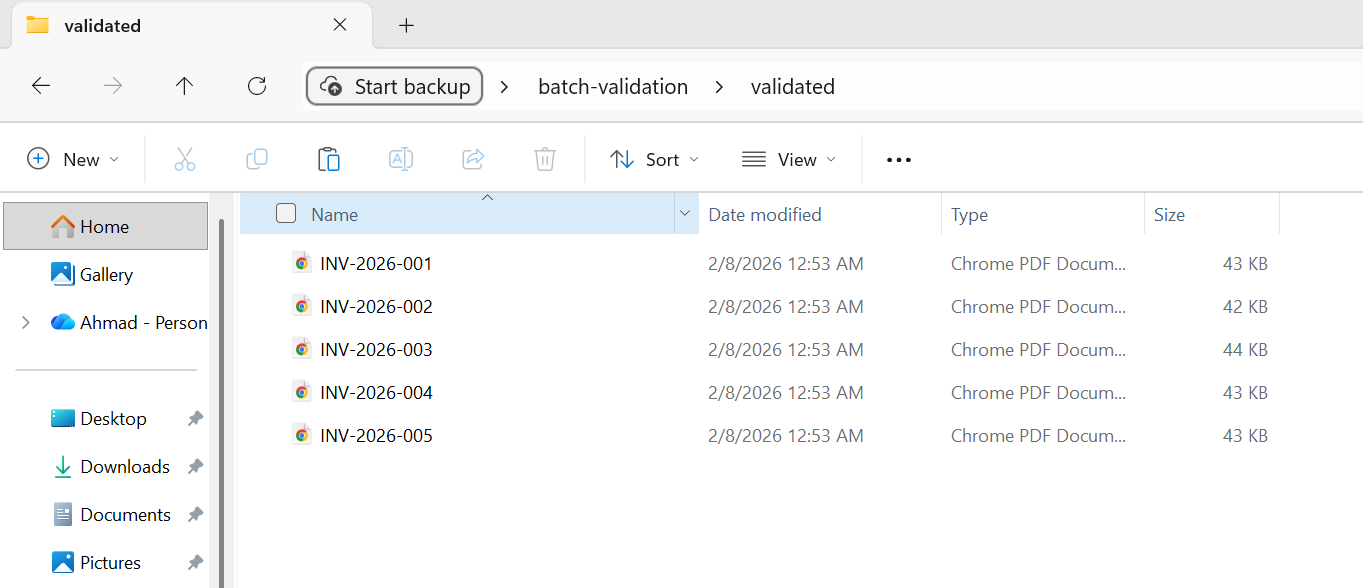
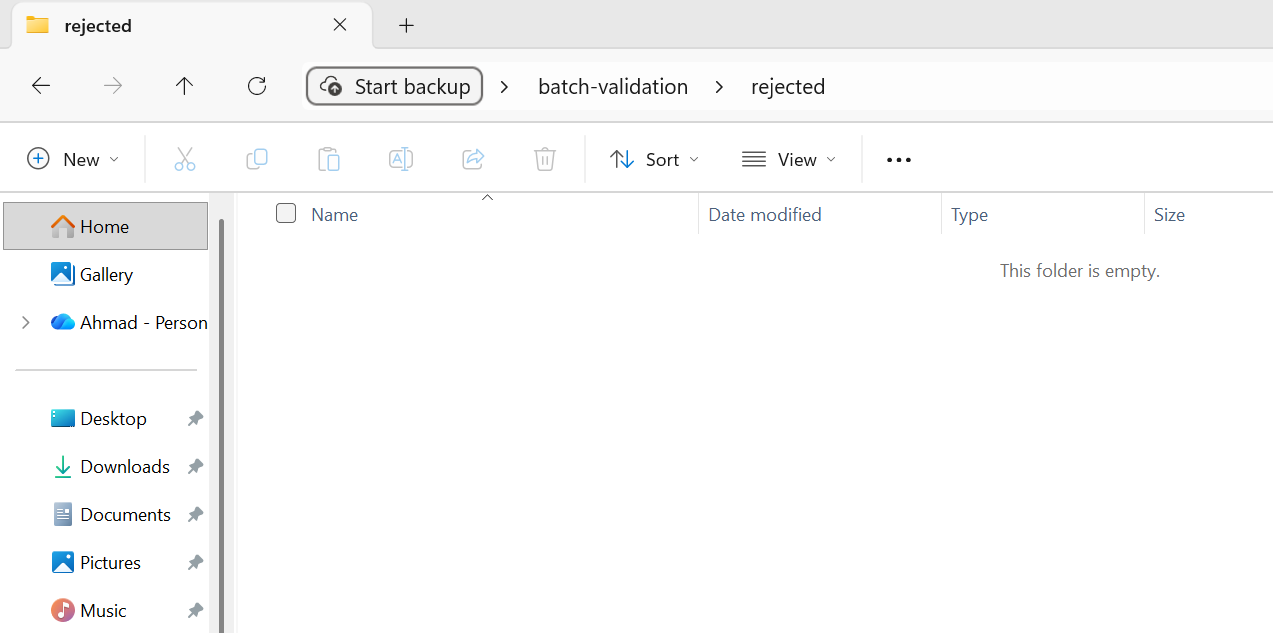
All 5 files passed validation and moved to the validated folder.
Pre-processing validation should be fast - you're checking for obviously broken inputs, not doing full processing. Post-processing validation can be more thorough, especially for compliance conversions where the output must pass specific standards (PDF/A, PDF/UA). Any file that fails post-processing validation should be flagged for manual review rather than silently accepted.

My favorite library of this kind is IronPDF. It allows for fast and efficient manipulation of PDF files. It also has many valuable features, like exporting to PDF/A format and digitally signing PDF documents.

IronOCR means we can save $40,000 annually from manual processing, while enhancing productivity and freeing up resources for high-impact tasks. I would highly recommend it.

Async and Parallel Processing Patterns
IronPDF supports both Parallel.ForEach (thread-based parallelism) and async/await (asynchronous I/O). Understanding when to use each - and how to combine them effectively - is key to maximizing throughput.
Task Parallel Library Integration
Parallel.ForEach is the simplest and most effective approach for CPU-bound batch operations. IronPDF's rendering engine is CPU-intensive (HTML parsing, CSS layout, image rasterization), and Parallel.ForEach automatically distributes this work across all available cores.
using IronPdf;
using System;
using System.IO;
using System.Threading.Tasks;
using System.Threading;
using System.Diagnostics;

string inputFolder = "input/";
string outputFolder = "output/";

Directory.CreateDirectory(outputFolder);

string[] htmlFiles = Directory.GetFiles(inputFolder, "*.html");
var renderer = new ChromePdfRenderer();

Console.WriteLine($"Processing {htmlFiles.Length} files with {Environment.ProcessorCount} CPU cores");

int processed = 0;
var stopwatch = Stopwatch.StartNew();

// Configure parallelism based on system resources
// Rule of thumb: ProcessorCount / 2 for memory-intensive operations
var options = new ParallelOptions
{
    MaxDegreeOfParallelism = Math.Max(1, Environment.ProcessorCount / 2)
};

Console.WriteLine($"Max parallelism: {options.MaxDegreeOfParallelism}");

// Use Parallel.ForEach for CPU-bound batch operations
Parallel.ForEach(htmlFiles, options, htmlFile =>
{
    string fileName = Path.GetFileNameWithoutExtension(htmlFile);
    string outputPath = Path.Combine(outputFolder, $"{fileName}.pdf");

    try
    {
        // Render HTML to PDF
        using var pdf = renderer.RenderHtmlFileAsPdf(htmlFile);
        pdf.SaveAs(outputPath);

        int current = Interlocked.Increment(ref processed);

        // Progress reporting every 10 files
        if (current % 10 == 0)
        {
            double elapsed = stopwatch.Elapsed.TotalSeconds;
            double rate = current / elapsed;
            double remaining = (htmlFiles.Length - current) / rate;
            Console.WriteLine($"Progress: {current}/{htmlFiles.Length} ({rate:F1} files/sec, ~{remaining:F0}s remaining)");
        }
    }
    catch (Exception ex)
    {
        Console.WriteLine($"[ERROR] {fileName}: {ex.Message}");
    }
});

stopwatch.Stop();
double totalRate = processed / stopwatch.Elapsed.TotalSeconds;

Console.WriteLine($"\nComplete:");
Console.WriteLine($"  Files processed: {processed}/{htmlFiles.Length}");
Console.WriteLine($"  Total time: {stopwatch.Elapsed.TotalSeconds:F1}s");
Console.WriteLine($"  Average rate: {totalRate:F1} files/sec");
Console.WriteLine($"  Time per file: {stopwatch.Elapsed.TotalMilliseconds / processed:F0}ms");

// Memory monitoring helper (call between chunks for large batches)
void CheckMemoryPressure()
{
    const long memoryThreshold = 4L * 1024 * 1024 * 1024; // 4 GB
    long currentMemory = GC.GetTotalMemory(forceFullCollection: false);

    if (currentMemory > memoryThreshold)
    {
        Console.WriteLine($"Memory pressure detected ({currentMemory / 1024 / 1024}MB), forcing GC...");
        GC.Collect();
        GC.WaitForPendingFinalizers();
        GC.Collect();
    }
}Imports IronPdf
Imports System
Imports System.IO
Imports System.Threading.Tasks
Imports System.Threading
Imports System.Diagnostics
Module Program
Sub Main()
Dim inputFolder As String = "input/"
Dim outputFolder As String = "output/"
Directory.CreateDirectory(outputFolder)
Dim htmlFiles As String() = Directory.GetFiles(inputFolder, "*.html")
Dim renderer As New ChromePdfRenderer()
Console.WriteLine($"Processing {htmlFiles.Length} files with {Environment.ProcessorCount} CPU cores")
Dim processed As Integer = 0
Dim stopwatch As Stopwatch = Stopwatch.StartNew()
' Configure parallelism based on system resources
' Rule of thumb: ProcessorCount / 2 for memory-intensive operations
Dim options As New ParallelOptions With {
.MaxDegreeOfParallelism = Math.Max(1, Environment.ProcessorCount \ 2)
}
Console.WriteLine($"Max parallelism: {options.MaxDegreeOfParallelism}")
' Use Parallel.ForEach for CPU-bound batch operations
Parallel.ForEach(htmlFiles, options, Sub(htmlFile)
Dim fileName As String = Path.GetFileNameWithoutExtension(htmlFile)
Dim outputPath As String = Path.Combine(outputFolder, $"{fileName}.pdf")
Try
' Render HTML to PDF
Using pdf = renderer.RenderHtmlFileAsPdf(htmlFile)
pdf.SaveAs(outputPath)
End Using
Dim current As Integer = Interlocked.Increment(processed)
' Progress reporting every 10 files
If current Mod 10 = 0 Then
Dim elapsed As Double = stopwatch.Elapsed.TotalSeconds
Dim rate As Double = current / elapsed
Dim remaining As Double = (htmlFiles.Length - current) / rate
Console.WriteLine($"Progress: {current}/{htmlFiles.Length} ({rate:F1} files/sec, ~{remaining:F0}s remaining)")
End If
Catch ex As Exception
Console.WriteLine($"[ERROR] {fileName}: {ex.Message}")
End Try
End Sub)
stopwatch.Stop()
Dim totalRate As Double = processed / stopwatch.Elapsed.TotalSeconds
Console.WriteLine(vbCrLf & "Complete:")
Console.WriteLine($" Files processed: {processed}/{htmlFiles.Length}")
Console.WriteLine($" Total time: {stopwatch.Elapsed.TotalSeconds:F1}s")
Console.WriteLine($" Average rate: {totalRate:F1} files/sec")
Console.WriteLine($" Time per file: {stopwatch.Elapsed.TotalMilliseconds / processed:F0}ms")
' Memory monitoring helper (call between chunks for large batches)
CheckMemoryPressure()
End Sub
Sub CheckMemoryPressure()
Const memoryThreshold As Long = 4L * 1024 * 1024 * 1024 ' 4 GB
Dim currentMemory As Long = GC.GetTotalMemory(forceFullCollection:=False)
If currentMemory > memoryThreshold Then
Console.WriteLine($"Memory pressure detected ({currentMemory \ 1024 \ 1024}MB), forcing GC...")
GC.Collect()
GC.WaitForPendingFinalizers()
GC.Collect()
End If
End Sub
End ModuleThe MaxDegreeOfParallelism option is critical. Without it, the TPL will try to use all available cores, which can overwhelm memory if each render is resource-intensive. Set this based on your system's available RAM divided by the typical per-render memory consumption (usually 100-300 MB per concurrent render for complex HTML).
Controlling Concurrency (SemaphoreSlim)
When you need finer control over concurrency than Parallel.ForEach provides - for example, when mixing async I/O with CPU-bound rendering - SemaphoreSlim gives you explicit control over how many operations run simultaneously. The pattern is straightforward: create a SemaphoreSlim with your desired concurrency limit (e.g., 4 concurrent renders), call WaitAsync before each render, and Release in a finally block after. Then launch all tasks with Task.WhenAll.
This pattern is particularly useful when your pipeline includes both I/O-bound steps (reading files from blob storage, writing results to a database) and CPU-bound steps (rendering PDFs). The semaphore limits the CPU-bound rendering concurrency while allowing the I/O-bound steps to proceed without throttling.
Async/Await Best Practices
IronPDF provides async variants of its rendering methods, including RenderHtmlAsPdfAsync, RenderUrlAsPdfAsync, and RenderHtmlFileAsPdfAsync. These are ideal for web applications (where blocking the request thread is unacceptable) and for pipelines that mix PDF rendering with async I/O operations.
A few important async best practices for batch processing:
Don't use Task.Run to wrap synchronous IronPDF methods - use the native async variants instead. Wrapping synchronous methods in Task.Run wastes a thread pool thread and adds overhead without any benefit.
Don't use .Result or .Wait() on async tasks - this blocks the calling thread and can cause deadlocks in UI or ASP.NET contexts. Always use await.
Batch your Task.WhenAll calls instead of awaiting all tasks at once. If you have 10,000 tasks and call Task.WhenAll on all of them simultaneously, you'll launch 10,000 concurrent operations. Instead, use .Chunk(10) or a similar approach to process them in groups, awaiting each group sequentially.
Avoiding Memory Exhaustion
Memory exhaustion is the most common failure mode in batch PDF processing. The defensive approach is to monitor memory usage with GC.GetTotalMemory() before each render and trigger a collection when consumption crosses a threshold (e.g., 4 GB or 80% of available RAM). Call GC.Collect() followed by GC.WaitForPendingFinalizers() and a second GC.Collect() to reclaim as much memory as possible before continuing. This adds a small pause but prevents the catastrophic alternative of an OutOfMemoryException crashing your entire batch at file #30,000.
Combine this with the MaxDegreeOfParallelism throttling from the TPL section and the using disposal pattern from the memory management section, and you have a three-layer defense against memory issues: limit concurrency, dispose aggressively, and monitor with a safety valve.
Cloud Deployment for Batch Jobs
Modern batch processing increasingly runs in the cloud, where you can scale compute resources to match workload demands and pay only for what you use. IronPDF runs on all major cloud platforms - here's how to architect batch pipelines for each.
Azure Functions with Durable Functions
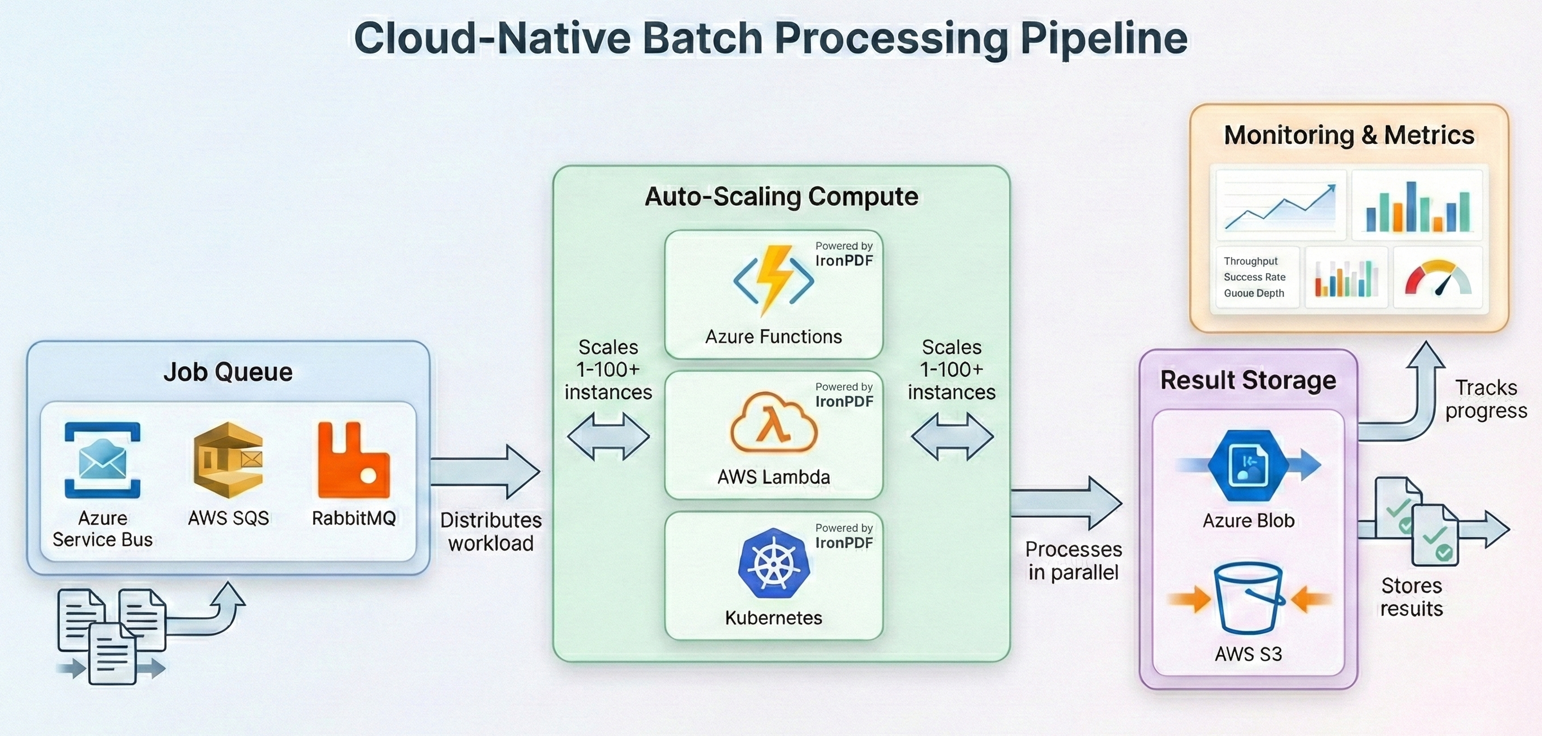
Azure Durable Functions provide built-in orchestration for fan-out/fan-in patterns, making them a natural fit for batch PDF processing. The orchestrator function distributes work across multiple activity function instances, each processing a subset of files. Your orchestrator calls CallActivityAsync in a fan-out loop, each activity function instantiates a ChromePdfRenderer, processes its chunk of files, and the orchestrator collects the results.
Key considerations for Azure Functions: the default consumption plan has a 5-minute timeout per function invocation and limited memory. For batch processing, use the Premium or Dedicated plan, which supports longer timeouts and more memory. IronPDF requires the full .NET runtime (not trimmed), so ensure your function app is configured for .NET 8+ with the appropriate runtime identifier.
AWS Lambda with Step Functions
AWS Step Functions provide a similar orchestration capability to Azure Durable Functions. Each step in the state machine invokes a Lambda function that processes a chunk of files. Your Lambda handler receives a batch of S3 object keys, loads each PDF with PdfDocument.FromFile, applies your processing pipeline (compression, format conversion, etc.), and writes the results back to an output S3 bucket.
AWS Lambda has a 15-minute maximum execution time and limited /tmp storage (512 MB by default, configurable up to 10 GB). For large batch jobs, use Step Functions to chunk the workload and process each chunk in a separate Lambda invocation. Store intermediate results in S3 rather than local storage.
Kubernetes Job Scheduling
For organizations running their own Kubernetes clusters, batch PDF processing maps well to Kubernetes Jobs and CronJobs. Each pod runs a batch worker that pulls files from a queue (Azure Service Bus, RabbitMQ, or SQS), processes them with IronPDF, and writes results to object storage. The worker loop follows the same pattern covered in earlier sections: dequeue a message, use ChromePdfRenderer.RenderHtmlAsPdf() or PdfDocument.FromFile() to process the document, upload the result, and acknowledge the message. Wrap processing in the same try-catch with retry logic from the resilience patterns, and use SemaphoreSlim to control per-pod concurrency.
IronPDF provides official Docker support and runs on Linux containers. Use the IronPdf NuGet package with the appropriate native runtime packages for your container's OS (e.g., IronPdf.Linux for Linux-based images). For Kubernetes, define resource requests and limits that match IronPDF's memory requirements (typically 512 MB-2 GB per pod depending on concurrency). Horizontal Pod Autoscaler can scale workers based on queue depth, and the checkpointing pattern ensures no work is lost if pods are evicted.
Cost Optimization Strategies
Cloud batch processing can get expensive if you're not thoughtful about resource allocation. Here are the strategies that have the biggest impact:
Right-size your compute. PDF rendering is CPU- and memory-intensive, not GPU-intensive. Use compute-optimized instances (C-series on Azure, C-type on AWS) rather than general-purpose or memory-optimized. You'll get better price-per-render ratios.
Use spot/preemptible instances for batch workloads that can tolerate interruption. Batch PDF processing is inherently resumable (thanks to checkpointing), making it an ideal candidate for spot pricing, which typically offers 60-90% discounts over on-demand.
Process during off-peak hours if your timeline allows. Many cloud providers offer lower pricing or higher spot availability during nights and weekends.
Compress early, store once. Run compression as part of your processing pipeline rather than as a separate step. Storing compressed PDFs from the start reduces ongoing storage costs for the lifetime of the archive.
Tier your storage. Processed PDFs that are accessed frequently should go in hot storage; archived PDFs that are rarely accessed should be moved to cool or archive tiers (Azure Cool/Archive, AWS S3 Glacier). This alone can reduce storage costs by 50-80%.
Real-World Pipeline Example
Let's tie everything together with a complete, production-grade batch pipeline that demonstrates the full workflow: Ingest → Validate → Process → Archive → Report.
This example processes a directory of HTML invoice templates, renders them to PDF, compresses the output, converts to PDF/A-3b for archival compliance, validates the result, and produces a summary report at the end.
Using the same 5 HTML invoices from the batch conversion example above...
using IronPdf;
using System;
using System.Collections.Generic;
using System.IO;
using System.Linq;
using System.Threading.Tasks;
using System.Threading;
using System.Collections.Concurrent;
using System.Diagnostics;
using System.Text.Json;

// Configuration
var config = new PipelineConfig
{
    InputFolder = "input/",
    OutputFolder = "output/",
    ArchiveFolder = "archive/",
    ErrorFolder = "errors/",
    CheckpointPath = "pipeline-checkpoint.json",
    ReportPath = "pipeline-report.json",
    MaxConcurrency = Math.Max(1, Environment.ProcessorCount / 2),
    MaxRetries = 3,
    JpegQuality = 70
};

// Initialize folders
Directory.CreateDirectory(config.OutputFolder);
Directory.CreateDirectory(config.ArchiveFolder);
Directory.CreateDirectory(config.ErrorFolder);

// Load checkpoint for resume capability
var checkpoint = LoadCheckpoint(config.CheckpointPath);
var results = new ConcurrentBag<ProcessingResult>();
var stopwatch = Stopwatch.StartNew();

// Get files to process
string[] allFiles = Directory.GetFiles(config.InputFolder, "*.html");
string[] filesToProcess = allFiles
    .Where(f => !checkpoint.CompletedFiles.Contains(Path.GetFileName(f)))
    .ToArray();

Console.WriteLine($"Pipeline starting:");
Console.WriteLine($"  Total files: {allFiles.Length}");
Console.WriteLine($"  Already processed: {checkpoint.CompletedFiles.Count}");
Console.WriteLine($"  To process: {filesToProcess.Length}");
Console.WriteLine($"  Concurrency: {config.MaxConcurrency}");

var renderer = new ChromePdfRenderer();
var checkpointLock = new object();

var options = new ParallelOptions
{
    MaxDegreeOfParallelism = config.MaxConcurrency
};

Parallel.ForEach(filesToProcess, options, inputFile =>
{
    var result = new ProcessingResult
    {
        FileName = Path.GetFileName(inputFile),
        StartTime = DateTime.UtcNow
    };

    try
    {
        // Stage: Pre-validation
        if (!ValidateInput(inputFile))
        {
            result.Status = "PreValidationFailed";
            result.Error = "Input file failed validation";
            results.Add(result);
            return;
        }

        string baseName = Path.GetFileNameWithoutExtension(inputFile);
        string tempPath = Path.Combine(config.OutputFolder, $"{baseName}.pdf");
        string archivePath = Path.Combine(config.ArchiveFolder, $"{baseName}.pdf");

        // Stage: Process with retry
        PdfDocument pdf = null;
        int attempt = 0;
        bool success = false;

        while (attempt < config.MaxRetries && !success)
        {
            attempt++;
            try
            {
                pdf = renderer.RenderHtmlFileAsPdf(inputFile);
                success = true;
            }
            catch (Exception ex) when (IsTransient(ex) && attempt < config.MaxRetries)
            {
                Thread.Sleep((int)Math.Pow(2, attempt) * 500);
            }
        }

        if (!success || pdf == null)
        {
            result.Status = "ProcessingFailed";
            result.Error = "Max retries exceeded";
            results.Add(result);
            return;
        }

        using (pdf)
        {
            // Stage: Compress and convert to PDF/A-3b for archival
            pdf.SaveAsPdfA(tempPath, PdfAVersions.PdfA3b);
        }

        // Stage: Post-validation
        if (!ValidateOutput(tempPath))
        {
            File.Move(tempPath, Path.Combine(config.ErrorFolder, $"{baseName}.pdf"), overwrite: true);
            result.Status = "PostValidationFailed";
            result.Error = "Output file failed validation";
            results.Add(result);
            return;
        }

        // Stage: Archive
        File.Move(tempPath, archivePath, overwrite: true);

        // Update checkpoint
        lock (checkpointLock)
        {
            checkpoint.CompletedFiles.Add(result.FileName);
            SaveCheckpoint(config.CheckpointPath, checkpoint);
        }

        result.Status = "Success";
        result.OutputSize = new FileInfo(archivePath).Length;
        result.EndTime = DateTime.UtcNow;
        results.Add(result);

        Console.WriteLine($"[OK] {baseName}.pdf ({result.OutputSize / 1024}KB)");
    }
    catch (Exception ex)
    {
        result.Status = "Error";
        result.Error = ex.Message;
        result.EndTime = DateTime.UtcNow;
        results.Add(result);
        Console.WriteLine($"[ERROR] {result.FileName}: {ex.Message}");
    }
});

stopwatch.Stop();

// Generate report
var report = new PipelineReport
{
    TotalFiles = allFiles.Length,
    ProcessedThisRun = results.Count,
    Succeeded = results.Count(r => r.Status == "Success"),
    PreValidationFailed = results.Count(r => r.Status == "PreValidationFailed"),
    ProcessingFailed = results.Count(r => r.Status == "ProcessingFailed"),
    PostValidationFailed = results.Count(r => r.Status == "PostValidationFailed"),
    Errors = results.Count(r => r.Status == "Error"),
    TotalDuration = stopwatch.Elapsed,
    AverageFileTime = results.Any() ? TimeSpan.FromMilliseconds(stopwatch.Elapsed.TotalMilliseconds / results.Count) : TimeSpan.Zero
};

string reportJson = JsonSerializer.Serialize(report, new JsonSerializerOptions { WriteIndented = true });
File.WriteAllText(config.ReportPath, reportJson);

Console.WriteLine($"\n=== Pipeline Complete ===");
Console.WriteLine($"Succeeded: {report.Succeeded}");
Console.WriteLine($"Failed: {report.PreValidationFailed + report.ProcessingFailed + report.PostValidationFailed + report.Errors}");
Console.WriteLine($"Duration: {report.TotalDuration.TotalMinutes:F1} minutes");
Console.WriteLine($"Report: {config.ReportPath}");

// Helper methods
bool ValidateInput(string path)
{
    try
    {
        var info = new FileInfo(path);
        if (!info.Exists || info.Length == 0 || info.Length > 50 * 1024 * 1024) return false;
        string content = File.ReadAllText(path);
        return content.Contains("<html", StringComparison.OrdinalIgnoreCase) ||
               content.Contains("<!DOCTYPE", StringComparison.OrdinalIgnoreCase);
    }
    catch { return false; }
}

bool ValidateOutput(string path)
{
    try
    {
        using var pdf = PdfDocument.FromFile(path);
        return pdf.PageCount > 0 && new FileInfo(path).Length > 1024;
    }
    catch { return false; }
}

bool IsTransient(Exception ex) =>
    ex is IOException || ex is OutOfMemoryException ||
    ex.Message.Contains("timeout", StringComparison.OrdinalIgnoreCase);

Checkpoint LoadCheckpoint(string path)
{
    if (File.Exists(path))
    {
        string json = File.ReadAllText(path);
        return JsonSerializer.Deserialize<Checkpoint>(json) ?? new Checkpoint();
    }
    return new Checkpoint();
}

void SaveCheckpoint(string path, Checkpoint cp) =>
    File.WriteAllText(path, JsonSerializer.Serialize(cp));


// Data classes
public class PipelineConfig
{
    public string InputFolder { get; set; } = "";
    public string OutputFolder { get; set; } = "";
    public string ArchiveFolder { get; set; } = "";
    public string ErrorFolder { get; set; } = "";
    public string CheckpointPath { get; set; } = "";
    public string ReportPath { get; set; } = "";
    public int MaxConcurrency { get; set; }
    public int MaxRetries { get; set; }
    public int JpegQuality { get; set; }
}

public class Checkpoint
{
    public HashSet<string> CompletedFiles { get; set; } = new();
}

public class ProcessingResult
{
    public string FileName { get; set; } = "";
    public string Status { get; set; } = "";
    public string Error { get; set; } = "";
    public long OutputSize { get; set; }
    public DateTime StartTime { get; set; }
    public DateTime EndTime { get; set; }
}

public class PipelineReport
{
    public int TotalFiles { get; set; }
    public int ProcessedThisRun { get; set; }
    public int Succeeded { get; set; }
    public int PreValidationFailed { get; set; }
    public int ProcessingFailed { get; set; }
    public int PostValidationFailed { get; set; }
    public int Errors { get; set; }
    public TimeSpan TotalDuration { get; set; }
    public TimeSpan AverageFileTime { get; set; }
}Output
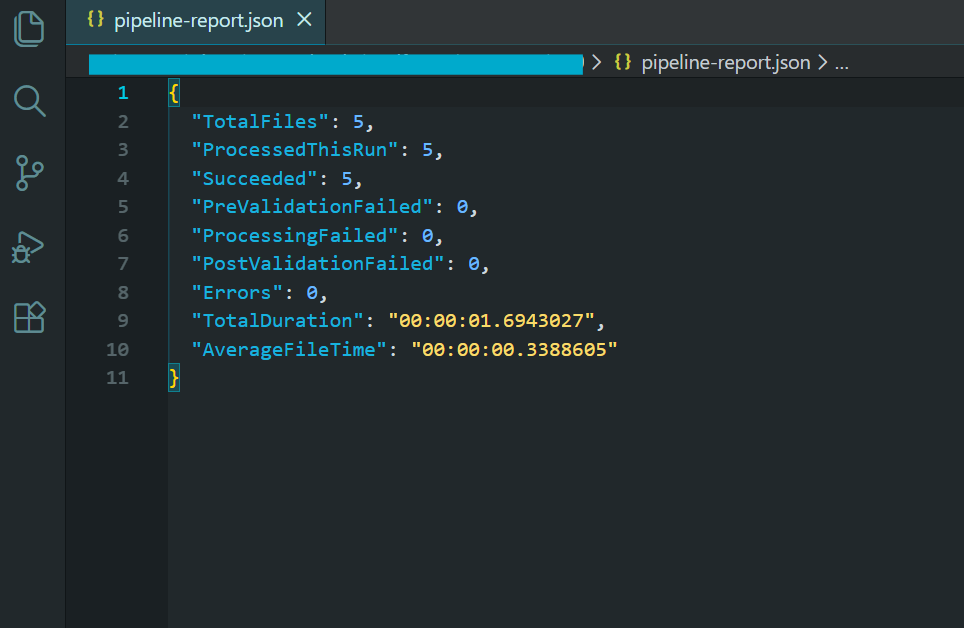
Pipeline report showing batch processing results.
This pipeline incorporates every pattern we've covered in this tutorial: parallel processing with controlled concurrency, per-file error handling with skip-on-failure, retry logic for transient errors, checkpointing for resume-after-crash, pre- and post-processing validation, memory management with explicit disposal, and comprehensive logging with a final summary report.
The output of this pipeline is a directory of compressed, PDF/A-3b-compliant archive files, a checkpoint file for resume capability, an error log for files that couldn't be processed, and a summary report with processing statistics. This is the pattern you want for any serious batch PDF processing workload.
Next Steps
Batch PDF processing at scale isn't just about calling a rendering method in a loop. It requires thoughtful architecture around concurrency, memory management, error handling, and deployment - and the right library to make it all work. IronPDF provides the thread-safe rendering engine, async API surface, compression tools, and format conversion capabilities that form the foundation of any .NET batch PDF pipeline.
Whether you're building a nightly report generator that produces thousands of PDFs before sunrise, migrating a legacy document archive to PDF/A compliance, or standing up a cloud-native processing service on Kubernetes, the patterns in this tutorial give you a proven framework to build on. Parallel processing with controlled concurrency keeps throughput high. Skip-on-failure and retry logic keep the pipeline moving when individual files cause problems. Checkpointing ensures you never lose progress. And cloud deployment patterns let you scale compute to match your workload.
Ready to start building? Download IronPDF and try it with a free trial - the same library handles everything from single-file rendering to hundred-thousand-file batch pipelines. If you have questions about scaling, deployment, or architecture for your specific use case, reach out to our engineering support team - we've helped teams build batch pipelines at every scale and we're happy to help you get it right.
Frequently Asked Questions
What is batch PDF processing in C#?
Batch PDF processing in C# refers to automating document workflows such as HTML-to-PDF conversion, merging, splitting, and implementing resilient pipeline patterns using IronPDF. It allows processing of PDFs at scale with reliable error handling and cloud deployment capabilities.
How can I set up IronPDF for batch processing?
You can set up IronPDF for batch processing by installing it via NuGet or the .NET CLI. Ensure that your application is using .NET 6+ and configure IronPDF with a valid license key to unlock its full feature set for high-throughput operations.
Can IronPDF handle cloud deployment for batch jobs?
Yes, IronPDF supports cloud deployments for batch jobs on platforms like Azure Functions, AWS Lambda, and Kubernetes. It is designed to integrate with cloud-native architectures, providing scalability and efficient resource usage.
What are common batch operations supported by IronPDF?
Common batch operations supported by IronPDF include HTML-to-PDF conversion, PDF merge and split, batch compression, and format conversion to standards such as PDF/A and PDF/UA.
Why is error handling important in batch PDF processing?
Error handling is crucial in batch PDF processing to ensure resilience. It allows the automation process to gracefully skip over errors, retry transient failures, and prevent total system crash due to a single file failure, thereby maintaining a stable workflow.
How does IronPDF manage memory during batch processing?
IronPDF manages memory during batch processing by implementing IDisposable for PdfDocument and supporting parallel processing that maximizes CPU usage without exhausting memory. It’s important to dispose of PdfDocument objects after use to prevent memory leaks.
What strategies can optimize cost in cloud-based batch PDF processing?
Cost optimization strategies include using compute-optimized instances, spot pricing, processing during off-peak hours, compressing and storing PDFs efficiently, and using tiered storage options for archived files.
How can I implement concurrency control in IronPDF batch jobs?
Concurrency control in IronPDF batch jobs can be implemented using .NET's Parallel.ForEach for CPU-bound operations or SemaphoreSlim for finer control, especially when mixing async I/O with intensive rendering tasks.
What is the role of checkpointing in batch PDF processing?
Checkpointing records successfully processed files, allowing your batch PDF processing to resume from the last successful point after a crash, without needing to restart from the beginning.
Can IronPDF convert documents to PDF/A for archival compliance?
Yes, IronPDF can convert documents to various PDF/A standards, including PDF/A-3b, ensuring long-term archival compliance and compatibility with industry regulations.

Ahmad is a full-stack developer with a strong foundation in C#, Python, and web technologies. He has a deep interest in building scalable software solutions and enjoys exploring how design and functionality meet in real-world applications.













