
C#에서 집단 PDF 처리: 문서 워크플로우를 대규모로 자동화하기

IronPDF 사용한 C# 기반 일괄 PDF 처리는 .NET 개발자가 병렬 HTML-PDF 변환 , 대량 병합/분할부터 내장 오류 처리, 재시도 로직 및 체크포인트 기능을 갖춘 비동기 PDF 파이프라인 에 이르기까지 대규모 문서 워크플로를 자동화 할 수 있도록 지원합니다. IronPDF의 스레드 안전 크로뮴 엔진과 IDisposable 기반의 메모리 관리 덕분에 고 처리량 PDF 자동화를 위해 설계되었습니다 - 온프레미스, Azure Functions, AWS Lambda, Kubernetes에서 실행하든 상관없이.
이 튜토리얼에서는 병렬 변환 및 대량 작업부터 클라우드 배포 및 복원력 있는 파이프라인 패턴에 이르기까지 C#을 사용한 확장 가능한 PDF 자동화에 대해 다룹니다.
- 대상: 문서 중심 워크플로우를 담당하는 .NET 개발자 및 아키텍트 - 문서 마이그레이션 프로젝트, 일일 보고서 생성 파이프라인, 규정 준수 개선 작업 또는 순차 처리가 불가능한 아카이브 디지털화 작업 등에 적합합니다.
- 빌드할 것:
Parallel.ForEach과 병렬 HTML-to-PDF 변환, 일괄 병합 및 분할 작업, 동시성 제어를 위한SemaphoreSlim을 활용한 비동기 파이프라인, 실패 시 건너뛰기 및 재시도 논리를 활용한 오류 처리, 장애 복구를 위한 체크포인트/재개 패턴, Azure Functions, AWS Lambda 및 Kubernetes에 대한 클라우드 배포 설정. - 지원 환경: .NET 6 이상, .NET Framework 4.6.2 이상, .NET Standard 2.0. 모든 렌더링은 IronPDF에 내장된 Chromium 엔진을 사용하므로 헤드리스 브라우저나 외부 서비스가 필요하지 않습니다.
- 이 접근 방식을 사용하는 경우: 순차 실행으로 처리할 수 있는 것보다 더 많은 PDF 파일을 처리해야 할 때, 예를 들어 대규모 문서 마이그레이션, 시간 제약이 있는 예약 배치 작업 또는 문서 부하가 가변적인 다중 테넌트 플랫폼에서 사용합니다.
- 기술적 중요성: IronPDF의
ChromePdfRenderer는 스레드 안전하고 랜더당 무상태이므로 여러 스레드가 단일 렌더러 인스턴스를 안전하게 공유할 수 있습니다. .NET의 Task Parallel Library와IDisposable을PdfDocument에서 결합하면, 경합 조건이나 메모리 누수 없이 예측 가능한 메모리 동작과 CPU 포화도를 얻을 수 있습니다.
단 몇 줄의 코드로 디렉터리에 있는 모든 HTML 파일을 PDF로 일괄 변환하세요:
-
1Install IronPDF with NuGet Package Manager
-
2다음 코드 조각을 복사하여 실행하세요.
using IronPdf; using System.IO; using System.Threading.Tasks; var renderer = new ChromePdfRenderer(); var htmlFiles = Directory.GetFiles("input/", "*.html"); Parallel.ForEach(htmlFiles, htmlFile => { var pdf = renderer.RenderHtmlFileAsPdf(htmlFile); pdf.SaveAs($"output/{Path.GetFileNameWithoutExtension(htmlFile)}.pdf"); });Imports IronPdf Imports System.IO Imports System.Threading.Tasks Dim renderer = New ChromePdfRenderer() Dim htmlFiles = Directory.GetFiles("input/", "*.html") Parallel.ForEach(htmlFiles, Sub(htmlFile) Dim pdf = renderer.RenderHtmlFileAsPdf(htmlFile) pdf.SaveAs($"output/{Path.GetFileNameWithoutExtension(htmlFile)}.pdf") End Sub) -
3실제 운영 환경에서 테스트할 수 있도록 배포하세요.
무료 체험판으로 오늘 프로젝트에서 IronPDF 사용 시작하기
IronPDF 를 구매하거나 30일 평가판에 가입한 후에는 애플리케이션 시작 부분에 라이선스 키를 입력하세요.
IronPdf.License.LicenseKey = "KEY";Imports IronPdf
IronPdf.License.LicenseKey = "KEY"Start using IronPDF in your project today with a free trial.
 NuGet을 사용하여 설치하세요
- 문제 이해하기 처리해야 할 PDF 파일이 수천 개에 달할 때
- 기반
- 핵심 운영
- 회복력
- 성능
- 배포
- 모든 것을 종합하기
처리해야 할 PDF 파일이 수천 개 있을 때
일괄 PDF 처리는 특정 분야에만 필요한 요구 사항이 아니라 기업 문서 관리의 일상적인 부분입니다. 이러한 상황이 발생하는 시나리오는 모든 산업 분야에서 발생하며, 공통적인 특징은 한 번에 하나씩 일을 처리하는 것이 불가능하다는 것입니다.
문서 마이그레이션 프로젝트는 가장 흔한 원인 중 하나입니다. 조직이 하나의 문서 관리 시스템에서 다른 시스템으로 전환할 때 수천 개(때로는 수백만 개)의 문서를 변환, 재포맷 또는 재태그해야 합니다. 기존의 보험금 청구 시스템에서 새로운 시스템으로 전환하는 보험 회사는 50만 건에 달하는 TIFF 형식의 청구 문서를 검색 가능한 PDF 파일로 변환해야 할 수도 있습니다. 새로운 사건 관리 플랫폼으로 이전하는 로펌은 흩어져 있는 서류들을 통합된 사건 파일로 병합해야 할 수도 있습니다. 이것들은 일회성 작업이지만, 규모가 방대하고 실수를 용납하지 않습니다.
일일 보고서 생성은 동일한 문제의 정상 상태 버전입니다. 수천 명의 고객을 위해 일일 포트폴리오 보고서를 작성하는 금융 기관, 모든 출고 컨테이너에 대한 선적 명세서를 생성하는 물류 회사, 수백 개의 부서에 걸쳐 매일 환자 요약을 작성하는 의료 시스템 등 이 모든 곳에서는 순차 처리가 허용 가능한 시간 범위를 훨씬 초과하는 규모의 PDF 출력물이 생성됩니다. 오전 6시까지 1만 건의 보고서를 준비해야 하는데 데이터가 자정까지 확정되지 않는다면, 보고서를 하나씩 처리하는 데 6시간을 쓸 여유가 없습니다.
기록물 디지털화는 마이그레이션과 규정 준수의 교차점에 있습니다. 수십 년간 종이 기록을 보유해 온 정부 기관, 대학 및 기업들은 표준을 준수하는 형식(일반적으로 PDF/A)으로 문서를 디지털화하고 보관해야 하는 의무에 직면해 있습니다. 그 양은 어마어마합니다. 미국 국립기록보관소(NARA)만 해도 영구 보존을 위해 수백만 페이지에 달하는 연방 기록물을 접수합니다. 따라서 나중에 누락된 부분이 발견되지 않도록 보존 과정이 충분히 신뢰할 수 있어야 합니다.
규정 준수 문제 해결은 종종 가장 시급한 계기가 됩니다. 감사를 통해 문서 보관소가 새로 시행되는 표준을 충족하지 못하는 것으로 드러날 경우(예: 저장된 송장이 전자 송장 발행 규정에 따른 PDF/A-3 형식을 준수하지 않거나, 의료 기록에 섹션 508에서 요구하는 접근성 태그가 없는 경우), 기존 보관소 전체를 새로운 표준에 맞춰 재처리해야 합니다. 압박감은 크고, 마감 기한은 촉박하며, 처리해야 할 작업량은 보관된 데이터의 양에 따라 달라집니다.
이러한 모든 시나리오에서 핵심 과제는 동일합니다. 즉, 대량의 PDF 작업을 안정적이고 효율적으로 처리하면서 메모리 부족 현상이 발생하거나 오류 발생 시 미완성 작업이 남는 일이 없도록 하는 방법입니다.
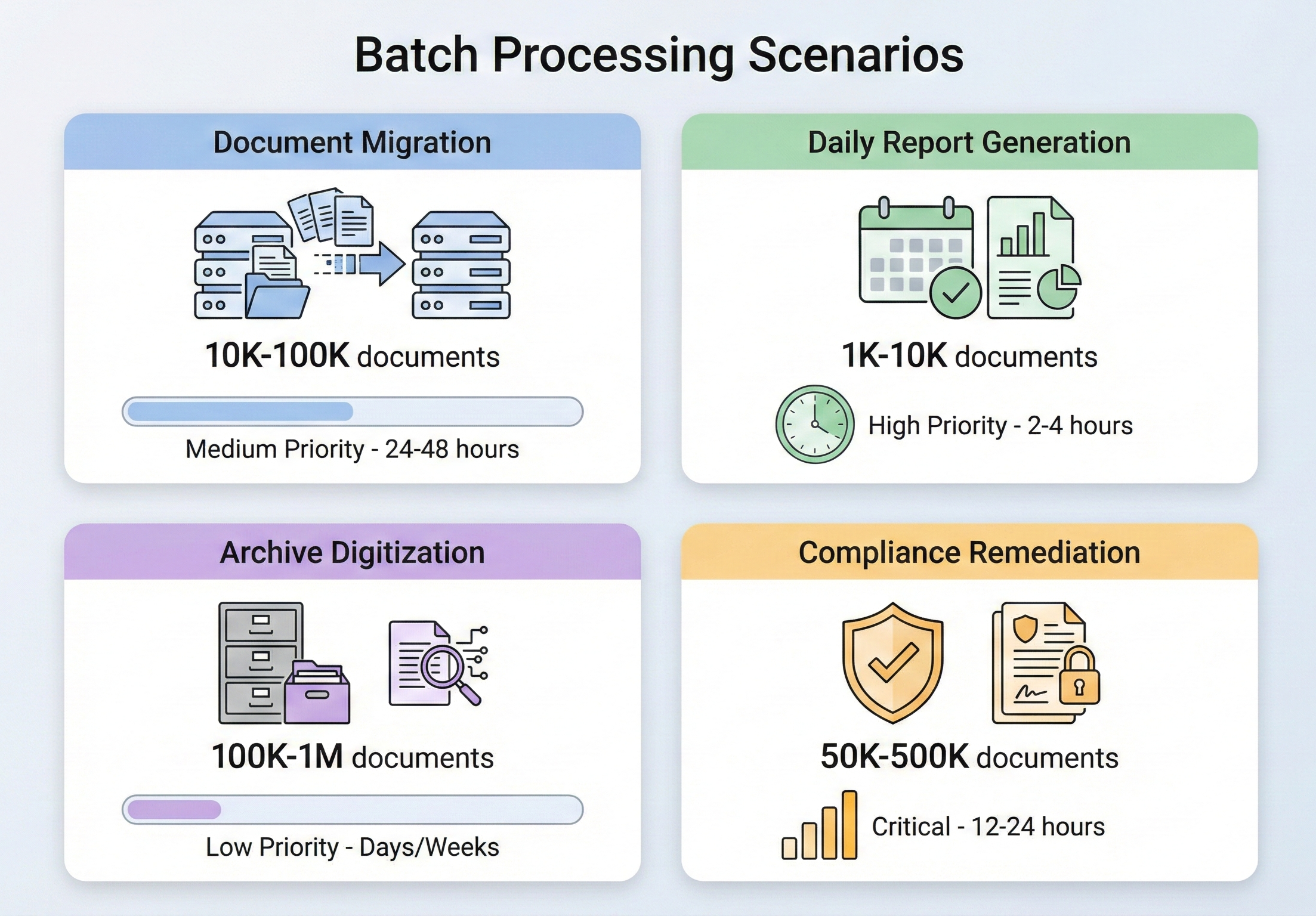
IronPDF 배치 처리 아키텍처
구체적인 작업에 들어가기 전에 IronPDF 동시 워크로드를 처리하도록 설계된 방식과 그 위에 배치 파이프라인을 구축할 때 어떤 아키텍처적 결정을 내려야 하는지 이해하는 것이 중요합니다.
IronPDF 설치 중
NuGet 통해 IronPDF 설치하세요:
또는 .NET CLI를 사용하여 다음과 같이 할 수 있습니다.
IronPDF .NET Framework 4.6.2 이상, .NET Core, .NET 5부터 .NET 10까지, 그리고 .NET Standard 2.0을 지원합니다. Windows, Linux, macOS 및 Docker 컨테이너에서 실행되므로 온프레미스 배치 작업과 클라우드 네이티브 배포 모두에 적합합니다.
프로덕션 일괄 처리의 경우, 모든 PDF 작업이 시작되기 전에 애플리케이션 시작 시 License.LicenseKey을 사용하여 라이선스 키를 설정하십시오. 이를 통해 모든 스레드의 모든 렌더링 호출이 파일별 워터마크 없이 전체 기능 세트에 액세스할 수 있습니다.
동시성 제어 및 스레드 안전성
IronPDF의 Chromium 기반 렌더링 엔진은 스레드 안전성을 보장합니다. 여러 ChromePdfRenderer 인스턴스를 여러 스레드에 걸쳐 만들거나 단일 인스턴스를 공유할 수 있으며 - IronPDF는 내부 동기화를 처리합니다. 일괄 처리를 위한 공식 권장사항은 모든 사용 가능한 CPU 코어에 작업을 자동으로 분산하는 .NET의 내장 Parallel.ForEach을 사용하는 것입니다.
그렇지만, "스레드-안전"이 "무제한 스레드를 사용" 이 아님을 명심하세요. 각 동시 PDF 랜더링 작업은 메모리를 소비하며 (크로뮴 엔진은 DOM 구문 분석, CSS 레이아웃 및 이미지 래스터화에 작업 공간이 필요함), 메모리가 제한된 단말기에서 너무 많은 병렬 작업을 시작하면 성능 저하가 발생하거나 OutOfMemoryException. 적절한 동시 처리 수준은 하드웨어에 따라 다릅니다. 64GB RAM을 탑재한 16코어 서버는 812개의 동시 렌더링을 무리 없이 처리할 수 있습니다. 4코어 VM에 8GB의 메모리는 24로 제한될 수 있습니다. 이를 약 절반의 사용 가능한 CPU 코어에 ParallelOptions.MaxDegreeOfParallelism로 제어하고, 관측한 메모리 압력을 기반으로 조정하세요.
대규모 메모리 관리
일괄 PDF 처리에서 가장 중요한 고려 사항은 메모리 관리입니다. 각 PdfDocument 객체는 PDF의 전체 이진 콘텐츠를 메모리에 보유하며, 이러한 객체를 처리하지 않으면 처리된 파일 수와 비례하여 메모리가 선형적으로 커집니다.
중요한 규칙: 항상 using 문을 사용하거나 PdfDocument 객체에서 Dispose()을 명시적으로 호출하십시오. IronPDF의 PdfDocument는 IDisposable을 구현하며, 해제를 실패하는 것이 일괄처리 시 메모리 문제의 가장 일반적인 원인입니다. 처리 루프의 각 반복은 PdfDocument를 생성하고, 작업을 수행하고, 해제해야 합니다 - 특별한 이유와 이를 처리할 충분한 메모리가 없다면, PdfDocument 객체를 리스트나 컬렉션에 축적하지 마십시오.
대량 배치 처리를 위한 메모리 관리 전략으로 폐기 외에도 다음과 같은 방법을 고려해 보세요.
모든 데이터를 한 번에 로드하는 대신, 데이터를 부분적으로 처리합니다 . 5만 개의 파일을 처리해야 한다면, 모든 파일을 목록에 나열한 다음 반복 처리하는 대신 100개 또는 500개씩 배치로 처리하여 가비지 컬렉터가 처리 간에 메모리를 회수할 수 있도록 하세요.
매우 큰 배치 처리의 경우 청크 간에 강제로 가비지 컬렉션을 수행합니다 . 일반적으로는 GC가 자체 관리를 하도록 하지만, 일괄 처리 시나리오에서는 청크 경계를 넘으며 GC.Collect()을 호출하여 메모리 압력이 축적되는 것을 방지할 수 있습니다.
메모리 소모를 모니터링하십시오 GC.GetTotalMemory() 또는 프로세스 수준의 메트릭을 사용하여. 메모리 사용량이 임계값(예: 사용 가능한 RAM의 80%)을 초과하면 GC가 따라잡을 수 있도록 처리를 일시 중지합니다.
진행 상황 보고 및 기록
일괄 작업 완료에 몇 시간이 걸리는 경우, 작업 진행 상황을 파악하는 것은 선택 사항이 아니라 필수적입니다. 최소한 각 파일의 시작과 완료 시간을 기록하고, 성공/실패 횟수를 추적하며, 남은 예상 시간을 제공해야 합니다. 병렬 작업을 실행할 때 스레드 안전 카운터를 위해 Interlocked.Increment을 사용하고, 출력을 홍수시키지 않도록 모든 파일이 아닌 정기적인 간격 (모든 50개 또는 100개 파일마다)으로 로그하십시오. System.Diagnostics.Stopwatch로 경과 시간을 추적하고, 의미 있는 예상 완료 시간을 제공하기 위해 실행 중인 파일 당 초당 파일 속도를 계산하십시오.
운영 환경의 배치 작업의 경우, 모니터링 대시보드에서 배치 프로세스에 직접 연결하지 않고도 실시간 상태를 표시할 수 있도록 진행 상황을 영구 저장소(데이터베이스, 파일 또는 메시지 큐)에 기록하는 것을 고려하십시오.
일반적인 배치 작업
아키텍처 기반이 마련되었으니, 이제 가장 일반적인 배치 작업과 해당 IronPDF 구현 방식을 살펴보겠습니다.
HTML을 PDF로 일괄 변환
HTML을 PDF로 변환하는 작업은 가장 일반적인 일괄 작업입니다. 템플릿을 사용하여 송장을 생성하든, HTML 문서 라이브러리를 PDF로 변환하든, 웹 애플리케이션에서 동적 보고서를 렌더링하든, 패턴은 동일합니다. 입력값을 순회하고, 각각을 렌더링한 다음, 출력을 저장하는 것입니다.
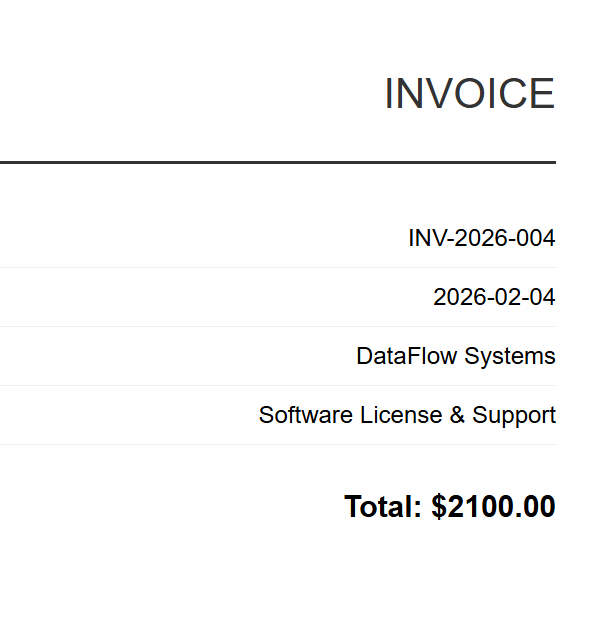
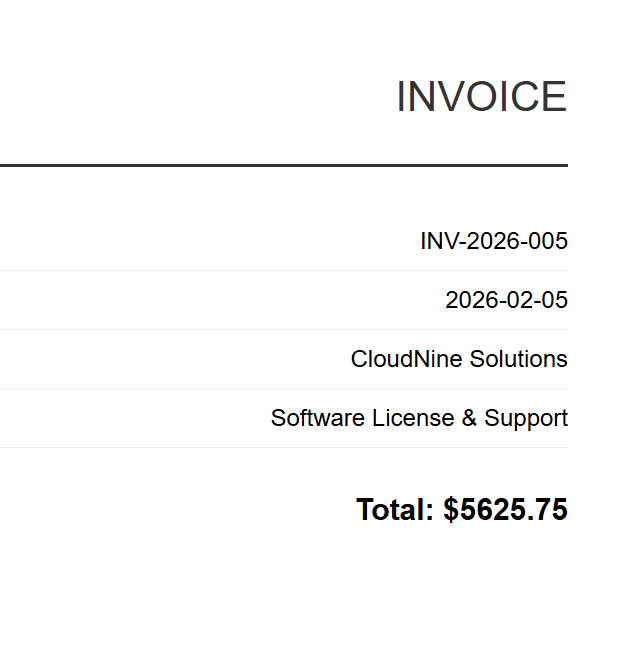
입력 (HTML 파일 5개)
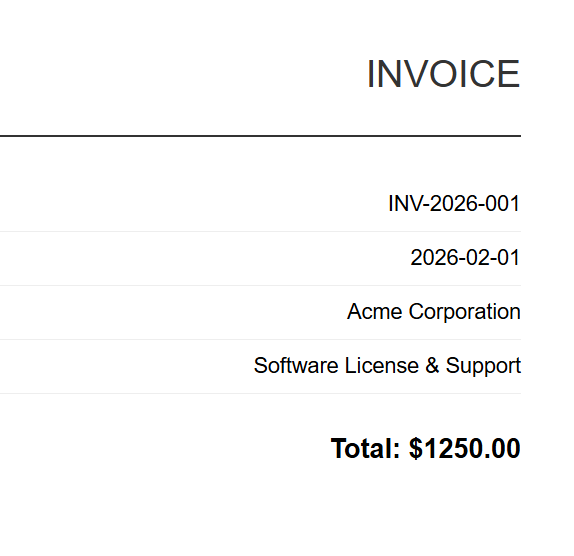
INV-2026-001
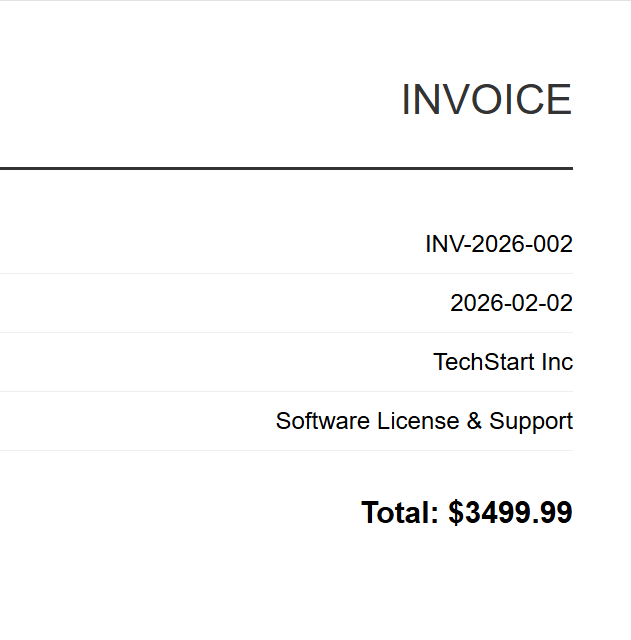
INV-2026-002
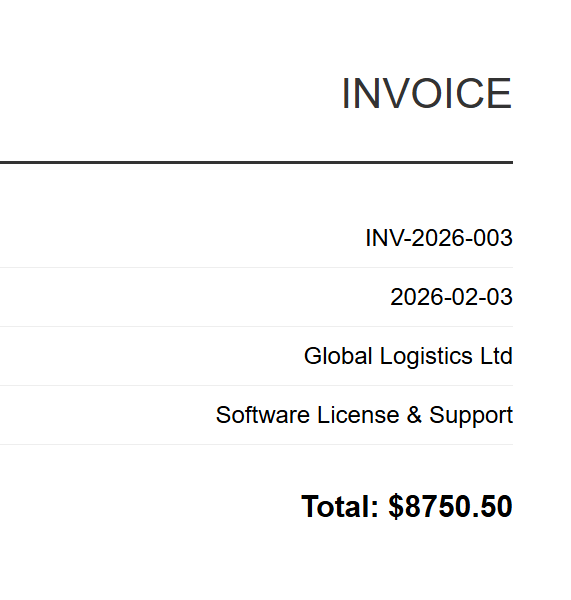
INV-2026-003
INV-2026-004
INV-2026-005
구현은 ChromePdfRenderer과 모든 HTML 파일을 동시에 처리하기 위해 Parallel.ForEach을 사용하며, MaxDegreeOfParallelism을 통해 병렬성을 제어하여 메모리 소비에 대한 처리량을 균형 잡습니다. 각 파일은 RenderHtmlFileAsPdf으로 렌더링되고 출력 디렉토리에 저장되며, 스레드 안전 Interlocked 카운터를 통해 진행 상황을 추적합니다.
using IronPdf;
using System;
using System.IO;
using System.Threading.Tasks;
using System.Threading;

// Configure paths
string inputFolder = "input/";
string outputFolder = "output/";

Directory.CreateDirectory(outputFolder);

string[] htmlFiles = Directory.GetFiles(inputFolder, "*.html");
Console.WriteLine($"Found {htmlFiles.Length} HTML files to convert");

// Create renderer instance (thread-safe, can be shared)
var renderer = new ChromePdfRenderer();

// Track progress
int processed = 0;
int failed = 0;

// Process in parallel with controlled concurrency
var options = new ParallelOptions
{
    MaxDegreeOfParallelism = Environment.ProcessorCount / 2
};

Parallel.ForEach(htmlFiles, options, htmlFile =>
{
    try
    {
        string fileName = Path.GetFileNameWithoutExtension(htmlFile);
        string outputPath = Path.Combine(outputFolder, $"{fileName}.pdf");

        using var pdf = renderer.RenderHtmlFileAsPdf(htmlFile);
        pdf.SaveAs(outputPath);

        Interlocked.Increment(ref processed);
        Console.WriteLine($"[OK] {fileName}.pdf");
    }
    catch (Exception ex)
    {
        Interlocked.Increment(ref failed);
        Console.WriteLine($"[ERROR] {Path.GetFileName(htmlFile)}: {ex.Message}");
    }
});

Console.WriteLine($"\nComplete: {processed} succeeded, {failed} failed");Imports IronPdf
Imports System
Imports System.IO
Imports System.Threading.Tasks
Imports System.Threading
' Configure paths
Dim inputFolder As String = "input/"
Dim outputFolder As String = "output/"
Directory.CreateDirectory(outputFolder)
Dim htmlFiles As String() = Directory.GetFiles(inputFolder, "*.html")
Console.WriteLine($"Found {htmlFiles.Length} HTML files to convert")
' Create renderer instance (thread-safe, can be shared)
Dim renderer As New ChromePdfRenderer()
' Track progress
Dim processed As Integer = 0
Dim failed As Integer = 0
' Process in parallel with controlled concurrency
Dim options As New ParallelOptions With {
.MaxDegreeOfParallelism = Environment.ProcessorCount \ 2
}
Parallel.ForEach(htmlFiles, options, Sub(htmlFile)
Try
Dim fileName As String = Path.GetFileNameWithoutExtension(htmlFile)
Dim outputPath As String = Path.Combine(outputFolder, $"{fileName}.pdf")
Using pdf = renderer.RenderHtmlFileAsPdf(htmlFile)
pdf.SaveAs(outputPath)
End Using
Interlocked.Increment(processed)
Console.WriteLine($"[OK] {fileName}.pdf")
Catch ex As Exception
Interlocked.Increment(failed)
Console.WriteLine($"[ERROR] {Path.GetFileName(htmlFile)}: {ex.Message}")
End Try
End Sub)
Console.WriteLine($"\nComplete: {processed} succeeded, {failed} failed")산출
각 HTML 송장은 해당 PDF 파일로 변환됩니다. 위 이미지는 5개의 배치 출력물 중 하나인 INV-2026-001.pdf를 보여줍니다.
템플릿 기반 생성(예: 송장, 보고서)의 경우 일반적으로 렌더링하기 전에 데이터를 HTML 템플릿에 병합합니다. 방법은 간단합니다: HTML 템플릿을 한 번 로드하고, 각 레코드 데이터를 주입하기 위해 string.Replace를 사용하며, 병렬 루프 내에서 채워진 HTML을 RenderHtmlAsPdf으로 전달합니다. IronPDF는 또한 RenderHtmlAsPdfAsync을 제공합니다 – 우리는 비동기 패턴을 다음 섹션에서 자세히 다룰 것입니다.
PDF 일괄 병합
여러 PDF 파일을 하나의 문서로 병합하는 작업은 법률(사건 파일 문서 병합), 금융(월별 명세서를 분기별 보고서로 통합) 및 출판 워크플로에서 흔히 사용됩니다.
using IronPdf;
using System;
using System.IO;
using System.Linq;
using System.Collections.Generic;

string inputFolder = "documents/";
string outputFolder = "merged/";

Directory.CreateDirectory(outputFolder);

// Group PDFs by prefix (e.g., "invoice-2026-01-*.pdf" -> one merged file)
var pdfFiles = Directory.GetFiles(inputFolder, "*.pdf");
var groups = pdfFiles
    .GroupBy(f => Path.GetFileName(f).Split('-').Take(3).Aggregate((a, b) => $"{a}-{b}"))
    .Where(g => g.Count() > 1);

Console.WriteLine($"Found {groups.Count()} groups to merge");

foreach (var group in groups)
{
    string groupName = group.Key;
    var filesToMerge = group.OrderBy(f => f).ToList();

    Console.WriteLine($"Merging {filesToMerge.Count} files into {groupName}.pdf");

    try
    {
        // Load all PDFs for this group
        var pdfDocs = new List<PdfDocument>();
        foreach (string filePath in filesToMerge)
        {
            pdfDocs.Add(PdfDocument.FromFile(filePath));
        }

        // Merge all documents
        using var merged = PdfDocument.Merge(pdfDocs);
        merged.SaveAs(Path.Combine(outputFolder, $"{groupName}-merged.pdf"));

        // Dispose source documents
        foreach (var doc in pdfDocs)
        {
            doc.Dispose();
        }

        Console.WriteLine($"  [OK] Created {groupName}-merged.pdf ({merged.PageCount} pages)");
    }
    catch (Exception ex)
    {
        Console.WriteLine($"  [ERROR] {groupName}: {ex.Message}");
    }
}

Console.WriteLine("\nMerge complete");Imports IronPdf
Imports System
Imports System.IO
Imports System.Linq
Imports System.Collections.Generic
Module Program
Sub Main()
Dim inputFolder As String = "documents/"
Dim outputFolder As String = "merged/"
Directory.CreateDirectory(outputFolder)
' Group PDFs by prefix (e.g., "invoice-2026-01-*.pdf" -> one merged file)
Dim pdfFiles = Directory.GetFiles(inputFolder, "*.pdf")
Dim groups = pdfFiles _
.GroupBy(Function(f) Path.GetFileName(f).Split("-"c).Take(3).Aggregate(Function(a, b) $"{a}-{b}")) _
.Where(Function(g) g.Count() > 1)
Console.WriteLine($"Found {groups.Count()} groups to merge")
For Each group In groups
Dim groupName As String = group.Key
Dim filesToMerge = group.OrderBy(Function(f) f).ToList()
Console.WriteLine($"Merging {filesToMerge.Count} files into {groupName}.pdf")
Try
' Load all PDFs for this group
Dim pdfDocs As New List(Of PdfDocument)()
For Each filePath As String In filesToMerge
pdfDocs.Add(PdfDocument.FromFile(filePath))
Next
' Merge all documents
Using merged = PdfDocument.Merge(pdfDocs)
merged.SaveAs(Path.Combine(outputFolder, $"{groupName}-merged.pdf"))
End Using
' Dispose source documents
For Each doc In pdfDocs
doc.Dispose()
Next
Console.WriteLine($" [OK] Created {groupName}-merged.pdf ({merged.PageCount} pages)")
Catch ex As Exception
Console.WriteLine($" [ERROR] {groupName}: {ex.Message}")
End Try
Next
Console.WriteLine(vbCrLf & "Merge complete")
End Sub
End Module대량 파일을 병합할 때 메모리에 주의하세요: PdfDocument.Merge 메서드는 모든 소스 문서를 메모리에 동시 로드합니다. 수백 개의 대용량 PDF 파일을 병합해야 하는 경우, 단계적으로 병합하는 것을 고려해 보세요. 10~20개 파일씩 묶어 중간 문서를 만든 다음, 이 중간 문서들을 병합하는 방식입니다.
PDF 일괄 분할
여러 페이지로 구성된 PDF 파일을 개별 페이지(또는 페이지 범위)로 분할하는 것은 병합의 역순입니다. 스캔한 문서 묶음을 개별 기록으로 분리해야 하는 우편물 처리 과정이나, 복합 문서를 분리해야 하는 인쇄 워크플로에서 흔히 사용됩니다.
입력
아래 코드는 평행 루프 내에서 CopyPage을 사용하여 개별 페이지를 추출하고 각 페이지에 대해 별도의 PDF 파일을 생성하는 방법을 보여줍니다. 대안 SplitByRange 헬퍼 함수는 개별 페이지보다 페이지 범위를 추출하는 방법을 보여줍니다 – 대형 문서를 더 작은 세그먼트로 분할할 때 유용합니다.
using IronPdf;
using System;
using System.IO;
using System.Threading.Tasks;

string inputFolder = "multipage/";
string outputFolder = "split/";

Directory.CreateDirectory(outputFolder);

string[] pdfFiles = Directory.GetFiles(inputFolder, "*.pdf");
Console.WriteLine($"Found {pdfFiles.Length} PDFs to split");

var options = new ParallelOptions
{
    MaxDegreeOfParallelism = Environment.ProcessorCount / 2
};

Parallel.ForEach(pdfFiles, options, pdfFile =>
{
    string baseName = Path.GetFileNameWithoutExtension(pdfFile);

    try
    {
        using var pdf = PdfDocument.FromFile(pdfFile);
        int pageCount = pdf.PageCount;

        Console.WriteLine($"Splitting {baseName}.pdf ({pageCount} pages)");

        // Extract each page as a separate PDF
        for (int i = 0; i < pageCount; i++)
        {
            using var singlePage = pdf.CopyPage(i);
            string outputPath = Path.Combine(outputFolder, $"{baseName}-page-{i + 1:D3}.pdf");
            singlePage.SaveAs(outputPath);
        }

        Console.WriteLine($"  [OK] Created {pageCount} files from {baseName}.pdf");
    }
    catch (Exception ex)
    {
        Console.WriteLine($"  [ERROR] {baseName}: {ex.Message}");
    }
});

// Alternative: Extract page ranges instead of individual pages
void SplitByRange(string inputFile, string outputFolder, int pagesPerChunk)
{
    using var pdf = PdfDocument.FromFile(inputFile);
    string baseName = Path.GetFileNameWithoutExtension(inputFile);
    int totalPages = pdf.PageCount;
    int chunkNumber = 1;

    for (int startPage = 0; startPage < totalPages; startPage += pagesPerChunk)
    {
        int endPage = Math.Min(startPage + pagesPerChunk - 1, totalPages - 1);
        using var chunk = pdf.CopyPages(startPage, endPage);
        chunk.SaveAs(Path.Combine(outputFolder, $"{baseName}-chunk-{chunkNumber:D3}.pdf"));
        chunkNumber++;
    }
}

Console.WriteLine("\nSplit complete");Imports IronPdf
Imports System
Imports System.IO
Imports System.Threading.Tasks
Module Program
Sub Main()
Dim inputFolder As String = "multipage/"
Dim outputFolder As String = "split/"
Directory.CreateDirectory(outputFolder)
Dim pdfFiles As String() = Directory.GetFiles(inputFolder, "*.pdf")
Console.WriteLine($"Found {pdfFiles.Length} PDFs to split")
Dim options As New ParallelOptions With {
.MaxDegreeOfParallelism = Environment.ProcessorCount \ 2
}
Parallel.ForEach(pdfFiles, options, Sub(pdfFile)
Dim baseName As String = Path.GetFileNameWithoutExtension(pdfFile)
Try
Using pdf = PdfDocument.FromFile(pdfFile)
Dim pageCount As Integer = pdf.PageCount
Console.WriteLine($"Splitting {baseName}.pdf ({pageCount} pages)")
' Extract each page as a separate PDF
For i As Integer = 0 To pageCount - 1
Using singlePage = pdf.CopyPage(i)
Dim outputPath As String = Path.Combine(outputFolder, $"{baseName}-page-{i + 1:D3}.pdf")
singlePage.SaveAs(outputPath)
End Using
Next
Console.WriteLine($" [OK] Created {pageCount} files from {baseName}.pdf")
End Using
Catch ex As Exception
Console.WriteLine($" [ERROR] {baseName}: {ex.Message}")
End Try
End Sub)
' Alternative: Extract page ranges instead of individual pages
Sub SplitByRange(inputFile As String, outputFolder As String, pagesPerChunk As Integer)
Using pdf = PdfDocument.FromFile(inputFile)
Dim baseName As String = Path.GetFileNameWithoutExtension(inputFile)
Dim totalPages As Integer = pdf.PageCount
Dim chunkNumber As Integer = 1
For startPage As Integer = 0 To totalPages - 1 Step pagesPerChunk
Dim endPage As Integer = Math.Min(startPage + pagesPerChunk - 1, totalPages - 1)
Using chunk = pdf.CopyPages(startPage, endPage)
chunk.SaveAs(Path.Combine(outputFolder, $"{baseName}-chunk-{chunkNumber:D3}.pdf"))
chunkNumber += 1
End Using
Next
End Using
End Sub
Console.WriteLine(vbCrLf & "Split complete")
End Sub
End Module산출
2페이지는 별도의 PDF 파일(annual-report-page-2.pdf)로 추출되었습니다.
IronPDF의 CopyPage 및 CopyPages 메서드는 지정된 페이지를 포함하는 새 PdfDocument 객체를 생성합니다. 저장 후에는 원본 문서와 추출된 각 페이지 문서를 모두 삭제해야 합니다.
배치 압축
저장 비용이 중요한 경우나 대역폭이 제한된 연결을 통해 PDF를 전송해야 하는 경우, 일괄 압축을 사용하면 아카이브 용량을 크게 줄일 수 있습니다. IronPDF는 두 가지 압축 방법을 제공합니다: 이미지 품질/크기를 줄이기 위한 CompressImages 및 구조적 메타데이터를 제거하기 위한 CompressStructTree. 버전 2025.12에 도입된 최신 CompressAndSaveAs API는 여러 최적화 기술을 결합하여 우수한 압축을 제공합니다.
using IronPdf;
using System;
using System.IO;
using System.Threading.Tasks;
using System.Threading;

string inputFolder = "originals/";
string outputFolder = "compressed/";

Directory.CreateDirectory(outputFolder);

string[] pdfFiles = Directory.GetFiles(inputFolder, "*.pdf");
Console.WriteLine($"Found {pdfFiles.Length} PDFs to compress");

long totalOriginalSize = 0;
long totalCompressedSize = 0;
int processed = 0;

var options = new ParallelOptions
{
    MaxDegreeOfParallelism = Environment.ProcessorCount / 2
};

Parallel.ForEach(pdfFiles, options, pdfFile =>
{
    string fileName = Path.GetFileName(pdfFile);
    string outputPath = Path.Combine(outputFolder, fileName);

    try
    {
        long originalSize = new FileInfo(pdfFile).Length;
        Interlocked.Add(ref totalOriginalSize, originalSize);

        using var pdf = PdfDocument.FromFile(pdfFile);

        // Apply compression with JPEG quality setting (0-100, lower = more compression)
        pdf.CompressAndSaveAs(outputPath, 60);

        long compressedSize = new FileInfo(outputPath).Length;
        Interlocked.Add(ref totalCompressedSize, compressedSize);
        Interlocked.Increment(ref processed);

        double reduction = (1 - (double)compressedSize / originalSize) * 100;
        Console.WriteLine($"[OK] {fileName}: {originalSize / 1024}KB → {compressedSize / 1024}KB ({reduction:F1}% reduction)");
    }
    catch (Exception ex)
    {
        Console.WriteLine($"[ERROR] {fileName}: {ex.Message}");
    }
});

double totalReduction = (1 - (double)totalCompressedSize / totalOriginalSize) * 100;
Console.WriteLine($"\nCompression complete:");
Console.WriteLine($"  Files processed: {processed}");
Console.WriteLine($"  Total original: {totalOriginalSize / 1024 / 1024}MB");
Console.WriteLine($"  Total compressed: {totalCompressedSize / 1024 / 1024}MB");
Console.WriteLine($" Overall reduction: {totalReduction:F1}%");Imports IronPdf
Imports System
Imports System.IO
Imports System.Threading.Tasks
Imports System.Threading
Module Program
Sub Main()
Dim inputFolder As String = "originals/"
Dim outputFolder As String = "compressed/"
Directory.CreateDirectory(outputFolder)
Dim pdfFiles As String() = Directory.GetFiles(inputFolder, "*.pdf")
Console.WriteLine($"Found {pdfFiles.Length} PDFs to compress")
Dim totalOriginalSize As Long = 0
Dim totalCompressedSize As Long = 0
Dim processed As Integer = 0
Dim options As New ParallelOptions With {
.MaxDegreeOfParallelism = Environment.ProcessorCount \ 2
}
Parallel.ForEach(pdfFiles, options, Sub(pdfFile)
Dim fileName As String = Path.GetFileName(pdfFile)
Dim outputPath As String = Path.Combine(outputFolder, fileName)
Try
Dim originalSize As Long = New FileInfo(pdfFile).Length
Interlocked.Add(totalOriginalSize, originalSize)
Using pdf = PdfDocument.FromFile(pdfFile)
' Apply compression with JPEG quality setting (0-100, lower = more compression)
pdf.CompressAndSaveAs(outputPath, 60)
End Using
Dim compressedSize As Long = New FileInfo(outputPath).Length
Interlocked.Add(totalCompressedSize, compressedSize)
Interlocked.Increment(processed)
Dim reduction As Double = (1 - CDbl(compressedSize) / originalSize) * 100
Console.WriteLine($"[OK] {fileName}: {originalSize \ 1024}KB → {compressedSize \ 1024}KB ({reduction:F1}% reduction)")
Catch ex As Exception
Console.WriteLine($"[ERROR] {fileName}: {ex.Message}")
End Try
End Sub)
Dim totalReduction As Double = (1 - CDbl(totalCompressedSize) / totalOriginalSize) * 100
Console.WriteLine(vbCrLf & "Compression complete:")
Console.WriteLine($" Files processed: {processed}")
Console.WriteLine($" Total original: {totalOriginalSize \ 1024 \ 1024}MB")
Console.WriteLine($" Total compressed: {totalCompressedSize \ 1024 \ 1024}MB")
Console.WriteLine($" Overall reduction: {totalReduction:F1}%")
End Sub
End Module압축과 관련하여 몇 가지 유의할 점이 있습니다. JPEG 품질 설정을 60 미만으로 설정하면 대부분의 이미지에서 눈에 띄는 화질 저하 현상이 발생합니다. ShrinkImage 옵션은 일부 구성에서 왜곡을 유발할 수 있습니다 - 전체 배치를 실행하기 전에 대표 샘플로 테스트하십시오. 구조 트리 (CompressStructTree)를 제거하면 압축된 PDF에서 텍스트 선택 및 검색에 영향을 미치므로 이러한 기능이 필요 없는 경우에만 사용하세요.
일괄 형식 변환(PDF/A, PDF/UA)
기존 아카이브를 표준 규격(장기 보관용 PDF/A 또는 접근성 향상용 PDF/UA)으로 변환하는 것은 가장 가치 있는 일괄 작업 중 하나입니다. IronPDF 모든 PDF/A 버전(버전 2025.11에 추가된 PDF/A-4 포함)과 PDF/UA 규격 준수(버전 2025.12에 추가된 PDF/UA-2 포함)를 지원합니다.
입력
예제는 각 PDF를 PdfDocument.FromFile로 로드한 다음, PdfAVersions.PdfA3b 매개변수를 사용하여 SaveAsPdfA을 통해 PDF/A-3b로 변환합니다. 또 다른 ConvertToPdfUA 함수는 접근성 준수 변환을 SaveAsPdfUA과 함께 시연합니다 – 그렇지만 PDF/UA는 적절한 구조적 태깅이 있는 소스 문서가 필요합니다.
using IronPdf;
using System;
using System.IO;
using System.Threading.Tasks;
using System.Threading;

string inputFolder = "originals/";
string outputFolder = "pdfa-archive/";

Directory.CreateDirectory(outputFolder);

string[] pdfFiles = Directory.GetFiles(inputFolder, "*.pdf");
Console.WriteLine($"Found {pdfFiles.Length} PDFs to convert to PDF/A-3b");

int converted = 0;
int failed = 0;

var options = new ParallelOptions
{
    MaxDegreeOfParallelism = Environment.ProcessorCount / 2
};

Parallel.ForEach(pdfFiles, options, pdfFile =>
{
    string fileName = Path.GetFileName(pdfFile);
    string outputPath = Path.Combine(outputFolder, fileName);

    try
    {
        using var pdf = PdfDocument.FromFile(pdfFile);

        // Convert to PDF/A-3b for long-term archival
        pdf.SaveAsPdfA(outputPath, PdfAVersions.PdfA3b);

        Interlocked.Increment(ref converted);
        Console.WriteLine($"[OK] {fileName} → PDF/A-3b");
    }
    catch (Exception ex)
    {
        Interlocked.Increment(ref failed);
        Console.WriteLine($"[ERROR] {fileName}: {ex.Message}");
    }
});

Console.WriteLine($"\nConversion complete: {converted} succeeded, {failed} failed");

// Alternative: Convert to PDF/UA for accessibility compliance
void ConvertToPdfUA(string inputFolder, string outputFolder)
{
    Directory.CreateDirectory(outputFolder);
    string[] files = Directory.GetFiles(inputFolder, "*.pdf");

    Parallel.ForEach(files, pdfFile =>
    {
        string fileName = Path.GetFileName(pdfFile);
        try
        {
            using var pdf = PdfDocument.FromFile(pdfFile);

            // PDF/UA requires proper tagging - ensure source is well-structured
            pdf.SaveAsPdfUA(Path.Combine(outputFolder, fileName));
            Console.WriteLine($"[OK] {fileName} → PDF/UA");
        }
        catch (Exception ex)
        {
            Console.WriteLine($"[ERROR] {fileName}: {ex.Message}");
        }
    });
}Imports IronPdf
Imports System
Imports System.IO
Imports System.Threading.Tasks
Imports System.Threading
Module Program
Sub Main()
Dim inputFolder As String = "originals/"
Dim outputFolder As String = "pdfa-archive/"
Directory.CreateDirectory(outputFolder)
Dim pdfFiles As String() = Directory.GetFiles(inputFolder, "*.pdf")
Console.WriteLine($"Found {pdfFiles.Length} PDFs to convert to PDF/A-3b")
Dim converted As Integer = 0
Dim failed As Integer = 0
Dim options As New ParallelOptions With {
.MaxDegreeOfParallelism = Environment.ProcessorCount \ 2
}
Parallel.ForEach(pdfFiles, options, Sub(pdfFile)
Dim fileName As String = Path.GetFileName(pdfFile)
Dim outputPath As String = Path.Combine(outputFolder, fileName)
Try
Using pdf = PdfDocument.FromFile(pdfFile)
' Convert to PDF/A-3b for long-term archival
pdf.SaveAsPdfA(outputPath, PdfAVersions.PdfA3b)
Interlocked.Increment(converted)
Console.WriteLine($"[OK] {fileName} → PDF/A-3b")
End Using
Catch ex As Exception
Interlocked.Increment(failed)
Console.WriteLine($"[ERROR] {fileName}: {ex.Message}")
End Try
End Sub)
Console.WriteLine($"{vbCrLf}Conversion complete: {converted} succeeded, {failed} failed")
End Sub
' Alternative: Convert to PDF/UA for accessibility compliance
Sub ConvertToPdfUA(inputFolder As String, outputFolder As String)
Directory.CreateDirectory(outputFolder)
Dim files As String() = Directory.GetFiles(inputFolder, "*.pdf")
Parallel.ForEach(files, Sub(pdfFile)
Dim fileName As String = Path.GetFileName(pdfFile)
Try
Using pdf = PdfDocument.FromFile(pdfFile)
' PDF/UA requires proper tagging - ensure source is well-structured
pdf.SaveAsPdfUA(Path.Combine(outputFolder, fileName))
Console.WriteLine($"[OK] {fileName} → PDF/UA")
End Using
Catch ex As Exception
Console.WriteLine($"[ERROR] {fileName}: {ex.Message}")
End Try
End Sub)
End Sub
End Module산출

생성된 PDF 파일은 외관상 바이트 단위로 원본과 동일하지만, 아카이빙 시스템을 위한 PDF/A-3b 규격 준수 메타데이터를 포함하고 있습니다.
형식 변환은 특히 조직이 기존 아카이브가 규제 표준을 충족하지 못한다는 사실을 발견하는 규정 준수 개선 프로젝트에서 매우 중요합니다. 일괄 처리 패턴은 간단하지만 유효성 검사 단계가 매우 중요합니다. 변환이 완료된 것으로 간주하기 전에 각 파일이 실제로 규정 준수 검사를 통과했는지 항상 확인해야 합니다. 검증에 대한 자세한 내용은 아래의 복원력 섹션에서 다룹니다.
탄력적인 배치 파이프라인 구축
100개의 파일에서는 완벽하게 작동하지만 50,000개 파일 중 4,327번째 파일에서 오류가 발생하는 배치 파이프라인은 유용하지 않습니다. 복원력, 즉 오류를 적절하게 처리하고, 일시적인 오류를 재시도하며, 충돌 후 재개하는 능력은 프로덕션 수준의 파이프라인과 프로토타입을 구분하는 핵심 요소입니다.
오류 처리 및 실패 시 건너뛰기
가장 기본적인 복원력 패턴은 실패 시 건너뛰기입니다. 즉, 단일 파일 처리에 실패하면 오류를 기록하고 전체 배치를 중단하는 대신 다음 파일로 계속 진행합니다. 이는 당연한 소리일지도 모르지만, Parallel.ForEach를 사용할 때는 놓치기 쉬운 부분입니다 – 평행 작업 중 처리되지 않은 예외가 있을 경우 이는 AggregateException으로 전파되어 루프를 종료시킵니다.
다음 예제는 실패 시 건너뛰기 및 재시도 논리를 함께 시연합니다: 각 파일을 거치는 try-catch를 통해 우아한 오류 처리와 IOException, OutOfMemoryException과 같은 일시적인 예외에 대해 기하급수적 백오프로 재시도 루프를 사용합니다.
using IronPdf;
using System;
using System.IO;
using System.Threading.Tasks;
using System.Threading;
using System.Collections.Concurrent;

string inputFolder = "input/";
string outputFolder = "output/";
string errorLogPath = "error-log.txt";

Directory.CreateDirectory(outputFolder);

string[] htmlFiles = Directory.GetFiles(inputFolder, "*.html");
var renderer = new ChromePdfRenderer();
var errorLog = new ConcurrentBag<string>();

int processed = 0;
int failed = 0;
int retried = 0;

const int maxRetries = 3;

var options = new ParallelOptions
{
    MaxDegreeOfParallelism = Environment.ProcessorCount / 2
};

Parallel.ForEach(htmlFiles, options, htmlFile =>
{
    string fileName = Path.GetFileNameWithoutExtension(htmlFile);
    string outputPath = Path.Combine(outputFolder, $"{fileName}.pdf");
    int attempt = 0;
    bool success = false;

    while (attempt < maxRetries && !success)
    {
        attempt++;
        try
        {
            using var pdf = renderer.RenderHtmlFileAsPdf(htmlFile);
            pdf.SaveAs(outputPath);
            success = true;
            Interlocked.Increment(ref processed);

            if (attempt > 1)
            {
                Interlocked.Increment(ref retried);
                Console.WriteLine($"[OK] {fileName}.pdf (succeeded on attempt {attempt})");
            }
            else
            {
                Console.WriteLine($"[OK] {fileName}.pdf");
            }
        }
        catch (Exception ex) when (IsTransientException(ex) && attempt < maxRetries)
        {
            // Transient error - wait and retry with exponential backoff
            int delayMs = (int)Math.Pow(2, attempt) * 500;
            Console.WriteLine($"[RETRY] {fileName}: {ex.Message} (attempt {attempt}, waiting {delayMs}ms)");
            Thread.Sleep(delayMs);
        }
        catch (Exception ex)
        {
            // Non-transient error or max retries exceeded
            Interlocked.Increment(ref failed);
            string errorMessage = $"{DateTime.Now:yyyy-MM-dd HH:mm:ss} | {fileName} | {ex.GetType().Name} | {ex.Message}";
            errorLog.Add(errorMessage);
            Console.WriteLine($"[ERROR] {fileName}: {ex.Message}");
        }
    }
});

// Write error log
if (errorLog.Count > 0)
{
    File.WriteAllLines(errorLogPath, errorLog);
}

Console.WriteLine($"\nBatch complete:");
Console.WriteLine($"  Processed: {processed}");
Console.WriteLine($"  Failed: {failed}");
Console.WriteLine($"  Retried: {retried}");
if (failed > 0)
{
    Console.WriteLine($"  Error log: {errorLogPath}");
}

// Helper to identify transient exceptions worth retrying
bool IsTransientException(Exception ex)
{
    return ex is IOException ||
           ex is OutOfMemoryException ||
           ex.Message.Contains("timeout", StringComparison.OrdinalIgnoreCase) ||
           ex.Message.Contains("locked", StringComparison.OrdinalIgnoreCase);
}Imports IronPdf
Imports System
Imports System.IO
Imports System.Threading
Imports System.Collections.Concurrent
Module Program
Sub Main()
Dim inputFolder As String = "input/"
Dim outputFolder As String = "output/"
Dim errorLogPath As String = "error-log.txt"
Directory.CreateDirectory(outputFolder)
Dim htmlFiles As String() = Directory.GetFiles(inputFolder, "*.html")
Dim renderer As New ChromePdfRenderer()
Dim errorLog As New ConcurrentBag(Of String)()
Dim processed As Integer = 0
Dim failed As Integer = 0
Dim retried As Integer = 0
Const maxRetries As Integer = 3
Dim options As New ParallelOptions With {
.MaxDegreeOfParallelism = Environment.ProcessorCount \ 2
}
Parallel.ForEach(htmlFiles, options, Sub(htmlFile)
Dim fileName As String = Path.GetFileNameWithoutExtension(htmlFile)
Dim outputPath As String = Path.Combine(outputFolder, $"{fileName}.pdf")
Dim attempt As Integer = 0
Dim success As Boolean = False
While attempt < maxRetries AndAlso Not success
attempt += 1
Try
Using pdf = renderer.RenderHtmlFileAsPdf(htmlFile)
pdf.SaveAs(outputPath)
success = True
Interlocked.Increment(processed)
If attempt > 1 Then
Interlocked.Increment(retried)
Console.WriteLine($"[OK] {fileName}.pdf (succeeded on attempt {attempt})")
Else
Console.WriteLine($"[OK] {fileName}.pdf")
End If
End Using
Catch ex As Exception When IsTransientException(ex) AndAlso attempt < maxRetries
' Transient error - wait and retry with exponential backoff
Dim delayMs As Integer = CInt(Math.Pow(2, attempt)) * 500
Console.WriteLine($"[RETRY] {fileName}: {ex.Message} (attempt {attempt}, waiting {delayMs}ms)")
Thread.Sleep(delayMs)
Catch ex As Exception
' Non-transient error or max retries exceeded
Interlocked.Increment(failed)
Dim errorMessage As String = $"{DateTime.Now:yyyy-MM-dd HH:mm:ss} | {fileName} | {ex.GetType().Name} | {ex.Message}"
errorLog.Add(errorMessage)
Console.WriteLine($"[ERROR] {fileName}: {ex.Message}")
End Try
End While
End Sub)
' Write error log
If errorLog.Count > 0 Then
File.WriteAllLines(errorLogPath, errorLog)
End If
Console.WriteLine($"{vbCrLf}Batch complete:")
Console.WriteLine($" Processed: {processed}")
Console.WriteLine($" Failed: {failed}")
Console.WriteLine($" Retried: {retried}")
If failed > 0 Then
Console.WriteLine($" Error log: {errorLogPath}")
End If
End Sub
' Helper to identify transient exceptions worth retrying
Function IsTransientException(ex As Exception) As Boolean
Return TypeOf ex Is IOException OrElse
TypeOf ex Is OutOfMemoryException OrElse
ex.Message.Contains("timeout", StringComparison.OrdinalIgnoreCase) OrElse
ex.Message.Contains("locked", StringComparison.OrdinalIgnoreCase)
End Function
End Module일괄 처리가 완료되면 오류 로그를 검토하여 어떤 파일에서 오류가 발생했는지, 그리고 그 이유는 무엇인지 파악하십시오. 일반적인 오류 원인으로는 손상된 소스 파일, 암호로 보호된 PDF, 소스 콘텐츠의 지원되지 않는 기능, 매우 큰 문서에서의 메모리 부족 등이 있습니다.
일시적 오류에 대한 재시도 로직
일부 실패는 일시적인 것이므로 다시 시도하면 성공할 수 있습니다. 여기에는 파일 시스템 경합(다른 프로세스가 파일을 잠근 상태), 일시적인 메모리 부족(가비지 컬렉션이 아직 처리하지 못한 상태), HTML 콘텐츠에서 외부 리소스를 로드할 때 발생하는 네트워크 시간 초과 등이 포함됩니다. 위의 코드 예제는 지수 백오프를 사용하여 이러한 상황을 처리합니다. 즉, 짧은 지연 시간으로 시작하여 재시도할 때마다 지연 시간을 두 배로 늘리고 최대 재시도 횟수(일반적으로 3회)로 제한합니다.
핵심은 재시도 가능한 실패와 재시도 불가능한 실패를 구분하는 것입니다. IOException (파일 잠금) 또는 OutOfMemoryException (일시적 압력)은 재시도할 가치가 있습니다. ArgumentException (잘못된 입력) 또는 일관된 랜더링 오류는 아닙니다 - 재시도해도 도움이 되지 않으며, 이는 시간과 자원을 낭비하게 될 것입니다.
충돌 후 재개를 위한 체크포인트 설정
배치 작업이 몇 시간에 걸쳐 5만 개의 파일을 처리할 때, 3만 5천 번째 파일에서 오류가 발생하더라도 처음부터 다시 시작해야 하는 것은 바람직하지 않습니다. 체크포인트 기능(어떤 파일이 성공적으로 처리되었는지 기록하는 기능)을 사용하면 중단했던 부분부터 다시 작업을 재개할 수 있습니다.
using IronPdf;
using System;
using System.IO;
using System.Linq;
using System.Threading.Tasks;
using System.Threading;
using System.Collections.Generic;

string inputFolder = "input/";
string outputFolder = "output/";
string checkpointPath = "checkpoint.txt";
string errorLogPath = "errors.txt";

Directory.CreateDirectory(outputFolder);

// Load checkpoint - files already processed successfully
var completedFiles = new HashSet<string>();
if (File.Exists(checkpointPath))
{
    completedFiles = new HashSet<string>(File.ReadAllLines(checkpointPath));
    Console.WriteLine($"Resuming from checkpoint: {completedFiles.Count} files already processed");
}

// Get files to process (excluding already completed)
string[] allFiles = Directory.GetFiles(inputFolder, "*.html");
string[] filesToProcess = allFiles
    .Where(f => !completedFiles.Contains(Path.GetFileName(f)))
    .ToArray();

Console.WriteLine($"Files to process: {filesToProcess.Length} (skipping {completedFiles.Count} already done)");

var renderer = new ChromePdfRenderer();
var checkpointLock = new object();
int processed = 0;
int failed = 0;

var options = new ParallelOptions
{
    MaxDegreeOfParallelism = Environment.ProcessorCount / 2
};

Parallel.ForEach(filesToProcess, options, htmlFile =>
{
    string fileName = Path.GetFileName(htmlFile);
    string baseName = Path.GetFileNameWithoutExtension(htmlFile);
    string outputPath = Path.Combine(outputFolder, $"{baseName}.pdf");

    try
    {
        using var pdf = renderer.RenderHtmlFileAsPdf(htmlFile);
        pdf.SaveAs(outputPath);

        // Record success in checkpoint (thread-safe)
        lock (checkpointLock)
        {
            File.AppendAllText(checkpointPath, fileName + Environment.NewLine);
        }

        Interlocked.Increment(ref processed);
        Console.WriteLine($"[OK] {baseName}.pdf");
    }
    catch (Exception ex)
    {
        Interlocked.Increment(ref failed);

        // Log error for review
        lock (checkpointLock)
        {
            File.AppendAllText(errorLogPath,
                $"{DateTime.Now:yyyy-MM-dd HH:mm:ss} | {fileName} | {ex.Message}{Environment.NewLine}");
        }

        Console.WriteLine($"[ERROR] {fileName}: {ex.Message}");
    }
});

Console.WriteLine($"\nBatch complete:");
Console.WriteLine($"  Newly processed: {processed}");
Console.WriteLine($"  Failed: {failed}");
Console.WriteLine($"  Total completed: {completedFiles.Count + processed}");
Console.WriteLine($" Checkpoint saved to: {checkpointPath}");Imports IronPdf
Imports System
Imports System.IO
Imports System.Linq
Imports System.Threading.Tasks
Imports System.Threading
Imports System.Collections.Generic
Module Program
Sub Main()
Dim inputFolder As String = "input/"
Dim outputFolder As String = "output/"
Dim checkpointPath As String = "checkpoint.txt"
Dim errorLogPath As String = "errors.txt"
Directory.CreateDirectory(outputFolder)
' Load checkpoint - files already processed successfully
Dim completedFiles As New HashSet(Of String)()
If File.Exists(checkpointPath) Then
completedFiles = New HashSet(Of String)(File.ReadAllLines(checkpointPath))
Console.WriteLine($"Resuming from checkpoint: {completedFiles.Count} files already processed")
End If
' Get files to process (excluding already completed)
Dim allFiles As String() = Directory.GetFiles(inputFolder, "*.html")
Dim filesToProcess As String() = allFiles _
.Where(Function(f) Not completedFiles.Contains(Path.GetFileName(f))) _
.ToArray()
Console.WriteLine($"Files to process: {filesToProcess.Length} (skipping {completedFiles.Count} already done)")
Dim renderer As New ChromePdfRenderer()
Dim checkpointLock As New Object()
Dim processed As Integer = 0
Dim failed As Integer = 0
Dim options As New ParallelOptions With {
.MaxDegreeOfParallelism = Environment.ProcessorCount \ 2
}
Parallel.ForEach(filesToProcess, options, Sub(htmlFile)
Dim fileName As String = Path.GetFileName(htmlFile)
Dim baseName As String = Path.GetFileNameWithoutExtension(htmlFile)
Dim outputPath As String = Path.Combine(outputFolder, $"{baseName}.pdf")
Try
Using pdf = renderer.RenderHtmlFileAsPdf(htmlFile)
pdf.SaveAs(outputPath)
End Using
' Record success in checkpoint (thread-safe)
SyncLock checkpointLock
File.AppendAllText(checkpointPath, fileName & Environment.NewLine)
End SyncLock
Interlocked.Increment(processed)
Console.WriteLine($"[OK] {baseName}.pdf")
Catch ex As Exception
Interlocked.Increment(failed)
' Log error for review
SyncLock checkpointLock
File.AppendAllText(errorLogPath,
$"{DateTime.Now:yyyy-MM-dd HH:mm:ss} | {fileName} | {ex.Message}{Environment.NewLine}")
End SyncLock
Console.WriteLine($"[ERROR] {fileName}: {ex.Message}")
End Try
End Sub)
Console.WriteLine(vbCrLf & "Batch complete:")
Console.WriteLine($" Newly processed: {processed}")
Console.WriteLine($" Failed: {failed}")
Console.WriteLine($" Total completed: {completedFiles.Count + processed}")
Console.WriteLine($" Checkpoint saved to: {checkpointPath}")
End Sub
End Module체크포인트 파일은 완료된 작업에 대한 영구적인 기록 역할을 합니다. 파이프라인이 시작되면 체크포인트 파일을 읽고 이미 성공적으로 처리된 파일은 건너뜁니다. 파일 처리가 완료되면 해당 파일의 경로가 체크포인트 파일에 추가됩니다. 이 방식은 간단하고 파일 기반이며 외부 종속성이 필요하지 않습니다.
보다 복잡한 시나리오의 경우, 특히 여러 워커가 서로 다른 머신에서 파일을 병렬로 처리하는 경우 데이터베이스 테이블이나 분산 캐시(예: Redis)를 체크포인트 저장소로 사용하는 것을 고려해 보세요.
처리 전후 유효성 검사
검증은 탄력적인 파이프라인의 시작과 끝을 장식하는 핵심 요소입니다. 전처리 검증은 처리 시간 낭비를 막기 위해 문제가 있는 입력값을 잡아내고, 후처리 검증은 결과물이 품질 및 규정 준수 요건을 충족하는지 확인합니다.
입력
이 구현은 처리 루프를 PreValidate 및 PostValidate 헬퍼 함수와 함께 래핑합니다. 사전 유효성 검사는 처리 전에 파일 크기, 콘텐츠 유형 및 기본 HTML 구조를 확인합니다. 사후 검증을 통해 출력 PDF의 페이지 수가 유효하고 파일 크기가 적절한지 확인하고, 검증에 성공한 파일은 별도의 폴더로 이동시키고, 실패한 파일은 수동 검토를 위해 거부 폴더로 보냅니다.
using IronPdf;
using System;
using System.IO;
using System.Threading.Tasks;
using System.Threading;
using System.Collections.Concurrent;

string inputFolder = "input/";
string outputFolder = "output/";
string validatedFolder = "validated/";
string rejectedFolder = "rejected/";

Directory.CreateDirectory(outputFolder);
Directory.CreateDirectory(validatedFolder);
Directory.CreateDirectory(rejectedFolder);

string[] inputFiles = Directory.GetFiles(inputFolder, "*.html");
var renderer = new ChromePdfRenderer();

int preValidationFailed = 0;
int processingFailed = 0;
int postValidationFailed = 0;
int succeeded = 0;

var options = new ParallelOptions
{
    MaxDegreeOfParallelism = Environment.ProcessorCount / 2
};

Parallel.ForEach(inputFiles, options, inputFile =>
{
    string fileName = Path.GetFileNameWithoutExtension(inputFile);
    string outputPath = Path.Combine(outputFolder, $"{fileName}.pdf");

    // Pre-validation: Check input file
    if (!PreValidate(inputFile))
    {
        Interlocked.Increment(ref preValidationFailed);
        Console.WriteLine($"[SKIP] {fileName}: Failed pre-validation");
        return;
    }

    try
    {
        // Process
        using var pdf = renderer.RenderHtmlFileAsPdf(inputFile);
        pdf.SaveAs(outputPath);

        // Post-validation: Check output file
        if (PostValidate(outputPath))
        {
            // Move to validated folder
            string validatedPath = Path.Combine(validatedFolder, $"{fileName}.pdf");
            File.Move(outputPath, validatedPath, overwrite: true);
            Interlocked.Increment(ref succeeded);
            Console.WriteLine($"[OK] {fileName}.pdf (validated)");
        }
        else
        {
            // Move to rejected folder for manual review
            string rejectedPath = Path.Combine(rejectedFolder, $"{fileName}.pdf");
            File.Move(outputPath, rejectedPath, overwrite: true);
            Interlocked.Increment(ref postValidationFailed);
            Console.WriteLine($"[REJECT] {fileName}.pdf: Failed post-validation");
        }
    }
    catch (Exception ex)
    {
        Interlocked.Increment(ref processingFailed);
        Console.WriteLine($"[ERROR] {fileName}: {ex.Message}");
    }
});

Console.WriteLine($"\nValidation summary:");
Console.WriteLine($"  Succeeded: {succeeded}");
Console.WriteLine($"  Pre-validation failed: {preValidationFailed}");
Console.WriteLine($"  Processing failed: {processingFailed}");
Console.WriteLine($"  Post-validation failed: {postValidationFailed}");

// Pre-validation: Quick checks on input file
bool PreValidate(string filePath)
{
    try
    {
        var fileInfo = new FileInfo(filePath);

        // Check file exists and is readable
        if (!fileInfo.Exists) return false;

        // Check file is not empty
        if (fileInfo.Length == 0) return false;

        // Check file is not too large (e.g., 50MB limit)
        if (fileInfo.Length > 50 * 1024 * 1024) return false;

        // Quick content check - must be valid HTML
        string content = File.ReadAllText(filePath);
        if (string.IsNullOrWhiteSpace(content)) return false;
        if (!content.Contains("<html", StringComparison.OrdinalIgnoreCase) &&
            !content.Contains("<!DOCTYPE", StringComparison.OrdinalIgnoreCase))
        {
            return false;
        }

        return true;
    }
    catch
    {
        return false;
    }
}

// Post-validation: Verify output PDF meets requirements
bool PostValidate(string pdfPath)
{
    try
    {
        using var pdf = PdfDocument.FromFile(pdfPath);

        // Check PDF has at least one page
        if (pdf.PageCount < 1) return false;

        // Check file size is reasonable (not just header, not corrupted)
        var fileInfo = new FileInfo(pdfPath);
        if (fileInfo.Length < 1024) return false;

        return true;
    }
    catch
    {
        return false;
    }
}Imports IronPdf
Imports System
Imports System.IO
Imports System.Threading
Imports System.Collections.Concurrent
Module Program
Sub Main()
Dim inputFolder As String = "input/"
Dim outputFolder As String = "output/"
Dim validatedFolder As String = "validated/"
Dim rejectedFolder As String = "rejected/"
Directory.CreateDirectory(outputFolder)
Directory.CreateDirectory(validatedFolder)
Directory.CreateDirectory(rejectedFolder)
Dim inputFiles As String() = Directory.GetFiles(inputFolder, "*.html")
Dim renderer As New ChromePdfRenderer()
Dim preValidationFailed As Integer = 0
Dim processingFailed As Integer = 0
Dim postValidationFailed As Integer = 0
Dim succeeded As Integer = 0
Dim options As New ParallelOptions With {
.MaxDegreeOfParallelism = Environment.ProcessorCount \ 2
}
Parallel.ForEach(inputFiles, options, Sub(inputFile)
Dim fileName As String = Path.GetFileNameWithoutExtension(inputFile)
Dim outputPath As String = Path.Combine(outputFolder, $"{fileName}.pdf")
' Pre-validation: Check input file
If Not PreValidate(inputFile) Then
Interlocked.Increment(preValidationFailed)
Console.WriteLine($"[SKIP] {fileName}: Failed pre-validation")
Return
End If
Try
' Process
Using pdf = renderer.RenderHtmlFileAsPdf(inputFile)
pdf.SaveAs(outputPath)
' Post-validation: Check output file
If PostValidate(outputPath) Then
' Move to validated folder
Dim validatedPath As String = Path.Combine(validatedFolder, $"{fileName}.pdf")
File.Move(outputPath, validatedPath, overwrite:=True)
Interlocked.Increment(succeeded)
Console.WriteLine($"[OK] {fileName}.pdf (validated)")
Else
' Move to rejected folder for manual review
Dim rejectedPath As String = Path.Combine(rejectedFolder, $"{fileName}.pdf")
File.Move(outputPath, rejectedPath, overwrite:=True)
Interlocked.Increment(postValidationFailed)
Console.WriteLine($"[REJECT] {fileName}.pdf: Failed post-validation")
End If
End Using
Catch ex As Exception
Interlocked.Increment(processingFailed)
Console.WriteLine($"[ERROR] {fileName}: {ex.Message}")
End Try
End Sub)
Console.WriteLine(vbCrLf & "Validation summary:")
Console.WriteLine($" Succeeded: {succeeded}")
Console.WriteLine($" Pre-validation failed: {preValidationFailed}")
Console.WriteLine($" Processing failed: {processingFailed}")
Console.WriteLine($" Post-validation failed: {postValidationFailed}")
End Sub
' Pre-validation: Quick checks on input file
Function PreValidate(filePath As String) As Boolean
Try
Dim fileInfo As New FileInfo(filePath)
' Check file exists and is readable
If Not fileInfo.Exists Then Return False
' Check file is not empty
If fileInfo.Length = 0 Then Return False
' Check file is not too large (e.g., 50MB limit)
If fileInfo.Length > 50 * 1024 * 1024 Then Return False
' Quick content check - must be valid HTML
Dim content As String = File.ReadAllText(filePath)
If String.IsNullOrWhiteSpace(content) Then Return False
If Not content.Contains("<html", StringComparison.OrdinalIgnoreCase) AndAlso
Not content.Contains("<!DOCTYPE", StringComparison.OrdinalIgnoreCase) Then
Return False
End If
Return True
Catch
Return False
End Try
End Function
' Post-validation: Verify output PDF meets requirements
Function PostValidate(pdfPath As String) As Boolean
Try
Using pdf = PdfDocument.FromFile(pdfPath)
' Check PDF has at least one page
If pdf.PageCount < 1 Then Return False
' Check file size is reasonable (not just header, not corrupted)
Dim fileInfo As New FileInfo(pdfPath)
If fileInfo.Length < 1024 Then Return False
Return True
End Using
Catch
Return False
End Try
End Function
End Module산출
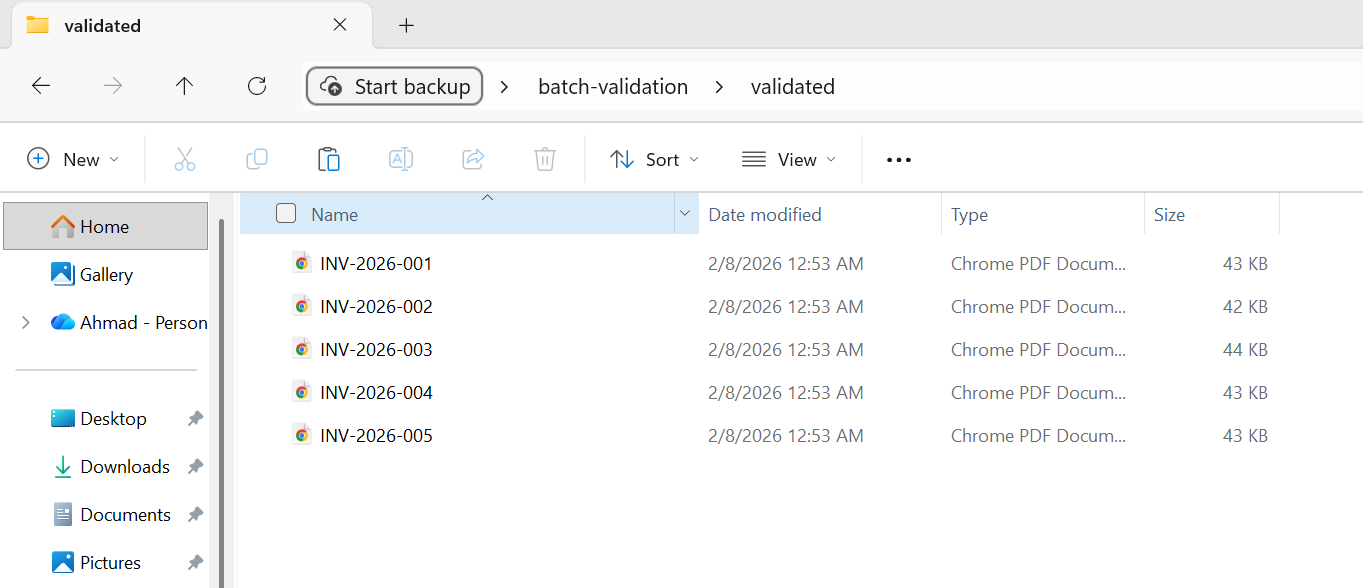
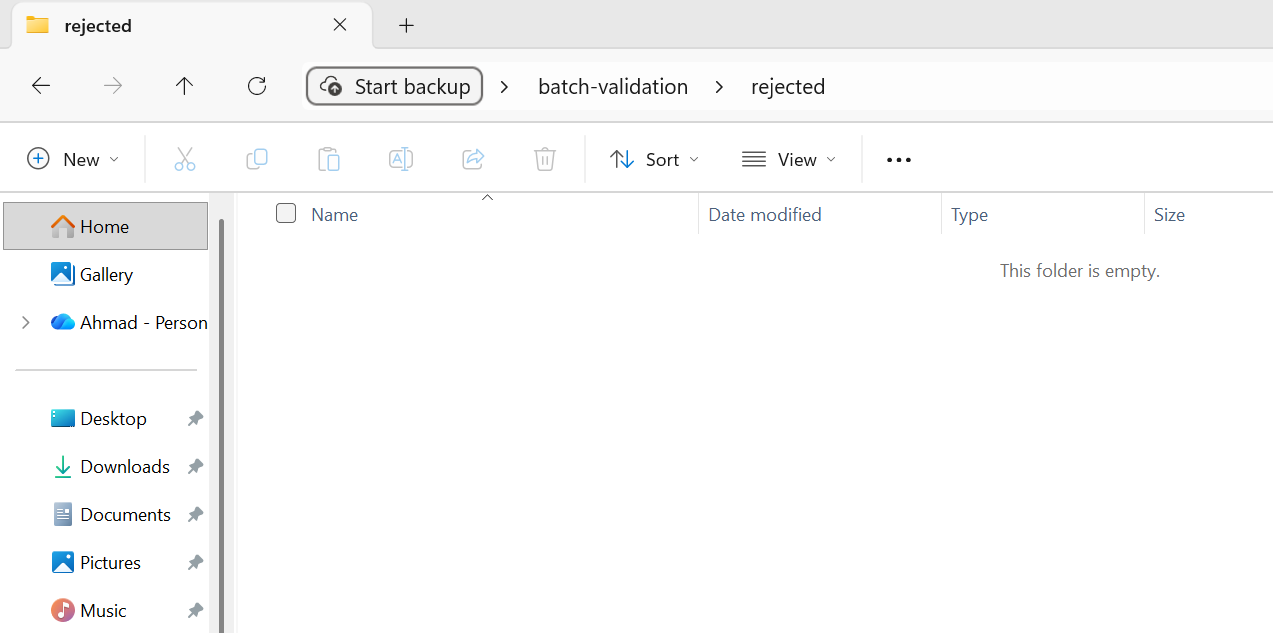
5개 파일 모두 유효성 검사를 통과하여 유효성 검사 완료 폴더로 이동되었습니다.
전처리 유효성 검사는 빨라야 합니다. 명백히 잘못된 입력값을 확인하는 것이지, 전체 처리를 수행하는 것이 아닙니다. 특히 출력물이 특정 표준(PDF/A, PDF/UA)을 통과해야 하는 규정 준수 변환의 경우, 사후 처리 검증을 더욱 철저하게 수행할 수 있습니다. 사후 처리 유효성 검사에 실패한 파일은 그대로 승인하는 대신 수동 검토 대상으로 표시해야 합니다.


비동기 및 병렬 처리 패턴
IronPDF는 Parallel.ForEach (스레드 기반 병렬 처리) 및 비동기 I/O (문자 기반 비동기/대기)를 모두 지원합니다. 각 기능을 언제 사용해야 하는지, 그리고 어떻게 효과적으로 조합해야 하는지를 이해하는 것이 처리량을 극대화하는 데 핵심입니다.
태스크 병렬 라이브러리 통합
Parallel.ForEach은 CPU 집약적 일괄 처리 작업에 가장 간단하고 효과적인 접근 방식입니다. IronPDF의 랜더링 엔진은 CPU 집약적이며 (HTML 구문 분석, CSS 레이아웃, 이미지 래스터화) Parallel.ForEach이(가) 이 작업을 자동으로 모든 사용 가능한 코어에 분산시킵니다.
using IronPdf;
using System;
using System.IO;
using System.Threading.Tasks;
using System.Threading;
using System.Diagnostics;

string inputFolder = "input/";
string outputFolder = "output/";

Directory.CreateDirectory(outputFolder);

string[] htmlFiles = Directory.GetFiles(inputFolder, "*.html");
var renderer = new ChromePdfRenderer();

Console.WriteLine($"Processing {htmlFiles.Length} files with {Environment.ProcessorCount} CPU cores");

int processed = 0;
var stopwatch = Stopwatch.StartNew();

// Configure parallelism based on system resources
// Rule of thumb: ProcessorCount / 2 for memory-intensive operations
var options = new ParallelOptions
{
    MaxDegreeOfParallelism = Math.Max(1, Environment.ProcessorCount / 2)
};

Console.WriteLine($"Max parallelism: {options.MaxDegreeOfParallelism}");

// Use Parallel.ForEach for CPU-bound batch operations
Parallel.ForEach(htmlFiles, options, htmlFile =>
{
    string fileName = Path.GetFileNameWithoutExtension(htmlFile);
    string outputPath = Path.Combine(outputFolder, $"{fileName}.pdf");

    try
    {
        // Render HTML to PDF
        using var pdf = renderer.RenderHtmlFileAsPdf(htmlFile);
        pdf.SaveAs(outputPath);

        int current = Interlocked.Increment(ref processed);

        // Progress reporting every 10 files
        if (current % 10 == 0)
        {
            double elapsed = stopwatch.Elapsed.TotalSeconds;
            double rate = current / elapsed;
            double remaining = (htmlFiles.Length - current) / rate;
            Console.WriteLine($"Progress: {current}/{htmlFiles.Length} ({rate:F1} files/sec, ~{remaining:F0}s remaining)");
        }
    }
    catch (Exception ex)
    {
        Console.WriteLine($"[ERROR] {fileName}: {ex.Message}");
    }
});

stopwatch.Stop();
double totalRate = processed / stopwatch.Elapsed.TotalSeconds;

Console.WriteLine($"\nComplete:");
Console.WriteLine($"  Files processed: {processed}/{htmlFiles.Length}");
Console.WriteLine($"  Total time: {stopwatch.Elapsed.TotalSeconds:F1}s");
Console.WriteLine($"  Average rate: {totalRate:F1} files/sec");
Console.WriteLine($"  Time per file: {stopwatch.Elapsed.TotalMilliseconds / processed:F0}ms");

// Memory monitoring helper (call between chunks for large batches)
void CheckMemoryPressure()
{
    const long memoryThreshold = 4L * 1024 * 1024 * 1024; // 4 GB
    long currentMemory = GC.GetTotalMemory(forceFullCollection: false);

    if (currentMemory > memoryThreshold)
    {
        Console.WriteLine($"Memory pressure detected ({currentMemory / 1024 / 1024}MB), forcing GC...");
        GC.Collect();
        GC.WaitForPendingFinalizers();
        GC.Collect();
    }
}Imports IronPdf
Imports System
Imports System.IO
Imports System.Threading.Tasks
Imports System.Threading
Imports System.Diagnostics
Module Program
Sub Main()
Dim inputFolder As String = "input/"
Dim outputFolder As String = "output/"
Directory.CreateDirectory(outputFolder)
Dim htmlFiles As String() = Directory.GetFiles(inputFolder, "*.html")
Dim renderer As New ChromePdfRenderer()
Console.WriteLine($"Processing {htmlFiles.Length} files with {Environment.ProcessorCount} CPU cores")
Dim processed As Integer = 0
Dim stopwatch As Stopwatch = Stopwatch.StartNew()
' Configure parallelism based on system resources
' Rule of thumb: ProcessorCount / 2 for memory-intensive operations
Dim options As New ParallelOptions With {
.MaxDegreeOfParallelism = Math.Max(1, Environment.ProcessorCount \ 2)
}
Console.WriteLine($"Max parallelism: {options.MaxDegreeOfParallelism}")
' Use Parallel.ForEach for CPU-bound batch operations
Parallel.ForEach(htmlFiles, options, Sub(htmlFile)
Dim fileName As String = Path.GetFileNameWithoutExtension(htmlFile)
Dim outputPath As String = Path.Combine(outputFolder, $"{fileName}.pdf")
Try
' Render HTML to PDF
Using pdf = renderer.RenderHtmlFileAsPdf(htmlFile)
pdf.SaveAs(outputPath)
End Using
Dim current As Integer = Interlocked.Increment(processed)
' Progress reporting every 10 files
If current Mod 10 = 0 Then
Dim elapsed As Double = stopwatch.Elapsed.TotalSeconds
Dim rate As Double = current / elapsed
Dim remaining As Double = (htmlFiles.Length - current) / rate
Console.WriteLine($"Progress: {current}/{htmlFiles.Length} ({rate:F1} files/sec, ~{remaining:F0}s remaining)")
End If
Catch ex As Exception
Console.WriteLine($"[ERROR] {fileName}: {ex.Message}")
End Try
End Sub)
stopwatch.Stop()
Dim totalRate As Double = processed / stopwatch.Elapsed.TotalSeconds
Console.WriteLine(vbCrLf & "Complete:")
Console.WriteLine($" Files processed: {processed}/{htmlFiles.Length}")
Console.WriteLine($" Total time: {stopwatch.Elapsed.TotalSeconds:F1}s")
Console.WriteLine($" Average rate: {totalRate:F1} files/sec")
Console.WriteLine($" Time per file: {stopwatch.Elapsed.TotalMilliseconds / processed:F0}ms")
' Memory monitoring helper (call between chunks for large batches)
CheckMemoryPressure()
End Sub
Sub CheckMemoryPressure()
Const memoryThreshold As Long = 4L * 1024 * 1024 * 1024 ' 4 GB
Dim currentMemory As Long = GC.GetTotalMemory(forceFullCollection:=False)
If currentMemory > memoryThreshold Then
Console.WriteLine($"Memory pressure detected ({currentMemory \ 1024 \ 1024}MB), forcing GC...")
GC.Collect()
GC.WaitForPendingFinalizers()
GC.Collect()
End If
End Sub
End ModuleMaxDegreeOfParallelism 옵션이 중요합니다. 이 설정이 없으면 TPL은 사용 가능한 모든 코어를 사용하려고 시도하여 각 렌더링 작업이 리소스 집약적일 경우 메모리 과부하를 초래할 수 있습니다. 이 값은 시스템에서 사용 가능한 RAM을 일반적인 렌더링당 메모리 사용량(복잡한 HTML의 경우 동시 렌더링당 보통 100~300MB)으로 나눈 값으로 설정하십시오.
동시성 제어(SemaphoreSlim)
Parallel.ForEach에서 제공하는 것보다 더 세밀한 동시성 제어가 필요할 때 - 예를 들어, 비동기 I/O와 CPU 바운드 랜더링을 혼합할 때 - SemaphoreSlim을 사용하여 동시에 실행되는 작업 수를 명시적으로 제어할 수 있습니다. 패턴은 간단합니다: 원하는 동시성 제한(e.g., 동시 랜더 4개)과 함께 SemaphoreSlim을 생성하고, 각 랜더 전에 WaitAsync을 호출하며, 이후에 Release을 finally 블럭에서 호출하십시오. 그런 다음 모든 작업을 Task.WhenAll으로 시작하십시오.
이 패턴은 파이프라인에 I/O 중심 단계(블롭 스토리지에서 파일 읽기, 데이터베이스에 결과 쓰기)와 CPU 중심 단계(PDF 렌더링)가 모두 포함된 경우 특히 유용합니다. 세마포어는 CPU 집약적인 렌더링 동시성을 제한하는 동시에 I/O 집약적인 단계는 속도 저하 없이 진행될 수 있도록 합니다.
Async/await 모범 사례
IronPDF는 RenderHtmlAsPdfAsync, RenderUrlAsPdfAsync, RenderHtmlFileAsPdfAsync을 포함한 랜더링 메서드의 비동기 변형을 제공합니다. 이러한 방식은 웹 애플리케이션(요청 스레드 차단이 허용되지 않는 경우) 및 PDF 렌더링과 비동기 I/O 작업을 혼합하는 파이프라인에 이상적입니다.
일괄 처리를 위한 몇 가지 중요한 비동기 모범 사례:
IronPDF 메서드를 래핑하기 위해 Task.Run을 사용하지 마십시오 - 대신 네이티브 비동기 변형을 사용하십시오. Task.Run으로 동기 메서드를 래핑하는 것은 스레드 풀 스레드를 낭비하고 어떤 이점도 없이 오버헤드를 추가합니다.
비동기 작업에 .Result 또는 .Wait() 사용하지 마십시오 - 이는 호출 스레드를 차단하고 UI 또는 ASP.NET 컨텍스트에서 교착 상태를 유발할 수 있습니다. 항상 await을 사용하십시오.
모든 작업을 한 번에 기다리지 말고 Task.WhenAll 호출을 일괄 처리하세요. 10,000개의 작업이 있을 때, 모두 동시에 Task.WhenAll 하면 10,000개의 병렬 작업을 시작하게 될 것입니다. 대신 .Chunk(10) 또는 유사한 접근 방식을 사용하여 그룹으로 처리하고 각 그룹을 순차적으로 기다리십시오.
메모리 고갈 방지
메모리 부족은 일괄 PDF 처리에서 가장 흔한 오류 원인입니다. 방어적 접근은 각 랜더 전에 GC.GetTotalMemory()로 메모리 사용량을 모니터링하고 소비가 임계값(예: 4 GB 또는 사용 가능한 RAM의 80%)에 도달하면 수집을 트리거하는 것입니다. 계속하기 전에 가능한 한 많은 메모리를 회수하기 위해 GC.Collect()을 호출하고 이어 GC.WaitForPendingFinalizers(), 다시 GC.Collect() 호출하십시오. 이렇게 하면 작은 일시 정지가 추가되지만 30,000번째 파일에서 전체 배치를 충돌시킬 수 있는 OutOfMemoryException을 방지할 수 있습니다.
이를 TPL 섹션의 MaxDegreeOfParallelism 스로틀링과 메모리 관리 섹션의 using 해제 패턴과 결합하면 메모리 문제에 대해, 동시성 제한, 적극적인 해제, 안전 밸브로 모니터링하여 3층 방어를 구축할 수 있습니다.
배치 작업을 위한 클라우드 배포
최근 배치 처리는 점점 더 클라우드에서 실행되고 있으며, 클라우드에서는 워크로드 요구에 맞춰 컴퓨팅 리소스를 확장하고 사용한 만큼만 비용을 지불할 수 있습니다. IronPDF 모든 주요 클라우드 플랫폼에서 실행됩니다. 각 플랫폼에 맞는 배치 파이프라인 아키텍처를 설계하는 방법을 알아보세요.
Azure Functions와 Durable Functions
Azure Durable Functions는 팬아웃/팬인 패턴에 대한 기본 오케스트레이션 기능을 제공하므로 PDF 일괄 처리에 적합합니다. 오케스트레이터 기능은 여러 액티비티 기능 인스턴스에 작업을 분산시키며, 각 인스턴스는 파일의 하위 집합을 처리합니다. 오케스트레이터가 팬아웃 루프에서 CallActivityAsync를 호출하면 각 활동 함수는 ChromePdfRenderer를 인스턴스화하고 파일 청크를 처리하고, 오케스트레이터가 결과를 수집합니다.
Azure Functions 사용 시 주요 고려 사항: 기본 사용 계획은 함수 호출당 5분의 시간 제한이 있으며 메모리 사용량이 제한됩니다. 일괄 처리를 위해서는 더 긴 타임아웃과 더 많은 메모리를 지원하는 프리미엄 또는 전용 플랜을 사용하십시오. IronPDF 전체 .NET 런타임(축약되지 않은)을 필요로 하므로, 함수 앱이 적절한 런타임 식별자를 사용하여 .NET 8 이상용으로 구성되어 있는지 확인하십시오.
AWS Lambda와 Step Functions를 함께 사용
AWS Step Functions는 Azure Durable Functions와 유사한 오케스트레이션 기능을 제공합니다. 상태 머신의 각 단계는 파일 덩어리를 처리하는 Lambda 함수를 호출합니다. Lambda 핸들러가 S3 객체 키의 일괄을 받아 각 PDF를 PdfDocument.FromFile으로 로드하고 처리 파이프라인(압축, 형식 변환, 등)을 적용하고 결과를 출력 S3 버킷에 쓰게 됩니다.
AWS Lambda는 최대 15분의 실행 시간을 가지며 /tmp 저장소 (기본적으로 512 MB, 최대 10 GB로 구성 가능)를 제한합니다. 대규모 배치 작업의 경우 Step Functions를 사용하여 워크로드를 여러 부분으로 나누고 각 부분을 별도의 Lambda 호출에서 처리하세요. 중간 결과를 로컬 저장소 대신 S3에 저장하세요.
Kubernetes 작업 스케줄링
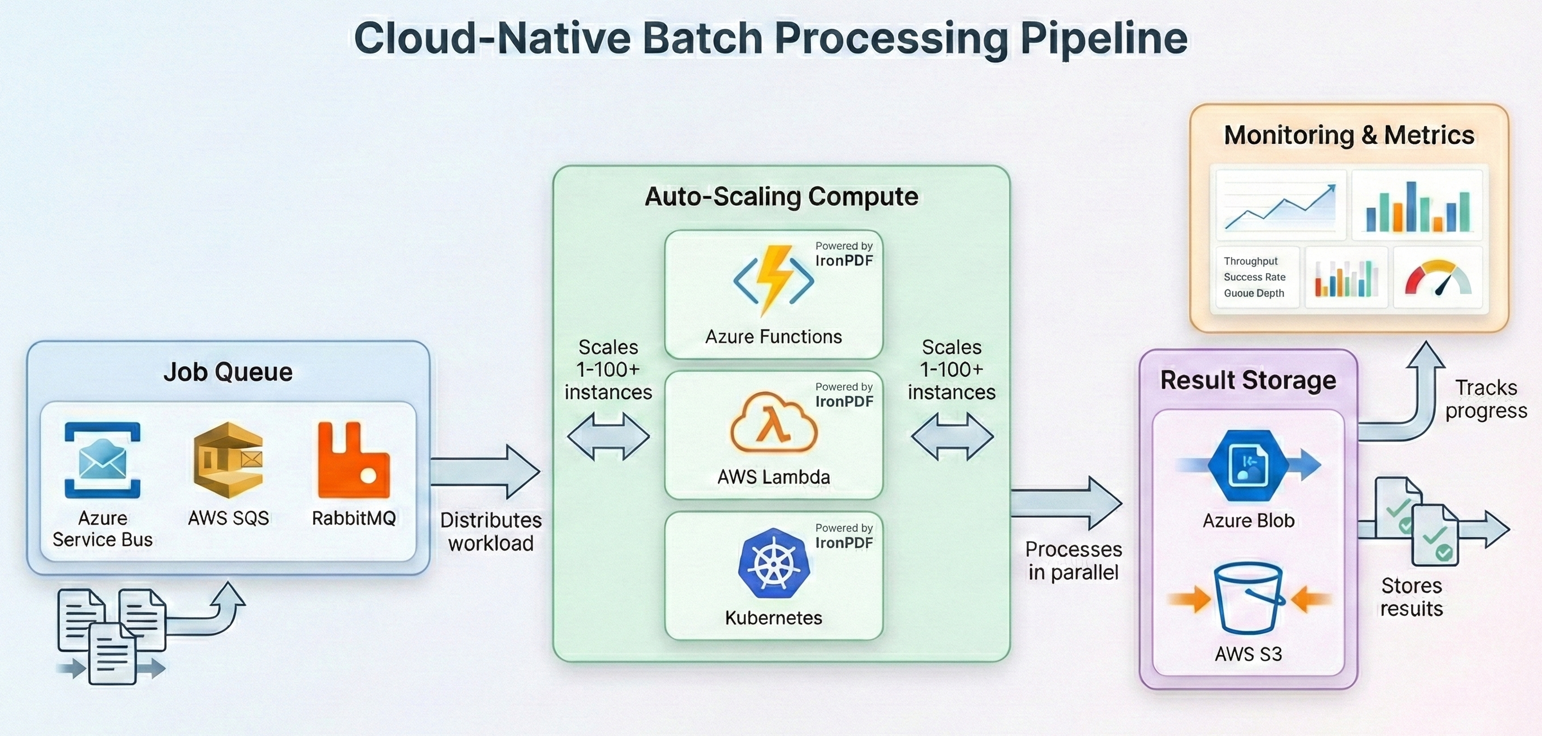
자체 Kubernetes 클러스터를 운영하는 조직의 경우, 배치 PDF 처리는 Kubernetes 작업 및 크론 작업에 적합합니다. 각 파드는 큐(Azure Service Bus, RabbitMQ 또는 SQS)에서 파일을 가져와 IronPDF 로 처리한 다음 결과를 객체 스토리지에 기록하는 배치 워커를 실행합니다. 작업자 루프는 이전 섹션에서 다룬 패턴을 그대로 따릅니다: 메시지를 제거하고, ChromePdfRenderer.RenderHtmlAsPdf() 또는 PdfDocument.FromFile()을 이용해 문서를 처리하고, 결과를 업로드하며, 메시지를 승인합니다. 복원 패턴의 재시도 논리와 함께 try-catch 내부에 처리 과정을 래핑하고, 개별 포드 동시성을 제어하기 위해 SemaphoreSlim을 사용하십시오.
IronPDF 공식 Docker 지원을 제공하며 Linux 컨테이너에서 실행됩니다. 당신의 컨테이너가 중인 OS에 맞는 적절한 네이티브 런타임 패키지와 함께 IronPdf NuGet 패키지를 사용하십시오 (예: Linux 기반 이미지의 경우 IronPdf.Linux). Kubernetes의 경우 IronPDF의 메모리 요구 사항(일반적으로 동시 실행량에 따라 Pod당 512MB~2GB)에 맞는 리소스 요청 및 제한을 정의하십시오. Horizontal Pod Autoscaler는 큐 깊이에 따라 워커를 확장할 수 있으며, 체크포인트 패턴을 통해 파드가 제거되더라도 작업 손실이 발생하지 않도록 보장합니다.
비용 최적화 전략
클라우드 배치 처리는 리소스 할당을 신중하게 고려하지 않으면 비용이 많이 들 수 있습니다. 다음은 가장 큰 효과를 가져오는 전략들입니다.
컴퓨팅 리소스를 적절하게 조정하세요. PDF 렌더링은 GPU 리소스 사용량이 많은 작업이 아니라 CPU와 메모리 리소스를 많이 사용하는 작업입니다. 범용 또는 메모리 최적화 인스턴스 대신 컴퓨팅 최적화 인스턴스(Azure의 C 시리즈, AWS의 C 유형)를 사용하세요. 가격 대비 렌더링 효율이 더 좋아질 겁니다.
중단을 허용할 수 있는 배치 워크로드에는 스팟/선점 가능 인스턴스를 사용하십시오 . 일괄 PDF 처리는 체크포인트 기능 덕분에 본질적으로 작업 재개가 가능하므로, 일반적으로 주문형 처리보다 60~90% 할인된 가격으로 제공되는 스팟 가격 책정에 이상적인 솔루션입니다.
일정이 허락한다면 , 혼잡하지 않은 시간대에 진행하세요 . 많은 클라우드 서비스 제공업체는 야간 및 주말에 더 낮은 가격이나 더 높은 서비스 가용성을 제공합니다.
미리 압축하고 한 번만 저장하세요. 압축을 별도의 단계로 실행하는 대신 처리 파이프라인의 일부로 실행하십시오. 처음부터 압축된 PDF를 저장하면 아카이브 수명 동안의 지속적인 저장 비용을 절감할 수 있습니다.
저장 공간을 계층화하세요. 자주 액세스하는 처리된 PDF 파일은 자주 사용되는 저장 공간(핫 스토리지)에 저장해야 합니다. 자주 액세스하지 않는 PDF 파일은 쿨 티어 또는 아카이브 티어(Azure Cool/Archive, AWS S3 Glacier)로 이동해야 합니다. 이것만으로도 저장 비용을 50~80% 절감할 수 있습니다.
실제 파이프라인 사례
이제 수집 → 검증 → 처리 → 보관 → 보고의 전체 워크플로를 보여주는 완벽한 프로덕션급 배치 파이프라인으로 모든 것을 통합해 보겠습니다.
이 예제는 HTML 송장 템플릿 디렉토리를 처리하고, 이를 PDF로 렌더링하고, 출력을 압축하고, 보관 규정 준수를 위해 PDF/A-3b로 변환하고, 결과를 검증하고, 마지막으로 요약 보고서를 생성합니다.
위의 일괄 변환 예시에서 사용한 것과 동일한 5개의 HTML 송장을 사용하여...
using IronPdf;
using System;
using System.Collections.Generic;
using System.IO;
using System.Linq;
using System.Threading.Tasks;
using System.Threading;
using System.Collections.Concurrent;
using System.Diagnostics;
using System.Text.Json;

// Configuration
var config = new PipelineConfig
{
    InputFolder = "input/",
    OutputFolder = "output/",
    ArchiveFolder = "archive/",
    ErrorFolder = "errors/",
    CheckpointPath = "pipeline-checkpoint.json",
    ReportPath = "pipeline-report.json",
    MaxConcurrency = Math.Max(1, Environment.ProcessorCount / 2),
    MaxRetries = 3,
    JpegQuality = 70
};

// Initialize folders
Directory.CreateDirectory(config.OutputFolder);
Directory.CreateDirectory(config.ArchiveFolder);
Directory.CreateDirectory(config.ErrorFolder);

// Load checkpoint for resume capability
var checkpoint = LoadCheckpoint(config.CheckpointPath);
var results = new ConcurrentBag<ProcessingResult>();
var stopwatch = Stopwatch.StartNew();

// Get files to process
string[] allFiles = Directory.GetFiles(config.InputFolder, "*.html");
string[] filesToProcess = allFiles
    .Where(f => !checkpoint.CompletedFiles.Contains(Path.GetFileName(f)))
    .ToArray();

Console.WriteLine($"Pipeline starting:");
Console.WriteLine($"  Total files: {allFiles.Length}");
Console.WriteLine($"  Already processed: {checkpoint.CompletedFiles.Count}");
Console.WriteLine($"  To process: {filesToProcess.Length}");
Console.WriteLine($"  Concurrency: {config.MaxConcurrency}");

var renderer = new ChromePdfRenderer();
var checkpointLock = new object();

var options = new ParallelOptions
{
    MaxDegreeOfParallelism = config.MaxConcurrency
};

Parallel.ForEach(filesToProcess, options, inputFile =>
{
    var result = new ProcessingResult
    {
        FileName = Path.GetFileName(inputFile),
        StartTime = DateTime.UtcNow
    };

    try
    {
        // Stage: Pre-validation
        if (!ValidateInput(inputFile))
        {
            result.Status = "PreValidationFailed";
            result.Error = "Input file failed validation";
            results.Add(result);
            return;
        }

        string baseName = Path.GetFileNameWithoutExtension(inputFile);
        string tempPath = Path.Combine(config.OutputFolder, $"{baseName}.pdf");
        string archivePath = Path.Combine(config.ArchiveFolder, $"{baseName}.pdf");

        // Stage: Process with retry
        PdfDocument pdf = null;
        int attempt = 0;
        bool success = false;

        while (attempt < config.MaxRetries && !success)
        {
            attempt++;
            try
            {
                pdf = renderer.RenderHtmlFileAsPdf(inputFile);
                success = true;
            }
            catch (Exception ex) when (IsTransient(ex) && attempt < config.MaxRetries)
            {
                Thread.Sleep((int)Math.Pow(2, attempt) * 500);
            }
        }

        if (!success || pdf == null)
        {
            result.Status = "ProcessingFailed";
            result.Error = "Max retries exceeded";
            results.Add(result);
            return;
        }

        using (pdf)
        {
            // Stage: Compress and convert to PDF/A-3b for archival
            pdf.SaveAsPdfA(tempPath, PdfAVersions.PdfA3b);
        }

        // Stage: Post-validation
        if (!ValidateOutput(tempPath))
        {
            File.Move(tempPath, Path.Combine(config.ErrorFolder, $"{baseName}.pdf"), overwrite: true);
            result.Status = "PostValidationFailed";
            result.Error = "Output file failed validation";
            results.Add(result);
            return;
        }

        // Stage: Archive
        File.Move(tempPath, archivePath, overwrite: true);

        // Update checkpoint
        lock (checkpointLock)
        {
            checkpoint.CompletedFiles.Add(result.FileName);
            SaveCheckpoint(config.CheckpointPath, checkpoint);
        }

        result.Status = "Success";
        result.OutputSize = new FileInfo(archivePath).Length;
        result.EndTime = DateTime.UtcNow;
        results.Add(result);

        Console.WriteLine($"[OK] {baseName}.pdf ({result.OutputSize / 1024}KB)");
    }
    catch (Exception ex)
    {
        result.Status = "Error";
        result.Error = ex.Message;
        result.EndTime = DateTime.UtcNow;
        results.Add(result);
        Console.WriteLine($"[ERROR] {result.FileName}: {ex.Message}");
    }
});

stopwatch.Stop();

// Generate report
var report = new PipelineReport
{
    TotalFiles = allFiles.Length,
    ProcessedThisRun = results.Count,
    Succeeded = results.Count(r => r.Status == "Success"),
    PreValidationFailed = results.Count(r => r.Status == "PreValidationFailed"),
    ProcessingFailed = results.Count(r => r.Status == "ProcessingFailed"),
    PostValidationFailed = results.Count(r => r.Status == "PostValidationFailed"),
    Errors = results.Count(r => r.Status == "Error"),
    TotalDuration = stopwatch.Elapsed,
    AverageFileTime = results.Any() ? TimeSpan.FromMilliseconds(stopwatch.Elapsed.TotalMilliseconds / results.Count) : TimeSpan.Zero
};

string reportJson = JsonSerializer.Serialize(report, new JsonSerializerOptions { WriteIndented = true });
File.WriteAllText(config.ReportPath, reportJson);

Console.WriteLine($"\n=== Pipeline Complete ===");
Console.WriteLine($"Succeeded: {report.Succeeded}");
Console.WriteLine($"Failed: {report.PreValidationFailed + report.ProcessingFailed + report.PostValidationFailed + report.Errors}");
Console.WriteLine($"Duration: {report.TotalDuration.TotalMinutes:F1} minutes");
Console.WriteLine($"Report: {config.ReportPath}");

// Helper methods
bool ValidateInput(string path)
{
    try
    {
        var info = new FileInfo(path);
        if (!info.Exists || info.Length == 0 || info.Length > 50 * 1024 * 1024) return false;
        string content = File.ReadAllText(path);
        return content.Contains("<html", StringComparison.OrdinalIgnoreCase) ||
               content.Contains("<!DOCTYPE", StringComparison.OrdinalIgnoreCase);
    }
    catch { return false; }
}

bool ValidateOutput(string path)
{
    try
    {
        using var pdf = PdfDocument.FromFile(path);
        return pdf.PageCount > 0 && new FileInfo(path).Length > 1024;
    }
    catch { return false; }
}

bool IsTransient(Exception ex) =>
    ex is IOException || ex is OutOfMemoryException ||
    ex.Message.Contains("timeout", StringComparison.OrdinalIgnoreCase);

Checkpoint LoadCheckpoint(string path)
{
    if (File.Exists(path))
    {
        string json = File.ReadAllText(path);
        return JsonSerializer.Deserialize<Checkpoint>(json) ?? new Checkpoint();
    }
    return new Checkpoint();
}

void SaveCheckpoint(string path, Checkpoint cp) =>
    File.WriteAllText(path, JsonSerializer.Serialize(cp));


// Data classes
public class PipelineConfig
{
    public string InputFolder { get; set; } = "";
    public string OutputFolder { get; set; } = "";
    public string ArchiveFolder { get; set; } = "";
    public string ErrorFolder { get; set; } = "";
    public string CheckpointPath { get; set; } = "";
    public string ReportPath { get; set; } = "";
    public int MaxConcurrency { get; set; }
    public int MaxRetries { get; set; }
    public int JpegQuality { get; set; }
}

public class Checkpoint
{
    public HashSet<string> CompletedFiles { get; set; } = new();
}

public class ProcessingResult
{
    public string FileName { get; set; } = "";
    public string Status { get; set; } = "";
    public string Error { get; set; } = "";
    public long OutputSize { get; set; }
    public DateTime StartTime { get; set; }
    public DateTime EndTime { get; set; }
}

public class PipelineReport
{
    public int TotalFiles { get; set; }
    public int ProcessedThisRun { get; set; }
    public int Succeeded { get; set; }
    public int PreValidationFailed { get; set; }
    public int ProcessingFailed { get; set; }
    public int PostValidationFailed { get; set; }
    public int Errors { get; set; }
    public TimeSpan TotalDuration { get; set; }
    public TimeSpan AverageFileTime { get; set; }
}Imports IronPdf
Imports System
Imports System.Collections.Generic
Imports System.IO
Imports System.Linq
Imports System.Threading.Tasks
Imports System.Threading
Imports System.Collections.Concurrent
Imports System.Diagnostics
Imports System.Text.Json
' Configuration
Dim config = New PipelineConfig With {
.InputFolder = "input/",
.OutputFolder = "output/",
.ArchiveFolder = "archive/",
.ErrorFolder = "errors/",
.CheckpointPath = "pipeline-checkpoint.json",
.ReportPath = "pipeline-report.json",
.MaxConcurrency = Math.Max(1, Environment.ProcessorCount \ 2),
.MaxRetries = 3,
.JpegQuality = 70
}
' Initialize folders
Directory.CreateDirectory(config.OutputFolder)
Directory.CreateDirectory(config.ArchiveFolder)
Directory.CreateDirectory(config.ErrorFolder)
' Load checkpoint for resume capability
Dim checkpoint = LoadCheckpoint(config.CheckpointPath)
Dim results = New ConcurrentBag(Of ProcessingResult)
Dim stopwatch = Stopwatch.StartNew()
' Get files to process
Dim allFiles As String() = Directory.GetFiles(config.InputFolder, "*.html")
Dim filesToProcess As String() = allFiles.Where(Function(f) Not checkpoint.CompletedFiles.Contains(Path.GetFileName(f))).ToArray()
Console.WriteLine("Pipeline starting:")
Console.WriteLine($" Total files: {allFiles.Length}")
Console.WriteLine($" Already processed: {checkpoint.CompletedFiles.Count}")
Console.WriteLine($" To process: {filesToProcess.Length}")
Console.WriteLine($" Concurrency: {config.MaxConcurrency}")
Dim renderer = New ChromePdfRenderer()
Dim checkpointLock = New Object()
Dim options = New ParallelOptions With {
.MaxDegreeOfParallelism = config.MaxConcurrency
}
Parallel.ForEach(filesToProcess, options,
Sub(inputFile)
Dim result = New ProcessingResult With {
.FileName = Path.GetFileName(inputFile),
.StartTime = DateTime.UtcNow
}
Try
' Stage: Pre-validation
If Not ValidateInput(inputFile) Then
result.Status = "PreValidationFailed"
result.Error = "Input file failed validation"
results.Add(result)
Return
End If
Dim baseName As String = Path.GetFileNameWithoutExtension(inputFile)
Dim tempPath As String = Path.Combine(config.OutputFolder, $"{baseName}.pdf")
Dim archivePath As String = Path.Combine(config.ArchiveFolder, $"{baseName}.pdf")
' Stage: Process with retry
Dim pdf As PdfDocument = Nothing
Dim attempt As Integer = 0
Dim success As Boolean = False
While attempt < config.MaxRetries AndAlso Not success
attempt += 1
Try
pdf = renderer.RenderHtmlFileAsPdf(inputFile)
success = True
Catch ex As Exception When IsTransient(ex) AndAlso attempt < config.MaxRetries
Thread.Sleep(CInt(Math.Pow(2, attempt) * 500))
End Try
End While
If Not success OrElse pdf Is Nothing Then
result.Status = "ProcessingFailed"
result.Error = "Max retries exceeded"
results.Add(result)
Return
End If
Using pdf
' Stage: Compress and convert to PDF/A-3b for archival
pdf.SaveAsPdfA(tempPath, PdfAVersions.PdfA3b)
End Using
' Stage: Post-validation
If Not ValidateOutput(tempPath) Then
File.Move(tempPath, Path.Combine(config.ErrorFolder, $"{baseName}.pdf"), True)
result.Status = "PostValidationFailed"
result.Error = "Output file failed validation"
results.Add(result)
Return
End If
' Stage: Archive
File.Move(tempPath, archivePath, True)
' Update checkpoint
SyncLock checkpointLock
checkpoint.CompletedFiles.Add(result.FileName)
SaveCheckpoint(config.CheckpointPath, checkpoint)
End SyncLock
result.Status = "Success"
result.OutputSize = New FileInfo(archivePath).Length
result.EndTime = DateTime.UtcNow
results.Add(result)
Console.WriteLine($"[OK] {baseName}.pdf ({result.OutputSize \ 1024}KB)")
Catch ex As Exception
result.Status = "Error"
result.Error = ex.Message
result.EndTime = DateTime.UtcNow
results.Add(result)
Console.WriteLine($"[ERROR] {result.FileName}: {ex.Message}")
End Try
End Sub
)
stopwatch.Stop()
' Generate report
Dim report = New PipelineReport With {
.TotalFiles = allFiles.Length,
.ProcessedThisRun = results.Count,
.Succeeded = results.Count(Function(r) r.Status = "Success"),
.PreValidationFailed = results.Count(Function(r) r.Status = "PreValidationFailed"),
.ProcessingFailed = results.Count(Function(r) r.Status = "ProcessingFailed"),
.PostValidationFailed = results.Count(Function(r) r.Status = "PostValidationFailed"),
.Errors = results.Count(Function(r) r.Status = "Error"),
.TotalDuration = stopwatch.Elapsed,
.AverageFileTime = If(results.Any(), TimeSpan.FromMilliseconds(stopwatch.Elapsed.TotalMilliseconds / results.Count), TimeSpan.Zero)
}
Dim reportJson As String = JsonSerializer.Serialize(report, New JsonSerializerOptions With {.WriteIndented = True})
File.WriteAllText(config.ReportPath, reportJson)
Console.WriteLine(vbLf & "=== Pipeline Complete ===")
Console.WriteLine($"Succeeded: {report.Succeeded}")
Console.WriteLine($"Failed: {report.PreValidationFailed + report.ProcessingFailed + report.PostValidationFailed + report.Errors}")
Console.WriteLine($"Duration: {report.TotalDuration.TotalMinutes:F1} minutes")
Console.WriteLine($"Report: {config.ReportPath}")
' Helper methods
Function ValidateInput(ByVal path As String) As Boolean
Try
Dim info = New FileInfo(path)
If Not info.Exists OrElse info.Length = 0 OrElse info.Length > 50 * 1024 * 1024 Then Return False
Dim content As String = File.ReadAllText(path)
Return content.Contains("<html", StringComparison.OrdinalIgnoreCase) OrElse content.Contains("<!DOCTYPE", StringComparison.OrdinalIgnoreCase)
Catch
Return False
End Try
End Function
Function ValidateOutput(ByVal path As String) As Boolean
Try
Using pdf = PdfDocument.FromFile(path)
Return pdf.PageCount > 0 AndAlso New FileInfo(path).Length > 1024
End Using
Catch
Return False
End Try
End Function
Function IsTransient(ByVal ex As Exception) As Boolean
Return TypeOf ex Is IOException OrElse TypeOf ex Is OutOfMemoryException OrElse ex.Message.Contains("timeout", StringComparison.OrdinalIgnoreCase)
End Function
Function LoadCheckpoint(ByVal path As String) As Checkpoint
If File.Exists(path) Then
Dim json As String = File.ReadAllText(path)
Return JsonSerializer.Deserialize(Of Checkpoint)(json) ?? New Checkpoint()
End If
Return New Checkpoint()
End Function
Sub SaveCheckpoint(ByVal path As String, ByVal cp As Checkpoint)
File.WriteAllText(path, JsonSerializer.Serialize(cp))
End Sub
' Data classes
Public Class PipelineConfig
Public Property InputFolder As String = ""
Public Property OutputFolder As String = ""
Public Property ArchiveFolder As String = ""
Public Property ErrorFolder As String = ""
Public Property CheckpointPath As String = ""
Public Property ReportPath As String = ""
Public Property MaxConcurrency As Integer
Public Property MaxRetries As Integer
Public Property JpegQuality As Integer
End Class
Public Class Checkpoint
Public Property CompletedFiles As HashSet(Of String) = New HashSet(Of String)()
End Class
Public Class ProcessingResult
Public Property FileName As String = ""
Public Property Status As String = ""
Public Property Error As String = ""
Public Property OutputSize As Long
Public Property StartTime As DateTime
Public Property EndTime As DateTime
End Class
Public Class PipelineReport
Public Property TotalFiles As Integer
Public Property ProcessedThisRun As Integer
Public Property Succeeded As Integer
Public Property PreValidationFailed As Integer
Public Property ProcessingFailed As Integer
Public Property PostValidationFailed As Integer
Public Property Errors As Integer
Public Property TotalDuration As TimeSpan
Public Property AverageFileTime As TimeSpan
End Class산출
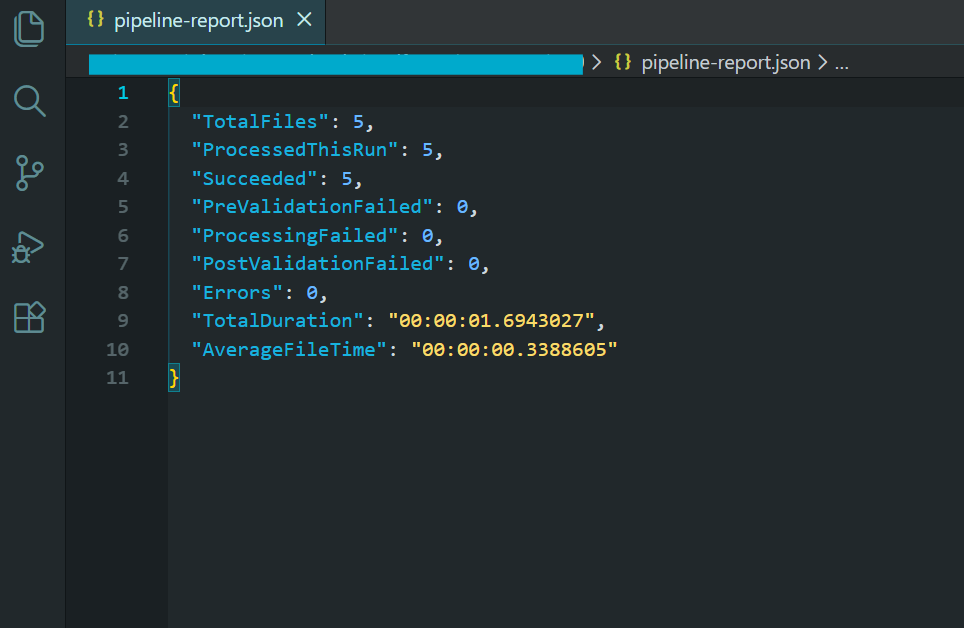
배치 처리 결과를 보여주는 파이프라인 보고서.
이 파이프라인은 제어된 동시성을 통한 병렬 처리, 실패 시 건너뛰기를 포함한 파일별 오류 처리, 일시적인 오류에 대한 재시도 로직, 충돌 후 재개를 위한 체크포인트, 사전 및 사후 처리 유효성 검사, 명시적 해제를 통한 메모리 관리, 그리고 최종 요약 보고서를 포함한 포괄적인 로깅 등 이 튜토리얼에서 다룬 모든 패턴을 통합합니다.
이 파이프라인의 출력은 압축된 PDF/A-3b 규격 아카이브 파일이 담긴 디렉토리, 처리 재개를 위한 체크포인트 파일, 처리할 수 없었던 파일에 대한 오류 로그, 그리고 처리 통계가 포함된 요약 보고서입니다. 이것이 바로 대규모 PDF 일괄 처리 작업에 필요한 패턴입니다.
다음 단계
대규모 PDF 일괄 처리는 단순히 루프에서 렌더링 메서드를 호출하는 것만으로는 충분하지 않습니다. 동시성, 메모리 관리, 오류 처리 및 배포에 대한 신중한 아키텍처와 이 모든 것을 작동시키는 데 필요한 적절한 라이브러리가 필요합니다. IronPDF 스레드 안전 렌더링 엔진, 비동기 API, 압축 도구 및 형식 변환 기능을 제공하여 모든 .NET 배치 PDF 파이프라인의 기반을 형성합니다.
매일 아침 해 뜨기 전에 수천 개의 PDF 파일을 생성하는 야간 보고서 생성기를 구축하든, 기존 문서 아카이브를 PDF/A 규격 에 맞게 마이그레이션하든, Kubernetes에 클라우드 네이티브 처리 서비스를 구축하든, 이 튜토리얼의 패턴은 검증된 프레임워크를 제공합니다. 제어된 동시성을 통한 병렬 처리로 높은 처리량을 유지합니다. 개별 파일에서 문제가 발생하더라도 실패 시 건너뛰기 및 재시도 로직을 통해 파이프라인이 계속 진행되도록 합니다. 체크포인트 기능을 사용하면 진행 상황을 절대 잃지 않습니다. 클라우드 배포 패턴을 사용하면 워크로드에 맞춰 컴퓨팅 성능을 확장할 수 있습니다.
건축을 시작할 준비가 되셨나요? IronPDF 다운로드하고 무료 평가판으로 사용해보세요 - 동일한 라이브러리가 단일 파일 렌더링에서 천 개 파일 배치 파이프라인까지 모두 다룹니다. 확장성, 배포 또는 특정 사용 사례에 대한 아키텍처 관련 질문이 있으시면 엔지니어링 지원팀에 문의하십시오 . 저희는 다양한 규모의 배치 파이프라인 구축을 지원해 왔으며, 귀사도 성공적으로 구축할 수 있도록 기꺼이 도와드리겠습니다.
자주 묻는 질문
C#에서 일괄 PDF 처리란 무엇인가요?
C#을 이용한 PDF 일괄 처리란 C# 프로그래밍 언어를 사용하여 수많은 PDF 문서를 동시에 자동으로 처리하는 것을 의미합니다. 이 방법은 대규모 문서 워크플로 자동화에 이상적입니다.
IronPDF는 일괄 PDF 처리를 어떻게 지원할 수 있습니까?
IronPDF는 C# 환경에서 PDF 일괄 처리를 간소화하는 강력한 도구와 라이브러리를 제공합니다. 병렬 처리를 지원하여 수천 개의 PDF 파일을 동시에 효율적으로 처리할 수 있습니다.
IronPDF에서 병렬 처리를 사용하면 어떤 이점이 있습니까?
IronPDF의 병렬 처리 기능을 사용하면 PDF 파일을 더욱 빠르고 효율적으로 일괄 처리할 수 있습니다. 이 방식은 리소스 활용도를 극대화하고 처리 시간을 크게 단축합니다.
IronPDF를 클라우드 플랫폼에 배포하여 일괄 처리할 수 있습니까?
네, IronPDF는 Azure Functions, AWS Lambda, Kubernetes와 같은 클라우드 플랫폼에 배포할 수 있어 확장 가능하고 유연한 일괄 PDF 처리가 가능합니다.
IronPDF는 일괄 PDF 처리 중 발생하는 오류를 어떻게 처리하나요?
IronPDF는 일괄 PDF 처리 중 안정성을 보장하는 오류 처리 및 재시도 로직 기능을 포함하고 있습니다. 이러한 기능을 통해 수동 개입 없이 오류를 관리하고 수정할 수 있습니다.
IronPDF를 사용한 PDF 처리에서 재시도 로직의 역할은 무엇인가요?
IronPDF의 재시도 로직은 일시적인 문제가 일괄 처리 워크플로를 중단시키지 않도록 보장합니다. 오류가 발생할 경우 IronPDF는 실패한 문서를 자동으로 재처리할 수 있습니다.
C#이 일괄 PDF 처리에 적합한 언어인 이유는 무엇입니까?
C#은 방대한 라이브러리와 프레임워크를 갖춘 강력한 프로그래밍 언어로, 일괄 PDF 처리에 이상적입니다. IronPDF와 완벽하게 통합되어 효율적인 문서 자동화를 구현할 수 있습니다.
IronPDF는 처리 과정에서 PDF 문서의 보안을 어떻게 보장합니까?
IronPDF는 암호화 및 암호 보호 기능을 제공하여 PDF 문서를 안전하게 처리할 수 있도록 지원하며, 처리된 문서의 기밀성과 보안을 보장합니다.
기업에서 일괄 PDF 처리를 활용하는 사례는 어떤 것들이 있을까요?
기업들은 대량 송장 생성, 문서 디지털화, 대규모 보고서 배포와 같은 작업에 일괄 PDF 처리를 활용합니다. IronPDF는 문서 워크플로우를 자동화하고 간소화하여 이러한 사용 사례를 지원합니다.
IronPDF는 다양한 PDF 형식과 버전을 처리할 수 있습니까?
네, IronPDF는 다양한 PDF 형식과 버전을 처리하도록 설계되어 일괄 처리 작업에서 호환성과 유연성을 보장합니다.

아흐마드는 C#, Python 및 웹 기술에 탄탄한 기반을 갖춘 풀스택 개발자입니다. 그는 확장 가능한 소프트웨어 솔루션 구축에 깊은 관심을 가지고 있으며, 실제 응용 프로그램에서 디자인과 기능이 어떻게 조화를 이루는지 탐구하는 것을 즐깁니다.



