# How to Export PDF/A, PDF/A-3, or PDF/A-4 Format Documents in C#
<div class="alert alert-info iron-variant-1" role="alert">
귀사는 PDF 보안 및 규정 준수를 위한 연간 구독료에 너무 많은 비용을 지출하고 있습니다. <a href="https://ironsoftware.com/enterprise/securedoc/">IronSecureDoc을 고려해 보세요. IronSecureDoc</a> 은 디지털 서명, 내용 삭제, 암호화 및 보호와 같은 SaaS 서비스를 관리하는 솔루션을 일회성 결제로 제공합니다. <a href="https://ironsoftware.com/enterprise/securedoc/docs/">IronSecureDoc 문서를 살펴보세요</a> .
</div>
**IronPDF PDF/A-3b 및 PDF/A-4 표준으로 PDF 내보내기를 지원합니다** . PDF/A-3B는 ISO PDF 사양의 엄격한 하위 집합으로, 문서의 보존 버전을 만들 때 사용되며, 저장 당시와 정확히 동일하게 표시되도록 하는 것을 목표로 합니다. PDF/A-4는 디지털 서명에 대한 향상된 지원을 제공하는 최신 규정 준수 표준입니다.
## 섹션 508 준수
IronPDF Google의 이니셔티브에 따라 PDF 아카이빙 및 접근성을 향상시켜 섹션 508 규정을 준수하도록 지원합니다. [HTML을 PDF로 변환](https://ironpdf.com/tutorials/html-to-pdf/) 할 때, 당사의 렌더링 엔진은 모든 접근성 기능을 유지합니다.
2021년에 저희는 Google Chromium의 HTML 렌더링 엔진을 사용하여 HTML에서 PDF를 렌더링하는 방식으로 전환했습니다. 이를 통해 저희 소프트웨어는 [Google이 이미 구현한 접근성 관련 기능을 그대로 활용할 수 있게 되었습니다](https://blog.chromium.org/2020/07/using-chrome-to-generate-more.html) .
### PDF/A 문서에 있어 섹션 508 규정 준수가 중요한 이유는 무엇입니까?
섹션 508 준수는 화면 판독기와 같은 보조 기술을 사용하는 장애인이 PDF 문서에 접근할 수 있도록 보장합니다. 섹션 508 표준을 충족하는 PDF/A 문서는 보관 기간 내내 콘텐츠에 대한 접근성을 보장합니다. 이러한 규정 준수는 정부 기관, 교육 기관 및 모든 사용자에게 정보에 대한 동등한 접근권을 제공하는 조직에 매우 중요합니다.
***
<div class="hsg-featured-snippet">
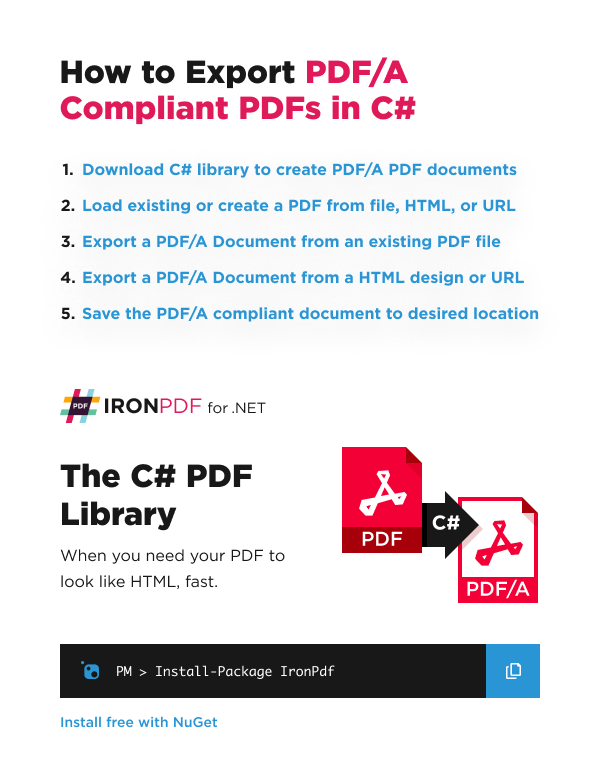
<h3>최소 워크플로우(4단계)</h3>
<img class="featured-snippet__image featured-snippet__image--float-right featured-snippet__image--new-template"
src="/static-assets/pdf/images/How-to-Export-PDFA-Compliant-Documents.webp" alt="IronPDF 라이브러리를 사용하여 C#에서 PDF/A 호환
문서를 생성하는 4단계 워크플로우 및 설치 명령어" />
<ol>
<li><a class="js-modal-open" data-modal-id="trial-license-after-download"
href="https://www.nuget.org/packages/IronPdf/">Download C# Library for Creating PDF/A Documents</a></li>
<li>기존 PDF 파일을 불러오거나 HTML/URL에서 렌더링합니다.</li>
<li>보관 요구 사항에 따라 PDF/A 버전을 선택하십시오.</li>
<li>PDF/A 규격 문서로 변환하여 저장하세요.</li>
</ol>
</div>
## IronPDF 어떤 PDF/A 버전을 지원하나요?
IronPDF 적합성 수준 A와 B를 지원합니다. 'A'는 '접근 가능'을, 'B'는 '기본'을 나타냅니다. 이러한 수준은 PDF/A-1, PDF/A-2 및 PDF/A-3 표준 전반에 걸쳐 제공됩니다. 아래 정보는 [Adobe의 PDF/A 관련 문서](https://www.adobe.com/uk/acrobat/resources/document-files/pdf-types/pdf-a.html) 에서 발췌한 것입니다. IronPDF 통해 생성되는 PDF 출력물의 기본 형식은 PDF/A-3B(ISO 19005-3)입니다.
- **레벨 A** 적합성은 모든 사양 요구 사항을 충족하여 신체 장애가 있는 사용자의 접근성을 향상시키는 보조 소프트웨어를 사용할 수 있도록 합니다.
- **레벨 B는** 최소한의 준수만 요구하며, 장기적인 시각적 외관 유지를 중점적으로 다루는 낮은 수준의 적합성을 나타냅니다.
### PDF/A-1, PDF/A-2, PDF/A-3의 차이점은 무엇인가요?
**PDF/A-1:** 원본 PDF 1.4 버전을 기반으로 합니다.
**PDF/A-2:** 2011년 7월 ISO 32001-1로 발표되었으며, PDF 버전 1.7까지의 모든 기능에 새로운 기능이 추가되었습니다. 스캔 문서에 대해 JPEG2000을 지원하며 사용자 지정 XMP 메타데이터에 대한 특정 요구 사항을 충족합니다. IronPDF [PDF 메타데이터를](https://ironpdf.com/how-to/metadata/) 처리할 때 XMP 메타데이터가 올바르게 처리되도록 보장합니다.
**PDF/A-3:** 레벨 2의 모든 요구 사항을 포함합니다. XML, CSV 및 워드 프로세싱 형식과 같은 추가 파일 형식을 PDF/A 규격 문서에 포함할 수 있습니다.
**PDF/A-4:** 2020년에 출시된 PDF/A 규격의 최신 버전입니다. PDF 2.0을 기반으로 하며, PDF/A-3에 비해 디지털 서명 지원 기능이 향상되는 등 개선된 기능을 제공합니다. 이 버전은 3D 모델 및 기타 복잡한 요소가 포함된 엔지니어링 문서와 기술 워크플로에 가장 적합합니다.
<div class="content-table dotnet-core-pdf-table">
<table>
<tbody>
<tr class="tr-head">
<th class="tcol1">특징</th>
<th class="tcol2">PDF/A-3</th>
<th class="tcol3">PDF/A-4</th>
</tr>
<tr>
<td>기본 PDF 버전</td>
<td>PDF 1.7</td>
<td>PDF 2.0</td>
</tr>
<tr>
<td>파일 첨부 파일</td>
<td>지원됨</td>
<td>지원되지 않음</td>
</tr>
<tr>
<td>디지털 서명</td>
<td>지원됨</td>
<td>향상된 지원</td>
</tr>
<tr>
<td>최적 활용 사례</td>
<td>송장, XML 데이터 삽입</td>
<td>엔지니어링, 3D 모델, 기술 워크플로우</td>
</tr>
</tbody>
</table>
</div>
[[i:(IronPDF는 아직 첨부 파일이 있는 PDF를 PDF/A-3B로 변환하는 것을 지원하지 않습니다.)]]
## 최신 PDF/A-4 표준으로 변환
PDF/A-4는 PDF/A 시리즈의 최신 규정 준수 표준입니다. 이는 특히 디지털 서명이 포함된 문서를 포함하여 다양한 유형의 문서에 가장 적합한 보관 형식으로 여겨집니다. 이 형식은 암호화 및 멀티미디어 요소를 허용하지 않아 각 파일이 완전히 독립적인 형태로 유지되도록 합니다.
기존 파일을 PDF/A-4 표준 형식으로 변환하는 것은 간단합니다.
```csharp
using IronPdf;

// Load an existing PDF
PdfDocument pdf = PdfDocument.FromFile("input.pdf");

// Save as PDF/A-4 compliant document
pdf.SaveAsPdfA("pdfa4-output.pdf", PdfAVersions.PdfA4);
```
## 기존 PDF 파일(PDF/A-3B)에서 추출
이 예제에서는 IronPDF를 사용하여 생성된 PDF 파일인 `wikipedia.pdf`을 사용합니다. 최적의 결과를 얻으려면 변환을 시작하기 전에 [라이선스 키를 올바르게 구성](https://ironpdf.com/how-to/license-keys/) 했는지 확인하십시오.
아래 코드는 파일을 PDF/A-3B 및 PDF/A-4 규격 형식으로 불러오고 다시 저장하여 두 표준과의 호환성을 보여줍니다.
### 변환 전 입력 PDF 파일은 어떤 모습인가요?
<iframe loading="lazy" src="/static-assets/pdf/how-to/pdfa/wikipedia.pdf#view=fit" width="100%" height="500px">
</iframe>
### 기존 PDF 파일을 PDF/A 형식으로 변환하는 코드는 무엇입니까?
```csharp
using IronPdf;
// Create a PdfDocument object or open any PDF File
PdfDocument pdf = PdfDocument.FromFile("wikipedia.pdf");
// Use the SaveAsPdfA method to save to file
pdf.SaveAsPdfA("pdf-a3-wikipedia.pdf", PdfAVersions.PdfA3b);
```
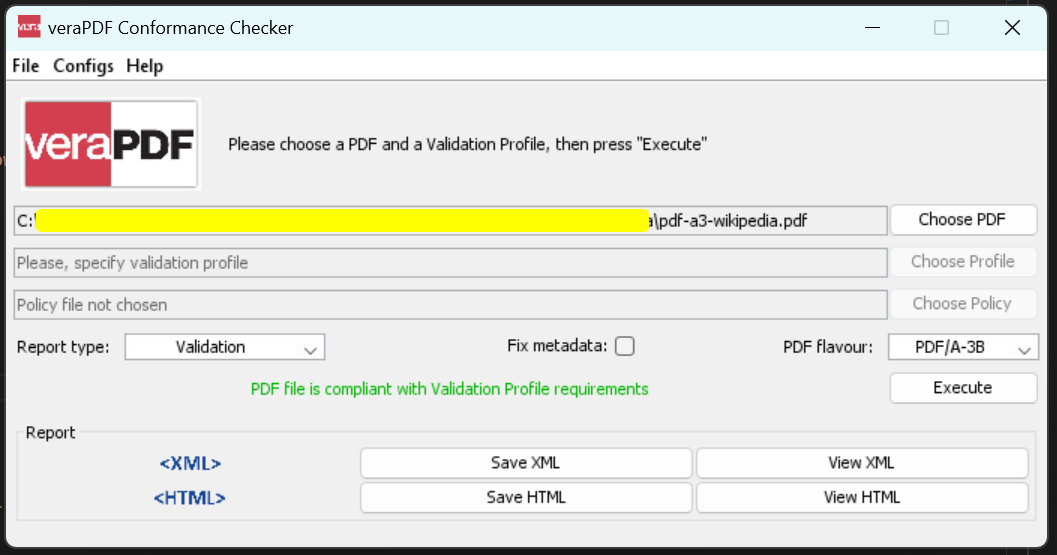
### PDF/A 변환이 성공적으로 완료되었는지 어떻게 확인할 수 있나요?
출력 파일은 PDF/A-3b 규격을 준수합니다.
<iframe loading="lazy" src="/static-assets/pdf/how-to/pdfa/pdf-a3-wikipedia.pdf#view=fit" width="100%" height="500px">
</iframe>
## HTML 디자인 또는 URL에서 가져온 이미지(PDF/A-3B)
이 예제에서는 IronPDF를 사용하여 HTML에서 PDF로 렌더링하기 위한 HTML 디자인 파일인 `design.html`을 사용하여 PDF/A 호환 파일로 내보냅니다. [HTML 파일을 PDF로 변환](https://ironpdf.com/how-to/html-file-to-pdf/)한 프로세스가 변환 중 모든 스타일링 및 서식을 유지합니다.
아래 코드는 출력을 PDF/A-3B 규격의 PDF 파일로 저장합니다.
### HTML 파일을 PDF/A 형식으로 변환하려면 어떻게 해야 하나요?
```csharp
using IronPdf;
// Use the Chrome Renderer to make beautiful HTML designs
var chromeRenderer = new ChromePdfRenderer();
// Render an HTML design as a PdfDocument object using Chrome
PdfDocument pdf = chromeRenderer.RenderHtmlAsPdf("design.html");
// Use the SaveAsPdfA method to save to file
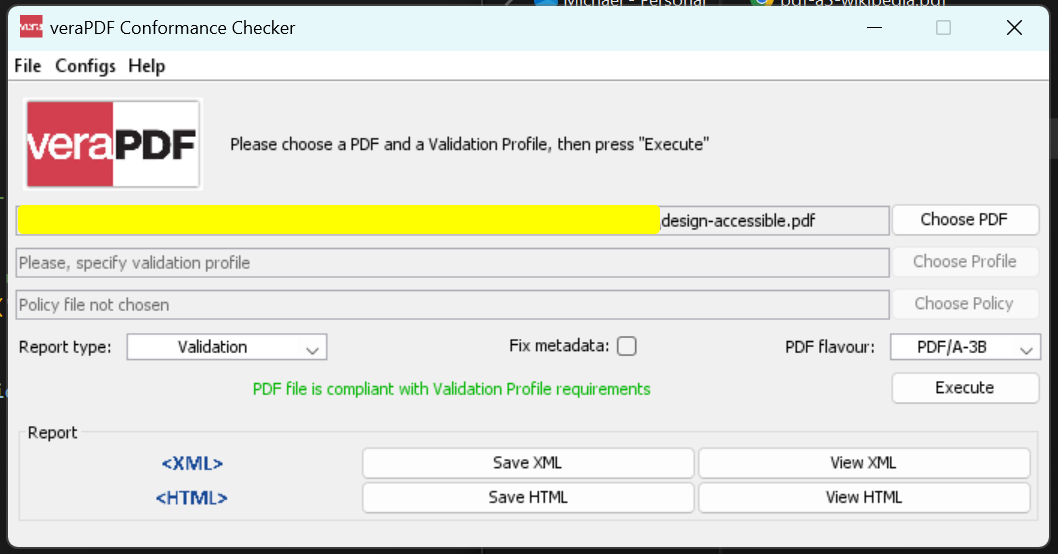
pdf.SaveAsPdfA("design-accessible.pdf", PdfAVersions.PdfA3b);
```
출력 파일은 PDF/A-3B 규격을 준수합니다.
### 웹사이트를 PDF/A 형식으로 변환하려면 어떻게 해야 하나요?
이 예제는 IronPDF를 사용하여 URL에서 PDF로 렌더링한 파일인 `https://www.microsoft.com`으로, 이를 PDF/A 호환 파일로 내보내고 변환 [URL에서 PDF로 변환](https://ironpdf.com/how-to/url-to-pdf/) 하여 JavaScript 및 CSS를 포함한 모든 웹 콘텐츠가 적절히 렌더링되도록 합니다.
아래 코드는 출력을 PDF/A-3B 규격의 PDF 파일로 저장합니다.
```csharp
using IronPdf;
// Use the Chrome Renderer to make beautiful HTML designs from URLs
var chromeRenderer = new ChromePdfRenderer();
// Render a Website as a PdfDocument object using Chrome
PdfDocument pdf = chromeRenderer.RenderUrlAsPdf("https://www.microsoft.com");
// Use the SaveAsPdfA method to save to file
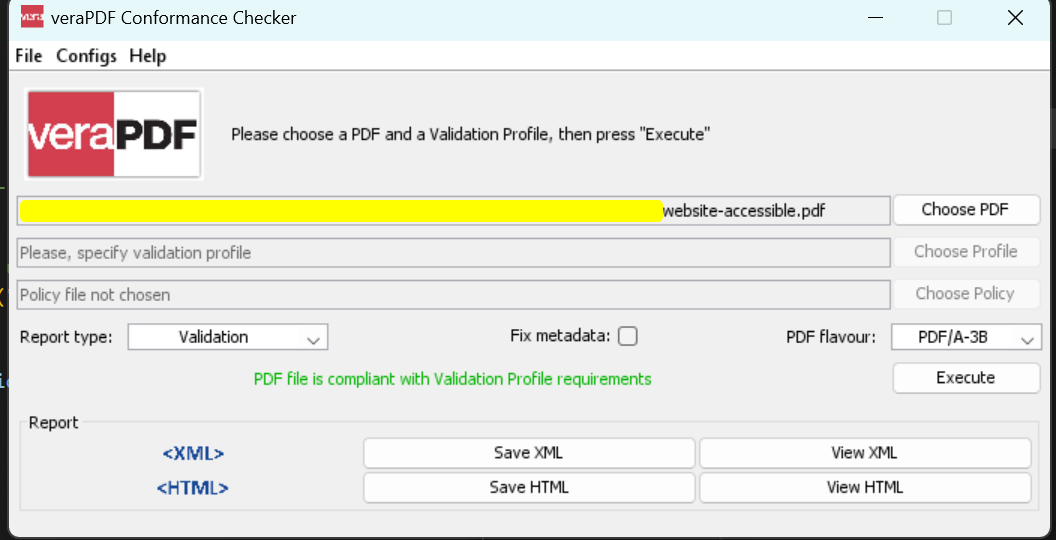
pdf.SaveAsPdfA("website-accessible.pdf", PdfAVersions.PdfA3b);
```
출력 파일은 PDF/A-3B 규격을 준수합니다.
---
## 첨부파일 삽입 지원 (PDF/A-3B)
IronPDF 파일 경로, 바이트 배열 또는 스트림을 사용하여 PDF/A 변환 중에 파일을 PDF 문서에 포함하는 기능을 지원합니다. 이 기능은 필요한 모든 보조 자료를 포함하는 독립적인 보관 문서를 생성합니다. PDF 편집의 고급 기능을 사용하려면 [PDF 편집 튜토리얼을](https://ironpdf.com/tutorials/csharp-edit-pdf-complete-tutorial/) 참조하세요.
[[i:(참고: 내장 파일 첨부는 PDF/A-3B에서만 지원됩니다. PDF/A-4는 첨부파일을 지원하지 않습니다.
)]]
### 파일 경로를 사용하여 삽입
파일 경로를 사용하여 파일을 포함시키세요. 파일 경로 모음이 제공되며, 이러한 파일은 PDF/A 변환 중에 첨부 파일로 포함됩니다.
```csharp
using IronPdf;
using System.Collections.Generic;
PdfDocument pdf = new PdfDocument("Google.pdf");
// Initialize collection of embed file as string of path
IEnumerable<string> embedPaths = new[] { "File1.xml", "File2.png" };
// Convert to Pdf/A-3B with embeded files
pdf.ConvertToPdfA(embedPaths);
```
### 바이트 배열을 사용하여 파일을 삽입하는 방법은 무엇인가요?
파일 내용을 바이트 배열로 제공하여 파일 형식과 함께 파일을 포함합니다. 파일이 이미 메모리에 로드되어 있을 때 유용합니다.
```csharp
using IronPdf;
using System.Collections.Generic;
using System.IO;
PdfDocument pdf = new PdfDocument("Google.pdf");
// Initialize collection of embed file as Bytes and their file type
byte[] fileData1 = File.ReadAllBytes("File1.png");
byte[] fileData2 = File.ReadAllBytes("File2.xml");
var embedFileConfig1 = new EmbedFileConfiguration(EmbedFileType.png);
embedFileConfig1.EmbedFileName = "logo.png";
var embedFileConfig2 = new EmbedFileConfiguration(EmbedFileType.xml)
{
EmbedFileName = "supportSystem.xml",
AFDesc = "Internal system",
ConformanceLevel = ConformanceLevel.XRECHNUNG,
SchemaNamespace = SchemaNamespace.Zugferd1,
SchemaPrefix = SchemaPrefix.rsm,
PropertyVersion = PropertyVersion.v1p0,
AFRelationship = AFRelationship.Supplement,
};
IEnumerable<EmbedFileByte> embedBytes = new[]
{
new EmbedFileByte(fileData1, embedFileConfig1),
new EmbedFileByte(fileData2, embedFileConfig2)
};
// Convert to Pdf/A-3B with embeded files
pdf.ConvertToPdfA(embedBytes).SaveAs("PdfACompliance.pdf");
```
### 스트림을 사용하여 파일을 임베드하는 방법은 무엇인가요?
파일 형식과 함께 콘텐츠를 스트림으로 임베드합니다. 파일 데이터가 스트림으로 처리될 때 이상적입니다.
```csharp
using IronPdf;
using System.Collections.Generic;
using System.IO;
PdfDocument pdf = new PdfDocument("Google.pdf");
// Initialize collection of embed file as Stream and their file type
Stream stream1 = new MemoryStream(File.ReadAllBytes("File1.png"));
Stream stream2 = new MemoryStream(File.ReadAllBytes("File2.xml"));
var embedFileConfig1 = new EmbedFileConfiguration(EmbedFileType.png);
embedFileConfig1.EmbedFileName = "logo.png";
var embedFileConfig2 = new EmbedFileConfiguration(EmbedFileType.xml)
{
EmbedFileName = "supportSystem.xml",
AFDesc = "Internal system",
ConformanceLevel = ConformanceLevel.XRECHNUNG,
SchemaNamespace = SchemaNamespace.Zugferd1,
SchemaPrefix = SchemaPrefix.rsm,
PropertyVersion = PropertyVersion.v1p0,
AFRelationship = AFRelationship.Supplement,
};
IEnumerable<EmbedFileStream> embedStreams = new[]
{
new EmbedFileStream(stream1, embedFileConfig1),
new EmbedFileStream(stream2, embedFileConfig2)
};
// Convert to Pdf/A-3B with embeded files
pdf.ConvertToPdfA(embedStreams).SaveAs("PdfACompliance.pdf");
```
### `EmbedFileConfiguration`으로 포함된 파일 속성을 어떻게 구성하나요?
내장 파일을 가진 `PdfDocument`를 PDF/A-3 형식으로 변환할 때, 파일 유형, 이름 및 사용자 정의 XMP 메타데이터를 지정하기 위해 `EmbedFilePath`, `EmbedFileByte`, 또는 `EmbedFileStream`과 같은 매개변수를 구성하십시오.
올바른 설정을 통해 내장된 콘텐츠가 효과적으로 구성되고 PDF/A-3 표준을 준수하도록 보장합니다. XMP 메타데이터를 사용자 지정하면 내장 파일에 대한 추가 정보를 제공할 수 있어 문서의 사용성과 접근성을 향상시킬 수 있습니다. `EmbedFileConfiguration` 클래스를 사용하여 개발자는 파일의 값과 형식을 쉽게 사용자 정의할 수 있습니다.
```csharp
var config = new EmbedFileConfiguration
{
EmbedFileName = "Attachment.xml",
AFDesc = "Associated File Description",
ConformanceLevel = ConformanceLevel.EN16931,
SchemaNamespace = SchemaNamespace.facturX,
SchemaPrefix = SchemaPrefix.fx,
PropertyVersion = PropertyVersion.v1,
AFRelationship = AFRelationship.Alternative
};
// Load a PDF document
var document = PdfDocument.FromFile("wikipedia.pdf");
// Configure embedded file parameters
document.EmbedFileFromFilePath("path/to/attachment", config);
// Save the document as PDF/A-3b
document.SaveAsPdfA3B("output-with-configured-attachment.pdf");
```
- `EmbedFileName`: PDF/A 문서에서 내장 파일 이름을 나타내는 `string` 속성입니다. 기본값은 빈 문자열입니다.
- `AFDesc`: 내장 파일에 대한 관련 파일 설명을 나타내는 `string` 속성입니다. 기본값은 빈 문자열입니다.
- `ConformanceLevel`: PDF/A 문서의 XMP 메타데이터에 적용되는 XML 파일 삽입 적합 수준입니다. 기본값은 `ConformanceLevel.EN16931`입니다. IronPDF는 `ConformanceLevel` 열거형을 통해 다양한 값을 제공합니다.
- `SchemaNamespace`: PDF/A 스키마 NamespaceURI는 XML 파일을 포함하고 PDF/A 문서의 XMP 메타데이터에 적용됩니다. 기본값은 `SchemaNamespace.facturX`이며, `SchemaNamespace` 열거형에 다양한 옵션이 있습니다.
- `SchemaPrefix`: PDF/A 스키마 접두어는 XML 파일을 삽입할 때 PDF/A 문서의 XMP 메타데이터에 적용됩니다. 기본값은 `SchemaPrefix.fx`이며, `SchemaPrefix` 열거형에 여러 옵션이 있습니다.
- `PropertyVersion`: PDF/A 문서의 XMP 메타데이터에 적용되는 XML 파일 삽입 속성의 버전입니다. 기본값은 `PropertyVersion.v1`이며, `PropertyVersion` 열거형에 여러 옵션이 있습니다.
- `AFRelationship`: PDF/A 문서에 대한 관련 파일(내장 파일)의 관계입니다. 여러 옵션이 `AFRelationship` 열거형에 있습니다.
## PDF/A에서 문자 표시 문제가 발생하는 원인은 무엇입니까?
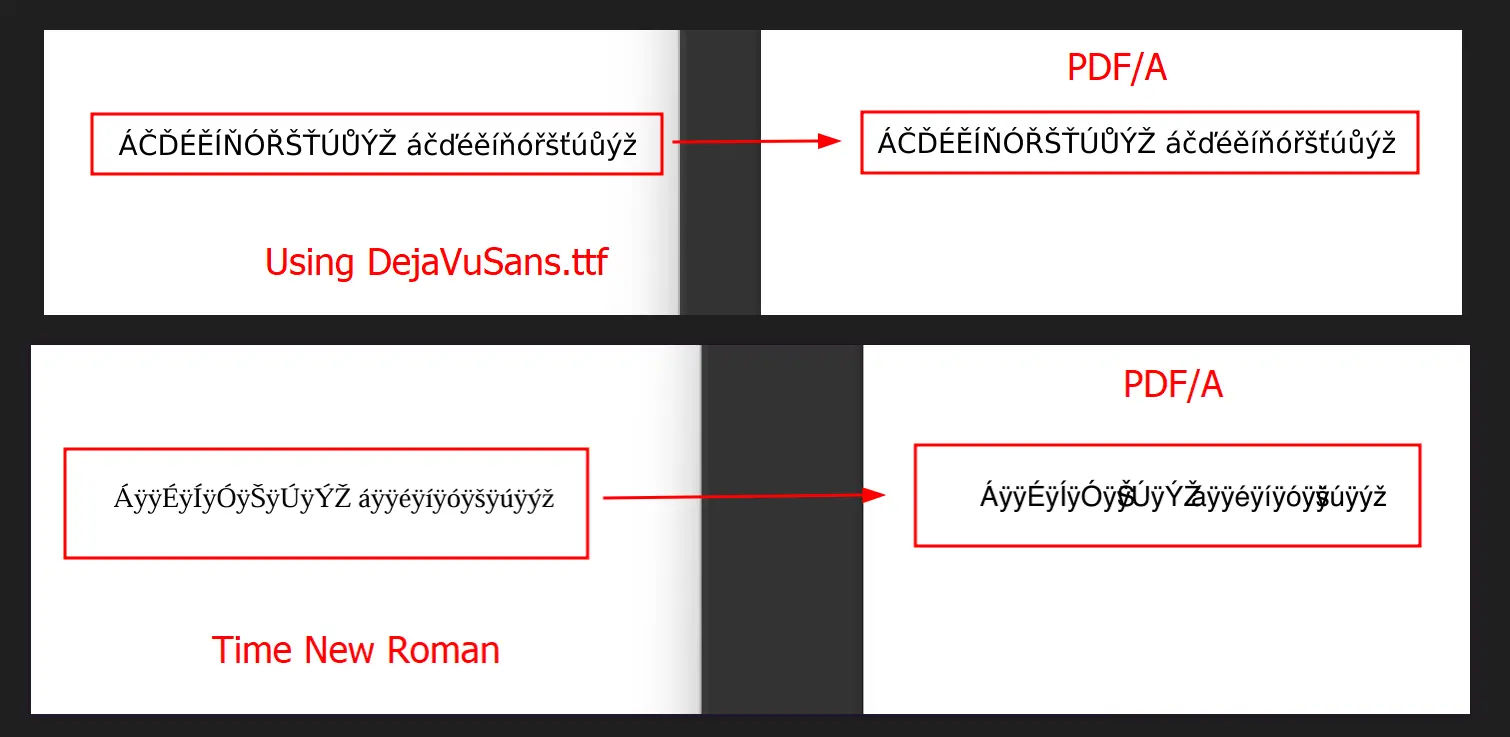
PDF/A 형식은 문서의 모든 문자가 시각적으로나 의미적으로 올바른 글꼴에 대응해야 합니다. 모든 글꼴을 포함할 필요는 없지만, 사용하는 글꼴은 필수 글리프를 지원해야 합니다. 잘못되었거나 불완전한 글꼴을 사용하면 특정 문자가 깨지거나 누락되거나 잘못 표시될 수 있습니다. 특히 특수 문자나 기호가 있는 언어에서 이러한 문제가 발생할 수 있습니다. 파일 크기 최적화를 위해서는 글꼴 포함과 파일 크기 사이의 균형을 맞추는 [PDF 압축 가이드를](https://ironpdf.com/how-to/pdf-compression/) 참조하세요.
### PDF/A 문서에서 일부 문자가 깨져서 나타나는 이유는 무엇입니까?
예를 들어, 아래 예시에서 위쪽 샘플은 올바른 글꼴을 사용하여 문자를 제대로 표시하는 반면, 아래쪽 샘플은 글꼴 불일치로 인해 문자가 제대로 표시되지 않습니다.
## 기존 PDF 파일(PDF/A-4)에서 추출
이 예시에서는 8페이지 분량의 지자체 환경 영향 평가 문서인 "ENV-2026-1847-Assessment-Report.pdf"를 사용합니다. 이 보고서는 환경 연구, 규제 관련 서류, 정부 기관이 수십 년 동안 보관해야 하는 규정 준수 기록 등 장기 보존이 필요한 공식 정부 문서를 보관하는 데 PDF/A-4 형식이 적합하다는 것을 보여줍니다.
PDF/A-4는 시간이 지나도 시각적 정확성을 보장하고, 모든 글꼴과 리소스를 포함하며, 공식 인증에 필요한 향상된 디지털 서명 기능을 지원하기 때문에 이러한 문서에 이상적입니다.
### 입력 파일: "ENV-2026-1847-Assessment-Report.pdf"
<iframe loading="lazy" src="/static-assets/pdf/how-to/pdfa/ENV-2026-1847-Assessment-Report.pdf#view=fit" width="100%" height="500px">
</iframe>
### 암호
```csharp
using IronPdf;
// Load the environmental impact assessment document
PdfDocument pdf = PdfDocument.FromFile("ENV-2026-1847-Assessment-Report.pdf");
// Save as PDF/A-4 compliant document for long-term archival
pdf.SaveAsPdfA("ENV-2026-1847-Report-PDFA4Compliant.pdf", PdfAVersions.PdfA4);
```
### 산출
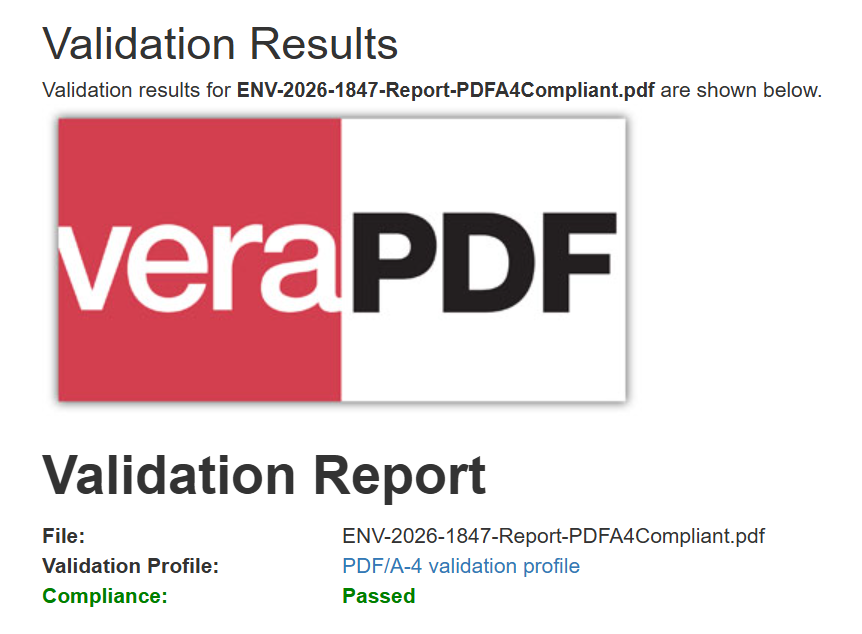
출력 파일은 PDF/A-4 규격을 준수합니다.
<iframe loading="lazy" src="/static-assets/pdf/how-to/pdfa/ENV-2026-1847-Report-PDFA4Compliant.pdf#view=fit" width="100%" height="500px">
</iframe>
당신이 할 수 있는 다른 일들을 알아볼 준비가 되셨나요? [PDF 생성 방법](https://ironpdf.com/how-to/create-new-pdfs/) 튜토리얼 페이지는 여기에서 확인하세요.
IronPDF PDF/A-3b 및 PDF/A-4 표준으로 PDF 내보내기를 지원합니다 . PDF/A-3B는 ISO PDF 사양의 엄격한 하위 집합으로, 문서의 보존 버전을 만들 때 사용되며, 저장 당시와 정확히 동일하게 표시되도록 하는 것을 목표로 합니다. PDF/A-4는 디지털 서명에 대한 향상된 지원을 제공하는 최신 규정 준수 표준입니다.
섹션 508 준수
IronPDF Google의 이니셔티브에 따라 PDF 아카이빙 및 접근성을 향상시켜 섹션 508 규정을 준수하도록 지원합니다. HTML을 PDF로 변환 할 때, 당사의 렌더링 엔진은 모든 접근성 기능을 유지합니다.
섹션 508 준수는 화면 판독기와 같은 보조 기술을 사용하는 장애인이 PDF 문서에 접근할 수 있도록 보장합니다. 섹션 508 표준을 충족하는 PDF/A 문서는 보관 기간 내내 콘텐츠에 대한 접근성을 보장합니다. 이러한 규정 준수는 정부 기관, 교육 기관 및 모든 사용자에게 정보에 대한 동등한 접근권을 제공하는 조직에 매우 중요합니다.
IronPDF 적합성 수준 A와 B를 지원합니다. 'A'는 '접근 가능'을, 'B'는 '기본'을 나타냅니다. 이러한 수준은 PDF/A-1, PDF/A-2 및 PDF/A-3 표준 전반에 걸쳐 제공됩니다. 아래 정보는 Adobe의 PDF/A 관련 문서 에서 발췌한 것입니다. IronPDF 통해 생성되는 PDF 출력물의 기본 형식은 PDF/A-3B(ISO 19005-3)입니다.
레벨 A 적합성은 모든 사양 요구 사항을 충족하여 신체 장애가 있는 사용자의 접근성을 향상시키는 보조 소프트웨어를 사용할 수 있도록 합니다.
레벨 B는 최소한의 준수만 요구하며, 장기적인 시각적 외관 유지를 중점적으로 다루는 낮은 수준의 적합성을 나타냅니다.
PDF/A-1, PDF/A-2, PDF/A-3의 차이점은 무엇인가요?
PDF/A-1: 원본 PDF 1.4 버전을 기반으로 합니다.
PDF/A-2: 2011년 7월 ISO 32001-1로 발표되었으며, PDF 버전 1.7까지의 모든 기능에 새로운 기능이 추가되었습니다. 스캔 문서에 대해 JPEG2000을 지원하며 사용자 지정 XMP 메타데이터에 대한 특정 요구 사항을 충족합니다. IronPDF PDF 메타데이터를 처리할 때 XMP 메타데이터가 올바르게 처리되도록 보장합니다.
PDF/A-3: 레벨 2의 모든 요구 사항을 포함합니다. XML, CSV 및 워드 프로세싱 형식과 같은 추가 파일 형식을 PDF/A 규격 문서에 포함할 수 있습니다.
PDF/A-4: 2020년에 출시된 PDF/A 규격의 최신 버전입니다. PDF 2.0을 기반으로 하며, PDF/A-3에 비해 디지털 서명 지원 기능이 향상되는 등 개선된 기능을 제공합니다. 이 버전은 3D 모델 및 기타 복잡한 요소가 포함된 엔지니어링 문서와 기술 워크플로에 가장 적합합니다.
특징
PDF/A-3
PDF/A-4
기본 PDF 버전
PDF 1.7
PDF 2.0
파일 첨부 파일
지원됨
지원되지 않음
디지털 서명
지원됨
향상된 지원
최적 활용 사례
송장, XML 데이터 삽입
엔지니어링, 3D 모델, 기술 워크플로우
참고해 주세요: IronPDF는 아직 첨부 파일이 있는 PDF를 PDF/A-3B로 변환하는 것을 지원하지 않습니다.
최신 PDF/A-4 표준으로 변환
PDF/A-4는 PDF/A 시리즈의 최신 규정 준수 표준입니다. 이는 특히 디지털 서명이 포함된 문서를 포함하여 다양한 유형의 문서에 가장 적합한 보관 형식으로 여겨집니다. 이 형식은 암호화 및 멀티미디어 요소를 허용하지 않아 각 파일이 완전히 독립적인 형태로 유지되도록 합니다.
기존 파일을 PDF/A-4 표준 형식으로 변환하는 것은 간단합니다.
using IronPdf;// Load an existing PDFPdfDocument pdf = PdfDocument.FromFile("input.pdf");// Save as PDF/A-4 compliant documentpdf.SaveAsPdfA("pdfa4-output.pdf", PdfAVersions.PdfA4);
using IronPdf;

// Load an existing PDF
PdfDocument pdf = PdfDocument.FromFile("input.pdf");

// Save as PDF/A-4 compliant document
pdf.SaveAsPdfA("pdfa4-output.pdf", PdfAVersions.PdfA4);
ImportsIronPdf' Load an existing PDFDim pdf AsPdfDocument = PdfDocument.FromFile("input.pdf")' Save as PDF/A-4 compliant documentpdf.SaveAsPdfA("pdfa4-output.pdf", PdfAVersions.PdfA4)
Imports IronPdf

' Load an existing PDF
Dim pdf As PdfDocument = PdfDocument.FromFile("input.pdf")

' Save as PDF/A-4 compliant document
pdf.SaveAsPdfA("pdfa4-output.pdf", PdfAVersions.PdfA4)
기존 PDF 파일(PDF/A-3B)에서 추출
이 예제에서는 IronPDF를 사용하여 생성된 PDF 파일인 wikipedia.pdf을 사용합니다. 최적의 결과를 얻으려면 변환을 시작하기 전에 라이선스 키를 올바르게 구성 했는지 확인하십시오.
아래 코드는 파일을 PDF/A-3B 및 PDF/A-4 규격 형식으로 불러오고 다시 저장하여 두 표준과의 호환성을 보여줍니다.
변환 전 입력 PDF 파일은 어떤 모습인가요?
기존 PDF 파일을 PDF/A 형식으로 변환하는 코드는 무엇입니까?
using IronPdf;// Create a PdfDocument object or open any PDF FilePdfDocument pdf = PdfDocument.FromFile("wikipedia.pdf");// Use the SaveAsPdfA method to save to filepdf.SaveAsPdfA("pdf-a3-wikipedia.pdf", PdfAVersions.PdfA3b);
using IronPdf;

// Create a PdfDocument object or open any PDF File
PdfDocument pdf = PdfDocument.FromFile("wikipedia.pdf");

// Use the SaveAsPdfA method to save to file
pdf.SaveAsPdfA("pdf-a3-wikipedia.pdf", PdfAVersions.PdfA3b);
ImportsIronPdf' Create a PdfDocument object or open any PDF FileDim pdf AsPdfDocument = PdfDocument.FromFile("wikipedia.pdf")' Use the SaveAsPdfA method to save to filepdf.SaveAsPdfA("pdf-a3-wikipedia.pdf", PdfAVersions.PdfA3b)
Imports IronPdf

' Create a PdfDocument object or open any PDF File
Dim pdf As PdfDocument = PdfDocument.FromFile("wikipedia.pdf")

' Use the SaveAsPdfA method to save to file
pdf.SaveAsPdfA("pdf-a3-wikipedia.pdf", PdfAVersions.PdfA3b)
PDF/A 변환이 성공적으로 완료되었는지 어떻게 확인할 수 있나요?
출력 파일은 PDF/A-3b 규격을 준수합니다.
HTML 디자인 또는 URL에서 가져온 이미지(PDF/A-3B)
이 예제에서는 IronPDF를 사용하여 HTML에서 PDF로 렌더링하기 위한 HTML 디자인 파일인 design.html을 사용하여 PDF/A 호환 파일로 내보냅니다. HTML 파일을 PDF로 변환한 프로세스가 변환 중 모든 스타일링 및 서식을 유지합니다.
아래 코드는 출력을 PDF/A-3B 규격의 PDF 파일로 저장합니다.
HTML 파일을 PDF/A 형식으로 변환하려면 어떻게 해야 하나요?
using IronPdf;// Use the Chrome Renderer to make beautiful HTML designsvar chromeRenderer = new ChromePdfRenderer();// Render an HTML design as a PdfDocument object using ChromePdfDocument pdf = chromeRenderer.RenderHtmlAsPdf("design.html");// Use the SaveAsPdfA method to save to filepdf.SaveAsPdfA("design-accessible.pdf", PdfAVersions.PdfA3b);
using IronPdf;

// Use the Chrome Renderer to make beautiful HTML designs
var chromeRenderer = new ChromePdfRenderer();

// Render an HTML design as a PdfDocument object using Chrome
PdfDocument pdf = chromeRenderer.RenderHtmlAsPdf("design.html");

// Use the SaveAsPdfA method to save to file
pdf.SaveAsPdfA("design-accessible.pdf", PdfAVersions.PdfA3b);
ImportsIronPdf' Use the Chrome Renderer to make beautiful HTML designsPrivate chromeRenderer = New ChromePdfRenderer()' Render an HTML design as a PdfDocument object using ChromePrivate pdf AsPdfDocument = chromeRenderer.RenderHtmlAsPdf("design.html")' Use the SaveAsPdfA method to save to filepdf.SaveAsPdfA("design-accessible.pdf", PdfAVersions.PdfA3b)
Imports IronPdf

' Use the Chrome Renderer to make beautiful HTML designs
Private chromeRenderer = New ChromePdfRenderer()

' Render an HTML design as a PdfDocument object using Chrome
Private pdf As PdfDocument = chromeRenderer.RenderHtmlAsPdf("design.html")

' Use the SaveAsPdfA method to save to file
pdf.SaveAsPdfA("design-accessible.pdf", PdfAVersions.PdfA3b)
출력 파일은 PDF/A-3B 규격을 준수합니다.
웹사이트를 PDF/A 형식으로 변환하려면 어떻게 해야 하나요?
이 예제는 IronPDF를 사용하여 URL에서 PDF로 렌더링한 파일인 https://www.microsoft.com으로, 이를 PDF/A 호환 파일로 내보내고 변환 URL에서 PDF로 변환 하여 JavaScript 및 CSS를 포함한 모든 웹 콘텐츠가 적절히 렌더링되도록 합니다.
아래 코드는 출력을 PDF/A-3B 규격의 PDF 파일로 저장합니다.
using IronPdf;// Use the Chrome Renderer to make beautiful HTML designs from URLsvar chromeRenderer = new ChromePdfRenderer();// Render a Website as a PdfDocument object using ChromePdfDocument pdf = chromeRenderer.RenderUrlAsPdf("https://www.microsoft.com");// Use the SaveAsPdfA method to save to filepdf.SaveAsPdfA("website-accessible.pdf", PdfAVersions.PdfA3b);
using IronPdf;

// Use the Chrome Renderer to make beautiful HTML designs from URLs
var chromeRenderer = new ChromePdfRenderer();

// Render a Website as a PdfDocument object using Chrome
PdfDocument pdf = chromeRenderer.RenderUrlAsPdf("https://www.microsoft.com");

// Use the SaveAsPdfA method to save to file
pdf.SaveAsPdfA("website-accessible.pdf", PdfAVersions.PdfA3b);
ImportsIronPdf' Use the Chrome Renderer to make beautiful HTML designs from URLsPrivate chromeRenderer = New ChromePdfRenderer()' Render a Website as a PdfDocument object using ChromePrivate pdf AsPdfDocument = chromeRenderer.RenderUrlAsPdf("https://www.microsoft.com")' Use the SaveAsPdfA method to save to filepdf.SaveAsPdfA("website-accessible.pdf", PdfAVersions.PdfA3b)
Imports IronPdf

' Use the Chrome Renderer to make beautiful HTML designs from URLs
Private chromeRenderer = New ChromePdfRenderer()

' Render a Website as a PdfDocument object using Chrome
Private pdf As PdfDocument = chromeRenderer.RenderUrlAsPdf("https://www.microsoft.com")

' Use the SaveAsPdfA method to save to file
pdf.SaveAsPdfA("website-accessible.pdf", PdfAVersions.PdfA3b)
출력 파일은 PDF/A-3B 규격을 준수합니다.
이 종류의 라이브러리 중 가장 좋아하는 것은 IronPDF입니다. PDF 파일을 빠르고 효율적으로 조작할 수 있습니다. 또한 PDF/A 형식으로 내보내기 및 PDF 문서의 디지털 서명과 같은 많은 유용한 기능을 가지고 있습니다.
IronPDF 파일 경로, 바이트 배열 또는 스트림을 사용하여 PDF/A 변환 중에 파일을 PDF 문서에 포함하는 기능을 지원합니다. 이 기능은 필요한 모든 보조 자료를 포함하는 독립적인 보관 문서를 생성합니다. PDF 편집의 고급 기능을 사용하려면 PDF 편집 튜토리얼을 참조하세요.
참고해 주세요: 참고: 내장 파일 첨부는 PDF/A-3B에서만 지원됩니다. PDF/A-4는 첨부파일을 지원하지 않습니다.
파일 경로를 사용하여 삽입
파일 경로를 사용하여 파일을 포함시키세요. 파일 경로 모음이 제공되며, 이러한 파일은 PDF/A 변환 중에 첨부 파일로 포함됩니다.
using IronPdf;using System.Collections.Generic;PdfDocument pdf = new PdfDocument("Google.pdf");// Initialize collection of embed file as string of pathIEnumerable<string> embedPaths = new[] { "File1.xml", "File2.png" };// Convert to Pdf/A-3B with embeded filespdf.ConvertToPdfA(embedPaths);
using IronPdf;
using System.Collections.Generic;

PdfDocument pdf = new PdfDocument("Google.pdf");

// Initialize collection of embed file as string of path
IEnumerable<string> embedPaths = new[] { "File1.xml", "File2.png" };

// Convert to Pdf/A-3B with embeded files
pdf.ConvertToPdfA(embedPaths);
ImportsIronPdfImportsSystem.Collections.GenericPrivate pdf As New PdfDocument("Google.pdf")' Initialize collection of embed file as string of pathPrivate embedPaths AsIEnumerable(OfString) = { "File1.xml", "File2.png" }' Convert to Pdf/A-3B with embeded filespdf.ConvertToPdfA(embedPaths)
Imports IronPdf
Imports System.Collections.Generic

Private pdf As New PdfDocument("Google.pdf")

' Initialize collection of embed file as string of path
Private embedPaths As IEnumerable(Of String) = { "File1.xml", "File2.png" }

' Convert to Pdf/A-3B with embeded files
pdf.ConvertToPdfA(embedPaths)
바이트 배열을 사용하여 파일을 삽입하는 방법은 무엇인가요?
파일 내용을 바이트 배열로 제공하여 파일 형식과 함께 파일을 포함합니다. 파일이 이미 메모리에 로드되어 있을 때 유용합니다.
using IronPdf;using System.Collections.Generic;using System.IO;PdfDocument pdf = new PdfDocument("Google.pdf");// Initialize collection of embed file as Bytes and their file typebyte[] fileData1 = File.ReadAllBytes("File1.png");byte[] fileData2 = File.ReadAllBytes("File2.xml");var embedFileConfig1 = new EmbedFileConfiguration(EmbedFileType.png);embedFileConfig1.EmbedFileName = "logo.png";var embedFileConfig2 = new EmbedFileConfiguration(EmbedFileType.xml){EmbedFileName = "supportSystem.xml",AFDesc = "Internal system",ConformanceLevel = ConformanceLevel.XRECHNUNG,SchemaNamespace = SchemaNamespace.Zugferd1,SchemaPrefix = SchemaPrefix.rsm,PropertyVersion = PropertyVersion.v1p0,AFRelationship = AFRelationship.Supplement,};IEnumerable<EmbedFileByte> embedBytes = new[]{ new EmbedFileByte(fileData1, embedFileConfig1), new EmbedFileByte(fileData2, embedFileConfig2)};// Convert to Pdf/A-3B with embeded filespdf.ConvertToPdfA(embedBytes).SaveAs("PdfACompliance.pdf");
using IronPdf;
using System.Collections.Generic;
using System.IO;


PdfDocument pdf = new PdfDocument("Google.pdf");

// Initialize collection of embed file as Bytes and their file type
byte[] fileData1 = File.ReadAllBytes("File1.png");
byte[] fileData2 = File.ReadAllBytes("File2.xml");

var embedFileConfig1 = new EmbedFileConfiguration(EmbedFileType.png);
embedFileConfig1.EmbedFileName = "logo.png";

var embedFileConfig2 = new EmbedFileConfiguration(EmbedFileType.xml)
{
    EmbedFileName = "supportSystem.xml",
    AFDesc = "Internal system",
    ConformanceLevel = ConformanceLevel.XRECHNUNG,
    SchemaNamespace = SchemaNamespace.Zugferd1,
    SchemaPrefix = SchemaPrefix.rsm,
    PropertyVersion = PropertyVersion.v1p0,
    AFRelationship = AFRelationship.Supplement,
};

IEnumerable<EmbedFileByte> embedBytes = new[]
{
    new EmbedFileByte(fileData1, embedFileConfig1),
    new EmbedFileByte(fileData2, embedFileConfig2)
};

// Convert to Pdf/A-3B with embeded files
pdf.ConvertToPdfA(embedBytes).SaveAs("PdfACompliance.pdf");
ImportsIronPdfImportsSystem.Collections.GenericImportsSystem.IOPrivate pdf As New PdfDocument("Google.pdf")' Initialize collection of embed file as Bytes and their file typePrivate fileData1() AsByte = File.ReadAllBytes("File1.png")Private fileData2() AsByte = File.ReadAllBytes("File2.xml")Private embedFileConfig1 = New EmbedFileConfiguration(EmbedFileType.png)embedFileConfig1.EmbedFileName = "logo.png"Dim embedFileConfig2 = New EmbedFileConfiguration(EmbedFileType.xml) With { .EmbedFileName = "supportSystem.xml", .AFDesc = "Internal system", .ConformanceLevel = ConformanceLevel.XRECHNUNG, .SchemaNamespace = SchemaNamespace.Zugferd1, .SchemaPrefix = SchemaPrefix.rsm, .PropertyVersion = PropertyVersion.v1p0, .AFRelationship = AFRelationship.Supplement}Dim embedBytes AsIEnumerable(OfEmbedFileByte) = { New EmbedFileByte(fileData1, embedFileConfig1), New EmbedFileByte(fileData2, embedFileConfig2)}' Convert to Pdf/A-3B with embeded filespdf.ConvertToPdfA(embedBytes).SaveAs("PdfACompliance.pdf")
Imports IronPdf
Imports System.Collections.Generic
Imports System.IO


Private pdf As New PdfDocument("Google.pdf")

' Initialize collection of embed file as Bytes and their file type
Private fileData1() As Byte = File.ReadAllBytes("File1.png")
Private fileData2() As Byte = File.ReadAllBytes("File2.xml")

Private embedFileConfig1 = New EmbedFileConfiguration(EmbedFileType.png)
embedFileConfig1.EmbedFileName = "logo.png"

Dim embedFileConfig2 = New EmbedFileConfiguration(EmbedFileType.xml) With {
	.EmbedFileName = "supportSystem.xml",
	.AFDesc = "Internal system",
	.ConformanceLevel = ConformanceLevel.XRECHNUNG,
	.SchemaNamespace = SchemaNamespace.Zugferd1,
	.SchemaPrefix = SchemaPrefix.rsm,
	.PropertyVersion = PropertyVersion.v1p0,
	.AFRelationship = AFRelationship.Supplement
}

Dim embedBytes As IEnumerable(Of EmbedFileByte) = {
	New EmbedFileByte(fileData1, embedFileConfig1),
	New EmbedFileByte(fileData2, embedFileConfig2)
}

' Convert to Pdf/A-3B with embeded files
pdf.ConvertToPdfA(embedBytes).SaveAs("PdfACompliance.pdf")
스트림을 사용하여 파일을 임베드하는 방법은 무엇인가요?
파일 형식과 함께 콘텐츠를 스트림으로 임베드합니다. 파일 데이터가 스트림으로 처리될 때 이상적입니다.
using IronPdf;using System.Collections.Generic;using System.IO;PdfDocument pdf = new PdfDocument("Google.pdf");// Initialize collection of embed file as Stream and their file typeStream stream1 = new MemoryStream(File.ReadAllBytes("File1.png"));Stream stream2 = new MemoryStream(File.ReadAllBytes("File2.xml"));var embedFileConfig1 = new EmbedFileConfiguration(EmbedFileType.png);embedFileConfig1.EmbedFileName = "logo.png";var embedFileConfig2 = new EmbedFileConfiguration(EmbedFileType.xml){EmbedFileName = "supportSystem.xml",AFDesc = "Internal system",ConformanceLevel = ConformanceLevel.XRECHNUNG,SchemaNamespace = SchemaNamespace.Zugferd1,SchemaPrefix = SchemaPrefix.rsm,PropertyVersion = PropertyVersion.v1p0,AFRelationship = AFRelationship.Supplement,};IEnumerable<EmbedFileStream> embedStreams = new[]{ new EmbedFileStream(stream1, embedFileConfig1), new EmbedFileStream(stream2, embedFileConfig2)};// Convert to Pdf/A-3B with embeded filespdf.ConvertToPdfA(embedStreams).SaveAs("PdfACompliance.pdf");
using IronPdf;
using System.Collections.Generic;
using System.IO;

PdfDocument pdf = new PdfDocument("Google.pdf");

// Initialize collection of embed file as Stream and their file type
Stream stream1 = new MemoryStream(File.ReadAllBytes("File1.png"));
Stream stream2 = new MemoryStream(File.ReadAllBytes("File2.xml"));

var embedFileConfig1 = new EmbedFileConfiguration(EmbedFileType.png);
embedFileConfig1.EmbedFileName = "logo.png";

var embedFileConfig2 = new EmbedFileConfiguration(EmbedFileType.xml)
{
    EmbedFileName = "supportSystem.xml",
    AFDesc = "Internal system",
    ConformanceLevel = ConformanceLevel.XRECHNUNG,
    SchemaNamespace = SchemaNamespace.Zugferd1,
    SchemaPrefix = SchemaPrefix.rsm,
    PropertyVersion = PropertyVersion.v1p0,
    AFRelationship = AFRelationship.Supplement,
};

IEnumerable<EmbedFileStream> embedStreams = new[]
{
    new EmbedFileStream(stream1, embedFileConfig1),
    new EmbedFileStream(stream2, embedFileConfig2)
};

// Convert to Pdf/A-3B with embeded files
pdf.ConvertToPdfA(embedStreams).SaveAs("PdfACompliance.pdf");
ImportsIronPdfImportsSystem.Collections.GenericImportsSystem.IOPrivate pdf As New PdfDocument("Google.pdf")' Initialize collection of embed file as Stream and their file typePrivate stream1 AsStream = New MemoryStream(File.ReadAllBytes("File1.png"))Private stream2 AsStream = New MemoryStream(File.ReadAllBytes("File2.xml"))Private embedFileConfig1 = New EmbedFileConfiguration(EmbedFileType.png)embedFileConfig1.EmbedFileName = "logo.png"Dim embedFileConfig2 = New EmbedFileConfiguration(EmbedFileType.xml) With { .EmbedFileName = "supportSystem.xml", .AFDesc = "Internal system", .ConformanceLevel = ConformanceLevel.XRECHNUNG, .SchemaNamespace = SchemaNamespace.Zugferd1, .SchemaPrefix = SchemaPrefix.rsm, .PropertyVersion = PropertyVersion.v1p0, .AFRelationship = AFRelationship.Supplement}Dim embedStreams AsIEnumerable(OfEmbedFileStream) = { New EmbedFileStream(stream1, embedFileConfig1), New EmbedFileStream(stream2, embedFileConfig2)}' Convert to Pdf/A-3B with embeded filespdf.ConvertToPdfA(embedStreams).SaveAs("PdfACompliance.pdf")
Imports IronPdf
Imports System.Collections.Generic
Imports System.IO

Private pdf As New PdfDocument("Google.pdf")

' Initialize collection of embed file as Stream and their file type
Private stream1 As Stream = New MemoryStream(File.ReadAllBytes("File1.png"))
Private stream2 As Stream = New MemoryStream(File.ReadAllBytes("File2.xml"))

Private embedFileConfig1 = New EmbedFileConfiguration(EmbedFileType.png)
embedFileConfig1.EmbedFileName = "logo.png"

Dim embedFileConfig2 = New EmbedFileConfiguration(EmbedFileType.xml) With {
	.EmbedFileName = "supportSystem.xml",
	.AFDesc = "Internal system",
	.ConformanceLevel = ConformanceLevel.XRECHNUNG,
	.SchemaNamespace = SchemaNamespace.Zugferd1,
	.SchemaPrefix = SchemaPrefix.rsm,
	.PropertyVersion = PropertyVersion.v1p0,
	.AFRelationship = AFRelationship.Supplement
}

Dim embedStreams As IEnumerable(Of EmbedFileStream) = {
	New EmbedFileStream(stream1, embedFileConfig1),
	New EmbedFileStream(stream2, embedFileConfig2)
}

' Convert to Pdf/A-3B with embeded files
pdf.ConvertToPdfA(embedStreams).SaveAs("PdfACompliance.pdf")
EmbedFileConfiguration으로 포함된 파일 속성을 어떻게 구성하나요?
내장 파일을 가진 PdfDocument를 PDF/A-3 형식으로 변환할 때, 파일 유형, 이름 및 사용자 정의 XMP 메타데이터를 지정하기 위해 EmbedFilePath, EmbedFileByte, 또는 EmbedFileStream과 같은 매개변수를 구성하십시오.
올바른 설정을 통해 내장된 콘텐츠가 효과적으로 구성되고 PDF/A-3 표준을 준수하도록 보장합니다. XMP 메타데이터를 사용자 지정하면 내장 파일에 대한 추가 정보를 제공할 수 있어 문서의 사용성과 접근성을 향상시킬 수 있습니다. EmbedFileConfiguration 클래스를 사용하여 개발자는 파일의 값과 형식을 쉽게 사용자 정의할 수 있습니다.
var config = new EmbedFileConfiguration{EmbedFileName = "Attachment.xml",AFDesc = "Associated File Description",ConformanceLevel = ConformanceLevel.EN16931,SchemaNamespace = SchemaNamespace.facturX,SchemaPrefix = SchemaPrefix.fx,PropertyVersion = PropertyVersion.v1,AFRelationship = AFRelationship.Alternative}; // Load a PDF document var document = PdfDocument.FromFile("wikipedia.pdf"); // Configure embedded file parameters document.EmbedFileFromFilePath("path/to/attachment", config); // Save the document as PDF/A-3b document.SaveAsPdfA3B("output-with-configured-attachment.pdf");
var config = new EmbedFileConfiguration
{
    EmbedFileName = "Attachment.xml",
    AFDesc = "Associated File Description",
    ConformanceLevel = ConformanceLevel.EN16931,
    SchemaNamespace = SchemaNamespace.facturX,
    SchemaPrefix = SchemaPrefix.fx,
    PropertyVersion = PropertyVersion.v1,
    AFRelationship = AFRelationship.Alternative
};

 // Load a PDF document
 var document = PdfDocument.FromFile("wikipedia.pdf");

 // Configure embedded file parameters
 document.EmbedFileFromFilePath("path/to/attachment", config);

 // Save the document as PDF/A-3b
 document.SaveAsPdfA3B("output-with-configured-attachment.pdf");
ImportsSystemDim config As New EmbedFileConfigurationWith { .EmbedFileName = "Attachment.xml", .AFDesc = "Associated File Description", .ConformanceLevel = ConformanceLevel.EN16931, .SchemaNamespace = SchemaNamespace.facturX, .SchemaPrefix = SchemaPrefix.fx, .PropertyVersion = PropertyVersion.v1, .AFRelationship = AFRelationship.Alternative}' Load a PDF documentDim document = PdfDocument.FromFile("wikipedia.pdf")' Configure embedded file parametersdocument.EmbedFileFromFilePath("path/to/attachment", config)' Save the document as PDF/A-3bdocument.SaveAsPdfA3B("output-with-configured-attachment.pdf")
Imports System

Dim config As New EmbedFileConfiguration With {
    .EmbedFileName = "Attachment.xml",
    .AFDesc = "Associated File Description",
    .ConformanceLevel = ConformanceLevel.EN16931,
    .SchemaNamespace = SchemaNamespace.facturX,
    .SchemaPrefix = SchemaPrefix.fx,
    .PropertyVersion = PropertyVersion.v1,
    .AFRelationship = AFRelationship.Alternative
}

' Load a PDF document
Dim document = PdfDocument.FromFile("wikipedia.pdf")

' Configure embedded file parameters
document.EmbedFileFromFilePath("path/to/attachment", config)

' Save the document as PDF/A-3b
document.SaveAsPdfA3B("output-with-configured-attachment.pdf")
EmbedFileName: PDF/A 문서에서 내장 파일 이름을 나타내는 string 속성입니다. 기본값은 빈 문자열입니다.
AFDesc: 내장 파일에 대한 관련 파일 설명을 나타내는 string 속성입니다. 기본값은 빈 문자열입니다.
ConformanceLevel: PDF/A 문서의 XMP 메타데이터에 적용되는 XML 파일 삽입 적합 수준입니다. 기본값은 ConformanceLevel.EN16931입니다. IronPDF는 ConformanceLevel 열거형을 통해 다양한 값을 제공합니다.
SchemaNamespace: PDF/A 스키마 NamespaceURI는 XML 파일을 포함하고 PDF/A 문서의 XMP 메타데이터에 적용됩니다. 기본값은 SchemaNamespace.facturX이며, SchemaNamespace 열거형에 다양한 옵션이 있습니다.
SchemaPrefix: PDF/A 스키마 접두어는 XML 파일을 삽입할 때 PDF/A 문서의 XMP 메타데이터에 적용됩니다. 기본값은 SchemaPrefix.fx이며, SchemaPrefix 열거형에 여러 옵션이 있습니다.
PropertyVersion: PDF/A 문서의 XMP 메타데이터에 적용되는 XML 파일 삽입 속성의 버전입니다. 기본값은 PropertyVersion.v1이며, PropertyVersion 열거형에 여러 옵션이 있습니다.
AFRelationship: PDF/A 문서에 대한 관련 파일(내장 파일)의 관계입니다. 여러 옵션이 AFRelationship 열거형에 있습니다.
PDF/A에서 문자 표시 문제가 발생하는 원인은 무엇입니까?
PDF/A 형식은 문서의 모든 문자가 시각적으로나 의미적으로 올바른 글꼴에 대응해야 합니다. 모든 글꼴을 포함할 필요는 없지만, 사용하는 글꼴은 필수 글리프를 지원해야 합니다. 잘못되었거나 불완전한 글꼴을 사용하면 특정 문자가 깨지거나 누락되거나 잘못 표시될 수 있습니다. 특히 특수 문자나 기호가 있는 언어에서 이러한 문제가 발생할 수 있습니다. 파일 크기 최적화를 위해서는 글꼴 포함과 파일 크기 사이의 균형을 맞추는 PDF 압축 가이드를 참조하세요.
PDF/A 문서에서 일부 문자가 깨져서 나타나는 이유는 무엇입니까?
예를 들어, 아래 예시에서 위쪽 샘플은 올바른 글꼴을 사용하여 문자를 제대로 표시하는 반면, 아래쪽 샘플은 글꼴 불일치로 인해 문자가 제대로 표시되지 않습니다.
기존 PDF 파일(PDF/A-4)에서 추출
이 예시에서는 8페이지 분량의 지자체 환경 영향 평가 문서인 "ENV-2026-1847-Assessment-Report.pdf"를 사용합니다. 이 보고서는 환경 연구, 규제 관련 서류, 정부 기관이 수십 년 동안 보관해야 하는 규정 준수 기록 등 장기 보존이 필요한 공식 정부 문서를 보관하는 데 PDF/A-4 형식이 적합하다는 것을 보여줍니다.
PDF/A-4는 시간이 지나도 시각적 정확성을 보장하고, 모든 글꼴과 리소스를 포함하며, 공식 인증에 필요한 향상된 디지털 서명 기능을 지원하기 때문에 이러한 문서에 이상적입니다.
입력 파일: "ENV-2026-1847-Assessment-Report.pdf"
암호
using IronPdf;// Load the environmental impact assessment documentPdfDocument pdf = PdfDocument.FromFile("ENV-2026-1847-Assessment-Report.pdf");// Save as PDF/A-4 compliant document for long-term archivalpdf.SaveAsPdfA("ENV-2026-1847-Report-PDFA4Compliant.pdf", PdfAVersions.PdfA4);
using IronPdf;

// Load the environmental impact assessment document
PdfDocument pdf = PdfDocument.FromFile("ENV-2026-1847-Assessment-Report.pdf");

// Save as PDF/A-4 compliant document for long-term archival
pdf.SaveAsPdfA("ENV-2026-1847-Report-PDFA4Compliant.pdf", PdfAVersions.PdfA4);
ImportsIronPdf' Load the environmental impact assessment documentDim pdf AsPdfDocument = PdfDocument.FromFile("ENV-2026-1847-Assessment-Report.pdf")' Save as PDF/A-4 compliant document for long-term archivalpdf.SaveAsPdfA("ENV-2026-1847-Report-PDFA4Compliant.pdf", PdfAVersions.PdfA4)
Imports IronPdf

' Load the environmental impact assessment document
Dim pdf As PdfDocument = PdfDocument.FromFile("ENV-2026-1847-Assessment-Report.pdf")

' Save as PDF/A-4 compliant document for long-term archival
pdf.SaveAsPdfA("ENV-2026-1847-Report-PDFA4Compliant.pdf", PdfAVersions.PdfA4)
산출
출력 파일은 PDF/A-4 규격을 준수합니다.
당신이 할 수 있는 다른 일들을 알아볼 준비가 되셨나요? PDF 생성 방법 튜토리얼 페이지는 여기에서 확인하세요.
자주 묻는 질문
C#에서 일반 PDF 파일을 PDF/A-3b 형식으로 변환하는 방법은 무엇인가요?
IronPDF를 사용하면 단 두 줄의 코드로 모든 표준 PDF 파일을 PDF/A-3b 형식으로 변환할 수 있습니다. PdfDocument.FromFile()을 사용하여 PDF 파일을 불러온 다음 SaveAsPdfA()를 호출하여 장기 보관을 위한 PDF/A-3b 규격 문서로 내보내면 됩니다.
PDF/A-3b란 무엇이며 문서 보관에 왜 중요한가요?
PDF/A-3b는 장기 문서 보존을 위해 설계된 ISO PDF 규격의 엄격한 하위 집합입니다. IronPDF는 PDF/A-3b 내보내기를 지원하여 문서가 저장된 그대로 정확하게 표시되도록 보장하므로 문서 무결성이 중요한 법률, 정부 및 기록 보관 용도에 이상적입니다.
PDF/A 변환은 접근성 관련 규정인 섹션 508을 준수합니까?
네, IronPDF는 Google Chromium의 렌더링 엔진을 사용하여 Google의 접근성 기능을 계승함으로써 섹션 508 규정을 준수합니다. 즉, 화면 낭독기와 같은 보조 기술을 사용하는 장애 사용자도 PDF/A 문서를 이용할 수 있습니다.
HTML 콘텐츠를 PDF/A 형식으로 직접 변환할 수 있나요?
물론입니다! IronPDF를 사용하면 HTML 콘텐츠 또는 URL을 PDF/A-3b 형식으로 직접 변환할 수 있습니다. Google Chromium 렌더링 엔진은 HTML을 PDF로 변환하는 동안 모든 접근성 기능을 유지하므로, 변환된 PDF/A 문서가 모든 규정을 준수하도록 보장합니다.
표준 PDF 형식 대신 PDF/A-3b 형식을 사용하는 주요 이점은 무엇입니까?
IronPDF의 PDF/A-3b 내보내기 기능은 장기 보존, 모든 뷰어에서의 일관된 렌더링, 섹션 508 접근성 규정 준수 및 ISO 아카이빙 표준 준수를 보장합니다. 따라서 법률 문서, 정부 기록 및 영구 보존이 필요한 모든 콘텐츠에 적합합니다.
Does IronPDF allow embedding files within PDF/A documents?
IronPDF supports embedding files in PDF/A-3B documents using file paths, byte arrays, or streams. This feature is useful for creating self-contained archival documents with all necessary supporting materials included.
What steps are involved in converting PDFs to PDF/A format using IronPDF?
The process involves downloading the IronPDF library, loading an existing PDF or rendering from HTML/URL, selecting the desired PDF/A version, and finally converting and saving the document as a PDF/A-compliant file.
How can IronPDF help solve character display issues in PDF/A documents?
Character display issues often arise due to incorrect font mappings. IronPDF ensures that appropriate fonts supporting required glyphs are used, preventing broken or missing characters and maintaining the document's visual integrity over time.
What types of documents benefit from conversion to PDF/A-4 using IronPDF?
PDF/A-4 is suitable for documents that require long-term preservation, such as engineering documents, environmental studies, regulatory filings, and compliance records. IronPDF ensures these documents remain visually consistent and digitally signed if needed.
Why is PDF/A compliance important for archival and regulatory documents?
PDF/A compliance is crucial for ensuring that documents can be reliably preserved and rendered over time. It meets legal and regulatory requirements for document archiving and ensures accessibility and integrity for future access.
커티스 차우는 칼턴 대학교에서 컴퓨터 과학 학사 학위를 취득했으며, Node.js, TypeScript, JavaScript, React를 전문으로 하는 프론트엔드 개발자입니다. 직관적이고 미적으로 뛰어난 사용자 인터페이스를 만드는 데 열정을 가진 그는 최신 프레임워크를 활용하고, 잘 구성되고 시각적으로 매력적인 매뉴얼을 제작하는 것을 즐깁니다.