# A Developer's Guide to Digitally Signing PDFs with C#
이 종합 가이드는 C# 개발자가 IronPDF 사용하여 PDF에 디지털 서명을 하는 방법을 보여줍니다. 문서의 진위성과 보안을 보장하기 위해 인증서 기반 서명, 시각적 스탬프 및 대화형 양식 필드를 다룹니다.
PDF 문서에 서명을 추가하는 것은 많은 애플리케이션에서 흔히 요구되는 사항이지만, "서명"이라는 단어는 상황에 따라 다양한 의미를 가질 수 있습니다. 어떤 사람들에게는 보안 인증서를 사용하여 위변조 방지 디지털 서명을 적용하는 것이 중요합니다. 다른 경우에는 문서에 시각적인 손글씨 서명 이미지를 찍거나 사용자가 전자 서명을 할 수 있는 대화형 양식 필드를 추가하는 것일 수도 있습니다.
이 가이드는 C# 개발자가 [IronPDF .NET용 라이브러리를](https://ironpdf.com/) 사용하여 이러한 모든 작업을 수행하는 방법에 대한 포괄적인 단계별 지침을 제공합니다. 우리는 안전한 `X509Certificate2` 디지털 서명 적용부터 그래픽 서명 도장 및 상호작용 서명 필드 생성까지 모든 것을 다루고 PDF 문서가 진본성이 있고 안전하며 전문적으로 보이도록 합니다.
*as-heading:2(빠른 시작: IronPDF 사용하여 PDF에 간편하게 디지털 서명하기 )*
IronPDF 사용하면 간단하고 직관적인 과정을 통해 PDF 문서에 디지털 서명을 빠르게 시작할 수 있습니다. 이 예제는 .pfx 인증서를 사용하여 PDF 파일을 인증하고 서명하는 방법을 보여주며, 이를 통해 문서의 무결성과 진위성을 보장합니다. 다음 단계를 따라 디지털 서명 기능을 애플리케이션에 원활하게 통합하세요.
```cs
:title=Digitally sign your PDF in one line!
IronPdf.PdfDocument.FromFile("input.pdf").SignWithFile("certificate.pfx", "password").SaveAs("signed.pdf");
```
<div class="hsg-featured-snippet">
<h3>최소 워크플로우(5단계)</h3>
<img class="featured-snippet__image featured-snippet__image--float-right featured-snippet__image--new-template" src="https://ironpdf.com/static-assets/pdf/images/How-to-Digitally-Sign-a-PDF-Document.webp" alt="설치 명령어와 함께 C#에서 PDF 파일에 디지털 서명하는 5단계를 보여주는 IronPDF 튜토리얼" />
<ol>
<li><a class="js-modal-open" data-modal-id="trial-license-after-download" href="https://www.nuget.org/packages/IronPdf/">.NET 용 IronPDF 라이브러리를 설치하세요.</a></li>
<li><code>X509Certificate2</code> 객체를 사용하여 디지털 서명을 적용합니다.</li>
<li>디지털 서명을 나타내는 시각적 이미지를 추가하세요.</li>
<li>PDF 파일에 그래픽 서명이나 손글씨 서명을 찍으세요.</li>
<li>전자 서명을 위한 대화형 서명 양식 필드를 추가합니다.</li>
</ol>
</div>
## 인증서가 포함된 PDF 파일에 디지털 서명을 적용하는 방법은 무엇인가요?
디지털 인증서 파일(예: `.pfx` 또는 `.p12`)을 사용하여 PDF 문서에 디지털 서명을 적용하여 문서의 진본성과 무결성을 보장할 수 있습니다. 이 과정을 통해 문서가 서명된 이후로 변경되지 않았음을 확인할 수 있습니다. 디지털 서명 기능에 대한 완벽한 개요를 보려면 당사의 [종합적인 디지털 서명 가이드를](https://ironpdf.com/how-to/signing/) 참조하십시오.
IronPDF 이러한 목적을 위해 간편한 API를 제공하며, 디지털 서명을 적용하는 다양한 방법을 지원합니다. 이 기능의 핵심은 서명을 위한 모든 메타데이터를 포함하고 있는 인증서를 캡슐화한 `PdfSignature` 클래스와 관련이 있습니다.
<table class="tg">
<thead>
<tr>
<th class="tg-fymr">서명 방식</th>
<th class="tg-u0o7">설명</th>
</tr>
</thead>
<tbody>
<tr>
<td class="tg-0pky"><code>서명</code></td>
<td class="tg-0pky">사용자가 생성하고 구성한 <strong><code>PdfSignature</code> 객체를</strong> 사용하여 PDF에 서명합니다.</td>
</tr>
<tr>
<td class="tg-0pky"><code>파일로 서명</code></td>
<td class="tg-0pky">디스크에 저장된 디지털 서명 인증서 파일( <code>.pfx</code> 또는 <code>.p12</code> )을 사용하여 PDF에 서명합니다.</td>
</tr>
<tr>
<td class="tg-0pky"><code>스토어로 서명</code></td>
<td class="tg-0pky">컴퓨터의 인증서 저장소에 있는 <strong>지문 ID</strong> 로 식별되는 디지털 서명을 사용하여 PDF에 서명합니다.</td>
</tr>
</tbody>
</table>
### `X509Certificate2` 객체 사용
최대 제어를 위해서는 인증서 파일에서 `X509Certificate2` 객체를 생성할 수 있습니다. IronPDF는 디지털 서명 구현을 위한 강력하고 안전한 방법을 제공하는 `X509Certificate2` 표준을 완전히 준수합니다. 인증서 객체를 생성할 때, 기본 암호화 API에서 요구되는 `X509KeyStorageFlags`을 `Exportable`으로 설정해야 합니다. 우리의 코드 저장소에서 [디지털 서명의 실제 예제](https://ironpdf.com/examples/digitally-sign-a-pdf/)를 확인하십시오.
```shell
:ProductInstall
```
```csharp
using IronPdf;
using IronPdf.Signing;
using System.Security.Cryptography.X509Certificates;

// Create a new PDF from an HTML string for demonstration.
var renderer = new ChromePdfRenderer();
var pdf = renderer.RenderHtmlAsPdf("<h1>Signed Document</h1><p>This document has been digitally signed.</p>");

// Load the certificate from a .pfx file with its password.
// The X509KeyStorageFlags.Exportable flag is crucial for allowing the private key to be used in the signing process.
var cert = new X509Certificate2("IronSoftware.pfx", "123456", X509KeyStorageFlags.Exportable);

// Create a PdfSignature object using the loaded certificate.
var signature = new PdfSignature(cert);

// Apply the signature to the PDF document.
pdf.Sign(signature);

// Save the securely signed PDF document.
pdf.SaveAs("Signed.pdf");
```
위 코드는 먼저 간단한 PDF 파일을 생성합니다. 그런 다음 `.pfx` 인증서 파일을 `X509Certificate2` 객체에 로드합니다. 디지털 신원을 나타내는 이 객체는 `PdfSignature` 생성자로 전달됩니다. 마지막으로, `pdf.Sign` 메서드는 문서에 서명을 적용하기 전에 저장합니다. For more information on the `X509Certificate2` class, you can refer to the official [Microsoft documentation](https://learn.microsoft.com/en-us/dotnet/api/system.security.cryptography.x509certificates.x509certificate2.-ctor "null").
### 디지털 서명에 세부 정보 추가하기
디지털 서명에는 인증서 외에도 더 많은 내용이 포함될 수 있습니다. 서명에 대한 맥락을 제공하기 위해 풍부한 메타데이터를 삽입할 수 있습니다. 여기에는 서명 장소, 서명 사유, 연락처 정보, 그리고 신뢰할 수 있는 기관에서 발급한 보안 타임스탬프가 포함됩니다. 문서의 추가 속성에 대한 [메타데이터를 설정하고 편집할](https://ironpdf.com/how-to/metadata/) 수도 있습니다.
이러한 세부 정보를 추가하면 문서의 감사 추적 기능이 향상되고 검증자에게 유용한 정보를 제공합니다. IronPDF는 최신 `SHA256` 및 `SHA512` 해시 알고리즘을 사용하는 타임스탬프 서버도 지원합니다.
```csharp
using IronPdf;
using IronPdf.Signing;
using IronSoftware.Drawing;
using System;
// Load an existing PDF document to be signed.
var pdf = PdfDocument.FromFile("invoice.pdf");
// Create a PdfSignature object directly from the certificate file and password.
var signature = new PdfSignature("IronSoftware.pfx", "123456");
// Add detailed metadata to the signature for a comprehensive audit trail.
// These properties enhance the signature's credibility and provide context
signature.SignatureDate = DateTime.Now;
signature.SigningContact = "legal@ironsoftware.com";
signature.SigningLocation = "Chicago, USA";
signature.SigningReason = "Contractual Agreement";
// Add a secure timestamp from a trusted Time Stamp Authority (TSA).
// This provides cryptographic proof of the signing time.
signature.TimeStampUrl = "http://timestamp.digicert.com";
signature.TimestampHashAlgorithm = TimestampHashAlgorithms.SHA256;
// Apply a visual appearance to the signature. (More on this in the next section)
signature.SignatureImage = new PdfSignatureImage("assets/visual-signature.png", 0, new Rectangle(350, 750, 200, 100));
// Sign the PDF document with the configured signature object.
pdf.Sign(signature);
// Save the final, signed PDF document.
pdf.SaveAs("DetailedSignature.pdf");
```
일부 PDF 뷰어에서는 서명 인증서가 시스템의 신뢰 저장소에 없는 경우 경고 아이콘이 표시될 수 있습니다. 녹색 체크 표시를 받으려면 해당 인증서를 사용자의 신뢰할 수 있는 ID 목록에 추가해야 합니다.
## 디지털 서명에 시각적 표현을 추가하려면 어떻게 해야 하나요?
디지털 서명은 암호화 방식으로 PDF 파일에 내장되지만, 페이지에 시각적으로 표현하는 것이 유용한 경우가 많습니다. 회사 로고, 손글씨 서명 이미지 또는 기타 그래픽을 사용할 수 있습니다. IronPDF는 `PdfSignature` 객체에 이미지를 추가하는 것을 쉽게 만들었습니다.
파일이나 스트림에서 이미지를 불러와 PDF의 어느 페이지에든 정확한 위치에 배치할 수 있습니다. 지원되는 이미지 형식에는 PNG, JPEG, GIF, BMP, TIFF 및 WebP가 있습니다. 이 기술은 PDF 문서에 [텍스트와 이미지를 삽입하는](https://ironpdf.com/how-to/stamp-text-image/) 방식과 유사합니다.
```csharp
using IronPdf.Signing;
using IronSoftware.Drawing;
// This example demonstrates various ways to add a visual image to a PDF signature.
// Create a PdfSignature object.
var signature = new PdfSignature("IronSoftware.pfx", "123456");
// Define the position and size for the signature image on the first page (index 0).
// Rectangle parameters: x position, y position, width, height
var signatureRectangle = new Rectangle(350, 750, 200, 100);
// Option 1: Set the SignatureImage property directly.
// This is the most straightforward approach
signature.SignatureImage = new PdfSignatureImage("assets/visual-signature.png", 0, signatureRectangle);
// Option 2: Use the LoadSignatureImageFromFile method.
// This method provides the same functionality with a different syntax
signature.LoadSignatureImageFromFile("assets/visual-signature.png", 0, signatureRectangle);
// Option 3: Load an image from a stream. This is useful for images generated in memory.
// Perfect for scenarios where images are retrieved from databases or web services
AnyBitmap image = AnyBitmap.FromFile("assets/visual-signature.png");
using (var imageStream = image.ToStream())
{
signature.LoadSignatureImageFromStream(imageStream, 0, signatureRectangle);
}
// After configuring the signature image, apply it to a PDF.
var pdf = PdfDocument.FromFile("invoice.pdf");
pdf.Sign(signature);
pdf.SaveAs("VisualSignature.pdf");
```
이 코드는 디지털 서명에 시각적 요소를 추가하는 세 가지 동일한 방법을 보여줍니다. 디스크에 이미지가 있든 메모리에 이미지가 있든, 서명 과정의 일부로 PDF에 이미지를 쉽게 삽입할 수 있습니다. 이는 눈에 보이지 않는 암호화 보안과 눈에 보이는 문서 승인 사이의 간극을 메워줍니다.
## 서명 후 문서 권한을 어떻게 관리할 수 있나요?
문서에 서명할 때, 나중에 허용되는 변경 사항이 있다면 무엇인지 명시하고 싶을 수도 있습니다. 예를 들어, 문서를 완전히 잠그거나 사용자가 양식 필드만 입력하도록 허용하고 싶을 수 있습니다. IronPDF는 `SignaturePermissions` 열거형을 사용하여 이러한 권한을 설정할 수 있도록 합니다. 보다 고급 권한 제어에 대해서는 [PDF 암호 및 권한 설정](https://ironpdf.com/how-to/pdf-permissions-passwords/) 가이드를 참조하십시오.
서명 권한 설정은 문서 수명 주기 관리에 있어 핵심적인 부분입니다. 이는 서명 후에도 문서의 무결성이 귀하의 규칙에 따라 유지되도록 보장합니다. 사용자가 허용되지 않는 작업을 수행하면 서명이 무효화됩니다.
<table class="tg"> <thead> <tr> <th class="tg-u0o7">`SignaturePermissions` 회원</th> <th class="tg-u0o7">정의</th> </tr> </thead> <tbody> <tr> <td class="tg-0pky">`수정 불가`</td> <td class="tg-0pky">어떠한 변경도 허용되지 않습니다. 문서가 사실상 잠겨 있습니다.</td> </tr> <tr> <td class="tg-0pky">`양식 채우기 허용됨`</td> <td class="tg-0pky">기존 양식 항목을 작성하고 서명하는 것만 허용됩니다.</td> </tr> <tr> <td class="tg-0pky">`주석 및 양식 작성 허용`</td> <td class="tg-0pky">양식 작성, 서명, 주석 생성 또는 수정이 가능합니다.</td> </tr> </tbody> </table>
### 특정 PDF 수정본 저장 및 서명
PDF 파일은 버전 관리 시스템처럼 변경 이력을 저장할 수 있습니다. 이를 점진적 저축이라고 합니다. PDF 파일에 서명하면 해당 서명은 문서의 특정 버전에만 적용됩니다. 이는 문서가 여러 승인 단계를 거치는 워크플로에 매우 중요합니다. [PDF 수정 내역](https://ironpdf.com/how-to/revision-history/) 관리 방법에 대한 자세한 내용은 상세 가이드를 참조하세요.
다음 예시에서는 PDF 파일을 불러와 편집한 후 현재 수정본에 서명하고, 향후 변경 사항으로는 양식 작성만 허용합니다. 현재 상태를 문서의 기록에 커밋하여 파일을 저장하기 전에 `SaveAsRevision`을 사용합니다.
`GetRevision`
증분 저장 방식을 이해하는 것은 고급 PDF 워크플로의 핵심입니다. 단순 뷰어는 최신 버전만 보여줄 수 있지만, Adobe Acrobat과 같은 도구는 전체 수정 내역을 보여주어 누가 어떤 버전에 서명했는지, 서명 사이에 어떤 변경 사항이 있었는지까지 확인할 수 있습니다. IronPDF 이 프로세스를 완벽하게 프로그래밍 방식으로 제어할 수 있도록 해줍니다.
높은 수준의 보안과 규정 준수가 요구되는 복잡한 문서 워크플로우를 관리하는 기업의 경우, 포괄적인 솔루션이 필요할 수 있습니다. Iron Software 서명 및 조작을 위한 IronPDF 비롯하여 다양한 문서 처리 작업을 위한 여러 라이브러리를 포함하는 [Iron Suite](https://ironsoftware.com/suite/) 를 일회성 결제로 제공합니다.
### 여러 버전에 걸쳐 서명을 관리하고 검증하려면 어떻게 해야 하나요?
PDF 문서에는 여러 수정 버전에 걸쳐 여러 서명을 적용할 수 있습니다. IronPDF 이러한 이력을 효과적으로 관리할 수 있는 도구를 제공합니다.
- **이전 수정으로 롤백**: `RollBackToRevision` 메서드를 사용하여 문서를 이전 상태로 되돌릴 수 있습니다. 이렇게 하면 해당 수정 이후에 이루어진 모든 변경 사항과 서명이 삭제됩니다.
- **모든 서명 검증**: `VerifyAllSignatures` 메서드는 문서의 모든 수정 이력의 모든 서명 유효성을 검사합니다. 모든 서명이 유효하고 무단 변경이 없는 경우에만 `SignatureStatus.Valid`을 반환합니다.
- **서명 제거**: `RemoveSignatures` 메서드는 문서의 모든 개정판에서 모든 디지털 서명을 제거하여 깨끗하고 서명되지 않은 버전을 생성합니다.
```csharp
// Load a PDF with a complex signature history.
var pdf = PdfDocument.FromFile("multi_signed_report.pdf");
// Verify all signatures across all revisions.
// This ensures document integrity throughout its entire history
bool allSignaturesValid = pdf.VerifySignatures();
Console.WriteLine($"All signatures are valid: {allSignaturesValid}");
// Roll back to the first revision (index 0).
// Useful for reviewing the original document state
if (pdf.RevisionCount > 1)
{
PdfDocument firstRevision = pdf.GetRevision(0);
firstRevision.SaveAs("report_first_revision.pdf");
}
// Create a completely unsigned version of the document.
// This removes all digital signatures while preserving content
pdf.RemoveSignatures();
pdf.SaveAs("report_unsigned.pdf");
```
## PDF 파일에 자필 서명을 찍으려면 어떻게 해야 하나요?
때로는 디지털 서명의 암호화 보안이 필요하지 않고, 스캔한 손글씨 서명과 같은 시각적인 전자 서명만 적용하고 싶을 때가 있습니다. 이것은 흔히 스탬핑이라고 불립니다. IronPDF는 `Watermark` 또는 `Stamp` 기능을 사용하여 이를 수행할 수 있습니다. 더욱 고급스러운 워터마크 옵션을 원하시면 [맞춤 워터마크 가이드를](https://ironpdf.com/how-to/custom-watermark/) 참조하세요.
샘플 송장 PDF와 필기 서명의 `.png` 이미지를 사용하여 시작해 보겠습니다.
`VerifySignatures`
<iframe loading="lazy" src="/static-assets/pdf/how-to/signing/invoice.pdf#view=fit" width="100%" height="500px"> </iframe>
서명 날인 전 원본 송장 PDF 파일입니다.
다음은 저희가 적용할 서명 이미지입니다:

손으로 쓴 서명 샘플 이미지입니다.
다음 코드는 `SignatureImage` 속성을 사용하여 이 이미지를 PDF의 오른쪽 하단 모서리에 도장합니다.
```csharp
using IronPdf;
using IronPdf.Editing;
// Load the existing PDF document.
var pdf = PdfDocument.FromFile("invoice.pdf");
// Create an HtmlStamper containing our signature image.
// HtmlStamper allows us to position HTML content precisely on the page
var signatureStamp = new HtmlStamper("<img src='assets/signature.png'/>")
{
// Configure the stamp's position and appearance.
VerticalAlignment = VerticalAlignment.Bottom,
HorizontalAlignment = HorizontalAlignment.Right,
HorizontalOffset = new Length(-10, MeasurementUnit.Pixel), // Add some space from the edge.
VerticalOffset = new Length(-10, MeasurementUnit.Pixel),
Opacity = 90 // Make it slightly transparent for a more authentic look.
};
// Apply the stamp to all pages of the PDF.
// You can also specify specific page numbers if needed
pdf.ApplyStamp(signatureStamp);
// Save the modified PDF document.
pdf.SaveAs("official_invoice.pdf");
```
### 스탬프가 찍힌 PDF 결과물은 어떤 모습인가요?
코드를 실행하면 서명 이미지가 문서에 찍혀 시각적으로 서명된 송장이 생성됩니다.
<iframe loading="lazy" src="/static-assets/pdf/how-to/signing/official_invoice.pdf#view=fit" width="100%" height="500px"> </iframe>
최종 PDF 파일에는 오른쪽 하단에 자필 서명 이미지가 찍혀 있습니다.
## PDF에 대화형 서명 필드를 추가하려면 어떻게 해야 하나요?
Adobe Acrobat과 같은 PDF 뷰어에서 최종 사용자가 서명해야 하는 문서의 경우, 대화형 서명 양식 필드를 추가할 수 있습니다. 이렇게 하면 사용자가 직접 디지털 서명을 입력할 수 있는 빈 클릭 영역이 생성됩니다. PDF 양식에 대한 자세한 안내는 [PDF 양식 만들기 튜토리얼을](https://ironpdf.com/how-to/create-forms/) 참조하세요.
PDF의 폼 컬렉션에 추가할 `SignatureFormField`을 생성할 수 있습니다. 페이지에서 해당 요소의 위치와 크기를 정확하게 제어할 수 있습니다. 이 기능은 여러 명의 서명이 필요한 문서나 외부 관계자의 서명을 받아야 할 때 특히 유용합니다.
`true``RemoveSignatures`
```csharp
using IronPdf.Forms;
using IronSoftware.Drawing;
// Create a new PDF to add the signature field to.
var renderer = new ChromePdfRenderer();
var pdf = renderer.RenderHtmlAsPdf("<h1>Please Sign Below</h1>");
// Define the properties for the signature form field.
string fieldName = "ClientSignature"; // Unique identifier for the field
int pageIndex = 0; // Add to the first page (zero-indexed)
var fieldRect = new Rectangle(50, 200, 300, 100); // Position: (x, y), Size: (width, height)
// Create the SignatureFormField object.
// This creates an interactive field that users can click to sign
var signatureField = new SignatureFormField(fieldName, pageIndex, fieldRect);
// Add the signature field to the PDF's form.
pdf.Form.Add(signatureField);
// Save the PDF with the new interactive signature field.
pdf.SaveAs("interactive_signature.pdf");
```
사용자가 이 PDF 파일을 열면, 자신의 디지털 ID를 사용하여 서명 절차를 완료할 수 있는 클릭 가능한 필드가 표시됩니다. [PDF 양식 생성 가이드에서 대화형 양식 생성 및 관리 방법](/how-to/create-forms/) 에 대해 자세히 알아볼 수 있습니다.
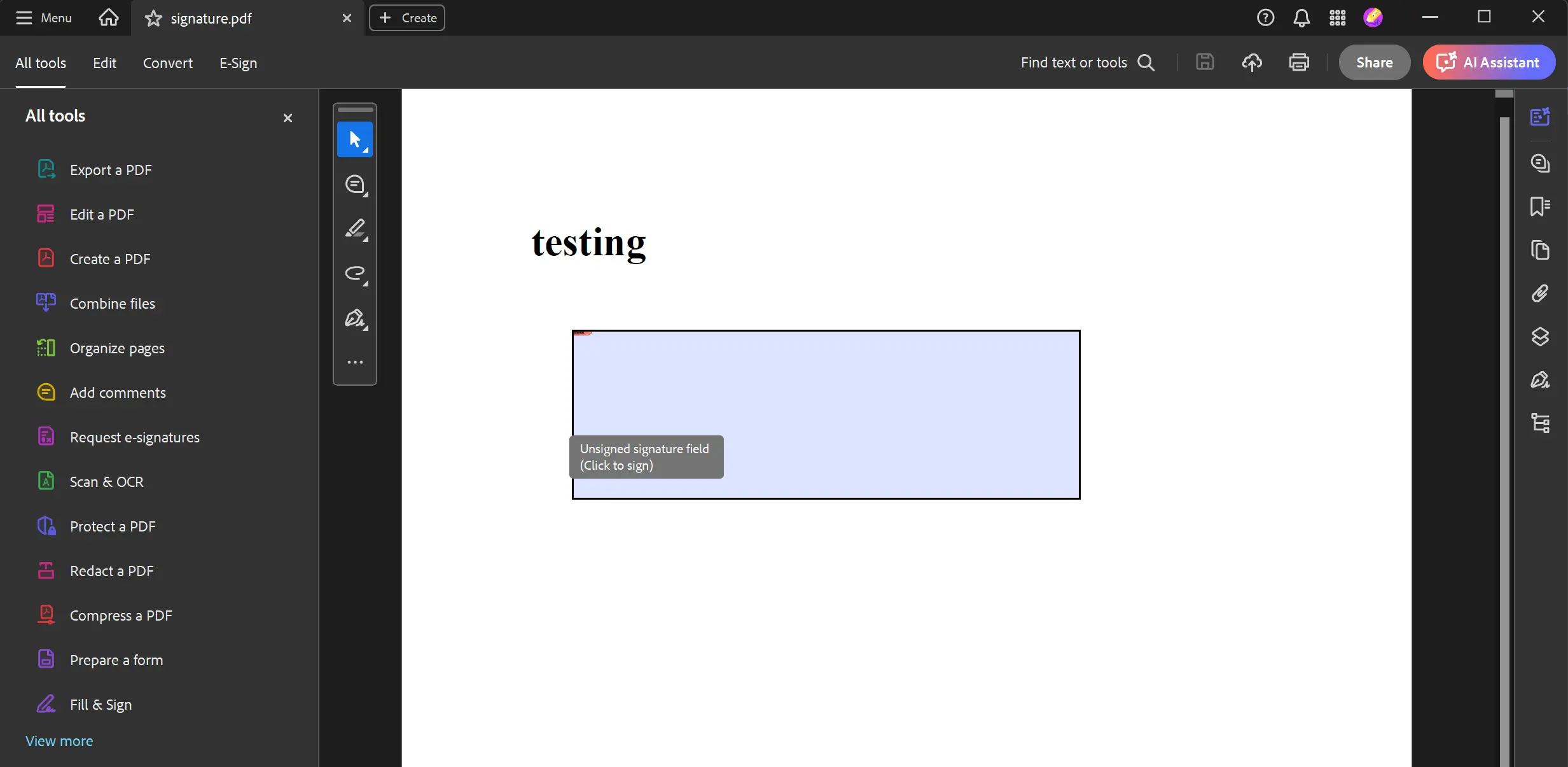
PDF 문서에 프로그램으로 추가되는 서명되지 않은 대화형 서명 필드입니다.
## 검증된 서명에서 서명자 이름을 어떻게 확인할 수 있나요?
서명을 만든 인증서 소유자의 일반 이름을 얻기 위해 우리는 `VerifiedSignature` 클래스를 사용하여 `SignerName` 속성에 접근할 수 있습니다. 다음은 이를 수행하는 방법을 보여주는 코드 조각입니다.
```cs
using IronPdf;
using System;
// Import the Signed PDF report
var pdf = PdfDocument.FromFile("multi_signed_report.pdf");
// Using GetVerifiedSignatures() obtain a list of `VerifiedSignature` objects from the PDF
pdf.GetVerifiedSignatures().ForEach(signature =>
{
// Print out the SignerName of each `VerifiedSignature` object
Console.WriteLine($"SignatureName: {signature.SignerName}");
});
```
서명된 PDF 파일을 가져온 후, 보고서 내의 `VerifiedSignature` 객체 목록을 검색하고 각 서명의 `SignerName`을 인쇄하기 위해 `GetSignatures(...)` 메서드를 활용합니다.
`GetVerifiedSignatures``SignerName`
이 값은 인증서의 주체 고유 이름(SubjectDN)에서 추출되며, CN 필드가 없는 경우 null을 반환합니다.
## IronPDF 이용한 PDF 서명의 다음 단계는 무엇인가요?
이 가이드에서는 IronPDF 의 강력하고 유연한 PDF 서명 기능을 살펴보았습니다. 상세한 메타데이터를 포함한 안전한 디지털 서명 적용, 문서 수정 관리, 시각적 서명 스탬프 생성 또는 대화형 양식 생성 등 어떤 작업이 필요하든 IronPDF 포괄적이고 개발자 친화적인 API를 제공하여 필요한 모든 작업을 수행할 수 있도록 지원합니다.
더 자세히 알아보려면 [.NET 용 IronPDF 라이브러리를](download-modal) 다운로드하고 [무료 평가판 라이선스를](trial-license) 받아 프로젝트에서 모든 기능을 테스트해 볼 수 있습니다. [주석 추가](https://ironpdf.com/how-to/annotations/) 및 양식 필드 작업 등 고급 문서 조작 기술에 대해서는 자세한 설명서와 튜토리얼을 참조하십시오.
당신이 할 수 있는 다른 일들을 알아볼 준비가 되셨나요? [PDF 서명 및 보안 설정 방법에 대한](https://ironpdf.com/tutorials/csharp-pdf-security-complete-tutorial/) 튜토리얼 페이지를 여기에서 확인하세요.
이 종합 가이드는 C# 개발자가 IronPDF 사용하여 PDF에 디지털 서명을 하는 방법을 보여줍니다. 문서의 진위성과 보안을 보장하기 위해 인증서 기반 서명, 시각적 스탬프 및 대화형 양식 필드를 다룹니다.
PDF 문서에 서명을 추가하는 것은 많은 애플리케이션에서 흔히 요구되는 사항이지만, "서명"이라는 단어는 상황에 따라 다양한 의미를 가질 수 있습니다. 어떤 사람들에게는 보안 인증서를 사용하여 위변조 방지 디지털 서명을 적용하는 것이 중요합니다. 다른 경우에는 문서에 시각적인 손글씨 서명 이미지를 찍거나 사용자가 전자 서명을 할 수 있는 대화형 양식 필드를 추가하는 것일 수도 있습니다.
이 가이드는 C# 개발자가 IronPDF .NET용 라이브러리를 사용하여 이러한 모든 작업을 수행하는 방법에 대한 포괄적인 단계별 지침을 제공합니다. 우리는 안전한 X509Certificate2 디지털 서명 적용부터 그래픽 서명 도장 및 상호작용 서명 필드 생성까지 모든 것을 다루고 PDF 문서가 진본성이 있고 안전하며 전문적으로 보이도록 합니다.
빠른 시작: IronPDF 사용하여 PDF에 간편하게 디지털 서명하기
IronPDF 사용하면 간단하고 직관적인 과정을 통해 PDF 문서에 디지털 서명을 빠르게 시작할 수 있습니다. 이 예제는 .pfx 인증서를 사용하여 PDF 파일을 인증하고 서명하는 방법을 보여주며, 이를 통해 문서의 무결성과 진위성을 보장합니다. 다음 단계를 따라 디지털 서명 기능을 애플리케이션에 원활하게 통합하세요.
디지털 인증서 파일(예: .pfx 또는 .p12)을 사용하여 PDF 문서에 디지털 서명을 적용하여 문서의 진본성과 무결성을 보장할 수 있습니다. 이 과정을 통해 문서가 서명된 이후로 변경되지 않았음을 확인할 수 있습니다. 디지털 서명 기능에 대한 완벽한 개요를 보려면 당사의 종합적인 디지털 서명 가이드를 참조하십시오.
IronPDF 이러한 목적을 위해 간편한 API를 제공하며, 디지털 서명을 적용하는 다양한 방법을 지원합니다. 이 기능의 핵심은 서명을 위한 모든 메타데이터를 포함하고 있는 인증서를 캡슐화한 PdfSignature 클래스와 관련이 있습니다.
서명 방식
설명
서명
사용자가 생성하고 구성한 PdfSignature 객체를 사용하여 PDF에 서명합니다.
파일로 서명
디스크에 저장된 디지털 서명 인증서 파일( .pfx 또는 .p12 )을 사용하여 PDF에 서명합니다.
스토어로 서명
컴퓨터의 인증서 저장소에 있는 지문 ID 로 식별되는 디지털 서명을 사용하여 PDF에 서명합니다.
X509Certificate2 객체 사용
최대 제어를 위해서는 인증서 파일에서 X509Certificate2 객체를 생성할 수 있습니다. IronPDF는 디지털 서명 구현을 위한 강력하고 안전한 방법을 제공하는 X509Certificate2 표준을 완전히 준수합니다. 인증서 객체를 생성할 때, 기본 암호화 API에서 요구되는 X509KeyStorageFlags을 Exportable으로 설정해야 합니다. 우리의 코드 저장소에서 디지털 서명의 실제 예제를 확인하십시오.
PM > Install-Package IronPdf
Install-Package IronPdf
using IronPdf;using IronPdf.Signing;using System.Security.Cryptography.X509Certificates;// Create a new PDF from an HTML string for demonstration.var renderer = new ChromePdfRenderer();var pdf = renderer.RenderHtmlAsPdf("<h1>Signed Document</h1><p>This document has been digitally signed.</p>");// Load the certificate from a .pfx file with its password.// The X509KeyStorageFlags.Exportable flag is crucial for allowing the private key to be used in the signing process.var cert = new X509Certificate2("IronSoftware.pfx", "123456", X509KeyStorageFlags.Exportable);// Create a PdfSignature object using the loaded certificate.var signature = new PdfSignature(cert);// Apply the signature to the PDF document.pdf.Sign(signature);// Save the securely signed PDF document.pdf.SaveAs("Signed.pdf");
using IronPdf;
using IronPdf.Signing;
using System.Security.Cryptography.X509Certificates;

// Create a new PDF from an HTML string for demonstration.
var renderer = new ChromePdfRenderer();
var pdf = renderer.RenderHtmlAsPdf("<h1>Signed Document</h1><p>This document has been digitally signed.</p>");

// Load the certificate from a .pfx file with its password.
// The X509KeyStorageFlags.Exportable flag is crucial for allowing the private key to be used in the signing process.
var cert = new X509Certificate2("IronSoftware.pfx", "123456", X509KeyStorageFlags.Exportable);

// Create a PdfSignature object using the loaded certificate.
var signature = new PdfSignature(cert);

// Apply the signature to the PDF document.
pdf.Sign(signature);

// Save the securely signed PDF document.
pdf.SaveAs("Signed.pdf");
ImportsIronPdfImportsIronPdf.SigningImportsSystem.Security.Cryptography.X509Certificates' Create a new PDF from an HTML string for demonstration.Private renderer = New ChromePdfRenderer()Private pdf = renderer.RenderHtmlAsPdf("<h1>Signed Document</h1><p>This document has been digitally signed.</p>")' Load the certificate from a .pfx file with its password.' The X509KeyStorageFlags.Exportable flag is crucial for allowing the private key to be used in the signing process.Private cert = New X509Certificate2("IronSoftware.pfx", "123456", X509KeyStorageFlags.Exportable)' Create a PdfSignature object using the loaded certificate.Private signature = New PdfSignature(cert)' Apply the signature to the PDF document.pdf.Sign(signature)' Save the securely signed PDF document.pdf.SaveAs("Signed.pdf")
Imports IronPdf
Imports IronPdf.Signing
Imports System.Security.Cryptography.X509Certificates

' Create a new PDF from an HTML string for demonstration.
Private renderer = New ChromePdfRenderer()
Private pdf = renderer.RenderHtmlAsPdf("<h1>Signed Document</h1><p>This document has been digitally signed.</p>")

' Load the certificate from a .pfx file with its password.
' The X509KeyStorageFlags.Exportable flag is crucial for allowing the private key to be used in the signing process.
Private cert = New X509Certificate2("IronSoftware.pfx", "123456", X509KeyStorageFlags.Exportable)

' Create a PdfSignature object using the loaded certificate.
Private signature = New PdfSignature(cert)

' Apply the signature to the PDF document.
pdf.Sign(signature)

' Save the securely signed PDF document.
pdf.SaveAs("Signed.pdf")
위 코드는 먼저 간단한 PDF 파일을 생성합니다. 그런 다음 .pfx 인증서 파일을 X509Certificate2 객체에 로드합니다. 디지털 신원을 나타내는 이 객체는 PdfSignature 생성자로 전달됩니다. 마지막으로, pdf.Sign 메서드는 문서에 서명을 적용하기 전에 저장합니다. For more information on the X509Certificate2 class, you can refer to the official Microsoft documentation.
디지털 서명에 세부 정보 추가하기
디지털 서명에는 인증서 외에도 더 많은 내용이 포함될 수 있습니다. 서명에 대한 맥락을 제공하기 위해 풍부한 메타데이터를 삽입할 수 있습니다. 여기에는 서명 장소, 서명 사유, 연락처 정보, 그리고 신뢰할 수 있는 기관에서 발급한 보안 타임스탬프가 포함됩니다. 문서의 추가 속성에 대한 메타데이터를 설정하고 편집할 수도 있습니다.
이러한 세부 정보를 추가하면 문서의 감사 추적 기능이 향상되고 검증자에게 유용한 정보를 제공합니다. IronPDF는 최신 SHA256 및 SHA512 해시 알고리즘을 사용하는 타임스탬프 서버도 지원합니다.
using IronPdf;using IronPdf.Signing;using IronSoftware.Drawing;using System;// Load an existing PDF document to be signed.var pdf = PdfDocument.FromFile("invoice.pdf");// Create a PdfSignature object directly from the certificate file and password.var signature = new PdfSignature("IronSoftware.pfx", "123456");// Add detailed metadata to the signature for a comprehensive audit trail.// These properties enhance the signature's credibility and provide contextsignature.SignatureDate = DateTime.Now;signature.SigningContact = "legal@ironsoftware.com";signature.SigningLocation = "Chicago, USA";signature.SigningReason = "Contractual Agreement";// Add a secure timestamp from a trusted Time Stamp Authority (TSA).// This provides cryptographic proof of the signing time.signature.TimeStampUrl = "http://timestamp.digicert.com";signature.TimestampHashAlgorithm = TimestampHashAlgorithms.SHA256;// Apply a visual appearance to the signature. (More on this in the next section)signature.SignatureImage = new PdfSignatureImage("assets/visual-signature.png", 0, new Rectangle(350, 750, 200, 100));// Sign the PDF document with the configured signature object.pdf.Sign(signature);// Save the final, signed PDF document.pdf.SaveAs("DetailedSignature.pdf");
using IronPdf;
using IronPdf.Signing;
using IronSoftware.Drawing;
using System;

// Load an existing PDF document to be signed.
var pdf = PdfDocument.FromFile("invoice.pdf");

// Create a PdfSignature object directly from the certificate file and password.
var signature = new PdfSignature("IronSoftware.pfx", "123456");

// Add detailed metadata to the signature for a comprehensive audit trail.
// These properties enhance the signature's credibility and provide context
signature.SignatureDate = DateTime.Now;
signature.SigningContact = "legal@ironsoftware.com";
signature.SigningLocation = "Chicago, USA";
signature.SigningReason = "Contractual Agreement";

// Add a secure timestamp from a trusted Time Stamp Authority (TSA).
// This provides cryptographic proof of the signing time.
signature.TimeStampUrl = "http://timestamp.digicert.com";
signature.TimestampHashAlgorithm = TimestampHashAlgorithms.SHA256;

// Apply a visual appearance to the signature. (More on this in the next section)
signature.SignatureImage = new PdfSignatureImage("assets/visual-signature.png", 0, new Rectangle(350, 750, 200, 100));

// Sign the PDF document with the configured signature object.
pdf.Sign(signature);

// Save the final, signed PDF document.
pdf.SaveAs("DetailedSignature.pdf");
ImportsIronPdfImportsIronPdf.SigningImportsIronSoftware.DrawingImportsSystem' Load an existing PDF document to be signed.Dim pdf = PdfDocument.FromFile("invoice.pdf")' Create a PdfSignature object directly from the certificate file and password.Dim signature = New PdfSignature("IronSoftware.pfx", "123456")' Add detailed metadata to the signature for a comprehensive audit trail.' These properties enhance the signature's credibility and provide contextsignature.SignatureDate = DateTime.Nowsignature.SigningContact = "legal@ironsoftware.com"signature.SigningLocation = "Chicago, USA"signature.SigningReason = "Contractual Agreement"' Add a secure timestamp from a trusted Time Stamp Authority (TSA).' This provides cryptographic proof of the signing time.signature.TimeStampUrl = "http://timestamp.digicert.com"signature.TimestampHashAlgorithm = TimestampHashAlgorithms.SHA256' Apply a visual appearance to the signature. (More on this in the next section)signature.SignatureImage = New PdfSignatureImage("assets/visual-signature.png", 0, New Rectangle(350, 750, 200, 100))' Sign the PDF document with the configured signature object.pdf.Sign(signature)' Save the final, signed PDF document.pdf.SaveAs("DetailedSignature.pdf")
Imports IronPdf
Imports IronPdf.Signing
Imports IronSoftware.Drawing
Imports System

' Load an existing PDF document to be signed.
Dim pdf = PdfDocument.FromFile("invoice.pdf")

' Create a PdfSignature object directly from the certificate file and password.
Dim signature = New PdfSignature("IronSoftware.pfx", "123456")

' Add detailed metadata to the signature for a comprehensive audit trail.
' These properties enhance the signature's credibility and provide context
signature.SignatureDate = DateTime.Now
signature.SigningContact = "legal@ironsoftware.com"
signature.SigningLocation = "Chicago, USA"
signature.SigningReason = "Contractual Agreement"

' Add a secure timestamp from a trusted Time Stamp Authority (TSA).
' This provides cryptographic proof of the signing time.
signature.TimeStampUrl = "http://timestamp.digicert.com"
signature.TimestampHashAlgorithm = TimestampHashAlgorithms.SHA256

' Apply a visual appearance to the signature. (More on this in the next section)
signature.SignatureImage = New PdfSignatureImage("assets/visual-signature.png", 0, New Rectangle(350, 750, 200, 100))

' Sign the PDF document with the configured signature object.
pdf.Sign(signature)

' Save the final, signed PDF document.
pdf.SaveAs("DetailedSignature.pdf")
일부 PDF 뷰어에서는 서명 인증서가 시스템의 신뢰 저장소에 없는 경우 경고 아이콘이 표시될 수 있습니다. 녹색 체크 표시를 받으려면 해당 인증서를 사용자의 신뢰할 수 있는 ID 목록에 추가해야 합니다.
디지털 서명에 시각적 표현을 추가하려면 어떻게 해야 하나요?
디지털 서명은 암호화 방식으로 PDF 파일에 내장되지만, 페이지에 시각적으로 표현하는 것이 유용한 경우가 많습니다. 회사 로고, 손글씨 서명 이미지 또는 기타 그래픽을 사용할 수 있습니다. IronPDF는 PdfSignature 객체에 이미지를 추가하는 것을 쉽게 만들었습니다.
파일이나 스트림에서 이미지를 불러와 PDF의 어느 페이지에든 정확한 위치에 배치할 수 있습니다. 지원되는 이미지 형식에는 PNG, JPEG, GIF, BMP, TIFF 및 WebP가 있습니다. 이 기술은 PDF 문서에 텍스트와 이미지를 삽입하는 방식과 유사합니다.
using IronPdf.Signing;using IronSoftware.Drawing;// This example demonstrates various ways to add a visual image to a PDF signature.// Create a PdfSignature object.var signature = new PdfSignature("IronSoftware.pfx", "123456");// Define the position and size for the signature image on the first page (index 0).// Rectangle parameters: x position, y position, width, heightvar signatureRectangle = new Rectangle(350, 750, 200, 100);// Option 1: Set the SignatureImage property directly.// This is the most straightforward approachsignature.SignatureImage = new PdfSignatureImage("assets/visual-signature.png", 0, signatureRectangle);// Option 2: Use the LoadSignatureImageFromFile method.// This method provides the same functionality with a different syntaxsignature.LoadSignatureImageFromFile("assets/visual-signature.png", 0, signatureRectangle);// Option 3: Load an image from a stream. This is useful for images generated in memory.// Perfect for scenarios where images are retrieved from databases or web servicesAnyBitmap image = AnyBitmap.FromFile("assets/visual-signature.png");using (var imageStream = image.ToStream()){ signature.LoadSignatureImageFromStream(imageStream, 0, signatureRectangle);}// After configuring the signature image, apply it to a PDF.var pdf = PdfDocument.FromFile("invoice.pdf");pdf.Sign(signature);pdf.SaveAs("VisualSignature.pdf");
using IronPdf.Signing;
using IronSoftware.Drawing;

// This example demonstrates various ways to add a visual image to a PDF signature.

// Create a PdfSignature object.
var signature = new PdfSignature("IronSoftware.pfx", "123456");

// Define the position and size for the signature image on the first page (index 0).
// Rectangle parameters: x position, y position, width, height
var signatureRectangle = new Rectangle(350, 750, 200, 100);

// Option 1: Set the SignatureImage property directly.
// This is the most straightforward approach
signature.SignatureImage = new PdfSignatureImage("assets/visual-signature.png", 0, signatureRectangle);

// Option 2: Use the LoadSignatureImageFromFile method.
// This method provides the same functionality with a different syntax
signature.LoadSignatureImageFromFile("assets/visual-signature.png", 0, signatureRectangle);

// Option 3: Load an image from a stream. This is useful for images generated in memory.
// Perfect for scenarios where images are retrieved from databases or web services
AnyBitmap image = AnyBitmap.FromFile("assets/visual-signature.png");
using (var imageStream = image.ToStream())
{
    signature.LoadSignatureImageFromStream(imageStream, 0, signatureRectangle);
}

// After configuring the signature image, apply it to a PDF.
var pdf = PdfDocument.FromFile("invoice.pdf");
pdf.Sign(signature);
pdf.SaveAs("VisualSignature.pdf");
ImportsIronPdf.SigningImportsIronSoftware.Drawing' This example demonstrates various ways to add a visual image to a PDF signature.' Create a PdfSignature object.Dim signature As New PdfSignature("IronSoftware.pfx", "123456")' Define the position and size for the signature image on the first page (index 0).' Rectangle parameters: x position, y position, width, heightDim signatureRectangle As New Rectangle(350, 750, 200, 100)' Option 1: Set the SignatureImage property directly.' This is the most straightforward approachsignature.SignatureImage = New PdfSignatureImage("assets/visual-signature.png", 0, signatureRectangle)' Option 2: Use the LoadSignatureImageFromFile method.' This method provides the same functionality with a different syntaxsignature.LoadSignatureImageFromFile("assets/visual-signature.png", 0, signatureRectangle)' Option 3: Load an image from a stream. This is useful for images generated in memory.' Perfect for scenarios where images are retrieved from databases or web servicesDim image AsAnyBitmap = AnyBitmap.FromFile("assets/visual-signature.png")Using imageStream = image.ToStream() signature.LoadSignatureImageFromStream(imageStream, 0, signatureRectangle)EndUsing' After configuring the signature image, apply it to a PDF.Dim pdf AsPdfDocument = PdfDocument.FromFile("invoice.pdf")pdf.Sign(signature)pdf.SaveAs("VisualSignature.pdf")
Imports IronPdf.Signing
Imports IronSoftware.Drawing

' This example demonstrates various ways to add a visual image to a PDF signature.

' Create a PdfSignature object.
Dim signature As New PdfSignature("IronSoftware.pfx", "123456")

' Define the position and size for the signature image on the first page (index 0).
' Rectangle parameters: x position, y position, width, height
Dim signatureRectangle As New Rectangle(350, 750, 200, 100)

' Option 1: Set the SignatureImage property directly.
' This is the most straightforward approach
signature.SignatureImage = New PdfSignatureImage("assets/visual-signature.png", 0, signatureRectangle)

' Option 2: Use the LoadSignatureImageFromFile method.
' This method provides the same functionality with a different syntax
signature.LoadSignatureImageFromFile("assets/visual-signature.png", 0, signatureRectangle)

' Option 3: Load an image from a stream. This is useful for images generated in memory.
' Perfect for scenarios where images are retrieved from databases or web services
Dim image As AnyBitmap = AnyBitmap.FromFile("assets/visual-signature.png")
Using imageStream = image.ToStream()
    signature.LoadSignatureImageFromStream(imageStream, 0, signatureRectangle)
End Using

' After configuring the signature image, apply it to a PDF.
Dim pdf As PdfDocument = PdfDocument.FromFile("invoice.pdf")
pdf.Sign(signature)
pdf.SaveAs("VisualSignature.pdf")
이 코드는 디지털 서명에 시각적 요소를 추가하는 세 가지 동일한 방법을 보여줍니다. 디스크에 이미지가 있든 메모리에 이미지가 있든, 서명 과정의 일부로 PDF에 이미지를 쉽게 삽입할 수 있습니다. 이는 눈에 보이지 않는 암호화 보안과 눈에 보이는 문서 승인 사이의 간극을 메워줍니다.
서명 후 문서 권한을 어떻게 관리할 수 있나요?
문서에 서명할 때, 나중에 허용되는 변경 사항이 있다면 무엇인지 명시하고 싶을 수도 있습니다. 예를 들어, 문서를 완전히 잠그거나 사용자가 양식 필드만 입력하도록 허용하고 싶을 수 있습니다. IronPDF는 SignaturePermissions 열거형을 사용하여 이러한 권한을 설정할 수 있도록 합니다. 보다 고급 권한 제어에 대해서는 PDF 암호 및 권한 설정 가이드를 참조하십시오.
서명 권한 설정은 문서 수명 주기 관리에 있어 핵심적인 부분입니다. 이는 서명 후에도 문서의 무결성이 귀하의 규칙에 따라 유지되도록 보장합니다. 사용자가 허용되지 않는 작업을 수행하면 서명이 무효화됩니다.
SignaturePermissions 회원
정의
수정 불가
어떠한 변경도 허용되지 않습니다. 문서가 사실상 잠겨 있습니다.
양식 채우기 허용됨
기존 양식 항목을 작성하고 서명하는 것만 허용됩니다.
주석 및 양식 작성 허용
양식 작성, 서명, 주석 생성 또는 수정이 가능합니다.
특정 PDF 수정본 저장 및 서명
PDF 파일은 버전 관리 시스템처럼 변경 이력을 저장할 수 있습니다. 이를 점진적 저축이라고 합니다. PDF 파일에 서명하면 해당 서명은 문서의 특정 버전에만 적용됩니다. 이는 문서가 여러 승인 단계를 거치는 워크플로에 매우 중요합니다. PDF 수정 내역 관리 방법에 대한 자세한 내용은 상세 가이드를 참조하세요.
다음 예시에서는 PDF 파일을 불러와 편집한 후 현재 수정본에 서명하고, 향후 변경 사항으로는 양식 작성만 허용합니다. 현재 상태를 문서의 기록에 커밋하여 파일을 저장하기 전에 SaveAsRevision을 사용합니다.
GetRevision
증분 저장 방식을 이해하는 것은 고급 PDF 워크플로의 핵심입니다. 단순 뷰어는 최신 버전만 보여줄 수 있지만, Adobe Acrobat과 같은 도구는 전체 수정 내역을 보여주어 누가 어떤 버전에 서명했는지, 서명 사이에 어떤 변경 사항이 있었는지까지 확인할 수 있습니다. IronPDF 이 프로세스를 완벽하게 프로그래밍 방식으로 제어할 수 있도록 해줍니다.
높은 수준의 보안과 규정 준수가 요구되는 복잡한 문서 워크플로우를 관리하는 기업의 경우, 포괄적인 솔루션이 필요할 수 있습니다. Iron Software 서명 및 조작을 위한 IronPDF 비롯하여 다양한 문서 처리 작업을 위한 여러 라이브러리를 포함하는 Iron Suite 를 일회성 결제로 제공합니다.
여러 버전에 걸쳐 서명을 관리하고 검증하려면 어떻게 해야 하나요?
PDF 문서에는 여러 수정 버전에 걸쳐 여러 서명을 적용할 수 있습니다. IronPDF 이러한 이력을 효과적으로 관리할 수 있는 도구를 제공합니다.
이전 수정으로 롤백: RollBackToRevision 메서드를 사용하여 문서를 이전 상태로 되돌릴 수 있습니다. 이렇게 하면 해당 수정 이후에 이루어진 모든 변경 사항과 서명이 삭제됩니다.
모든 서명 검증: VerifyAllSignatures 메서드는 문서의 모든 수정 이력의 모든 서명 유효성을 검사합니다. 모든 서명이 유효하고 무단 변경이 없는 경우에만 SignatureStatus.Valid을 반환합니다.
서명 제거: RemoveSignatures 메서드는 문서의 모든 개정판에서 모든 디지털 서명을 제거하여 깨끗하고 서명되지 않은 버전을 생성합니다.
// Load a PDF with a complex signature history.var pdf = PdfDocument.FromFile("multi_signed_report.pdf");// Verify all signatures across all revisions.// This ensures document integrity throughout its entire historybool allSignaturesValid = pdf.VerifySignatures();Console.WriteLine($"All signatures are valid: {allSignaturesValid}");// Roll back to the first revision (index 0).// Useful for reviewing the original document stateif (pdf.RevisionCount > 1){ PdfDocument firstRevision = pdf.GetRevision(0); firstRevision.SaveAs("report_first_revision.pdf");}// Create a completely unsigned version of the document.// This removes all digital signatures while preserving contentpdf.RemoveSignatures();pdf.SaveAs("report_unsigned.pdf");
// Load a PDF with a complex signature history.
var pdf = PdfDocument.FromFile("multi_signed_report.pdf");

// Verify all signatures across all revisions.
// This ensures document integrity throughout its entire history
bool allSignaturesValid = pdf.VerifySignatures();
Console.WriteLine($"All signatures are valid: {allSignaturesValid}");

// Roll back to the first revision (index 0).
// Useful for reviewing the original document state
if (pdf.RevisionCount > 1)
{
    PdfDocument firstRevision = pdf.GetRevision(0);
    firstRevision.SaveAs("report_first_revision.pdf");
}

// Create a completely unsigned version of the document.
// This removes all digital signatures while preserving content
pdf.RemoveSignatures();
pdf.SaveAs("report_unsigned.pdf");
ImportsSystem' Load a PDF with a complex signature history.Dim pdf = PdfDocument.FromFile("multi_signed_report.pdf")' Verify all signatures across all revisions.' This ensures document integrity throughout its entire historyDim allSignaturesValid AsBoolean = pdf.VerifySignatures()Console.WriteLine($"All signatures are valid: {allSignaturesValid}")' Roll back to the first revision (index 0).' Useful for reviewing the original document stateIf pdf.RevisionCount > 1 Then Dim firstRevision AsPdfDocument = pdf.GetRevision(0) firstRevision.SaveAs("report_first_revision.pdf")End If' Create a completely unsigned version of the document.' This removes all digital signatures while preserving contentpdf.RemoveSignatures()pdf.SaveAs("report_unsigned.pdf")
Imports System

' Load a PDF with a complex signature history.
Dim pdf = PdfDocument.FromFile("multi_signed_report.pdf")

' Verify all signatures across all revisions.
' This ensures document integrity throughout its entire history
Dim allSignaturesValid As Boolean = pdf.VerifySignatures()
Console.WriteLine($"All signatures are valid: {allSignaturesValid}")

' Roll back to the first revision (index 0).
' Useful for reviewing the original document state
If pdf.RevisionCount > 1 Then
    Dim firstRevision As PdfDocument = pdf.GetRevision(0)
    firstRevision.SaveAs("report_first_revision.pdf")
End If

' Create a completely unsigned version of the document.
' This removes all digital signatures while preserving content
pdf.RemoveSignatures()
pdf.SaveAs("report_unsigned.pdf")
이 종류의 라이브러리 중 가장 좋아하는 것은 IronPDF입니다. PDF 파일을 빠르고 효율적으로 조작할 수 있습니다. 또한 PDF/A 형식으로 내보내기 및 PDF 문서의 디지털 서명과 같은 많은 유용한 기능을 가지고 있습니다.
때로는 디지털 서명의 암호화 보안이 필요하지 않고, 스캔한 손글씨 서명과 같은 시각적인 전자 서명만 적용하고 싶을 때가 있습니다. 이것은 흔히 스탬핑이라고 불립니다. IronPDF는 Watermark 또는 Stamp 기능을 사용하여 이를 수행할 수 있습니다. 더욱 고급스러운 워터마크 옵션을 원하시면 맞춤 워터마크 가이드를 참조하세요.
샘플 송장 PDF와 필기 서명의 .png 이미지를 사용하여 시작해 보겠습니다.
VerifySignatures
서명 날인 전 원본 송장 PDF 파일입니다.
다음은 저희가 적용할 서명 이미지입니다:
손으로 쓴 서명 샘플 이미지입니다.
다음 코드는 SignatureImage 속성을 사용하여 이 이미지를 PDF의 오른쪽 하단 모서리에 도장합니다.
using IronPdf;using IronPdf.Editing;// Load the existing PDF document.var pdf = PdfDocument.FromFile("invoice.pdf");// Create an HtmlStamper containing our signature image.// HtmlStamper allows us to position HTML content precisely on the pagevar signatureStamp = new HtmlStamper("<img src='assets/signature.png'/>"){ // Configure the stamp's position and appearance.VerticalAlignment = VerticalAlignment.Bottom,HorizontalAlignment = HorizontalAlignment.Right,HorizontalOffset = new Length(-10, MeasurementUnit.Pixel), // Add some space from the edge.VerticalOffset = new Length(-10, MeasurementUnit.Pixel),Opacity = 90 // Make it slightly transparent for a more authentic look.};// Apply the stamp to all pages of the PDF.// You can also specify specific page numbers if neededpdf.ApplyStamp(signatureStamp);// Save the modified PDF document.pdf.SaveAs("official_invoice.pdf");
using IronPdf;
using IronPdf.Editing;

// Load the existing PDF document.
var pdf = PdfDocument.FromFile("invoice.pdf");

// Create an HtmlStamper containing our signature image.
// HtmlStamper allows us to position HTML content precisely on the page
var signatureStamp = new HtmlStamper("<img src='assets/signature.png'/>")
{
    // Configure the stamp's position and appearance.
    VerticalAlignment = VerticalAlignment.Bottom,
    HorizontalAlignment = HorizontalAlignment.Right,
    HorizontalOffset = new Length(-10, MeasurementUnit.Pixel),  // Add some space from the edge.
    VerticalOffset = new Length(-10, MeasurementUnit.Pixel),
    Opacity = 90  // Make it slightly transparent for a more authentic look.
};

// Apply the stamp to all pages of the PDF.
// You can also specify specific page numbers if needed
pdf.ApplyStamp(signatureStamp);

// Save the modified PDF document.
pdf.SaveAs("official_invoice.pdf");
ImportsIronPdfImportsIronPdf.Editing' Load the existing PDF document.Dim pdf = PdfDocument.FromFile("invoice.pdf")' Create an HtmlStamper containing our signature image.' HtmlStamper allows us to position HTML content precisely on the pageDim signatureStamp = New HtmlStamper("<img src='assets/signature.png'/>") With { ' Configure the stamp's position and appearance. .VerticalAlignment = VerticalAlignment.Bottom, .HorizontalAlignment = HorizontalAlignment.Right, .HorizontalOffset = New Length(-10, MeasurementUnit.Pixel), ' Add some space from the edge. .VerticalOffset = New Length(-10, MeasurementUnit.Pixel), .Opacity = 90 ' Make it slightly transparent for a more authentic look.}' Apply the stamp to all pages of the PDF.' You can also specify specific page numbers if neededpdf.ApplyStamp(signatureStamp)' Save the modified PDF document.pdf.SaveAs("official_invoice.pdf")
Imports IronPdf
Imports IronPdf.Editing

' Load the existing PDF document.
Dim pdf = PdfDocument.FromFile("invoice.pdf")

' Create an HtmlStamper containing our signature image.
' HtmlStamper allows us to position HTML content precisely on the page
Dim signatureStamp = New HtmlStamper("<img src='assets/signature.png'/>") With {
    ' Configure the stamp's position and appearance.
    .VerticalAlignment = VerticalAlignment.Bottom,
    .HorizontalAlignment = HorizontalAlignment.Right,
    .HorizontalOffset = New Length(-10, MeasurementUnit.Pixel),  ' Add some space from the edge.
    .VerticalOffset = New Length(-10, MeasurementUnit.Pixel),
    .Opacity = 90  ' Make it slightly transparent for a more authentic look.
}

' Apply the stamp to all pages of the PDF.
' You can also specify specific page numbers if needed
pdf.ApplyStamp(signatureStamp)

' Save the modified PDF document.
pdf.SaveAs("official_invoice.pdf")
스탬프가 찍힌 PDF 결과물은 어떤 모습인가요?
코드를 실행하면 서명 이미지가 문서에 찍혀 시각적으로 서명된 송장이 생성됩니다.
최종 PDF 파일에는 오른쪽 하단에 자필 서명 이미지가 찍혀 있습니다.
PDF에 대화형 서명 필드를 추가하려면 어떻게 해야 하나요?
Adobe Acrobat과 같은 PDF 뷰어에서 최종 사용자가 서명해야 하는 문서의 경우, 대화형 서명 양식 필드를 추가할 수 있습니다. 이렇게 하면 사용자가 직접 디지털 서명을 입력할 수 있는 빈 클릭 영역이 생성됩니다. PDF 양식에 대한 자세한 안내는 PDF 양식 만들기 튜토리얼을 참조하세요.
PDF의 폼 컬렉션에 추가할 SignatureFormField을 생성할 수 있습니다. 페이지에서 해당 요소의 위치와 크기를 정확하게 제어할 수 있습니다. 이 기능은 여러 명의 서명이 필요한 문서나 외부 관계자의 서명을 받아야 할 때 특히 유용합니다.
true``RemoveSignatures
using IronPdf.Forms;using IronSoftware.Drawing;// Create a new PDF to add the signature field to.var renderer = new ChromePdfRenderer();var pdf = renderer.RenderHtmlAsPdf("<h1>Please Sign Below</h1>");// Define the properties for the signature form field.string fieldName = "ClientSignature"; // Unique identifier for the fieldint pageIndex = 0; // Add to the first page (zero-indexed)var fieldRect = new Rectangle(50, 200, 300, 100); // Position: (x, y), Size: (width, height)// Create the SignatureFormField object.// This creates an interactive field that users can click to signvar signatureField = new SignatureFormField(fieldName, pageIndex, fieldRect);// Add the signature field to the PDF's form.pdf.Form.Add(signatureField);// Save the PDF with the new interactive signature field.pdf.SaveAs("interactive_signature.pdf");
using IronPdf.Forms;
using IronSoftware.Drawing;

// Create a new PDF to add the signature field to.
var renderer = new ChromePdfRenderer();
var pdf = renderer.RenderHtmlAsPdf("<h1>Please Sign Below</h1>");

// Define the properties for the signature form field.
string fieldName = "ClientSignature";  // Unique identifier for the field
int pageIndex = 0;  // Add to the first page (zero-indexed)
var fieldRect = new Rectangle(50, 200, 300, 100);  // Position: (x, y), Size: (width, height)

// Create the SignatureFormField object.
// This creates an interactive field that users can click to sign
var signatureField = new SignatureFormField(fieldName, pageIndex, fieldRect);

// Add the signature field to the PDF's form.
pdf.Form.Add(signatureField);

// Save the PDF with the new interactive signature field.
pdf.SaveAs("interactive_signature.pdf");
ImportsIronPdf.FormsImportsIronSoftware.Drawing' Create a new PDF to add the signature field to.Dim renderer As New ChromePdfRenderer()Dim pdf = renderer.RenderHtmlAsPdf("<h1>Please Sign Below</h1>")' Define the properties for the signature form field.Dim fieldName AsString = "ClientSignature" ' Unique identifier for the fieldDim pageIndex AsInteger = 0 ' Add to the first page (zero-indexed)Dim fieldRect As New Rectangle(50, 200, 300, 100) ' Position: (x, y), Size: (width, height)' Create the SignatureFormField object.' This creates an interactive field that users can click to signDim signatureField As New SignatureFormField(fieldName, pageIndex, fieldRect)' Add the signature field to the PDF's form.pdf.Form.Add(signatureField)' Save the PDF with the new interactive signature field.pdf.SaveAs("interactive_signature.pdf")
Imports IronPdf.Forms
Imports IronSoftware.Drawing

' Create a new PDF to add the signature field to.
Dim renderer As New ChromePdfRenderer()
Dim pdf = renderer.RenderHtmlAsPdf("<h1>Please Sign Below</h1>")

' Define the properties for the signature form field.
Dim fieldName As String = "ClientSignature"  ' Unique identifier for the field
Dim pageIndex As Integer = 0  ' Add to the first page (zero-indexed)
Dim fieldRect As New Rectangle(50, 200, 300, 100)  ' Position: (x, y), Size: (width, height)

' Create the SignatureFormField object.
' This creates an interactive field that users can click to sign
Dim signatureField As New SignatureFormField(fieldName, pageIndex, fieldRect)

' Add the signature field to the PDF's form.
pdf.Form.Add(signatureField)

' Save the PDF with the new interactive signature field.
pdf.SaveAs("interactive_signature.pdf")
서명을 만든 인증서 소유자의 일반 이름을 얻기 위해 우리는 VerifiedSignature 클래스를 사용하여 SignerName 속성에 접근할 수 있습니다. 다음은 이를 수행하는 방법을 보여주는 코드 조각입니다.
using IronPdf;using System;// Import the Signed PDF reportvar pdf = PdfDocument.FromFile("multi_signed_report.pdf");// Using GetVerifiedSignatures() obtain a list of `VerifiedSignature` objects from the PDFpdf.GetVerifiedSignatures().ForEach(signature =>{ // Print out the SignerName of each `VerifiedSignature` objectConsole.WriteLine($"SignatureName: {signature.SignerName}");});
using IronPdf;
using System;

// Import the Signed PDF report
var pdf = PdfDocument.FromFile("multi_signed_report.pdf");

// Using GetVerifiedSignatures() obtain a list of `VerifiedSignature` objects from the PDF
pdf.GetVerifiedSignatures().ForEach(signature =>
{
    // Print out the SignerName of each `VerifiedSignature` object
    Console.WriteLine($"SignatureName: {signature.SignerName}");
});
ImportsIronPdfImportsSystem' Import the Signed PDF reportDim pdf = PdfDocument.FromFile("multi_signed_report.pdf")' Using GetVerifiedSignatures() obtain a list of `VerifiedSignature` objects from the PDFpdf.GetVerifiedSignatures().ForEach(Sub(signature) ' Print out the SignerName of each `VerifiedSignature` objectConsole.WriteLine($"SignatureName: {signature.SignerName}")End Sub)
Imports IronPdf
Imports System

' Import the Signed PDF report
Dim pdf = PdfDocument.FromFile("multi_signed_report.pdf")

' Using GetVerifiedSignatures() obtain a list of `VerifiedSignature` objects from the PDF
pdf.GetVerifiedSignatures().ForEach(Sub(signature)
    ' Print out the SignerName of each `VerifiedSignature` object
    Console.WriteLine($"SignatureName: {signature.SignerName}")
End Sub)
서명된 PDF 파일을 가져온 후, 보고서 내의 VerifiedSignature 객체 목록을 검색하고 각 서명의 SignerName을 인쇄하기 위해 GetSignatures(...) 메서드를 활용합니다.
GetVerifiedSignatures``SignerName
이 값은 인증서의 주체 고유 이름(SubjectDN)에서 추출되며, CN 필드가 없는 경우 null을 반환합니다.
IronPDF 이용한 PDF 서명의 다음 단계는 무엇인가요?
이 가이드에서는 IronPDF 의 강력하고 유연한 PDF 서명 기능을 살펴보았습니다. 상세한 메타데이터를 포함한 안전한 디지털 서명 적용, 문서 수정 관리, 시각적 서명 스탬프 생성 또는 대화형 양식 생성 등 어떤 작업이 필요하든 IronPDF 포괄적이고 개발자 친화적인 API를 제공하여 필요한 모든 작업을 수행할 수 있도록 지원합니다.
IronPDF를 사용하면 PdfSignature 클래스를 이용하여 단 한 줄의 코드로 PDF에 디지털 서명을 할 수 있습니다. 인증서 파일(.pfx 또는 .p12)과 암호를 사용하여 새 PdfSignature 객체를 생성한 다음 SignPdfFile() 메서드를 호출하기만 하면 됩니다. 예를 들어, 다음과 같습니다. new IronPdf.Signing.PdfSignature("certificate.pfx", "password").SignPdfFile("input.pdf"). 이렇게 하면 X509Certificate2를 사용하여 변조 방지 디지털 서명이 적용되어 문서의 진위가 보장됩니다.
지원되는 PDF 서명 유형은 무엇입니까?
IronPDF는 세 가지 주요 유형의 PDF 서명을 지원합니다. 1) 인증 및 변조 방지를 위해 X509Certificate2 인증서를 사용하는 디지털 서명, 2) 문서에 그래픽 또는 손글씨 서명 이미지를 추가하는 시각적 서명 스탬프, 3) 사용자가 PDF에 전자 서명을 할 수 있는 대화형 서명 양식 필드입니다. 각 유형은 문서 보안 및 워크플로 요구 사항에 따라 서로 다른 용도로 사용됩니다.
디지털 서명에 사용할 수 있는 인증서 형식은 무엇인가요?
IronPDF는 .pfx(개인정보 교환) 및 .p12 파일을 포함한 일반적인 디지털 인증서 형식을 지원합니다. 이러한 인증서 파일에는 디지털 서명에 필요한 공개 키와 개인 키가 모두 포함되어 있습니다. IronPDF의 PdfSignature 클래스는 모든 X509Certificate2 객체와 함께 작동할 수 있으므로 서명 인증서를 로드하고 관리하는 방식에 유연성을 제공합니다.
디지털 서명에 시각적 표현을 추가할 수 있나요?
네, IronPDF를 사용하면 디지털 서명에 시각적 요소를 추가할 수 있습니다. 암호화 서명과 함께 자필 서명 이미지, 회사 로고 또는 사용자 지정 스탬프와 같은 그래픽 표현을 포함할 수 있습니다. 이를 통해 디지털 인증서의 보안과 시각적 확인을 결합하여 서명된 문서를 안전하고 전문적으로 보이게 할 수 있습니다.
사용자가 전자 서명을 할 수 있는 대화형 서명 필드를 어떻게 만들 수 있나요?
IronPDF를 사용하면 PDF 문서에 대화형 서명 양식 필드를 추가할 수 있습니다. 이 필드를 통해 사용자는 클릭하여 서명을 그리거나 서명 이미지를 업로드하여 문서에 전자 서명을 할 수 있습니다. 이 기능은 계약서나 여러 당사자의 서명이 필요한 양식과 같이 서명 수집이 필요한 문서를 제작하는 데 매우 유용합니다.
PDF 문서에 서명하는 것이 문서의 무결성을 보장할까요?
네, IronPDF를 사용하여 X509Certificate2로 PDF에 디지털 서명을 하면 문서의 무결성을 보장하는 위변조 방지 봉인이 생성됩니다. 디지털 서명은 서명 이후 문서가 변경되지 않았음을 보장합니다. 서명 후 PDF를 수정하면 서명이 무효화되어 수신자에게 문서가 손상되었을 가능성이 있음을 알립니다.
What feature does IronPDF provide for adding handwritten-looking signatures to PDFs?
IronPDF allows you to stamp handwritten-looking signatures onto PDFs using its watermark or stamp features. You can load an image of the signature and position it on the document, creating a visually signed PDF without the cryptographic elements of a digital signature.
How can I retrieve the signer's name from a verified signature in a PDF using IronPDF?
To retrieve the signer's name from a verified signature, use the `GetVerifiedSignatures` method in IronPDF, which returns a list of `VerifiedSignature` objects. From this list, access the `SignerName` property to get the common name extracted from the certificate used for signing.
Is it possible to roll back to a previous revision of a signed PDF document in IronPDF?
Yes, IronPDF allows you to roll back to a previous revision of a signed PDF document using the `RollBackToRevision` method. This feature is useful for reviewing the previous document state and managing multiple stages of document approval.
What steps should I take to get started with PDF signing using IronPDF?
To get started with PDF signing using IronPDF, download the IronPDF library for .NET and explore the comprehensive examples and documentation provided. You may also obtain a free trial license to test out features like digital and visual signatures, signature fields, and more in your projects.
How do I sign into an existing named signature field in a PDF?
Set the SignatureFieldName property on PdfSignature to the Name of an existing, unsigned signature form field. IronPDF fills that field where the form author placed it instead of appending a new one, which is what forms with multiple named signature blocks require. Signing throws if no unsigned field with that name exists, and the error message names the field. SignatureFieldName cannot be combined with SignatureImage, because applying an image repositions the field.
Why does signing a PDF twice throw a NotSupportedException?
A PdfDocument carries one new signature per save. A signature covers the file up to its own placeholder, so a second signature added to the same revision would alter bytes the first already signed, leaving only the last one valid. Signing refuses rather than producing a silently invalid document. To have several parties sign, give each their own incremental revision: sign and save, then reopen and sign again with SaveAsRevision.
Why is only the last signature valid when I sign several fields in one go?
Each signature covers the file up to its own placeholder, so adding a second signature before saving changes bytes the first one already signed, and only the last one verifies. Earlier versions allowed this and produced documents with silently invalid signatures; current versions throw NotSupportedException instead. Give each signature its own incremental revision, following the one-signature-per-save pattern: sign and save, then reopen and sign again with SaveAsRevision.
What is the difference between SignaturePermissions and the one-signature-per-save rule?
They are separate ideas. SignaturePermissions is a standard PDF certification permission defined by ISO 32000 that is written into the signed document and governs what a later party may do to it without invalidating the signature. The one-signature-per-save rule governs how many Sign() calls can be batched before a single save. A permission that allows additional signatures does not allow two signatures in one save, and the rule does not restrict what later revisions may add.
Does SignaturePermissions apply when signing a named field?
No. Filling a pre-placed field always produces a plain approval signature with no certification permissions attached, so a permission value passed alongside SignatureFieldName has no effect. Certification permissions apply when signing appends a new field, which is typically the first or author signature.
제이콥 멜러는 Iron Software의 최고 기술 책임자(CTO)이자 C# PDF 기술을 개척한 선구적인 엔지니어입니다. Iron Software의 핵심 코드베이스를 최초로 개발한 그는 창립 초기부터 회사의 제품 아키텍처를 설계해 왔으며, CEO인 캐머런 리밍턴과 함께 회사를 NASA, 테슬라, 그리고 전 세계 정부 기관에 서비스를 제공하는 50명 이상의 직원을 보유한 기업으로 성장시켰습니다.




 손으로 쓴 서명 샘플 이미지입니다.
 PDF 문서에 프로그램으로 추가되는 서명되지 않은 대화형 서명 필드입니다.



