
ASP.NET Core C# 앱에서 Razor Pages를 PDF로 변환하는 방법

IronPDF는 Razor 페이지 (.cshtml 파일) 콘텐츠를 지원하여 전체 C# 및 HTML 렌더링 지원과 함께 웹 콘텐츠로부터의 PDF 문서 생성을 단순화합니다.AspNetCore를 사용하여 PDF 문서로 원활하게 변환하도록 RenderRazorToPdf 메서드를 제공합니다.
Razor 페이지는 웹 콘텐츠를 생성하기 위해 C# 및 HTML을 결합한 .cshtml 확장자가 있는 파일입니다. ASP.NET Core 에서 Razor Pages는 웹 애플리케이션의 코드를 구성하는 더 간단한 방법이므로 읽기 전용 페이지나 간단한 데이터 입력을 수행하는 간단한 페이지에 이상적입니다.
ASP.NET Core 웹 앱은 최신 웹 애플리케이션 개발을 위한 크로스 플랫폼 프레임워크인 ASP.NET Core 사용하여 구축된 웹 애플리케이션입니다.
IronPDF ASP.NET Core 웹 앱 프로젝트 내에서 Razor Pages를 사용하여 PDF 파일을 생성하는 과정을 간소화합니다. 이를 통해 ASP.NET Core 웹 앱에서 PDF 생성이 간편해집니다.
빠른 시작: Razor 페이지를 몇 초 만에 PDF로 변환하기ASP.NET Core 애플리케이션에서 Razor Pages를 고품질 PDF로 변환하세요. RenderRazorToPdf 메서드를 사용하여 CSHTML 파일을 PDF 문서로 변환하여 워크플로를 최적화하고 문서 배포를 향상시킬 수 있습니다. 이 가이드는 몇 분 안에 이 작업을 완료하는 데 필요한 간단한 단계를 안내합니다.
-
1Install IronPDF with NuGet Package Manager
-
2다음 코드 조각을 복사하여 실행하세요.
// Install-Package IronPdf.Extensions. Razor var pdf = new IronPdf.ChromePdfRenderer().RenderRazorToPdf("Views/Home/Index.cshtml");Dim pdf = New IronPdf.ChromePdfRenderer().RenderRazorToPdf("Views/Home/Index.cshtml") -
3실제 운영 환경에서 테스트할 수 있도록 배포하세요.
무료 체험판으로 오늘 프로젝트에서 IronPDF 사용 시작하기
최소 워크플로우(5단계)
- ASP.NET Core 웹 앱에서 Razor 페이지를 PDF로 변환하는 C# 라이브러리를 다운로드하세요.
- 데이터에 대한 모델 클래스를 추가하세요
- 새로운 Razor 페이지를 생성하고 ".cshtml" 파일을 편집하여 데이터를 표시하세요.
- ".cs" 파일을 편집하고
RenderRazorToPdf메서드를 사용하십시오. - 빠른 시작을 위해 샘플 프로젝트를 다운로드하세요.
소개
Razor Pages는 ASP.NET Core 애플리케이션에서 동적 웹 콘텐츠를 구축하는 강력하고 직관적인 방법을 제공합니다. IronPDF의 렌더링 기능과 결합하면 개발자는 웹 콘텐츠에서 바로 전문가 수준의 PDF 문서를 생성할 수 있습니다. 이 접근 방식은 복잡한 PDF 생성 로직을 제거하고 기존의 HTML 및 CSS 기술을 활용할 수 있도록 해줍니다.
IronPDF 와 Razor Pages의 통합은 보고서, 송장, 증명서 및 동적인 데이터 표현이 필요한 기타 문서를 생성하는 데 특히 유용합니다. 이미 익숙한 Razor 구문을 그대로 사용하면 웹 보기와 PDF 출력 간의 일관성을 유지할 수 있습니다.
Razor PDF로 변환하려면 어떤 NuGet 패키지가 필요합니까?
IronPdf.Extensions.Razor 패키지는 주 IronPdf 패키지의 확장판입니다. ASP.NET Core 웹 앱에서 Razor 페이지를 PDF 문서로 렌더링하려면 IronPdf.Extensions.Razor 및 IronPdf 패키지가 모두 필요합니다. 자세한 설치 지침은 우리의 설치 개요 가이드를 방문하세요.
# Command to install IronPdf.Extensions.Razor package using NuGet Package Manager
Install-Package IronPdf.Extensions. Razor
NuGet을 사용하여 설치하세요
Install-Package IronPdf.Extensions. Razor
IronPDF.Extensions.Razor/ASP.NET Core 에서 Razor Pages를 PDF로 변환하는 방법은 무엇인가요?
Razor Pages를 PDF 파일로 변환하려면 ASP.NET Core 웹 앱 프로젝트가 필요합니다. 프로세스는 데이터를 위한 모델 생성, 해당 데이터를 표시할 Razor 페이지 설정, 그리고 IronPDF의 RenderRazorToPdf 메서드를 사용하여 PDF 출력을 생성하는 것을 포함합니다.
PDF 생성을 위해 모델 클래스가 필요한 이유는 무엇인가요?
모델 클래스는 Razor Pages에서 데이터 표현의 핵심 역할을 합니다. 컨트롤러 로직에서 뷰로 데이터를 전달하는 구조화된 방법을 제공하여 타입 안정성과 유지보수성을 보장합니다. PDF를 생성할 때 이러한 모델은 최종 문서에 나타날 데이터의 정확한 구조를 정의하기 때문에 더욱 중요해집니다.
- 프로젝트 내에 "Models"라는 새 폴더를 만드세요.
- 폴더에 표준 C# 클래스를 추가하고 그것을
Person라고 명명합니다. 이 클래스는 개별 데이터에 대한 모델로서의 역할을 합니다. 다음 코드 조각을 사용하세요.
namespace RazorPageSample.Models
{
    public class Person
    {
        public int Id { get; set; }
        public string Name { get; set; }
        public string Title { get; set; }
        public string Description { get; set; }
    }
}Namespace RazorPageSample.Models
Public Class Person
Public Property Id() As Integer
Public Property Name() As String
Public Property Title() As String
Public Property Description() As String
End Class
End NamespaceRazor 페이지에서 PDF 변환을 설정하는 방법은 무엇인가요?
"Pages" 폴더에 빈 Razor 페이지를 추가하고 그 이름을 persons.cshtml로 지정합니다.
- 아래 제공된 코드 샘플을 사용하여 새로 생성된
Persons.cshtml파일을 수정합니다.
아래 코드는 브라우저에 정보를 표시합니다. Razor 구문은 C# 코드를 HTML 내에 매끄럽게 통합할 수 있도록 해주므로 PDF로 변환할 수 있는 동적 콘텐츠를 생성하는 데 매우 적합하다는 점에 주목하세요.
@page
@using RazorPageSample.Models;
@model RazorPageSample.Pages.PersonsModel
@{
}

<table class="table">
    <tr>
        <th>Name</th>
        <th>Title</th>
        <th>Description</th>
    </tr>
    @foreach (var person in ViewData["personList"] as List<Person>)
    {
        <tr>
            <td>@person.Name</td>
            <td>@person.Title</td>
            <td>@person.Description</td>
        </tr>
    }
</table>

<form method="post">
    <button type="submit">Print</button>
</form>


Razor Pages를 PDF로 렌더링
다음으로, 아래 코드는 먼저 ChromePdfRenderer 클래스를 인스턴스화합니다. 이 Razor 페이지를 PDF 문서로 변환하기 위해 RenderRazorToPdf 메서드에 this를 전달하는 것으로 충분합니다.
RenderingOptions 에서 제공되는 모든 기능을 완벽하게 사용할 수 있습니다. 이러한 기능에는 생성된 PDF에 페이지 번호를 적용하고, 사용자 지정 여백을 설정하고, 사용자 지정 텍스트와 HTML 머리글 및 바닥글을 추가하는 기능이 포함됩니다. PDF 파일의 메타데이터를 구성하여 문서 식별 및 검색 기능을 최적화할 수도 있습니다.
Persons.cshtml파일의 드롭다운을 열어Persons.cshtml.cs파일을 확인합니다.- 아래의 코드로
Persons.cshtml.cs을(를) 수정합니다.
using IronPdf.Razor;
using Microsoft.AspNetCore.Mvc;
using Microsoft.AspNetCore.Mvc.RazorPages;
using RazorPageSample.Models;

namespace RazorPageSample.Pages
{
    public class PersonsModel : PageModel
    {
        [BindProperty(SupportsGet = true)]
        public List<Person> Persons { get; set; }

        // Handle GET request to load initial data
        public void OnGet()
        {
            Persons = new List<Person>
            {
                new Person { Name = "Alice", Title = "Mrs.", Description = "Software Engineer" },
                new Person { Name = "Bob", Title = "Mr.", Description = "Software Engineer" },
                new Person { Name = "Charlie", Title = "Mr.", Description = "Software Engineer" }
            };

            ViewData["personList"] = Persons;
        }

        // Handle POST request to convert Razor page to PDF
        public IActionResult OnPost()
        {
            Persons = new List<Person>
            {
                new Person { Name = "Alice", Title = "Mrs.", Description = "Software Engineer" },
                new Person { Name = "Bob", Title = "Mr.", Description = "Software Engineer" },
                new Person { Name = "Charlie", Title = "Mr.", Description = "Software Engineer" }
            };

            ViewData["personList"] = Persons;

            ChromePdfRenderer renderer = new ChromePdfRenderer();

            // Render Razor Page to PDF document
            PdfDocument pdf = renderer.RenderRazorToPdf(this);

            // Return the generated PDF file with appropriate content headers
            Response.Headers.Add("Content-Disposition", "inline");
            return File(pdf.BinaryData, "application/pdf", "razorPageToPdf.pdf");

            // Optionally view the output PDF in browser (uncomment below line if needed)
            // return File(pdf.BinaryData, "application/pdf");
        }
    }
}Imports IronPdf.Razor
Imports Microsoft.AspNetCore.Mvc
Imports Microsoft.AspNetCore.Mvc.RazorPages
Imports RazorPageSample.Models
Namespace RazorPageSample.Pages
Public Class PersonsModel
Inherits PageModel
<BindProperty(SupportsGet:=True)>
Public Property Persons As List(Of Person)
' Handle GET request to load initial data
Public Sub OnGet()
Persons = New List(Of Person) From {
New Person With {.Name = "Alice", .Title = "Mrs.", .Description = "Software Engineer"},
New Person With {.Name = "Bob", .Title = "Mr.", .Description = "Software Engineer"},
New Person With {.Name = "Charlie", .Title = "Mr.", .Description = "Software Engineer"}
}
ViewData("personList") = Persons
End Sub
' Handle POST request to convert Razor page to PDF
Public Function OnPost() As IActionResult
Persons = New List(Of Person) From {
New Person With {.Name = "Alice", .Title = "Mrs.", .Description = "Software Engineer"},
New Person With {.Name = "Bob", .Title = "Mr.", .Description = "Software Engineer"},
New Person With {.Name = "Charlie", .Title = "Mr.", .Description = "Software Engineer"}
}
ViewData("personList") = Persons
Dim renderer As New ChromePdfRenderer()
' Render Razor Page to PDF document
Dim pdf As PdfDocument = renderer.RenderRazorToPdf(Me)
' Return the generated PDF file with appropriate content headers
Response.Headers.Add("Content-Disposition", "inline")
Return File(pdf.BinaryData, "application/pdf", "razorPageToPdf.pdf")
' Optionally view the output PDF in browser (uncomment below line if needed)
' Return File(pdf.BinaryData, "application/pdf")
End Function
End Class
End NamespaceRenderRazorToPdf 메서드는 추가 처리 및 편집이 가능한 PdfDocument 객체를 반환합니다. PDF를 PDFA 또는 PDFUA로 내보내거나, 렌더링된 PDF 문서에 디지털 서명을 적용하거나 PDF 문서를 병합하고 분할할 수 있습니다. 이 방법을 사용하면 페이지를 회전하고, 주석이나 책갈피를 추가하고, PDF에 사용자 지정 워터마크를 삽입할 수도 있습니다.
문서 관리를 더욱 효율적으로 하기 위해 품질 저하 없이 파일 크기를 줄이도록 PDF를 압축할 수도 있습니다. 이는 특히 대용량 보고서를 처리하거나 대역폭이 제한적일 때 유용합니다. 또한 IronPDF 에서 제공하는 광범위한 편집 기능은 당사의 종합적인 PDF 편집 튜토리얼에 자세히 설명되어 있습니다.
PDF 생성 페이지에 탐색 메뉴를 추가하려면 어떻게 해야 하나요?
ASP.NET Core 애플리케이션에서 탐색은 사용자 경험에 매우 중요합니다. PDF 생성 페이지를 메인 탐색 메뉴에 통합하면 사용자는 URL을 직접 입력하지 않고도 해당 기능에 쉽게 접근할 수 있습니다.
- Pages 폴더 -> Shared 폴더 -> _Layout.cshtml로 이동합니다. "홈" 다음에 "사용자" 탐색 항목을 배치하세요.
특성 asp-page의 값이 파일 이름과 정확히 일치하는지 확인하세요. 이 경우 Persons입니다. 이렇게 하면 ASP.NET Core 애플리케이션 내에서 올바른 라우팅이 보장됩니다.
<header>
    <nav class="navbar navbar-expand-sm navbar-toggleable-sm navbar-light bg-white border-bottom box-shadow mb-3">
        <div class="container">
            <a class="navbar-brand" asp-area="" asp-page="/Index">RazorPageSample</a>
            <button class="navbar-toggler" type="button" data-bs-toggle="collapse" data-bs-target=".navbar-collapse" aria-controls="navbarSupportedContent"
                    aria-expanded="false" aria-label="Toggle navigation">
                <span class="navbar-toggler-icon"></span>
            </button>
            <div class="navbar-collapse collapse d-sm-inline-flex justify-content-between">
                <ul class="navbar-nav flex-grow-1">
                    <li class="nav-item">
                        <a class="nav-link text-dark" asp-area="" asp-page="/Index">Home</a>
                    </li>
                    <li class="nav-item">
                        <a class="nav-link text-dark" asp-area="" asp-page="/Persons">Person</a>
                    </li>
                    <li class="nav-item">
                        <a class="nav-link text-dark" asp-area="" asp-page="/Privacy">Privacy</a>
                    </li>
                </ul>
            </div>
        </div>
    </nav>
</header>PDF 생성을 실행하면 어떻게 되나요?
이 문서에서는 프로젝트를 실행하고 PDF 문서를 생성하는 방법을 보여줍니다. "인물" 탐색 링크를 클릭하면 데이터가 표 형식으로 표시됩니다. "인쇄" 버튼을 클릭하면 PDF 생성 프로세스가 시작되어 현재 Razor 페이지 보기가 다운로드 가능한 PDF 문서로 변환됩니다.
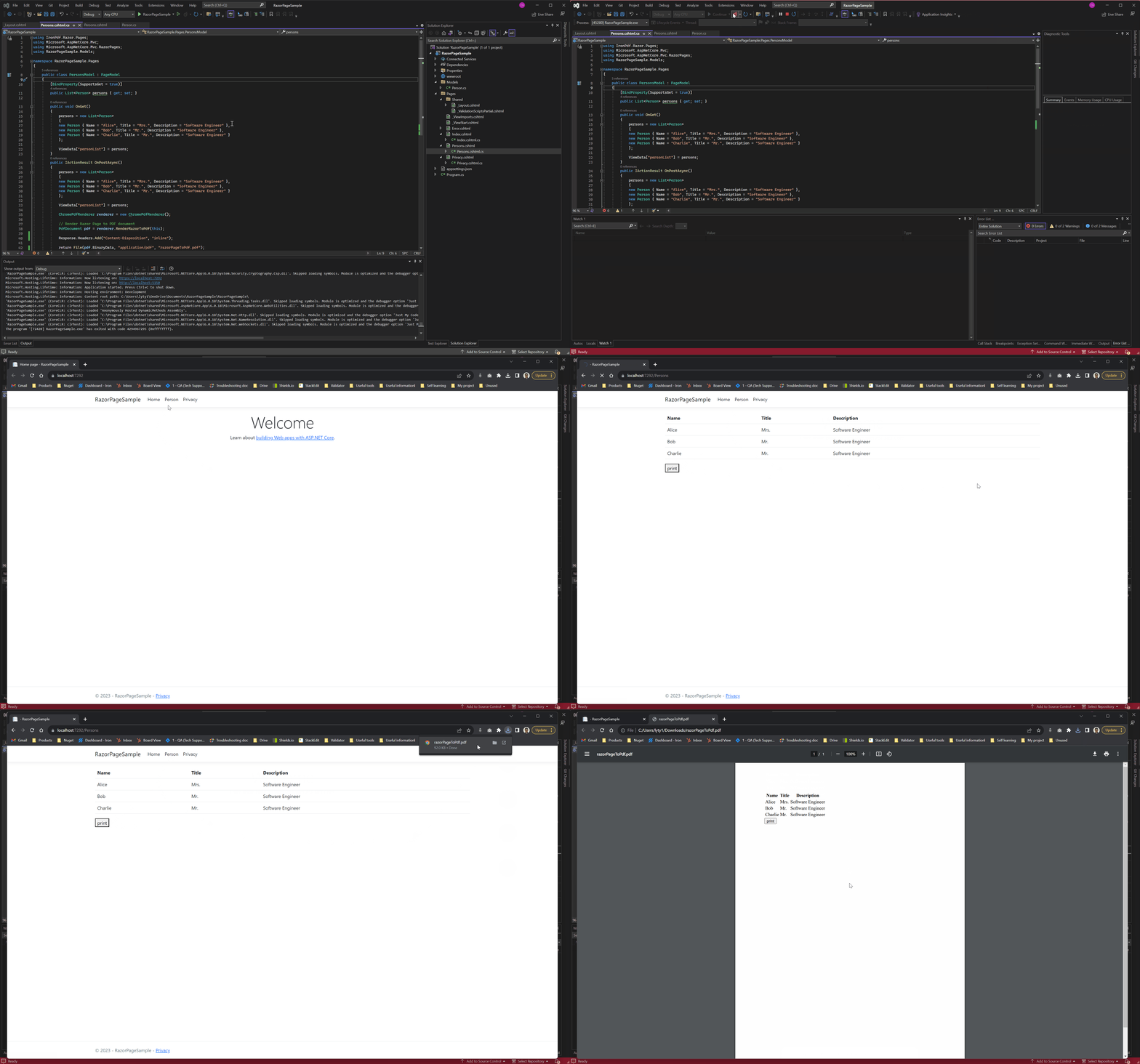
생성된 PDF는 Razor 페이지의 모든 스타일과 서식을 유지하므로 웹 보기와 PDF 출력 간의 일관된 모양을 보장합니다. 이 접근 방식은 보고서, 송장 또는 애플리케이션의 데이터베이스나 비즈니스 로직에서 데이터를 가져와야 하는 모든 문서를 생성하는 데 특히 유용합니다.
완전한 ASP.NET Core 웹 앱 예제를 어디에서 다운로드할 수 있나요?
이 가이드의 전체 코드는 압축 파일로 다운로드할 수 있으며, Visual Studio에서 ASP.NET Core 웹 앱 프로젝트로 열 수 있습니다.
RazorPageSample.zip ASP.NET Core 웹 앱 프로젝트를 다운로드하세요.
자주 묻는 질문
ASP.NET Core에서 Razor Pages를 PDF로 변환하는 방법은 무엇인가요?
ASP.NET Core에서 IronPDF의 RenderRazorToPdf 메서드를 사용하면 Razor Pages를 PDF로 변환할 수 있습니다. IronPdf.Extensions.Razor 패키지를 설치하고 ChromePdfRenderer를 사용하여 .cshtml 파일을 PDF 문서로 직접 렌더링하면 됩니다.
Razor를 PDF로 변환하는 데 필요한 NuGet 패키지는 무엇입니까?
ASP.NET Core 웹 앱에서 Razor 페이지를 PDF 문서로 렌더링하려면 IronPdf.Extensions.Razor(확장 패키지)와 IronPDF(기본 패키지)라는 두 개의 NuGet 패키지가 필요합니다.
Razor Pages에서 동적 데이터를 사용하여 PDF로 변환할 수 있나요?
네, IronPDF는 Razor Pages에서 동적 데이터를 완벽하게 지원합니다. PDF로 변환할 때 C# 코드, 모델 바인딩 및 모든 표준 Razor 구문 기능을 사용할 수 있으므로 동적 콘텐츠가 포함된 보고서, 송장 및 인증서를 생성하는 데 이상적입니다.
Razor Pages에서 어떤 유형의 문서를 생성할 수 있나요?
IronPDF의 Razor를 PDF로 변환하는 기능은 보고서, 송장, 증명서, 영수증 등 기존 HTML 및 CSS 스타일을 유지하면서 동적인 데이터 표현이 필요한 다양한 유형의 문서를 생성하는 데 적합합니다.
내 프로젝트에 Razor를 PDF로 변환하는 기능을 얼마나 빨리 구현할 수 있을까요?
IronPDF를 사용하면 몇 분 만에 Razor를 PDF로 변환할 수 있습니다. 최소한의 워크플로는 단 5단계로 구성됩니다. 라이브러리 설치, 모델 클래스 추가, Razor 페이지 생성, RenderRazorToPdf 메서드를 사용하도록 .cs 파일 편집, 그리고 애플리케이션 실행입니다.
변환 과정에서 HTML과 CSS 스타일이 유지되나요?
네, IronPDF는 Razor Pages를 PDF로 변환할 때 HTML 및 CSS 스타일을 유지합니다. 따라서 웹 보기와 PDF 출력물 간의 일관성을 유지하면서 기존에 만들어 놓은 스타일과 레이아웃을 그대로 사용할 수 있습니다.
What features does IronPDF offer for PDF document management?
IronPDF provides features such as PDF compression, digital signature integration, merging and splitting documents, rotation, annotation, bookmarking, and watermark stamping, offering comprehensive PDF document management capabilities.
Where can I find a complete example of an ASP.NET Core Web App using IronPDF for PDF conversion?
You can download a complete example of an ASP.NET Core Web App demonstrating Razor Page to PDF conversion with IronPDF from the provided link in the guide, available as a zipped project file.

커티스 차우는 칼턴 대학교에서 컴퓨터 과학 학사 학위를 취득했으며, Node.js, TypeScript, JavaScript, React를 전문으로 하는 프론트엔드 개발자입니다. 직관적이고 미적으로 뛰어난 사용자 인터페이스를 만드는 데 열정을 가진 그는 최신 프레임워크를 활용하고, 잘 구성되고 시각적으로 매력적인 매뉴얼을 제작하는 것을 즐깁니다.



