
How to Convert Razor Pages to PDFs in ASP.NET Core C# App

IronPDF enables smooth conversion of Razor Pages (.cshtml files) to PDF documents in ASP.NET Core applications using the RenderRazorToPdf method, simplifying PDF generation from web content with full support for C# and HTML rendering.
A Razor Page is a file with a .cshtml extension that combines C# and HTML to generate web content. In ASP.NET Core, Razor Pages are a simpler way to organize code for web applications, making them ideal for simple pages that are read-only or do simple data input.
An ASP.NET Core Web App is a web application built using ASP.NET Core, a cross-platform framework for developing modern web applications.
IronPDF simplifies the process of creating PDF files from Razor Pages within an ASP.NET Core Web App project. This makes PDF generation straightforward in ASP.NET Core Web Apps.
Quickstart: Convert Razor Pages to PDF in SecondsConvert your Razor Pages into high-quality PDFs in an ASP.NET Core application. By using the RenderRazorToPdf method, you can transform CSHTML files into PDF documents, optimizing your workflow and enhancing document distribution. This guide walks you through the simple steps needed to achieve this in minutes.
-
1Install IronPDF with NuGet Package Manager
-
2Copy and run this code snippet.
// Install-Package IronPdf.Extensions.Razor var pdf = new IronPdf.ChromePdfRenderer().RenderRazorToPdf("Views/Home/Index.cshtml");C# -
3Deploy to test on your live environment
Start using IronPDF in your project today with a free trial
Minimal Workflow (5 steps)
- Download the C# library for converting Razor pages to PDFs in ASP.NET Core Web App
- Add a model class for the data
- Create a new Razor Page and edit the ".cshtml" file to display the data
- Edit the ".cs" file and use the
RenderRazorToPdfmethod - Download the sample project for a quick start
Introduction
Razor Pages provide a powerful and intuitive way to build dynamic web content in ASP.NET Core applications. When combined with IronPDF's rendering capabilities, developers can create professional PDF documents directly from their web content. This approach removes complex PDF generation logic and allows you to use your existing HTML and CSS skills.
The integration between IronPDF and Razor Pages is particularly valuable for generating reports, invoices, certificates, and any other documents that require dynamic data presentation. By using the same Razor syntax you're already familiar with, you can maintain consistency between your web views and PDF outputs.
What NuGet Packages Do I Need for Razor to PDF Conversion?
The IronPdf.Extensions.Razor package is an extension of the main IronPdf package. Both the IronPdf.Extensions.Razor and IronPdf packages are needed to render Razor Pages to PDF documents in an ASP.NET Core Web App. For detailed installation instructions, visit our installation overview guide.
# Command to install IronPdf.Extensions.Razor package using NuGet Package Manager
Install-Package IronPdf.Extensions.Razor
Install with NuGet
Install-Package IronPdf.Extensions.Razor
IronPdf.Extensions.Razor/How Do I Convert Razor Pages to PDFs in ASP.NET Core?
You'll need an ASP.NET Core Web App project to convert Razor Pages into PDF files. The process involves creating a model for your data, setting up a Razor Page to display that data, and then using IronPDF's RenderRazorToPdf method to generate the PDF output.
Why Do I Need a Model Class for PDF Generation?
Model classes serve as the backbone of data representation in your Razor Pages. They provide a structured way to pass data from your controller logic to your view, ensuring type safety and maintainability. When generating PDFs, these models become even more crucial as they define the exact structure of the data that will appear in your final document.
- Create a new folder in the project and name it "Models."
- Add a standard C# class to the folder and name it
Person. This class will serve as a model for individual data. Use the following code snippet:
namespace RazorPageSample.Models
{
    public class Person
    {
        public int Id { get; set; }
        public string Name { get; set; }
        public string Title { get; set; }
        public string Description { get; set; }
    }
}Namespace RazorPageSample.Models
Public Class Person
Public Property Id() As Integer
Public Property Name() As String
Public Property Title() As String
Public Property Description() As String
End Class
End NamespaceHow Do I Set Up a Razor Page for PDF Conversion?
Add an empty Razor Page to the "Pages" folder and name it persons.cshtml.
- Modify the newly created
Persons.cshtmlfile using the code sample provided below.
The code below displays the information in the browser. Notice how the Razor syntax allows for straightforward integration of C# code within HTML, making it perfect for generating dynamic content that can be converted to PDF:
@page
@using RazorPageSample.Models;
@model RazorPageSample.Pages.PersonsModel
@{
}

<table class="table">
    <tr>
        <th>Name</th>
        <th>Title</th>
        <th>Description</th>
    </tr>
    @foreach (var person in ViewData["personList"] as List<Person>)
    {
        <tr>
            <td>@person.Name</td>
            <td>@person.Title</td>
            <td>@person.Description</td>
        </tr>
    }
</table>

<form method="post">
    <button type="submit">Print</button>
</form>
My favorite library of this kind is IronPDF. It allows for fast and efficient manipulation of PDF files. It also has many valuable features, like exporting to PDF/A format and digitally signing PDF documents.

IronOCR means we can save $40,000 annually from manual processing, while enhancing productivity and freeing up resources for high-impact tasks. I would highly recommend it.

The IronSuite play a crucial role in our operations. These are tools that increase efficiencies across the business including creating floor plans and improving inventory management.

Render Razor Pages to PDFs
Next, the code below first instantiates the ChromePdfRenderer class. Passing this to the RenderRazorToPdf method is sufficient to convert this Razor Page to a PDF document.
You have full access to the features available in RenderingOptions. These features include the ability to apply page numbers to the generated PDF, set custom margins, and add custom text as well as HTML headers and footers. You can also configure metadata for your PDFs to ensure proper document identification and searchability.
- Open the dropdown for the
Persons.cshtmlfile to see thePersons.cshtml.csfile. - Modify the
Persons.cshtml.cswith the code below.
using IronPdf.Razor;
using Microsoft.AspNetCore.Mvc;
using Microsoft.AspNetCore.Mvc.RazorPages;
using RazorPageSample.Models;

namespace RazorPageSample.Pages
{
    public class PersonsModel : PageModel
    {
        [BindProperty(SupportsGet = true)]
        public List<Person> Persons { get; set; }

        // Handle GET request to load initial data
        public void OnGet()
        {
            Persons = new List<Person>
            {
                new Person { Name = "Alice", Title = "Mrs.", Description = "Software Engineer" },
                new Person { Name = "Bob", Title = "Mr.", Description = "Software Engineer" },
                new Person { Name = "Charlie", Title = "Mr.", Description = "Software Engineer" }
            };

            ViewData["personList"] = Persons;
        }

        // Handle POST request to convert Razor page to PDF
        public IActionResult OnPost()
        {
            Persons = new List<Person>
            {
                new Person { Name = "Alice", Title = "Mrs.", Description = "Software Engineer" },
                new Person { Name = "Bob", Title = "Mr.", Description = "Software Engineer" },
                new Person { Name = "Charlie", Title = "Mr.", Description = "Software Engineer" }
            };

            ViewData["personList"] = Persons;

            ChromePdfRenderer renderer = new ChromePdfRenderer();

            // Render Razor Page to PDF document
            PdfDocument pdf = renderer.RenderRazorToPdf(this);

            // Return the generated PDF file with appropriate content headers
            Response.Headers.Add("Content-Disposition", "inline");
            return File(pdf.BinaryData, "application/pdf", "razorPageToPdf.pdf");

            // Optionally view the output PDF in browser (uncomment below line if needed)
            // return File(pdf.BinaryData, "application/pdf");
        }
    }
}Imports IronPdf.Razor
Imports Microsoft.AspNetCore.Mvc
Imports Microsoft.AspNetCore.Mvc.RazorPages
Imports RazorPageSample.Models
Namespace RazorPageSample.Pages
Public Class PersonsModel
Inherits PageModel
<BindProperty(SupportsGet:=True)>
Public Property Persons As List(Of Person)
' Handle GET request to load initial data
Public Sub OnGet()
Persons = New List(Of Person) From {
New Person With {.Name = "Alice", .Title = "Mrs.", .Description = "Software Engineer"},
New Person With {.Name = "Bob", .Title = "Mr.", .Description = "Software Engineer"},
New Person With {.Name = "Charlie", .Title = "Mr.", .Description = "Software Engineer"}
}
ViewData("personList") = Persons
End Sub
' Handle POST request to convert Razor page to PDF
Public Function OnPost() As IActionResult
Persons = New List(Of Person) From {
New Person With {.Name = "Alice", .Title = "Mrs.", .Description = "Software Engineer"},
New Person With {.Name = "Bob", .Title = "Mr.", .Description = "Software Engineer"},
New Person With {.Name = "Charlie", .Title = "Mr.", .Description = "Software Engineer"}
}
ViewData("personList") = Persons
Dim renderer As New ChromePdfRenderer()
' Render Razor Page to PDF document
Dim pdf As PdfDocument = renderer.RenderRazorToPdf(Me)
' Return the generated PDF file with appropriate content headers
Response.Headers.Add("Content-Disposition", "inline")
Return File(pdf.BinaryData, "application/pdf", "razorPageToPdf.pdf")
' Optionally view the output PDF in browser (uncomment below line if needed)
' Return File(pdf.BinaryData, "application/pdf")
End Function
End Class
End NamespaceThe RenderRazorToPdf method returns a PdfDocument object that can undergo additional processing and editing. You can export the PDF as PDFA or PDFUA, apply a digital signature to the rendered PDF document, or merge and split PDF documents. The method also allows you to rotate pages, add annotations or bookmarks, and stamp custom watermarks onto your PDF.
For enhanced document management, you can also compress PDFs to reduce file size without compromising quality. This is particularly useful when dealing with large reports or when bandwidth is a concern. Additionally, the extensive editing capabilities provided by IronPDF are documented in our comprehensive PDF editing tutorial.
How Do I Add Navigation for the PDF Generation Page?
Navigation is crucial for user experience in your ASP.NET Core application. By integrating the PDF generation page into your main navigation, users can easily access the functionality without manually typing URLs.
- Navigate to the Pages folder -> Shared folder -> _Layout.cshtml. Place the "Person" navigation item after "Home".
Make sure the value for the asp-page attribute matches exactly with our file name, which in this case is Persons. This ensures proper routing within your ASP.NET Core application:
<header>
    <nav class="navbar navbar-expand-sm navbar-toggleable-sm navbar-light bg-white border-bottom box-shadow mb-3">
        <div class="container">
            <a class="navbar-brand" asp-area="" asp-page="/Index">RazorPageSample</a>
            <button class="navbar-toggler" type="button" data-bs-toggle="collapse" data-bs-target=".navbar-collapse" aria-controls="navbarSupportedContent"
                    aria-expanded="false" aria-label="Toggle navigation">
                <span class="navbar-toggler-icon"></span>
            </button>
            <div class="navbar-collapse collapse d-sm-inline-flex justify-content-between">
                <ul class="navbar-nav flex-grow-1">
                    <li class="nav-item">
                        <a class="nav-link text-dark" asp-area="" asp-page="/Index">Home</a>
                    </li>
                    <li class="nav-item">
                        <a class="nav-link text-dark" asp-area="" asp-page="/Persons">Person</a>
                    </li>
                    <li class="nav-item">
                        <a class="nav-link text-dark" asp-area="" asp-page="/Privacy">Privacy</a>
                    </li>
                </ul>
            </div>
        </div>
    </nav>
</header>What Happens When I Run the PDF Generation?
This shows you how to run the project and generate a PDF document. When you click the "Person" navigation link, you'll see the data displayed in a table format. Clicking the "Print" button triggers the PDF generation process, converting the current Razor Page view into a downloadable PDF document.
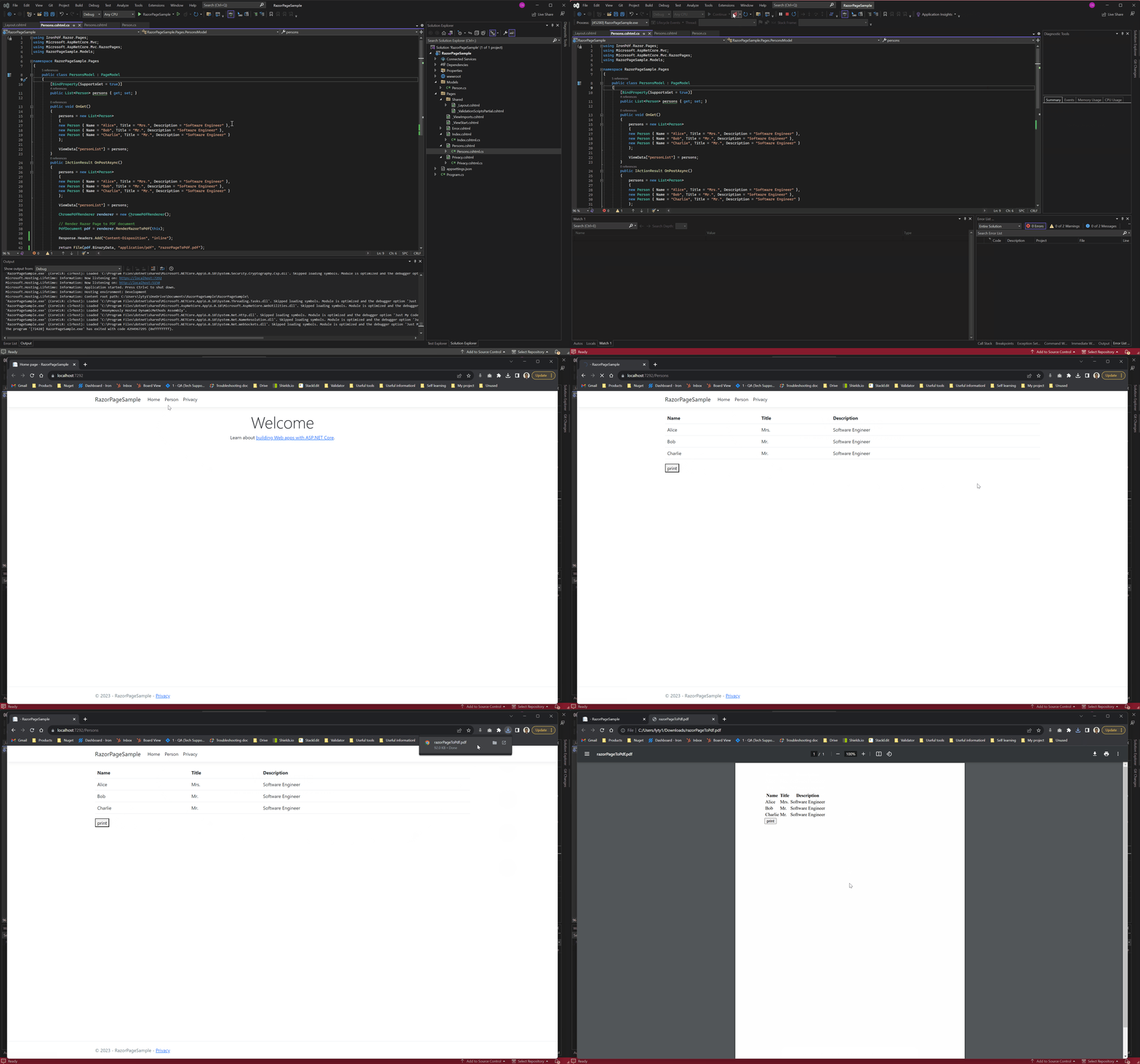
The generated PDF maintains all the styling and formatting from your Razor Page, ensuring a consistent look between your web view and the PDF output. This approach is particularly useful for generating reports, invoices, or any document that requires data from your application's database or business logic.
Where Can I Download a Complete ASP.NET Core Web App Example?
You can download the complete code for this guide as a zipped file, which you can open in Visual Studio as an ASP.NET Core Web App project.
Download the RazorPageSample.zip ASP.NET Core Web App Project
Frequently Asked Questions
How can I convert Razor Pages to PDF in ASP.NET Core using IronPDF?
You can convert Razor Pages to PDF in ASP.NET Core using IronPDF by employing the `RenderRazorToPdf` method. This method allows you to transform CSHTML files into PDF documents with ease, as demonstrated in the example code provided in the guide.
What is the `RenderRazorToPdf` method?
The `RenderRazorToPdf` method is a feature of IronPDF that enables developers to convert Razor Pages, which are composed of HTML and C# code, into high-quality PDF documents. It simplifies the PDF generation process within ASP.NET Core applications.
Do I need specific NuGet packages for converting Razor Pages to PDF with IronPDF?
Yes, you need to install both the `IronPdf.Extensions.Razor` and `IronPdf` NuGet packages to effectively render Razor Pages to PDF documents in your ASP.NET Core Web App.
Why is a model class necessary for PDF generation from Razor Pages?
Model classes are crucial as they define the data structure that will appear in your PDF document. They facilitate data binding and ensure that your Razor Pages can dynamically generate content for inclusion in the PDF.
Can I customize the appearance of the PDFs generated by IronPDF?
Yes, using the `RenderingOptions` in IronPDF, you can customize aspects like page numbers, margins, text, and HTML headers and footers. This allows you to maintain consistency and align the PDF output with your branding and design preferences.
How do I set up navigation for the PDF generation page in an ASP.NET Core application?
To set up navigation, you can edit the `_Layout.cshtml` file in your Pages folder to integrate links to your PDF generation page. Ensure the routes are correctly defined according to the page names used in your project.
What features does IronPDF offer for PDF document management?
IronPDF provides features such as PDF compression, digital signature integration, merging and splitting documents, rotation, annotation, bookmarking, and watermark stamping, offering comprehensive PDF document management capabilities.
Where can I find a complete example of an ASP.NET Core Web App using IronPDF for PDF conversion?
You can download a complete example of an ASP.NET Core Web App demonstrating Razor Page to PDF conversion with IronPDF from the provided link in the guide, available as a zipped project file.

Curtis Chau holds a Bachelor’s degree in Computer Science (Carleton University) and specializes in front-end development with expertise in Node.js, TypeScript, JavaScript, and React. Passionate about crafting intuitive and aesthetically pleasing user interfaces, Curtis enjoys working with modern frameworks and creating well-structured, visually appealing manuals.













