
C# PDF 파서

C#에서 IronPDF의 ExtractAllText 메서드를 사용하여 PDF 파일을 구문 분석하고 전체 문서나 특정 페이지에서 텍스트를 추출합니다. 이 접근 방식은 단 몇 줄의 코드로 .NET 애플리케이션에서 간단하고 효율적인 PDF 텍스트 추출을 제공합니다.
IronPDF C# 애플리케이션에서 PDF 구문 분석을 간편하게 해줍니다. 이 튜토리얼에서는 PDF 생성 및 조작을 위한 포괄적인 C# 라이브러리인 IronPDF 사용하여 단 몇 단계만으로 PDF를 파싱하는 방법을 보여줍니다.
빠른 시작: IronPDF 사용한 효율적인 PDF 구문 분석IronPDF 사용하여 최소한의 코드로 C#에서 PDF 파싱을 시작하세요. 이 예시는 PDF 파일의 원래 서식을 유지하면서 모든 텍스트를 추출하는 방법을 보여줍니다. IronPDF의 ExtractAllText 메서드는 .NET 애플리케이션에 원활한 PDF 파싱 통합을 가능하게 합니다. 간편한 설정 및 실행을 위해 다음 단계를 따르십시오.
-
1Install IronPDF with NuGet Package Manager
-
2다음 코드 조각을 복사하여 실행하세요.
var text = IronPdf.FromFile("sample.pdf").ExtractAllText();Dim text = IronPdf.FromFile("sample.pdf").ExtractAllText() -
3실제 운영 환경에서 테스트할 수 있도록 배포하세요.
무료 체험판으로 오늘 프로젝트에서 IronPDF 사용 시작하기
최소 워크플로우(5단계)
- C# PDF 파서 라이브러리 다운로드
- Visual Studio에 설치하세요
ExtractAllText메서드를 사용하여 텍스트의 모든 줄을 추출합니다.ExtractTextFromPage메서드를 사용하여 한 페이지의 모든 텍스트를 추출합니다.- 구문 분석된 PDF 콘텐츠 보기
C#에서 PDF 파일을 파싱하는 방법은 무엇인가요?
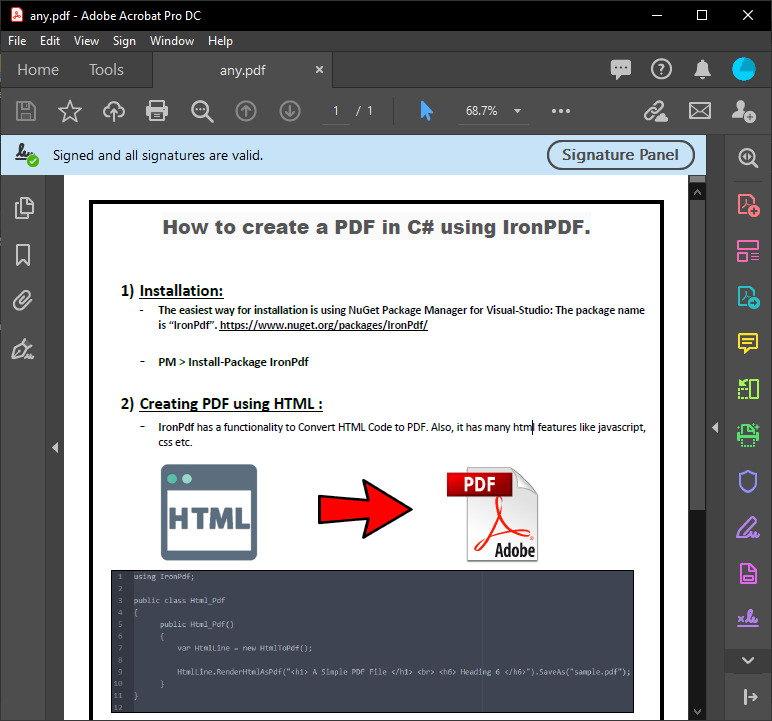
IronPDF 사용하면 PDF 파일 파싱이 간단합니다. 아래 코드는 ExtractAllText 메서드를 사용하여 전체 PDF 문서에서 모든 줄의 텍스트를 추출합니다. 비교 결과는 추출된 PDF 콘텐츠와 그 출력물을 함께 보여줍니다. 이 라이브러리는 PDF 문서의 특정 섹션에서 텍스트와 이미지를 추출하는 기능도 지원합니다.
using IronPdf;

// Select the desired PDF File
PdfDocument pdf = PdfDocument.FromFile("sample.pdf");

// Extract all text from an pdf
string allText = pdf.ExtractAllText();

// Extract all text from page 1
string page1Text = pdf.ExtractTextFromPage(0);Imports IronPdf
' Select the desired PDF File
Private pdf As PdfDocument = PdfDocument.FromFile("sample.pdf")
' Extract all text from an pdf
Private allText As String = pdf.ExtractAllText()
' Extract all text from page 1
Private page1Text As String = pdf.ExtractTextFromPage(0)IronPDF 다양한 시나리오에서 PDF 구문 분석을 간소화합니다. HTML을 PDF로 변환 하든, 기존 문서에서 콘텐츠를 추출하든, 고급 PDF 기능을 구현하든, 이 라이브러리는 포괄적인 지원을 제공합니다.
IronPDF Windows 애플리케이션 과의 완벽한 통합을 제공하며 Linux 및 macOS 플랫폼 배포를 지원합니다. 이 라이브러리는 클라우드 기반 솔루션을 위한 Azure 배포 도 지원합니다.
고급 텍스트 추출 예제
IronPDF 사용하여 PDF 콘텐츠를 분석하는 추가적인 방법은 다음과 같습니다.
using IronPdf;
using System;

// Parse PDF from URL
var pdfFromUrl = PdfDocument.FromUrl(new Uri("https://example.com/document.pdf"));
string urlPdfText = pdfFromUrl.ExtractAllText();

// Parse password-protected PDFs
var protectedPdf = PdfDocument.FromFile("protected.pdf", "password123");
string protectedText = protectedPdf.ExtractAllText();

// Extract text from specific page range
var largePdf = PdfDocument.FromFile("large-document.pdf");
for (int i = 5; i < 10; i++)
{
    string pageText = largePdf.ExtractTextFromPage(i);
    Console.WriteLine($"Page {i + 1}: {pageText.Substring(0, 100)}...");
}Imports IronPdf
Imports System
' Parse PDF from URL
Dim pdfFromUrl = PdfDocument.FromUrl(New Uri("https://example.com/document.pdf"))
Dim urlPdfText As String = pdfFromUrl.ExtractAllText()
' Parse password-protected PDFs
Dim protectedPdf = PdfDocument.FromFile("protected.pdf", "password123")
Dim protectedText As String = protectedPdf.ExtractAllText()
' Extract text from specific page range
Dim largePdf = PdfDocument.FromFile("large-document.pdf")
For i As Integer = 5 To 9
Dim pageText As String = largePdf.ExtractTextFromPage(i)
Console.WriteLine($"Page {i + 1}: {pageText.Substring(0, 100)}...")
Next이 예시들은 IronPDF가 다양한 PDF 소스와 시나리오를 처리할 때 얼마나 유연한지 보여줍니다. 복잡한 구문 분석이 필요한 경우, 구조화된 콘텐츠를 다루기 위해 PDF DOM 객체 접근 방식을 살펴보세요.
다양한 PDF 유형 처리
IronPDF 다양한 PDF 유형을 분석하는 데 탁월합니다.
using IronPdf;
using System.Text.RegularExpressions;

// Parse scanned PDFs with OCR (requires IronOcr)
var scannedPdf = PdfDocument.FromFile("scanned-document.pdf");
string ocrText = scannedPdf.ExtractAllText();

// Parse PDFs with forms
var formPdf = PdfDocument.FromFile("form.pdf");
string formText = formPdf.ExtractAllText();

// Extract and filter specific content
string invoiceText = pdf.ExtractAllText();
var invoiceNumber = Regex.Match(invoiceText, @"Invoice #: (\d+)").Groups[1].Value;
var totalAmount = Regex.Match(invoiceText, @"Total: \$([0-9,]+\.\d{2})").Groups[1].Value;Imports IronPdf
Imports System.Text.RegularExpressions
' Parse scanned PDFs with OCR (requires IronOcr)
Dim scannedPdf = PdfDocument.FromFile("scanned-document.pdf")
Dim ocrText As String = scannedPdf.ExtractAllText()
' Parse PDFs with forms
Dim formPdf = PdfDocument.FromFile("form.pdf")
Dim formText As String = formPdf.ExtractAllText()
' Extract and filter specific content
Dim invoiceText As String = pdf.ExtractAllText()
Dim invoiceNumber = Regex.Match(invoiceText, "Invoice #: (\d+)").Groups(1).Value
Dim totalAmount = Regex.Match(invoiceText, "Total: \$([0-9,]+\.\d{2})").Groups(1).Value파싱된 PDF 콘텐츠를 어떻게 볼 수 있나요?
AC# 폼은 위 코드 실행에서 파싱된 PDF 콘텐츠를 표시합니다. 이 출력은 문서 처리 요구 사항을 충족하기 위해 PDF에서 정확한 텍스트를 제공합니다.
~ PDF ~
~ C# 형식 ~
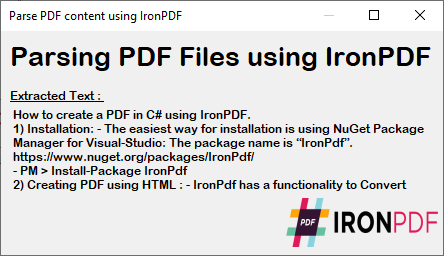
추출된 텍스트는 PDF의 원래 서식과 구조를 그대로 유지하므로 데이터 처리, 콘텐츠 분석 또는 마이그레이션 작업에 적합합니다. 이 텍스트를 추가로 처리하려면 특정 내용을 찾아 바꾸 거나 다른 형식으로 내보내십시오.
PDF 파싱 기능을 애플리케이션에 통합하기
IronPDF의 구문 분석 기능은 다양한 애플리케이션 유형에 통합될 수 있습니다.
// ASP.NET Core example
public IActionResult ParseUploadedPdf(IFormFile pdfFile)
{
    using var stream = pdfFile.OpenReadStream();
    var pdf = PdfDocument.FromStream(stream);

    var extractedText = pdf.ExtractAllText();

    // Process or store the extracted text
    return Json(new {
        success = true,
        textLength = extractedText.Length,
        preview = extractedText.Substring(0, Math.Min(500, extractedText.Length))
    });
}

// Console application example
static void BatchParsePdfs(string folderPath)
{
    var pdfFiles = Directory.GetFiles(folderPath, "*.pdf");

    foreach (var file in pdfFiles)
    {
        var pdf = PdfDocument.FromFile(file);
        var text = pdf.ExtractAllText();

        // Save extracted text
        var textFile = Path.ChangeExtension(file, ".txt");
        File.WriteAllText(textFile, text);

        Console.WriteLine($"Parsed: {Path.GetFileName(file)} - {text.Length} characters");
    }
}' ASP.NET Core example
Public Function ParseUploadedPdf(pdfFile As IFormFile) As IActionResult
Using stream = pdfFile.OpenReadStream()
Dim pdf = PdfDocument.FromStream(stream)
Dim extractedText = pdf.ExtractAllText()
' Process or store the extracted text
Return Json(New With {
.success = True,
.textLength = extractedText.Length,
.preview = extractedText.Substring(0, Math.Min(500, extractedText.Length))
})
End Using
End Function
' Console application example
Shared Sub BatchParsePdfs(folderPath As String)
Dim pdfFiles = Directory.GetFiles(folderPath, "*.pdf")
For Each file In pdfFiles
Dim pdf = PdfDocument.FromFile(file)
Dim text = pdf.ExtractAllText()
' Save extracted text
Dim textFile = Path.ChangeExtension(file, ".txt")
File.WriteAllText(textFile, text)
Console.WriteLine($"Parsed: {Path.GetFileName(file)} - {text.Length} characters")
Next
End Sub이 예시들은 PDF 구문 분석 기능을 웹 애플리케이션 및 일괄 처리 시나리오에 통합하는 방법을 보여줍니다. 고급 구현의 경우, 여러 PDF 파일을 처리할 때 성능을 향상시키기 위해 비동기 및 멀티스레딩 기술을 살펴보십시오.
당신이 할 수 있는 다른 일들을 알아볼 준비가 되셨나요? PDF 편집 방법 튜토리얼 페이지는 여기에서 확인하세요.
자주 묻는 질문
C#에서 PDF 파일의 모든 텍스트를 추출하는 방법은 무엇인가요?
IronPDF의 ExtractAllText 메서드를 사용하면 PDF 파일에서 모든 텍스트를 추출할 수 있습니다. IronPdf.FromFile("sample.pdf")를 사용하여 PDF 파일을 불러온 다음 ExtractAllText()를 호출하면 원본 서식을 유지하면서 모든 텍스트 콘텐츠를 가져올 수 있습니다.
.NET에서 PDF를 파싱하는 가장 간단한 방법은 무엇인가요?
가장 간단한 방법은 IronPDF를 사용하는 것입니다. 단 한 줄의 코드로 가능합니다. `var text = IronPdf.FromFile("sample.pdf").ExtractAllText()`. 이 방법은 최소한의 설정만으로 전체 PDF 문서에서 모든 줄의 텍스트를 추출합니다.
PDF 파일의 특정 페이지에서 텍스트를 추출할 수 있나요?
네, IronPDF는 개별 페이지에서 텍스트를 추출하는 ExtractTextFromPage 메서드를 제공합니다. 이 메서드를 사용하면 PDF 문서의 모든 내용을 한 번에 추출하는 대신 특정 섹션만 선택적으로 추출할 수 있습니다.
C#에서 암호로 보호된 PDF 파일을 어떻게 파싱하나요?
IronPDF는 암호로 보호된 PDF 파일 파싱을 지원합니다. 보호된 문서를 불러오려면 PdfDocument.FromFile("protected.pdf", "password123")을 사용하고, 텍스트 내용을 추출하려면 ExtractAllText()를 호출하십시오.
로컬 파일 대신 URL에서 PDF를 파싱할 수 있나요?
예, IronPDF는 PdfDocument.FromUrl("https://example.com/document.pdf")를 사용하여 URL에서 PDF를 직접 파싱할 수 있습니다. URL에서 PDF를 불러온 후 ExtractAllText()를 사용하여 텍스트 콘텐츠를 추출하세요.
PDF 파서는 어떤 플랫폼을 지원하나요?
IronPDF는 Windows 애플리케이션, Linux, macOS 및 Azure 클라우드 배포를 포함한 여러 플랫폼에서 PDF 구문 분석을 지원하여 .NET 애플리케이션에 포괄적인 크로스 플랫폼 호환성을 제공합니다.
PDF 파서는 추출 과정에서 텍스트 서식을 유지합니까?
예, IronPDF의 ExtractAllText 메서드는 추출 과정에서 PDF 콘텐츠의 원래 서식을 유지하므로 파싱된 텍스트가 원본 문서의 구조와 레이아웃을 그대로 유지합니다.
PDF 파일에서 텍스트와 이미지를 모두 추출할 수 있나요?
IronPDF는 PDF 문서에서 텍스트와 이미지를 모두 추출하는 기능을 지원합니다. 텍스트 추출을 위한 ExtractAllText 메서드 외에도, PDF 문서의 특정 영역에서 이미지를 추출하는 추가 기능도 제공합니다.
What are some advanced text extraction features provided by IronPDF?
IronPDF offers advanced features like parsing text from specific page ranges, handling layered PDFs, and employing async or multithreading for performance enhancements.
Can IronPDF maintain the original PDF formatting when extracting text?
Yes, IronPDF is designed to preserve the original formatting and structure of the PDF when extracting text, making it suitable for document processing and analysis tasks.

커티스 차우는 칼턴 대학교에서 컴퓨터 과학 학사 학위를 취득했으며, Node.js, TypeScript, JavaScript, React를 전문으로 하는 프론트엔드 개발자입니다. 직관적이고 미적으로 뛰어난 사용자 인터페이스를 만드는 데 열정을 가진 그는 최신 프레임워크를 활용하고, 잘 구성되고 시각적으로 매력적인 매뉴얼을 제작하는 것을 즐깁니다.



