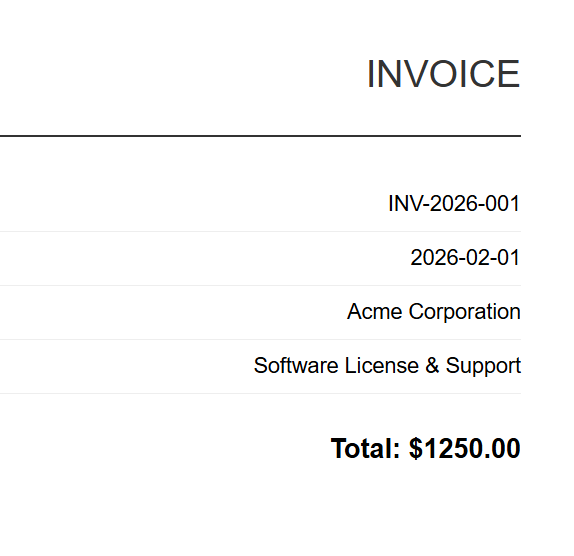
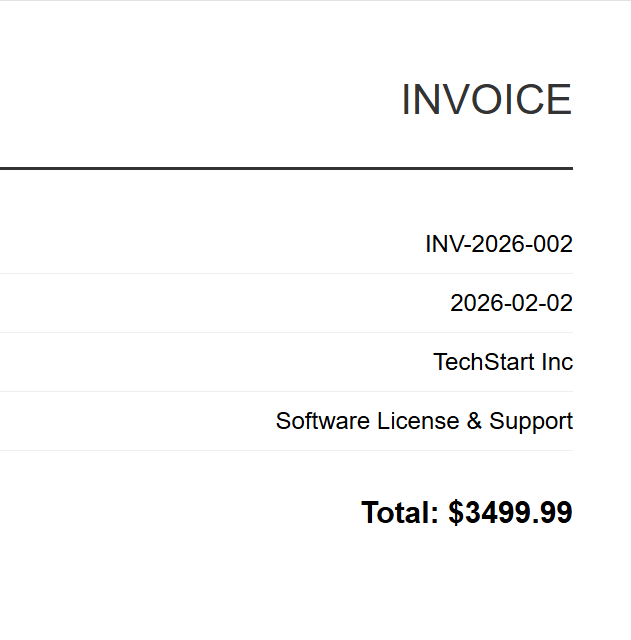
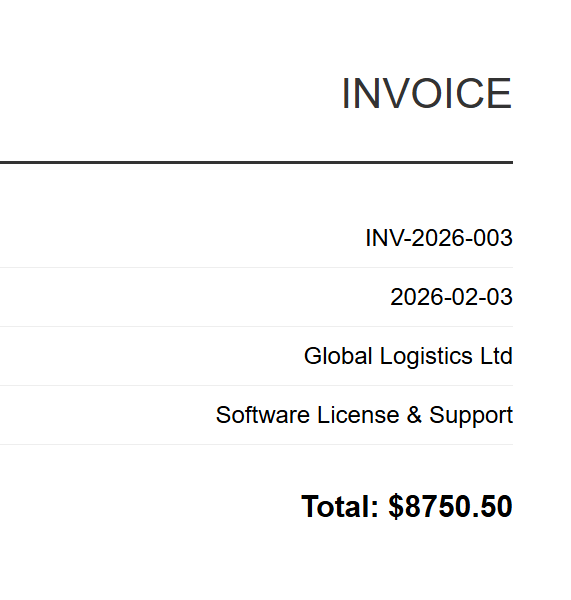
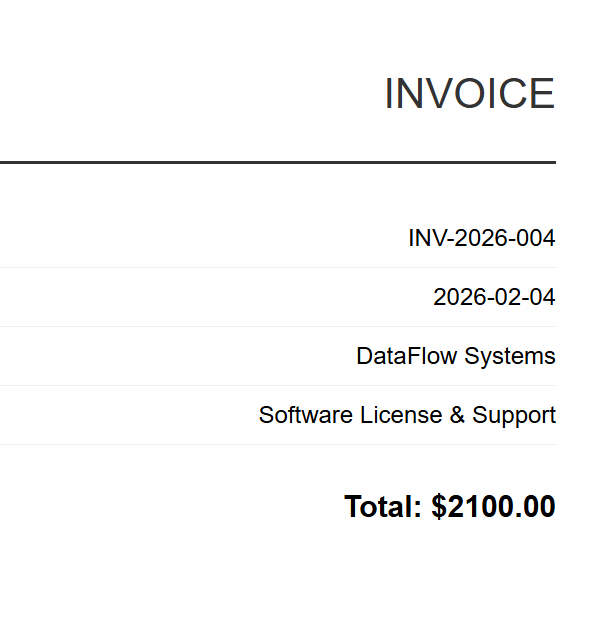
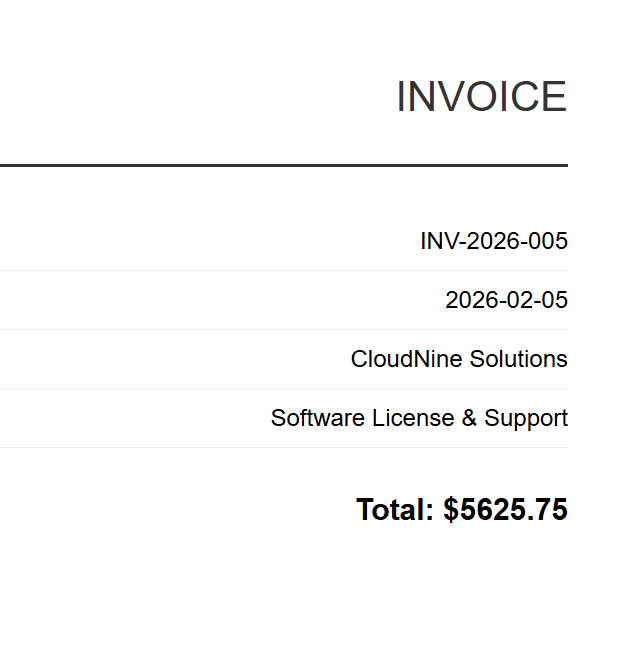
using IronPdf;using System.IO;using System.Threading.Tasks;var renderer = new ChromePdfRenderer();var htmlFiles = Directory.GetFiles("input/", "*.html");Parallel.ForEach(htmlFiles, htmlFile =>{ var pdf = renderer.RenderHtmlFileAsPdf(htmlFile); pdf.SaveAs($"output/{Path.GetFileNameWithoutExtension(htmlFile)}.pdf");});
using IronPdf;
using System.IO;
using System.Threading.Tasks;

var renderer = new ChromePdfRenderer();
var htmlFiles = Directory.GetFiles("input/", "*.html");

Parallel.ForEach(htmlFiles, htmlFile =>
{
    var pdf = renderer.RenderHtmlFileAsPdf(htmlFile);
    pdf.SaveAs($"output/{Path.GetFileNameWithoutExtension(htmlFile)}.pdf");
});
using IronPdf;using System;using System.IO;using System.Threading.Tasks;using System.Threading;// Configure pathsstring inputFolder = "input/";string outputFolder = "output/";Directory.CreateDirectory(outputFolder);string[] htmlFiles = Directory.GetFiles(inputFolder, "*.html");Console.WriteLine($"Found {htmlFiles.Length} HTML files to convert");// Create renderer instance (thread-safe, can be shared)var renderer = new ChromePdfRenderer();// Track progressint processed = 0;int failed = 0;// Process in parallel with controlled concurrencyvar options = new ParallelOptions{MaxDegreeOfParallelism = Environment.ProcessorCount / 2};Parallel.ForEach(htmlFiles, options, htmlFile =>{ try { string fileName = Path.GetFileNameWithoutExtension(htmlFile); string outputPath = Path.Combine(outputFolder, $"{fileName}.pdf"); using var pdf = renderer.RenderHtmlFileAsPdf(htmlFile); pdf.SaveAs(outputPath);Interlocked.Increment(ref processed);Console.WriteLine($"[OK] {fileName}.pdf"); } catch (Exception ex) {Interlocked.Increment(ref failed);Console.WriteLine($"[ERROR] {Path.GetFileName(htmlFile)}: {ex.Message}"); }});Console.WriteLine($"\nComplete: {processed} succeeded, {failed} failed");
using IronPdf;
using System;
using System.IO;
using System.Threading.Tasks;
using System.Threading;

// Configure paths
string inputFolder = "input/";
string outputFolder = "output/";

Directory.CreateDirectory(outputFolder);

string[] htmlFiles = Directory.GetFiles(inputFolder, "*.html");
Console.WriteLine($"Found {htmlFiles.Length} HTML files to convert");

// Create renderer instance (thread-safe, can be shared)
var renderer = new ChromePdfRenderer();

// Track progress
int processed = 0;
int failed = 0;

// Process in parallel with controlled concurrency
var options = new ParallelOptions
{
    MaxDegreeOfParallelism = Environment.ProcessorCount / 2
};

Parallel.ForEach(htmlFiles, options, htmlFile =>
{
    try
    {
        string fileName = Path.GetFileNameWithoutExtension(htmlFile);
        string outputPath = Path.Combine(outputFolder, $"{fileName}.pdf");

        using var pdf = renderer.RenderHtmlFileAsPdf(htmlFile);
        pdf.SaveAs(outputPath);

        Interlocked.Increment(ref processed);
        Console.WriteLine($"[OK] {fileName}.pdf");
    }
    catch (Exception ex)
    {
        Interlocked.Increment(ref failed);
        Console.WriteLine($"[ERROR] {Path.GetFileName(htmlFile)}: {ex.Message}");
    }
});

Console.WriteLine($"\nComplete: {processed} succeeded, {failed} failed");
ImportsIronPdfImportsSystemImportsSystem.IOImportsSystem.Threading.TasksImportsSystem.Threading' Configure pathsDim inputFolder AsString = "input/"Dim outputFolder AsString = "output/"Directory.CreateDirectory(outputFolder)Dim htmlFiles AsString() = Directory.GetFiles(inputFolder, "*.html")Console.WriteLine($"Found {htmlFiles.Length} HTML files to convert")' Create renderer instance (thread-safe, can be shared)Dim renderer As New ChromePdfRenderer()' Track progressDim processed AsInteger = 0Dim failed AsInteger = 0' Process in parallel with controlled concurrencyDim options As New ParallelOptionsWith { .MaxDegreeOfParallelism = Environment.ProcessorCount \ 2}Parallel.ForEach(htmlFiles, options, Sub(htmlFile)Try Dim fileName AsString = Path.GetFileNameWithoutExtension(htmlFile) Dim outputPath AsString = Path.Combine(outputFolder, $"{fileName}.pdf")Using pdf = renderer.RenderHtmlFileAsPdf(htmlFile) pdf.SaveAs(outputPath)EndUsingInterlocked.Increment(processed)Console.WriteLine($"[OK] {fileName}.pdf")Catch ex AsExceptionInterlocked.Increment(failed)Console.WriteLine($"[ERROR] {Path.GetFileName(htmlFile)}: {ex.Message}")EndTryEnd Sub)Console.WriteLine($"\nComplete: {processed} succeeded, {failed} failed")
Imports IronPdf
Imports System
Imports System.IO
Imports System.Threading.Tasks
Imports System.Threading

' Configure paths
Dim inputFolder As String = "input/"
Dim outputFolder As String = "output/"

Directory.CreateDirectory(outputFolder)

Dim htmlFiles As String() = Directory.GetFiles(inputFolder, "*.html")
Console.WriteLine($"Found {htmlFiles.Length} HTML files to convert")

' Create renderer instance (thread-safe, can be shared)
Dim renderer As New ChromePdfRenderer()

' Track progress
Dim processed As Integer = 0
Dim failed As Integer = 0

' Process in parallel with controlled concurrency
Dim options As New ParallelOptions With {
    .MaxDegreeOfParallelism = Environment.ProcessorCount \ 2
}

Parallel.ForEach(htmlFiles, options, Sub(htmlFile)
    Try
        Dim fileName As String = Path.GetFileNameWithoutExtension(htmlFile)
        Dim outputPath As String = Path.Combine(outputFolder, $"{fileName}.pdf")

        Using pdf = renderer.RenderHtmlFileAsPdf(htmlFile)
            pdf.SaveAs(outputPath)
        End Using

        Interlocked.Increment(processed)
        Console.WriteLine($"[OK] {fileName}.pdf")
    Catch ex As Exception
        Interlocked.Increment(failed)
        Console.WriteLine($"[ERROR] {Path.GetFileName(htmlFile)}: {ex.Message}")
    End Try
End Sub)

Console.WriteLine($"\nComplete: {processed} succeeded, {failed} failed")
using IronPdf;using System;using System.IO;using System.Linq;using System.Collections.Generic;string inputFolder = "documents/";string outputFolder = "merged/";Directory.CreateDirectory(outputFolder);// Group PDFs by prefix (e.g., "invoice-2026-01-*.pdf" -> one merged file)var pdfFiles = Directory.GetFiles(inputFolder, "*.pdf");var groups = pdfFiles .GroupBy(f => Path.GetFileName(f).Split('-').Take(3).Aggregate((a, b) => $"{a}-{b}")) .Where(g => g.Count() > 1);Console.WriteLine($"Found {groups.Count()} groups to merge");foreach (var group in groups){ string groupName = group.Key; var filesToMerge = group.OrderBy(f => f).ToList();Console.WriteLine($"Merging {filesToMerge.Count} files into {groupName}.pdf"); try { // Load all PDFs for this group var pdfDocs = new List<PdfDocument>(); foreach (string filePath in filesToMerge) { pdfDocs.Add(PdfDocument.FromFile(filePath)); } // Merge all documents using var merged = PdfDocument.Merge(pdfDocs); merged.SaveAs(Path.Combine(outputFolder, $"{groupName}-merged.pdf")); // Dispose source documents foreach (var doc in pdfDocs) { doc.Dispose(); }Console.WriteLine($" [OK] Created {groupName}-merged.pdf ({merged.PageCount} pages)"); } catch (Exception ex) {Console.WriteLine($" [ERROR] {groupName}: {ex.Message}"); }}Console.WriteLine("\nMerge complete");
using IronPdf;
using System;
using System.IO;
using System.Linq;
using System.Collections.Generic;

string inputFolder = "documents/";
string outputFolder = "merged/";

Directory.CreateDirectory(outputFolder);

// Group PDFs by prefix (e.g., "invoice-2026-01-*.pdf" -> one merged file)
var pdfFiles = Directory.GetFiles(inputFolder, "*.pdf");
var groups = pdfFiles
    .GroupBy(f => Path.GetFileName(f).Split('-').Take(3).Aggregate((a, b) => $"{a}-{b}"))
    .Where(g => g.Count() > 1);

Console.WriteLine($"Found {groups.Count()} groups to merge");

foreach (var group in groups)
{
    string groupName = group.Key;
    var filesToMerge = group.OrderBy(f => f).ToList();

    Console.WriteLine($"Merging {filesToMerge.Count} files into {groupName}.pdf");

    try
    {
        // Load all PDFs for this group
        var pdfDocs = new List<PdfDocument>();
        foreach (string filePath in filesToMerge)
        {
            pdfDocs.Add(PdfDocument.FromFile(filePath));
        }

        // Merge all documents
        using var merged = PdfDocument.Merge(pdfDocs);
        merged.SaveAs(Path.Combine(outputFolder, $"{groupName}-merged.pdf"));

        // Dispose source documents
        foreach (var doc in pdfDocs)
        {
            doc.Dispose();
        }

        Console.WriteLine($"  [OK] Created {groupName}-merged.pdf ({merged.PageCount} pages)");
    }
    catch (Exception ex)
    {
        Console.WriteLine($"  [ERROR] {groupName}: {ex.Message}");
    }
}

Console.WriteLine("\nMerge complete");
ImportsIronPdfImportsSystemImportsSystem.IOImportsSystem.LinqImportsSystem.Collections.GenericModuleProgram Sub Main() Dim inputFolder AsString = "documents/" Dim outputFolder AsString = "merged/"Directory.CreateDirectory(outputFolder) ' Group PDFs by prefix (e.g., "invoice-2026-01-*.pdf" -> one merged file) Dim pdfFiles = Directory.GetFiles(inputFolder, "*.pdf") Dim groups = pdfFiles _ .GroupBy(Function(f) Path.GetFileName(f).Split("-"c).Take(3).Aggregate(Function(a, b) $"{a}-{b}")) _ .Where(Function(g) g.Count() > 1)Console.WriteLine($"Found {groups.Count()} groups to merge") For Each group In groups Dim groupName AsString = group.Key Dim filesToMerge = group.OrderBy(Function(f) f).ToList()Console.WriteLine($"Merging {filesToMerge.Count} files into {groupName}.pdf")Try ' Load all PDFs for this group Dim pdfDocs As New List(OfPdfDocument)() For Each filePath AsStringIn filesToMerge pdfDocs.Add(PdfDocument.FromFile(filePath)) Next ' Merge all documentsUsing merged = PdfDocument.Merge(pdfDocs) merged.SaveAs(Path.Combine(outputFolder, $"{groupName}-merged.pdf"))EndUsing ' Dispose source documents For Each doc In pdfDocs doc.Dispose() NextConsole.WriteLine($" [OK] Created {groupName}-merged.pdf ({merged.PageCount} pages)")Catch ex AsExceptionConsole.WriteLine($" [ERROR] {groupName}: {ex.Message}")EndTry NextConsole.WriteLine(vbCrLf & "Merge complete") End SubEndModule
Imports IronPdf
Imports System
Imports System.IO
Imports System.Linq
Imports System.Collections.Generic

Module Program
    Sub Main()
        Dim inputFolder As String = "documents/"
        Dim outputFolder As String = "merged/"

        Directory.CreateDirectory(outputFolder)

        ' Group PDFs by prefix (e.g., "invoice-2026-01-*.pdf" -> one merged file)
        Dim pdfFiles = Directory.GetFiles(inputFolder, "*.pdf")
        Dim groups = pdfFiles _
            .GroupBy(Function(f) Path.GetFileName(f).Split("-"c).Take(3).Aggregate(Function(a, b) $"{a}-{b}")) _
            .Where(Function(g) g.Count() > 1)

        Console.WriteLine($"Found {groups.Count()} groups to merge")

        For Each group In groups
            Dim groupName As String = group.Key
            Dim filesToMerge = group.OrderBy(Function(f) f).ToList()

            Console.WriteLine($"Merging {filesToMerge.Count} files into {groupName}.pdf")

            Try
                ' Load all PDFs for this group
                Dim pdfDocs As New List(Of PdfDocument)()
                For Each filePath As String In filesToMerge
                    pdfDocs.Add(PdfDocument.FromFile(filePath))
                Next

                ' Merge all documents
                Using merged = PdfDocument.Merge(pdfDocs)
                    merged.SaveAs(Path.Combine(outputFolder, $"{groupName}-merged.pdf"))
                End Using

                ' Dispose source documents
                For Each doc In pdfDocs
                    doc.Dispose()
                Next

                Console.WriteLine($"  [OK] Created {groupName}-merged.pdf ({merged.PageCount} pages)")
            Catch ex As Exception
                Console.WriteLine($"  [ERROR] {groupName}: {ex.Message}")
            End Try
        Next

        Console.WriteLine(vbCrLf & "Merge complete")
    End Sub
End Module
using IronPdf;using System;using System.IO;using System.Threading.Tasks;string inputFolder = "multipage/";string outputFolder = "split/";Directory.CreateDirectory(outputFolder);string[] pdfFiles = Directory.GetFiles(inputFolder, "*.pdf");Console.WriteLine($"Found {pdfFiles.Length} PDFs to split");var options = new ParallelOptions{MaxDegreeOfParallelism = Environment.ProcessorCount / 2};Parallel.ForEach(pdfFiles, options, pdfFile =>{ string baseName = Path.GetFileNameWithoutExtension(pdfFile); try { using var pdf = PdfDocument.FromFile(pdfFile); int pageCount = pdf.PageCount;Console.WriteLine($"Splitting {baseName}.pdf ({pageCount} pages)"); // Extract each page as a separate PDF for (int i = 0; i < pageCount; i++) { using var singlePage = pdf.CopyPage(i); string outputPath = Path.Combine(outputFolder, $"{baseName}-page-{i + 1:D3}.pdf"); singlePage.SaveAs(outputPath); }Console.WriteLine($" [OK] Created {pageCount} files from {baseName}.pdf"); } catch (Exception ex) {Console.WriteLine($" [ERROR] {baseName}: {ex.Message}"); }});// Alternative: Extract page ranges instead of individual pagesvoidSplitByRange(string inputFile, string outputFolder, int pagesPerChunk){ using var pdf = PdfDocument.FromFile(inputFile); string baseName = Path.GetFileNameWithoutExtension(inputFile); int totalPages = pdf.PageCount; int chunkNumber = 1; for (int startPage = 0; startPage < totalPages; startPage += pagesPerChunk) { int endPage = Math.Min(startPage + pagesPerChunk - 1, totalPages - 1); using var chunk = pdf.CopyPages(startPage, endPage); chunk.SaveAs(Path.Combine(outputFolder, $"{baseName}-chunk-{chunkNumber:D3}.pdf")); chunkNumber++; }}Console.WriteLine("\nSplit complete");
using IronPdf;
using System;
using System.IO;
using System.Threading.Tasks;

string inputFolder = "multipage/";
string outputFolder = "split/";

Directory.CreateDirectory(outputFolder);

string[] pdfFiles = Directory.GetFiles(inputFolder, "*.pdf");
Console.WriteLine($"Found {pdfFiles.Length} PDFs to split");

var options = new ParallelOptions
{
    MaxDegreeOfParallelism = Environment.ProcessorCount / 2
};

Parallel.ForEach(pdfFiles, options, pdfFile =>
{
    string baseName = Path.GetFileNameWithoutExtension(pdfFile);

    try
    {
        using var pdf = PdfDocument.FromFile(pdfFile);
        int pageCount = pdf.PageCount;

        Console.WriteLine($"Splitting {baseName}.pdf ({pageCount} pages)");

        // Extract each page as a separate PDF
        for (int i = 0; i < pageCount; i++)
        {
            using var singlePage = pdf.CopyPage(i);
            string outputPath = Path.Combine(outputFolder, $"{baseName}-page-{i + 1:D3}.pdf");
            singlePage.SaveAs(outputPath);
        }

        Console.WriteLine($"  [OK] Created {pageCount} files from {baseName}.pdf");
    }
    catch (Exception ex)
    {
        Console.WriteLine($"  [ERROR] {baseName}: {ex.Message}");
    }
});

// Alternative: Extract page ranges instead of individual pages
void SplitByRange(string inputFile, string outputFolder, int pagesPerChunk)
{
    using var pdf = PdfDocument.FromFile(inputFile);
    string baseName = Path.GetFileNameWithoutExtension(inputFile);
    int totalPages = pdf.PageCount;
    int chunkNumber = 1;

    for (int startPage = 0; startPage < totalPages; startPage += pagesPerChunk)
    {
        int endPage = Math.Min(startPage + pagesPerChunk - 1, totalPages - 1);
        using var chunk = pdf.CopyPages(startPage, endPage);
        chunk.SaveAs(Path.Combine(outputFolder, $"{baseName}-chunk-{chunkNumber:D3}.pdf"));
        chunkNumber++;
    }
}

Console.WriteLine("\nSplit complete");
ImportsIronPdfImportsSystemImportsSystem.IOImportsSystem.Threading.TasksModuleProgram Sub Main() Dim inputFolder AsString = "multipage/" Dim outputFolder AsString = "split/"Directory.CreateDirectory(outputFolder) Dim pdfFiles AsString() = Directory.GetFiles(inputFolder, "*.pdf")Console.WriteLine($"Found {pdfFiles.Length} PDFs to split") Dim options As New ParallelOptionsWith { .MaxDegreeOfParallelism = Environment.ProcessorCount \ 2 }Parallel.ForEach(pdfFiles, options, Sub(pdfFile) Dim baseName AsString = Path.GetFileNameWithoutExtension(pdfFile)TryUsing pdf = PdfDocument.FromFile(pdfFile) Dim pageCount AsInteger = pdf.PageCountConsole.WriteLine($"Splitting {baseName}.pdf ({pageCount} pages)") ' Extract each page as a separate PDF For i AsInteger = 0 To pageCount - 1Using singlePage = pdf.CopyPage(i) Dim outputPath AsString = Path.Combine(outputFolder, $"{baseName}-page-{i + 1:D3}.pdf") singlePage.SaveAs(outputPath)EndUsing NextConsole.WriteLine($" [OK] Created {pageCount} files from {baseName}.pdf")EndUsingCatch ex AsExceptionConsole.WriteLine($" [ERROR] {baseName}: {ex.Message}")EndTry End Sub) ' Alternative: Extract page ranges instead of individual pages Sub SplitByRange(inputFile AsString, outputFolder AsString, pagesPerChunk AsInteger)Using pdf = PdfDocument.FromFile(inputFile) Dim baseName AsString = Path.GetFileNameWithoutExtension(inputFile) Dim totalPages AsInteger = pdf.PageCount Dim chunkNumber AsInteger = 1 For startPage AsInteger = 0 To totalPages - 1Step pagesPerChunk Dim endPage AsInteger = Math.Min(startPage + pagesPerChunk - 1, totalPages - 1)Using chunk = pdf.CopyPages(startPage, endPage) chunk.SaveAs(Path.Combine(outputFolder, $"{baseName}-chunk-{chunkNumber:D3}.pdf")) chunkNumber += 1EndUsing NextEndUsing End SubConsole.WriteLine(vbCrLf & "Split complete") End SubEndModule
Imports IronPdf
Imports System
Imports System.IO
Imports System.Threading.Tasks

Module Program
    Sub Main()
        Dim inputFolder As String = "multipage/"
        Dim outputFolder As String = "split/"

        Directory.CreateDirectory(outputFolder)

        Dim pdfFiles As String() = Directory.GetFiles(inputFolder, "*.pdf")
        Console.WriteLine($"Found {pdfFiles.Length} PDFs to split")

        Dim options As New ParallelOptions With {
            .MaxDegreeOfParallelism = Environment.ProcessorCount \ 2
        }

        Parallel.ForEach(pdfFiles, options, Sub(pdfFile)
                                                Dim baseName As String = Path.GetFileNameWithoutExtension(pdfFile)

                                                Try
                                                    Using pdf = PdfDocument.FromFile(pdfFile)
                                                        Dim pageCount As Integer = pdf.PageCount

                                                        Console.WriteLine($"Splitting {baseName}.pdf ({pageCount} pages)")

                                                        ' Extract each page as a separate PDF
                                                        For i As Integer = 0 To pageCount - 1
                                                            Using singlePage = pdf.CopyPage(i)
                                                                Dim outputPath As String = Path.Combine(outputFolder, $"{baseName}-page-{i + 1:D3}.pdf")
                                                                singlePage.SaveAs(outputPath)
                                                            End Using
                                                        Next

                                                        Console.WriteLine($"  [OK] Created {pageCount} files from {baseName}.pdf")
                                                    End Using
                                                Catch ex As Exception
                                                    Console.WriteLine($"  [ERROR] {baseName}: {ex.Message}")
                                                End Try
                                            End Sub)

        ' Alternative: Extract page ranges instead of individual pages
        Sub SplitByRange(inputFile As String, outputFolder As String, pagesPerChunk As Integer)
            Using pdf = PdfDocument.FromFile(inputFile)
                Dim baseName As String = Path.GetFileNameWithoutExtension(inputFile)
                Dim totalPages As Integer = pdf.PageCount
                Dim chunkNumber As Integer = 1

                For startPage As Integer = 0 To totalPages - 1 Step pagesPerChunk
                    Dim endPage As Integer = Math.Min(startPage + pagesPerChunk - 1, totalPages - 1)
                    Using chunk = pdf.CopyPages(startPage, endPage)
                        chunk.SaveAs(Path.Combine(outputFolder, $"{baseName}-chunk-{chunkNumber:D3}.pdf"))
                        chunkNumber += 1
                    End Using
                Next
            End Using
        End Sub

        Console.WriteLine(vbCrLf & "Split complete")
    End Sub
End Module
using IronPdf;
using System;
using System.IO;
using System.Threading.Tasks;
using System.Threading;

string inputFolder = "originals/";
string outputFolder = "compressed/";

Directory.CreateDirectory(outputFolder);

string[] pdfFiles = Directory.GetFiles(inputFolder, "*.pdf");
Console.WriteLine($"Found {pdfFiles.Length} PDFs to compress");

long totalOriginalSize = 0;
long totalCompressedSize = 0;
int processed = 0;

var options = new ParallelOptions
{
    MaxDegreeOfParallelism = Environment.ProcessorCount / 2
};

Parallel.ForEach(pdfFiles, options, pdfFile =>
{
    string fileName = Path.GetFileName(pdfFile);
    string outputPath = Path.Combine(outputFolder, fileName);

    try
    {
        long originalSize = new FileInfo(pdfFile).Length;
        Interlocked.Add(ref totalOriginalSize, originalSize);

        using var pdf = PdfDocument.FromFile(pdfFile);

        // Apply compression with JPEG quality setting (0-100, lower = more compression)
        pdf.CompressAndSaveAs(outputPath, 60);

        long compressedSize = new FileInfo(outputPath).Length;
        Interlocked.Add(ref totalCompressedSize, compressedSize);
        Interlocked.Increment(ref processed);

        double reduction = (1 - (double)compressedSize / originalSize) * 100;
        Console.WriteLine($"[OK] {fileName}: {originalSize / 1024}KB → {compressedSize / 1024}KB ({reduction:F1}% reduction)");
    }
    catch (Exception ex)
    {
        Console.WriteLine($"[ERROR] {fileName}: {ex.Message}");
    }
});

double totalReduction = (1 - (double)totalCompressedSize / totalOriginalSize) * 100;
Console.WriteLine($"\nCompression complete:");
Console.WriteLine($"  Files processed: {processed}");
Console.WriteLine($"  Total original: {totalOriginalSize / 1024 / 1024}MB");
Console.WriteLine($"  Total compressed: {totalCompressedSize / 1024 / 1024}MB");
Console.WriteLine($"  Overall reduction: {totalReduction:F1}%");
ImportsIronPdfImportsSystemImportsSystem.IOImportsSystem.Threading.TasksImportsSystem.ThreadingModuleProgram Sub Main() Dim inputFolder AsString = "originals/" Dim outputFolder AsString = "compressed/"Directory.CreateDirectory(outputFolder) Dim pdfFiles AsString() = Directory.GetFiles(inputFolder, "*.pdf")Console.WriteLine($"Found {pdfFiles.Length} PDFs to compress") Dim totalOriginalSize AsLong = 0 Dim totalCompressedSize AsLong = 0 Dim processed AsInteger = 0 Dim options As New ParallelOptionsWith { .MaxDegreeOfParallelism = Environment.ProcessorCount \ 2 }Parallel.ForEach(pdfFiles, options, Sub(pdfFile) Dim fileName AsString = Path.GetFileName(pdfFile) Dim outputPath AsString = Path.Combine(outputFolder, fileName)Try Dim originalSize AsLong = New FileInfo(pdfFile).LengthInterlocked.Add(totalOriginalSize, originalSize)Using pdf = PdfDocument.FromFile(pdfFile) ' Apply compression with JPEG quality setting (0-100, lower = more compression) pdf.CompressAndSaveAs(outputPath, 60)EndUsing Dim compressedSize AsLong = New FileInfo(outputPath).LengthInterlocked.Add(totalCompressedSize, compressedSize)Interlocked.Increment(processed) Dim reduction AsDouble = (1 - CDbl(compressedSize) / originalSize) * 100Console.WriteLine($"[OK] {fileName}: {originalSize \ 1024}KB → {compressedSize \ 1024}KB ({reduction:F1}% reduction)")Catch ex AsExceptionConsole.WriteLine($"[ERROR] {fileName}: {ex.Message}")EndTry End Sub) Dim totalReduction AsDouble = (1 - CDbl(totalCompressedSize) / totalOriginalSize) * 100Console.WriteLine(vbCrLf & "Compression complete:")Console.WriteLine($" Files processed: {processed}")Console.WriteLine($" Total original: {totalOriginalSize \ 1024 \ 1024}MB")Console.WriteLine($" Total compressed: {totalCompressedSize \ 1024 \ 1024}MB")Console.WriteLine($" Overall reduction: {totalReduction:F1}%") End SubEndModule
Imports IronPdf
Imports System
Imports System.IO
Imports System.Threading.Tasks
Imports System.Threading

Module Program
    Sub Main()
        Dim inputFolder As String = "originals/"
        Dim outputFolder As String = "compressed/"

        Directory.CreateDirectory(outputFolder)

        Dim pdfFiles As String() = Directory.GetFiles(inputFolder, "*.pdf")
        Console.WriteLine($"Found {pdfFiles.Length} PDFs to compress")

        Dim totalOriginalSize As Long = 0
        Dim totalCompressedSize As Long = 0
        Dim processed As Integer = 0

        Dim options As New ParallelOptions With {
            .MaxDegreeOfParallelism = Environment.ProcessorCount \ 2
        }

        Parallel.ForEach(pdfFiles, options, Sub(pdfFile)
                                                Dim fileName As String = Path.GetFileName(pdfFile)
                                                Dim outputPath As String = Path.Combine(outputFolder, fileName)

                                                Try
                                                    Dim originalSize As Long = New FileInfo(pdfFile).Length
                                                    Interlocked.Add(totalOriginalSize, originalSize)

                                                    Using pdf = PdfDocument.FromFile(pdfFile)
                                                        ' Apply compression with JPEG quality setting (0-100, lower = more compression)
                                                        pdf.CompressAndSaveAs(outputPath, 60)
                                                    End Using

                                                    Dim compressedSize As Long = New FileInfo(outputPath).Length
                                                    Interlocked.Add(totalCompressedSize, compressedSize)
                                                    Interlocked.Increment(processed)

                                                    Dim reduction As Double = (1 - CDbl(compressedSize) / originalSize) * 100
                                                    Console.WriteLine($"[OK] {fileName}: {originalSize \ 1024}KB → {compressedSize \ 1024}KB ({reduction:F1}% reduction)")
                                                Catch ex As Exception
                                                    Console.WriteLine($"[ERROR] {fileName}: {ex.Message}")
                                                End Try
                                            End Sub)

        Dim totalReduction As Double = (1 - CDbl(totalCompressedSize) / totalOriginalSize) * 100
        Console.WriteLine(vbCrLf & "Compression complete:")
        Console.WriteLine($"  Files processed: {processed}")
        Console.WriteLine($"  Total original: {totalOriginalSize \ 1024 \ 1024}MB")
        Console.WriteLine($"  Total compressed: {totalCompressedSize \ 1024 \ 1024}MB")
        Console.WriteLine($"  Overall reduction: {totalReduction:F1}%")
    End Sub
End Module
using IronPdf;using System;using System.IO;using System.Threading.Tasks;using System.Threading;string inputFolder = "originals/";string outputFolder = "pdfa-archive/";Directory.CreateDirectory(outputFolder);string[] pdfFiles = Directory.GetFiles(inputFolder, "*.pdf");Console.WriteLine($"Found {pdfFiles.Length} PDFs to convert to PDF/A-3b");int converted = 0;int failed = 0;var options = new ParallelOptions{MaxDegreeOfParallelism = Environment.ProcessorCount / 2};Parallel.ForEach(pdfFiles, options, pdfFile =>{ string fileName = Path.GetFileName(pdfFile); string outputPath = Path.Combine(outputFolder, fileName); try { using var pdf = PdfDocument.FromFile(pdfFile); // Convert to PDF/A-3b for long-term archival pdf.SaveAsPdfA(outputPath, PdfAVersions.PdfA3b);Interlocked.Increment(ref converted);Console.WriteLine($"[OK] {fileName} → PDF/A-3b"); } catch (Exception ex) {Interlocked.Increment(ref failed);Console.WriteLine($"[ERROR] {fileName}: {ex.Message}"); }});Console.WriteLine($"\nConversion complete: {converted} succeeded, {failed} failed");// Alternative: Convert to PDF/UA for accessibility compliancevoidConvertToPdfUA(string inputFolder, string outputFolder){Directory.CreateDirectory(outputFolder); string[] files = Directory.GetFiles(inputFolder, "*.pdf");Parallel.ForEach(files, pdfFile => { string fileName = Path.GetFileName(pdfFile); try { using var pdf = PdfDocument.FromFile(pdfFile); // PDF/UA requires proper tagging - ensure source is well-structured pdf.SaveAsPdfUA(Path.Combine(outputFolder, fileName));Console.WriteLine($"[OK] {fileName} → PDF/UA"); } catch (Exception ex) {Console.WriteLine($"[ERROR] {fileName}: {ex.Message}"); } });}
using IronPdf;
using System;
using System.IO;
using System.Threading.Tasks;
using System.Threading;

string inputFolder = "originals/";
string outputFolder = "pdfa-archive/";

Directory.CreateDirectory(outputFolder);

string[] pdfFiles = Directory.GetFiles(inputFolder, "*.pdf");
Console.WriteLine($"Found {pdfFiles.Length} PDFs to convert to PDF/A-3b");

int converted = 0;
int failed = 0;

var options = new ParallelOptions
{
    MaxDegreeOfParallelism = Environment.ProcessorCount / 2
};

Parallel.ForEach(pdfFiles, options, pdfFile =>
{
    string fileName = Path.GetFileName(pdfFile);
    string outputPath = Path.Combine(outputFolder, fileName);

    try
    {
        using var pdf = PdfDocument.FromFile(pdfFile);

        // Convert to PDF/A-3b for long-term archival
        pdf.SaveAsPdfA(outputPath, PdfAVersions.PdfA3b);

        Interlocked.Increment(ref converted);
        Console.WriteLine($"[OK] {fileName} → PDF/A-3b");
    }
    catch (Exception ex)
    {
        Interlocked.Increment(ref failed);
        Console.WriteLine($"[ERROR] {fileName}: {ex.Message}");
    }
});

Console.WriteLine($"\nConversion complete: {converted} succeeded, {failed} failed");

// Alternative: Convert to PDF/UA for accessibility compliance
void ConvertToPdfUA(string inputFolder, string outputFolder)
{
    Directory.CreateDirectory(outputFolder);
    string[] files = Directory.GetFiles(inputFolder, "*.pdf");

    Parallel.ForEach(files, pdfFile =>
    {
        string fileName = Path.GetFileName(pdfFile);
        try
        {
            using var pdf = PdfDocument.FromFile(pdfFile);

            // PDF/UA requires proper tagging - ensure source is well-structured
            pdf.SaveAsPdfUA(Path.Combine(outputFolder, fileName));
            Console.WriteLine($"[OK] {fileName} → PDF/UA");
        }
        catch (Exception ex)
        {
            Console.WriteLine($"[ERROR] {fileName}: {ex.Message}");
        }
    });
}
ImportsIronPdfImportsSystemImportsSystem.IOImportsSystem.Threading.TasksImportsSystem.ThreadingModuleProgram Sub Main() Dim inputFolder AsString = "originals/" Dim outputFolder AsString = "pdfa-archive/"Directory.CreateDirectory(outputFolder) Dim pdfFiles AsString() = Directory.GetFiles(inputFolder, "*.pdf")Console.WriteLine($"Found {pdfFiles.Length} PDFs to convert to PDF/A-3b") Dim converted AsInteger = 0 Dim failed AsInteger = 0 Dim options As New ParallelOptionsWith { .MaxDegreeOfParallelism = Environment.ProcessorCount \ 2 }Parallel.ForEach(pdfFiles, options, Sub(pdfFile) Dim fileName AsString = Path.GetFileName(pdfFile) Dim outputPath AsString = Path.Combine(outputFolder, fileName)TryUsing pdf = PdfDocument.FromFile(pdfFile) ' Convert to PDF/A-3b for long-term archival pdf.SaveAsPdfA(outputPath, PdfAVersions.PdfA3b)Interlocked.Increment(converted)Console.WriteLine($"[OK] {fileName} → PDF/A-3b")EndUsingCatch ex AsExceptionInterlocked.Increment(failed)Console.WriteLine($"[ERROR] {fileName}: {ex.Message}")EndTry End Sub)Console.WriteLine($"{vbCrLf}Conversion complete: {converted} succeeded, {failed} failed") End Sub ' Alternative: Convert to PDF/UA for accessibility compliance Sub ConvertToPdfUA(inputFolder AsString, outputFolder AsString)Directory.CreateDirectory(outputFolder) Dim files AsString() = Directory.GetFiles(inputFolder, "*.pdf")Parallel.ForEach(files, Sub(pdfFile) Dim fileName AsString = Path.GetFileName(pdfFile)TryUsing pdf = PdfDocument.FromFile(pdfFile) ' PDF/UA requires proper tagging - ensure source is well-structured pdf.SaveAsPdfUA(Path.Combine(outputFolder, fileName))Console.WriteLine($"[OK] {fileName} → PDF/UA")EndUsingCatch ex AsExceptionConsole.WriteLine($"[ERROR] {fileName}: {ex.Message}")EndTry End Sub) End SubEndModule
Imports IronPdf
Imports System
Imports System.IO
Imports System.Threading.Tasks
Imports System.Threading

Module Program
    Sub Main()
        Dim inputFolder As String = "originals/"
        Dim outputFolder As String = "pdfa-archive/"

        Directory.CreateDirectory(outputFolder)

        Dim pdfFiles As String() = Directory.GetFiles(inputFolder, "*.pdf")
        Console.WriteLine($"Found {pdfFiles.Length} PDFs to convert to PDF/A-3b")

        Dim converted As Integer = 0
        Dim failed As Integer = 0

        Dim options As New ParallelOptions With {
            .MaxDegreeOfParallelism = Environment.ProcessorCount \ 2
        }

        Parallel.ForEach(pdfFiles, options, Sub(pdfFile)
                                                Dim fileName As String = Path.GetFileName(pdfFile)
                                                Dim outputPath As String = Path.Combine(outputFolder, fileName)

                                                Try
                                                    Using pdf = PdfDocument.FromFile(pdfFile)
                                                        ' Convert to PDF/A-3b for long-term archival
                                                        pdf.SaveAsPdfA(outputPath, PdfAVersions.PdfA3b)

                                                        Interlocked.Increment(converted)
                                                        Console.WriteLine($"[OK] {fileName} → PDF/A-3b")
                                                    End Using
                                                Catch ex As Exception
                                                    Interlocked.Increment(failed)
                                                    Console.WriteLine($"[ERROR] {fileName}: {ex.Message}")
                                                End Try
                                            End Sub)

        Console.WriteLine($"{vbCrLf}Conversion complete: {converted} succeeded, {failed} failed")
    End Sub

    ' Alternative: Convert to PDF/UA for accessibility compliance
    Sub ConvertToPdfUA(inputFolder As String, outputFolder As String)
        Directory.CreateDirectory(outputFolder)
        Dim files As String() = Directory.GetFiles(inputFolder, "*.pdf")

        Parallel.ForEach(files, Sub(pdfFile)
                                    Dim fileName As String = Path.GetFileName(pdfFile)
                                    Try
                                        Using pdf = PdfDocument.FromFile(pdfFile)
                                            ' PDF/UA requires proper tagging - ensure source is well-structured
                                            pdf.SaveAsPdfUA(Path.Combine(outputFolder, fileName))
                                            Console.WriteLine($"[OK] {fileName} → PDF/UA")
                                        End Using
                                    Catch ex As Exception
                                        Console.WriteLine($"[ERROR] {fileName}: {ex.Message}")
                                    End Try
                                End Sub)
    End Sub
End Module
using IronPdf;using System;using System.IO;using System.Threading.Tasks;using System.Threading;using System.Collections.Concurrent;string inputFolder = "input/";string outputFolder = "output/";string errorLogPath = "error-log.txt";Directory.CreateDirectory(outputFolder);string[] htmlFiles = Directory.GetFiles(inputFolder, "*.html");var renderer = new ChromePdfRenderer();var errorLog = new ConcurrentBag<string>();int processed = 0;int failed = 0;int retried = 0;const int maxRetries = 3;var options = new ParallelOptions{MaxDegreeOfParallelism = Environment.ProcessorCount / 2};Parallel.ForEach(htmlFiles, options, htmlFile =>{ string fileName = Path.GetFileNameWithoutExtension(htmlFile); string outputPath = Path.Combine(outputFolder, $"{fileName}.pdf"); int attempt = 0; bool success = false; while (attempt < maxRetries && !success) { attempt++; try { using var pdf = renderer.RenderHtmlFileAsPdf(htmlFile); pdf.SaveAs(outputPath); success = true;Interlocked.Increment(ref processed); if (attempt > 1) {Interlocked.Increment(ref retried);Console.WriteLine($"[OK] {fileName}.pdf (succeeded on attempt {attempt})"); } else {Console.WriteLine($"[OK] {fileName}.pdf"); } } catch (Exception ex) when (IsTransientException(ex) && attempt < maxRetries) { // Transient error - wait and retry with exponential backoff int delayMs = (int)Math.Pow(2, attempt) * 500;Console.WriteLine($"[RETRY] {fileName}: {ex.Message} (attempt {attempt}, waiting {delayMs}ms)");Thread.Sleep(delayMs); } catch (Exception ex) { // Non-transient error or max retries exceededInterlocked.Increment(ref failed); string errorMessage = $"{DateTime.Now:yyyy-MM-dd HH:mm:ss} | {fileName} | {ex.GetType().Name} | {ex.Message}"; errorLog.Add(errorMessage);Console.WriteLine($"[ERROR] {fileName}: {ex.Message}"); } }});// Write error logif (errorLog.Count > 0){File.WriteAllLines(errorLogPath, errorLog);}Console.WriteLine($"\nBatch complete:");Console.WriteLine($" Processed: {processed}");Console.WriteLine($" Failed: {failed}");Console.WriteLine($" Retried: {retried}");if (failed > 0){Console.WriteLine($" Error log: {errorLogPath}");}// Helper to identify transient exceptions worth retryingboolIsTransientException(Exception ex){ return ex is IOException || ex is OutOfMemoryException || ex.Message.Contains("timeout", StringComparison.OrdinalIgnoreCase) || ex.Message.Contains("locked", StringComparison.OrdinalIgnoreCase);}
using IronPdf;
using System;
using System.IO;
using System.Threading.Tasks;
using System.Threading;
using System.Collections.Concurrent;

string inputFolder = "input/";
string outputFolder = "output/";
string errorLogPath = "error-log.txt";

Directory.CreateDirectory(outputFolder);

string[] htmlFiles = Directory.GetFiles(inputFolder, "*.html");
var renderer = new ChromePdfRenderer();
var errorLog = new ConcurrentBag<string>();

int processed = 0;
int failed = 0;
int retried = 0;

const int maxRetries = 3;

var options = new ParallelOptions
{
    MaxDegreeOfParallelism = Environment.ProcessorCount / 2
};

Parallel.ForEach(htmlFiles, options, htmlFile =>
{
    string fileName = Path.GetFileNameWithoutExtension(htmlFile);
    string outputPath = Path.Combine(outputFolder, $"{fileName}.pdf");
    int attempt = 0;
    bool success = false;

    while (attempt < maxRetries && !success)
    {
        attempt++;
        try
        {
            using var pdf = renderer.RenderHtmlFileAsPdf(htmlFile);
            pdf.SaveAs(outputPath);
            success = true;
            Interlocked.Increment(ref processed);

            if (attempt > 1)
            {
                Interlocked.Increment(ref retried);
                Console.WriteLine($"[OK] {fileName}.pdf (succeeded on attempt {attempt})");
            }
            else
            {
                Console.WriteLine($"[OK] {fileName}.pdf");
            }
        }
        catch (Exception ex) when (IsTransientException(ex) && attempt < maxRetries)
        {
            // Transient error - wait and retry with exponential backoff
            int delayMs = (int)Math.Pow(2, attempt) * 500;
            Console.WriteLine($"[RETRY] {fileName}: {ex.Message} (attempt {attempt}, waiting {delayMs}ms)");
            Thread.Sleep(delayMs);
        }
        catch (Exception ex)
        {
            // Non-transient error or max retries exceeded
            Interlocked.Increment(ref failed);
            string errorMessage = $"{DateTime.Now:yyyy-MM-dd HH:mm:ss} | {fileName} | {ex.GetType().Name} | {ex.Message}";
            errorLog.Add(errorMessage);
            Console.WriteLine($"[ERROR] {fileName}: {ex.Message}");
        }
    }
});

// Write error log
if (errorLog.Count > 0)
{
    File.WriteAllLines(errorLogPath, errorLog);
}

Console.WriteLine($"\nBatch complete:");
Console.WriteLine($"  Processed: {processed}");
Console.WriteLine($"  Failed: {failed}");
Console.WriteLine($"  Retried: {retried}");
if (failed > 0)
{
    Console.WriteLine($"  Error log: {errorLogPath}");
}

// Helper to identify transient exceptions worth retrying
bool IsTransientException(Exception ex)
{
    return ex is IOException ||
           ex is OutOfMemoryException ||
           ex.Message.Contains("timeout", StringComparison.OrdinalIgnoreCase) ||
           ex.Message.Contains("locked", StringComparison.OrdinalIgnoreCase);
}
ImportsIronPdfImportsSystemImportsSystem.IOImportsSystem.ThreadingImportsSystem.Collections.ConcurrentModuleProgram Sub Main() Dim inputFolder AsString = "input/" Dim outputFolder AsString = "output/" Dim errorLogPath AsString = "error-log.txt"Directory.CreateDirectory(outputFolder) Dim htmlFiles AsString() = Directory.GetFiles(inputFolder, "*.html") Dim renderer As New ChromePdfRenderer() Dim errorLog As New ConcurrentBag(OfString)() Dim processed AsInteger = 0 Dim failed AsInteger = 0 Dim retried AsInteger = 0 Const maxRetries AsInteger = 3 Dim options As New ParallelOptionsWith { .MaxDegreeOfParallelism = Environment.ProcessorCount \ 2 }Parallel.ForEach(htmlFiles, options, Sub(htmlFile) Dim fileName AsString = Path.GetFileNameWithoutExtension(htmlFile) Dim outputPath AsString = Path.Combine(outputFolder, $"{fileName}.pdf") Dim attempt AsInteger = 0 Dim success AsBoolean = False While attempt < maxRetries AndAlsoNot success attempt += 1TryUsing pdf = renderer.RenderHtmlFileAsPdf(htmlFile) pdf.SaveAs(outputPath) success = TrueInterlocked.Increment(processed) If attempt > 1 ThenInterlocked.Increment(retried)Console.WriteLine($"[OK] {fileName}.pdf (succeeded on attempt {attempt})") ElseConsole.WriteLine($"[OK] {fileName}.pdf") End IfEndUsingCatch ex AsExceptionWhenIsTransientException(ex) AndAlso attempt < maxRetries ' Transient error - wait and retry with exponential backoff Dim delayMs AsInteger = CInt(Math.Pow(2, attempt)) * 500Console.WriteLine($"[RETRY] {fileName}: {ex.Message} (attempt {attempt}, waiting {delayMs}ms)")Thread.Sleep(delayMs)Catch ex AsException ' Non-transient error or max retries exceededInterlocked.Increment(failed) Dim errorMessage AsString = $"{DateTime.Now:yyyy-MM-dd HH:mm:ss} | {fileName} | {ex.GetType().Name} | {ex.Message}" errorLog.Add(errorMessage)Console.WriteLine($"[ERROR] {fileName}: {ex.Message}")EndTryEndWhile End Sub) ' Write error log If errorLog.Count > 0 ThenFile.WriteAllLines(errorLogPath, errorLog) End IfConsole.WriteLine($"{vbCrLf}Batch complete:")Console.WriteLine($" Processed: {processed}")Console.WriteLine($" Failed: {failed}")Console.WriteLine($" Retried: {retried}") If failed > 0 ThenConsole.WriteLine($" Error log: {errorLogPath}") End If End Sub ' Helper to identify transient exceptions worth retrying Function IsTransientException(ex AsException) AsBoolean ReturnTypeOf ex IsIOExceptionOrElseTypeOf ex IsOutOfMemoryExceptionOrElse ex.Message.Contains("timeout", StringComparison.OrdinalIgnoreCase) OrElse ex.Message.Contains("locked", StringComparison.OrdinalIgnoreCase) End FunctionEndModule
Imports IronPdf
Imports System
Imports System.IO
Imports System.Threading
Imports System.Collections.Concurrent

Module Program
    Sub Main()
        Dim inputFolder As String = "input/"
        Dim outputFolder As String = "output/"
        Dim errorLogPath As String = "error-log.txt"

        Directory.CreateDirectory(outputFolder)

        Dim htmlFiles As String() = Directory.GetFiles(inputFolder, "*.html")
        Dim renderer As New ChromePdfRenderer()
        Dim errorLog As New ConcurrentBag(Of String)()

        Dim processed As Integer = 0
        Dim failed As Integer = 0
        Dim retried As Integer = 0

        Const maxRetries As Integer = 3

        Dim options As New ParallelOptions With {
            .MaxDegreeOfParallelism = Environment.ProcessorCount \ 2
        }

        Parallel.ForEach(htmlFiles, options, Sub(htmlFile)
            Dim fileName As String = Path.GetFileNameWithoutExtension(htmlFile)
            Dim outputPath As String = Path.Combine(outputFolder, $"{fileName}.pdf")
            Dim attempt As Integer = 0
            Dim success As Boolean = False

            While attempt < maxRetries AndAlso Not success
                attempt += 1
                Try
                    Using pdf = renderer.RenderHtmlFileAsPdf(htmlFile)
                        pdf.SaveAs(outputPath)
                        success = True
                        Interlocked.Increment(processed)

                        If attempt > 1 Then
                            Interlocked.Increment(retried)
                            Console.WriteLine($"[OK] {fileName}.pdf (succeeded on attempt {attempt})")
                        Else
                            Console.WriteLine($"[OK] {fileName}.pdf")
                        End If
                    End Using
                Catch ex As Exception When IsTransientException(ex) AndAlso attempt < maxRetries
                    ' Transient error - wait and retry with exponential backoff
                    Dim delayMs As Integer = CInt(Math.Pow(2, attempt)) * 500
                    Console.WriteLine($"[RETRY] {fileName}: {ex.Message} (attempt {attempt}, waiting {delayMs}ms)")
                    Thread.Sleep(delayMs)
                Catch ex As Exception
                    ' Non-transient error or max retries exceeded
                    Interlocked.Increment(failed)
                    Dim errorMessage As String = $"{DateTime.Now:yyyy-MM-dd HH:mm:ss} | {fileName} | {ex.GetType().Name} | {ex.Message}"
                    errorLog.Add(errorMessage)
                    Console.WriteLine($"[ERROR] {fileName}: {ex.Message}")
                End Try
            End While
        End Sub)

        ' Write error log
        If errorLog.Count > 0 Then
            File.WriteAllLines(errorLogPath, errorLog)
        End If

        Console.WriteLine($"{vbCrLf}Batch complete:")
        Console.WriteLine($"  Processed: {processed}")
        Console.WriteLine($"  Failed: {failed}")
        Console.WriteLine($"  Retried: {retried}")
        If failed > 0 Then
            Console.WriteLine($"  Error log: {errorLogPath}")
        End If
    End Sub

    ' Helper to identify transient exceptions worth retrying
    Function IsTransientException(ex As Exception) As Boolean
        Return TypeOf ex Is IOException OrElse
               TypeOf ex Is OutOfMemoryException OrElse
               ex.Message.Contains("timeout", StringComparison.OrdinalIgnoreCase) OrElse
               ex.Message.Contains("locked", StringComparison.OrdinalIgnoreCase)
    End Function
End Module
using IronPdf;using System;using System.IO;using System.Linq;using System.Threading.Tasks;using System.Threading;using System.Collections.Generic;string inputFolder = "input/";string outputFolder = "output/";string checkpointPath = "checkpoint.txt";string errorLogPath = "errors.txt";Directory.CreateDirectory(outputFolder);// Load checkpoint - files already processed successfullyvar completedFiles = new HashSet<string>();if (File.Exists(checkpointPath)){ completedFiles = new HashSet<string>(File.ReadAllLines(checkpointPath));Console.WriteLine($"Resuming from checkpoint: {completedFiles.Count} files already processed");}// Get files to process (excluding already completed)string[] allFiles = Directory.GetFiles(inputFolder, "*.html");string[] filesToProcess = allFiles .Where(f => !completedFiles.Contains(Path.GetFileName(f))) .ToArray();Console.WriteLine($"Files to process: {filesToProcess.Length} (skipping {completedFiles.Count} already done)");var renderer = new ChromePdfRenderer();var checkpointLock = new object();int processed = 0;int failed = 0;var options = new ParallelOptions{MaxDegreeOfParallelism = Environment.ProcessorCount / 2};Parallel.ForEach(filesToProcess, options, htmlFile =>{ string fileName = Path.GetFileName(htmlFile); string baseName = Path.GetFileNameWithoutExtension(htmlFile); string outputPath = Path.Combine(outputFolder, $"{baseName}.pdf"); try { using var pdf = renderer.RenderHtmlFileAsPdf(htmlFile); pdf.SaveAs(outputPath); // Record success in checkpoint (thread-safe) lock (checkpointLock) {File.AppendAllText(checkpointPath, fileName + Environment.NewLine); }Interlocked.Increment(ref processed);Console.WriteLine($"[OK] {baseName}.pdf"); } catch (Exception ex) {Interlocked.Increment(ref failed); // Log error for review lock (checkpointLock) {File.AppendAllText(errorLogPath, $"{DateTime.Now:yyyy-MM-dd HH:mm:ss} | {fileName} | {ex.Message}{Environment.NewLine}"); }Console.WriteLine($"[ERROR] {fileName}: {ex.Message}"); }});Console.WriteLine($"\nBatch complete:");Console.WriteLine($" Newly processed: {processed}");Console.WriteLine($" Failed: {failed}");Console.WriteLine($" Total completed: {completedFiles.Count + processed}");Console.WriteLine($" Checkpoint saved to: {checkpointPath}");
using IronPdf;
using System;
using System.IO;
using System.Linq;
using System.Threading.Tasks;
using System.Threading;
using System.Collections.Generic;

string inputFolder = "input/";
string outputFolder = "output/";
string checkpointPath = "checkpoint.txt";
string errorLogPath = "errors.txt";

Directory.CreateDirectory(outputFolder);

// Load checkpoint - files already processed successfully
var completedFiles = new HashSet<string>();
if (File.Exists(checkpointPath))
{
    completedFiles = new HashSet<string>(File.ReadAllLines(checkpointPath));
    Console.WriteLine($"Resuming from checkpoint: {completedFiles.Count} files already processed");
}

// Get files to process (excluding already completed)
string[] allFiles = Directory.GetFiles(inputFolder, "*.html");
string[] filesToProcess = allFiles
    .Where(f => !completedFiles.Contains(Path.GetFileName(f)))
    .ToArray();

Console.WriteLine($"Files to process: {filesToProcess.Length} (skipping {completedFiles.Count} already done)");

var renderer = new ChromePdfRenderer();
var checkpointLock = new object();
int processed = 0;
int failed = 0;

var options = new ParallelOptions
{
    MaxDegreeOfParallelism = Environment.ProcessorCount / 2
};

Parallel.ForEach(filesToProcess, options, htmlFile =>
{
    string fileName = Path.GetFileName(htmlFile);
    string baseName = Path.GetFileNameWithoutExtension(htmlFile);
    string outputPath = Path.Combine(outputFolder, $"{baseName}.pdf");

    try
    {
        using var pdf = renderer.RenderHtmlFileAsPdf(htmlFile);
        pdf.SaveAs(outputPath);

        // Record success in checkpoint (thread-safe)
        lock (checkpointLock)
        {
            File.AppendAllText(checkpointPath, fileName + Environment.NewLine);
        }

        Interlocked.Increment(ref processed);
        Console.WriteLine($"[OK] {baseName}.pdf");
    }
    catch (Exception ex)
    {
        Interlocked.Increment(ref failed);

        // Log error for review
        lock (checkpointLock)
        {
            File.AppendAllText(errorLogPath,
                $"{DateTime.Now:yyyy-MM-dd HH:mm:ss} | {fileName} | {ex.Message}{Environment.NewLine}");
        }

        Console.WriteLine($"[ERROR] {fileName}: {ex.Message}");
    }
});

Console.WriteLine($"\nBatch complete:");
Console.WriteLine($"  Newly processed: {processed}");
Console.WriteLine($"  Failed: {failed}");
Console.WriteLine($"  Total completed: {completedFiles.Count + processed}");
Console.WriteLine($"  Checkpoint saved to: {checkpointPath}");
ImportsIronPdfImportsSystemImportsSystem.IOImportsSystem.LinqImportsSystem.Threading.TasksImportsSystem.ThreadingImportsSystem.Collections.GenericModuleProgram Sub Main() Dim inputFolder AsString = "input/" Dim outputFolder AsString = "output/" Dim checkpointPath AsString = "checkpoint.txt" Dim errorLogPath AsString = "errors.txt"Directory.CreateDirectory(outputFolder) ' Load checkpoint - files already processed successfully Dim completedFiles As New HashSet(OfString)() IfFile.Exists(checkpointPath) Then completedFiles = New HashSet(OfString)(File.ReadAllLines(checkpointPath))Console.WriteLine($"Resuming from checkpoint: {completedFiles.Count} files already processed") End If ' Get files to process (excluding already completed) Dim allFiles AsString() = Directory.GetFiles(inputFolder, "*.html") Dim filesToProcess AsString() = allFiles _ .Where(Function(f) Not completedFiles.Contains(Path.GetFileName(f))) _ .ToArray()Console.WriteLine($"Files to process: {filesToProcess.Length} (skipping {completedFiles.Count} already done)") Dim renderer As New ChromePdfRenderer() Dim checkpointLock As New Object() Dim processed AsInteger = 0 Dim failed AsInteger = 0 Dim options As New ParallelOptionsWith { .MaxDegreeOfParallelism = Environment.ProcessorCount \ 2 }Parallel.ForEach(filesToProcess, options, Sub(htmlFile) Dim fileName AsString = Path.GetFileName(htmlFile) Dim baseName AsString = Path.GetFileNameWithoutExtension(htmlFile) Dim outputPath AsString = Path.Combine(outputFolder, $"{baseName}.pdf")TryUsing pdf = renderer.RenderHtmlFileAsPdf(htmlFile) pdf.SaveAs(outputPath)EndUsing ' Record success in checkpoint (thread-safe)SyncLock checkpointLockFile.AppendAllText(checkpointPath, fileName & Environment.NewLine)EndSyncLockInterlocked.Increment(processed)Console.WriteLine($"[OK] {baseName}.pdf")Catch ex AsExceptionInterlocked.Increment(failed) ' Log error for reviewSyncLock checkpointLockFile.AppendAllText(errorLogPath, $"{DateTime.Now:yyyy-MM-dd HH:mm:ss} | {fileName} | {ex.Message}{Environment.NewLine}")EndSyncLockConsole.WriteLine($"[ERROR] {fileName}: {ex.Message}")EndTry End Sub)Console.WriteLine(vbCrLf & "Batch complete:")Console.WriteLine($" Newly processed: {processed}")Console.WriteLine($" Failed: {failed}")Console.WriteLine($" Total completed: {completedFiles.Count + processed}")Console.WriteLine($" Checkpoint saved to: {checkpointPath}") End SubEndModule
Imports IronPdf
Imports System
Imports System.IO
Imports System.Linq
Imports System.Threading.Tasks
Imports System.Threading
Imports System.Collections.Generic

Module Program
    Sub Main()
        Dim inputFolder As String = "input/"
        Dim outputFolder As String = "output/"
        Dim checkpointPath As String = "checkpoint.txt"
        Dim errorLogPath As String = "errors.txt"

        Directory.CreateDirectory(outputFolder)

        ' Load checkpoint - files already processed successfully
        Dim completedFiles As New HashSet(Of String)()
        If File.Exists(checkpointPath) Then
            completedFiles = New HashSet(Of String)(File.ReadAllLines(checkpointPath))
            Console.WriteLine($"Resuming from checkpoint: {completedFiles.Count} files already processed")
        End If

        ' Get files to process (excluding already completed)
        Dim allFiles As String() = Directory.GetFiles(inputFolder, "*.html")
        Dim filesToProcess As String() = allFiles _
            .Where(Function(f) Not completedFiles.Contains(Path.GetFileName(f))) _
            .ToArray()

        Console.WriteLine($"Files to process: {filesToProcess.Length} (skipping {completedFiles.Count} already done)")

        Dim renderer As New ChromePdfRenderer()
        Dim checkpointLock As New Object()
        Dim processed As Integer = 0
        Dim failed As Integer = 0

        Dim options As New ParallelOptions With {
            .MaxDegreeOfParallelism = Environment.ProcessorCount \ 2
        }

        Parallel.ForEach(filesToProcess, options, Sub(htmlFile)
                                                      Dim fileName As String = Path.GetFileName(htmlFile)
                                                      Dim baseName As String = Path.GetFileNameWithoutExtension(htmlFile)
                                                      Dim outputPath As String = Path.Combine(outputFolder, $"{baseName}.pdf")

                                                      Try
                                                          Using pdf = renderer.RenderHtmlFileAsPdf(htmlFile)
                                                              pdf.SaveAs(outputPath)
                                                          End Using

                                                          ' Record success in checkpoint (thread-safe)
                                                          SyncLock checkpointLock
                                                              File.AppendAllText(checkpointPath, fileName & Environment.NewLine)
                                                          End SyncLock

                                                          Interlocked.Increment(processed)
                                                          Console.WriteLine($"[OK] {baseName}.pdf")
                                                      Catch ex As Exception
                                                          Interlocked.Increment(failed)

                                                          ' Log error for review
                                                          SyncLock checkpointLock
                                                              File.AppendAllText(errorLogPath,
                                                                                  $"{DateTime.Now:yyyy-MM-dd HH:mm:ss} | {fileName} | {ex.Message}{Environment.NewLine}")
                                                          End SyncLock

                                                          Console.WriteLine($"[ERROR] {fileName}: {ex.Message}")
                                                      End Try
                                                  End Sub)

        Console.WriteLine(vbCrLf & "Batch complete:")
        Console.WriteLine($"  Newly processed: {processed}")
        Console.WriteLine($"  Failed: {failed}")
        Console.WriteLine($"  Total completed: {completedFiles.Count + processed}")
        Console.WriteLine($"  Checkpoint saved to: {checkpointPath}")
    End Sub
End Module
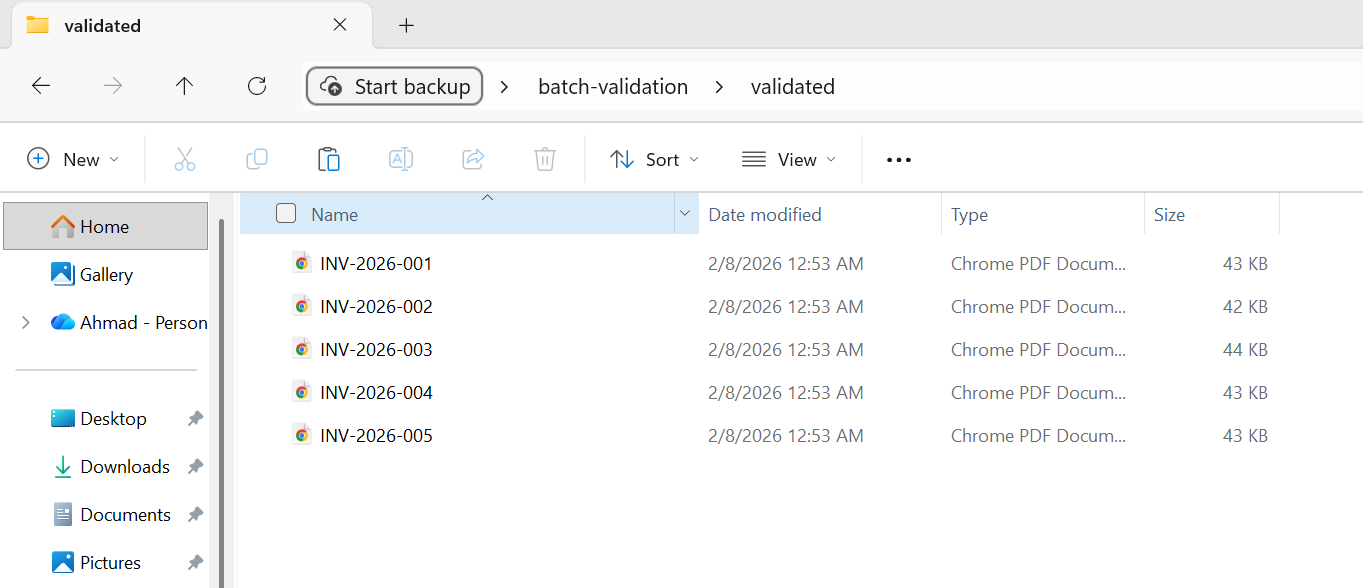
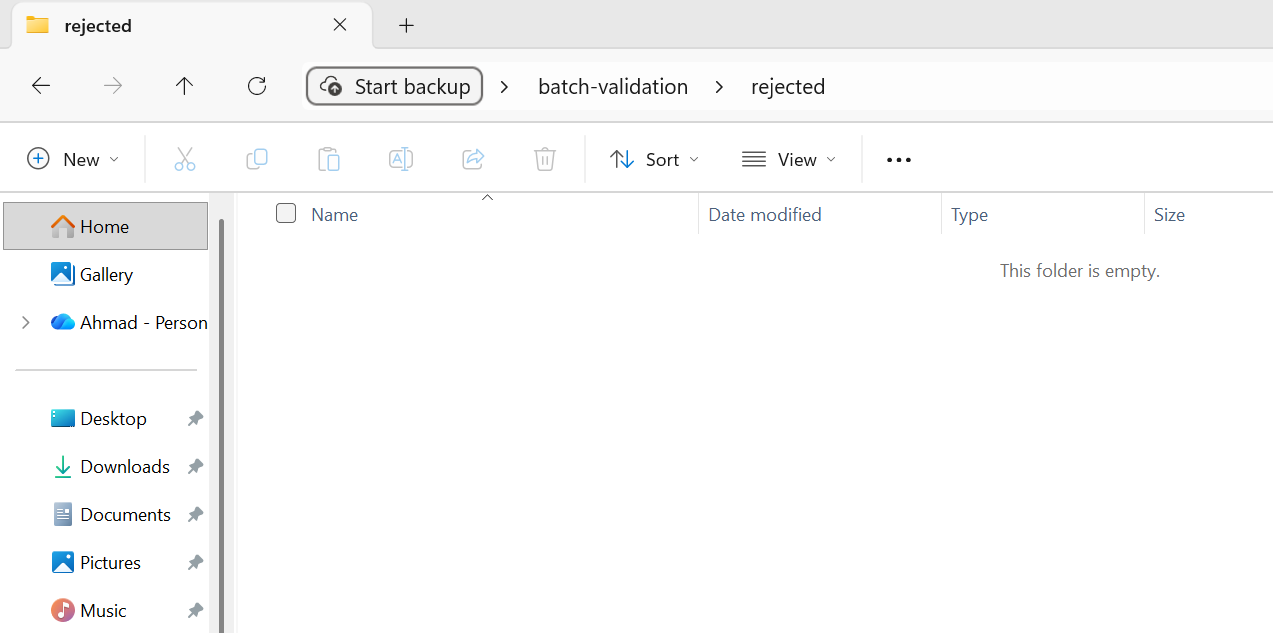
using IronPdf;using System;using System.IO;using System.Threading.Tasks;using System.Threading;using System.Collections.Concurrent;string inputFolder = "input/";string outputFolder = "output/";string validatedFolder = "validated/";string rejectedFolder = "rejected/";Directory.CreateDirectory(outputFolder);Directory.CreateDirectory(validatedFolder);Directory.CreateDirectory(rejectedFolder);string[] inputFiles = Directory.GetFiles(inputFolder, "*.html");var renderer = new ChromePdfRenderer();int preValidationFailed = 0;int processingFailed = 0;int postValidationFailed = 0;int succeeded = 0;var options = new ParallelOptions{MaxDegreeOfParallelism = Environment.ProcessorCount / 2};Parallel.ForEach(inputFiles, options, inputFile =>{ string fileName = Path.GetFileNameWithoutExtension(inputFile); string outputPath = Path.Combine(outputFolder, $"{fileName}.pdf"); // Pre-validation: Check input file if (!PreValidate(inputFile)) {Interlocked.Increment(ref preValidationFailed);Console.WriteLine($"[SKIP] {fileName}: Failed pre-validation"); return; } try { // Process using var pdf = renderer.RenderHtmlFileAsPdf(inputFile); pdf.SaveAs(outputPath); // Post-validation: Check output file if (PostValidate(outputPath)) { // Move to validated folder string validatedPath = Path.Combine(validatedFolder, $"{fileName}.pdf");File.Move(outputPath, validatedPath, overwrite: true);Interlocked.Increment(ref succeeded);Console.WriteLine($"[OK] {fileName}.pdf (validated)"); } else { // Move to rejected folder for manual review string rejectedPath = Path.Combine(rejectedFolder, $"{fileName}.pdf");File.Move(outputPath, rejectedPath, overwrite: true);Interlocked.Increment(ref postValidationFailed);Console.WriteLine($"[REJECT] {fileName}.pdf: Failed post-validation"); } } catch (Exception ex) {Interlocked.Increment(ref processingFailed);Console.WriteLine($"[ERROR] {fileName}: {ex.Message}"); }});Console.WriteLine($"\nValidation summary:");Console.WriteLine($" Succeeded: {succeeded}");Console.WriteLine($" Pre-validation failed: {preValidationFailed}");Console.WriteLine($" Processing failed: {processingFailed}");Console.WriteLine($" Post-validation failed: {postValidationFailed}");// Pre-validation: Quick checks on input fileboolPreValidate(string filePath){ try { var fileInfo = new FileInfo(filePath); // Check file exists and is readable if (!fileInfo.Exists) return false; // Check file is not empty if (fileInfo.Length == 0) return false; // Check file is not too large (e.g., 50MB limit) if (fileInfo.Length > 50 * 1024 * 1024) return false; // Quick content check - must be valid HTML string content = File.ReadAllText(filePath); if (string.IsNullOrWhiteSpace(content)) return false; if (!content.Contains("<html", StringComparison.OrdinalIgnoreCase) && !content.Contains("<!DOCTYPE", StringComparison.OrdinalIgnoreCase)) { return false; } return true; } catch { return false; }}// Post-validation: Verify output PDF meets requirementsboolPostValidate(string pdfPath){ try { using var pdf = PdfDocument.FromFile(pdfPath); // Check PDF has at least one page if (pdf.PageCount < 1) return false; // Check file size is reasonable (not just header, not corrupted) var fileInfo = new FileInfo(pdfPath); if (fileInfo.Length < 1024) return false; return true; } catch { return false; }}
using IronPdf;
using System;
using System.IO;
using System.Threading.Tasks;
using System.Threading;
using System.Collections.Concurrent;

string inputFolder = "input/";
string outputFolder = "output/";
string validatedFolder = "validated/";
string rejectedFolder = "rejected/";

Directory.CreateDirectory(outputFolder);
Directory.CreateDirectory(validatedFolder);
Directory.CreateDirectory(rejectedFolder);

string[] inputFiles = Directory.GetFiles(inputFolder, "*.html");
var renderer = new ChromePdfRenderer();

int preValidationFailed = 0;
int processingFailed = 0;
int postValidationFailed = 0;
int succeeded = 0;

var options = new ParallelOptions
{
    MaxDegreeOfParallelism = Environment.ProcessorCount / 2
};

Parallel.ForEach(inputFiles, options, inputFile =>
{
    string fileName = Path.GetFileNameWithoutExtension(inputFile);
    string outputPath = Path.Combine(outputFolder, $"{fileName}.pdf");

    // Pre-validation: Check input file
    if (!PreValidate(inputFile))
    {
        Interlocked.Increment(ref preValidationFailed);
        Console.WriteLine($"[SKIP] {fileName}: Failed pre-validation");
        return;
    }

    try
    {
        // Process
        using var pdf = renderer.RenderHtmlFileAsPdf(inputFile);
        pdf.SaveAs(outputPath);

        // Post-validation: Check output file
        if (PostValidate(outputPath))
        {
            // Move to validated folder
            string validatedPath = Path.Combine(validatedFolder, $"{fileName}.pdf");
            File.Move(outputPath, validatedPath, overwrite: true);
            Interlocked.Increment(ref succeeded);
            Console.WriteLine($"[OK] {fileName}.pdf (validated)");
        }
        else
        {
            // Move to rejected folder for manual review
            string rejectedPath = Path.Combine(rejectedFolder, $"{fileName}.pdf");
            File.Move(outputPath, rejectedPath, overwrite: true);
            Interlocked.Increment(ref postValidationFailed);
            Console.WriteLine($"[REJECT] {fileName}.pdf: Failed post-validation");
        }
    }
    catch (Exception ex)
    {
        Interlocked.Increment(ref processingFailed);
        Console.WriteLine($"[ERROR] {fileName}: {ex.Message}");
    }
});

Console.WriteLine($"\nValidation summary:");
Console.WriteLine($"  Succeeded: {succeeded}");
Console.WriteLine($"  Pre-validation failed: {preValidationFailed}");
Console.WriteLine($"  Processing failed: {processingFailed}");
Console.WriteLine($"  Post-validation failed: {postValidationFailed}");

// Pre-validation: Quick checks on input file
bool PreValidate(string filePath)
{
    try
    {
        var fileInfo = new FileInfo(filePath);

        // Check file exists and is readable
        if (!fileInfo.Exists) return false;

        // Check file is not empty
        if (fileInfo.Length == 0) return false;

        // Check file is not too large (e.g., 50MB limit)
        if (fileInfo.Length > 50 * 1024 * 1024) return false;

        // Quick content check - must be valid HTML
        string content = File.ReadAllText(filePath);
        if (string.IsNullOrWhiteSpace(content)) return false;
        if (!content.Contains("<html", StringComparison.OrdinalIgnoreCase) &&
            !content.Contains("<!DOCTYPE", StringComparison.OrdinalIgnoreCase))
        {
            return false;
        }

        return true;
    }
    catch
    {
        return false;
    }
}

// Post-validation: Verify output PDF meets requirements
bool PostValidate(string pdfPath)
{
    try
    {
        using var pdf = PdfDocument.FromFile(pdfPath);

        // Check PDF has at least one page
        if (pdf.PageCount < 1) return false;

        // Check file size is reasonable (not just header, not corrupted)
        var fileInfo = new FileInfo(pdfPath);
        if (fileInfo.Length < 1024) return false;

        return true;
    }
    catch
    {
        return false;
    }
}
ImportsIronPdfImportsSystemImportsSystem.IOImportsSystem.ThreadingImportsSystem.Collections.ConcurrentModuleProgram Sub Main() Dim inputFolder AsString = "input/" Dim outputFolder AsString = "output/" Dim validatedFolder AsString = "validated/" Dim rejectedFolder AsString = "rejected/"Directory.CreateDirectory(outputFolder)Directory.CreateDirectory(validatedFolder)Directory.CreateDirectory(rejectedFolder) Dim inputFiles AsString() = Directory.GetFiles(inputFolder, "*.html") Dim renderer As New ChromePdfRenderer() Dim preValidationFailed AsInteger = 0 Dim processingFailed AsInteger = 0 Dim postValidationFailed AsInteger = 0 Dim succeeded AsInteger = 0 Dim options As New ParallelOptionsWith { .MaxDegreeOfParallelism = Environment.ProcessorCount \ 2 }Parallel.ForEach(inputFiles, options, Sub(inputFile) Dim fileName AsString = Path.GetFileNameWithoutExtension(inputFile) Dim outputPath AsString = Path.Combine(outputFolder, $"{fileName}.pdf") ' Pre-validation: Check input file IfNotPreValidate(inputFile) ThenInterlocked.Increment(preValidationFailed)Console.WriteLine($"[SKIP] {fileName}: Failed pre-validation") Return End IfTry ' ProcessUsing pdf = renderer.RenderHtmlFileAsPdf(inputFile) pdf.SaveAs(outputPath) ' Post-validation: Check output file IfPostValidate(outputPath) Then ' Move to validated folder Dim validatedPath AsString = Path.Combine(validatedFolder, $"{fileName}.pdf")File.Move(outputPath, validatedPath, overwrite:=True)Interlocked.Increment(succeeded)Console.WriteLine($"[OK] {fileName}.pdf (validated)") Else ' Move to rejected folder for manual review Dim rejectedPath AsString = Path.Combine(rejectedFolder, $"{fileName}.pdf")File.Move(outputPath, rejectedPath, overwrite:=True)Interlocked.Increment(postValidationFailed)Console.WriteLine($"[REJECT] {fileName}.pdf: Failed post-validation") End IfEndUsingCatch ex AsExceptionInterlocked.Increment(processingFailed)Console.WriteLine($"[ERROR] {fileName}: {ex.Message}")EndTry End Sub)Console.WriteLine(vbCrLf & "Validation summary:")Console.WriteLine($" Succeeded: {succeeded}")Console.WriteLine($" Pre-validation failed: {preValidationFailed}")Console.WriteLine($" Processing failed: {processingFailed}")Console.WriteLine($" Post-validation failed: {postValidationFailed}") End Sub ' Pre-validation: Quick checks on input file Function PreValidate(filePath AsString) AsBooleanTry Dim fileInfo As New FileInfo(filePath) ' Check file exists and is readable IfNot fileInfo.ExistsThen Return False ' Check file is not empty If fileInfo.Length = 0 Then Return False ' Check file is not too large (e.g., 50MB limit) If fileInfo.Length > 50 * 1024 * 1024 Then Return False ' Quick content check - must be valid HTML Dim content AsString = File.ReadAllText(filePath) IfString.IsNullOrWhiteSpace(content) Then Return False IfNot content.Contains("<html", StringComparison.OrdinalIgnoreCase) AndAlsoNot content.Contains("<!DOCTYPE", StringComparison.OrdinalIgnoreCase) Then Return False End If Return TrueCatch Return FalseEndTry End Function ' Post-validation: Verify output PDF meets requirements Function PostValidate(pdfPath AsString) AsBooleanTryUsing pdf = PdfDocument.FromFile(pdfPath) ' Check PDF has at least one page If pdf.PageCount < 1 Then Return False ' Check file size is reasonable (not just header, not corrupted) Dim fileInfo As New FileInfo(pdfPath) If fileInfo.Length < 1024 Then Return False Return TrueEndUsingCatch Return FalseEndTry End FunctionEndModule
Imports IronPdf
Imports System
Imports System.IO
Imports System.Threading
Imports System.Collections.Concurrent

Module Program
    Sub Main()
        Dim inputFolder As String = "input/"
        Dim outputFolder As String = "output/"
        Dim validatedFolder As String = "validated/"
        Dim rejectedFolder As String = "rejected/"

        Directory.CreateDirectory(outputFolder)
        Directory.CreateDirectory(validatedFolder)
        Directory.CreateDirectory(rejectedFolder)

        Dim inputFiles As String() = Directory.GetFiles(inputFolder, "*.html")
        Dim renderer As New ChromePdfRenderer()

        Dim preValidationFailed As Integer = 0
        Dim processingFailed As Integer = 0
        Dim postValidationFailed As Integer = 0
        Dim succeeded As Integer = 0

        Dim options As New ParallelOptions With {
            .MaxDegreeOfParallelism = Environment.ProcessorCount \ 2
        }

        Parallel.ForEach(inputFiles, options, Sub(inputFile)
                                                  Dim fileName As String = Path.GetFileNameWithoutExtension(inputFile)
                                                  Dim outputPath As String = Path.Combine(outputFolder, $"{fileName}.pdf")

                                                  ' Pre-validation: Check input file
                                                  If Not PreValidate(inputFile) Then
                                                      Interlocked.Increment(preValidationFailed)
                                                      Console.WriteLine($"[SKIP] {fileName}: Failed pre-validation")
                                                      Return
                                                  End If

                                                  Try
                                                      ' Process
                                                      Using pdf = renderer.RenderHtmlFileAsPdf(inputFile)
                                                          pdf.SaveAs(outputPath)

                                                          ' Post-validation: Check output file
                                                          If PostValidate(outputPath) Then
                                                              ' Move to validated folder
                                                              Dim validatedPath As String = Path.Combine(validatedFolder, $"{fileName}.pdf")
                                                              File.Move(outputPath, validatedPath, overwrite:=True)
                                                              Interlocked.Increment(succeeded)
                                                              Console.WriteLine($"[OK] {fileName}.pdf (validated)")
                                                          Else
                                                              ' Move to rejected folder for manual review
                                                              Dim rejectedPath As String = Path.Combine(rejectedFolder, $"{fileName}.pdf")
                                                              File.Move(outputPath, rejectedPath, overwrite:=True)
                                                              Interlocked.Increment(postValidationFailed)
                                                              Console.WriteLine($"[REJECT] {fileName}.pdf: Failed post-validation")
                                                          End If
                                                      End Using
                                                  Catch ex As Exception
                                                      Interlocked.Increment(processingFailed)
                                                      Console.WriteLine($"[ERROR] {fileName}: {ex.Message}")
                                                  End Try
                                              End Sub)

        Console.WriteLine(vbCrLf & "Validation summary:")
        Console.WriteLine($"  Succeeded: {succeeded}")
        Console.WriteLine($"  Pre-validation failed: {preValidationFailed}")
        Console.WriteLine($"  Processing failed: {processingFailed}")
        Console.WriteLine($"  Post-validation failed: {postValidationFailed}")
    End Sub

    ' Pre-validation: Quick checks on input file
    Function PreValidate(filePath As String) As Boolean
        Try
            Dim fileInfo As New FileInfo(filePath)

            ' Check file exists and is readable
            If Not fileInfo.Exists Then Return False

            ' Check file is not empty
            If fileInfo.Length = 0 Then Return False

            ' Check file is not too large (e.g., 50MB limit)
            If fileInfo.Length > 50 * 1024 * 1024 Then Return False

            ' Quick content check - must be valid HTML
            Dim content As String = File.ReadAllText(filePath)
            If String.IsNullOrWhiteSpace(content) Then Return False
            If Not content.Contains("<html", StringComparison.OrdinalIgnoreCase) AndAlso
               Not content.Contains("<!DOCTYPE", StringComparison.OrdinalIgnoreCase) Then
                Return False
            End If

            Return True
        Catch
            Return False
        End Try
    End Function

    ' Post-validation: Verify output PDF meets requirements
    Function PostValidate(pdfPath As String) As Boolean
        Try
            Using pdf = PdfDocument.FromFile(pdfPath)
                ' Check PDF has at least one page
                If pdf.PageCount < 1 Then Return False

                ' Check file size is reasonable (not just header, not corrupted)
                Dim fileInfo As New FileInfo(pdfPath)
                If fileInfo.Length < 1024 Then Return False

                Return True
            End Using
        Catch
            Return False
        End Try
    End Function
End Module
using IronPdf;using System;using System.IO;using System.Threading.Tasks;using System.Threading;using System.Diagnostics;string inputFolder = "input/";string outputFolder = "output/";Directory.CreateDirectory(outputFolder);string[] htmlFiles = Directory.GetFiles(inputFolder, "*.html");var renderer = new ChromePdfRenderer();Console.WriteLine($"Processing {htmlFiles.Length} files with {Environment.ProcessorCount} CPU cores");int processed = 0;var stopwatch = Stopwatch.StartNew();// Configure parallelism based on system resources// Rule of thumb: ProcessorCount / 2 for memory-intensive operationsvar options = new ParallelOptions{MaxDegreeOfParallelism = Math.Max(1, Environment.ProcessorCount / 2)};Console.WriteLine($"Max parallelism: {options.MaxDegreeOfParallelism}");// Use Parallel.ForEach for CPU-bound batch operationsParallel.ForEach(htmlFiles, options, htmlFile =>{ string fileName = Path.GetFileNameWithoutExtension(htmlFile); string outputPath = Path.Combine(outputFolder, $"{fileName}.pdf"); try { // Render HTML to PDF using var pdf = renderer.RenderHtmlFileAsPdf(htmlFile); pdf.SaveAs(outputPath); int current = Interlocked.Increment(ref processed); // Progress reporting every 10 files if (current % 10 == 0) { double elapsed = stopwatch.Elapsed.TotalSeconds; double rate = current / elapsed; double remaining = (htmlFiles.Length - current) / rate;Console.WriteLine($"Progress: {current}/{htmlFiles.Length} ({rate:F1} files/sec, ~{remaining:F0}s remaining)"); } } catch (Exception ex) {Console.WriteLine($"[ERROR] {fileName}: {ex.Message}"); }});stopwatch.Stop();double totalRate = processed / stopwatch.Elapsed.TotalSeconds;Console.WriteLine($"\nComplete:");Console.WriteLine($" Files processed: {processed}/{htmlFiles.Length}");Console.WriteLine($" Total time: {stopwatch.Elapsed.TotalSeconds:F1}s");Console.WriteLine($" Average rate: {totalRate:F1} files/sec");Console.WriteLine($" Time per file: {stopwatch.Elapsed.TotalMilliseconds / processed:F0}ms");// Memory monitoring helper (call between chunks for large batches)voidCheckMemoryPressure(){ const long memoryThreshold = 4L * 1024 * 1024 * 1024; // 4 GB long currentMemory = GC.GetTotalMemory(forceFullCollection: false); if (currentMemory > memoryThreshold) {Console.WriteLine($"Memory pressure detected ({currentMemory / 1024 / 1024}MB), forcing GC...");GC.Collect();GC.WaitForPendingFinalizers();GC.Collect(); }}
using IronPdf;
using System;
using System.IO;
using System.Threading.Tasks;
using System.Threading;
using System.Diagnostics;

string inputFolder = "input/";
string outputFolder = "output/";

Directory.CreateDirectory(outputFolder);

string[] htmlFiles = Directory.GetFiles(inputFolder, "*.html");
var renderer = new ChromePdfRenderer();

Console.WriteLine($"Processing {htmlFiles.Length} files with {Environment.ProcessorCount} CPU cores");

int processed = 0;
var stopwatch = Stopwatch.StartNew();

// Configure parallelism based on system resources
// Rule of thumb: ProcessorCount / 2 for memory-intensive operations
var options = new ParallelOptions
{
    MaxDegreeOfParallelism = Math.Max(1, Environment.ProcessorCount / 2)
};

Console.WriteLine($"Max parallelism: {options.MaxDegreeOfParallelism}");

// Use Parallel.ForEach for CPU-bound batch operations
Parallel.ForEach(htmlFiles, options, htmlFile =>
{
    string fileName = Path.GetFileNameWithoutExtension(htmlFile);
    string outputPath = Path.Combine(outputFolder, $"{fileName}.pdf");

    try
    {
        // Render HTML to PDF
        using var pdf = renderer.RenderHtmlFileAsPdf(htmlFile);
        pdf.SaveAs(outputPath);

        int current = Interlocked.Increment(ref processed);

        // Progress reporting every 10 files
        if (current % 10 == 0)
        {
            double elapsed = stopwatch.Elapsed.TotalSeconds;
            double rate = current / elapsed;
            double remaining = (htmlFiles.Length - current) / rate;
            Console.WriteLine($"Progress: {current}/{htmlFiles.Length} ({rate:F1} files/sec, ~{remaining:F0}s remaining)");
        }
    }
    catch (Exception ex)
    {
        Console.WriteLine($"[ERROR] {fileName}: {ex.Message}");
    }
});

stopwatch.Stop();
double totalRate = processed / stopwatch.Elapsed.TotalSeconds;

Console.WriteLine($"\nComplete:");
Console.WriteLine($"  Files processed: {processed}/{htmlFiles.Length}");
Console.WriteLine($"  Total time: {stopwatch.Elapsed.TotalSeconds:F1}s");
Console.WriteLine($"  Average rate: {totalRate:F1} files/sec");
Console.WriteLine($"  Time per file: {stopwatch.Elapsed.TotalMilliseconds / processed:F0}ms");

// Memory monitoring helper (call between chunks for large batches)
void CheckMemoryPressure()
{
    const long memoryThreshold = 4L * 1024 * 1024 * 1024; // 4 GB
    long currentMemory = GC.GetTotalMemory(forceFullCollection: false);

    if (currentMemory > memoryThreshold)
    {
        Console.WriteLine($"Memory pressure detected ({currentMemory / 1024 / 1024}MB), forcing GC...");
        GC.Collect();
        GC.WaitForPendingFinalizers();
        GC.Collect();
    }
}
ImportsIronPdfImportsSystemImportsSystem.IOImportsSystem.Threading.TasksImportsSystem.ThreadingImportsSystem.DiagnosticsModuleProgram Sub Main() Dim inputFolder AsString = "input/" Dim outputFolder AsString = "output/"Directory.CreateDirectory(outputFolder) Dim htmlFiles AsString() = Directory.GetFiles(inputFolder, "*.html") Dim renderer As New ChromePdfRenderer()Console.WriteLine($"Processing {htmlFiles.Length} files with {Environment.ProcessorCount} CPU cores") Dim processed AsInteger = 0 Dim stopwatch AsStopwatch = Stopwatch.StartNew() ' Configure parallelism based on system resources ' Rule of thumb: ProcessorCount / 2 for memory-intensive operations Dim options As New ParallelOptionsWith { .MaxDegreeOfParallelism = Math.Max(1, Environment.ProcessorCount \ 2) }Console.WriteLine($"Max parallelism: {options.MaxDegreeOfParallelism}") ' Use Parallel.ForEach for CPU-bound batch operationsParallel.ForEach(htmlFiles, options, Sub(htmlFile) Dim fileName AsString = Path.GetFileNameWithoutExtension(htmlFile) Dim outputPath AsString = Path.Combine(outputFolder, $"{fileName}.pdf")Try ' Render HTML to PDFUsing pdf = renderer.RenderHtmlFileAsPdf(htmlFile) pdf.SaveAs(outputPath)EndUsing Dim current AsInteger = Interlocked.Increment(processed) ' Progress reporting every 10 files If current Mod10 = 0 Then Dim elapsed AsDouble = stopwatch.Elapsed.TotalSeconds Dim rate AsDouble = current / elapsed Dim remaining AsDouble = (htmlFiles.Length - current) / rateConsole.WriteLine($"Progress: {current}/{htmlFiles.Length} ({rate:F1} files/sec, ~{remaining:F0}s remaining)") End IfCatch ex AsExceptionConsole.WriteLine($"[ERROR] {fileName}: {ex.Message}")EndTry End Sub) stopwatch.Stop() Dim totalRate AsDouble = processed / stopwatch.Elapsed.TotalSecondsConsole.WriteLine(vbCrLf & "Complete:")Console.WriteLine($" Files processed: {processed}/{htmlFiles.Length}")Console.WriteLine($" Total time: {stopwatch.Elapsed.TotalSeconds:F1}s")Console.WriteLine($" Average rate: {totalRate:F1} files/sec")Console.WriteLine($" Time per file: {stopwatch.Elapsed.TotalMilliseconds / processed:F0}ms") ' Memory monitoring helper (call between chunks for large batches)CheckMemoryPressure() End Sub Sub CheckMemoryPressure() Const memoryThreshold AsLong = 4L * 1024 * 1024 * 1024 ' 4 GB Dim currentMemory AsLong = GC.GetTotalMemory(forceFullCollection:=False) If currentMemory > memoryThreshold ThenConsole.WriteLine($"Memory pressure detected ({currentMemory \ 1024 \ 1024}MB), forcing GC...")GC.Collect()GC.WaitForPendingFinalizers()GC.Collect() End If End SubEndModule
Imports IronPdf
Imports System
Imports System.IO
Imports System.Threading.Tasks
Imports System.Threading
Imports System.Diagnostics

Module Program
    Sub Main()
        Dim inputFolder As String = "input/"
        Dim outputFolder As String = "output/"

        Directory.CreateDirectory(outputFolder)

        Dim htmlFiles As String() = Directory.GetFiles(inputFolder, "*.html")
        Dim renderer As New ChromePdfRenderer()

        Console.WriteLine($"Processing {htmlFiles.Length} files with {Environment.ProcessorCount} CPU cores")

        Dim processed As Integer = 0
        Dim stopwatch As Stopwatch = Stopwatch.StartNew()

        ' Configure parallelism based on system resources
        ' Rule of thumb: ProcessorCount / 2 for memory-intensive operations
        Dim options As New ParallelOptions With {
            .MaxDegreeOfParallelism = Math.Max(1, Environment.ProcessorCount \ 2)
        }

        Console.WriteLine($"Max parallelism: {options.MaxDegreeOfParallelism}")

        ' Use Parallel.ForEach for CPU-bound batch operations
        Parallel.ForEach(htmlFiles, options, Sub(htmlFile)
                                                 Dim fileName As String = Path.GetFileNameWithoutExtension(htmlFile)
                                                 Dim outputPath As String = Path.Combine(outputFolder, $"{fileName}.pdf")

                                                 Try
                                                     ' Render HTML to PDF
                                                     Using pdf = renderer.RenderHtmlFileAsPdf(htmlFile)
                                                         pdf.SaveAs(outputPath)
                                                     End Using

                                                     Dim current As Integer = Interlocked.Increment(processed)

                                                     ' Progress reporting every 10 files
                                                     If current Mod 10 = 0 Then
                                                         Dim elapsed As Double = stopwatch.Elapsed.TotalSeconds
                                                         Dim rate As Double = current / elapsed
                                                         Dim remaining As Double = (htmlFiles.Length - current) / rate
                                                         Console.WriteLine($"Progress: {current}/{htmlFiles.Length} ({rate:F1} files/sec, ~{remaining:F0}s remaining)")
                                                     End If
                                                 Catch ex As Exception
                                                     Console.WriteLine($"[ERROR] {fileName}: {ex.Message}")
                                                 End Try
                                             End Sub)

        stopwatch.Stop()
        Dim totalRate As Double = processed / stopwatch.Elapsed.TotalSeconds

        Console.WriteLine(vbCrLf & "Complete:")
        Console.WriteLine($"  Files processed: {processed}/{htmlFiles.Length}")
        Console.WriteLine($"  Total time: {stopwatch.Elapsed.TotalSeconds:F1}s")
        Console.WriteLine($"  Average rate: {totalRate:F1} files/sec")
        Console.WriteLine($"  Time per file: {stopwatch.Elapsed.TotalMilliseconds / processed:F0}ms")

        ' Memory monitoring helper (call between chunks for large batches)
        CheckMemoryPressure()
    End Sub

    Sub CheckMemoryPressure()
        Const memoryThreshold As Long = 4L * 1024 * 1024 * 1024 ' 4 GB
        Dim currentMemory As Long = GC.GetTotalMemory(forceFullCollection:=False)

        If currentMemory > memoryThreshold Then
            Console.WriteLine($"Memory pressure detected ({currentMemory \ 1024 \ 1024}MB), forcing GC...")
            GC.Collect()
            GC.WaitForPendingFinalizers()
            GC.Collect()
        End If
    End Sub
End Module


 使用NuGet安裝