
如何在IronPDF C#中將PDF扁平化

IronPDF 使用 Flatten() 方法在 C# 中將 PDF 文件扁平化,將互動的表單欄位轉換成靜態內容,以使文件不再可修改。
PDF 文件通常包含可填寫的小工具互動表單,如單選按鈕、複選框、文字框和列表。 為了安全或存檔目的使這些文件不可編輯,您需要將PDF文件扁平化。這適用於業務應用程式中的PDF表單、法律文件或需要永久記錄的任何場合。
快速開始:用幾行程式碼將PDF扁平化使用IronPDF將PDF文件扁平化以去除所有互動性並建立永久的、不可編輯的內容。 這段C#程式碼段載入現有的PDF,移除所有可填寫的小工具,並保存安全的文件。
-
1Install IronPDF with NuGet Package Manager
-
2複製並運行這段程式碼片段。
var pdf = IronPdf.PdfDocument.FromFile("input.pdf"); pdf.Flatten(); pdf.SaveAs("flattened.pdf");C# -
3部署以在您的實時環境中測試
今天就開始在您的專案中使用IronPDF,透過免費試用
最小工作流程 (5步)
- 從NuGet套件管理器中安裝IronPDF
- 載入現有的PDF或從HTML建立新的
- 調用
Flatten方法 - 保存已扁平化的PDF文件
- 驗證表單欄位已被移除
如何在C#中將PDF文件扁平化?
一旦安裝了IronPDF, 您可以通過一個方法調用將PDF文件扁平化。 此過程適用於現有的PDF文件以及您在扁平化之前從HTML文件呈現的PDF。
下面的程式碼範例使用PdfDocument類載入現有的PDF。 對於動態PDF生成,請在扁平化之前使用ChromePdfRenderer類呈現表單。
要扁平化PDF文件, 請調用Flatten方法。 這將移除所有互動小工具,包括單選按鈕、複選框和文字欄位,使文件不可編輯。
輸入
using IronPdf;

// Select the desired PDF File
PdfDocument pdf = PdfDocument.FromFile("before.pdf");

// Flatten the pdf
pdf.Flatten();

// Save as a new file
pdf.SaveAs("after_flatten.pdf");Imports IronPdf
' Select the desired PDF File
Private pdf As PdfDocument = PdfDocument.FromFile("before.pdf")
' Flatten the pdf
pdf.Flatten()
' Save as a new file
pdf.SaveAs("after_flatten.pdf")輸出
對於複雜情況,可以在扁平化之前扁平化特定頁面或設置表單資料。 傳遞以零為基礎的頁面索引列表來扁平化僅那些頁面:
using IronPdf;

// Load a PDF with fillable forms
PdfDocument pdf = PdfDocument.FromFile("form-document.pdf");

// Optionally, pre-fill form fields by name before flattening
pdf.Form.FindFormField("name").Value = "John Doe";
pdf.Form.FindFormField("email").Value = "john@example.com";

// Flatten only pages 1-3, passing their zero-based indexes
pdf.Flatten(new[] { 0, 1, 2 });

// Save the result
pdf.SaveAs("flattened-form.pdf");我如何驗證PDF是否已被扁平化?
下面的輸出顯示了前後狀態。 第一份PDF包含可編輯的表單欄位。 運行扁平化方法後,文件變得不可編輯。 這段程式碼可以在任何 .NET 項目中工作,包括Blazor 應用。
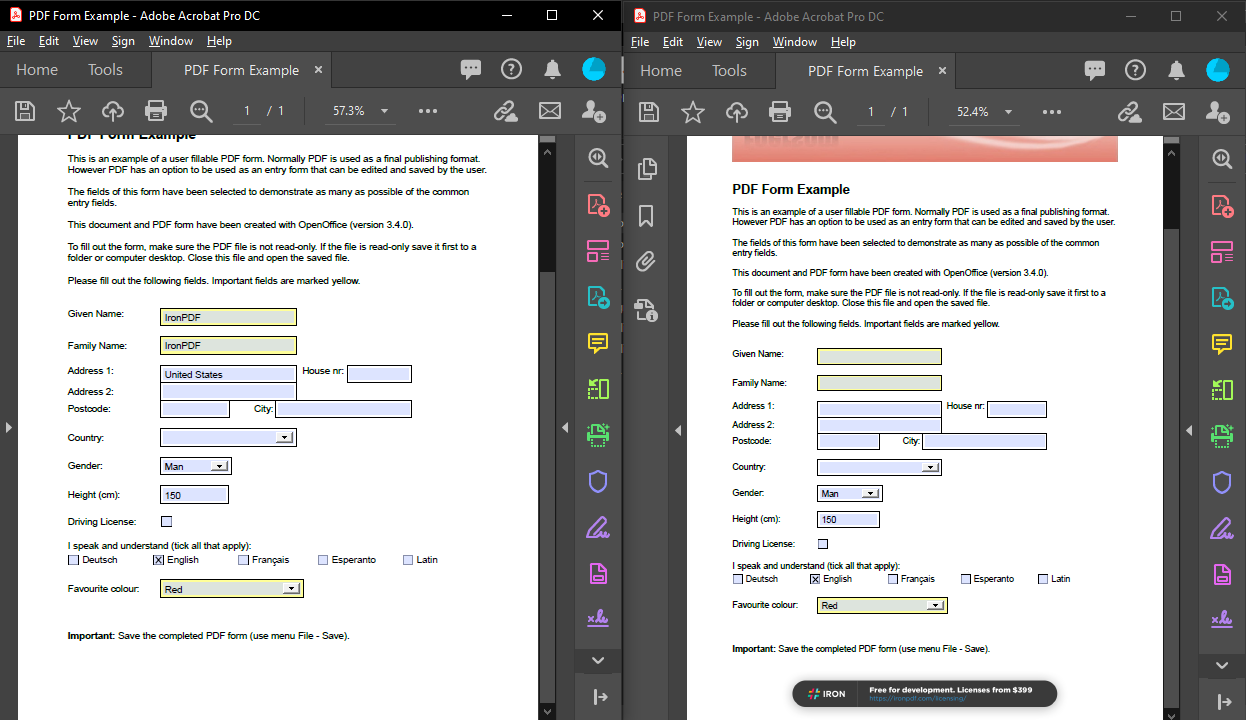
Flatten方法後,表單將無法檢測到。
要驗證是否成功扁平化,檢查表單欄位數:
using IronPdf;

// Load the flattened PDF
PdfDocument flattenedPdf = PdfDocument.FromFile("flattened.pdf");

// FormFieldCollection exposes Count directly on the Form property
if (flattenedPdf.Form.Count == 0)
{
    Console.WriteLine("PDF has been successfully flattened - no interactive fields remain.");
}
else
{
    Console.WriteLine($"Warning: {flattenedPdf.Form.Count} form fields still exist.");
}


扁平化後表單欄位會發生什麼變化?
當您扁平化一個PDF文件時,每個互動表單元素都會成為頁面內容的一部分。 表單欄位將變為靜態文字和圖片:
- 文字欄位 變為頁面上的常規文字
- 複選框和單選按鈕 成為顯示其所選狀態的靜態圖片
- 下拉選單 僅顯示選定的值作為普通文字
- 數位簽章以視覺方式保留,但失去加密驗證
這一過程是不可逆的。 如果您需要將來的編輯能力,請保留原始互動PDF的副本。 與將頁面點陣化為圖像不同,扁平化保持了文字和矢量內容可選。 對於需要安全性和可編輯性的文件,請使用PDF權限和密碼而不進行扁平化。
我應該何時將PDF文件扁平化?
扁平化的常見情況:
-
法律文件存檔:簽署後扁平化合同和協議,以防止內容更改並保持法律完整性。
-
報告分發:在分發之前扁平化具有計算欄位的財務報告和資料表,以防篡改。
-
表單提交處理:藉由扁平化使用者完成的在線表單建立永久記錄。
-
印刷優化:由於印刷機無法處理互動元素,扁平化的PDF印刷更可靠。
-
文件大小減少:扁平化過程通過去除表單欄位資料結構可能使文件大小減少,並且可與PDF壓縮結合使用。
這裡是一個批量處理多個已完成表單的存檔範例:
using IronPdf;
using System.IO;

public class BatchPdfFlattener
{
    public static void FlattenAllPdfsInDirectory(string sourceDir, string outputDir)
    {
        // Ensure output directory exists
        Directory.CreateDirectory(outputDir);

        // Get all PDF files in source directory
        string[] pdfFiles = Directory.GetFiles(sourceDir, "*.pdf");

        foreach (string pdfFile in pdfFiles)
        {
            try
            {
                // Load the PDF
                PdfDocument pdf = PdfDocument.FromFile(pdfFile);

                // Flatten the document
                pdf.Flatten();

                // Save to output directory with "_flattened" suffix
                string fileName = Path.GetFileNameWithoutExtension(pdfFile);
                string outputPath = Path.Combine(outputDir, $"{fileName}_flattened.pdf");
                pdf.SaveAs(outputPath);

                Console.WriteLine($"Flattened: {fileName}");
            }
            catch (Exception ex)
            {
                Console.WriteLine($"Error processing {pdfFile}: {ex.Message}");
            }
        }
    }
}Imports IronPdf
Imports System.IO
Public Class BatchPdfFlattener
Public Shared Sub FlattenAllPdfsInDirectory(sourceDir As String, outputDir As String)
' Ensure output directory exists
Directory.CreateDirectory(outputDir)
' Get all PDF files in source directory
Dim pdfFiles As String() = Directory.GetFiles(sourceDir, "*.pdf")
For Each pdfFile As String In pdfFiles
Try
' Load the PDF
Dim pdf As PdfDocument = PdfDocument.FromFile(pdfFile)
' Flatten the document
pdf.Flatten()
' Save to output directory with "_flattened" suffix
Dim fileName As String = Path.GetFileNameWithoutExtension(pdfFile)
Dim outputPath As String = Path.Combine(outputDir, $"{fileName}_flattened.pdf")
pdf.SaveAs(outputPath)
Console.WriteLine($"Flattened: {fileName}")
Catch ex As Exception
Console.WriteLine($"Error processing {pdfFile}: {ex.Message}")
End Try
Next
End Sub
End Class總結
扁平化將PDF的互動表單欄位轉換為靜態頁面內容,使用單一Flatten()調用鎖定文件以防止進一步編輯。 如果您可能需要稍後更改資料,請保留未扁平化的副本,基於此操作無法撤銷。
如果您需要先填充欄位,請先設置表單值,再進行扁平化; 組裝鎖定文件,請在之後合併或分割它們。
庫快捷存取

準備好看看您還能做什麼嗎? 在此查看我們的教程頁面:其他特性
常見問題
平坦化PDF意味著什麼?
平坦化PDF會將所有交互式表單欄位(如複選框、文字框和單選按鈕)轉換為靜態、不可編輯的內容。IronPDF提供此功能以確保文件完整性並防止進一步修改。
如何在C#中平坦化PDF?
使用IronPDF,平坦化PDF只需三個語句:var pdf = IronPdf.PdfDocument.FromFile("input.pdf"); 然後pdf.Flatten(); 接著pdf.SaveAs("flattened.pdf")。這將載入PDF,移除所有互動元素,並保存安全的文件。
我可以只平坦化特定頁面而不是整個文件嗎?
可以,將零基頁面索引列表傳遞給Flatten方法。例如,pdf.Flatten(new[] { 0, 1, 2 })只平坦化第0、1和2頁,而保留其餘頁面為互動性。
哪些型別的表單欄位可以被平坦化?
IronPDF可以平坦化所有交互式小工具,包括單選按鈕、複選框、文字欄位、下拉列表和任何其他可填寫的表單元素,將它們轉變為永久的靜態內容。
我可以在平坦化PDF之前填寫表單欄位嗎?
可以,IronPDF允許您在平坦化之前預填表單欄位。您可以在調用Flatten方法之前設置值,例如pdf.Form.FindFormField("name").Value = "John Doe",以建立完成的、不可編輯的文件。
PDF平坦化過程使用什麼渲染引擎?
IronPDF使用Chrome渲染引擎以確保在平坦化之前準確渲染複雜的表單,保持文件在整個過程中的視覺完整性。
為什麼我需要平坦化PDF文件?
使用IronPDF平坦化PDF對於安全性、檔案目的、法律文件或任何需要永久保存文件並防止進一步修改表單資料的情境來說,是必須的。
Is the flattening process reversible in IronPDF?
No, the flattening process is irreversible. It permanently converts interactive elements into non-editable content, so it's crucial to keep an original unflattened copy if future edits are needed.
Do flattened PDFs still retain selectable text and vector graphics?
Yes, while form fields are converted to static content, IronPDF retains selectable text and vector graphics within the document.
Can interactive elements like digital signatures be preserved upon flattening?
Digital signatures are preserved visually after flattening in IronPDF, but cryptographic validation is lost, meaning they remain visible yet are no longer valid signatures.

Curtis Chau擁有Carleton大學的電腦科學學士學位,專精於前端開發,擁有Node.js、TypeScript、JavaScript和React的專業知識。Curtis熱衷於建立直觀且美觀的使用者介面,喜愛使用現代框架並建立結構良好、視覺吸引力的手冊。













