


使用 C# 和 IronPDF 在 PDF 上加蓋文字與圖像印章

IronPDF使用 C# 中的 HTMLStamper 和 BarcodeStamper 類,透過精確的定位控制,將文字、圖像、HTML 內容和條碼新增至現有的 PDF 文件中。
蓋章功能是在現有 PDF 文件上疊加額外內容。 圖章可以為 PDF 檔案添加資訊、標籤、浮水印或註解。 使用 IronPDF 的全面圖章功能,您可以新增頁首和頁腳,或建立自訂浮水印。
IronPDF提供四張印章:HTMLStamper 和 BarcodeStamper。 HTMLStamper 利用所有 HTML 功能和 CSS 樣式,類似於將 HTML 字串轉換為 PDF 。
快速入門:立即在 PDF 上新增文字
使用 IronPDF 的 TextStamper 類別為 PDF 文件添加文字註釋、浮水印或標籤。 下面的範例示範如何使用 ApplyStamp 方法在 PDF 上新增文字。
-
使用NuGet套件管理器安裝https://www.nuget.org/packages/IronPdf
PM > Install-Package IronPdf -
複製並運行這段程式碼。
var pdf = new IronPdf.PdfDocument("input.pdf"); var stamper = new IronPdf.Editing.TextStamper() { Text = "Confidential", FontSize = 50, Opacity = 50, VerticalAlignment = IronPdf.Editing.VerticalAlignment.Middle, HorizontalAlignment = IronPdf.Editing.HorizontalAlignment.Center }; pdf.ApplyStamp(stamper); pdf.SaveAs("stamped.pdf"); -
部署到您的生產環境進行測試
今天就在您的專案中開始使用免費試用IronPDF

最簡工作流程(5個步驟)
- 下載 C# 庫,用於在文字和圖像上添加印章。
- 建立並配置所需的沖壓機類
- 使用`ApplyStamp`方法將圖章套用到 PDF 檔案。
- 使用`ApplyMultipleStamps`方法應用多個圖章
- 指定要貼郵票的具體頁面
如何在PDF上新增文字印章?
建立一個包含所有顯示配置的 TextStamper 物件。 將 TextStamper 物件傳遞給 ApplyStamp 方法。 Text 屬性設定顯示的文字。 配置字體系列、字體樣式和圖章位置。
TextStamper 提供類似於在 PDF 文件中管理字體的廣泛自訂選項。 將 UseGoogleFont 設為 true,即可使用系統字型或 Google 字型。
:path=/static-assets/pdf/content-code-examples/how-to/stamp-text-image-stamp-text.csusing IronPdf;
using IronPdf.Editing;
ChromePdfRenderer renderer = new ChromePdfRenderer();
PdfDocument pdf = renderer.RenderHtmlAsPdf("<h1>Example HTML Document!</h1>");
// Create text stamper
TextStamper textStamper = new TextStamper()
{
Text = "Text Stamper!",
FontFamily = "Bungee Spice",
UseGoogleFont = true,
FontSize = 30,
IsBold = true,
IsItalic = true,
VerticalAlignment = VerticalAlignment.Top,
};
// Stamp the text stamper
pdf.ApplyStamp(textStamper);
pdf.SaveAs("stampText.pdf");Imports IronPdf
Imports IronPdf.Editing
Private renderer As New ChromePdfRenderer()
Private pdf As PdfDocument = renderer.RenderHtmlAsPdf("<h1>Example HTML Document!</h1>")
' Create text stamper
Private textStamper As New TextStamper() With {
.Text = "Text Stamper!",
.FontFamily = "Bungee Spice",
.UseGoogleFont = True,
.FontSize = 30,
.IsBold = True,
.IsItalic = True,
.VerticalAlignment = VerticalAlignment.Top
}
' Stamp the text stamper
pdf.ApplyStamp(textStamper)
pdf.SaveAs("stampText.pdf")輸出的PDF檔案是什麼樣子的?
如何建立多行文字圖章?
在 TextStamper 中使用 <br> 標籤表示多行文字。 例如,"第 1 行
"第 2 行"會在第一行產生"第 1 行",在第二行產生"第 2 行"。這樣就可以建立地址印章或多行浮水印。
如何在PDF上新增圖片印章?
建立一個 ImageStamper 對象,並使用 ApplyStamp 方法將圖像應用於文件。 此方法的第二個參數接受一個頁面索引,用於在單一或多個頁面上加蓋戳記。 下面的範例會在 PDF 的第 1 頁上蓋上圖像印章。
對於複雜的影像操作,可以探索將影像新增至 PDF或使用base64 編碼的影像。
:path=/static-assets/pdf/content-code-examples/how-to/stamp-text-image-stamp-image.csusing IronPdf;
using IronPdf.Editing;
using System;
ChromePdfRenderer renderer = new ChromePdfRenderer();
PdfDocument pdf = renderer.RenderHtmlAsPdf("<h1>Example HTML Document!</h1>");
// Create image stamper
ImageStamper imageStamper = new ImageStamper(new Uri("https://ironpdf.com/img/svgs/iron-pdf-logo.svg"))
{
VerticalAlignment = VerticalAlignment.Top,
};
// Stamp the image stamper
pdf.ApplyStamp(imageStamper, 0);
pdf.SaveAs("stampImage.pdf");Imports IronPdf
Imports IronPdf.Editing
Imports System
Private renderer As New ChromePdfRenderer()
Private pdf As PdfDocument = renderer.RenderHtmlAsPdf("<h1>Example HTML Document!</h1>")
' Create image stamper
Private imageStamper As New ImageStamper(New Uri("https://ironpdf.com/img/svgs/iron-pdf-logo.svg")) With {.VerticalAlignment = VerticalAlignment.Top}
' Stamp the image stamper
pdf.ApplyStamp(imageStamper, 0)
pdf.SaveAs("stampImage.pdf")影像印章輸出是什麼樣的?
支援哪些圖像格式?
ImageStamper 支援透過 URI 引用或檔案路徑來傳輸 PNG、JPEG、GIF 和 SVG 檔案。 確保遠端鏡像的網路連線正常。 對於 Azure 環境,請考慮使用Azure Blob 儲存體中的映像。
如何同時使用多個印章?
使用 ApplyMultipleStamps 透過傳遞印章數組來應用多個印章。 這種方法可以一次有效率地處理多個郵票。
:path=/static-assets/pdf/content-code-examples/how-to/stamp-text-image-multiple-stamps.csusing IronPdf;
using IronPdf.Editing;
ChromePdfRenderer renderer = new ChromePdfRenderer();
PdfDocument pdf = renderer.RenderHtmlAsPdf("<h1>Example HTML Document!</h1>");
// Create two text stampers
TextStamper stamper1 = new TextStamper()
{
Text = "Text stamp 1",
VerticalAlignment = VerticalAlignment.Top,
HorizontalAlignment = HorizontalAlignment.Left,
};
TextStamper stamper2 = new TextStamper()
{
Text = "Text stamp 2",
VerticalAlignment = VerticalAlignment.Top,
HorizontalAlignment = HorizontalAlignment.Right,
};
Stamper[] stampersToApply = { stamper1, stamper2 };
// Apply multiple stamps
pdf.ApplyMultipleStamps(stampersToApply);
pdf.SaveAs("multipleStamps.pdf");Imports IronPdf
Imports IronPdf.Editing
Private renderer As New ChromePdfRenderer()
Private pdf As PdfDocument = renderer.RenderHtmlAsPdf("<h1>Example HTML Document!</h1>")
' Create two text stampers
Private stamper1 As New TextStamper() With {
.Text = "Text stamp 1",
.VerticalAlignment = VerticalAlignment.Top,
.HorizontalAlignment = HorizontalAlignment.Left
}
Private stamper2 As New TextStamper() With {
.Text = "Text stamp 2",
.VerticalAlignment = VerticalAlignment.Top,
.HorizontalAlignment = HorizontalAlignment.Right
}
Private stampersToApply() As Stamper = { stamper1, stamper2 }
' Apply multiple stamps
pdf.ApplyMultipleStamps(stampersToApply)
pdf.SaveAs("multipleStamps.pdf")郵票重疊會發生什麼事?
我可以混用不同類型的印章嗎?
ApplyMultipleStamps 接受包含任何印章類型的陣列。將 HTMLStamper 和 BarcodeStamper 合併為一個操作。 同時建立包含頁首、頁尾、浮水印和識別碼的複雜文件版面。
如何控製印章位置?
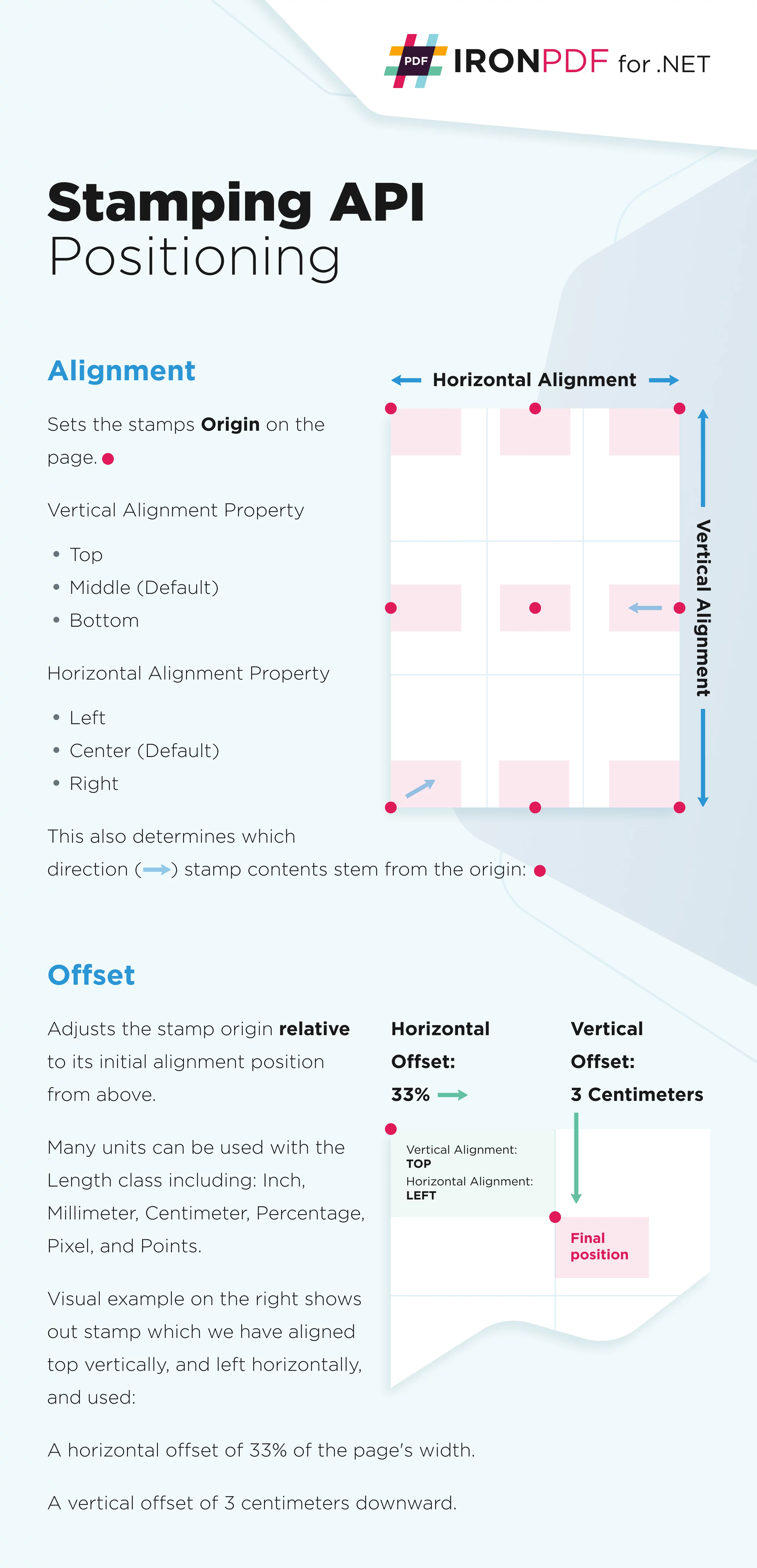
使用 3x3 網格定義印章位置,其中有三列和三行。 選擇水平對齊方式:左對齊、居中對齊、右對齊。 選擇垂直對齊方式:上、中、下。 調整水平和垂直偏移量以實現精確定位。 請看下圖的直覺表示。
關鍵定位屬性有哪些?
HorizontalAlignment: 相對於頁面的水平對齊方式。 預設值:HorizontalAlignment.Center。VerticalAlignment: 相對於頁面的垂直對齊方式。 預設值:VerticalAlignment.Middle。HorizontalOffset: 水平偏移。 預設值:0,單位:MeasurementUnit.Percentage。 正值向右偏移,負值向左偏移。VerticalOffset: 垂直偏移。 預設值:0,單位:MeasurementUnit.Percentage。 正值向下偏移,負值向上偏移。
如何設定精確偏移量?
使用 Length 類別指定 HorizontalOffset 和 VerticalOffset。 預設計量單位為百分比。 可用單位包括英吋、毫米、公分、像素和點。 這樣就可以精確定位,例如在 PDF 文件中設定自訂邊距。
程式碼
:path=/static-assets/pdf/content-code-examples/how-to/stamp-text-image-stamp-location.csusing IronPdf.Editing;
using System;
// Create text stamper
ImageStamper imageStamper = new ImageStamper(new Uri("https://ironpdf.com/img/svgs/iron-pdf-logo.svg"))
{
HorizontalAlignment = HorizontalAlignment.Center,
VerticalAlignment = VerticalAlignment.Top,
// Specify offsets
HorizontalOffset = new Length(10),
VerticalOffset = new Length(10),
};Imports IronPdf.Editing
Imports System
' Create text stamper
Private imageStamper As New ImageStamper(New Uri("https://ironpdf.com/img/svgs/iron-pdf-logo.svg")) With {
.HorizontalAlignment = HorizontalAlignment.Center,
.VerticalAlignment = VerticalAlignment.Top,
.HorizontalOffset = New Length(10),
.VerticalOffset = New Length(10)
}如何為HTML內容添加浮水印?
使用 HtmlStamper 類別為文字和圖像加上印章。 HtmlStamper 使用 CSS 樣式渲染 HTML 設計,然後將其新增至 PDF 文件中。 HtmlBaseUrl 屬性指定 HTML 字串資源(如 CSS 和圖片檔案)的基本 URL。 它使用的渲染引擎與將 HTML 轉換為 PDF 時使用的渲染引擎相同。
程式碼
:path=/static-assets/pdf/content-code-examples/how-to/stamp-text-image-multiple-stamps.csusing IronPdf;
using IronPdf.Editing;
ChromePdfRenderer renderer = new ChromePdfRenderer();
PdfDocument pdf = renderer.RenderHtmlAsPdf("<h1>Example HTML Document!</h1>");
// Create two text stampers
TextStamper stamper1 = new TextStamper()
{
Text = "Text stamp 1",
VerticalAlignment = VerticalAlignment.Top,
HorizontalAlignment = HorizontalAlignment.Left,
};
TextStamper stamper2 = new TextStamper()
{
Text = "Text stamp 2",
VerticalAlignment = VerticalAlignment.Top,
HorizontalAlignment = HorizontalAlignment.Right,
};
Stamper[] stampersToApply = { stamper1, stamper2 };
// Apply multiple stamps
pdf.ApplyMultipleStamps(stampersToApply);
pdf.SaveAs("multipleStamps.pdf");Imports IronPdf
Imports IronPdf.Editing
Private renderer As New ChromePdfRenderer()
Private pdf As PdfDocument = renderer.RenderHtmlAsPdf("<h1>Example HTML Document!</h1>")
' Create two text stampers
Private stamper1 As New TextStamper() With {
.Text = "Text stamp 1",
.VerticalAlignment = VerticalAlignment.Top,
.HorizontalAlignment = HorizontalAlignment.Left
}
Private stamper2 As New TextStamper() With {
.Text = "Text stamp 2",
.VerticalAlignment = VerticalAlignment.Top,
.HorizontalAlignment = HorizontalAlignment.Right
}
Private stampersToApply() As Stamper = { stamper1, stamper2 }
' Apply multiple stamps
pdf.ApplyMultipleStamps(stampersToApply)
pdf.SaveAs("multipleStamps.pdf")HTML Stamper 的基本屬性有哪些?
Html: 若要新增至 PDF 中的 HTML 片段。 對JavaScript、CSS 和圖像的外部引用是相對於HtmlBaseUrl的。HtmlBaseUrl: 外部 CSS、 JavaScript和圖片檔案引用的基本 URL。CssMediaType: 啟用 Media="screen" CSS 樣式。 設定AllowScreenCss=false使用 CSS media="print" 渲染印章。 預設值:PdfCssMediaType.Screen。
為什麼要使用 HTML Stamper 而不是 Text Stamper?
HTMLStamper 為複雜的佈局、多種字體、顏色和嵌入式圖像提供完整的 HTML 和 CSS 支持,可在一個浮水印中實現。非常適合用於富文本浮水印或標題。 保持品牌形像一致,並採用響應式 CSS 設計。
如何給條碼打戳?
BarcodeStamper 類別直接在現有 PDF 文件上新增條碼。 支援 QRCode、Code128 和 Code39 條碼類型。
程式碼
:path=/static-assets/pdf/content-code-examples/how-to/stamp-text-image-stamp-text.csusing IronPdf;
using IronPdf.Editing;
ChromePdfRenderer renderer = new ChromePdfRenderer();
PdfDocument pdf = renderer.RenderHtmlAsPdf("<h1>Example HTML Document!</h1>");
// Create text stamper
TextStamper textStamper = new TextStamper()
{
Text = "Text Stamper!",
FontFamily = "Bungee Spice",
UseGoogleFont = true,
FontSize = 30,
IsBold = true,
IsItalic = true,
VerticalAlignment = VerticalAlignment.Top,
};
// Stamp the text stamper
pdf.ApplyStamp(textStamper);
pdf.SaveAs("stampText.pdf");Imports IronPdf
Imports IronPdf.Editing
Private renderer As New ChromePdfRenderer()
Private pdf As PdfDocument = renderer.RenderHtmlAsPdf("<h1>Example HTML Document!</h1>")
' Create text stamper
Private textStamper As New TextStamper() With {
.Text = "Text Stamper!",
.FontFamily = "Bungee Spice",
.UseGoogleFont = True,
.FontSize = 30,
.IsBold = True,
.IsItalic = True,
.VerticalAlignment = VerticalAlignment.Top
}
' Stamp the text stamper
pdf.ApplyStamp(textStamper)
pdf.SaveAs("stampText.pdf")條碼有哪些設定選項?
Value: 條碼的字串值。BarcodeType: 支援 QRCode、Code128 和 Code39 的編碼類型。預設值:QRCode。Width: 以像素為單位的渲染條碼寬度。 預設值:250px。Height: 以像素為單位的渲染條碼高度。 預設值:250px。
我應該在什麼情況下使用哪種條碼?
二維碼可以處理網址和大型資料集(最多 4,296 個字母數字字元)。 Code128 適用於高密度要求的字母數字資料。 Code39 適用於簡單的數字或大寫字母組合。 選擇條碼類型時,請考慮掃描設備的相容性。
還有哪些其他沖壓器可選?
這些屬性可以對印章的外觀和行為進行精細控制,類似於建立自訂浮水印。
如何控製印章外觀?
Opacity: 控制透明度。 0 表示不透明,100 表示不透明。Rotation: 將印章順時針旋轉 0 到 360 度。MaxWidth: 輸出戳記的最大寬度。MaxHeight: 輸出戳記的最大高度。MinWidth: 輸出戳記的最小寬度。MinHeight: 輸出戳記的最小高度。Hyperlink: 為有戳記的元素新增點擊超連結。 注意:HTML 連結(a 標籤)不會被浮水印保留。Scale: 對郵票套用百分比刻度。 預設值:100(無效果)。IsStampBehindContent: 將印章放置在內容後方。 如果內容不透明,則印章可能不可見。WaitFor: 等待事件或時間。請參閱使用 WaitFor 延遲 PDF 渲染。Timeout: 渲染超時時間(秒)。 預設值:60。
最常用的屬性有哪些?
Opacity 和 IsStampBehindContent 建立浮水印。 Scale 和 Rotation 調整視覺定位和大小。 例子:
// Create a semi-transparent watermark behind content
TextStamper watermark = new TextStamper()
{
    Text = "CONFIDENTIAL",
    FontSize = 60,
    FontColorCode = "#CCCCCC",
    Opacity = 25,
    Rotation = -45,
    IsStampBehindContent = true,
    VerticalAlignment = VerticalAlignment.Middle,
    HorizontalAlignment = HorizontalAlignment.Center
};
// Create a semi-transparent watermark behind content
TextStamper watermark = new TextStamper()
{
Text = "CONFIDENTIAL",
FontSize = 60,
FontColorCode = "#CCCCCC",
Opacity = 25,
Rotation = -45,
IsStampBehindContent = true,
VerticalAlignment = VerticalAlignment.Middle,
HorizontalAlignment = HorizontalAlignment.Center
};' Create a semi-transparent watermark behind content
Dim watermark As New TextStamper() With {
.Text = "CONFIDENTIAL",
.FontSize = 60,
.FontColorCode = "#CCCCCC",
.Opacity = 25,
.Rotation = -45,
.IsStampBehindContent = True,
.VerticalAlignment = VerticalAlignment.Middle,
.HorizontalAlignment = HorizontalAlignment.Center
}概括
IronPDF 的圖章功能可以為現有 PDF 文件添加文字、圖像、HTML 內容和條碼。 四種專業印章類別,提供豐富的自訂選項,可建立帶有浮水印、頁首、頁尾和註釋的專業文件。 此定位系統具有多種測量單位和對準選項,可確保像素級精確定位。 使用簡單的文字圖章或具有 CSS 樣式的複雜 HTML 佈局。 IronPDF 的沖壓 API 為企業級 PDF 操作提供了靈活性和控制。
常見問題解答
如何用 C# 在 PDF 文件中加入文字水印?
使用 IronPDF 的 TextStamper 類別來新增文字水印。建立一個 TextStamper 物件,設定 Text、FontSize 和 Opacity 等屬性,然後再使用 ApplyStamp 方法。您可以使用 VerticalAlignment 和 HorizontalAlignment 屬性來定位水印,以便精確放置。
我可以在現有的 PDF 檔案中加入圖片作為圖章嗎?
是的,IronPDF 提供 ImageStamper 類,用於在 PDF 中添加圖片。創建一個 ImageStamper 物件,指定圖片檔案,並使用 ApplyStamp 方法。您可以控制定位,並使用基於零的頁面索引指定要加蓋圖章的頁面。
哪些類型的內容可以印製到 PDF 上?
IronPDF 支援四種圖章:TextStamper 用於文字註解和水印,ImageStamper 用於影像,HTMLStamper 用於 HTML 內容與完整的 CSS 定型,BarcodeStamper 用於條碼。每個圖章類別都提供精確的定位控制。
如何建立多行文字戳記?
在 TextStamper 的 Text 屬性中使用
標籤來建立多行戳記。例如,「line 1
line 2」會在兩行分開顯示文字,非常適合建立地址戳記或多行水印。
在 PDF 上標示文字時,可以使用自訂字型嗎?
是的,IronPDF 中的 TextStamper 支持系统字体和 Google 字体。將 UseGoogleFont 屬性設為 true 即可使用 Google 字體,或使用 FontFamily 屬性指定任何已安裝的系統字體,以獲得完整的排版控制。
是否可以僅在特定頁面上添加圖章?
絕對可以。ApplyStamp 方法接受一個頁面索引參數,可讓您對特定頁面加蓋圖章。IronPDF 使用基於零的索引,所以第 1 頁就是索引 0。您也可以使用 ApplyMultipleStamps 一次為多個頁面加上圖章。


還在捲動嗎?
想要快速證明? PM > Install-Package IronPdf
執行範例 觀看您的 HTML 變成 PDF。

















 免費開始使用
 免費開始使用
 預約免費現場演示





 無需信用卡或創建帳戶










