
How to Convert HTML String to PDF in C#

IronPDF使用Chrome渲染引擎在C#中將HTML字串轉換為PDF文件,支持所有HTML5、CSS3和JavaScript內容,提供單行程式碼進行基本轉換。 該程式庫提供強大的功能來建立PDF,同時保持完美的渲染保真度。
IronPDF允許開發者在C#、F#和VB.NET中輕鬆建立PDF文件,適用於.NET Core和.NET Framework。 IronPDF支持將任何HTML字串轉換為PDF,渲染過程使用完全功能的Google Chromium引擎。這確保HTML內容的顯示與現代網頁瀏覽器中的完全一致,是從動態HTML內容生成報告、發票和文件的理想選擇。
快速入門:在幾秒鐘內將HTML字串轉換為PDF使用IronPDF將HTML字串轉換為PDF文件。 本指南演示如何使用最少的程式碼在C#中將HTML字串轉換為PDF文件。 非常適合需要將PDF渲染功能整合到專案中的開發者。
-
1Install IronPDF with NuGet Package Manager
-
2複製並運行這段程式碼片段。
IronPdf.ChromePdfRenderer.StaticRenderHtmlAsPdf("<p>Hello World</p>").SaveAs("string-to-pdf.pdf");C# -
3部署以在您的實時環境中測試
今天就開始在您的專案中使用IronPDF,透過免費試用
最小工作流程 (5步)
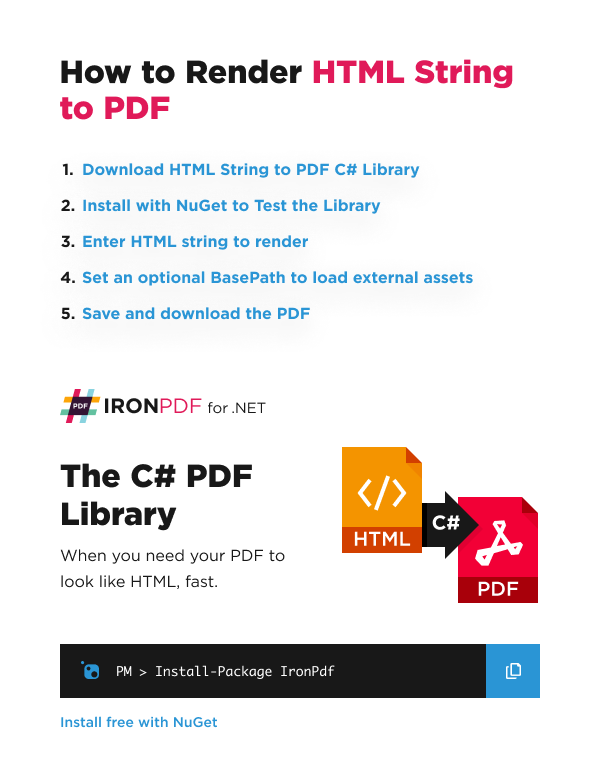
- 從NuGet下載IronPDF C#程式庫
- 實例化PDF渲染器並傳遞HTML字串
- 為PDF中的外部資產配置BasePath
- 配置RenderingOptions以微調輸出PDF
- 保存並下載生成的PDF
我如何將簡單的HTML字串轉換為PDF?
這是IronPDF使用RenderHtmlAsPdf方法將HTML字串渲染為PDF的範例。 參數是要渲染為PDF的HTML字串。 此方法是ChromePdfRenderer類的一部分,該類提供對渲染選項的廣泛控制,以滿足您的PDF生成需求。
using IronPdf;

// Instantiate Renderer
var renderer = new ChromePdfRenderer();

// Create a PDF from a HTML string using C#
var pdf = renderer.RenderHtmlAsPdf("<h1>Hello World</h1>");

// Export to a file or Stream
pdf.SaveAs("output.pdf");Imports IronPdf
' Instantiate Renderer
Private renderer = New ChromePdfRenderer()
' Create a PDF from a HTML string using C#
Private pdf = renderer.RenderHtmlAsPdf("<h1>Hello World</h1>")
' Export to a file or Stream
pdf.SaveAs("output.pdf")PdfDocument物件,該物件保存PDF資訊並提供操作PDF的方法,包括合併PDF、新增水印以及設置安全選項。
〔在ASP.NET Core、Blazor或背景服務中,建議使用異步變體RenderHtmlAsPdfAsync以避免阻塞執行緒。 返回的using塊中。 ChromePdfRenderer是執行緒安全的,可以實例化一次並跨請求重用,以提高性能。)
當從外部來源獲取HTML字串並需要禁用本地磁碟存取或跨源請求時,請在渲染前將IronPdf.Installation.EnableWebSecurity設置為true。 這是一個靜態全域設置,而不是渲染器上的實例屬性。
// Enable web security before rendering untrusted HTML
IronPdf.Installation.EnableWebSecurity = true;' Enable web security before rendering untrusted HTML
IronPdf.Installation.EnableWebSecurity = True對於包含CSS樣式的複雜HTML內容,請增強您的HTML字串,使用內聯樣式或引用外部樣式表,使用基本URL和資產編碼功能:
// Example with inline CSS
var styledHtml = @"
<html>
<head>
    <style>
        body { font-family: Arial, sans-serif; margin: 40px; }
        h1 { color: #333; border-bottom: 2px solid #0066cc; }
        p { line-height: 1.6; }
    </style>
</head>
<body>
    <h1>Professional Report</h1>
    <p>This PDF was generated from HTML with custom styling.</p>
</body>
</html>";

using var styledPdf = renderer.RenderHtmlAsPdf(styledHtml);
styledPdf.SaveAs("styled-output.pdf");Dim styledHtml As String = "
<html>
<head>
<style>
body { font-family: Arial, sans-serif; margin: 40px; }
h1 { color: #333; border-bottom: 2px solid #0066cc; }
p { line-height: 1.6; }
</style>
</head>
<body>
<h1>Professional Report</h1>
<p>This PDF was generated from HTML with custom styling.</p>
</body>
</html>"
Using styledPdf = renderer.RenderHtmlAsPdf(styledHtml)
styledPdf.SaveAs("styled-output.pdf")
End Using生成的PDF長什麼樣?
這是程式碼生成的文件:
生成的PDF保持了從HTML中獲得的精確格式和樣式,使其非常適合用於生成PDF報告或將網頁內容轉換為可列印文件。


如何在將HTML轉換為PDF時包含外部資產?
這個範例展示了IronPDF從可選BasePath載入外部圖像資產。 設定BaseUrlOrPath屬性提供超連結、圖像、CSS和JavaScript文件的相對文件路徑或URL上下文。 這在處理PDF中的圖像或需要引用外部資源時至關重要。
using IronPdf;

// Instantiate Renderer
var renderer = new ChromePdfRenderer();

// Advanced Example with HTML Assets
// Load external html assets: Images, CSS and JavaScript.
// An optional BasePath 'C:\site\assets\' is set as the file location to load assets from
var myAdvancedPdf = renderer.RenderHtmlAsPdf("<img src='icons/iron.png'>", @"C:\site\assets\");
myAdvancedPdf.SaveAs("html-with-assets.pdf");Imports IronPdf
' Instantiate Renderer
Private renderer = New ChromePdfRenderer()
' Advanced Example with HTML Assets
' Load external html assets: Images, CSS and JavaScript.
' An optional BasePath 'C:\site\assets\' is set as the file location to load assets from
Private myAdvancedPdf = renderer.RenderHtmlAsPdf("<img src='icons/iron.png'>", "C:\site\assets\")
myAdvancedPdf.SaveAs("html-with-assets.pdf")對於涉及複雜佈局或動態內容的高級場景,利用IronPDF對JavaScript渲染的支持:
// Example with JavaScript-generated content
var jsHtml = @"
<html>
<head>
    <script>
        window.onload = function() {
            document.getElementById('dynamic').innerHTML =
                'Generated on: ' + new Date().toLocaleString();
        };
    </script>
</head>
<body>
    <h1>Dynamic Content Example</h1>
    <div id='dynamic'></div>
</body>
</html>";

// Configure rendering to wait for JavaScript execution
renderer.RenderingOptions.WaitFor.RenderDelay(500); // milliseconds
using var dynamicPdf = renderer.RenderHtmlAsPdf(jsHtml, @"C:\site\");
dynamicPdf.SaveAs("dynamic-content.pdf");Imports System.IO
' Example with JavaScript-generated content
Dim jsHtml As String = "
<html>
<head>
<script>
window.onload = function() {
document.getElementById('dynamic').innerHTML =
'Generated on: ' + new Date().toLocaleString();
};
</script>
</head>
<body>
<h1>Dynamic Content Example</h1>
<div id='dynamic'></div>
</body>
</html>"
' Configure rendering to wait for JavaScript execution
renderer.RenderingOptions.WaitFor.RenderDelay(500) ' milliseconds
Using dynamicPdf = renderer.RenderHtmlAsPdf(jsHtml, "C:\site\")
dynamicPdf.SaveAs("dynamic-content.pdf")
End Using在處理外部資產時,您可能需要處理身份驗證或特殊標頭。 IronPDF通過HTTP請求標頭功能支持這一點,允許您在獲取資源時包含授權令牌或自定義標頭。
為什麼設定BasePath對於外部資源至關重要?
這是程式碼生成的文件:
正確設定BasePath確保您的HTML中的所有相對參考都能正確解析。 未這樣做的話,IronPDF無法找到外部資源,如圖像、樣式表或腳本。這在以下情況中特別重要:
- 轉換引用本地檔案系統資源的HTML
- 設法與使用相對URL的內容管理系統協作
- 將現有網頁內容遷移到PDF格式
- 建立使用共享資產的範本
對於基於網頁的資源,請使用完整URL作為基本路徑:
// Using a web URL as base path
var webBasedPdf = renderer.RenderHtmlAsPdf(
    "<link rel='stylesheet' href='/styles/main.css'><h1>Web Content</h1>",
    "https://mywebsite.com"
);' Using a web URL as base path
Dim webBasedPdf = renderer.RenderHtmlAsPdf(
"<link rel='stylesheet' href='/styles/main.css'><h1>Web Content</h1>",
"https://mywebsite.com"
)為了在PDF生成過程中進行更多控制,請查看IronPDF關於自定義邊距、頁面方向和PDF壓縮的廣泛文件,以優化輸出文件以適應各種使用情況。
常見問題
如何在C#中將簡單的HTML字串轉換為PDF?
您可以使用IronPDF的ChromePdfRenderer類與RenderHtmlAsPdf方法將HTML字串轉換為PDF。只需實例化渲染器,將您的HTML字串傳遞給該方法,然後保存結果PdfDocument物件。IronPDF使用Chrome渲染引擎以確保完美的忠實度。
HTML 到 PDF 轉換使用的是哪種渲染引擎?
IronPDF使用功能齊全的Google Chromium引擎來渲染HTML到PDF。這確保了您的HTML內容,包括HTML5、CSS3和JavaScript,看起來與現代網頁瀏覽器中一樣。
我可以將帶有CSS樣式的HTML轉換為PDF嗎?
是的,IronPDF支援將帶有CSS樣式的HTML轉換為PDF。您可以在HTML字串中直接使用內聯樣式或使用基底URL和資源編碼功能引用外部樣式表,以確保樣式內容的正確渲染。
將HTML轉換為PDF的最快方式是什麼?
最快的方式是使用IronPDF的靜態方法:IronPdf.ChromePdfRenderer.StaticRenderHtmlAsPdf("Your HTML").SaveAs("output.pdf")。這行程式碼將您的HTML字串轉換並保存為PDF文件。
當轉換HTML字串時如何處理外部資源?
IronPDF允許您在PDF中配置外部資源的基底路徑。這確保了在HTML中引用的圖片、樣式表和其他資源在轉換過程中正確載入。
從HTML轉換為PDF時,我可以自訂PDF輸出嗎?
是的,IronPDF提供了廣泛的RenderingOptions來微調您的PDF輸出。您可以通過ChromePdfRenderer類控制頁面大小、邊距、頁眉、頁腳和生成PDF的其他許多方面。
轉換後我可以對生成的PDF做什麼?
IronPDF的PdfDocument物件提供了允許操作PDF的多種方法,包括合併PDF、新增水印、設置安全選項等。轉換後的PDF可以被保存到磁碟、以流的方式傳輸或根據需要進一步處理。
當從外部來源轉換HTML時如何處理安全性?
當從外部來源轉換HTML時,IronPDF允許您在ChromePdfRenderer上將EnableWebSecurity屬性設置為true。這將禁用本地磁碟存取和跨域請求,以增強安全性。
How can I ensure my external web resources are correctly referenced in IronPDF?
To ensure external web resources are correctly referenced, specify the correct `BasePath` or use a full URL as the base path for web-based content. This includes images, stylesheets, and scripts.
What is the role of `ChromePdfRenderer` in IronPDF?
The `ChromePdfRenderer` in IronPDF is responsible for converting HTML to PDF. It uses a fully functional version of the Google Chromium engine to ensure accurate rendering as seen in a web browser.

Curtis Chau擁有Carleton大學的電腦科學學士學位,專精於前端開發,擁有Node.js、TypeScript、JavaScript和React的專業知識。Curtis熱衷於建立直觀且美觀的使用者介面,喜愛使用現代框架並建立結構良好、視覺吸引力的手冊。













