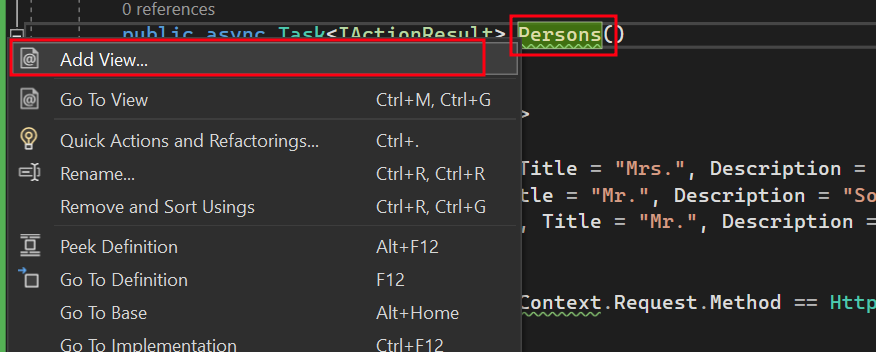
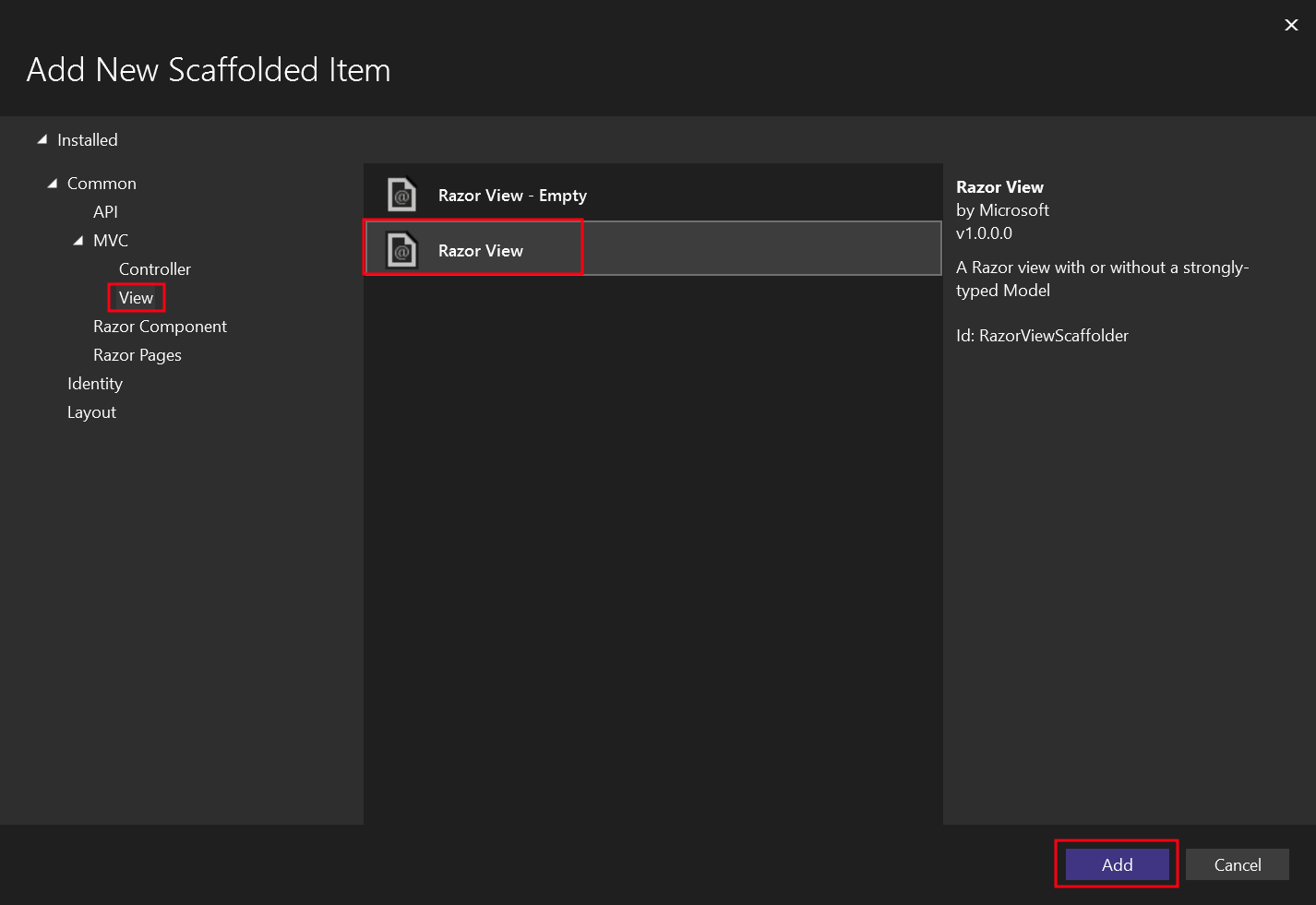
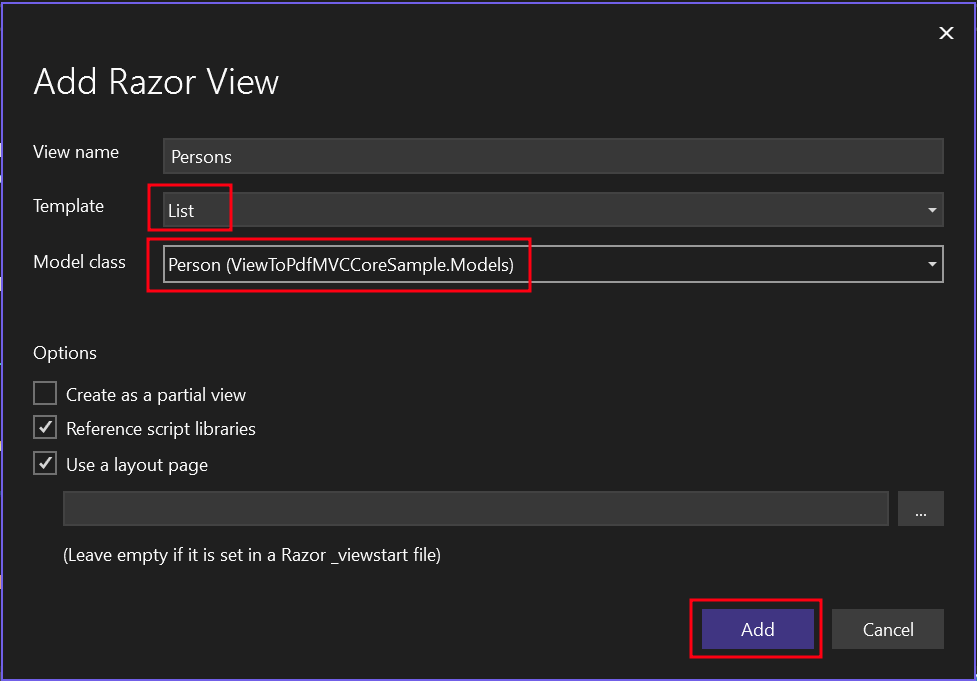
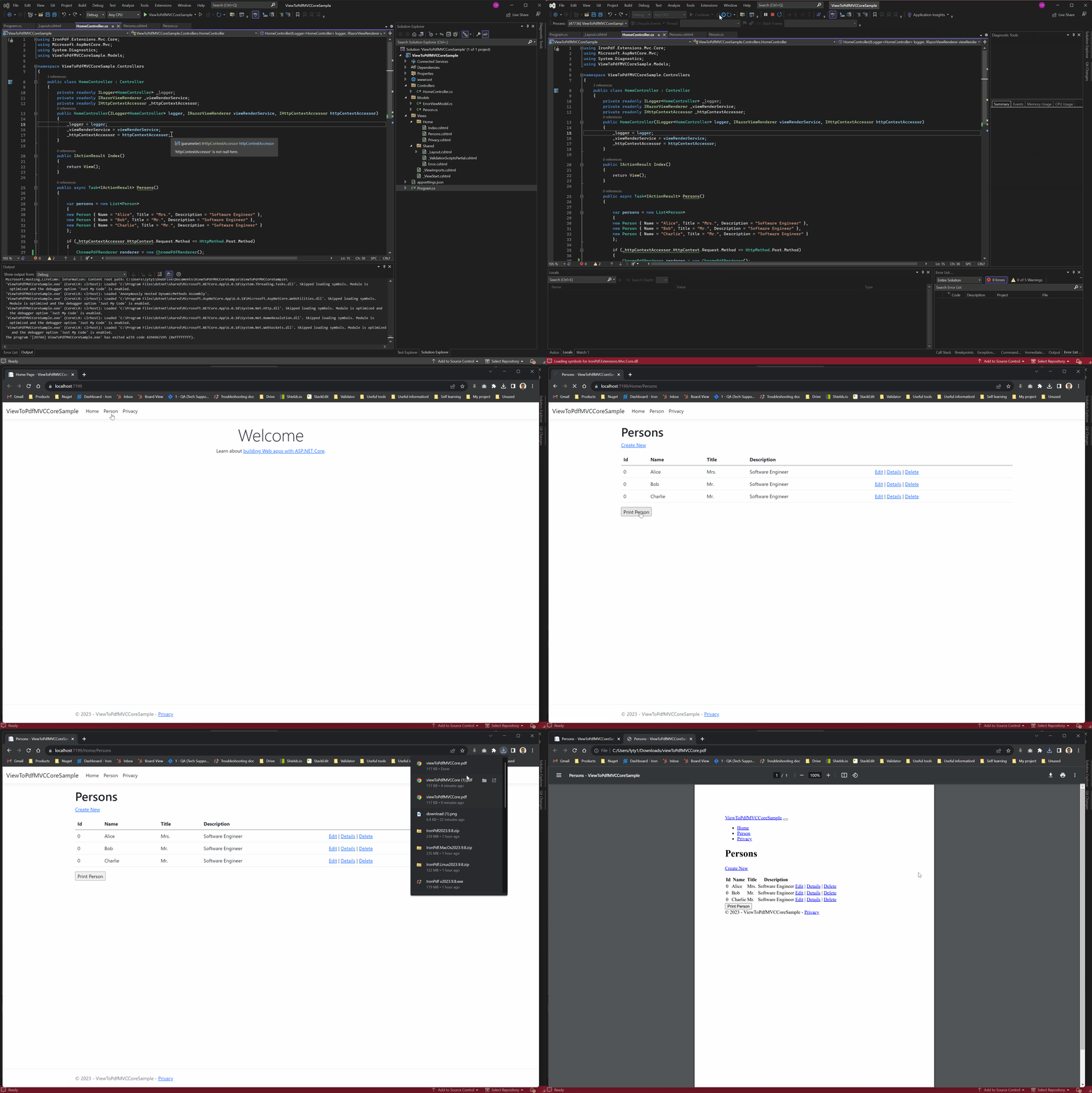
using IronPDF 的 RenderRazorViewToPdf 方法將 ASP.NET Core MVC 視圖轉換為 PDF,該方法可以在 MVC 應用中使用一行程式碼將 .cshtml 文件轉換為高質量的 PDF 文件。
視圖是 ASP.NET Framework中的一個組件,用於在 Web 應用中生成 HTML 標記。 它是模型-視圖-控制器 (MVC) 模式的一部分,常用於 ASP.NET MVC 和 ASP.NET Core MVC 應用。 視圖負責通過動態渲染 HTML 內容向使用者呈現資料。 視圖通常使用 Razor 語法,這是一種將基於伺服器的程式碼嵌入網頁的標記語法,使它們成為建立資料驅動 PDF 文件的強大工具。
快速入門:在 ASP.NET Core 中將 CSHTML 轉換為 PDF
using IronPDF 將 ASP.NET Core MVC 視圖轉換為 PDF。 通過一行程式碼,將您的 .cshtml 文件渲染為 PDF 文件。 將此功能直接整合到您的 MVC 應用中,以實現從動態 HTML 視圖到 PDF 的無縫生成。 按照本指南設置您的環境並開始轉換。
1Install IronPDF with NuGet Package Manager
PM > Install-Package IronPdf
Install-Package IronPdf
2複製並運行這段程式碼片段。
// using IronPdf.Extensions.Mvc.CorenewIronPdf.ChromePdfRenderer().RenderRazorViewToPdf(HttpContext, "Views/Home/Report.cshtml", model).SaveAs("report.pdf");
// using IronPdf.Extensions.Mvc.Core
new IronPdf.ChromePdfRenderer().RenderRazorViewToPdf(HttpContext, "Views/Home/Report.cshtml", model).SaveAs("report.pdf");
您需要一個 ASP.NET Core Web App (Model-View-Controller) 項目來將視圖轉換為 PDF 文件。 此過程涉及建立一個控制器操作,該操作使用 IronPDF 的 RenderRazorViewToPdf 方法將您的 Razor 視圖轉換為 PDF 文件。 這種方法利用 Razor 語法的全部功能,允許您建立複雜的、資料驅動的 PDF,具有動態內容。
應使用哪種型別的專案?
using ASP.NET Core Web App (Model-View-Controller) 模板,以獲得與 IronPDF 視圖渲染功能的最佳相容性。 該專案型別為視圖渲染提供必要的基礎設施,包括 Razor 視圖引擎和適當的路由。 對於現有專案,確保它們遵循 MVC 模式並安裝了必需的視圖渲染功能。
我可以將此功能與 Minimal APIs 一起使用嗎?
雖然 Minimal APIs 沒有內建的視圖支持,但您仍然可以使用 IronPDF 的 HTML 到 PDF 轉換功能。 對於基於視圖的 PDF 生成,使用傳統的 MVC 方法或考慮使用 Razor Pages 作為替代方案。
namespace ViewToPdfMVCCoreSample.Models{ public class Person { public intId { get; set; } public stringName { get; set; } public stringTitle { get; set; } public stringDescription { get; set; } }}
namespace ViewToPdfMVCCoreSample.Models
{
    public class Person
    {
        public int Id { get; set; }
        public string Name { get; set; }
        public string Title { get; set; }
        public string Description { get; set; }
    }
}
NamespaceViewToPdfMVCCoreSample.Models Public Class Person Public Property Id() AsInteger Public Property Name() AsString Public Property Title() AsString Public Property Description() AsString End ClassEndNamespace
Namespace ViewToPdfMVCCoreSample.Models
	Public Class Person
		Public Property Id() As Integer
		Public Property Name() As String
		Public Property Title() As String
		Public Property Description() As String
	End Class
End Namespace
為什麼需要模型來生成 PDF?
模型提供結構化資料,可以傳遞給視圖進行渲染。 這種關注點分離確保您的 PDF 生成邏輯保持整潔和可維護。 模型作為控制器和視圖之間的契約,確保型別安全並在您的 Razor 視圖中啟用 IntelliSense 支持。
哪些資料型別最適合視圖?
簡單的資料型別和集合最適合 PDF 生成。 可以使用複雜的巢狀物件,但可能需要額外的視圖邏輯。 為了獲得最佳性能,在將復雜的資料結構傳遞給視圖之前,請在控制器中將其展平。 當您的領域模型過於復雜時,考慮使用專為 PDF 輸出設計的 ViewModels。
以下是一個適合 PDF 生成的更復雜的模型結構範例:
public class InvoiceViewModel{ public stringInvoiceNumber { get; set; } public DateTimeInvoiceDate { get; set; } public decimalTotalAmount { get; set; } public List<InvoiceLineItem> LineItems { get; set; } public CustomerInfoCustomer { get; set; } // Computed property for PDF display public stringFormattedTotal => TotalAmount.ToString("C");}public class InvoiceLineItem{ public stringDescription { get; set; } public intQuantity { get; set; } public decimalUnitPrice { get; set; } public decimalLineTotal => Quantity * UnitPrice;}public class CustomerInfo{ public stringName { get; set; } public stringEmail { get; set; } public stringAddress { get; set; }}
public class InvoiceViewModel
{
    public string InvoiceNumber { get; set; }
    public DateTime InvoiceDate { get; set; }
    public decimal TotalAmount { get; set; }
    public List<InvoiceLineItem> LineItems { get; set; }
    public CustomerInfo Customer { get; set; }

    // Computed property for PDF display
    public string FormattedTotal => TotalAmount.ToString("C");
}

public class InvoiceLineItem
{
    public string Description { get; set; }
    public int Quantity { get; set; }
    public decimal UnitPrice { get; set; }
    public decimal LineTotal => Quantity * UnitPrice;
}

public class CustomerInfo
{
    public string Name { get; set; }
    public string Email { get; set; }
    public string Address { get; set; }
}
Public Class InvoiceViewModel Public Property InvoiceNumberAsString Public Property InvoiceDateAsDateTime Public Property TotalAmountAsDecimal Public Property LineItemsAsList(OfInvoiceLineItem) Public Property CustomerAsCustomerInfo ' Computed property for PDF display PublicReadOnlyPropertyFormattedTotalAsString Get ReturnTotalAmount.ToString("C")End Get End PropertyEnd ClassPublic Class InvoiceLineItem Public Property DescriptionAsString Public Property QuantityAsInteger Public Property UnitPriceAsDecimal PublicReadOnlyPropertyLineTotalAsDecimal Get ReturnQuantity * UnitPriceEnd Get End PropertyEnd ClassPublic Class CustomerInfo Public Property NameAsString Public Property EmailAsString Public Property AddressAsStringEnd Class
Public Class InvoiceViewModel
    Public Property InvoiceNumber As String
    Public Property InvoiceDate As DateTime
    Public Property TotalAmount As Decimal
    Public Property LineItems As List(Of InvoiceLineItem)
    Public Property Customer As CustomerInfo

    ' Computed property for PDF display
    Public ReadOnly Property FormattedTotal As String
        Get
            Return TotalAmount.ToString("C")
        End Get
    End Property
End Class

Public Class InvoiceLineItem
    Public Property Description As String
    Public Property Quantity As Integer
    Public Property UnitPrice As Decimal
    Public ReadOnly Property LineTotal As Decimal
        Get
            Return Quantity * UnitPrice
        End Get
    End Property
End Class

Public Class CustomerInfo
    Public Property Name As String
    Public Property Email As String
    Public Property Address As String
End Class
下面的程式碼首先實例化 ChromePdfRenderer 類,傳遞IRazorViewRenderer、我們的 Views/Home/Persons.cshtml 路徑和包含所需資料的 List 給 RenderRazorViewToPdf 方法。 使用者可以使用 RenderingOptions 存取一系列功能,例如新增自訂文字、在生成的 PDF 中包含 HTML 標頭和標尾、定義自訂邊距和應用頁碼。 要獲得更多高級渲染選項,請參閱渲染選項文件。
請注意: 可以使用以下程式碼在瀏覽器中查看 PDF 文件:File(pdf.BinaryData, "application/pdf") 。 然而,在瀏覽器中查看後下載 PDF 會導致 PDF 文件損壞。
using IronPdf.Extensions.Mvc.Core;using Microsoft.AspNetCore.Mvc;using System.Diagnostics;using ViewToPdfMVCCoreSample.Models;namespace ViewToPdfMVCCoreSample.Controllers{ public class HomeController : Controller { private readonly ILogger<HomeController> _logger; private readonly IRazorViewRenderer _viewRenderService; private readonly IHttpContextAccessor _httpContextAccessor; publicHomeController(ILogger<HomeController> logger, IRazorViewRenderer viewRenderService, IHttpContextAccessor httpContextAccessor) { _logger = logger; _viewRenderService = viewRenderService; _httpContextAccessor = httpContextAccessor; } public IActionResultIndex() { returnView(); } public async Task<IActionResult> Persons() { // Example list of persons var persons = new List<Person> { new Person { Name = "Alice", Title = "Mrs.", Description = "Software Engineer" }, new Person { Name = "Bob", Title = "Mr.", Description = "Software Engineer" }, new Person { Name = "Charlie", Title = "Mr.", Description = "Software Engineer" } }; // Check if the request method is POST if (_httpContextAccessor.HttpContext.Request.Method == HttpMethod.Post.Method) { // Create a new PDF renderer ChromePdfRenderer renderer = new ChromePdfRenderer(); // Configure rendering options for better output renderer.RenderingOptions.MarginTop = 40; renderer.RenderingOptions.MarginBottom = 40; renderer.RenderingOptions.PaperOrientation = IronPdf.Rendering.PdfPaperOrientation.Portrait; renderer.RenderingOptions.Title = "Persons Report"; // Render View to PDF document PdfDocument pdf = renderer.RenderRazorViewToPdf(_viewRenderService, "Views/Home/Persons.cshtml", persons);Response.Headers.Add("Content-Disposition", "inline"); // Output PDF document returnFile(pdf.BinaryData, "application/pdf", "viewToPdfMVCCore.pdf"); } returnView(persons); } public IActionResultPrivacy() { returnView(); } [ResponseCache(Duration = 0, Location = ResponseCacheLocation.None, NoStore = true)] public IActionResultError() { returnView(new ErrorViewModel { RequestId = Activity.Current?.Id ?? HttpContext.TraceIdentifier }); } }}
using IronPdf.Extensions.Mvc.Core;
using Microsoft.AspNetCore.Mvc;
using System.Diagnostics;
using ViewToPdfMVCCoreSample.Models;

namespace ViewToPdfMVCCoreSample.Controllers
{
    public class HomeController : Controller
    {
        private readonly ILogger<HomeController> _logger;
        private readonly IRazorViewRenderer _viewRenderService;
        private readonly IHttpContextAccessor _httpContextAccessor;

        public HomeController(ILogger<HomeController> logger, IRazorViewRenderer viewRenderService, IHttpContextAccessor httpContextAccessor)
        {
            _logger = logger;
            _viewRenderService = viewRenderService;
            _httpContextAccessor = httpContextAccessor;
        }

        public IActionResult Index()
        {
            return View();
        }

        public async Task<IActionResult> Persons()
        {
            // Example list of persons
            var persons = new List<Person>
            {
                new Person { Name = "Alice", Title = "Mrs.", Description = "Software Engineer" },
                new Person { Name = "Bob", Title = "Mr.", Description = "Software Engineer" },
                new Person { Name = "Charlie", Title = "Mr.", Description = "Software Engineer" }
            };

            // Check if the request method is POST
            if (_httpContextAccessor.HttpContext.Request.Method == HttpMethod.Post.Method)
            {
                // Create a new PDF renderer
                ChromePdfRenderer renderer = new ChromePdfRenderer();

                // Configure rendering options for better output
                renderer.RenderingOptions.MarginTop = 40;
                renderer.RenderingOptions.MarginBottom = 40;
                renderer.RenderingOptions.PaperOrientation = IronPdf.Rendering.PdfPaperOrientation.Portrait;
                renderer.RenderingOptions.Title = "Persons Report";

                // Render View to PDF document
                PdfDocument pdf = renderer.RenderRazorViewToPdf(_viewRenderService, "Views/Home/Persons.cshtml", persons);

                Response.Headers.Add("Content-Disposition", "inline");

                // Output PDF document
                return File(pdf.BinaryData, "application/pdf", "viewToPdfMVCCore.pdf");
            }

            return View(persons);
        }

        public IActionResult Privacy()
        {
            return View();
        }

        [ResponseCache(Duration = 0, Location = ResponseCacheLocation.None, NoStore = true)]
        public IActionResult Error()
        {
            return View(new ErrorViewModel { RequestId = Activity.Current?.Id ?? HttpContext.TraceIdentifier });
        }
    }
}
ImportsIronPdf.Extensions.Mvc.CoreImportsMicrosoft.AspNetCore.MvcImportsSystem.DiagnosticsImportsViewToPdfMVCCoreSample.ModelsNamespaceViewToPdfMVCCoreSample.Controllers Public Class HomeControllerInheritsController PrivateReadOnly _logger AsILogger(OfHomeController) PrivateReadOnly _viewRenderService AsIRazorViewRenderer PrivateReadOnly _httpContextAccessor AsIHttpContextAccessor Public Sub New(logger AsILogger(OfHomeController), viewRenderService AsIRazorViewRenderer, httpContextAccessor AsIHttpContextAccessor) _logger = logger _viewRenderService = viewRenderService _httpContextAccessor = httpContextAccessor End Sub Public Function Index() AsIActionResult ReturnView() End Function PublicAsync Function Persons() AsTask(OfIActionResult) ' Example list of persons Dim persons = New List(OfPerson) From { New PersonWith {.Name = "Alice", .Title = "Mrs.", .Description = "Software Engineer"}, New PersonWith {.Name = "Bob", .Title = "Mr.", .Description = "Software Engineer"}, New PersonWith {.Name = "Charlie", .Title = "Mr.", .Description = "Software Engineer"} } ' Check if the request method is POST If _httpContextAccessor.HttpContext.Request.Method = HttpMethod.Post.MethodThen ' Create a new PDF renderer Dim renderer As New ChromePdfRenderer() ' Configure rendering options for better output renderer.RenderingOptions.MarginTop = 40 renderer.RenderingOptions.MarginBottom = 40 renderer.RenderingOptions.PaperOrientation = IronPdf.Rendering.PdfPaperOrientation.Portrait renderer.RenderingOptions.Title = "Persons Report" ' Render View to PDF document Dim pdf AsPdfDocument = renderer.RenderRazorViewToPdf(_viewRenderService, "Views/Home/Persons.cshtml", persons) Response.Headers.Add("Content-Disposition", "inline") ' Output PDF document ReturnFile(pdf.BinaryData, "application/pdf", "viewToPdfMVCCore.pdf") End If ReturnView(persons) End Function Public Function Privacy() AsIActionResult ReturnView() End Function <ResponseCache(Duration:=0, Location:=ResponseCacheLocation.None, NoStore:=True)> Public Function Error() AsIActionResult ReturnView(New ErrorViewModelWith {.RequestId = If(Activity.Current?.Id, HttpContext.TraceIdentifier)}) End Function End ClassEndNamespace
Imports IronPdf.Extensions.Mvc.Core
Imports Microsoft.AspNetCore.Mvc
Imports System.Diagnostics
Imports ViewToPdfMVCCoreSample.Models

Namespace ViewToPdfMVCCoreSample.Controllers
    Public Class HomeController
        Inherits Controller

        Private ReadOnly _logger As ILogger(Of HomeController)
        Private ReadOnly _viewRenderService As IRazorViewRenderer
        Private ReadOnly _httpContextAccessor As IHttpContextAccessor

        Public Sub New(logger As ILogger(Of HomeController), viewRenderService As IRazorViewRenderer, httpContextAccessor As IHttpContextAccessor)
            _logger = logger
            _viewRenderService = viewRenderService
            _httpContextAccessor = httpContextAccessor
        End Sub

        Public Function Index() As IActionResult
            Return View()
        End Function

        Public Async Function Persons() As Task(Of IActionResult)
            ' Example list of persons
            Dim persons = New List(Of Person) From {
                New Person With {.Name = "Alice", .Title = "Mrs.", .Description = "Software Engineer"},
                New Person With {.Name = "Bob", .Title = "Mr.", .Description = "Software Engineer"},
                New Person With {.Name = "Charlie", .Title = "Mr.", .Description = "Software Engineer"}
            }

            ' Check if the request method is POST
            If _httpContextAccessor.HttpContext.Request.Method = HttpMethod.Post.Method Then
                ' Create a new PDF renderer
                Dim renderer As New ChromePdfRenderer()

                ' Configure rendering options for better output
                renderer.RenderingOptions.MarginTop = 40
                renderer.RenderingOptions.MarginBottom = 40
                renderer.RenderingOptions.PaperOrientation = IronPdf.Rendering.PdfPaperOrientation.Portrait
                renderer.RenderingOptions.Title = "Persons Report"

                ' Render View to PDF document
                Dim pdf As PdfDocument = renderer.RenderRazorViewToPdf(_viewRenderService, "Views/Home/Persons.cshtml", persons)

                Response.Headers.Add("Content-Disposition", "inline")

                ' Output PDF document
                Return File(pdf.BinaryData, "application/pdf", "viewToPdfMVCCore.pdf")
            End If

            Return View(persons)
        End Function

        Public Function Privacy() As IActionResult
            Return View()
        End Function

        <ResponseCache(Duration:=0, Location:=ResponseCacheLocation.None, NoStore:=True)>
        Public Function Error() As IActionResult
            Return View(New ErrorViewModel With {.RequestId = If(Activity.Current?.Id, HttpContext.TraceIdentifier)})
        End Function
    End Class
End Namespace
using RenderRazorViewToPdf 方法後,您將獲得一個 PdfDocument 物件,可以進一步進行增強和修改。 您可以將 PDF 轉換為 PDF/A 或 PDF/UA 格式,向生成的 PDF 新增您的數位簽名,或根據需要合併和拆分 PDF 文件。 此外,該程式庫允許您旋轉頁面、插入註釋或書籤,並在您的 PDF 文件上壓印獨特的水印。
什麼是 IRazorViewRenderer 服務?
IRazorViewRenderer 是 IronPdf.Extensions.Mvc.Core 套件提供的一個服務接口,負責將 Razor 視圖轉換為 HTML。 它與 ASP.NET Core 的視圖引擎整合,以處理具有其關聯模型的 .cshtml 文件,執行所有 Razor 語法並生成 IronPDF 轉換為 PDF 的最終 HTML。
為什麼在渲染之前要檢查 POST 方法?
檢查 POST 可確保僅在通過表單提交明確請求時才進行 PDF 生成。 這可以防止在頁面載入時意外生成 PDF,並允許同一操作服務於 HTML 視圖(在 GET 上)和 PDF 下載(在 POST 上)。 此模式遵循 RESTful 原則並提供更好的使用者體驗。
using IronPdf.Extensions.Mvc.Core;using Microsoft.AspNetCore.Mvc.ViewFeatures;var builder = WebApplication.CreateBuilder(args);// Add services to the container.builder.Services.AddControllersWithViews();builder.Services.AddSingleton<IHttpContextAccessor, HttpContextAccessor>();builder.Services.AddSingleton<ITempDataProvider, CookieTempDataProvider>();// Register IRazorViewRenderer herebuilder.Services.AddSingleton<IRazorViewRenderer, RazorViewRenderer>();// Optional: Configure IronPDF license if you have oneIronPdf.License.LicenseKey = "YOUR-LICENSE-KEY-HERE";var app = builder.Build();// Configure the HTTP request pipeline.if (!app.Environment.IsDevelopment()){ app.UseExceptionHandler("/Home/Error"); // The default HSTS value is 30 days. You may want to change this for production scenarios, see https://aka.ms/aspnetcore-hsts. app.UseHsts();}app.UseHttpsRedirection();app.UseStaticFiles();app.UseRouting();app.UseAuthorization();app.MapControllerRoute( name: "default", pattern: "{controller=Home}/{action=Index}/{id?}");app.Run();
using IronPdf.Extensions.Mvc.Core;
using Microsoft.AspNetCore.Mvc.ViewFeatures;

var builder = WebApplication.CreateBuilder(args);

// Add services to the container.
builder.Services.AddControllersWithViews();

builder.Services.AddSingleton<IHttpContextAccessor, HttpContextAccessor>();
builder.Services.AddSingleton<ITempDataProvider, CookieTempDataProvider>();

// Register IRazorViewRenderer here
builder.Services.AddSingleton<IRazorViewRenderer, RazorViewRenderer>();

// Optional: Configure IronPDF license if you have one
IronPdf.License.LicenseKey = "YOUR-LICENSE-KEY-HERE";

var app = builder.Build();

// Configure the HTTP request pipeline.
if (!app.Environment.IsDevelopment())
{
    app.UseExceptionHandler("/Home/Error");
    // The default HSTS value is 30 days. You may want to change this for production scenarios, see https://aka.ms/aspnetcore-hsts.
    app.UseHsts();
}

app.UseHttpsRedirection();
app.UseStaticFiles();

app.UseRouting();

app.UseAuthorization();

app.MapControllerRoute(
    name: "default",
    pattern: "{controller=Home}/{action=Index}/{id?}");

app.Run();
ImportsIronPdf.Extensions.Mvc.CoreImportsMicrosoft.AspNetCore.Mvc.ViewFeaturesDim builder = WebApplication.CreateBuilder(args)' Add services to the container.builder.Services.AddControllersWithViews()builder.Services.AddSingleton(OfIHttpContextAccessor, HttpContextAccessor)()builder.Services.AddSingleton(OfITempDataProvider, CookieTempDataProvider)()' Register IRazorViewRenderer herebuilder.Services.AddSingleton(OfIRazorViewRenderer, RazorViewRenderer)()' Optional: Configure IronPDF license if you have oneIronPdf.License.LicenseKey = "YOUR-LICENSE-KEY-HERE"Dim app = builder.Build()' Configure the HTTP request pipeline.IfNot app.Environment.IsDevelopment() Then app.UseExceptionHandler("/Home/Error") ' The default HSTS value is 30 days. You may want to change this for production scenarios, see https://aka.ms/aspnetcore-hsts. app.UseHsts()End Ifapp.UseHttpsRedirection()app.UseStaticFiles()app.UseRouting()app.UseAuthorization()app.MapControllerRoute( name:="default", pattern:="{controller=Home}/{action=Index}/{id?}")app.Run()
Imports IronPdf.Extensions.Mvc.Core
Imports Microsoft.AspNetCore.Mvc.ViewFeatures

Dim builder = WebApplication.CreateBuilder(args)

' Add services to the container.
builder.Services.AddControllersWithViews()

builder.Services.AddSingleton(Of IHttpContextAccessor, HttpContextAccessor)()
builder.Services.AddSingleton(Of ITempDataProvider, CookieTempDataProvider)()

' Register IRazorViewRenderer here
builder.Services.AddSingleton(Of IRazorViewRenderer, RazorViewRenderer)()

' Optional: Configure IronPDF license if you have one
IronPdf.License.LicenseKey = "YOUR-LICENSE-KEY-HERE"

Dim app = builder.Build()

' Configure the HTTP request pipeline.
If Not app.Environment.IsDevelopment() Then
    app.UseExceptionHandler("/Home/Error")
    ' The default HSTS value is 30 days. You may want to change this for production scenarios, see https://aka.ms/aspnetcore-hsts.
    app.UseHsts()
End If

app.UseHttpsRedirection()
app.UseStaticFiles()

app.UseRouting()

app.UseAuthorization()

app.MapControllerRoute(
    name:="default",
    pattern:="{controller=Home}/{action=Index}/{id?}")

app.Run()
範例項目包括一個與 IronPDF 整合的完整配置的 ASP.NET Core MVC 應用,演示從視圖到 PDF 的轉換。 它包含 Person 模型、HomeController 具有 PDF 生成邏輯、具有正確 Razor 語法的 Persons 視圖以及在 Program.cs 中的所有必要服務註冊。 該專案還包括針對 PDF 輸出優化的樣式和佈局配置範例。
我應該使用哪個 Visual Studio 版本?
建議使用 Visual Studio 2022(版本 17.0 或更高)以獲得 .NET 6+ 項目最佳體驗。 Visual Studio Code 與 C# 擴展也非常適合跨平台開發。 確保您安裝了 ASP.NET 和 Web 開發工作負載。 該項目預設情況下針對 .NET 6.0,但可以更新到更新的版本。
Is it possible to use minimal APIs for PDF generation with IronPDF?
While minimal APIs don't have built-in view support, you can still use IronPDF's HTML to PDF conversion features. For view-based PDF generation, use the traditional MVC approach or consider Razor Pages.
Which project type is recommended for IronPDF's view rendering features?
The ASP.NET Core Web App (Model-View-Controller) template is recommended for optimal compatibility with IronPDF's view rendering features.
How do I handle common installation issues with IronPDF?
Common issues include version mismatches between core and extension packages or missing dependencies. Ensure your project targets a supported .NET version and review the installation overview for troubleshooting steps.
What troubleshooting steps should I take for project setup issues?
For setup issues, ensure all NuGet packages are restored and your .NET SDK version matches project requirements. For rendering issues, consult IronPDF's troubleshooting guide.
What is the `IRazorViewRenderer` service used for in IronPDF?
The `IRazorViewRenderer` service, provided by the `IronPdf.Extensions.Mvc.Core` package, handles the conversion of Razor views to HTML. It integrates with ASP.NET Core's view engine, executing Razor syntax to produce the final HTML that IronPDF converts to PDF.