
在IronPDF C#中如何扁平化PDF

IronPDF使用Flatten()方法在C#中展平PDF文件,将交互式表单字段转换为静态内容,使得文档无法再被修改。
PDF 文档通常包括带有可填写部件(如单选按钮、复选框、文本框和列表)的交互式表单。 若要为了安全或归档目的使这些文件不可编辑,您需要扁平化PDF文件。这适用于在业务应用程序、法律文件中使用PDF表单,或任何需要永久记录的场景。
快速入门:在几行中扁平化您的PDF使用IronPDF扁平化PDF文档以移除所有交互性并创建永久、不可编辑的内容。 这个C#代码段加载现有PDF,移除所有可填写的小部件,并保存保护后的文件。
-
1Install IronPDF with NuGet Package Manager
-
2复制并运行这段代码。
var pdf = IronPdf.PdfDocument.FromFile("input.pdf"); pdf.Flatten(); pdf.SaveAs("flattened.pdf");C# -
3部署到您的生产环境中进行测试
通过免费试用立即在您的项目中开始使用IronPDF
最小工作流程(5 个步骤)
- 从 NuGet 包管理器安装 IronPDF
- 加载现有 PDF 或从 HTML 创建新 PDF
- 调用
Flatten方法 - 保存扁平化的 PDF 文档
- 验证表单字段是否已删除
如何在 C# 中扁平化 PDF 文档?
一旦安装了IronPDF,您可以通过单一方法调用扁平化PDF文件。 此过程适用于现有PDF文档和在扁平化前从HTML文件渲染的PDFs。
下面的代码示例使用PdfDocument类加载现有PDF。 对于动态PDF生成,在展平之前使用ChromePdfRenderer类渲染表单。
要展平PDF文件,请调用Flatten方法。 这会移除所有交互式小部件,包括单选按钮、复选框和文本字段,使文档无法编辑。
输入
using IronPdf;

// Select the desired PDF File
PdfDocument pdf = PdfDocument.FromFile("before.pdf");

// Flatten the pdf
pdf.Flatten();

// Save as a new file
pdf.SaveAs("after_flatten.pdf");Imports IronPdf
' Select the desired PDF File
Private pdf As PdfDocument = PdfDocument.FromFile("before.pdf")
' Flatten the pdf
pdf.Flatten()
' Save as a new file
pdf.SaveAs("after_flatten.pdf")输出
对于复杂场景,先扁平化特定页面或设置表单数据再扁平化。 传递基于零的页面索引列表以仅扁平化那些页面:
using IronPdf;

// Load a PDF with fillable forms
PdfDocument pdf = PdfDocument.FromFile("form-document.pdf");

// Optionally, pre-fill form fields by name before flattening
pdf.Form.FindFormField("name").Value = "John Doe";
pdf.Form.FindFormField("email").Value = "john@example.com";

// Flatten only pages 1-3, passing their zero-based indexes
pdf.Flatten(new[] { 0, 1, 2 });

// Save the result
pdf.SaveAs("flattened-form.pdf");如何验证PDF已被平展?
下面的输出显示了之前和之后的状态。 第一个 PDF 包含可编辑的表单字段。 扁平化方法运行后,文档变得不可编辑。 这个代码在任何.NET项目中都有效,包括Blazor应用。
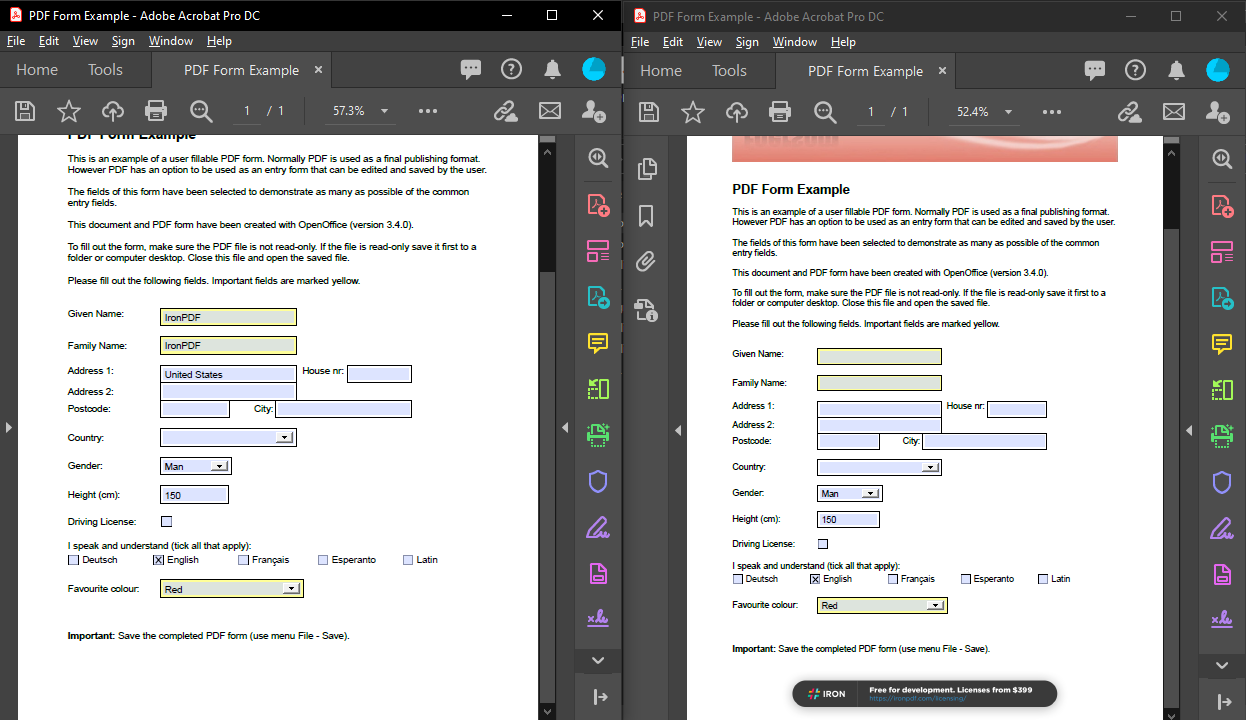
Flatten方法后,将无法检测到表单。
要验证扁平化是否成功,请检查表单字段计数:
using IronPdf;

// Load the flattened PDF
PdfDocument flattenedPdf = PdfDocument.FromFile("flattened.pdf");

// FormFieldCollection exposes Count directly on the Form property
if (flattenedPdf.Form.Count == 0)
{
    Console.WriteLine("PDF has been successfully flattened - no interactive fields remain.");
}
else
{
    Console.WriteLine($"Warning: {flattenedPdf.Form.Count} form fields still exist.");
}


平展后表单字段会发生什么?
当您扁平化PDF文档时,每个交互式表单元素都会成为页面内容的一部分。 表单字段转化为静态文本和图形:
- 文本字段成为页面上的常规文本
- 复选框和单选按钮变成静态图像,显示其选定状态
- 下拉菜单仅以纯文本形式显示所选值
- 数字签名保留了视觉效果,但失去了加密验证功能
此过程不可逆转。 如果将来需要编辑功能,请保留原始交互式 PDF 的副本。 与将页面光栅化为图像不同,扁平化保留了可选择文本和矢量内容,这将每页转换为一个平面图片。 对于同时要求安全性和可编辑性的文档,请使用 PDF 权限和密码 而不是扁平化。
什么时候应该平展我的PDF文档?
扁平化的一般案例:
1.法律文件存档:在签署后对合同和协议进行扁平化处理,以防止内容更改并保持法律完整性。
2.报告分发:在分发之前,使用计算字段对财务报告和数据表进行扁平化处理,以防止篡改。
3.表单提交处理:在用户完成在线表格后,通过平铺 PDF 创建永久记录。
4.打印优化:由于打印机不处理交互式元素,因此扁平化 PDF 的打印更加可靠。
- 文件大小减少:通过移除表单字段数据结构,扁平化可以减少文件大小,与PDF压缩配合使用效果更佳。
下面是一个批处理示例,用于归档多个已完成的表单:
using IronPdf;
using System.IO;

public class BatchPdfFlattener
{
    public static void FlattenAllPdfsInDirectory(string sourceDir, string outputDir)
    {
        // Ensure output directory exists
        Directory.CreateDirectory(outputDir);

        // Get all PDF files in source directory
        string[] pdfFiles = Directory.GetFiles(sourceDir, "*.pdf");

        foreach (string pdfFile in pdfFiles)
        {
            try
            {
                // Load the PDF
                PdfDocument pdf = PdfDocument.FromFile(pdfFile);

                // Flatten the document
                pdf.Flatten();

                // Save to output directory with "_flattened" suffix
                string fileName = Path.GetFileNameWithoutExtension(pdfFile);
                string outputPath = Path.Combine(outputDir, $"{fileName}_flattened.pdf");
                pdf.SaveAs(outputPath);

                Console.WriteLine($"Flattened: {fileName}");
            }
            catch (Exception ex)
            {
                Console.WriteLine($"Error processing {pdfFile}: {ex.Message}");
            }
        }
    }
}Imports IronPdf
Imports System.IO
Public Class BatchPdfFlattener
Public Shared Sub FlattenAllPdfsInDirectory(sourceDir As String, outputDir As String)
' Ensure output directory exists
Directory.CreateDirectory(outputDir)
' Get all PDF files in source directory
Dim pdfFiles As String() = Directory.GetFiles(sourceDir, "*.pdf")
For Each pdfFile As String In pdfFiles
Try
' Load the PDF
Dim pdf As PdfDocument = PdfDocument.FromFile(pdfFile)
' Flatten the document
pdf.Flatten()
' Save to output directory with "_flattened" suffix
Dim fileName As String = Path.GetFileNameWithoutExtension(pdfFile)
Dim outputPath As String = Path.Combine(outputDir, $"{fileName}_flattened.pdf")
pdf.SaveAs(outputPath)
Console.WriteLine($"Flattened: {fileName}")
Catch ex As Exception
Console.WriteLine($"Error processing {pdfFile}: {ex.Message}")
End Try
Next
End Sub
End Class结论
展平将PDF的交互式表单字段转换为具有单次Flatten()调用的静态页内容,锁定文档以防止进一步编辑。 如果您以后可能需要更改数据,保留一个未扁平化的副本,因为该操作无法撤销。
如果您需要先填充字段,请在扁平化前设置表单值; 若要组装锁定文件,在之后合并或拆分它们。
库快速访问

准备好看看您还能做些什么吗? 点击此处查看我们的教程页面:附加功能。
常见问题解答
平铺 PDF 是什么意思?
扁平化 PDF 可将所有交互式表单字段(如复选框、文本框和单选按钮)转换为静态、不可编辑的内容。IronPDF 提供了这一功能,以确保文档的完整性并防止进一步修改。
如何用 C# 扁平化 PDF?
使用IronPDF,三步完成压平PDF: var pdf = IronPdf.PdfDocument.FromFile("input.pdf"); 然后 pdf.Flatten(); 然后 pdf.SaveAs("flattened.pdf")。这将加载PDF,去除所有交互元素,并保存已加密的文档。
我能否对特定页面而不是整个文档进行扁平化处理?
是的,将一个零为基的页面索引列表传递给Flatten方法。 例如,pdf.Flatten(new[] { 0, 1, 2 })仅压平页面0、1和2,而剩余页面保持交互性。
哪些类型的表单字段可以扁平化?
IronPDF 可以扁平化所有交互式小部件,包括单选按钮、复选框、文本字段、下拉列表和任何其他可填充表单元素,将其转换为永久静态内容。
我能否在平铺 PDF 之前填写表格字段?
是的,IronPDF可让您在压平前预填写表单字段。 可以在调用Flatten方法之前设置诸如pdf.Form.FindFormField("name").Value = "John Doe"之类的值以创建一个已完成的、不可编辑的文档。
PDF 扁平化流程使用什么渲染引擎?
IronPDF 使用 Chrome 渲染引擎,确保在扁平化之前准确渲染复杂表单,在整个过程中保持文档的视觉完整性。
为什么需要对 PDF 文档进行扁平化处理?
using IronPDF 对 PDF 进行扁平化处理对于安全性、存档目的、法律文件或任何需要永久保存文档的情况都至关重要,在这些情况下,您需要防止对表格数据进行进一步修改。
Is the flattening process reversible in IronPDF?
No, the flattening process is irreversible. It permanently converts interactive elements into non-editable content, so it's crucial to keep an original unflattened copy if future edits are needed.
Do flattened PDFs still retain selectable text and vector graphics?
Yes, while form fields are converted to static content, IronPDF retains selectable text and vector graphics within the document.
Can interactive elements like digital signatures be preserved upon flattening?
Digital signatures are preserved visually after flattening in IronPDF, but cryptographic validation is lost, meaning they remain visible yet are no longer valid signatures.

Curtis Chau 拥有卡尔顿大学的计算机科学学士学位,专注于前端开发,精通 Node.js、TypeScript、JavaScript 和 React。他热衷于打造直观且美观的用户界面,喜欢使用现代框架并创建结构良好、视觉吸引力强的手册。













