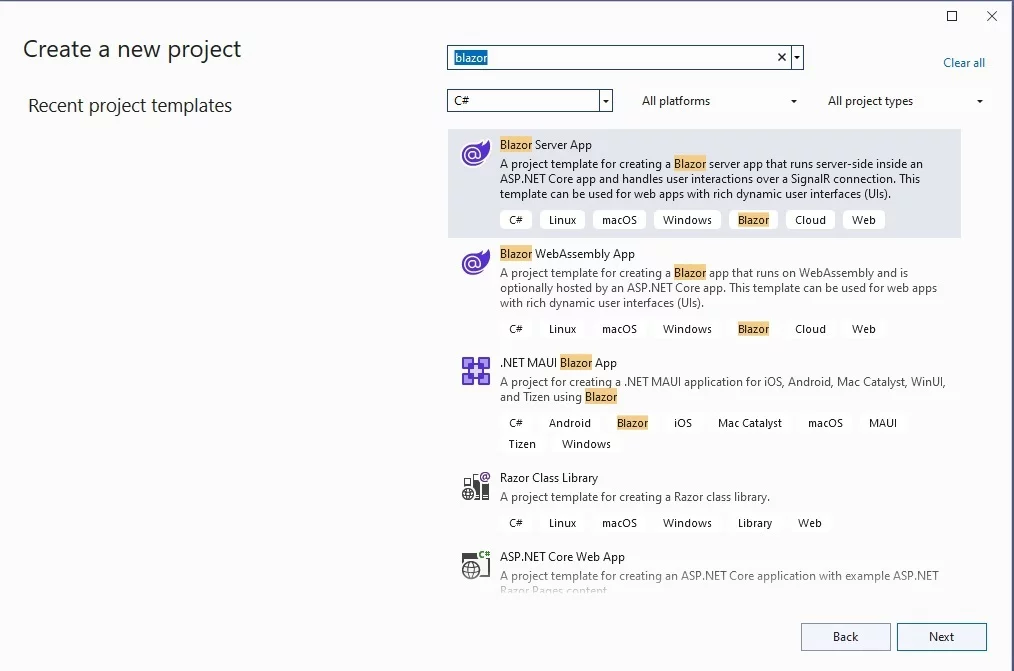
在使用 IronPDF 创建 Blazor Server 应用程序之前,请确保您已安装 Visual Studio 2022 或更高版本的 ASP.NET 和 Web 开发工作负载。 您需要 .NET 6 SDK 或更高版本。 Blazor Server 应用程序需要与服务器保持持续连接,因此适用于需要从复杂的 HTML 内容生成 PDF 的场景,或处理应保留在服务器上的敏感数据时。
@code { // Model to bind user input private InputHTMLModel _InputMsgModel = new InputHTMLModel(); private async TaskSubmitHTML() { // Set your IronPDF license keyIronPdf.License.LicenseKey = "IRONPDF-MYLICENSE-KEY-1EF01"; // Create a renderer to convert HTML to PDF var render = new IronPdf.ChromePdfRenderer(); // Configure rendering options for better output render.RenderingOptions.PaperSize = IronPdf.Rendering.PdfPaperSize.A4; render.RenderingOptions.MarginTop = 40; render.RenderingOptions.MarginBottom = 40; // Render the HTML input into a PDF document var doc = render.RenderHtmlAsPdf(_InputMsgModel.HTML); var fileName = "iron.pdf"; // Create a stream reference for the PDF content using var streamRef = new DotNetStreamReference(stream: doc.Stream); // Invoke JavaScript function to download the PDF in the browser awaitJS.InvokeVoidAsync("SubmitHTML", fileName, streamRef); } public class InputHTMLModel { public stringHTML { get; set; } = @"<h1>Welcome to IronPDF</h1> <p>This is a sample PDF generated from HTML content in Blazor Server.</p> <ul> <li>Easy to use API</li> <li>High-quality rendering</li> <li>Full HTML5 and CSS3 support</li> </ul>"; }}
@code {

    // Model to bind user input
    private InputHTMLModel _InputMsgModel = new InputHTMLModel();

    private async Task SubmitHTML()
    {
        // Set your IronPDF license key
        IronPdf.License.LicenseKey = "IRONPDF-MYLICENSE-KEY-1EF01";

        // Create a renderer to convert HTML to PDF
        var render = new IronPdf.ChromePdfRenderer();

        // Configure rendering options for better output
        render.RenderingOptions.PaperSize = IronPdf.Rendering.PdfPaperSize.A4;
        render.RenderingOptions.MarginTop = 40;
        render.RenderingOptions.MarginBottom = 40;

        // Render the HTML input into a PDF document
        var doc = render.RenderHtmlAsPdf(_InputMsgModel.HTML);

        var fileName = "iron.pdf";

        // Create a stream reference for the PDF content
        using var streamRef = new DotNetStreamReference(stream: doc.Stream);

        // Invoke JavaScript function to download the PDF in the browser
        await JS.InvokeVoidAsync("SubmitHTML", fileName, streamRef);
    }

    public class InputHTMLModel
    {
        public string HTML { get; set; } = @"<h1>Welcome to IronPDF</h1>
            <p>This is a sample PDF generated from HTML content in Blazor Server.</p>
            <ul>
                <li>Easy to use API</li>
                <li>High-quality rendering</li>
                <li>Full HTML5 and CSS3 support</li>
            </ul>";
    }
}
ImportsSystem.Threading.TasksImportsMicrosoft.JSInteropImportsIronPdf@Code' Model to bind user inputPrivate _InputMsgModel As New InputHTMLModel()PrivateAsync Function SubmitHTML() AsTask ' Set your IronPDF license keyIronPdf.License.LicenseKey = "IRONPDF-MYLICENSE-KEY-1EF01" ' Create a renderer to convert HTML to PDF Dim render = New IronPdf.ChromePdfRenderer() ' Configure rendering options for better output render.RenderingOptions.PaperSize = IronPdf.Rendering.PdfPaperSize.A4 render.RenderingOptions.MarginTop = 40 render.RenderingOptions.MarginBottom = 40 ' Render the HTML input into a PDF document Dim doc = render.RenderHtmlAsPdf(_InputMsgModel.HTML) Dim fileName = "iron.pdf" ' Create a stream reference for the PDF contentUsing streamRef = New DotNetStreamReference(stream:=doc.Stream) ' Invoke JavaScript function to download the PDF in the browserAwaitJS.InvokeVoidAsync("SubmitHTML", fileName, streamRef)EndUsingEnd FunctionPublic Class InputHTMLModel Public Property HTMLAsString = "<h1>Welcome to IronPDF</h1> <p>This is a sample PDF generated from HTML content in Blazor Server.</p> <ul> <li>Easy to use API</li> <li>High-quality rendering</li> <li>Full HTML5 and CSS3 support</li> </ul>"End Class
Imports System.Threading.Tasks
Imports Microsoft.JSInterop
Imports IronPdf

@Code

' Model to bind user input
Private _InputMsgModel As New InputHTMLModel()

Private Async Function SubmitHTML() As Task
    ' Set your IronPDF license key
    IronPdf.License.LicenseKey = "IRONPDF-MYLICENSE-KEY-1EF01"

    ' Create a renderer to convert HTML to PDF
    Dim render = New IronPdf.ChromePdfRenderer()

    ' Configure rendering options for better output
    render.RenderingOptions.PaperSize = IronPdf.Rendering.PdfPaperSize.A4
    render.RenderingOptions.MarginTop = 40
    render.RenderingOptions.MarginBottom = 40

    ' Render the HTML input into a PDF document
    Dim doc = render.RenderHtmlAsPdf(_InputMsgModel.HTML)

    Dim fileName = "iron.pdf"

    ' Create a stream reference for the PDF content
    Using streamRef = New DotNetStreamReference(stream:=doc.Stream)
        ' Invoke JavaScript function to download the PDF in the browser
        Await JS.InvokeVoidAsync("SubmitHTML", fileName, streamRef)
    End Using
End Function

Public Class InputHTMLModel
    Public Property HTML As String = "<h1>Welcome to IronPDF</h1>
        <p>This is a sample PDF generated from HTML content in Blazor Server.</p>
        <ul>
            <li>Easy to use API</li>
            <li>High-quality rendering</li>
            <li>Full HTML5 and CSS3 support</li>
        </ul>"
End Class
<script> // JavaScript function to download PDFs generated by IronPdf window.SubmitHTML = async (fileName, contentStreamReference) => { // Get the PDF content as an ArrayBuffer const arrayBuffer = await contentStreamReference.arrayBuffer(); // Create a Blob from the ArrayBuffer const blob = new Blob([arrayBuffer]); // Create an object URL for the Blob const url = URL.createObjectURL(blob); // Create an anchor element to initiate the download const anchorElement = document.createElement("a"); anchorElement.href = url; anchorElement.download = fileName ?? "download.pdf"; // Programmatically click the anchor to start the download anchorElement.click(); // Clean up by removing the anchor and revoking the object URL anchorElement.remove();URL.revokeObjectURL(url); };</script>
<script>
    // JavaScript function to download PDFs generated by IronPdf
    window.SubmitHTML = async (fileName, contentStreamReference) => {
        // Get the PDF content as an ArrayBuffer
        const arrayBuffer = await contentStreamReference.arrayBuffer();

        // Create a Blob from the ArrayBuffer
        const blob = new Blob([arrayBuffer]);

        // Create an object URL for the Blob
        const url = URL.createObjectURL(blob);

        // Create an anchor element to initiate the download
        const anchorElement = document.createElement("a");
        anchorElement.href = url;
        anchorElement.download = fileName ?? "download.pdf";

        // Programmatically click the anchor to start the download
        anchorElement.click();

        // Clean up by removing the anchor and revoking the object URL
        anchorElement.remove();
        URL.revokeObjectURL(url);
    };
</script>
对于需要立即下载的小于50MB的PDF,使用DotNetStreamReference。 对于较大的文件或需要将 PDF 保存到磁盘时,可考虑在服务器上生成 PDF 并提供下载链接。 直接下载适用于报告和发票,而批处理或合并多个 PDF 可能会受益于服务器端存储。 在选择翻译方法时,请考虑应用程序的内存限制和用户体验要求。
常见问题解答
如何为生成 PDF 创建新的 Blazor Server 项目?
要使用 IronPDF 创建 Blazor Server 项目,请在 Visual Studio 中选择 "Blazor Server App "作为项目类型。Blazor Server托管模式在服务器上执行应用逻辑,因此非常适合需要使用IronPDF进行服务器端处理的PDF生成场景。
使用带有 PDF 生成功能的 Blazor Server 应用程序的前提条件是什么?
您需要 Visual Studio 2022 或更高版本的 ASP.NET 和 Web 开发工作负载,Plus .NET 6 SDK 或更高版本。Blazor Server 应用程序需要持续的服务器连接,因此适合使用 IronPDF 从复杂的 HTML 内容生成 PDF,或处理应保留在服务器上的敏感数据时使用。
IronPDF 为在 Blazor Server 中将 HTML 转换为 PDF 提供了简单的单线解决方案:IronPdf.HtmlToPdf.RenderHtmlAsPdf(htmlContent).SaveAs(outputPath)。这样,您就可以用最少的代码将 Blazor 组件转换为 PDF。
在 Blazor 中实现 PDF 生成的最基本工作流程是什么?
最基本的工作流程包括 5 个步骤:1) 安装 IronPDF HTML-to-PDF 库;2) 在 Visual Studio 中创建一个新的 Blazor 项目;3) 使用 IronPDF 将网页通过 URL 转换为 PDF 文档;4) 将网页渲染到客户端的网络浏览器中;5) 查看从 HTML 字符串生成的 PDF 文档。
Why is JavaScript necessary for PDF downloads in Blazor applications using IronPDF?
In Blazor Server, C# code executes on the server, requiring JavaScript interop to handle client-side functionalities like file downloads. The `DotNetStreamReference` class facilitates efficient PDF transmission from server to client, avoiding large memory usage.
What should I consider when handling large PDFs using IronPDF in Blazor applications?
When managing large PDFs, utilize progress indicators and chunked downloads. Optimize PDF size through compression and configure appropriate server settings to manage the maximum message size and timeouts, ensuring efficient handling of large documents.