
如何在 Azure 功能上运行和部署 IronPDF for .NET.


是的。 IronPDF 可以用于在 Azure 上生成、操作和读取 PDF 文档。 IronPDF 已在多个 Azure 平台上经过充分测试,包括 MVC 网站,Azure Functions 等。
如何在 Azure 函数中将 HTML 转换为 PDF
- 在 Azure 功能中安装 C# 库将 HTML 转换为 PDF
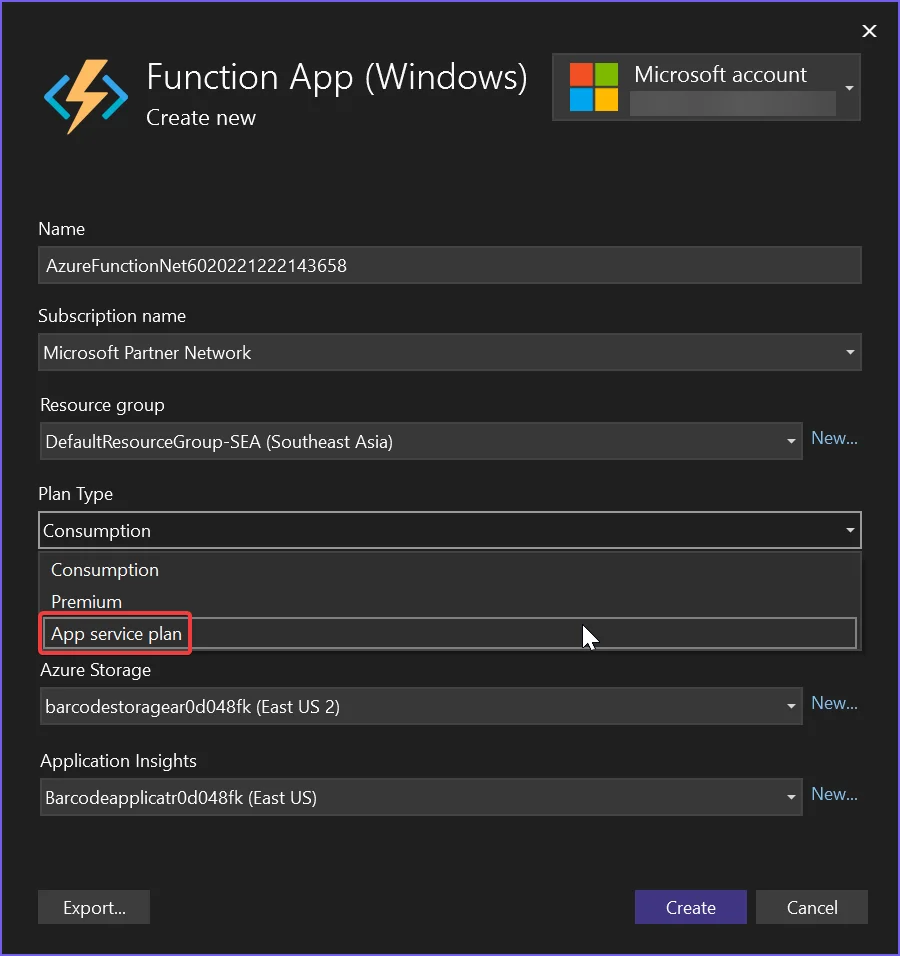
- 选择 Azure Basic B1 或更高的托管层
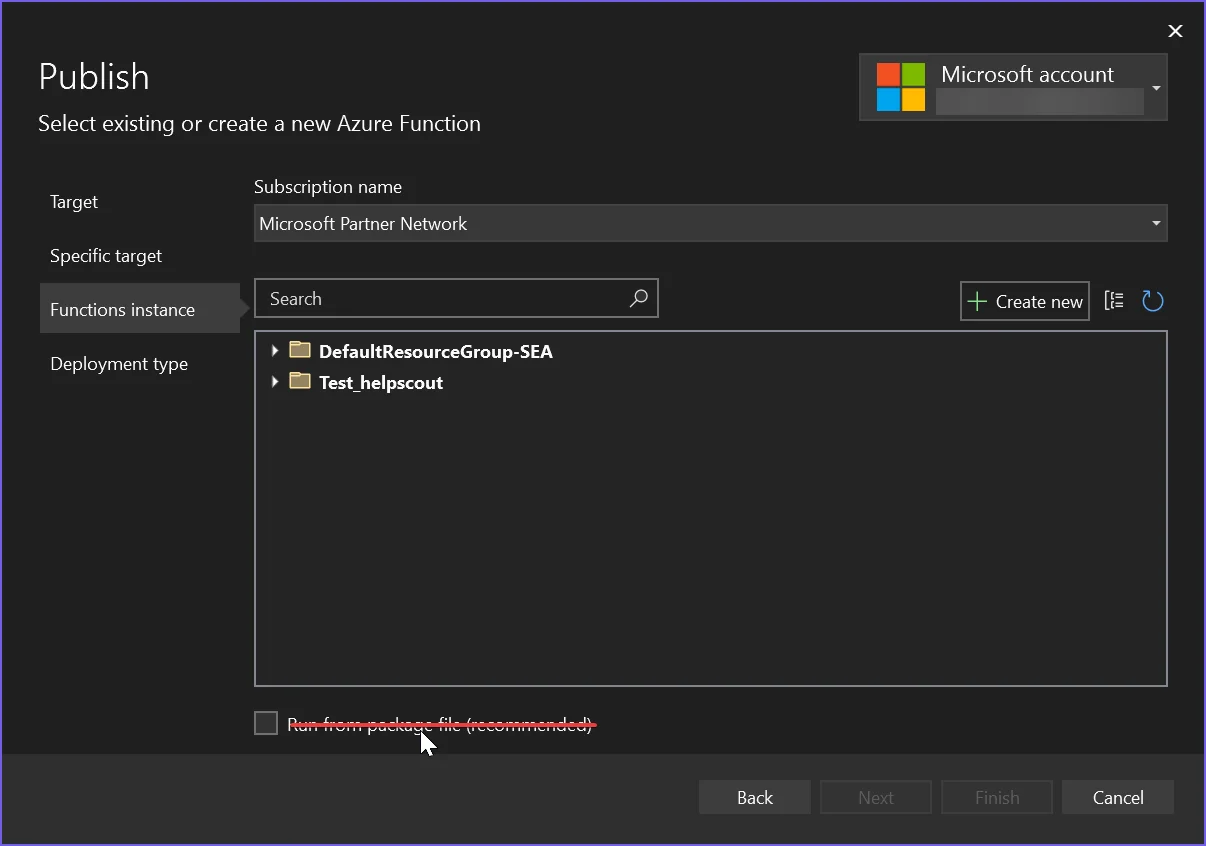
- 发布时取消选中
Run from package file选项 - 按照推荐的配置说明进行操作
- 使用代码示例在 Azure 上创建 PDF 生成器
如何使用教程
安装IronPDF包
Azure功能应用程序有三个不同的环境:Linux、Windows和容器。 本文解释了如何在所有三个环境中设置IronPDF。 其中,推荐Azure功能应用程序容器,因为它提供了一个隔离的环境。 首先,让我们选择适当的安装包。
Azure功能应用程序容器
Azure Function App Container涉及的麻烦最少,因此是推荐的IronPDF部署方式。
安装-打包 IronPdf.Linux
配置Docker文件
根据您正在使用的Linux发行版配置Docker文件。 有关详细说明,请参阅本文。
Azure功能应用程序(Windows)
要使用标准IronPDF包,请确保未选中从包文件运行选项。 启用此选项会将项目作为ZIP文件部署,这会干扰IronPDF的文件配置。 如果您希望启用从包文件运行选项,请安装IronPdf.Slim包。
Azure功能应用程序(Linux)
对于Azure功能应用程序(Linux),项目默认作为ZIP文件部署,且无法禁用此行为。 这类似于在Azure功能应用程序(Windows)上启用从包文件运行选项。
安装-打包 IronPdf.Slim
选择正确的Azure选项
选择正确的托管层
Azure Basic B1 是我们最终用户渲染需求的最低托管级别。 如果您正在创建一个高吞吐量系统,这可能需要升级。
.NET 6的配置
微软最近从 .NET 6+ 中移除了成像库,破坏了许多遗留的 API。因此,有必要配置您的项目以仍然允许这些遗留的 API 调用。
- 在Linux上,设置
libgdiplus已安装在机器上 - 在.NET 6项目的.csproj文件中添加以下内容:
<GenerateRuntimeConfigurationFiles>true</GenerateRuntimeConfigurationFiles>- 在您的项目中创建一个名为
runtimeconfig.template.json的文件,并用以下内容填充:
{
  "configProperties": {
    "System.Drawing.EnableUnixSupport": true
  }
}- 最后,在程序开始处添加以下代码行:
System.AppContext.SetSwitch("System.Drawing.EnableUnixSupport", true);System.AppContext.SetSwitch("System.Drawing.EnableUnixSupport", True)Azure 函数代码示例
此示例将HTML转换为PDF,并自动将日志条目输出到内置的Azure记录器(请参见ILogger log)。
[FunctionName("PrintPdf")]
public static async Task<IActionResult> Run(
    [HttpTrigger(AuthorizationLevel.Anonymous, "get", "post", Route = null)] HttpRequest req,
    ILogger log, ExecutionContext context)
{
    log.LogInformation("Entered PrintPdf API function...");

    // Apply license key
    IronPdf.License.LicenseKey = "IRONPDF-MYLICENSE-KEY-1EF01";

    // Enable logging
    IronPdf.Logging.Logger.LoggingMode = IronPdf.Logging.Logger.LoggingModes.Custom;
    IronPdf.Logging.Logger.CustomLogger = log;

    // Configure IronPdf settings
    IronPdf.Installation.LinuxAndDockerDependenciesAutoConfig = true;
    IronPdf.Installation.AutomaticallyDownloadNativeBinaries = true;
    IronPdf.Installation.ChromeGpuMode = IronPdf.Engines.Chrome.ChromeGpuModes.Disabled;
    IronPdf.Installation.CustomDeploymentDirectory = "/tmp";

    try
    {
        log.LogInformation("About to render PDF...");
        ChromePdfRenderer renderer = new ChromePdfRenderer();
        // Render PDF from a URL
        var pdf = renderer.RenderUrlAsPdf("https://www.google.com/");
        log.LogInformation("Finished rendering PDF...");
        return new FileContentResult(pdf.BinaryData, "application/pdf") { FileDownloadName = "google.pdf" };
    }
    catch (Exception e)
    {
        log.LogError(e, "Error while rendering PDF");
        return new OkObjectResult($"Error while rendering PDF: {e}");
    }
}<FunctionName("PrintPdf")>
Public Shared Async Function Run(
<HttpTrigger(AuthorizationLevel.Anonymous, "get", "post", Route:=Nothing)> req As HttpRequest,
log As ILogger, context As ExecutionContext) As Task(Of IActionResult)
log.LogInformation("Entered PrintPdf API function...")
' Apply license key
IronPdf.License.LicenseKey = "IRONPDF-MYLICENSE-KEY-1EF01"
' Enable logging
IronPdf.Logging.Logger.LoggingMode = IronPdf.Logging.Logger.LoggingModes.Custom
IronPdf.Logging.Logger.CustomLogger = log
' Configure IronPdf settings
IronPdf.Installation.LinuxAndDockerDependenciesAutoConfig = True
IronPdf.Installation.AutomaticallyDownloadNativeBinaries = True
IronPdf.Installation.ChromeGpuMode = IronPdf.Engines.Chrome.ChromeGpuModes.Disabled
IronPdf.Installation.CustomDeploymentDirectory = "/tmp"
Try
log.LogInformation("About to render PDF...")
Dim renderer As New ChromePdfRenderer()
' Render PDF from a URL
Dim pdf = renderer.RenderUrlAsPdf("https://www.google.com/")
log.LogInformation("Finished rendering PDF...")
Return New FileContentResult(pdf.BinaryData, "application/pdf") With {.FileDownloadName = "google.pdf"}
Catch e As Exception
log.LogError(e, "Error while rendering PDF")
Return New OkObjectResult($"Error while rendering PDF: {e}")
End Try
End Function在Visual Studio中使用Azure Function模板创建项目可能导致代码略有不同。 由于这些差异,即使安装了相同的软件包,一个项目可能会工作,而另一个则不会。 如果出现这种情况,请将CustomDeploymentDirectory属性设置为**"/tmp"**。
了解每个安装配置
- LinuxAndDockerDependenciesAutoConfig:此设置检查并尝试下载Chrome引擎所需的所有依赖项。当使用非GUI系统(如Linux)时,需要此设置。 在容器系统中,依赖项通常列在Dockerfile中;因此,您可以将此设置为false。
- AutomaticallyDownloadNativeBinaries:此选项在运行时下载本地Chrome二进制文件。当使用IronPdf.Slim包时需要此选项。
- CustomDeploymentDirectory:此设置适用于写入权限有限的系统。
已知问题
共享托管计划上不支持SVG字体渲染
我们发现的一个限制是Azure 托管平台不支持在其较便宜的共享web应用程序层加载SVG字体,如Google字体。 这是因为这些共享托管平台出于安全原因不允许访问Windows GDI+图形对象。
我们建议使用Windows或Linux Docker容器或可能在Azure上使用VPS,来解决在需要最佳字体渲染的问题。
Azure免费层托管速度慢
Azure 免费和共享层以及消耗计划不适合 PDF 渲染。 我们推荐 Azure B1 托管/高级计划,这是我们自己使用的。 对于任何计算机来说,HTML to PDF的过程都是重要的"工作" - 类似于在您自己的机器上打开和渲染网页。使用的是一个真实的浏览器引擎,因此我们需要相应地准备,并期待与类似性能的桌面机器相似的渲染时间。
创建工程支持请求票证
为了创建请求工单,请参阅'如何为IronPDF提出工程支持请求'指南
常见问题解答
如何在 Azure 上托管一个 PDF 生成库?
您可以通过设置 Azure 功能或 MVC 网站来托管类似 IronPDF 的 PDF 生成库。确保您有必要的 NuGet 包安装,并根据库的要求配置您的环境。
哪些 Azure 环境与 PDF 库兼容?
IronPDF 兼容多个 Azure 环境,包括 MVC 网站和 Azure Functions。它被设计为在 Azure 提供的不同平台上无缝运行。
PDF 库在 Azure 上的托管要求是什么?
为确保在 Azure 上使用 IronPDF 时的最佳性能,建议至少使用 Azure Basic B1 托管层。这可确保有足够的资源来有效呈现 PDF。
如何在 Linux 上为 Azure 功能应用设置 PDF 库?
要在 Linux 上为 Azure 功能应用设置 IronPDF,请安装 IronPdf.Slim 包。将您的项目部署为 ZIP 文件,并确保所有配置正确设置以适应Linux 环境。
.NET 6 在 Azure 上使用 PDF 库时需要哪些配置?
在 Azure 上使用 .NET 6 的 IronPDF 时,请更新项目设置以允许旧版 API 调用。将 Installation.LinuxAndDockerDependenciesAutoConfig=true 设置,并在项目文件中包含必要的配置。
为什么推荐在 Azure 上进行 PDF 呈现时使用 Docker 容器?
建议在 Azure 上进行 PDF 呈现时使用 Docker 容器,因为它提供了更受控的环境,支持更好的字体呈现,避免了共享托管计划的限制。
什么可能导致 Azure 免费层的 PDF 渲染速度缓慢?
Azure 免费层的 PDF 渲染速度缓慢是由于计算资源有限。该过程需要大量计算能力,类似于渲染一个网页,使 B1 或 Premium 这样更高等级的计划更为合适。
如何排除在 Azure 功能项目中 PDF 库不起作用的问题?
如果您的 Azure 功能项目中的 IronPDF 无法运行,请检查 CustomDeploymentDirectory 属性是否设置为 '/tmp',并确保所有必要的包和配置已正确安装和设置。
在 Azure 上部署 PDF 库有哪些支持选项?
要获得在 Azure 上部署 IronPDF 的支持,请访问 IronPDF 网站上的“如何为 IronPDF 提交工程支持请求”指南以获取详细帮助。
What logging options are available for IronPDF on Azure?
IronPDF allows logging through Azure's built-in logger by enabling custom logging modes and setting `CustomLogger` to the desired log.

Curtis Chau 拥有卡尔顿大学的计算机科学学士学位,专注于前端开发,精通 Node.js、TypeScript、JavaScript 和 React。他热衷于打造直观且美观的用户界面,喜欢使用现代框架并创建结构良好、视觉吸引力强的手册。













