
如何在IronPDF C#中将XML转换为PDF

IronPDF通过运行XSLT转换将XML转换为C#中的PDF,该转换将XML转化为HTML,然后使用ChromePdfRenderer.RenderHtmlAsPdf渲染该HTML。 IronPDF没有本地的XML渲染器,因此支持的路径始终是XML到XSLT/HTML再到PDF。
XML保存结构化数据,但没有任何视觉布局,因此它无法自己绘制在页面上。 XSLT样式表提供了这种呈现:它将每个XML元素映射到HTML标记上,而HTML则带有PDF将显示的字体、表格和样式。 要了解有关底层转换的更多信息,请参阅 Microsoft 关于XslCompiledTransform 类的指南。
使用XslCompiledTransform加载XSLT样式表,将XML文件转换为HTML字符串,然后将该字符串传递给IronPDF。 转换通过IronPDF的HTML到PDF引擎进行,渲染样式表定义的布局。
-
1Install IronPDF with NuGet Package Manager
-
2复制并运行这段代码。
var transform = new System.Xml.Xsl.XslCompiledTransform(); transform.Load("catalog.xslt"); var html = new System.IO.StringWriter(); transform.Transform("catalog.xml", null, html); new IronPdf.ChromePdfRenderer().RenderHtmlAsPdf(html.ToString()).SaveAs("output.pdf");C# -
3部署到您的生产环境中进行测试
通过免费试用立即在您的项目中开始使用IronPDF
最小工作流程(5 个步骤)
- 下载用于将XML转换为PDF的C#库
- 使用
Load方法导入XSLT样式表 - 使用
Transform方法将XML转换为HTML字符串 - 使用
RenderHtmlAsPdf将HTML渲染为PDF - 将 PDF 文档保存到所需位置
如何在C#中将XML文件转换为PDF?
通过串联三个步骤转换XML文件:使用RenderHtmlAsPdf。 样式表决定了每个XML元素的外观,IronPDF通过Chromium引擎渲染它生成的HTML。
该转换通过StringBuilder,这将整个文档保存在内存中,避免在磁盘上生成临时文件。 该HTML字符串就是您交给渲染器的内容。 一旦您拥有生成的PdfDocument,您可以继续处理它,例如渲染HTML字符串以用于同一报告的其他部分。
XML输入是什么样的?
下面的示例是产品目录。 下载catalog.xml 样本文件,以及匹配的catalog.xslt 样式表以进行学习。
输入
我需要什么代码来转换XML文件?
using System.IO;
using System.Text;
using System.Xml;
using System.Xml.Xsl;
using IronPdf;

// Load the XSLT stylesheet that maps the XML schema onto HTML
XslCompiledTransform transform = new XslCompiledTransform();
transform.Load("catalog.xslt");

// Apply the transform to the XML file and capture the HTML output
StringBuilder htmlBuilder = new StringBuilder();
XmlWriterSettings settings = new XmlWriterSettings { OmitXmlDeclaration = true, Indent = true };

using (XmlReader reader = XmlReader.Create("catalog.xml"))
using (XmlWriter writer = XmlWriter.Create(htmlBuilder, settings))
{
    transform.Transform(reader, null, writer);
}

string html = htmlBuilder.ToString();

// Render the resulting HTML as a PDF with IronPDF
ChromePdfRenderer renderer = new ChromePdfRenderer();
PdfDocument pdf = renderer.RenderHtmlAsPdf(html);
pdf.SaveAs("xml-to-pdf.pdf");输出


我如何控制PDF布局和页面设置?
在调用RenderingOptions以控制页边距、方向、页眉和页脚。 这些选项适用于样式表生成的HTML,因此页面级别的关注点保持在C#中,而元素级别的样式则保持在XSLT及其CSS中。
下面的示例保持纵向方向,修剪上下边距,并添加一个连续的页眉和页码页脚。 有关完整的切换集合,请参阅渲染选项指南,并要添加每页编号,请参阅页码。
using System.IO;
using System.Text;
using System.Xml;
using System.Xml.Xsl;
using IronPdf;
using IronPdf.Rendering;

// Transform the XML into HTML using the XSLT stylesheet
XslCompiledTransform transform = new XslCompiledTransform();
transform.Load("catalog.xslt");

StringBuilder htmlBuilder = new StringBuilder();
using (XmlReader reader = XmlReader.Create("catalog.xml"))
using (XmlWriter writer = XmlWriter.Create(htmlBuilder, new XmlWriterSettings { OmitXmlDeclaration = true }))
{
    transform.Transform(reader, null, writer);
}

// Configure rendering options before generating the PDF
ChromePdfRenderer renderer = new ChromePdfRenderer();
renderer.RenderingOptions.PaperOrientation = PdfPaperOrientation.Portrait;
renderer.RenderingOptions.MarginTop = 20;
renderer.RenderingOptions.MarginBottom = 20;
renderer.RenderingOptions.TextHeader = new TextHeaderFooter
{
    CenterText = "Spring Product Catalog",
    FontSize = 12
};
renderer.RenderingOptions.TextFooter = new TextHeaderFooter
{
    RightText = "Page {page} of {total-pages}",
    FontSize = 10
};

PdfDocument pdf = renderer.RenderHtmlAsPdf(htmlBuilder.ToString());
pdf.SaveAs("xml-to-pdf-advanced.pdf");输出
我如何处理复杂的XML模式?
在XML模式需要条件格式或存在于文档之外的数据时,通过XsltArgumentList将运行时值传递到样式表中。 样式表通过<!-- xsl:param>读取每个值,因此无需更改C#代码即可在同一个模板中标记库存不足、盖上报告日期或基于元素值分支。
这种模式将转换逻辑保留在XSLT中,其中嵌套元素、属性和<xsl:choose>分支处理结构。 下载catalog-params.xslt 样式表以查看其中使用的参数和条件标记。
using System;
using System.IO;
using System.Text;
using System.Xml;
using System.Xml.Xsl;
using IronPdf;

// Pass runtime values into the stylesheet with an XsltArgumentList
XsltArgumentList xsltArgs = new XsltArgumentList();
xsltArgs.AddParam("reportDate", "", DateTime.Now.ToString("MMMM d, yyyy"));
xsltArgs.AddParam("minStock", "", 50);

// Load a parameterized stylesheet that reads <xsl:param> values
XslCompiledTransform transform = new XslCompiledTransform();
transform.Load("catalog-params.xslt");

StringBuilder htmlBuilder = new StringBuilder();
using (XmlReader reader = XmlReader.Create("catalog.xml"))
using (XmlWriter writer = XmlWriter.Create(htmlBuilder, new XmlWriterSettings { OmitXmlDeclaration = true }))
{
    transform.Transform(reader, xsltArgs, writer);
}

// Render the parameterized HTML as a PDF
ChromePdfRenderer renderer = new ChromePdfRenderer();
PdfDocument pdf = renderer.RenderHtmlAsPdf(htmlBuilder.ToString());
pdf.SaveAs("xml-to-pdf-parameters.pdf");输出
信息图表
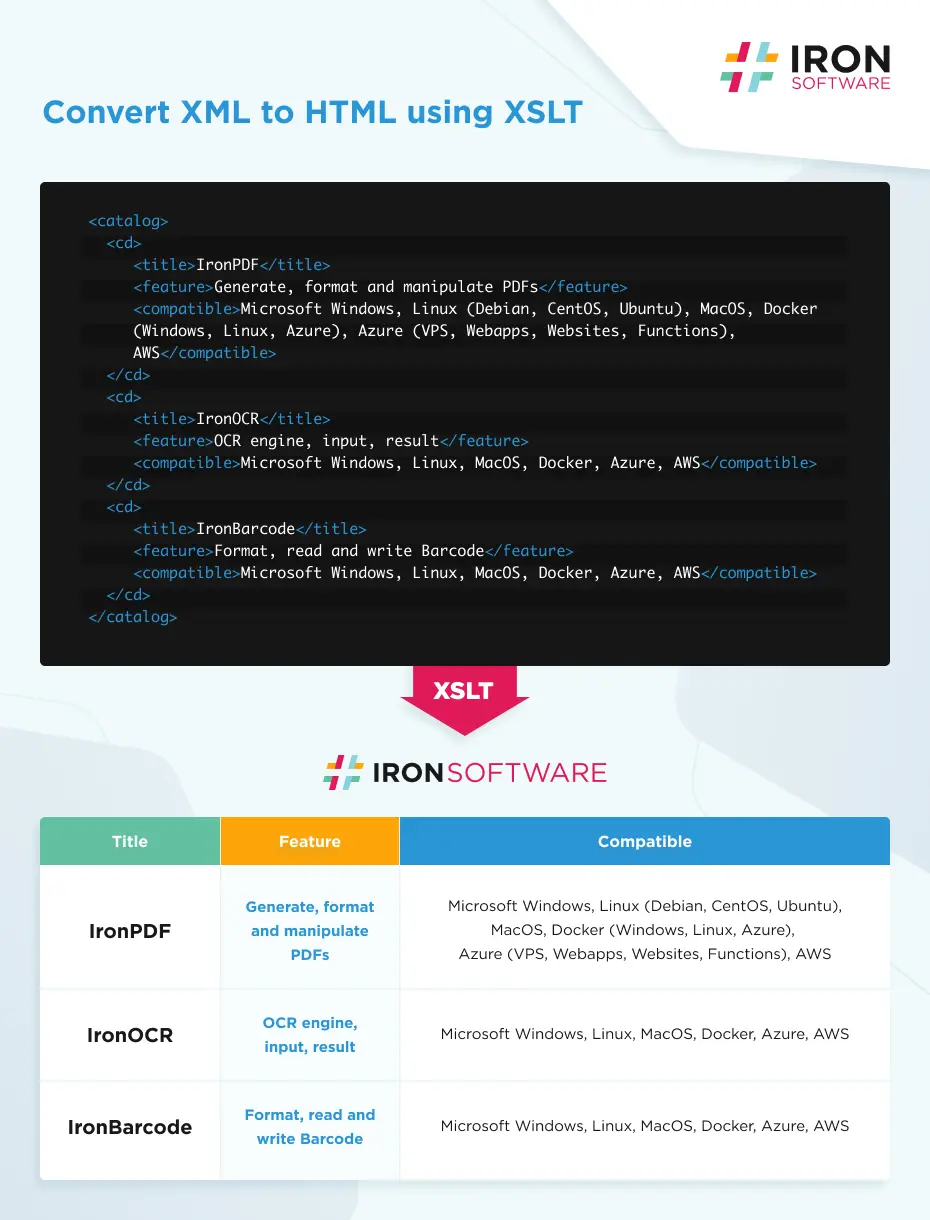
结论
您通过使用XsltArgumentList如何扩展结果以实现布局控制和模式驱动的格式化。 因为输出是普通的HTML,所以推动页眉、页脚和纸张尺寸等的相同渲染选项在IronPDF中的其他地方直接适用于您的目录。 一个可运行的XML到PDF示例项目可以作为起点下载。
常见问题解答
如何用 C# 将 XML 转换为 PDF?
IronPDF没有原生的XML渲染器,因此支持的路径是从XML到XSLT/HTML到PDF。使用XslCompiledTransform加载一个XSLT样式表,将XML转换为HTML字符串,然后在IronPDF的ChromePdfRenderer上调用RenderHtmlAsPdf以生成最终PDF文档。
为什么要使用 XSLT 将 XML 转换为 PDF?
XSLT 为 XML 到 PDF 的转换提供了最灵活的方法,因为它是从 XML 到 HTML 的自定义翻译。结合 IronPDF 的 Chrome 渲染引擎,这种方法可确保像素完美的转换,同时保持对最终 PDF 文档中 XML 数据格式的完全控制。
实现 XML 到 PDF 转换的步骤是什么?
实施过程包括 5 个步骤:1) 安装 IronPDF C# 库;2) 使用 Load 方法加载您的 XSLT 模板;3) 使用 Transform 方法将 XML 转换为 HTML;4) 使用 IronPDF 的自定义渲染选项将 HTML 渲染为 PDF;5) 将 PDF 文档导出到您所需的位置。
我能否将自定义样式应用到 XML 到 PDF 的转换中?
是的,您可以应用自定义 CSS 样式来增强 PDF 输出的视觉效果。IronPDF 支持响应式 CSS 样式,允许您从 XML 数据中创建专业格式的 PDF,并完全控制字体、布局和视觉元素。
是否可以用一行代码将 XML 转换为 PDF?
是的,IronPDF 可通过连锁方法实现单行 XML 到 PDF 的转换:new IronPdf.ChromePdfRenderer().RenderHtmlAsPdf(XslCompiledTransform.Load("template.xslt").Transform(XmlReader.Create("data.xml"), new StringWriter()).ToString()).SaveAs("output.pdf");
将 XML 转换为 PDF 时使用什么渲染引擎?
IronPDF使用Chromium渲染引擎渲染XSLT转换生成的HTML,提供像素级的精确输出和与现代Web标准的兼容性。XML本身从未直接渲染,最终生成PDF的HTML是经过转换的HTML。
Is a sample project available to understand XML to PDF conversion using IronPDF?
Yes, a runnable sample project for converting XML to PDF is available for download, providing a starting point for implementing this functionality in your own applications.
What are some common use cases for converting XML to PDF with IronPDF?
Common use cases include generating reports, invoices, catalogs, or any document where structured data needs to be presented in a professional and easily distributable format.
How is the HTML output managed during the XML transformation process?
During the transformation process, HTML output is typically managed using a `StringWriter` and an `XmlWriter`, which convert the XML based on the XSLT rules into an in-memory HTML string for further PDF conversion.
Can IronPDF handle pagination features for the generated PDFs?
Yes, IronPDF supports pagination features such as adding page numbers and footers through its rendering options, providing flexibility in creating structured, multi-page PDF documents.

Curtis Chau 拥有卡尔顿大学的计算机科学学士学位,专注于前端开发,精通 Node.js、TypeScript、JavaScript 和 React。他热衷于打造直观且美观的用户界面,喜欢使用现代框架并创建结构良好、视觉吸引力强的手册。













