
如何用 C# 访问所有 PDF DOM 对象

要在C#中访问PDF DOM对象,请使用IronPDF的ObjectModel属性,该属性提供对PDF文档中文本、图像和路径对象的编程访问,允许您直接读取、修改、翻译、缩放和删除元素。
开始使用 IronPDF 的 DOM 访问功能操作 PDF 文档。 本指南介绍了如何访问 PDF DOM、选择页面和修改文本对象。 加载 PDF,访问所需页面,只需几行代码即可更新内容。
-
1Install IronPDF with NuGet Package Manager
-
2复制并运行这段代码。
var objs = IronPdf.ChromePdfRenderer.RenderUrlAsPdf("https://example.com").Pages.First().ObjectModel;C# -
3部署到您的生产环境中进行测试
通过免费试用立即在您的项目中开始使用IronPDF
最小工作流程(5 个步骤)
- 下载 C# 库以访问 PDF DOM 对象。
- 导入或渲染目标 PDF 文档
- 访问PDF的
Pages集合,并选择所需的页面 - 使用 ObjectModel 属性查看 DOM 对象并与之交互
- 保存或导出修改后的 PDF 文档
如何访问 PDF 中的 DOM 对象?
PdfPage对象中访问。 首先,导入目标PDF并访问其Pages属性。 从那里选择任何页面以访问ObjectModel属性。 这可以实现与 PDF 内容的程序化交互,类似于处理 HTML DOM 元素。
在处理 PDF DOM 对象时,您需要访问 PDF 文档的底层结构。 这包括文本元素、图像、矢量图形(paths)及其他构成PDF视觉表现的内容。 IronPDF 提供了一种面向对象的 PDF 操作方法,可与 C# 应用程序集成。
using IronPdf;
using System.Linq;

// Instantiate Renderer
ChromePdfRenderer renderer = new ChromePdfRenderer();

// Create a PDF from a URL
PdfDocument pdf = renderer.RenderUrlAsPdf("https://ironpdf.com/");

// Access DOM Objects
var objects = pdf.Pages.First().ObjectModel;Imports IronPdf
Imports System.Linq
' Instantiate Renderer
Private renderer As New ChromePdfRenderer()
' Create a PDF from a URL
Private pdf As PdfDocument = renderer.RenderUrlAsPdf("https://ironpdf.com/")
' Access DOM Objects
Private objects = pdf.Pages.First().ObjectModel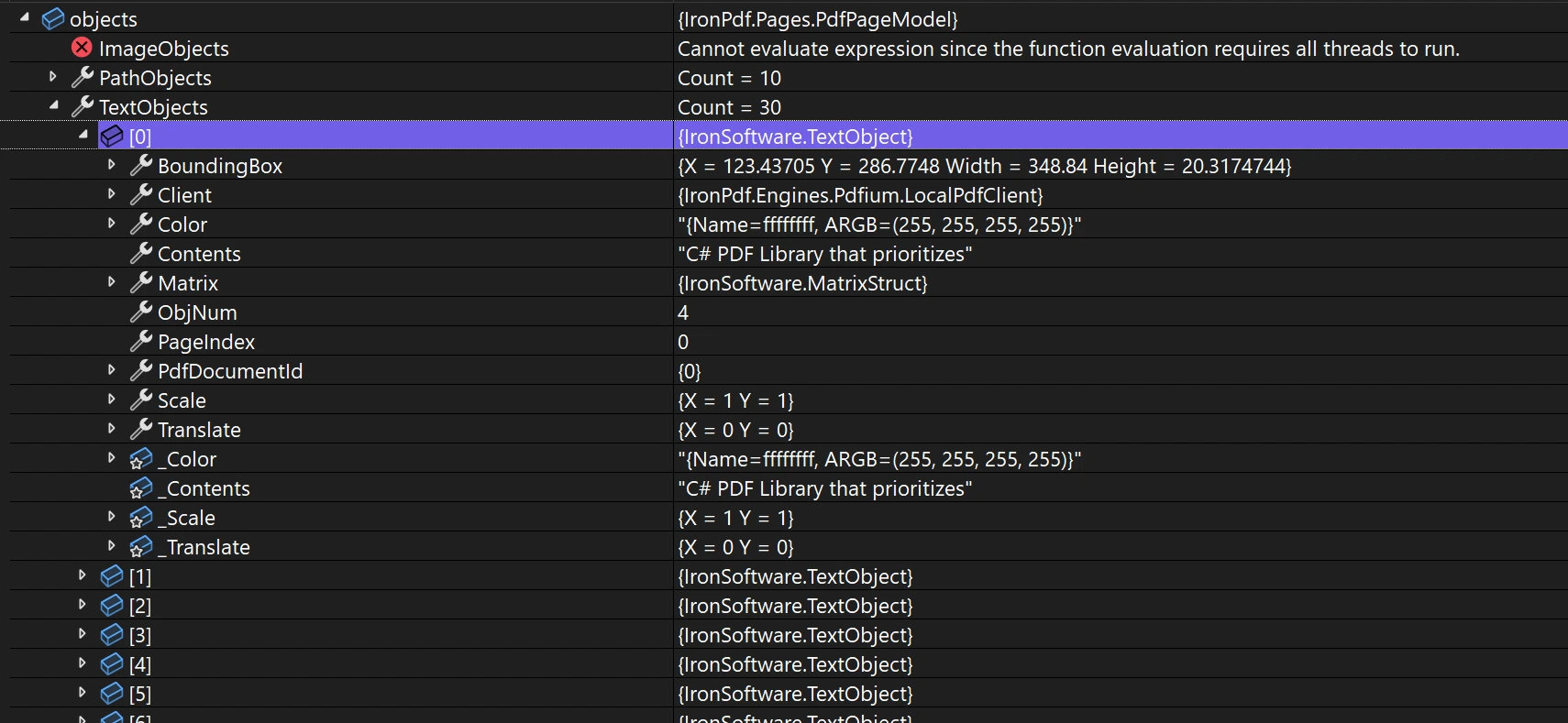
TextObject。 每个对象包含关于其页面索引、边界框、Translation的信息。 这些信息可以修改。 对于渲染选项,您可以自定义这些对象的显示方式。 在使用自定义边距时,理解对象定位非常重要。
<ImageObject>:
Height:图像的高度Width:图像的宽度ExportBytesAsJpg:将图像导出为JPG字节数组的方法
<PathObject>:
FillColor:路径的填充颜色StrokeColor:路径的描边颜色Points:定义路径的点集合
<TextObject>:
Color:文本的颜色Text内容
每种对象类型都提供了针对其内容类型的方法和属性。 当您需要提取文本和图像或修改特定内容时,这些对象可提供细粒度的控制。 这在使用 IronPDF 表单时非常有用,因为您需要以编程方式操作表单字段。
如何检索字形信息和边界框?
在使用自定义字体指定精确字形时,检索边界框和字形信息至关重要。 当在现有 PDF 上绘制文本和位图时,IronPDF 提供的这些信息可实现像素完美定位。
从ObjectModel。 然后访问TextObjects集合。 调用GetGlyphInfo方法以检索字形和边界框信息。
using IronPdf;
using System.Linq;

PdfDocument pdf = PdfDocument.FromFile("invoice.pdf");

var glyph = pdf.Pages.First().ObjectModel.TextObjects.First().GetGlyphInfo();Imports IronPdf
Imports System.Linq
Dim pdf As PdfDocument = PdfDocument.FromFile("invoice.pdf")
Dim glyph = pdf.Pages.First().ObjectModel.TextObjects.First().GetGlyphInfo()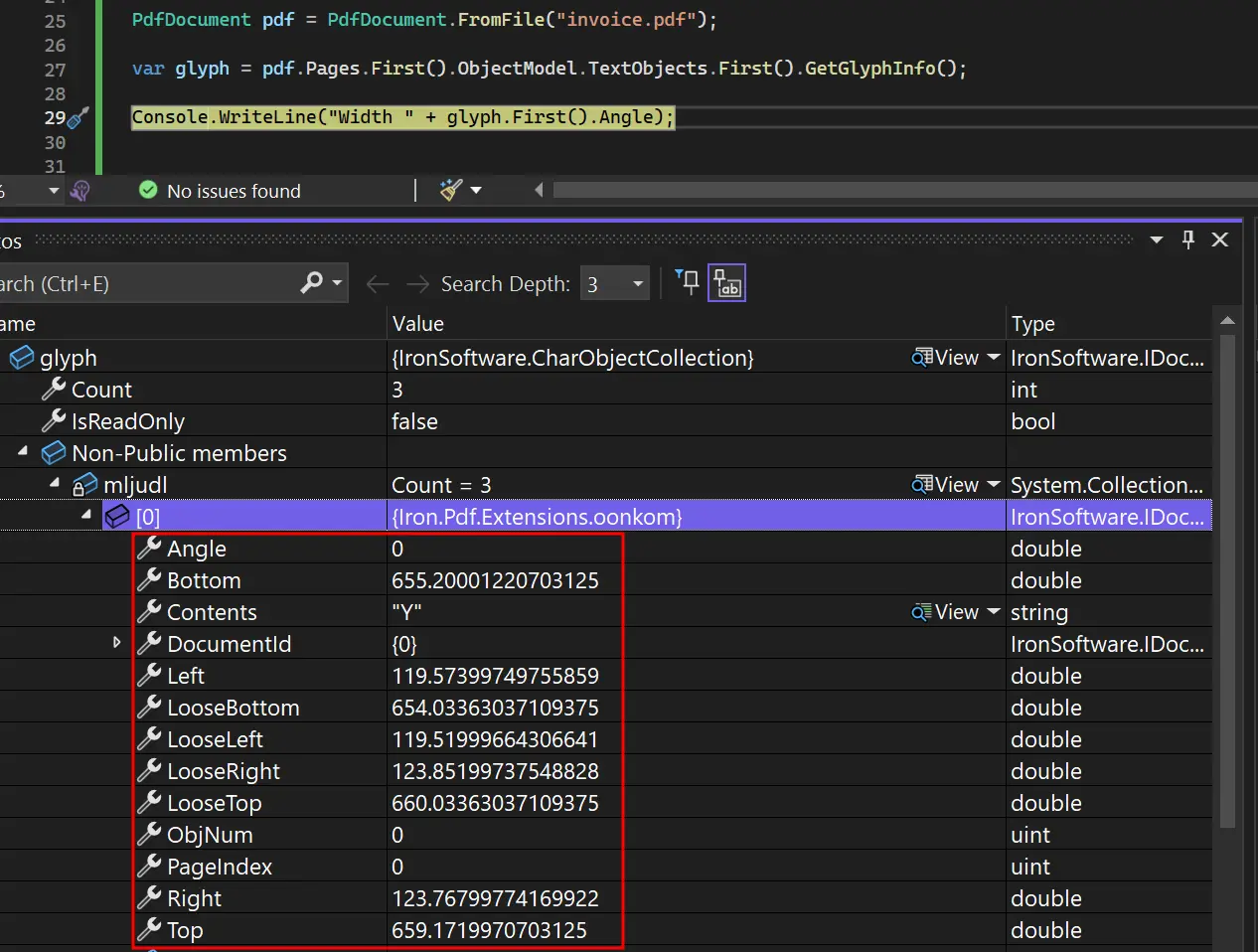
字形信息包括定位数据、字体度量以及用于高级 PDF 操作的特定字符详细信息。 这样就可以创建处理复杂排版和布局要求的 PDF 处理应用程序。 在使用 定制字体时,这种字形级访问可确保跨系统的准确呈现。
如何翻译 PDF 对象?
通过重新定位文本或图像等元素来调整 PDF 布局。 通过更改其Translate属性来移动对象。 该功能是 IronPDF 的PDF 转换功能的一部分。
下面的示例使用 CSS Flexbox 将 HTML 渲染成居中文本。 它访问第一个PointF来翻译它。 这将文本向右移动 200 个点,向上移动 150 个点。有关更多示例,请访问 translate PDF objects 示例页面。
我使用什么代码来翻译对象?
using IronPdf;
using System.Drawing;
using System.Linq;

// Setup the Renderer
var renderer = new ChromePdfRenderer();

// We use CSS Flexbox to perfectly center the text vertically and horizontally.
var html = @"
<div style='display: flex; justify-content: center; align-items: center; font-size: 48px;'>
    Centered
</div>";

// Render the HTML to a PDF
PdfDocument pdf = renderer.RenderHtmlAsPdf(html);

// Save the original PDF to see the "before" state
pdf.SaveAs("BeforeTranslate.pdf");

// Access the first text object on the first page
// In this simple HTML, this will be our "Centered" text block.
var textObject = pdf.Pages.First().ObjectModel.TextObjects.First();

// Apply the translation
// This moves the object 200 points to the right and 150 points up from its original position.
textObject.Translate = new PointF(200, 150);

// Save the modified PDF to see the "after" state
pdf.SaveAs("AfterTranslate.pdf");Imports IronPdf
Imports System.Drawing
Imports System.Linq
' Setup the Renderer
Dim renderer As New ChromePdfRenderer()
' We use CSS Flexbox to perfectly center the text vertically and horizontally.
Dim html As String = "
<div style='display: flex; justify-content: center; align-items: center; font-size: 48px;'>
Centered
</div>"
' Render the HTML to a PDF
Dim pdf As PdfDocument = renderer.RenderHtmlAsPdf(html)
' Save the original PDF to see the "before" state
pdf.SaveAs("BeforeTranslate.pdf")
' Access the first text object on the first page
' In this simple HTML, this will be our "Centered" text block.
Dim textObject = pdf.Pages.First().ObjectModel.TextObjects.First()
' Apply the translation
' This moves the object 200 points to the right and 150 points up from its original position.
textObject.Translate = New PointF(200, 150)
' Save the modified PDF to see the "after" state
pdf.SaveAs("AfterTranslate.pdf")翻译结果是什么样的?
输出结果显示,"居中 "从原来的位置向右移动了 200 个点,向上移动了 150 个点。
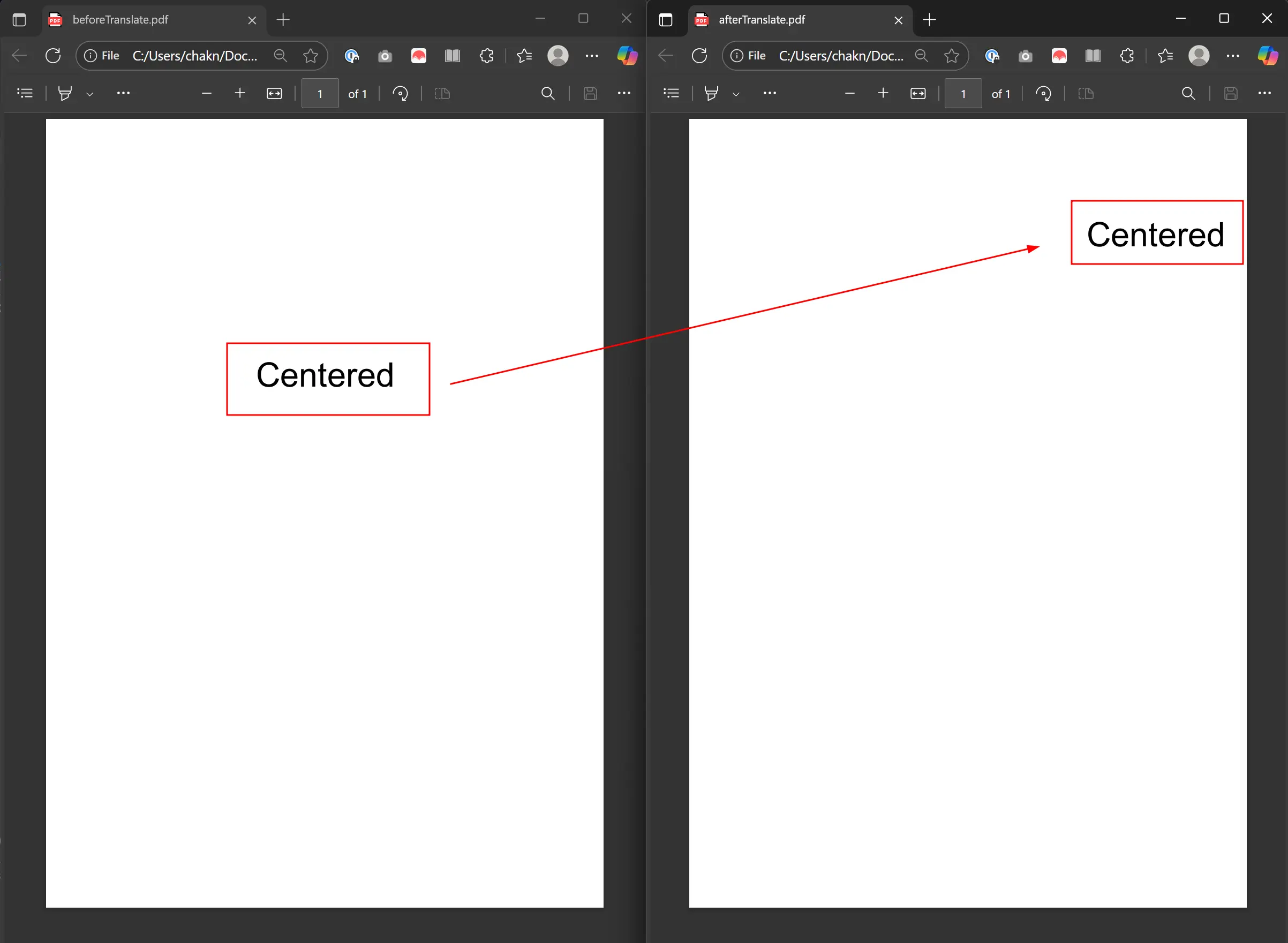
翻译操作应保持对象的原始属性,如字体、大小和颜色,仅改变位置。 这非常适合在不影响视觉外观的情况下进行布局调整。 在重新定位动态生成的内容时,此功能可与 页眉和页脚配合使用。
如何缩放 PDF 对象?
使用Scale属性调整PDF对象的大小。 此属性充当放大倍数。 数值大于 1 会增大字号,数值在 0 到 1 之间会减小字号。 缩放对于动态布局和调整内容以适应页面尺寸至关重要。 更多示例请参见 scale PDF 对象指南。
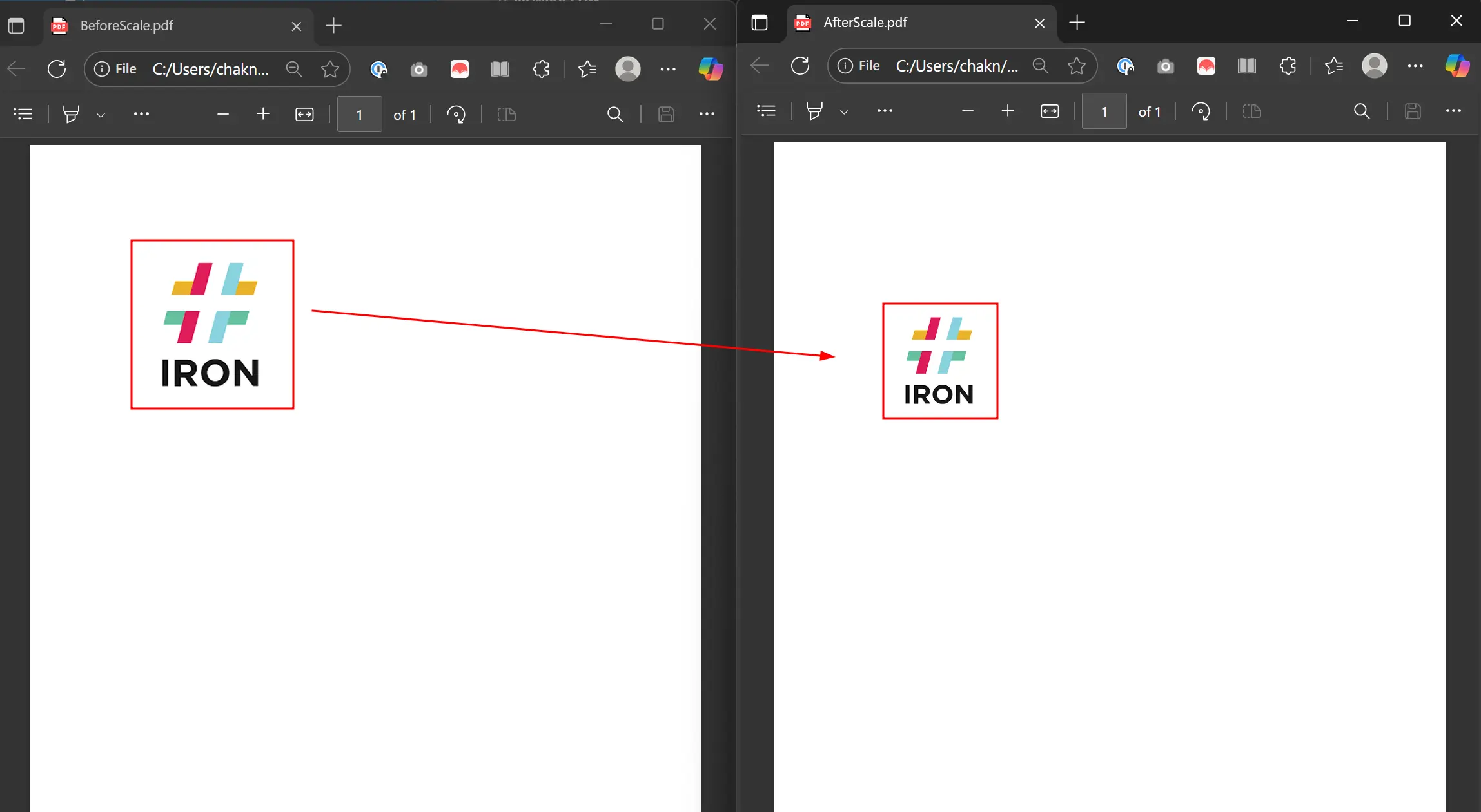
示例渲染了包含图片的 HTML。 它访问第一个Scale,并将其比例缩放到70%,两个轴均为0.7。
缩放 PDF 对象的代码是什么?
using IronPdf;
using System.Linq;

// Setup the Renderer
var renderer = new ChromePdfRenderer();

// The image is placed in a div to give it some space on the page.
string html = @"<img src='https://encrypted-tbn0.gstatic.com/images?q=tbn:ANd9GcTi8LuOR6_A98euPLs-JRwoLU7Nc31nVP15rw&s'>";

// Render the HTML to a PDF
PdfDocument pdf = renderer.RenderHtmlAsPdf(html);

// Save the PDF before scaling for comparison
pdf.SaveAs("BeforeScale.pdf");

// Access the first image object on the first page
var image = pdf.Pages.First().ObjectModel.ImageObjects.First();

// We scale the image to 70% of its original size on both the X and Y axes.
image.Scale = new System.Drawing.PointF(0.7f, 0.7f);

// Save the modified PDF to see the result
pdf.SaveAs("AfterScale.pdf");Imports IronPdf
Imports System.Linq
Imports System.Drawing
' Setup the Renderer
Dim renderer As New ChromePdfRenderer()
' The image is placed in a div to give it some space on the page.
Dim html As String = "<img src='https://encrypted-tbn0.gstatic.com/images?q=tbn:ANd9GcTi8LuOR6_A98euPLs-JRwoLU7Nc31nVP15rw&s'>"
' Render the HTML to a PDF
Dim pdf As PdfDocument = renderer.RenderHtmlAsPdf(html)
' Save the PDF before scaling for comparison
pdf.SaveAs("BeforeScale.pdf")
' Access the first image object on the first page
Dim image = pdf.Pages.First().ObjectModel.ImageObjects.First()
' We scale the image to 70% of its original size on both the X and Y axes.
image.Scale = New PointF(0.7F, 0.7F)
' Save the modified PDF to see the result
pdf.SaveAs("AfterScale.pdf")对 X 轴和 Y 轴独立应用不同的缩放因子,以实现非均匀缩放。 这有助于将内容融入特定的维度。 在使用自定义纸张尺寸时,缩放有助于确保内容适合页面边界。
扩展在实践中是什么样的?
输出显示图像缩小到其原始大小的 70%。


如何删除 PDF 对象?
通过访问像TextObjects这样的PDF DOM集合来删除对象。 对集合调用RemoveAt,传递要删除对象的索引。 这对于编辑内容或简化文档非常有用。 了解更多信息,请访问 删除 PDF 对象示例。
代码加载 BeforeScale.pdf,并从第一页移除第一张图片。
我应该使用哪些代码来删除对象?
using IronPdf;
using System.Linq;

// Load the PDF file we created in the Scale example
PdfDocument pdf = PdfDocument.FromFile("BeforeScale.pdf");

// Access DOM Objects
var objects = pdf.Pages.First().ObjectModel;

// Remove first image
objects.ImageObjects.RemoveAt(0);

// Save the modified PDF
pdf.SaveAs("removedFirstImage.pdf");Imports IronPdf
Imports System.Linq
' Load the PDF file we created in the Scale example
Dim pdf As PdfDocument = PdfDocument.FromFile("BeforeScale.pdf")
' Access DOM Objects
Dim objects = pdf.Pages.First().ObjectModel
' Remove first image
objects.ImageObjects.RemoveAt(0)
' Save the modified PDF
pdf.SaveAs("removedFirstImage.pdf")当我删除多个对象时会发生什么情况?
删除后,剩余对象的索引会发生变化。 删除多个对象时,请按相反顺序删除,以保持正确的索引。 当您从敏感文档中删除文本时,这种技术会有所帮助。
如何组合多个 DOM 操作?
IronPDF 的 DOM 访问可实现复杂的文档处理工作流。 为复杂的转换进行组合操作:
何时应使用联合作业?
// Example of combining multiple DOM operations
using IronPdf;
using System.Linq;

PdfDocument pdf = PdfDocument.FromFile("complex-document.pdf");

// Iterate through all pages
foreach (var page in pdf.Pages)
{
    var objects = page.ObjectModel;

    // Process text objects
    foreach (var textObj in objects.TextObjects)
    {
        // Change color of specific text
        if (textObj.Contents.Contains("Important"))
        {
            textObj.FillColor = IronSoftware.Drawing.Color.Red;
        }
    }

    // Scale down all images by 50%
    foreach (var imgObj in objects.ImageObjects)
    {
        imgObj.Scale = new System.Drawing.PointF(0.5f, 0.5f);
    }
}

pdf.SaveAs("processed-document.pdf");哪些是组合操作的常见用例?
组合 DOM 操作适用于
- **批量文档处理:**处理文档以标准化格式或移除敏感内容
- **动态报告生成:**使用实时数据修改模板PDF,同时控制布局
- **内容迁移:**从PDF中提取和重新组织内容到新布局中
- **辅助功能改进:**通过修改文本大小、对比度或间距增强文档
这些技术可以实现强大的 PDF 处理应用程序,处理复杂的修改。 关于管理文档属性,请参阅 metadata 管理指南。
DOM 访问与其他 PDF 操作方法相比有何优势?
与传统方法相比,使用 PDF DOM 有很多优势:
// Example: Selective content modification based on criteria
using IronPdf;
using System.Linq;

PdfDocument report = PdfDocument.FromFile("quarterly-report.pdf");

foreach (var page in report.Pages)
{
    var textObjects = page.ObjectModel.TextObjects;

    // Highlight negative values in financial reports
    foreach (var text in textObjects)
    {
        if (text.Contents.StartsWith("-$") || text.Contents.Contains("Loss"))
        {
            text.FillColor = IronSoftware.Drawing.Color.Red;
        }
    }
}

report.SaveAs("highlighted-report.pdf");仅靠 HTML 到 PDF 的转换是无法实现这种细粒度控制的,因此 DOM 访问对于复杂的 PDF 处理至关重要。
准备好看看您还能做些什么吗? 点击此处查看教程页面:Edit PDFs
常见问题解答
ObjectModel 属性在 PDF 操作中的用途是什么?
IronPDF 中的 ObjectModel 属性提供了对 PDF 文档中的文本、图像和路径对象的编程访问。它允许开发人员直接从 PDF DOM 中读取、修改、翻译、缩放和删除元素,类似于处理 HTML DOM 元素。
如何用 C# 访问 PDF DOM 对象?
要使用 IronPDF 访问 PDF DOM 对象,首先要导入目标 PDF 文档,然后访问其 Pages 属性。从那里,选择任何页面并使用 ObjectModel 属性。例如:var objs = IronPdf.ChromePdfRenderer.RenderUrlAsPdf("https://example.com").Pages.First().ObjectModel;
我可以通过 PDF DOM 访问哪些类型的对象?
IronPDF 的 ObjectModel 包含三种主要对象类型:ImageObject(具有高度、宽度和 ExportBytesAsJpg 等属性)、PathObject(具有填充颜色、描边颜色和点数属性)和 TextObject(具有颜色和内容属性)。每种对象都提供了针对其特定内容类型的方法。
我能否以编程方式修改 PDF 文档中的文本内容?
是的,IronPDF 允许您通过 TextObject 的 Contents 属性修改文本内容。只需几行代码,您就可以通过对象模型访问文本对象、更新其内容并保存修改后的 PDF 文档。
如何从 PDF 文档中导出图像?
IronPDF 的 ImageObject 提供了 ExportBytesAsJpg 方法,可将图像导出为 JPG 字节数组。通过 ObjectModel 属性访问图像,并使用该方法以编程方式提取图像数据。
每个 DOM 对象的位置有哪些信息?
IronPDF 对象模型(ObjectModel)中的每个对象都包含有关其页面索引、边界框坐标、缩放和平移的信息。可以读取和修改这些定位数据,以重新定位或转换 PDF 中的元素。
What is the method to scale PDF objects using IronPDF?
PDF objects can be scaled using the `Scale` property in IronPDF's `ObjectModel`, allowing you to adjust the dimensions of elements such as images or text by specifying scale factors.
How can I translate PDF objects in IronPDF?
Translate PDF objects in IronPDF by adjusting their `Translate` property. This repositioning enables layout adjustments without altering the visual style of the objects.
How do I distinguish CAD features in a PDF without layers using IronPDF?
IronPDF allows you to differentiate CAD features without layers by analyzing the `PathObject` attributes such as `StrokeWidth`, `LineCap`, and `DashPattern`.
What are some common use cases for combined PDF DOM operations using IronPDF?
Combined PDF DOM operations are useful for batch document processing, dynamic report generation, content migration, and improving document accessibility, allowing complex modifications using IronPDF.

Curtis Chau 拥有卡尔顿大学的计算机科学学士学位,专注于前端开发,精通 Node.js、TypeScript、JavaScript 和 React。他热衷于打造直观且美观的用户界面,喜欢使用现代框架并创建结构良好、视觉吸引力强的手册。













