
How to Linearize PDFs Using C# with IronPDF

Linearized PDFs enable instant first-page display while downloading, dramatically improving user experience for large documents. IronPDF provides simple methods to create and verify them in C#, optimizing your documents for fast web viewing.
A linearized PDF, also known as a "Fast Web View" or "web-optimized PDF," is structurally reorganized for internet streaming. This allows a compatible viewer to display the first page of a document almost instantly, well before the entire file has finished downloading.
In mission-critical or time-sensitive applications, this feature is especially useful. It eliminates frustrating load times for large documents, particularly on slow or mobile networks, allowing users to interact with content immediately. This facilitates quicker decision-making and boosts productivity in professional environments. When combined with IronPDF's performance optimization features, they provide an exceptional viewing experience.
In this how-to article, we'll explore the options that IronPDF offers developers to export their documents as linearized PDFs.
Quickstart: Linearize Your PDF for Faster Web ViewingGet started with IronPDF to linearize your PDFs effortlessly. This simple code example shows how to optimize a PDF for faster loading in web browsers by using IronPDF's LinearizePdf method. Enhance user experience by allowing pages to be displayed as they load, instead of waiting for the entire document to download. Follow the steps below to simplify your PDFs and make them more efficient for online sharing.
-
1Install IronPDF with NuGet Package Manager
-
2Copy and run this code snippet.
var pdf = IronPdf.PdfDocument.FromFile("input.pdf"); pdf.SaveAsLinearized(pdf.BinaryData, "linearized.pdf");Dim pdf = IronPdf.PdfDocument.FromFile("input.pdf") pdf.SaveAsLinearized(pdf.BinaryData, "linearized.pdf") -
3Deploy to test on your live environment
Start using IronPDF in your project today with a free trial
Minimal Workflow (5 steps)
- Download IronPDF C# Library from NuGet
- Instantiate the PDF renderer and pass the HTML string
- Render the HTML string with
PdfDocument - Save the PDF as a linearized PDF with
SaveAsLinearized - Verify whether the PDF is linearized with
IsLinearized
How Do I Save a PDF as Linearized?
Saving a document as a linearized PDF with IronPDF is a quick and easy process. Before getting started, make sure you've installed IronPDF via NuGet or through one of the other available installation methods.
In this example, we'll render an HTML string to a PDF using RenderHtmlAsPdf. For more complex HTML documents, you might want to explore IronPDF's HTML to PDF conversion features. Afterwards, we'll save the PdfDocument object as a linearized PDF using the SaveAsLinearized instance method, passing the output file path as a string argument.
using IronPdf;

// Instantiate Renderer
var renderer = new ChromePdfRenderer();

// Create a PDF from an HTML string using C#
var pdf = renderer.RenderHtmlAsPdf("<h1>Pdf Bytes</h1>");

// Get the PDF binary data
var pdfBytes = pdf.BinaryData;

// Save the PDF binary data as a linearized PDF file
PdfDocument.SaveAsLinearized(pdfBytes, "linearize-from-bytes.pdf");Imports IronPdf
' Instantiate Renderer
Dim renderer As New ChromePdfRenderer()
' Create a PDF from an HTML string using VB.NET
Dim pdf = renderer.RenderHtmlAsPdf("<h1>Pdf Bytes</h1>")
' Get the PDF binary data
Dim pdfBytes = pdf.BinaryData
' Save the PDF binary data as a linearized PDF file
PdfDocument.SaveAsLinearized(pdfBytes, "linearize-from-bytes.pdf")This process restructures the PDF's internal format, placing critical information at the beginning of the file, which enables progressive downloading and rendering. It is particularly beneficial when serving PDFs through web applications.
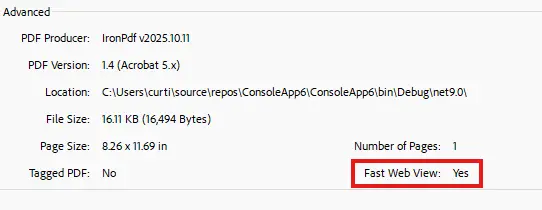
What Does the Output Look Like?
How Do I Save PDF Bytes as Linearized?
In addition to saving a PdfDocument object directly, IronPDF also allows users to convert a PDF byte array into a linearized PDF. This flexibility is particularly useful when working with PDFs stored in databases or when processing PDFs in memory-intensive applications. For more information on working with PDFs in memory, see our guide on loading PDFs from memory streams.
In this example, we'll demonstrate rendering an HTML string into a PdfDocument object, obtaining its byte array, and then saving that data as a linearized PDF using the SaveAsLinearized overload that accepts a byte[] input, an output path, and an optional password.
What Does the Output Look Like?
This is the file that the code produced:
How Do I Save a MemoryStream as Linearized?
The SaveAsLinearized overload that accepts a Stream input still writes the linearized output to a file at the specified output path. This is useful when your source PDF is already in a stream (from a database, network, or in-memory buffer) and you want to persist the linearized result to disk.
In this example, we'll convert a PdfDocument object into a byte array, write it to a MemoryStream, and then save the stream as a linearized PDF file to demonstrate this capability.
If you need to avoid writing to disk entirely (for HIPAA, PCI-DSS, sandboxed apps, or cloud functions with read-only filesystems), see the in-memory methods in the next section.
This is the file that the code produced:
How Do I Linearize Entirely in Memory?
For sandboxed environments, cloud functions, or compliance-sensitive workflows (HIPAA, PCI-DSS) where writing to disk is restricted or undesirable, IronPDF provides LinearizePdfToBytes and LinearizePdfToStream methods that return the linearized PDF directly, with no temp files or disk I/O.
These methods are available as both instance methods on PdfDocument and as static methods accepting byte[] or Stream input.
Get Linearized Output as Bytes
Use LinearizePdfToBytes when you need a byte[] for an HTTP response, database varbinary column, or any fixed-size buffer.
using IronPdf;

// Instance method: linearize the current document, get bytes back
var pdf = PdfDocument.FromFile("input.pdf");
byte[] linearizedBytes = pdf.LinearizePdfToBytes();

// Static method: linearize from a byte array without instantiating PdfDocument
byte[] inputBytes = File.ReadAllBytes("input.pdf");
byte[] result = PdfDocument.LinearizePdfToBytes(inputBytes);

// Password-protected PDFs
byte[] decrypted = PdfDocument.LinearizePdfToBytes(encryptedBytes, password: "secret");Imports IronPdf
' Instance method: linearize the current document, get bytes back
Dim pdf = PdfDocument.FromFile("input.pdf")
Dim linearizedBytes As Byte() = pdf.LinearizePdfToBytes()
' Static method: linearize from a byte array without instantiating PdfDocument
Dim inputBytes As Byte() = File.ReadAllBytes("input.pdf")
Dim result As Byte() = PdfDocument.LinearizePdfToBytes(inputBytes)
' Password-protected PDFs
Dim decrypted As Byte() = PdfDocument.LinearizePdfToBytes(encryptedBytes, password:="secret")Get Linearized Output as a Stream
Use LinearizePdfToStream when piping output to another stream (cloud blob uploads, HTTP response bodies, network sockets) without buffering the whole file in memory.
// Instance method: return a Stream
Stream linearizedStream = pdf.LinearizePdfToStream();

// Static method: linearize from a stream
using var inputStream = File.OpenRead("input.pdf");
Stream resultStream = PdfDocument.LinearizePdfToStream(inputStream);Imports System.IO
' Instance method: return a Stream
Dim linearizedStream As Stream = pdf.LinearizePdfToStream()
' Static method: linearize from a stream
Using inputStream As FileStream = File.OpenRead("input.pdf")
Dim resultStream As Stream = PdfDocument.LinearizePdfToStream(inputStream)
End UsingControlling the Linearization Strategy
All six methods accept an optional LinearizationMode parameter:
| Mode | Behavior | When to use |
|---|---|---|
Automatic (default) | Tries the file-based method first; falls back to in-memory if disk access is restricted | Recommended default; works across most environments |
InMemory | Performs linearization entirely in memory, zero disk I/O | HIPAA / PCI-DSS workflows, sandboxed apps, read-only filesystems, cloud functions |
FileBased | Uses a temporary file in the system temp directory | When you explicitly want temp-file behavior and have write permission |
using IronPdf;

// Force in-memory linearization (no disk I/O at all)
byte[] linearized = pdf.LinearizePdfToBytes(LinearizationMode.InMemory);Imports IronPdf
' Force in-memory linearization (no disk I/O at all)
Dim linearized As Byte() = pdf.LinearizePdfToBytes(LinearizationMode.InMemory)ArgumentException is thrown when input bytes are null/empty or when the input stream is not readable. ArgumentNullException is thrown when the input stream is null.How Do I Stream a Linearized PDF to an HTTP Response?
Combine LinearizePdfToStream with ASP.NET's FileStreamResult to serve a web-optimized PDF directly to the browser, without writing a temp file:
using IronPdf;
using Microsoft.AspNetCore.Mvc;

public class ReportController : Controller
{
    public IActionResult DownloadReport()
    {
        var pdf = PdfDocument.FromFile("quarterly-report.pdf");
        Stream linearized = pdf.LinearizePdfToStream(LinearizationMode.InMemory);

        return new FileStreamResult(linearized, "application/pdf")
        {
            FileDownloadName = "quarterly-report.pdf"
        };
    }
}Imports IronPdf
Imports Microsoft.AspNetCore.Mvc
Imports System.IO
Public Class ReportController
Inherits Controller
Public Function DownloadReport() As IActionResult
Dim pdf = PdfDocument.FromFile("quarterly-report.pdf")
Dim linearized As Stream = pdf.LinearizePdfToStream(LinearizationMode.InMemory)
Return New FileStreamResult(linearized, "application/pdf") With {
.FileDownloadName = "quarterly-report.pdf"
}
End Function
End ClassThe browser receives a linearized PDF that starts displaying the first page while the rest streams in - and no intermediate file ever touches the server's disk.

My favorite library of this kind is IronPDF. It allows for fast and efficient manipulation of PDF files. It also has many valuable features, like exporting to PDF/A format and digitally signing PDF documents.

IronOCR means we can save $40,000 annually from manual processing, while enhancing productivity and freeing up resources for high-impact tasks. I would highly recommend it.

How Can I Verify if a PDF is Linearized?
Besides checking the document properties in a PDF viewer, such as Adobe Acrobat, to see if a PDF is linearized, IronPDF also provides a way to check this programmatically with the IsLinearized method. It takes a string parameter for the file path and an optional second string parameter for the password if the PDF is encrypted. This verification capability is essential for quality assurance and can be integrated into automated testing workflows.
In this example, we'll use the output files from the three examples above to test whether they are linearized, and include a fourth, non-linearized PDF to showcase the method's behavior. For more advanced PDF manipulation and verification techniques, explore IronPDF's comprehensive feature set.
What Are the Results?

As you can see, the first three examples return True, while the last PDF, which is not linearized, returns False.
IsLinearized. To produce linearized output as bytes or a stream without writing to disk, use the LinearizePdfToBytes and LinearizePdfToStream methods described above.Best Practices for Linearized PDFs
When working with linearized PDFs, consider these best practices:
- File Size Considerations: Linearization may slightly increase file size due to the restructured format. Use IronPDF's compression features to optimize file size when needed.
- Web Deployment: Linearized PDFs are ideal for web applications. Configure your web server to support byte-range requests to maximize the benefits of linearization.
- Performance Testing: Always test linearized PDFs in your target environment. The performance improvement is most noticeable with large files over slower connections.
- Compatibility: While most modern PDF viewers support linearized PDFs, ensure compatibility with your users' preferred viewers.
For additional optimization strategies and advanced PDF handling techniques, refer to IronPDF's rendering options documentation.
Frequently Asked Questions
What is a linearized PDF?
A linearized PDF, also known as a 'Fast Web View' or 'web-optimized PDF,' is a PDF that has been reorganized for internet streaming. This allows a viewer to display the first page almost instantly while the rest of the document is still downloading, improving user experience with large documents.
How can I linearize a PDF using IronPDF?
You can linearize a PDF using IronPDF by utilizing the SaveAsLinearized method. This method restructures the PDF for progressive downloading and allows the first page to be displayed quickly in compatible viewers.
Why should I use linearized PDFs in web applications?
Using linearized PDFs is beneficial in web applications because it eliminates long load times for large files, enabling users to interact with documents immediately and enhancing user experience especially on slow or mobile networks.
How does IronPDF handle PDF byte arrays in linearization?
IronPDF allows you to convert a PDF byte array into a linearized PDF using the SaveAsLinearized method. This flexibility is useful when working with PDFs stored in databases or memory-intensive applications.
Can I linearize PDFs entirely in memory with IronPDF?
Yes, IronPDF provides methods like LinearizePdfToBytes and LinearizePdfToStream to linearize PDFs entirely in memory, which is ideal for environments where disk I/O is restricted or undesirable.
How can I verify if a PDF is linearized using IronPDF?
IronPDF offers the IsLinearized method to programmatically check if a PDF is linearized. This can be integrated into automated testing workflows for quality assurance.
What are the benefits of using IronPDF's `LinearizationMode`?
The LinearizationMode in IronPDF allows you to control how linearization is performed, offering options like Automatic, InMemory, and FileBased. These modes provide flexibility depending on the environment and requirements.
What are best practices for using linearized PDFs?
Best practices for linearized PDFs include considering file size, using web deployment strategies that support byte-range requests, performing performance testing in target environments, and ensuring viewer compatibility.
Can IronPDF linearize a PDF directly from a stream?
Yes, IronPDF can linearize a PDF directly from a stream using the LinearizePdfToStream method. This is useful for cloud uploads, network sockets, or HTTP response bodies.
How does linearization impact PDF file size?
Linearization may slightly increase PDF file size due to its restructured format. To manage file size, consider using IronPDF's compression features to optimize your documents.

Curtis Chau holds a Bachelor’s degree in Computer Science (Carleton University) and specializes in front-end development with expertise in Node.js, TypeScript, JavaScript, and React. Passionate about crafting intuitive and aesthetically pleasing user interfaces, Curtis enjoys working with modern frameworks and creating well-structured, visually appealing manuals.



