# How to Archive PDFs with PDF/A Compliance in C#
**PDF/A compliance** in **C#** with IronPDF gives .NET developers a direct path to creating, converting, and validating **archival PDFs** that meet **ISO 19005** standards - ensuring documents render identically across any system, now or decades from now. From rendering **HTML to PDF/A** and converting existing files to **PDF/A-1b**, **PDF/A-2b**, or **PDF/A-3b**, to embedding source data for **ZUGFeRD** and **Factur-X e-invoicing** compliance, IronPDF handles the full **PDF/A conversion** workflow without leaving the .NET ecosystem.
*as-heading:2(TL;DR: Quickstart Guide)*
This tutorial covers creating, converting, and validating PDF/A-compliant documents in C# - including e-invoicing formats and real-world government archiving requirements.
- **Who this is for:** .NET developers building applications that generate documents for long-term storage or regulated archival - government records management, legal filings, financial audit trails, healthcare records retention, or e-invoicing platforms where PDF/A is a hard compliance requirement.
- **What you'll build:** HTML-to-PDF/A rendering from scratch, conversion of existing PDFs to PDF/A-1b/2b/3b, embedded source data attachment for ZUGFeRD/Factur-X e-invoicing, PDF/A compliance validation with failure reporting, and real-world archiving patterns for NARA, court document, and medical records requirements.
- **Where it runs:** Any .NET environment - .NET 10, .NET 8 LTS, .NET Framework 4.6.2+, .NET Standard 2.0. PDF/A conversion and validation run entirely locally; no external validator tools are required for generation.
- **When to use this approach:** When your application generates documents that must survive long-term - invoices, contracts, compliance reports, court filings, or medical records - and where regulatory mandates (NARA, EU archival standards, HIPAA, SEC) require self-contained, verifiable PDF/A format.
- **Why it matters technically:** Standard PDFs can reference external fonts, embed active content, and rely on system-specific rendering - all of which break over time. PDF/A prohibits these dependencies at the format level, embedding everything required for rendering directly in the file, guaranteeing identical output on any compliant viewer indefinitely.
Convert an existing PDF to PDF/A with just a few lines of code:
```cs
:title=Archive PDFs Instantly
using IronPdf;

PdfDocument pdf = PdfDocument.FromFile("report.pdf");
pdf.SaveAsPdfA("archived-report.pdf", PdfAVersions.PdfA3b);
```
After you've purchased or signed up for a 30-day trial of IronPDF, add your license key at the start of your application.
```cs
IronPdf.License.LicenseKey = "KEY";
```
!!!--LIBRARY_NUGET_INSTALL_BLOCK--!!!
*as-heading:2(Table of Contents)*
- **Understanding PDF/A**
- [What is PDF/A and Why Does It Matter?](#anchor-what-is-pdfa-and-why-does-it-matter)
- [PDF/A Versions Explained](#anchor-pdfa-versions-explained)
- [PDF/A-1 (Basic Archival)](#anchor-pdfa-1-basic-archival)
- [PDF/A-2 (JPEG2000, Transparency)](#anchor-pdfa-2-jpeg2000-transparency)
- [PDF/A-3 (Embedded Files)](#anchor-pdfa-3-embedded-files)
- [PDF/A-4 (PDF 2.0 Based)](#anchor-pdfa-4-pdf-20-based)
- [Which Version Should You Use?](#anchor-which-version-should-you-use)
- **Creating PDF/A Documents**
- [Creating PDF/A Documents from Scratch](#anchor-creating-pdfa-documents-from-scratch)
- [Installing IronPDF](#anchor-installing-ironpdf)
- [Rendering HTML to PDF/A](#anchor-rendering-html-to-pdfa)
- [Converting Existing PDFs to PDF/A](#anchor-converting-existing-pdfs-to-pdfa)
- **Advanced PDF/A Workflows**
- [Embedding Source Data (PDF/A-3)](#anchor-embedding-source-data-pdfa-3)
- [Attaching XML/CSV Alongside Visual Document](#anchor-attaching-xmlcsv-alongside-visual-document)
- [ZUGFeRD and Factur-X E-Invoicing Compliance](#anchor-zugferd-and-factur-x-e-invoicing-compliance)
- [Audit Trail Preservation](#anchor-audit-trail-preservation)
- [Validating PDF/A Compliance](#anchor-validating-pdfa-compliance)
- [Common Compliance Failures and Fixes](#anchor-common-compliance-failures-and-fixes)
- [Fonts, Color Spaces, and Metadata Requirements](#anchor-fonts-color-spaces-and-metadata-requirements)
- **Real-World Archiving Scenarios**
- [Government Records Management Use Cases](#anchor-government-records-management-use-cases)
- [NARA Requirements (US National Archives)](#anchor-nara-requirements)
- [Court Document Archiving](#anchor-court-document-archiving)
- [Medical Records Retention](#anchor-medical-records-retention)
---
## What is PDF/A and Why Does It Matter?
PDF/A is an ISO-standardized subset of the PDF format (ISO 19005) designed specifically for the long-term, reliable archiving of electronic documents. Unlike a standard PDF, which can reference external fonts, link to outside content, and rely on system-specific rendering behavior, a PDF/A file is entirely self-contained. Every font, color profile, and piece of metadata required to render the document is embedded directly within the file.
This matters because a PDF/A document will render identically whether it's opened today or in 100 years, on any compliant viewer, regardless of operating system or software version. There's no dependency on external resources that might disappear, no reliance on a particular font being installed, and no ambiguity in how colors or transparency should be displayed.
Beyond technical durability, PDF/A compliance is frequently a hard requirement - not just a best practice. Industries and institutions that mandate PDF/A include:
**Legal and judicial systems** - Courts in the US, EU, and many other jurisdictions require or strongly recommend PDF/A for electronic filings. The US federal court system's CM/ECF filing standards reference PDF/A as the preferred format for long-term record keeping.
**Government agencies** - The US National Archives and Records Administration (NARA) specifies PDF/A as an accepted format for transferring permanent electronic records. Similarly, the European Commission mandates PDF/A for certain official publications and regulatory filings.
**Financial services and auditing** - Regulatory bodies like the SEC accept PDF/A filings, and internal audit teams frequently adopt PDF/A to ensure that financial statements, reports, and supporting documentation remain unalterable and verifiable over time.
**Healthcare** - Medical records retention regulations (such as HIPAA in the US) don't mandate a specific file format, but PDF/A has become the de facto standard for archiving patient records, imaging reports, and clinical documentation because it guarantees long-term readability.
In short, PDF/A is the format you use when a document must survive unchanged across time, systems, and organizational boundaries. If your application generates documents that might be referenced years later - invoices, contracts, compliance reports, medical records - PDF/A is the right choice.
---
## PDF/A Versions Explained
The PDF/A standard has evolved through several versions, each building on the last to support additional PDF features while maintaining strict archival guarantees. Understanding the differences between versions is essential for choosing the right one for your use case.
### PDF/A-1 (Basic Archival)
PDF/A-1 (ISO 19005-1:2005) was the first version of the standard, based on PDF 1.4. It established the core archival requirements: all fonts must be embedded; encryption is prohibited; audio/video content is not allowed; JavaScript is forbidden. PDF/A-1 comes in two conformance levels:
**PDF/A-1b** (*basic*): Ensures reliable visual reproduction of the document. This is the minimum conformance level and guarantees that the document looks correct when rendered.
**PDF/A-1a** (*accessible*): Adds structural and semantic requirements on top of `1b`, including tagged content for accessibility, Unicode character mapping, and a logical reading order. This is the higher standard and is required when accessibility compliance matters.
PDF/A-1 is the most widely supported version and is still commonly used today, especially in legal and government contexts where broad compatibility is prioritized over newer features.
### PDF/A-2 (JPEG2000, Transparency)
PDF/A-2 (ISO 19005-2:2011) is based on PDF 1.7 and introduces support for features that were unavailable in PDF/A-1:
**JPEG2000 image compression:** Offers better quality-to-size ratios than the JPEG compression available in PDF/A-1.
**Transparency and layer support:** Enables more complex visual layouts without flattening everything into opaque elements.
**Embedded PDF/A attachments:** PDF/A-2 documents can embed other PDF/A-compliant files as attachments (but only PDF/A files, not arbitrary formats).
PDF/A-2 includes the same conformance levels as PDF/A-1 (`2b` and `2a`), plus a new level: **PDF/A-2u** (*Unicode*), which requires Unicode mapping for all text but does not require the full structural tagging of level `a`.
### PDF/A-3 (Embedded Files)
PDF/A-3 (ISO 19005-3:2012) is the most significant extension for modern workflows. It shares the same base as PDF/A-2 (PDF 1.7) and retains all of its features, but adds one critical capability: **the ability to embed files of any format** within the PDF/A document.
This means you can attach the original XML source data, CSV exports, spreadsheets, or any other machine-readable file alongside the human-readable visual document. The PDF/A-3 container becomes a single package that holds both the presentation layer and the underlying data.
This capability is the foundation for modern e-invoicing standards:
**ZUGFeRD:** Originally from Germany, now adopted across the EU as *Factur-X*. Embeds structured XML invoice data (in Cross-Industry Invoice format) inside a PDF/A-3 document that also contains the visual, human-readable invoice. A single file serves both human and machine processing needs.
PDF/A-3 conformance levels follow the same pattern: `3b` (visual), `3a` (accessible + tagged), and `3u` (Unicode mapped).
### PDF/A-4 (PDF 2.0 Based)
PDF/A-4 (ISO 19005-4:2020) is the newest version, based on PDF 2.0. It simplifies the conformance level structure; there is no more `a/b/u` distinction. Instead, PDF/A-4 defines three profiles:
**PDF/A-4:** The base profile for general archival.
**PDF/A-4f:** Allows embedded files of any format (similar to PDF/A-3).
**PDF/A-4e:** Specifically designed for engineering documents; supports 3D content, rich media, and other technical elements.
PDF/A-4 also benefits from improvements in PDF 2.0 itself, including improved tagging structures and enhanced metadata capabilities using `XMP` (Extensible Metadata Platform).
Adoption of PDF/A-4 is growing, but it's still less universally supported by viewers and validators compared to PDF/A-2 and PDF/A-3.
### Which Version Should You Use?
Choosing the right PDF/A version depends on your specific requirements:
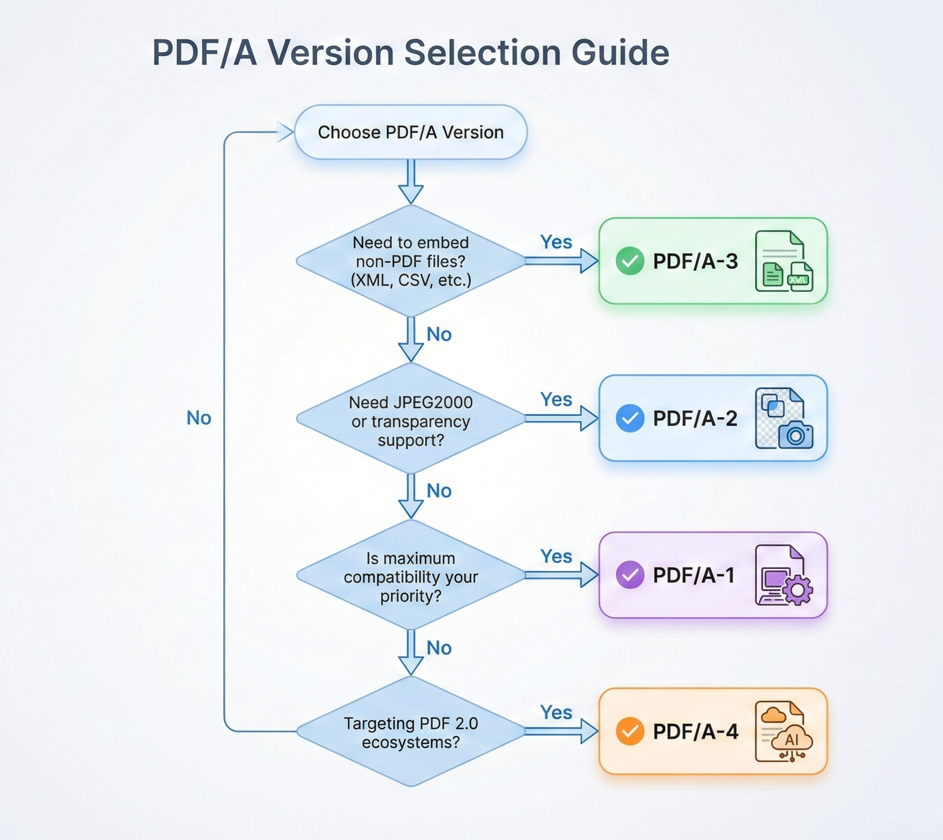
**Maximum compatibility:** For existing systems, validators, and viewers (especially in legal and government contexts), use **PDF/A-1b** or **PDF/A-2b**.
**E-invoicing:** For ZUGFeRD, Factur-X, or similar standards requiring embedded source data, use **PDF/A-3b**.
**Accessibility compliance:** For Section 508 or WCAG requirements, choose the `a` conformance level of whichever version you're using (`PDF/A-1a`, `PDF/A-2a`, or `PDF/A-3a`).
**Modern workflows:** For the latest features where your consumers support PDF 2.0, use **PDF/A-4**.
When in doubt, **PDF/A-3b** provides the best balance between modern capability and broad support.
---
## Creating PDF/A Documents from Scratch
Now that you understand what PDF/A is and which version to target, let's get into the code. IronPDF makes it straightforward to generate PDF/A-compliant documents directly from HTML content or to convert existing PDFs into PDF/A format.
### Installing IronPDF
Before you start, install the `IronPdf` NuGet package into your .NET project. You can do this via the NuGet Package Manager Console, the .NET CLI, or the Visual Studio NuGet UI.
```shell
:ProductInstall
```
Or using the .NET CLI:
```shell
:InstallCmd dotnet add package IronPdf
```
IronPDF supports .NET Framework 4.6.2+, .NET Core, .NET 5+, and .NET Standard 2.0, so it fits into virtually any modern .NET project without compatibility concerns.
### Rendering HTML to PDF/A
The most common workflow is generating a PDF from HTML content and saving it directly in PDF/A format. IronPDF's `ChromePdfRenderer` handles the HTML-to-PDF conversion, and the `SaveAsPdfA` method handles the compliance conversion in a single step.
```cs
using IronPdf;
// Create HTML content for the document
string htmlContent = @"
E html>
le>
body { font-family: Arial, sans-serif; margin: 40px; }
h1 { color: #2c3e50; }
.section { margin: 20px 0; }
table { width: 100%; border-collapse: collapse; }
th, td { border: 1px solid #ddd; padding: 10px; text-align: left; }
th { background: #3498db; color: white; }
yle>
Quarterly Financial Report</h1>
eport Period: Q4 2025</p>
class='section'>
<table>
<tr><th>Metric</th><th>Value</th></tr>
<tr><td>Total Revenue</td><td>$4.2M</td></tr>
<tr><td>Operating Expenses</td><td>$2.1M</td></tr>
<tr><td>Net Income</td><td>$2.1M</td></tr>
</table>
v>
his document is archived in PDF/A-3b format for long-term preservation.</p>
;
// Render HTML to PDF
var renderer = new ChromePdfRenderer();
using var pdf = renderer.RenderHtmlAsPdf(htmlContent);
// Save as PDF/A-3b for archival compliance
pdf.SaveAsPdfA("quarterly-report-archived.pdf", PdfAVersions.PdfA3b);
```
#### Output
<iframe loading="lazy" src="/static-assets/pdf/tutorials/pdfa-archiving-csharp/quarterly-report-archived.pdf#view=fit" width="100%" height="500px">
</iframe>
In this example, the HTML is rendered to a PDF using IronPDF's Chromium-based rendering engine, which ensures pixel-perfect fidelity with modern web standards. The `SaveAsPdfA` method then embeds all required fonts, converts color spaces as needed, strips any prohibited features (like JavaScript or external links), and writes the compliant XMP metadata. The result is a fully self-contained PDF/A-3b file ready for archival storage.
This approach works with IronPDF's other rendering features as well. You can apply headers and footers, set page sizes and margins, include CSS styling, and use `RenderingOptions` to fine-tune the output - all before the PDF/A conversion step. The `SaveAsPdfA` call handles the compliance transformation regardless of how the PDF was generated.
### Converting Existing PDFs to PDF/A
You don't always start from HTML. In many real-world scenarios, you'll receive existing PDF files - from scanners, third-party systems, legacy archives, or user uploads - and need to convert them to PDF/A for compliant storage.
IronPDF handles this with the same `SaveAsPdfA` method:
```cs
using IronPdf;
// Load an existing PDF file
using var pdf = PdfDocument.FromFile("existing-document.pdf");
// Convert and save as PDF/A-3b
// IronPDF automatically embeds fonts, converts color spaces, adds XMP metadata,
// and removes non-compliant features during conversion
pdf.SaveAsPdfA("existing-document-archived.pdf", PdfAVersions.PdfA3b);
// Alternative: Use ConvertToPdfA for in-memory conversion
using var pdf2 = PdfDocument.FromFile("another-document.pdf");
using var pdfA = pdf2.ConvertToPdfA(PdfAVersions.PdfA2b);
pdfA.SaveAs("another-document-archived.pdf");
```
During conversion, IronPDF analyzes the existing PDF and applies the necessary transformations: embedding any fonts that were referenced but not included, converting RGB or CMYK color spaces to the appropriate profiles, adding the required XMP metadata, and removing any non-compliant features like encryption, multimedia, or JavaScript. You can also use the `ConvertToPdfA` method if you want to convert in memory without immediately saving to disk - useful for pipelines where additional processing follows the conversion.
This pattern is ideal for migration projects where you need to bring a legacy document store into compliance with modern archival standards.
---
## Embedding Source Data (PDF/A-3)
One of the most powerful capabilities of the PDF/A-3 standard is the ability to embed arbitrary files - XML, CSV, JSON, spreadsheets, or any other format - directly within the PDF document. This transforms the PDF from a purely visual document into a hybrid container that carries both the human-readable presentation and the machine-readable source data in a single file.
### Attaching XML/CSV Alongside Visual Document
The core workflow is straightforward: generate or load your visual PDF, attach the source data file as an embedded attachment, and save as PDF/A-3. IronPDF supports embedding files through multiple overloads of the `ConvertToPdfA` method - you can pass file paths directly as `IEnumerable<string>`, use `EmbedFileByte` for byte arrays already in memory, or use `EmbedFileStream` for stream-based workflows. Each approach maintains full PDF/A compliance.
```cs
using IronPdf;
using System.Collections.Generic;
// Load the visual PDF document
using var pdf = PdfDocument.FromFile("financial-report.pdf");
// Prepare XML source data to embed
string xmlData = @"<?xml version='1.0' encoding='UTF-8'?>
alReport>
iod>Q4 2025</Period>
enue>4200000</Revenue>
enses>2100000</Expenses>
Income>2100000</NetIncome>
ialReport>";
byte[] xmlBytes = System.Text.Encoding.UTF8.GetBytes(xmlData);
// Configure the embedded file
var xmlConfig = new EmbedFileConfiguration(EmbedFileType.xml)
{
EmbedFileName = "financial-data.xml",
AFDesc = "Source financial data in XML format",
AFRelationship = AFRelationship.Data
};
// Create embed file collection
var embedFiles = new List<EmbedFileByte>
{
new EmbedFileByte(xmlBytes, xmlConfig)
};
// Convert to PDF/A-3b with embedded data
using var archivedPdf = pdf.ConvertToPdfA(embedFiles, PdfAVersions.PdfA3b);
archivedPdf.SaveAs("financial-report-with-data.pdf");
```
This pattern is particularly valuable for financial reporting workflows, where the visual PDF might be a formatted balance sheet or income statement, while the attached XML or CSV contains the raw data that was used to generate the report. Auditors can inspect the visual document and independently verify the underlying numbers using the embedded source data - all from a single file. You can embed multiple attachments in the same document by passing additional file paths or byte arrays to the `ConvertToPdfA` method's collection parameter.
### ZUGFeRD and Factur-X E-Invoicing Compliance
ZUGFeRD (Zentraler User Guide des Forums elektronische Rechnung Deutschland) and its international counterpart Factur-X are e-invoicing standards that specify how structured invoice data should be embedded within a PDF/A-3 document. The visual PDF serves as the human-readable invoice, while an embedded XML file (following the Cross-Industry Invoice, or CII, format) carries the machine-processable data.
The key requirements for ZUGFeRD/Factur-X compliance are:
The PDF must conform to `PDF/A-3b` (at minimum). The embedded XML file must follow the UN/CEFACT Cross-Industry Invoice schema. The XML file must be named according to the standard's specification (typically `factur-x.xml` for Factur-X or `zugferd-invoice.xml` for ZUGFeRD). Specific XMP metadata properties must be set to identify the document as a ZUGFeRD/Factur-X invoice.
IronPDF's `EmbedFileConfiguration` class gives you fine-grained control over these requirements. You can set the `ConformanceLevel` (such as `ConformanceLevel.XRECHNUNG`), `SchemaNamespace`, `SchemaPrefix`, `PropertyVersion`, and `AFRelationship` properties to match the exact e-invoicing profile your target system expects.
Here's how you can build a ZUGFeRD-compliant invoice with IronPDF:
```cs
using IronPdf;
using System.Collections.Generic;
// Create visual invoice HTML
string invoiceHtml = @"
E html>
le>
body { font-family: Arial, sans-serif; margin: 40px; }
.header { border-bottom: 2px solid #e74c3c; padding-bottom: 15px; }
h1 { color: #e74c3c; }
.invoice-details { margin: 30px 0; }
.line-item { display: flex; justify-content: space-between; padding: 10px 0; border-bottom: 1px solid #eee; }
.total { font-size: 20px; font-weight: bold; margin-top: 20px; text-align: right; }
yle>
class='header'>
<h1>INVOICE #INV-2026-0042</h1>
<p>Date: February 7, 2026</p>
v>
class='invoice-details'>
<p><strong>Bill To:</strong> Acme Corporation</p>
<p><strong>Address:</strong> 123 Business Ave, Suite 100</p>
v>
class='line-item'><span>Software License (Enterprise)</span><span>$2,499.00</span></div>
class='line-item'><span>Annual Support Contract</span><span>$499.00</span></div>
class='line-item'><span>Implementation Services</span><span>$1,500.00</span></div>
class='total'>Total: $4,498.00</div>
tyle='margin-top: 40px; font-size: 12px; color: #666;'>
This invoice complies with ZUGFeRD/Factur-X e-invoicing standards.
;
// Render the visual invoice
var renderer = new ChromePdfRenderer();
using var invoicePdf = renderer.RenderHtmlAsPdf(invoiceHtml);
// Prepare ZUGFeRD/Factur-X XML invoice data
string zugferdXml = @"<?xml version='1.0' encoding='UTF-8'?>
ssIndustryInvoice xmlns:rsm='urn:un:unece:uncefact:data:standard:CrossIndustryInvoice:100'>
:ExchangedDocument>
<ram:ID>INV-2026-0042</ram:ID>
<ram:IssueDateTime>2026-02-07</ram:IssueDateTime>
m:ExchangedDocument>
:SupplyChainTradeTransaction>
<ram:ApplicableHeaderTradeSettlement>
<ram:InvoiceCurrencyCode>USD</ram:InvoiceCurrencyCode>
<ram:SpecifiedTradeSettlementHeaderMonetarySummation>
<ram:GrandTotalAmount>4498.00</ram:GrandTotalAmount>
</ram:SpecifiedTradeSettlementHeaderMonetarySummation>
</ram:ApplicableHeaderTradeSettlement>
m:SupplyChainTradeTransaction>
ossIndustryInvoice>";
byte[] xmlBytes = System.Text.Encoding.UTF8.GetBytes(zugferdXml);
// Configure for ZUGFeRD/Factur-X compliance
var zugferdConfig = new EmbedFileConfiguration(EmbedFileType.xml)
{
EmbedFileName = "factur-x.xml",
AFDesc = "Factur-X Invoice Data",
ConformanceLevel = ConformanceLevel.EN16931,
SchemaNamespace = SchemaNamespace.facturX,
SchemaPrefix = SchemaPrefix.fx,
PropertyVersion = PropertyVersion.v1,
AFRelationship = AFRelationship.Alternative
};
var embedFiles = new List<EmbedFileByte>
{
new EmbedFileByte(xmlBytes, zugferdConfig)
};
// Convert to PDF/A-3b with embedded ZUGFeRD data
using var zugferdInvoice = invoicePdf.ConvertToPdfA(embedFiles, PdfAVersions.PdfA3b);
// Set invoice metadata
zugferdInvoice.MetaData.Title = "Invoice INV-2026-0042";
zugferdInvoice.MetaData.Author = "IronSoftware Billing";
zugferdInvoice.MetaData.Subject = "ZUGFeRD/Factur-X Compliant Invoice";
zugferdInvoice.SaveAs("invoice-zugferd.pdf");
```
#### Output
<iframe loading="lazy" src="/static-assets/pdf/tutorials/pdfa-archiving-csharp/invoice-zugferd.pdf#view=fit" width="100%" height="500px">
</iframe>
This approach allows your invoicing system to produce documents that satisfy both human review (the visual PDF) and automated processing (the embedded XML) in a single, standards-compliant package.
### Audit Trail Preservation
Beyond e-invoicing, PDF/A-3's embedding capability is valuable for any workflow where maintaining a complete audit trail matters. By attaching the original source data, processing logs, or change histories alongside the final document, you create a self-contained record that can be independently verified at any point in the future.
Common audit trail embedding patterns include:
**Financial statements** - Embed the raw accounting data (CSV or XML export from your ERP system) alongside the formatted financial report. Auditors can verify that the numbers in the visual document match the source data without needing access to the original system.
**Regulatory filings** - Attach the original submission data, validation results, and any supporting calculations as embedded files within the final filing document. This creates a single archival package that contains the complete record of the filing.
**Contract management** - Embed version histories, approval chains, or signed metadata files within the final executed contract PDF. This preserves the full lifecycle of the document within a single archival file.
```cs
using IronPdf;
using System;
using System.Collections.Generic;
using System.Text.Json;
// Load the final document to archive
using var pdf = PdfDocument.FromFile("executed-contract.pdf");
// Create audit trail data
var auditTrail = new
{
DocumentId = "CONTRACT-2026-00142",
CreatedDate = "2026-01-15T09:30:00Z",
FinalizedDate = "2026-02-07T14:22:00Z",
Versions = new[]
{
new { Version = 1, Date = "2026-01-15", Action = "Draft created", User = "john.smith@company.com" },
new { Version = 2, Date = "2026-01-20", Action = "Legal review completed", User = "legal@company.com" },
new { Version = 3, Date = "2026-02-01", Action = "Client revisions incorporated", User = "john.smith@company.com" },
new { Version = 4, Date = "2026-02-07", Action = "Final execution", User = "ceo@company.com" }
},
Signatures = new[]
{
new { Signer = "Company CEO", SignedDate = "2026-02-07T14:20:00Z", IPAddress = "192.168.1.100" },
new { Signer = "Client Representative", SignedDate = "2026-02-07T14:22:00Z", IPAddress = "10.0.0.50" }
},
Checksum = "SHA256:a1b2c3d4e5f6..."
};
string auditJson = JsonSerializer.Serialize(auditTrail, new JsonSerializerOptions { WriteIndented = true });
byte[] auditBytes = System.Text.Encoding.UTF8.GetBytes(auditJson);
// Configure audit trail attachment
var auditConfig = new EmbedFileConfiguration(EmbedFileType.xml)
{
EmbedFileName = "audit-trail.json",
AFDesc = "Complete document audit trail and version history",
AFRelationship = AFRelationship.Supplement
};
// Create validation log
string validationLog = @"
on Report
=========
: CONTRACT-2026-00142
d: 2026-02-07T14:25:00Z
erformed:
ll required fields present
ignature blocks completed
ate formats valid
urrency amounts verified
egal clauses match template v2.1
atus: APPROVED FOR ARCHIVAL
byte[] validationBytes = System.Text.Encoding.UTF8.GetBytes(validationLog);
var validationConfig = new EmbedFileConfiguration(EmbedFileType.xml)
{
EmbedFileName = "validation-report.txt",
AFDesc = "Pre-archive validation report",
AFRelationship = AFRelationship.Supplement
};
// Embed both files
var embedFiles = new List<EmbedFileByte>
{
new EmbedFileByte(auditBytes, auditConfig),
new EmbedFileByte(validationBytes, validationConfig)
};
// Convert to PDF/A-3b with full audit trail
using var archivedContract = pdf.ConvertToPdfA(embedFiles, PdfAVersions.PdfA3b);
// Set archival metadata
archivedContract.MetaData.Title = "Executed Contract - CONTRACT-2026-00142";
archivedContract.MetaData.Author = "Contract Management System";
archivedContract.MetaData.Subject = "Fully executed agreement with audit trail";
archivedContract.MetaData.Keywords = "contract, executed, 2026, archived";
archivedContract.SaveAs("contract-archived-with-audit.pdf");
```
---
## Validating PDF/A Compliance
Creating a document and calling it PDF/A isn't enough - you need to verify that the output actually meets the standard's requirements. A file that claims to be PDF/A but fails validation won't be accepted by archival systems, government portals, or e-invoicing platforms.
IronPDF's `SaveAsPdfA` and `ConvertToPdfA` methods handle the heavy lifting of compliance conversion - embedding fonts, converting color spaces, stripping prohibited features, and writing XMP metadata. However, for independent verification of the output, you should validate using dedicated external tools such as [veraPDF](https://verapdf.org/) (the industry-standard open-source PDF/A validator) or Adobe Acrobat Pro's built-in Preflight tool. Integrating veraPDF into your CI/CD pipeline or document processing workflow gives you an authoritative, third-party confirmation that every file produced meets the claimed standard before it's stored or distributed.
### Common Compliance Failures and Fixes
Even with IronPDF handling most of the compliance work, certain input conditions can produce validation failures. Here are the most common issues and how to resolve them:
**Non-embedded fonts** - This is the single most common failure. If the source PDF references a font by name but doesn't embed the font data, the output won't be PDF/A-compliant. IronPDF attempts to embed fonts automatically during conversion, but if a font file isn't available on the system where IronPDF is running, the embedding will fail. **Fix:** Ensure that all fonts used in your source documents are installed on the server, or use web-safe fonts in your HTML content that are universally available.
**Unsupported color spaces** - PDF/A requires that all color data is defined within a specific, embedded color profile (typically sRGB for screen-oriented documents or a CMYK profile for print). Source PDFs that use device-dependent color spaces without an embedded profile will fail validation. **Fix:** IronPDF handles color space conversion automatically for most cases. For edge cases, ensure your source content specifies colors in sRGB.
**Encryption or password protection** - PDF/A strictly prohibits encryption. If you're converting a password-protected PDF, you must decrypt it first. **Fix:** Use `PdfDocument.FromFile("encrypted.pdf", "password")` to open the protected file before conversion.
**JavaScript or multimedia content** - PDF/A forbids JavaScript, audio, video, and other interactive elements. If your source HTML includes `<script>` tags, embedded video, or interactive forms, these will need to be removed or the conversion will strip them. **Fix:** Ensure your HTML content is static before rendering to PDF/A.
**Transparency issues (PDF/A-1 only)** - PDF/A-1 does not support transparency. If your document contains transparent elements (common in modern CSS layouts), converting to PDF/A-1 will require flattening. **Fix:** Target `PDF/A-2` or later if your documents use transparency, or ensure CSS does not use `opacity`, `rgba`, or transparent PNGs when targeting PDF/A-1.
### Fonts, Color Spaces, and Metadata Requirements
Understanding the three pillars of PDF/A compliance - fonts, color spaces, and metadata - helps you design documents that pass validation on the first attempt.
**Fonts:** Every font used in the document must be fully embedded. This includes all glyphs that appear in the text, not just a subset. For `PDF/A-1a`, `PDF/A-2a`, and `PDF/A-3a` conformance levels, every character must also have a Unicode mapping, ensuring that text can be extracted and searched reliably.
When using IronPDF’s HTML-to-PDF rendering, the Chromium engine automatically embeds fonts that are available on the system. To guarantee consistency across different deployment environments (development, staging, production), consider using Google Fonts loaded via `<link>` tags in your HTML, or packaging font files with your application and referencing them via CSS `@font-face`.
**Color spaces:** PDF/A requires all colors to be specified within a device-independent color space backed by an ICC profile. In practice, this means using sRGB for most documents. IronPDF embeds the appropriate ICC profile and converts colors automatically during the `SaveAsPdfA` process - you can also pass a custom ICC file path if your workflow demands a specific profile. However, if you're working with print-oriented documents that require CMYK accuracy, ensure that your source content uses CMYK-appropriate profiles and that these are preserved during conversion.
**Metadata:** PDF/A requires XMP (Extensible Metadata Platform) metadata to be embedded in the document. This includes the document title, author, creation date, modification date, and the PDF/A conformance level identifier. IronPDF populates these fields automatically, but you can also set them explicitly through the `MetaData` property for greater control:
```cs
using IronPdf;
using System;
// Create a PDF document
var renderer = new ChromePdfRenderer();
using var pdf = renderer.RenderHtmlAsPdf("<h1>Annual Report 2025</h1><p>Corporate performance summary.</p>");
// Set standard metadata properties
pdf.MetaData.Title = "Annual Report 2025 - IronSoftware Inc.";
pdf.MetaData.Author = "Finance Department";
pdf.MetaData.Subject = "Corporate annual financial and operational report";
pdf.MetaData.Keywords = "annual report, financial, 2025, corporate, IronSoftware";
pdf.MetaData.Creator = "IronPDF Document Generator";
pdf.MetaData.CreationDate = DateTime.Now;
pdf.MetaData.ModifiedDate = DateTime.Now;
// For custom or batch metadata, use SetMetaDataDictionary
var metadataDict = new System.Collections.Generic.Dictionary<string, string>
{
{ "Title", "Quarterly Report Q4 2025" },
{ "Author", "Finance Team" },
{ "Subject", "Q4 Financial Results" },
{ "Keywords", "quarterly, Q4, 2025, finance" },
{ "Department", "Finance" },
{ "Classification", "Internal" },
{ "RetentionPeriod", "7 years" }
};
using var pdf2 = renderer.RenderHtmlAsPdf("<h1>Q4 Report</h1>");
pdf2.MetaData.SetMetaDataDictionary(metadataDict);
// Convert to PDF/A with metadata preserved
pdf.SaveAsPdfA("annual-report-2025.pdf", PdfAVersions.PdfA3b);
pdf2.SaveAsPdfA("q4-report-2025.pdf", PdfAVersions.PdfA3b);
```
Setting metadata explicitly is especially important for documents that will be indexed by records management systems, as the title and author fields are frequently used for cataloging and search.
---
## Government Records Management Use Cases
PDF/A isn't just a technical specification - it's a practical requirement in many government, legal, and healthcare contexts. In this section, we'll look at how PDF/A fits into specific regulatory frameworks and what you need to know to meet their requirements using IronPDF.
### NARA Requirements (US National Archives)
The US National Archives and Records Administration (NARA) is responsible for preserving federal records of enduring value. NARA's transfer guidance specifies PDF/A as one of the preferred formats for transferring permanent electronic records to the National Archives.
Key NARA requirements for PDF/A submissions:
NARA accepts **PDF/A-1, PDF/A-2, and PDF/A-3** for most record types. Documents must be **validated** against the claimed PDF/A version before transfer. **Metadata** must include the creating agency, record series identifier, and date range covered. **Embedded fonts** are mandatory - NARA explicitly rejects documents with missing or referenced-only fonts. For digitized (scanned) records, NARA recommends a minimum resolution of **300 DPI** and prefers **PDF/A-2** or later due to the improved image compression.
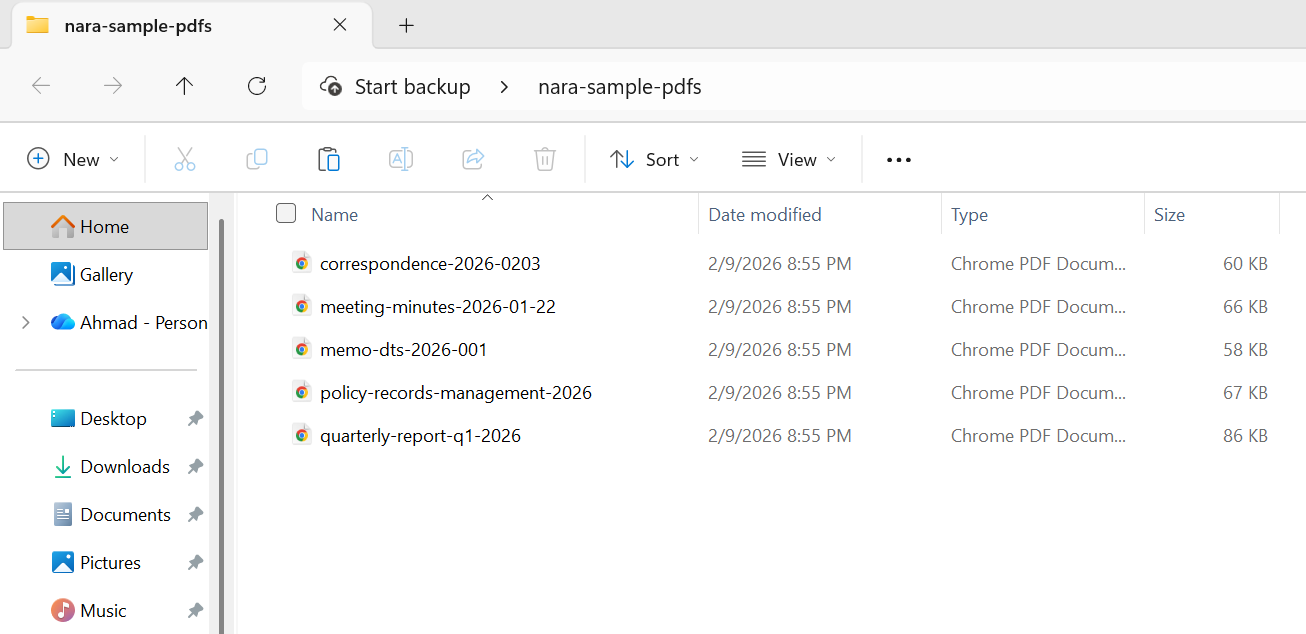
Here’s how you might prepare a batch of agency records for NARA transfer:
#### Input
```cs
using IronPdf;
using System;
using System.IO;
string inputFolder = "agency-records/";
string validatedFolder = "nara-transfer/validated/";
string rejectedFolder = "nara-transfer/rejected/";
// Create output directories
Directory.CreateDirectory(validatedFolder);
Directory.CreateDirectory(rejectedFolder);
// NARA transfer metadata requirements
string agencyName = "Department of Example";
string recordSeries = "Administrative Correspondence";
string dateRange = "2020-2025";
// Process all PDF files in the input folder
string[] pdfFiles = Directory.GetFiles(inputFolder, "*.pdf");
Console.WriteLine($"Preparing {pdfFiles.Length} records for NARA transfer");
Console.WriteLine($"Agency: {agencyName}");
Console.WriteLine($"Record Series: {recordSeries}");
Console.WriteLine();
int successCount = 0;
int failCount = 0;
foreach (string inputPath in pdfFiles)
{
string fileName = Path.GetFileName(inputPath);
try
{
using var pdf = PdfDocument.FromFile(inputPath);
// Set NARA-required metadata
var metadata = new System.Collections.Generic.Dictionary<string, string>
{
{ "Title", Path.GetFileNameWithoutExtension(inputPath) },
{ "Author", agencyName },
{ "Subject", recordSeries },
{ "Keywords", $"NARA, {recordSeries}, {dateRange}" },
{ "Agency", agencyName },
{ "RecordSeries", recordSeries },
{ "DateRange", dateRange },
{ "TransferDate", DateTime.Now.ToString("yyyy-MM-dd") }
};
pdf.MetaData.SetMetaDataDictionary(metadata);
// Convert to PDF/A-2b (NARA preferred for digitized records)
string outputPath = Path.Combine(validatedFolder, fileName);
pdf.SaveAsPdfA(outputPath, PdfAVersions.PdfA2b);
// Verify the output
using var verifyPdf = PdfDocument.FromFile(outputPath);
if (verifyPdf.PageCount > 0)
{
successCount++;
Console.WriteLine($"[OK] {fileName}");
}
else
{
throw new Exception("Output PDF has no pages");
}
}
catch (Exception ex)
{
failCount++;
Console.WriteLine($"[FAILED] {fileName}: {ex.Message}");
// Move original to rejected folder for manual review
try
{
File.Copy(inputPath, Path.Combine(rejectedFolder, fileName), overwrite: true);
}
catch { }
}
}
Console.WriteLine();
Console.WriteLine("=== NARA Transfer Preparation Complete ===");
Console.WriteLine($"Successfully converted: {successCount}");
Console.WriteLine($"Failed (requires review): {failCount}");
Console.WriteLine($"Output location: {validatedFolder}");
```
#### Output
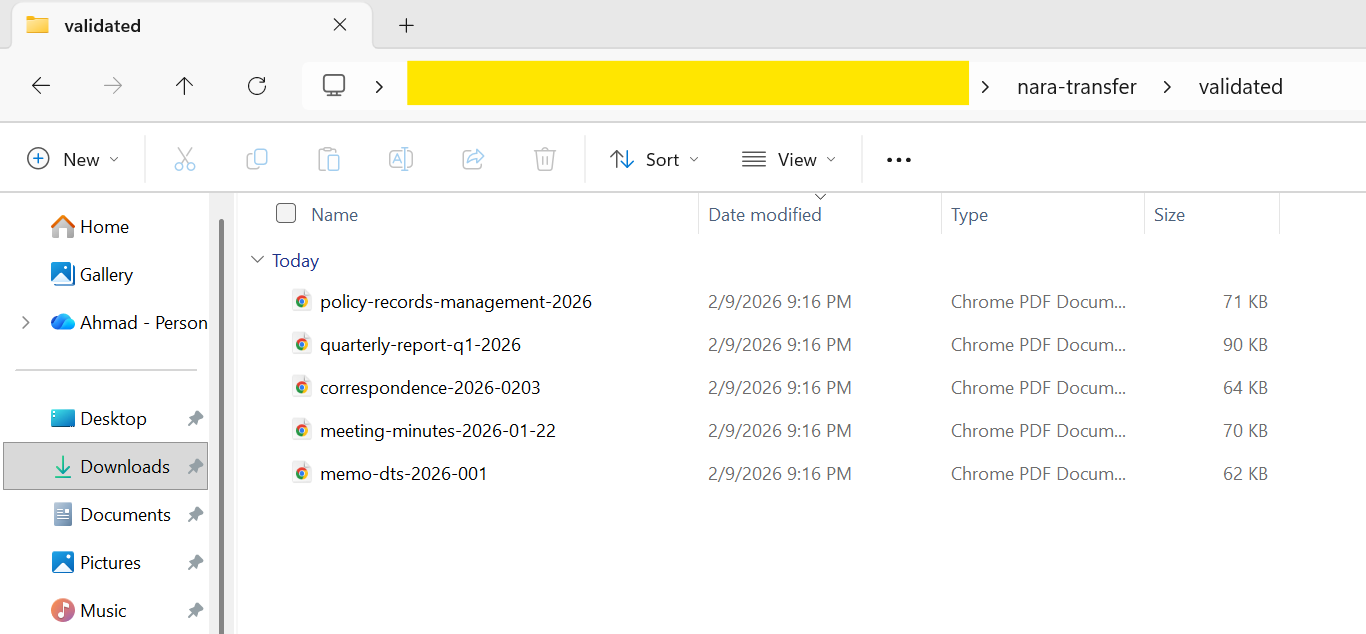
When preparing records for NARA transfer, it’s critical to validate every file individually. NARA’s ingestion process will reject non-compliant files, and re-processing a large batch is costly in both time and effort. Building validation directly into your conversion pipeline - using a tool like veraPDF after each `SaveAsPdfA` call - is the most reliable approach.
### Court Document Archiving
The US federal court system and many state court systems use electronic filing systems (primarily CM/ECF at the federal level) that accept or require PDF/A for long-term record retention. While the exact requirements vary by jurisdiction, the general expectations are consistent:
**Federal courts** - The Administrative Office of the US Courts recommends PDF/A for documents that will become part of the permanent case record. CM/ECF systems generally accept `PDF/A-1b` as the minimum standard, though `PDF/A-2b` is increasingly preferred for documents with complex formatting.
**State courts** - Requirements vary widely. Some states (like Texas and California) have explicit PDF/A requirements for certain filing types, while others simply recommend it as a best practice. Checking the specific rules for your target jurisdiction is essential.
Common requirements across court systems include:
Documents must be text-searchable (not just scanned images), which means using `PDF/A-1a` or `PDF/A-2a` conformance when possible, or ensuring OCR has been applied to scanned documents. Page sizes must be standard (typically US Letter, 8.5" × 11"). Metadata should include the case number, filing date, and document type where the filing system supports it.
```cs
using IronPdf;
using System;
// Court filing configuration
string caseNumber = "1:26-cv-00142-ABC";
string courtName = "US District Court, Northern District";
string documentType = "Motion for Summary Judgment";
string filingParty = "Plaintiff";
// Create legal document HTML
string legalDocumentHtml = $@"
E html>
le>
body {{
font-family: 'Times New Roman', Times, serif;
font-size: 12pt;
line-height: 2;
margin: 1in;
}}
.header {{ text-align: center; margin-bottom: 24pt; }}
.case-caption {{
border: 1px solid black;
padding: 12pt;
margin: 24pt 0;
}}
.section {{ margin: 12pt 0; }}
h1 {{ font-size: 14pt; text-align: center; }}
.signature {{ margin-top: 48pt; }}
yle>
class='header'>
<strong>{courtName}</strong>
v>
class='case-caption'>
<p>ACME CORPORATION,<br> Plaintiff,</p>
<p>v.</p>
<p>EXAMPLE INDUSTRIES, INC.,<br> Defendant.</p>
<p style='text-align: right;'><strong>Case No. {caseNumber}</strong></p>
v>
{documentType.ToUpper()}</h1>
class='section'>
<p>Plaintiff ACME Corporation, by and through undersigned counsel, respectfully
moves this Court for summary judgment pursuant to Federal Rule of Civil Procedure 56...</p>
v>
class='section'>
<h2>I. INTRODUCTION</h2>
<p>This motion presents the Court with a straightforward question of contract interpretation...</p>
v>
class='signature'>
<p>Respectfully submitted,</p>
<p>_________________________<br>
Jane Attorney, Esq.<br>
Bar No. 12345<br>
Law Firm LLP<br>
123 Legal Street<br>
City, State 12345<br>
(555) 123-4567<br>
jane@lawfirm.com</p>
<p>Attorney for Plaintiff</p>
v>
;
// Render with court-appropriate settings
var renderer = new ChromePdfRenderer();
renderer.RenderingOptions.PaperSize = IronPdf.Rendering.PdfPaperSize.Letter;
renderer.RenderingOptions.MarginTop = 72;
renderer.RenderingOptions.MarginBottom = 72;
renderer.RenderingOptions.MarginLeft = 72;
renderer.RenderingOptions.MarginRight = 72;
using var pdf = renderer.RenderHtmlAsPdf(legalDocumentHtml);
// Set metadata for court filing system indexing
var metadata = new System.Collections.Generic.Dictionary<string, string>
{
{ "Title", $"{documentType} - {caseNumber}" },
{ "Author", "Law Firm LLP" },
{ "Subject", $"Court Filing - {caseNumber}" },
{ "CaseNumber", caseNumber },
{ "DocumentType", documentType },
{ "FilingParty", filingParty },
{ "FilingDate", DateTime.Now.ToString("yyyy-MM-dd") }
};
pdf.MetaData.SetMetaDataDictionary(metadata);
// Convert to PDF/A-2b (widely accepted by federal courts)
string outputPath = $"court-filing-{caseNumber.Replace(":", "-")}.pdf";
pdf.SaveAsPdfA(outputPath, PdfAVersions.PdfA2b);
```
#### Output
<iframe loading="lazy" src="/static-assets/pdf/tutorials/pdfa-archiving-csharp/court-filing-1-26-cv-00142-ABC.pdf#view=fit" width="100%" height="500px">
</iframe>
For law firms and legal technology companies building document management systems, integrating PDF/A conversion into the filing workflow ensures that every document archived meets the court’s long-term preservation requirements - without manual intervention from paralegals or attorneys.
### Medical Records Retention
Healthcare organizations face stringent requirements for retaining patient records. While HIPAA doesn't mandate a specific file format, the combination of long retention periods (often 7–10 years for adults, longer for minors), accessibility requirements, and audit expectations makes PDF/A the natural choice for archiving medical documents.
Key considerations for medical records archiving:
**Retention periods** - Federal and state regulations require medical records to be retained for varying periods, often extending to 10+ years. PDF/A’s guarantee of long-term readability makes it ideal for meeting these requirements without worrying about format obsolescence.
**Accessibility** - The ADA and Section 508 require that electronic medical records be accessible. Using `PDF/A-2a` or `PDF/A-3a` conformance levels (which include structural tagging) helps meet these accessibility requirements.
**Interoperability** - Medical records are frequently shared between providers, insurers, and patients. PDF/A’s self-contained nature ensures that documents render consistently regardless of the viewer or system used to open them.
**Audit readiness** - Healthcare audits may require producing medical records years after they were created. PDF/A ensures that the documents produced during an audit are identical to the originals, with no rendering differences that could raise questions about document integrity.
```cs
using IronPdf;
using System;
using System.Collections.Generic;
// Medical record metadata
string patientId = "MRN-2026-00847";
string documentType = "Discharge Summary";
string facility = "Metro General Hospital";
string department = "Internal Medicine";
DateTime encounterDate = new DateTime(2026, 2, 5);
// Create clinical document HTML
string clinicalDocumentHtml = $@"
E html>
ng='en'>
le>
body {{ font-family: Arial, sans-serif; margin: 40px; line-height: 1.6; }}
.header {{ border-bottom: 2px solid #2c3e50; padding-bottom: 15px; margin-bottom: 20px; }}
.patient-info {{ background: #ecf0f1; padding: 15px; margin: 15px 0; }}
.section {{ margin: 20px 0; }}
h1 {{ color: #2c3e50; }}
h2 {{ color: #3498db; font-size: 14pt; }}
.footer {{ margin-top: 40px; font-size: 10pt; color: #666; }}
yle>
class='header'>
<h1>{facility}</h1>
<p>{department} | {documentType}</p>
v>
class='patient-info'>
<p><strong>Patient ID:</strong> {patientId}</p>
<p><strong>Encounter Date:</strong> {encounterDate:MMMM d, yyyy}</p>
<p><strong>Attending Physician:</strong> Dr. Sarah Johnson, MD</p>
v>
class='section'>
<h2>Chief Complaint</h2>
<p>Patient presented with acute respiratory symptoms including shortness of breath and persistent cough.</p>
v>
class='section'>
<h2>Hospital Course</h2>
<p>Patient was admitted for observation and treatment. Symptoms improved with standard protocol...</p>
v>
class='section'>
<h2>Discharge Instructions</h2>
<ul>
<li>Continue prescribed medications as directed</li>
<li>Follow up with primary care physician within 7 days</li>
<li>Return to ED if symptoms worsen</li>
</ul>
v>
class='footer'>
<p>Document generated: {DateTime.Now:yyyy-MM-dd HH:mm}</p>
<p>This document is archived in PDF/A-3a format for accessibility and long-term preservation.</p>
v>
;
var renderer = new ChromePdfRenderer();
using var pdf = renderer.RenderHtmlAsPdf(clinicalDocumentHtml);
// Set comprehensive metadata for medical records management
var metadata = new System.Collections.Generic.Dictionary<string, string>
{
{ "Title", $"{documentType} - {patientId}" },
{ "Author", "Metro General Hospital EHR System" },
{ "Subject", $"Clinical documentation for patient {patientId}" },
{ "PatientMRN", patientId },
{ "DocumentType", documentType },
{ "Facility", facility },
{ "Department", department },
{ "EncounterDate", encounterDate.ToString("yyyy-MM-dd") },
{ "RetentionCategory", "Medical Record - Adult" },
{ "RetentionPeriod", "10 years from last encounter" }
};
pdf.MetaData.SetMetaDataDictionary(metadata);
// Embed clinical data (HL7 FHIR format)
string fhirData = @"{
sourceType"": ""DocumentReference"",
atus"": ""current"",
pe"": { ""text"": ""Discharge Summary"" },
bject"": { ""reference"": ""Patient/MRN-2026-00847"" }
byte[] fhirBytes = System.Text.Encoding.UTF8.GetBytes(fhirData);
var fhirConfig = new EmbedFileConfiguration(EmbedFileType.xml)
{
EmbedFileName = "clinical-data.json",
AFDesc = "FHIR DocumentReference metadata",
AFRelationship = AFRelationship.Data
};
var embedFiles = new List<EmbedFileByte>
{
new EmbedFileByte(fhirBytes, fhirConfig)
};
// Convert to PDF/A-3a (accessible archival with embedded data)
using var archivedRecord = pdf.ConvertToPdfA(embedFiles, PdfAVersions.PdfA3a);
string outputPath = $"medical-record-{patientId}-{encounterDate:yyyyMMdd}.pdf";
archivedRecord.SaveAs(outputPath);
```
#### Output
<iframe loading="lazy" src="/static-assets/pdf/tutorials/pdfa-archiving-csharp/medical-record-MRN-2026-00847-20260205.pdf#view=fit" width="100%" height="500px">
</iframe>
For electronic health record (EHR) systems, the most effective approach is to convert documents to PDF/A at the point of creation - when lab results are generated, when clinical notes are finalized, or when discharge summaries are produced. This "archive at creation" strategy avoids the cost and complexity of batch migration later.
---
## Next Steps
Archiving documents in PDF/A format doesn’t have to be complex. IronPDF gives .NET developers a complete toolkit for creating, converting, and enriching PDF/A-compliant documents - all within the familiar C# ecosystem. Whether you're generating archival documents from [HTML](https://ironpdf.com/tutorials/html-to-pdf/), producing [accessible PDFs](https://ironpdf.com/tutorials/government-accessible-pdf/) for government and healthcare distribution, converting legacy PDFs for long-term storage, or integrating external validation into a [high-volume batch pipeline](https://ironpdf.com/tutorials/batch-pdf-processing-csharp/), IronPDF handles the technical details so you can focus on your application’s requirements.
From the foundational PDF/A-1 standard to the modern capabilities of PDF/A-3 and PDF/A-4, IronPDF supports the full range of archival versions and conformance levels - including `PDF/A-1a`, `PDF/A-1b`, `PDF/A-2a`, `PDF/A-2b`, `PDF/A-3a`, `PDF/A-3b`, `PDF/A-4`, `PDF/A-4e`, and `PDF/A-4f`. The dedicated [PDF/A how-to guide](https://ironpdf.com/how-to/pdfa/) covers conversion options and conformance levels in detail. Combined with [metadata management](https://ironpdf.com/how-to/metadata/), file embedding via `EmbedFileConfiguration`, and [ZUGFeRD/Factur-X e-invoicing](https://ironpdf.com/product-updates/milestones-pdf-a3-zugferd/) support, it provides everything you need to meet the archiving requirements of government agencies, court systems, healthcare organizations, and financial institutions.
Ready to start archiving? [Download IronPDF](download-modal) and try it with a free trial. If you have questions or want to discuss your specific compliance scenario, [reach out to our engineering support team](https://ironpdf.com/troubleshooting/engineering-request-pdf/) - we’re happy to help you get it right.
PDF/A compliance in C# with IronPDF gives .NET developers a direct path to creating, converting, and validating archival PDFs that meet ISO 19005 standards - ensuring documents render identically across any system, now or decades from now. From rendering HTML to PDF/A and converting existing files to PDF/A-1b, PDF/A-2b, or PDF/A-3b, to embedding source data for ZUGFeRD and Factur-X e-invoicing compliance, IronPDF handles the full PDF/A conversion workflow without leaving the .NET ecosystem.
TL;DR: Quickstart Guide
This tutorial covers creating, converting, and validating PDF/A-compliant documents in C# - including e-invoicing formats and real-world government archiving requirements.
Who this is for: .NET developers building applications that generate documents for long-term storage or regulated archival - government records management, legal filings, financial audit trails, healthcare records retention, or e-invoicing platforms where PDF/A is a hard compliance requirement.
What you'll build: HTML-to-PDF/A rendering from scratch, conversion of existing PDFs to PDF/A-1b/2b/3b, embedded source data attachment for ZUGFeRD/Factur-X e-invoicing, PDF/A compliance validation with failure reporting, and real-world archiving patterns for NARA, court document, and medical records requirements.
Where it runs: Any .NET environment - .NET 10, .NET 8 LTS, .NET Framework 4.6.2+, .NET Standard 2.0. PDF/A conversion and validation run entirely locally; no external validator tools are required for generation.
When to use this approach: When your application generates documents that must survive long-term - invoices, contracts, compliance reports, court filings, or medical records - and where regulatory mandates (NARA, EU archival standards, HIPAA, SEC) require self-contained, verifiable PDF/A format.
Why it matters technically: Standard PDFs can reference external fonts, embed active content, and rely on system-specific rendering - all of which break over time. PDF/A prohibits these dependencies at the format level, embedding everything required for rendering directly in the file, guaranteeing identical output on any compliant viewer indefinitely.
Convert an existing PDF to PDF/A with just a few lines of code:
1Install IronPDF with NuGet Package Manager
PM > Install-Package IronPdf
Install-Package IronPdf
2Copy and run this code snippet.
using IronPdf;PdfDocument pdf = PdfDocument.FromFile("report.pdf");pdf.SaveAsPdfA("archived-report.pdf", PdfAVersions.PdfA3b);
using IronPdf;

PdfDocument pdf = PdfDocument.FromFile("report.pdf");
pdf.SaveAsPdfA("archived-report.pdf", PdfAVersions.PdfA3b);
C#
3Deploy to test on your live environment
Start using IronPDF in your project today with a free trial
After you've purchased or signed up for a 30-day trial of IronPDF, add your license key at the start of your application.
PDF/A is an ISO-standardized subset of the PDF format (ISO 19005) designed specifically for the long-term, reliable archiving of electronic documents. Unlike a standard PDF, which can reference external fonts, link to outside content, and rely on system-specific rendering behavior, a PDF/A file is entirely self-contained. Every font, color profile, and piece of metadata required to render the document is embedded directly within the file.
This matters because a PDF/A document will render identically whether it's opened today or in 100 years, on any compliant viewer, regardless of operating system or software version. There's no dependency on external resources that might disappear, no reliance on a particular font being installed, and no ambiguity in how colors or transparency should be displayed.
Beyond technical durability, PDF/A compliance is frequently a hard requirement - not just a best practice. Industries and institutions that mandate PDF/A include:
Legal and judicial systems - Courts in the US, EU, and many other jurisdictions require or strongly recommend PDF/A for electronic filings. The US federal court system's CM/ECF filing standards reference PDF/A as the preferred format for long-term record keeping.
Government agencies - The US National Archives and Records Administration (NARA) specifies PDF/A as an accepted format for transferring permanent electronic records. Similarly, the European Commission mandates PDF/A for certain official publications and regulatory filings.
Financial services and auditing - Regulatory bodies like the SEC accept PDF/A filings, and internal audit teams frequently adopt PDF/A to ensure that financial statements, reports, and supporting documentation remain unalterable and verifiable over time.
Healthcare - Medical records retention regulations (such as HIPAA in the US) don't mandate a specific file format, but PDF/A has become the de facto standard for archiving patient records, imaging reports, and clinical documentation because it guarantees long-term readability.
In short, PDF/A is the format you use when a document must survive unchanged across time, systems, and organizational boundaries. If your application generates documents that might be referenced years later - invoices, contracts, compliance reports, medical records - PDF/A is the right choice.
PDF/A Versions Explained
The PDF/A standard has evolved through several versions, each building on the last to support additional PDF features while maintaining strict archival guarantees. Understanding the differences between versions is essential for choosing the right one for your use case.
PDF/A-1 (Basic Archival)
PDF/A-1 (ISO 19005-1:2005) was the first version of the standard, based on PDF 1.4. It established the core archival requirements: all fonts must be embedded; encryption is prohibited; audio/video content is not allowed; JavaScript is forbidden. PDF/A-1 comes in two conformance levels:
PDF/A-1b (basic): Ensures reliable visual reproduction of the document. This is the minimum conformance level and guarantees that the document looks correct when rendered.
PDF/A-1a (accessible): Adds structural and semantic requirements on top of 1b, including tagged content for accessibility, Unicode character mapping, and a logical reading order. This is the higher standard and is required when accessibility compliance matters.
PDF/A-1 is the most widely supported version and is still commonly used today, especially in legal and government contexts where broad compatibility is prioritized over newer features.
PDF/A-2 (JPEG2000, Transparency)
PDF/A-2 (ISO 19005-2:2011) is based on PDF 1.7 and introduces support for features that were unavailable in PDF/A-1:
JPEG2000 image compression: Offers better quality-to-size ratios than the JPEG compression available in PDF/A-1.
Transparency and layer support: Enables more complex visual layouts without flattening everything into opaque elements.
Embedded PDF/A attachments: PDF/A-2 documents can embed other PDF/A-compliant files as attachments (but only PDF/A files, not arbitrary formats).
PDF/A-2 includes the same conformance levels as PDF/A-1 (2b and 2a), plus a new level: PDF/A-2u (Unicode), which requires Unicode mapping for all text but does not require the full structural tagging of level a.
PDF/A-3 (Embedded Files)
PDF/A-3 (ISO 19005-3:2012) is the most significant extension for modern workflows. It shares the same base as PDF/A-2 (PDF 1.7) and retains all of its features, but adds one critical capability: the ability to embed files of any format within the PDF/A document.
This means you can attach the original XML source data, CSV exports, spreadsheets, or any other machine-readable file alongside the human-readable visual document. The PDF/A-3 container becomes a single package that holds both the presentation layer and the underlying data.
This capability is the foundation for modern e-invoicing standards:
ZUGFeRD: Originally from Germany, now adopted across the EU as Factur-X. Embeds structured XML invoice data (in Cross-Industry Invoice format) inside a PDF/A-3 document that also contains the visual, human-readable invoice. A single file serves both human and machine processing needs.
PDF/A-3 conformance levels follow the same pattern: 3b (visual), 3a (accessible + tagged), and 3u (Unicode mapped).
PDF/A-4 (PDF 2.0 Based)
PDF/A-4 (ISO 19005-4:2020) is the newest version, based on PDF 2.0. It simplifies the conformance level structure; there is no more a/b/u distinction. Instead, PDF/A-4 defines three profiles:
PDF/A-4: The base profile for general archival.
PDF/A-4f: Allows embedded files of any format (similar to PDF/A-3).
PDF/A-4e: Specifically designed for engineering documents; supports 3D content, rich media, and other technical elements.
PDF/A-4 also benefits from improvements in PDF 2.0 itself, including improved tagging structures and enhanced metadata capabilities using XMP (Extensible Metadata Platform).
Adoption of PDF/A-4 is growing, but it's still less universally supported by viewers and validators compared to PDF/A-2 and PDF/A-3.
Which Version Should You Use?
Choosing the right PDF/A version depends on your specific requirements:
Maximum compatibility: For existing systems, validators, and viewers (especially in legal and government contexts), use PDF/A-1b or PDF/A-2b.
E-invoicing: For ZUGFeRD, Factur-X, or similar standards requiring embedded source data, use PDF/A-3b.
Accessibility compliance: For Section 508 or WCAG requirements, choose the a conformance level of whichever version you're using (PDF/A-1a, PDF/A-2a, or PDF/A-3a).
Modern workflows: For the latest features where your consumers support PDF 2.0, use PDF/A-4.
When in doubt, PDF/A-3b provides the best balance between modern capability and broad support.
Creating PDF/A Documents from Scratch
Now that you understand what PDF/A is and which version to target, let's get into the code. IronPDF makes it straightforward to generate PDF/A-compliant documents directly from HTML content or to convert existing PDFs into PDF/A format.
Installing IronPDF
Before you start, install the IronPdf NuGet package into your .NET project. You can do this via the NuGet Package Manager Console, the .NET CLI, or the Visual Studio NuGet UI.
PM > Install-Package IronPdf
Install-Package IronPdf
Or using the .NET CLI:
> dotnet add package IronPdf
dotnet add package IronPdf
IronPDF supports .NET Framework 4.6.2+, .NET Core, .NET 5+, and .NET Standard 2.0, so it fits into virtually any modern .NET project without compatibility concerns.
Rendering HTML to PDF/A
The most common workflow is generating a PDF from HTML content and saving it directly in PDF/A format. IronPDF's ChromePdfRenderer handles the HTML-to-PDF conversion, and the SaveAsPdfA method handles the compliance conversion in a single step.
using IronPdf;// Create HTML content for the documentstring htmlContent = @"E html>le>body { font-family: Arial, sans-serif; margin: 40px; }h1 { color: #2c3e50; }.section { margin: 20px 0; }table { width: 100%; border-collapse: collapse; }th, td { border: 1px solid #ddd; padding: 10px; text-align: left; }th { background: #3498db; color: white; }yle>Quarterly Financial Report</h1>eport Period: Q4 2025</p> class='section'><table> <tr><th>Metric</th><th>Value</th></tr> <tr><td>Total Revenue</td><td>$4.2M</td></tr> <tr><td>Operating Expenses</td><td>$2.1M</td></tr> <tr><td>Net Income</td><td>$2.1M</td></tr></table>v>his document is archived in PDF/A-3b format for long-term preservation.</p>;// Render HTML to PDFvar renderer = new ChromePdfRenderer();using var pdf = renderer.RenderHtmlAsPdf(htmlContent);// Save as PDF/A-3b for archival compliancepdf.SaveAsPdfA("quarterly-report-archived.pdf", PdfAVersions.PdfA3b);
using IronPdf;

// Create HTML content for the document
string htmlContent = @"
E html>


le>
body { font-family: Arial, sans-serif; margin: 40px; }
h1 { color: #2c3e50; }
.section { margin: 20px 0; }
table { width: 100%; border-collapse: collapse; }
th, td { border: 1px solid #ddd; padding: 10px; text-align: left; }
th { background: #3498db; color: white; }
yle>


Quarterly Financial Report</h1>
eport Period: Q4 2025</p>
 class='section'>
<table>
    <tr><th>Metric</th><th>Value</th></tr>
    <tr><td>Total Revenue</td><td>$4.2M</td></tr>
    <tr><td>Operating Expenses</td><td>$2.1M</td></tr>
    <tr><td>Net Income</td><td>$2.1M</td></tr>
</table>
v>
his document is archived in PDF/A-3b format for long-term preservation.</p>

;

// Render HTML to PDF
var renderer = new ChromePdfRenderer();
using var pdf = renderer.RenderHtmlAsPdf(htmlContent);

// Save as PDF/A-3b for archival compliance
pdf.SaveAsPdfA("quarterly-report-archived.pdf", PdfAVersions.PdfA3b);
ImportsIronPdf' Create HTML content for the documentDim htmlContent AsString = "<!DOCTYPE html><html><head> <style> body { font-family: Arial, sans-serif; margin: 40px; } h1 { color: #2c3e50; } .section { margin: 20px 0; } table { width: 100%; border-collapse: collapse; } th, td { border: 1px solid #ddd; padding: 10px; text-align: left; } th { background: #3498db; color: white; } </style></head><body> <h1>Quarterly Financial Report</h1> <p>Report Period: Q4 2025</p> <div class='section'> <table> <tr><th>Metric</th><th>Value</th></tr> <tr><td>Total Revenue</td><td>$4.2M</td></tr> <tr><td>Operating Expenses</td><td>$2.1M</td></tr> <tr><td>Net Income</td><td>$2.1M</td></tr> </table> </div> <p>This document is archived in PDF/A-3b format for long-term preservation.</p></body></html>"' Render HTML to PDFDim renderer As New ChromePdfRenderer()Using pdf = renderer.RenderHtmlAsPdf(htmlContent) ' Save as PDF/A-3b for archival compliance pdf.SaveAsPdfA("quarterly-report-archived.pdf", PdfAVersions.PdfA3b)EndUsing
Imports IronPdf

' Create HTML content for the document
Dim htmlContent As String = "
<!DOCTYPE html>
<html>
<head>
    <style>
        body { font-family: Arial, sans-serif; margin: 40px; }
        h1 { color: #2c3e50; }
        .section { margin: 20px 0; }
        table { width: 100%; border-collapse: collapse; }
        th, td { border: 1px solid #ddd; padding: 10px; text-align: left; }
        th { background: #3498db; color: white; }
    </style>
</head>
<body>
    <h1>Quarterly Financial Report</h1>
    <p>Report Period: Q4 2025</p>
    <div class='section'>
        <table>
            <tr><th>Metric</th><th>Value</th></tr>
            <tr><td>Total Revenue</td><td>$4.2M</td></tr>
            <tr><td>Operating Expenses</td><td>$2.1M</td></tr>
            <tr><td>Net Income</td><td>$2.1M</td></tr>
        </table>
    </div>
    <p>This document is archived in PDF/A-3b format for long-term preservation.</p>
</body>
</html>
"

' Render HTML to PDF
Dim renderer As New ChromePdfRenderer()
Using pdf = renderer.RenderHtmlAsPdf(htmlContent)
    ' Save as PDF/A-3b for archival compliance
    pdf.SaveAsPdfA("quarterly-report-archived.pdf", PdfAVersions.PdfA3b)
End Using
Output
In this example, the HTML is rendered to a PDF using IronPDF's Chromium-based rendering engine, which ensures pixel-perfect fidelity with modern web standards. The SaveAsPdfA method then embeds all required fonts, converts color spaces as needed, strips any prohibited features (like JavaScript or external links), and writes the compliant XMP metadata. The result is a fully self-contained PDF/A-3b file ready for archival storage.
This approach works with IronPDF's other rendering features as well. You can apply headers and footers, set page sizes and margins, include CSS styling, and use RenderingOptions to fine-tune the output - all before the PDF/A conversion step. The SaveAsPdfA call handles the compliance transformation regardless of how the PDF was generated.
Converting Existing PDFs to PDF/A
You don't always start from HTML. In many real-world scenarios, you'll receive existing PDF files - from scanners, third-party systems, legacy archives, or user uploads - and need to convert them to PDF/A for compliant storage.
IronPDF handles this with the same SaveAsPdfA method:
using IronPdf;// Load an existing PDF fileusing var pdf = PdfDocument.FromFile("existing-document.pdf");// Convert and save as PDF/A-3b// IronPDF automatically embeds fonts, converts color spaces, adds XMP metadata,// and removes non-compliant features during conversionpdf.SaveAsPdfA("existing-document-archived.pdf", PdfAVersions.PdfA3b);// Alternative: Use ConvertToPdfA for in-memory conversionusing var pdf2 = PdfDocument.FromFile("another-document.pdf");using var pdfA = pdf2.ConvertToPdfA(PdfAVersions.PdfA2b);pdfA.SaveAs("another-document-archived.pdf");
using IronPdf;

// Load an existing PDF file
using var pdf = PdfDocument.FromFile("existing-document.pdf");

// Convert and save as PDF/A-3b
// IronPDF automatically embeds fonts, converts color spaces, adds XMP metadata,
// and removes non-compliant features during conversion
pdf.SaveAsPdfA("existing-document-archived.pdf", PdfAVersions.PdfA3b);

// Alternative: Use ConvertToPdfA for in-memory conversion
using var pdf2 = PdfDocument.FromFile("another-document.pdf");
using var pdfA = pdf2.ConvertToPdfA(PdfAVersions.PdfA2b);
pdfA.SaveAs("another-document-archived.pdf");
ImportsIronPdf' Load an existing PDF fileUsing pdf AsPdfDocument = PdfDocument.FromFile("existing-document.pdf") ' Convert and save as PDF/A-3b ' IronPDF automatically embeds fonts, converts color spaces, adds XMP metadata, ' and removes non-compliant features during conversion pdf.SaveAsPdfA("existing-document-archived.pdf", PdfAVersions.PdfA3b)EndUsing' Alternative: Use ConvertToPdfA for in-memory conversionUsing pdf2 AsPdfDocument = PdfDocument.FromFile("another-document.pdf")Using pdfA AsPdfDocument = pdf2.ConvertToPdfA(PdfAVersions.PdfA2b) pdfA.SaveAs("another-document-archived.pdf")EndUsingEndUsing
Imports IronPdf

' Load an existing PDF file
Using pdf As PdfDocument = PdfDocument.FromFile("existing-document.pdf")
    ' Convert and save as PDF/A-3b
    ' IronPDF automatically embeds fonts, converts color spaces, adds XMP metadata,
    ' and removes non-compliant features during conversion
    pdf.SaveAsPdfA("existing-document-archived.pdf", PdfAVersions.PdfA3b)
End Using

' Alternative: Use ConvertToPdfA for in-memory conversion
Using pdf2 As PdfDocument = PdfDocument.FromFile("another-document.pdf")
    Using pdfA As PdfDocument = pdf2.ConvertToPdfA(PdfAVersions.PdfA2b)
        pdfA.SaveAs("another-document-archived.pdf")
    End Using
End Using
During conversion, IronPDF analyzes the existing PDF and applies the necessary transformations: embedding any fonts that were referenced but not included, converting RGB or CMYK color spaces to the appropriate profiles, adding the required XMP metadata, and removing any non-compliant features like encryption, multimedia, or JavaScript. You can also use the ConvertToPdfA method if you want to convert in memory without immediately saving to disk - useful for pipelines where additional processing follows the conversion.
This pattern is ideal for migration projects where you need to bring a legacy document store into compliance with modern archival standards.
Embedding Source Data (PDF/A-3)
One of the most powerful capabilities of the PDF/A-3 standard is the ability to embed arbitrary files - XML, CSV, JSON, spreadsheets, or any other format - directly within the PDF document. This transforms the PDF from a purely visual document into a hybrid container that carries both the human-readable presentation and the machine-readable source data in a single file.
Attaching XML/CSV Alongside Visual Document
The core workflow is straightforward: generate or load your visual PDF, attach the source data file as an embedded attachment, and save as PDF/A-3. IronPDF supports embedding files through multiple overloads of the ConvertToPdfA method - you can pass file paths directly as IEnumerable<string>, use EmbedFileByte for byte arrays already in memory, or use EmbedFileStream for stream-based workflows. Each approach maintains full PDF/A compliance.
using IronPdf;using System.Collections.Generic;// Load the visual PDF documentusing var pdf = PdfDocument.FromFile("financial-report.pdf");// Prepare XML source data to embedstring xmlData = @"<?xml version='1.0' encoding='UTF-8'?>alReport>iod>Q4 2025</Period>enue>4200000</Revenue>enses>2100000</Expenses>Income>2100000</NetIncome>ialReport>";byte[] xmlBytes = System.Text.Encoding.UTF8.GetBytes(xmlData);// Configure the embedded filevar xmlConfig = new EmbedFileConfiguration(EmbedFileType.xml){EmbedFileName = "financial-data.xml",AFDesc = "Source financial data in XML format",AFRelationship = AFRelationship.Data};// Create embed file collectionvar embedFiles = new List<EmbedFileByte>{ new EmbedFileByte(xmlBytes, xmlConfig)};// Convert to PDF/A-3b with embedded datausing var archivedPdf = pdf.ConvertToPdfA(embedFiles, PdfAVersions.PdfA3b);archivedPdf.SaveAs("financial-report-with-data.pdf");
using IronPdf;
using System.Collections.Generic;

// Load the visual PDF document
using var pdf = PdfDocument.FromFile("financial-report.pdf");

// Prepare XML source data to embed
string xmlData = @"<?xml version='1.0' encoding='UTF-8'?>
alReport>
iod>Q4 2025</Period>
enue>4200000</Revenue>
enses>2100000</Expenses>
Income>2100000</NetIncome>
ialReport>";

byte[] xmlBytes = System.Text.Encoding.UTF8.GetBytes(xmlData);

// Configure the embedded file
var xmlConfig = new EmbedFileConfiguration(EmbedFileType.xml)
{
    EmbedFileName = "financial-data.xml",
    AFDesc = "Source financial data in XML format",
    AFRelationship = AFRelationship.Data
};

// Create embed file collection
var embedFiles = new List<EmbedFileByte>
{
    new EmbedFileByte(xmlBytes, xmlConfig)
};

// Convert to PDF/A-3b with embedded data
using var archivedPdf = pdf.ConvertToPdfA(embedFiles, PdfAVersions.PdfA3b);
archivedPdf.SaveAs("financial-report-with-data.pdf");
ImportsIronPdfImportsSystem.Collections.GenericImportsSystem.Text' Load the visual PDF documentUsing pdf = PdfDocument.FromFile("financial-report.pdf") ' Prepare XML source data to embed Dim xmlData AsString = "<?xml version='1.0' encoding='UTF-8'?><FinancialReport><Period>Q4 2025</Period><Revenue>4200000</Revenue><Expenses>2100000</Expenses><NetIncome>2100000</NetIncome></FinancialReport>" Dim xmlBytes AsByte() = Encoding.UTF8.GetBytes(xmlData) ' Configure the embedded file Dim xmlConfig As New EmbedFileConfiguration(EmbedFileType.xml) With { .EmbedFileName = "financial-data.xml", .AFDesc = "Source financial data in XML format", .AFRelationship = AFRelationship.Data } ' Create embed file collection Dim embedFiles As New List(OfEmbedFileByte) From { New EmbedFileByte(xmlBytes, xmlConfig) } ' Convert to PDF/A-3b with embedded dataUsing archivedPdf = pdf.ConvertToPdfA(embedFiles, PdfAVersions.PdfA3b) archivedPdf.SaveAs("financial-report-with-data.pdf")EndUsingEndUsing
Imports IronPdf
Imports System.Collections.Generic
Imports System.Text

' Load the visual PDF document
Using pdf = PdfDocument.FromFile("financial-report.pdf")

    ' Prepare XML source data to embed
    Dim xmlData As String = "<?xml version='1.0' encoding='UTF-8'?>
<FinancialReport>
<Period>Q4 2025</Period>
<Revenue>4200000</Revenue>
<Expenses>2100000</Expenses>
<NetIncome>2100000</NetIncome>
</FinancialReport>"

    Dim xmlBytes As Byte() = Encoding.UTF8.GetBytes(xmlData)

    ' Configure the embedded file
    Dim xmlConfig As New EmbedFileConfiguration(EmbedFileType.xml) With {
        .EmbedFileName = "financial-data.xml",
        .AFDesc = "Source financial data in XML format",
        .AFRelationship = AFRelationship.Data
    }

    ' Create embed file collection
    Dim embedFiles As New List(Of EmbedFileByte) From {
        New EmbedFileByte(xmlBytes, xmlConfig)
    }

    ' Convert to PDF/A-3b with embedded data
    Using archivedPdf = pdf.ConvertToPdfA(embedFiles, PdfAVersions.PdfA3b)
        archivedPdf.SaveAs("financial-report-with-data.pdf")
    End Using

End Using
This pattern is particularly valuable for financial reporting workflows, where the visual PDF might be a formatted balance sheet or income statement, while the attached XML or CSV contains the raw data that was used to generate the report. Auditors can inspect the visual document and independently verify the underlying numbers using the embedded source data - all from a single file. You can embed multiple attachments in the same document by passing additional file paths or byte arrays to the ConvertToPdfA method's collection parameter.
ZUGFeRD and Factur-X E-Invoicing Compliance
ZUGFeRD (Zentraler User Guide des Forums elektronische Rechnung Deutschland) and its international counterpart Factur-X are e-invoicing standards that specify how structured invoice data should be embedded within a PDF/A-3 document. The visual PDF serves as the human-readable invoice, while an embedded XML file (following the Cross-Industry Invoice, or CII, format) carries the machine-processable data.
The key requirements for ZUGFeRD/Factur-X compliance are:
The PDF must conform to PDF/A-3b (at minimum). The embedded XML file must follow the UN/CEFACT Cross-Industry Invoice schema. The XML file must be named according to the standard's specification (typically factur-x.xml for Factur-X or zugferd-invoice.xml for ZUGFeRD). Specific XMP metadata properties must be set to identify the document as a ZUGFeRD/Factur-X invoice.
IronPDF's EmbedFileConfiguration class gives you fine-grained control over these requirements. You can set the ConformanceLevel (such as ConformanceLevel.XRECHNUNG), SchemaNamespace, SchemaPrefix, PropertyVersion, and AFRelationship properties to match the exact e-invoicing profile your target system expects.
Here's how you can build a ZUGFeRD-compliant invoice with IronPDF:
using IronPdf;using System.Collections.Generic;// Create visual invoice HTMLstring invoiceHtml = @"E html>le>body { font-family: Arial, sans-serif; margin: 40px; }.header { border-bottom: 2px solid #e74c3c; padding-bottom: 15px; }h1 { color: #e74c3c; }.invoice-details { margin: 30px 0; }.line-item { display: flex; justify-content: space-between; padding: 10px 0; border-bottom: 1px solid #eee; }.total { font-size: 20px; font-weight: bold; margin-top: 20px; text-align: right; }yle> class='header'><h1>INVOICE #INV-2026-0042</h1><p>Date: February 7, 2026</p>v> class='invoice-details'><p><strong>Bill To:</strong> Acme Corporation</p><p><strong>Address:</strong> 123 Business Ave, Suite 100</p>v> class='line-item'><span>Software License (Enterprise)</span><span>$2,499.00</span></div> class='line-item'><span>Annual Support Contract</span><span>$499.00</span></div> class='line-item'><span>Implementation Services</span><span>$1,500.00</span></div> class='total'>Total: $4,498.00</div>tyle='margin-top: 40px; font-size: 12px; color: #666;'>This invoice complies with ZUGFeRD/Factur-X e-invoicing standards.;// Render the visual invoicevar renderer = new ChromePdfRenderer();using var invoicePdf = renderer.RenderHtmlAsPdf(invoiceHtml);// Prepare ZUGFeRD/Factur-X XML invoice datastring zugferdXml = @"<?xml version='1.0' encoding='UTF-8'?>ssIndustryInvoice xmlns:rsm='urn:un:unece:uncefact:data:standard:CrossIndustryInvoice:100'>:ExchangedDocument><ram:ID>INV-2026-0042</ram:ID><ram:IssueDateTime>2026-02-07</ram:IssueDateTime>m:ExchangedDocument>:SupplyChainTradeTransaction><ram:ApplicableHeaderTradeSettlement> <ram:InvoiceCurrencyCode>USD</ram:InvoiceCurrencyCode> <ram:SpecifiedTradeSettlementHeaderMonetarySummation> <ram:GrandTotalAmount>4498.00</ram:GrandTotalAmount> </ram:SpecifiedTradeSettlementHeaderMonetarySummation></ram:ApplicableHeaderTradeSettlement>m:SupplyChainTradeTransaction>ossIndustryInvoice>";byte[] xmlBytes = System.Text.Encoding.UTF8.GetBytes(zugferdXml);// Configure for ZUGFeRD/Factur-X compliancevar zugferdConfig = new EmbedFileConfiguration(EmbedFileType.xml){EmbedFileName = "factur-x.xml",AFDesc = "Factur-X Invoice Data",ConformanceLevel = ConformanceLevel.EN16931,SchemaNamespace = SchemaNamespace.facturX,SchemaPrefix = SchemaPrefix.fx,PropertyVersion = PropertyVersion.v1,AFRelationship = AFRelationship.Alternative};var embedFiles = new List<EmbedFileByte>{ new EmbedFileByte(xmlBytes, zugferdConfig)};// Convert to PDF/A-3b with embedded ZUGFeRD datausing var zugferdInvoice = invoicePdf.ConvertToPdfA(embedFiles, PdfAVersions.PdfA3b);// Set invoice metadatazugferdInvoice.MetaData.Title = "Invoice INV-2026-0042";zugferdInvoice.MetaData.Author = "IronSoftware Billing";zugferdInvoice.MetaData.Subject = "ZUGFeRD/Factur-X Compliant Invoice";zugferdInvoice.SaveAs("invoice-zugferd.pdf");
using IronPdf;
using System.Collections.Generic;

// Create visual invoice HTML
string invoiceHtml = @"
E html>


le>
body { font-family: Arial, sans-serif; margin: 40px; }
.header { border-bottom: 2px solid #e74c3c; padding-bottom: 15px; }
h1 { color: #e74c3c; }
.invoice-details { margin: 30px 0; }
.line-item { display: flex; justify-content: space-between; padding: 10px 0; border-bottom: 1px solid #eee; }
.total { font-size: 20px; font-weight: bold; margin-top: 20px; text-align: right; }
yle>


 class='header'>
<h1>INVOICE #INV-2026-0042</h1>
<p>Date: February 7, 2026</p>
v>
 class='invoice-details'>
<p><strong>Bill To:</strong> Acme Corporation</p>
<p><strong>Address:</strong> 123 Business Ave, Suite 100</p>
v>
 class='line-item'><span>Software License (Enterprise)</span><span>$2,499.00</span></div>
 class='line-item'><span>Annual Support Contract</span><span>$499.00</span></div>
 class='line-item'><span>Implementation Services</span><span>$1,500.00</span></div>
 class='total'>Total: $4,498.00</div>
tyle='margin-top: 40px; font-size: 12px; color: #666;'>
This invoice complies with ZUGFeRD/Factur-X e-invoicing standards.


;

// Render the visual invoice
var renderer = new ChromePdfRenderer();
using var invoicePdf = renderer.RenderHtmlAsPdf(invoiceHtml);

// Prepare ZUGFeRD/Factur-X XML invoice data
string zugferdXml = @"<?xml version='1.0' encoding='UTF-8'?>
ssIndustryInvoice xmlns:rsm='urn:un:unece:uncefact:data:standard:CrossIndustryInvoice:100'>
:ExchangedDocument>
<ram:ID>INV-2026-0042</ram:ID>
<ram:IssueDateTime>2026-02-07</ram:IssueDateTime>
m:ExchangedDocument>
:SupplyChainTradeTransaction>
<ram:ApplicableHeaderTradeSettlement>
    <ram:InvoiceCurrencyCode>USD</ram:InvoiceCurrencyCode>
    <ram:SpecifiedTradeSettlementHeaderMonetarySummation>
        <ram:GrandTotalAmount>4498.00</ram:GrandTotalAmount>
    </ram:SpecifiedTradeSettlementHeaderMonetarySummation>
</ram:ApplicableHeaderTradeSettlement>
m:SupplyChainTradeTransaction>
ossIndustryInvoice>";

byte[] xmlBytes = System.Text.Encoding.UTF8.GetBytes(zugferdXml);

// Configure for ZUGFeRD/Factur-X compliance
var zugferdConfig = new EmbedFileConfiguration(EmbedFileType.xml)
{
    EmbedFileName = "factur-x.xml",
    AFDesc = "Factur-X Invoice Data",
    ConformanceLevel = ConformanceLevel.EN16931,
    SchemaNamespace = SchemaNamespace.facturX,
    SchemaPrefix = SchemaPrefix.fx,
    PropertyVersion = PropertyVersion.v1,
    AFRelationship = AFRelationship.Alternative
};

var embedFiles = new List<EmbedFileByte>
{
    new EmbedFileByte(xmlBytes, zugferdConfig)
};

// Convert to PDF/A-3b with embedded ZUGFeRD data
using var zugferdInvoice = invoicePdf.ConvertToPdfA(embedFiles, PdfAVersions.PdfA3b);

// Set invoice metadata
zugferdInvoice.MetaData.Title = "Invoice INV-2026-0042";
zugferdInvoice.MetaData.Author = "IronSoftware Billing";
zugferdInvoice.MetaData.Subject = "ZUGFeRD/Factur-X Compliant Invoice";

zugferdInvoice.SaveAs("invoice-zugferd.pdf");
ImportsIronPdfImportsSystem.Collections.GenericImportsSystem.Text' Create visual invoice HTMLDim invoiceHtml AsString = "<!DOCTYPE html><html><head> <style> body { font-family: Arial, sans-serif; margin: 40px; } .header { border-bottom: 2px solid #e74c3c; padding-bottom: 15px; } h1 { color: #e74c3c; } .invoice-details { margin: 30px 0; } .line-item { display: flex; justify-content: space-between; padding: 10px 0; border-bottom: 1px solid #eee; } .total { font-size: 20px; font-weight: bold; margin-top: 20px; text-align: right; } </style></head><body> <div class='header'> <h1>INVOICE #INV-2026-0042</h1> <p>Date: February 7, 2026</p> </div> <div class='invoice-details'> <p><strong>Bill To:</strong> Acme Corporation</p> <p><strong>Address:</strong> 123 Business Ave, Suite 100</p> </div> <div class='line-item'><span>Software License (Enterprise)</span><span>$2,499.00</span></div> <div class='line-item'><span>Annual Support Contract</span><span>$499.00</span></div> <div class='line-item'><span>Implementation Services</span><span>$1,500.00</span></div> <div class='total'>Total: $4,498.00</div> <p style='margin-top: 40px; font-size: 12px; color: #666;'> This invoice complies with ZUGFeRD/Factur-X e-invoicing standards. </p></body></html>"' Render the visual invoiceDim renderer As New ChromePdfRenderer()Using invoicePdf = renderer.RenderHtmlAsPdf(invoiceHtml) ' Prepare ZUGFeRD/Factur-X XML invoice data Dim zugferdXml AsString = "<?xml version='1.0' encoding='UTF-8'?> <rsm:CrossIndustryInvoice xmlns:rsm='urn:un:unece:uncefact:data:standard:CrossIndustryInvoice:100'> <rsm:ExchangedDocument> <ram:ID>INV-2026-0042</ram:ID> <ram:IssueDateTime>2026-02-07</ram:IssueDateTime> </rsm:ExchangedDocument> <rsm:SupplyChainTradeTransaction> <ram:ApplicableHeaderTradeSettlement> <ram:InvoiceCurrencyCode>USD</ram:InvoiceCurrencyCode> <ram:SpecifiedTradeSettlementHeaderMonetarySummation> <ram:GrandTotalAmount>4498.00</ram:GrandTotalAmount> </ram:SpecifiedTradeSettlementHeaderMonetarySummation> </ram:ApplicableHeaderTradeSettlement> </rsm:SupplyChainTradeTransaction> </rsm:CrossIndustryInvoice>" Dim xmlBytes AsByte() = Encoding.UTF8.GetBytes(zugferdXml) ' Configure for ZUGFeRD/Factur-X compliance Dim zugferdConfig As New EmbedFileConfiguration(EmbedFileType.xml) With { .EmbedFileName = "factur-x.xml", .AFDesc = "Factur-X Invoice Data", .ConformanceLevel = ConformanceLevel.EN16931, .SchemaNamespace = SchemaNamespace.facturX, .SchemaPrefix = SchemaPrefix.fx, .PropertyVersion = PropertyVersion.v1, .AFRelationship = AFRelationship.Alternative } Dim embedFiles As New List(OfEmbedFileByte) From { New EmbedFileByte(xmlBytes, zugferdConfig) } ' Convert to PDF/A-3b with embedded ZUGFeRD dataUsing zugferdInvoice = invoicePdf.ConvertToPdfA(embedFiles, PdfAVersions.PdfA3b) ' Set invoice metadata zugferdInvoice.MetaData.Title = "Invoice INV-2026-0042" zugferdInvoice.MetaData.Author = "IronSoftware Billing" zugferdInvoice.MetaData.Subject = "ZUGFeRD/Factur-X Compliant Invoice" zugferdInvoice.SaveAs("invoice-zugferd.pdf")EndUsingEndUsing
Imports IronPdf
Imports System.Collections.Generic
Imports System.Text

' Create visual invoice HTML
Dim invoiceHtml As String = "
<!DOCTYPE html>
<html>
<head>
    <style>
        body { font-family: Arial, sans-serif; margin: 40px; }
        .header { border-bottom: 2px solid #e74c3c; padding-bottom: 15px; }
        h1 { color: #e74c3c; }
        .invoice-details { margin: 30px 0; }
        .line-item { display: flex; justify-content: space-between; padding: 10px 0; border-bottom: 1px solid #eee; }
        .total { font-size: 20px; font-weight: bold; margin-top: 20px; text-align: right; }
    </style>
</head>
<body>
    <div class='header'>
        <h1>INVOICE #INV-2026-0042</h1>
        <p>Date: February 7, 2026</p>
    </div>
    <div class='invoice-details'>
        <p><strong>Bill To:</strong> Acme Corporation</p>
        <p><strong>Address:</strong> 123 Business Ave, Suite 100</p>
    </div>
    <div class='line-item'><span>Software License (Enterprise)</span><span>$2,499.00</span></div>
    <div class='line-item'><span>Annual Support Contract</span><span>$499.00</span></div>
    <div class='line-item'><span>Implementation Services</span><span>$1,500.00</span></div>
    <div class='total'>Total: $4,498.00</div>
    <p style='margin-top: 40px; font-size: 12px; color: #666;'>
        This invoice complies with ZUGFeRD/Factur-X e-invoicing standards.
    </p>
</body>
</html>"

' Render the visual invoice
Dim renderer As New ChromePdfRenderer()
Using invoicePdf = renderer.RenderHtmlAsPdf(invoiceHtml)

    ' Prepare ZUGFeRD/Factur-X XML invoice data
    Dim zugferdXml As String = "<?xml version='1.0' encoding='UTF-8'?>
    <rsm:CrossIndustryInvoice xmlns:rsm='urn:un:unece:uncefact:data:standard:CrossIndustryInvoice:100'>
        <rsm:ExchangedDocument>
            <ram:ID>INV-2026-0042</ram:ID>
            <ram:IssueDateTime>2026-02-07</ram:IssueDateTime>
        </rsm:ExchangedDocument>
        <rsm:SupplyChainTradeTransaction>
            <ram:ApplicableHeaderTradeSettlement>
                <ram:InvoiceCurrencyCode>USD</ram:InvoiceCurrencyCode>
                <ram:SpecifiedTradeSettlementHeaderMonetarySummation>
                    <ram:GrandTotalAmount>4498.00</ram:GrandTotalAmount>
                </ram:SpecifiedTradeSettlementHeaderMonetarySummation>
            </ram:ApplicableHeaderTradeSettlement>
        </rsm:SupplyChainTradeTransaction>
    </rsm:CrossIndustryInvoice>"

    Dim xmlBytes As Byte() = Encoding.UTF8.GetBytes(zugferdXml)

    ' Configure for ZUGFeRD/Factur-X compliance
    Dim zugferdConfig As New EmbedFileConfiguration(EmbedFileType.xml) With {
        .EmbedFileName = "factur-x.xml",
        .AFDesc = "Factur-X Invoice Data",
        .ConformanceLevel = ConformanceLevel.EN16931,
        .SchemaNamespace = SchemaNamespace.facturX,
        .SchemaPrefix = SchemaPrefix.fx,
        .PropertyVersion = PropertyVersion.v1,
        .AFRelationship = AFRelationship.Alternative
    }

    Dim embedFiles As New List(Of EmbedFileByte) From {
        New EmbedFileByte(xmlBytes, zugferdConfig)
    }

    ' Convert to PDF/A-3b with embedded ZUGFeRD data
    Using zugferdInvoice = invoicePdf.ConvertToPdfA(embedFiles, PdfAVersions.PdfA3b)

        ' Set invoice metadata
        zugferdInvoice.MetaData.Title = "Invoice INV-2026-0042"
        zugferdInvoice.MetaData.Author = "IronSoftware Billing"
        zugferdInvoice.MetaData.Subject = "ZUGFeRD/Factur-X Compliant Invoice"

        zugferdInvoice.SaveAs("invoice-zugferd.pdf")
    End Using
End Using
Output
This approach allows your invoicing system to produce documents that satisfy both human review (the visual PDF) and automated processing (the embedded XML) in a single, standards-compliant package.
Audit Trail Preservation
Beyond e-invoicing, PDF/A-3's embedding capability is valuable for any workflow where maintaining a complete audit trail matters. By attaching the original source data, processing logs, or change histories alongside the final document, you create a self-contained record that can be independently verified at any point in the future.
Common audit trail embedding patterns include:
Financial statements - Embed the raw accounting data (CSV or XML export from your ERP system) alongside the formatted financial report. Auditors can verify that the numbers in the visual document match the source data without needing access to the original system.
Regulatory filings - Attach the original submission data, validation results, and any supporting calculations as embedded files within the final filing document. This creates a single archival package that contains the complete record of the filing.
Contract management - Embed version histories, approval chains, or signed metadata files within the final executed contract PDF. This preserves the full lifecycle of the document within a single archival file.
using IronPdf;using System;using System.Collections.Generic;using System.Text.Json;// Load the final document to archiveusing var pdf = PdfDocument.FromFile("executed-contract.pdf");// Create audit trail datavar auditTrail = new{DocumentId = "CONTRACT-2026-00142",CreatedDate = "2026-01-15T09:30:00Z",FinalizedDate = "2026-02-07T14:22:00Z",Versions = new[] { new { Version = 1, Date = "2026-01-15", Action = "Draft created", User = "john.smith@company.com" }, new { Version = 2, Date = "2026-01-20", Action = "Legal review completed", User = "legal@company.com" }, new { Version = 3, Date = "2026-02-01", Action = "Client revisions incorporated", User = "john.smith@company.com" }, new { Version = 4, Date = "2026-02-07", Action = "Final execution", User = "ceo@company.com" } },Signatures = new[] { new { Signer = "Company CEO", SignedDate = "2026-02-07T14:20:00Z", IPAddress = "192.168.1.100" }, new { Signer = "Client Representative", SignedDate = "2026-02-07T14:22:00Z", IPAddress = "10.0.0.50" } },Checksum = "SHA256:a1b2c3d4e5f6..."};string auditJson = JsonSerializer.Serialize(auditTrail, new JsonSerializerOptions { WriteIndented = true });byte[] auditBytes = System.Text.Encoding.UTF8.GetBytes(auditJson);// Configure audit trail attachmentvar auditConfig = new EmbedFileConfiguration(EmbedFileType.xml){EmbedFileName = "audit-trail.json",AFDesc = "Complete document audit trail and version history",AFRelationship = AFRelationship.Supplement};// Create validation logstring validationLog = @"on Report=========: CONTRACT-2026-00142d: 2026-02-07T14:25:00Zerformed:ll required fields presentignature blocks completedate formats validurrency amounts verifiedegal clauses match template v2.1atus: APPROVED FOR ARCHIVALbyte[] validationBytes = System.Text.Encoding.UTF8.GetBytes(validationLog);var validationConfig = new EmbedFileConfiguration(EmbedFileType.xml){ EmbedFileName = "validation-report.txt",AFDesc = "Pre-archive validation report",AFRelationship = AFRelationship.Supplement};// Embed both filesvar embedFiles = new List<EmbedFileByte>{ new EmbedFileByte(auditBytes, auditConfig), new EmbedFileByte(validationBytes, validationConfig)};// Convert to PDF/A-3b with full audit trailusing var archivedContract = pdf.ConvertToPdfA(embedFiles, PdfAVersions.PdfA3b);// Set archival metadataarchivedContract.MetaData.Title = "Executed Contract - CONTRACT-2026-00142";archivedContract.MetaData.Author = "Contract Management System";archivedContract.MetaData.Subject = "Fully executed agreement with audit trail";archivedContract.MetaData.Keywords = "contract, executed, 2026, archived";archivedContract.SaveAs("contract-archived-with-audit.pdf");
using IronPdf;
using System;
using System.Collections.Generic;
using System.Text.Json;

// Load the final document to archive
using var pdf = PdfDocument.FromFile("executed-contract.pdf");

// Create audit trail data
var auditTrail = new
{
    DocumentId = "CONTRACT-2026-00142",
    CreatedDate = "2026-01-15T09:30:00Z",
    FinalizedDate = "2026-02-07T14:22:00Z",
    Versions = new[]
    {
        new { Version = 1, Date = "2026-01-15", Action = "Draft created", User = "john.smith@company.com" },
        new { Version = 2, Date = "2026-01-20", Action = "Legal review completed", User = "legal@company.com" },
        new { Version = 3, Date = "2026-02-01", Action = "Client revisions incorporated", User = "john.smith@company.com" },
        new { Version = 4, Date = "2026-02-07", Action = "Final execution", User = "ceo@company.com" }
    },
    Signatures = new[]
    {
        new { Signer = "Company CEO", SignedDate = "2026-02-07T14:20:00Z", IPAddress = "192.168.1.100" },
        new { Signer = "Client Representative", SignedDate = "2026-02-07T14:22:00Z", IPAddress = "10.0.0.50" }
    },
    Checksum = "SHA256:a1b2c3d4e5f6..."
};

string auditJson = JsonSerializer.Serialize(auditTrail, new JsonSerializerOptions { WriteIndented = true });
byte[] auditBytes = System.Text.Encoding.UTF8.GetBytes(auditJson);

// Configure audit trail attachment
var auditConfig = new EmbedFileConfiguration(EmbedFileType.xml)
{
    EmbedFileName = "audit-trail.json",
    AFDesc = "Complete document audit trail and version history",
    AFRelationship = AFRelationship.Supplement
};

// Create validation log
string validationLog = @"
on Report
=========
: CONTRACT-2026-00142
d: 2026-02-07T14:25:00Z

erformed:
ll required fields present
ignature blocks completed
ate formats valid
urrency amounts verified
egal clauses match template v2.1

atus: APPROVED FOR ARCHIVAL


byte[] validationBytes = System.Text.Encoding.UTF8.GetBytes(validationLog);

var validationConfig = new EmbedFileConfiguration(EmbedFileType.xml)
{
    EmbedFileName = "validation-report.txt",
    AFDesc = "Pre-archive validation report",
    AFRelationship = AFRelationship.Supplement
};

// Embed both files
var embedFiles = new List<EmbedFileByte>
{
    new EmbedFileByte(auditBytes, auditConfig),
    new EmbedFileByte(validationBytes, validationConfig)
};

// Convert to PDF/A-3b with full audit trail
using var archivedContract = pdf.ConvertToPdfA(embedFiles, PdfAVersions.PdfA3b);

// Set archival metadata
archivedContract.MetaData.Title = "Executed Contract - CONTRACT-2026-00142";
archivedContract.MetaData.Author = "Contract Management System";
archivedContract.MetaData.Subject = "Fully executed agreement with audit trail";
archivedContract.MetaData.Keywords = "contract, executed, 2026, archived";

archivedContract.SaveAs("contract-archived-with-audit.pdf");
ImportsIronPdfImportsSystemImportsSystem.Collections.GenericImportsSystem.Text.Json' Load the final document to archiveUsing pdf = PdfDocument.FromFile("executed-contract.pdf") ' Create audit trail data Dim auditTrail = New With { .DocumentId = "CONTRACT-2026-00142", .CreatedDate = "2026-01-15T09:30:00Z", .FinalizedDate = "2026-02-07T14:22:00Z", .Versions = New Object() { New With {.Version = 1, .Date = "2026-01-15", .Action = "Draft created", .User = "john.smith@company.com"}, New With {.Version = 2, .Date = "2026-01-20", .Action = "Legal review completed", .User = "legal@company.com"}, New With {.Version = 3, .Date = "2026-02-01", .Action = "Client revisions incorporated", .User = "john.smith@company.com"}, New With {.Version = 4, .Date = "2026-02-07", .Action = "Final execution", .User = "ceo@company.com"} }, .Signatures = New Object() { New With {.Signer = "Company CEO", .SignedDate = "2026-02-07T14:20:00Z", .IPAddress = "192.168.1.100"}, New With {.Signer = "Client Representative", .SignedDate = "2026-02-07T14:22:00Z", .IPAddress = "10.0.0.50"} }, .Checksum = "SHA256:a1b2c3d4e5f6..." } Dim auditJson AsString = JsonSerializer.Serialize(auditTrail, New JsonSerializerOptionsWith {.WriteIndented = True}) Dim auditBytes AsByte() = System.Text.Encoding.UTF8.GetBytes(auditJson) ' Configure audit trail attachment Dim auditConfig As New EmbedFileConfiguration(EmbedFileType.xml) With { .EmbedFileName = "audit-trail.json", .AFDesc = "Complete document audit trail and version history", .AFRelationship = AFRelationship.Supplement } ' Create validation log Dim validationLog AsString = "on Report=========: CONTRACT-2026-00142d: 2026-02-07T14:25:00Zerformed:ll required fields presentignature blocks completedate formats validurrency amounts verifiedegal clauses match template v2.1atus: APPROVED FOR ARCHIVAL" Dim validationBytes AsByte() = System.Text.Encoding.UTF8.GetBytes(validationLog) Dim validationConfig As New EmbedFileConfiguration(EmbedFileType.xml) With { .EmbedFileName = "validation-report.txt", .AFDesc = "Pre-archive validation report", .AFRelationship = AFRelationship.Supplement } ' Embed both files Dim embedFiles As New List(OfEmbedFileByte) From { New EmbedFileByte(auditBytes, auditConfig), New EmbedFileByte(validationBytes, validationConfig) } ' Convert to PDF/A-3b with full audit trailUsing archivedContract = pdf.ConvertToPdfA(embedFiles, PdfAVersions.PdfA3b) ' Set archival metadata archivedContract.MetaData.Title = "Executed Contract - CONTRACT-2026-00142" archivedContract.MetaData.Author = "Contract Management System" archivedContract.MetaData.Subject = "Fully executed agreement with audit trail" archivedContract.MetaData.Keywords = "contract, executed, 2026, archived" archivedContract.SaveAs("contract-archived-with-audit.pdf")EndUsingEndUsing
Imports IronPdf
Imports System
Imports System.Collections.Generic
Imports System.Text.Json

' Load the final document to archive
Using pdf = PdfDocument.FromFile("executed-contract.pdf")

    ' Create audit trail data
    Dim auditTrail = New With {
        .DocumentId = "CONTRACT-2026-00142",
        .CreatedDate = "2026-01-15T09:30:00Z",
        .FinalizedDate = "2026-02-07T14:22:00Z",
        .Versions = New Object() {
            New With {.Version = 1, .Date = "2026-01-15", .Action = "Draft created", .User = "john.smith@company.com"},
            New With {.Version = 2, .Date = "2026-01-20", .Action = "Legal review completed", .User = "legal@company.com"},
            New With {.Version = 3, .Date = "2026-02-01", .Action = "Client revisions incorporated", .User = "john.smith@company.com"},
            New With {.Version = 4, .Date = "2026-02-07", .Action = "Final execution", .User = "ceo@company.com"}
        },
        .Signatures = New Object() {
            New With {.Signer = "Company CEO", .SignedDate = "2026-02-07T14:20:00Z", .IPAddress = "192.168.1.100"},
            New With {.Signer = "Client Representative", .SignedDate = "2026-02-07T14:22:00Z", .IPAddress = "10.0.0.50"}
        },
        .Checksum = "SHA256:a1b2c3d4e5f6..."
    }

    Dim auditJson As String = JsonSerializer.Serialize(auditTrail, New JsonSerializerOptions With {.WriteIndented = True})
    Dim auditBytes As Byte() = System.Text.Encoding.UTF8.GetBytes(auditJson)

    ' Configure audit trail attachment
    Dim auditConfig As New EmbedFileConfiguration(EmbedFileType.xml) With {
        .EmbedFileName = "audit-trail.json",
        .AFDesc = "Complete document audit trail and version history",
        .AFRelationship = AFRelationship.Supplement
    }

    ' Create validation log
    Dim validationLog As String = "
on Report
=========
: CONTRACT-2026-00142
d: 2026-02-07T14:25:00Z

erformed:
ll required fields present
ignature blocks completed
ate formats valid
urrency amounts verified
egal clauses match template v2.1

atus: APPROVED FOR ARCHIVAL
"

    Dim validationBytes As Byte() = System.Text.Encoding.UTF8.GetBytes(validationLog)

    Dim validationConfig As New EmbedFileConfiguration(EmbedFileType.xml) With {
        .EmbedFileName = "validation-report.txt",
        .AFDesc = "Pre-archive validation report",
        .AFRelationship = AFRelationship.Supplement
    }

    ' Embed both files
    Dim embedFiles As New List(Of EmbedFileByte) From {
        New EmbedFileByte(auditBytes, auditConfig),
        New EmbedFileByte(validationBytes, validationConfig)
    }

    ' Convert to PDF/A-3b with full audit trail
    Using archivedContract = pdf.ConvertToPdfA(embedFiles, PdfAVersions.PdfA3b)

        ' Set archival metadata
        archivedContract.MetaData.Title = "Executed Contract - CONTRACT-2026-00142"
        archivedContract.MetaData.Author = "Contract Management System"
        archivedContract.MetaData.Subject = "Fully executed agreement with audit trail"
        archivedContract.MetaData.Keywords = "contract, executed, 2026, archived"

        archivedContract.SaveAs("contract-archived-with-audit.pdf")
    End Using
End Using
My favorite library of this kind is IronPDF. It allows for fast and efficient manipulation of PDF files. It also has many valuable features, like exporting to PDF/A format and digitally signing PDF documents.
IronOCR means we can save $40,000 annually from manual processing, while enhancing productivity and freeing up resources for high-impact tasks. I would highly recommend it.
Creating a document and calling it PDF/A isn't enough - you need to verify that the output actually meets the standard's requirements. A file that claims to be PDF/A but fails validation won't be accepted by archival systems, government portals, or e-invoicing platforms.
IronPDF's SaveAsPdfA and ConvertToPdfA methods handle the heavy lifting of compliance conversion - embedding fonts, converting color spaces, stripping prohibited features, and writing XMP metadata. However, for independent verification of the output, you should validate using dedicated external tools such as veraPDF (the industry-standard open-source PDF/A validator) or Adobe Acrobat Pro's built-in Preflight tool. Integrating veraPDF into your CI/CD pipeline or document processing workflow gives you an authoritative, third-party confirmation that every file produced meets the claimed standard before it's stored or distributed.
Common Compliance Failures and Fixes
Even with IronPDF handling most of the compliance work, certain input conditions can produce validation failures. Here are the most common issues and how to resolve them:
Non-embedded fonts - This is the single most common failure. If the source PDF references a font by name but doesn't embed the font data, the output won't be PDF/A-compliant. IronPDF attempts to embed fonts automatically during conversion, but if a font file isn't available on the system where IronPDF is running, the embedding will fail. Fix: Ensure that all fonts used in your source documents are installed on the server, or use web-safe fonts in your HTML content that are universally available.
Unsupported color spaces - PDF/A requires that all color data is defined within a specific, embedded color profile (typically sRGB for screen-oriented documents or a CMYK profile for print). Source PDFs that use device-dependent color spaces without an embedded profile will fail validation. Fix: IronPDF handles color space conversion automatically for most cases. For edge cases, ensure your source content specifies colors in sRGB.
Encryption or password protection - PDF/A strictly prohibits encryption. If you're converting a password-protected PDF, you must decrypt it first. Fix: Use PdfDocument.FromFile("encrypted.pdf", "password") to open the protected file before conversion.
JavaScript or multimedia content - PDF/A forbids JavaScript, audio, video, and other interactive elements. If your source HTML includes <script> tags, embedded video, or interactive forms, these will need to be removed or the conversion will strip them. Fix: Ensure your HTML content is static before rendering to PDF/A.
Transparency issues (PDF/A-1 only) - PDF/A-1 does not support transparency. If your document contains transparent elements (common in modern CSS layouts), converting to PDF/A-1 will require flattening. Fix: Target PDF/A-2 or later if your documents use transparency, or ensure CSS does not use opacity, rgba, or transparent PNGs when targeting PDF/A-1.
Fonts, Color Spaces, and Metadata Requirements
Understanding the three pillars of PDF/A compliance - fonts, color spaces, and metadata - helps you design documents that pass validation on the first attempt.
Fonts: Every font used in the document must be fully embedded. This includes all glyphs that appear in the text, not just a subset. For PDF/A-1a, PDF/A-2a, and PDF/A-3a conformance levels, every character must also have a Unicode mapping, ensuring that text can be extracted and searched reliably.
When using IronPDF’s HTML-to-PDF rendering, the Chromium engine automatically embeds fonts that are available on the system. To guarantee consistency across different deployment environments (development, staging, production), consider using Google Fonts loaded via <link> tags in your HTML, or packaging font files with your application and referencing them via CSS @font-face.
Color spaces: PDF/A requires all colors to be specified within a device-independent color space backed by an ICC profile. In practice, this means using sRGB for most documents. IronPDF embeds the appropriate ICC profile and converts colors automatically during the SaveAsPdfA process - you can also pass a custom ICC file path if your workflow demands a specific profile. However, if you're working with print-oriented documents that require CMYK accuracy, ensure that your source content uses CMYK-appropriate profiles and that these are preserved during conversion.
Metadata: PDF/A requires XMP (Extensible Metadata Platform) metadata to be embedded in the document. This includes the document title, author, creation date, modification date, and the PDF/A conformance level identifier. IronPDF populates these fields automatically, but you can also set them explicitly through the MetaData property for greater control:
using IronPdf;using System;// Create a PDF documentvar renderer = new ChromePdfRenderer();using var pdf = renderer.RenderHtmlAsPdf("<h1>Annual Report 2025</h1><p>Corporate performance summary.</p>");// Set standard metadata propertiespdf.MetaData.Title = "Annual Report 2025 - IronSoftware Inc.";pdf.MetaData.Author = "Finance Department";pdf.MetaData.Subject = "Corporate annual financial and operational report";pdf.MetaData.Keywords = "annual report, financial, 2025, corporate, IronSoftware";pdf.MetaData.Creator = "IronPDF Document Generator";pdf.MetaData.CreationDate = DateTime.Now;pdf.MetaData.ModifiedDate = DateTime.Now;// For custom or batch metadata, use SetMetaDataDictionaryvar metadataDict = new System.Collections.Generic.Dictionary<string, string>{ { "Title", "Quarterly Report Q4 2025" }, { "Author", "Finance Team" }, { "Subject", "Q4 Financial Results" }, { "Keywords", "quarterly, Q4, 2025, finance" }, { "Department", "Finance" }, { "Classification", "Internal" }, { "RetentionPeriod", "7 years" }};using var pdf2 = renderer.RenderHtmlAsPdf("<h1>Q4 Report</h1>");pdf2.MetaData.SetMetaDataDictionary(metadataDict);// Convert to PDF/A with metadata preservedpdf.SaveAsPdfA("annual-report-2025.pdf", PdfAVersions.PdfA3b);pdf2.SaveAsPdfA("q4-report-2025.pdf", PdfAVersions.PdfA3b);
using IronPdf;
using System;

// Create a PDF document
var renderer = new ChromePdfRenderer();
using var pdf = renderer.RenderHtmlAsPdf("<h1>Annual Report 2025</h1><p>Corporate performance summary.</p>");

// Set standard metadata properties
pdf.MetaData.Title = "Annual Report 2025 - IronSoftware Inc.";
pdf.MetaData.Author = "Finance Department";
pdf.MetaData.Subject = "Corporate annual financial and operational report";
pdf.MetaData.Keywords = "annual report, financial, 2025, corporate, IronSoftware";
pdf.MetaData.Creator = "IronPDF Document Generator";
pdf.MetaData.CreationDate = DateTime.Now;
pdf.MetaData.ModifiedDate = DateTime.Now;

// For custom or batch metadata, use SetMetaDataDictionary
var metadataDict = new System.Collections.Generic.Dictionary<string, string>
{
    { "Title", "Quarterly Report Q4 2025" },
    { "Author", "Finance Team" },
    { "Subject", "Q4 Financial Results" },
    { "Keywords", "quarterly, Q4, 2025, finance" },
    { "Department", "Finance" },
    { "Classification", "Internal" },
    { "RetentionPeriod", "7 years" }
};

using var pdf2 = renderer.RenderHtmlAsPdf("<h1>Q4 Report</h1>");
pdf2.MetaData.SetMetaDataDictionary(metadataDict);

// Convert to PDF/A with metadata preserved
pdf.SaveAsPdfA("annual-report-2025.pdf", PdfAVersions.PdfA3b);
pdf2.SaveAsPdfA("q4-report-2025.pdf", PdfAVersions.PdfA3b);
ImportsIronPdfImportsSystemImportsSystem.Collections.Generic' Create a PDF documentDim renderer As New ChromePdfRenderer()Using pdf = renderer.RenderHtmlAsPdf("<h1>Annual Report 2025</h1><p>Corporate performance summary.</p>") ' Set standard metadata properties pdf.MetaData.Title = "Annual Report 2025 - IronSoftware Inc." pdf.MetaData.Author = "Finance Department" pdf.MetaData.Subject = "Corporate annual financial and operational report" pdf.MetaData.Keywords = "annual report, financial, 2025, corporate, IronSoftware" pdf.MetaData.Creator = "IronPDF Document Generator" pdf.MetaData.CreationDate = DateTime.Now pdf.MetaData.ModifiedDate = DateTime.Now ' For custom or batch metadata, use SetMetaDataDictionary Dim metadataDict As New Dictionary(OfString, String) From { {"Title", "Quarterly Report Q4 2025"}, {"Author", "Finance Team"}, {"Subject", "Q4 Financial Results"}, {"Keywords", "quarterly, Q4, 2025, finance"}, {"Department", "Finance"}, {"Classification", "Internal"}, {"RetentionPeriod", "7 years"} }Using pdf2 = renderer.RenderHtmlAsPdf("<h1>Q4 Report</h1>") pdf2.MetaData.SetMetaDataDictionary(metadataDict) ' Convert to PDF/A with metadata preserved pdf.SaveAsPdfA("annual-report-2025.pdf", PdfAVersions.PdfA3b) pdf2.SaveAsPdfA("q4-report-2025.pdf", PdfAVersions.PdfA3b)EndUsingEndUsing
Imports IronPdf
Imports System
Imports System.Collections.Generic

' Create a PDF document
Dim renderer As New ChromePdfRenderer()
Using pdf = renderer.RenderHtmlAsPdf("<h1>Annual Report 2025</h1><p>Corporate performance summary.</p>")

    ' Set standard metadata properties
    pdf.MetaData.Title = "Annual Report 2025 - IronSoftware Inc."
    pdf.MetaData.Author = "Finance Department"
    pdf.MetaData.Subject = "Corporate annual financial and operational report"
    pdf.MetaData.Keywords = "annual report, financial, 2025, corporate, IronSoftware"
    pdf.MetaData.Creator = "IronPDF Document Generator"
    pdf.MetaData.CreationDate = DateTime.Now
    pdf.MetaData.ModifiedDate = DateTime.Now

    ' For custom or batch metadata, use SetMetaDataDictionary
    Dim metadataDict As New Dictionary(Of String, String) From {
        {"Title", "Quarterly Report Q4 2025"},
        {"Author", "Finance Team"},
        {"Subject", "Q4 Financial Results"},
        {"Keywords", "quarterly, Q4, 2025, finance"},
        {"Department", "Finance"},
        {"Classification", "Internal"},
        {"RetentionPeriod", "7 years"}
    }

    Using pdf2 = renderer.RenderHtmlAsPdf("<h1>Q4 Report</h1>")
        pdf2.MetaData.SetMetaDataDictionary(metadataDict)

        ' Convert to PDF/A with metadata preserved
        pdf.SaveAsPdfA("annual-report-2025.pdf", PdfAVersions.PdfA3b)
        pdf2.SaveAsPdfA("q4-report-2025.pdf", PdfAVersions.PdfA3b)
    End Using
End Using
Setting metadata explicitly is especially important for documents that will be indexed by records management systems, as the title and author fields are frequently used for cataloging and search.
Government Records Management Use Cases
PDF/A isn't just a technical specification - it's a practical requirement in many government, legal, and healthcare contexts. In this section, we'll look at how PDF/A fits into specific regulatory frameworks and what you need to know to meet their requirements using IronPDF.
NARA Requirements (US National Archives)
The US National Archives and Records Administration (NARA) is responsible for preserving federal records of enduring value. NARA's transfer guidance specifies PDF/A as one of the preferred formats for transferring permanent electronic records to the National Archives.
Key NARA requirements for PDF/A submissions:
NARA accepts PDF/A-1, PDF/A-2, and PDF/A-3 for most record types. Documents must be validated against the claimed PDF/A version before transfer. Metadata must include the creating agency, record series identifier, and date range covered. Embedded fonts are mandatory - NARA explicitly rejects documents with missing or referenced-only fonts. For digitized (scanned) records, NARA recommends a minimum resolution of 300 DPI and prefers PDF/A-2 or later due to the improved image compression.
Here’s how you might prepare a batch of agency records for NARA transfer:
Input
using IronPdf;using System;using System.IO;string inputFolder = "agency-records/";string validatedFolder = "nara-transfer/validated/";string rejectedFolder = "nara-transfer/rejected/";// Create output directoriesDirectory.CreateDirectory(validatedFolder);Directory.CreateDirectory(rejectedFolder);// NARA transfer metadata requirementsstring agencyName = "Department of Example";string recordSeries = "Administrative Correspondence";string dateRange = "2020-2025";// Process all PDF files in the input folderstring[] pdfFiles = Directory.GetFiles(inputFolder, "*.pdf");Console.WriteLine($"Preparing {pdfFiles.Length} records for NARA transfer");Console.WriteLine($"Agency: {agencyName}");Console.WriteLine($"Record Series: {recordSeries}");Console.WriteLine();int successCount = 0;int failCount = 0;foreach (string inputPath in pdfFiles){ string fileName = Path.GetFileName(inputPath); try { using var pdf = PdfDocument.FromFile(inputPath); // Set NARA-required metadata var metadata = new System.Collections.Generic.Dictionary<string, string> { { "Title", Path.GetFileNameWithoutExtension(inputPath) }, { "Author", agencyName }, { "Subject", recordSeries }, { "Keywords", $"NARA, {recordSeries}, {dateRange}" }, { "Agency", agencyName }, { "RecordSeries", recordSeries }, { "DateRange", dateRange }, { "TransferDate", DateTime.Now.ToString("yyyy-MM-dd") } }; pdf.MetaData.SetMetaDataDictionary(metadata); // Convert to PDF/A-2b (NARA preferred for digitized records) string outputPath = Path.Combine(validatedFolder, fileName); pdf.SaveAsPdfA(outputPath, PdfAVersions.PdfA2b); // Verify the output using var verifyPdf = PdfDocument.FromFile(outputPath); if (verifyPdf.PageCount > 0) { successCount++;Console.WriteLine($"[OK] {fileName}"); } else { throw new Exception("Output PDF has no pages"); } } catch (Exception ex) { failCount++;Console.WriteLine($"[FAILED] {fileName}: {ex.Message}"); // Move original to rejected folder for manual review try {File.Copy(inputPath, Path.Combine(rejectedFolder, fileName), overwrite: true); } catch { } }}Console.WriteLine();Console.WriteLine("=== NARA Transfer Preparation Complete ===");Console.WriteLine($"Successfully converted: {successCount}");Console.WriteLine($"Failed (requires review): {failCount}");Console.WriteLine($"Output location: {validatedFolder}");
using IronPdf;
using System;
using System.IO;

string inputFolder = "agency-records/";
string validatedFolder = "nara-transfer/validated/";
string rejectedFolder = "nara-transfer/rejected/";

// Create output directories
Directory.CreateDirectory(validatedFolder);
Directory.CreateDirectory(rejectedFolder);

// NARA transfer metadata requirements
string agencyName = "Department of Example";
string recordSeries = "Administrative Correspondence";
string dateRange = "2020-2025";

// Process all PDF files in the input folder
string[] pdfFiles = Directory.GetFiles(inputFolder, "*.pdf");

Console.WriteLine($"Preparing {pdfFiles.Length} records for NARA transfer");
Console.WriteLine($"Agency: {agencyName}");
Console.WriteLine($"Record Series: {recordSeries}");
Console.WriteLine();

int successCount = 0;
int failCount = 0;

foreach (string inputPath in pdfFiles)
{
    string fileName = Path.GetFileName(inputPath);

    try
    {
        using var pdf = PdfDocument.FromFile(inputPath);

        // Set NARA-required metadata
        var metadata = new System.Collections.Generic.Dictionary<string, string>
        {
            { "Title", Path.GetFileNameWithoutExtension(inputPath) },
            { "Author", agencyName },
            { "Subject", recordSeries },
            { "Keywords", $"NARA, {recordSeries}, {dateRange}" },
            { "Agency", agencyName },
            { "RecordSeries", recordSeries },
            { "DateRange", dateRange },
            { "TransferDate", DateTime.Now.ToString("yyyy-MM-dd") }
        };
        pdf.MetaData.SetMetaDataDictionary(metadata);

        // Convert to PDF/A-2b (NARA preferred for digitized records)
        string outputPath = Path.Combine(validatedFolder, fileName);
        pdf.SaveAsPdfA(outputPath, PdfAVersions.PdfA2b);

        // Verify the output
        using var verifyPdf = PdfDocument.FromFile(outputPath);
        if (verifyPdf.PageCount > 0)
        {
            successCount++;
            Console.WriteLine($"[OK] {fileName}");
        }
        else
        {
            throw new Exception("Output PDF has no pages");
        }
    }
    catch (Exception ex)
    {
        failCount++;
        Console.WriteLine($"[FAILED] {fileName}: {ex.Message}");

        // Move original to rejected folder for manual review
        try
        {
            File.Copy(inputPath, Path.Combine(rejectedFolder, fileName), overwrite: true);
        }
        catch { }
    }
}

Console.WriteLine();
Console.WriteLine("=== NARA Transfer Preparation Complete ===");
Console.WriteLine($"Successfully converted: {successCount}");
Console.WriteLine($"Failed (requires review): {failCount}");
Console.WriteLine($"Output location: {validatedFolder}");
ImportsIronPdfImportsSystemImportsSystem.IOModuleProgram Sub Main() Dim inputFolder AsString = "agency-records/" Dim validatedFolder AsString = "nara-transfer/validated/" Dim rejectedFolder AsString = "nara-transfer/rejected/" ' Create output directoriesDirectory.CreateDirectory(validatedFolder)Directory.CreateDirectory(rejectedFolder) ' NARA transfer metadata requirements Dim agencyName AsString = "Department of Example" Dim recordSeries AsString = "Administrative Correspondence" Dim dateRange AsString = "2020-2025" ' Process all PDF files in the input folder Dim pdfFiles AsString() = Directory.GetFiles(inputFolder, "*.pdf")Console.WriteLine($"Preparing {pdfFiles.Length} records for NARA transfer")Console.WriteLine($"Agency: {agencyName}")Console.WriteLine($"Record Series: {recordSeries}")Console.WriteLine() Dim successCount AsInteger = 0 Dim failCount AsInteger = 0 For Each inputPath AsStringIn pdfFiles Dim fileName AsString = Path.GetFileName(inputPath)TryUsing pdf = PdfDocument.FromFile(inputPath) ' Set NARA-required metadata Dim metadata As New System.Collections.Generic.Dictionary(OfString, String) From { {"Title", Path.GetFileNameWithoutExtension(inputPath)}, {"Author", agencyName}, {"Subject", recordSeries}, {"Keywords", $"NARA, {recordSeries}, {dateRange}"}, {"Agency", agencyName}, {"RecordSeries", recordSeries}, {"DateRange", dateRange}, {"TransferDate", DateTime.Now.ToString("yyyy-MM-dd")} } pdf.MetaData.SetMetaDataDictionary(metadata) ' Convert to PDF/A-2b (NARA preferred for digitized records) Dim outputPath AsString = Path.Combine(validatedFolder, fileName) pdf.SaveAsPdfA(outputPath, PdfAVersions.PdfA2b) ' Verify the outputUsing verifyPdf = PdfDocument.FromFile(outputPath) If verifyPdf.PageCount > 0 Then successCount += 1Console.WriteLine($"[OK] {fileName}") ElseThrow New Exception("Output PDF has no pages") End IfEndUsingEndUsingCatch ex AsException failCount += 1Console.WriteLine($"[FAILED] {fileName}: {ex.Message}") ' Move original to rejected folder for manual reviewTryFile.Copy(inputPath, Path.Combine(rejectedFolder, fileName), overwrite:=True)CatchEndTryEndTry NextConsole.WriteLine()Console.WriteLine("=== NARA Transfer Preparation Complete ===")Console.WriteLine($"Successfully converted: {successCount}")Console.WriteLine($"Failed (requires review): {failCount}")Console.WriteLine($"Output location: {validatedFolder}") End SubEndModule
Imports IronPdf
Imports System
Imports System.IO

Module Program
    Sub Main()
        Dim inputFolder As String = "agency-records/"
        Dim validatedFolder As String = "nara-transfer/validated/"
        Dim rejectedFolder As String = "nara-transfer/rejected/"

        ' Create output directories
        Directory.CreateDirectory(validatedFolder)
        Directory.CreateDirectory(rejectedFolder)

        ' NARA transfer metadata requirements
        Dim agencyName As String = "Department of Example"
        Dim recordSeries As String = "Administrative Correspondence"
        Dim dateRange As String = "2020-2025"

        ' Process all PDF files in the input folder
        Dim pdfFiles As String() = Directory.GetFiles(inputFolder, "*.pdf")

        Console.WriteLine($"Preparing {pdfFiles.Length} records for NARA transfer")
        Console.WriteLine($"Agency: {agencyName}")
        Console.WriteLine($"Record Series: {recordSeries}")
        Console.WriteLine()

        Dim successCount As Integer = 0
        Dim failCount As Integer = 0

        For Each inputPath As String In pdfFiles
            Dim fileName As String = Path.GetFileName(inputPath)

            Try
                Using pdf = PdfDocument.FromFile(inputPath)

                    ' Set NARA-required metadata
                    Dim metadata As New System.Collections.Generic.Dictionary(Of String, String) From {
                        {"Title", Path.GetFileNameWithoutExtension(inputPath)},
                        {"Author", agencyName},
                        {"Subject", recordSeries},
                        {"Keywords", $"NARA, {recordSeries}, {dateRange}"},
                        {"Agency", agencyName},
                        {"RecordSeries", recordSeries},
                        {"DateRange", dateRange},
                        {"TransferDate", DateTime.Now.ToString("yyyy-MM-dd")}
                    }
                    pdf.MetaData.SetMetaDataDictionary(metadata)

                    ' Convert to PDF/A-2b (NARA preferred for digitized records)
                    Dim outputPath As String = Path.Combine(validatedFolder, fileName)
                    pdf.SaveAsPdfA(outputPath, PdfAVersions.PdfA2b)

                    ' Verify the output
                    Using verifyPdf = PdfDocument.FromFile(outputPath)
                        If verifyPdf.PageCount > 0 Then
                            successCount += 1
                            Console.WriteLine($"[OK] {fileName}")
                        Else
                            Throw New Exception("Output PDF has no pages")
                        End If
                    End Using
                End Using
            Catch ex As Exception
                failCount += 1
                Console.WriteLine($"[FAILED] {fileName}: {ex.Message}")

                ' Move original to rejected folder for manual review
                Try
                    File.Copy(inputPath, Path.Combine(rejectedFolder, fileName), overwrite:=True)
                Catch
                End Try
            End Try
        Next

        Console.WriteLine()
        Console.WriteLine("=== NARA Transfer Preparation Complete ===")
        Console.WriteLine($"Successfully converted: {successCount}")
        Console.WriteLine($"Failed (requires review): {failCount}")
        Console.WriteLine($"Output location: {validatedFolder}")
    End Sub
End Module
Output
When preparing records for NARA transfer, it’s critical to validate every file individually. NARA’s ingestion process will reject non-compliant files, and re-processing a large batch is costly in both time and effort. Building validation directly into your conversion pipeline - using a tool like veraPDF after each SaveAsPdfA call - is the most reliable approach.
Court Document Archiving
The US federal court system and many state court systems use electronic filing systems (primarily CM/ECF at the federal level) that accept or require PDF/A for long-term record retention. While the exact requirements vary by jurisdiction, the general expectations are consistent:
Federal courts - The Administrative Office of the US Courts recommends PDF/A for documents that will become part of the permanent case record. CM/ECF systems generally accept PDF/A-1b as the minimum standard, though PDF/A-2b is increasingly preferred for documents with complex formatting.
State courts - Requirements vary widely. Some states (like Texas and California) have explicit PDF/A requirements for certain filing types, while others simply recommend it as a best practice. Checking the specific rules for your target jurisdiction is essential.
Common requirements across court systems include:
Documents must be text-searchable (not just scanned images), which means using PDF/A-1a or PDF/A-2a conformance when possible, or ensuring OCR has been applied to scanned documents. Page sizes must be standard (typically US Letter, 8.5" × 11"). Metadata should include the case number, filing date, and document type where the filing system supports it.
using IronPdf;using System;// Court filing configurationstring caseNumber = "1:26-cv-00142-ABC";string courtName = "US District Court, Northern District";string documentType = "Motion for Summary Judgment";string filingParty = "Plaintiff";// Create legal document HTMLstring legalDocumentHtml = $@"E html>le>body {{ font-family: 'Times New Roman', Times, serif; font-size: 12pt; line-height: 2; margin: 1in;}}.header {{ text-align: center; margin-bottom: 24pt; }}.case-caption {{ border: 1px solid black; padding: 12pt; margin: 24pt 0;}}.section {{ margin: 12pt 0; }}h1 {{ font-size: 14pt; text-align: center; }}.signature {{ margin-top: 48pt; }}yle> class='header'><strong>{courtName}</strong>v> class='case-caption'><p>ACME CORPORATION,<br> Plaintiff,</p><p>v.</p><p>EXAMPLE INDUSTRIES, INC.,<br> Defendant.</p><p style='text-align: right;'><strong>Case No. {caseNumber}</strong></p>v>{documentType.ToUpper()}</h1> class='section'><p>Plaintiff ACME Corporation, by and through undersigned counsel, respectfullymoves this Court for summary judgment pursuant to Federal Rule of Civil Procedure 56...</p>v> class='section'><h2>I. INTRODUCTION</h2><p>This motion presents the Court with a straightforward question of contract interpretation...</p>v> class='signature'><p>Respectfully submitted,</p><p>_________________________<br>Jane Attorney, Esq.<br>Bar No. 12345<br>Law Firm LLP<br>123 Legal Street<br>City, State 12345<br>(555) 123-4567<br>jane@lawfirm.com</p><p>Attorney for Plaintiff</p>v>;// Render with court-appropriate settingsvar renderer = new ChromePdfRenderer();renderer.RenderingOptions.PaperSize = IronPdf.Rendering.PdfPaperSize.Letter;renderer.RenderingOptions.MarginTop = 72;renderer.RenderingOptions.MarginBottom = 72;renderer.RenderingOptions.MarginLeft = 72;renderer.RenderingOptions.MarginRight = 72;using var pdf = renderer.RenderHtmlAsPdf(legalDocumentHtml);// Set metadata for court filing system indexingvar metadata = new System.Collections.Generic.Dictionary<string, string>{ { "Title", $"{documentType} - {caseNumber}" }, { "Author", "Law Firm LLP" }, { "Subject", $"Court Filing - {caseNumber}" }, { "CaseNumber", caseNumber }, { "DocumentType", documentType }, { "FilingParty", filingParty }, { "FilingDate", DateTime.Now.ToString("yyyy-MM-dd") }};pdf.MetaData.SetMetaDataDictionary(metadata);// Convert to PDF/A-2b (widely accepted by federal courts)string outputPath = $"court-filing-{caseNumber.Replace(":", "-")}.pdf";pdf.SaveAsPdfA(outputPath, PdfAVersions.PdfA2b);
using IronPdf;
using System;
// Court filing configuration
string caseNumber = "1:26-cv-00142-ABC";
string courtName = "US District Court, Northern District";
string documentType = "Motion for Summary Judgment";
string filingParty = "Plaintiff";
// Create legal document HTML
string legalDocumentHtml = $@"
E html>
le>
body {{
font-family: 'Times New Roman', Times, serif;
font-size: 12pt;
line-height: 2;
margin: 1in;
}}
.header {{ text-align: center; margin-bottom: 24pt; }}
.case-caption {{
border: 1px solid black;
padding: 12pt;
margin: 24pt 0;
}}
.section {{ margin: 12pt 0; }}
h1 {{ font-size: 14pt; text-align: center; }}
.signature {{ margin-top: 48pt; }}
yle>
class='header'>
<strong>{courtName}</strong>
v>
class='case-caption'>
<p>ACME CORPORATION,<br> Plaintiff,</p>
<p>v.</p>
<p>EXAMPLE INDUSTRIES, INC.,<br> Defendant.</p>
<p style='text-align: right;'><strong>Case No. {caseNumber}</strong></p>
v>
{documentType.ToUpper()}</h1>
class='section'>
<p>Plaintiff ACME Corporation, by and through undersigned counsel, respectfully
moves this Court for summary judgment pursuant to Federal Rule of Civil Procedure 56...</p>
v>
class='section'>
<h2>I. INTRODUCTION</h2>
<p>This motion presents the Court with a straightforward question of contract interpretation...</p>
v>
class='signature'>
<p>Respectfully submitted,</p>
<p>_________________________<br>
Jane Attorney, Esq.<br>
Bar No. 12345<br>
Law Firm LLP<br>
123 Legal Street<br>
City, State 12345<br>
(555) 123-4567<br>
jane@lawfirm.com</p>
<p>Attorney for Plaintiff</p>
v>
;
// Render with court-appropriate settings
var renderer = new ChromePdfRenderer();
renderer.RenderingOptions.PaperSize = IronPdf.Rendering.PdfPaperSize.Letter;
renderer.RenderingOptions.MarginTop = 72;
renderer.RenderingOptions.MarginBottom = 72;
renderer.RenderingOptions.MarginLeft = 72;
renderer.RenderingOptions.MarginRight = 72;
using var pdf = renderer.RenderHtmlAsPdf(legalDocumentHtml);
// Set metadata for court filing system indexing
var metadata = new System.Collections.Generic.Dictionary<string, string>
{
{ "Title", $"{documentType} - {caseNumber}" },
{ "Author", "Law Firm LLP" },
{ "Subject", $"Court Filing - {caseNumber}" },
{ "CaseNumber", caseNumber },
{ "DocumentType", documentType },
{ "FilingParty", filingParty },
{ "FilingDate", DateTime.Now.ToString("yyyy-MM-dd") }
};
pdf.MetaData.SetMetaDataDictionary(metadata);
// Convert to PDF/A-2b (widely accepted by federal courts)
string outputPath = $"court-filing-{caseNumber.Replace(":", "-")}.pdf";
pdf.SaveAsPdfA(outputPath, PdfAVersions.PdfA2b);
ImportsIronPdfImportsSystemImportsSystem.Collections.Generic' Court filing configurationDim caseNumber AsString = "1:26-cv-00142-ABC"Dim courtName AsString = "US District Court, Northern District"Dim documentType AsString = "Motion for Summary Judgment"Dim filingParty AsString = "Plaintiff"' Create legal document HTMLDim legalDocumentHtml AsString = $"<!DOCTYPE html><html><head> <style> body {{ font-family: 'Times New Roman', Times, serif; font-size: 12pt; line-height: 2; margin: 1in; }} .header {{ text-align: center; margin-bottom: 24pt; }} .case-caption {{ border: 1px solid black; padding: 12pt; margin: 24pt 0; }} .section {{ margin: 12pt 0; }} h1 {{ font-size: 14pt; text-align: center; }} .signature {{ margin-top: 48pt; }} </style></head><body> <div class='header'> <strong>{courtName}</strong> </div> <div class='case-caption'> <p>ACME CORPORATION,<br> Plaintiff,</p> <p>v.</p> <p>EXAMPLE INDUSTRIES, INC.,<br> Defendant.</p> <p style='text-align: right;'><strong>Case No. {caseNumber}</strong></p> </div> <h1>{documentType.ToUpper()}</h1> <div class='section'> <p>Plaintiff ACME Corporation, by and through undersigned counsel, respectfully moves this Court for summary judgment pursuant to Federal Rule of Civil Procedure 56...</p> </div> <div class='section'> <h2>I. INTRODUCTION</h2> <p>This motion presents the Court with a straightforward question of contract interpretation...</p> </div> <div class='signature'> <p>Respectfully submitted,</p> <p>_________________________<br> Jane Attorney, Esq.<br> Bar No. 12345<br> Law Firm LLP<br> 123 Legal Street<br> City, State 12345<br> (555) 123-4567<br> jane@lawfirm.com</p> <p>Attorney for Plaintiff</p> </div></body></html>"' Render with court-appropriate settingsDim renderer As New ChromePdfRenderer()renderer.RenderingOptions.PaperSize = IronPdf.Rendering.PdfPaperSize.Letterrenderer.RenderingOptions.MarginTop = 72renderer.RenderingOptions.MarginBottom = 72renderer.RenderingOptions.MarginLeft = 72renderer.RenderingOptions.MarginRight = 72Using pdf = renderer.RenderHtmlAsPdf(legalDocumentHtml) ' Set metadata for court filing system indexing Dim metadata As New Dictionary(OfString, String) From { {"Title", $"{documentType} - {caseNumber}"}, {"Author", "Law Firm LLP"}, {"Subject", $"Court Filing - {caseNumber}"}, {"CaseNumber", caseNumber}, {"DocumentType", documentType}, {"FilingParty", filingParty}, {"FilingDate", DateTime.Now.ToString("yyyy-MM-dd")} } pdf.MetaData.SetMetaDataDictionary(metadata) ' Convert to PDF/A-2b (widely accepted by federal courts) Dim outputPath AsString = $"court-filing-{caseNumber.Replace(":", "-")}.pdf" pdf.SaveAsPdfA(outputPath, PdfAVersions.PdfA2b)EndUsing
Imports IronPdf
Imports System
Imports System.Collections.Generic
' Court filing configuration
Dim caseNumber As String = "1:26-cv-00142-ABC"
Dim courtName As String = "US District Court, Northern District"
Dim documentType As String = "Motion for Summary Judgment"
Dim filingParty As String = "Plaintiff"
' Create legal document HTML
Dim legalDocumentHtml As String = $"
<!DOCTYPE html>
<html>
<head>
<style>
body {{
font-family: 'Times New Roman', Times, serif;
font-size: 12pt;
line-height: 2;
margin: 1in;
}}
.header {{ text-align: center; margin-bottom: 24pt; }}
.case-caption {{
border: 1px solid black;
padding: 12pt;
margin: 24pt 0;
}}
.section {{ margin: 12pt 0; }}
h1 {{ font-size: 14pt; text-align: center; }}
.signature {{ margin-top: 48pt; }}
</style>
</head>
<body>
<div class='header'>
<strong>{courtName}</strong>
</div>
<div class='case-caption'>
<p>ACME CORPORATION,<br> Plaintiff,</p>
<p>v.</p>
<p>EXAMPLE INDUSTRIES, INC.,<br> Defendant.</p>
<p style='text-align: right;'><strong>Case No. {caseNumber}</strong></p>
</div>
<h1>{documentType.ToUpper()}</h1>
<div class='section'>
<p>Plaintiff ACME Corporation, by and through undersigned counsel, respectfully
moves this Court for summary judgment pursuant to Federal Rule of Civil Procedure 56...</p>
</div>
<div class='section'>
<h2>I. INTRODUCTION</h2>
<p>This motion presents the Court with a straightforward question of contract interpretation...</p>
</div>
<div class='signature'>
<p>Respectfully submitted,</p>
<p>_________________________<br>
Jane Attorney, Esq.<br>
Bar No. 12345<br>
Law Firm LLP<br>
123 Legal Street<br>
City, State 12345<br>
(555) 123-4567<br>
jane@lawfirm.com</p>
<p>Attorney for Plaintiff</p>
</div>
</body>
</html>
"
' Render with court-appropriate settings
Dim renderer As New ChromePdfRenderer()
renderer.RenderingOptions.PaperSize = IronPdf.Rendering.PdfPaperSize.Letter
renderer.RenderingOptions.MarginTop = 72
renderer.RenderingOptions.MarginBottom = 72
renderer.RenderingOptions.MarginLeft = 72
renderer.RenderingOptions.MarginRight = 72
Using pdf = renderer.RenderHtmlAsPdf(legalDocumentHtml)
' Set metadata for court filing system indexing
Dim metadata As New Dictionary(Of String, String) From {
{"Title", $"{documentType} - {caseNumber}"},
{"Author", "Law Firm LLP"},
{"Subject", $"Court Filing - {caseNumber}"},
{"CaseNumber", caseNumber},
{"DocumentType", documentType},
{"FilingParty", filingParty},
{"FilingDate", DateTime.Now.ToString("yyyy-MM-dd")}
}
pdf.MetaData.SetMetaDataDictionary(metadata)
' Convert to PDF/A-2b (widely accepted by federal courts)
Dim outputPath As String = $"court-filing-{caseNumber.Replace(":", "-")}.pdf"
pdf.SaveAsPdfA(outputPath, PdfAVersions.PdfA2b)
End Using
Output
For law firms and legal technology companies building document management systems, integrating PDF/A conversion into the filing workflow ensures that every document archived meets the court’s long-term preservation requirements - without manual intervention from paralegals or attorneys.
Medical Records Retention
Healthcare organizations face stringent requirements for retaining patient records. While HIPAA doesn't mandate a specific file format, the combination of long retention periods (often 7–10 years for adults, longer for minors), accessibility requirements, and audit expectations makes PDF/A the natural choice for archiving medical documents.
Key considerations for medical records archiving:
Retention periods - Federal and state regulations require medical records to be retained for varying periods, often extending to 10+ years. PDF/A’s guarantee of long-term readability makes it ideal for meeting these requirements without worrying about format obsolescence.
Accessibility - The ADA and Section 508 require that electronic medical records be accessible. Using PDF/A-2a or PDF/A-3a conformance levels (which include structural tagging) helps meet these accessibility requirements.
Interoperability - Medical records are frequently shared between providers, insurers, and patients. PDF/A’s self-contained nature ensures that documents render consistently regardless of the viewer or system used to open them.
Audit readiness - Healthcare audits may require producing medical records years after they were created. PDF/A ensures that the documents produced during an audit are identical to the originals, with no rendering differences that could raise questions about document integrity.
using IronPdf;using System;using System.Collections.Generic;// Medical record metadatastring patientId = "MRN-2026-00847";string documentType = "Discharge Summary";string facility = "Metro General Hospital";string department = "Internal Medicine";DateTime encounterDate = new DateTime(2026, 2, 5);// Create clinical document HTMLstring clinicalDocumentHtml = $@"E html>ng='en'>le>body {{ font-family: Arial, sans-serif; margin: 40px; line-height: 1.6; }}.header {{ border-bottom: 2px solid #2c3e50; padding-bottom: 15px; margin-bottom: 20px; }}.patient-info {{ background: #ecf0f1; padding: 15px; margin: 15px 0; }}.section {{ margin: 20px 0; }}h1 {{ color: #2c3e50; }}h2 {{ color: #3498db; font-size: 14pt; }}.footer {{ margin-top: 40px; font-size: 10pt; color: #666; }}yle> class='header'><h1>{facility}</h1><p>{department} | {documentType}</p>v> class='patient-info'><p><strong>Patient ID:</strong> {patientId}</p><p><strong>Encounter Date:</strong> {encounterDate:MMMM d, yyyy}</p><p><strong>Attending Physician:</strong> Dr. Sarah Johnson, MD</p>v> class='section'><h2>Chief Complaint</h2><p>Patient presented with acute respiratory symptoms including shortness of breath and persistent cough.</p>v> class='section'><h2>Hospital Course</h2><p>Patient was admitted for observation and treatment. Symptoms improved with standard protocol...</p>v> class='section'><h2>Discharge Instructions</h2><ul> <li>Continue prescribed medications as directed</li> <li>Follow up with primary care physician within 7 days</li> <li>Return to ED if symptoms worsen</li></ul>v> class='footer'><p>Document generated: {DateTime.Now:yyyy-MM-dd HH:mm}</p><p>This document is archived in PDF/A-3a format for accessibility and long-term preservation.</p>v>;var renderer = new ChromePdfRenderer();using var pdf = renderer.RenderHtmlAsPdf(clinicalDocumentHtml);// Set comprehensive metadata for medical records managementvar metadata = new System.Collections.Generic.Dictionary<string, string>{ { "Title", $"{documentType} - {patientId}" }, { "Author", "Metro General Hospital EHR System" }, { "Subject", $"Clinical documentation for patient {patientId}" }, { "PatientMRN", patientId }, { "DocumentType", documentType }, { "Facility", facility }, { "Department", department }, { "EncounterDate", encounterDate.ToString("yyyy-MM-dd") }, { "RetentionCategory", "Medical Record - Adult" }, { "RetentionPeriod", "10 years from last encounter" }};pdf.MetaData.SetMetaDataDictionary(metadata);// Embed clinical data (HL7 FHIR format)string fhirData = @"{sourceType"": ""DocumentReference"",atus"": ""current"",pe"": { ""text"": ""DischargeSummary"" },bject"": { ""reference"": ""Patient/MRN-2026-00847"" }byte[] fhirBytes = System.Text.Encoding.UTF8.GetBytes(fhirData);var fhirConfig = new EmbedFileConfiguration(EmbedFileType.xml){EmbedFileName = "clinical-data.json",AFDesc = "FHIR DocumentReference metadata",AFRelationship = AFRelationship.Data};var embedFiles = new List<EmbedFileByte>{ new EmbedFileByte(fhirBytes, fhirConfig)};// Convert to PDF/A-3a (accessible archival with embedded data)using var archivedRecord = pdf.ConvertToPdfA(embedFiles, PdfAVersions.PdfA3a);string outputPath = $"medical-record-{patientId}-{encounterDate:yyyyMMdd}.pdf";archivedRecord.SaveAs(outputPath);
using IronPdf;
using System;
using System.Collections.Generic;

// Medical record metadata
string patientId = "MRN-2026-00847";
string documentType = "Discharge Summary";
string facility = "Metro General Hospital";
string department = "Internal Medicine";
DateTime encounterDate = new DateTime(2026, 2, 5);

// Create clinical document HTML
string clinicalDocumentHtml = $@"
E html>
ng='en'>

le>
body {{ font-family: Arial, sans-serif; margin: 40px; line-height: 1.6; }}
.header {{ border-bottom: 2px solid #2c3e50; padding-bottom: 15px; margin-bottom: 20px; }}
.patient-info {{ background: #ecf0f1; padding: 15px; margin: 15px 0; }}
.section {{ margin: 20px 0; }}
h1 {{ color: #2c3e50; }}
h2 {{ color: #3498db; font-size: 14pt; }}
.footer {{ margin-top: 40px; font-size: 10pt; color: #666; }}
yle>


 class='header'>
<h1>{facility}</h1>
<p>{department} | {documentType}</p>
v>

 class='patient-info'>
<p><strong>Patient ID:</strong> {patientId}</p>
<p><strong>Encounter Date:</strong> {encounterDate:MMMM d, yyyy}</p>
<p><strong>Attending Physician:</strong> Dr. Sarah Johnson, MD</p>
v>

 class='section'>
<h2>Chief Complaint</h2>
<p>Patient presented with acute respiratory symptoms including shortness of breath and persistent cough.</p>
v>

 class='section'>
<h2>Hospital Course</h2>
<p>Patient was admitted for observation and treatment. Symptoms improved with standard protocol...</p>
v>

 class='section'>
<h2>Discharge Instructions</h2>
<ul>
    <li>Continue prescribed medications as directed</li>
    <li>Follow up with primary care physician within 7 days</li>
    <li>Return to ED if symptoms worsen</li>
</ul>
v>

 class='footer'>
<p>Document generated: {DateTime.Now:yyyy-MM-dd HH:mm}</p>
<p>This document is archived in PDF/A-3a format for accessibility and long-term preservation.</p>
v>

;

var renderer = new ChromePdfRenderer();
using var pdf = renderer.RenderHtmlAsPdf(clinicalDocumentHtml);

// Set comprehensive metadata for medical records management
var metadata = new System.Collections.Generic.Dictionary<string, string>
{
    { "Title", $"{documentType} - {patientId}" },
    { "Author", "Metro General Hospital EHR System" },
    { "Subject", $"Clinical documentation for patient {patientId}" },
    { "PatientMRN", patientId },
    { "DocumentType", documentType },
    { "Facility", facility },
    { "Department", department },
    { "EncounterDate", encounterDate.ToString("yyyy-MM-dd") },
    { "RetentionCategory", "Medical Record - Adult" },
    { "RetentionPeriod", "10 years from last encounter" }
};
pdf.MetaData.SetMetaDataDictionary(metadata);

// Embed clinical data (HL7 FHIR format)
string fhirData = @"{
sourceType"": ""DocumentReference"",
atus"": ""current"",
pe"": { ""text"": ""Discharge Summary"" },
bject"": { ""reference"": ""Patient/MRN-2026-00847"" }


byte[] fhirBytes = System.Text.Encoding.UTF8.GetBytes(fhirData);

var fhirConfig = new EmbedFileConfiguration(EmbedFileType.xml)
{
    EmbedFileName = "clinical-data.json",
    AFDesc = "FHIR DocumentReference metadata",
    AFRelationship = AFRelationship.Data
};

var embedFiles = new List<EmbedFileByte>
{
    new EmbedFileByte(fhirBytes, fhirConfig)
};

// Convert to PDF/A-3a (accessible archival with embedded data)
using var archivedRecord = pdf.ConvertToPdfA(embedFiles, PdfAVersions.PdfA3a);

string outputPath = $"medical-record-{patientId}-{encounterDate:yyyyMMdd}.pdf";
archivedRecord.SaveAs(outputPath);
ImportsIronPdfImportsSystemImportsSystem.Collections.GenericImportsSystem.Text' Medical record metadataDim patientId AsString = "MRN-2026-00847"Dim documentType AsString = "Discharge Summary"Dim facility AsString = "Metro General Hospital"Dim department AsString = "Internal Medicine"Dim encounterDate AsDateTime = New DateTime(2026, 2, 5)' Create clinical document HTMLDim clinicalDocumentHtml AsString = $"<!DOCTYPE html><html lang='en'><head> <style> body {{ font-family: Arial, sans-serif; margin: 40px; line-height: 1.6; }} .header {{ border-bottom: 2px solid #2c3e50; padding-bottom: 15px; margin-bottom: 20px; }} .patient-info {{ background: #ecf0f1; padding: 15px; margin: 15px 0; }} .section {{ margin: 20px 0; }} h1 {{ color: #2c3e50; }} h2 {{ color: #3498db; font-size: 14pt; }} .footer {{ margin-top: 40px; font-size: 10pt; color: #666; }} </style></head><body> <div class='header'> <h1>{facility}</h1> <p>{department} | {documentType}</p> </div> <div class='patient-info'> <p><strong>Patient ID:</strong> {patientId}</p> <p><strong>Encounter Date:</strong> {encounterDate:MMMM d, yyyy}</p> <p><strong>Attending Physician:</strong> Dr. Sarah Johnson, MD</p> </div> <div class='section'> <h2>Chief Complaint</h2> <p>Patient presented with acute respiratory symptoms including shortness of breath and persistent cough.</p> </div> <div class='section'> <h2>Hospital Course</h2> <p>Patient was admitted for observation and treatment. Symptoms improved with standard protocol...</p> </div> <div class='section'> <h2>Discharge Instructions</h2> <ul> <li>Continue prescribed medications as directed</li> <li>Follow up with primary care physician within 7 days</li> <li>Return to ED if symptoms worsen</li> </ul> </div> <div class='footer'> <p>Document generated: {DateTime.Now:yyyy-MM-dd HH:mm}</p> <p>This document is archived in PDF/A-3a format for accessibility and long-term preservation.</p> </div></body></html>"Dim renderer As New ChromePdfRenderer()Using pdf = renderer.RenderHtmlAsPdf(clinicalDocumentHtml) ' Set comprehensive metadata for medical records management Dim metadata As New Dictionary(OfString, String) From { {"Title", $"{documentType} - {patientId}"}, {"Author", "Metro General Hospital EHR System"}, {"Subject", $"Clinical documentation for patient {patientId}"}, {"PatientMRN", patientId}, {"DocumentType", documentType}, {"Facility", facility}, {"Department", department}, {"EncounterDate", encounterDate.ToString("yyyy-MM-dd")}, {"RetentionCategory", "Medical Record - Adult"}, {"RetentionPeriod", "10 years from last encounter"} } pdf.MetaData.SetMetaDataDictionary(metadata) ' Embed clinical data (HL7 FHIR format) Dim fhirData AsString = "{ ""resourceType"": ""DocumentReference"", ""status"": ""current"", ""type"": { ""text"": ""Discharge Summary"" }, ""subject"": { ""reference"": ""Patient/MRN-2026-00847"" } }" Dim fhirBytes AsByte() = Encoding.UTF8.GetBytes(fhirData) Dim fhirConfig As New EmbedFileConfiguration(EmbedFileType.xml) With { .EmbedFileName = "clinical-data.json", .AFDesc = "FHIR DocumentReference metadata", .AFRelationship = AFRelationship.Data } Dim embedFiles As New List(OfEmbedFileByte) From { New EmbedFileByte(fhirBytes, fhirConfig) } ' Convert to PDF/A-3a (accessible archival with embedded data)Using archivedRecord = pdf.ConvertToPdfA(embedFiles, PdfAVersions.PdfA3a) Dim outputPath AsString = $"medical-record-{patientId}-{encounterDate:yyyyMMdd}.pdf" archivedRecord.SaveAs(outputPath)EndUsingEndUsing
Imports IronPdf
Imports System
Imports System.Collections.Generic
Imports System.Text

' Medical record metadata
Dim patientId As String = "MRN-2026-00847"
Dim documentType As String = "Discharge Summary"
Dim facility As String = "Metro General Hospital"
Dim department As String = "Internal Medicine"
Dim encounterDate As DateTime = New DateTime(2026, 2, 5)

' Create clinical document HTML
Dim clinicalDocumentHtml As String = $"
<!DOCTYPE html>
<html lang='en'>
<head>
    <style>
        body {{ font-family: Arial, sans-serif; margin: 40px; line-height: 1.6; }}
        .header {{ border-bottom: 2px solid #2c3e50; padding-bottom: 15px; margin-bottom: 20px; }}
        .patient-info {{ background: #ecf0f1; padding: 15px; margin: 15px 0; }}
        .section {{ margin: 20px 0; }}
        h1 {{ color: #2c3e50; }}
        h2 {{ color: #3498db; font-size: 14pt; }}
        .footer {{ margin-top: 40px; font-size: 10pt; color: #666; }}
    </style>
</head>
<body>
    <div class='header'>
        <h1>{facility}</h1>
        <p>{department} | {documentType}</p>
    </div>
    <div class='patient-info'>
        <p><strong>Patient ID:</strong> {patientId}</p>
        <p><strong>Encounter Date:</strong> {encounterDate:MMMM d, yyyy}</p>
        <p><strong>Attending Physician:</strong> Dr. Sarah Johnson, MD</p>
    </div>
    <div class='section'>
        <h2>Chief Complaint</h2>
        <p>Patient presented with acute respiratory symptoms including shortness of breath and persistent cough.</p>
    </div>
    <div class='section'>
        <h2>Hospital Course</h2>
        <p>Patient was admitted for observation and treatment. Symptoms improved with standard protocol...</p>
    </div>
    <div class='section'>
        <h2>Discharge Instructions</h2>
        <ul>
            <li>Continue prescribed medications as directed</li>
            <li>Follow up with primary care physician within 7 days</li>
            <li>Return to ED if symptoms worsen</li>
        </ul>
    </div>
    <div class='footer'>
        <p>Document generated: {DateTime.Now:yyyy-MM-dd HH:mm}</p>
        <p>This document is archived in PDF/A-3a format for accessibility and long-term preservation.</p>
    </div>
</body>
</html>"

Dim renderer As New ChromePdfRenderer()
Using pdf = renderer.RenderHtmlAsPdf(clinicalDocumentHtml)
    ' Set comprehensive metadata for medical records management
    Dim metadata As New Dictionary(Of String, String) From {
        {"Title", $"{documentType} - {patientId}"},
        {"Author", "Metro General Hospital EHR System"},
        {"Subject", $"Clinical documentation for patient {patientId}"},
        {"PatientMRN", patientId},
        {"DocumentType", documentType},
        {"Facility", facility},
        {"Department", department},
        {"EncounterDate", encounterDate.ToString("yyyy-MM-dd")},
        {"RetentionCategory", "Medical Record - Adult"},
        {"RetentionPeriod", "10 years from last encounter"}
    }
    pdf.MetaData.SetMetaDataDictionary(metadata)

    ' Embed clinical data (HL7 FHIR format)
    Dim fhirData As String = "{
    ""resourceType"": ""DocumentReference"",
    ""status"": ""current"",
    ""type"": { ""text"": ""Discharge Summary"" },
    ""subject"": { ""reference"": ""Patient/MRN-2026-00847"" }
    }"

    Dim fhirBytes As Byte() = Encoding.UTF8.GetBytes(fhirData)

    Dim fhirConfig As New EmbedFileConfiguration(EmbedFileType.xml) With {
        .EmbedFileName = "clinical-data.json",
        .AFDesc = "FHIR DocumentReference metadata",
        .AFRelationship = AFRelationship.Data
    }

    Dim embedFiles As New List(Of EmbedFileByte) From {
        New EmbedFileByte(fhirBytes, fhirConfig)
    }

    ' Convert to PDF/A-3a (accessible archival with embedded data)
    Using archivedRecord = pdf.ConvertToPdfA(embedFiles, PdfAVersions.PdfA3a)
        Dim outputPath As String = $"medical-record-{patientId}-{encounterDate:yyyyMMdd}.pdf"
        archivedRecord.SaveAs(outputPath)
    End Using
End Using
Output
For electronic health record (EHR) systems, the most effective approach is to convert documents to PDF/A at the point of creation - when lab results are generated, when clinical notes are finalized, or when discharge summaries are produced. This "archive at creation" strategy avoids the cost and complexity of batch migration later.
Next Steps
Archiving documents in PDF/A format doesn’t have to be complex. IronPDF gives .NET developers a complete toolkit for creating, converting, and enriching PDF/A-compliant documents - all within the familiar C# ecosystem. Whether you're generating archival documents from HTML, producing accessible PDFs for government and healthcare distribution, converting legacy PDFs for long-term storage, or integrating external validation into a high-volume batch pipeline, IronPDF handles the technical details so you can focus on your application’s requirements.
From the foundational PDF/A-1 standard to the modern capabilities of PDF/A-3 and PDF/A-4, IronPDF supports the full range of archival versions and conformance levels - including PDF/A-1a, PDF/A-1b, PDF/A-2a, PDF/A-2b, PDF/A-3a, PDF/A-3b, PDF/A-4, PDF/A-4e, and PDF/A-4f. The dedicated PDF/A how-to guide covers conversion options and conformance levels in detail. Combined with metadata management, file embedding via EmbedFileConfiguration, and ZUGFeRD/Factur-X e-invoicing support, it provides everything you need to meet the archiving requirements of government agencies, court systems, healthcare organizations, and financial institutions.
Ready to start archiving? Download IronPDF and try it with a free trial. If you have questions or want to discuss your specific compliance scenario, reach out to our engineering support team - we’re happy to help you get it right.
Frequently Asked Questions
What is PDF/A compliance and why is it important for archiving documents?
PDF/A is an ISO-standardized subset of the PDF format designed for reliable long-term archiving. It ensures documents are self-contained with embedded fonts and metadata, making them render identically across different platforms, both now and in the future. PDF/A compliance is essential for industries like legal, government, and healthcare where document integrity over time is critical.
How does IronPDF help .NET developers create PDF/A-compliant documents?
IronPDF provides .NET developers with tools to generate, convert, and validate PDF/A-compliant documents. It supports rendering HTML to PDF/A, converting existing PDFs to various PDF/A versions, and embedding source data for e-invoicing compliance within the .NET ecosystem.
Can IronPDF be used to convert existing PDF files to PDF/A format?
Yes, IronPDF can convert existing PDF files to different PDF/A formats, such as PDF/A-1b, PDF/A-2b, or PDF/A-3b. It embeds fonts, converts color spaces, and removes non-compliant features during the conversion process to ensure compliance.
What are the benefits of using PDF/A-3 for e-invoicing?
PDF/A-3 allows embedding of arbitrary files such as XML or CSV within the PDF. This is beneficial for e-invoicing standards like ZUGFeRD or Factur-X, where the visual PDF invoice also carries embedded machine-processable data. It ensures compliance with both audit requirements and automated processing needs.
How does IronPDF support government archiving requirements like those from NARA?
IronPDF supports the creation of PDF/A-2b and PDF/A-3b compliant documents, which meet NARA's archival standards for electronic records. It allows embedding of metadata required for agency identification, record series, and transfer, ensuring compliance with government archiving guidelines.
What accessibility features are available in PDF/A documents created with IronPDF?
IronPDF supports creating PDF/A documents with accessibility features by selecting conformance levels like PDF/A-1a, PDF/A-2a, or PDF/A-3a. These ensure the documents include structural tagging and Unicode mappings, making them compliant with accessibility requirements such as Section 508 or WCAG.
What role does metadata play in PDF/A compliance and how is it handled by IronPDF?
Metadata in PDF/A-compliant documents includes information such as title, author, creation date, and conformance level. IronPDF automatically handles this metadata during conversion but also allows customization to meet specific archiving requirements. Accurate metadata ensures documents are properly cataloged and searchable.
How does IronPDF ensure that PDF/A-compliant documents remain readable over time?
IronPDF ensures that all fonts and color profiles are embedded, prevents the use of system-specific fonts or rendering, and removes interactive elements like JavaScript. This approach guarantees that the PDF/A-compliant documents will render consistently and be readable on any compliant viewer, regardless of system updates.
How can IronPDF help in creating court-compliant document filings?
IronPDF can create PDF/A documents with the required metadata and format necessary for court filings. It supports creating searchable, text-based documents compliant with federal and state court systems, including requirements for document type, case numbers, and filing metadata.
Can IronPDF be used to embed audit trails in archival documents?
Yes, IronPDF supports embedding audit trails and other source data as attachments within PDF/A-3 files. This capability ensures a comprehensive, verifiable record is archived alongside the visual document, crucial for audits and long-term documentation integrity.
Ahmad is a full-stack developer with a strong foundation in C#, Python, and web technologies. He has a deep interest in building scalable software solutions and enjoys exploring how design and functionality meet in real-world applications.


 Install with NuGet