
CSS Page Breaks When Rendering PDF

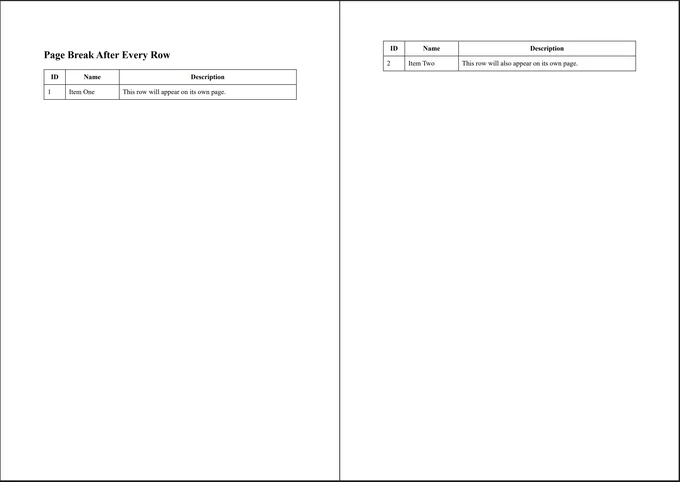
IronPDF honors standard CSS pagination rules, so you control where a page splits by adding the right declarations to your HTML. This example forces a page break after every table row.
Solution
1. Add print rules to your CSS
Wrap the pagination rules in an @media print block and apply a break to each <tr>. Both the legacy page-break-after and the modern break-after are included for compatibility, while the header row is left to flow normally.
<!DOCTYPE html>
<html>
<head>
    <meta charset="UTF-8" />
    <title>Page Break After Each Table Row</title>
    <style>
        table {
            width: 100%;
            border-collapse: collapse;
        }
        th, td {
            border: 1px solid #333;
            padding: 8px;
        }
        /* PRINT RULES */
        @media print {
            tr {
                page-break-after: always; /* legacy */
                break-after: page; /* modern */
            }
            thead tr {
                page-break-after: auto;
                break-after: auto;
            }
        }
    </style>
</head>
<body>
    <h2>Page Break After Every Row</h2>
    <table>
        <thead>
            <tr>
                <th>ID</th>
                <th>Name</th>
                <th>Description</th>
            </tr>
        </thead>
        <tbody>
            <tr>
                <td>1</td>
                <td>Item One</td>
                <td>This row will appear on its own page.</td>
            </tr>
            <tr>
                <td>2</td>
                <td>Item Two</td>
                <td>This row will also appear on its own page.</td>
            </tr>
            <tr>
                <td>3</td>
                <td>Item Three</td>
                <td>Every row starts a new page.</td>
            </tr>
        </tbody>
    </table>
</body>
</html>When rendered, each body row lands on its own page, while the thead row keeps its auto value so it does not trigger an extra break.
2. Prevent a row from splitting across pages
If your goal is to keep a row intact rather than force breaks between rows, drop the forced break and use page-break-inside: avoid instead:
tr {
    page-break-inside: avoid; /* Prevent row from splitting */
    page-break-after: auto;
}page-break-inside: avoid tells the renderer to push the whole row to the next page rather than cut it in half, and the auto value lets natural pagination decide where the break falls.

Curtis Chau holds a Bachelor’s degree in Computer Science (Carleton University) and specializes in front-end development with expertise in Node.js, TypeScript, JavaScript, and React. Passionate about crafting intuitive and aesthetically pleasing user interfaces, Curtis enjoys working with modern frameworks and creating well-structured, visually appealing manuals.













