
Viewing PDFs in MAUI for C# .NET

View PDFs directly in your MAUI application using IronPDF Viewer, which provides a full-featured PDF viewing component with toolbar options for navigation, zoom, search, and printing in just one line of code.

Cross-platform applications often need to display PDF documents directly within the app. The IronPDF Viewer lets you embed PDF viewing functionality into your MAUI application, enabling document viewing across Windows and macOS platforms.
The IronPDF Viewer is a component that builds on the IronPDF library, offering a comprehensive solution for PDF manipulation and viewing. It provides native integration with .NET MAUI applications for consistent performance across platforms.
This article shows how to integrate IronPDF Viewer within a MAUI application to allow users to view, save, and print PDFs. Whether you're building enterprise applications, document management systems, or educational software, this guide will help you implement PDF viewing capabilities.
Quickstart: Viewing PDFs in MAUI with IronPDFIntegrate IronPDF into your MAUI application and start viewing PDFs immediately. This code snippet demonstrates how to instantiate the IronPDF PdfViewer and load a PDF file for viewing.
-
1Install IronPDF with NuGet Package Manager
-
2Copy and run this code snippet.
new IronPdf.Viewer.Maui.PdfViewer { Source = "document.pdf" };C# -
3Deploy to test on your live environment
Start using IronPDF in your project today with a free trial
Minimal Workflow (5 steps)
- Download and install the IronPDF Viewer library
- Integrate IronPDF Viewer into a MAUI Application
- Add a PDF viewer page by adding either XAML or C#
ContentPage - Load a PDF on start-up by filename, Byte Array, and Stream
- Configure the toolbar
How Do I Download and Install the IronPDF Viewer Library?
How Do I Install via NuGet Package Manager?
In Visual Studio, right-click on your project in the solution explorer and select Manage NuGet Packages.... From there, search for IronPdf.Viewer.Maui and install the latest version to your solution. For more detailed installation guidance, consult our Installation Overview. Alternatively, open the NuGet Package Manager console by navigating to Tools > NuGet Package Manager > Package Manager Console and entering the following command:
The IronPDF Viewer package includes all necessary dependencies for viewing PDFs in MAUI applications. It uses the same rendering engine as the core IronPDF library for accurate document display.
How Do I Integrate IronPDF Viewer into a MAUI Application?
The following sections demonstrate how to integrate IronPDF Viewer into a default MAUI application. The integration process is straightforward and requires minimal configuration.
What Setup Is Required Before Integration?
Before adding IronPDF Viewer to your MAUI project, ensure it does not target iOS and Android platforms. Currently, the IronPDF Viewer supports Windows and macOS desktop platforms. Check this by right-clicking on the project file and selecting Properties. Uncheck the Target the iOS Platform and Target the Android platform checkboxes if they are checked. For this change to take effect, save the project after unchecking and restart Visual Studio.
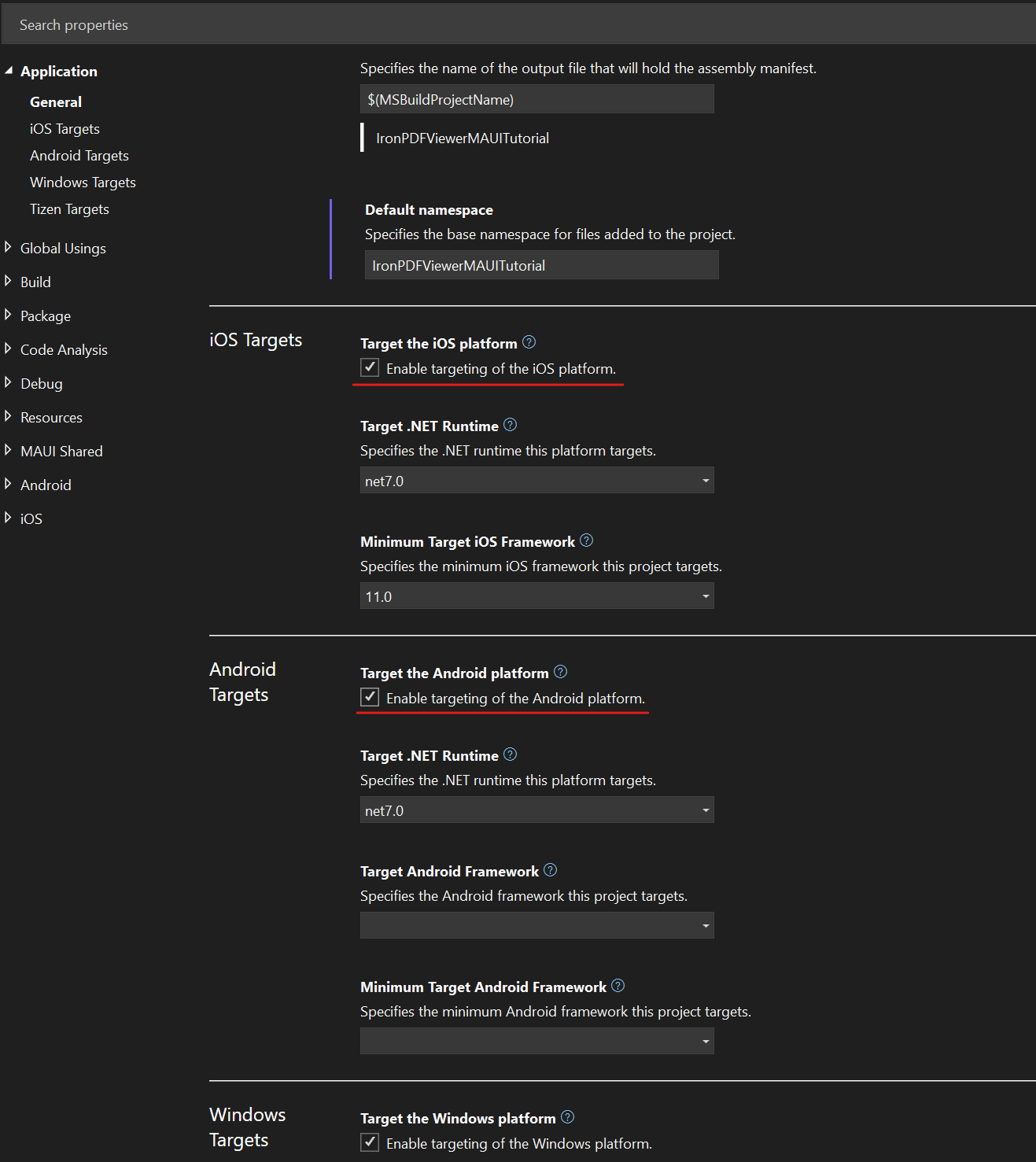
After untargeting iOS and Android platforms, go to your MauiProgram.cs file and add the following code to initialize the viewer:
using IronPdf.Viewer.Maui;

public static class MauiProgram
{
    public static MauiApp CreateMauiApp()
    {
        var builder = MauiApp.CreateBuilder();
        builder
            .UseMauiApp<App>()
            // other configuration options ...
            .ConfigureIronPdfView(); // configure the viewer on app start-up

        return builder.Build();
    }
}Imports IronPdf.Viewer.Maui
Public Module MauiProgram
Public Function CreateMauiApp() As MauiApp
Dim builder = MauiApp.CreateBuilder()
builder.UseMauiApp(Of App)().ConfigureIronPdfView() ' configure the viewer on app start-up
Return builder.Build()
End Function
End ModuleBy default, the IronPDF Viewer displays a banner at the bottom-right of the view. To remove this banner and unlock all features, add your IronPDF (or Iron Suite) license key to ConfigureIronPdfView:
.ConfigureIronPdfView("YOUR-LICENSE-KEY");.ConfigureIronPdfView("YOUR-LICENSE-KEY")For detailed information on obtaining and applying license keys, refer to our License Keys guide.
How Do I Add a PDF Viewer Page?
This section covers how to create a PDF Viewer page, integrate IronPDF Viewer, and create a tab for it in a MAUI application. We demonstrate this with both a XAML and C# ContentPage. Choose the approach that best fits your development style and project requirements.
What Are the Steps to Add a Viewer Page?
- Add a new page to your project by right-clicking on your project, then navigate to
Add > New Item...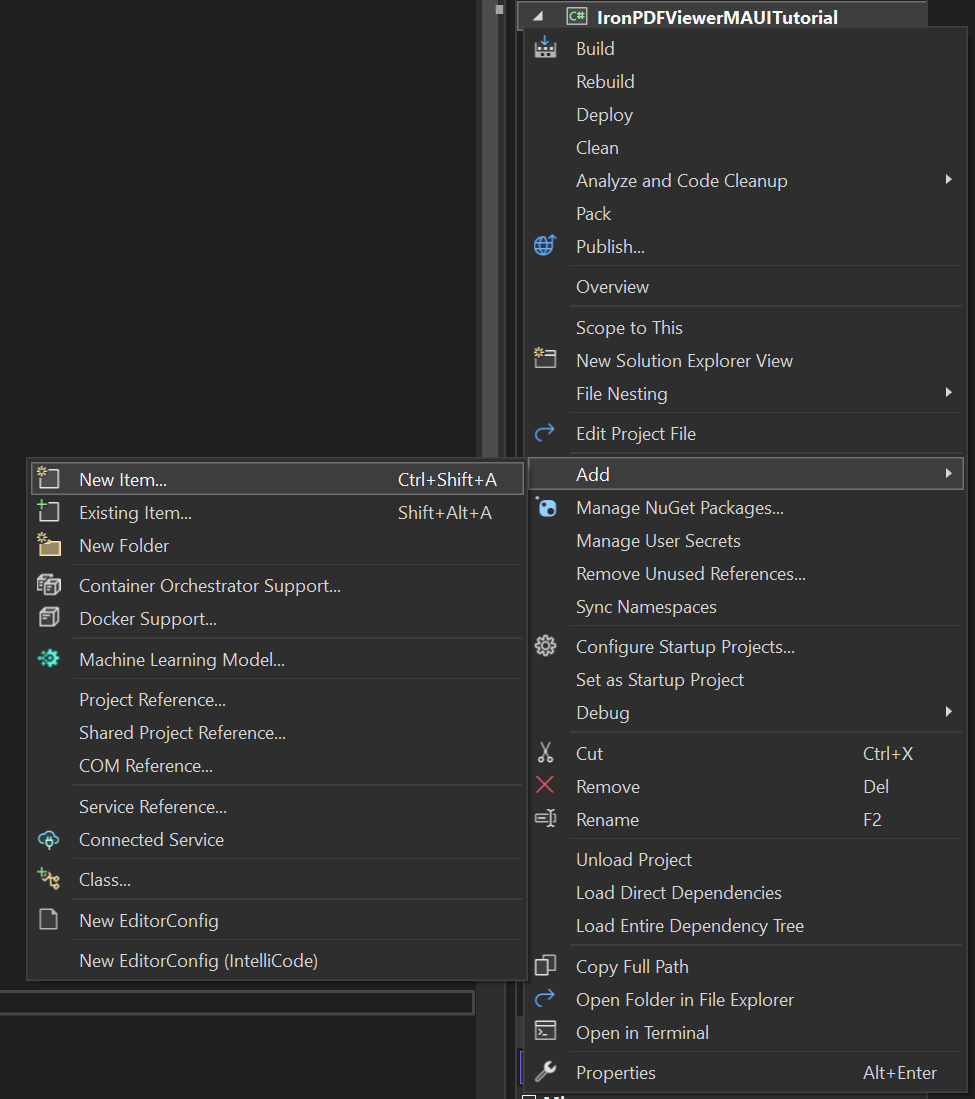
- Navigate to the
.NET MAUIsection. To create a XAML page, select.NET MAUI ContentPage (XAML). For a C# file, select.NET MAUI ContentPage (C#). Give your file the namePdfViewerPage, then clickAdd.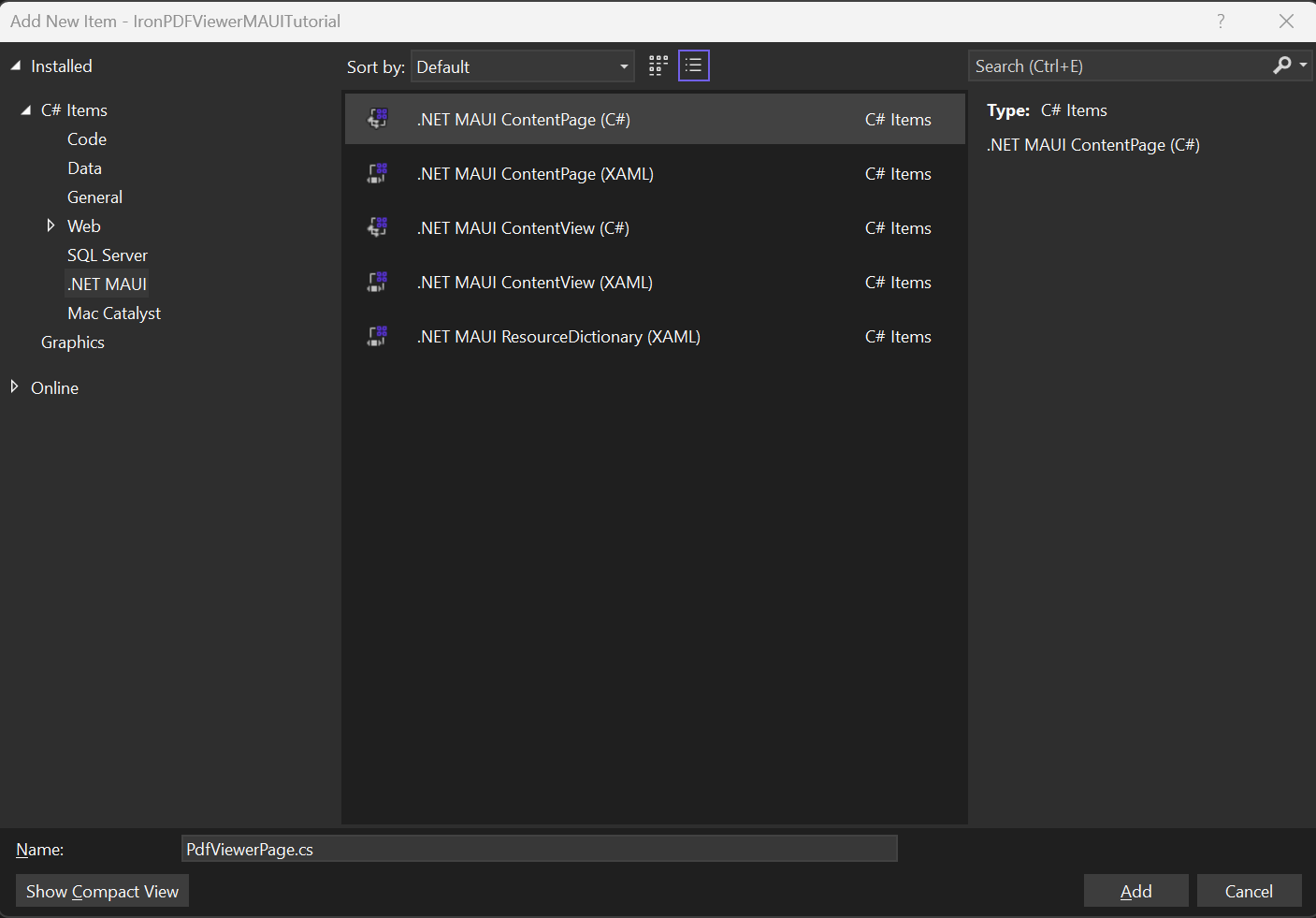
- In the XAML file, add the following code and save:
<!-- :path=/static-assets/pdf/tutorials/pdf-viewing/pdf-viewing-xaml-1.xml -->
<?xml version="1.0" encoding="utf-8" ?>
<ContentPage ...
    xmlns:ipv="clr-namespace:IronPdf.Viewer.Maui;assembly=IronPdf.Viewer.Maui"
    ...>
    <ipv:IronPdfView x:Name="pdfView"/>
</ContentPage>If you created a C# ContentPage instead, add the following code and save:
using IronPdf.Viewer.Maui;

public class MainPage : ContentPage
{
    private readonly IronPdfView pdfView;

    public MainPage()
    {
        InitializeComponent();

        this.pdfView = new IronPdfView { Options = IronPdfViewOptions.All };

        Content = this.pdfView;
    }
}Imports IronPdf.Viewer.Maui
Public Class MainPage
Inherits ContentPage
Private ReadOnly pdfView As IronPdfView
Public Sub New()
InitializeComponent()
Me.pdfView = New IronPdfView With {.Options = IronPdfViewOptions.All}
Content = Me.pdfView
End Sub
End Class-
In your
AppShell.xamlfile, add the following to create navigation tabs:<!-- :path=/static-assets/pdf/tutorials/pdf-viewing/pdf-viewing-xaml-2.xml --> <?xml version="1.0" encoding="UTF-8" ?> <Shell ... xmlns="http://schemas.microsoft.com/dotnet/2021/maui" xmlns:x="http://schemas.microsoft.com/winfx/2009/xaml" ...> <TabBar x:Name="AppTabBar"> <Tab Title="Home"> <ShellContent ContentTemplate="{DataTemplate local:MainPage}" Route="MainPage"/> </Tab> <Tab Title="PDF Viewer"> <ShellContent ContentTemplate="{DataTemplate local:PdfViewerPage}" Route="PDFViewer"/> </Tab> </TabBar> </Shell>XML -
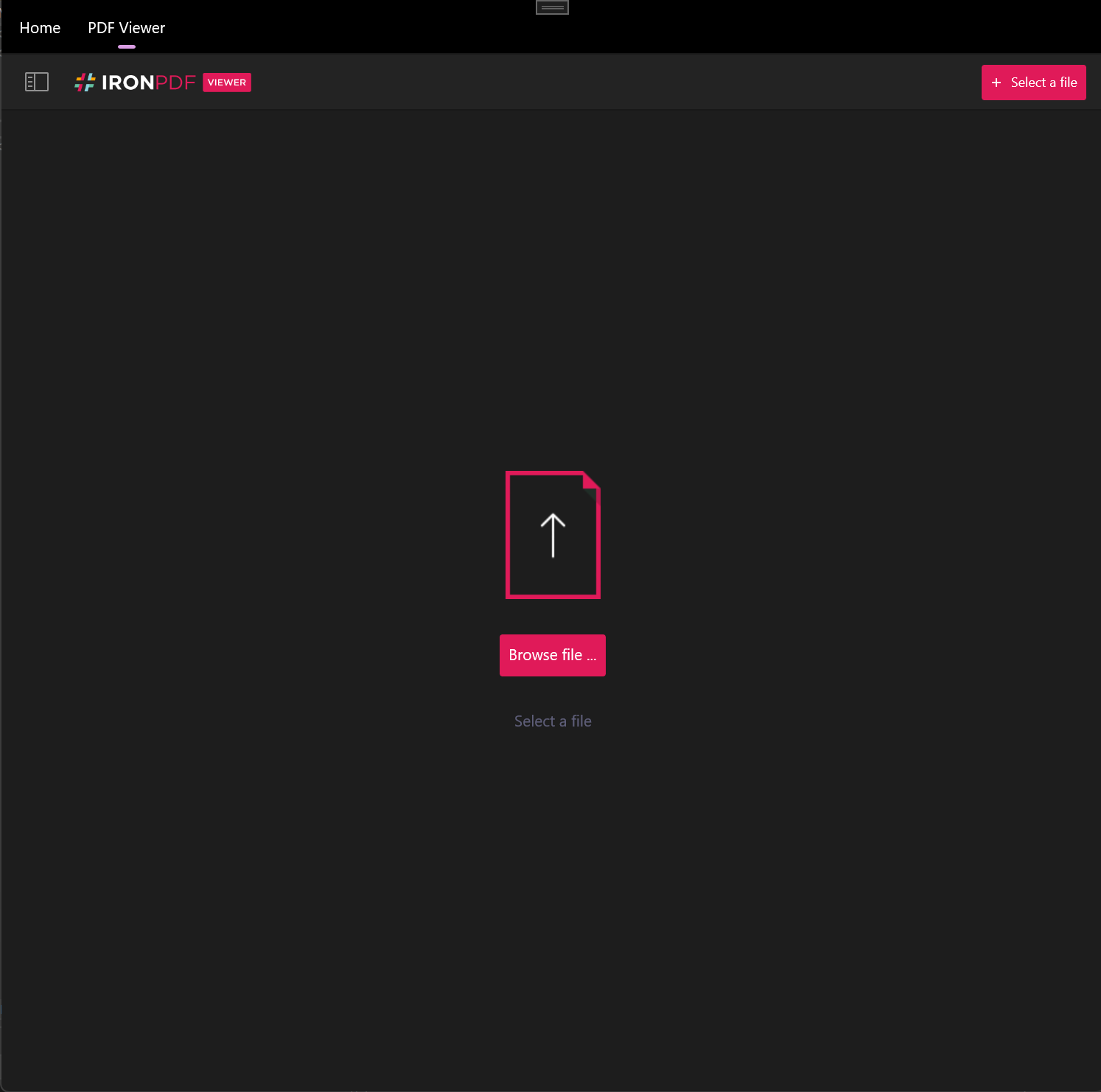
Save your project, then build and run. You should see tabs in the top-left corner as shown below. Clicking on the "PDF Viewer" tab opens the IronPDF Viewer. The viewer provides a feature-rich interface for PDF document interaction.
How Can I Load a PDF on Start-Up?
On application start-up, IronPDF Viewer prompts the user to open a PDF by default. However, it can open a PDF automatically on start-up, which improves the user experience for applications that need to display specific documents immediately. You can load a PDF on start-up in three ways: by filename, through a byte array, and through a stream. Each method offers different advantages depending on your data source and application architecture.
How Do I Load by Filename?
To load a PDF by filename, specify the source of the PDF file in the IronPdfView tag in the XAML file. This is the simplest approach when working with local files:
<!-- :path=/static-assets/pdf/tutorials/pdf-viewing/pdf-viewing-xaml-3.xml -->
<?xml version="1.0" encoding="utf-8" ?>
<ContentPage ...
    xmlns:ipv="clr-namespace:IronPdf.Viewer.Maui;assembly=IronPdf.Viewer.Maui"
    ...>
    <ipv:IronPdfView Source="C:/path/to/my/example.pdf" />
</ContentPage>Alternatively, load the PDF by filename programmatically using the IronPdfViewSource.FromFile method in a C# ContentPage. This approach offers more flexibility for dynamic file loading:
// We assume an IronPdfView instance is created previously called pdfView
pdfView.Source = IronPdfViewSource.FromFile("C:/path/to/my/example.pdf");' We assume an IronPdfView instance is created previously called pdfView
pdfView.Source = IronPdfViewSource.FromFile("C:/path/to/my/example.pdf")How Do I Load Through Byte Array?
When working with PDFs stored in databases or received from web services, you may need to load a byte array of a PDF. This is not possible from XAML, but you can achieve it in C# using the IronPdfViewSource.FromBytes method:
pdfView.Source = IronPdfViewSource.FromBytes(File.ReadAllBytes("~/Downloads/example.pdf"));pdfView.Source = IronPdfViewSource.FromBytes(File.ReadAllBytes("~/Downloads/example.pdf"))This method is useful when integrating with document management systems or when PDFs are generated dynamically using IronPDF's HTML to PDF capabilities.
How Do I Load Through Stream?
For PDFs loaded through a stream, especially when working with network resources or implementing progressive loading, use the IronPdfViewSource.FromStream method in C#:
pdfView.Source = IronPdfViewSource.FromStream(File.OpenRead("~/Downloads/example.pdf"));pdfView.Source = IronPdfViewSource.FromStream(File.OpenRead("~/Downloads/example.pdf"))Stream-based loading is ideal for handling large PDFs efficiently or working with encrypted document streams.

My favorite library of this kind is IronPDF. It allows for fast and efficient manipulation of PDF files. It also has many valuable features, like exporting to PDF/A format and digitally signing PDF documents.

IronOCR means we can save $40,000 annually from manual processing, while enhancing productivity and freeing up resources for high-impact tasks. I would highly recommend it.

The IronSuite play a crucial role in our operations. These are tools that increase efficiencies across the business including creating floor plans and improving inventory management.

How Do I Configure the Toolbar?
With IronPDF Viewer, you can choose what options to display in the toolbar, providing a customizable user experience for your application's needs. The toolbar configuration system is flexible and shows only the features your users require. Available options include:
- Thumbnail view
- Filename display
- Text search
- Page number navigation
- Zoom
- Fit to width
- Fit to height
- Rotate clockwise
- Rotate counterclockwise
- Open file
- Download file
- Print file
- Display annotations
- Two-page view
By default, IronPDF Viewer displays the toolbar shown below:

In the default view, the filename display, text search, and rotate counterclockwise options are disabled. To display everything, set the Options parameter of the IronPdfView tag in the XAML to All:
<!-- :path=/static-assets/pdf/tutorials/pdf-viewing/pdf-viewing-xaml-4.xml -->
<?xml version="1.0" encoding="utf-8" ?>
<ContentPage ...
    xmlns:ipv="clr-namespace:IronPdf.Viewer.Maui;assembly=IronPdf.Viewer.Maui"
    ...>
    <ipv:IronPdfView x:Name="pdfView" Options="All"/>
</ContentPage>Alternatively, achieve the same in C#:
pdfView.Options = IronPdfViewOptions.All;pdfView.Options = IronPdfViewOptions.AllThis displays:
To hide the toolbar completely, set the option to None:

You can choose specific options to display. For instance, to display only the thumbnail and open file options, modify the Options parameter of IronPdfView in XAML:
<!-- :path=/static-assets/pdf/tutorials/pdf-viewing/pdf-viewing-xaml-5.xml -->
<ipv:IronPdfView x:Name="pdfView" Options="Thumbs, Open"/>Similarly, in C#:
pdfView.Options = IronPdfViewOptions.Thumbs | IronPdfViewOptions.Open;pdfView.Options = IronPdfViewOptions.Thumbs Or IronPdfViewOptions.OpenThis displays:

This granular control over toolbar options allows you to create a viewing experience that matches your application's requirements. For example, you might restrict downloading in a secure document viewer, or simplify the interface for basic viewing scenarios.
Conclusion
This tutorial covered how to integrate IronPDF Viewer into a MAUI application and customize its toolbar to suit your needs. The IronPDF Viewer provides a powerful PDF viewing experience that integrates into your .NET MAUI applications with minimal code.
The viewer's flexibility in loading PDFs from various sources (files, byte arrays, and streams) makes it suitable for many applications, from simple document viewers to complex document management systems. Combined with extensive toolbar customization options, you can create the exact viewing experience your users need.
This viewer comes with our IronPDF product, which also includes powerful PDF generation, editing, and manipulation capabilities. If you would like to make a feature request or have any general questions about IronPDF Viewer (or IronPDF), please contact our support team. We will be happy to assist you.
For more advanced PDF operations, explore our comprehensive PDF viewing guide or learn about applying license keys to unlock the full potential of IronPDF in your applications.
Frequently Asked Questions
What is IronPDF Viewer used for in a .NET MAUI application?
IronPDF Viewer is used to integrate full-featured PDF viewing capabilities into a .NET MAUI application, offering functionalities like navigation, zoom, search, and printing.
How do I install the IronPDF Viewer library?
You can install the IronPDF Viewer library via the NuGet Package Manager in Visual Studio by searching for 'IronPdf.Viewer.Maui' and installing the latest version to your solution.
Is IronPDF Viewer supported on iOS and Android platforms?
No, currently IronPDF Viewer supports Windows and macOS desktop platforms and does not target iOS and Android.
How do I integrate IronPDF Viewer into a MAUI application?
To integrate IronPDF Viewer, you should ensure your project targets Windows and macOS, add the viewer configuration in the 'MauiProgram.cs' file, and initialize the viewer using the 'ConfigureIronPdfView' method.
What options are available for toolbar configuration in IronPDF Viewer?
The toolbar in IronPDF Viewer can be configured to display options like thumbnail view, filename display, text search, navigation, zoom, rotation, file opening, downloading, and printing controls.
Can I load a PDF automatically on application start-up with IronPDF Viewer?
Yes, IronPDF Viewer allows you to load a PDF automatically on start-up by specifying the file source using methods like 'FromFile', 'FromBytes', or 'FromStream'.
How do I create a PDF Viewer page in a MAUI application with IronPDF?
To create a PDF Viewer page, add a new .NET MAUI ContentPage to your project, integrate IronPDF Viewer, and include navigation tabs in the 'AppShell.xaml' file.
What are the benefits of using IronPDF Viewer in enterprise applications?
IronPDF Viewer provides a smooth and feature-rich PDF viewing experience, making it ideal for enterprise applications that require reliable document display, like document management systems or educational software.
How can I manage PDF loading using a byte array in IronPDF Viewer?
You can load PDFs from a byte array using the 'IronPdfViewSource.FromBytes' method, which is helpful when dealing with PDFs from databases or web services.
What should I do to change or apply a license key for IronPDF Viewer?
To apply a license key, include it in the 'ConfigureIronPdfView' method. Refer to the 'License Keys guide' for obtaining and applying license keys for unlocking all features.

Curtis Chau holds a Bachelor’s degree in Computer Science (Carleton University) and specializes in front-end development with expertise in Node.js, TypeScript, JavaScript, and React. Passionate about crafting intuitive and aesthetically pleasing user interfaces, Curtis enjoys working with modern frameworks and creating well-structured, visually appealing manuals.













