# A Developer's Guide to Digitally Signing PDFs with C#
この包括的なガイドでは、C# 開発者向けに、IronPDF を使用して PDF にデジタル署名する方法について解説します。証明書ベースの署名、ビジュアルスタンプ、インタラクティブなフォームフィールドなどを網羅し、文書の真正性とセキュリティを確保します。
PDF文書への署名の追加は多くのアプリケーションで一般的な要件ですが、"署名"という言葉には様々な意味があります。 一部の人にとっては、セキュリティ証明書を使用して改ざん防止のデジタル署名を適用することが重要です。 また、文書に手書きの署名画像をスタンプで押印したり、ユーザーが電子署名を行うための対話型フォームフィールドを追加したりする場合もあります。
このガイドでは、C# 開発者向けに[、IronPDF for .NET ライブラリ](https://ironpdf.com/)を使用してこれらのタスクをすべて実行する方法について、包括的な手順を解説します。 安全な `X509Certificate2` デジタル署名の適用から、グラフィカル署名の押印、インタラクティブな署名フィールドの作成に至るまで、あらゆる機能を取り揃えており、PDF ドキュメントの真正性、安全性、そして Professional 品質を保証します。
*as-heading:2(クイックスタート: IronPDF を使用して PDF に簡単にデジタル署名する)*
IronPDF を使えば、シンプルでわかりやすい手順で PDF 文書にデジタル署名をすぐに開始できます。 この例では、.pfx証明書を使用してPDFファイルの認証と署名を行い、文書の完全性と真正性を確保する方法を示しています。 以下の手順に従って、デジタル署名をアプリケーションにシームレスに統合してください。
```cs
:title=Digitally sign your PDF in one line!
new IronPdf.Signing.PdfSignature("certificate.pfx", "password").SignPdfFile("input.pdf");
```
<div class="hsg-featured-snippet">
<h3>最小限のワークフロー(5ステップ)</h3>
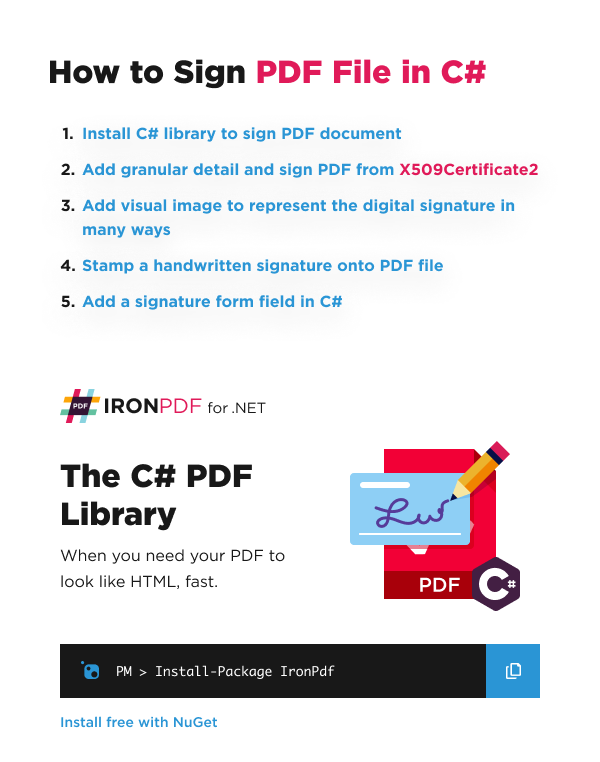
<img class="featured-snippet__image featured-snippet__image--float-right featured-snippet__image--new-template" src="https://ironpdf.com/static-assets/pdf/images/How-to-Digitally-Sign-a-PDF-Document.webp" alt="インストールコマンド付きで、C# で PDF ファイルにデジタル署名する 5 ステップを示す IronPDF チュートリアル" />
<ol>
<li><a class="js-modal-open" data-modal-id="trial-license-after-download" href="https://www.nuget.org/packages/IronPdf/">.NET 用の IronPDF for .NET ライブラリをインストールしてください。</a></li>
<li> <code>X509Certificate2</code> オブジェクトを使用してデジタル署名を適用します。</li>
<li>デジタル署名を表す画像を挿入してください。</li>
<li>PDFファイルにグラフィックまたは手書きの署名を追加します。</li>
<li>電子署名用の対話型署名フォームフィールドを追加します。</li>
</ol>
</div>
## 証明書を使用してPDFにデジタル署名を適用するにはどうすればよいですか?
デジタル証明書ファイル(`.pfx` や `.p12` など)を使用して PDF 文書にデジタル署名を付与することで、文書の真正性と完全性を保証できます。 このプロセスにより、文書が署名されてから改変されていないことが保証されます。 デジタル署名機能の完全な概要については、当社の[包括的なデジタル署名ガイド](https://ironpdf.com/how-to/signing/)をご覧ください。
IronPDFは、この目的のためにシンプルなAPIを提供しており、デジタル署名を適用する複数の方法をサポートしています。 この機能の中核となるのは、`PdfSignature`クラスであり、このクラスは証明書および署名に関連するすべてのメタデータをカプセル化しています。
<table class="tg">
<thead>
<tr>
<th class="tg-fymr">署名方法</th>
<th class="tg-u0o7">説明</th>
</tr>
</thead>
<tbody>
<tr>
<td class="tg-0pky"><code>署名</code></td>
<td class="tg-0pky">作成および設定した<strong><code>PdfSignature</code>オブジェクト</strong>を使用して、PDFに署名します。</td>
</tr>
<tr>
<td class="tg-0pky"><code>SignWithFile</code></td>
<td class="tg-0pky">デジタル署名証明書ファイルを使用してPDFに署名します(<code>.pfx</code> または <code>.p12</code>)を使用してPDFに署名します。</td>
</tr>
<tr>
<td class="tg-0pky"><code>SignWithStore</code></td>
<td class="tg-0pky">コンピュータの証明書ストアにあるデジタル署名(<strong>サムプリントID</strong>で識別される)を使用して、PDFに署名します。</td>
</tr>
</tbody>
</table>
### `X509Certificate2` オブジェクトの使用
最大限の制御を行うために、証明書ファイルから `X509Certificate2` オブジェクトを作成できます。IronPDF は `X509Certificate2` 規格に完全に準拠しており、デジタル署名の実装に向けた堅牢かつ安全な方法を提供します。 証明書オブジェクトを作成する際は、基盤となる暗号化APIの要件により、`X509KeyStorageFlags` が `Exportable` に設定されていることを確認してください。[デジタル署名](https://ironpdf.com/examples/digitally-sign-a-pdf/)の実用的な[例については](https://ironpdf.com/examples/digitally-sign-a-pdf/)、当社のコードリポジトリをご覧ください。
```shell
:ProductInstall
```
```csharp
using IronPdf;
using IronPdf.Signing;
using System.Security.Cryptography.X509Certificates;

// Create a new PDF from an HTML string for demonstration.
var renderer = new ChromePdfRenderer();
var pdf = renderer.RenderHtmlAsPdf("<h1>Signed Document</h1><p>This document has been digitally signed.</p>");

// Load the certificate from a .pfx file with its password.
// The X509KeyStorageFlags.Exportable flag is crucial for allowing the private key to be used in the signing process.
var cert = new X509Certificate2("IronSoftware.pfx", "123456", X509KeyStorageFlags.Exportable);

// Create a PdfSignature object using the loaded certificate.
var signature = new PdfSignature(cert);

// Apply the signature to the PDF document.
pdf.Sign(signature);

// Save the securely signed PDF document.
pdf.SaveAs("Signed.pdf");
```
上記のコードは、まず単純なPDFを生成します。 その後、`.pfx` 証明書ファイルを `X509Certificate2` オブジェクトに読み込みます。 デジタルIDを表すこのオブジェクトは、`PdfSignature`コンストラクタに渡されます。 最後に、`pdf.Sign` メソッドは、ドキュメントを保存する前にこの署名を適用します。 For more information on the `X509Certificate2` class, you can refer to the official [Microsoft documentation](https://learn.microsoft.com/en-us/dotnet/api/system.security.cryptography.x509certificates.x509certificate2.-ctor "null").
### デジタル署名への詳細情報の追加
デジタル署名には、証明書以外にも以下の要素が含まれる場合があります; 署名に関する背景情報を提供するために、豊富なメタデータを埋め込むことができます。 これには、署名箇所、理由、連絡先情報、および信頼できる認証機関による安全なタイムスタンプが含まれます。 また、追加のドキュメントプロパティについて[、メタデータを設定および編集することも](https://ironpdf.com/how-to/metadata/)できます。
これらの詳細を追加することで、文書の監査証跡が改善され、検証担当者に有益な情報が提供されます。 IronPDFは、最新の`SHA512`ハッシュアルゴリズムを使用するタイムスタンプサーバーもサポートしています。
```csharp
using IronPdf;
using IronPdf.Signing;
using IronSoftware.Drawing;
using System;
// Load an existing PDF document to be signed.
var pdf = PdfDocument.FromFile("invoice.pdf");
// Create a PdfSignature object directly from the certificate file and password.
var signature = new PdfSignature("IronSoftware.pfx", "123456");
// Add detailed metadata to the signature for a comprehensive audit trail.
// These properties enhance the signature's credibility and provide context
signature.SignatureDate = DateTime.Now;
signature.SigningContact = "legal@ironsoftware.com";
signature.SigningLocation = "Chicago, USA";
signature.SigningReason = "Contractual Agreement";
// Add a secure timestamp from a trusted Time Stamp Authority (TSA).
// This provides cryptographic proof of the signing time.
signature.TimeStampUrl = new Uri("[http://timestamp.digicert.com](http://timestamp.digicert.com)");
signature.TimestampHashAlgorithm = TimestampHashAlgorithms.SHA256;
// Apply a visual appearance to the signature. (More on this in the next section)
signature.SignatureImage = new PdfSignatureImage("assets/visual-signature.png", 0, new Rectangle(350, 750, 200, 100));
// Sign the PDF document with the configured signature object.
pdf.Sign(signature);
// Save the final, signed PDF document.
pdf.SaveAs("DetailedSignature.pdf");
```
署名証明書がシステムの信頼済みストアに登録されていない場合、一部のPDFビューアで警告アイコンが表示されることがあります。 緑色のチェックマークを表示するには、証明書をビューアの信頼済み識別情報に追加する必要があります。
## デジタル署名に視覚的な表現を追加するにはどうすればよいですか?
PDFにはデジタル署名が暗号技術を用いて埋め込まれていますが、ページ上に視覚的な表示がある方が便利な場合がよくあります。 これには、会社のロゴ、手書きの署名の画像、その他のグラフィックが含まれます。 IronPDF を使用すると、`PdfSignature` オブジェクトに画像を簡単に追加できます。
ファイルまたはストリームから画像を読み込み、PDF内の任意のページに正確に配置することができます。 対応している画像形式には、PNG、JPEG、GIF、BMP、TIFF、およびWebPが含まれます。この手法は、PDF文書に[テキストや画像をスタンプで押す](https://ironpdf.com/how-to/stamp-text-image/)ような方法に似ています。
```csharp
using IronPdf.Signing;
using IronSoftware.Drawing;
// This example demonstrates various ways to add a visual image to a PDF signature.
// Create a PdfSignature object.
var signature = new PdfSignature("IronSoftware.pfx", "123456");
// Define the position and size for the signature image on the first page (index 0).
// Rectangle parameters: x position, y position, width, height
var signatureRectangle = new Rectangle(350, 750, 200, 100);
// Option 1: Set the SignatureImage property directly.
// This is the most straightforward approach
signature.SignatureImage = new PdfSignatureImage("assets/visual-signature.png", 0, signatureRectangle);
// Option 2: Use the LoadSignatureImageFromFile method.
// This method provides the same functionality with a different syntax
signature.LoadSignatureImageFromFile("assets/visual-signature.png", 0, signatureRectangle);
// Option 3: Load an image from a stream. This is useful for images generated in memory.
// Perfect for scenarios where images are retrieved from databases or web services
AnyBitmap image = AnyBitmap.FromFile("assets/visual-signature.png");
using (var imageStream = image.ToStream())
{
signature.LoadSignatureImageFromStream(imageStream, 0, signatureRectangle);
}
// After configuring the signature image, apply it to a PDF.
var pdf = PdfDocument.FromFile("invoice.pdf");
pdf.Sign(signature);
pdf.SaveAs("VisualSignature.pdf");
```
このコードは、デジタル署名に視覚的要素を追加する3つの同等の方法を示しています。 ディスク上またはメモリ内の画像であっても、署名プロセスの一環として、それをPDFに簡単にスタンプとして追加できます。 これにより、目に見えない暗号セキュリティと、目に見えるドキュメント承認との間のギャップを埋めることができます。
## 署名後のドキュメントのアクセス権限はどのように管理できますか?
文書に署名する際、署名後にどのような変更が許可されるか(もしあるならば)を明記したい場合があります。 例えば、ドキュメントを完全にロックしたり、ユーザーがフォームの入力欄のみに入力できるようにしたりすることが考えられます。 IronPDF では、`SignaturePermissions` 列挙型を使用してこれらの権限を設定できます。 より高度な権限制御については、[PDFのパスワードと権限の設定](https://ironpdf.com/how-to/pdf-permissions-passwords/)に関するガイドをご覧ください。
署名権限の設定は、ドキュメントのライフサイクル管理において重要な要素です。 これにより、署名後にドキュメントの整合性が、お客様のルールに従って維持されることが保証されます。 ユーザーが許可されていない操作を行った場合、署名は無効化されます。
<table class="tg"> <thead> <tr> <th class="tg-u0o7">`SignaturePermissions` メンバー</th> <th class="tg-u0o7">定義</th> </tr> </thead> <tbody> <tr> <td class="tg-0pky">`NoChangesAllowed`</td> <td class="tg-0pky">いかなる変更も許可されません。この文書は事実上ロックされています。</td> </tr> <tr> <td class="tg-0pky">`FormFillingAllowed`</td> <td class="tg-0pky">既存のフォームフィールドへの入力と署名のみが許可されています。</td> </tr> <tr> <td class="tg-0pky">`注釈およびフォーム入力可`</td> <td class="tg-0pky">フォームへの入力、署名、および注釈の作成や編集が可能です。</td> </tr> </tbody> </table>
### 特定のPDFリビジョンの保存と署名
PDFは、バージョン管理システムと同様に、変更履歴を保存することができます。 これは"増分節約"として知られています。 PDFに署名を行うと、その署名はドキュメントの特定の改訂版に適用されます。 これは、文書が複数の承認段階を経るワークフローにおいて極めて重要です。 [PDFの改訂履歴](https://ironpdf.com/how-to/revision-history/)の管理方法については、詳細ガイドをご覧ください。
以下の例では、PDFを読み込み、編集を行い、現在の改訂版に署名します。今後の変更としては、フォームへの入力のみを許可します。 ファイルを保存する前に、`SaveAsRevision` を使用して現在の状態をドキュメントの履歴にコミットします。
`GetRevision`
増分保存の仕組みを理解することは、高度なPDFワークフローにおいて重要です。 単純なビューアでは最新バージョンしか表示されない場合がありますが、Adobe Acrobatのようなツールであれば、すべての改訂履歴を表示し、誰がどのバージョンに署名したか、また署名間の変更内容を明らかにすることができます。 IronPDF を使用すれば、このプロセスをプログラムで完全に制御できます。
高度なセキュリティとコンプライアンスが求められる複雑なドキュメントワークフローを管理する企業には、包括的なソリューションが必要となる場合があります。 Iron Softwareは、署名や編集のためのIronPDFに加え、幅広いドキュメント処理タスクに対応するその他のライブラリを含む"[Iron Suite](https://ironsoftware.com/suite/)"を提供しており、これらは1回限りの支払いで利用可能です。
### リビジョン間の署名をどのように管理・検証すればよいですか?
PDFドキュメントには、その改訂版ごとに複数の署名が適用される場合があります。 IronPDFは、この履歴を効果的に管理するためのツールを提供しています。
- **以前のバージョンへのロールバック**: `RollBackToRevision` メソッドを使用すると、ドキュメントを以前の状態に戻すことができます。 これにより、そのリビジョン以降に行われたすべての変更と署名が破棄されます。
- **すべての署名の検証**: `VerifyAllSignatures` メソッドは、ドキュメントの_すべての_リビジョンにわたる_すべての_署名の有効性をチェックします。 すべての署名が有効であり、不正な変更が加えられていない場合にのみ、`SignatureStatus.Valid`を返します。
- **署名の削除**: `RemoveSignatures` メソッドは、ドキュメントのすべてのリビジョンからデジタル署名をすべて削除し、署名のないクリーンなバージョンを作成します。
```csharp
// Load a PDF with a complex signature history.
var pdf = PdfDocument.FromFile("multi_signed_report.pdf");
// Verify all signatures across all revisions.
// This ensures document integrity throughout its entire history
bool allSignaturesValid = pdf.VerifySignatures();
Console.WriteLine($"All signatures are valid: {allSignaturesValid}");
// Roll back to the first revision (index 0).
// Useful for reviewing the original document state
if (pdf.RevisionCount > 1)
{
PdfDocument firstRevision = pdf.GetRevision(0);
firstRevision.SaveAs("report_first_revision.pdf");
}
// Create a completely unsigned version of the document.
// This removes all digital signatures while preserving content
pdf.RemoveSignatures();
pdf.SaveAs("report_unsigned.pdf");
```
## PDFに手書きの署名をどのように押印すればよいですか?
デジタル署名の暗号的なセキュリティは必要なく、単にスキャンした手書きの署名のような、視覚的な電子署名を適用したい場合もあるでしょう。 これは、しばしば"スタンピング"と呼ばれます。 IronPDFでは、`Stamp`機能を使用してこれを行うことができます。 より高度な透かし機能については、[カスタム透かしガイド](https://ironpdf.com/how-to/custom-watermark/)をご覧ください。
まずは、請求書のPDFサンプルと、手書きの署名の画像(`.png`)から始めましょう。
`VerifySignatures`
<iframe loading="lazy" src="/static-assets/pdf/how-to/signing/invoice.pdf#view=fit" width="100%" height="500px"> </iframe>
_署名捺印前の元の請求書PDF_
以下に、適用する署名画像を示します:

_手書きの署名のサンプル画像。_
以下のコードでは、`SignatureImage` プロパティを使用して、この画像を PDF の右下隅にスタンプしています。
```csharp
using IronPdf.Editing;
// Load the existing PDF document.
var pdf = PdfDocument.FromFile("invoice.pdf");
// Create an HtmlStamp containing our signature image.
// HtmlStamp allows us to position HTML content precisely on the page
var signatureStamp = new HtmlStamp("<img src='assets/signature.png'/>")
{
// Configure the stamp's position and appearance.
VerticalAlignment = VerticalAlignment.Bottom,
HorizontalAlignment = HorizontalAlignment.Right,
Margin = 10, // Add some space from the edge.
Opacity = 90 // Make it slightly transparent for a more authentic look.
};
// Apply the stamp to all pages of the PDF.
// You can also specify specific page numbers if needed
pdf.ApplyStamp(signatureStamp);
// Save the modified PDF document.
pdf.SaveAs("official_invoice.pdf");
```
### スタンプが押されたPDFはどのような仕上がりになりますか?
コードを実行すると、署名画像が文書にスタンプされ、視覚的に署名された請求書が作成されます。
<iframe loading="lazy" src="/static-assets/pdf/how-to/signing/official_invoice.pdf#view=fit" width="100%" height="500px"> </iframe>
_右下隅に手書きの署名画像が押印された最終的なPDFファイル。_
## PDFにインタラクティブな署名フィールドを追加するにはどうすればよいですか?
Adobe AcrobatなどのPDFビューアでエンドユーザーによる署名が必要な文書には、インタラクティブな署名フォームフィールドを追加できます。 これにより、ユーザーが自身のデジタル署名を適用するよう促す、クリック可能な空白領域が作成されます。 PDFフォームに関する完全なガイドについては、[PDFフォームの作成チュートリアル](https://ironpdf.com/how-to/create-forms/)をご覧ください。
`SignatureFormField` を作成し、PDFのフォームコレクションに追加できます。 ページ上での配置やサイズを細かく制御できます。 これは、複数の署名が必要な文書や、外部関係者から署名を収集する必要がある場合に特に役立ちます。
`true``RemoveSignatures`
```csharp
using IronPdf.Forms;
using IronSoftware.Drawing;
// Create a new PDF to add the signature field to.
var renderer = new ChromePdfRenderer();
var pdf = renderer.RenderHtmlAsPdf("<h1>Please Sign Below</h1>");
// Define the properties for the signature form field.
string fieldName = "ClientSignature"; // Unique identifier for the field
int pageIndex = 0; // Add to the first page (zero-indexed)
var fieldRect = new Rectangle(50, 200, 300, 100); // Position: (x, y), Size: (width, height)
// Create the SignatureFormField object.
// This creates an interactive field that users can click to sign
var signatureField = new SignatureFormField(fieldName, pageIndex, fieldRect);
// Add the signature field to the PDF's form.
pdf.Form.Add(signatureField);
// Save the PDF with the new interactive signature field.
pdf.SaveAs("interactive_signature.pdf");
```
ユーザーがこのPDFを開くと、クリック可能なフィールドが表示され、自身のデジタルIDを使用して署名プロセスを完了することができます。 インタラクティブなフォームの作成および管理に関する詳細は、[PDFフォーム作成のハウツーガイド](/how-to/create-forms/)をご覧ください。
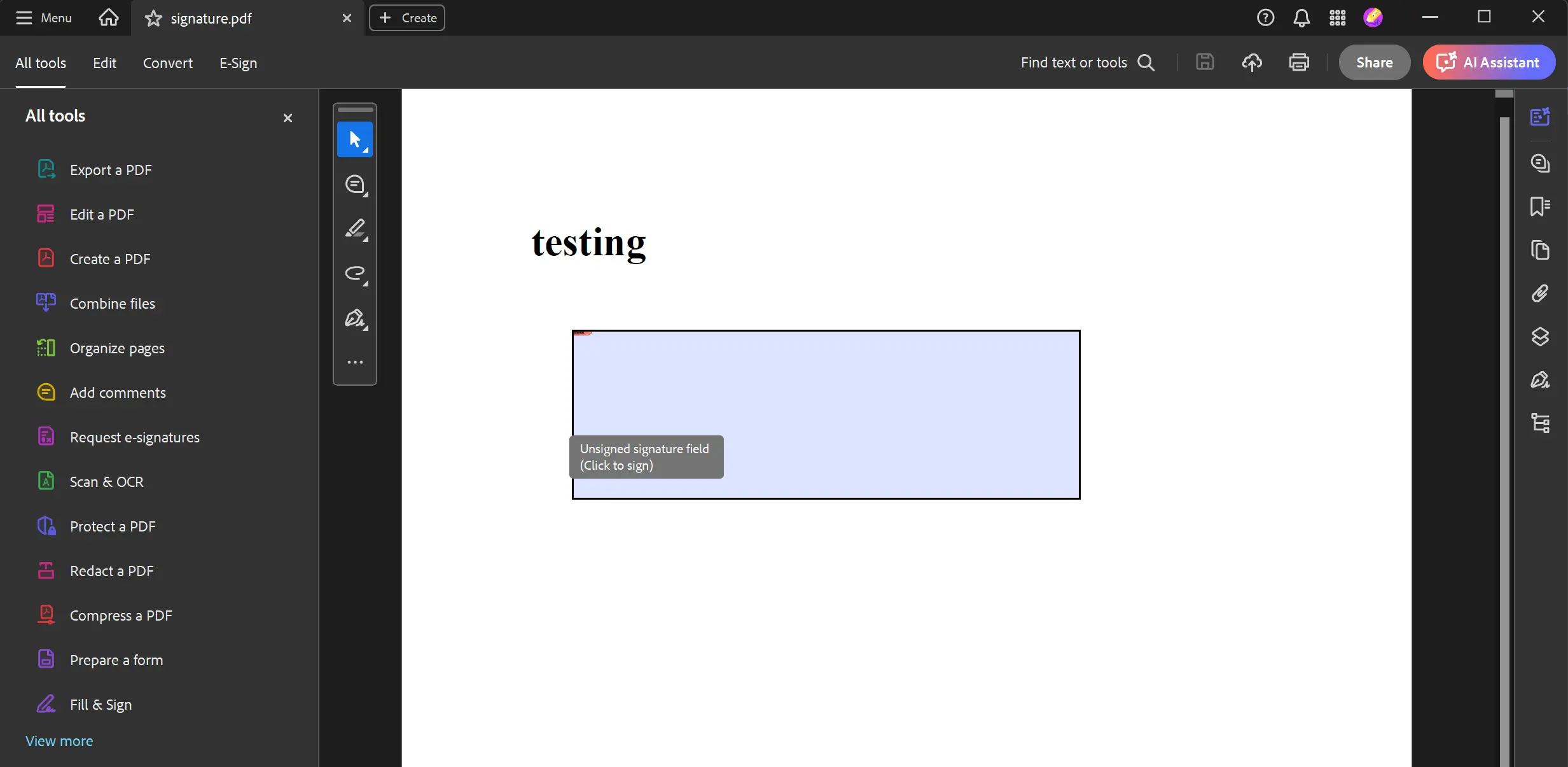
<img src="/static-assets/pdf/how-to/signing/unsigned-signature.webp" alt=""testing"というタイトルのドキュメント内で、"Click to sign"というプロンプトが表示された未署名の署名フィールドを示すPDFエディタ" />
_PDFドキュメントにプログラムによって追加される、署名不要の対話型署名フィールド。_
## 検証済みの署名から署名者の名前を取得するにはどうすればよいですか?
署名を行った証明書所有者の一般名を取得するには、`VerifiedSignature` クラスを使用して `SignerName` プロパティにアクセスします。 以下に、その実現方法を示すコードスニペットを記載します。
```cs
using IronPdf;
using System;
// Import the Signed PDF report
var pdf = PdfDocument.FromFile("multi_signed_report.pdf");
// Using GetVerifiedSignatures() obtain a list of `VerifiedSignature` objects from the PDF
pdf.GetVerifiedSignatures().ForEach(signature =>
{
// Print out the SignerName of each `VerifiedSignature` object
Console.WriteLine($"SignatureName: {signature.SignerName}");
});
```
署名済みのPDFファイルをインポートした後、`SignerName`を出力します。
`GetVerifiedSignatures``SignerName`
この値は証明書の"Subject Distinguished Name(SubjectDN)"から抽出されるものであり、CNフィールドが存在しない場合はnullが返されることにご注意ください。
## IronPDF を使用した PDF 署名の次のステップとは?
このガイドでは、IronPDFの強力かつ柔軟なPDF署名機能を紹介しました。 詳細なメタデータを含む安全なデジタル署名の適用、ドキュメントの改訂管理、視覚的な署名の押印、あるいはインタラクティブなフォームの作成など、どのようなニーズであっても、IronPDFは、その作業を完遂するための包括的で開発者に優しいAPIを提供します。
さらに詳しく知りたい場合は、[.NET 用の IronPDF for .NET ライブラリ](download-modal)をダウンロードし、[無料トライアルライセンス](trial-license)を取得して、プロジェクトですべての機能を試すことができます。 [注釈の追加](https://ironpdf.com/how-to/annotations/)やフォームフィールドの操作など、より高度なドキュメント操作テクニックについては、当社の充実したドキュメントやチュートリアルをご覧ください。
他にもできることを見てみませんか? こちらのチュートリアルページをご覧ください:[PDFへの署名とセキュリティ保護](https://ironpdf.com/tutorials/csharp-pdf-security-complete-tutorial/)
using IronPdf;using IronPdf.Signing;using System.Security.Cryptography.X509Certificates;// Create a new PDF from an HTML string for demonstration.var renderer = new ChromePdfRenderer();var pdf = renderer.RenderHtmlAsPdf("<h1>Signed Document</h1><p>This document has been digitally signed.</p>");// Load the certificate from a .pfx file with its password.// The X509KeyStorageFlags.Exportable flag is crucial for allowing the private key to be used in the signing process.var cert = new X509Certificate2("IronSoftware.pfx", "123456", X509KeyStorageFlags.Exportable);// Create a PdfSignature object using the loaded certificate.var signature = new PdfSignature(cert);// Apply the signature to the PDF document.pdf.Sign(signature);// Save the securely signed PDF document.pdf.SaveAs("Signed.pdf");
using IronPdf;
using IronPdf.Signing;
using System.Security.Cryptography.X509Certificates;

// Create a new PDF from an HTML string for demonstration.
var renderer = new ChromePdfRenderer();
var pdf = renderer.RenderHtmlAsPdf("<h1>Signed Document</h1><p>This document has been digitally signed.</p>");

// Load the certificate from a .pfx file with its password.
// The X509KeyStorageFlags.Exportable flag is crucial for allowing the private key to be used in the signing process.
var cert = new X509Certificate2("IronSoftware.pfx", "123456", X509KeyStorageFlags.Exportable);

// Create a PdfSignature object using the loaded certificate.
var signature = new PdfSignature(cert);

// Apply the signature to the PDF document.
pdf.Sign(signature);

// Save the securely signed PDF document.
pdf.SaveAs("Signed.pdf");
ImportsIronPdfImportsIronPdf.SigningImportsSystem.Security.Cryptography.X509Certificates' Create a new PDF from an HTML string for demonstration.Private renderer = New ChromePdfRenderer()Private pdf = renderer.RenderHtmlAsPdf("<h1>Signed Document</h1><p>This document has been digitally signed.</p>")' Load the certificate from a .pfx file with its password.' The X509KeyStorageFlags.Exportable flag is crucial for allowing the private key to be used in the signing process.Private cert = New X509Certificate2("IronSoftware.pfx", "123456", X509KeyStorageFlags.Exportable)' Create a PdfSignature object using the loaded certificate.Private signature = New PdfSignature(cert)' Apply the signature to the PDF document.pdf.Sign(signature)' Save the securely signed PDF document.pdf.SaveAs("Signed.pdf")
Imports IronPdf
Imports IronPdf.Signing
Imports System.Security.Cryptography.X509Certificates

' Create a new PDF from an HTML string for demonstration.
Private renderer = New ChromePdfRenderer()
Private pdf = renderer.RenderHtmlAsPdf("<h1>Signed Document</h1><p>This document has been digitally signed.</p>")

' Load the certificate from a .pfx file with its password.
' The X509KeyStorageFlags.Exportable flag is crucial for allowing the private key to be used in the signing process.
Private cert = New X509Certificate2("IronSoftware.pfx", "123456", X509KeyStorageFlags.Exportable)

' Create a PdfSignature object using the loaded certificate.
Private signature = New PdfSignature(cert)

' Apply the signature to the PDF document.
pdf.Sign(signature)

' Save the securely signed PDF document.
pdf.SaveAs("Signed.pdf")
上記のコードは、まず単純なPDFを生成します。 その後、.pfx 証明書ファイルを X509Certificate2 オブジェクトに読み込みます。 デジタルIDを表すこのオブジェクトは、PdfSignatureコンストラクタに渡されます。 最後に、pdf.Sign メソッドは、ドキュメントを保存する前にこの署名を適用します。 For more information on the X509Certificate2 class, you can refer to the official Microsoft documentation.
using IronPdf;using IronPdf.Signing;using IronSoftware.Drawing;using System;// Load an existing PDF document to be signed.var pdf = PdfDocument.FromFile("invoice.pdf");// Create a PdfSignature object directly from the certificate file and password.var signature = new PdfSignature("IronSoftware.pfx", "123456");// Add detailed metadata to the signature for a comprehensive audit trail.// These properties enhance the signature's credibility and provide contextsignature.SignatureDate = DateTime.Now;signature.SigningContact = "legal@ironsoftware.com";signature.SigningLocation = "Chicago, USA";signature.SigningReason = "Contractual Agreement";// Add a secure timestamp from a trusted Time Stamp Authority (TSA).// This provides cryptographic proof of the signing time.signature.TimeStampUrl = new Uri("[http://timestamp.digicert.com](http://timestamp.digicert.com)");signature.TimestampHashAlgorithm = TimestampHashAlgorithms.SHA256;// Apply a visual appearance to the signature. (More on this in the next section)signature.SignatureImage = new PdfSignatureImage("assets/visual-signature.png", 0, new Rectangle(350, 750, 200, 100));// Sign the PDF document with the configured signature object.pdf.Sign(signature);// Save the final, signed PDF document.pdf.SaveAs("DetailedSignature.pdf");
using IronPdf;
using IronPdf.Signing;
using IronSoftware.Drawing;
using System;

// Load an existing PDF document to be signed.
var pdf = PdfDocument.FromFile("invoice.pdf");

// Create a PdfSignature object directly from the certificate file and password.
var signature = new PdfSignature("IronSoftware.pfx", "123456");

// Add detailed metadata to the signature for a comprehensive audit trail.
// These properties enhance the signature's credibility and provide context
signature.SignatureDate = DateTime.Now;
signature.SigningContact = "legal@ironsoftware.com";
signature.SigningLocation = "Chicago, USA";
signature.SigningReason = "Contractual Agreement";

// Add a secure timestamp from a trusted Time Stamp Authority (TSA).
// This provides cryptographic proof of the signing time.
signature.TimeStampUrl = new Uri("[http://timestamp.digicert.com](http://timestamp.digicert.com)");
signature.TimestampHashAlgorithm = TimestampHashAlgorithms.SHA256;

// Apply a visual appearance to the signature. (More on this in the next section)
signature.SignatureImage = new PdfSignatureImage("assets/visual-signature.png", 0, new Rectangle(350, 750, 200, 100));

// Sign the PDF document with the configured signature object.
pdf.Sign(signature);

// Save the final, signed PDF document.
pdf.SaveAs("DetailedSignature.pdf");
ImportsIronPdfImportsIronPdf.SigningImportsIronSoftware.DrawingImportsSystem' Load an existing PDF document to be signed.Dim pdf = PdfDocument.FromFile("invoice.pdf")' Create a PdfSignature object directly from the certificate file and password.Dim signature = New PdfSignature("IronSoftware.pfx", "123456")' Add detailed metadata to the signature for a comprehensive audit trail.' These properties enhance the signature's credibility and provide contextsignature.SignatureDate = DateTime.Nowsignature.SigningContact = "legal@ironsoftware.com"signature.SigningLocation = "Chicago, USA"signature.SigningReason = "Contractual Agreement"' Add a secure timestamp from a trusted Time Stamp Authority (TSA).' This provides cryptographic proof of the signing time.signature.TimeStampUrl = New Uri("http://timestamp.digicert.com")signature.TimestampHashAlgorithm = TimestampHashAlgorithms.SHA256' Apply a visual appearance to the signature. (More on this in the next section)signature.SignatureImage = New PdfSignatureImage("assets/visual-signature.png", 0, New Rectangle(350, 750, 200, 100))' Sign the PDF document with the configured signature object.pdf.Sign(signature)' Save the final, signed PDF document.pdf.SaveAs("DetailedSignature.pdf")
Imports IronPdf
Imports IronPdf.Signing
Imports IronSoftware.Drawing
Imports System

' Load an existing PDF document to be signed.
Dim pdf = PdfDocument.FromFile("invoice.pdf")

' Create a PdfSignature object directly from the certificate file and password.
Dim signature = New PdfSignature("IronSoftware.pfx", "123456")

' Add detailed metadata to the signature for a comprehensive audit trail.
' These properties enhance the signature's credibility and provide context
signature.SignatureDate = DateTime.Now
signature.SigningContact = "legal@ironsoftware.com"
signature.SigningLocation = "Chicago, USA"
signature.SigningReason = "Contractual Agreement"

' Add a secure timestamp from a trusted Time Stamp Authority (TSA).
' This provides cryptographic proof of the signing time.
signature.TimeStampUrl = New Uri("http://timestamp.digicert.com")
signature.TimestampHashAlgorithm = TimestampHashAlgorithms.SHA256

' Apply a visual appearance to the signature. (More on this in the next section)
signature.SignatureImage = New PdfSignatureImage("assets/visual-signature.png", 0, New Rectangle(350, 750, 200, 100))

' Sign the PDF document with the configured signature object.
pdf.Sign(signature)

' Save the final, signed PDF document.
pdf.SaveAs("DetailedSignature.pdf")
using IronPdf.Signing;using IronSoftware.Drawing;// This example demonstrates various ways to add a visual image to a PDF signature.// Create a PdfSignature object.var signature = new PdfSignature("IronSoftware.pfx", "123456");// Define the position and size for the signature image on the first page (index 0).// Rectangle parameters: x position, y position, width, heightvar signatureRectangle = new Rectangle(350, 750, 200, 100);// Option 1: Set the SignatureImage property directly.// This is the most straightforward approachsignature.SignatureImage = new PdfSignatureImage("assets/visual-signature.png", 0, signatureRectangle);// Option 2: Use the LoadSignatureImageFromFile method.// This method provides the same functionality with a different syntaxsignature.LoadSignatureImageFromFile("assets/visual-signature.png", 0, signatureRectangle);// Option 3: Load an image from a stream. This is useful for images generated in memory.// Perfect for scenarios where images are retrieved from databases or web servicesAnyBitmap image = AnyBitmap.FromFile("assets/visual-signature.png");using (var imageStream = image.ToStream()){ signature.LoadSignatureImageFromStream(imageStream, 0, signatureRectangle);}// After configuring the signature image, apply it to a PDF.var pdf = PdfDocument.FromFile("invoice.pdf");pdf.Sign(signature);pdf.SaveAs("VisualSignature.pdf");
using IronPdf.Signing;
using IronSoftware.Drawing;

// This example demonstrates various ways to add a visual image to a PDF signature.

// Create a PdfSignature object.
var signature = new PdfSignature("IronSoftware.pfx", "123456");

// Define the position and size for the signature image on the first page (index 0).
// Rectangle parameters: x position, y position, width, height
var signatureRectangle = new Rectangle(350, 750, 200, 100);

// Option 1: Set the SignatureImage property directly.
// This is the most straightforward approach
signature.SignatureImage = new PdfSignatureImage("assets/visual-signature.png", 0, signatureRectangle);

// Option 2: Use the LoadSignatureImageFromFile method.
// This method provides the same functionality with a different syntax
signature.LoadSignatureImageFromFile("assets/visual-signature.png", 0, signatureRectangle);

// Option 3: Load an image from a stream. This is useful for images generated in memory.
// Perfect for scenarios where images are retrieved from databases or web services
AnyBitmap image = AnyBitmap.FromFile("assets/visual-signature.png");
using (var imageStream = image.ToStream())
{
    signature.LoadSignatureImageFromStream(imageStream, 0, signatureRectangle);
}

// After configuring the signature image, apply it to a PDF.
var pdf = PdfDocument.FromFile("invoice.pdf");
pdf.Sign(signature);
pdf.SaveAs("VisualSignature.pdf");
ImportsIronPdf.SigningImportsIronSoftware.Drawing' This example demonstrates various ways to add a visual image to a PDF signature.' Create a PdfSignature object.Dim signature As New PdfSignature("IronSoftware.pfx", "123456")' Define the position and size for the signature image on the first page (index 0).' Rectangle parameters: x position, y position, width, heightDim signatureRectangle As New Rectangle(350, 750, 200, 100)' Option 1: Set the SignatureImage property directly.' This is the most straightforward approachsignature.SignatureImage = New PdfSignatureImage("assets/visual-signature.png", 0, signatureRectangle)' Option 2: Use the LoadSignatureImageFromFile method.' This method provides the same functionality with a different syntaxsignature.LoadSignatureImageFromFile("assets/visual-signature.png", 0, signatureRectangle)' Option 3: Load an image from a stream. This is useful for images generated in memory.' Perfect for scenarios where images are retrieved from databases or web servicesDim image AsAnyBitmap = AnyBitmap.FromFile("assets/visual-signature.png")Using imageStream = image.ToStream() signature.LoadSignatureImageFromStream(imageStream, 0, signatureRectangle)EndUsing' After configuring the signature image, apply it to a PDF.Dim pdf AsPdfDocument = PdfDocument.FromFile("invoice.pdf")pdf.Sign(signature)pdf.SaveAs("VisualSignature.pdf")
Imports IronPdf.Signing
Imports IronSoftware.Drawing

' This example demonstrates various ways to add a visual image to a PDF signature.

' Create a PdfSignature object.
Dim signature As New PdfSignature("IronSoftware.pfx", "123456")

' Define the position and size for the signature image on the first page (index 0).
' Rectangle parameters: x position, y position, width, height
Dim signatureRectangle As New Rectangle(350, 750, 200, 100)

' Option 1: Set the SignatureImage property directly.
' This is the most straightforward approach
signature.SignatureImage = New PdfSignatureImage("assets/visual-signature.png", 0, signatureRectangle)

' Option 2: Use the LoadSignatureImageFromFile method.
' This method provides the same functionality with a different syntax
signature.LoadSignatureImageFromFile("assets/visual-signature.png", 0, signatureRectangle)

' Option 3: Load an image from a stream. This is useful for images generated in memory.
' Perfect for scenarios where images are retrieved from databases or web services
Dim image As AnyBitmap = AnyBitmap.FromFile("assets/visual-signature.png")
Using imageStream = image.ToStream()
    signature.LoadSignatureImageFromStream(imageStream, 0, signatureRectangle)
End Using

' After configuring the signature image, apply it to a PDF.
Dim pdf As PdfDocument = PdfDocument.FromFile("invoice.pdf")
pdf.Sign(signature)
pdf.SaveAs("VisualSignature.pdf")
高度なセキュリティとコンプライアンスが求められる複雑なドキュメントワークフローを管理する企業には、包括的なソリューションが必要となる場合があります。 Iron Softwareは、署名や編集のためのIronPDFに加え、幅広いドキュメント処理タスクに対応するその他のライブラリを含む"Iron Suite"を提供しており、これらは1回限りの支払いで利用可能です。
// Load a PDF with a complex signature history.var pdf = PdfDocument.FromFile("multi_signed_report.pdf");// Verify all signatures across all revisions.// This ensures document integrity throughout its entire historybool allSignaturesValid = pdf.VerifySignatures();Console.WriteLine($"All signatures are valid: {allSignaturesValid}");// Roll back to the first revision (index 0).// Useful for reviewing the original document stateif (pdf.RevisionCount > 1){ PdfDocument firstRevision = pdf.GetRevision(0); firstRevision.SaveAs("report_first_revision.pdf");}// Create a completely unsigned version of the document.// This removes all digital signatures while preserving contentpdf.RemoveSignatures();pdf.SaveAs("report_unsigned.pdf");
// Load a PDF with a complex signature history.
var pdf = PdfDocument.FromFile("multi_signed_report.pdf");

// Verify all signatures across all revisions.
// This ensures document integrity throughout its entire history
bool allSignaturesValid = pdf.VerifySignatures();
Console.WriteLine($"All signatures are valid: {allSignaturesValid}");

// Roll back to the first revision (index 0).
// Useful for reviewing the original document state
if (pdf.RevisionCount > 1)
{
    PdfDocument firstRevision = pdf.GetRevision(0);
    firstRevision.SaveAs("report_first_revision.pdf");
}

// Create a completely unsigned version of the document.
// This removes all digital signatures while preserving content
pdf.RemoveSignatures();
pdf.SaveAs("report_unsigned.pdf");
ImportsSystem' Load a PDF with a complex signature history.Dim pdf = PdfDocument.FromFile("multi_signed_report.pdf")' Verify all signatures across all revisions.' This ensures document integrity throughout its entire historyDim allSignaturesValid AsBoolean = pdf.VerifySignatures()Console.WriteLine($"All signatures are valid: {allSignaturesValid}")' Roll back to the first revision (index 0).' Useful for reviewing the original document stateIf pdf.RevisionCount > 1 Then Dim firstRevision AsPdfDocument = pdf.GetRevision(0) firstRevision.SaveAs("report_first_revision.pdf")End If' Create a completely unsigned version of the document.' This removes all digital signatures while preserving contentpdf.RemoveSignatures()pdf.SaveAs("report_unsigned.pdf")
Imports System

' Load a PDF with a complex signature history.
Dim pdf = PdfDocument.FromFile("multi_signed_report.pdf")

' Verify all signatures across all revisions.
' This ensures document integrity throughout its entire history
Dim allSignaturesValid As Boolean = pdf.VerifySignatures()
Console.WriteLine($"All signatures are valid: {allSignaturesValid}")

' Roll back to the first revision (index 0).
' Useful for reviewing the original document state
If pdf.RevisionCount > 1 Then
    Dim firstRevision As PdfDocument = pdf.GetRevision(0)
    firstRevision.SaveAs("report_first_revision.pdf")
End If

' Create a completely unsigned version of the document.
' This removes all digital signatures while preserving content
pdf.RemoveSignatures()
pdf.SaveAs("report_unsigned.pdf")
以下のコードでは、SignatureImage プロパティを使用して、この画像を PDF の右下隅にスタンプしています。
using IronPdf.Editing;// Load the existing PDF document.var pdf = PdfDocument.FromFile("invoice.pdf");// Create an HtmlStamp containing our signature image.// HtmlStamp allows us to position HTML content precisely on the pagevar signatureStamp = new HtmlStamp("<img src='assets/signature.png'/>"){ // Configure the stamp's position and appearance.VerticalAlignment = VerticalAlignment.Bottom,HorizontalAlignment = HorizontalAlignment.Right,Margin = 10, // Add some space from the edge.Opacity = 90 // Make it slightly transparent for a more authentic look.};// Apply the stamp to all pages of the PDF.// You can also specify specific page numbers if neededpdf.ApplyStamp(signatureStamp);// Save the modified PDF document.pdf.SaveAs("official_invoice.pdf");
using IronPdf.Editing;

// Load the existing PDF document.
var pdf = PdfDocument.FromFile("invoice.pdf");

// Create an HtmlStamp containing our signature image.
// HtmlStamp allows us to position HTML content precisely on the page
var signatureStamp = new HtmlStamp("<img src='assets/signature.png'/>")
{
    // Configure the stamp's position and appearance.
    VerticalAlignment = VerticalAlignment.Bottom,
    HorizontalAlignment = HorizontalAlignment.Right,
    Margin = 10,  // Add some space from the edge.
    Opacity = 90  // Make it slightly transparent for a more authentic look.
};

// Apply the stamp to all pages of the PDF.
// You can also specify specific page numbers if needed
pdf.ApplyStamp(signatureStamp);

// Save the modified PDF document.
pdf.SaveAs("official_invoice.pdf");
ImportsIronPdf.Editing' Load the existing PDF document.Dim pdf = PdfDocument.FromFile("invoice.pdf")' Create an HtmlStamp containing our signature image.' HtmlStamp allows us to position HTML content precisely on the pageDim signatureStamp = New HtmlStamp("<img src='assets/signature.png'/>") With { ' Configure the stamp's position and appearance. .VerticalAlignment = VerticalAlignment.Bottom, .HorizontalAlignment = HorizontalAlignment.Right, .Margin = 10, ' Add some space from the edge. .Opacity = 90 ' Make it slightly transparent for a more authentic look.}' Apply the stamp to all pages of the PDF.' You can also specify specific page numbers if neededpdf.ApplyStamp(signatureStamp)' Save the modified PDF document.pdf.SaveAs("official_invoice.pdf")
Imports IronPdf.Editing

' Load the existing PDF document.
Dim pdf = PdfDocument.FromFile("invoice.pdf")

' Create an HtmlStamp containing our signature image.
' HtmlStamp allows us to position HTML content precisely on the page
Dim signatureStamp = New HtmlStamp("<img src='assets/signature.png'/>") With {
    ' Configure the stamp's position and appearance.
    .VerticalAlignment = VerticalAlignment.Bottom,
    .HorizontalAlignment = HorizontalAlignment.Right,
    .Margin = 10,  ' Add some space from the edge.
    .Opacity = 90  ' Make it slightly transparent for a more authentic look.
}

' Apply the stamp to all pages of the PDF.
' You can also specify specific page numbers if needed
pdf.ApplyStamp(signatureStamp)

' Save the modified PDF document.
pdf.SaveAs("official_invoice.pdf")
using IronPdf.Forms;using IronSoftware.Drawing;// Create a new PDF to add the signature field to.var renderer = new ChromePdfRenderer();var pdf = renderer.RenderHtmlAsPdf("<h1>Please Sign Below</h1>");// Define the properties for the signature form field.string fieldName = "ClientSignature"; // Unique identifier for the fieldint pageIndex = 0; // Add to the first page (zero-indexed)var fieldRect = new Rectangle(50, 200, 300, 100); // Position: (x, y), Size: (width, height)// Create the SignatureFormField object.// This creates an interactive field that users can click to signvar signatureField = new SignatureFormField(fieldName, pageIndex, fieldRect);// Add the signature field to the PDF's form.pdf.Form.Add(signatureField);// Save the PDF with the new interactive signature field.pdf.SaveAs("interactive_signature.pdf");
using IronPdf.Forms;
using IronSoftware.Drawing;

// Create a new PDF to add the signature field to.
var renderer = new ChromePdfRenderer();
var pdf = renderer.RenderHtmlAsPdf("<h1>Please Sign Below</h1>");

// Define the properties for the signature form field.
string fieldName = "ClientSignature";  // Unique identifier for the field
int pageIndex = 0;  // Add to the first page (zero-indexed)
var fieldRect = new Rectangle(50, 200, 300, 100);  // Position: (x, y), Size: (width, height)

// Create the SignatureFormField object.
// This creates an interactive field that users can click to sign
var signatureField = new SignatureFormField(fieldName, pageIndex, fieldRect);

// Add the signature field to the PDF's form.
pdf.Form.Add(signatureField);

// Save the PDF with the new interactive signature field.
pdf.SaveAs("interactive_signature.pdf");
ImportsIronPdf.FormsImportsIronSoftware.Drawing' Create a new PDF to add the signature field to.Dim renderer As New ChromePdfRenderer()Dim pdf = renderer.RenderHtmlAsPdf("<h1>Please Sign Below</h1>")' Define the properties for the signature form field.Dim fieldName AsString = "ClientSignature" ' Unique identifier for the fieldDim pageIndex AsInteger = 0 ' Add to the first page (zero-indexed)Dim fieldRect As New Rectangle(50, 200, 300, 100) ' Position: (x, y), Size: (width, height)' Create the SignatureFormField object.' This creates an interactive field that users can click to signDim signatureField As New SignatureFormField(fieldName, pageIndex, fieldRect)' Add the signature field to the PDF's form.pdf.Form.Add(signatureField)' Save the PDF with the new interactive signature field.pdf.SaveAs("interactive_signature.pdf")
Imports IronPdf.Forms
Imports IronSoftware.Drawing

' Create a new PDF to add the signature field to.
Dim renderer As New ChromePdfRenderer()
Dim pdf = renderer.RenderHtmlAsPdf("<h1>Please Sign Below</h1>")

' Define the properties for the signature form field.
Dim fieldName As String = "ClientSignature"  ' Unique identifier for the field
Dim pageIndex As Integer = 0  ' Add to the first page (zero-indexed)
Dim fieldRect As New Rectangle(50, 200, 300, 100)  ' Position: (x, y), Size: (width, height)

' Create the SignatureFormField object.
' This creates an interactive field that users can click to sign
Dim signatureField As New SignatureFormField(fieldName, pageIndex, fieldRect)

' Add the signature field to the PDF's form.
pdf.Form.Add(signatureField)

' Save the PDF with the new interactive signature field.
pdf.SaveAs("interactive_signature.pdf")
using IronPdf;using System;// Import the Signed PDF reportvar pdf = PdfDocument.FromFile("multi_signed_report.pdf");// Using GetVerifiedSignatures() obtain a list of `VerifiedSignature` objects from the PDFpdf.GetVerifiedSignatures().ForEach(signature =>{ // Print out the SignerName of each `VerifiedSignature` objectConsole.WriteLine($"SignatureName: {signature.SignerName}");});
using IronPdf;
using System;

// Import the Signed PDF report
var pdf = PdfDocument.FromFile("multi_signed_report.pdf");

// Using GetVerifiedSignatures() obtain a list of `VerifiedSignature` objects from the PDF
pdf.GetVerifiedSignatures().ForEach(signature =>
{
    // Print out the SignerName of each `VerifiedSignature` object
    Console.WriteLine($"SignatureName: {signature.SignerName}");
});
ImportsIronPdfImportsSystem' Import the Signed PDF reportDim pdf = PdfDocument.FromFile("multi_signed_report.pdf")' Using GetVerifiedSignatures() obtain a list of `VerifiedSignature` objects from the PDFpdf.GetVerifiedSignatures().ForEach(Sub(signature) ' Print out the SignerName of each `VerifiedSignature` objectConsole.WriteLine($"SignatureName: {signature.SignerName}")End Sub)
Imports IronPdf
Imports System

' Import the Signed PDF report
Dim pdf = PdfDocument.FromFile("multi_signed_report.pdf")

' Using GetVerifiedSignatures() obtain a list of `VerifiedSignature` objects from the PDF
pdf.GetVerifiedSignatures().ForEach(Sub(signature)
    ' Print out the SignerName of each `VerifiedSignature` object
    Console.WriteLine($"SignatureName: {signature.SignerName}")
End Sub)
IronPDFを使えば、PdfSignatureクラスを使ってたった1行のコードでPDFにデジタル署名することができます。証明書ファイル(.pfxまたは.p12)とパスワードを使って新しいPdfSignatureオブジェクトを作成し、SignPdfFile()メソッドを呼び出すだけです。例えば: new IronPdf.Signing.PdfSignature("certificate.pfx", "password").SignPdfFile("input.pdf").これにより、X509Certificate2を用いた改ざん防止の電子署名が適用され、ドキュメントの真正性が保証されます。
IronPDFは.pfx (Personal Information Exchange)や.p12ファイルを含む一般的なデジタル証明書フォーマットに対応しています。これらの証明書ファイルには電子署名に必要な公開鍵と秘密鍵の両方が含まれています。IronPDFのPdfSignatureクラスは任意のX509Certificate2オブジェクトを扱うことができ、署名証明書のロードや管理方法に柔軟性を提供します。
What feature does IronPDF provide for adding handwritten-looking signatures to PDFs?
IronPDF allows you to stamp handwritten-looking signatures onto PDFs using its watermark or stamp features. You can load an image of the signature and position it on the document, creating a visually signed PDF without the cryptographic elements of a digital signature.
How can I retrieve the signer's name from a verified signature in a PDF using IronPDF?
To retrieve the signer's name from a verified signature, use the `GetVerifiedSignatures` method in IronPDF, which returns a list of `VerifiedSignature` objects. From this list, access the `SignerName` property to get the common name extracted from the certificate used for signing.
Is it possible to roll back to a previous revision of a signed PDF document in IronPDF?
Yes, IronPDF allows you to roll back to a previous revision of a signed PDF document using the `RollBackToRevision` method. This feature is useful for reviewing the previous document state and managing multiple stages of document approval.
What steps should I take to get started with PDF signing using IronPDF?
To get started with PDF signing using IronPDF, download the IronPDF library for .NET and explore the comprehensive examples and documentation provided. You may also obtain a free trial license to test out features like digital and visual signatures, signature fields, and more in your projects.




 手書きの署名のサンプル画像。