
A Developer's Guide to Digitally Signing PDFs with C#

Dieser umfassende Leitfaden zeigt C#-Entwicklern, wie sie PDF-Dateien mit IronPDF digital signieren können, und behandelt dabei zertifikatsbasierte Signaturen, visuelle Stempel und interaktive Formularfelder, um die Authentizität und Sicherheit von Dokumenten zu gewährleisten.
Das Hinzufügen einer Signatur zu einem PDF-Dokument ist in vielen Anwendungen eine gängige Anforderung, doch "Signieren" kann unterschiedliche Bedeutungen haben. Für manche geht es darum, eine fälschungssichere digitale Signatur mithilfe eines Sicherheitszertifikats zu erstellen. Für andere könnte es darum gehen, ein Bild einer visuellen, handschriftlichen Unterschrift auf ein Dokument zu stempeln oder ein interaktives Formularfeld hinzuzufügen, damit Benutzer elektronisch unterschreiben können.
Dieser Leitfaden bietet C#-Entwicklern eine umfassende Anleitung, wie all diese Aufgaben mithilfe der IronPDF for .NET-Bibliothek umgesetzt werden können. Wir decken alles ab, von der Anwendung einer sicheren X509Certificate2 digitalen Signatur über das Einfügen grafischer Signaturen bis hin zur Erstellung interaktiver Signaturfelder, um sicherzustellen, dass Ihre PDF-Dokumente authentisch, sicher und Professional sind.
Starten Sie schnell mit IronPDF durch und signieren Sie Ihre PDF-Dokumente digital mit einem einfachen, unkomplizierten Verfahren. Dieses Beispiel zeigt, wie man ein .pfx-Zertifikat verwendet, um eine PDF-Datei zu authentifizieren und zu signieren, wodurch die Integrität und Authentizität des Dokuments gewährleistet wird. Befolgen Sie diese Schritte, um die digitale Signatur nahtlos in Ihre Anwendung zu integrieren.
-
1Install IronPDF with NuGet Package Manager
-
2Kopieren Sie diesen Codeausschnitt und führen Sie ihn aus.
new IronPdf.Signing.PdfSignature("certificate.pfx", "password").SignPdfFile("input.pdf");C# -
3Bereitstellen zum Testen in Ihrer Live-Umgebung
Beginnen Sie noch heute, IronPDF in Ihrem Projekt zu verwenden, mit einer kostenlosen Testversion
Minimaler Arbeitsablauf (5 Schritte)
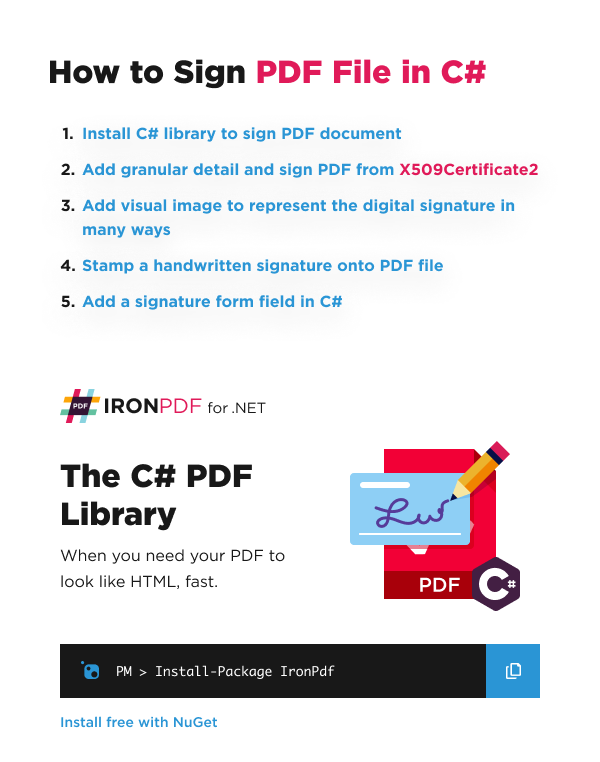
- Installieren Sie die IronPDF-Bibliothek für .NET.
- Fügen Sie eine digitale Signatur mithilfe eines
X509Certificate2Objekts anwenden. - Fügen Sie ein Bild hinzu, das die digitale Signatur darstellt.
- Fügen Sie eine grafische oder handschriftliche Signatur in eine PDF-Datei ein.
- Fügen Sie ein interaktives Formularfeld für die elektronische Signatur hinzu.
Wie füge ich einer PDF-Datei mit einem Zertifikat eine digitale Signatur hinzu?
Sie können ein PDF-Dokument mithilfe einer digitalen Zertifikatsdatei (wie .pfx oder .p12) digital signieren, um die Authentizität und Integrität des Dokuments zu gewährleisten. Dieser Prozess stellt sicher, dass das Dokument seit seiner Unterzeichnung nicht verändert wurde. Einen vollständigen Überblick über die Funktionen der digitalen Signatur erhalten Sie in unserem umfassenden Leitfaden zu digitalen Signaturen.
IronPDF bietet zu diesem Zweck eine unkomplizierte API, die verschiedene Möglichkeiten zum Anbringen einer digitalen Signatur unterstützt. Der Kern dieser Funktionalität dreht sich um die Klasse PdfSignature, die das Zertifikat und alle zugehörigen Metadaten für die Signatur kapselt.
| Signaturmethode | Beschreibung |
|---|---|
Anmelden | Signiert eine PDF-Datei mit einem "PdfSignature"-Objekt, das Sie erstellen und konfigurieren. |
SignWithFile | Signiert eine PDF-Datei mithilfe einer digitalen Signaturzertifikatsdatei (.pfx oder .p12) auf der Festplatte. |
SignWithStore | Signiert eine PDF-Datei mit einer digitalen Signatur aus dem Zertifikatsspeicher Ihres Computers, die durch ihre Fingerabdruck-ID identifiziert wird. |
Verwendung eines X509Certificate2-Objekts
Für maximale Kontrolle können Sie ein X509Certificate2-Objekt aus Ihrer Zertifikatsdatei erstellen. IronPDF entspricht vollständig dem X509Certificate2-Standard und bietet eine robuste und sichere Methode zur Implementierung digitaler Signaturen. Stellen Sie beim Erstellen des Zertifikatsobjekts sicher, dass X509KeyStorageFlags auf Exportable gesetzt ist, da dies von den zugrunde liegenden kryptografischen APIs verlangt wird. Sehen Sie sich praktische Beispiele für digitale Signaturen in unserem Code-Repository an.
using IronPdf;
using IronPdf.Signing;
using System.Security.Cryptography.X509Certificates;

// Create a new PDF from an HTML string for demonstration.
var renderer = new ChromePdfRenderer();
var pdf = renderer.RenderHtmlAsPdf("<h1>Signed Document</h1><p>This document has been digitally signed.</p>");

// Load the certificate from a .pfx file with its password.
// The X509KeyStorageFlags.Exportable flag is crucial for allowing the private key to be used in the signing process.
var cert = new X509Certificate2("IronSoftware.pfx", "123456", X509KeyStorageFlags.Exportable);

// Create a PdfSignature object using the loaded certificate.
var signature = new PdfSignature(cert);

// Apply the signature to the PDF document.
pdf.Sign(signature);

// Save the securely signed PDF document.
pdf.SaveAs("Signed.pdf");Imports IronPdf
Imports IronPdf.Signing
Imports System.Security.Cryptography.X509Certificates
' Create a new PDF from an HTML string for demonstration.
Private renderer = New ChromePdfRenderer()
Private pdf = renderer.RenderHtmlAsPdf("<h1>Signed Document</h1><p>This document has been digitally signed.</p>")
' Load the certificate from a .pfx file with its password.
' The X509KeyStorageFlags.Exportable flag is crucial for allowing the private key to be used in the signing process.
Private cert = New X509Certificate2("IronSoftware.pfx", "123456", X509KeyStorageFlags.Exportable)
' Create a PdfSignature object using the loaded certificate.
Private signature = New PdfSignature(cert)
' Apply the signature to the PDF document.
pdf.Sign(signature)
' Save the securely signed PDF document.
pdf.SaveAs("Signed.pdf")Der obige Code generiert zunächst eine einfache PDF-Datei. Anschließend lädt sie eine .pfx-Zertifikatsdatei in ein X509Certificate2-Objekt. Dieses Objekt, das die digitale Identität repräsentiert, wird an den Konstruktor PdfSignature übergeben. Schließlich wendet die Methode pdf.Sign diese Signatur auf das Dokument an, bevor es gespeichert wird. For more information on the X509Certificate2 class, you can refer to the official Microsoft documentation.
Hinzufügen detaillierter Informationen zu einer digitalen Signatur
Eine digitale Signatur kann mehr als nur das Zertifikat enthalten; Sie können umfangreiche Metadaten einbetten, um Kontextinformationen zur Signatur bereitzustellen. Dazu gehören der Ort der Signatur, der Grund, die Kontaktdaten und ein sicherer Zeitstempel einer vertrauenswürdigen Stelle. Sie können auch Metadaten für zusätzliche Dokumenteigenschaften festlegen und bearbeiten.
Das Hinzufügen dieser Details verbessert den Prüfpfad des Dokuments und liefert Prüfern wertvolle Informationen. IronPDF unterstützt außerdem Zeitstempel-Server, die moderne SHA256- und SHA512-Hash-Algorithmen verwenden.
using IronPdf;
using IronPdf.Signing;
using IronSoftware.Drawing;
using System;

// Load an existing PDF document to be signed.
var pdf = PdfDocument.FromFile("invoice.pdf");

// Create a PdfSignature object directly from the certificate file and password.
var signature = new PdfSignature("IronSoftware.pfx", "123456");

// Add detailed metadata to the signature for a comprehensive audit trail.
// These properties enhance the signature's credibility and provide context
signature.SignatureDate = DateTime.Now;
signature.SigningContact = "legal@ironsoftware.com";
signature.SigningLocation = "Chicago, USA";
signature.SigningReason = "Contractual Agreement";

// Add a secure timestamp from a trusted Time Stamp Authority (TSA).
// This provides cryptographic proof of the signing time.
signature.TimeStampUrl = new Uri("[http://timestamp.digicert.com](http://timestamp.digicert.com)");
signature.TimestampHashAlgorithm = TimestampHashAlgorithms.SHA256;

// Apply a visual appearance to the signature. (More on this in the next section)
signature.SignatureImage = new PdfSignatureImage("assets/visual-signature.png", 0, new Rectangle(350, 750, 200, 100));

// Sign the PDF document with the configured signature object.
pdf.Sign(signature);

// Save the final, signed PDF document.
pdf.SaveAs("DetailedSignature.pdf");Imports IronPdf
Imports IronPdf.Signing
Imports IronSoftware.Drawing
Imports System
' Load an existing PDF document to be signed.
Dim pdf = PdfDocument.FromFile("invoice.pdf")
' Create a PdfSignature object directly from the certificate file and password.
Dim signature = New PdfSignature("IronSoftware.pfx", "123456")
' Add detailed metadata to the signature for a comprehensive audit trail.
' These properties enhance the signature's credibility and provide context
signature.SignatureDate = DateTime.Now
signature.SigningContact = "legal@ironsoftware.com"
signature.SigningLocation = "Chicago, USA"
signature.SigningReason = "Contractual Agreement"
' Add a secure timestamp from a trusted Time Stamp Authority (TSA).
' This provides cryptographic proof of the signing time.
signature.TimeStampUrl = New Uri("http://timestamp.digicert.com")
signature.TimestampHashAlgorithm = TimestampHashAlgorithms.SHA256
' Apply a visual appearance to the signature. (More on this in the next section)
signature.SignatureImage = New PdfSignatureImage("assets/visual-signature.png", 0, New Rectangle(350, 750, 200, 100))
' Sign the PDF document with the configured signature object.
pdf.Sign(signature)
' Save the final, signed PDF document.
pdf.SaveAs("DetailedSignature.pdf")In einigen PDF-Viewern wird möglicherweise ein Warnsymbol angezeigt, wenn sich das Signaturzertifikat nicht im vertrauenswürdigen Speicher des Systems befindet. Um ein grünes Häkchen zu erhalten, muss das Zertifikat zu den vertrauenswürdigen Identitäten des Betrachters hinzugefügt werden.
Wie kann ich einer digitalen Signatur eine visuelle Darstellung hinzufügen?
Obwohl eine digitale Signatur kryptografisch in das PDF eingebettet ist, ist es oft hilfreich, eine visuelle Darstellung auf der Seite zu haben. Dies kann ein Firmenlogo, ein Bild einer handschriftlichen Unterschrift oder eine andere Grafik sein. Mit IronPDF ist es ganz einfach, ein Bild zu einem PdfSignature-Objekt hinzuzufügen.
Sie können ein Bild aus einer Datei oder einem Stream laden und es präzise auf einer beliebigen Seite des PDF/A positionieren. Zu den unterstützten Bildformaten gehören PNG, JPEG, GIF, BMP, TIFF und WebP. Diese Technik ähnelt der Art und Weise, wie man Text und Bilder in PDF-Dokumente einfügen kann.
using IronPdf.Signing;
using IronSoftware.Drawing;

// This example demonstrates various ways to add a visual image to a PDF signature.

// Create a PdfSignature object.
var signature = new PdfSignature("IronSoftware.pfx", "123456");

// Define the position and size for the signature image on the first page (index 0).
// Rectangle parameters: x position, y position, width, height
var signatureRectangle = new Rectangle(350, 750, 200, 100);

// Option 1: Set the SignatureImage property directly.
// This is the most straightforward approach
signature.SignatureImage = new PdfSignatureImage("assets/visual-signature.png", 0, signatureRectangle);

// Option 2: Use the LoadSignatureImageFromFile method.
// This method provides the same functionality with a different syntax
signature.LoadSignatureImageFromFile("assets/visual-signature.png", 0, signatureRectangle);

// Option 3: Load an image from a stream. This is useful for images generated in memory.
// Perfect for scenarios where images are retrieved from databases or web services
AnyBitmap image = AnyBitmap.FromFile("assets/visual-signature.png");
using (var imageStream = image.ToStream())
{
    signature.LoadSignatureImageFromStream(imageStream, 0, signatureRectangle);
}

// After configuring the signature image, apply it to a PDF.
var pdf = PdfDocument.FromFile("invoice.pdf");
pdf.Sign(signature);
pdf.SaveAs("VisualSignature.pdf");Imports IronPdf.Signing
Imports IronSoftware.Drawing
' This example demonstrates various ways to add a visual image to a PDF signature.
' Create a PdfSignature object.
Dim signature As New PdfSignature("IronSoftware.pfx", "123456")
' Define the position and size for the signature image on the first page (index 0).
' Rectangle parameters: x position, y position, width, height
Dim signatureRectangle As New Rectangle(350, 750, 200, 100)
' Option 1: Set the SignatureImage property directly.
' This is the most straightforward approach
signature.SignatureImage = New PdfSignatureImage("assets/visual-signature.png", 0, signatureRectangle)
' Option 2: Use the LoadSignatureImageFromFile method.
' This method provides the same functionality with a different syntax
signature.LoadSignatureImageFromFile("assets/visual-signature.png", 0, signatureRectangle)
' Option 3: Load an image from a stream. This is useful for images generated in memory.
' Perfect for scenarios where images are retrieved from databases or web services
Dim image As AnyBitmap = AnyBitmap.FromFile("assets/visual-signature.png")
Using imageStream = image.ToStream()
signature.LoadSignatureImageFromStream(imageStream, 0, signatureRectangle)
End Using
' After configuring the signature image, apply it to a PDF.
Dim pdf As PdfDocument = PdfDocument.FromFile("invoice.pdf")
pdf.Sign(signature)
pdf.SaveAs("VisualSignature.pdf")Dieser Code zeigt drei gleichwertige Möglichkeiten, einer digitalen Signatur eine visuelle Komponente hinzuzufügen. Unabhängig davon, ob Sie ein Bild auf der Festplatte oder im Arbeitsspeicher haben, können Sie es im Rahmen des Signaturprozesses ganz einfach in das PDF einfügen. Dies schließt die Lücke zwischen unsichtbarer kryptografischer Sicherheit und sichtbarer Dokumentengenehmigung.
Wie kann ich die Dokumentberechtigungen nach der Unterzeichnung verwalten?
Wenn Sie ein Dokument unterzeichnen, möchten Sie möglicherweise festlegen, welche Änderungen, falls überhaupt, danach zulässig sind. Beispielsweise möchten Sie das Dokument möglicherweise vollständig sperren oder den Benutzern nur das Ausfüllen von Formularfeldern gestatten. Mit IronPDF können Sie diese Berechtigungen mithilfe der Enumeration SignaturePermissions festlegen. Weitere Informationen zur erweiterten Berechtigungssteuerung finden Sie in unserem Leitfaden zum Festlegen von PDF-Passwörtern und -Berechtigungen.
Das Festlegen von Signaturberechtigungen ist ein wesentlicher Bestandteil der Verwaltung des Lebenszyklus eines Dokuments. Sie stellt sicher, dass die Integrität des Dokuments nach dem Anbringen Ihrer Unterschrift gemäß Ihren Regeln gewahrt bleibt. Wenn ein Benutzer eine unzulässige Aktion ausführt, wird die Signatur ungültig.
SignaturePermissions Mitglied | Definition |
|---|---|
Keine Änderungen erlaubt | Änderungen jeglicher Art sind nicht zulässig. Das Dokument ist praktisch gesperrt. |
FormFillingAllowed | Es ist nur das Ausfüllen bestehender Formularfelder und das Unterzeichnen erlaubt. |
Anmerkungen und Ausfüllen von Formularen erlaubt | Ermöglicht das Ausfüllen von Formularen, das Signieren sowie das Erstellen oder Bearbeiten von Anmerkungen. |
Speichern und Signieren einer bestimmten PDF-Revision
PDFs können einen Änderungsverlauf speichern, ähnlich wie ein Versionskontrollsystem. Dies wird als inkrementelles Speichern bezeichnet. Wenn Sie ein PDF signieren, gilt die Signatur für eine bestimmte Version des Dokuments. Dies ist entscheidend für Arbeitsabläufe, bei denen ein Dokument mehrere Genehmigungsstufen durchläuft. Erfahren Sie mehr über die Verwaltung des PDF-Revisionsverlaufs in unserem ausführlichen Leitfaden.
Im folgenden Beispiel laden wir eine PDF-Datei, nehmen Änderungen vor und signieren dann die aktuelle Version, wobei wir als zukünftige Änderung nur das Ausfüllen von Formularen zulassen. Wir verwenden SaveAsRevision, um den aktuellen Stand in der Versionshistorie des Dokuments zu speichern, bevor die Datei gespeichert wird.
GetRevision
Das Verständnis inkrementeller Speichervorgänge ist der Schlüssel zu fortgeschrittenen PDF-Workflows. Während ein einfacher Viewer möglicherweise nur die neueste Version anzeigt, kann ein Tool wie Adobe Acrobat den gesamten Revisionsverlauf offenlegen und zeigen, wer welche Version signiert hat und welche Änderungen zwischen den Signaturen vorgenommen wurden. IronPDF bietet Ihnen die vollständige programmatische Kontrolle über diesen Prozess.
Für Unternehmen, die komplexe Dokumenten-Workflows verwalten, die hohe Sicherheits- und Compliance-Anforderungen stellen, ist möglicherweise eine umfassende Lösung erforderlich. Iron Software bietet die Iron Suite an, die IronPDF für das Signieren und Bearbeiten sowie weitere Bibliotheken für eine Vielzahl von Dokumentverarbeitungsaufgaben umfasst und gegen eine einmalige Zahlung erhältlich ist.
Wie kann ich Signaturen über verschiedene Überarbeitungen hinweg verwalten und überprüfen?
Ein PDF-Dokument kann über seine verschiedenen Versionen hinweg mehrere Signaturen enthalten. IronPDF bietet Tools zur effektiven Verwaltung dieses Verlaufs.
- Zu einer früheren Version zurücksetzen: Mit der Methode
RollBackToRevisionkönnen Sie ein Dokument auf einen früheren Zustand zurücksetzen. Dadurch werden alle nach dieser Überarbeitung vorgenommenen Änderungen und Signaturen verworfen. - Alle Signaturen überprüfen: Die Methode
VerifyAllSignaturesüberprüft die Gültigkeit aller Signaturen in allen Versionen des Dokuments. Sie gibt nur dannSignatureStatus.Validzurück, wenn alle Signaturen gültig sind und keine unbefugten Änderungen vorgenommen wurden. - Signaturen entfernen: Die Methode
RemoveSignaturesentfernt alle digitalen Signaturen aus jeder Revision des Dokuments und erstellt so eine saubere, nicht signierte Version.
// Load a PDF with a complex signature history.
var pdf = PdfDocument.FromFile("multi_signed_report.pdf");

// Verify all signatures across all revisions.
// This ensures document integrity throughout its entire history
bool allSignaturesValid = pdf.VerifySignatures();
Console.WriteLine($"All signatures are valid: {allSignaturesValid}");

// Roll back to the first revision (index 0).
// Useful for reviewing the original document state
if (pdf.RevisionCount > 1)
{
    PdfDocument firstRevision = pdf.GetRevision(0);
    firstRevision.SaveAs("report_first_revision.pdf");
}

// Create a completely unsigned version of the document.
// This removes all digital signatures while preserving content
pdf.RemoveSignatures();
pdf.SaveAs("report_unsigned.pdf");Imports System
' Load a PDF with a complex signature history.
Dim pdf = PdfDocument.FromFile("multi_signed_report.pdf")
' Verify all signatures across all revisions.
' This ensures document integrity throughout its entire history
Dim allSignaturesValid As Boolean = pdf.VerifySignatures()
Console.WriteLine($"All signatures are valid: {allSignaturesValid}")
' Roll back to the first revision (index 0).
' Useful for reviewing the original document state
If pdf.RevisionCount > 1 Then
Dim firstRevision As PdfDocument = pdf.GetRevision(0)
firstRevision.SaveAs("report_first_revision.pdf")
End If
' Create a completely unsigned version of the document.
' This removes all digital signatures while preserving content
pdf.RemoveSignatures()
pdf.SaveAs("report_unsigned.pdf")
Meine Lieblingsbibliothek dieser Art ist IronPDF. Es ermöglicht eine schnelle und effiziente Bearbeitung von PDF-Dateien. Es verfügt auch über viele wertvolle Funktionen, wie das Exportieren in das PDF/A-Format und das digitale Signieren von PDF-Dokumenten.

IronOCR bedeutet, dass wir jährlich 40.000 $ durch manuelle Verarbeitung einsparen können, während die Produktivität gesteigert wird und Ressourcen für wichtige Aufgaben freigesetzt werden. Ich würde es sehr empfehlen.

Die Iron Suite spielt eine entscheidende Rolle in unseren Operationen. Diese Werkzeuge erhöhen die Effizienz im gesamten Unternehmen, einschließlich der Erstellung von Grundrissen und der Verbesserung des Bestandsmanagements.

Wie füge ich eine handschriftliche Unterschrift in eine PDF-Datei ein?
Manchmal benötigen Sie nicht die kryptografische Sicherheit einer digitalen Signatur, sondern möchten lediglich eine visuelle, elektronische Signatur anbringen, wie beispielsweise eine gescannte handschriftliche Unterschrift. Dies wird oft als "Stamping" bezeichnet. IronPDF kann dies mithilfe seiner Funktionen Watermark oder Stamp leisten. Weitere Informationen zu erweiterten Wasserzeichen-Optionen finden Sie in unserem Leitfaden zu benutzerdefinierten Wasserzeichen.
Beginnen wir mit einer Beispiel-Rechnung im PDF-Format und einem .png Bild einer handschriftlichen Unterschrift.
VerifySignatures
Die ursprüngliche Rechnungs-PDF-Datei vor dem Einfügen einer Unterschrift.
Hier ist das Signaturbild, das wir verwenden werden:
 Ein Beispielbild einer handschriftlichen Unterschrift.
Der folgende Code verwendet die Eigenschaft SignatureImage, um dieses Bild in die rechte untere Ecke des PDF-Dokuments einzufügen.
using IronPdf.Editing;

// Load the existing PDF document.
var pdf = PdfDocument.FromFile("invoice.pdf");

// Create an HtmlStamp containing our signature image.
// HtmlStamp allows us to position HTML content precisely on the page
var signatureStamp = new HtmlStamp("<img src='assets/signature.png'/>")
{
    // Configure the stamp's position and appearance.
    VerticalAlignment = VerticalAlignment.Bottom,
    HorizontalAlignment = HorizontalAlignment.Right,
    Margin = 10,  // Add some space from the edge.
    Opacity = 90  // Make it slightly transparent for a more authentic look.
};

// Apply the stamp to all pages of the PDF.
// You can also specify specific page numbers if needed
pdf.ApplyStamp(signatureStamp);

// Save the modified PDF document.
pdf.SaveAs("official_invoice.pdf");Imports IronPdf.Editing
' Load the existing PDF document.
Dim pdf = PdfDocument.FromFile("invoice.pdf")
' Create an HtmlStamp containing our signature image.
' HtmlStamp allows us to position HTML content precisely on the page
Dim signatureStamp = New HtmlStamp("<img src='assets/signature.png'/>") With {
' Configure the stamp's position and appearance.
.VerticalAlignment = VerticalAlignment.Bottom,
.HorizontalAlignment = HorizontalAlignment.Right,
.Margin = 10, ' Add some space from the edge.
.Opacity = 90 ' Make it slightly transparent for a more authentic look.
}
' Apply the stamp to all pages of the PDF.
' You can also specify specific page numbers if needed
pdf.ApplyStamp(signatureStamp)
' Save the modified PDF document.
pdf.SaveAs("official_invoice.pdf")Wie sieht das Ergebnis des gestempelten PDFs aus?
Nach Ausführung des Codes wird das Signaturbild auf das Dokument gestempelt, wodurch eine visuell signierte Rechnung entsteht.
Das endgültige PDF mit dem Bild der handschriftlichen Unterschrift in der rechten unteren Ecke.
Wie kann ich ein interaktives Signaturfeld zu einer PDF-Datei hinzufügen?
Für Dokumente, die von einem Endbenutzer in einem PDF-Viewer wie Adobe Acrobat unterschrieben werden müssen, können Sie ein interaktives Unterschriftsfeld hinzufügen. Dadurch wird ein leerer, anklickbarer Bereich erstellt, der den Benutzer auffordert, seine eigene digitale Signatur anzubringen. Eine vollständige Anleitung zu PDF-Formularen finden Sie in unserem Tutorial zum Erstellen von PDF-Formularen.
Sie können ein SignatureFormField erstellen und es zur Formularsammlung der PDF-Datei hinzufügen. Sie haben die genaue Kontrolle über die Position und Größe auf der Seite. Dies ist besonders nützlich für Dokumente, die mehrere Unterschriften erfordern, oder wenn Sie Unterschriften von externen Parteien einholen müssen.
true``RemoveSignatures
using IronPdf.Forms;
using IronSoftware.Drawing;

// Create a new PDF to add the signature field to.
var renderer = new ChromePdfRenderer();
var pdf = renderer.RenderHtmlAsPdf("<h1>Please Sign Below</h1>");

// Define the properties for the signature form field.
string fieldName = "ClientSignature";  // Unique identifier for the field
int pageIndex = 0;  // Add to the first page (zero-indexed)
var fieldRect = new Rectangle(50, 200, 300, 100);  // Position: (x, y), Size: (width, height)

// Create the SignatureFormField object.
// This creates an interactive field that users can click to sign
var signatureField = new SignatureFormField(fieldName, pageIndex, fieldRect);

// Add the signature field to the PDF's form.
pdf.Form.Add(signatureField);

// Save the PDF with the new interactive signature field.
pdf.SaveAs("interactive_signature.pdf");Imports IronPdf.Forms
Imports IronSoftware.Drawing
' Create a new PDF to add the signature field to.
Dim renderer As New ChromePdfRenderer()
Dim pdf = renderer.RenderHtmlAsPdf("<h1>Please Sign Below</h1>")
' Define the properties for the signature form field.
Dim fieldName As String = "ClientSignature" ' Unique identifier for the field
Dim pageIndex As Integer = 0 ' Add to the first page (zero-indexed)
Dim fieldRect As New Rectangle(50, 200, 300, 100) ' Position: (x, y), Size: (width, height)
' Create the SignatureFormField object.
' This creates an interactive field that users can click to sign
Dim signatureField As New SignatureFormField(fieldName, pageIndex, fieldRect)
' Add the signature field to the PDF's form.
pdf.Form.Add(signatureField)
' Save the PDF with the new interactive signature field.
pdf.SaveAs("interactive_signature.pdf")Wenn ein Benutzer diese PDF-Datei öffnet, sieht er ein anklickbares Feld, über das er den Signaturvorgang mit seiner eigenen digitalen ID abschließen kann. Weitere Informationen zum Erstellen und Verwalten interaktiver Formulare finden Sie in unserer Anleitung zum Erstellen von PDF-Formularen.
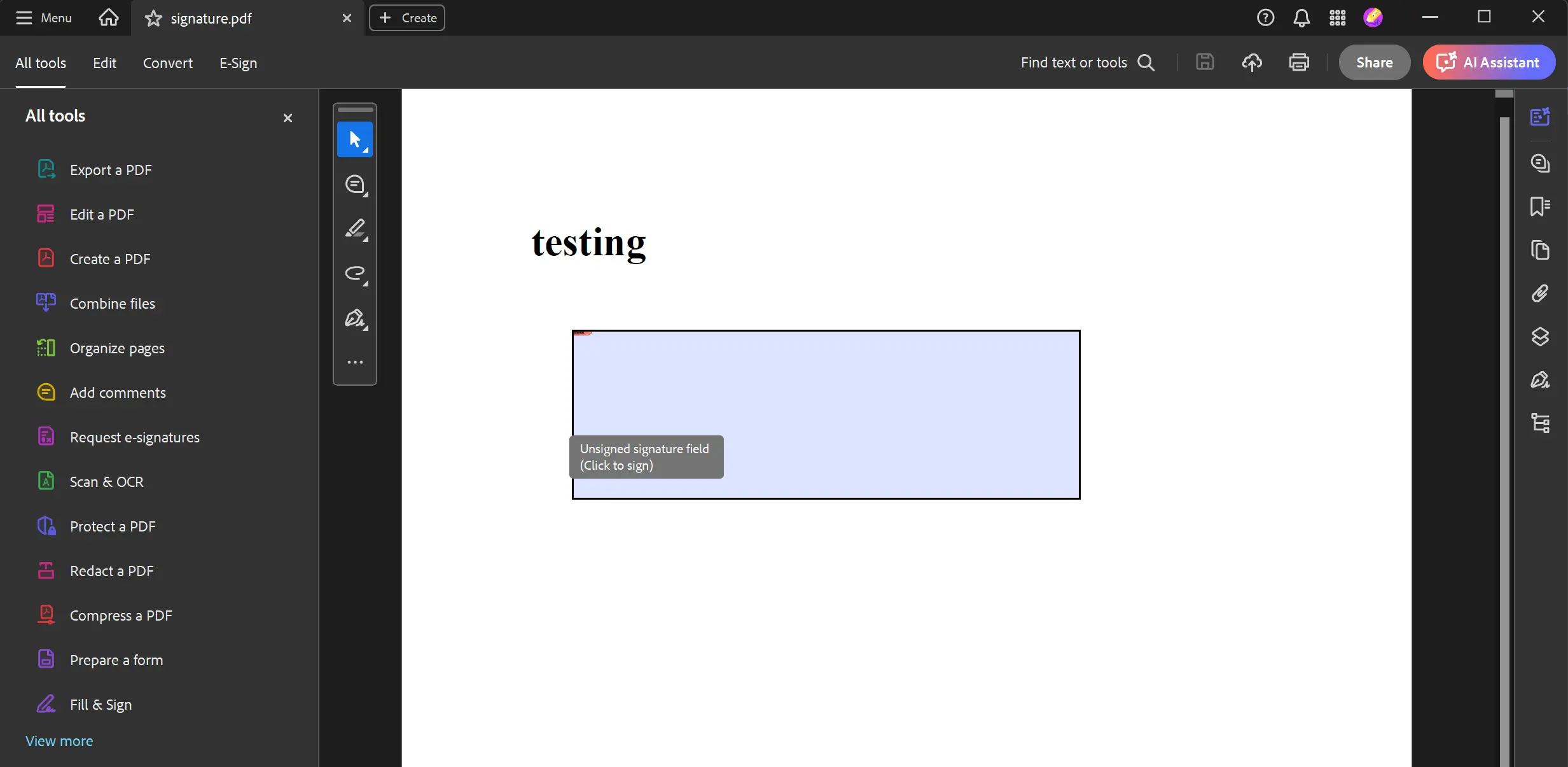 Ein programmgesteuert zu einem PDF-Dokument hinzugefügtes, interaktives Signaturfeld ohne Signatur.
Wie kann ich den Namen des Unterzeichners aus verifizierten Signaturen abrufen?
Um den allgemeinen Namen des Zertifikatsinhabers zu ermitteln, der eine Signatur erstellt hat, können wir die Klasse VerifiedSignature verwenden, um auf die Eigenschaft SignerName zuzugreifen. Nachfolgend finden Sie einen Codeausschnitt, der veranschaulicht, wie dies umgesetzt werden kann.
using IronPdf;
using System;

// Import the Signed PDF report
var pdf = PdfDocument.FromFile("multi_signed_report.pdf");

// Using GetVerifiedSignatures() obtain a list of `VerifiedSignature` objects from the PDF
pdf.GetVerifiedSignatures().ForEach(signature =>
{
    // Print out the SignerName of each `VerifiedSignature` object
    Console.WriteLine($"SignatureName: {signature.SignerName}");
});Imports IronPdf
Imports System
' Import the Signed PDF report
Dim pdf = PdfDocument.FromFile("multi_signed_report.pdf")
' Using GetVerifiedSignatures() obtain a list of `VerifiedSignature` objects from the PDF
pdf.GetVerifiedSignatures().ForEach(Sub(signature)
' Print out the SignerName of each `VerifiedSignature` object
Console.WriteLine($"SignatureName: {signature.SignerName}")
End Sub)Nach dem Import der signierten PDF-Datei verwenden wir die Methode GetSignatures(...), um eine Liste von VerifiedSignature-Objekten innerhalb des Berichts abzurufen und das SignerName für jede Signatur auszudrucken.
GetVerifiedSignatures``SignerName
Bitte beachten Sie, dass dieser Wert aus dem Subject Distinguished Name (SubjectDN) des Zertifikats extrahiert wird und null zurückgibt, wenn das CN-Feld nicht vorhanden ist.
Was sind die nächsten Schritte für das Signieren von PDF-Dateien mit IronPDF?
Dieser Leitfaden hat die leistungsstarken und flexiblen Funktionen von IronPDF zum Signieren von PDF-Dateien demonstriert. Ganz gleich, ob Sie sichere digitale Signaturen mit detaillierten Metadaten anbringen, Dokumentrevisionen verwalten, visuelle Signaturen einfügen oder interaktive Formulare erstellen müssen – IronPDF bietet eine umfassende und entwicklerfreundliche API, mit der Sie diese Aufgaben mühelos bewältigen können.
Um mehr zu erfahren, können Sie die IronPDF-Bibliothek für .NET herunterladen und eine kostenlose Testlizenz erhalten, um alle Funktionen in Ihren Projekten auszuprobieren. Weitere Informationen zu fortgeschrittenen Techniken der Dokumentbearbeitung, einschließlich des Hinzufügens von Anmerkungen und der Arbeit mit Formularfeldern, finden Sie in unserer umfangreichen Dokumentation und unseren Tutorials.
Sind Sie bereit zu sehen, was Sie noch alles tun können? Schauen Sie sich hier unsere Tutorial-Seite an: PDF-Dateien signieren und sichern
Häufig gestellte Fragen
Wie kann ich eine PDF-Datei mit einem Zertifikat in C# digital signieren?
Mit IronPDF können Sie eine PDF-Datei in nur einer Codezeile mit der PdfSignature-Klasse digital signieren. Erstellen Sie einfach ein neues PdfSignature-Objekt mit Ihrer Zertifikatsdatei (.pfx oder .p12) und Ihrem Passwort und rufen Sie dann die Methode SignPdfFile() auf. Zum Beispiel: new IronPdf.Signing.PdfSignature("certificate.pfx", "password").SignPdfFile("input.pdf"). Dies wendet eine fälschungssichere digitale Signatur unter Verwendung Ihres X509Certificate2 an, um die Authentizität des Dokuments sicherzustellen.
Welche Arten von PDF-Signaturen werden unterstützt?
IronPDF unterstützt drei Haupttypen von PDF-Signaturen: 1) Digitale Signaturen unter Verwendung von X509Certificate2-Zertifikaten zur Authentifizierung und zum Schutz vor Manipulationen, 2) Visuelle Signaturstempel, die Dokumente mit grafischen oder handschriftlichen Unterschriftsbildern versehen, und 3) Interaktive Unterschriftsfelder, mit denen Benutzer PDFs elektronisch unterschreiben können. Jeder Typ dient unterschiedlichen Zwecken im Hinblick auf die Dokumentensicherheit und Workflow-Anforderungen.
Welche Zertifikatsformate können für das digitale Signieren verwendet werden?
IronPDF unterstützt gängige digitale Zertifikatsformate wie .pfx (Personal Information Exchange) und .p12-Dateien. Diese Zertifikatsdateien enthalten sowohl den öffentlichen Schlüssel als auch den privaten Schlüssel, die für die digitale Unterzeichnung benötigt werden. Die PdfSignature-Klasse in IronPDF kann mit jedem X509Certificate2-Objekt arbeiten und bietet somit Flexibilität beim Laden und Verwalten Ihrer Signierzertifikate.
Kann ich meiner digitalen Signatur eine visuelle Darstellung hinzufügen?
Ja, IronPDF ermöglicht es Ihnen, visuelle Elemente zu Ihren digitalen Signaturen hinzuzufügen. Sie können neben der kryptografischen Signatur eine grafische Darstellung wie ein handschriftliches Unterschriftenbild, ein Firmenlogo oder einen benutzerdefinierten Stempel einfügen. Auf diese Weise wird die Sicherheit digitaler Zertifikate mit einer visuellen Bestätigung kombiniert, so dass signierte Dokumente sowohl sicher als auch professionell präsentiert werden können.
Wie erstelle ich ein interaktives Unterschriftsfeld, mit dem Benutzer elektronisch unterschreiben können?
IronPDF ermöglicht es Ihnen, PDF-Dokumenten interaktive Unterschriftsfelder hinzuzufügen. Diese Felder ermöglichen es den Benutzern, Dokumente elektronisch zu unterschreiben, indem sie darauf klicken und ihre Unterschrift zeichnen oder ein Unterschriftsbild hochladen. Diese Funktion ist ideal für die Erstellung von Dokumenten, die eine Unterschriftensammlung erfordern, wie z. B. Verträge oder Formulare, die von mehreren Parteien unterzeichnet werden müssen.
Stellt das Signieren einer PDF-Datei die Integrität des Dokuments sicher?
Ja, wenn Sie eine PDF-Datei mit IronPDF mit einem X509-Zertifikat2 digital signieren, wird ein fälschungssicheres Siegel erstellt, das die Integrität des Dokuments gewährleistet. Die digitale Signatur garantiert, dass das Dokument seit der Unterzeichnung nicht mehr verändert wurde. Jegliche Änderungen an der PDF-Datei nach dem Signieren machen die Signatur ungültig und warnen die Empfänger, dass das Dokument möglicherweise beschädigt wurde.
What feature does IronPDF provide for adding handwritten-looking signatures to PDFs?
IronPDF allows you to stamp handwritten-looking signatures onto PDFs using its watermark or stamp features. You can load an image of the signature and position it on the document, creating a visually signed PDF without the cryptographic elements of a digital signature.
How can I retrieve the signer's name from a verified signature in a PDF using IronPDF?
To retrieve the signer's name from a verified signature, use the `GetVerifiedSignatures` method in IronPDF, which returns a list of `VerifiedSignature` objects. From this list, access the `SignerName` property to get the common name extracted from the certificate used for signing.
Is it possible to roll back to a previous revision of a signed PDF document in IronPDF?
Yes, IronPDF allows you to roll back to a previous revision of a signed PDF document using the `RollBackToRevision` method. This feature is useful for reviewing the previous document state and managing multiple stages of document approval.
What steps should I take to get started with PDF signing using IronPDF?
To get started with PDF signing using IronPDF, download the IronPDF library for .NET and explore the comprehensive examples and documentation provided. You may also obtain a free trial license to test out features like digital and visual signatures, signature fields, and more in your projects.

Jacob Mellor ist Chief Technology Officer bei Iron Software und ein visionärer Ingenieur, der Pionierarbeit in der C# PDF-Technologie leistet. Als der ursprüngliche Entwickler hinter der Kern-Codebasis von Iron Software hat er die Produktarchitektur des Unternehmens seit seiner Gründung geprägt und es zusammen mit CEO Cameron Rimington in ein Unternehmen mit mehr als 50 Mitarbeitern verwandelt, das die NASA, Tesla und globale Regierungsbehörden beliefert.













