using IronPdf;

// Disable local disk access or cross-origin requests
Installation.EnableWebSecurity = true;

// Instantiate Renderer
var renderer = new ChromePdfRenderer();

// Create a PDF from a HTML string using C#
var pdf = renderer.RenderHtmlAsPdf("<h1>Hello World</h1>");

// Export to a file or Stream
pdf.SaveAs("output.pdf");

// Advanced Example with HTML Assets
// Load external html assets: Images, CSS and JavaScript.
// An optional BasePath 'C:\site\assets\' is set as the file location to load assets from
var myAdvancedPdf = renderer.RenderHtmlAsPdf("<img src='icons/iron.png'>", @"C:\site\assets\");
myAdvancedPdf.SaveAs("html-with-assets.pdf");
using IronPdf;// Disable local disk access or cross-origin requestsInstallation.EnableWebSecurity = true;// Instantiate Renderervar renderer = new ChromePdfRenderer();// Create a PDF from a HTML string using C#var pdf = renderer.RenderHtmlAsPdf("<h1>Hello World</h1>");// Export to a file or Streampdf.SaveAs("output.pdf");// Advanced Example with HTML Assets// Load external html assets: Images, CSS and JavaScript.// An optional BasePath 'C:\site\assets\' is set as the file location to load assets fromvar myAdvancedPdf = renderer.RenderHtmlAsPdf("<img src='icons/iron.png'>", @"C:\site\assets\");myAdvancedPdf.SaveAs("html-with-assets.pdf");
Opracowywanie stron internetowych przeszło długą drogę na przestrzeni lat, a wraz z pojawieniem się nowoczesnych frameworków i bibliotek, deweloperzy mają dostęp do zaawansowanych narzędzi do budowy dynamicznych i interaktywnych stron internetowych. Jedną z takich technologii, która zyskała znaczną popularność w ostatnich latach, są Razor Components, które stanowią część frameworku Blazor w ASP.NET Core. Dzięki Razor Components deweloperzy mogą budować bogate, klienckie aplikacje internetowe, korzystając z C# i HTML, bez konieczności pisania kodu w JavaScript. W tym artykule przyjrzymy się Razor Components i temu, jak można je wykorzystać do tworzenia modularnych, wielokrotnego użytku i dynamicznych stron internetowych.
## Czym są Razor Components
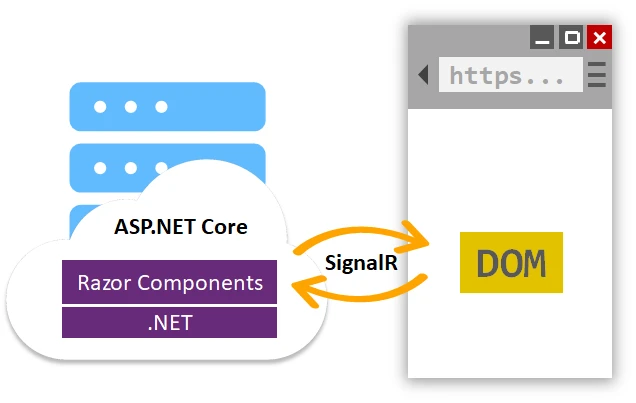
[Razor Components](https://learn.microsoft.com/en-us/aspnet/core/blazor/components/?view=aspnetcore-7.0) to framework UI w ASP.NET Core, który pozwala deweloperom tworzyć strony internetowe z wykorzystaniem kombinacji C# i HTML, z możliwością pisania logiki po stronie serwera, która może być wykonywana po stronie klienta. Razor Components stanowią część frameworku Blazor, który jest klienckim frameworkiem UI działającym w przeglądarce z użyciem WebAssembly (Wasm) lub SignalR. Razor Components zapewniają architekturę opartą na komponentach do tworzenia nowoczesnych aplikacji internetowych, gdzie interfejs użytkownika jest podzielony na mniejsze, zamknięte komponenty, które można komponować razem, aby stworzyć kompletną stronę internetową.
Razor Components używają języka znaczników zwanego składnią Razor, który jest połączeniem C# i HTML, co pozwala na płynną integrację kodu po stronie serwera i klienta. Razor Components są podobne do innych frameworków UI opartych na komponentach, takich jak React, Angular i Vue, ale z kluczową różnicą, że są pisane w C# i mogą być uruchamiane po stronie serwera lub klienta, w zależności od modelu hostingu (WebAssembly lub SignalR).
## Zalety Razor Components
Razor Components oferują kilka korzyści dla deweloperów internetowych, w tym:
### Wielokrotnego użytku
Razor Components to zamknięte elementy, które można łatwo ponownie wykorzystywać w wielu miejscach w aplikacjach internetowych lub w różnych projektach. To wspiera ponowne używanie kodu i redukuje jego duplikację, co przekłada się na bardziej zrównoważone i skalowalne aplikacje internetowe.
### Modularność
Razor Components przestrzegają architektury opartej na komponentach, gdzie interfejs użytkownika jest podzielony na mniejsze komponenty, które można komponować razem, tworząc skomplikowane strony internetowe. To wspiera modularność, pozwalając deweloperom na kapsułkowanie interfejsu i logiki wewnątrz pojedynczych komponentów, co ułatwia zarządzanie i utrzymanie bazy kodu.
### Seamless Integration with C#
Ponieważ Razor Components są pisane w C#, deweloperzy mogą wykorzystać swoje istniejące umiejętności i wiedzę z zakresu C# do budowy aplikacji internetowych. To eliminuje konieczność nauki i pisania w JavaScript, co może być znaczną zaletą dla deweloperów, którzy już są zaznajomieni z C#.
### Wykonywanie po stronie serwera i klienta
Razor Components mogą być wykonywane zarówno po stronie serwera, jak i po stronie klienta, w zależności od modelu hostingu. To daje deweloperom elastyczność w wyborze najbardziej odpowiedniego modelu wykonywania dla ich aplikacji, zależnie od czynników takich jak wydajność, bezpieczeństwo i doświadczenie użytkownika.
### Komunikacja w czasie rzeczywistym
Razor Components mogą korzystać z SignalR, biblioteki do komunikacji w czasie rzeczywistym, aby nawiązać dwukierunkową komunikację między klientem a serwerem. To umożliwia aktualizacje i powiadomienia w czasie rzeczywistym w aplikacjach internetowych, zapewniając responsywne i interaktywne doświadczenie użytkownika.
### Rozszerzalność
Razor Components są wysoce rozszerzalne, pozwalając deweloperom na tworzenie własnych komponentów, bibliotek i szablonów. To umożliwia deweloperom budowanie dostosowanych rozwiązań spełniających specyficzne wymagania ich aplikacji internetowych.
## Wprowadzenie do Razor Components
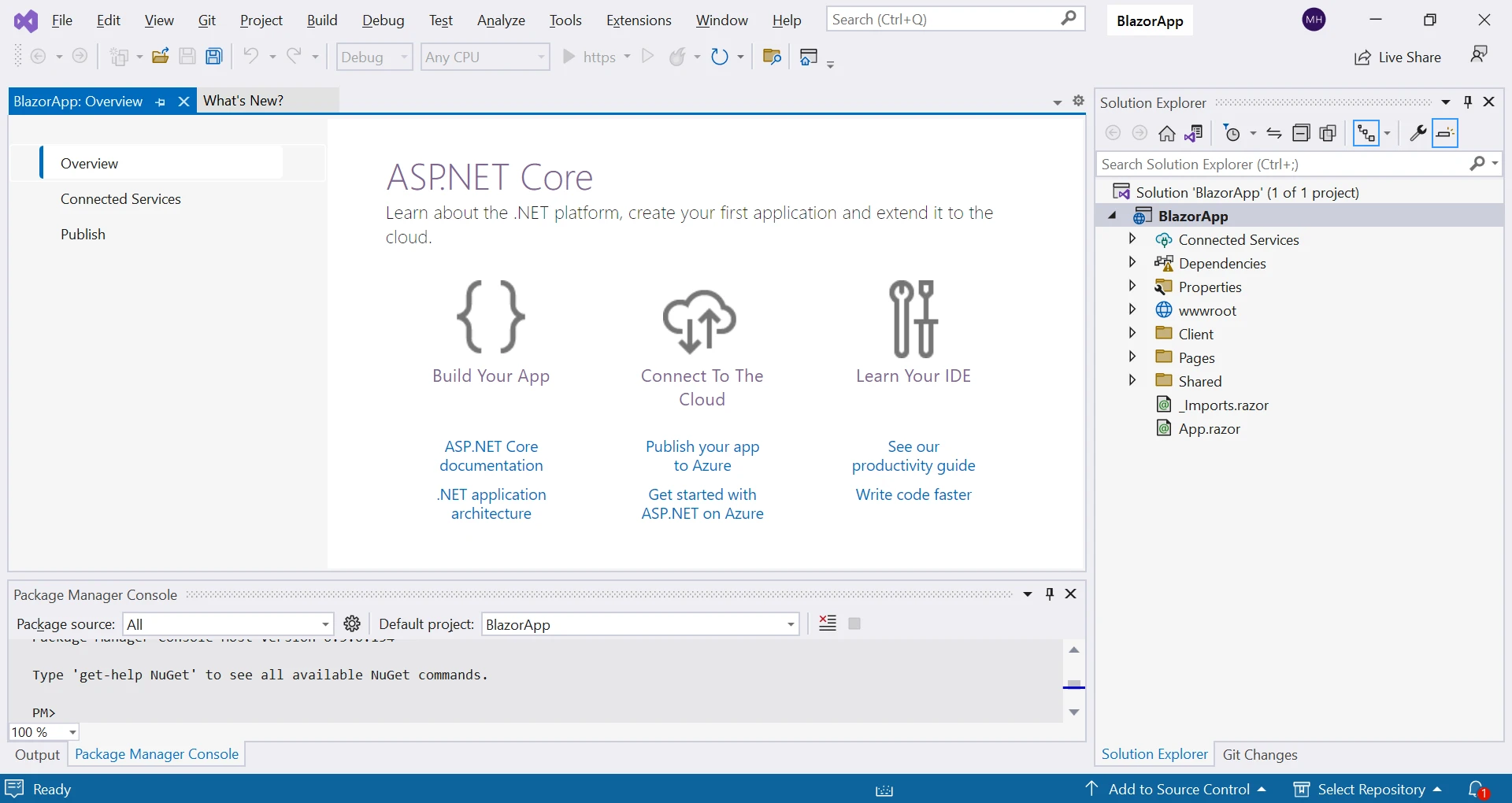
Aby rozpocząć pracę z Razor Components, należy mieć zainstalowaną na swoim systemie wersję .NET Core 3.0 lub nowszą. Utwórz nowy projekt ASP.NET Core, korzystając z szablonu Blazor w Visual Studio lub w .NET Core CLI.
```shell
:InstallCmd dotnet new blazorserver
```
```razor
@page "/counter"

<h1>Counter</h1>

<p role="status">Current count: @currentCount</p>
<button @onclick="IncrementCount">Click me</button>

@code {
    private int currentCount = 0;

    private void IncrementCount()
    {
        currentCount++;
    }
}
```
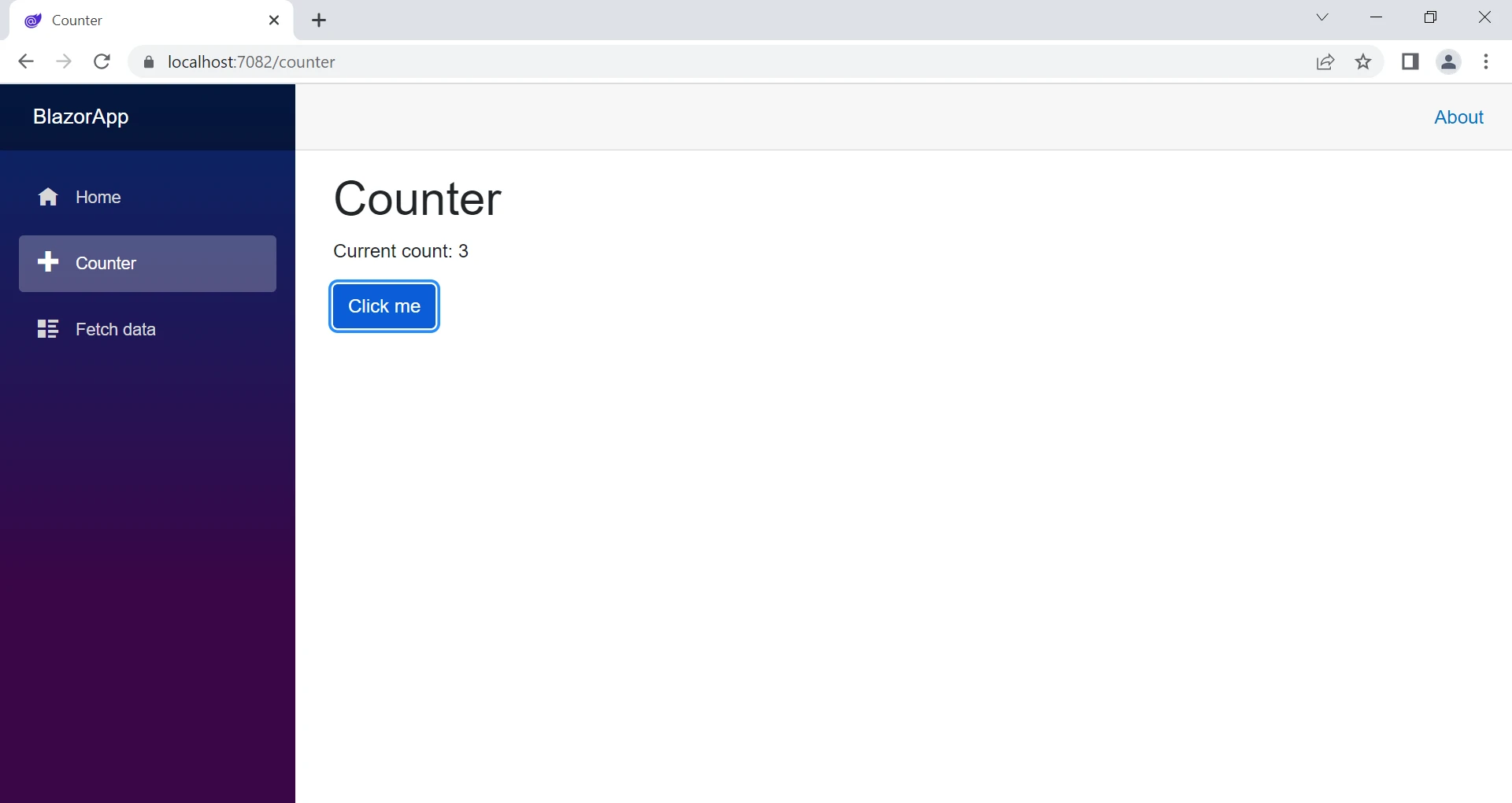
W tym przykładzie mamy komponent Razor o nazwie "Counter" z przyciskiem, który zwiększa zmienną `currentCount` po kliknięciu. Blok `@code` jest używany do definiowania kodu C# dla komponentu.
## Tworzenie własnego komponentu Razor
W projekcie utwórz nowy folder o nazwie "Components", aby przechowywać swoje Razor Components.
Wewnątrz folderu "Components" dodaj nowy plik komponentu Razor z rozszerzeniem ".razor". Ten plik będzie zawierał kod C# i HTML dla twojego komponentu.
Otwórz plik komponentu Razor i zdefiniuj swój komponent używając składni Razor. Składnia Razor pozwala łączyć kod C# i HTML w jednym pliku, co ułatwia tworzenie dynamicznych stron internetowych. Na przykład można zdefiniować prosty komponent Razor w ten sposób:
```razor
<h1>Hello, World!</h1>
<p>This is a Razor Component.</p>

@code {
    // C# code for the component can be added here
}
```
Teraz można użyć swojego komponentu Razor w innych częściach aplikacji internetowej, włączając go do kodu HTML za pomocą nazwy etykiety komponentu. Na przykład można użyć komponentu na głównej stronie Razor w ten sposób:
```razor
<MyComponent />
```
Można również przesyłać dane do komponentu Razor, używając parametrów komponentu. Parametry komponentu pozwalają na przesyłanie danych z komponentu rodzica do komponentu dziecka, umożliwiając komunikację między komponentami. Na przykład w komponencie Razor można zdefiniować parametr w następujący sposób:
```razor
@code {
[Parameter]
public string Message { get; set; }
}
```
Następnie użyj parametru component w klasie Razor Component w następujący sposób:
```razor
<p>@Message</p>
```
I przekaż dane do komponentu z komponentu nadrzędnego w następujący sposób:
```razor
<MyComponent Message="Hello from parent component!" />
```
Komponenty Razor mogą również zawierać logikę po stronie serwera, którą można wykonać po stronie klienta. Na przykład można pisać logikę przetwarzania, wysyłać żądania HTTP, obsługiwać zdarzenia użytkownika i wykonywać inne operacje po stronie serwera bezpośrednio z komponentów Razor przy użyciu kodu C#. Pozwala to tworzyć dynamiczne i interaktywne strony internetowe bez pisania kodu JavaScript.
## Tworzenie komponentów Razor wielokrotnego użytku
Jedną z zalet komponentów Razor jest możliwość tworzenia komponentów interfejsu użytkownika, które można wykorzystywać wielokrotnie na wielu stronach lub w wielu aplikacjach. Aby utworzyć komponent wielokrotnego użytku, można utworzyć nowy plik ".razor" w folderze "Shared" projektu.
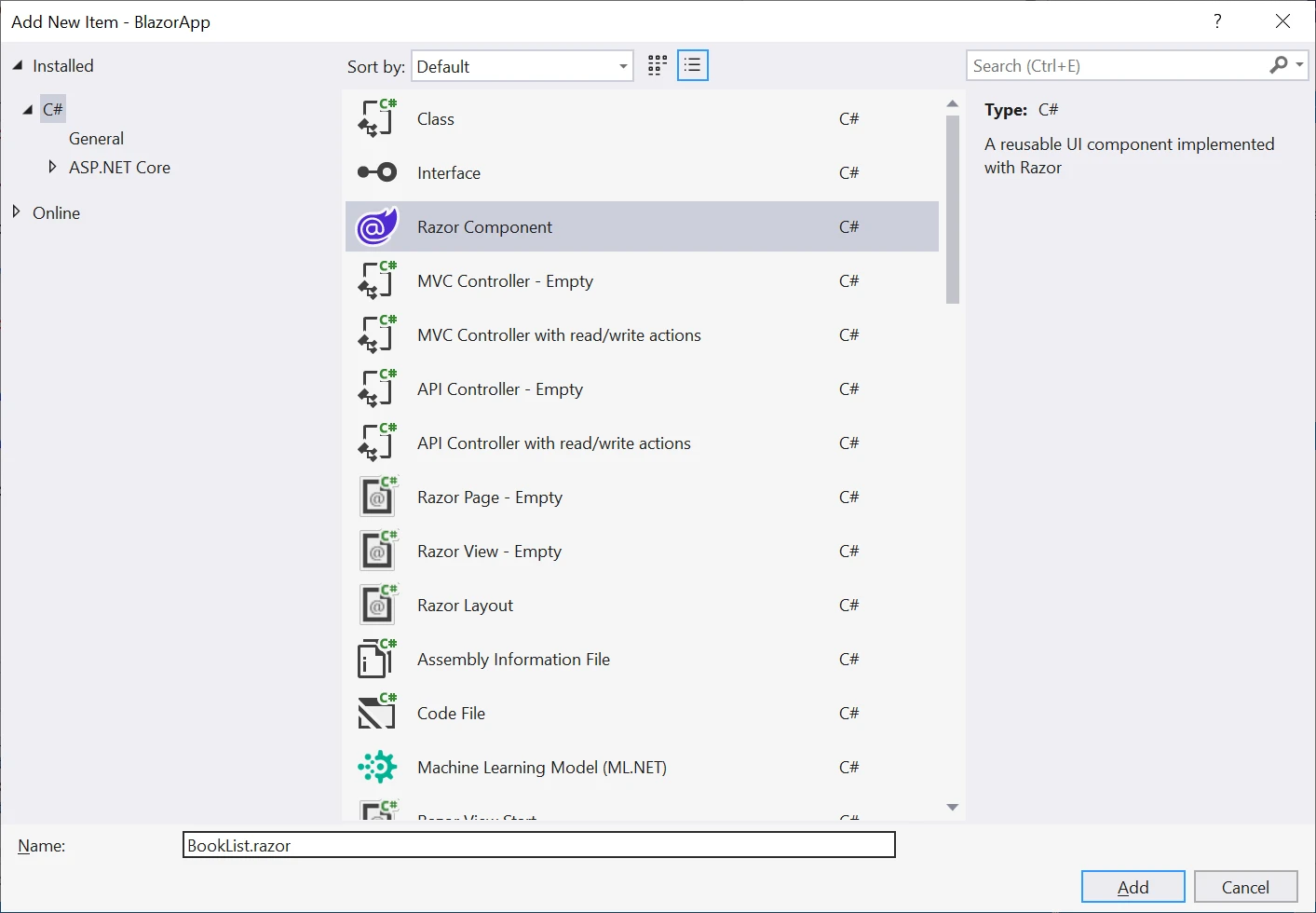
Załóżmy na przykład, że chcemy stworzyć komponent wyświetlający listę książek. Możemy utworzyć nowy plik `BookList.razor` w folderze "Shared" taki jak:
Komponent Razor możemy zdefiniować w następujący sposób:
```razor
@typeparam TItem
@foreach (var book in Books)
{
<p>@book.Title by @book.Author</p>
}
@code {
[Parameter]
public List<TItem> Books { get; set; }
}
```
W tym przykładzie mamy komponent o nazwie `BookList`, który przyjmuje listę obiektów "Book" jako parametr razor. Pętla `@foreach` jest używana do iteracji przez listę i wyświetlania tytułu oraz autora każdej książki.
W następnej sekcji omówimy, jak używać IronPDF z komponentami Razor do tworzenia plików PDF z aplikacji internetowych.
## Korzystanie z IronPDF z komponentami Razor
[IronPDF](/) to biblioteka C#, która pozwala programistom tworzyć pliki PDF z HTML, CSS i JavaScript. Jest oparty na Chromium, przeglądarce typu open source, na której działa Google Chrome. Dzięki IronPDF programiści mogą z łatwością konwertować komponenty Razor na HTML i tworzyć z nich pliki PDF.
IronPDF doskonale radzi sobie z konwersją [HTML do PDF](/tutorials/html-to-pdf/), zapewniając zachowanie układu i stylu. Jest to szczególnie przydatne do generowania plików PDF z treści internetowych, takich jak raporty, faktury i dokumentacja. Pliki HTML, URL i ciągi HTML można łatwo zamieniać na pliki PDF.
```csharp
using IronPdf;
class Program
{
static void Main(string[] args)
{
var renderer = new ChromePdfRenderer();
// 1. Convert HTML String to PDF
var htmlContent = "<h1>Hello, IronPDF!</h1><p>This is a PDF from an HTML string.</p>";
var pdfFromHtmlString = renderer.RenderHtmlAsPdf(htmlContent);
pdfFromHtmlString.SaveAs("HTMLStringToPDF.pdf");
// 2. Convert HTML File to PDF
var htmlFilePath = "path_to_your_html_file.html"; // Specify the path to your HTML file
var pdfFromHtmlFile = renderer.RenderHtmlFileAsPdf(htmlFilePath);
pdfFromHtmlFile.SaveAs("HTMLFileToPDF.pdf");
// 3. Convert URL to PDF
var url = "http://ironpdf.com"; // Specify the URL
var pdfFromUrl = renderer.RenderUrlAsPdf(url);
pdfFromUrl.SaveAs("URLToPDF.pdf");
}
}
```
## Instalacja IronPDF
Aby korzystać z IronPDF z komponentami Razor, musimy najpierw zainstalować pakiet IronPDF NuGet. Aby to zrobić, wykonaj następujące kroki:
1. Otwórz swój projekt w Visual Studio.
2. Kliknij prawym przyciskiem myszy na projekt i wybierz "Zarządzaj pakietami NuGet".
3. Wyszukaj "IronPDF" i wybierz ["pakiet IronPDF](https://www.nuget.org/packages/IronPdf)".
4. Kliknij "Zainstaluj", aby zainstalować pakiet.
Po zainstalowaniu pakietu IronPDF NuGet możemy używać go w naszej aplikacji Razor Components.
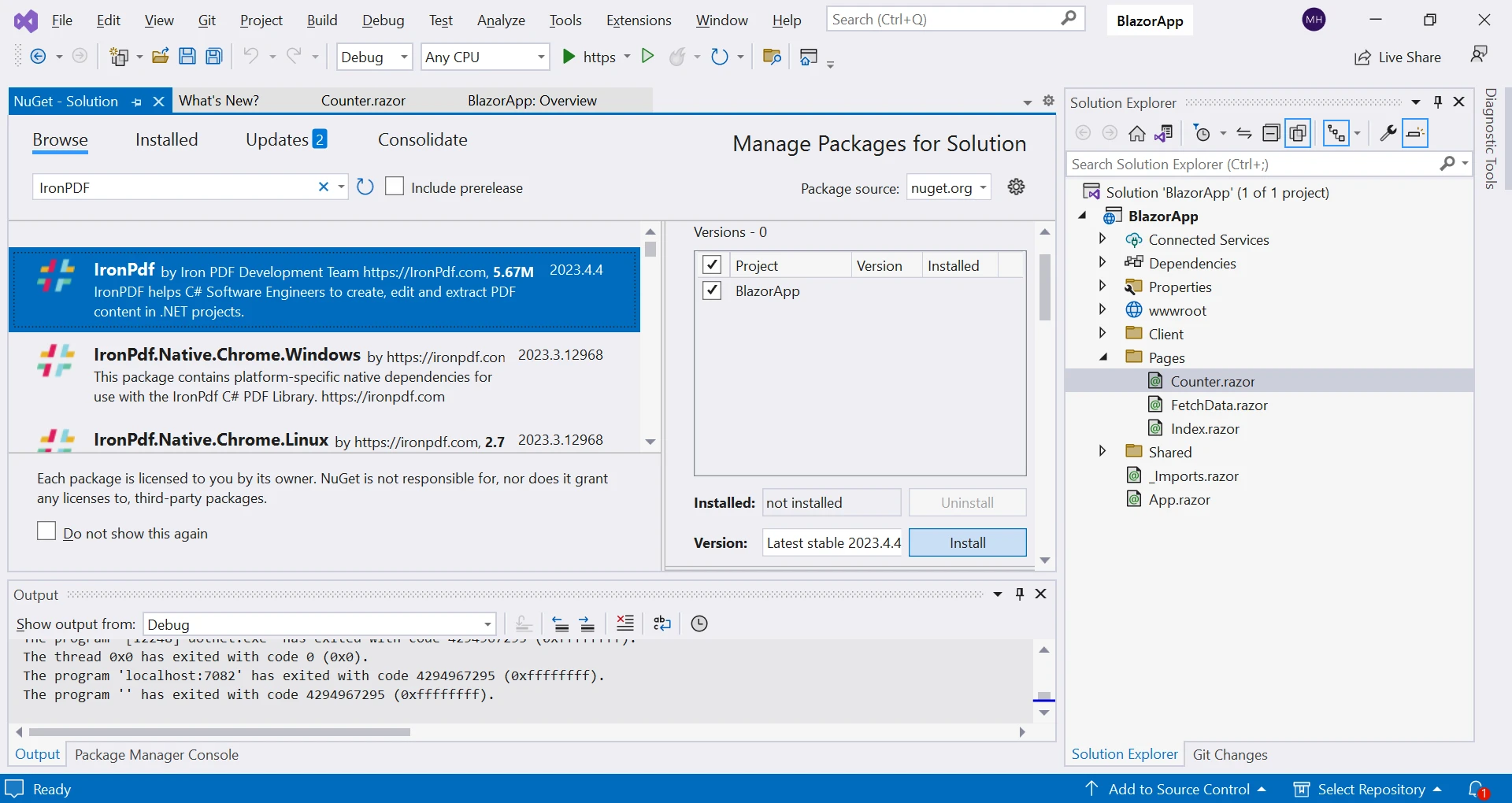
Po zainstalowaniu pakietu można utworzyć nowy plik PDF z komponentu Razor, używając klasy `IronPdf.ChromePdfRenderer`.
Aby utworzyć plik PDF w ASP.NET Core Razor Components, można przekazać ciąg składni HTML, plik HTML lub URL do metody `IronPdf.ChromePdfRenderer`. Załóżmy na przykład, że chcemy utworzyć plik PDF z przyrostem licznika.
```csharp
var renderer = new IronPdf.ChromePdfRenderer();
var pdf = renderer.RenderHtmlAsPdf("<h1>My PDF #" + currentCount + "</h1>");
pdf.SaveAs("myPdf" + currentCount + ".pdf");
```
W tym przykładzie tworzymy nową instancję `ChromePdfRenderer`. Następnie tworzymy nową instancję klasy `PdfDocument` i przekazujemy ciąg do metody `RenderHtmlAsPdf`. Na koniec zapisujemy wynikowy plik PDF na dysk, używając metody `PdfDocument.SaveAs`.
W tym przykładzie zmodyfikowaliśmy nasz komponent licznika. Zmieniliśmy funkcję przycisku licznika `onClick`, który po kliknięciu utworzy PDF zawierający wartość licznika.
## Wnioski
W tym artykułe omówiliśmy, jak używać [komponentów Razor z IronPDF](/how-to/razor-to-pdf-blazor-server/) do tworzenia plików PDF z aplikacji internetowych. Omówiliśmy podstawy komponentów Razor, sposób instalacji i użytkowania IronPDF oraz podaliśmy przykłady kodu, które pomogą Ci rozpocząć pracę.
Razor Components i IronPDF to potężne narzędzia, które można wykorzystać do tworzenia solidnych i bogatych w funkcje aplikacji internetowych. Łącząc te technologie, programiści mogą tworzyć aplikacje internetowe, które są zarówno wysoce funkcjonalne, jak i atrakcyjne wizualnie.
IronPDF może być również używany do konwersji stron Razor i adresów URL do formatu PDF, a także do odczytu, tworzenia i edycji dokumentów PDF. IronPDF umożliwia nawet bardziej szczegółową kontrolę nad plikami PDF, taką jak dodawanie nagłówków, stopek, numerów stron, podpisów cyfrowych, haseł oraz [zaawansowanych funkcji edycji](/features/) do istniejących lub nowo utworzonych dokumentów PDF. Jest bezpłatny do celów programistycznych, ale do użytku produkcyjnego wymaga [bezpłatnej licencji próbnej](trial-license) lub [licencji komercyjnej](licensing).
Opracowywanie stron internetowych przeszło długą drogę na przestrzeni lat, a wraz z pojawieniem się nowoczesnych frameworków i bibliotek, deweloperzy mają dostęp do zaawansowanych narzędzi do budowy dynamicznych i interaktywnych stron internetowych. Jedną z takich technologii, która zyskała znaczną popularność w ostatnich latach, są Razor Components, które stanowią część frameworku Blazor w ASP.NET Core. Dzięki Razor Components deweloperzy mogą budować bogate, klienckie aplikacje internetowe, korzystając z C# i HTML, bez konieczności pisania kodu w JavaScript. W tym artykule przyjrzymy się Razor Components i temu, jak można je wykorzystać do tworzenia modularnych, wielokrotnego użytku i dynamicznych stron internetowych.
Czym są Razor Components
Razor Components to framework UI w ASP.NET Core, który pozwala deweloperom tworzyć strony internetowe z wykorzystaniem kombinacji C# i HTML, z możliwością pisania logiki po stronie serwera, która może być wykonywana po stronie klienta. Razor Components stanowią część frameworku Blazor, który jest klienckim frameworkiem UI działającym w przeglądarce z użyciem WebAssembly (Wasm) lub SignalR. Razor Components zapewniają architekturę opartą na komponentach do tworzenia nowoczesnych aplikacji internetowych, gdzie interfejs użytkownika jest podzielony na mniejsze, zamknięte komponenty, które można komponować razem, aby stworzyć kompletną stronę internetową.
Razor Components używają języka znaczników zwanego składnią Razor, który jest połączeniem C# i HTML, co pozwala na płynną integrację kodu po stronie serwera i klienta. Razor Components są podobne do innych frameworków UI opartych na komponentach, takich jak React, Angular i Vue, ale z kluczową różnicą, że są pisane w C# i mogą być uruchamiane po stronie serwera lub klienta, w zależności od modelu hostingu (WebAssembly lub SignalR).
Zalety Razor Components
Razor Components oferują kilka korzyści dla deweloperów internetowych, w tym:
Wielokrotnego użytku
Razor Components to zamknięte elementy, które można łatwo ponownie wykorzystywać w wielu miejscach w aplikacjach internetowych lub w różnych projektach. To wspiera ponowne używanie kodu i redukuje jego duplikację, co przekłada się na bardziej zrównoważone i skalowalne aplikacje internetowe.
Modularność
Razor Components przestrzegają architektury opartej na komponentach, gdzie interfejs użytkownika jest podzielony na mniejsze komponenty, które można komponować razem, tworząc skomplikowane strony internetowe. To wspiera modularność, pozwalając deweloperom na kapsułkowanie interfejsu i logiki wewnątrz pojedynczych komponentów, co ułatwia zarządzanie i utrzymanie bazy kodu.
Seamless Integration with C#
Ponieważ Razor Components są pisane w C#, deweloperzy mogą wykorzystać swoje istniejące umiejętności i wiedzę z zakresu C# do budowy aplikacji internetowych. To eliminuje konieczność nauki i pisania w JavaScript, co może być znaczną zaletą dla deweloperów, którzy już są zaznajomieni z C#.
Wykonywanie po stronie serwera i klienta
Razor Components mogą być wykonywane zarówno po stronie serwera, jak i po stronie klienta, w zależności od modelu hostingu. To daje deweloperom elastyczność w wyborze najbardziej odpowiedniego modelu wykonywania dla ich aplikacji, zależnie od czynników takich jak wydajność, bezpieczeństwo i doświadczenie użytkownika.
Komunikacja w czasie rzeczywistym
Razor Components mogą korzystać z SignalR, biblioteki do komunikacji w czasie rzeczywistym, aby nawiązać dwukierunkową komunikację między klientem a serwerem. To umożliwia aktualizacje i powiadomienia w czasie rzeczywistym w aplikacjach internetowych, zapewniając responsywne i interaktywne doświadczenie użytkownika.
Rozszerzalność
Razor Components są wysoce rozszerzalne, pozwalając deweloperom na tworzenie własnych komponentów, bibliotek i szablonów. To umożliwia deweloperom budowanie dostosowanych rozwiązań spełniających specyficzne wymagania ich aplikacji internetowych.
Wprowadzenie do Razor Components
Aby rozpocząć pracę z Razor Components, należy mieć zainstalowaną na swoim systemie wersję .NET Core 3.0 lub nowszą. Utwórz nowy projekt ASP.NET Core, korzystając z szablonu Blazor w Visual Studio lub w .NET Core CLI.
W tym przykładzie mamy komponent Razor o nazwie "Counter" z przyciskiem, który zwiększa zmienną currentCount po kliknięciu. Blok @code jest używany do definiowania kodu C# dla komponentu.
Tworzenie własnego komponentu Razor
W projekcie utwórz nowy folder o nazwie "Components", aby przechowywać swoje Razor Components.
Wewnątrz folderu "Components" dodaj nowy plik komponentu Razor z rozszerzeniem ".razor". Ten plik będzie zawierał kod C# i HTML dla twojego komponentu.
Otwórz plik komponentu Razor i zdefiniuj swój komponent używając składni Razor. Składnia Razor pozwala łączyć kod C# i HTML w jednym pliku, co ułatwia tworzenie dynamicznych stron internetowych. Na przykład można zdefiniować prosty komponent Razor w ten sposób:
<h1>Hello, World!</h1><p>This is a Razor Component.</p>@code { // C# code for the component can be added here}
<h1>Hello, World!</h1>
<p>This is a Razor Component.</p>

@code {
    // C# code for the component can be added here
}
Text
Teraz można użyć swojego komponentu Razor w innych częściach aplikacji internetowej, włączając go do kodu HTML za pomocą nazwy etykiety komponentu. Na przykład można użyć komponentu na głównej stronie Razor w ten sposób:
<MyComponent />
<MyComponent />
Text
Można również przesyłać dane do komponentu Razor, używając parametrów komponentu. Parametry komponentu pozwalają na przesyłanie danych z komponentu rodzica do komponentu dziecka, umożliwiając komunikację między komponentami. Na przykład w komponencie Razor można zdefiniować parametr w następujący sposób:
@code { [Parameter] public string Message { get; set; }}
Następnie użyj parametru component w klasie Razor Component w następujący sposób:
<p>@Message</p>
<p>@Message</p>
Text
I przekaż dane do komponentu z komponentu nadrzędnego w następujący sposób:
<MyComponent Message="Hello from parent component!" />
<MyComponent Message="Hello from parent component!" />
Text
Komponenty Razor mogą również zawierać logikę po stronie serwera, którą można wykonać po stronie klienta. Na przykład można pisać logikę przetwarzania, wysyłać żądania HTTP, obsługiwać zdarzenia użytkownika i wykonywać inne operacje po stronie serwera bezpośrednio z komponentów Razor przy użyciu kodu C#. Pozwala to tworzyć dynamiczne i interaktywne strony internetowe bez pisania kodu JavaScript.
Tworzenie komponentów Razor wielokrotnego użytku
Jedną z zalet komponentów Razor jest możliwość tworzenia komponentów interfejsu użytkownika, które można wykorzystywać wielokrotnie na wielu stronach lub w wielu aplikacjach. Aby utworzyć komponent wielokrotnego użytku, można utworzyć nowy plik ".razor" w folderze "Shared" projektu.
Załóżmy na przykład, że chcemy stworzyć komponent wyświetlający listę książek. Możemy utworzyć nowy plik BookList.razor w folderze "Shared" taki jak:
Komponent Razor możemy zdefiniować w następujący sposób:
@typeparam TItem@foreach (var book in Books){ <p>@book.Title by @book.Author</p>}@code { [Parameter] public List<TItem> Books { get; set; }}
@typeparam TItem

@foreach (var book in Books)
{
    <p>@book.Title by @book.Author</p>
}

@code {
    [Parameter]
    public List<TItem> Books { get; set; }
}
Text
W tym przykładzie mamy komponent o nazwie BookList, który przyjmuje listę obiektów "Book" jako parametr razor. Pętla @foreach jest używana do iteracji przez listę i wyświetlania tytułu oraz autora każdej książki.
W następnej sekcji omówimy, jak używać IronPDF z komponentami Razor do tworzenia plików PDF z aplikacji internetowych.
Korzystanie z IronPDF z komponentami Razor
IronPDF to biblioteka C#, która pozwala programistom tworzyć pliki PDF z HTML, CSS i JavaScript. Jest oparty na Chromium, przeglądarce typu open source, na której działa Google Chrome. Dzięki IronPDF programiści mogą z łatwością konwertować komponenty Razor na HTML i tworzyć z nich pliki PDF.
IronPDF doskonale radzi sobie z konwersją HTML do PDF, zapewniając zachowanie układu i stylu. Jest to szczególnie przydatne do generowania plików PDF z treści internetowych, takich jak raporty, faktury i dokumentacja. Pliki HTML, URL i ciągi HTML można łatwo zamieniać na pliki PDF.
using IronPdf;class Program{ static voidMain(string[] args) { var renderer = new ChromePdfRenderer(); // 1. Convert HTML String to PDF var htmlContent = "<h1>Hello, IronPDF!</h1><p>This is a PDF from an HTML string.</p>"; var pdfFromHtmlString = renderer.RenderHtmlAsPdf(htmlContent); pdfFromHtmlString.SaveAs("HTMLStringToPDF.pdf"); // 2. Convert HTML File to PDF var htmlFilePath = "path_to_your_html_file.html"; // Specify the path to your HTML file var pdfFromHtmlFile = renderer.RenderHtmlFileAsPdf(htmlFilePath); pdfFromHtmlFile.SaveAs("HTMLFileToPDF.pdf"); // 3. Convert URL to PDF var url = "http://ironpdf.com"; // Specify the URL var pdfFromUrl = renderer.RenderUrlAsPdf(url); pdfFromUrl.SaveAs("URLToPDF.pdf"); }}
using IronPdf;

class Program
{
    static void Main(string[] args)
    {
        var renderer = new ChromePdfRenderer();

        // 1. Convert HTML String to PDF
        var htmlContent = "<h1>Hello, IronPDF!</h1><p>This is a PDF from an HTML string.</p>";
        var pdfFromHtmlString = renderer.RenderHtmlAsPdf(htmlContent);
        pdfFromHtmlString.SaveAs("HTMLStringToPDF.pdf");

        // 2. Convert HTML File to PDF
        var htmlFilePath = "path_to_your_html_file.html"; // Specify the path to your HTML file
        var pdfFromHtmlFile = renderer.RenderHtmlFileAsPdf(htmlFilePath);
        pdfFromHtmlFile.SaveAs("HTMLFileToPDF.pdf");

        // 3. Convert URL to PDF
        var url = "http://ironpdf.com"; // Specify the URL
        var pdfFromUrl = renderer.RenderUrlAsPdf(url);
        pdfFromUrl.SaveAs("URLToPDF.pdf");
    }
}
ImportsIronPdfModuleProgram Sub Main(args AsString()) Dim renderer = New ChromePdfRenderer() ' 1. Convert HTML String to PDF Dim htmlContent = "<h1>Hello, IronPDF!</h1><p>This is a PDF from an HTML string.</p>" Dim pdfFromHtmlString = renderer.RenderHtmlAsPdf(htmlContent) pdfFromHtmlString.SaveAs("HTMLStringToPDF.pdf") ' 2. Convert HTML File to PDF Dim htmlFilePath = "path_to_your_html_file.html" ' Specify the path to your HTML file Dim pdfFromHtmlFile = renderer.RenderHtmlFileAsPdf(htmlFilePath) pdfFromHtmlFile.SaveAs("HTMLFileToPDF.pdf") ' 3. Convert URL to PDF Dim url = "http://ironpdf.com" ' Specify the URL Dim pdfFromUrl = renderer.RenderUrlAsPdf(url) pdfFromUrl.SaveAs("URLToPDF.pdf") End SubEndModule
Imports IronPdf

Module Program
    Sub Main(args As String())
        Dim renderer = New ChromePdfRenderer()

        ' 1. Convert HTML String to PDF
        Dim htmlContent = "<h1>Hello, IronPDF!</h1><p>This is a PDF from an HTML string.</p>"
        Dim pdfFromHtmlString = renderer.RenderHtmlAsPdf(htmlContent)
        pdfFromHtmlString.SaveAs("HTMLStringToPDF.pdf")

        ' 2. Convert HTML File to PDF
        Dim htmlFilePath = "path_to_your_html_file.html" ' Specify the path to your HTML file
        Dim pdfFromHtmlFile = renderer.RenderHtmlFileAsPdf(htmlFilePath)
        pdfFromHtmlFile.SaveAs("HTMLFileToPDF.pdf")

        ' 3. Convert URL to PDF
        Dim url = "http://ironpdf.com" ' Specify the URL
        Dim pdfFromUrl = renderer.RenderUrlAsPdf(url)
        pdfFromUrl.SaveAs("URLToPDF.pdf")
    End Sub
End Module
Instalacja IronPDF
Aby korzystać z IronPDF z komponentami Razor, musimy najpierw zainstalować pakiet IronPDF NuGet. Aby to zrobić, wykonaj następujące kroki:
Otwórz swój projekt w Visual Studio.
Kliknij prawym przyciskiem myszy na projekt i wybierz "Zarządzaj pakietami NuGet".
Po zainstalowaniu pakietu IronPDF NuGet możemy używać go w naszej aplikacji Razor Components.
Po zainstalowaniu pakietu można utworzyć nowy plik PDF z komponentu Razor, używając klasy IronPdf.ChromePdfRenderer.
Aby utworzyć plik PDF w ASP.NET Core Razor Components, można przekazać ciąg składni HTML, plik HTML lub URL do metody IronPdf.ChromePdfRenderer. Załóżmy na przykład, że chcemy utworzyć plik PDF z przyrostem licznika.
var renderer = new IronPdf.ChromePdfRenderer();var pdf = renderer.RenderHtmlAsPdf("<h1>My PDF #" + currentCount + "</h1>");pdf.SaveAs("myPdf" + currentCount + ".pdf");
var renderer = new IronPdf.ChromePdfRenderer();
var pdf = renderer.RenderHtmlAsPdf("<h1>My PDF #" + currentCount + "</h1>");
pdf.SaveAs("myPdf" + currentCount + ".pdf");
Dim renderer = New IronPdf.ChromePdfRenderer()Dim pdf = renderer.RenderHtmlAsPdf("<h1>My PDF #" & currentCount & "</h1>")pdf.SaveAs("myPdf" & currentCount & ".pdf")
Dim renderer = New IronPdf.ChromePdfRenderer()
Dim pdf = renderer.RenderHtmlAsPdf("<h1>My PDF #" & currentCount & "</h1>")
pdf.SaveAs("myPdf" & currentCount & ".pdf")
W tym przykładzie tworzymy nową instancję ChromePdfRenderer. Następnie tworzymy nową instancję klasy PdfDocument i przekazujemy ciąg do metody RenderHtmlAsPdf. Na koniec zapisujemy wynikowy plik PDF na dysk, używając metody PdfDocument.SaveAs.
W tym przykładzie zmodyfikowaliśmy nasz komponent licznika. Zmieniliśmy funkcję przycisku licznika onClick, który po kliknięciu utworzy PDF zawierający wartość licznika.
Wnioski
W tym artykułe omówiliśmy, jak używać komponentów Razor z IronPDF do tworzenia plików PDF z aplikacji internetowych. Omówiliśmy podstawy komponentów Razor, sposób instalacji i użytkowania IronPDF oraz podaliśmy przykłady kodu, które pomogą Ci rozpocząć pracę.
Razor Components i IronPDF to potężne narzędzia, które można wykorzystać do tworzenia solidnych i bogatych w funkcje aplikacji internetowych. Łącząc te technologie, programiści mogą tworzyć aplikacje internetowe, które są zarówno wysoce funkcjonalne, jak i atrakcyjne wizualnie.
IronPDF może być również używany do konwersji stron Razor i adresów URL do formatu PDF, a także do odczytu, tworzenia i edycji dokumentów PDF. IronPDF umożliwia nawet bardziej szczegółową kontrolę nad plikami PDF, taką jak dodawanie nagłówków, stopek, numerów stron, podpisów cyfrowych, haseł oraz zaawansowanych funkcji edycji do istniejących lub nowo utworzonych dokumentów PDF. Jest bezpłatny do celów programistycznych, ale do użytku produkcyjnego wymaga bezpłatnej licencji próbnej lub licencji komercyjnej.
Jacob Mellor jest Chief Technology Officer w Iron Software i wizjonerskim inżynierem, pionierem technologii C# PDF. Jako pierwotny deweloper głównej bazy kodowej Iron Software, kształtuje architekturę produktów firmy od jej początku, przekształcając ją wspólnie z CEO Cameron Rimington w firmę liczącą ponad 50 osób, obsługującą NASA, Teslę i światowe agencje rządowe.


















