using IronPdf;

// Disable local disk access or cross-origin requests
Installation.EnableWebSecurity = true;

// Instantiate Renderer
var renderer = new ChromePdfRenderer();

// Create a PDF from a HTML string using C#
var pdf = renderer.RenderHtmlAsPdf("<h1>Hello World</h1>");

// Export to a file or Stream
pdf.SaveAs("output.pdf");

// Advanced Example with HTML Assets
// Load external html assets: Images, CSS and JavaScript.
// An optional BasePath 'C:\site\assets\' is set as the file location to load assets from
var myAdvancedPdf = renderer.RenderHtmlAsPdf("<img src='icons/iron.png'>", @"C:\site\assets\");
myAdvancedPdf.SaveAs("html-with-assets.pdf");
using IronPdf;// Disable local disk access or cross-origin requestsInstallation.EnableWebSecurity = true;// Instantiate Renderervar renderer = new ChromePdfRenderer();// Create a PDF from a HTML string using C#var pdf = renderer.RenderHtmlAsPdf("<h1>Hello World</h1>");// Export to a file or Streampdf.SaveAs("output.pdf");// Advanced Example with HTML Assets// Load external html assets: Images, CSS and JavaScript.// An optional BasePath 'C:\site\assets\' is set as the file location to load assets fromvar myAdvancedPdf = renderer.RenderHtmlAsPdf("<img src='icons/iron.png'>", @"C:\site\assets\");myAdvancedPdf.SaveAs("html-with-assets.pdf");
PM >Install-Package IronPdf
Install-Package IronPdf
KORZYSTANIE Z IRONPDF
x509certificate2 Dodaj podpis cyfrowy do PDF Programowo
Ten artykul poprowadzi cie jak konwertowac PNG na PDF za pomoca API konwersji obrazu IronPDF w C#.
<div class="hsg-featured-snippet">
<h2>Jak przekonwertowac PNG na PDF w C#</h2>
<ol>
<li><a class="js-modal-open" data-modal-id="trial-license-after-download" href="https://nuget.org/packages/IronPdf/">Install C# library to convert PNG to PDF</a></li>
<li>Importuj pojedyncze lub wiele dostepnych obrazow PNG w C#</li>
<li>Konwertuj PNG na PDF za pomoca metody <code>ImageToPdf</code></li>
<li>Eksportuj wygenerowany dokument PDF do wybranej lokalizacji</li>
<li>Wykonaj dzialania 3 i 4 w 1 linii kodu C#</li>
</ol>
</div>
## Tematy omawiane w tutorialu
W tym samouczku omówione zostaną następujące tematy:
1. Wprowadzenie do biblioteki IronPDF
2. Utwórz projekt w języku C#
3. Zainstaluj bibliotekę IronPDF
- Metoda 1: Rozwiązanie z wykorzystaniem menedżera pakietów NuGet
- Metoda 2: Konsola menedżera pakietów NuGet
- Metoda 3: Korzystanie z pliku DLL
4. Dodaj przestrzeń nazw IronPDF
5. Konwersja obrazów JPG na dokumenty PDF
6. Podsumowanie
**Wymagania dotyczące korzystania z IronPDF:**
- Powinienes miec podstawowa wiedze na temat jezyka C#.
- Powinieneś posiadać podstawową wiedzę na temat aplikacji Windows.
## 1. Wprowadzenie do Biblioteki IronPDF
Rozwiązanie IronPDF .NET PDF Library to marzenie programistów, zwłaszcza inżynierów oprogramowania korzystających z języka C#. Korzystając z tego doskonałego narzędzia Iron Software, można z łatwością stworzyć podstawową bibliotekę PDF dla platformy .NET. IronPDF sprawi, że konwersja plików PDF z różnych formatów będzie łatwym i oszczędzającym czas procesem.
Umozliwia ci rowniez [konstrukcje pliku PDF uzywajac HTML5](/examples/using-html-to-create-a-pdf/), JavaScript, CSS i obrazow. Możesz płynnie edytować, stemplować oraz dodawać nagłówki i stopki do pliku PDF. Ponadto, ulatwia rowniez czytanie tekstu PDF, wyciaganie obrazow czy [konwersje obrazow na PDF](/how-to/image-to-pdf/) programatycznie.
Niektóre z ważnych funkcji to:
- Twórz dokumenty PDF z HTML4/5, CSS, JavaScript i obrazów.
- [Generuj dokumenty PDF z URL](/examples/converting-a-url-to-a-pdf/).
- Zaladowanie URL za pomoca [kredentiali loginu sieci custom](/examples/ironpdf-website-and-system-logins/), naglowki HTTP, proxy, cookies, user-agenty i zmienne formularzy, umozliwiajac logowanie za HTML w formularzach logowania.
- Szyfrowanie i deszyfrowanie plików PDF.
- [Laczenie istniejacych plikow PDF](/examples/merge-pdfs/).
- Tworzenie i edytowanie [formularzy PDF](/how-to/edit-forms/).
Tutaj, ten tutorial koncentruje sie na konwersji plikow PNG do dokumentow PDF. IronPDF obsługuje konwersję niemal każdego formatu obrazu. Obslugiwane formaty obrazow to JPG, PNG, GIF, TIFF, SVG i BMP.
## 2. Utworz projekt C#
W tym tutorialu uzyta zostanie najnowsza wersja Visual Studio oraz jezyk programowania C# do budowy projektu. Poniewaz przykadowy kod pochodzil z C# 10.0, powinienes miec podstawowa wiedze na temat wypowiedzen na najwyzszym poziomie.
Zacznijmy od utworzenia projektu w języku C#.
- Otwórz program Visual Studio.
- Mozesz stworzyc nowy projekt C# lub otworzyc istniejacy.
- Nadaj nazwę projektowi.
- Wybierz .NET Core >= 3.1, poniewaz 3.1 jest wspierane i dziala na kazdym urzadzeniu. Najnowsza i najbardziej stabilna wersja .NET Framework to 6.0.
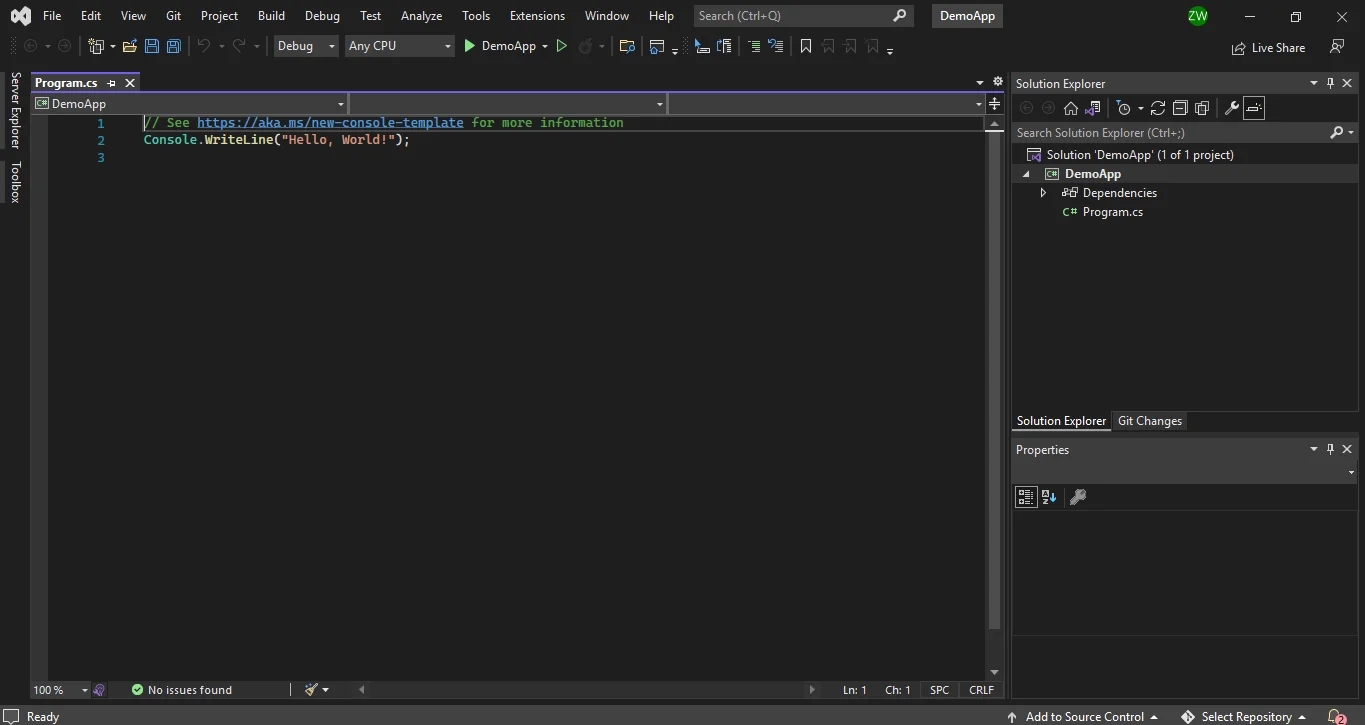
**Programu Konzolowy po utworzeniu Projektu**
## 3. Zainstaluj bibliotekę IronPDF
### Metoda 1: Rozwiązanie z wykorzystaniem menedżera pakietów NuGet
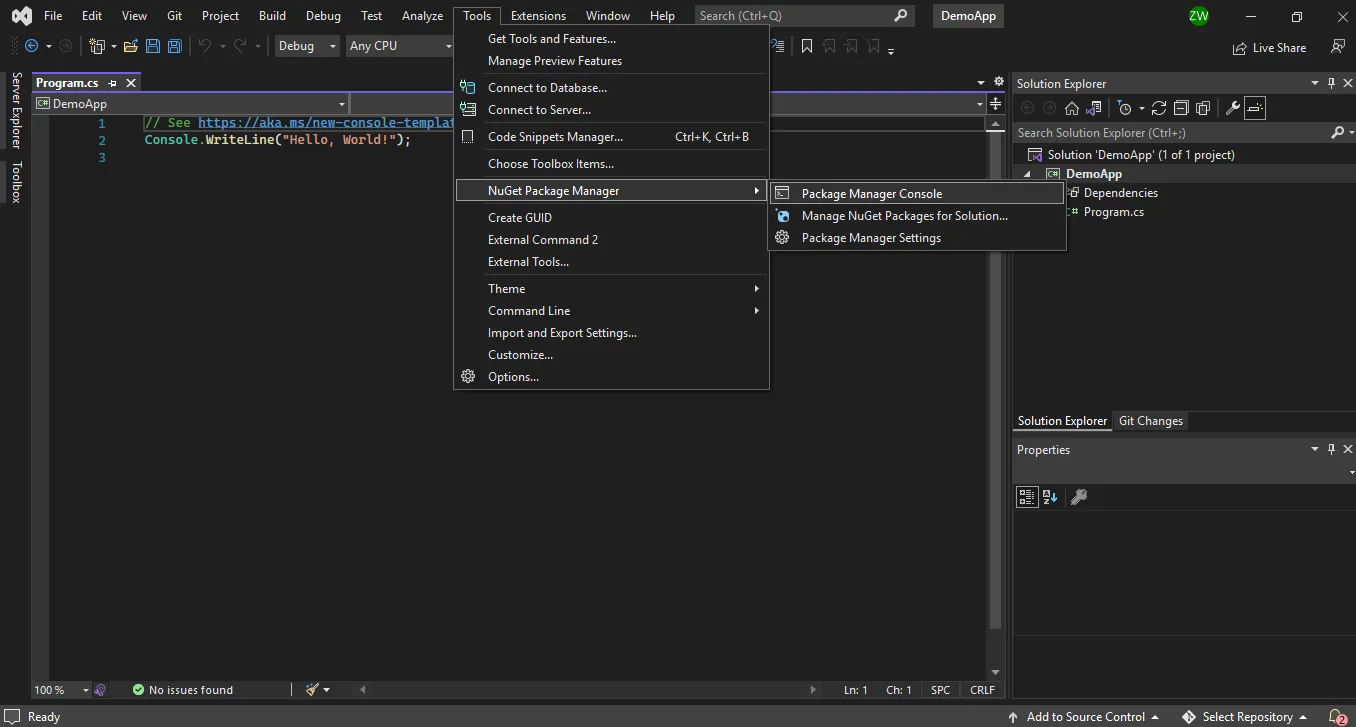
**Otwórz z Eksploratora rozwiązań**
Gdy rozwiazanie Menedzera pakietow NuGet jest otwarte, przeszukaj biblioteke IronPDF, aby konwertowac obraz PNG na plik PDF. Nastepnie kliknij na zainstaluj.
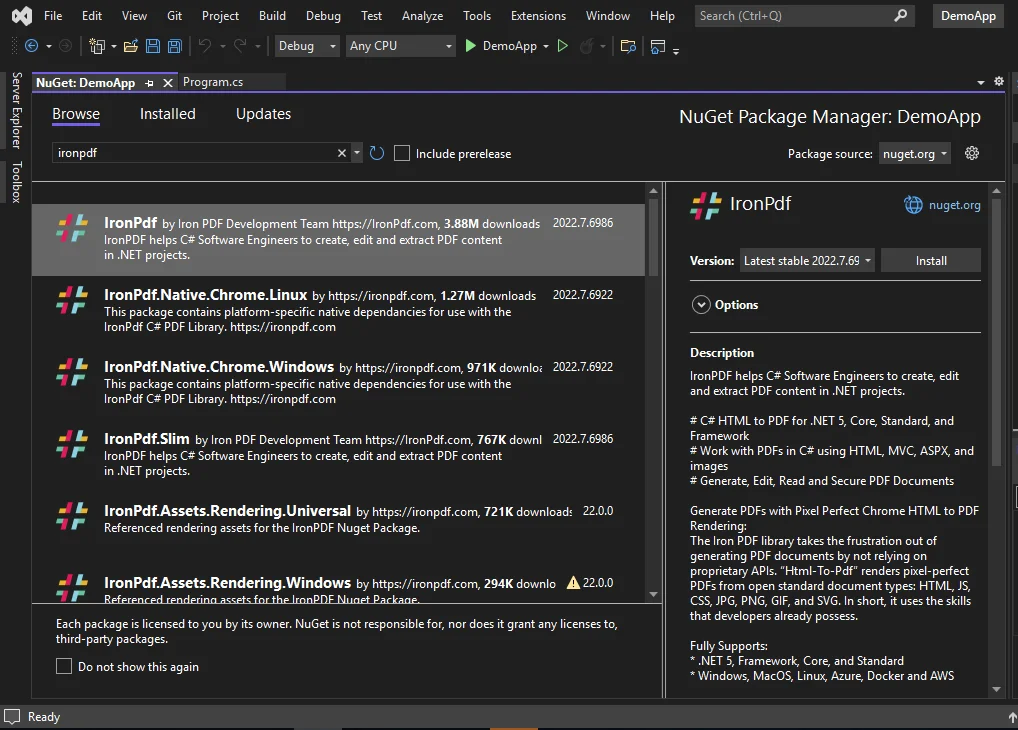
**Przeglądaj IronPDF**
### Metoda 2: Konsola menedżera pakietów NuGet
Korzystanie z Konsoli Menedzera pakietow NuGet pozwoli ci latwo zainstalowac biblioteke. Administrator privilegium nie jest wymagane do instalacji biblioteki. Polecenie NuGet zostanie uzyte, aby zainstalowac biblioteke IronPDF w twoim projekcie. Po prostu uzyj nastepujacego polecenia, aby kontynuowac.
```shell
:ProductInstall
```
### Metoda 3: Korzystanie z pliku DLL
Mozesz bezposrednio pobrac plik .DLL IronPDF ze strony internetowej. Mozna go momentalnie pobrac z [oficjalnego linku do pobrania DLL IronPDF](https://ironpdf.com/packages/IronPdf.Package.pdfsharp.comparison.zip).
Aby odwolac sie do biblioteki w twoim projekcie, postepuj wedlug nastepujacych wskazowek:
- Kliknij prawym przyciskiem myszy na Solution w Solution Explorer
- Wybierz "Referencje"
- Wyszukaj bibliotekę IronPDF.dll
- Kliknij OK
Gotowe! IronPDF jest pobrane, zainstalowane i gotowe do uzycia, aby konwertowac PNG na format PDF.
## 4. Dodaj przestrzen nazw IronPDF
Teraz dodaj przestrzen nazw IronPDF do swojego programu. Musisz dodac podany wiersz kodu na gorze pliku.
```csharp
using IronPdf;
```
To umozliwi ci dostep do wszystkich funkcji dostarczanych przez IronPDF. Ten wiersz kodu musi zostac dodany do kazdego pliku, w ktorym chcesz uzywac funkcji IronPDF.
## 5. Konwertuj PNG na format PDF
Konwersja plikow PNG na dokumenty PDF jest bardzo latwa z IronPDF. Tylko jedna linia kodu może zrealizować to zadanie, korzystając z metody [`ImageToPdf`](https://ironpdf.com/object-reference/api/IronPdf.ImageToPdfConverter.html#IronPdf_ImageToPdfConverter_ImageToPdf_IronSoftware_Drawing_AnyBitmap_IronPdf_Imaging_ImageBehavior_IronPdf_ChromePdfRenderOptions_) w IronPDF. W katalogu projektu umiesc obrazy PNG do przekonwertowania w folderze nazwanym **assets**. Folder musi być umieszczony w lokalizacji: bin\Debug\net6.0. Następnie, używając System.IO.Directory, należy wyliczyć folder zasobów ze wszystkimi plikami PNG i przekazać go do metody `ImageToPdf` do strumienia operacji konwersji. Nastepujacy przyklad kodu pomaga przeksztalcic obraz PNG na dokument PDF i zapisac obiekt Stream na dysku.
```csharp
using IronPdf;
using System;
using System.IO;
using System.Linq;

public class Program
{
    public static void Main()
    {
        Console.WriteLine("C# Convert PNG to PDF using IronPDF");

        // Directory is set to the assets folder. Filters for files ending with '.png' or '.PNG'.
        var images = Directory.EnumerateFiles("assets").Where(f => f.ToLower().EndsWith(".png"));

        // Converts the images to a PDF and saves them.
        if (images.Any())
        {
            ImageToPdfConverter.ImageToPdf(images).SaveAs("composite.pdf");
            Console.WriteLine("PNG successfully converted to PDF");
        }
        else
        {
            Console.WriteLine("No PNG files found.");
        }
    }
}
```
W powyzszym przykladzie kodu folder zasobow zawiera tylko jeden plik PNG. Plik wyjsciowy wyglada tak:

**Pojedynczy plik JPG do pliku PDF**
Ten sam przyklad kodu mozna uzyc do konwersji wielu obrazow PNG. Formaty plikow wyjsciowych zawieraja trzy dokumenty PNG do PDF.

**Wiele obrazow PNG do dokumentu PDF**
## 6. Podsumowanie
Ten tutorial pokazuje, jak konwertowac obraz PNG na dokument PDF, korzystajac z biblioteki IronPDF C#. Manipulacja i konfiguracja plikow PDF staje sie niewiarygodnie prosta dzieki funkcji biblioteki IronPDF. Wszystko, co jest potrzebne, to tylko kilka lini kodu, aby skonstruktowac dokument PDF z plikow PNG. Nie wazne, czy chodzi o konwersje obrazow JPG, PNG czy wielu innych formatow, IronPDF jest idealny dla programistow i firm.
Wykorzystaj darmowa wersje, aby przetestowac to! Dodatkowo, majac darmowy klucz probny, mozesz przetestowac funkcjonalnosc IronPDF. Ponadto, dzięki obecnej ofercie specjalnej możesz otrzymać pięć produktów IronPDF w cenie zaledwie dwóch! Odwiedz [strone informacji o licencjonowaniu IronPDF](licensing) aby uzyskac wiecej informacji o licencjonowaniu.
Importuj pojedyncze lub wiele dostepnych obrazow PNG w C#
Konwertuj PNG na PDF za pomoca metody ImageToPdf
Eksportuj wygenerowany dokument PDF do wybranej lokalizacji
Wykonaj dzialania 3 i 4 w 1 linii kodu C#
Tematy omawiane w tutorialu
W tym samouczku omówione zostaną następujące tematy:
Wprowadzenie do biblioteki IronPDF
Utwórz projekt w języku C#
Zainstaluj bibliotekę IronPDF
Metoda 1: Rozwiązanie z wykorzystaniem menedżera pakietów NuGet
Metoda 2: Konsola menedżera pakietów NuGet
Metoda 3: Korzystanie z pliku DLL
Dodaj przestrzeń nazw IronPDF
Konwersja obrazów JPG na dokumenty PDF
Podsumowanie
Wymagania dotyczące korzystania z IronPDF:
Powinienes miec podstawowa wiedze na temat jezyka C#.
Powinieneś posiadać podstawową wiedzę na temat aplikacji Windows.
1. Wprowadzenie do Biblioteki IronPDF
Rozwiązanie IronPDF .NET PDF Library to marzenie programistów, zwłaszcza inżynierów oprogramowania korzystających z języka C#. Korzystając z tego doskonałego narzędzia Iron Software, można z łatwością stworzyć podstawową bibliotekę PDF dla platformy .NET. IronPDF sprawi, że konwersja plików PDF z różnych formatów będzie łatwym i oszczędzającym czas procesem.
Umozliwia ci rowniez konstrukcje pliku PDF uzywajac HTML5, JavaScript, CSS i obrazow. Możesz płynnie edytować, stemplować oraz dodawać nagłówki i stopki do pliku PDF. Ponadto, ulatwia rowniez czytanie tekstu PDF, wyciaganie obrazow czy konwersje obrazow na PDF programatycznie.
Niektóre z ważnych funkcji to:
Twórz dokumenty PDF z HTML4/5, CSS, JavaScript i obrazów.
Zaladowanie URL za pomoca kredentiali loginu sieci custom, naglowki HTTP, proxy, cookies, user-agenty i zmienne formularzy, umozliwiajac logowanie za HTML w formularzach logowania.
Tutaj, ten tutorial koncentruje sie na konwersji plikow PNG do dokumentow PDF. IronPDF obsługuje konwersję niemal każdego formatu obrazu. Obslugiwane formaty obrazow to JPG, PNG, GIF, TIFF, SVG i BMP.
2. Utworz projekt C#
W tym tutorialu uzyta zostanie najnowsza wersja Visual Studio oraz jezyk programowania C# do budowy projektu. Poniewaz przykadowy kod pochodzil z C# 10.0, powinienes miec podstawowa wiedze na temat wypowiedzen na najwyzszym poziomie.
Zacznijmy od utworzenia projektu w języku C#.
Otwórz program Visual Studio.
Mozesz stworzyc nowy projekt C# lub otworzyc istniejacy.
Nadaj nazwę projektowi.
Wybierz .NET Core >= 3.1, poniewaz 3.1 jest wspierane i dziala na kazdym urzadzeniu. Najnowsza i najbardziej stabilna wersja .NET Framework to 6.0.
Programu Konzolowy po utworzeniu Projektu
3. Zainstaluj bibliotekę IronPDF
Metoda 1: Rozwiązanie z wykorzystaniem menedżera pakietów NuGet
Otwórz z Eksploratora rozwiązań
Gdy rozwiazanie Menedzera pakietow NuGet jest otwarte, przeszukaj biblioteke IronPDF, aby konwertowac obraz PNG na plik PDF. Nastepnie kliknij na zainstaluj.
Przeglądaj IronPDF
Metoda 2: Konsola menedżera pakietów NuGet
Korzystanie z Konsoli Menedzera pakietow NuGet pozwoli ci latwo zainstalowac biblioteke. Administrator privilegium nie jest wymagane do instalacji biblioteki. Polecenie NuGet zostanie uzyte, aby zainstalowac biblioteke IronPDF w twoim projekcie. Po prostu uzyj nastepujacego polecenia, aby kontynuowac.
Aby odwolac sie do biblioteki w twoim projekcie, postepuj wedlug nastepujacych wskazowek:
Kliknij prawym przyciskiem myszy na Solution w Solution Explorer
Wybierz "Referencje"
Wyszukaj bibliotekę IronPDF.dll
Kliknij OK
Gotowe! IronPDF jest pobrane, zainstalowane i gotowe do uzycia, aby konwertowac PNG na format PDF.
4. Dodaj przestrzen nazw IronPDF
Teraz dodaj przestrzen nazw IronPDF do swojego programu. Musisz dodac podany wiersz kodu na gorze pliku.
using IronPdf;
using IronPdf;
ImportsIronPdf
Imports IronPdf
To umozliwi ci dostep do wszystkich funkcji dostarczanych przez IronPDF. Ten wiersz kodu musi zostac dodany do kazdego pliku, w ktorym chcesz uzywac funkcji IronPDF.
5. Konwertuj PNG na format PDF
Konwersja plikow PNG na dokumenty PDF jest bardzo latwa z IronPDF. Tylko jedna linia kodu może zrealizować to zadanie, korzystając z metody ImageToPdf w IronPDF. W katalogu projektu umiesc obrazy PNG do przekonwertowania w folderze nazwanym assets. Folder musi być umieszczony w lokalizacji: bin\Debug\net6.0. Następnie, używając System.IO.Directory, należy wyliczyć folder zasobów ze wszystkimi plikami PNG i przekazać go do metody ImageToPdf do strumienia operacji konwersji. Nastepujacy przyklad kodu pomaga przeksztalcic obraz PNG na dokument PDF i zapisac obiekt Stream na dysku.
using IronPdf;using System;using System.IO;using System.Linq;public class Program{ public static voidMain() {Console.WriteLine("C# Convert PNG to PDF using IronPDF"); // Directory is set to the assets folder. Filters for files ending with '.png' or '.PNG'. var images = Directory.EnumerateFiles("assets").Where(f => f.ToLower().EndsWith(".png")); // Converts the images to a PDF and saves them. if (images.Any()) {ImageToPdfConverter.ImageToPdf(images).SaveAs("composite.pdf");Console.WriteLine("PNG successfully converted to PDF"); } else {Console.WriteLine("No PNG files found."); } }}
using IronPdf;
using System;
using System.IO;
using System.Linq;

public class Program
{
    public static void Main()
    {
        Console.WriteLine("C# Convert PNG to PDF using IronPDF");

        // Directory is set to the assets folder. Filters for files ending with '.png' or '.PNG'.
        var images = Directory.EnumerateFiles("assets").Where(f => f.ToLower().EndsWith(".png"));

        // Converts the images to a PDF and saves them.
        if (images.Any())
        {
            ImageToPdfConverter.ImageToPdf(images).SaveAs("composite.pdf");
            Console.WriteLine("PNG successfully converted to PDF");
        }
        else
        {
            Console.WriteLine("No PNG files found.");
        }
    }
}
ImportsIronPdfImportsSystemImportsSystem.IOImportsSystem.LinqPublic Class Program PublicShared Sub Main()Console.WriteLine("C# Convert PNG to PDF using IronPDF") ' Directory is set to the assets folder. Filters for files ending with '.png' or '.PNG'. Dim images = Directory.EnumerateFiles("assets").Where(Function(f) f.ToLower().EndsWith(".png")) ' Converts the images to a PDF and saves them. If images.Any() ThenImageToPdfConverter.ImageToPdf(images).SaveAs("composite.pdf")Console.WriteLine("PNG successfully converted to PDF") ElseConsole.WriteLine("No PNG files found.") End If End SubEnd Class
Imports IronPdf
Imports System
Imports System.IO
Imports System.Linq

Public Class Program
	Public Shared Sub Main()
		Console.WriteLine("C# Convert PNG to PDF using IronPDF")

		' Directory is set to the assets folder. Filters for files ending with '.png' or '.PNG'.
		Dim images = Directory.EnumerateFiles("assets").Where(Function(f) f.ToLower().EndsWith(".png"))

		' Converts the images to a PDF and saves them.
		If images.Any() Then
			ImageToPdfConverter.ImageToPdf(images).SaveAs("composite.pdf")
			Console.WriteLine("PNG successfully converted to PDF")
		Else
			Console.WriteLine("No PNG files found.")
		End If
	End Sub
End Class
W powyzszym przykladzie kodu folder zasobow zawiera tylko jeden plik PNG. Plik wyjsciowy wyglada tak:
Pojedynczy plik JPG do pliku PDF
Ten sam przyklad kodu mozna uzyc do konwersji wielu obrazow PNG. Formaty plikow wyjsciowych zawieraja trzy dokumenty PNG do PDF.
Wiele obrazow PNG do dokumentu PDF
6. Podsumowanie
Ten tutorial pokazuje, jak konwertowac obraz PNG na dokument PDF, korzystajac z biblioteki IronPDF C#. Manipulacja i konfiguracja plikow PDF staje sie niewiarygodnie prosta dzieki funkcji biblioteki IronPDF. Wszystko, co jest potrzebne, to tylko kilka lini kodu, aby skonstruktowac dokument PDF z plikow PNG. Nie wazne, czy chodzi o konwersje obrazow JPG, PNG czy wielu innych formatow, IronPDF jest idealny dla programistow i firm.
Wykorzystaj darmowa wersje, aby przetestowac to! Dodatkowo, majac darmowy klucz probny, mozesz przetestowac funkcjonalnosc IronPDF. Ponadto, dzięki obecnej ofercie specjalnej możesz otrzymać pięć produktów IronPDF w cenie zaledwie dwóch! Odwiedz strone informacji o licencjonowaniu IronPDF aby uzyskac wiecej informacji o licencjonowaniu.
Curtis Chau posiada tytuł licencjata z informatyki (Uniwersytet Carleton) i specjalizuje się w front-endowym rozwoju, z ekspertką w Node.js, TypeScript, JavaScript i React. Pasjonuje się tworzeniem intuicyjnych i estetycznie przyjemnych interfejsów użytkownika, Curtis cieszy się pracą z nowoczesnymi frameworkami i tworzeniem dobrze zorganizowanych, atrakcyjnych wizualnie podręczników.





 Programu Konzolowy po utworzeniu Projektu
 Otwórz z Eksploratora rozwiązań
 Przeglądaj IronPDF
 Pojedynczy plik JPG do pliku PDF
 Wiele obrazow PNG do dokumentu PDF







