PDF 관련 모든 작업을 처리할 수 있는 PDF 라이브러리를 찾고 있지만, 어떤 것이 적합한지 잘 모르겠습니까? 수많은 PDF 중심 라이브러리가 있어 어떤 것이 가장 적합한지 결정하기 어려울 수 있습니다. 오늘은 두 개의 PDF 라이브러리 IronPDF와 EO.PDF를 자세히 살펴보겠습니다. 이 두 라이브러리를 비교해 보며, 제공하는 기능, 일반적인 PDF 관련 작업 처리 방식, 지원 및 문서화, 라이선스 사용을 위한 가격 모델 등을 살펴보겠습니다.
IronPDF 및 EO.Pdf 개요
IronPDF는 .NET 응용 프로그램 내에서 PDF 문서를 생성, 편집, 변환하기 위해 설계된 다재다능하고 강력한 .NET 라이브러리입니다. IronPDF를 사용하면 HTML, URL 및 웹 페이지를 쉽게 PDF로 변환할 수 있으며, PDF 암호화, 주석, 디지털 서명 및 워터마킹과 같은 고급 기능을 지원합니다. 방대한 문서화와 크로스 플랫폼 호환성을 갖춘 IronPDF는 PDF 작업을 원활하게 처리하고자 하는 .NET 개발자에게 이상적인 솔루션입니다.
EO.Pdf는 Google Chromium 엔진을 기반으로 프로그램적으로 PDF 파일을 생성할 수 있는 .NET 클래스 라이브러리입니다. HTML을 PDF로 변환, PDF 생성, 읽기, 분할, 병합 및 암호화와 같은 핵심 기능을 제공합니다. 모든 기능이 몇 개의 DLL 파일에 패키지되어 있어 설치가 용이합니다. EO.Pdf는 PDF 문서를 생성하고 조작할 수 있는 직관적인 개체를 제공하는 데 중점을 두어, .NET 응용 프로그램에서 기본적인 PDF 기능에 적합한 선택입니다.
플랫폼 간 호환성
IronPDF
IronPDF는 광범위한 플랫폼 간 호환성으로 두드러집니다. .NET Framework 내에서 다양한 환경을 지원하여 다양한 플랫폼에서 원활한 운영을 보장합니다. 아래는 IronPDF의 플랫폼 호환성 요약입니다:
-
.NET 버전:
- 완전히 C#, VB.NET, F#로 작성되었으며 지원합니다.
- .NET Core (8, 7, 6, 5 및 3.1+)
- .NET Standard (2.0 이상)
- .NET Framework (4.6.2 이상)
-
앱 환경: IronPDF는 Windows, Linux, Mac, Docker, Azure, AWS와 같은 다양한 앱 환경 내에서 작동합니다.
-
IDE: Microsoft Visual Studio, JetBrains Rider & ReSharper와 같은 IDE와 함께 작동합니다.
-
운영 체제 및 프로세서: Windows, Mac, Linux, x64, x86, ARM을 포함한 여러 운영 체제 및 프로세서를 지원합니다.
IronPDF의 호환성에 대한 자세한 정보를 보려면 IronPDF Compatibility를 방문하십시오.
EO.Pdf
주요 기능 비교: IronPDF vs. EO.Pdf의 PDF 기능
적절한 PDF 라이브러리를 찾을 때 고려해야 할 주요 측면은 라이브러리가 제공하는 기능과 계획 중인 작업에 필요한 기능입니다. 이제 각 라이브러리가 제공하는 기능의 개요를 살펴보겠습니다.
IronPDF 기능
-
PDF 변환: IronPDF는 최신 웹 표준을 완벽히 지원하여 HTML을 PDF로 변환할 수 있습니다. IronPDF가 HTML 파일이나 콘텐츠에서 항상 픽셀 완벽한 PDF를 반환할 것이라고 확신할 수 있습니다. IronPDF는 또한 DOCX, 이미지, RTF 등 다른 형식의 PDF 파일을 변환할 수 있습니다.
-
PDF 생성: IronPDF를 사용하면 URL, ASPX 파일, HTML 문자열에서 PDF를 생성할 수 있습니다.
-
보안 기능: IronPDF는 보안 기능 덕분에 모든 민감한 PDF 파일이 안전하다는 확신을 드립니다. IronPDF를 사용하여 PDF 파일을 암호화하고, 비밀번호를 설정하며, PDF 파일에 대한 권한을 설정하십시오.
-
PDF 편집 기능: IronPDF를 사용하면 기존 PDF 문서를 처리하고, 편집하고, PDF 파일을 쉽게 읽을 수 있습니다. IronPDF는 PDF 페이지에 헤더와 푸터 추가, 텍스트 및 이미지를 PDF 페이지에 스탬핑, 사용자 정의 워터마크 추가, PDF 폼 작업, PDF 파일 분할 또는 병합 등의 편집 기능을 제공합니다.
IronPDF 기능의 전체 목록은 IronPDF 기능을 참조하십시오.
EO.Pdf 기능
-
PDF 작성: EO.Pdf의 PDF Creator 도구를 사용하여 PDF 파일을 생성하거나, 더 쉬운 방법을 원할 경우 HTML-to-PDF 변환기를 시도하십시오.
-
PDF 읽기: EO.Pdf의 PDF 읽기 도구는 기존의 PDF 파일을 읽을 수 있습니다. 이후에 PDF 파일을 수정하고, 분할, 병합 또는 암호화할 수 있습니다.
-
병합 및 분할: EO.Pdf를 사용하면 기존의 PDF 파일을 분할하거나 여러 PDF 파일을 병합할 수 있습니다.
-
PDF 암호화: EO.Pdf는 PDF의 암호화 및 암호화된 PDF 파일의 해독을 지원합니다.
코드 예제와 함께하는 주요 기능 비교: IronPDF vs. EO.Pdf
이 섹션에서는 일반적인 PDF 관련 작업과 IronPDF 및 EO.Pdf가 이러한 사용 사례를 처리하는 방법을 살펴보겠습니다.
HTML을 PDF로 변환
IronPDF 예제:
using IronPdf;

// Enable web security features such as disabling local disk access or cross-origin requests
Installation.EnableWebSecurity = true;

// Instantiate Renderer
var renderer = new ChromePdfRenderer();

// Create a PDF from an HTML string using C#
var pdf = renderer.RenderHtmlAsPdf("<h1>Hello World</h1>");
pdf.SaveAs("output.pdf");

// Advanced Example with HTML Assets
var myAdvancedPdf = renderer.RenderHtmlAsPdf("<img src='icons/iron.png'>", @"C:\site\assets\");
myAdvancedPdf.SaveAs("html-with-assets.pdf");
using IronPdf;

// Enable web security features such as disabling local disk access or cross-origin requests
Installation.EnableWebSecurity = true;

// Instantiate Renderer
var renderer = new ChromePdfRenderer();

// Create a PDF from an HTML string using C#
var pdf = renderer.RenderHtmlAsPdf("<h1>Hello World</h1>");
pdf.SaveAs("output.pdf");

// Advanced Example with HTML Assets
var myAdvancedPdf = renderer.RenderHtmlAsPdf("<img src='icons/iron.png'>", @"C:\site\assets\");
myAdvancedPdf.SaveAs("html-with-assets.pdf");
Imports IronPdf
' Enable web security features such as disabling local disk access or cross-origin requests
Installation.EnableWebSecurity = True
' Instantiate Renderer
Dim renderer = New ChromePdfRenderer()
' Create a PDF from an HTML string using C#
Dim pdf = renderer.RenderHtmlAsPdf("<h1>Hello World</h1>")
pdf.SaveAs("output.pdf")
' Advanced Example with HTML Assets
Dim myAdvancedPdf = renderer.RenderHtmlAsPdf("<img src='icons/iron.png'>", "C:\site\assets\")
myAdvancedPdf.SaveAs("html-with-assets.pdf")
Imports IronPdf

' Enable web security features such as disabling local disk access or cross-origin requests
Installation.EnableWebSecurity = True

' Instantiate Renderer
Dim renderer = New ChromePdfRenderer()

' Create a PDF from an HTML string using C#
Dim pdf = renderer.RenderHtmlAsPdf("<h1>Hello World</h1>")
pdf.SaveAs("output.pdf")

' Advanced Example with HTML Assets
Dim myAdvancedPdf = renderer.RenderHtmlAsPdf("<img src='icons/iron.png'>", "C:\site\assets\")
myAdvancedPdf.SaveAs("html-with-assets.pdf")
EO.Pdf 예제:
HtmlToPdf.ConvertHtml("<h1>Hello World</h1>", "output.pdf");
HtmlToPdf.ConvertHtml("<h1>Hello World</h1>", "output.pdf");HtmlToPdf.ConvertHtml("<h1>Hello World</h1>", "output.pdf")
HtmlToPdf.ConvertHtml("<h1>Hello World</h1>", "output.pdf")
위의 코드에서 볼 수 있듯이, IronPDF의 HTML-to-PDF 변환기는 HTML 콘텐츠에서 몇 줄의 코드만으로 PDF 파일을 생성할 수 있는 강력한 방법을 제공합니다. 현대 웹 표준에 대한 강력한 지원을 통해, 웹 애플리케이션이나 웹 페이지에서 픽셀-정확한 PDF 문서를 출력할 수 있습니다. EO.Pdf는 HTML 콘텐츠를 PDF로 변환하는 데 단 한 줄의 코드만 필요하여 쉽게 구현할 수 있습니다.
PDF 파일 암호화하기
IronPDF 예제:
using IronPdf;
using System;

// Open an Encrypted File, alternatively create a new PDF from Html
var pdf = PdfDocument.FromFile("encrypted.pdf", "password");

// Edit file metadata
pdf.MetaData.Author = "Satoshi Nakamoto";
pdf.MetaData.Keywords = "SEO, Friendly";
pdf.MetaData.ModifiedDate = DateTime.Now;

// Edit file security settings
pdf.SecuritySettings.RemovePasswordsAndEncryption();
pdf.SecuritySettings.MakePdfDocumentReadOnly("secret-key");
pdf.SecuritySettings.AllowUserAnnotations = false;
pdf.SecuritySettings.AllowUserCopyPasteContent = false;
pdf.SecuritySettings.AllowUserFormData = false;
pdf.SecuritySettings.AllowUserPrinting = IronPdf.Security.PdfPrintSecurity.FullPrintRights;

// Change or set the document encryption password
pdf.Password = "my-password";
pdf.SaveAs("secured.pdf");
using IronPdf;
using System;

// Open an Encrypted File, alternatively create a new PDF from Html
var pdf = PdfDocument.FromFile("encrypted.pdf", "password");

// Edit file metadata
pdf.MetaData.Author = "Satoshi Nakamoto";
pdf.MetaData.Keywords = "SEO, Friendly";
pdf.MetaData.ModifiedDate = DateTime.Now;

// Edit file security settings
pdf.SecuritySettings.RemovePasswordsAndEncryption();
pdf.SecuritySettings.MakePdfDocumentReadOnly("secret-key");
pdf.SecuritySettings.AllowUserAnnotations = false;
pdf.SecuritySettings.AllowUserCopyPasteContent = false;
pdf.SecuritySettings.AllowUserFormData = false;
pdf.SecuritySettings.AllowUserPrinting = IronPdf.Security.PdfPrintSecurity.FullPrintRights;

// Change or set the document encryption password
pdf.Password = "my-password";
pdf.SaveAs("secured.pdf");
Imports IronPdf
Imports System
' Open an Encrypted File, alternatively create a new PDF from Html
Private pdf = PdfDocument.FromFile("encrypted.pdf", "password")
' Edit file metadata
pdf.MetaData.Author = "Satoshi Nakamoto"
pdf.MetaData.Keywords = "SEO, Friendly"
pdf.MetaData.ModifiedDate = DateTime.Now
' Edit file security settings
pdf.SecuritySettings.RemovePasswordsAndEncryption()
pdf.SecuritySettings.MakePdfDocumentReadOnly("secret-key")
pdf.SecuritySettings.AllowUserAnnotations = False
pdf.SecuritySettings.AllowUserCopyPasteContent = False
pdf.SecuritySettings.AllowUserFormData = False
pdf.SecuritySettings.AllowUserPrinting = IronPdf.Security.PdfPrintSecurity.FullPrintRights
' Change or set the document encryption password
pdf.Password = "my-password"
pdf.SaveAs("secured.pdf")
Imports IronPdf
Imports System

' Open an Encrypted File, alternatively create a new PDF from Html
Private pdf = PdfDocument.FromFile("encrypted.pdf", "password")

' Edit file metadata
pdf.MetaData.Author = "Satoshi Nakamoto"
pdf.MetaData.Keywords = "SEO, Friendly"
pdf.MetaData.ModifiedDate = DateTime.Now

' Edit file security settings
pdf.SecuritySettings.RemovePasswordsAndEncryption()
pdf.SecuritySettings.MakePdfDocumentReadOnly("secret-key")
pdf.SecuritySettings.AllowUserAnnotations = False
pdf.SecuritySettings.AllowUserCopyPasteContent = False
pdf.SecuritySettings.AllowUserFormData = False
pdf.SecuritySettings.AllowUserPrinting = IronPdf.Security.PdfPrintSecurity.FullPrintRights

' Change or set the document encryption password
pdf.Password = "my-password"
pdf.SaveAs("secured.pdf")
EO.Pdf 예제:
PdfDocument doc = new PdfDocument();
doc.Security.UserPassword = "user";
doc.Security.OwnerPassword = "owner";
doc.Save("encrypted.pdf");
PdfDocument doc = new PdfDocument();
doc.Security.UserPassword = "user";
doc.Security.OwnerPassword = "owner";
doc.Save("encrypted.pdf");
Dim doc As New PdfDocument()
doc.Security.UserPassword = "user"
doc.Security.OwnerPassword = "owner"
doc.Save("encrypted.pdf")
Dim doc As New PdfDocument()
doc.Security.UserPassword = "user"
doc.Security.OwnerPassword = "owner"
doc.Save("encrypted.pdf")
IronPDF의 암호화 프로세스는 더 많은 코드가 필요하지만, 강력한 암호화 도구를 제공하여 PDF 파일을 보호할 수 있으며, 암호화 작업을 완전히 사용자 정의할 수 있는 다양한 옵션을 통해 프로세스를 완전히 제어할 수 있습니다. EO.Pdf는 간단하고 구현하기 쉬운 암호화 도구를 제공하지만, IronPDF가 제공하는 만큼의 제어 수준은 부족합니다.
PDF 콘텐츠 수정하기
IronPDF 예제:
using IronPdf;

PdfDocument pdf = PdfDocument.FromFile("novel.pdf");

// Redact 'are' phrase from all pages
pdf.RedactTextOnAllPages("are");
pdf.SaveAs("redacted.pdf");
using IronPdf;

PdfDocument pdf = PdfDocument.FromFile("novel.pdf");

// Redact 'are' phrase from all pages
pdf.RedactTextOnAllPages("are");
pdf.SaveAs("redacted.pdf");
Imports IronPdf
Private pdf As PdfDocument = PdfDocument.FromFile("novel.pdf")
' Redact 'are' phrase from all pages
pdf.RedactTextOnAllPages("are")
pdf.SaveAs("redacted.pdf")
Imports IronPdf

Private pdf As PdfDocument = PdfDocument.FromFile("novel.pdf")

' Redact 'are' phrase from all pages
pdf.RedactTextOnAllPages("are")
pdf.SaveAs("redacted.pdf")
EO.Pdf: 기본적으로 지원하지 않음.
IronPDF는 내장된 수정 도구를 제공하여 몇 줄의 코드만으로 PDF에서 특정 콘텐츠를 수정할 수 있습니다. EO.Pdf는 이러한 기능을 제공하지 않으므로 PDF 수정 작업을 수행하려면 추가 라이브러리를 설치해야 할 것입니다.
PDF에 디지털 서명하기
IronPDF 예제:
using IronPdf.Signing;
using System.Security.Cryptography.X509Certificates;

ChromePdfRenderer renderer = new ChromePdfRenderer();
PdfDocument pdf = renderer.RenderHtmlAsPdf("<h1>foo</h1>");

// Create X509Certificate2 object with X509KeyStorageFlags set to Exportable
X509Certificate2 cert = new X509Certificate2("IronSoftware.pfx", "123456", X509KeyStorageFlags.Exportable);

// Create PdfSignature object
var sig = new PdfSignature(cert);

// Sign PDF document
pdf.Sign(sig);
pdf.SaveAs("signed.pdf");
using IronPdf.Signing;
using System.Security.Cryptography.X509Certificates;

ChromePdfRenderer renderer = new ChromePdfRenderer();
PdfDocument pdf = renderer.RenderHtmlAsPdf("<h1>foo</h1>");

// Create X509Certificate2 object with X509KeyStorageFlags set to Exportable
X509Certificate2 cert = new X509Certificate2("IronSoftware.pfx", "123456", X509KeyStorageFlags.Exportable);

// Create PdfSignature object
var sig = new PdfSignature(cert);

// Sign PDF document
pdf.Sign(sig);
pdf.SaveAs("signed.pdf");
Imports IronPdf.Signing
Imports System.Security.Cryptography.X509Certificates
Private renderer As New ChromePdfRenderer()
Private pdf As PdfDocument = renderer.RenderHtmlAsPdf("<h1>foo</h1>")
' Create X509Certificate2 object with X509KeyStorageFlags set to Exportable
Private cert As New X509Certificate2("IronSoftware.pfx", "123456", X509KeyStorageFlags.Exportable)
' Create PdfSignature object
Private sig = New PdfSignature(cert)
' Sign PDF document
pdf.Sign(sig)
pdf.SaveAs("signed.pdf")
Imports IronPdf.Signing
Imports System.Security.Cryptography.X509Certificates

Private renderer As New ChromePdfRenderer()
Private pdf As PdfDocument = renderer.RenderHtmlAsPdf("<h1>foo</h1>")

' Create X509Certificate2 object with X509KeyStorageFlags set to Exportable
Private cert As New X509Certificate2("IronSoftware.pfx", "123456", X509KeyStorageFlags.Exportable)

' Create PdfSignature object
Private sig = New PdfSignature(cert)

' Sign PDF document
pdf.Sign(sig)
pdf.SaveAs("signed.pdf")
EO.Pdf:
// Create a PdfSigner object
PdfSigner signer = new PdfSigner(your_x509_certificate);

// Sign the PDF file
signer.Sign(pdf_file_name);
// Create a PdfSigner object
PdfSigner signer = new PdfSigner(your_x509_certificate);

// Sign the PDF file
signer.Sign(pdf_file_name);
' Create a PdfSigner object
Dim signer As New PdfSigner(your_x509_certificate)

' Sign the PDF file
signer.Sign(pdf_file_name)
' Create a PdfSigner object
Dim signer As New PdfSigner(your_x509_certificate)

' Sign the PDF file
signer.Sign(pdf_file_name)
IronPDF를 사용하면 손쉽게 PDF 파일에 보안 서명을 할 수 있습니다. PDF 서명 도구는 프로세스를 완전히 제어할 수 있도록 하며, 메소드를 짧고 간단하게 구현할 수 있게 합니다. EO.Pdf의 서명 프로세스는 사용하기 쉬우며, 동작시키기 위해 매우 적은 코드 줄이 필요합니다.
맞춤형 워터마크 적용하기
IronPDF 예제:
using IronPdf;

// Stamps a Watermark onto a new or existing PDF
var renderer = new ChromePdfRenderer();
var pdf = renderer.RenderUrlAsPdf("https://www.nuget.org/packages/IronPdf/");
pdf.ApplyWatermark("<h2 style='color:red'>SAMPLE</h2>", 30, IronPdf.Editing.VerticalAlignment.Middle, IronPdf.Editing.HorizontalAlignment.Center);
pdf.SaveAs(@"C:\Path\To\Watermarked.pdf");
using IronPdf;

// Stamps a Watermark onto a new or existing PDF
var renderer = new ChromePdfRenderer();
var pdf = renderer.RenderUrlAsPdf("https://www.nuget.org/packages/IronPdf/");
pdf.ApplyWatermark("<h2 style='color:red'>SAMPLE</h2>", 30, IronPdf.Editing.VerticalAlignment.Middle, IronPdf.Editing.HorizontalAlignment.Center);
pdf.SaveAs(@"C:\Path\To\Watermarked.pdf");
Imports IronPdf
' Stamps a Watermark onto a new or existing PDF
Private renderer = New ChromePdfRenderer()
Private pdf = renderer.RenderUrlAsPdf("https://www.nuget.org/packages/IronPdf/")
pdf.ApplyWatermark("<h2 style='color:red'>SAMPLE</h2>", 30, IronPdf.Editing.VerticalAlignment.Middle, IronPdf.Editing.HorizontalAlignment.Center)
pdf.SaveAs("C:\Path\To\Watermarked.pdf")
Imports IronPdf

' Stamps a Watermark onto a new or existing PDF
Private renderer = New ChromePdfRenderer()
Private pdf = renderer.RenderUrlAsPdf("https://www.nuget.org/packages/IronPdf/")
pdf.ApplyWatermark("<h2 style='color:red'>SAMPLE</h2>", 30, IronPdf.Editing.VerticalAlignment.Middle, IronPdf.Editing.HorizontalAlignment.Center)
pdf.SaveAs("C:\Path\To\Watermarked.pdf")
EO.Pdf: 워터마크에 대한 기본 지원 없음.
HTML/CSS와 유사한 접근 방식으로, IronPDF의 워터마크 도구는 사용하기 쉬우며, PDF 파일에 맞춤형 워터마크를 쉽게 적용할 수 있습니다. EO.Pdf는 워터마크에 대한 기본 지원이 없으므로, 이 작업을 수행하려면 외부 라이브러리가 필요합니다.
PDF 문서에 텍스트 및 이미지 스탬프 찍기
IronPDF 예제:
텍스트 스탬퍼:
using IronPdf;
using IronPdf.Editing;

ChromePdfRenderer renderer = new ChromePdfRenderer();
PdfDocument pdf = renderer.RenderHtmlAsPdf("<h1>Example HTML Document!</h1>");

// Create text stamper
TextStamper textStamper = new TextStamper()
{
    Text = "Text Stamper!",
    FontFamily = "Bungee Spice",
    UseGoogleFont = true,
    FontSize = 30,
    IsBold = true,
    IsItalic = true,
    VerticalAlignment = VerticalAlignment.Top,
};

// Stamp the text stamper
pdf.ApplyStamp(textStamper);
pdf.SaveAs("stampText.pdf");
using IronPdf;
using IronPdf.Editing;

ChromePdfRenderer renderer = new ChromePdfRenderer();
PdfDocument pdf = renderer.RenderHtmlAsPdf("<h1>Example HTML Document!</h1>");

// Create text stamper
TextStamper textStamper = new TextStamper()
{
    Text = "Text Stamper!",
    FontFamily = "Bungee Spice",
    UseGoogleFont = true,
    FontSize = 30,
    IsBold = true,
    IsItalic = true,
    VerticalAlignment = VerticalAlignment.Top,
};

// Stamp the text stamper
pdf.ApplyStamp(textStamper);
pdf.SaveAs("stampText.pdf");
Imports IronPdf
Imports IronPdf.Editing
Private renderer As New ChromePdfRenderer()
Private pdf As PdfDocument = renderer.RenderHtmlAsPdf("<h1>Example HTML Document!</h1>")
' Create text stamper
Private textStamper As New TextStamper() With {
.Text = "Text Stamper!",
.FontFamily = "Bungee Spice",
.UseGoogleFont = True,
.FontSize = 30,
.IsBold = True,
.IsItalic = True,
.VerticalAlignment = VerticalAlignment.Top
}
' Stamp the text stamper
pdf.ApplyStamp(textStamper)
pdf.SaveAs("stampText.pdf")
Imports IronPdf
Imports IronPdf.Editing

Private renderer As New ChromePdfRenderer()
Private pdf As PdfDocument = renderer.RenderHtmlAsPdf("<h1>Example HTML Document!</h1>")

' Create text stamper
Private textStamper As New TextStamper() With {
	.Text = "Text Stamper!",
	.FontFamily = "Bungee Spice",
	.UseGoogleFont = True,
	.FontSize = 30,
	.IsBold = True,
	.IsItalic = True,
	.VerticalAlignment = VerticalAlignment.Top
}

' Stamp the text stamper
pdf.ApplyStamp(textStamper)
pdf.SaveAs("stampText.pdf")
이미지 스탬퍼:
using IronPdf;
using IronPdf.Editing;
using System;

ChromePdfRenderer renderer = new ChromePdfRenderer();

PdfDocument pdf = renderer.RenderHtmlAsPdf("<h1>Example HTML Document!</h1>");

// Create image stamper
ImageStamper imageStamper = new ImageStamper(new Uri("https://ironpdf.com/img/svgs/iron-pdf-logo.svg"))
{
    VerticalAlignment = VerticalAlignment.Top,
};

// Stamp the image stamper
pdf.ApplyStamp(imageStamper, 0);
pdf.SaveAs("stampImage.pdf");
using IronPdf;
using IronPdf.Editing;
using System;

ChromePdfRenderer renderer = new ChromePdfRenderer();

PdfDocument pdf = renderer.RenderHtmlAsPdf("<h1>Example HTML Document!</h1>");

// Create image stamper
ImageStamper imageStamper = new ImageStamper(new Uri("https://ironpdf.com/img/svgs/iron-pdf-logo.svg"))
{
    VerticalAlignment = VerticalAlignment.Top,
};

// Stamp the image stamper
pdf.ApplyStamp(imageStamper, 0);
pdf.SaveAs("stampImage.pdf");
Imports IronPdf
Imports IronPdf.Editing
Imports System
Private renderer As New ChromePdfRenderer()
Private pdf As PdfDocument = renderer.RenderHtmlAsPdf("<h1>Example HTML Document!</h1>")
' Create image stamper
Private imageStamper As New ImageStamper(New Uri("https://ironpdf.com/img/svgs/iron-pdf-logo.svg")) With {.VerticalAlignment = VerticalAlignment.Top}
' Stamp the image stamper
pdf.ApplyStamp(imageStamper, 0)
pdf.SaveAs("stampImage.pdf")
Imports IronPdf
Imports IronPdf.Editing
Imports System

Private renderer As New ChromePdfRenderer()

Private pdf As PdfDocument = renderer.RenderHtmlAsPdf("<h1>Example HTML Document!</h1>")

' Create image stamper
Private imageStamper As New ImageStamper(New Uri("https://ironpdf.com/img/svgs/iron-pdf-logo.svg")) With {.VerticalAlignment = VerticalAlignment.Top}

' Stamp the image stamper
pdf.ApplyStamp(imageStamper, 0)
pdf.SaveAs("stampImage.pdf")
EO.Pdf: 고급 스탬핑 옵션을 지원하지 않음.
IronPDF의 강력하면서도 사용하기 쉬운 이미지 및 텍스트 스탬핑 도구 덕분에 텍스트 및 이미지를 PDF 파일에 스탬프하기가 그 어느 때보다 쉬워졌습니다. HTML과 CSS에 익숙하시다면, 이 도구들은 스탬프를 PDF에 적용할 때 CSS와 유사한 접근 방식 덕분에 더욱 쉽게 사용할 수 있습니다.
PDF에 텍스트 및 이미지 스탬프를 적용하고 EO.Pdf를 사용하는 경우, EO.Pdf가 이 프로세스를 지원하지 않기 때문에 별도의 라이브러리를 설치해야 할 것입니다.
Bootstrap 성능 대시보드
최신 PDF 라이브러리는 측정 가능한 성능 지표를 통해 그 능력을 입증해야 합니다. 이 Bootstrap 5 대시보드 예제는 IronPDF가 실시간 데이터 시각화 구성 요소와 함께 복잡한 레이아웃을 렌더링할 수 있음을 보여줍니다.
using IronPdf;

var renderer = new ChromePdfRenderer();

string performanceDashboard = @"
<!DOCTYPE html>
<html>
<head>
    <meta charset='utf-8'>
    <link href='https://cdn.jsdelivr.net/npm/bootstrap@5.3.0/dist/css/bootstrap.min.css' rel='stylesheet'>
    <style>
        .metric-card {
            transition: transform 0.2s;
            border-left: 4px solid #0d6efd;
        }
        .metric-card:hover { transform: translateY(-2px); }
        .progress-custom { height: 8px; border-radius: 4px; }
        @media print { .metric-card { page-break-inside: avoid; } }
    </style>
</head>
<body class='bg-light'>
    <div class='container py-4'>
        <div class='card shadow-sm mb-4'>
            <div class='card-body'>
                <h2 class='mb-0'>PDF Library Performance Metrics</h2>
                <p class='text-muted mb-0'>Comparative Analysis - Q1 2026</p>
            </div>
        </div>

        <div class='row g-4 mb-4'>
            <div class='col-md-3'>
                <div class='card metric-card shadow-sm h-100'>
                    <div class='card-body'>
                        <h6 class='text-muted text-uppercase mb-2'>Render Speed</h6>
                        <h2 class='display-6 mb-3'>0.9s</h2>
                        <div class='progress progress-custom'>
                            <div class='progress-bar bg-success' style='width: 95%'></div>
                        </div>
                        <small class='text-success mt-2 d-block'>Chrome-based rendering engine</small>
                    </div>
                </div>
            </div>
            <div class='col-md-3'>
                <div class='card metric-card shadow-sm h-100'>
                    <div class='card-body'>
                        <h6 class='text-muted text-uppercase mb-2'>Browser Fidelity</h6>
                        <h2 class='display-6 mb-3'>High</h2>
                        <div class='progress progress-custom'>
                            <div class='progress-bar bg-info' style='width: 95%'></div>
                        </div>
                        <small class='text-info mt-2 d-block'>Chrome V8 Engine</small>
                    </div>
                </div>
            </div>
            <div class='col-md-3'>
                <div class='card metric-card shadow-sm h-100'>
                    <div class='card-body'>
                        <h6 class='text-muted text-uppercase mb-2'>CSS3 Support</h6>
                        <h2 class='display-6 mb-3'>Full</h2>
                        <div class='progress progress-custom'>
                            <div class='progress-bar bg-primary' style='width: 100%'></div>
                        </div>
                        <small class='text-primary mt-2 d-block'>Full Flexbox + Grid</small>
                    </div>
                </div>
            </div>
            <div class='col-md-3'>
                <div class='card metric-card shadow-sm h-100'>
                    <div class='card-body'>
                        <h6 class='text-muted text-uppercase mb-2'>Memory Usage</h6>
                        <h2 class='display-6 mb-3'>Low</h2>
                        <div class='progress progress-custom'>
                            <div class='progress-bar bg-warning' style='width: 30%'></div>
                        </div>
                        <small class='text-warning mt-2 d-block'>Optimized Streaming</small>
                    </div>
                </div>
            </div>
        </div>

        <div class='card shadow-sm'>
            <div class='card-header bg-primary text-white'>
                <h5 class='mb-0'>Feature Availability Matrix</h5>
            </div>
            <div class='card-body'>
                <div class='row g-3'>
                    <div class='col-md-6'>
                        <div class='d-flex justify-content-between align-items-center mb-2'>
                            <span><strong>HTML5 Rendering</strong></span>
                            <span class='badge bg-success'>Available</span>
                        </div>
                        <div class='d-flex justify-content-between align-items-center mb-2'>
                            <span><strong>JavaScript Execution</strong></span>
                            <span class='badge bg-success'>Full Support</span>
                        </div>
                        <div class='d-flex justify-content-between align-items-center mb-2'>
                            <span><strong>CSS Grid Layouts</strong></span>
                            <span class='badge bg-success'>Native</span>
                        </div>
                    </div>
                    <div class='col-md-6'>
                        <div class='d-flex justify-content-between align-items-center mb-2'>
                            <span><strong>Digital Signatures</strong></span>
                            <span class='badge bg-success'>Advanced</span>
                        </div>
                        <div class='d-flex justify-content-between align-items-center mb-2'>
                            <span><strong>Form Handling</strong></span>
                            <span class='badge bg-success'>Interactive</span>
                        </div>
                        <div class='d-flex justify-content-between align-items-center mb-2'>
                            <span><strong>Cross-Platform</strong></span>
                            <span class='badge bg-success'>Win/Lin/Mac</span>
                        </div>
                    </div>
                </div>
            </div>
            <div class='card-footer text-muted'>
                <small><strong>Note:</strong> EO.PDF may require additional configuration or libraries for advanced features.</small>
            </div>
        </div>
    </div>
</body>
</html>";

var pdf = renderer.RenderHtmlAsPdf(performanceDashboard);
pdf.SaveAs("performance-dashboard.pdf");
using IronPdf;

var renderer = new ChromePdfRenderer();

string performanceDashboard = @"
<!DOCTYPE html>
<html>
<head>
    <meta charset='utf-8'>
    <link href='https://cdn.jsdelivr.net/npm/bootstrap@5.3.0/dist/css/bootstrap.min.css' rel='stylesheet'>
    <style>
        .metric-card {
            transition: transform 0.2s;
            border-left: 4px solid #0d6efd;
        }
        .metric-card:hover { transform: translateY(-2px); }
        .progress-custom { height: 8px; border-radius: 4px; }
        @media print { .metric-card { page-break-inside: avoid; } }
    </style>
</head>
<body class='bg-light'>
    <div class='container py-4'>
        <div class='card shadow-sm mb-4'>
            <div class='card-body'>
                <h2 class='mb-0'>PDF Library Performance Metrics</h2>
                <p class='text-muted mb-0'>Comparative Analysis - Q1 2026</p>
            </div>
        </div>

        <div class='row g-4 mb-4'>
            <div class='col-md-3'>
                <div class='card metric-card shadow-sm h-100'>
                    <div class='card-body'>
                        <h6 class='text-muted text-uppercase mb-2'>Render Speed</h6>
                        <h2 class='display-6 mb-3'>0.9s</h2>
                        <div class='progress progress-custom'>
                            <div class='progress-bar bg-success' style='width: 95%'></div>
                        </div>
                        <small class='text-success mt-2 d-block'>Chrome-based rendering engine</small>
                    </div>
                </div>
            </div>
            <div class='col-md-3'>
                <div class='card metric-card shadow-sm h-100'>
                    <div class='card-body'>
                        <h6 class='text-muted text-uppercase mb-2'>Browser Fidelity</h6>
                        <h2 class='display-6 mb-3'>High</h2>
                        <div class='progress progress-custom'>
                            <div class='progress-bar bg-info' style='width: 95%'></div>
                        </div>
                        <small class='text-info mt-2 d-block'>Chrome V8 Engine</small>
                    </div>
                </div>
            </div>
            <div class='col-md-3'>
                <div class='card metric-card shadow-sm h-100'>
                    <div class='card-body'>
                        <h6 class='text-muted text-uppercase mb-2'>CSS3 Support</h6>
                        <h2 class='display-6 mb-3'>Full</h2>
                        <div class='progress progress-custom'>
                            <div class='progress-bar bg-primary' style='width: 100%'></div>
                        </div>
                        <small class='text-primary mt-2 d-block'>Full Flexbox + Grid</small>
                    </div>
                </div>
            </div>
            <div class='col-md-3'>
                <div class='card metric-card shadow-sm h-100'>
                    <div class='card-body'>
                        <h6 class='text-muted text-uppercase mb-2'>Memory Usage</h6>
                        <h2 class='display-6 mb-3'>Low</h2>
                        <div class='progress progress-custom'>
                            <div class='progress-bar bg-warning' style='width: 30%'></div>
                        </div>
                        <small class='text-warning mt-2 d-block'>Optimized Streaming</small>
                    </div>
                </div>
            </div>
        </div>

        <div class='card shadow-sm'>
            <div class='card-header bg-primary text-white'>
                <h5 class='mb-0'>Feature Availability Matrix</h5>
            </div>
            <div class='card-body'>
                <div class='row g-3'>
                    <div class='col-md-6'>
                        <div class='d-flex justify-content-between align-items-center mb-2'>
                            <span><strong>HTML5 Rendering</strong></span>
                            <span class='badge bg-success'>Available</span>
                        </div>
                        <div class='d-flex justify-content-between align-items-center mb-2'>
                            <span><strong>JavaScript Execution</strong></span>
                            <span class='badge bg-success'>Full Support</span>
                        </div>
                        <div class='d-flex justify-content-between align-items-center mb-2'>
                            <span><strong>CSS Grid Layouts</strong></span>
                            <span class='badge bg-success'>Native</span>
                        </div>
                    </div>
                    <div class='col-md-6'>
                        <div class='d-flex justify-content-between align-items-center mb-2'>
                            <span><strong>Digital Signatures</strong></span>
                            <span class='badge bg-success'>Advanced</span>
                        </div>
                        <div class='d-flex justify-content-between align-items-center mb-2'>
                            <span><strong>Form Handling</strong></span>
                            <span class='badge bg-success'>Interactive</span>
                        </div>
                        <div class='d-flex justify-content-between align-items-center mb-2'>
                            <span><strong>Cross-Platform</strong></span>
                            <span class='badge bg-success'>Win/Lin/Mac</span>
                        </div>
                    </div>
                </div>
            </div>
            <div class='card-footer text-muted'>
                <small><strong>Note:</strong> EO.PDF may require additional configuration or libraries for advanced features.</small>
            </div>
        </div>
    </div>
</body>
</html>";

var pdf = renderer.RenderHtmlAsPdf(performanceDashboard);
pdf.SaveAs("performance-dashboard.pdf");
Imports IronPdf
Dim renderer As New ChromePdfRenderer()
Dim performanceDashboard As String = "
<!DOCTYPE html>
<html>
<head>
<meta charset='utf-8'>
<link href='https://cdn.jsdelivr.net/npm/bootstrap@5.3.0/dist/css/bootstrap.min.css' rel='stylesheet'>
<style>
.metric-card {
transition: transform 0.2s;
border-left: 4px solid #0d6efd;
}
.metric-card:hover { transform: translateY(-2px); }
.progress-custom { height: 8px; border-radius: 4px; }
@media print { .metric-card { page-break-inside: avoid; } }
</style>
</head>
<body class='bg-light'>
<div class='container py-4'>
<div class='card shadow-sm mb-4'>
<div class='card-body'>
<h2 class='mb-0'>PDF Library Performance Metrics</h2>
<p class='text-muted mb-0'>Comparative Analysis - Q1 2026</p>
</div>
</div>
<div class='row g-4 mb-4'>
<div class='col-md-3'>
<div class='card metric-card shadow-sm h-100'>
<div class='card-body'>
<h6 class='text-muted text-uppercase mb-2'>Render Speed</h6>
<h2 class='display-6 mb-3'>0.9s</h2>
<div class='progress progress-custom'>
<div class='progress-bar bg-success' style='width: 95%'></div>
</div>
<small class='text-success mt-2 d-block'>Chrome-based rendering engine</small>
</div>
</div>
</div>
<div class='col-md-3'>
<div class='card metric-card shadow-sm h-100'>
<div class='card-body'>
<h6 class='text-muted text-uppercase mb-2'>Browser Fidelity</h6>
<h2 class='display-6 mb-3'>High</h2>
<div class='progress progress-custom'>
<div class='progress-bar bg-info' style='width: 95%'></div>
</div>
<small class='text-info mt-2 d-block'>Chrome V8 Engine</small>
</div>
</div>
</div>
<div class='col-md-3'>
<div class='card metric-card shadow-sm h-100'>
<div class='card-body'>
<h6 class='text-muted text-uppercase mb-2'>CSS3 Support</h6>
<h2 class='display-6 mb-3'>Full</h2>
<div class='progress progress-custom'>
<div class='progress-bar bg-primary' style='width: 100%'></div>
</div>
<small class='text-primary mt-2 d-block'>Full Flexbox + Grid</small>
</div>
</div>
</div>
<div class='col-md-3'>
<div class='card metric-card shadow-sm h-100'>
<div class='card-body'>
<h6 class='text-muted text-uppercase mb-2'>Memory Usage</h6>
<h2 class='display-6 mb-3'>Low</h2>
<div class='progress progress-custom'>
<div class='progress-bar bg-warning' style='width: 30%'></div>
</div>
<small class='text-warning mt-2 d-block'>Optimized Streaming</small>
</div>
</div>
</div>
</div>
<div class='card shadow-sm'>
<div class='card-header bg-primary text-white'>
<h5 class='mb-0'>Feature Availability Matrix</h5>
</div>
<div class='card-body'>
<div class='row g-3'>
<div class='col-md-6'>
<div class='d-flex justify-content-between align-items-center mb-2'>
<span><strong>HTML5 Rendering</strong></span>
<span class='badge bg-success'>Available</span>
</div>
<div class='d-flex justify-content-between align-items-center mb-2'>
<span><strong>JavaScript Execution</strong></span>
<span class='badge bg-success'>Full Support</span>
</div>
<div class='d-flex justify-content-between align-items-center mb-2'>
<span><strong>CSS Grid Layouts</strong></span>
<span class='badge bg-success'>Native</span>
</div>
</div>
<div class='col-md-6'>
<div class='d-flex justify-content-between align-items-center mb-2'>
<span><strong>Digital Signatures</strong></span>
<span class='badge bg-success'>Advanced</span>
</div>
<div class='d-flex justify-content-between align-items-center mb-2'>
<span><strong>Form Handling</strong></span>
<span class='badge bg-success'>Interactive</span>
</div>
<div class='d-flex justify-content-between align-items-center mb-2'>
<span><strong>Cross-Platform</strong></span>
<span class='badge bg-success'>Win/Lin/Mac</span>
</div>
</div>
</div>
</div>
<div class='card-footer text-muted'>
<small><strong>Note:</strong> EO.PDF may require additional configuration or libraries for advanced features.</small>
</div>
</div>
</div>
</body>
</html>"
Dim pdf = renderer.RenderHtmlAsPdf(performanceDashboard)
pdf.SaveAs("performance-dashboard.pdf")
Imports IronPdf

Dim renderer As New ChromePdfRenderer()

Dim performanceDashboard As String = "
<!DOCTYPE html>
<html>
<head>
    <meta charset='utf-8'>
    <link href='https://cdn.jsdelivr.net/npm/bootstrap@5.3.0/dist/css/bootstrap.min.css' rel='stylesheet'>
    <style>
        .metric-card {
            transition: transform 0.2s;
            border-left: 4px solid #0d6efd;
        }
        .metric-card:hover { transform: translateY(-2px); }
        .progress-custom { height: 8px; border-radius: 4px; }
        @media print { .metric-card { page-break-inside: avoid; } }
    </style>
</head>
<body class='bg-light'>
    <div class='container py-4'>
        <div class='card shadow-sm mb-4'>
            <div class='card-body'>
                <h2 class='mb-0'>PDF Library Performance Metrics</h2>
                <p class='text-muted mb-0'>Comparative Analysis - Q1 2026</p>
            </div>
        </div>

        <div class='row g-4 mb-4'>
            <div class='col-md-3'>
                <div class='card metric-card shadow-sm h-100'>
                    <div class='card-body'>
                        <h6 class='text-muted text-uppercase mb-2'>Render Speed</h6>
                        <h2 class='display-6 mb-3'>0.9s</h2>
                        <div class='progress progress-custom'>
                            <div class='progress-bar bg-success' style='width: 95%'></div>
                        </div>
                        <small class='text-success mt-2 d-block'>Chrome-based rendering engine</small>
                    </div>
                </div>
            </div>
            <div class='col-md-3'>
                <div class='card metric-card shadow-sm h-100'>
                    <div class='card-body'>
                        <h6 class='text-muted text-uppercase mb-2'>Browser Fidelity</h6>
                        <h2 class='display-6 mb-3'>High</h2>
                        <div class='progress progress-custom'>
                            <div class='progress-bar bg-info' style='width: 95%'></div>
                        </div>
                        <small class='text-info mt-2 d-block'>Chrome V8 Engine</small>
                    </div>
                </div>
            </div>
            <div class='col-md-3'>
                <div class='card metric-card shadow-sm h-100'>
                    <div class='card-body'>
                        <h6 class='text-muted text-uppercase mb-2'>CSS3 Support</h6>
                        <h2 class='display-6 mb-3'>Full</h2>
                        <div class='progress progress-custom'>
                            <div class='progress-bar bg-primary' style='width: 100%'></div>
                        </div>
                        <small class='text-primary mt-2 d-block'>Full Flexbox + Grid</small>
                    </div>
                </div>
            </div>
            <div class='col-md-3'>
                <div class='card metric-card shadow-sm h-100'>
                    <div class='card-body'>
                        <h6 class='text-muted text-uppercase mb-2'>Memory Usage</h6>
                        <h2 class='display-6 mb-3'>Low</h2>
                        <div class='progress progress-custom'>
                            <div class='progress-bar bg-warning' style='width: 30%'></div>
                        </div>
                        <small class='text-warning mt-2 d-block'>Optimized Streaming</small>
                    </div>
                </div>
            </div>
        </div>

        <div class='card shadow-sm'>
            <div class='card-header bg-primary text-white'>
                <h5 class='mb-0'>Feature Availability Matrix</h5>
            </div>
            <div class='card-body'>
                <div class='row g-3'>
                    <div class='col-md-6'>
                        <div class='d-flex justify-content-between align-items-center mb-2'>
                            <span><strong>HTML5 Rendering</strong></span>
                            <span class='badge bg-success'>Available</span>
                        </div>
                        <div class='d-flex justify-content-between align-items-center mb-2'>
                            <span><strong>JavaScript Execution</strong></span>
                            <span class='badge bg-success'>Full Support</span>
                        </div>
                        <div class='d-flex justify-content-between align-items-center mb-2'>
                            <span><strong>CSS Grid Layouts</strong></span>
                            <span class='badge bg-success'>Native</span>
                        </div>
                    </div>
                    <div class='col-md-6'>
                        <div class='d-flex justify-content-between align-items-center mb-2'>
                            <span><strong>Digital Signatures</strong></span>
                            <span class='badge bg-success'>Advanced</span>
                        </div>
                        <div class='d-flex justify-content-between align-items-center mb-2'>
                            <span><strong>Form Handling</strong></span>
                            <span class='badge bg-success'>Interactive</span>
                        </div>
                        <div class='d-flex justify-content-between align-items-center mb-2'>
                            <span><strong>Cross-Platform</strong></span>
                            <span class='badge bg-success'>Win/Lin/Mac</span>
                        </div>
                    </div>
                </div>
            </div>
            <div class='card-footer text-muted'>
                <small><strong>Note:</strong> EO.PDF may require additional configuration or libraries for advanced features.</small>
            </div>
        </div>
    </div>
</body>
</html>"

Dim pdf = renderer.RenderHtmlAsPdf(performanceDashboard)
pdf.SaveAs("performance-dashboard.pdf")
출력: Bootstrap 5 메트릭 카드, 진행 막대 및 기능 행렬이 포함된 전문 분석 대시보드 PDF. IronPDF는 모든 플렉스박스 레이아웃, 유틸리티 클래스 및 반응형 디자인 요소를 완벽한 색상 정확도와 간격으로 정확하게 렌더링합니다.
포괄적인 Bootstrap 프레임워크 호환성 정보를 보려면 Bootstrap & Flexbox CSS Guide를 참조하세요.
DOCX를 PDF로 변환하기
IronPDF 예제:
using IronPdf;

// Instantiate Renderer
DocxToPdfRenderer renderer = new DocxToPdfRenderer();

// Render from DOCX file
PdfDocument pdf = renderer.RenderDocxAsPdf("Modern-chronological-resume.docx");

// Save the PDF
pdf.SaveAs("pdfFromDocx.pdf");
using IronPdf;

// Instantiate Renderer
DocxToPdfRenderer renderer = new DocxToPdfRenderer();

// Render from DOCX file
PdfDocument pdf = renderer.RenderDocxAsPdf("Modern-chronological-resume.docx");

// Save the PDF
pdf.SaveAs("pdfFromDocx.pdf");
Imports IronPdf
' Instantiate Renderer
Dim renderer As New DocxToPdfRenderer()
' Render from DOCX file
Dim pdf As PdfDocument = renderer.RenderDocxAsPdf("Modern-chronological-resume.docx")
' Save the PDF
pdf.SaveAs("pdfFromDocx.pdf")
Imports IronPdf

' Instantiate Renderer
Dim renderer As New DocxToPdfRenderer()

' Render from DOCX file
Dim pdf As PdfDocument = renderer.RenderDocxAsPdf("Modern-chronological-resume.docx")

' Save the PDF
pdf.SaveAs("pdfFromDocx.pdf")
EO.Pdf: DOCX를 PDF로 변환하려면 추가 도구가 필요합니다.
IronPDF는 강력한 DOCX to PDF 도구를 통해 .NET 환경에서 DOCX를 PDF로 변환하는 작업을 간소화하며, 몇 줄의 코드만으로 실행되어 시간과 노력을 절약할 수 있습니다. EO.Pdf는 DOCX를 PDF로 변환하기 위한 내장 도구가 없으므로, 외부 라이브러리를 사용해야 합니다.
코드 예제 비교 요약
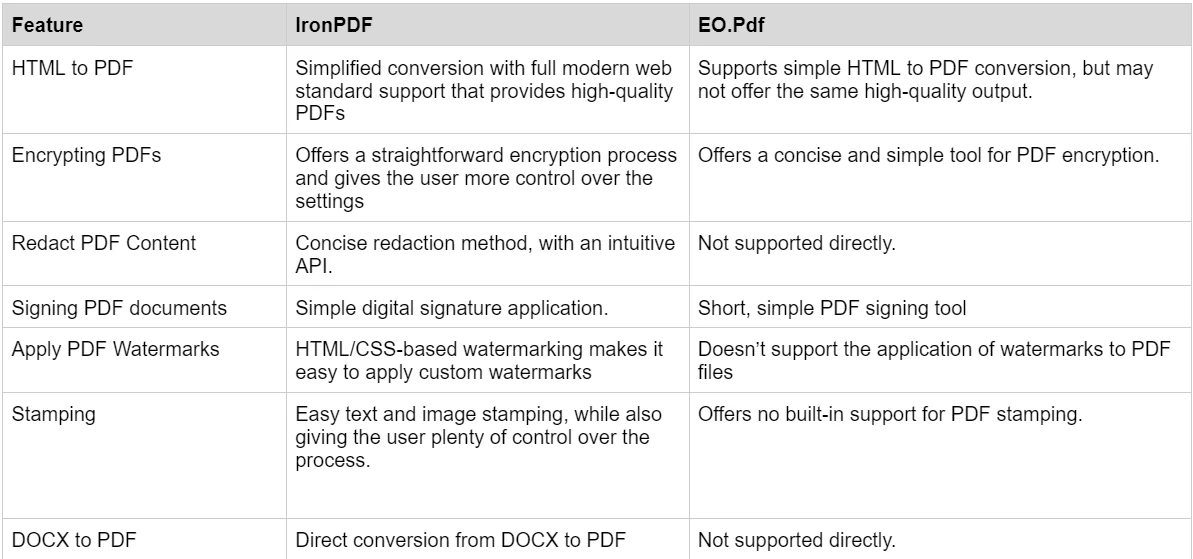
IronPDF가 제공하는 다양한 기능에 대해 더 알고 싶고 이를 실행하는 것을 보고 싶다면, IronPDF의 사용 방법 가이드를 확인하여 각 기능을 깊이 탐구하고, 어떻게 작동하는지 배우고, PDF 전문가가 되는 데 필요한 기술을 얻을 수 있습니다.
가격 및 라이선스: IronPDF vs. EO.Pdf 라이브러리
IronPDF
IronPDF는 다양한 레벨과 추가 기능으로 라이선스를 구매할 수 있습니다. 개발자는 또한 Iron Suite를 구매하여 Iron Software의 모든 제품에 두 개 가격으로 접근할 수 있습니다. 라이선스를 구매할 준비가 되지 않았다면, IronPDF는 모든 기능을 탐색할 수 있는 무료 체험판을 제공하여 라이선스 구매 전에 이를 시험해볼 수 있습니다.
-
영구 라이선스: 팀의 크기, 프로젝트 요구 사항 및 위치 수에 따라 다양한 영구 라이선스를 제공합니다. 각 라이선스 유형에는 이메일 지원이 포함됩니다.
-
Lite 라이선스: 이 라이선스는 $999의 가격으로 1명의 개발자, 1개의 위치, 1개의 프로젝트를 지원합니다.
-
Plus 라이선스: 3명의 개발자, 3개의 위치, 3개의 프로젝트를 지원하며 라이트 라이선스 다음 단계로 $1,499의 비용이 소요됩니다. Plus 라이선스는 기본 이메일 지원 외에도 채팅 지원 및 전화 지원을 제공합니다.
-
Professional 라이선스: 이 라이선스는 더 큰 팀에 적합하며 10명의 개발자, 10개의 위치, 10개의 프로젝트를 $2,399 비용으로 지원합니다. 그것은 이전 등급과 동일한 연락 지원 채널을 제공하면서도 화면 공유 지원을 추가로 제공합니다.
-
로열티 무료 재배포: IronPDF의 라이선스는 추가 $2,399 비용으로 로열티 무료 재배포 범위도 제공합니다.
-
중단 없는 제품 지원: IronPDF는 지속적인 제품 업데이트, 보안 기능 업그레이드 및 엔지니어링 팀의 지원에 연간 $1,499 또는 5년 간의 $2,399 일시 구매로 접근할 수 있습니다.
-
Iron Suite: For $2,998, you get access to all Iron Software products including IronPDF, IronOCR, IronWord, IronXL, IronBarcode, IronQR, IronZIP, IronPrint, and IronWebScraper.
EO.Pdf
EO.Pdf는 제품에 대한 소규모의 라이선스 옵션을 제공합니다.
EO.Pdf의 개별 라이선스를 다른 제품 없이 구매하려면 다음 옵션 중에서 선택할 수 있습니다:
-
**싱글 라이선스: $799.
-
**3 라이선스 번들: $1,799.
-
**기업 번들: $2,999.
-
**기업 플러스 번들: $4,499.
문서 및 지원: IronPDF vs. EO.Pdf
IronPDF
-
종합 문서: 모든 기능을 다룬 광범위하고 사용자 친화적인 문서입니다.
-
24/5 지원: 활동적인 엔지니어 지원이 가능합니다.
-
비디오 튜토리얼: YouTube에서 단계별 비디오 가이드를 제공합니다.
-
커뮤니티 포럼: 추가 지원을 위한 참여 커뮤니티입니다.
-
정기 업데이트: 최신 기능과 보안 패치를 보장하기 위해 월별 제품 업데이트를 제공합니다.
-
PDF API 참조: 도구의 기능을 최대한 활용할 수 있도록 API 참조를 제공합니다.
자세한 내용은 IronPDF의 광범위한 문서화를 확인하고, Iron Software YouTube 채널을 방문하세요.
EO.Pdf
-
API 참조: EO.Pdf는 라이브러리 내 각 메서드와 도구를 세분화하여 기능에 대한 광범위한 정보를 API 참조 섹션에서 제공합니다.
-
문서: EO.Pdf는 웹사이트에 광범위한 문서와 각 기능을 보여주는 코드 예제를 제공합니다.
-
포럼: EO.Pdf의 지원 포럼에서 사용자는 서로 및 개발자와 문제를 해결하고 라이브러리의 다양한 측면을 배우며 피드백을 보낼 수 있습니다.
결론
결론적으로 PDF 관련 작업을 위한 PDF 라이브러리를 선택할 때 고려해야 할 사항이 많습니다. 당신이 찾고 있는 라이브러리가 필요한 모든 기능을 제공합니까? 문서가 잘 되어 있고 배우기 쉬운가요? 예산에 비해 가격은 어떻습니까? 오늘 이후로 자신에게 맞는 라이브러리를 선택할 때 더 자신감을 갖게 되기를 바라며, 우리 비교 주제를 통해 나중에 사용할 라이브러리를 직접 비교할 수 있습니다.
IronPDF는 포괄적인 PDF 관련 기능 세트, 강력한 플랫폼 간 호환성 및 광범위한 문서화를 갖춘 강력한 PDF 라이브러리입니다. 다양한 파일 형식에서 PDF 생성과 같은 간단한 기능에서부터 PDF 암호화 및 서명과 같은 고급 기능까지, IronPDF가 제공해 드립니다.
EO.Pdf는 다양한 PDF 기능을 제공하지만, IronPDF가 제공하는 것 같은 광범위한 기능 세트를 가지고 있지 않습니다. 그러나 사용이 간편한 특성, PDF 생성 도구 및 간단한 문서가 있어 EO.Pdf는 광범위한 기능 세트를 필요로 하지 않는 경우 강력한 경쟁자입니다.
30일 무료 체험판을 통해 제공되는 기능을 확인할 수 있습니다.
EO.Pdf는 해당 소유자의 등록 상표입니다. 이 사이트는 EO.Pdf와 관련 없으며, 후원 또는 제휴가 없습니다. 모든 제품명, 로고 및 브랜드는 해당 소유자의 자산입니다. 비교는 정보 제공 목적으로만 사용되며, 작성 시점에 공개적으로 이용 가능한 정보를 반영합니다.













