디지털 서명은 전자 문서의 진위성과 무결성을 검증하는 수학적 기술입니다. 여러 관할권에서 문서를 디지털 서명하는 전자 서명으로 사용되며, 큰 보안과 법적 유효성을 보장합니다.
디지털 서명은 서명자만 알고 있는 개인 키를 사용하여 생성됩니다. 이 개인 키는 문서가 서명될 때 해당 문서에 연결된 고유한 디지털 서명을 설정합니다. 서명에는 서명자의 이름, 이메일 주소 및 기타 개인 정보가 포함됩니다. 디지털 서명이 된 문서의 진위 여부를 확인하려면 수신자가 서명자의 공개 키에 접근할 수 있어야 합니다. 서명의 적법성은 공개 키를 사용하여 서명을 해독함으로써 확인됩니다.
이 튜토리얼에서는 PDFSharp와 IronPDF를 사용하여 PDF 문서에 디지털 서명을 추가하는 방법을 비교합니다. 디지털 서명은 문서의 진위 여부를 확인하는 데 필수적이며 PDF 파일은 그러한 작업을 위한 인기 있는 형식입니다.
PDFSharp는 PDF 생성 및 조작을 위한 잘 알려진 오픈 소스 라이브러리인 반면, IronPDF는 유사한 기능을 추가 제공하는 강력한 .NET PDF 라이브러리입니다.
이 안내서에서는 개인 키로 PDF 문서에 서명하고 서명을 확인하는 방법을 다루며, 두 라이브러리의 예제 소스 코드도 포함되어 있습니다.
디지털 서명의 중요성은 무엇인가요?
디지털 서명은 문서의 무결성을 보장하고 강력한 보안을 제공합니다. 계약서, 합의서 및 기타 법적 문서에 일반적으로 사용됩니다.
주요 혜택:
- 전통적인 서명보다 더 안전하고 무단 변경이 불가능합니다.
- 전자적으로 확인되며 수작업 확인 작업을 줄입니다.
- 전 세계적으로 문서의 원격 서명을 가능하게 합니다.
- 전통적인 서명보다 더 높은 신뢰를 제공합니다.
PDFSharp 개요
PDFSharp는 주로 PDF 문서를 생성하고 조작하기 위해 설계된 오픈 소스 C# 라이브러리입니다. 간단한 PDF 파일 생성, 기존 문서 편집, 그래픽 렌더링과 같은 기본적인 PDF 작업에 널리 사용됩니다. 그러나 디지털 서명과 같은 고급 기능에 대한 기본 지원이 제한되어 있어 개발자들은 종종 BouncyCastle과 같은 타사 라이브러리에 의존하여 그러한 기능을 통합해야 합니다. PDFSharp는 MIT 라이선스 하에 오픈 소스로 비용과 유연성이 우선인 프로젝트에 적합한 선택입니다.
주요 기능
- MIT License 아래 오픈 소스 및 무료.
- 기본적인 PDF 생성 및 조작.
- 디지털 서명을 위해 BouncyCastle과 같은 외부 라이브러리로 확장 가능합니다.
- HTML-to-PDF 변환 및 복잡한 폼 처리와 같은 고급 PDF 기능에 대한 기본 지원이 부족합니다.
IronPDF 개요
IronPDF는 간단하고 강력한 API를 제공하여 PDF를 생성, 편집 및 조작할 수 있는 강력한 .NET PDF 라이브러리입니다. 그 주요 기능 중 하나는 디지털 서명의 구현이 용이하다는 점이며, 이는 문서의 진위성을 확인하는 데 필수적입니다. 디지털 서명 외에도, IronPDF는 HTML-to-PDF 변환, 워터마킹 및 폼 처리와 같은 고급 기능을 지원합니다. 이는 빠른 구현과 강력한 기능이 우선인 상업용 프로젝트에 참여하는 개발자들에게 특히 유용합니다.
주요 기능
- 유료 지원이 포함된 상업용 라이센스이며 무료 체험판 이용 가능.
- 사용하기 쉬운 API로 디지털 서명 및 문서 조작을 위한 현대적인 기능을 제공합니다.
- HTML-to-PDF 형식 변환, 폼 처리, PDF 주석 (예: 첨부 주석)에 대한 내장 지원 포함.
- 타임스탬프, 시각적 서명 이미지 및 암호화와 같은 고급 기능과 원활한 통합.
PDFSharp을 사용하여 프로그래밍 방식으로 디지털 서명 추가하기
PDFSharp는 C#에서 PDF 생성 및 조작을 위해 설계된 오픈 소스 라이브러리입니다. 그러나 서명을 추가하는 지원을 제공하지만, PDF 문서의 안전하고 정확한 디지털 서명을 보장하려면 BouncyCastle과 같은 타사 도구를 통합해야 합니다.
PDFSharp으로 디지털 서명 추가 단계
- NuGet를 통해 PDFSharp 및 BouncyCastle을 설치합니다.
- X509Certificate2를 사용하여 디지털 인증서를 생성합니다.
- BouncyCastle로 PDF에 서명합니다.
예제 코드
using System;
using System.IO;
using System.Security.Cryptography.X509Certificates;
using PdfSharp.Drawing;
using PdfSharp.Pdf;
using BouncyCastleSigner; // Hypothetical namespace for illustration
// Ensure that you have the appropriate namespaces added

class Program
{
    static void Main(string[] args)
    {
        // Create a font for the appearance of the signature
        var font = new XFont("Verdana", 10.0, XFontStyle.Regular);

        // Create a new PDF document
        var document = new PdfDocument();
        var pdfPage = document.AddPage();

        // Prepare graphics for drawing on the PDF page
        var xGraphics = XGraphics.FromPdfPage(pdfPage);
        var layoutRectangle = new XRect(0.0, 0.0, pdfPage.Width.Point, pdfPage.Height.Point);

        // Add some text to the page
        xGraphics.DrawString("Signed sample document", font, XBrushes.Black, layoutRectangle, XStringFormats.TopCenter);

        // Define digital signature appearance options
        var options = new DigitalSignatureOptions
        {
            ContactInfo = "John Doe",
            Location = "Seattle",
            Reason = "License Agreement",
            Rectangle = new XRect(36.0, 700.0, 400.0, 50.0),
            AppearanceHandler = new SignatureAppearanceHandler()
        };

        // Sign the document using BouncyCastle signer
        var pdfSignatureHandler = DigitalSignatureHandler.ForDocument(document,
            new PdfSharp.Snippets.Pdf.BouncyCastleSigner(GetCertificate(), PdfMessageDigestType.SHA256), options);

        // Save the signed document
        document.Save("PdfSharpSignature.pdf");
    }

    static (X509Certificate2, X509Certificate2Collection) GetCertificate()
    {
        // Locate the certificate file and read its data
        var certFolder = "C:\\Users\\kyess\\AppData\\Roaming\\Adobe\\Acrobat\\DC\\Security";
        var pfxFile = Path.Combine(certFolder, "IronSoftware.pfx");
        var rawData = File.ReadAllBytes(pfxFile);

        // Load the certificate using its password (example password)
        var certificatePassword = "Passw0rd";
        var certificate = new X509Certificate2(rawData, certificatePassword,
            X509KeyStorageFlags.MachineKeySet | X509KeyStorageFlags.PersistKeySet | X509KeyStorageFlags.Exportable);

        // Create and return the certificate collection
        var collection = new X509Certificate2Collection();
        collection.Import(rawData, certificatePassword,
            X509KeyStorageFlags.MachineKeySet | X509KeyStorageFlags.PersistKeySet | X509KeyStorageFlags.Exportable);
        return (certificate, collection);
    }
}
using System;
using System.IO;
using System.Security.Cryptography.X509Certificates;
using PdfSharp.Drawing;
using PdfSharp.Pdf;
using BouncyCastleSigner; // Hypothetical namespace for illustration
// Ensure that you have the appropriate namespaces added

class Program
{
    static void Main(string[] args)
    {
        // Create a font for the appearance of the signature
        var font = new XFont("Verdana", 10.0, XFontStyle.Regular);

        // Create a new PDF document
        var document = new PdfDocument();
        var pdfPage = document.AddPage();

        // Prepare graphics for drawing on the PDF page
        var xGraphics = XGraphics.FromPdfPage(pdfPage);
        var layoutRectangle = new XRect(0.0, 0.0, pdfPage.Width.Point, pdfPage.Height.Point);

        // Add some text to the page
        xGraphics.DrawString("Signed sample document", font, XBrushes.Black, layoutRectangle, XStringFormats.TopCenter);

        // Define digital signature appearance options
        var options = new DigitalSignatureOptions
        {
            ContactInfo = "John Doe",
            Location = "Seattle",
            Reason = "License Agreement",
            Rectangle = new XRect(36.0, 700.0, 400.0, 50.0),
            AppearanceHandler = new SignatureAppearanceHandler()
        };

        // Sign the document using BouncyCastle signer
        var pdfSignatureHandler = DigitalSignatureHandler.ForDocument(document,
            new PdfSharp.Snippets.Pdf.BouncyCastleSigner(GetCertificate(), PdfMessageDigestType.SHA256), options);

        // Save the signed document
        document.Save("PdfSharpSignature.pdf");
    }

    static (X509Certificate2, X509Certificate2Collection) GetCertificate()
    {
        // Locate the certificate file and read its data
        var certFolder = "C:\\Users\\kyess\\AppData\\Roaming\\Adobe\\Acrobat\\DC\\Security";
        var pfxFile = Path.Combine(certFolder, "IronSoftware.pfx");
        var rawData = File.ReadAllBytes(pfxFile);

        // Load the certificate using its password (example password)
        var certificatePassword = "Passw0rd";
        var certificate = new X509Certificate2(rawData, certificatePassword,
            X509KeyStorageFlags.MachineKeySet | X509KeyStorageFlags.PersistKeySet | X509KeyStorageFlags.Exportable);

        // Create and return the certificate collection
        var collection = new X509Certificate2Collection();
        collection.Import(rawData, certificatePassword,
            X509KeyStorageFlags.MachineKeySet | X509KeyStorageFlags.PersistKeySet | X509KeyStorageFlags.Exportable);
        return (certificate, collection);
    }
}
Imports System
Imports System.IO
Imports System.Security.Cryptography.X509Certificates
Imports PdfSharp.Drawing
Imports PdfSharp.Pdf
Imports BouncyCastleSigner ' Hypothetical namespace for illustration
' Ensure that you have the appropriate namespaces added
Friend Class Program
Shared Sub Main(ByVal args() As String)
' Create a font for the appearance of the signature
Dim font = New XFont("Verdana", 10.0, XFontStyle.Regular)
' Create a new PDF document
Dim document = New PdfDocument()
Dim pdfPage = document.AddPage()
' Prepare graphics for drawing on the PDF page
Dim xGraphics = XGraphics.FromPdfPage(pdfPage)
Dim layoutRectangle = New XRect(0.0, 0.0, pdfPage.Width.Point, pdfPage.Height.Point)
' Add some text to the page
xGraphics.DrawString("Signed sample document", font, XBrushes.Black, layoutRectangle, XStringFormats.TopCenter)
' Define digital signature appearance options
Dim options = New DigitalSignatureOptions With {
.ContactInfo = "John Doe",
.Location = "Seattle",
.Reason = "License Agreement",
.Rectangle = New XRect(36.0, 700.0, 400.0, 50.0),
.AppearanceHandler = New SignatureAppearanceHandler()
}
' Sign the document using BouncyCastle signer
Dim pdfSignatureHandler = DigitalSignatureHandler.ForDocument(document, New PdfSharp.Snippets.Pdf.BouncyCastleSigner(GetCertificate(), PdfMessageDigestType.SHA256), options)
' Save the signed document
document.Save("PdfSharpSignature.pdf")
End Sub
Private Shared Function GetCertificate() As (X509Certificate2, X509Certificate2Collection)
' Locate the certificate file and read its data
Dim certFolder = "C:\Users\kyess\AppData\Roaming\Adobe\Acrobat\DC\Security"
Dim pfxFile = Path.Combine(certFolder, "IronSoftware.pfx")
Dim rawData = File.ReadAllBytes(pfxFile)
' Load the certificate using its password (example password)
Dim certificatePassword = "Passw0rd"
Dim certificate = New X509Certificate2(rawData, certificatePassword, X509KeyStorageFlags.MachineKeySet Or X509KeyStorageFlags.PersistKeySet Or X509KeyStorageFlags.Exportable)
' Create and return the certificate collection
Dim collection = New X509Certificate2Collection()
collection.Import(rawData, certificatePassword, X509KeyStorageFlags.MachineKeySet Or X509KeyStorageFlags.PersistKeySet Or X509KeyStorageFlags.Exportable)
Return (certificate, collection)
End Function
End Class
Imports System
Imports System.IO
Imports System.Security.Cryptography.X509Certificates
Imports PdfSharp.Drawing
Imports PdfSharp.Pdf
Imports BouncyCastleSigner ' Hypothetical namespace for illustration
' Ensure that you have the appropriate namespaces added

Friend Class Program
	Shared Sub Main(ByVal args() As String)
		' Create a font for the appearance of the signature
		Dim font = New XFont("Verdana", 10.0, XFontStyle.Regular)

		' Create a new PDF document
		Dim document = New PdfDocument()
		Dim pdfPage = document.AddPage()

		' Prepare graphics for drawing on the PDF page
		Dim xGraphics = XGraphics.FromPdfPage(pdfPage)
		Dim layoutRectangle = New XRect(0.0, 0.0, pdfPage.Width.Point, pdfPage.Height.Point)

		' Add some text to the page
		xGraphics.DrawString("Signed sample document", font, XBrushes.Black, layoutRectangle, XStringFormats.TopCenter)

		' Define digital signature appearance options
		Dim options = New DigitalSignatureOptions With {
			.ContactInfo = "John Doe",
			.Location = "Seattle",
			.Reason = "License Agreement",
			.Rectangle = New XRect(36.0, 700.0, 400.0, 50.0),
			.AppearanceHandler = New SignatureAppearanceHandler()
		}

		' Sign the document using BouncyCastle signer
		Dim pdfSignatureHandler = DigitalSignatureHandler.ForDocument(document, New PdfSharp.Snippets.Pdf.BouncyCastleSigner(GetCertificate(), PdfMessageDigestType.SHA256), options)

		' Save the signed document
		document.Save("PdfSharpSignature.pdf")
	End Sub

	Private Shared Function GetCertificate() As (X509Certificate2, X509Certificate2Collection)
		' Locate the certificate file and read its data
		Dim certFolder = "C:\Users\kyess\AppData\Roaming\Adobe\Acrobat\DC\Security"
		Dim pfxFile = Path.Combine(certFolder, "IronSoftware.pfx")
		Dim rawData = File.ReadAllBytes(pfxFile)

		' Load the certificate using its password (example password)
		Dim certificatePassword = "Passw0rd"
		Dim certificate = New X509Certificate2(rawData, certificatePassword, X509KeyStorageFlags.MachineKeySet Or X509KeyStorageFlags.PersistKeySet Or X509KeyStorageFlags.Exportable)

		' Create and return the certificate collection
		Dim collection = New X509Certificate2Collection()
		collection.Import(rawData, certificatePassword, X509KeyStorageFlags.MachineKeySet Or X509KeyStorageFlags.PersistKeySet Or X509KeyStorageFlags.Exportable)
		Return (certificate, collection)
	End Function
End Class
산출
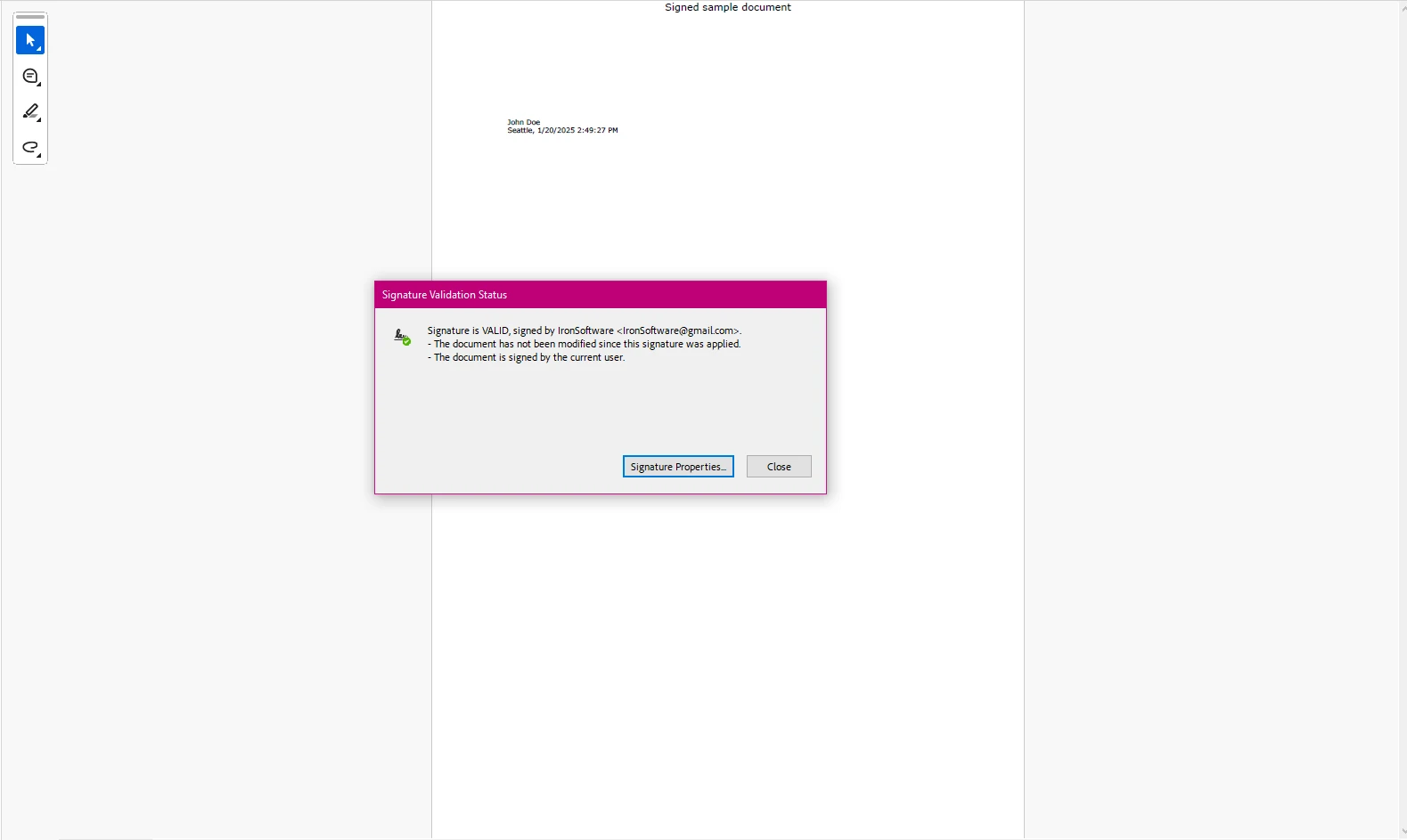
여기에서 볼 수 있듯이, 디지털 서명 필드를 생성하고 인증서를 새로운 문서에 적용할 수 있었지만, 이 과정은 광범위하고 수동적이며 IronPDF와 같은 라이브러리에 비해 효율적으로 구현하기 어렵습니다.
IronPDF로 디지털 서명 추가하기
IronPDF는 개발자에게 PDF 문서를 디지털 서명 하기 위한 간결한 방법을 제공합니다.
using IronPdf;
using System.Security.Cryptography.X509Certificates;

public class Program
{
    static void Main(string[] args)
    {
        // Load the certificate with its password
        var sig = new PdfSignature("IronSoftware.pfx", "your-password");

        // Configure additional signature details
        sig.TimestampHashAlgorithm = TimestampHashAlgorithms.SHA256;
        sig.TimestampUrl = "http://timestamp.digicert.com";
        sig.SignatureImage = new PdfSignatureImage("IronPdf.png", 0, new Rectangle(150, 100, 200, 200));

        // Sign and save the PDF document
        sig.SignPdfFile("output.pdf");
    }
}
using IronPdf;
using System.Security.Cryptography.X509Certificates;

public class Program
{
    static void Main(string[] args)
    {
        // Load the certificate with its password
        var sig = new PdfSignature("IronSoftware.pfx", "your-password");

        // Configure additional signature details
        sig.TimestampHashAlgorithm = TimestampHashAlgorithms.SHA256;
        sig.TimestampUrl = "http://timestamp.digicert.com";
        sig.SignatureImage = new PdfSignatureImage("IronPdf.png", 0, new Rectangle(150, 100, 200, 200));

        // Sign and save the PDF document
        sig.SignPdfFile("output.pdf");
    }
}
Imports IronPdf
Imports System.Security.Cryptography.X509Certificates
Public Class Program
Shared Sub Main(ByVal args() As String)
' Load the certificate with its password
Dim sig = New PdfSignature("IronSoftware.pfx", "your-password")
' Configure additional signature details
sig.TimestampHashAlgorithm = TimestampHashAlgorithms.SHA256
sig.TimestampUrl = "http://timestamp.digicert.com"
sig.SignatureImage = New PdfSignatureImage("IronPdf.png", 0, New Rectangle(150, 100, 200, 200))
' Sign and save the PDF document
sig.SignPdfFile("output.pdf")
End Sub
End Class
Imports IronPdf
Imports System.Security.Cryptography.X509Certificates

Public Class Program
	Shared Sub Main(ByVal args() As String)
		' Load the certificate with its password
		Dim sig = New PdfSignature("IronSoftware.pfx", "your-password")

		' Configure additional signature details
		sig.TimestampHashAlgorithm = TimestampHashAlgorithms.SHA256
		sig.TimestampUrl = "http://timestamp.digicert.com"
		sig.SignatureImage = New PdfSignatureImage("IronPdf.png", 0, New Rectangle(150, 100, 200, 200))

		' Sign and save the PDF document
		sig.SignPdfFile("output.pdf")
	End Sub
End Class
산출
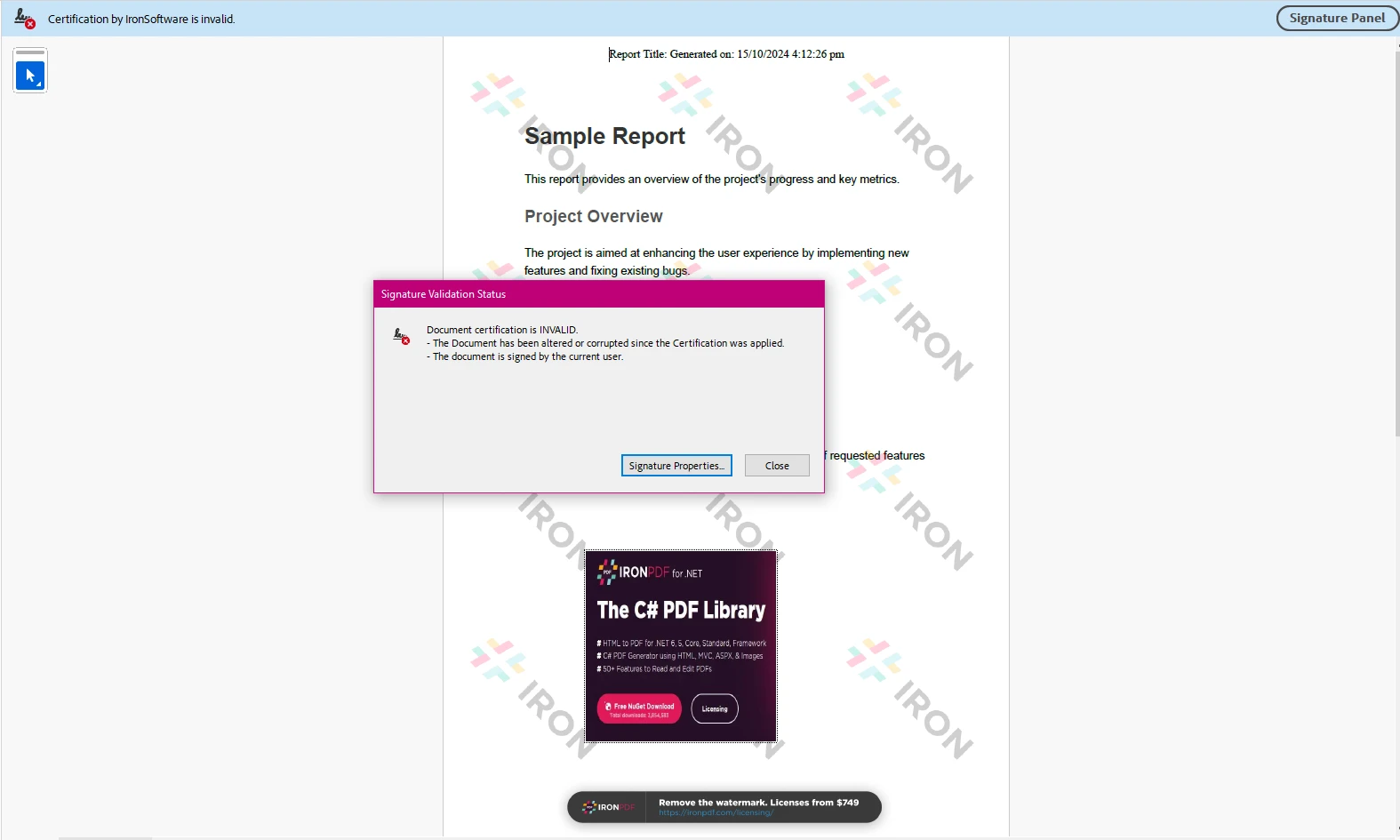
이 코드는 IronPDF의 PdfSignature 클래스를 사용하여 PDF 문서에 서명하는 방법을 보여줍니다. 프로그램은 먼저 .pfx 인증서 파일의 위치와 비밀번호를 지정하여 PdfSignature 객체를 생성합니다. 그 후 해시 알고리즘(SHA256), 타임스탬프 URL, 서명용 사용자 정의 이미지(IronPdf.png)와 같은 추가 서명 속성을 설정합니다.
마침내 SignPdfFile 메서드가 호출되어 PDF 문서에 디지털 서명을 적용하고 output.pdf로 저장합니다. 이 과정은 타임스탬프 및 시각적 이미지와 함께 디지털 서명을 포함하여 PDF의 무결성과 진본성을 보장합니다.
PDFSharp:
- MIT 라이선스 하에 오픈 소스입니다.
- 디지털 서명과 같은 고급 기능을 위해 외부 라이브러리 (예: BouncyCastle)가 필요합니다.
IronPDF:
결론: C#에서 디지털 서명에 있어서 IronPDF 대 PDFSharp
IronPDF와 PDFSharp를 C#에서 PDF에 디지털 서명을 추가하기 위해 비교할 때, 두 라이브러리는 프로젝트 요구 사항에 따라 다양한 이점을 제공합니다.
-
IronPDF는 독립 프리랜서 소프트웨어 개발자이든, 기업의 개발자이든 관계없이 PDF에 디지털 서명을 적용하기 위한 간단하고 사용하기 쉬운 API를 찾는 개발자에게 이상적이며, 현대적인 기능을 제공합니다. 디지털 서명 애플리케이션과의 원활한 통합, HTML-to-PDF 변환 및 기타 PDF 기능들은 사용의 용이성과 빠른 구현을 우선시하는 상업 프로젝트에 적합한 선택입니다. 유료 지원과 명확한 상업 라이선스 구조를 통해 IronPDF는 간단하고 신뢰할 수 있는 솔루션이 필요한 비즈니스에 적합합니다.
-
PDFSharp는 기본 PDF 생성 및 조작에 뛰어나지만, IronPDF가 제공하는 고급 기능과 디지털 서명을 위한 직접 지원이 부족합니다. PDFSharp는 오픈 소스로 무료로 사용할 수 있지만, 디지털 서명과 작업할 때의 API는 IronPDF에 비해 덜 직관적이며, 이러한 기능을 처리하기 위해 추가 솔루션 또는 타사 라이브러리를 사용해야 할 수 있습니다.
요약하자면 IronPDF는 디지털 서명 및 관련 PDF 작업에 대한 간단하고 빠른 솔루션을 찾는 개발자들에게 특히 상업 환경에서 가장 좋은 선택입니다. PDFSharp는 기본 PDF 작업에 더 적합하지만, 디지털 서명을 위한 동일한 사용 편의성과 기능 세트는 부족하여 더 간단한 프로젝트나 추가 맞춤 작업이 필요한 프로젝트에 더 적합합니다.
PDFSharp와 BouncyCastle은 각 소유자의 등록 상표입니다. 이 사이트는 PDFSharp 또는 BouncyCastle과 연관되어 있지 않으며, 승인되지 않았습니다. 모든 제품명, 로고 및 브랜드는 해당 소유자의 자산입니다. 비교는 정보 제공 목적으로만 사용되며, 작성 시점에 공개적으로 이용 가능한 정보를 반영합니다.























