


如何編輯PDF中的文字(初學者教程)

數位簽章是一種數學技術,用於驗證電子文件的真實性和完整性。 它作為電子簽名在多個司法管轄區簽署文件,確保極高的安全性和法律有效性。
數位簽章是使用只有簽署者知道的私鑰建立的。 這個私鑰在文件簽署時建立了與文件相關聯的唯一數位簽章。 簽章包含簽署者的姓名、電子郵件地址和其他個人資訊。 要確認已數位簽署文件的真實性,接收者需要獲取簽署者的公鑰。 簽章的合法性是通過使用公鑰解密來驗證的。
在此教程中,我們比較如何使用 PDFSharp 和 IronPDF 向 PDF 文件新增數位簽章。 數位簽章對於驗證文件真實性至關重要,而 PDF 文件是進行此類操作的流行格式。
PDFSharp 是一個知名的開源程式庫,用於 PDF 建立和操作,而 IronPDF 是一個強大的 .NET PDF 程式庫,提供類似功能和額外的進階功能。
本指南涵蓋了使用私鑰簽署 PDF 文件和驗證簽章的過程,並附上兩個程式庫的源程式碼範例。
為什麼數位簽章重要?
數位簽章確保文件的完整性並提供強大的安全性。 它們通常用於合同、協議和其他法律文件。
主要優勢:
- 比傳統簽名更安全且防篡改。
- 通過電子驗證,減少手動驗證的工作量。
- 允許在全球範圍內遠程簽署文件。
- 提供比傳統簽名更高的保證。
PDFSharp概述
PDFSharp 是一個開源的 C# 程式庫,主要用於建立和操作 PDF 文件。 它廣泛用於基本的 PDF 任務,例如生成簡單的 PDF 文件、編輯現有文件和渲染圖形。 然而,其對於數位簽章等進階功能的原生支援有限,開發者通常需要依賴第三方程式庫,如 BouncyCastle,來整合這類功能。 PDFSharp 是開源的,採用 MIT 授權,是成本和靈活性優先的專案的良好選擇。
主要功能
- 在 MIT 授權下開源和免費。
- 基本的 PDF 建立和操作。
- 可以與 BouncyCastle 等外部程式庫擴展以進行數位簽章。
- 缺乏即時支援的進階 PDF 功能,如 HTML-to-PDF 轉換和複雜表單處理。
IronPDF 概覽
IronPDF 是一個強大的 .NET PDF 程式庫,提供簡單且功能強大的 API 用於生成、編輯和操作 PDF。 其一大特色是開發者可以輕鬆實現數位簽章,這對於驗證文件的真實性非常重要。 除了數位簽章外,IronPDF 還支援HTML-to-PDF 轉換、水印和表單處理等進階功能。 對於從事商業項目且需要快速實施和強大功能的開發者來說,這是非常有價值的選擇。
主要功能
使用 PDFSharp 程式化新增數位簽章
PDFSharp 是一個開源的程式庫,旨在用於 C# 的 PDF 建立和操作。 然而,雖然它提供了新增簽章的支援,但您需要整合像 BouncyCastle 的第三方工具,以確保 PDF 文件的數位簽署是安全且準確的。
用 PDFSharp 新增數位簽章的步驟
- 通過 NuGet 安裝 PDFSharp 和 BouncyCastle。
- 使用 X509Certificate2 建立數位證書。
- 使用 BouncyCastle 對 PDF 進行簽署。
範例程式碼
using System;
using System.IO;
using System.Security.Cryptography.X509Certificates;
using PdfSharp.Drawing;
using PdfSharp.Pdf;
using BouncyCastleSigner; // Hypothetical namespace for illustration
// Ensure that you have the appropriate namespaces added

class Program
{
    static void Main(string[] args)
    {
        // Create a font for the appearance of the signature
        var font = new XFont("Verdana", 10.0, XFontStyle.Regular);

        // Create a new PDF document
        var document = new PdfDocument();
        var pdfPage = document.AddPage();

        // Prepare graphics for drawing on the PDF page
        var xGraphics = XGraphics.FromPdfPage(pdfPage);
        var layoutRectangle = new XRect(0.0, 0.0, pdfPage.Width.Point, pdfPage.Height.Point);

        // Add some text to the page
        xGraphics.DrawString("Signed sample document", font, XBrushes.Black, layoutRectangle, XStringFormats.TopCenter);

        // Define digital signature appearance options
        var options = new DigitalSignatureOptions
        {
            ContactInfo = "John Doe",
            Location = "Seattle",
            Reason = "License Agreement",
            Rectangle = new XRect(36.0, 700.0, 400.0, 50.0),
            AppearanceHandler = new SignatureAppearanceHandler()
        };

        // Sign the document using BouncyCastle signer
        var pdfSignatureHandler = DigitalSignatureHandler.ForDocument(document,
            new PdfSharp.Snippets.Pdf.BouncyCastleSigner(GetCertificate(), PdfMessageDigestType.SHA256), options);

        // Save the signed document
        document.Save("PdfSharpSignature.pdf");
    }

    static (X509Certificate2, X509Certificate2Collection) GetCertificate()
    {
        // Locate the certificate file and read its data
        var certFolder = "C:\\Users\\kyess\\AppData\\Roaming\\Adobe\\Acrobat\\DC\\Security";
        var pfxFile = Path.Combine(certFolder, "IronSoftware.pfx");
        var rawData = File.ReadAllBytes(pfxFile);

        // Load the certificate using its password (example password)
        var certificatePassword = "Passw0rd";
        var certificate = new X509Certificate2(rawData, certificatePassword,
            X509KeyStorageFlags.MachineKeySet | X509KeyStorageFlags.PersistKeySet | X509KeyStorageFlags.Exportable);

        // Create and return the certificate collection
        var collection = new X509Certificate2Collection();
        collection.Import(rawData, certificatePassword,
            X509KeyStorageFlags.MachineKeySet | X509KeyStorageFlags.PersistKeySet | X509KeyStorageFlags.Exportable);
        return (certificate, collection);
    }
}
using System;
using System.IO;
using System.Security.Cryptography.X509Certificates;
using PdfSharp.Drawing;
using PdfSharp.Pdf;
using BouncyCastleSigner; // Hypothetical namespace for illustration
// Ensure that you have the appropriate namespaces added
class Program
{
static void Main(string[] args)
{
// Create a font for the appearance of the signature
var font = new XFont("Verdana", 10.0, XFontStyle.Regular);
// Create a new PDF document
var document = new PdfDocument();
var pdfPage = document.AddPage();
// Prepare graphics for drawing on the PDF page
var xGraphics = XGraphics.FromPdfPage(pdfPage);
var layoutRectangle = new XRect(0.0, 0.0, pdfPage.Width.Point, pdfPage.Height.Point);
// Add some text to the page
xGraphics.DrawString("Signed sample document", font, XBrushes.Black, layoutRectangle, XStringFormats.TopCenter);
// Define digital signature appearance options
var options = new DigitalSignatureOptions
{
ContactInfo = "John Doe",
Location = "Seattle",
Reason = "License Agreement",
Rectangle = new XRect(36.0, 700.0, 400.0, 50.0),
AppearanceHandler = new SignatureAppearanceHandler()
};
// Sign the document using BouncyCastle signer
var pdfSignatureHandler = DigitalSignatureHandler.ForDocument(document,
new PdfSharp.Snippets.Pdf.BouncyCastleSigner(GetCertificate(), PdfMessageDigestType.SHA256), options);
// Save the signed document
document.Save("PdfSharpSignature.pdf");
}
static (X509Certificate2, X509Certificate2Collection) GetCertificate()
{
// Locate the certificate file and read its data
var certFolder = "C:\\Users\\kyess\\AppData\\Roaming\\Adobe\\Acrobat\\DC\\Security";
var pfxFile = Path.Combine(certFolder, "IronSoftware.pfx");
var rawData = File.ReadAllBytes(pfxFile);
// Load the certificate using its password (example password)
var certificatePassword = "Passw0rd";
var certificate = new X509Certificate2(rawData, certificatePassword,
X509KeyStorageFlags.MachineKeySet | X509KeyStorageFlags.PersistKeySet | X509KeyStorageFlags.Exportable);
// Create and return the certificate collection
var collection = new X509Certificate2Collection();
collection.Import(rawData, certificatePassword,
X509KeyStorageFlags.MachineKeySet | X509KeyStorageFlags.PersistKeySet | X509KeyStorageFlags.Exportable);
return (certificate, collection);
}
}Imports System
Imports System.IO
Imports System.Security.Cryptography.X509Certificates
Imports PdfSharp.Drawing
Imports PdfSharp.Pdf
Imports BouncyCastleSigner ' Hypothetical namespace for illustration
' Ensure that you have the appropriate namespaces added
Friend Class Program
Shared Sub Main(ByVal args() As String)
' Create a font for the appearance of the signature
Dim font = New XFont("Verdana", 10.0, XFontStyle.Regular)
' Create a new PDF document
Dim document = New PdfDocument()
Dim pdfPage = document.AddPage()
' Prepare graphics for drawing on the PDF page
Dim xGraphics = XGraphics.FromPdfPage(pdfPage)
Dim layoutRectangle = New XRect(0.0, 0.0, pdfPage.Width.Point, pdfPage.Height.Point)
' Add some text to the page
xGraphics.DrawString("Signed sample document", font, XBrushes.Black, layoutRectangle, XStringFormats.TopCenter)
' Define digital signature appearance options
Dim options = New DigitalSignatureOptions With {
.ContactInfo = "John Doe",
.Location = "Seattle",
.Reason = "License Agreement",
.Rectangle = New XRect(36.0, 700.0, 400.0, 50.0),
.AppearanceHandler = New SignatureAppearanceHandler()
}
' Sign the document using BouncyCastle signer
Dim pdfSignatureHandler = DigitalSignatureHandler.ForDocument(document, New PdfSharp.Snippets.Pdf.BouncyCastleSigner(GetCertificate(), PdfMessageDigestType.SHA256), options)
' Save the signed document
document.Save("PdfSharpSignature.pdf")
End Sub
Private Shared Function GetCertificate() As (X509Certificate2, X509Certificate2Collection)
' Locate the certificate file and read its data
Dim certFolder = "C:\Users\kyess\AppData\Roaming\Adobe\Acrobat\DC\Security"
Dim pfxFile = Path.Combine(certFolder, "IronSoftware.pfx")
Dim rawData = File.ReadAllBytes(pfxFile)
' Load the certificate using its password (example password)
Dim certificatePassword = "Passw0rd"
Dim certificate = New X509Certificate2(rawData, certificatePassword, X509KeyStorageFlags.MachineKeySet Or X509KeyStorageFlags.PersistKeySet Or X509KeyStorageFlags.Exportable)
' Create and return the certificate collection
Dim collection = New X509Certificate2Collection()
collection.Import(rawData, certificatePassword, X509KeyStorageFlags.MachineKeySet Or X509KeyStorageFlags.PersistKeySet Or X509KeyStorageFlags.Exportable)
Return (certificate, collection)
End Function
End Class輸出
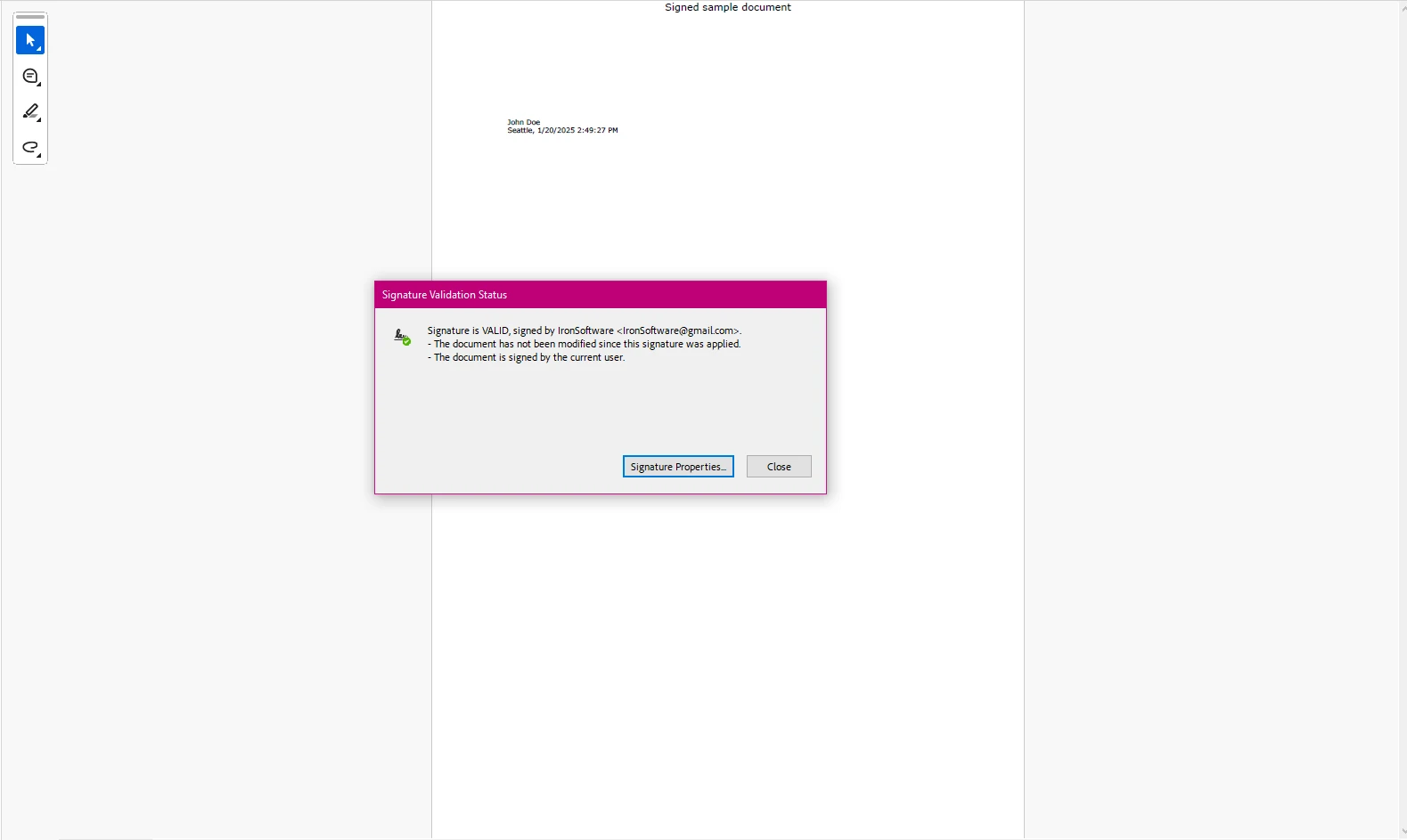
正如您在這裡看到的,雖然可以建立一個數位簽章欄位並將證書應用於我們的新文件,但該過程相對繁瑣、手動,與如 IronPDF 之類的程式庫相比,實施效益不高。
使用 IronPDF 新增數位簽章
IronPDF 為開發者提供了一種簡明的方法來數位簽署 PDF 文件。
using IronPdf;
using System.Security.Cryptography.X509Certificates;

public class Program
{
    static void Main(string[] args)
    {
        // Load the certificate with its password
        var sig = new PdfSignature("IronSoftware.pfx", "your-password");

        // Configure additional signature details
        sig.TimestampHashAlgorithm = TimestampHashAlgorithms.SHA256;
        sig.TimestampUrl = "http://timestamp.digicert.com";
        sig.SignatureImage = new PdfSignatureImage("IronPdf.png", 0, new Rectangle(150, 100, 200, 200));

        // Sign and save the PDF document
        sig.SignPdfFile("output.pdf");
    }
}
using IronPdf;
using System.Security.Cryptography.X509Certificates;
public class Program
{
static void Main(string[] args)
{
// Load the certificate with its password
var sig = new PdfSignature("IronSoftware.pfx", "your-password");
// Configure additional signature details
sig.TimestampHashAlgorithm = TimestampHashAlgorithms.SHA256;
sig.TimestampUrl = "http://timestamp.digicert.com";
sig.SignatureImage = new PdfSignatureImage("IronPdf.png", 0, new Rectangle(150, 100, 200, 200));
// Sign and save the PDF document
sig.SignPdfFile("output.pdf");
}
}Imports IronPdf
Imports System.Security.Cryptography.X509Certificates
Public Class Program
Shared Sub Main(ByVal args() As String)
' Load the certificate with its password
Dim sig = New PdfSignature("IronSoftware.pfx", "your-password")
' Configure additional signature details
sig.TimestampHashAlgorithm = TimestampHashAlgorithms.SHA256
sig.TimestampUrl = "http://timestamp.digicert.com"
sig.SignatureImage = New PdfSignatureImage("IronPdf.png", 0, New Rectangle(150, 100, 200, 200))
' Sign and save the PDF document
sig.SignPdfFile("output.pdf")
End Sub
End Class輸出
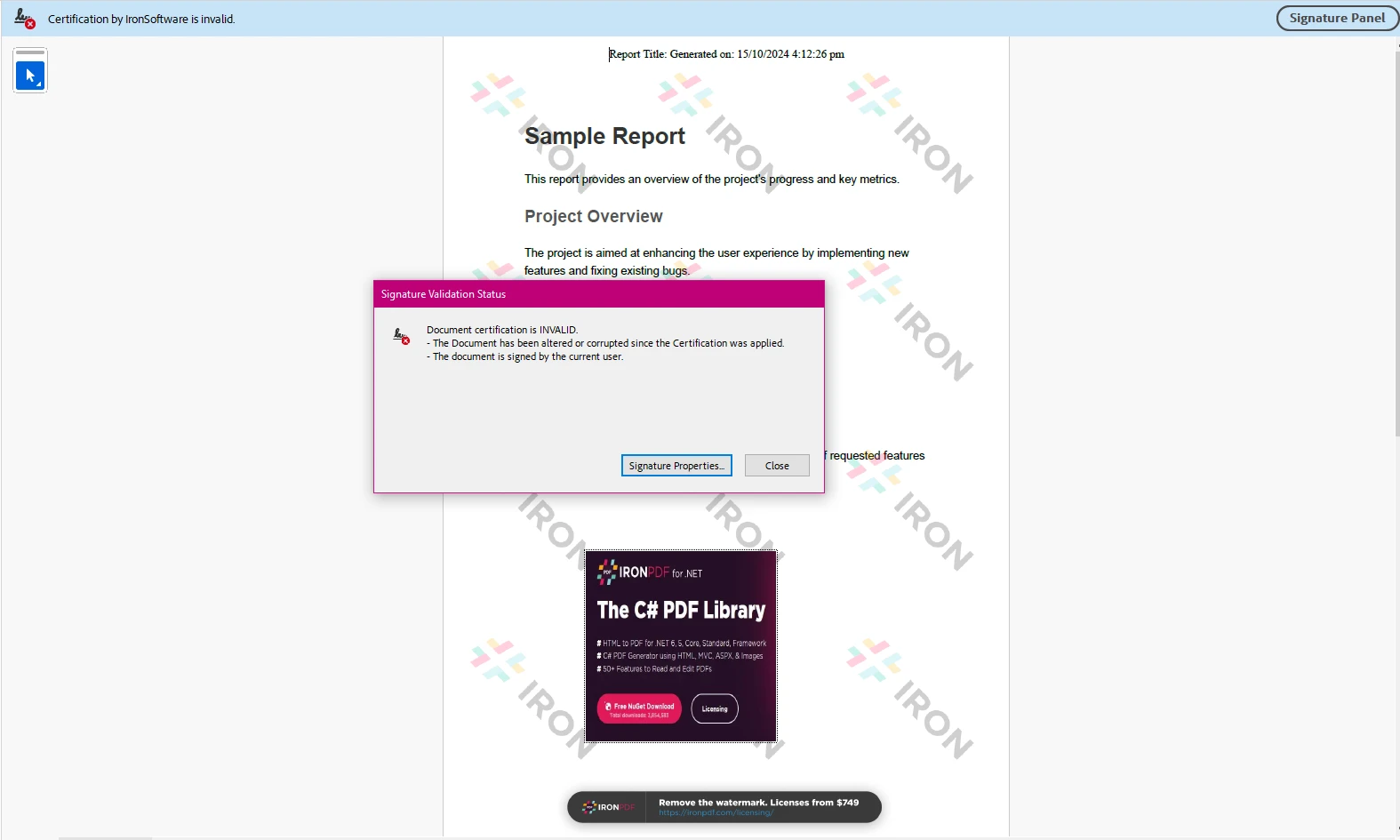
這段程式碼演示瞭如何使用 IronPDF 的 PdfSignature 類來簽署 PDF 文件。 程式首先建立了一個 PdfSignature 物件,指定了一個 .pfx 證書文件的位置及其密碼。 然後設置其他簽名屬性,例如算法(SHA256)、時間戳 URL 以及簽名的自訂影像(IronPdf.png)。
最後,調用 SignPdfFile 方法將數位簽章應用於 PDF 文件並另存為 output.pdf 。 此過程通過嵌入數位簽章以及時間戳和視覺影像來保證 PDF 的完整性和真實性。
PDFSharp:
- 根據 MIT 授權開源。
- 需要外部程式庫(例如 BouncyCastle)來實現進階功能如數位簽署。
IronPDF:
結論:IronPDF 與 PDFSharp 用於 C# 的數位簽章
在用於在 C# 中向 PDFs 新增數位簽章的比較中,IronPDF 和 PDFSharp 根據您的專案需求提供不同的優勢。
-
IronPDF 是獨立自由職業的軟體開發者或公司開發者的理想選擇,尋求簡單、易用的 API 用於將數位簽章應用於 PDF,並帶有現代化功能。 其與數位簽章應用、HTML-to-PDF 轉換及其他 PDF 功能的無縫整合,使其成為以易用性和快速實施為優先的商業專案的良好選擇。 IronPDF 擁有付費支援和清晰的商業授權結構,非常適合需要簡單可靠解決方案的企業。
- PDFSharp 擅長於基本的 PDF 建立和操作,但缺乏像 IronPDF 提供的先進功能和直接支援數位簽章。 雖然 PDFSharp 是開源且免費使用,但它的 API 使用起來不如 IronPDF 直觀,開發者可能需要採用其他解決方案或第三方程式庫來處理這些功能。
總之,IronPDF 是尋求簡單、快速解決數位簽章及相關 PDF 任務的開發者的最佳選擇,尤其是在商業環境中。 PDFSharp 更適合基本的 PDF 任務,但在數位簽章的易用性和功能組合上不如 IronPDF,這使其更適合於需要額外定制或較簡單專案。
常見問題
數位簽章如何確保PDF文件的真實性和完整性?
數位簽章使用加密技術來驗證PDF文件在簽署後未被修改。它們確認簽署者的身份並確保文件內容保持不變,提供安全性和法律有效性。
開發人員在使用PDFsharp新增數位簽章時可能面臨哪些挑戰?
當使用PDFsharp新增數位簽章時,開發人員通常需要整合像BouncyCastle這樣的第三方程式庫。這一要求可能會使實施過程變得複雜,因為開發人員需要管理額外的相依性來建立數位證書並簽署PDF。
為什麼開發人員可能選擇商業PDF程式庫而不是開放源程式碼的程式庫進行數位簽署?
商業PDF程式庫提供先進的功能、內建對數位簽章的支援以及使用者友好的API。這些屬性使其更適合那些尋求快速、可靠解決方案且需要專門支援的開發人員,尤其是在時間和效率至關重要的商業專案中。
如何在.NET應用程式中將HTML轉換為PDF?
可以在.NET應用程式中使用像IronPDF這樣的程式庫將HTML轉換為PDF,它提供的方法如RenderHtmlAsPdf,可以將HTML字串或檔案直接轉換為PDF文件,支援各種樣式和腳本選項。
在商業專案中使用IronPDF處理PDF有哪些好處?
IronPDF提供全面的功能套件來處理PDF,包括數位簽章、HTML轉PDF轉換和表單處理。其強大的支援和使用者友好的API使其成為商業專案的理想選擇,優先考慮先進功能和快速部署。
您可以使用.NET程式庫向PDF數位簽章新增時間戳嗎?
可以,使用像IronPDF這樣的程式庫,您可以在簽章配置中指定時間戳伺服器的URL來新增時間戳。此功能增強了簽署文件的可信度和法律合規性。
在選擇用於數位簽章實施的PDF程式庫時應考慮什麼?
在選擇用於數位簽章的PDF程式庫時,考慮易用性、支援先進功能、與第三方工具的整合能力以及專用客戶支援的可用性。這些通常在像IronPDF這樣的商業程式庫中更為全面。









 免費開始
免費開始 免費開始
免費開始 預訂免費直播演示
















