



Updated September 2, 2026
HTML to PDF in C#: Benchmarking 7 .NET Libraries (2026)
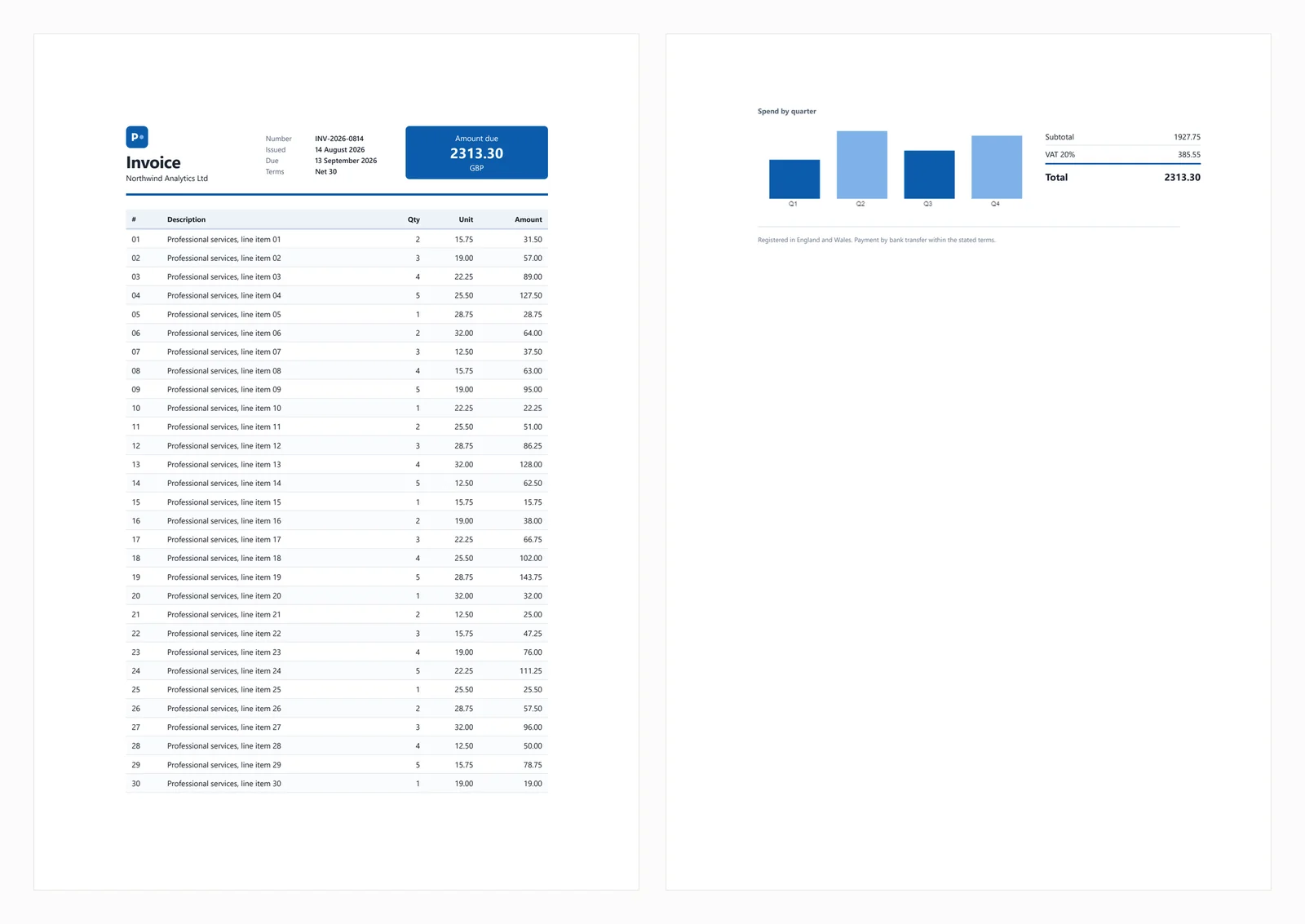
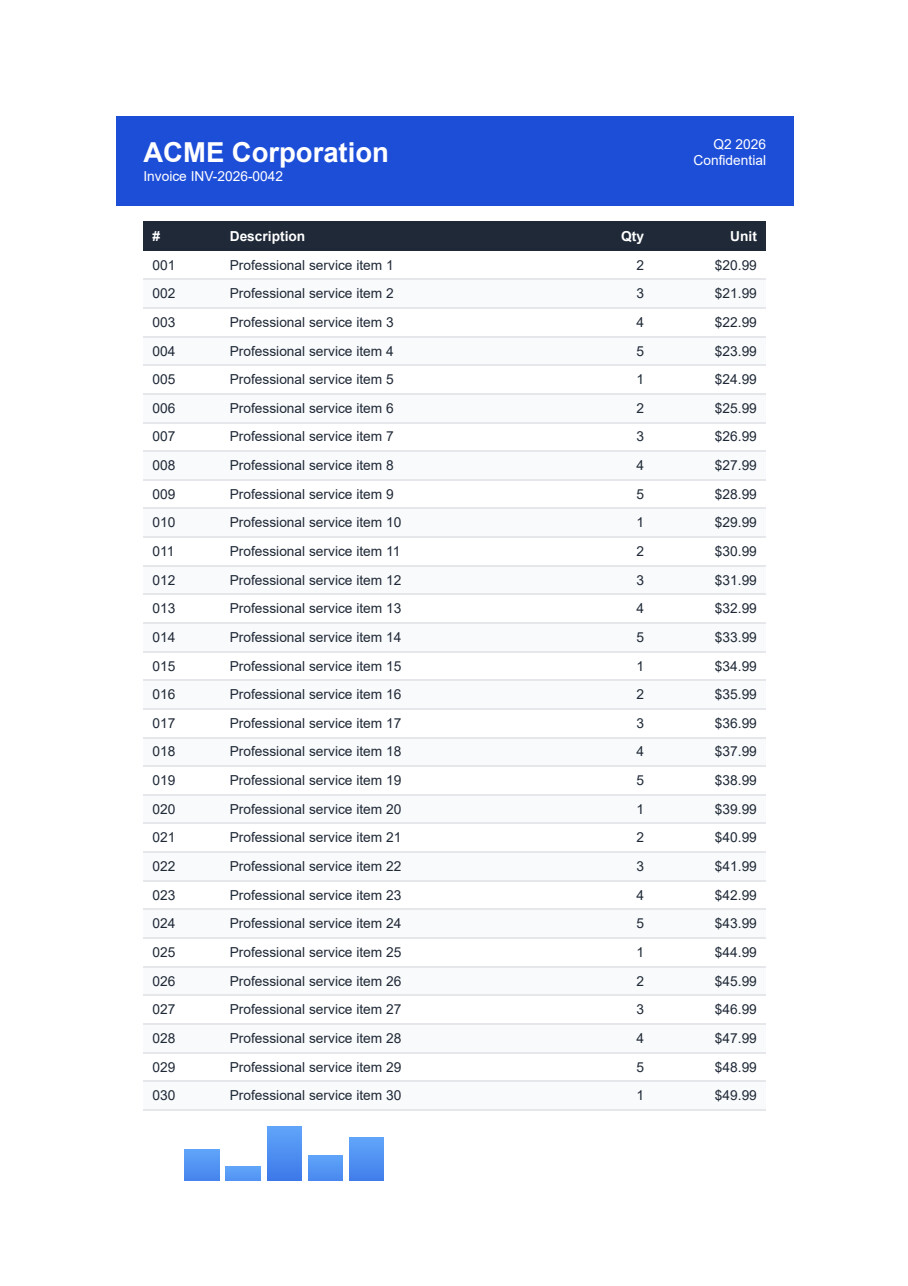
Compare 7 C# HTML to PDF libraries on .NET 10 for cold start, throughput, memory and rendering accuracy. Only 3 rendered the test invoice correctly.
Read More

A digital signature is a mathematical technique that verifies the authenticity and integrity of an electronic document. It serves as an electronic signature to digitally sign documents in several jurisdictions, ensuring great security and legal validity.
Digital signatures are created using a private key, which is only known to the signer. This private key establishes a unique digital signature linked to the document when it is signed. The signature includes the signer's name, email address, and other personal information. To confirm a digitally signed document's authenticity, the recipient requires access to the signer's public key. The signature's legitimacy is verified by decrypting it using the public key.
In this tutorial, we compare how to add digital signatures to PDF documents using PDFSharp and IronPDF. Digital signatures are essential for verifying document authenticity, and PDF files are a popular format for such operations.
PDFSharp is a well-known open-source library for PDF creation and manipulation, while IronPDF is a robust .NET PDF library offering similar features with additional advanced functionalities.
This guide covers signing a PDF document with a private key and verifying the signature, along with example source code for both libraries.
Digital signatures ensure document integrity and offer robust security. They are commonly used for contracts, agreements, and other legal documents.
Key benefits:
PDFSharp is an open-source C# library primarily designed for creating and manipulating PDF documents. It is widely used for basic PDF tasks, such as generating simple PDF files, editing existing documents, and rendering graphics. However, its native support for advanced features like digital signatures is limited, and developers often need to rely on third-party libraries, such as BouncyCastle, to integrate such functionalities. PDFSharp is open-source, under the MIT License, making it a good choice for projects where cost and flexibility are a priority.
IronPDF is a robust .NET PDF library that provides a simple and powerful API for generating, editing, and manipulating PDFs. One of its standout features is the ease with which developers can implement digital signatures, which are essential for verifying document authenticity. In addition to digital signatures, IronPDF supports advanced functionalities such as HTML-to-PDF conversion, watermarking, and form handling. It is especially valuable for developers working on commercial projects where rapid implementation and robust features are a priority.
PDFSharp is an open-source library designed for PDF creation and manipulation in C#. However, while it does offer support to add a signature, you'll need to integrate a third-party tool like BouncyCastle to ensure secure, accurate digital signing of PDF documents.
using System;
using System.IO;
using System.Security.Cryptography.X509Certificates;
using PdfSharp.Drawing;
using PdfSharp.Pdf;
using BouncyCastleSigner; // Hypothetical namespace for illustration
// Ensure that you have the appropriate namespaces added

class Program
{
    static void Main(string[] args)
    {
        // Create a font for the appearance of the signature
        var font = new XFont("Verdana", 10.0, XFontStyle.Regular);

        // Create a new PDF document
        var document = new PdfDocument();
        var pdfPage = document.AddPage();

        // Prepare graphics for drawing on the PDF page
        var xGraphics = XGraphics.FromPdfPage(pdfPage);
        var layoutRectangle = new XRect(0.0, 0.0, pdfPage.Width.Point, pdfPage.Height.Point);

        // Add some text to the page
        xGraphics.DrawString("Signed sample document", font, XBrushes.Black, layoutRectangle, XStringFormats.TopCenter);

        // Define digital signature appearance options
        var options = new DigitalSignatureOptions
        {
            ContactInfo = "John Doe",
            Location = "Seattle",
            Reason = "License Agreement",
            Rectangle = new XRect(36.0, 700.0, 400.0, 50.0),
            AppearanceHandler = new SignatureAppearanceHandler()
        };

        // Sign the document using BouncyCastle signer
        var pdfSignatureHandler = DigitalSignatureHandler.ForDocument(document,
            new PdfSharp.Snippets.Pdf.BouncyCastleSigner(GetCertificate(), PdfMessageDigestType.SHA256), options);

        // Save the signed document
        document.Save("PdfSharpSignature.pdf");
    }

    static (X509Certificate2, X509Certificate2Collection) GetCertificate()
    {
        // Locate the certificate file and read its data
        var certFolder = "C:\\Users\\kyess\\AppData\\Roaming\\Adobe\\Acrobat\\DC\\Security";
        var pfxFile = Path.Combine(certFolder, "IronSoftware.pfx");
        var rawData = File.ReadAllBytes(pfxFile);

        // Load the certificate using its password (example password)
        var certificatePassword = "Passw0rd";
        var certificate = new X509Certificate2(rawData, certificatePassword,
            X509KeyStorageFlags.MachineKeySet | X509KeyStorageFlags.PersistKeySet | X509KeyStorageFlags.Exportable);

        // Create and return the certificate collection
        var collection = new X509Certificate2Collection();
        collection.Import(rawData, certificatePassword,
            X509KeyStorageFlags.MachineKeySet | X509KeyStorageFlags.PersistKeySet | X509KeyStorageFlags.Exportable);
        return (certificate, collection);
    }
}Imports System
Imports System.IO
Imports System.Security.Cryptography.X509Certificates
Imports PdfSharp.Drawing
Imports PdfSharp.Pdf
Imports BouncyCastleSigner ' Hypothetical namespace for illustration
' Ensure that you have the appropriate namespaces added
Friend Class Program
Shared Sub Main(ByVal args() As String)
' Create a font for the appearance of the signature
Dim font = New XFont("Verdana", 10.0, XFontStyle.Regular)
' Create a new PDF document
Dim document = New PdfDocument()
Dim pdfPage = document.AddPage()
' Prepare graphics for drawing on the PDF page
Dim xGraphics = XGraphics.FromPdfPage(pdfPage)
Dim layoutRectangle = New XRect(0.0, 0.0, pdfPage.Width.Point, pdfPage.Height.Point)
' Add some text to the page
xGraphics.DrawString("Signed sample document", font, XBrushes.Black, layoutRectangle, XStringFormats.TopCenter)
' Define digital signature appearance options
Dim options = New DigitalSignatureOptions With {
.ContactInfo = "John Doe",
.Location = "Seattle",
.Reason = "License Agreement",
.Rectangle = New XRect(36.0, 700.0, 400.0, 50.0),
.AppearanceHandler = New SignatureAppearanceHandler()
}
' Sign the document using BouncyCastle signer
Dim pdfSignatureHandler = DigitalSignatureHandler.ForDocument(document, New PdfSharp.Snippets.Pdf.BouncyCastleSigner(GetCertificate(), PdfMessageDigestType.SHA256), options)
' Save the signed document
document.Save("PdfSharpSignature.pdf")
End Sub
Private Shared Function GetCertificate() As (X509Certificate2, X509Certificate2Collection)
' Locate the certificate file and read its data
Dim certFolder = "C:\Users\kyess\AppData\Roaming\Adobe\Acrobat\DC\Security"
Dim pfxFile = Path.Combine(certFolder, "IronSoftware.pfx")
Dim rawData = File.ReadAllBytes(pfxFile)
' Load the certificate using its password (example password)
Dim certificatePassword = "Passw0rd"
Dim certificate = New X509Certificate2(rawData, certificatePassword, X509KeyStorageFlags.MachineKeySet Or X509KeyStorageFlags.PersistKeySet Or X509KeyStorageFlags.Exportable)
' Create and return the certificate collection
Dim collection = New X509Certificate2Collection()
collection.Import(rawData, certificatePassword, X509KeyStorageFlags.MachineKeySet Or X509KeyStorageFlags.PersistKeySet Or X509KeyStorageFlags.Exportable)
Return (certificate, collection)
End Function
End Class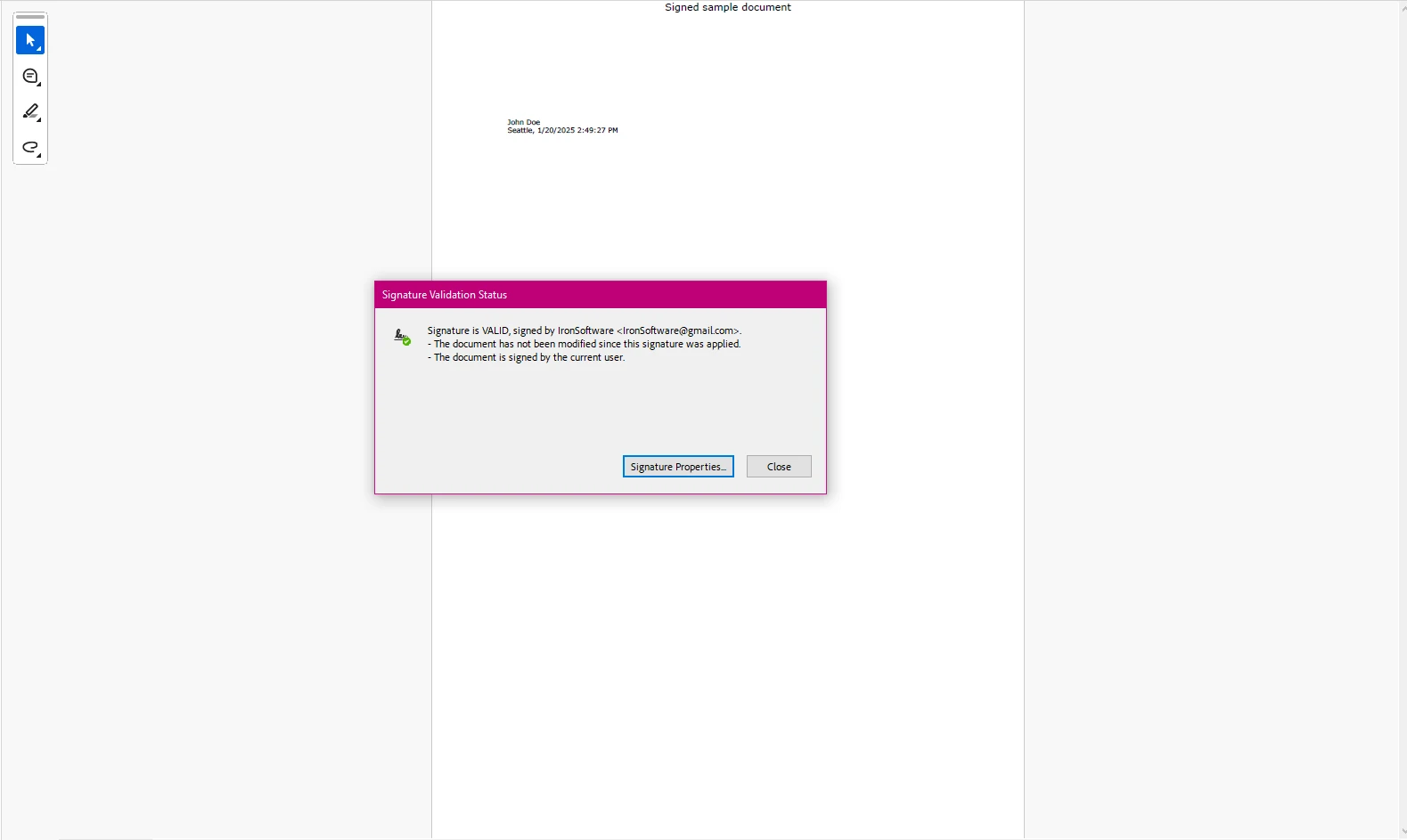
As you can see here, while it was able to create a digital signature field and apply the certificate to our new document, the process is extensive, manual, and not overly efficient to implement when compared to libraries such as IronPDF.
IronPDF provides developers with a concise method for digitally signing PDF documents.
using IronPdf;
using System.Security.Cryptography.X509Certificates;

public class Program
{
    static void Main(string[] args)
    {
        // Load the certificate with its password
        var sig = new PdfSignature("IronSoftware.pfx", "your-password");

        // Configure additional signature details
        sig.TimestampHashAlgorithm = TimestampHashAlgorithms.SHA256;
        sig.TimeStampUrl = "http://timestamp.digicert.com";
        sig.SignatureImage = new PdfSignatureImage("IronPdf.png", 0, new Rectangle(150, 100, 200, 200));

        // Sign and save the PDF document
        sig.SignPdfFile("output.pdf");
    }
}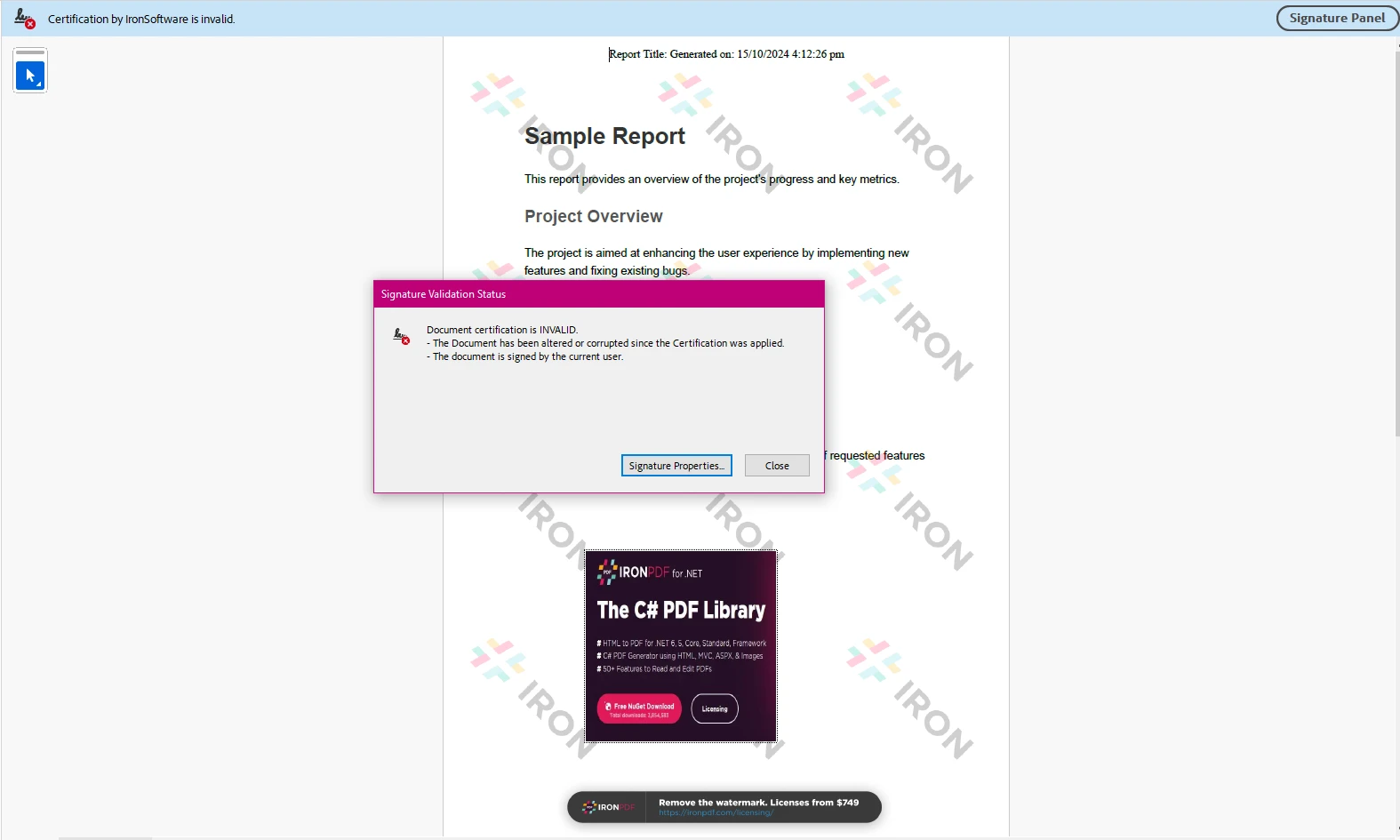
This code demonstrates how to sign a PDF document using IronPDF's PdfSignature class. The program first creates a PdfSignature object, specifying the location of a .pfx certificate file and its password. It then sets additional signature properties, such as the hash algorithm (SHA256), timestamp URL, and a custom image for the signature (IronPdf.png).
Finally, the SignPdfFile method is called to apply the digital signature to the PDF document and save it as output.pdf. This process ensures the integrity and authenticity of the PDF by embedding the digital signature along with a timestamp and visual image.
PDFSharp:
IronPDF:
When comparing IronPDF and PDFSharp for adding digital signatures to PDFs in C#, both libraries offer distinct advantages depending on your project needs.
In summary, IronPDF is the best choice for developers looking for a simple, fast solution for digital signatures and related PDF tasks, especially in commercial environments. PDFSharp is more suited for basic PDF tasks but lacks the same ease of use and feature set for digital signatures, making it more suitable for simpler projects or those with additional customization needs.

Curtis Chau holds a Bachelor’s degree in Computer Science (Carleton University) and specializes in front-end development with expertise in Node.js, TypeScript, JavaScript, and React. Passionate about crafting intuitive and aesthetically pleasing user interfaces, Curtis enjoys working with modern frameworks and creating well-structured, visually appealing manuals.

IronPDF is a part of IRONSUITE
10 .NET API products for your office documents











When you need your PDF to look like HTML, fast.


