.NET 프로젝트에 적합한 PDF 라이브러리를 찾고 계십니까? IronPDF와 PDFTron(현재 Apryse)의 포괄적인 비교는 기능, 가격, 성능, 개발자 경험을 분석하여 현명한 결정을 내릴 수 있도록 도와줍니다. 웹 애플리케이션, 데스크탑 소프트웨어, 클라우드 서비스를 구축하시든 간에, 적합한 PDF 툴킷을 선택하는 것이 개발 속도 및 프로젝트 성공에 큰 영향을 미칠 수 있습니다.
빠른 비교 요약
IronPDF와 PDFTron (Apryse)은 무엇입니까?
IronPDF 개요
IronPDF는 개발자를 위한 PDF 생성, 편집 및 조작을 간소화하는 종합적인 .NET PDF 라이브러리입니다. Chrome 렌더링 엔진을 기반으로 하여 HTML, CSS, JavaScript를 픽셀 단위로 완벽하게 PDF 문서로 변환하는 데 뛰어납니다. 이 라이브러리의 간단한 API 디자인은 개발자가 최소한의 코드로 PDF 기능을 통합할 수 있도록 하여 웹 애플리케이션, 보고 시스템 및 문서 자동화에 이상적입니다.
PDFTron (Apryse) 개요
PDFTron은 2023년 2월에 Apryse로 리브랜딩된 Enterprise 중심의 PDF SDK로, 광범위한 문서 처리 기능을 제공합니다. 복잡한 문서 워크플로우를 위해 원래 개발되었으며, Microsoft Office, CAD 도면 및 특수 문서 유형을 포함한 다양한 파일 형식에 대해 강력한 지원을 제공합니다. 문서 처리 기술의 글로벌 리더인 PDFTron Systems Inc.는 자체 브랜드를 Apryse로 변경하였습니다; iText, Windward, Eversign 등 13개 회사를 통합합니다.
ASP.NET 프로젝트에서 PDF 생성을 위해 어떻게 만듭니까?
PDF 생성용 ASP.NET 프로젝트 설정은 선택한 라이브러리에 관계없이 올바른 구성이 필요합니다. IronPDF 또는 PDFTron 통합을 위한 기초를 설정하기 위해 다음 단계를 따르십시오:
- Visual Studio 2022 또는 이후 버전 열기
- "새 프로젝트 만들기" 클릭
- "ASP.NET Core Web App" 선택 (.NET 6.0 또는 이후 권장)
- 프로젝트 이름 및 위치 선택
- 필요에 따라 "웹 애플리케이션 (모델-뷰-컨트롤러)" 또는 "웹 API" 선택
- 최적의 호환성을 위해 ".NET 8.0" 이상이 선택되었는지 확인
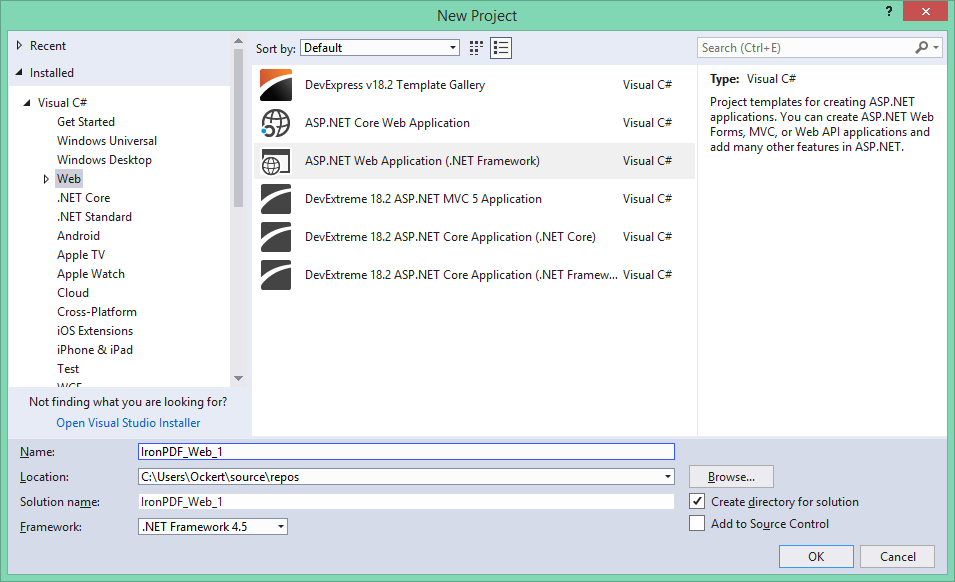 Visual Studio의 새 프로젝트 대화상자에서 PDF 라이브러리 통합을 위한 ASP.NET 프로젝트 템플릿 표시
Web Forms 애플리케이션을 위한:
- "ASP.NET Web Application (.NET Framework)" 선택
- 템플릿 옵션에서 "Web Forms" 선택
- "생성" 클릭하여 프로젝트 구조 생성
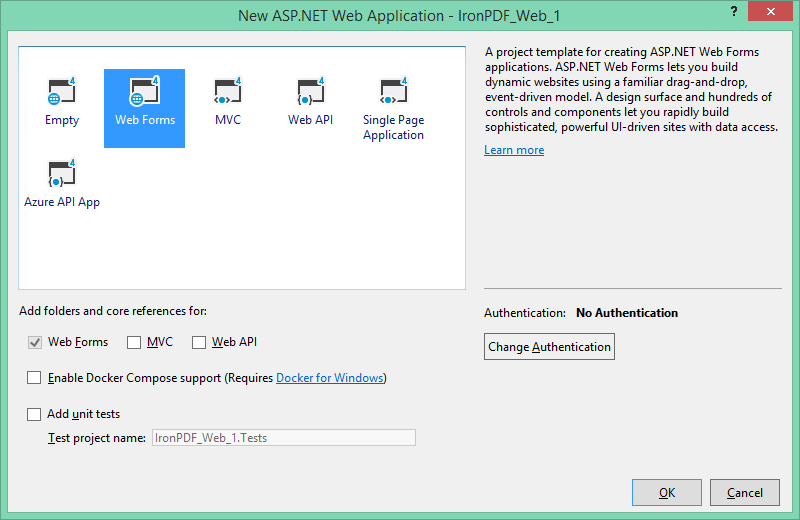 PDF 기능이 있는 전통적인 ASP.NET 애플리케이션을 위한 Web Forms 템플릿 선택
내 C# 프로젝트에 IronPDF 설치 방법은?
IronPDF는 다양한 개발 워크플로우에 맞는 여러 설치 방법을 제공합니다. Visual Studio에서 솔루션 탐색기의 프로젝트를 마우스 오른쪽 버튼으로 클릭하고 "NuGet 패키지 관리..."를 선택합니다. 그다음에는 IronPDF를 검색하여 최신 버전을 설치하면 됩니다.
방법 1: Visual Studio 패키지 관리자 사용
가장 간단한 방법은 Visual Studio의 내장된 NuGet 패키지 관리자를 사용하는 것입니다:
- 솔루션 탐색기에서 프로젝트를 오른쪽 클릭합니다.
- "NuGet 패키지 관리"를 선택합니다.
- "찾아보기"를 클릭하고 "IronPDF"를 검색합니다
- IronPDF 패키지에서 "설치" 클릭
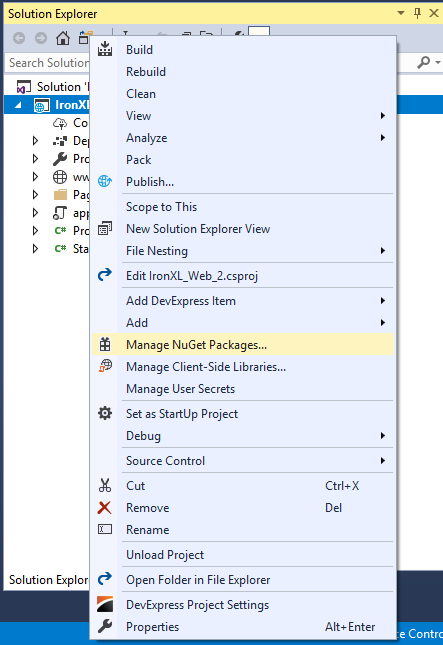 IronPDF 설치를 위한 Visual Studio의 솔루션 탐색기를 통한 NuGet 패키지 관리자 접근
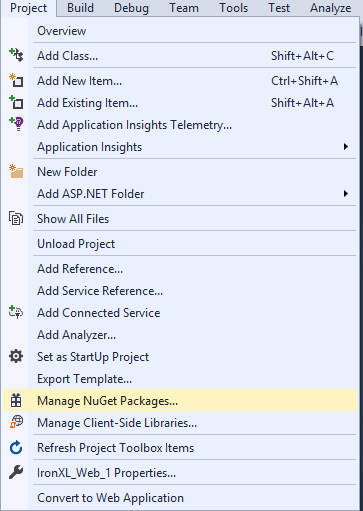 Visual Studio의 프로젝트 메뉴를 통한 NuGet 패키지 관리자 대체 접근
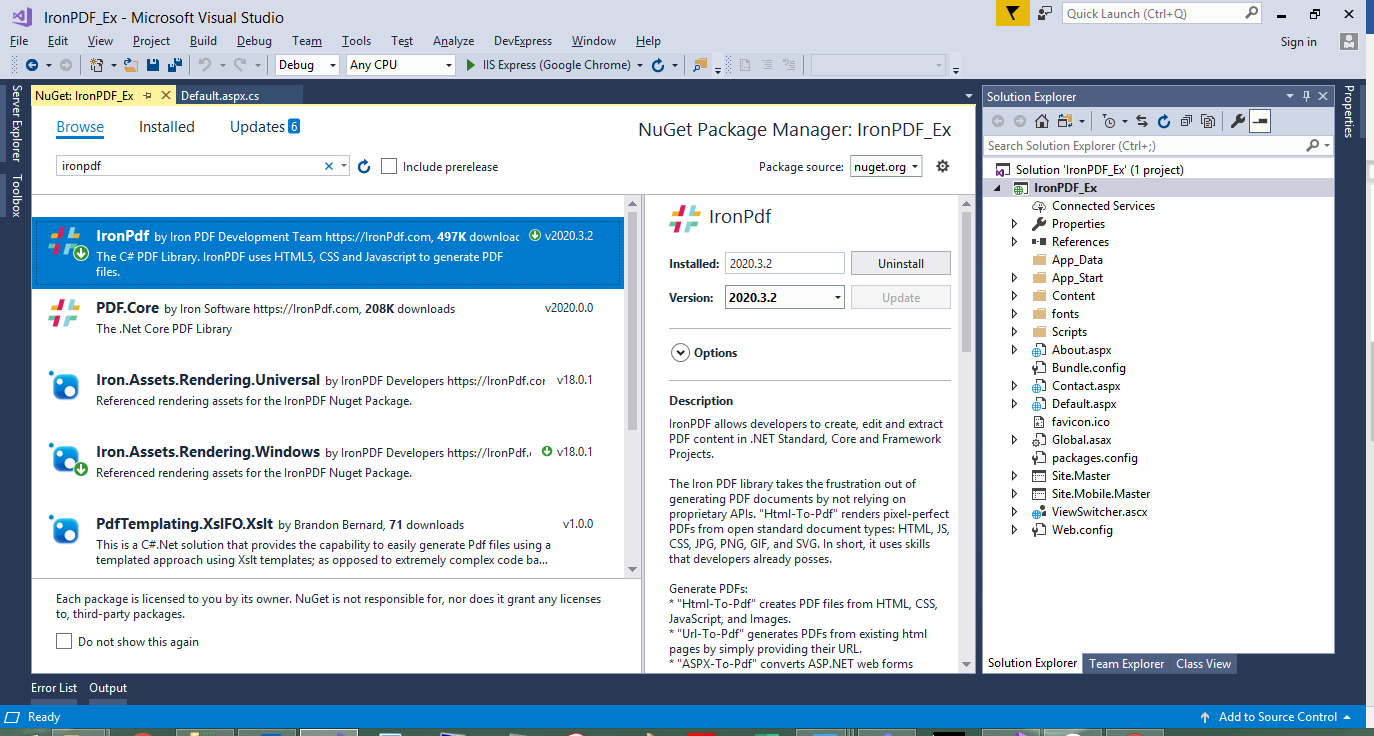 버전 정보와 종속성을 포함한 NuGet 패키지 관리자를 통한 IronPDF 설치
방법 2: 패키지 관리자 콘솔 사용
명령-라인 도구를 선호하는 개발자를 위해:
# Open Package Manager Console in Visual Studio
# Tools > NuGet Package Manager > Package Manager Console
Install-Package IronPdf

# For specific version installation
Install-Package IronPdf -Version 2025.7.0
# Open Package Manager Console in Visual Studio
# Tools > NuGet Package Manager > Package Manager Console
Install-Package IronPdf

# For specific version installation
Install-Package IronPdf -Version 2025.7.0
SHELL
방법 3: 직접 다운로드 설치
NuGet 액세스가 없는 환경을 위한:
- IronPDF의 공식 사이트에서 다운로드
- 프로젝트 디렉토리에 ZIP 파일을 추출하십시오
- Visual Studio에서 "참조"를 마우스 오른쪽 버튼으로 클릭하고 "참조 추가"를 선택하십시오
IronPdf.dll로 이동하여 선택
방법 4: .NET CLI 사용
명령 줄 애호가와 CI/CD 파이프라인 용:
# Navigate to your project directory
cd MyProject

# Install IronPDF
dotnet add package IronPdf

# Restore packages
dotnet restore
# Navigate to your project directory
cd MyProject

# Install IronPDF
dotnet add package IronPdf

# Restore packages
dotnet restore
SHELL
PDFTron(Apryse) SDK를 어떻게 설치합니까?
PDFTron 설치는 모듈식 아키텍처와 기업 중심으로 인해 더 많은 단계를 포함합니다. 과정은 대상 플랫폼과 요구되는 기능에 따라 다릅니다.
필수 조건
- Visual Studio 2019 이상
- .NET Desktop Development 워크로드
- .NET Framework 4.5.1+ 개발 도구
- PDFTron SDK 다운로드
수동 통합 단계
-
SDK를 추출하십시오
# Example extraction path
PDFNET_BASE = C:/PDFTron/PDFNetDotNet4/
# Example extraction path
PDFNET_BASE = C:/PDFTron/PDFNetDotNet4/
SHELL
-
라이선스 키로 초기화하십시오
// Initialize PDFTron with your license key
pdftron.PDFNet.Initialize("your-license-key-here");

// Note: Demo keys expire after evaluation period
// Contact Apryse sales for production licenses
// Initialize PDFTron with your license key
pdftron.PDFNet.Initialize("your-license-key-here");

// Note: Demo keys expire after evaluation period
// Contact Apryse sales for production licenses
' Initialize PDFTron with your license key
pdftron.PDFNet.Initialize("your-license-key-here")
' Note: Demo keys expire after evaluation period
' Contact Apryse sales for production licenses
' Initialize PDFTron with your license key
pdftron.PDFNet.Initialize("your-license-key-here")

' Note: Demo keys expire after evaluation period
' Contact Apryse sales for production licenses
-
필요한 라이브러리를 복사하십시오
PDFNET_BASE에서 Lib 폴더를 복사하여 프로젝트 디렉토리로 옮기기PDFNetLoader.dll 및 플랫폼별 PDFNet.dll에 대해 참조 추가
-
로컬 복사 속성을 구성하십시오
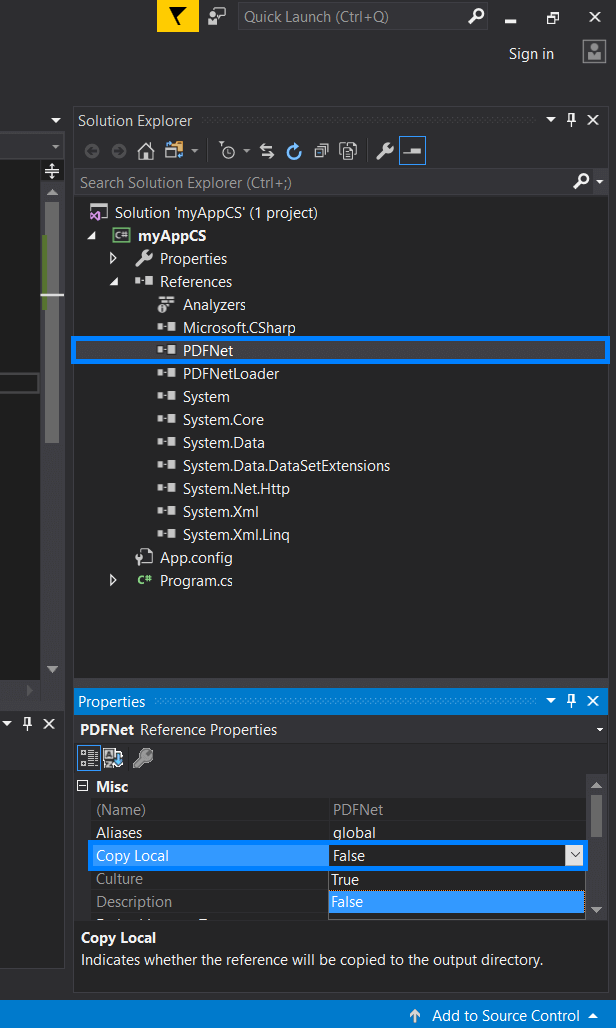 올바른 PDFTron 배포를 위해 PDFNet.dll의 로컬 복사 속성을 False로 설정
-
App.config 업데이트
<configuration>
    <runtime>
        <loadFromRemoteSources enabled="true" />
    </runtime>
</configuration>
<configuration>
    <runtime>
        <loadFromRemoteSources enabled="true" />
    </runtime>
</configuration>
XML
-
포스트 빌드 이벤트 구성
xcopy $(ProjectDir)Lib\PDFNet $(TargetDir)PDFNet /S /I /Y
xcopy $(ProjectDir)Lib\PDFNet $(TargetDir)PDFNet /S /I /Y
SHELL
NuGet 설치(간소화)
더 간소화된 접근법을 위해:
- NuGet 패키지 관리자를 엽니다
- "PDFTron.NET.x64" 혹은 플랫폼별 패키지를 검색합니다
- 아키텍처에 적합한 패키지를 설치합니다
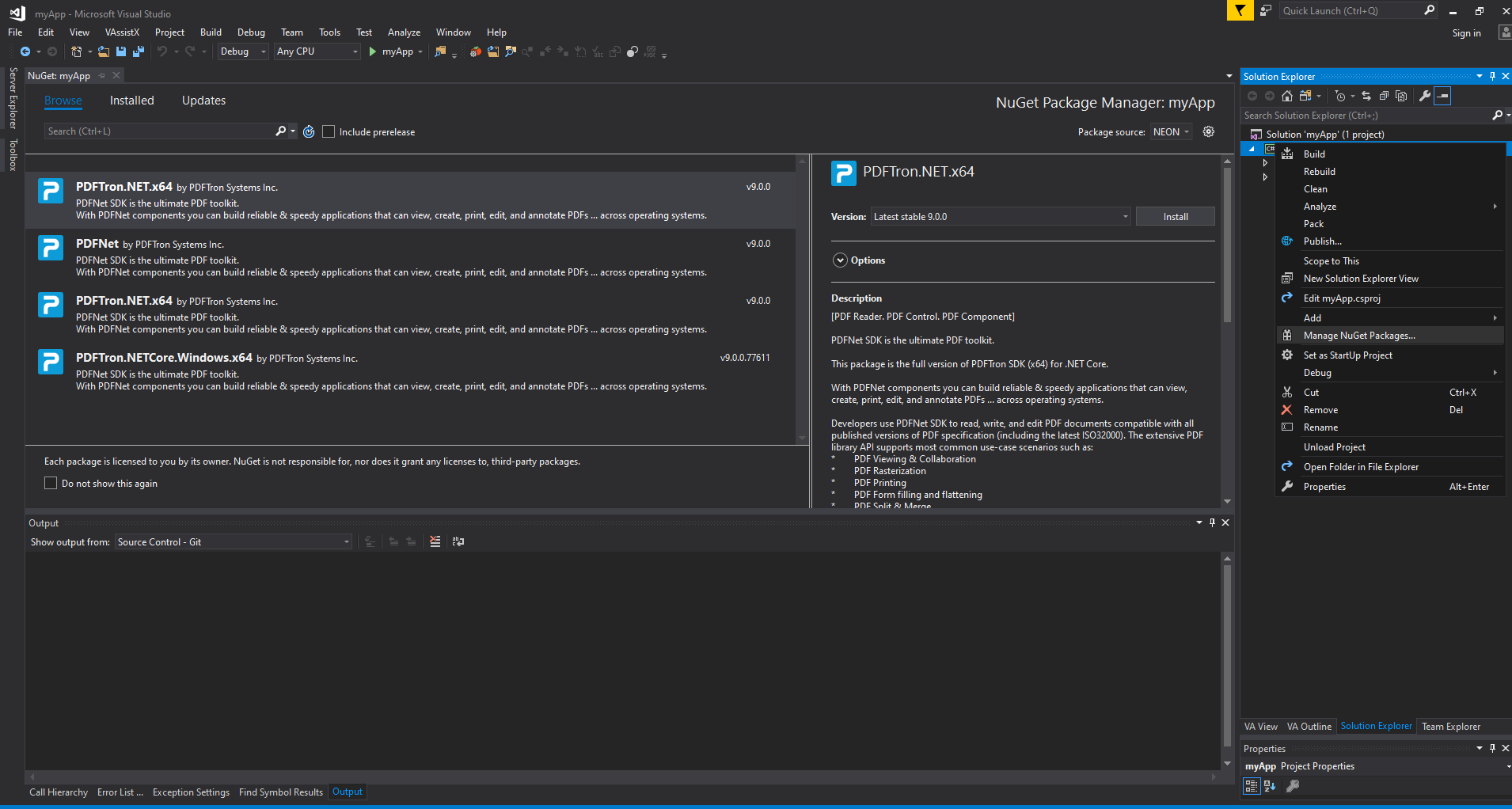 플랫폼별 패키지와 함께 NuGet 패키지 관리자를 통해 PDFTron 설치
PDFTron은 ComPDFKit의 10+ 유형에 비해 30종 이상의 주석 유형을 제공합니다. 그러나 이 광범위한 기능 세트는 설치 중 주의 깊은 모듈 선택이 필요합니다.
이 라이브러리를 사용하여 URL을 PDF로 어떻게 변환합니까?
두 라이브러리 모두 URL을 PDF로 변환할 수 있지만, 접근 방식과 기능은 다릅니다. 각각의 구현 세부사항과 성능 특성을 살펴보겠습니다.
IronPDF로 URL을 PDF로 변환하기
IronPDF의 Chrome 렌더링 엔진은 최신 웹 표준에 대한 뛰어난 지원을 제공합니다:
using IronPdf;

// Initialize the Chrome renderer with advanced options
var renderer = new ChromePdfRenderer();

// Configure rendering for optimal results
renderer.RenderingOptions.PaperSize = PdfPaperSize.A4;
renderer.RenderingOptions.MarginTop = 20;
renderer.RenderingOptions.MarginBottom = 20;
renderer.RenderingOptions.CssMediaType = PdfCssMediaType.Print;
renderer.RenderingOptions.EnableJavaScript = true;
renderer.RenderingOptions.RenderDelay = 1000; // Wait for JS execution

// Handle authentication if needed
renderer.LoginCredentials = new ChromeHttpLoginCredentials() {
    Username = "user@domain.com",
    Password = "secure_password"
};

// Render URL to PDF with full browser capabilities
var pdf = renderer.RenderUrlAsPdf("https://ironpdf.com/");

// Add metadata for document management
pdf.MetaData.Author = "Development Team";
pdf.MetaData.Title = "Website Export - " + DateTime.Now.ToString("yyyy-MM-dd");

// Save with compression
pdf.CompressImages(90);
pdf.SaveAs("website-export.pdf");
using IronPdf;

// Initialize the Chrome renderer with advanced options
var renderer = new ChromePdfRenderer();

// Configure rendering for optimal results
renderer.RenderingOptions.PaperSize = PdfPaperSize.A4;
renderer.RenderingOptions.MarginTop = 20;
renderer.RenderingOptions.MarginBottom = 20;
renderer.RenderingOptions.CssMediaType = PdfCssMediaType.Print;
renderer.RenderingOptions.EnableJavaScript = true;
renderer.RenderingOptions.RenderDelay = 1000; // Wait for JS execution

// Handle authentication if needed
renderer.LoginCredentials = new ChromeHttpLoginCredentials() {
    Username = "user@domain.com",
    Password = "secure_password"
};

// Render URL to PDF with full browser capabilities
var pdf = renderer.RenderUrlAsPdf("https://ironpdf.com/");

// Add metadata for document management
pdf.MetaData.Author = "Development Team";
pdf.MetaData.Title = "Website Export - " + DateTime.Now.ToString("yyyy-MM-dd");

// Save with compression
pdf.CompressImages(90);
pdf.SaveAs("website-export.pdf");
Imports IronPdf
' Initialize the Chrome renderer with advanced options
Private renderer = New ChromePdfRenderer()
' Configure rendering for optimal results
renderer.RenderingOptions.PaperSize = PdfPaperSize.A4
renderer.RenderingOptions.MarginTop = 20
renderer.RenderingOptions.MarginBottom = 20
renderer.RenderingOptions.CssMediaType = PdfCssMediaType.Print
renderer.RenderingOptions.EnableJavaScript = True
renderer.RenderingOptions.RenderDelay = 1000 ' Wait for JS execution
' Handle authentication if needed
renderer.LoginCredentials = New ChromeHttpLoginCredentials() With {
.Username = "user@domain.com",
.Password = "secure_password"
}
' Render URL to PDF with full browser capabilities
Dim pdf = renderer.RenderUrlAsPdf("https://ironpdf.com/")
' Add metadata for document management
pdf.MetaData.Author = "Development Team"
pdf.MetaData.Title = "Website Export - " & DateTime.Now.ToString("yyyy-MM-dd")
' Save with compression
pdf.CompressImages(90)
pdf.SaveAs("website-export.pdf")
Imports IronPdf

' Initialize the Chrome renderer with advanced options
Private renderer = New ChromePdfRenderer()

' Configure rendering for optimal results
renderer.RenderingOptions.PaperSize = PdfPaperSize.A4
renderer.RenderingOptions.MarginTop = 20
renderer.RenderingOptions.MarginBottom = 20
renderer.RenderingOptions.CssMediaType = PdfCssMediaType.Print
renderer.RenderingOptions.EnableJavaScript = True
renderer.RenderingOptions.RenderDelay = 1000 ' Wait for JS execution

' Handle authentication if needed
renderer.LoginCredentials = New ChromeHttpLoginCredentials() With {
	.Username = "user@domain.com",
	.Password = "secure_password"
}

' Render URL to PDF with full browser capabilities
Dim pdf = renderer.RenderUrlAsPdf("https://ironpdf.com/")

' Add metadata for document management
pdf.MetaData.Author = "Development Team"
pdf.MetaData.Title = "Website Export - " & DateTime.Now.ToString("yyyy-MM-dd")

' Save with compression
pdf.CompressImages(90)
pdf.SaveAs("website-export.pdf")
IronPDF의 Chrome 렌더러는 다음과 같은 복잡한 시나리오를 처리합니다:
- 무거운 JavaScript가 있는 단일 페이지 애플리케이션(SPAs)
- 미디어 쿼리가 있는 반응형 디자인
- 웹 글꼴과 외부 스타일시트
- AJAX 콘텐츠 로딩
- CSS 애니메이션 및 전환
IronPDF는 기본적으로 이러한 렌더링 시나리오를 지원합니다: nuget.org/packages/IronPdf. 최근 성능 개선으로 인해 복잡한 웹 애플리케이션의 렌더링 속도가 향상되었습니다.
PDFTron(Apryse)로 URL을 PDF로 변환하기
PDFTron은 웹 콘텐츠 변환을 위해 HTML2PDF 모듈이 필요합니다:
using pdftron;
using pdftron.PDF;
using pdftron.SDF;

class UrlToPdfConverter
{
    public static void ConvertUrlToPdf(string url, string outputPath)
    {
        // Initialize PDFTron with license
        PDFNet.Initialize("your-license-key");

        // Create a new PDF document
        using (PDFDoc doc = new PDFDoc())
        {
            // Initialize HTML2PDF converter
            HTML2PDF converter = new HTML2PDF();

            // Configure conversion settings
            HTML2PDF.WebPageSettings settings = new HTML2PDF.WebPageSettings();
            settings.SetPrintBackground(true);
            settings.SetLoadImages(true);

            // Set page dimensions
            converter.SetPaperSize(PrinterMode.PaperSize.e_letter);
            converter.SetMargins(0.5, 0.5, 0.5, 0.5);

            // Insert URL content
            converter.InsertFromURL(url);

            // Perform conversion
            if (converter.Convert(doc))
            {
                // Save the resulting PDF
                doc.Save(outputPath, SDFDoc.SaveOptions.e_linearized);
                Console.WriteLine($"Successfully converted {url} to {outputPath}");
            }
            else
            {
                Console.WriteLine("Conversion failed");
            }
        }
    }
}
using pdftron;
using pdftron.PDF;
using pdftron.SDF;

class UrlToPdfConverter
{
    public static void ConvertUrlToPdf(string url, string outputPath)
    {
        // Initialize PDFTron with license
        PDFNet.Initialize("your-license-key");

        // Create a new PDF document
        using (PDFDoc doc = new PDFDoc())
        {
            // Initialize HTML2PDF converter
            HTML2PDF converter = new HTML2PDF();

            // Configure conversion settings
            HTML2PDF.WebPageSettings settings = new HTML2PDF.WebPageSettings();
            settings.SetPrintBackground(true);
            settings.SetLoadImages(true);

            // Set page dimensions
            converter.SetPaperSize(PrinterMode.PaperSize.e_letter);
            converter.SetMargins(0.5, 0.5, 0.5, 0.5);

            // Insert URL content
            converter.InsertFromURL(url);

            // Perform conversion
            if (converter.Convert(doc))
            {
                // Save the resulting PDF
                doc.Save(outputPath, SDFDoc.SaveOptions.e_linearized);
                Console.WriteLine($"Successfully converted {url} to {outputPath}");
            }
            else
            {
                Console.WriteLine("Conversion failed");
            }
        }
    }
}
Imports pdftron
Imports pdftron.PDF
Imports pdftron.SDF
Class UrlToPdfConverter
Public Shared Sub ConvertUrlToPdf(ByVal url As String, ByVal outputPath As String)
' Initialize PDFTron with license
PDFNet.Initialize("your-license-key")
' Create a new PDF document
Using doc As New PDFDoc()
' Initialize HTML2PDF converter
Dim converter As New HTML2PDF()
' Configure conversion settings
Dim settings As New HTML2PDF.WebPageSettings()
settings.SetPrintBackground(True)
settings.SetLoadImages(True)
' Set page dimensions
converter.SetPaperSize(PrinterMode.PaperSize.e_letter)
converter.SetMargins(0.5, 0.5, 0.5, 0.5)
' Insert URL content
converter.InsertFromURL(url)
' Perform conversion
If converter.Convert(doc) Then
' Save the resulting PDF
doc.Save(outputPath, SDFDoc.SaveOptions.e_linearized)
Console.WriteLine($"Successfully converted {url} to {outputPath}")
Else
Console.WriteLine("Conversion failed")
End If
End Using
End Sub
End Class
Imports pdftron
Imports pdftron.PDF
Imports pdftron.SDF

Class UrlToPdfConverter
    Public Shared Sub ConvertUrlToPdf(ByVal url As String, ByVal outputPath As String)
        ' Initialize PDFTron with license
        PDFNet.Initialize("your-license-key")

        ' Create a new PDF document
        Using doc As New PDFDoc()
            ' Initialize HTML2PDF converter
            Dim converter As New HTML2PDF()

            ' Configure conversion settings
            Dim settings As New HTML2PDF.WebPageSettings()
            settings.SetPrintBackground(True)
            settings.SetLoadImages(True)

            ' Set page dimensions
            converter.SetPaperSize(PrinterMode.PaperSize.e_letter)
            converter.SetMargins(0.5, 0.5, 0.5, 0.5)

            ' Insert URL content
            converter.InsertFromURL(url)

            ' Perform conversion
            If converter.Convert(doc) Then
                ' Save the resulting PDF
                doc.Save(outputPath, SDFDoc.SaveOptions.e_linearized)
                Console.WriteLine($"Successfully converted {url} to {outputPath}")
            Else
                Console.WriteLine("Conversion failed")
            End If
        End Using
    End Sub
End Class
PDFTron HTML2PDF 주요 고려사항:
- PDFTron의 SDK는 기술 범위(API, 기능)와 배포 범위(외부 또는 내부 사용자)에 따라 견적됩니다.
- 브라우저 엔진에 비해 제한된 JavaScript 지원
- 복잡한 레이아웃에는 추가 구성이 필요할 수 있음
- 더 간단한 HTML 문서에 적합
HTML 문자열로부터 PDF를 어떻게 생성합니까?
HTML 문자열에서 PDF를 생성하는 것은 동적 보고서, 송장 및 문서를 생성하는 데 필수적입니다. 두 라이브러리는 이 작업을 다르게 처리합니다.
IronPDF를 사용한 HTML 문자열을 PDF로 변환
IronPDF는 전체 CSS3 및 JavaScript 지원으로 복잡한 HTML 렌더링에 뛰어납니다:
using IronPdf;
using System.Text;

public class HtmlStringToPdfConverter
{
    public static PdfDocument GenerateInvoice(InvoiceData data)
    {
        // Build dynamic HTML with modern CSS
        var html = new StringBuilder();
        html.Append(@"
        <!DOCTYPE html>
        <html>
        <head>
            <meta charset='UTF-8'>
            <style>
                @import url('https://fonts.googleapis.com/css2?family=Roboto:wght@300;400;700&display=swap');

                body {
                    font-family: 'Roboto', sans-serif;
                    margin: 0;
                    padding: 20px;
                    color: #333;
                }

                .invoice-header {
                    display: flex;
                    justify-content: space-between;
                    border-bottom: 2px solid #007bff;
                    padding-bottom: 20px;
                    margin-bottom: 30px;
                }

                .company-logo {
                    width: 150px;
                    height: auto;
                }

                .invoice-details {
                    text-align: right;
                }

                .invoice-number {
                    font-size: 24px;
                    font-weight: 700;
                    color: #007bff;
                }

                table {
                    width: 100%;
                    border-collapse: collapse;
                    margin-top: 20px;
                }

                th {
                    background-color: #f8f9fa;
                    padding: 12px;
                    text-align: left;
                    border-bottom: 2px solid #dee2e6;
                }

                td {
                    padding: 12px;
                    border-bottom: 1px solid #dee2e6;
                }

                .total-row {
                    font-weight: 700;
                    font-size: 18px;
                    background-color: #e9ecef;
                }

                @media print {
                    body { margin: 0; }
                    .no-print { display: none; }
                }
            </style>
        </head>
        <body>
        ");

        // Add invoice header
        html.Append($@"
            <div class='invoice-header'>
                <div>
                    <img src='data:image/png;base64,{data.CompanyLogoBase64}' class='company-logo' alt='Company Logo'>
                    <h2>{data.CompanyName}</h2>
                    <p>{data.CompanyAddress}</p>
                </div>
                <div class='invoice-details'>
                    <div class='invoice-number'>Invoice #{data.InvoiceNumber}</div>
                    <p>Date: {data.InvoiceDate:yyyy-MM-dd}</p>
                    <p>Due: {data.DueDate:yyyy-MM-dd}</p>
                </div>
            </div>
        ");

        // Add line items table
        html.Append(@"
            <table>
                <thead>
                    <tr>
                        <th>Description</th>
                        <th>Quantity</th>
                        <th>Unit Price</th>
                        <th>Total</th>
                    </tr>
                </thead>
                <tbody>
        ");

        foreach (var item in data.LineItems)
        {
            html.Append($@"
                <tr>
                    <td>{item.Description}</td>
                    <td>{item.Quantity}</td>
                    <td>${item.UnitPrice:F2}</td>
                    <td>${item.Total:F2}</td>
                </tr>
            ");
        }

        html.Append($@"
                </tbody>
                <tfoot>
                    <tr class='total-row'>
                        <td colspan='3'>Total</td>
                        <td>${data.Total:F2}</td>
                    </tr>
                </tfoot>
            </table>
        </body>
        </html>
        ");

        // Configure renderer for optimal output
        var renderer = new ChromePdfRenderer();
        renderer.RenderingOptions.CssMediaType = PdfCssMediaType.Print;
        renderer.RenderingOptions.EnableJavaScript = true;
        renderer.RenderingOptions.CreatePdfFormsFromHtml = true;

        // Generate PDF with proper base path for assets
        var pdf = renderer.RenderHtmlAsPdf(html.ToString());

        // Add security if needed
        pdf.SecuritySettings.UserPassword = data.CustomerEmail;
        pdf.SecuritySettings.AllowUserPrinting = true;
        pdf.SecuritySettings.AllowUserCopyPasteContent = false;

        return pdf;
    }
}
using IronPdf;
using System.Text;

public class HtmlStringToPdfConverter
{
    public static PdfDocument GenerateInvoice(InvoiceData data)
    {
        // Build dynamic HTML with modern CSS
        var html = new StringBuilder();
        html.Append(@"
        <!DOCTYPE html>
        <html>
        <head>
            <meta charset='UTF-8'>
            <style>
                @import url('https://fonts.googleapis.com/css2?family=Roboto:wght@300;400;700&display=swap');

                body {
                    font-family: 'Roboto', sans-serif;
                    margin: 0;
                    padding: 20px;
                    color: #333;
                }

                .invoice-header {
                    display: flex;
                    justify-content: space-between;
                    border-bottom: 2px solid #007bff;
                    padding-bottom: 20px;
                    margin-bottom: 30px;
                }

                .company-logo {
                    width: 150px;
                    height: auto;
                }

                .invoice-details {
                    text-align: right;
                }

                .invoice-number {
                    font-size: 24px;
                    font-weight: 700;
                    color: #007bff;
                }

                table {
                    width: 100%;
                    border-collapse: collapse;
                    margin-top: 20px;
                }

                th {
                    background-color: #f8f9fa;
                    padding: 12px;
                    text-align: left;
                    border-bottom: 2px solid #dee2e6;
                }

                td {
                    padding: 12px;
                    border-bottom: 1px solid #dee2e6;
                }

                .total-row {
                    font-weight: 700;
                    font-size: 18px;
                    background-color: #e9ecef;
                }

                @media print {
                    body { margin: 0; }
                    .no-print { display: none; }
                }
            </style>
        </head>
        <body>
        ");

        // Add invoice header
        html.Append($@"
            <div class='invoice-header'>
                <div>
                    <img src='data:image/png;base64,{data.CompanyLogoBase64}' class='company-logo' alt='Company Logo'>
                    <h2>{data.CompanyName}</h2>
                    <p>{data.CompanyAddress}</p>
                </div>
                <div class='invoice-details'>
                    <div class='invoice-number'>Invoice #{data.InvoiceNumber}</div>
                    <p>Date: {data.InvoiceDate:yyyy-MM-dd}</p>
                    <p>Due: {data.DueDate:yyyy-MM-dd}</p>
                </div>
            </div>
        ");

        // Add line items table
        html.Append(@"
            <table>
                <thead>
                    <tr>
                        <th>Description</th>
                        <th>Quantity</th>
                        <th>Unit Price</th>
                        <th>Total</th>
                    </tr>
                </thead>
                <tbody>
        ");

        foreach (var item in data.LineItems)
        {
            html.Append($@"
                <tr>
                    <td>{item.Description}</td>
                    <td>{item.Quantity}</td>
                    <td>${item.UnitPrice:F2}</td>
                    <td>${item.Total:F2}</td>
                </tr>
            ");
        }

        html.Append($@"
                </tbody>
                <tfoot>
                    <tr class='total-row'>
                        <td colspan='3'>Total</td>
                        <td>${data.Total:F2}</td>
                    </tr>
                </tfoot>
            </table>
        </body>
        </html>
        ");

        // Configure renderer for optimal output
        var renderer = new ChromePdfRenderer();
        renderer.RenderingOptions.CssMediaType = PdfCssMediaType.Print;
        renderer.RenderingOptions.EnableJavaScript = true;
        renderer.RenderingOptions.CreatePdfFormsFromHtml = true;

        // Generate PDF with proper base path for assets
        var pdf = renderer.RenderHtmlAsPdf(html.ToString());

        // Add security if needed
        pdf.SecuritySettings.UserPassword = data.CustomerEmail;
        pdf.SecuritySettings.AllowUserPrinting = true;
        pdf.SecuritySettings.AllowUserCopyPasteContent = false;

        return pdf;
    }
}
Imports IronPdf
Imports System.Text
Public Class HtmlStringToPdfConverter
Public Shared Function GenerateInvoice(data As InvoiceData) As PdfDocument
' Build dynamic HTML with modern CSS
Dim html = New StringBuilder()
html.Append("
<!DOCTYPE html>
<html>
<head>
<meta charset='UTF-8'>
<style>
@import url('https://fonts.googleapis.com/css2?family=Roboto:wght@300;400;700&display=swap');
body {
font-family: 'Roboto', sans-serif;
margin: 0;
padding: 20px;
color: #333;
}
.invoice-header {
display: flex;
justify-content: space-between;
border-bottom: 2px solid #007bff;
padding-bottom: 20px;
margin-bottom: 30px;
}
.company-logo {
width: 150px;
height: auto;
}
.invoice-details {
text-align: right;
}
.invoice-number {
font-size: 24px;
font-weight: 700;
color: #007bff;
}
table {
width: 100%;
border-collapse: collapse;
margin-top: 20px;
}
th {
background-color: #f8f9fa;
padding: 12px;
text-align: left;
border-bottom: 2px solid #dee2e6;
}
td {
padding: 12px;
border-bottom: 1px solid #dee2e6;
}
.total-row {
font-weight: 700;
font-size: 18px;
background-color: #e9ecef;
}
@media print {
body { margin: 0; }
.no-print { display: none; }
}
</style>
</head>
<body>
")
' Add invoice header
html.Append($"
<div class='invoice-header'>
<div>
<img src='data:image/png;base64,{data.CompanyLogoBase64}' class='company-logo' alt='Company Logo'>
<h2>{data.CompanyName}</h2>
<p>{data.CompanyAddress}</p>
</div>
<div class='invoice-details'>
<div class='invoice-number'>Invoice #{data.InvoiceNumber}</div>
<p>Date: {data.InvoiceDate:yyyy-MM-dd}</p>
<p>Due: {data.DueDate:yyyy-MM-dd}</p>
</div>
</div>
")
' Add line items table
html.Append("
<table>
<thead>
<tr>
<th>Description</th>
<th>Quantity</th>
<th>Unit Price</th>
<th>Total</th>
</tr>
</thead>
<tbody>
")
For Each item In data.LineItems
html.Append($"
<tr>
<td>{item.Description}</td>
<td>{item.Quantity}</td>
<td>${item.UnitPrice:F2}</td>
<td>${item.Total:F2}</td>
</tr>
")
Next
html.Append($"
</tbody>
<tfoot>
<tr class='total-row'>
<td colspan='3'>Total</td>
<td>${data.Total:F2}</td>
</tr>
</tfoot>
</table>
</body>
</html>
")
' Configure renderer for optimal output
Dim renderer = New ChromePdfRenderer()
renderer.RenderingOptions.CssMediaType = PdfCssMediaType.Print
renderer.RenderingOptions.EnableJavaScript = True
renderer.RenderingOptions.CreatePdfFormsFromHtml = True
' Generate PDF with proper base path for assets
Dim pdf = renderer.RenderHtmlAsPdf(html.ToString())
' Add security if needed
pdf.SecuritySettings.UserPassword = data.CustomerEmail
pdf.SecuritySettings.AllowUserPrinting = True
pdf.SecuritySettings.AllowUserCopyPasteContent = False
Return pdf
End Function
End Class
Imports IronPdf
Imports System.Text

Public Class HtmlStringToPdfConverter
    Public Shared Function GenerateInvoice(data As InvoiceData) As PdfDocument
        ' Build dynamic HTML with modern CSS
        Dim html = New StringBuilder()
        html.Append("
        <!DOCTYPE html>
        <html>
        <head>
            <meta charset='UTF-8'>
            <style>
                @import url('https://fonts.googleapis.com/css2?family=Roboto:wght@300;400;700&display=swap');

                body {
                    font-family: 'Roboto', sans-serif;
                    margin: 0;
                    padding: 20px;
                    color: #333;
                }

                .invoice-header {
                    display: flex;
                    justify-content: space-between;
                    border-bottom: 2px solid #007bff;
                    padding-bottom: 20px;
                    margin-bottom: 30px;
                }

                .company-logo {
                    width: 150px;
                    height: auto;
                }

                .invoice-details {
                    text-align: right;
                }

                .invoice-number {
                    font-size: 24px;
                    font-weight: 700;
                    color: #007bff;
                }

                table {
                    width: 100%;
                    border-collapse: collapse;
                    margin-top: 20px;
                }

                th {
                    background-color: #f8f9fa;
                    padding: 12px;
                    text-align: left;
                    border-bottom: 2px solid #dee2e6;
                }

                td {
                    padding: 12px;
                    border-bottom: 1px solid #dee2e6;
                }

                .total-row {
                    font-weight: 700;
                    font-size: 18px;
                    background-color: #e9ecef;
                }

                @media print {
                    body { margin: 0; }
                    .no-print { display: none; }
                }
            </style>
        </head>
        <body>
        ")

        ' Add invoice header
        html.Append($"
            <div class='invoice-header'>
                <div>
                    <img src='data:image/png;base64,{data.CompanyLogoBase64}' class='company-logo' alt='Company Logo'>
                    <h2>{data.CompanyName}</h2>
                    <p>{data.CompanyAddress}</p>
                </div>
                <div class='invoice-details'>
                    <div class='invoice-number'>Invoice #{data.InvoiceNumber}</div>
                    <p>Date: {data.InvoiceDate:yyyy-MM-dd}</p>
                    <p>Due: {data.DueDate:yyyy-MM-dd}</p>
                </div>
            </div>
        ")

        ' Add line items table
        html.Append("
            <table>
                <thead>
                    <tr>
                        <th>Description</th>
                        <th>Quantity</th>
                        <th>Unit Price</th>
                        <th>Total</th>
                    </tr>
                </thead>
                <tbody>
        ")

        For Each item In data.LineItems
            html.Append($"
                <tr>
                    <td>{item.Description}</td>
                    <td>{item.Quantity}</td>
                    <td>${item.UnitPrice:F2}</td>
                    <td>${item.Total:F2}</td>
                </tr>
            ")
        Next

        html.Append($"
                </tbody>
                <tfoot>
                    <tr class='total-row'>
                        <td colspan='3'>Total</td>
                        <td>${data.Total:F2}</td>
                    </tr>
                </tfoot>
            </table>
        </body>
        </html>
        ")

        ' Configure renderer for optimal output
        Dim renderer = New ChromePdfRenderer()
        renderer.RenderingOptions.CssMediaType = PdfCssMediaType.Print
        renderer.RenderingOptions.EnableJavaScript = True
        renderer.RenderingOptions.CreatePdfFormsFromHtml = True

        ' Generate PDF with proper base path for assets
        Dim pdf = renderer.RenderHtmlAsPdf(html.ToString())

        ' Add security if needed
        pdf.SecuritySettings.UserPassword = data.CustomerEmail
        pdf.SecuritySettings.AllowUserPrinting = True
        pdf.SecuritySettings.AllowUserCopyPasteContent = False

        Return pdf
    End Function
End Class
IronPDF의 HTML 렌더링의 주요 장점:
- flexbox 및 그리드 레이아웃을 포함한 전체 CSS3 지원
- Google 폰트 및 웹 폰트 통합
- JavaScript 차트 라이브러리(Chart.js, D3.js)가 완벽하게 렌더링됨
- 뷰포트 제어로 반응형 디자인 지원
- 자체 포함 문서를 위한 Base64 이미지 임베딩
PDFTron(Apryse)를 사용한 HTML 문자열을 PDF로 변환
HTML 문자열 변환에 대한 PDFTron의 접근법:
using pdftron;
using pdftron.PDF;
using pdftron.SDF;

public class PdfTronHtmlConverter
{
    public static void ConvertHtmlString(string htmlContent, string outputPath)
    {
        PDFNet.Initialize("your-license-key");

        using (PDFDoc doc = new PDFDoc())
        {
            // Create HTML2PDF converter instance
            HTML2PDF converter = new HTML2PDF();

            // Configure page settings
            converter.SetPaperSize(PrinterMode.PaperSize.e_letter);
            converter.SetLandscape(false);
            converter.SetMargins(1.0, 1.0, 1.0, 1.0, HTML2PDF.e_inches);

            // Enable images and backgrounds
            HTML2PDF.WebPageSettings settings = new HTML2PDF.WebPageSettings();
            settings.SetPrintBackground(true);
            settings.SetLoadImages(true);
            settings.SetJavaScriptDelay(1000); // Limited JS support

            // Insert HTML content
            converter.InsertFromHtmlString(htmlContent);

            // Convert to PDF
            if (converter.Convert(doc))
            {
                // Post-processing options
                doc.Save(outputPath, SDFDoc.SaveOptions.e_linearized);
            }
        }
    }
}
using pdftron;
using pdftron.PDF;
using pdftron.SDF;

public class PdfTronHtmlConverter
{
    public static void ConvertHtmlString(string htmlContent, string outputPath)
    {
        PDFNet.Initialize("your-license-key");

        using (PDFDoc doc = new PDFDoc())
        {
            // Create HTML2PDF converter instance
            HTML2PDF converter = new HTML2PDF();

            // Configure page settings
            converter.SetPaperSize(PrinterMode.PaperSize.e_letter);
            converter.SetLandscape(false);
            converter.SetMargins(1.0, 1.0, 1.0, 1.0, HTML2PDF.e_inches);

            // Enable images and backgrounds
            HTML2PDF.WebPageSettings settings = new HTML2PDF.WebPageSettings();
            settings.SetPrintBackground(true);
            settings.SetLoadImages(true);
            settings.SetJavaScriptDelay(1000); // Limited JS support

            // Insert HTML content
            converter.InsertFromHtmlString(htmlContent);

            // Convert to PDF
            if (converter.Convert(doc))
            {
                // Post-processing options
                doc.Save(outputPath, SDFDoc.SaveOptions.e_linearized);
            }
        }
    }
}
Imports pdftron
Imports pdftron.PDF
Imports pdftron.SDF
Public Class PdfTronHtmlConverter
Public Shared Sub ConvertHtmlString(htmlContent As String, outputPath As String)
PDFNet.Initialize("your-license-key")
Using doc As New PDFDoc()
' Create HTML2PDF converter instance
Dim converter As New HTML2PDF()
' Configure page settings
converter.SetPaperSize(PrinterMode.PaperSize.e_letter)
converter.SetLandscape(False)
converter.SetMargins(1.0, 1.0, 1.0, 1.0, HTML2PDF.e_inches)
' Enable images and backgrounds
Dim settings As New HTML2PDF.WebPageSettings()
settings.SetPrintBackground(True)
settings.SetLoadImages(True)
settings.SetJavaScriptDelay(1000) ' Limited JS support
' Insert HTML content
converter.InsertFromHtmlString(htmlContent)
' Convert to PDF
If converter.Convert(doc) Then
' Post-processing options
doc.Save(outputPath, SDFDoc.SaveOptions.e_linearized)
End If
End Using
End Sub
End Class
Imports pdftron
Imports pdftron.PDF
Imports pdftron.SDF

Public Class PdfTronHtmlConverter
    Public Shared Sub ConvertHtmlString(htmlContent As String, outputPath As String)
        PDFNet.Initialize("your-license-key")

        Using doc As New PDFDoc()
            ' Create HTML2PDF converter instance
            Dim converter As New HTML2PDF()

            ' Configure page settings
            converter.SetPaperSize(PrinterMode.PaperSize.e_letter)
            converter.SetLandscape(False)
            converter.SetMargins(1.0, 1.0, 1.0, 1.0, HTML2PDF.e_inches)

            ' Enable images and backgrounds
            Dim settings As New HTML2PDF.WebPageSettings()
            settings.SetPrintBackground(True)
            settings.SetLoadImages(True)
            settings.SetJavaScriptDelay(1000) ' Limited JS support

            ' Insert HTML content
            converter.InsertFromHtmlString(htmlContent)

            ' Convert to PDF
            If converter.Convert(doc) Then
                ' Post-processing options
                doc.Save(outputPath, SDFDoc.SaveOptions.e_linearized)
            End If
        End Using
    End Sub
End Class
고려해야 할 PDFTron HTML 제한 사항:
- 기본 CSS 지원(고급 레이아웃 없음)
- 제한적인 JavaScript 실행
- 폰트 임베딩은 추가 구성이 필요
- 단순 문서 레이아웃에 더 적합
ASPX 페이지를 PDF로 변환할 수 있는 방법은 무엇인가요?
ASPX 페이지를 PDF로 변환하는 것은 ASP.NET 응용 프로그램의 일반적인 요구 사항입니다. IronPDF는 기본 지원을 제공하는 반면, PDFTron은 우회가 필요합니다.
IronPDF를 사용한 ASPX를 PDF로 변환
IronPDF는 한 줄의 코드로 매끄러운 ASPX 변환을 제공합니다:
using IronPdf;

public partial class InvoicePage : System.Web.UI.Page
{
    protected void Page_Load(object sender, EventArgs e)
    {
        // Render the current ASPX page as PDF on page load
        if (Request.QueryString["pdf"] == "true")
        {
            // Configure PDF output options
            AspxToPdf.RenderThisPageAsPdf(
                AspxToPdf.FileBehavior.InBrowser,
                "Invoice_" + DateTime.Now.ToString("yyyyMMdd") + ".pdf");
        }
    }

    protected void ExportToPdfButton_Click(object sender, EventArgs e)
    {
        // Advanced configuration for ASPX to PDF
        IronPdf.AspxToPdf.RenderThisPageAsPdf(
            IronPdf.AspxToPdf.FileBehavior.Attachment,
            "Invoice.pdf",
            new ChromePdfRenderOptions()
            {
                PaperSize = PdfPaperSize.A4,
                MarginTop = 20,
                MarginBottom = 20,
                CssMediaType = PdfCssMediaType.Print,
                EnableJavaScript = true,
                CreatePdfFormsFromHtml = true,
                FitToPaper = true
            });
    }
}
using IronPdf;

public partial class InvoicePage : System.Web.UI.Page
{
    protected void Page_Load(object sender, EventArgs e)
    {
        // Render the current ASPX page as PDF on page load
        if (Request.QueryString["pdf"] == "true")
        {
            // Configure PDF output options
            AspxToPdf.RenderThisPageAsPdf(
                AspxToPdf.FileBehavior.InBrowser,
                "Invoice_" + DateTime.Now.ToString("yyyyMMdd") + ".pdf");
        }
    }

    protected void ExportToPdfButton_Click(object sender, EventArgs e)
    {
        // Advanced configuration for ASPX to PDF
        IronPdf.AspxToPdf.RenderThisPageAsPdf(
            IronPdf.AspxToPdf.FileBehavior.Attachment,
            "Invoice.pdf",
            new ChromePdfRenderOptions()
            {
                PaperSize = PdfPaperSize.A4,
                MarginTop = 20,
                MarginBottom = 20,
                CssMediaType = PdfCssMediaType.Print,
                EnableJavaScript = true,
                CreatePdfFormsFromHtml = true,
                FitToPaper = true
            });
    }
}
Imports IronPdf
Partial Public Class InvoicePage
Inherits System.Web.UI.Page
Protected Sub Page_Load(sender As Object, e As EventArgs)
' Render the current ASPX page as PDF on page load
If Request.QueryString("pdf") = "true" Then
' Configure PDF output options
AspxToPdf.RenderThisPageAsPdf(AspxToPdf.FileBehavior.InBrowser, "Invoice_" & DateTime.Now.ToString("yyyyMMdd") & ".pdf")
End If
End Sub
Protected Sub ExportToPdfButton_Click(sender As Object, e As EventArgs)
' Advanced configuration for ASPX to PDF
IronPdf.AspxToPdf.RenderThisPageAsPdf(IronPdf.AspxToPdf.FileBehavior.Attachment, "Invoice.pdf", New ChromePdfRenderOptions() With {
.PaperSize = PdfPaperSize.A4,
.MarginTop = 20,
.MarginBottom = 20,
.CssMediaType = PdfCssMediaType.Print,
.EnableJavaScript = True,
.CreatePdfFormsFromHtml = True,
.FitToPaper = True
})
End Sub
End Class
Imports IronPdf

Partial Public Class InvoicePage
    Inherits System.Web.UI.Page

    Protected Sub Page_Load(sender As Object, e As EventArgs)
        ' Render the current ASPX page as PDF on page load
        If Request.QueryString("pdf") = "true" Then
            ' Configure PDF output options
            AspxToPdf.RenderThisPageAsPdf(AspxToPdf.FileBehavior.InBrowser, "Invoice_" & DateTime.Now.ToString("yyyyMMdd") & ".pdf")
        End If
    End Sub

    Protected Sub ExportToPdfButton_Click(sender As Object, e As EventArgs)
        ' Advanced configuration for ASPX to PDF
        IronPdf.AspxToPdf.RenderThisPageAsPdf(IronPdf.AspxToPdf.FileBehavior.Attachment, "Invoice.pdf", New ChromePdfRenderOptions() With {
            .PaperSize = PdfPaperSize.A4,
            .MarginTop = 20,
            .MarginBottom = 20,
            .CssMediaType = PdfCssMediaType.Print,
            .EnableJavaScript = True,
            .CreatePdfFormsFromHtml = True,
            .FitToPaper = True
        })
    End Sub
End Class
렌더링 프로세스에 대한 더 많은 제어를 위해:
// In Global.asax.cs or Startup.cs
public static void ConfigureAspxToPdf()
{
    // Set global defaults for all ASPX to PDF conversions
    AspxToPdf.GlobalSettings.PaperSize = PdfPaperSize.A4;
    AspxToPdf.GlobalSettings.PrintHtmlBackgrounds = true;
    AspxToPdf.GlobalSettings.EnableJavaScript = true;
    AspxToPdf.GlobalSettings.CssMediaType = PdfCssMediaType.Screen;

    // Custom headers and footers
    AspxToPdf.GlobalSettings.HtmlHeader = new HtmlHeaderFooter()
    {
        HtmlFragment = "<div style='text-align: center; font-size: 12px;'>{page} of {total-pages}</div>",
        Height = 25
    };
}
// In Global.asax.cs or Startup.cs
public static void ConfigureAspxToPdf()
{
    // Set global defaults for all ASPX to PDF conversions
    AspxToPdf.GlobalSettings.PaperSize = PdfPaperSize.A4;
    AspxToPdf.GlobalSettings.PrintHtmlBackgrounds = true;
    AspxToPdf.GlobalSettings.EnableJavaScript = true;
    AspxToPdf.GlobalSettings.CssMediaType = PdfCssMediaType.Screen;

    // Custom headers and footers
    AspxToPdf.GlobalSettings.HtmlHeader = new HtmlHeaderFooter()
    {
        HtmlFragment = "<div style='text-align: center; font-size: 12px;'>{page} of {total-pages}</div>",
        Height = 25
    };
}
' In Global.asax.vb or Startup.vb
Public Shared Sub ConfigureAspxToPdf()
' Set global defaults for all ASPX to PDF conversions
AspxToPdf.GlobalSettings.PaperSize = PdfPaperSize.A4
AspxToPdf.GlobalSettings.PrintHtmlBackgrounds = True
AspxToPdf.GlobalSettings.EnableJavaScript = True
AspxToPdf.GlobalSettings.CssMediaType = PdfCssMediaType.Screen
' Custom headers and footers
AspxToPdf.GlobalSettings.HtmlHeader = New HtmlHeaderFooter() With {
.HtmlFragment = "<div style='text-align: center; font-size: 12px;'>{page} of {total-pages}</div>",
.Height = 25
}
End Sub
' In Global.asax.vb or Startup.vb
Public Shared Sub ConfigureAspxToPdf()
    ' Set global defaults for all ASPX to PDF conversions
    AspxToPdf.GlobalSettings.PaperSize = PdfPaperSize.A4
    AspxToPdf.GlobalSettings.PrintHtmlBackgrounds = True
    AspxToPdf.GlobalSettings.EnableJavaScript = True
    AspxToPdf.GlobalSettings.CssMediaType = PdfCssMediaType.Screen

    ' Custom headers and footers
    AspxToPdf.GlobalSettings.HtmlHeader = New HtmlHeaderFooter() With {
        .HtmlFragment = "<div style='text-align: center; font-size: 12px;'>{page} of {total-pages}</div>",
        .Height = 25
    }
End Sub
IronPDF의 ASPX to PDF 기능은 다음을 보존합니다:
ViewState 및 폼 값- 세션 상태 데이터
- CSS 스타일링 및 레이아웃
- JavaScript로 렌더링된 콘텐츠
- 마스터 페이지 레이아웃
PDFTron을 사용한 ASPX 대안
Apryse (PDFTron)에서는 IronPDF의 AspxToPdf 클래스와 동등한 내장 ASPX-대-PDF 렌더러를 제공하지 않습니다. 개발자들은 일반적으로 ASPX 페이지 출력을 먼저 HTML 문자열로 캡처하여 이를 해결합니다:
// Capture ASPX output as HTML, then convert
public void ConvertAspxWithPdfTron()
{
    // Render ASPX to string first
    StringWriter sw = new StringWriter();
    HtmlTextWriter hw = new HtmlTextWriter(sw);

    // Render the page to HTML
    this.RenderControl(hw);
    string htmlContent = sw.ToString();

    // Then use PDFTron's HTML2PDF
    PDFNet.Initialize("your-license-key");

    using (PDFDoc doc = new PDFDoc())
    {
        HTML2PDF converter = new HTML2PDF();
        converter.InsertFromHtmlString(htmlContent);
        converter.Convert(doc);

        // Send to browser
        byte[] pdfBytes = doc.Save(SDFDoc.SaveOptions.e_linearized);
        Response.ContentType = "application/pdf";
        Response.BinaryWrite(pdfBytes);
        Response.End();
    }
}
// Capture ASPX output as HTML, then convert
public void ConvertAspxWithPdfTron()
{
    // Render ASPX to string first
    StringWriter sw = new StringWriter();
    HtmlTextWriter hw = new HtmlTextWriter(sw);

    // Render the page to HTML
    this.RenderControl(hw);
    string htmlContent = sw.ToString();

    // Then use PDFTron's HTML2PDF
    PDFNet.Initialize("your-license-key");

    using (PDFDoc doc = new PDFDoc())
    {
        HTML2PDF converter = new HTML2PDF();
        converter.InsertFromHtmlString(htmlContent);
        converter.Convert(doc);

        // Send to browser
        byte[] pdfBytes = doc.Save(SDFDoc.SaveOptions.e_linearized);
        Response.ContentType = "application/pdf";
        Response.BinaryWrite(pdfBytes);
        Response.End();
    }
}
' Capture ASPX output as HTML, then convert
Public Sub ConvertAspxWithPdfTron()
' Render ASPX to string first
Dim sw As New StringWriter()
Dim hw As New HtmlTextWriter(sw)
' Render the page to HTML
Me.RenderControl(hw)
Dim htmlContent As String = sw.ToString()
' Then use PDFTron's HTML2PDF
PDFNet.Initialize("your-license-key")
Using doc As New PDFDoc()
Dim converter As New HTML2PDF()
converter.InsertFromHtmlString(htmlContent)
converter.Convert(doc)
' Send to browser
Dim pdfBytes As Byte() = doc.Save(SDFDoc.SaveOptions.e_linearized)
Response.ContentType = "application/pdf"
Response.BinaryWrite(pdfBytes)
Response.End()
End Using
End Sub
' Capture ASPX output as HTML, then convert
Public Sub ConvertAspxWithPdfTron()
    ' Render ASPX to string first
    Dim sw As New StringWriter()
    Dim hw As New HtmlTextWriter(sw)

    ' Render the page to HTML
    Me.RenderControl(hw)
    Dim htmlContent As String = sw.ToString()

    ' Then use PDFTron's HTML2PDF
    PDFNet.Initialize("your-license-key")

    Using doc As New PDFDoc()
        Dim converter As New HTML2PDF()
        converter.InsertFromHtmlString(htmlContent)
        converter.Convert(doc)

        ' Send to browser
        Dim pdfBytes As Byte() = doc.Save(SDFDoc.SaveOptions.e_linearized)
        Response.ContentType = "application/pdf"
        Response.BinaryWrite(pdfBytes)
        Response.End()
    End Using
End Sub
이미지를 PDF로 어떻게 변환하나요?
이미지를 PDF로 변환하는 것은 문서 아카이빙 및 포트폴리오 작성에 필수적입니다. 두 라이브러리는 다른 접근 방식으로 이 기능을 제공합니다.
IronPDF를 사용한 이미지에서 PDF로 변환
IronPDF는 효과적인 배치 처리를 위한 전용 ImageToPdfConverter 클래스를 제공합니다:
using IronPdf;
using System.IO;
using System.Linq;

public class ImagePdfGenerator
{
    public static void CreatePhotoAlbum(string imageFolder, string outputPath)
    {
        // Get all supported image files
        var supportedExtensions = new[] { ".jpg", ".jpeg", ".png", ".gif", ".bmp", ".tiff", ".svg" };
        var imageFiles = Directory.GetFiles(imageFolder)
            .Where(f => supportedExtensions.Contains(Path.GetExtension(f).ToLower()))
            .OrderBy(f => f);

        // Convert images to PDF with options
        var pdf = ImageToPdfConverter.ImageToPdf(imageFiles, ImageBehavior.FitToPage);

        // Add metadata
        pdf.MetaData.Title = "Photo Album";
        pdf.MetaData.Author = "Photography Department";
        pdf.MetaData.CreationDate = DateTime.Now;

        // Apply compression for smaller file size
        pdf.CompressImages(80); // 80% quality

        // Save the PDF
        pdf.SaveAs(outputPath);
    }

    public static void CreateThumbnailCatalog(List<ProductImage> images)
    {
        var renderer = new ChromePdfRenderer();

        // Build HTML with image grid
        var html = @"
        <html>
        <head>
            <style>
                .image-grid {
                    display: grid;
                    grid-template-columns: repeat(3, 1fr);
                    gap: 20px;
                    padding: 20px;
                }
                .image-item {
                    text-align: center;
                }
                .image-item img {
                    max-width: 100%;
                    height: 200px;
                    object-fit: cover;
                    border: 1px solid #ddd;
                }
                .image-caption {
                    margin-top: 10px;
                    font-size: 12px;
                }
            </style>
        </head>
        <body>
            <h1>Product Catalog</h1>
            <div class='image-grid'>";

        foreach (var image in images)
        {
            html += $@"
                <div class='image-item'>
                    <img src='data:image/jpeg;base64,{image.Base64Data}' />
                    <div class='image-caption'>{image.ProductName}</div>
                </div>";
        }

        html += "</div></body></html>";

        // Render with optimal settings for images
        renderer.RenderingOptions.CssMediaType = PdfCssMediaType.Print;
        var pdf = renderer.RenderHtmlAsPdf(html);
        pdf.SaveAs("product-catalog.pdf");
    }
}
using IronPdf;
using System.IO;
using System.Linq;

public class ImagePdfGenerator
{
    public static void CreatePhotoAlbum(string imageFolder, string outputPath)
    {
        // Get all supported image files
        var supportedExtensions = new[] { ".jpg", ".jpeg", ".png", ".gif", ".bmp", ".tiff", ".svg" };
        var imageFiles = Directory.GetFiles(imageFolder)
            .Where(f => supportedExtensions.Contains(Path.GetExtension(f).ToLower()))
            .OrderBy(f => f);

        // Convert images to PDF with options
        var pdf = ImageToPdfConverter.ImageToPdf(imageFiles, ImageBehavior.FitToPage);

        // Add metadata
        pdf.MetaData.Title = "Photo Album";
        pdf.MetaData.Author = "Photography Department";
        pdf.MetaData.CreationDate = DateTime.Now;

        // Apply compression for smaller file size
        pdf.CompressImages(80); // 80% quality

        // Save the PDF
        pdf.SaveAs(outputPath);
    }

    public static void CreateThumbnailCatalog(List<ProductImage> images)
    {
        var renderer = new ChromePdfRenderer();

        // Build HTML with image grid
        var html = @"
        <html>
        <head>
            <style>
                .image-grid {
                    display: grid;
                    grid-template-columns: repeat(3, 1fr);
                    gap: 20px;
                    padding: 20px;
                }
                .image-item {
                    text-align: center;
                }
                .image-item img {
                    max-width: 100%;
                    height: 200px;
                    object-fit: cover;
                    border: 1px solid #ddd;
                }
                .image-caption {
                    margin-top: 10px;
                    font-size: 12px;
                }
            </style>
        </head>
        <body>
            <h1>Product Catalog</h1>
            <div class='image-grid'>";

        foreach (var image in images)
        {
            html += $@"
                <div class='image-item'>
                    <img src='data:image/jpeg;base64,{image.Base64Data}' />
                    <div class='image-caption'>{image.ProductName}</div>
                </div>";
        }

        html += "</div></body></html>";

        // Render with optimal settings for images
        renderer.RenderingOptions.CssMediaType = PdfCssMediaType.Print;
        var pdf = renderer.RenderHtmlAsPdf(html);
        pdf.SaveAs("product-catalog.pdf");
    }
}
Imports IronPdf
Imports System.IO
Imports System.Linq
Public Class ImagePdfGenerator
Public Shared Sub CreatePhotoAlbum(imageFolder As String, outputPath As String)
' Get all supported image files
Dim supportedExtensions = {".jpg", ".jpeg", ".png", ".gif", ".bmp", ".tiff", ".svg"}
Dim imageFiles = Directory.GetFiles(imageFolder) _
.Where(Function(f) supportedExtensions.Contains(Path.GetExtension(f).ToLower())) _
.OrderBy(Function(f) f)
' Convert images to PDF with options
Dim pdf = ImageToPdfConverter.ImageToPdf(imageFiles, ImageBehavior.FitToPage)
' Add metadata
pdf.MetaData.Title = "Photo Album"
pdf.MetaData.Author = "Photography Department"
pdf.MetaData.CreationDate = DateTime.Now
' Apply compression for smaller file size
pdf.CompressImages(80) ' 80% quality
' Save the PDF
pdf.SaveAs(outputPath)
End Sub
Public Shared Sub CreateThumbnailCatalog(images As List(Of ProductImage))
Dim renderer = New ChromePdfRenderer()
' Build HTML with image grid
Dim html = "
<html>
<head>
<style>
.image-grid {
display: grid;
grid-template-columns: repeat(3, 1fr);
gap: 20px;
padding: 20px;
}
.image-item {
text-align: center;
}
.image-item img {
max-width: 100%;
height: 200px;
object-fit: cover;
border: 1px solid #ddd;
}
.image-caption {
margin-top: 10px;
font-size: 12px;
}
</style>
</head>
<body>
<h1>Product Catalog</h1>
<div class='image-grid'>"
For Each image In images
html += $"
<div class='image-item'>
<img src='data:image/jpeg;base64,{image.Base64Data}' />
<div class='image-caption'>{image.ProductName}</div>
</div>"
Next
html += "</div></body></html>"
' Render with optimal settings for images
renderer.RenderingOptions.CssMediaType = PdfCssMediaType.Print
Dim pdf = renderer.RenderHtmlAsPdf(html)
pdf.SaveAs("product-catalog.pdf")
End Sub
End Class
Imports IronPdf
Imports System.IO
Imports System.Linq

Public Class ImagePdfGenerator
    Public Shared Sub CreatePhotoAlbum(imageFolder As String, outputPath As String)
        ' Get all supported image files
        Dim supportedExtensions = {".jpg", ".jpeg", ".png", ".gif", ".bmp", ".tiff", ".svg"}
        Dim imageFiles = Directory.GetFiles(imageFolder) _
            .Where(Function(f) supportedExtensions.Contains(Path.GetExtension(f).ToLower())) _
            .OrderBy(Function(f) f)

        ' Convert images to PDF with options
        Dim pdf = ImageToPdfConverter.ImageToPdf(imageFiles, ImageBehavior.FitToPage)

        ' Add metadata
        pdf.MetaData.Title = "Photo Album"
        pdf.MetaData.Author = "Photography Department"
        pdf.MetaData.CreationDate = DateTime.Now

        ' Apply compression for smaller file size
        pdf.CompressImages(80) ' 80% quality

        ' Save the PDF
        pdf.SaveAs(outputPath)
    End Sub

    Public Shared Sub CreateThumbnailCatalog(images As List(Of ProductImage))
        Dim renderer = New ChromePdfRenderer()

        ' Build HTML with image grid
        Dim html = "
        <html>
        <head>
            <style>
                .image-grid {
                    display: grid;
                    grid-template-columns: repeat(3, 1fr);
                    gap: 20px;
                    padding: 20px;
                }
                .image-item {
                    text-align: center;
                }
                .image-item img {
                    max-width: 100%;
                    height: 200px;
                    object-fit: cover;
                    border: 1px solid #ddd;
                }
                .image-caption {
                    margin-top: 10px;
                    font-size: 12px;
                }
            </style>
        </head>
        <body>
            <h1>Product Catalog</h1>
            <div class='image-grid'>"

        For Each image In images
            html += $"
                <div class='image-item'>
                    <img src='data:image/jpeg;base64,{image.Base64Data}' />
                    <div class='image-caption'>{image.ProductName}</div>
                </div>"
        Next

        html += "</div></body></html>"

        ' Render with optimal settings for images
        renderer.RenderingOptions.CssMediaType = PdfCssMediaType.Print
        Dim pdf = renderer.RenderHtmlAsPdf(html)
        pdf.SaveAs("product-catalog.pdf")
    End Sub
End Class
고급 이미지 처리 기능:
- SVG를 PDF로 변환하고 벡터 품질을 유지
- 메모리 최적화로 배치 처리
- 사용자 정의 크기 및 위치 설정 옵션
- EXIF 데이터 보존
PDFTron(Apryse)를 사용한 이미지에서 PDF로 변환
PDFTron은 이미지 처리를 위해 변환 API를 사용합니다:
using pdftron;
using pdftron.PDF;
using pdftron.SDF;

public class PdfTronImageConverter
{
    public static void ConvertImageToPdf(string imagePath, string outputPath)
    {
        PDFNet.Initialize("your-license-key");

        using (PDFDoc doc = new PDFDoc())
        {
            // Use Convert API for image to PDF
            pdftron.PDF.Convert.ToPdf(doc, imagePath);

            // Additional image processing
            PageIterator itr = doc.GetPageIterator();
            while (itr.HasNext())
            {
                Page page = itr.Current();

                // Adjust page size to image
                Rect crop_box = page.GetCropBox();
                page.SetMediaBox(crop_box);

                itr.Next();
            }

            // Save optimized PDF
            doc.Save(outputPath, SDFDoc.SaveOptions.e_linearized);
        }
    }

    public static void CreateMultiPageImagePdf(string[] imagePaths, string outputPath)
    {
        PDFNet.Initialize("your-license-key");

        using (PDFDoc doc = new PDFDoc())
        {
            ElementBuilder builder = new ElementBuilder();
            ElementWriter writer = new ElementWriter();

            foreach (string imagePath in imagePaths)
            {
                // Create a new page for each image
                Page page = doc.PageCreate();
                writer.Begin(page);

                // Add image to page
                Image img = Image.Create(doc, imagePath);
                Element element = builder.CreateImage(img, 0, 0, 612, 792);
                writer.WritePlacedElement(element);

                writer.End();
                doc.PagePushBack(page);
            }

            doc.Save(outputPath, SDFDoc.SaveOptions.e_linearized);
        }
    }
}
using pdftron;
using pdftron.PDF;
using pdftron.SDF;

public class PdfTronImageConverter
{
    public static void ConvertImageToPdf(string imagePath, string outputPath)
    {
        PDFNet.Initialize("your-license-key");

        using (PDFDoc doc = new PDFDoc())
        {
            // Use Convert API for image to PDF
            pdftron.PDF.Convert.ToPdf(doc, imagePath);

            // Additional image processing
            PageIterator itr = doc.GetPageIterator();
            while (itr.HasNext())
            {
                Page page = itr.Current();

                // Adjust page size to image
                Rect crop_box = page.GetCropBox();
                page.SetMediaBox(crop_box);

                itr.Next();
            }

            // Save optimized PDF
            doc.Save(outputPath, SDFDoc.SaveOptions.e_linearized);
        }
    }

    public static void CreateMultiPageImagePdf(string[] imagePaths, string outputPath)
    {
        PDFNet.Initialize("your-license-key");

        using (PDFDoc doc = new PDFDoc())
        {
            ElementBuilder builder = new ElementBuilder();
            ElementWriter writer = new ElementWriter();

            foreach (string imagePath in imagePaths)
            {
                // Create a new page for each image
                Page page = doc.PageCreate();
                writer.Begin(page);

                // Add image to page
                Image img = Image.Create(doc, imagePath);
                Element element = builder.CreateImage(img, 0, 0, 612, 792);
                writer.WritePlacedElement(element);

                writer.End();
                doc.PagePushBack(page);
            }

            doc.Save(outputPath, SDFDoc.SaveOptions.e_linearized);
        }
    }
}
Imports pdftron
Imports pdftron.PDF
Imports pdftron.SDF
Public Class PdfTronImageConverter
Public Shared Sub ConvertImageToPdf(ByVal imagePath As String, ByVal outputPath As String)
PDFNet.Initialize("your-license-key")
Using doc As New PDFDoc()
' Use Convert API for image to PDF
pdftron.PDF.Convert.ToPdf(doc, imagePath)
' Additional image processing
Dim itr As PageIterator = doc.GetPageIterator()
While itr.HasNext()
Dim page As Page = itr.Current()
' Adjust page size to image
Dim crop_box As Rect = page.GetCropBox()
page.SetMediaBox(crop_box)
itr.Next()
End While
' Save optimized PDF
doc.Save(outputPath, SDFDoc.SaveOptions.e_linearized)
End Using
End Sub
Public Shared Sub CreateMultiPageImagePdf(ByVal imagePaths() As String, ByVal outputPath As String)
PDFNet.Initialize("your-license-key")
Using doc As New PDFDoc()
Dim builder As New ElementBuilder()
Dim writer As New ElementWriter()
For Each imagePath As String In imagePaths
' Create a new page for each image
Dim page As Page = doc.PageCreate()
writer.Begin(page)
' Add image to page
Dim img As Image = Image.Create(doc, imagePath)
Dim element As Element = builder.CreateImage(img, 0, 0, 612, 792)
writer.WritePlacedElement(element)
writer.End()
doc.PagePushBack(page)
Next
doc.Save(outputPath, SDFDoc.SaveOptions.e_linearized)
End Using
End Sub
End Class
Imports pdftron
Imports pdftron.PDF
Imports pdftron.SDF

Public Class PdfTronImageConverter
    Public Shared Sub ConvertImageToPdf(ByVal imagePath As String, ByVal outputPath As String)
        PDFNet.Initialize("your-license-key")

        Using doc As New PDFDoc()
            ' Use Convert API for image to PDF
            pdftron.PDF.Convert.ToPdf(doc, imagePath)

            ' Additional image processing
            Dim itr As PageIterator = doc.GetPageIterator()
            While itr.HasNext()
                Dim page As Page = itr.Current()

                ' Adjust page size to image
                Dim crop_box As Rect = page.GetCropBox()
                page.SetMediaBox(crop_box)

                itr.Next()
            End While

            ' Save optimized PDF
            doc.Save(outputPath, SDFDoc.SaveOptions.e_linearized)
        End Using
    End Sub

    Public Shared Sub CreateMultiPageImagePdf(ByVal imagePaths() As String, ByVal outputPath As String)
        PDFNet.Initialize("your-license-key")

        Using doc As New PDFDoc()
            Dim builder As New ElementBuilder()
            Dim writer As New ElementWriter()

            For Each imagePath As String In imagePaths
                ' Create a new page for each image
                Dim page As Page = doc.PageCreate()
                writer.Begin(page)

                ' Add image to page
                Dim img As Image = Image.Create(doc, imagePath)
                Dim element As Element = builder.CreateImage(img, 0, 0, 612, 792)
                writer.WritePlacedElement(element)

                writer.End()
                doc.PagePushBack(page)
            Next

            doc.Save(outputPath, SDFDoc.SaveOptions.e_linearized)
        End Using
    End Sub
End Class
라이선스 옵션 및 비용은 어떻게 되나요?
라이선스를 이해하는 것은 예산 관리 및 준수를 위해 중요합니다. 두 라이브러리는 크게 다른 가격 모델을 가지고 있습니다.
IronPDF 라이선싱
IronPDF는 $999부터 $2,399까지 3가지 가격 에디션을 제공합니다. IronPDF의 무료 체험판도 사용할 수 있습니다. IronPDF는 투명하고 게시된 가격을 제공합니다 (2026년 4월 기준):
라이선스 티어:
-
Lite License: $999
-
개인 개발자나 소규모 프로젝트에 이상적입니다
-
Plus License: $1,499
-
소규모 팀에 적합
-
Professional License: $2,399
- 개발자 10명
- 10개 지점
- 10개 프로젝트
- 대규모 팀에 적합합니다
-
Unlimited License: $4,799
- 무제한 개발자
- 위치 제한 없음
- 무제한 프로젝트
추가 옵션:
- 로열티 무료 재배포: +$2,399 (일회성)
- SaaS/OEM 라이선싱 가능
- Iron Suite 번들: 2개의 가격에 10개의 제품을 얻습니다
모든 팀 라이선스는 양도가 불가능하며, 조직이나 에이전시/클라이언트 관계 외부에서 라이선스 공유는 금지됩니다.
PDFTron (Apryse) 라이선싱
Apryse의 (이전 PDFTron) 라이선싱은 가격이 공개되지 않는 견적 기반입니다. 견적을 받고 싶다면 apryse.com/pricing에서 Apryse 영업팀에 직접 문의하세요.
주요 라이선싱 특성:
- 모든 가격은 직접적인 영업 상담이 필요하며, 셀프 서비스 구매는 허용되지 않습니다
- 추가 모듈 (예: HTML2PDF, 오피스 변환)에는 별도의 라이선스가 필요할 수 있습니다
- 대부분의 Enterprise 배포에서는 복잡한 라이선스 협상이 필요합니다
- 모듈당 가격은 총 소유 비용을 증가시킬 수 있습니다
주요 차이점:
- IronPDF: 영구 라이선스, 일회성 결제
- PDFTron: 종종 구독 기반 또는 연간 요금
- IronPDF: 기본 라이선스에 모든 기능 포함
- PDFTron: 핵심 기능과 유료 추가 기능
지원 옵션은 어떻게 비교됩니까?
개발자 지원은 프로젝트 타임라인을 성공 또는 실패하게 할 수 있습니다. 각 공급업체가 고객 지원에 접근하는 방법입니다.
IronPDF 지원
IronPDF는 모든 라이선스에 전문 지원 포함:
- 이메일을 통한 24/5 엔지니어링 지원
- 개발 팀에 직접적인 접근
- 일반적인 응답 시간: 24-48시간
- 포괄적인 문서
- 비디오 튜토리얼 및 코드 예제
IronPDF 라이브러리는 Azure WebApps, Functions 및 WebJobs에서 작동합니다. Linux 및 Windows 변형 모두에서 작동하지만, Windows 변형 Functions 및 WebApps를 더 잘 테스트되고 설치하기 쉽다는 이유로 추천합니다.
PDFTron (Apryse) 지원
PDFTron의 지원은 라이선스 등급에 따라 다릅니다:
- PDFTron의 비용은 높습니다. 우리 비즈니스에 대한 중요성으로 비용이 정당화되었지만, 다른 PDF 웹 솔루션과 이 제품을 비교할 때 확실히 장애물이었습니다.
- 기본 라이선스를 위한 포럼 기반 지원
- 유료 지원 계획 가능
- 가끔 지원이 부족하여 개발자들이 스스로 고투하는 경우가 있음
- 지원 계층에 따라 응답 시간이 달라짐
성능 특성은 무엇입니까?
성능은 사용자 경험과 서버 비용에 영향을 미칩니다. 실제 성능 데이터를 살펴보겠습니다.
IronPDF 성능
최근 개선 사항으로 IronPDF의 성능이 크게 향상되었습니다:
// Optimized batch processing example
public async Task BatchConvertWithPerformanceMonitoring()
{
    var renderer = new ChromePdfRenderer();

    // Configure for performance
    renderer.RenderingOptions.CssMediaType = PdfCssMediaType.Screen;
    renderer.RenderingOptions.RenderDelay = 0; // No delay for static content
    renderer.RenderingOptions.Timeout = 30; // 30 second timeout

    // Enable parallel processing
    var tasks = new List<Task<PdfDocument>>();
    var urls = GetUrlsToConvert();

    // Process in parallel with throttling
    using (var semaphore = new SemaphoreSlim(4)) // Max 4 concurrent
    {
        foreach (var url in urls)
        {
            await semaphore.WaitAsync();

            tasks.Add(Task.Run(async () =>
            {
                try
                {
                    return await renderer.RenderUrlAsPdfAsync(url);
                }
                finally
                {
                    semaphore.Release();
                }
            }));
        }

        var results = await Task.WhenAll(tasks);

        // Merge results if needed
        var merged = PdfDocument.Merge(results);
        merged.SaveAs("batch-output.pdf");
    }
}
// Optimized batch processing example
public async Task BatchConvertWithPerformanceMonitoring()
{
    var renderer = new ChromePdfRenderer();

    // Configure for performance
    renderer.RenderingOptions.CssMediaType = PdfCssMediaType.Screen;
    renderer.RenderingOptions.RenderDelay = 0; // No delay for static content
    renderer.RenderingOptions.Timeout = 30; // 30 second timeout

    // Enable parallel processing
    var tasks = new List<Task<PdfDocument>>();
    var urls = GetUrlsToConvert();

    // Process in parallel with throttling
    using (var semaphore = new SemaphoreSlim(4)) // Max 4 concurrent
    {
        foreach (var url in urls)
        {
            await semaphore.WaitAsync();

            tasks.Add(Task.Run(async () =>
            {
                try
                {
                    return await renderer.RenderUrlAsPdfAsync(url);
                }
                finally
                {
                    semaphore.Release();
                }
            }));
        }

        var results = await Task.WhenAll(tasks);

        // Merge results if needed
        var merged = PdfDocument.Merge(results);
        merged.SaveAs("batch-output.pdf");
    }
}
' Optimized batch processing example
Public Async Function BatchConvertWithPerformanceMonitoring() As Task
Dim renderer = New ChromePdfRenderer()
' Configure for performance
renderer.RenderingOptions.CssMediaType = PdfCssMediaType.Screen
renderer.RenderingOptions.RenderDelay = 0 ' No delay for static content
renderer.RenderingOptions.Timeout = 30 ' 30 second timeout
' Enable parallel processing
Dim tasks = New List(Of Task(Of PdfDocument))()
Dim urls = GetUrlsToConvert()
' Process in parallel with throttling
Using semaphore = New SemaphoreSlim(4) ' Max 4 concurrent
For Each url In urls
Await semaphore.WaitAsync()
tasks.Add(Task.Run(Async Function()
Try
Return Await renderer.RenderUrlAsPdfAsync(url)
Finally
semaphore.Release()
End Try
End Function))
Next
Dim results = Await Task.WhenAll(tasks)
' Merge results if needed
Dim merged = PdfDocument.Merge(results)
merged.SaveAs("batch-output.pdf")
End Using
End Function
' Optimized batch processing example
Public Async Function BatchConvertWithPerformanceMonitoring() As Task
    Dim renderer = New ChromePdfRenderer()

    ' Configure for performance
    renderer.RenderingOptions.CssMediaType = PdfCssMediaType.Screen
    renderer.RenderingOptions.RenderDelay = 0 ' No delay for static content
    renderer.RenderingOptions.Timeout = 30 ' 30 second timeout

    ' Enable parallel processing
    Dim tasks = New List(Of Task(Of PdfDocument))()
    Dim urls = GetUrlsToConvert()

    ' Process in parallel with throttling
    Using semaphore = New SemaphoreSlim(4) ' Max 4 concurrent
        For Each url In urls
            Await semaphore.WaitAsync()

            tasks.Add(Task.Run(Async Function()
                                   Try
                                       Return Await renderer.RenderUrlAsPdfAsync(url)
                                   Finally
                                       semaphore.Release()
                                   End Try
                               End Function))
        Next

        Dim results = Await Task.WhenAll(tasks)

        ' Merge results if needed
        Dim merged = PdfDocument.Merge(results)
        merged.SaveAs("batch-output.pdf")
    End Using
End Function
성능 특성:
- 간단한 HTML은 많은 외부 리소스가 있는 복잡한 페이지보다 빠르게 렌더링됩니다
- CSS/JS가 포함된 복잡한 HTML은 전체 Chrome 렌더링으로 인해 시간이 더 걸립니다
IronPDF는 여기 ironpdf.com/examples/async에 문서화된 바와 같이 비동기 렌더링 메서드 변형을 가지고 있습니다.
Parallel.ForEach을 사용하는 것이 내 사용 사례에서 Html To PDF 배치 렌더링에 가장 효율적인 전략이었습니다.
PDFTron (Apryse) 성능
Apryse의 맞춤형 엔진은 일반적으로 간단한 문서 변환에 더 낮은 오버헤드를 가지며:
- 제한된 CSS를 사용하는 기본 HTML에 대해 더 빠르며 (전체 브라우저 렌더링이 필요하지 않음)
- 오피스 문서 변환에 효율적이며
- Chrome 기반 렌더링에 비해 메모리 사용량이 적으며
- 고용량의 간단한 문서 워크플로우에 잘 맞습니다
그러나 사용자는 복잡한 시나리오에서 문제가 발생한다고 보고합니다:
- 버그가 가끔 발생합니다. 때로는 QA 테스트에서 발견되었어야 할 치명적인 버그들도 있습니다. 수정되기까지 시간이 걸릴 수 있습니다.
모던 CSS 프레임워크 및 부트스트랩 지원
기업 애플리케이션에서 모던 CSS 프레임워크인 Bootstrap, Tailwind, Foundation을 점점 더 많이 채택함에 따라 이러한 프레임워크를 PDF로 정확하게 변환할 수 있는 능력은 PDF 라이브러리를 선택할 때 중요한 기준이 됩니다.
IronPDF: 전체 Chromium 기반 프레임워크 지원
IronPDF의 Chrome V8 렌더링 엔진은 모든 모던 CSS 프레임워크 및 웹 표준에 대한 포괄적인 지원을 제공합니다:
- Bootstrap 5: 모든 반응형 유틸리티 기능이 완비된 Flexbox 및 CSS Grid 지원
- Bootstrap 4: 카드 컴포넌트, 네비게이션 시스템, 폼 레이아웃과 완전한 호환성
- Tailwind CSS: 모든 유틸리티 클래스, 반응형 수정자 및 JIT 컴파일 패턴
- 파운데이션: 완전한 그리드 시스템 및 구성 요소 라이브러리 지원
- 모던 CSS3: Flexbox, CSS Grid, CSS 변수, 애니메이션, 변형 및 전환
- JavaScript 프레임워크: React, Vue, Angular 컴포넌트 렌더링과 완전한 상호작용 지원
프로덕션 검증: Bootstrap 홈페이지 및 공식 템플릿은 브라우저 일관성 98%+로 변환됩니다.
코드 예제: 데이터 테이블을 포함한 Enterprise 대시보드
using IronPdf;

var renderer = new ChromePdfRenderer();

string bootstrapDashboard = @"
<!DOCTYPE html>
<html>
<head>
    <link href='https://cdn.jsdelivr.net/npm/bootstrap@5.3.0/dist/css/bootstrap.min.css' rel='stylesheet'>
</head>
<body>
    <div class='container-fluid py-4'>
        <div class='d-flex justify-content-between align-items-center mb-4'>
            <h1>Sales Dashboard - Q1 2025</h1>
            <span class='badge bg-success fs-5'>+15.3% YoY</span>
        </div>

        <div class='row g-4 mb-4'>
            <div class='col-md-3'>
                <div class='card text-center'>
                    <div class='card-body'>
                        <h6 class='text-muted'>Total Revenue</h6>
                        <h2 class='text-primary'>$1.2M</h2>
                        <small class='text-success'>↑ 12%</small>
                    </div>
                </div>
            </div>
            <div class='col-md-3'>
                <div class='card text-center'>
                    <div class='card-body'>
                        <h6 class='text-muted'>New Customers</h6>
                        <h2 class='text-info'>1,847</h2>
                        <small class='text-success'>↑ 8%</small>
                    </div>
                </div>
            </div>
            <div class='col-md-3'>
                <div class='card text-center'>
                    <div class='card-body'>
                        <h6 class='text-muted'>Avg Order Value</h6>
                        <h2 class='text-warning'>$649</h2>
                        <small class='text-danger'>↓ 3%</small>
                    </div>
                </div>
            </div>
            <div class='col-md-3'>
                <div class='card text-center'>
                    <div class='card-body'>
                        <h6 class='text-muted'>Conversion Rate</h6>
                        <h2 class='text-success'>3.2%</h2>
                        <small class='text-success'>↑ 0.4%</small>
                    </div>
                </div>
            </div>
        </div>

        <div class='card'>
            <div class='card-header bg-primary text-white'>
                <h5 class='mb-0'>Top Products by Revenue</h5>
            </div>
            <div class='card-body p-0'>
                <table class='table table-striped table-hover mb-0'>
                    <thead class='table-light'>
                        <tr>
                            <th>Product</th>
                            <th>Category</th>
                            <th>Units Sold</th>
                            <th class='text-end'>Revenue</th>
                            <th class='text-end'>Growth</th>
                        </tr>
                    </thead>
                    <tbody>
                        <tr>
                            <td><strong>Professional License</strong></td>
                            <td><span class='badge bg-primary'>Software</span></td>
                            <td>1,234</td>
                            <td class='text-end'>$369,000</td>
                            <td class='text-end'><span class='badge bg-success'>+18%</span></td>
                        </tr>
                        <tr>
                            <td><strong>Plus License</strong></td>
                            <td><span class='badge bg-primary'>Software</span></td>
                            <td>2,891</td>
                            <td class='text-end'>$289,000</td>
                            <td class='text-end'><span class='badge bg-success'>+15%</span></td>
                        </tr>
                        <tr>
                            <td><strong>Support Package</strong></td>
                            <td><span class='badge bg-info'>Services</span></td>
                            <td>892</td>
                            <td class='text-end'>$178,000</td>
                            <td class='text-end'><span class='badge bg-success'>+22%</span></td>
                        </tr>
                        <tr>
                            <td><strong>Training Program</strong></td>
                            <td><span class='badge bg-info'>Services</span></td>
                            <td>456</td>
                            <td class='text-end'>$91,000</td>
                            <td class='text-end'><span class='badge bg-warning'>+5%</span></td>
                        </tr>
                    </tbody>
                </table>
            </div>
        </div>
    </div>
</body>
</html>";

var pdf = renderer.RenderHtmlAsPdf(bootstrapDashboard);
pdf.SaveAs("sales-dashboard.pdf");
using IronPdf;

var renderer = new ChromePdfRenderer();

string bootstrapDashboard = @"
<!DOCTYPE html>
<html>
<head>
    <link href='https://cdn.jsdelivr.net/npm/bootstrap@5.3.0/dist/css/bootstrap.min.css' rel='stylesheet'>
</head>
<body>
    <div class='container-fluid py-4'>
        <div class='d-flex justify-content-between align-items-center mb-4'>
            <h1>Sales Dashboard - Q1 2025</h1>
            <span class='badge bg-success fs-5'>+15.3% YoY</span>
        </div>

        <div class='row g-4 mb-4'>
            <div class='col-md-3'>
                <div class='card text-center'>
                    <div class='card-body'>
                        <h6 class='text-muted'>Total Revenue</h6>
                        <h2 class='text-primary'>$1.2M</h2>
                        <small class='text-success'>↑ 12%</small>
                    </div>
                </div>
            </div>
            <div class='col-md-3'>
                <div class='card text-center'>
                    <div class='card-body'>
                        <h6 class='text-muted'>New Customers</h6>
                        <h2 class='text-info'>1,847</h2>
                        <small class='text-success'>↑ 8%</small>
                    </div>
                </div>
            </div>
            <div class='col-md-3'>
                <div class='card text-center'>
                    <div class='card-body'>
                        <h6 class='text-muted'>Avg Order Value</h6>
                        <h2 class='text-warning'>$649</h2>
                        <small class='text-danger'>↓ 3%</small>
                    </div>
                </div>
            </div>
            <div class='col-md-3'>
                <div class='card text-center'>
                    <div class='card-body'>
                        <h6 class='text-muted'>Conversion Rate</h6>
                        <h2 class='text-success'>3.2%</h2>
                        <small class='text-success'>↑ 0.4%</small>
                    </div>
                </div>
            </div>
        </div>

        <div class='card'>
            <div class='card-header bg-primary text-white'>
                <h5 class='mb-0'>Top Products by Revenue</h5>
            </div>
            <div class='card-body p-0'>
                <table class='table table-striped table-hover mb-0'>
                    <thead class='table-light'>
                        <tr>
                            <th>Product</th>
                            <th>Category</th>
                            <th>Units Sold</th>
                            <th class='text-end'>Revenue</th>
                            <th class='text-end'>Growth</th>
                        </tr>
                    </thead>
                    <tbody>
                        <tr>
                            <td><strong>Professional License</strong></td>
                            <td><span class='badge bg-primary'>Software</span></td>
                            <td>1,234</td>
                            <td class='text-end'>$369,000</td>
                            <td class='text-end'><span class='badge bg-success'>+18%</span></td>
                        </tr>
                        <tr>
                            <td><strong>Plus License</strong></td>
                            <td><span class='badge bg-primary'>Software</span></td>
                            <td>2,891</td>
                            <td class='text-end'>$289,000</td>
                            <td class='text-end'><span class='badge bg-success'>+15%</span></td>
                        </tr>
                        <tr>
                            <td><strong>Support Package</strong></td>
                            <td><span class='badge bg-info'>Services</span></td>
                            <td>892</td>
                            <td class='text-end'>$178,000</td>
                            <td class='text-end'><span class='badge bg-success'>+22%</span></td>
                        </tr>
                        <tr>
                            <td><strong>Training Program</strong></td>
                            <td><span class='badge bg-info'>Services</span></td>
                            <td>456</td>
                            <td class='text-end'>$91,000</td>
                            <td class='text-end'><span class='badge bg-warning'>+5%</span></td>
                        </tr>
                    </tbody>
                </table>
            </div>
        </div>
    </div>
</body>
</html>";

var pdf = renderer.RenderHtmlAsPdf(bootstrapDashboard);
pdf.SaveAs("sales-dashboard.pdf");
Imports IronPdf
Dim renderer As New ChromePdfRenderer()
Dim bootstrapDashboard As String = "
<!DOCTYPE html>
<html>
<head>
<link href='https://cdn.jsdelivr.net/npm/bootstrap@5.3.0/dist/css/bootstrap.min.css' rel='stylesheet'>
</head>
<body>
<div class='container-fluid py-4'>
<div class='d-flex justify-content-between align-items-center mb-4'>
<h1>Sales Dashboard - Q1 2025</h1>
<span class='badge bg-success fs-5'>+15.3% YoY</span>
</div>
<div class='row g-4 mb-4'>
<div class='col-md-3'>
<div class='card text-center'>
<div class='card-body'>
<h6 class='text-muted'>Total Revenue</h6>
<h2 class='text-primary'>$1.2M</h2>
<small class='text-success'>↑ 12%</small>
</div>
</div>
</div>
<div class='col-md-3'>
<div class='card text-center'>
<div class='card-body'>
<h6 class='text-muted'>New Customers</h6>
<h2 class='text-info'>1,847</h2>
<small class='text-success'>↑ 8%</small>
</div>
</div>
</div>
<div class='col-md-3'>
<div class='card text-center'>
<div class='card-body'>
<h6 class='text-muted'>Avg Order Value</h6>
<h2 class='text-warning'>$649</h2>
<small class='text-danger'>↓ 3%</small>
</div>
</div>
</div>
<div class='col-md-3'>
<div class='card text-center'>
<div class='card-body'>
<h6 class='text-muted'>Conversion Rate</h6>
<h2 class='text-success'>3.2%</h2>
<small class='text-success'>↑ 0.4%</small>
</div>
</div>
</div>
</div>
<div class='card'>
<div class='card-header bg-primary text-white'>
<h5 class='mb-0'>Top Products by Revenue</h5>
</div>
<div class='card-body p-0'>
<table class='table table-striped table-hover mb-0'>
<thead class='table-light'>
<tr>
<th>Product</th>
<th>Category</th>
<th>Units Sold</th>
<th class='text-end'>Revenue</th>
<th class='text-end'>Growth</th>
</tr>
</thead>
<tbody>
<tr>
<td><strong>Professional License</strong></td>
<td><span class='badge bg-primary'>Software</span></td>
<td>1,234</td>
<td class='text-end'>$369,000</td>
<td class='text-end'><span class='badge bg-success'>+18%</span></td>
</tr>
<tr>
<td><strong>Plus License</strong></td>
<td><span class='badge bg-primary'>Software</span></td>
<td>2,891</td>
<td class='text-end'>$289,000</td>
<td class='text-end'><span class='badge bg-success'>+15%</span></td>
</tr>
<tr>
<td><strong>Support Package</strong></td>
<td><span class='badge bg-info'>Services</span></td>
<td>892</td>
<td class='text-end'>$178,000</td>
<td class='text-end'><span class='badge bg-success'>+22%</span></td>
</tr>
<tr>
<td><strong>Training Program</strong></td>
<td><span class='badge bg-info'>Services</span></td>
<td>456</td>
<td class='text-end'>$91,000</td>
<td class='text-end'><span class='badge bg-warning'>+5%</span></td>
</tr>
</tbody>
</table>
</div>
</div>
</div>
</body>
</html>"
Dim pdf = renderer.RenderHtmlAsPdf(bootstrapDashboard)
pdf.SaveAs("sales-dashboard.pdf")
Imports IronPdf

Dim renderer As New ChromePdfRenderer()

Dim bootstrapDashboard As String = "
<!DOCTYPE html>
<html>
<head>
    <link href='https://cdn.jsdelivr.net/npm/bootstrap@5.3.0/dist/css/bootstrap.min.css' rel='stylesheet'>
</head>
<body>
    <div class='container-fluid py-4'>
        <div class='d-flex justify-content-between align-items-center mb-4'>
            <h1>Sales Dashboard - Q1 2025</h1>
            <span class='badge bg-success fs-5'>+15.3% YoY</span>
        </div>

        <div class='row g-4 mb-4'>
            <div class='col-md-3'>
                <div class='card text-center'>
                    <div class='card-body'>
                        <h6 class='text-muted'>Total Revenue</h6>
                        <h2 class='text-primary'>$1.2M</h2>
                        <small class='text-success'>↑ 12%</small>
                    </div>
                </div>
            </div>
            <div class='col-md-3'>
                <div class='card text-center'>
                    <div class='card-body'>
                        <h6 class='text-muted'>New Customers</h6>
                        <h2 class='text-info'>1,847</h2>
                        <small class='text-success'>↑ 8%</small>
                    </div>
                </div>
            </div>
            <div class='col-md-3'>
                <div class='card text-center'>
                    <div class='card-body'>
                        <h6 class='text-muted'>Avg Order Value</h6>
                        <h2 class='text-warning'>$649</h2>
                        <small class='text-danger'>↓ 3%</small>
                    </div>
                </div>
            </div>
            <div class='col-md-3'>
                <div class='card text-center'>
                    <div class='card-body'>
                        <h6 class='text-muted'>Conversion Rate</h6>
                        <h2 class='text-success'>3.2%</h2>
                        <small class='text-success'>↑ 0.4%</small>
                    </div>
                </div>
            </div>
        </div>

        <div class='card'>
            <div class='card-header bg-primary text-white'>
                <h5 class='mb-0'>Top Products by Revenue</h5>
            </div>
            <div class='card-body p-0'>
                <table class='table table-striped table-hover mb-0'>
                    <thead class='table-light'>
                        <tr>
                            <th>Product</th>
                            <th>Category</th>
                            <th>Units Sold</th>
                            <th class='text-end'>Revenue</th>
                            <th class='text-end'>Growth</th>
                        </tr>
                    </thead>
                    <tbody>
                        <tr>
                            <td><strong>Professional License</strong></td>
                            <td><span class='badge bg-primary'>Software</span></td>
                            <td>1,234</td>
                            <td class='text-end'>$369,000</td>
                            <td class='text-end'><span class='badge bg-success'>+18%</span></td>
                        </tr>
                        <tr>
                            <td><strong>Plus License</strong></td>
                            <td><span class='badge bg-primary'>Software</span></td>
                            <td>2,891</td>
                            <td class='text-end'>$289,000</td>
                            <td class='text-end'><span class='badge bg-success'>+15%</span></td>
                        </tr>
                        <tr>
                            <td><strong>Support Package</strong></td>
                            <td><span class='badge bg-info'>Services</span></td>
                            <td>892</td>
                            <td class='text-end'>$178,000</td>
                            <td class='text-end'><span class='badge bg-success'>+22%</span></td>
                        </tr>
                        <tr>
                            <td><strong>Training Program</strong></td>
                            <td><span class='badge bg-info'>Services</span></td>
                            <td>456</td>
                            <td class='text-end'>$91,000</td>
                            <td class='text-end'><span class='badge bg-warning'>+5%</span></td>
                        </tr>
                    </tbody>
                </table>
            </div>
        </div>
    </div>
</body>
</html>"

Dim pdf = renderer.RenderHtmlAsPdf(bootstrapDashboard)
pdf.SaveAs("sales-dashboard.pdf")
출력: Bootstrap의 flexbox 메트릭 카드, 반응형 그리드 레이아웃 및 스타일이 있는 데이터 테이블이 포함된 전문적인 Enterprise 대시보드가 PDF에서 완벽한 일관성으로 렌더링됩니다.
PDFTron (Apryse): HTML2PDF 모듈과 프레임워크 제한 사항
PDFTron의 HTML-to-PDF 변환은 HTML2PDF 모듈을 통해 제공되며, 모던 CSS 프레임워크에 특정 제한이 있는 커스텀 렌더링 엔진을 사용합니다:
- 맞춤형 엔진: Chromium 기반이 아니므로 CSS3 지원이 포괄적이지 않고 선택적입니다
- Flexbox 지원: 부분적으로 구현되어있어 Bootstrap 4/5의 Flexbox 레이아웃이 올바르게 렌더링되지 않을 수 있습니다
- CSS Grid: CSS Grid 레이아웃 사양에 대한 제한된 지원
- JavaScript 제한: 전체 브라우저 엔진과 비교하여 제한된 JavaScript 실행
- Bootstrap 3: 테이블 기반 레이아웃으로 인해 일반적으로 Bootstrap 4/5보다 더 잘 작동합니다
- 프레임워크 테스트 필요: 복잡한 Bootstrap 컴포넌트는 광범위한 테스트와 대체 방법이 필요합니다
개발자 보고서에 따르면, PDFTron 사용자는 Bootstrap 작업 시 다음과 같은 문제를 겪고 있습니다:
- 정렬 문제가 있는 Flexbox 기반 네비게이션 바 렌더링
- 카드 덱 및 그리드 시스템은 CSS 조정이 필요함
- PDF 출력에 반응형 유틸리티가 반영되지 않음
- Bootstrap 컴포넌트를 간단히 하거나 대체 CSS를 사용해야 함
기업 고려 사항: 모던 Bootstrap 버전(4+)을 기반으로 한 애플리케이션의 경우, PDFTron은 레이아웃 변환을 처리하기 위해 상당한 추가 개발 노력이 필요할 수 있으며, 이는 성능상의 다른 장점을 상쇄할 수 있습니다. 맞춤형 엔진 접근 방식은 실제 브라우저와 같은 렌더링 일관성을 제공하지 않는다는 의미입니다.
포괄적인 Bootstrap 프레임워크 지원 및 테스트 지침은 Bootstrap & Flexbox CSS Guide를 참조하세요.
각 라이브러리를 언제 선택해야 할까요?
올바른 선택은 특정 요구 사항과 제약 조건에 따라 다릅니다.
IronPDF를 선택할 경우:
HTML/CSS 일관성이 중요합니다
- 복잡한 레이아웃을 가진 현대 웹 애플리케이션
- JavaScript-무거운 콘텐츠
- 보존이 필요한 반응형 디자인
빠른 개발이 우선입니다
예산 투명성이 중요합니다
- 공개된 가격으로 정확한 예산 수립 가능
- 깜짝 비용이나 숨겨진 수수료 없음
- 기본 라이선스에 모든 기능 포함
특정 기능이 필요합니다
PDFTron (Apryse)를 선택할 때:
Enterprise 문서 워크플로우
- XFA 지원하여 복잡한 양식 처리
- CAD 파일 변환 (DWG, DXF)
- 고급 Office 문서 처리
성능이 기능보다 중요함
- 대량의 간단한 문서 처리
- 낮은 메모리 요구 사항
- 기본적인 HTML 변환 필요
특수 요구 사항
- 내장 문서 뷰어 구성 요소
- 다양한 주석 유형 (30+)
- 레거시 시스템 통합
대규모 Enterprise 환경
요약 및 결론
IronPDF와 PDFTron (Apryse)는 모두 유능한 PDF 라이브러리지만, 서로 다른 시장 세그먼트와 사용 사례를 대상으로 합니다.
IronPDF는 다음에서 뛰어납니다:
- 현대 웹 기술 지원 (HTML5, CSS3, JavaScript)
- 개발자 친화적인 API 디자인
- 투명하고 저렴한 가격
- 빠른 애플리케이션 개발
- 클라우드 및 컨테이너 기반 배포
PDFTron (Apryse)의 강점은 다음을 포함합니다:
- Enterprise 문서 워크플로우
- CAD 및 특수 형식 지원
- 낮은 자원 소비
- 광범위한 주석 기능
- 레거시 시스템 호환성
대부분의 .NET 개발자에게 IronPDF는 강력한 기능들과 사용 용이성 및 투명한 가격을 제공합니다. Chrome 기반 렌더링 엔진은 고충실도의 HTML에서 PDF로의 변환을 보장하며, 직관적인 API는 개발을 가속화합니다.
PDFTron은 CAD 변환, 복잡한 양식 처리 또는 오래된 문서 형식과 작업할 때 특정 요구 사항이 있는 기업에 적합합니다. 그러나, 가격 투명성 부족과 모듈식 라이선싱 구조로 인해 전체 비용이 크게 증가할 수 있습니다.
시작하기
IronPDF를 시도하세요:
PDFTron 탐색하기:
결정을 내리기 전에 특정 사용 사례로 두 가지 옵션을 철저히 평가하는 것을 잊지 마세요. 장기적인 비용, 지원 품질 및 기능 로드맵을 기술적 역량과 함께 고려하세요.
PDFTron은 해당 소유자의 등록 상표입니다. 이 사이트는 PDFTron과 관련이 없으며, PDFTron의 승인이나 후원을 받지 않았습니다. 모든 제품명, 로고 및 브랜드는 해당 소유자의 자산입니다. 비교는 정보 제공 목적으로만 사용되며, 작성 시점에 공개적으로 이용 가능한 정보를 반영합니다.














