


IronPDF 대 PDFTron (Apryse): 2025년을 위한 완벽한 C# PDF 라이브러리 비교

.NET 애플리케이션을 개발할 때 PDF 생성 및 조작이 필요할 경우, 올바른 C# PDF 라이브러리를 선택하면 프로젝트의 성공에 크게 영향을 미칠 수 있습니다. 이 포괄적인 비교는 두 가지 저명한 .NET PDF 라이브러리인 ChromePdfRenderer와 GemBox.Pdf를 검토하여 개발자가 기능, 성능, 가격 및 실제 사용 사례를 기반으로 정보에 입각한 결정을 내릴 수 있도록 도와줍니다.
빠른 비교 개요
| 범주 | 특징/측면 | ChromePdfRenderer | GemBox.Pdf | 핵심 이점 |
|---|---|---|---|---|
| 핵심 아키텍처 | 디자인 철학 | HTML 우선, Chrome 렌더링 | PDF 네이티브 조작 | 상황에 따라 다름 |
| API 복잡성 | RenderHtmlAsPdf()와 같은 간단한 메서드 |
낮은 수준의 PDF 객체 | ChromePdfRenderer: 빠른 개발 | |
| 학습 곡선 | 일반적으로 1~2일 소요 | 보통 3-5일 | ChromePdfRenderer: 빠른 채택 | |
| 플랫폼 지원 | 크로스 플랫폼 | 윈도우, 리눅스, macOS, Docker | Windows, Linux, macOS, Android, iOS | GemBox: 모바일 지원 |
| .NET 버전 | .NET 10, 9, 8, 7, 6, 5, Core 3.1 이상, Framework 4.6.2 이상 | .NET 6, Standard 2.0, Framework 3.5+ | ChromePdfRenderer: 최신 .NET 지원 | |
| 클라우드 플랫폼 | Azure/AWS 최적화 | 표준 클라우드 지원 | ChromePdfRenderer: 클라우드 준비 | |
| HTML을 PDF로 변환 | 렌더링 엔진 | 풀 Chrome V8 엔진 | Chromium 기반 엔진 | 둘 다: Chromium 렌더링 |
| CSS3/HTML5 지원 | 완전한 지원 | HTML5/CSS3 지원 | 둘 다: 현대 웹 표준 | |
| JavaScript 실행 | 완전한 JavaScript 지원 | JavaScript 실행 지원 | 둘 다: 동적 콘텐츠 | |
| 렌더링 속도 | ~125ms 일반적 | Chrome 기반 렌더링 | ChromePdfRenderer: 문서화된 렌더링 시간 | |
| 개발자 경험 | 코드 예제 | 100개 이상의 실행 가능한 샘플 | 100+ 예제 제공 | 둘 다: 광범위한 리소스 |
| 문서 | 튜토리얼, 사용 방법, 비디오 | API 문서에 중점 | ChromePdfRenderer: 다양한 학습 경로 | |
| 콘텐츠 조작 | PDF 병합/분할 | 내장된 메서드 | 내장된 메서드 | 둘 다: 표준 기능 |
| 텍스트 추출 | 유니코드 지원, OCR 통합 | 유니코드 지원, 내장 OCR | GemBox: 내장 OCR | |
| 양식 지원 | HTML 양식을 PDF 양식으로 변환 | 생성, 채우기, 폼 평면화 | 상황에 따라 다름 | |
| 성능 측정 | 메모리 사용량 | 10MB 이하 일반 | 낮은 메모리 사용량 | 둘 다: 효율적 |
| 스레딩 지원 | 네이티브 async/await 최적화 | 스레드 안전 작업 | ChromePdfRenderer: 더 나은 비동기 지원 | |
| Security & Encryption | 암호화 수준 | AES-256, 사용자 정의 핸들러 | AES-256 표준 | 둘 다: 업계 표준 |
| 디지털 서명 | 통합된, 시각적 서명 | 디지털 서명 지원 | 둘 다: 서명 지원 | |
| Licensing & Pricing | 입문 수준 | Lite: $999 (1 개발자, 1 프로젝트) | 단일 개발자: `$890` (1명 개발자, 무제한 프로젝트) | ChromePdfRenderer: 낮은 진입 비용 |
| 재배포 | +$1,999 로열티 무료 | 포함됨, 무제한 배포 | GemBox: 더 나은 배포 약관 | |
| Suite 옵션 | Iron Suite: $2,998 (9개 제품) | GemBox 번들: `$2,200` (6개 제품, 1명 개발자) | ChromePdfRenderer: 더 나은 Suite 가치 | |
| 지원하다 | 지원 포함 | 예, 24/5 엔지니어링 지원 | 예, 1년 전문 지원 | 둘 다: 좋은 지원 |
| 응답 시간 | 보통 24-48시간 | 영업일 기준 1일 이내 | 둘 다: 빠른 응답 | |
| 가장 적합한 대상 | 사용 사례 | HTML을 PDF로, 웹 앱, 보고서 | PDF 조작, 양식, OCR | 상황에 따라 다름 |
ChromePdfRenderer 라이브러리가 무엇인가요?
ChromePdfRenderer는 개발자들이 HTML을 PDF로 변환하는 것을 원활하게 하기 위해 특별히 설계된 종합적인 .NET PDF 라이브러리로 두드러집니다. Chrome 렌더링 엔진을 핵심에 두고 구축된 ChromePdfRenderer는 개발자들이 C#, F#, VB.NET 애플리케이션에서 PDF 생성을 접근하는 방식을 변화시킵니다.
라이브러리의 철학은 기존의 웹 개발 기술을 활용하는 데 중점을 둡니다. 복잡한 PDF API를 배우는 대신 개발자들은 익숙한 HTML, CSS, JavaScript를 사용하여 정교한 PDF 문서를 만들 수 있습니다. 이 접근 방식은 현대 웹 표준에 맞춘 픽셀 퍼펙트 렌더링을 보장하면서 개발 시간을 대폭 줄입니다.
ChromePdfRenderer의 핵심 기능
ChromePdfRenderer는 개발자들이 직면할 수 있는 거의 모든 PDF 관련 작업을 포괄하는 광범위한 기능 세트를 제공합니다:
HTML을 PDF로 변환하는 탁월한 기술
- Chrome V8 엔진: Google Chrome과 동일한 엔진을 사용하여 HTML을 렌더링하므로 98% 이상 브라우저 일치
- 완전한 CSS3/HTML5 지원: 플렉스박스, 그리드, 애니메이션을 포함한 최신 웹 표준에 대한 완전한 지원
- JavaScript 실행: 렌더링 전에 JavaScript를 처리하여 동적 콘텐츠를 완벽하게 캡처
- 반응형 디자인: 사용자 정의 가능한 뷰포트 설정으로 반응형 레이아웃 처리
- 웹 글꼴 지원: Google 글꼴, 커스텀 글꼴, 아이콘 글꼴을 정확하게 렌더링
고급 PDF 조작
- PDF 병합 및 분할: 여러 PDF를 결합하거나 특정 페이지를 간단한 메서드 호출로 추출
- 디지털 서명: 인증서 지원을 통한 암호화 서명 적용
- 양식 관리: HTML로부터 작성 가능한 양식을 만들거나 기존의 PDF 양식을 조작
- 워터마크 및 스탬프: 투명도 제어가 가능한 텍스트 또는 이미지 워터마크 추가
- 헤더 및 푸터: 페이지 번호가 포함된 동적 헤더/푸터
보안 및 컴플라이언스
ChromePdfRenderer 코드 예제: 고급 기능을 갖춘 HTML에서 PDF로 변환
using IronPdf;
using IronPdf.Rendering;

// Configure the Chrome renderer with advanced options
var renderer = new ChromePdfRenderer
{
    RenderingOptions = new ChromePdfRenderOptions
    {
        // Set paper orientation and size
        PaperOrientation = PdfPaperOrientation.Portrait,
        PaperSize = PdfPaperSize.A4,

        // Configure margins (in millimeters)
        MarginTop = 25,
        MarginBottom = 25,
        MarginLeft = 20,
        MarginRight = 20,

        // Enable JavaScript execution
        EnableJavaScript = true,
        RenderDelay = 1000, // Wait 1 second for JS to complete

        // Print background colors and images
        PrintHtmlBackgrounds = true,

        // Create PDF forms from HTML form elements
        CreatePdfFormsFromHtml = true,

        // Custom header and footer
        HtmlHeader = new HtmlHeaderFooter
        {
            Height = 20,
            HtmlFragment = "<div style='text-align: center; font-size: 12px;'>Company Report - {page} of {total-pages}</div>",
            DrawDividerLine = true
        },

        HtmlFooter = new HtmlHeaderFooter
        {
            Height = 15,
            HtmlFragment = "<div style='text-align: center; font-size: 10px;'>© 2025 Company Name. Confidential.</div>"
        }
    }
};

// Convert complex HTML with CSS and JavaScript
string htmlContent = @"
<!DOCTYPE html>
<html>
<head>
    <style>
        body { font-family: 'Segoe UI', Arial, sans-serif; line-height: 1.6; }
        .invoice-header {
            background: linear-gradient(135deg, #667eea 0%, #764ba2 100%);
            color: white;
            padding: 30px;
            border-radius: 10px;
            margin-bottom: 30px;
        }
        .data-table {
            width: 100%;
            border-collapse: collapse;
            margin-top: 20px;
        }
        .data-table th {
            background-color: #f8f9fa;
            padding: 12px;
            text-align: left;
            border-bottom: 2px solid #dee2e6;
        }
        .data-table td {
            padding: 10px;
            border-bottom: 1px solid #dee2e6;
        }
        .total-section {
            margin-top: 30px;
            text-align: right;
            font-size: 18px;
            font-weight: bold;
        }
        @media print {
            .no-print { display: none; }
        }
    </style>
</head>
<body>
    <div class='invoice-header'>
        <h1>Invoice #INV-2025-001</h1>
        <p>Date: <span id='current-date'></span></p>
    </div>

    <table class='data-table'>
        <thead>
            <tr>
                <th>Item Description</th>
                <th>Quantity</th>
                <th>Unit Price</th>
                <th>Total</th>
            </tr>
        </thead>
        <tbody>
            <tr>
                <td>Professional PDF Library License</td>
                <td>1</td>
                <td>$999.00</td>
                <td>$999.00</td>
            </tr>
            <tr>
                <td>Priority Support (1 Year)</td>
                <td>1</td>
                <td>$299.00</td>
                <td>$299.00</td>
            </tr>
        </tbody>
    </table>

    <div class='total-section'>
        <p>Subtotal: $1,048.00</p>
        <p>Tax (8%): $83.84</p>
        <p style='color: #667eea; font-size: 24px;'>Total: $1,131.84</p>
    </div>

    <script>
        // Dynamic date insertion
        document.getElementById('current-date').textContent = new Date().toLocaleDateString('en-US', {
            year: 'numeric',
            month: 'long',
            day: 'numeric'
        });
    </script>
</body>
</html>";

// Render the HTML to PDF
PdfDocument pdf = renderer.RenderHtmlAsPdf(htmlContent);

// Apply additional security settings
pdf.SecuritySettings.OwnerPassword = "admin123";
pdf.SecuritySettings.UserPassword = "user123";
pdf.SecuritySettings.AllowUserPrinting = PdfPrintSecurity.NoPrint;
pdf.SecuritySettings.AllowUserCopyPasteContent = false;
pdf.SecuritySettings.AllowUserAnnotations = false;
pdf.SecuritySettings.AllowUserFormData = true;

// Add metadata
pdf.MetaData.Author = "Invoice System";
pdf.MetaData.Title = "Invoice INV-2025-001";
pdf.MetaData.Subject = "Customer Invoice";
pdf.MetaData.Keywords = "invoice, payment, 2025";
pdf.MetaData.CreationDate = DateTime.Now;

// Save the PDF
pdf.SaveAs("invoice-2025-001.pdf");

// Optional: Save as PDF/A for archival
pdf.SaveAsPdfA("invoice-2025-001-archive.pdf", PdfAVersions.PdfA3);
using IronPdf;
using IronPdf.Rendering;
// Configure the Chrome renderer with advanced options
var renderer = new ChromePdfRenderer
{
RenderingOptions = new ChromePdfRenderOptions
{
// Set paper orientation and size
PaperOrientation = PdfPaperOrientation.Portrait,
PaperSize = PdfPaperSize.A4,
// Configure margins (in millimeters)
MarginTop = 25,
MarginBottom = 25,
MarginLeft = 20,
MarginRight = 20,
// Enable JavaScript execution
EnableJavaScript = true,
RenderDelay = 1000, // Wait 1 second for JS to complete
// Print background colors and images
PrintHtmlBackgrounds = true,
// Create PDF forms from HTML form elements
CreatePdfFormsFromHtml = true,
// Custom header and footer
HtmlHeader = new HtmlHeaderFooter
{
Height = 20,
HtmlFragment = "<div style='text-align: center; font-size: 12px;'>Company Report - {page} of {total-pages}</div>",
DrawDividerLine = true
},
HtmlFooter = new HtmlHeaderFooter
{
Height = 15,
HtmlFragment = "<div style='text-align: center; font-size: 10px;'>© 2025 Company Name. Confidential.</div>"
}
}
};
// Convert complex HTML with CSS and JavaScript
string htmlContent = @"
<!DOCTYPE html>
<html>
<head>
<style>
body { font-family: 'Segoe UI', Arial, sans-serif; line-height: 1.6; }
.invoice-header {
background: linear-gradient(135deg, #667eea 0%, #764ba2 100%);
color: white;
padding: 30px;
border-radius: 10px;
margin-bottom: 30px;
}
.data-table {
width: 100%;
border-collapse: collapse;
margin-top: 20px;
}
.data-table th {
background-color: #f8f9fa;
padding: 12px;
text-align: left;
border-bottom: 2px solid #dee2e6;
}
.data-table td {
padding: 10px;
border-bottom: 1px solid #dee2e6;
}
.total-section {
margin-top: 30px;
text-align: right;
font-size: 18px;
font-weight: bold;
}
@media print {
.no-print { display: none; }
}
</style>
</head>
<body>
<div class='invoice-header'>
<h1>Invoice #INV-2025-001</h1>
<p>Date: <span id='current-date'></span></p>
</div>
<table class='data-table'>
<thead>
<tr>
<th>Item Description</th>
<th>Quantity</th>
<th>Unit Price</th>
<th>Total</th>
</tr>
</thead>
<tbody>
<tr>
<td>Professional PDF Library License</td>
<td>1</td>
<td>$999.00</td>
<td>$999.00</td>
</tr>
<tr>
<td>Priority Support (1 Year)</td>
<td>1</td>
<td>$299.00</td>
<td>$299.00</td>
</tr>
</tbody>
</table>
<div class='total-section'>
<p>Subtotal: $1,048.00</p>
<p>Tax (8%): $83.84</p>
<p style='color: #667eea; font-size: 24px;'>Total: $1,131.84</p>
</div>
<script>
// Dynamic date insertion
document.getElementById('current-date').textContent = new Date().toLocaleDateString('en-US', {
year: 'numeric',
month: 'long',
day: 'numeric'
});
</script>
</body>
</html>";
// Render the HTML to PDF
PdfDocument pdf = renderer.RenderHtmlAsPdf(htmlContent);
// Apply additional security settings
pdf.SecuritySettings.OwnerPassword = "admin123";
pdf.SecuritySettings.UserPassword = "user123";
pdf.SecuritySettings.AllowUserPrinting = PdfPrintSecurity.NoPrint;
pdf.SecuritySettings.AllowUserCopyPasteContent = false;
pdf.SecuritySettings.AllowUserAnnotations = false;
pdf.SecuritySettings.AllowUserFormData = true;
// Add metadata
pdf.MetaData.Author = "Invoice System";
pdf.MetaData.Title = "Invoice INV-2025-001";
pdf.MetaData.Subject = "Customer Invoice";
pdf.MetaData.Keywords = "invoice, payment, 2025";
pdf.MetaData.CreationDate = DateTime.Now;
// Save the PDF
pdf.SaveAs("invoice-2025-001.pdf");
// Optional: Save as PDF/A for archival
pdf.SaveAsPdfA("invoice-2025-001-archive.pdf", PdfAVersions.PdfA3);Imports IronPdf
Imports IronPdf.Rendering
' Configure the Chrome renderer with advanced options
Dim renderer As New ChromePdfRenderer With {
.RenderingOptions = New ChromePdfRenderOptions With {
' Set paper orientation and size
.PaperOrientation = PdfPaperOrientation.Portrait,
.PaperSize = PdfPaperSize.A4,
' Configure margins (in millimeters)
.MarginTop = 25,
.MarginBottom = 25,
.MarginLeft = 20,
.MarginRight = 20,
' Enable JavaScript execution
.EnableJavaScript = True,
.RenderDelay = 1000, ' Wait 1 second for JS to complete
' Print background colors and images
.PrintHtmlBackgrounds = True,
' Create PDF forms from HTML form elements
.CreatePdfFormsFromHtml = True,
' Custom header and footer
.HtmlHeader = New HtmlHeaderFooter With {
.Height = 20,
.HtmlFragment = "<div style='text-align: center; font-size: 12px;'>Company Report - {page} of {total-pages}</div>",
.DrawDividerLine = True
},
.HtmlFooter = New HtmlHeaderFooter With {
.Height = 15,
.HtmlFragment = "<div style='text-align: center; font-size: 10px;'>© 2025 Company Name. Confidential.</div>"
}
}
}
' Convert complex HTML with CSS and JavaScript
Dim htmlContent As String = "
<!DOCTYPE html>
<html>
<head>
<style>
body { font-family: 'Segoe UI', Arial, sans-serif; line-height: 1.6; }
.invoice-header {
background: linear-gradient(135deg, #667eea 0%, #764ba2 100%);
color: white;
padding: 30px;
border-radius: 10px;
margin-bottom: 30px;
}
.data-table {
width: 100%;
border-collapse: collapse;
margin-top: 20px;
}
.data-table th {
background-color: #f8f9fa;
padding: 12px;
text-align: left;
border-bottom: 2px solid #dee2e6;
}
.data-table td {
padding: 10px;
border-bottom: 1px solid #dee2e6;
}
.total-section {
margin-top: 30px;
text-align: right;
font-size: 18px;
font-weight: bold;
}
@media print {
.no-print { display: none; }
}
</style>
</head>
<body>
<div class='invoice-header'>
<h1>Invoice #INV-2025-001</h1>
<p>Date: <span id='current-date'></span></p>
</div>
<table class='data-table'>
<thead>
<tr>
<th>Item Description</th>
<th>Quantity</th>
<th>Unit Price</th>
<th>Total</th>
</tr>
</thead>
<tbody>
<tr>
<td>Professional PDF Library License</td>
<td>1</td>
<td>$999.00</td>
<td>$999.00</td>
</tr>
<tr>
<td>Priority Support (1 Year)</td>
<td>1</td>
<td>$299.00</td>
<td>$299.00</td>
</tr>
</tbody>
</table>
<div class='total-section'>
<p>Subtotal: $1,048.00</p>
<p>Tax (8%): $83.84</p>
<p style='color: #667eea; font-size: 24px;'>Total: $1,131.84</p>
</div>
<script>
// Dynamic date insertion
document.getElementById('current-date').textContent = new Date().toLocaleDateString('en-US', {
year: 'numeric',
month: 'long',
day: 'numeric'
});
</script>
</body>
</html>"
' Render the HTML to PDF
Dim pdf As PdfDocument = renderer.RenderHtmlAsPdf(htmlContent)
' Apply additional security settings
pdf.SecuritySettings.OwnerPassword = "admin123"
pdf.SecuritySettings.UserPassword = "user123"
pdf.SecuritySettings.AllowUserPrinting = PdfPrintSecurity.NoPrint
pdf.SecuritySettings.AllowUserCopyPasteContent = False
pdf.SecuritySettings.AllowUserAnnotations = False
pdf.SecuritySettings.AllowUserFormData = True
' Add metadata
pdf.MetaData.Author = "Invoice System"
pdf.MetaData.Title = "Invoice INV-2025-001"
pdf.MetaData.Subject = "Customer Invoice"
pdf.MetaData.Keywords = "invoice, payment, 2025"
pdf.MetaData.CreationDate = DateTime.Now
' Save the PDF
pdf.SaveAs("invoice-2025-001.pdf")
' Optional: Save as PDF/A for archival
pdf.SaveAsPdfA("invoice-2025-001-archive.pdf", PdfAVersions.PdfA3)이 예제는 복잡한 HTML 레이아웃에서 ChromePdfRenderer가 그라데이션, 테이블, 동적 JavaScript 콘텐츠 및 보안 설정, 메타데이터와 같은 고급 PDF 기능을 처리할 수 있는 능력을 보여줍니다. 라이브러리는 모든 것을 원활하게 처리하여 HTML 디자인을 정확하게 반영하는 전문적인 PDF를 생성합니다.
GemBox.Pdf 라이브러리는 무엇인가요?
GemBox.Pdf는 .NET에서 PDF 조작에 다른 접근 방식을 제공합니다. HTML을 PDF로 변환하는 데 중점을 두기보다는 GemBox.Pdf는 저수준의 PDF 작업 및 직접 PDF 조작에 특화되어 있습니다. 이는 개발자가 PDF 구조와 콘텐츠에 대한 정밀한 제어를 필요로 하는 시나리오에 특히 적합합니다.
이 라이브러리는 기존 PDF 문서를 작업하는 데 탁월하며 PDF 파일을 읽고, 편집하고, 세부적으로 조작할 수 있는 강력한 기능을 제공합니다. GemBox.Pdf는 Adobe Acrobat에 의존하지 않고 운영되어 다양한 환경에서 배포가 용이합니다.
GemBox.Pdf의 핵심 기능
GemBox.Pdf는 포괄적인 PDF 조작 기능을 제공합니다:
PDF 문서 작업
- PDF 읽기 및 쓰기: PDF 구조와 콘텐츠에 직접 액세스
- 병합 및 분할: 여러 PDF를 결합하거나 특정 페이지를 추출
- 페이지 복제: 다른 PDF 문서 간에 페이지 가져오기
- 페이지 관리: 프로그램을 통해 페이지 추가, 제거 또는 재정렬
콘텐츠 추출 및 조작
- 텍스트 추출: 위치 정보와 함께 유니코드 텍스트 추출
- 이미지 추출: PDF 문서에서 임베디드 이미지 가져오기
- OCR 지원: 스캔된 문서에 대한 내장 광학 문자 인식
- 콘텐츠 영구 삭제: 민감한 정보 영구 제거
양식 및 상호작용
- 인터랙티브 양식: PDF 양식 생성, 작성, 평면화 및 내보내기
- 양식 필드 관리: 모든 양식 필드 유형에 대한 프로그래밍 접근
- 주석: 하이퍼링크 및 기타 PDF 주석 추가
그래픽 및 시각적 요소
- 그리기 작업: 텍스트, 이미지 및 벡터 그래픽 추가
- 모양 및 경로: 복잡한 벡터 드로잉 생성
- 워터마크: 텍스트 및 이미지 워터마크 적용
- 콘텐츠 그룹: 콘텐츠를 논리적 그룹으로 조직
GemBox.Pdf 코드 예제: PDF 조작 및 양식
using GemBox.Pdf;
using GemBox.Pdf.Content;
using GemBox.Pdf.Forms;
using GemBox.Pdf.Security;

// Set license (use FREE-LIMITED-KEY for evaluation)
ComponentInfo.SetLicense("FREE-LIMITED-KEY");

// Create a new PDF document from scratch
using (var document = new PdfDocument())
{
    // Add a page with custom size
    var page = document.Pages.Add();

    // Create formatted text with multiple styles
    using (var formattedText = new PdfFormattedText())
    {
        formattedText.FontSize = 24;
        formattedText.FontFamily = new PdfFontFamily("Arial");
        formattedText.Color = PdfColor.FromRgb(0.2, 0.2, 0.6);
        formattedText.AppendLine("GemBox.Pdf Document Example");

        formattedText.FontSize = 12;
        formattedText.Color = PdfColor.FromRgb(0, 0, 0);
        formattedText.AppendLine("This document demonstrates PDF creation and manipulation features.");

        // Draw text to the page
        page.Content.DrawText(formattedText, new PdfPoint(50, 700));
    }

    // Add a form to the document
    var form = document.Form;

    // Create text field
    var textField = form.Fields.AddText(page, 50, 600, 200, 30);
    textField.Name = "CustomerName";
    textField.Value = "Enter your name";
    textField.Format.Fill.Color = PdfColor.FromRgb(0.95, 0.95, 0.95);

    // Create checkbox
    var checkBox = form.Fields.AddCheck(page, 50, 550, 20, 20);
    checkBox.Name = "Agreement";
    checkBox.Checked = false;

    // Add descriptive text next to checkbox
    using (var checkboxLabel = new PdfFormattedText())
    {
        checkboxLabel.Append("I agree to the terms and conditions");
        page.Content.DrawText(checkboxLabel, new PdfPoint(80, 555));
    }

    // Create submit button
    var submitButton = form.Fields.AddButton(page, 50, 500, 100, 30);
    submitButton.Name = "Submit";
    submitButton.Actions.Activate = PdfActionType.Named;

    // Add button appearance
    using (var buttonText = new PdfFormattedText())
    {
        buttonText.Append("Submit Form");
        buttonText.FontSize = 14;
        buttonText.Color = PdfColor.FromRgb(1, 1, 1);

        // Create button appearance stream
        var appearance = submitButton.Appearance.Normal;
        appearance.Fill.Color = PdfColor.FromRgb(0.2, 0.4, 0.8);
        appearance.Stroke.Color = PdfColor.FromRgb(0.1, 0.2, 0.4);
        appearance.Stroke.Width = 1;

        // Draw button background
        appearance.DrawRectangle(new PdfPoint(0, 0), new PdfSize(100, 30), true, true);

        // Draw button text
        appearance.DrawText(buttonText, new PdfPoint(20, 10));
    }

    // Add a table using low-level graphics
    var tableTop = 400;
    var tableLeft = 50;
    var cellWidth = 150;
    var cellHeight = 30;

    // Draw table headers
    page.Content.DrawRectangle(new PdfPoint(tableLeft, tableTop),
        new PdfSize(cellWidth * 3, cellHeight), true, true);

    using (var headerText = new PdfFormattedText())
    {
        headerText.FontSize = 12;
        headerText.Color = PdfColor.FromRgb(1, 1, 1);
        headerText.Append("Product");
        page.Content.DrawText(headerText, new PdfPoint(tableLeft + 10, tableTop + 10));

        headerText.Clear();
        headerText.Append("Quantity");
        page.Content.DrawText(headerText, new PdfPoint(tableLeft + cellWidth + 10, tableTop + 10));

        headerText.Clear();
        headerText.Append("Price");
        page.Content.DrawText(headerText, new PdfPoint(tableLeft + cellWidth * 2 + 10, tableTop + 10));
    }

    // Draw table data rows
    var rowData = new[]
    {
        new { Product = "PDF Library", Quantity = "1", Price = "$890" },
        new { Product = "Support Plan", Quantity = "1", Price = "$299" },
        new { Product = "Training", Quantity = "2", Price = "$500" }
    };

    var currentY = tableTop - cellHeight;
    foreach (var row in rowData)
    {
        // Draw cell borders
        page.Content.DrawRectangle(new PdfPoint(tableLeft, currentY),
            new PdfSize(cellWidth, cellHeight), false, true);
        page.Content.DrawRectangle(new PdfPoint(tableLeft + cellWidth, currentY),
            new PdfSize(cellWidth, cellHeight), false, true);
        page.Content.DrawRectangle(new PdfPoint(tableLeft + cellWidth * 2, currentY),
            new PdfSize(cellWidth, cellHeight), false, true);

        // Draw cell content
        using (var cellText = new PdfFormattedText())
        {
            cellText.FontSize = 11;
            cellText.Append(row.Product);
            page.Content.DrawText(cellText, new PdfPoint(tableLeft + 10, currentY + 10));

            cellText.Clear();
            cellText.Append(row.Quantity);
            page.Content.DrawText(cellText, new PdfPoint(tableLeft + cellWidth + 10, currentY + 10));

            cellText.Clear();
            cellText.Append(row.Price);
            page.Content.DrawText(cellText, new PdfPoint(tableLeft + cellWidth * 2 + 10, currentY + 10));
        }

        currentY -= cellHeight;
    }

    // Apply security settings
    var securitySettings = document.SecuritySettings;
    securitySettings.DocumentOpenPassword = "user123";
    securitySettings.PermissionsPassword = "owner123";
    securitySettings.Permissions = PdfPermissions.AllowPrint | PdfPermissions.AllowFormFill;

    // Save the document
    document.Save("gembox-example.pdf");
}

// Example: Manipulating existing PDF
using (var existingDoc = PdfDocument.Load("existing-document.pdf"))
{
    // Extract text from first page
    var page = existingDoc.Pages[0];
    var text = page.Content.GetText();
    Console.WriteLine($"Extracted text: {text}");

    // Add watermark to all pages
    foreach (var p in existingDoc.Pages)
    {
        using (var watermark = new PdfFormattedText())
        {
            watermark.Append("CONFIDENTIAL");
            watermark.FontSize = 50;
            watermark.Color = PdfColor.FromRgb(0.5, 0.5, 0.5);
            watermark.Opacity = 0.3;

            // Calculate center position
            var pageWidth = p.MediaBox.Width;
            var pageHeight = p.MediaBox.Height;
            var textWidth = watermark.Width;
            var textHeight = watermark.Height;

            var x = (pageWidth - textWidth) / 2;
            var y = (pageHeight - textHeight) / 2;

            // Draw watermark diagonally
            p.Content.SaveGraphicsState();
            p.Content.SetTransform(1, 0, 0, 1, x, y);
            p.Content.SetTransform(0.7071, 0.7071, -0.7071, 0.7071, 0, 0);
            p.Content.DrawText(watermark, new PdfPoint(0, 0));
            p.Content.RestoreGraphicsState();
        }
    }

    existingDoc.Save("watermarked-document.pdf");
}
using GemBox.Pdf;
using GemBox.Pdf.Content;
using GemBox.Pdf.Forms;
using GemBox.Pdf.Security;
// Set license (use FREE-LIMITED-KEY for evaluation)
ComponentInfo.SetLicense("FREE-LIMITED-KEY");
// Create a new PDF document from scratch
using (var document = new PdfDocument())
{
// Add a page with custom size
var page = document.Pages.Add();
// Create formatted text with multiple styles
using (var formattedText = new PdfFormattedText())
{
formattedText.FontSize = 24;
formattedText.FontFamily = new PdfFontFamily("Arial");
formattedText.Color = PdfColor.FromRgb(0.2, 0.2, 0.6);
formattedText.AppendLine("GemBox.Pdf Document Example");
formattedText.FontSize = 12;
formattedText.Color = PdfColor.FromRgb(0, 0, 0);
formattedText.AppendLine("This document demonstrates PDF creation and manipulation features.");
// Draw text to the page
page.Content.DrawText(formattedText, new PdfPoint(50, 700));
}
// Add a form to the document
var form = document.Form;
// Create text field
var textField = form.Fields.AddText(page, 50, 600, 200, 30);
textField.Name = "CustomerName";
textField.Value = "Enter your name";
textField.Format.Fill.Color = PdfColor.FromRgb(0.95, 0.95, 0.95);
// Create checkbox
var checkBox = form.Fields.AddCheck(page, 50, 550, 20, 20);
checkBox.Name = "Agreement";
checkBox.Checked = false;
// Add descriptive text next to checkbox
using (var checkboxLabel = new PdfFormattedText())
{
checkboxLabel.Append("I agree to the terms and conditions");
page.Content.DrawText(checkboxLabel, new PdfPoint(80, 555));
}
// Create submit button
var submitButton = form.Fields.AddButton(page, 50, 500, 100, 30);
submitButton.Name = "Submit";
submitButton.Actions.Activate = PdfActionType.Named;
// Add button appearance
using (var buttonText = new PdfFormattedText())
{
buttonText.Append("Submit Form");
buttonText.FontSize = 14;
buttonText.Color = PdfColor.FromRgb(1, 1, 1);
// Create button appearance stream
var appearance = submitButton.Appearance.Normal;
appearance.Fill.Color = PdfColor.FromRgb(0.2, 0.4, 0.8);
appearance.Stroke.Color = PdfColor.FromRgb(0.1, 0.2, 0.4);
appearance.Stroke.Width = 1;
// Draw button background
appearance.DrawRectangle(new PdfPoint(0, 0), new PdfSize(100, 30), true, true);
// Draw button text
appearance.DrawText(buttonText, new PdfPoint(20, 10));
}
// Add a table using low-level graphics
var tableTop = 400;
var tableLeft = 50;
var cellWidth = 150;
var cellHeight = 30;
// Draw table headers
page.Content.DrawRectangle(new PdfPoint(tableLeft, tableTop),
new PdfSize(cellWidth * 3, cellHeight), true, true);
using (var headerText = new PdfFormattedText())
{
headerText.FontSize = 12;
headerText.Color = PdfColor.FromRgb(1, 1, 1);
headerText.Append("Product");
page.Content.DrawText(headerText, new PdfPoint(tableLeft + 10, tableTop + 10));
headerText.Clear();
headerText.Append("Quantity");
page.Content.DrawText(headerText, new PdfPoint(tableLeft + cellWidth + 10, tableTop + 10));
headerText.Clear();
headerText.Append("Price");
page.Content.DrawText(headerText, new PdfPoint(tableLeft + cellWidth * 2 + 10, tableTop + 10));
}
// Draw table data rows
var rowData = new[]
{
new { Product = "PDF Library", Quantity = "1", Price = "$890" },
new { Product = "Support Plan", Quantity = "1", Price = "$299" },
new { Product = "Training", Quantity = "2", Price = "$500" }
};
var currentY = tableTop - cellHeight;
foreach (var row in rowData)
{
// Draw cell borders
page.Content.DrawRectangle(new PdfPoint(tableLeft, currentY),
new PdfSize(cellWidth, cellHeight), false, true);
page.Content.DrawRectangle(new PdfPoint(tableLeft + cellWidth, currentY),
new PdfSize(cellWidth, cellHeight), false, true);
page.Content.DrawRectangle(new PdfPoint(tableLeft + cellWidth * 2, currentY),
new PdfSize(cellWidth, cellHeight), false, true);
// Draw cell content
using (var cellText = new PdfFormattedText())
{
cellText.FontSize = 11;
cellText.Append(row.Product);
page.Content.DrawText(cellText, new PdfPoint(tableLeft + 10, currentY + 10));
cellText.Clear();
cellText.Append(row.Quantity);
page.Content.DrawText(cellText, new PdfPoint(tableLeft + cellWidth + 10, currentY + 10));
cellText.Clear();
cellText.Append(row.Price);
page.Content.DrawText(cellText, new PdfPoint(tableLeft + cellWidth * 2 + 10, currentY + 10));
}
currentY -= cellHeight;
}
// Apply security settings
var securitySettings = document.SecuritySettings;
securitySettings.DocumentOpenPassword = "user123";
securitySettings.PermissionsPassword = "owner123";
securitySettings.Permissions = PdfPermissions.AllowPrint | PdfPermissions.AllowFormFill;
// Save the document
document.Save("gembox-example.pdf");
}
// Example: Manipulating existing PDF
using (var existingDoc = PdfDocument.Load("existing-document.pdf"))
{
// Extract text from first page
var page = existingDoc.Pages[0];
var text = page.Content.GetText();
Console.WriteLine($"Extracted text: {text}");
// Add watermark to all pages
foreach (var p in existingDoc.Pages)
{
using (var watermark = new PdfFormattedText())
{
watermark.Append("CONFIDENTIAL");
watermark.FontSize = 50;
watermark.Color = PdfColor.FromRgb(0.5, 0.5, 0.5);
watermark.Opacity = 0.3;
// Calculate center position
var pageWidth = p.MediaBox.Width;
var pageHeight = p.MediaBox.Height;
var textWidth = watermark.Width;
var textHeight = watermark.Height;
var x = (pageWidth - textWidth) / 2;
var y = (pageHeight - textHeight) / 2;
// Draw watermark diagonally
p.Content.SaveGraphicsState();
p.Content.SetTransform(1, 0, 0, 1, x, y);
p.Content.SetTransform(0.7071, 0.7071, -0.7071, 0.7071, 0, 0);
p.Content.DrawText(watermark, new PdfPoint(0, 0));
p.Content.RestoreGraphicsState();
}
}
existingDoc.Save("watermarked-document.pdf");
}Imports GemBox.Pdf
Imports GemBox.Pdf.Content
Imports GemBox.Pdf.Forms
Imports GemBox.Pdf.Security
' Set license (use FREE-LIMITED-KEY for evaluation)
ComponentInfo.SetLicense("FREE-LIMITED-KEY")
' Create a new PDF document from scratch
Using document = New PdfDocument()
' Add a page with custom size
Dim page = document.Pages.Add()
' Create formatted text with multiple styles
Using formattedText = New PdfFormattedText()
formattedText.FontSize = 24
formattedText.FontFamily = New PdfFontFamily("Arial")
formattedText.Color = PdfColor.FromRgb(0.2, 0.2, 0.6)
formattedText.AppendLine("GemBox.Pdf Document Example")
formattedText.FontSize = 12
formattedText.Color = PdfColor.FromRgb(0, 0, 0)
formattedText.AppendLine("This document demonstrates PDF creation and manipulation features.")
' Draw text to the page
page.Content.DrawText(formattedText, New PdfPoint(50, 700))
End Using
' Add a form to the document
Dim form = document.Form
' Create text field
Dim textField = form.Fields.AddText(page, 50, 600, 200, 30)
textField.Name = "CustomerName"
textField.Value = "Enter your name"
textField.Format.Fill.Color = PdfColor.FromRgb(0.95, 0.95, 0.95)
' Create checkbox
Dim checkBox = form.Fields.AddCheck(page, 50, 550, 20, 20)
checkBox.Name = "Agreement"
checkBox.Checked = False
' Add descriptive text next to checkbox
Using checkboxLabel = New PdfFormattedText()
checkboxLabel.Append("I agree to the terms and conditions")
page.Content.DrawText(checkboxLabel, New PdfPoint(80, 555))
End Using
' Create submit button
Dim submitButton = form.Fields.AddButton(page, 50, 500, 100, 30)
submitButton.Name = "Submit"
submitButton.Actions.Activate = PdfActionType.Named
' Add button appearance
Using buttonText = New PdfFormattedText()
buttonText.Append("Submit Form")
buttonText.FontSize = 14
buttonText.Color = PdfColor.FromRgb(1, 1, 1)
' Create button appearance stream
Dim appearance = submitButton.Appearance.Normal
appearance.Fill.Color = PdfColor.FromRgb(0.2, 0.4, 0.8)
appearance.Stroke.Color = PdfColor.FromRgb(0.1, 0.2, 0.4)
appearance.Stroke.Width = 1
' Draw button background
appearance.DrawRectangle(New PdfPoint(0, 0), New PdfSize(100, 30), True, True)
' Draw button text
appearance.DrawText(buttonText, New PdfPoint(20, 10))
End Using
' Add a table using low-level graphics
Dim tableTop = 400
Dim tableLeft = 50
Dim cellWidth = 150
Dim cellHeight = 30
' Draw table headers
page.Content.DrawRectangle(New PdfPoint(tableLeft, tableTop), New PdfSize(cellWidth * 3, cellHeight), True, True)
Using headerText = New PdfFormattedText()
headerText.FontSize = 12
headerText.Color = PdfColor.FromRgb(1, 1, 1)
headerText.Append("Product")
page.Content.DrawText(headerText, New PdfPoint(tableLeft + 10, tableTop + 10))
headerText.Clear()
headerText.Append("Quantity")
page.Content.DrawText(headerText, New PdfPoint(tableLeft + cellWidth + 10, tableTop + 10))
headerText.Clear()
headerText.Append("Price")
page.Content.DrawText(headerText, New PdfPoint(tableLeft + cellWidth * 2 + 10, tableTop + 10))
End Using
' Draw table data rows
Dim rowData = {
New With {
Key .Product = "PDF Library",
Key .Quantity = "1",
Key .Price = "$890"
},
New With {
Key .Product = "Support Plan",
Key .Quantity = "1",
Key .Price = "$299"
},
New With {
Key .Product = "Training",
Key .Quantity = "2",
Key .Price = "$500"
}
}
Dim currentY = tableTop - cellHeight
For Each row In rowData
' Draw cell borders
page.Content.DrawRectangle(New PdfPoint(tableLeft, currentY), New PdfSize(cellWidth, cellHeight), False, True)
page.Content.DrawRectangle(New PdfPoint(tableLeft + cellWidth, currentY), New PdfSize(cellWidth, cellHeight), False, True)
page.Content.DrawRectangle(New PdfPoint(tableLeft + cellWidth * 2, currentY), New PdfSize(cellWidth, cellHeight), False, True)
' Draw cell content
Using cellText = New PdfFormattedText()
cellText.FontSize = 11
cellText.Append(row.Product)
page.Content.DrawText(cellText, New PdfPoint(tableLeft + 10, currentY + 10))
cellText.Clear()
cellText.Append(row.Quantity)
page.Content.DrawText(cellText, New PdfPoint(tableLeft + cellWidth + 10, currentY + 10))
cellText.Clear()
cellText.Append(row.Price)
page.Content.DrawText(cellText, New PdfPoint(tableLeft + cellWidth * 2 + 10, currentY + 10))
End Using
currentY -= cellHeight
Next row
' Apply security settings
Dim securitySettings = document.SecuritySettings
securitySettings.DocumentOpenPassword = "user123"
securitySettings.PermissionsPassword = "owner123"
securitySettings.Permissions = PdfPermissions.AllowPrint Or PdfPermissions.AllowFormFill
' Save the document
document.Save("gembox-example.pdf")
End Using
' Example: Manipulating existing PDF
Using existingDoc = PdfDocument.Load("existing-document.pdf")
' Extract text from first page
Dim page = existingDoc.Pages(0)
Dim text = page.Content.GetText()
Console.WriteLine($"Extracted text: {text}")
' Add watermark to all pages
For Each p In existingDoc.Pages
Using watermark = New PdfFormattedText()
watermark.Append("CONFIDENTIAL")
watermark.FontSize = 50
watermark.Color = PdfColor.FromRgb(0.5, 0.5, 0.5)
watermark.Opacity = 0.3
' Calculate center position
Dim pageWidth = p.MediaBox.Width
Dim pageHeight = p.MediaBox.Height
Dim textWidth = watermark.Width
Dim textHeight = watermark.Height
Dim x = (pageWidth - textWidth) \ 2
Dim y = (pageHeight - textHeight) \ 2
' Draw watermark diagonally
p.Content.SaveGraphicsState()
p.Content.SetTransform(1, 0, 0, 1, x, y)
p.Content.SetTransform(0.7071, 0.7071, -0.7071, 0.7071, 0, 0)
p.Content.DrawText(watermark, New PdfPoint(0, 0))
p.Content.RestoreGraphicsState()
End Using
Next p
existingDoc.Save("watermarked-document.pdf")
End Using이 예제는 낮은 수준의 PDF 조작에서 GemBox.Pdf의 강점을 보여주며, 양식 생성, 그래픽 드로잉 및 문서 보안 기능을 데모합니다. 코드는 빠르고 정확하며 PDF의 모든 측면을 세밀하게 제어할 수 있도록 합니다.
이 라이브러리들은 HTML을 PDF로 어떻게 변환할까요?
HTML에서 PDF로의 변환 접근 방식은 ChromePdfRenderer와 GemBox.Pdf 사이의 가장 큰 차이점 중 하나를 대표합니다.
ChromePdfRenderer의 HTML에서 PDF로의 접근 방식
ChromePdfRenderer는 HTML에서 PDF로의 변환을 주요 초점으로 설계되었습니다. 이 라이브러리는 전체 Chrome 렌더링 엔진을 포함하여 HTML, CSS 및 JavaScript를 웹 브라우저와 동일하게 처리합니다. 이는 다음을 의미합니다.
- 실제 브라우저 렌더링: Google Chrome과 동일한 Blink 엔진 사용
- 전체 웹 표준 지원: CSS3, HTML5, 플렉스박스, 그리드 및 최신 JavaScript의 전체 지원
- 동적 콘텐츠: JavaScript을 렌더링 전에 실행하여 AJAX 콘텐츠와 동적 요소를 캡처합니다
- 반응형 디자인: 미디어 쿼리와 반응형 레이아웃을 처리합니다
- 외부 리소스: URL에서 이미지를 자동으로 가져오고 스타일시트와 폰트도 가져옵니다
GemBox.Pdf의 HTML to PDF 접근 방식
GemBox.Pdf는 Chromium 렌더링 엔진을 사용한 내장 HTML to PDF 변환을 포함하며, HTML5, CSS3, JavaScript 실행을 지원합니다. 변환은 로컬 파일, 라이브 URL, HTML 문자열, 스트림 등에서 ConversionOptions API를 통해 수행될 수 있습니다.
ChromePdfRenderer는 이 영역에서 깊이 있는 Chrome V8 통합과 더 풍부한 구성 표면을 통해 차별화되며 — 사용자 정의 헤더/푸터, 페이지 번호 매김 토큰, 인쇄 배경 컨트롤, JavaScript 무거운 페이지에 대한 렌더링 지연, 광범위한 보안/메타데이터 옵션 등, 모두 단일, 통합 API에서 노출됩니다.
현대 CSS 프레임워크 지원: 중요한 차이점
ChromePdfRenderer의 Chrome 기반 렌더링의 가장 큰 장점 중 하나는 Bootstrap, Tailwind CSS, Foundation과 같은 현대 CSS 프레임워크를 다룰 때 분명해집니다. 이러한 프레임워크는 현대 웹 애플리케이션의 근간이 되었으며, PDF에서 적절히 렌더링할 수 있는 능력이 많은 사용 사례에 필수적입니다.
ChromePdfRenderer: 전체 현대 프레임워크 지원
ChromePdfRenderer의 Chrome 렌더링 엔진은 모든 현대 CSS 프레임워크에 대한 완전하고 네이티브한 지원을 제공합니다:
- Bootstrap 5: 반응형 레이아웃을 위한 완전한 flexbox 및 CSS Grid 지원
- Tailwind CSS: 전체 효용을 중시한 CSS 프레임워크 지원
- 실제 예시: Bootstrap 홈페이지와 Bootstrap 템플릿을 픽셀 단위로 정확히 렌더링합니다
- 현대 CSS3 기능: 애니메이션, 변형, 전환, 사용자 정의 속성
- 반응형 디자인: 미디어 쿼리와 뷰포트 기반 레이아웃이 원활하게 작동합니다
코드 예제: Bootstrap 양식을 PDF로
using IronPdf;

var renderer = new ChromePdfRenderer();

string bootstrapForm = @"
<!DOCTYPE html>
<html>
<head>
    <link href='https://cdn.jsdelivr.net/npm/bootstrap@5.3.0/dist/css/bootstrap.min.css' rel='stylesheet'>
</head>
<body>
    <div class='container mt-5'>
        <h1 class='mb-4'>Customer Registration</h1>
        <form class='needs-validation'>
            <div class='row g-3'>
                <div class='col-md-6'>
                    <label class='form-label'>First Name</label>
                    <input type='text' class='form-control' value='John'>
                </div>
                <div class='col-md-6'>
                    <label class='form-label'>Last Name</label>
                    <input type='text' class='form-control' value='Smith'>
                </div>
            </div>
            <div class='mt-4'>
                <button class='btn btn-primary' type='submit'>Submit</button>
            </div>
        </form>
    </div>
</body>
</html>";

var pdf = renderer.RenderHtmlAsPdf(bootstrapForm);
pdf.SaveAs("bootstrap-form.pdf");
using IronPdf;
var renderer = new ChromePdfRenderer();
string bootstrapForm = @"
<!DOCTYPE html>
<html>
<head>
<link href='https://cdn.jsdelivr.net/npm/bootstrap@5.3.0/dist/css/bootstrap.min.css' rel='stylesheet'>
</head>
<body>
<div class='container mt-5'>
<h1 class='mb-4'>Customer Registration</h1>
<form class='needs-validation'>
<div class='row g-3'>
<div class='col-md-6'>
<label class='form-label'>First Name</label>
<input type='text' class='form-control' value='John'>
</div>
<div class='col-md-6'>
<label class='form-label'>Last Name</label>
<input type='text' class='form-control' value='Smith'>
</div>
</div>
<div class='mt-4'>
<button class='btn btn-primary' type='submit'>Submit</button>
</div>
</form>
</div>
</body>
</html>";
var pdf = renderer.RenderHtmlAsPdf(bootstrapForm);
pdf.SaveAs("bootstrap-form.pdf");Imports IronPdf
Dim renderer As New ChromePdfRenderer()
Dim bootstrapForm As String = "
<!DOCTYPE html>
<html>
<head>
<link href='https://cdn.jsdelivr.net/npm/bootstrap@5.3.0/dist/css/bootstrap.min.css' rel='stylesheet'>
</head>
<body>
<div class='container mt-5'>
<h1 class='mb-4'>Customer Registration</h1>
<form class='needs-validation'>
<div class='row g-3'>
<div class='col-md-6'>
<label class='form-label'>First Name</label>
<input type='text' class='form-control' value='John'>
</div>
<div class='col-md-6'>
<label class='form-label'>Last Name</label>
<input type='text' class='form-control' value='Smith'>
</div>
</div>
<div class='mt-4'>
<button class='btn btn-primary' type='submit'>Submit</button>
</div>
</form>
</div>
</body>
</html>"
Dim pdf = renderer.RenderHtmlAsPdf(bootstrapForm)
pdf.SaveAs("bootstrap-form.pdf")GemBox.Pdf: Chromium 기반 프레임워크 지원
GemBox.Pdf는 HTML to PDF 변환을 위한 Chromium 엔진을 사용하여 HTML5 및 CSS3에 대한 기초적인 지원을 제공합니다. 표준 브라우저 렌더링에 의존하는 현대 CSS 프레임워크는 엔진 수준에서 호환되어야 합니다.
여기서 ChromePdfRenderer의 장점은 Bootstrap, Tailwind CSS 및 기타 프레임워크에 대한 깊이 있는 문서화 및 테스트된 지원이 있으며, 명시적 예제, 문제 해결 가이드 및 구성 옵션 (예: 뷰포트 설정 및 렌더링 지연)이 새로이 코어 API 표면에 포함되어 있습니다. ChromePdfRenderer 사용자는 일반적인 프레임워크 특정 렌더링 시나리오에 대한 광범위한 커뮤니티 리소스 및 공식 안내의 이점을 누립니다.
실제 고려 사항: 프로젝트가 Bootstrap 또는 Tailwind 레이아웃이 PDF로 렌더링되는 방식을 세밀하게 제어해야 할 경우 — 사용자 정의 뷰포트 크기, JavaScript 구동 콘텐츠, 또는 동적 차트 렌더링 포함 — ChromePdfRenderer의 더 풍부한 구성 API와 공식 프레임워크 가이드는 생산 품질 결과로의 더욱 직접적인 경로를 제공합니다.
CSS 프레임워크 호환성에 대한 자세한 내용은 Bootstrap & Flexbox CSS 가이드를 참조하세요.
다양한 PDF 작업에서 어떤 라이브러리가 뛰어나나요?
각 라이브러리가 어디서 뛰어난지 이해하면 개발자가 특정 요구에 맞는 적절한 도구를 선택하는 데 도움이 됩니다.
ChromePdfRenderer가 뛰어난 분야
ChromePdfRenderer는 이러한 시나리오에 적합합니다:
1. 웹 애플리케이션 PDF 생성
SaaS 애플리케이션, 웹 포털 및 웹 콘텐츠를 PDF로 변환해야 하는 모든 시스템에 적합합니다. Chrome 렌더링 엔진은 Bootstrap, Tailwind CSS 또는 사용자 정의 프레임워크를 사용하는 복잡한 웹 레이아웃이 완벽하게 렌더링되도록 보장합니다.
2. 동적 보고서 생성
보고서에 차트(Chart.js, D3.js), 동적 데이터 시각화 또는 JavaScript로 렌더링된 콘텐츠가 포함된 경우 ChromePdfRenderer는 모든 것을 정확하게 캡처합니다. 이로 인해 비즈니스 인텔리전스 대시보드 및 데이터 기반 애플리케이션에 이상적입니다.
3. 청구서 및 문서 템플릿
청구서, 영수증 및 비즈니스 문서용 HTML/CSS 템플릿을 사용하면 디자이너가 PDF 특정 API를 배우지 않고 템플릿을 생성할 수 있습니다. 익숙한 웹 기술을 통해 빠르게 변경할 수 있습니다.
4. 빠른 개발 프로젝트
간단한 API 및 HTML 기반 접근 방식으로 개발 시간을 크게 줄일 수 있습니다. 개발자는 몇 시간보다 몇 분 안에 복잡한 PDF를 생성할 수 있습니다.
5. 크로스 플랫폼 배포
윈도우, 리눅스, macOS, Docker 및 클라우드 플랫폼에 대한 네이티브 지원으로 ChromePdfRenderer는 다양한 환경에서의 배포를 단순화합니다.
GemBox.Pdf가 뛰어난 분야
GemBox.Pdf는 다음 영역에서 강점을 보여줍니다:
1. 저수준 PDF 조작
PDF 구조에 대한 정밀한 제어가 필요한 경우, GemBox.Pdf의 객체 지향 접근 방식이 PDF 요소, 스트림 및 사전에 직접 액세스를 제공합니다.
2. 양식 중심 애플리케이션
PDF 양식을 광범위하게 사용하는 애플리케이션의 경우, GemBox.Pdf는 복잡한 상호작용 양식을 프로그래밍 방식으로 생성하는 것을 포함하여 포괄적인 양식 필드 조작 기능을 제공합니다.
3. OCR 요구 사항
내장된 OCR 기능을 사용하여 GemBox.Pdf는 추가 라이브러리가 필요 없이 스캔된 문서에서 텍스트를 추출할 수 있어 문서 디지털화 프로젝트에 적합합니다.
4. 모바일 개발
안드로이드 및 iOS 플랫폼에 대한 기본 지원으로 인해 GemBox.Pdf는 PDF 기능이 필요한 모바일 애플리케이션에 적합한 선택입니다.
5. 기존 PDF 수정
새로운 PDF를 생성하기보다는 주로 기존의 PDF와 작업할 때, GemBox.Pdf의 추출, 조작 및 수정 도구가 작업에 적합합니다.
설치 및 설정 비교는 어떻게 이루어져 있습니까?
두 개의 라이브러리는 모두 NuGet을 통한 간단한 설치를 제공하지만 복잡성 수준은 다릅니다.
ChromePdfRenderer 설치 중
ChromePdfRenderer 설치는 매우 간단합니다:
Install-Package IronPdf
.NET CLI를 통해서도 가능합니다:
dotnet add package IronPdf
패키지에는 Chrome 렌더링 엔진을 포함하여 필요한 모든 것이 포함되어 있습니다. 대부분의 사용 사례에 대해 추가 구성이나 종속성이 필요하지 않습니다.
특정 배포 시나리오의 경우, ChromePdfRenderer는 다음을 제공합니다:
IronPdf.Slim: 실행 중 플랫폼 별 구성 요소를 다운로드하는 경량 패키지IronPdf.Linux: Linux 배포를 위한 사전 구성IronPdf.MacOs: macOS 환경을 위한 최적화
GemBox.Pdf 설치
GemBox.Pdf 설치는 기본 PDF 조작을 위한 경우에도 마찬가지로 간단합니다:
Install-Package GemBox.Pdf
그러나 HTML을 PDF로 변환하기 위해서는 다음이 필요합니다:
Install-Package GemBox.Document
두 개의 라이브러리는 모두 라이선스 키 구성이 필요합니다:
// ChromePdfRenderer
License.LicenseKey = "YOUR-LICENSE-KEY";

// GemBox.Pdf
ComponentInfo.SetLicense("YOUR-LICENSE-KEY");
// ChromePdfRenderer
License.LicenseKey = "YOUR-LICENSE-KEY";
// GemBox.Pdf
ComponentInfo.SetLicense("YOUR-LICENSE-KEY");' ChromePdfRenderer
License.LicenseKey = "YOUR-LICENSE-KEY"
' GemBox.Pdf
ComponentInfo.SetLicense("YOUR-LICENSE-KEY")라이선스 및 가격 차이점은 무엇인가요?
라이선스 모델을 이해하면 각 솔루션의 총 소유 비용을 결정하는 데 도움이 됩니다.
ChromePdfRenderer 라이선싱
ChromePdfRenderer는 투명하게 계층화된 라이선스를 제공합니다 (가격은 2026년 4월 기준):
-
Lite License: $999
- 개발자 1명
- 1개의 프로젝트
- 1년간의 지원 및 업데이트
-
Plus License: $1,499
- 개발자 3명
- 3개 프로젝트
- 1년간의 지원 및 업데이트
- Professional License: $2,999
- 개발자 10명
- 10개 프로젝트
- 1년간의 지원 및 업데이트
추가 옵션:
- 로열티 무료 재배포: +$1,999
- SaaS/OEM 라이선싱 가능
- Iron Suite 번들: 10개 제품에 대한 $2,998
주요 혜택:
- 30일 환불 보장
- 영구 라이선스 (일시불 구매)
- 무료 개발 및 테스트
- 개발/스테이징/프로덕션으로 배포 포함
GemBox.Pdf 라이선싱
GemBox는 개발자당 라이선스를 제공합니다 (2026년 4월 기준):
- 단일 개발자:
$890- 개발자 1명
- 무제한 프로젝트
- 1년간의 지원 및 업데이트
- 로열티 없는 배포 포함
중요 고려 사항:
- 갱신 시 40% 할인 (만료 전 갱신 시 60% 할인)
- GemBox 번들: 1명의 개발자를 위한
$2,200(6개 제품)
주요 혜택:
- 30일 환불 보장
- 영구 라이선스
- 무제한 배포 포함
- 서버나 OEM 라이선스가 필요하지 않음
일반적인 시나리오에 대한 비용 비교
| 시나리오 | ChromePdfRenderer 비용 | GemBox.Pdf 비용 |
|---|---|---|
| 단일 개발자, HTML을 PDF로 | $999 | $890 |
| 3명의 개발자, PDF 조작만 | $1,499 | $4,450 (최대 10명의 개발자) |
| 3명의 개발자, HTML을 PDF로 | $1,499 | $4,450 (최대 10명의 개발자) |
| Enterprise (10명의 개발자), 전체 기능 | $2,999 | $4,450 |
어떤 라이브러리를 선택해야 합니까?
ChromePdfRenderer와 GemBox.Pdf 중에서 선택은 특정 요구 사항에 따라 다릅니다:
ChromePdfRenderer를 선택할 경우:
- HTML to PDF 구성의 우선 순위: ChromePdfRenderer는 헤더/푸터, JavaScript 렌더링 지연, 뷰포트 설정, PDF 보안 및 메타데이터에 대한 광범위한 API를 제공합니다 — 모두 단일 통합 라이브러리 내에서
- 깊이 있는 문서 프레임워크 통합: Bootstrap, Tailwind CSS, Chart.js 및 기타 웹 프레임워크에 대한 공식 가이드 및 테스트된 예제
- 빠른 개발이 중요합니다:
RenderHtmlAsPdf()와 같은 간단하고 고수준의 API 메서드는 시장 출시 시간을 줄입니다 - 크로스 플랫폼 배포 필요: 클라우드 및 컨테이너화된 환경에 대한 뛰어난 지원, 전용 Linux 및 macOS 패키지 포함
- 예산 고려 사항: 단일 라이브러리로부터의 낮은 진입 비용 및 광범위한 기능 세트
GemBox.Pdf를 선택할 경우:
- 저수준 PDF 제어가 필수일 경우: PDF 객체와 구조에 직접 액세스 가능
- 모바일 플랫폼 지원이 필요할 경우: 네이티브 Android 및 iOS 호환성
- OCR이 핵심 요구사항일 경우: 추가 종속성 없이 내장된 OCR
- 주로 기존 PDF로 작업할 경우: 강력한 조작 및 추출 기능
- 무제한 배포가 중요합니다: 추가 비용 없이 로열티 무료 재배포 포함
두 라이브러리를 모두 사용할 경우 고려:
일부 조직은 애플리케이션의 다른 부분에 대해 두 라이브러리를 사용하는 것이 가치가 있다고 생각합니다:
- ChromePdfRenderer는 보고서 생성 및 HTML을 PDF로 변환하는 데 적합
- GemBox.Pdf는 양식 처리 및 PDF 조작에 적합
선택한 라이브러리로 시작하기
두 라이브러리 모두 기능 평가를 위한 무료 체험판을 제공합니다:
ChromePdfRenderer 체험
- NuGet Install-Package
- 개발에 라이선스 키 필요 없음
- 체험 모드에서 PDF에 워터마크가 표시됩니다
- 평가 기간 동안 전체 기능 액세스 가능
GemBox.Pdf 체험
- NuGet Install-Package
ComponentInfo.SetLicense("FREE-LIMITED-KEY")사용- 무료 모드에서는 2페이지로 제한
- 제한을 제거하려면 업그레이드
시각적 설치 가이드
Visual Studio의 그래픽 인터페이스를 선호하는 개발자를 위해, 두 라이브러리를 설치하기 위한 단계별 가이드:
새로운 ASP.NET 프로젝트 생성
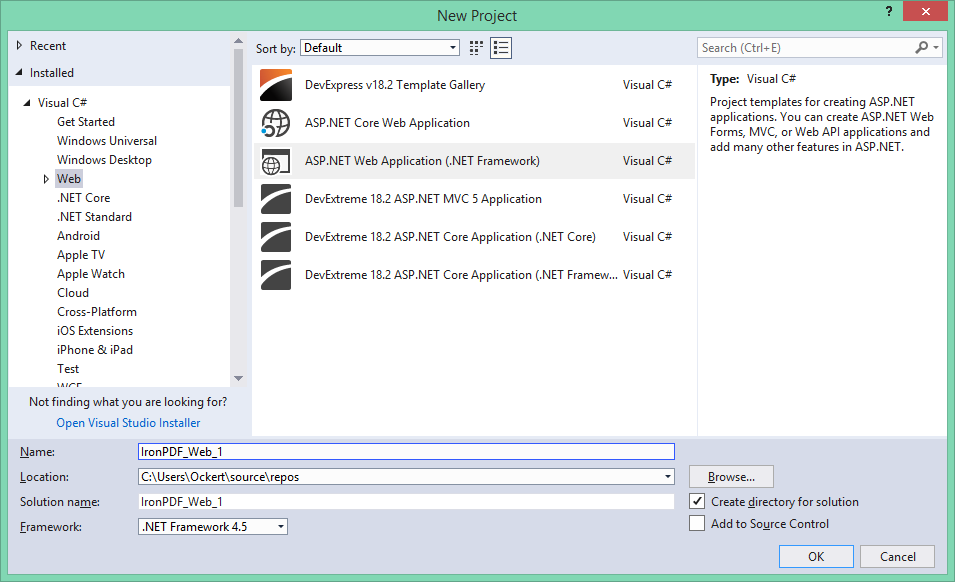 ASP.NET 웹 애플리케이션을 생성하기 위한 Visual Studio의 새로운 프로젝트 대화 상자 - PDF 생성 프로젝트의 기초
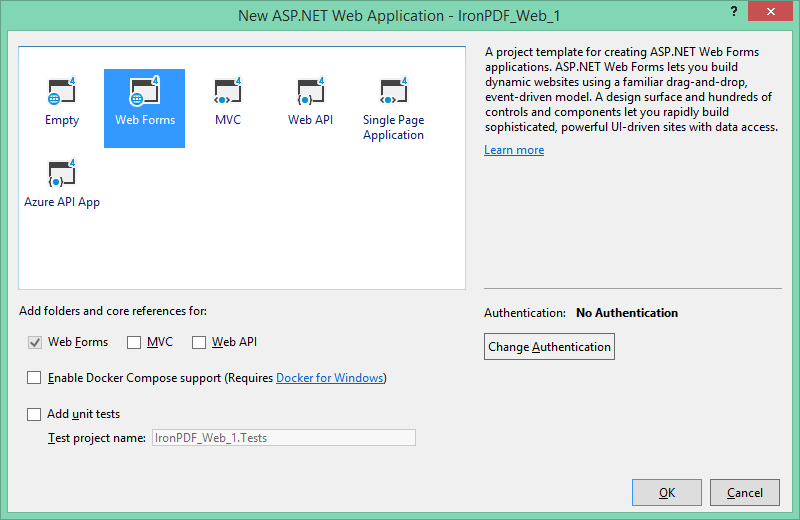 ChromePdfRenderer 및 GemBox.Pdf 구현에 적합한 프로젝트 템플릿으로 웹 폼을 선택
NuGet을 통한 PDF 라이브러리 설치
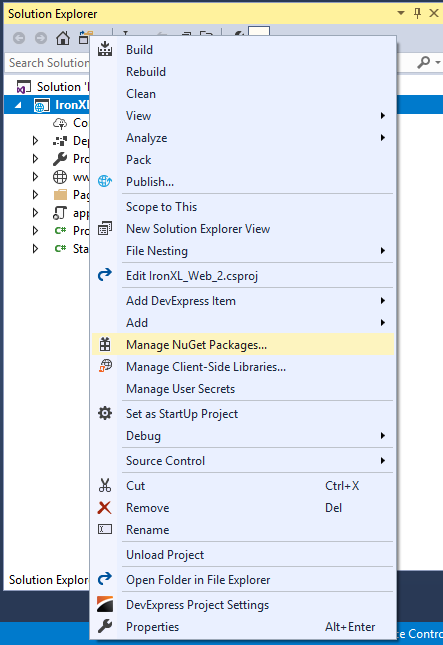 해당 프로젝트에서 오른쪽 클릭하여 라이브러리 설치를 위해 NuGet 패키지 관리자에 액세스
 Visual Studio에서 프로젝트 메뉴를 통해 NuGet 패키지 관리자에 대한 대체 액세스
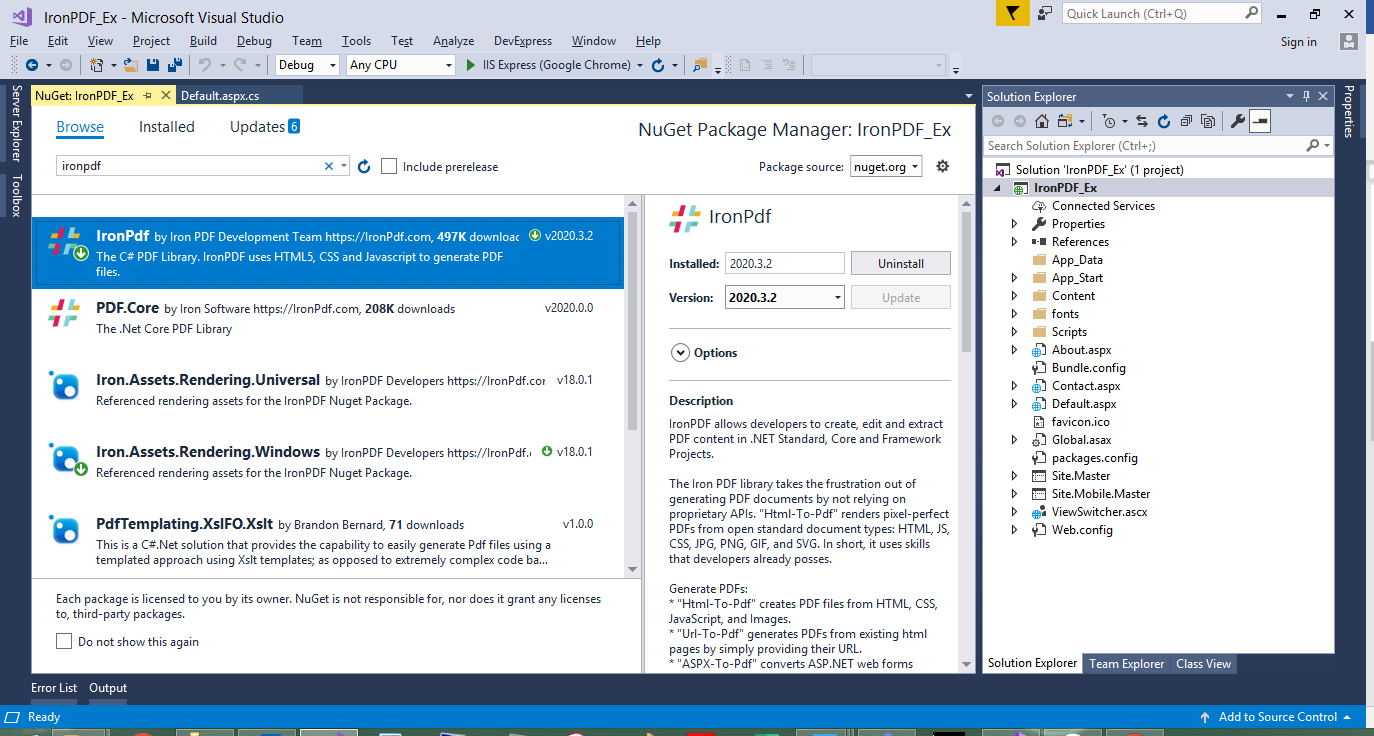 NuGet 패키지 관리자를 통한 ChromePdfRenderer 설치 - 종합 기능 설명 및 다운로드 수를 주목하세요
대체 설치 방법
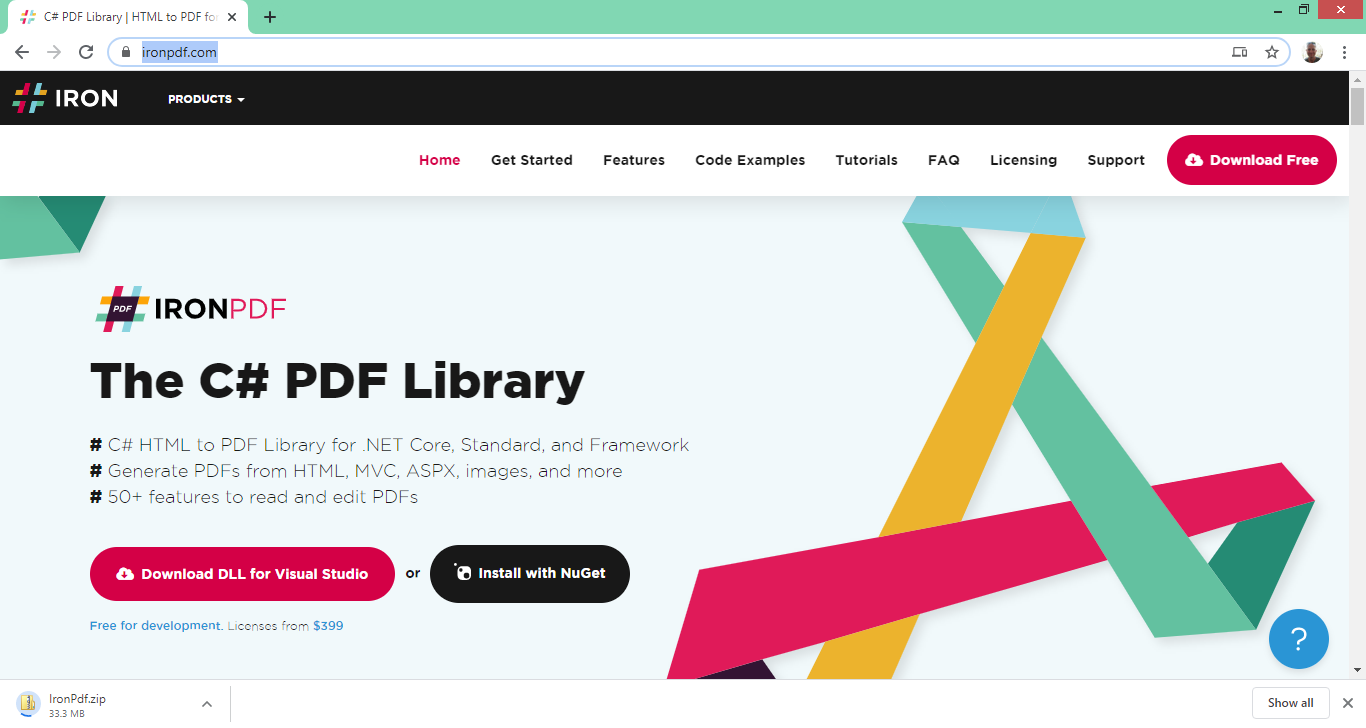 ChromePdfRenderer 웹사이트는 NuGet 설치가 적합하지 않은 시나리오에 대해 직접 DLL 다운로드를 제공합니다
결론
ChromePdfRenderer와 GemBox.Pdf는 모두 .NET 개발자를 위한 품질 PDF 라이브러리로, 각각의 특화된 강점을 가지고 있습니다. 두 개의 라이브러리 모두 Chromium 기반 HTML to PDF 변환을 포함합니다; ChromePdfRenderer는 더 풍부한 구성 API, 웹 프레임워크에 대한 깊이 있는 문서 및 더 넓은 기능 세트 내의 단일 패키지를 통해 차별화됩니다. GemBox.Pdf은 저수준 PDF 조작, 모바일 플랫폼 지원 및 내장 OCR에서 빛나며 정교한 PDF 구조 제어가 필요한 애플리케이션에 적합합니다.
광범위하게 문서화된 매우 구성 가능한 HTML-to-PDF 워크플로우를 원하는 현대 애플리케이션을 구축하는 웹 개발자 및 팀을 위해, ChromePdfRenderer의 통합 API와 넓은 생태계 지원은 개발 시간과 복잡성을 줄여줍니다.
그러나 GemBox.Pdf는 특히 모바일 개발과 PDF 폼 처리나 OCR 요구 사항에 집중하는 애플리케이션에서는 확고한 선택지를 제공합니다.
HTML 콘텐츠를 전문적인 PDF로 변환할 준비가 되셨나요? ChromePdfRenderer의 무료 체험판을 시작하고, .NET 애플리케이션에서 Chrome-품질 렌더링의 강력함을 경험해보세요. 포괄적인 문서, 방대한 코드 예제, 응답성 높은 지원과 함께, 몇 시간이 아닌 몇 분 만에 PDF를 생성할 수 있습니다.
자주 묻는 질문
C#에서 HTML을 PDF로 변환하는 방법은 무엇인가요?
IronPDF의 RenderHtmlAsPdf 메서드를 사용하여 HTML 문자열을 PDF로 변환할 수 있습니다. 또한 RenderHtmlFileAsPdf 사용하여 HTML 파일을 PDF로 변환할 수도 있습니다.
이 라이브러리들로 기존 PDF 파일을 조작할 수 있나요?
예, IronPDF와 GemBox.Pdf 모두 기존 PDF 파일을 조작할 수 있습니다. IronPDF는 병합, 분할 및 워터마크 추가와 같은 일반적인 작업을 단순화합니다. GemBox.Pdf는 PDF 객체에 대한 더 세분화된 제어를 제공하여 복잡한 조작 작업에 유용합니다.
IronPDF를 사용하여 HTML을 PDF로 변환하는 데 어떤 이점이 있나요?
IronPDF는 Chrome V8 렌더링 엔진을 사용하여 우수한 HTML에서 PDF로의 변환 품질을 제공하며, 98% 이상의 브라우저 충실도를 달성합니다. 현대 CSS3, HTML5, JavaScript 실행, 웹 글꼴 및 반응형 디자인을 지원합니다.
소규모 개발 팀에 더 비용 효율적인 라이브러리는 무엇인가요?
HTML을 PDF로 변환해야 하는 3명의 개발자 팀의 경우 IronPDF의 Plus 라이선스는 $1,499입니다. 반면, GemBox.Pdf 라이선스 3개와 GemBox.Document 라이선스 3개는 $5,340입니다. IronPDF는 팀에 훨씬 더 나은 가치를 제공합니다.
IronPDF는 대량의 PDF 생성에 적합한가요?
예, IronPDF는 약 125ms의 HTML에서 PDF로의 렌더링 시간, 최적화된 async/await 지원, 10MB 이하의 효율적인 메모리 사용으로 뛰어난 성능을 제공합니다. 대량의 웹 기반 PDF 생성에 적합합니다.
IronPDF에 어떤 지원이 포함되어 있나요?
IronPDF는 개발 팀에 직접 액세스할 수 있는 24/5 엔지니어링 지원과 보통 24-48시간의 응답 시간을 갖추고 있으며, 포괄적인 문서 및 코드 예제를 제공합니다.
이 라이브러리들로 PDF/A 준수 문서를 생성할 수 있나요?
예, IronPDF는 SaveAsPdfA()와 같은 간단한 메서드 호출로 PDF/A 준수 문서를 생성할 수 있으며, 여러 PDF/A 버전을 지원합니다. GemBox.Pdf는 PDF/A 문서를 읽고 수정 시 준수성을 유지할 수 있습니다.
이 라이브러리들은 현대 .NET Framework와 호환되나요?
예, 두 라이브러리 모두 현대 .NET 버전을 지원합니다. IronPDF는 .NET Framework 4.6.2+, .NET Core 3.1+, .NET 5부터 10까지 지원합니다. GemBox.Pdf는 .NET Framework 3.5+, .NET Standard 2.0, .NET 6+를 지원합니다.
어떤 라이브러리가 클라우드 배포에 최적화되어 있나요?
IronPDF는 클라우드 배포에 최적화되어 있으며 Azure, AWS, Docker 컨테이너 및 서버리스 환경을 위한 특정 지원을 제공합니다. HTML 기반 접근 방식은 웹 애플리케이션과 자연스럽게 어울리며, SaaS 애플리케이션에 적합한 선택이 됩니다.
IronPDF를 테스트할 수 있는 무료 버전이 있나요?
IronPDF는 라이센스 키 없이 무제한 개발 및 테스트를 허용하는 무료 평가 옵션을 제공하지만, 출력물에 워터마크가 나타납니다. 이는 구매 전에 제품을 평가하는 데 충분한 기능을 제공합니다.









 무료로 시작하세요
 무료로 시작하세요
 무료 라이브 데모 예약하기





 신용카드나 계정 생성은 필요하지 않습니다.










