디지털 서명은 서명자의 신원을 인증하고 문서의 무결성을 보장하기 위해 사용되는 수학적 알고리즘입니다. 이는 서명자만이 아는 비공개 키를 사용하여 서명된 문서에 연결된 고유한 식별자를 생성합니다. 디지털 서명된 문서의 진위여부를 검증하기 위해, 수신자는 공개 키를 사용하여 서명을 해독하고 유효성을 확인합니다.
이 기사에서는 C#에서 QuestPDF 및 IronPDF 라이브러리를 사용하여 PDF 문서에 디지털 서명을 추가하는 방법을 비교할 것입니다. 두 라이브러리 모두 디지털 서명 기능을 포함하여 PDF 조작을 위한 강력한 기능을 제공합니다.
디지털 서명이 중요한 이유는 무엇입니까?
디지털 서명은 문서의 내용이 변조되지 않았음을 보장하고 서명자의 신원을 증명합니다. 이는 전통적인 서명보다 높은 수준의 보안을 제공합니다. 디지털 서명은 많은 국가에서 법적 구속력이 있으며, 계약, 협정 및 기타 법적 문서에 일반적으로 사용됩니다.
필수 조건
시작하기 전에 C# 및 .NET Framework에 대한 기본 이해를 가지고 있는지 확인하십시오. QuestPDF 및 IronPDF를 모두 설치해야 합니다. QuestPDF는 NuGet에서 설치할 수 있으며, IronPDF는 IronPDF 웹사이트에서 다운로드하거나 NuGet 패키지 관리자에서 설치할 수 있습니다.
디지털 서명을 준비해야 하며, 만약 준비되어 있지 않다면 새로운 서명을 만드는 방법을 도와주는 많은 리소스가 있습니다.
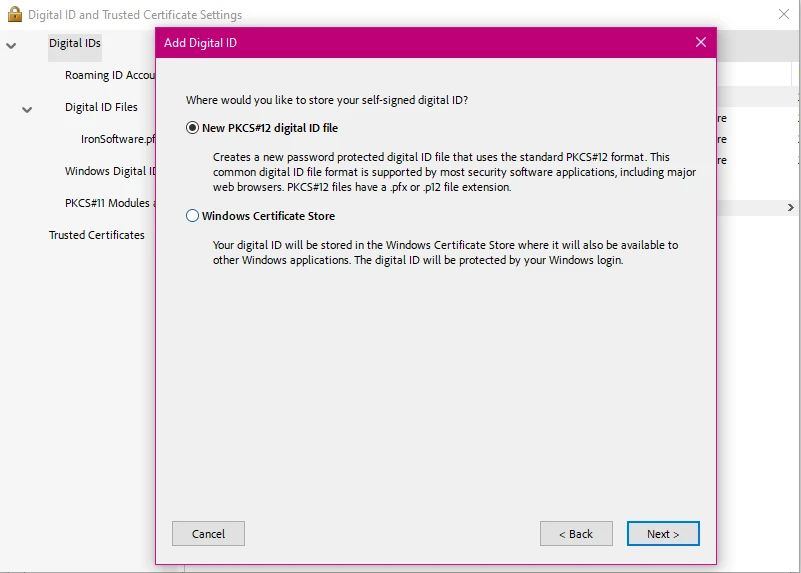
QuestPDF vs IronPDF를 사용하여 C#에서 PDF 문서에 디지털 서명 추가하는 비교
이제 이 두 라이브러리를 자세히 살펴보고 PDF 문서에 디지털 서명을 적용하는 작업을 어떻게 처리하는지 알아보겠습니다.
QuestPDF는 복잡한 레이아웃을 생성하기 위한 유창한 API를 사용하여 PDF 문서를 생성하는 데 중점을 둔 오픈 소스 라이브러리입니다. PDF 조작에 덜 초점이 맞춰져 있지만 PDF 서명을 위해 다른 도구와 함께 사용할 수 있습니다. 또한 사용자들이 쉽게 PDF의 문서 구조를 탐색할 수 있는 동반 앱이 있으며, 핫 리로드 기능을 사용하여 문서의 즉석 미리보기를 제공하여 코드 재컴파일이 필요하지 않습니다.
IronPDF는 PDF 문서 생성, 조작 및 PDF 문서 서명을 위한 강력한 기능을 제공하는 견고한 .NET 라이브러리입니다. 이는 종합적이고 사용이 간편한 솔루션을 찾는 .NET 개발자를 위해 설계되었습니다. IronPDF를 사용하면 PDF 문서를 암호화하고, 주석을 추가하고, HTML을 PDF로 변환하고, 내용을 추출하는 등의 작업을 쉽게 할 수 있습니다!
QuestPDF
QuestPDF는 디지털 서명을 기본적으로 지원하지 않습니다. 그러나, 다른 라이브러리 (예: BouncyCastle 또는 PDFSharp)와 함께 이 기능을 결합할 수 있습니다. QuestPDF로 문서를 생성한 후, PDF 서명 도구를 제공하는 라이브러리(예: iText)를 사용하여 서명할 수 있지만, QuestPDF 라이브러리 자체는 PDF 서명을 처리하지 않습니다.
이는 PDF 암호화 형식의 다른 기본 PDF 보안을 제공하며, 고급 PDF 생성 및 PDF 문서 설계 기능을 제공하므로 너무 복잡하지 않은 기본 PDF 작업을 처리할 수 있는 PDF 라이브러리를 찾는 사람들에게 여전히 유용한 옵션일 수 있습니다.
IronPDF
IronPDF는 디지털 인증서로 PDF에 서명하는 간단한 API를 제공합니다. 다음 코드는 IronPDF를 사용하여 PDF 파일에 디지털 서명을 적용하는 방법을 보여줍니다.
using IronPdf;
using IronPdf.Signing;
using System.Security.Cryptography.X509Certificates;

public class Program
{
    static void Main(string[] args)
    {
        // Load an existing PDF document
        PdfDocument pdf = PdfDocument.FromFile("invoice.pdf");

        // Load a certificate from a .pfx file
        X509Certificate2 cert = new X509Certificate2("IronSoftware.pfx", "your-password", X509KeyStorageFlags.Exportable);

        // Create a PDF signature using the certificate
        var sig = new PdfSignature(cert);

        // Sign the PDF document
        pdf.Sign(sig);

        // Save the signed PDF document
        pdf.SaveAs("signed.pdf");
    }
}
using IronPdf;
using IronPdf.Signing;
using System.Security.Cryptography.X509Certificates;

public class Program
{
    static void Main(string[] args)
    {
        // Load an existing PDF document
        PdfDocument pdf = PdfDocument.FromFile("invoice.pdf");

        // Load a certificate from a .pfx file
        X509Certificate2 cert = new X509Certificate2("IronSoftware.pfx", "your-password", X509KeyStorageFlags.Exportable);

        // Create a PDF signature using the certificate
        var sig = new PdfSignature(cert);

        // Sign the PDF document
        pdf.Sign(sig);

        // Save the signed PDF document
        pdf.SaveAs("signed.pdf");
    }
}
Imports IronPdf
Imports IronPdf.Signing
Imports System.Security.Cryptography.X509Certificates
Public Class Program
Shared Sub Main(ByVal args() As String)
' Load an existing PDF document
Dim pdf As PdfDocument = PdfDocument.FromFile("invoice.pdf")
' Load a certificate from a .pfx file
Dim cert As New X509Certificate2("IronSoftware.pfx", "your-password", X509KeyStorageFlags.Exportable)
' Create a PDF signature using the certificate
Dim sig = New PdfSignature(cert)
' Sign the PDF document
pdf.Sign(sig)
' Save the signed PDF document
pdf.SaveAs("signed.pdf")
End Sub
End Class
Imports IronPdf
Imports IronPdf.Signing
Imports System.Security.Cryptography.X509Certificates

Public Class Program
	Shared Sub Main(ByVal args() As String)
		' Load an existing PDF document
		Dim pdf As PdfDocument = PdfDocument.FromFile("invoice.pdf")

		' Load a certificate from a .pfx file
		Dim cert As New X509Certificate2("IronSoftware.pfx", "your-password", X509KeyStorageFlags.Exportable)

		' Create a PDF signature using the certificate
		Dim sig = New PdfSignature(cert)

		' Sign the PDF document
		pdf.Sign(sig)

		' Save the signed PDF document
		pdf.SaveAs("signed.pdf")
	End Sub
End Class
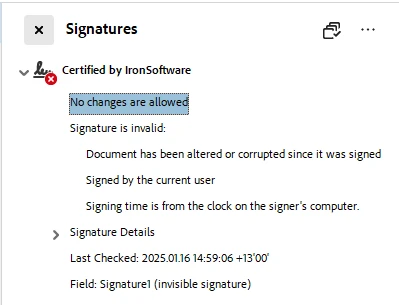
이 코드는 IronPDF와 X.509 인증서를 사용하여 PDF 문서에 디지털 서명하는 방법을 보여줍니다. 먼저, 기존 PDF (invoice.pdf)를 PdfDocument 객체에 로드합니다. 그런 다음, 비밀번호 (your-password)를 제공하여 .pfx 파일 (IronSoftware.pfx)에서 인증서를 로드하고 필요한 경우 인증서의 개인 키를 내보낼 수 있도록 플래그 X509KeyStorageFlags.Exportable를 설정합니다.
다음으로, 로드된 인증서를 사용하여 PdfSignature 객체가 생성됩니다. 이 서명이 PDF 문서에 적용되어 서명이 완료됩니다. 마지막으로, 서명된 PDF는 새로운 파일 signed.pdf로 저장됩니다. 이 프로세스는 PDF가 안전하게 서명되고, 그 진위성과 무결성을 확인합니다.
IronPDF를 사용하여 서명 확인하는 방법
IronPDF는 디지털 서명을 확인하는 간단한 방법도 제공합니다. 문서의 서명 유효성을 확인하려면 VerifyPdfSignatures 메서드를 호출할 수 있습니다.
using IronPdf;

PdfDocument pdf = PdfDocument.FromFile("signed_test_document.pdf");

// Verify the digital signatures in the PDF document
bool isValid = pdf.VerifyPdfSignatures();
if (isValid)
{
    Console.WriteLine("The digital signature is valid.");
}
else
{
    Console.WriteLine("The digital signature is invalid or missing.");
}
using IronPdf;

PdfDocument pdf = PdfDocument.FromFile("signed_test_document.pdf");

// Verify the digital signatures in the PDF document
bool isValid = pdf.VerifyPdfSignatures();
if (isValid)
{
    Console.WriteLine("The digital signature is valid.");
}
else
{
    Console.WriteLine("The digital signature is invalid or missing.");
}
Imports IronPdf
Private pdf As PdfDocument = PdfDocument.FromFile("signed_test_document.pdf")
' Verify the digital signatures in the PDF document
Private isValid As Boolean = pdf.VerifyPdfSignatures()
If isValid Then
Console.WriteLine("The digital signature is valid.")
Else
Console.WriteLine("The digital signature is invalid or missing.")
End If
Imports IronPdf

Private pdf As PdfDocument = PdfDocument.FromFile("signed_test_document.pdf")

' Verify the digital signatures in the PDF document
Private isValid As Boolean = pdf.VerifyPdfSignatures()
If isValid Then
	Console.WriteLine("The digital signature is valid.")
Else
	Console.WriteLine("The digital signature is invalid or missing.")
End If
문서의 모든 서명이 유효하면 이 메서드는 true를 반환하고, 하나 이상의 서명이 유효하지 않거나 누락되면 false를 반환합니다.
QuestPDF와 IronPDF의 차이점 요약
사용 용이성: IronPDF는 QuestPDF에 비해 PDF 서명에 대한 훨씬 간단한 API를 제공합니다. QuestPDF는 디지털 서명에 대한 기본 지원을 제공하지 않으며, 이 기능에는 외부 라이브러리(e.g., BouncyCastle)가 필요합니다. 대조적으로, IronPDF는 PDF 서명 및 검증을 위한 내장 메소드를 제공하여 디지털 서명을 구현하는 데 더 간단한 방법을 제공합니다.
인증서 관리: 두 라이브러리 모두 인증서와 함께 작업할 수 있습니다. 그러나 IronPDF는 내장 메소드(e.g., SignWithFile)를 통해 직접 이를 처리하여 프로세스를 간소화합니다. 또한 IronPDF는 서명 권한을 지정할 수 있으며, 이는 QuestPDF에서 제공되지 않습니다. IronPDF로 PDF 문서에 서명하는 것은 몇 줄의 코드만으로 가능합니다.
디지털 서명 확인: IronPDF는 PDF 내 디지털 서명의 유효성을 검사하기 위한 사용하기 쉬운 메서드 (VerifyPdfSignatures)를 제공하지만, QuestPDF는 이 기능이 없어 외부 라이브러리에 의존합니다.
라이선스 및 비용: QuestPDF는 사용이 무료인 오픈 소스 라이브러리입니다. 이로 인해 디지털 서명 지원과 같은 고급 기능이 부족합니다. IronPDF는 개발 단계에서 무료로 사용할 수 있으며, 그 외에 구매 전에 상업적 라이선스를 시도할 수 있는 다양한 가격 계층을 제공합니다.
결론
요약하자면, QuestPDF는 복잡한 레이아웃을 가진 PDF 생성에 뛰어나지만 디지털 서명에 대한 기본 지원이 부족하여 이 기능에는 외부 라이브러리인 BouncyCastle이 필요합니다. 반면에, IronPDF는 디지털 서명 서명 및 검증을 위한 통합 솔루션을 제공하여 더 간단하고 효율적인 프로세스를 제공합니다.
내장된 디지털 서명 기능이 포함된 완전한 PDF 솔루션이 필요한 개발자에게는 IronPDF가 더 나은 선택이며, 다양한 기능, 광범위한 문서 등을 제공합니다. QuestPDF, 그러나 여전히 PDF 생성에 대한 강력한 오픈 소스 옵션으로 남아 있지만 디지털 서명은 추가적인 복잡성을 요구합니다. 결정은 궁극적으로 프로젝트의 필요성과 원하는 단순성 수준에 따라 달라집니다.
QuestPDF 및 BouncyCastle은 각각의 소유자에 등록된 상표입니다. 이 사이트는 QuestPDF 또는 BouncyCastle과 관련이 없으며, 인증을 받거나 후원을 받지 않았습니다. 모든 제품명, 로고 및 브랜드는 해당 소유자의 자산입니다. 비교는 정보 제공 목적으로만 사용되며, 작성 시점에 공개적으로 이용 가능한 정보를 반영합니다.























