


IronPDF vs ExpertPDF: 시니어 .NET 개발자가 선택해야 할 C# PDF 라이브러리는?

Full Comparison
Looking for a detailed feature-by-feature breakdown? See how IronPDF stacks up against Itext on pricing, HTML support, and licensing.
급변하는 세상에서 물리적 서류 작업은 빠르게 전자 문서로 대체되고 있습니다. 계약 서명, 송장 승인 또는 정부 양식 제출 여부에 상관없이 디지털 문서는 표준이 되었습니다. 하지만 이러한 편리함은 디지털 문서의 진위성과 무결성을 보장해야 한다는 새로운 과제를 안겨줍니다.
전자 서명은 해결책을 제공합니다. 단순히 터치스크린에 낙서하는 것 이상의 디지털 서명은 암호화 기술을 사용하여 서명자의 신원을 확인하고 문서 내용을 변경되지 않았음을 보장합니다. C# 개발자에게는, PDF 워크플로우에 보안 수준을 통합하는 것이 이제 IronPDF 및 iText와 같은 도구를 사용함으로써 그 어느 때보다도 더 접급 가능합니다. 이번 기사에서는 디지털 서명으로 PDFs를 서명하는 과정을 안내하고, 라이브러리를 비교하며, 모범 사례를 제공하고, 다음 프로젝트에 적합한 솔루션을 선택하는 데 도움을 드립니다.
디지털 서명 이해하기
디지털 서명은 디지털 메시지나 문서의 진위성과 무결성을 검증하기 위해 사용하는 암호화 기술입니다. 이미지 기반 서명이나 타이핑된 이름과 달리, 디지털 서명은 문서의 해시를 암호화하기 위해 비공개 키를 사용합니다. 이 암호화된 해시는 서명자의 공개 키를 사용하는 누구나 검증할 수 있습니다.
왜 이것이 중요할까요? 이것은 두 가지를 보장하기 때문입니다:
-
인증 - 서명은 명시된 발신자로부터 온 PDF 문서를 확인합니다.
- 무결성 - 문서는 서명 이후 변경되지 않았습니다. 작은 변화라도 서명을 무효화시킵니다.
디지털 서명은 많은 관할 지역에서 법적으로 유효하며, 금융, 의료, 법률, 정부와 같은 산업에서 필수적입니다.
왜 PDF에서 디지털 서명을 사용해야 할까요?
PDF는 법적 계약부터 공식 보고서까지 전문 문서를 배포하는 표준 형식입니다. PDF에 디지털 서명을 추가하는 것은 여러 중요한 목적을 수행합니다:
-
법적 효력 및 준수: 디지털 서명은 eIDAS(유럽), ESIGN(미국) 등과 같은 규정을 준수하여 법적으로 인정받습니다.
-
보안: 서명된 문서는 서명을 깨뜨리지 않고는 변경할 수 없으므로 변조나 사기 방지에 역할을 합니다.
-
효율성: 인쇄하고 서명하고 스캔할 필요가 없습니다. 안전한 디지털 승인으로 시간을 절약하고 워크플로우를 간소화하세요.
- 신뢰: 고객과 파트너는 문서의 출처와 무결성을 자신 있게 검증할 수 있습니다.
간단히 말해, 디지털 서명은 문서 워크플로우에 신뢰 및 효율성을 제공합니다.
iText와 IronPDF 비교
C#에서 디지털 서명을 구현할 때, 두 라이브러리가 종종 주목을 받습니다: iText와 IronPDF. 둘 다 능력 있는 도구이지만, 서로 다른 개발자 유형과 프로젝트 요구사항을 충족합니다. 실제 사용 사례에서 어떻게 비교되는지 살펴보겠습니다.
iText: 복잡함을 가진 강력함
iText는 PDF 조작 분야에서 잘 알려진 이름입니다. iText 에코시스템의 일환으로, 암호화 디지털 서명을 포함한 저수준 PDF 작업을 위한 광범위한 지원을 제공합니다.
서명 외형, 해싱 알고리즘, 인증서 체인 및 사용자 정의 검증 워크플로우에 대한 세밀한 제어가 필요한 개발자는 iText를 매우 능숙하다고 느낄 것입니다. 이는 고도의 확장성을 가지고 있으며 복잡한 기업의 요구를 고려하여 설계되었습니다.
그러나 그 유연성에는 대가가 따릅니다. 학습 곡선이 가파릅니다. 간단한 작업조차, 예를 들어 가시적인 서명을 추가하는 경우에는 여러 클래스, 스트림 및 구성 단계가 필요합니다. 새로운 사용자들에게 이는 벅찰 수 있습니다.
또한, iText는 AGPL에 의해 라이선스되어 있으며, 사용자의 응용 프로그램이 오픈 소스가 되어야 합니다 상업용 라이선스를 구입하지 않는 한, 이는 많은 클로즈드 소스 또는 독점 프로젝트에 있어 문제가 될 수 있습니다.
IronPDF: 단순함과 프로페셔널함의 만남
IronPDF는 현대적이고 개발자 우선 접근 방식을 취합니다. 그의 API는 디지털 서명, 생성, 병합 및 편집과 같은 일반 PDF 작업을 최소한의 설정으로 처리하도록 설계되어 .NET Framework 프로젝트에 강력한 PDF 라이브러리를 제공합니다.
예를 들어, IronPDF에서 PDF에 서명하는 것은 스트림이나 암호화 설정을 직접 다룰 필요가 없습니다. PDF를 간단히 로드하고, SignPdf()를 호출한 다음 인증서를 전달합니다. 서명자의 위치, 이유 및 연락처 정보와 같은 추가 메타데이터도 지원하며, 이는 모두 단일 메서드 호출에서 가능합니다.
또 다른 주요 장점은 라이선스입니다. IronPDF는 AGPL 제한이 없는 상업 친화적 라이선스를 제공하여, 전문적이고 Enterprise급 응용 프로그램에 이상적입니다. 상품은 유료이지만, 넉넉한 무료 체험판을 제공하여 커밋하기 전에 평가하기 쉽습니다.
옆자리 요약
| 기능 | iText | IronPDF |
|---|---|---|
| 사용의 용이성 | 가파른 학습 곡선 | 초보자 친화적, 최소 코드 |
| 라이선스 | AGPL (또는 상업적인 라이선스) | 오픈 소스 의무가 없는 상업 라이선스 |
| 서명 커스터마이제이션 | 암호화 제어가 있는 고도로 커스터마이즈 가능 | 메타데이터 필드가 선택 가능한 간소한 API |
| 문서 | 자세하지만 밀도 있는 문서 | 개발자 중심의 명확한 예제 포함 문서 |
| 최고의 적합성 | 깊이 있는 커스터마이제이션이 필요한 기업용 응용 프로그램 | 신속한 구현 및 지원이 필요한 팀 |
iText 및 IronPDF로 시작하기
디지털 서명 구현에 뛰어들기 전에 각 라이브러리로 시작하는 방법을 이해하는 것이 중요합니다. 당신이 Enterprise 급 솔루션을 구축하든, 사내 도구를 신속히 만들든, 올바른 설정은 모든 차이를 만들 수 있습니다.
iText 설정
iText는 강력한 Java 기반 iText PDF 라이브러리의 .NET 포트입니다. 시작하려면, NuGet을 통해 설치하고 프로젝트에서 올바른 네임스페이스를 참조해야 합니다.
설치
NuGet 패키지 관리자 콘솔을 통해 iText 라이브러리를 프로젝트에 쉽게 설치할 수 있습니다. 다음 명령을 실행하기만 하면 됩니다:
Install-Package iTextSharp
이 간단한 설치는 C# 프로젝트 내에서 이 라이브러리를 빠르게 구현할 수 있도록 합니다.
기본 설정
설치 후, iText 네임스페이스를 프로젝트에서 사용하기 시작할 수 있습니다:
using iTextSharp.text.pdf;
using iTextSharp.text.pdf.security;
using iTextSharp.text.pdf;
using iTextSharp.text.pdf.security;Imports iTextSharp.text.pdf
Imports iTextSharp.text.pdf.securityiText는 모듈식임을 명심하세요. 고급 암호화 기능 또는 타임 스탬프 기능을 사용할 계획이라면 BouncyCastle.Cryptography와 같은 추가 패키지가 필요할 것입니다. 간단히 iText처럼 설치할 수 있으며, 다음 줄을 실행하기만 하면 됩니다:
Install-Package BouncyCastle.Cryptography
주의할 점
-
라이선스: AGPL 라이선스는 iText를 사용하는 모든 소프트웨어가 상업용 라이선스를 구입하지 않는 한 오픈 소스여야 한다고 요구합니다.
-
종속성: 암호화 작업에는 종종 인증서 처리를 위한 BouncyCastle이 필요합니다.
- 학습 곡선: 기본 서명도
PdfSigner,IExternalSignature및 다양한 암호화 공급자에 대한 이해를 필요로 합니다.
이러한 구조적 요소를 구성하는 데 편안하고 서명 프로세스 (예: 외형 설정, 검증 수준, 타임스탬프 서버 설정 등)에 대한 완전한 제어가 필요한 경우 iText는 견고한 선택입니다.
IronPDF 설정하기
IronPDF는 개발자 생산성을 염두에 두고 설계된 상업용 PDF 라이브러리입니다. .NET 개발자가 최소한의 번거로움으로 PDF를 생성, 편집 및 서명하도록 설계되었습니다. IronPDF는 특히 깨끗한 API와 신속한 결과를 중시하는 사람들에게 훨씬 부드러운 온보딩 경험을 제공합니다.
설치
NuGet을 통해 최신 IronPDF 패키지를 설치하세요:
Install-Package IronPdf
또는 .NET CLI를 사용하세요:
Install-Package IronPdf
기본 설정
주요 IronPDF 네임스페이스를 가져오는 것으로 시작하세요:
using IronPdf;using IronPdf;Imports IronPdf그게 전부입니다—PDF를 로드하고 디지털 서명을 추가할 준비가 되었습니다.
IronPDF는 인증서 로딩, 가시 서명 위치 지정, 메타데이터 및 최종 내보내기를 내부적으로 관리합니다. PDF 스트림이나 암호화 알고리즘을 수동으로 관리할 필요가 없으므로 빠른 개발의 큰 이점이 됩니다.
초보자를 위한 주요 이점
-
올인원: 추가 종속성이나 암호화 라이브러리가 필요하지 않습니다.
-
AGPL 걱정 불필요: IronPDF는 영구 라이센스와 관대한 무료 체험판을 제공합니다.
- 시각적 렌더링: IronPDF는 인쇄될 때처럼 PDF를 렌더링하여 계약서 및 공식 문서에 이상적입니다.
단계별: 디지털 서명 추가
1. 인증서 준비
.pfx 디지털 인증서 파일과 비밀번호가 필요합니다. 이들은 디지털 서명을 생성하는 데 사용됩니다. 인증서는 신뢰할 수 있는 인증 기관(CA)에서 얻거나 OpenSSL과 같은 도구를 사용하여 내부 용도로 생성할 수 있습니다.
2. iText 및 BouncyCastle을 사용한 PDF 서명
필요한 네임스페이스 포함
먼저, iText를 사용하여 PDF를 디지털 서명하기 위해 필요한 다양한 클래스 및 메소드를 액세스하기 위해 코드 상단에 적절한 using 문이 있는지 확인해야 합니다.
using System;
using System.IO;
using System.Linq;
using iTextSharp.text.pdf;
using iTextSharp.text.pdf.security;
using Org.BouncyCastle.Crypto;
using Org.BouncyCastle.Pkcs;using System;
using System.IO;
using System.Linq;
using iTextSharp.text.pdf;
using iTextSharp.text.pdf.security;
using Org.BouncyCastle.Crypto;
using Org.BouncyCastle.Pkcs;Imports System
Imports System.IO
Imports System.Linq
Imports iTextSharp.text.pdf
Imports iTextSharp.text.pdf.security
Imports Org.BouncyCastle.Crypto
Imports Org.BouncyCastle.Pkcs입력 PDF 정의 및 PdfReader에 로드
그런 다음 기존 PDF의 경로를 지정하고 그것을 PdfReader에 로드합니다. 또한 나중에 코드에서 사용할 일부 문자열 변수를 할당할 것입니다.
// Path to the unsigned PDF you want to sign
string filename = "example.pdf";

// Load the existing PDF into a reader
PdfReader pdfReader = new PdfReader(filename);

string reason = "Digital Signature Reason";
string location = "Digital Signature Location";
// Path to the unsigned PDF you want to sign
string filename = "example.pdf";
// Load the existing PDF into a reader
PdfReader pdfReader = new PdfReader(filename);
string reason = "Digital Signature Reason";
string location = "Digital Signature Location";' Path to the unsigned PDF you want to sign
Dim filename As String = "example.pdf"
' Load the existing PDF into a reader
Dim pdfReader As New PdfReader(filename)
Dim reason As String = "Digital Signature Reason"
Dim location As String = "Digital Signature Location"인증서 경로 및 비밀번호 정의
다음으로 .pfx 인증서 파일을 가리키고 보호에 사용된 비밀번호를 제공합니다.
// Path to your .pfx certificate file (must contain private key)
string pfxFilePath = "certificate-file.pfx";

// Password for the certificate (make sure to protect this securely!)
string pfxPassword = "Password";
// Path to your .pfx certificate file (must contain private key)
string pfxFilePath = "certificate-file.pfx";
// Password for the certificate (make sure to protect this securely!)
string pfxPassword = "Password";' Path to your .pfx certificate file (must contain private key)
Dim pfxFilePath As String = "certificate-file.pfx"
' Password for the certificate (make sure to protect this securely!)
Dim pfxPassword As String = "Password"Pkcs12Store를 사용하여 .PFX 인증서 로드
BouncyCastle을 사용하여 인증서 및 개인 키를 안전한 스토어에 로드합니다.
// Initialize a new PKCS#12 key store (used for handling the PFX certificate)
Pkcs12StoreBuilder pkcs12StoreBuilder = new Pkcs12StoreBuilder();
Pkcs12Store pfxKeyStore = pkcs12StoreBuilder.Build();

// Load the certificate and private key from the PFX file
using (FileStream pfxStream = new FileStream(pfxFilePath, FileMode.Open, FileAccess.Read))
{
    // Load into the key store using the provided password
    pfxKeyStore.Load(pfxStream, pfxPassword.ToCharArray());
}
// Initialize a new PKCS#12 key store (used for handling the PFX certificate)
Pkcs12StoreBuilder pkcs12StoreBuilder = new Pkcs12StoreBuilder();
Pkcs12Store pfxKeyStore = pkcs12StoreBuilder.Build();
// Load the certificate and private key from the PFX file
using (FileStream pfxStream = new FileStream(pfxFilePath, FileMode.Open, FileAccess.Read))
{
// Load into the key store using the provided password
pfxKeyStore.Load(pfxStream, pfxPassword.ToCharArray());
}' Initialize a new PKCS#12 key store (used for handling the PFX certificate)
Dim pkcs12StoreBuilder As New Pkcs12StoreBuilder()
Dim pfxKeyStore As Pkcs12Store = pkcs12StoreBuilder.Build()
' Load the certificate and private key from the PFX file
Using pfxStream As New FileStream(pfxFilePath, FileMode.Open, FileAccess.Read)
' Load into the key store using the provided password
pfxKeyStore.Load(pfxStream, pfxPassword.ToCharArray())
End Using서명 추가를 위한 PdfStamper 준비
PdfStamper를 사용하면 원래 내용을 보존하면서 디지털 서명을 적용할 수 있습니다.
// Create a PdfStamper that enables signing and appends the signature to the document
PdfStamper pdfStamper = PdfStamper.CreateSignature(
    pdfReader,
    new FileStream("MyPDF_Signed.pdf", FileMode.Create), // Output path
    '\0',                                                // PDF version (unchanged)
    null,                                                // Temp file path (optional)
    true                                                 // Append mode (preserves original content)
);
// Create a PdfStamper that enables signing and appends the signature to the document
PdfStamper pdfStamper = PdfStamper.CreateSignature(
pdfReader,
new FileStream("MyPDF_Signed.pdf", FileMode.Create), // Output path
'\0', // PDF version (unchanged)
null, // Temp file path (optional)
true // Append mode (preserves original content)
);Imports Microsoft.VisualBasic
' Create a PdfStamper that enables signing and appends the signature to the document
Dim pdfStamper As PdfStamper = PdfStamper.CreateSignature(pdfReader, New FileStream("MyPDF_Signed.pdf", FileMode.Create), ControlChars.NullChar, Nothing, True)서명 외형 사용자 정의
이제 서명이 어떻게 문서에서 시각적으로 나타날지를 정의합니다.
// Access the signature appearance settings
PdfSignatureAppearance signatureAppearance = pdfStamper.SignatureAppearance;

// Add optional metadata (shows up in PDF signature details)
signatureAppearance.Reason = reason;
signatureAppearance.Location = location;

// Position the visible signature on the page (x, y, width, height in points)
float x = 360;
float y = 130;
signatureAppearance.Acro6Layers = false;              // Use compact signature appearance
signatureAppearance.Layer4Text = PdfSignatureAppearance.QuestionMark; // Custom label text
signatureAppearance.SetVisibleSignature(
    new iTextSharp.text.Rectangle(x, y, x + 150, y + 50), // Rectangle position
    1,                                                    // Page number
    "signature"                                           // Field name
);
// Access the signature appearance settings
PdfSignatureAppearance signatureAppearance = pdfStamper.SignatureAppearance;
// Add optional metadata (shows up in PDF signature details)
signatureAppearance.Reason = reason;
signatureAppearance.Location = location;
// Position the visible signature on the page (x, y, width, height in points)
float x = 360;
float y = 130;
signatureAppearance.Acro6Layers = false; // Use compact signature appearance
signatureAppearance.Layer4Text = PdfSignatureAppearance.QuestionMark; // Custom label text
signatureAppearance.SetVisibleSignature(
new iTextSharp.text.Rectangle(x, y, x + 150, y + 50), // Rectangle position
1, // Page number
"signature" // Field name
);' Access the signature appearance settings
Dim signatureAppearance As PdfSignatureAppearance = pdfStamper.SignatureAppearance
' Add optional metadata (shows up in PDF signature details)
signatureAppearance.Reason = reason
signatureAppearance.Location = location
' Position the visible signature on the page (x, y, width, height in points)
Dim x As Single = 360
Dim y As Single = 130
signatureAppearance.Acro6Layers = False ' Use compact signature appearance
signatureAppearance.Layer4Text = PdfSignatureAppearance.QuestionMark ' Custom label text
signatureAppearance.SetVisibleSignature(New iTextSharp.text.Rectangle(x, y, x + 150, y + 50), 1, "signature")개인 키 추출 및 PDF 서명
개인 키가 포함된 인증서 항목의 별칭(이름)을 검색합니다. 별칭이 있으면 SHA-256을 사용하여 디지털 서명을 생성하고 포함합니다.
// Find the first alias in the PFX that has a private key entry
string alias = pfxKeyStore.Aliases.Cast<string>().FirstOrDefault(
    entryAlias => pfxKeyStore.IsKeyEntry(entryAlias)
);

// Ensure a valid alias (certificate) was found
if (alias != null)
{
    // Retrieve the private key for signing
    ICipherParameters privateKey = pfxKeyStore.GetKey(alias).Key;

    // Create a signer using SHA-256 and the private key
    IExternalSignature pks = new PrivateKeySignature(privateKey, DigestAlgorithms.SHA256);

    // Perform the digital signing operation using CMS format
    MakeSignature.SignDetached(
        signatureAppearance,     // Signature appearance
        pks,                     // External signature handler
        new Org.BouncyCastle.X509.X509Certificate[] {
            pfxKeyStore.GetCertificate(alias).Certificate
        },                       // Certificate chain (basic single-cert example)
        null, null, null,        // Optional CRL, OCSP, TSA
        0,                       // Estimated size for the signature (0 = auto)
        CryptoStandard.CMS       // Signature standard (CMS vs CAdES)
    );
}
else
{
    Console.WriteLine("Private key not found in the PFX certificate.");
}
// Find the first alias in the PFX that has a private key entry
string alias = pfxKeyStore.Aliases.Cast<string>().FirstOrDefault(
entryAlias => pfxKeyStore.IsKeyEntry(entryAlias)
);
// Ensure a valid alias (certificate) was found
if (alias != null)
{
// Retrieve the private key for signing
ICipherParameters privateKey = pfxKeyStore.GetKey(alias).Key;
// Create a signer using SHA-256 and the private key
IExternalSignature pks = new PrivateKeySignature(privateKey, DigestAlgorithms.SHA256);
// Perform the digital signing operation using CMS format
MakeSignature.SignDetached(
signatureAppearance, // Signature appearance
pks, // External signature handler
new Org.BouncyCastle.X509.X509Certificate[] {
pfxKeyStore.GetCertificate(alias).Certificate
}, // Certificate chain (basic single-cert example)
null, null, null, // Optional CRL, OCSP, TSA
0, // Estimated size for the signature (0 = auto)
CryptoStandard.CMS // Signature standard (CMS vs CAdES)
);
}
else
{
Console.WriteLine("Private key not found in the PFX certificate.");
}' Find the first alias in the PFX that has a private key entry
Dim [alias] As String = pfxKeyStore.Aliases.Cast(Of String)().FirstOrDefault(Function(entryAlias) pfxKeyStore.IsKeyEntry(entryAlias))
' Ensure a valid alias (certificate) was found
If [alias] IsNot Nothing Then
' Retrieve the private key for signing
Dim privateKey As ICipherParameters = pfxKeyStore.GetKey([alias]).Key
' Create a signer using SHA-256 and the private key
Dim pks As IExternalSignature = New PrivateKeySignature(privateKey, DigestAlgorithms.SHA256)
' Perform the digital signing operation using CMS format
MakeSignature.SignDetached(signatureAppearance, pks, New Org.BouncyCastle.X509.X509Certificate() { pfxKeyStore.GetCertificate([alias]).Certificate }, Nothing, Nothing, Nothing, 0, CryptoStandard.CMS)
Else
Console.WriteLine("Private key not found in the PFX certificate.")
End If문서 마무리
마지막으로 스탬퍼를 닫아 서명 과정을 완료하고 서명된 PDF를 디스크에 씁니다.
// Close the stamper to save and finalize the signed PDF
pdfStamper.Close();
// Close the stamper to save and finalize the signed PDF
pdfStamper.Close();' Close the stamper to save and finalize the signed PDF
pdfStamper.Close()산출
부트스트랩 보안 구성 양식
전문 PDF 보안에는 직관적인 구성 인터페이스가 필요합니다. 이 부트스트랩 5 예시는 검증 상태와 진행 상황 추적이 가능한 IronPDF의 다단계 보안 구성 양식 렌더링 능력을 보여줍니다.
using IronPdf;

var renderer = new ChromePdfRenderer();

string securityConfigForm = @"
<!DOCTYPE html>
<html>
<head>
    <meta charset='utf-8'>
    <link href='https://cdn.jsdelivr.net/npm/bootstrap@5.3.0/dist/css/bootstrap.min.css' rel='stylesheet'>
    <style>
        .step-indicator { display: flex; justify-content: space-between; margin-bottom: 30px; }
        .step { flex: 1; text-align: center; position: relative; }
        .step-number { width: 40px; height: 40px; border-radius: 50%; background: #e9ecef;
            display: inline-flex; align-items: center; justify-content: center; font-weight: 700; }
        .step.completed .step-number { background: #198754; color: white; }
        .step.active .step-number { background: #0d6efd; color: white; }
        @media print { .form-section { page-break-inside: avoid; } }
    </style>
</head>
<body class='bg-light'>
    <div class='container py-4'>
        <div class='row justify-content-center'>
            <div class='col-lg-8'>
                <h2 class='text-center mb-4'>PDF Security Configuration</h2>

                <div class='step-indicator mb-4'>
                    <div class='step completed'>
                        <div class='step-number'>✓</div>
                        <div class='small mt-2'>Certificate</div>
                    </div>
                    <div class='step completed'>
                        <div class='step-number'>✓</div>
                        <div class='small mt-2'>Signature</div>
                    </div>
                    <div class='step active'>
                        <div class='step-number'>3</div>
                        <div class='small mt-2'>Encryption</div>
                    </div>
                    <div class='step'>
                        <div class='step-number'>4</div>
                        <div class='small mt-2'>Finalize</div>
                    </div>
                </div>

                <div class='card shadow-sm form-section'>
                    <div class='card-header bg-primary text-white'>
                        <h5 class='mb-0'>Step 3: Encryption & Permissions</h5>
                    </div>
                    <div class='card-body'>
                        <div class='mb-3'>
                            <label class='form-label'><strong>Encryption Level</strong></label>
                            <select class='form-select'>
                                <option>AES 128-bit</option>
                                <option selected>AES 256-bit (Recommended)</option>
                                <option>RC4 128-bit (Legacy)</option>
                            </select>
                            <small class='text-muted'>AES-256 provides enterprise-grade security</small>
                        </div>

                        <div class='mb-3'>
                            <label class='form-label'><strong>Document Permissions</strong></label>
                            <div class='form-check form-switch'>
                                <input class='form-check-input' type='checkbox' id='allowPrint' checked>
                                <label class='form-check-label' for='allowPrint'>Allow Printing</label>
                            </div>
                            <div class='form-check form-switch'>
                                <input class='form-check-input' type='checkbox' id='allowCopy'>
                                <label class='form-check-label' for='allowCopy'>Allow Content Copying</label>
                            </div>
                            <div class='form-check form-switch'>
                                <input class='form-check-input' type='checkbox' id='allowModify'>
                                <label class='form-check-label' for='allowModify'>Allow Document Modification</label>
                            </div>
                            <div class='form-check form-switch'>
                                <input class='form-check-input' type='checkbox' id='allowAnnotate' checked>
                                <label class='form-check-label' for='allowAnnotate'>Allow Annotations</label>
                            </div>
                        </div>

                        <div class='mb-3'>
                            <label class='form-label'><strong>Password Protection</strong></label>
                            <input type='password' class='form-control mb-2' placeholder='Owner Password' value='••••••••'>
                            <input type='password' class='form-control' placeholder='User Password (Optional)'>
                            <small class='text-muted'>Owner password controls document permissions</small>
                        </div>

                        <div class='alert alert-success'>
                            <strong>✓ Configuration Valid</strong><br>
                            <small>Security settings meet compliance requirements</small>
                        </div>
                    </div>
                    <div class='card-footer'>
                        <div class='d-flex justify-content-between'>
                            <button class='btn btn-outline-secondary'>← Previous</button>
                            <button class='btn btn-primary'>Continue →</button>
                        </div>
                    </div>
                </div>

                <div class='card mt-3 shadow-sm'>
                    <div class='card-body'>
                        <h6 class='text-primary'>Security Comparison</h6>
                        <div class='row g-2'>
                            <div class='col-6'>
                                <div class='text-center p-2 bg-success text-white rounded'>
                                    <strong>IronPDF</strong><br>
                                    <small>AES-256 Native</small>
                                </div>
                            </div>
                            <div class='col-6'>
                                <div class='text-center p-2 bg-warning text-dark rounded'>
                                    <strong>iTextSharp</strong><br>
                                    <small>Complex Setup</small>
                                </div>
                            </div>
                        </div>
                    </div>
                </div>
            </div>
        </div>
    </div>
</body>
</html>";

var pdf = renderer.RenderHtmlAsPdf(securityConfigForm);
pdf.SaveAs("security-configuration.pdf");
using IronPdf;
var renderer = new ChromePdfRenderer();
string securityConfigForm = @"
<!DOCTYPE html>
<html>
<head>
<meta charset='utf-8'>
<link href='https://cdn.jsdelivr.net/npm/bootstrap@5.3.0/dist/css/bootstrap.min.css' rel='stylesheet'>
<style>
.step-indicator { display: flex; justify-content: space-between; margin-bottom: 30px; }
.step { flex: 1; text-align: center; position: relative; }
.step-number { width: 40px; height: 40px; border-radius: 50%; background: #e9ecef;
display: inline-flex; align-items: center; justify-content: center; font-weight: 700; }
.step.completed .step-number { background: #198754; color: white; }
.step.active .step-number { background: #0d6efd; color: white; }
@media print { .form-section { page-break-inside: avoid; } }
</style>
</head>
<body class='bg-light'>
<div class='container py-4'>
<div class='row justify-content-center'>
<div class='col-lg-8'>
<h2 class='text-center mb-4'>PDF Security Configuration</h2>
<div class='step-indicator mb-4'>
<div class='step completed'>
<div class='step-number'>✓</div>
<div class='small mt-2'>Certificate</div>
</div>
<div class='step completed'>
<div class='step-number'>✓</div>
<div class='small mt-2'>Signature</div>
</div>
<div class='step active'>
<div class='step-number'>3</div>
<div class='small mt-2'>Encryption</div>
</div>
<div class='step'>
<div class='step-number'>4</div>
<div class='small mt-2'>Finalize</div>
</div>
</div>
<div class='card shadow-sm form-section'>
<div class='card-header bg-primary text-white'>
<h5 class='mb-0'>Step 3: Encryption & Permissions</h5>
</div>
<div class='card-body'>
<div class='mb-3'>
<label class='form-label'><strong>Encryption Level</strong></label>
<select class='form-select'>
<option>AES 128-bit</option>
<option selected>AES 256-bit (Recommended)</option>
<option>RC4 128-bit (Legacy)</option>
</select>
<small class='text-muted'>AES-256 provides enterprise-grade security</small>
</div>
<div class='mb-3'>
<label class='form-label'><strong>Document Permissions</strong></label>
<div class='form-check form-switch'>
<input class='form-check-input' type='checkbox' id='allowPrint' checked>
<label class='form-check-label' for='allowPrint'>Allow Printing</label>
</div>
<div class='form-check form-switch'>
<input class='form-check-input' type='checkbox' id='allowCopy'>
<label class='form-check-label' for='allowCopy'>Allow Content Copying</label>
</div>
<div class='form-check form-switch'>
<input class='form-check-input' type='checkbox' id='allowModify'>
<label class='form-check-label' for='allowModify'>Allow Document Modification</label>
</div>
<div class='form-check form-switch'>
<input class='form-check-input' type='checkbox' id='allowAnnotate' checked>
<label class='form-check-label' for='allowAnnotate'>Allow Annotations</label>
</div>
</div>
<div class='mb-3'>
<label class='form-label'><strong>Password Protection</strong></label>
<input type='password' class='form-control mb-2' placeholder='Owner Password' value='••••••••'>
<input type='password' class='form-control' placeholder='User Password (Optional)'>
<small class='text-muted'>Owner password controls document permissions</small>
</div>
<div class='alert alert-success'>
<strong>✓ Configuration Valid</strong><br>
<small>Security settings meet compliance requirements</small>
</div>
</div>
<div class='card-footer'>
<div class='d-flex justify-content-between'>
<button class='btn btn-outline-secondary'>← Previous</button>
<button class='btn btn-primary'>Continue →</button>
</div>
</div>
</div>
<div class='card mt-3 shadow-sm'>
<div class='card-body'>
<h6 class='text-primary'>Security Comparison</h6>
<div class='row g-2'>
<div class='col-6'>
<div class='text-center p-2 bg-success text-white rounded'>
<strong>IronPDF</strong><br>
<small>AES-256 Native</small>
</div>
</div>
<div class='col-6'>
<div class='text-center p-2 bg-warning text-dark rounded'>
<strong>iTextSharp</strong><br>
<small>Complex Setup</small>
</div>
</div>
</div>
</div>
</div>
</div>
</div>
</div>
</body>
</html>";
var pdf = renderer.RenderHtmlAsPdf(securityConfigForm);
pdf.SaveAs("security-configuration.pdf");Imports IronPdf
Dim renderer As New ChromePdfRenderer()
Dim securityConfigForm As String = "
<!DOCTYPE html>
<html>
<head>
<meta charset='utf-8'>
<link href='https://cdn.jsdelivr.net/npm/bootstrap@5.3.0/dist/css/bootstrap.min.css' rel='stylesheet'>
<style>
.step-indicator { display: flex; justify-content: space-between; margin-bottom: 30px; }
.step { flex: 1; text-align: center; position: relative; }
.step-number { width: 40px; height: 40px; border-radius: 50%; background: #e9ecef;
display: inline-flex; align-items: center; justify-content: center; font-weight: 700; }
.step.completed .step-number { background: #198754; color: white; }
.step.active .step-number { background: #0d6efd; color: white; }
@media print { .form-section { page-break-inside: avoid; } }
</style>
</head>
<body class='bg-light'>
<div class='container py-4'>
<div class='row justify-content-center'>
<div class='col-lg-8'>
<h2 class='text-center mb-4'>PDF Security Configuration</h2>
<div class='step-indicator mb-4'>
<div class='step completed'>
<div class='step-number'>✓</div>
<div class='small mt-2'>Certificate</div>
</div>
<div class='step completed'>
<div class='step-number'>✓</div>
<div class='small mt-2'>Signature</div>
</div>
<div class='step active'>
<div class='step-number'>3</div>
<div class='small mt-2'>Encryption</div>
</div>
<div class='step'>
<div class='step-number'>4</div>
<div class='small mt-2'>Finalize</div>
</div>
</div>
<div class='card shadow-sm form-section'>
<div class='card-header bg-primary text-white'>
<h5 class='mb-0'>Step 3: Encryption & Permissions</h5>
</div>
<div class='card-body'>
<div class='mb-3'>
<label class='form-label'><strong>Encryption Level</strong></label>
<select class='form-select'>
<option>AES 128-bit</option>
<option selected>AES 256-bit (Recommended)</option>
<option>RC4 128-bit (Legacy)</option>
</select>
<small class='text-muted'>AES-256 provides enterprise-grade security</small>
</div>
<div class='mb-3'>
<label class='form-label'><strong>Document Permissions</strong></label>
<div class='form-check form-switch'>
<input class='form-check-input' type='checkbox' id='allowPrint' checked>
<label class='form-check-label' for='allowPrint'>Allow Printing</label>
</div>
<div class='form-check form-switch'>
<input class='form-check-input' type='checkbox' id='allowCopy'>
<label class='form-check-label' for='allowCopy'>Allow Content Copying</label>
</div>
<div class='form-check form-switch'>
<input class='form-check-input' type='checkbox' id='allowModify'>
<label class='form-check-label' for='allowModify'>Allow Document Modification</label>
</div>
<div class='form-check form-switch'>
<input class='form-check-input' type='checkbox' id='allowAnnotate' checked>
<label class='form-check-label' for='allowAnnotate'>Allow Annotations</label>
</div>
</div>
<div class='mb-3'>
<label class='form-label'><strong>Password Protection</strong></label>
<input type='password' class='form-control mb-2' placeholder='Owner Password' value='••••••••'>
<input type='password' class='form-control' placeholder='User Password (Optional)'>
<small class='text-muted'>Owner password controls document permissions</small>
</div>
<div class='alert alert-success'>
<strong>✓ Configuration Valid</strong><br>
<small>Security settings meet compliance requirements</small>
</div>
</div>
<div class='card-footer'>
<div class='d-flex justify-content-between'>
<button class='btn btn-outline-secondary'>← Previous</button>
<button class='btn btn-primary'>Continue →</button>
</div>
</div>
</div>
<div class='card mt-3 shadow-sm'>
<div class='card-body'>
<h6 class='text-primary'>Security Comparison</h6>
<div class='row g-2'>
<div class='col-6'>
<div class='text-center p-2 bg-success text-white rounded'>
<strong>IronPDF</strong><br>
<small>AES-256 Native</small>
</div>
</div>
<div class='col-6'>
<div class='text-center p-2 bg-warning text-dark rounded'>
<strong>iTextSharp</strong><br>
<small>Complex Setup</small>
</div>
</div>
</div>
</div>
</div>
</div>
</div>
</div>
</body>
</html>"
Dim pdf = renderer.RenderHtmlAsPdf(securityConfigForm)
pdf.SaveAs("security-configuration.pdf")출력: 부트스트랩 5 단계 표시기, 양식 제어, 스위치 및 검증 알림이 포함된 전문 보안 구성 양식 PDF. IronPDF는 완벽한 충실도로 모든 양식 스타일링, 유틸리티 클래스, 상호작용 요소를 렌더링하여, iText의 프로그래밍 접근방식과 비교했을 때 탁월한 양식 렌더링 기능을 제공합니다.
부트스트랩 양식 지원에 대한 자세한 내용은 부트스트랩 & Flexbox CSS 가이드를 참조하세요.
3. IronPDF를 사용하여 C#에서 PDF를 디지털 서명하기
필요한 네임스페이스 포함
PDF 서명, 인증서 처리 및 이미지 위치 지정에 필요한 네임스페이스를 가져오는 것으로 시작합니다.
using IronPdf;
using IronPdf.Signing;
using IronSoftware.Drawing;
using System.Security.Cryptography.X509Certificates;
using IronPdf;
using IronPdf.Signing;
using IronSoftware.Drawing;
using System.Security.Cryptography.X509Certificates;Imports IronPdf
Imports IronPdf.Signing
Imports IronSoftware.Drawing
Imports System.Security.Cryptography.X509Certificates서명하려는 PDF 불러오기
IronPDF의 간단한 PdfDocument API를 사용하여 기존 PDF 파일을 디스크에서 불러옵니다. 이 작업을 위해 새 PDF 문서를 만들 수도 있습니다.
var pdf = PdfDocument.FromFile("example.pdf");var pdf = PdfDocument.FromFile("example.pdf");Dim pdf = PdfDocument.FromFile("example.pdf")서명에 사용하는 PFX 인증서 불러오기
.pfx 인증서를 불러옵니다. 개인 키가 포함되어 있습니다. 서명 키를 액세스할 수 있도록 Exportable 플래그가 필요합니다.
X509Certificate2 cert = new X509Certificate2(
    "IronSoftware.pfx",
    "Password",
    X509KeyStorageFlags.Exportable
);
X509Certificate2 cert = new X509Certificate2(
"IronSoftware.pfx",
"Password",
X509KeyStorageFlags.Exportable
);Dim cert As New X509Certificate2("IronSoftware.pfx", "Password", X509KeyStorageFlags.Exportable)인증서를 사용하여 새 PdfSignature 생성
불러온 인증서에서 새 PdfSignature 객체를 생성합니다.
var sig = new PdfSignature(cert);var sig = new PdfSignature(cert);Dim sig = New PdfSignature(cert)서명 적용 및 출력 저장
PDF에 디지털 서명을 하고 서명된 PDF 문서를 새 파일로 저장합니다.
pdf.Sign(sig);
pdf.SaveAs("signed.pdf");
pdf.Sign(sig);
pdf.SaveAs("signed.pdf");pdf.Sign(sig)
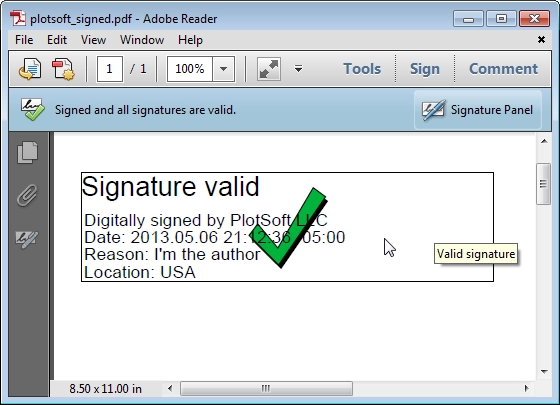
pdf.SaveAs("signed.pdf")산출
4. 코드 설명
-
IronPDF는 서명 과정을 간단하고 읽기 쉽게 유지합니다. PDF를 로드하고 인증서를 제공한 다음
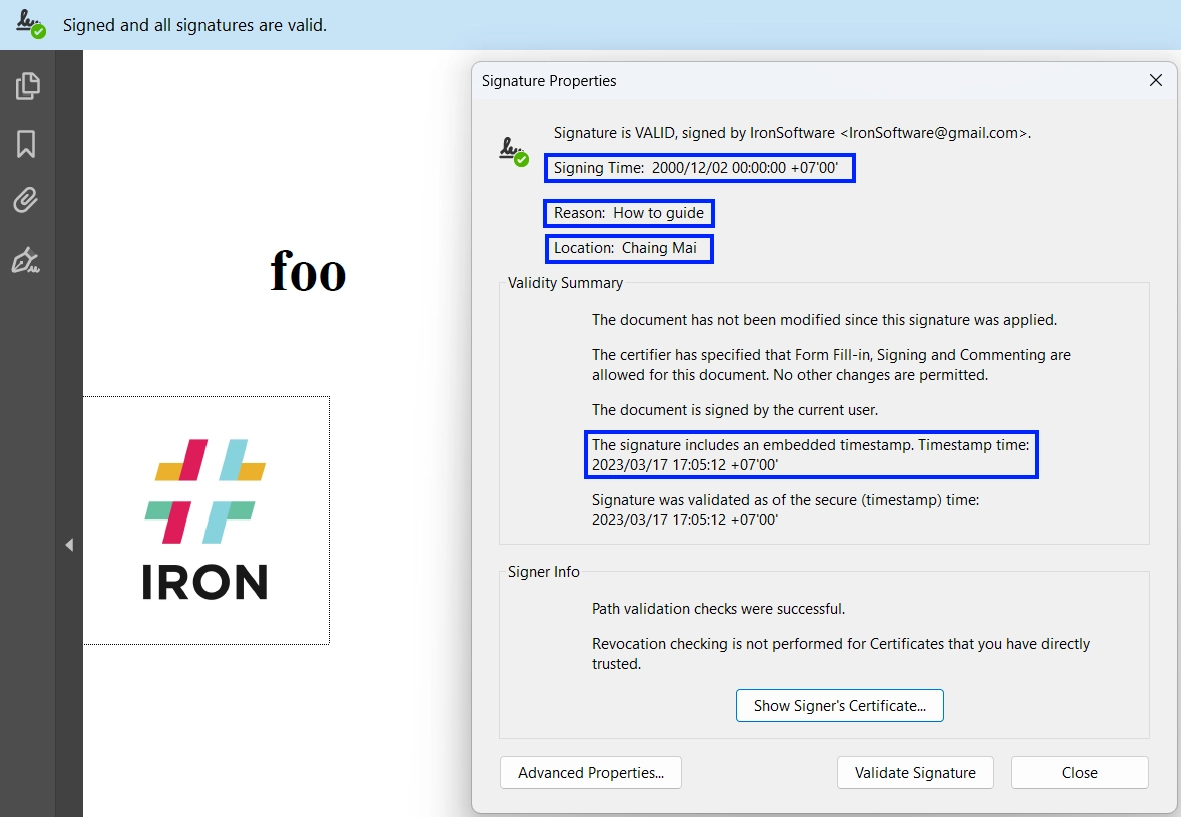
SignPdf()를 호출합니다. 옵션 메타데이터(연락처, 위치, 이유)는 전문성을 더합니다. - iText는 더 많은 제어를 제공하지만 해시 알고리즘, 스트림 및 인증서 체인과 함께 세부 설정이 필요합니다.
요약: 몇 줄의 코드만으로 IronPDF는 표준 .pfx 인증서를 사용하여 디지털 서명을 적용하는 것을 매우 쉽게 만듭니다 — 저수준 암호화 필요 없음. 이는 iText와 같은 라이브러리가 작업을 처리하는 데 필요한 더 긴 코드를 요구하는 것에 비해 구현을 더 쉽게 만듭니다.
5. 실사용 사례
-
법률 팀: 템플릿에서 생성된 계약을 자동으로 서명.
-
금융: 인보이스와 보고서를 디지털 서명하여 변조 방지.
- 정부 포털: 제출 전에 서명하여 규제 표준을 충족.
디지털 서명 모범 사례
디지털 서명 구현에서 최상의 결과를 얻으려면:
-
강력한 인증서 사용: 2048비트 RSA 키 또는 더 강한 키 선택.
-
개인 키 안전 유지: 인증서를 안전하게 저장, 이상적으로는 하드웨어 보안 모듈(HSM)에.
-
서명에 타임스탬프 추가: 신뢰할 수 있는 타임스탬프를 추가하여 인증서 만료 후에도 서명이 유효하게 유지.
-
서명 검증: 변조나 만료된 인증서 감지를 위해 애플리케이션에 검증 포함.
- 자동화: 배포 파이프라인에 서명 작업을 일정에 맞춰 실행하여 문서 무결성 유지.
결론
PDF 문서에 디지털 서명을 추가하는 것은 더 이상 사치가 아닙니다 — 현대의 보안 지향 디지털 환경에서는 필수입니다. 계약서, 인보이스, 보고서 또는 법률 문서를 보호하든, 신뢰할 수 있는 인증서가 뒷받침하는 변조 방지 서명이 있으므로 파일이 진정성과 무결성을 유지할 수 있습니다.
이 글에서는 C#에서 PDF 서명에 대한 두 가지 강력한 접근법을 탐구했습니다:
-
iText, 이는 저수준 암호화 제어 및 유연성을 제공하지만 추가적인 보일러플레이트 및 BouncyCastle에 대한 친숙함을 요구합니다.
- IronPDF, 이는 안전한 서명 적용 과정을 원활하고 개발자 친화적으로 만드는 현대적이고 고수준의 API를 제공합니다.
두 도구 모두 안전한 .pfx 인증서를 지원하지만, IronPDF는 워크플로를 명확히 간소화합니다 — 이는 암호 원시형을 처리하는 데 시간을 덜 사용하고 비즈니스 가치를 전달하는 데 더 많은 시간을 보내고자 하는 .NET 개발자에게 이상적입니다.
다음 단계
아직 다운로드하지 않았다면, 무료 IronPDF 체험판을 다운로드하고 몇 줄의 코드로 직접 PDF에 서명해보세요. 생산성 향상만으로도 전환할 가치가 있으며, 특히 시간에 민감한 프로젝트 작업 시 더욱 그렇습니다.
자주 묻는 질문
디지털 서명이 PDF 문서의 진위 여부를 어떻게 보장하나요?
디지털 서명은 암호화 기술을 사용하여 서명자의 신원을 확인하고 문서가 조작되지 않았음을 보장합니다. 이는 문서의 해시를 개인 키로 암호화함으로써 인증과 무결성을 제공합니다.
디지털 서명이 전자 문서에 중요한 이유는 무엇인가요?
디지털 서명은 전자 문서의 합법성, 보안, 효율성 및 신뢰 유지를 위해 필수적입니다. 규정을 준수하고, 변조를 방지하며, 문서 워크플로를 간소화하고, 문서의 출처와 무결성을 확인합니다.
C#에서 PDF에 디지털 서명을 추가하는 방법은 무엇인가요?
C#에서 IronPDF를 사용하여 PDF에 디지털 서명을 추가할 수 있습니다. 이 과정은 PDF를 로드하고, X509Certificate2를 사용하여 .pfx 인증서를 제공하고, 서명을 적용하기 위해 Sign 메서드를 호출하는 것을 포함합니다.
디지털 서명을 위한 iTextSharp와 다른 PDF 라이브러리의 주요 차이점은 무엇인가요?
iTextSharp는 구체적인 PDF 작업에 대한 광범위한 지원을 제공하며, 가파른 학습 곡선과 특정 라이선스가 필요합니다. 대조적으로, IronPDF는 초보자에게 친화적이며 간소화된 API로 빠른 구현을 허용하며, 오픈 소스 라이선스가 필요하지 않습니다.
C#에서 문서 서명을 위한 PDF 라이브러리를 어떻게 설치하나요?
IronPDF는 NuGet을 통해 Install-Package IronPdf 명령을 사용하여 설치하거나, .NET CLI에서는 dotnet add package IronPdf를 사용하여 설치할 수 있습니다.
iTextSharp를 사용하여 PDF에 디지털 서명을 하려면 어떠한 단계가 필요하나요?
iTextSharp로 PDF에 디지털 서명하려면 PdfStamper를 구성하고, 서명 모양을 사용자 지정하고, BouncyCastle을 사용하여 .pfx 인증서를 로드하고, 암호화 작업을 위해 PdfSigner 및 IExternalSignature를 활용해야 합니다.
PDF에 디지털 서명을 구현할 때의 모범 사례는 무엇인가요?
모범 사례에는 강력한 인증서 사용, 개인 키의 보안 유지, 서명에 타임스탬프 적용, 서명의 정기적 검증 및 문서 무결성을 유지하기 위한 서명 프로세스 자동화가 포함됩니다.
PDF 문서에서 디지털 서명의 실제 응용 사례는 무엇인가요?
디지털 서명은 법무 부서에서 계약서 서명, 금융에서 송장 및 보고서 승인, 정부 기관에서 규제 표준 준수를 위한 양식 처리에 일반적으로 사용됩니다.
빠른 디지털 서명 구현이 필요한 개발자에게 더 적합한 PDF 라이브러리는 무엇인가요?
디지털 서명의 빠른 구현을 찾고 있는 개발자에게는 IronPDF가 권장됩니다. 이는 서명 프로세스를 간소화하는 명확하고 깨끗한 API를 통해 최소한의 코드로 구현이 가능합니다.
IronPDF는 디지털 서명을 추가 및 검증하기 위해 .NET 10과 호환되나요?
예 — IronPDF는 .NET 10과 완벽하게 호환됩니다. .NET 9, 8, 7 등을 비롯한 .NET 10을 지원하며 그 디지털 서명 기능들(예: PdfSignature, X509Certificate2, 서명 및 검증)은 .NET 10 런타임에서 즉시 사용할 수 있습니다.











 무료로 시작하세요
 무료로 시작하세요
 무료 라이브 데모 예약하기





 신용카드나 계정 생성은 필요하지 않습니다.










