




업데이트됨 2026년 4월 23일
.NET에서 Microsoft.Extensions.AI로 LLM 통합 간소화
AI는 소프트웨어 개발을 변혁하고 있으나, 대규모 언어 모델(LLM)을 .NET에 통합하는 것은 지금까지 복잡했습니다. 현대에는 OpenAI 기반 PDF 파싱, 데이터 추출 및 콘텐츠 요약을 .NET 애플리케이션에 가져오는 IronPdf.AI로 AI 통합을 더욱 확장하세요.
더 읽어보기

전역 변수는 프로그래밍에서 강력한 도구로, 앱의 다양한 부분에서 접근해야 하는 데이터를 저장할 수 있습니다. C#는 본래 참 전역 변수를 지원하지 않지만, 정적 변수, 상수, 의존성 주입 같은 대안을 제공하여 유사한 기능을 구현할 수 있습니다.
오늘은 전역 변수 관리에 대해 자세히 살펴보면서 동시에 IronPDF를 탐색해 보겠습니다. 이 강력한 라이브러리는 개발자들이 C# 코드에서 직접 PDF 파일을 생성, 편집 및 조작할 수 있도록 합니다. IronPDF와 전역 변수를 통합하면 매번 생성되는 PDF에 헤더, 푸터 및 브랜드와 같은 공유 데이터를 포함하는 프로세스를 간소화할 수 있습니다.
전역 변수는 애플리케이션의 어느 부분에서도 접근할 수 있는 변수입니다. 이들은 여러 메서드, 클래스 또는 모듈에 걸쳐 공유될 필요가 있는 데이터를 저장합니다. 그러나 C#에서는 Python의 "global" 키워드처럼 일부 다른 프로그래밍 언어에 있는 전역 변수가 존재하지 않습니다. 대신, 정적 필드, 상수, 또는 의존성 주입을 사용하여 전역 변수를 시뮬레이션할 수 있으며, 이는 개인적인 경험에 따라 쉬운 과정일 수 있습니다.
전역 변수는 일반적으로 애플리케이션의 다양한 부분에서 사용될 데이터를 저장해야 할 때 사용됩니다. 일반적인 사용 사례에는 다음이 포함됩니다:
전역 변수를 신중하게 관리하는 것이 중요합니다. 남용하면 컴포넌트 간의 긴밀한 결합으로 인해 코드 유지 보수와 테스트가 어려워질 수 있습니다.
먼저, 기본적인 전역 변수가 없는 C#에서 정적 키워드와 정적 클래스를 사용하여 전역 변수를 만드는 방법을 살펴보겠습니다.
// Our globals class
public class GlobalSettings
{
    // Static variables accessible globally
    public static string CompanyName = "IronSoftware";
    public static string LogoPath = "IronPdfLogo.png";
}

class Program
{
    static void Main(string[] args)
    {
        // Access global variables
        Console.WriteLine(GlobalSettings.CompanyName);
    }
}' Our globals class
Public Class GlobalSettings
' Static variables accessible globally
Public Shared CompanyName As String = "IronSoftware"
Public Shared LogoPath As String = "IronPdfLogo.png"
End Class
Friend Class Program
Shared Sub Main(ByVal args() As String)
' Access global variables
Console.WriteLine(GlobalSettings.CompanyName)
End Sub
End Class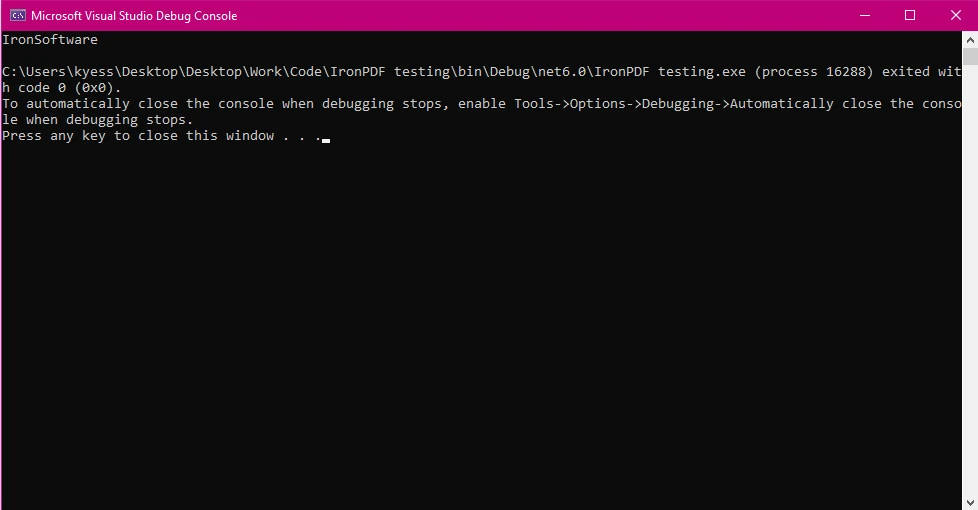
위 예제에서 GlobalSettings라는 공개 클래스를 생성하여 CompanyName 및 LogoPath라는 전역 변수를 포함시켰습니다. 그런 다음, 메인 메소드에서 GlobalSettings.CompanyName을 사용하여 CompanyName 변수를 액세스합니다.
IronPDF를 사용하기 시작하려면 먼저 설치해야 합니다. 이미 설치되어 있다면 다음 섹션으로 넘어가도 되지만, 그렇지 않으면 IronPDF 라이브러리를 설치하는 방법을 다룹니다.
NuGet 패키지 관리자 콘솔을 사용하여 IronPDF를 설치하려면, Visual Studio를 열고 패키지 관리자 콘솔로 이동합니다. 그런 다음 다음 명령을 실행합니다:
짜잔! IronPDF는 프로젝트에 추가될 것이며 즉시 작업에 착수할 수 있습니다.
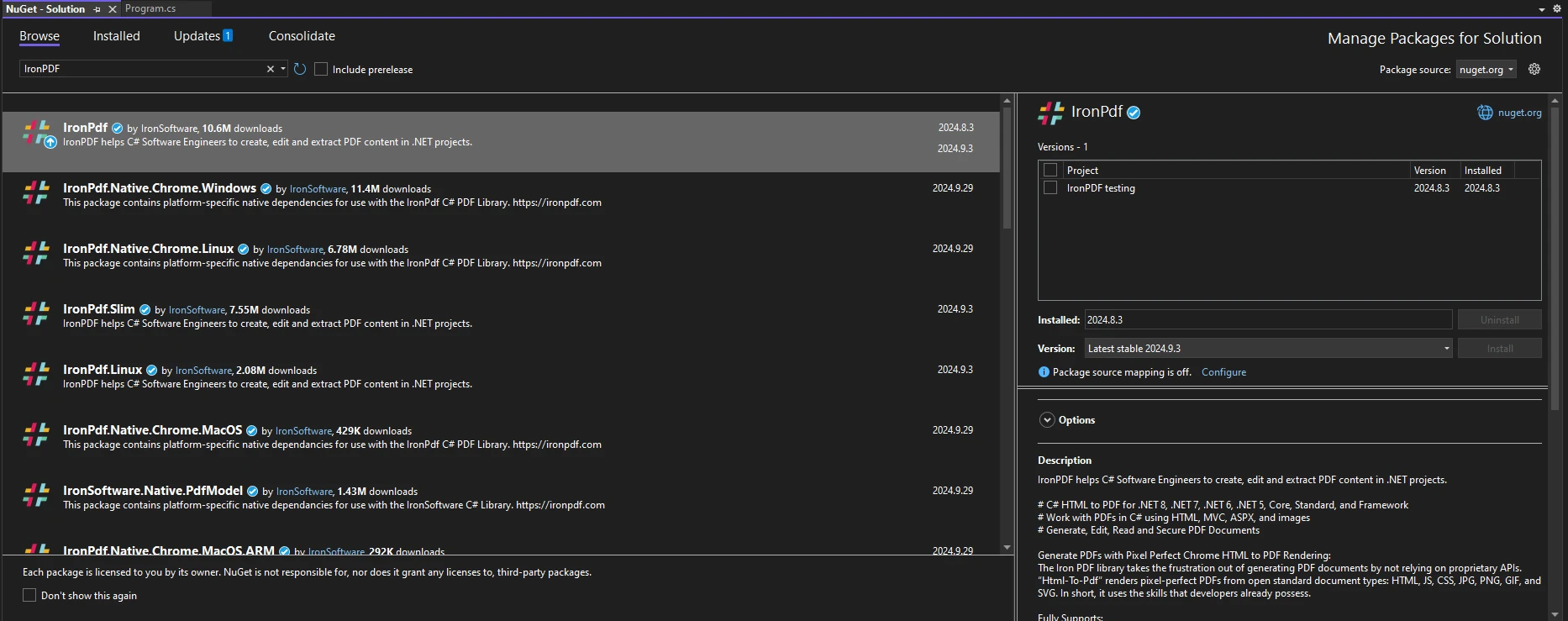
Visual Studio를 열고 "도구 -> NuGet 패키지 관리자 -> 솔루션용 NuGet 패키지 관리"로 이동하여 IronPDF를 검색합니다. 여기에서 프로젝트를 선택하고 '설치'를 클릭하기만 하면 IronPDF가 프로젝트에 추가됩니다.
IronPDF를 설치한 후, 코드 상단에 올바른 using 문만 추가하면 IronPDF를 사용할 수 있습니다:
using IronPdf;Imports IronPdf여러 PDF 문서에 일관성을 보장하고 싶을 때 전역 변수가 특히 유용합니다. 예를 들어, PDF 보고서에 회사명과 로고를 각 페이지에 포함해야 하는 경우, 이 데이터를 전역적으로 저장할 수 있습니다.
다음은 IronPDF로 생성되는 모든 PDF에 회사명과 로고를 삽입하는 데 전역 변수를 사용하는 방법의 예입니다:
using System;
using IronPdf;

public class GlobalSettings
{
    // Static members of the global settings class
    public static string CompanyName = "IronSoftware";
    public static string LogoPath = "IronPdfLogo.png";
}

class Program
{
    static void Main(string[] args)
    {
        // Create a Chrome PDF renderer
        ChromePdfRenderer renderer = new ChromePdfRenderer();

        // Define HTML content incorporating global variables
        string htmlContent = $@"
            <html>
            <body>
                <header>
                    <h1>{GlobalSettings.CompanyName}</h1>
                    <img src='{GlobalSettings.LogoPath}' />
                </header>
                <p>This is a dynamically generated PDF using global variables!</p>
            </body>
            </html>";

        // Render HTML to PDF
        PdfDocument pdf = renderer.RenderHtmlAsPdf(htmlContent);

        // Save the PDF to file
        pdf.SaveAs("globalVar.pdf");
    }
}Imports System
Imports IronPdf
Public Class GlobalSettings
' Static members of the global settings class
Public Shared CompanyName As String = "IronSoftware"
Public Shared LogoPath As String = "IronPdfLogo.png"
End Class
Class Program
Shared Sub Main(args As String())
' Create a Chrome PDF renderer
Dim renderer As New ChromePdfRenderer()
' Define HTML content incorporating global variables
Dim htmlContent As String = $"
<html>
<body>
<header>
<h1>{GlobalSettings.CompanyName}</h1>
<img src='{GlobalSettings.LogoPath}' />
</header>
<p>This is a dynamically generated PDF using global variables!</p>
</body>
</html>"
' Render HTML to PDF
Dim pdf As PdfDocument = renderer.RenderHtmlAsPdf(htmlContent)
' Save the PDF to file
pdf.SaveAs("globalVar.pdf")
End Sub
End Class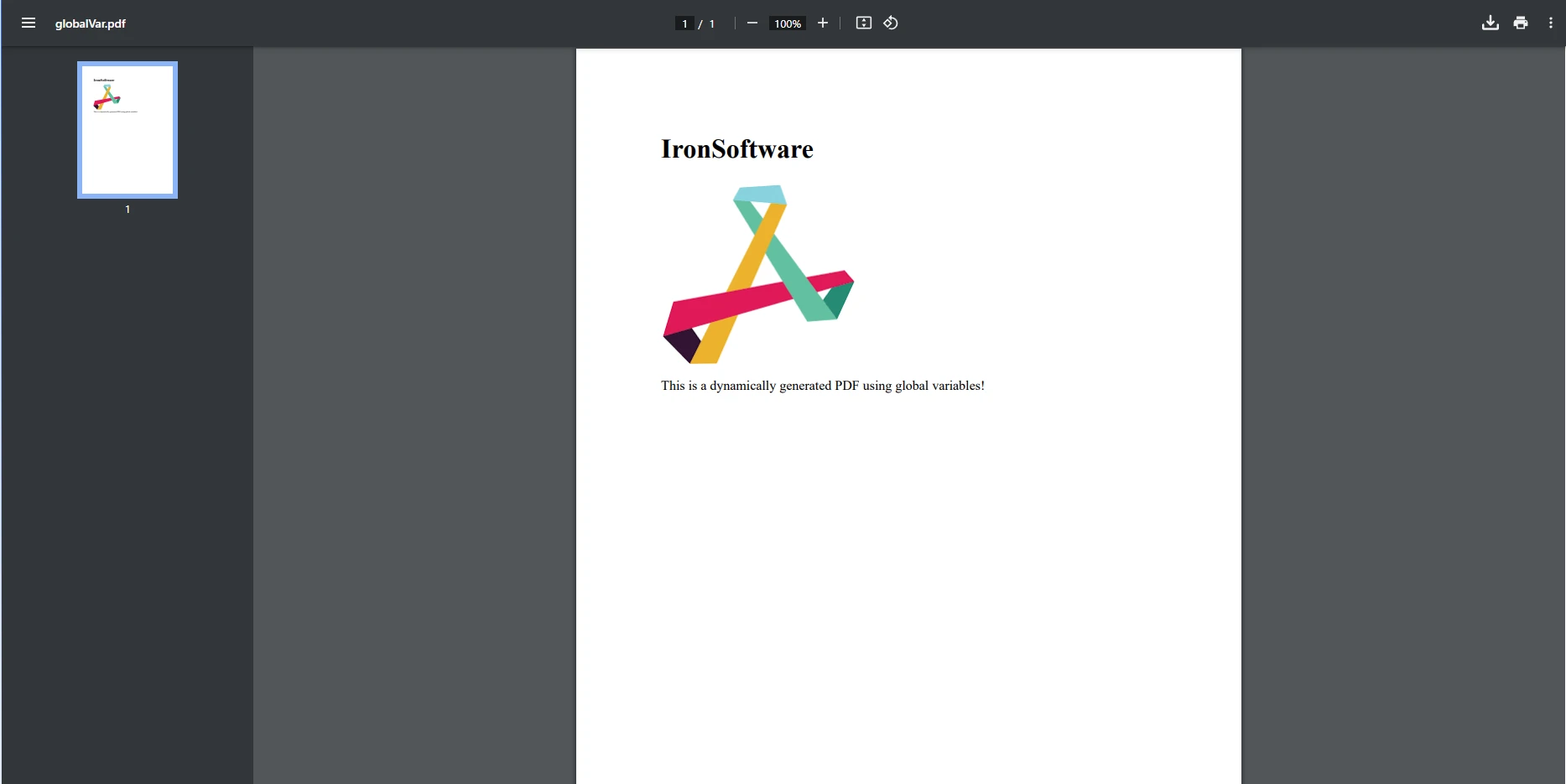
이 예제에서는 ChromePdfRenderer 클래스를 인스턴스화하여 HTML 콘텐츠를 PDF로 렌더링할 때 사용할 새로운 렌더러를 생성합니다. HTML 콘텐츠에는 이전 예제에서 생성한 정적 전역 변수인 CompanyName 및 LogoPath가 포함됩니다. 그런 다음, RenderHtmlAsPdf 메소드를 PdfDocument 객체와 함께 사용하여 HTML 콘텐츠를 PDF로 렌더링한 후 결과 PDF를 저장합니다.
재무 보고서를 생성해야 하고 모든 보고서에 회사의 브랜드를 포함해야 하는 시나리오를 상상해 보세요. 전역 변수를 사용하면, 회사명, 로고 및 기타 관련 정보를 저장하고 생성된 모든 PDF에 일관되게 적용할 수 있습니다.
using System;
using IronPdf;

public class GlobalSettings
{
    // Static variable types go here
    public static string CompanyName = "IronSoftware";
    public static string ReportContent { get; set; } = "This is the default report content.";
    public static string FooterText = "Created using IronPDF and Global Variables";
}

public class PDFReport
{
    // Method to dynamically set report content
    public static void SetDynamicContent(string reportContent)
    {
        GlobalSettings.ReportContent = reportContent;
    }

    // Method to generate PDF report
    public static void GenerateReport()
    {
        ChromePdfRenderer renderer = new ChromePdfRenderer();

        // Using global variables in HTML content
        string htmlTemplate = $@"
            <html>
            <body>
                <header style='text-align:center;'>
                    <h1>{GlobalSettings.CompanyName}</h1>
                </header>
                <section>
                    <p>{GlobalSettings.ReportContent}</p>
                </section>
                <footer style='text-align:center;'>
                    <p>{GlobalSettings.FooterText}</p>
                </footer>
            </body>
            </html>";

        // Render HTML to PDF
        PdfDocument pdf = renderer.RenderHtmlAsPdf(htmlTemplate);

        // Save the PDF to file
        pdf.SaveAs("dynamic_report.pdf");
    }
}

class Program
{
    static void Main(string[] args)
    {
        // Set global variables dynamically at runtime
        PDFReport.SetDynamicContent("This report highlights the latest innovations in technology.");

        // Generate the PDF report
        PDFReport.GenerateReport();
    }
}Imports System
Imports IronPdf
Public Class GlobalSettings
' Static variable types go here
Public Shared CompanyName As String = "IronSoftware"
Public Shared Property ReportContent As String = "This is the default report content."
Public Shared FooterText As String = "Created using IronPDF and Global Variables"
End Class
Public Class PDFReport
' Method to dynamically set report content
Public Shared Sub SetDynamicContent(ByVal reportContent As String)
GlobalSettings.ReportContent = reportContent
End Sub
' Method to generate PDF report
Public Shared Sub GenerateReport()
Dim renderer As New ChromePdfRenderer()
' Using global variables in HTML content
Dim htmlTemplate As String = $"
<html>
<body>
<header style='text-align:center;'>
<h1>{GlobalSettings.CompanyName}</h1>
</header>
<section>
<p>{GlobalSettings.ReportContent}</p>
</section>
<footer style='text-align:center;'>
<p>{GlobalSettings.FooterText}</p>
</footer>
</body>
</html>"
' Render HTML to PDF
Dim pdf As PdfDocument = renderer.RenderHtmlAsPdf(htmlTemplate)
' Save the PDF to file
pdf.SaveAs("dynamic_report.pdf")
End Sub
End Class
Module Program
Sub Main(ByVal args As String())
' Set global variables dynamically at runtime
PDFReport.SetDynamicContent("This report highlights the latest innovations in technology.")
' Generate the PDF report
PDFReport.GenerateReport()
End Sub
End Module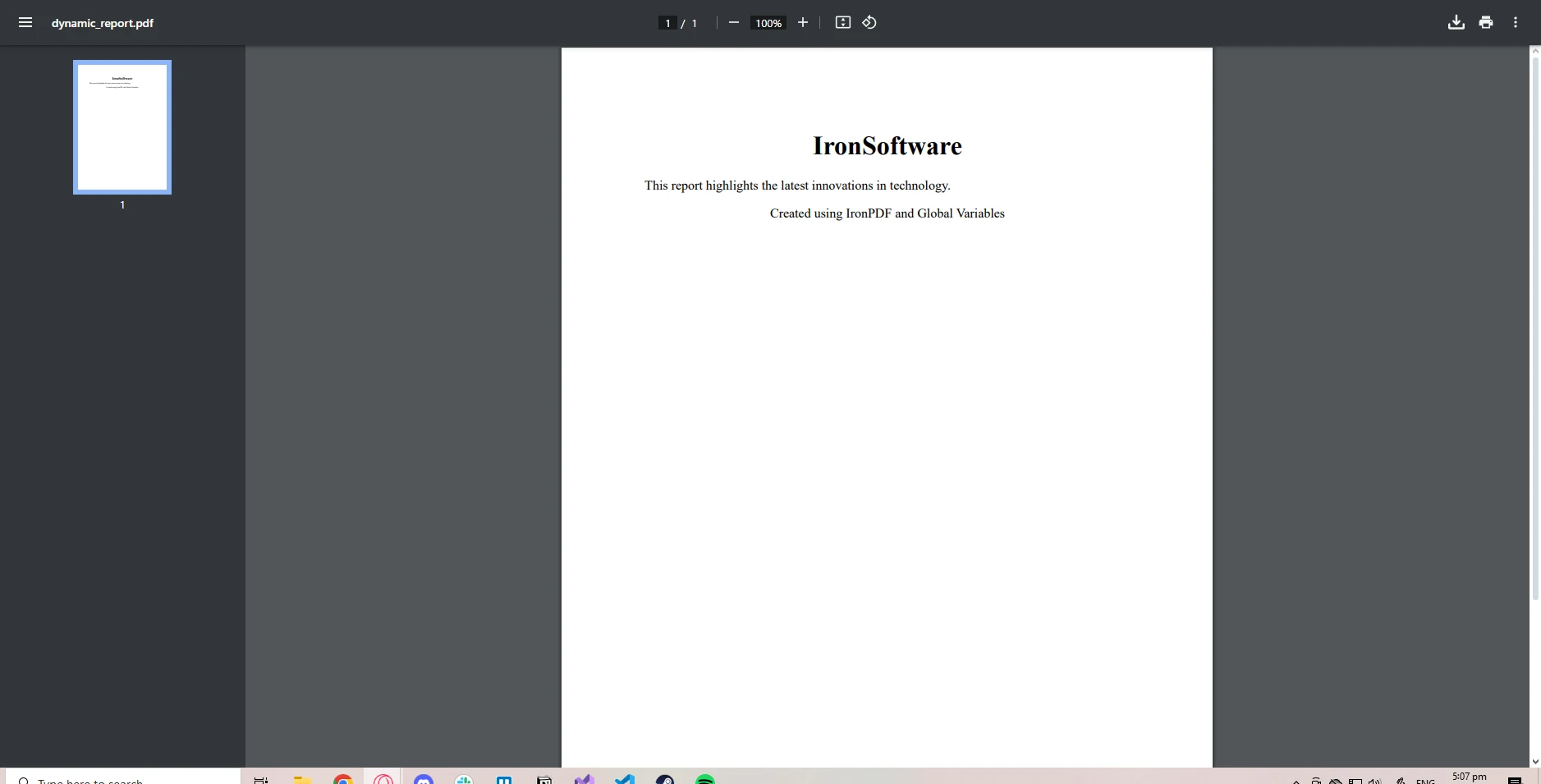
이 예제에서는 GlobalSettings 클래스에 ReportContent라는 전역 변수를 생성했습니다. 이는 실행 시간에 값을 업데이트할 수 있도록 get 및 set 메서드를 가지고 있습니다. SetDynamicContent 메서드는 PDF를 생성하기 전에 글로벌 변수를 동적으로 설정할 수 있게 합니다. 이 메소드는 구성 파일, 데이터베이스 또는 사용자 입력에서 데이터를 가져오도록 확장할 수 있습니다. PDF를 생성하는 데 사용되는 HTML 콘텐츠는 전역 변수의 값에 따라 동적으로 생성됩니다.
전역 변수는 편리하지만 코드가 간결해지고 중복이 줄어들 때만 사용해야 합니다. 예를 들어, 애플리케이션 설정, 공통 리소스 또는 상수를 PDF 생성에 사용하기 위해 전역 변수를 사용하는 것은 시간 절약과 오류 방지에 도움이 됩니다.
그러나 전역 데이터가 변경되기 쉽거나 특정 문맥에서만 관련이 있는 경우, 메서드 매개변수를 통해 데이터를 전달하거나 의존성 주입을 사용하여 더 나은 코드 구조와 유지보수를 보장하는 것이 좋습니다.
전역 변수의 일반적인 문제 중 하나는 강한 결합으로, 이는 컴포넌트들이 서로 의존하게 되어 코드를 테스트하거나 수정하기 어렵게 만듭니다. 다음은 이러한 문제를 피하기 위한 몇 가지 팁입니다:
전역 변수는 또한 파일 경로, 데이터 구조, 템플릿 또는 이미지 자산과 같은 자주 사용하는 리소스를 저장할 수 있습니다. 이렇게 함으로써 PDF 보고서 간에 이러한 리소스가 캐시되고 재사용되므로 PDF 생성이 최적화됩니다.
using System;
using System.IO;
using IronPdf;

public class GlobalSettings
{
    // Readonly global variables for shared resources
    public static readonly string TemplatePath = "report.html";
    public static readonly string ImageDirectory = "Images/";
}

public class PDFReport
{
    // Generate a PDF report using a reusable template
    public static void GenerateReport()
    {
        ChromePdfRenderer renderer = new ChromePdfRenderer();

        // Read content from a template file
        string templateContent = File.ReadAllText(GlobalSettings.TemplatePath);

        // Render HTML to PDF
        PdfDocument pdf = renderer.RenderHtmlAsPdf(templateContent);

        // Save the PDF to file
        pdf.SaveAs("templateReport.pdf");
    }
}

class Program
{
    static void Main(string[] args)
    {
        // Generate the PDF report
        PDFReport.GenerateReport();
    }
}Imports System
Imports System.IO
Imports IronPdf
Public Class GlobalSettings
' Readonly global variables for shared resources
Public Shared ReadOnly TemplatePath As String = "report.html"
Public Shared ReadOnly ImageDirectory As String = "Images/"
End Class
Public Class PDFReport
' Generate a PDF report using a reusable template
Public Shared Sub GenerateReport()
Dim renderer As New ChromePdfRenderer()
' Read content from a template file
Dim templateContent As String = File.ReadAllText(GlobalSettings.TemplatePath)
' Render HTML to PDF
Dim pdf As PdfDocument = renderer.RenderHtmlAsPdf(templateContent)
' Save the PDF to file
pdf.SaveAs("templateReport.pdf")
End Sub
End Class
Module Program
Sub Main(args As String())
' Generate the PDF report
PDFReport.GenerateReport()
End Sub
End Module입력 템플릿
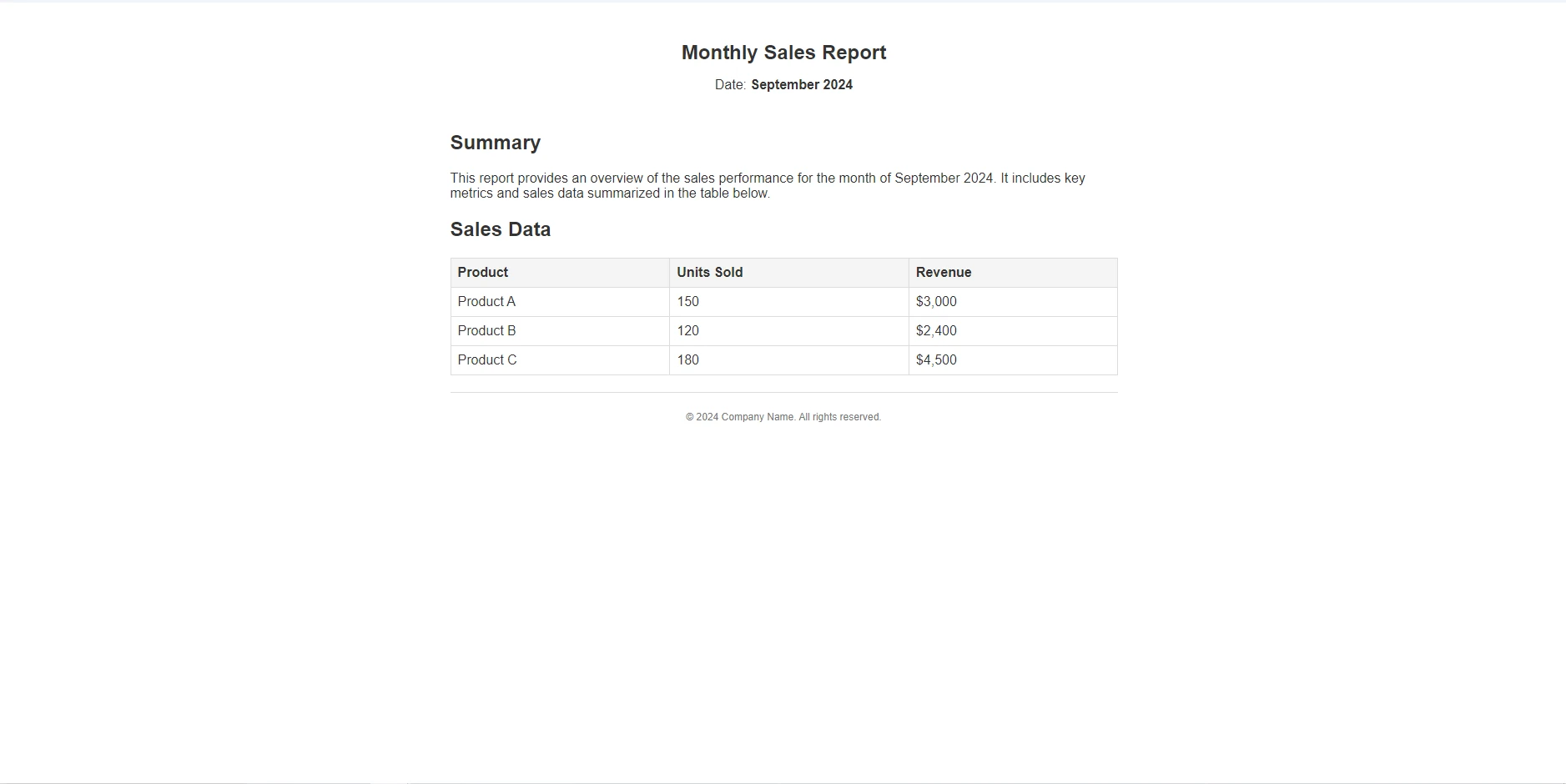
산출
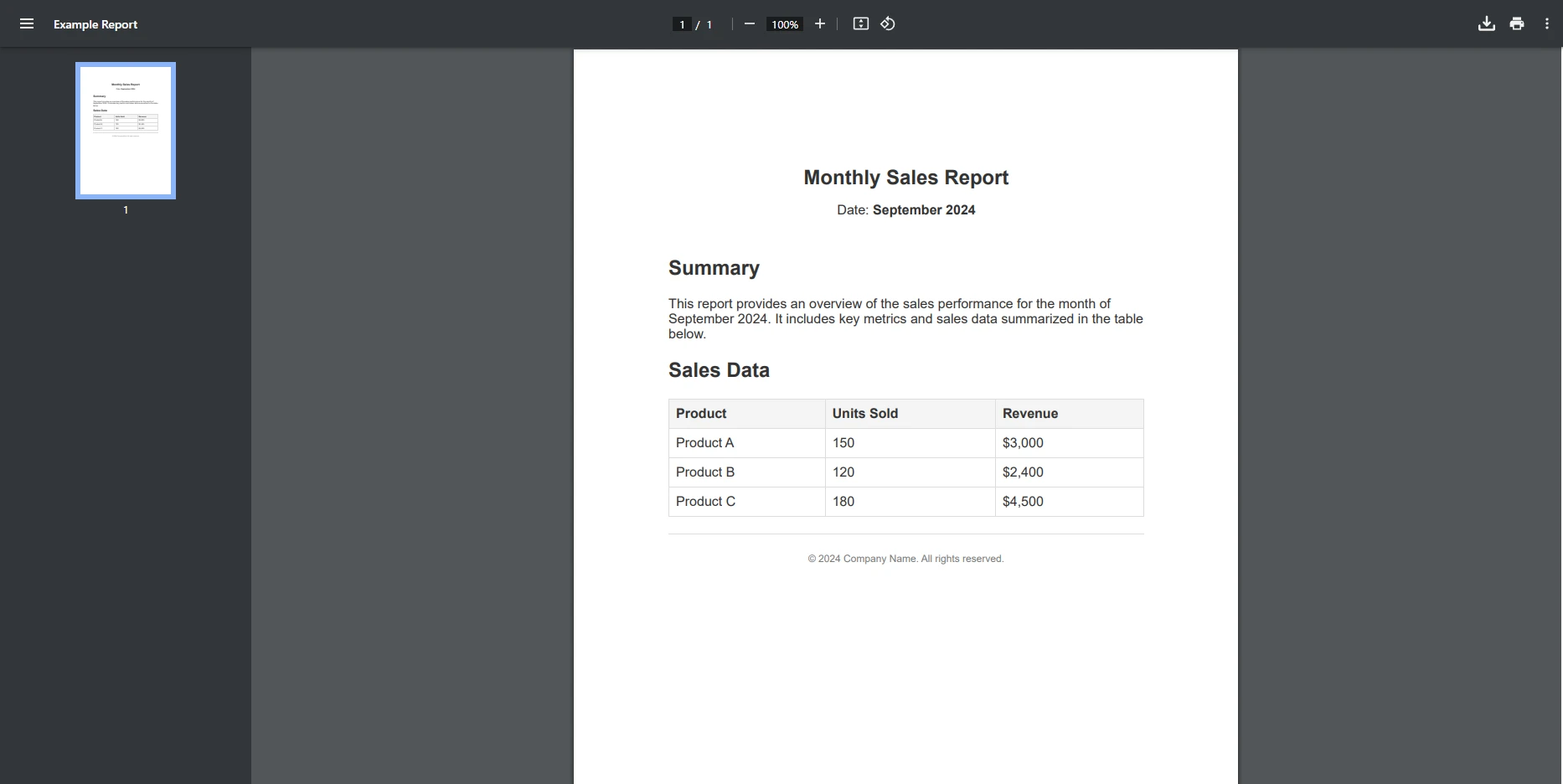
IronPDF는 풍부한 기능 세트를 갖추고 있으며, PDF 문서 작업을 매우 쉽게 만들어주고, 간단한 HTML에서 PDF로의 변환부터 PDF 암호화 및 복호화까지 모든 것을 처리할 수 있습니다.
데이터 기반 PDF 생성 작업을 할 때, IronPDF는 글로벌 데이터에서 이러한 PDF를 생성하는 프로세스를 간소화하는 여러 가지 기능을 제공합니다:
IronPDF는 .NET 애플리케이션과 매끄럽게 통합되고, 일관된 PDF 생성을 위해 정적 데이터 또는 구성 설정의 사용을 지원합니다. 이는 전문적인 PDF 문서를 생성해야 하는 애플리케이션에 잘 적응하는 다재다능한 라이브러리입니다. 전역 변수의 강력함과 결합하면 IronPDF를 사용하여 모든 PDF 생성 작업을 간소화할 수 있습니다.
전역 변수는 애플리케이션 전반에 걸쳐 공유 데이터를 관리하는 데 훌륭한 방법이며, IronPDF와 원활하게 작동하여 PDF 생성 프로세스를 오늘 바로 간소화할 수 있는지 확인해보세요.

제이콥 멜러는 Iron Software의 최고 기술 책임자(CTO)이자 C# PDF 기술을 개척한 선구적인 엔지니어입니다. Iron Software의 핵심 코드베이스를 최초로 개발한 그는 창립 초기부터 회사의 제품 아키텍처를 설계해 왔으며, CEO인 캐머런 리밍턴과 함께 회사를 NASA, 테슬라, 그리고 전 세계 정부 기관에 서비스를 제공하는 50명 이상의 직원을 보유한 기업으로 성장시켰습니다.



IronPDF는 IRON SUITE 의 일부입니다.
10개의 .NET API 제품, 당신의 사무 문서를 위해

PDF 파일을 HTML처럼 빠르게 변환해야 할 때.


