푸터 콘텐츠로 바로가기
.NET 도움말

C# Linter (How It Works For Developers)

Linters play a crucial role in modern software development by enforcing coding standards, identifying potential bugs, and enhancing code quality. A linter is simply a static code analysis tool that helps improve the readability of the code along with fixing potential syntax errors, typos, and logical bugs before they cause runtime errors or unexpected behavior. In the robust development environment of C# programming, linters provide developers with tools to analyze and improve their code.

In this article, we'll explore the concept of C# linters, their significance, popular options, and how they contribute to writing clean and maintainable code.

Understanding C# Linters

A linter, short for code linter or static code analyzer, is a static analysis tool that examines source code for potential issues, adherence to coding standards, and style consistency. C# linters analyze code without executing it, offering insights into potential problems and areas for improvement.

By utilizing an editorconfig file, developers can establish consistent naming conventions, coding styles, and other rules across their source code, promoting a clean and uniform codebase. These tools, often integrated as .NET tools, automatically identify and address code issues, ensuring that the code adheres to predefined rulesets.

Linters support best practices by highlighting rule violations and providing automatic fixes, contributing to a more efficient and maintainable code base. Embracing linters in the development process helps mitigate technical debt, address build warnings, and ultimately foster a culture of clean code and adherence to best practices throughout the entire solution.

Key Functions of C# Linters

  1. Code Quality Assurance: Linters identify common programming mistakes, potential bugs, and deviations from coding best practices.
  2. Coding Standard Enforcement: Linters enforce coding standards and style guidelines, ensuring consistency across the codebase.
  3. Security and Performance Analysis: Some linters can detect security vulnerabilities and performance issues, promoting robust and efficient code.
  4. Refactoring Suggestions: Linters may provide recommendations for refactoring to improve code maintainability and readability.

Linters play a pivotal role in maintaining code quality and adhering to best practices in software development. Several linters are widely used in the C# development ecosystem, each offering unique features and integrations. Let's explore some notable options:

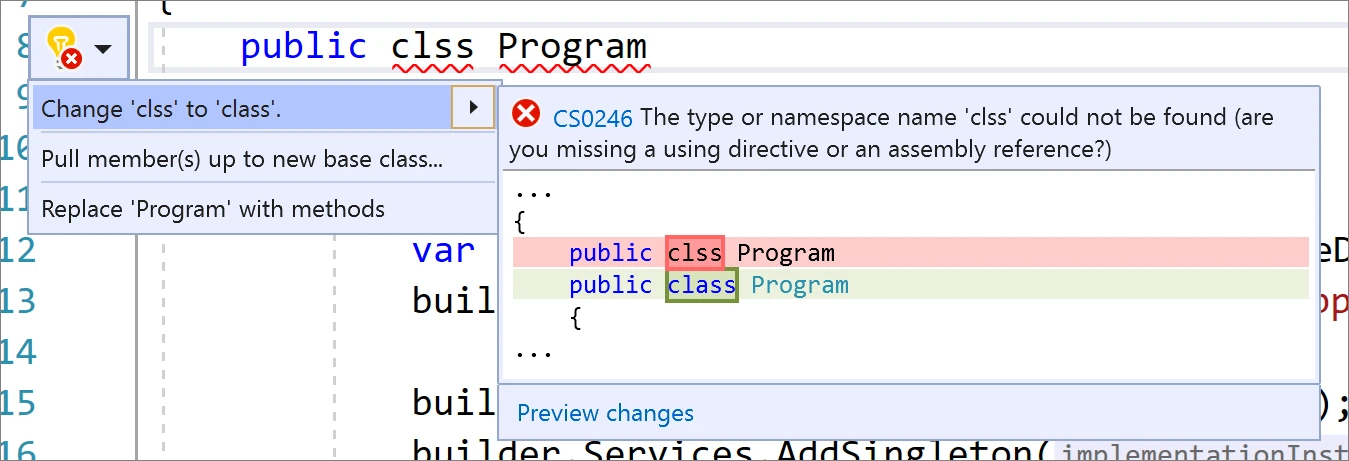
1. Roslyn Analyzers

  • Description: Part of the .NET Compiler Platform (Roslyn), this static DotNet format tool analyzer provides real-time feedback on code quality and adherence to coding standards.
    • Features:
    • In-depth static analysis of code issues.
    • Integration with Visual Studio.
    • Custom rule creation.

C# Linter (How It Works For Developers): Figure 1 - Roslyn Analyzers

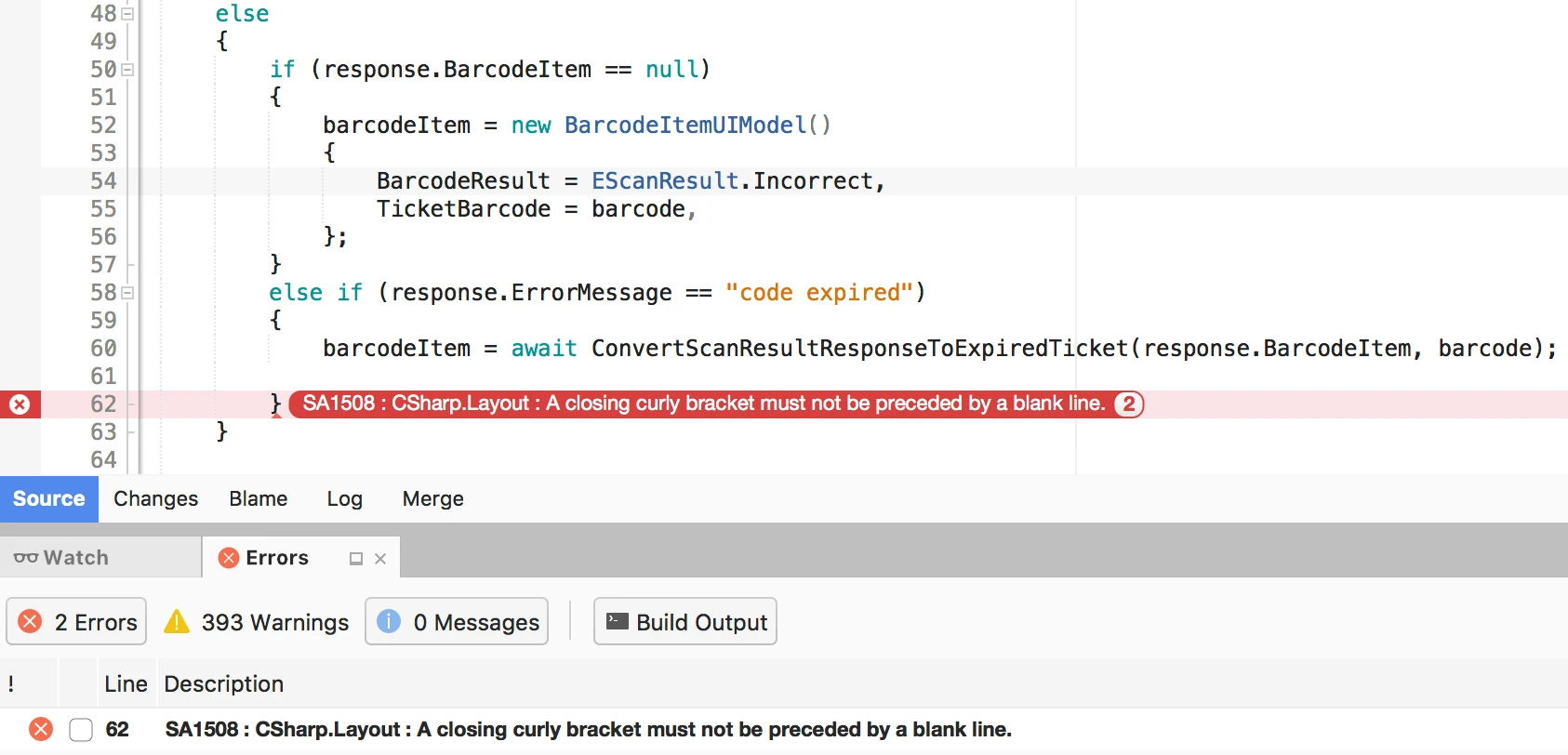
2. StyleCop.Analyzers

  • Description: A set of analyzers based on StyleCop, focusing on coding style and consistency in C# code.
    • Features:
    • Code Style settings enforcement.
    • Integration with Visual Studio and MSBuild.
    • Customizable rules and formatting tools.

C# Linter (How It Works For Developers): Figure 2 - StyleCop Analyzers

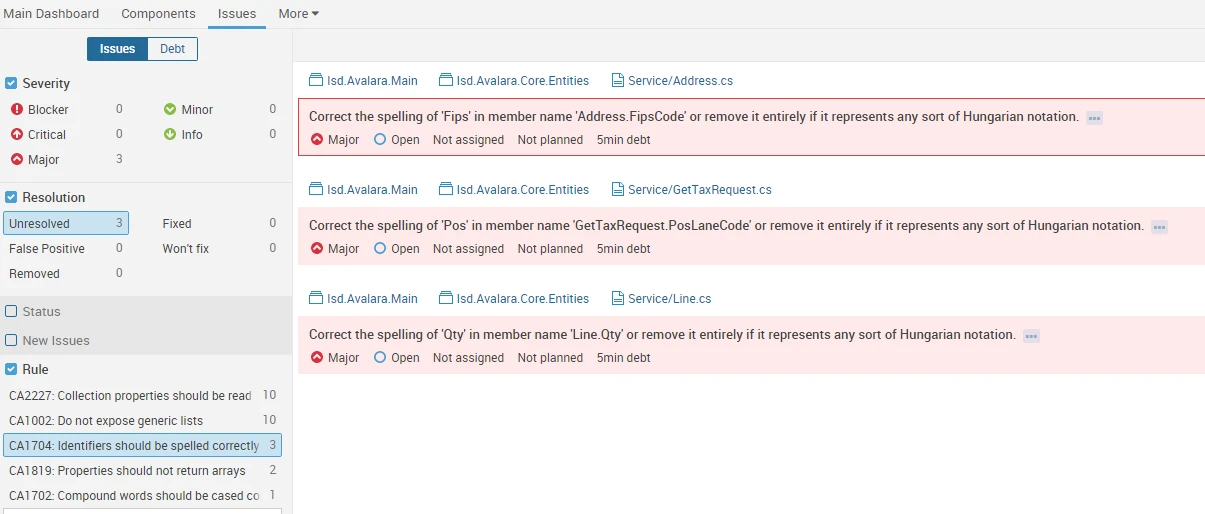
3. SonarQube

  • Description: SonarQube is a comprehensive code quality platform that includes static code analysis for multiple languages, including C#.
    • Features:
    • Detection of bugs, security vulnerabilities, and code smells.
    • Integration with CI/CD pipelines.
    • Dashboard for tracking code quality metrics.

C# Linter (How It Works For Developers): Figure 3 - SonarQube Analyzer

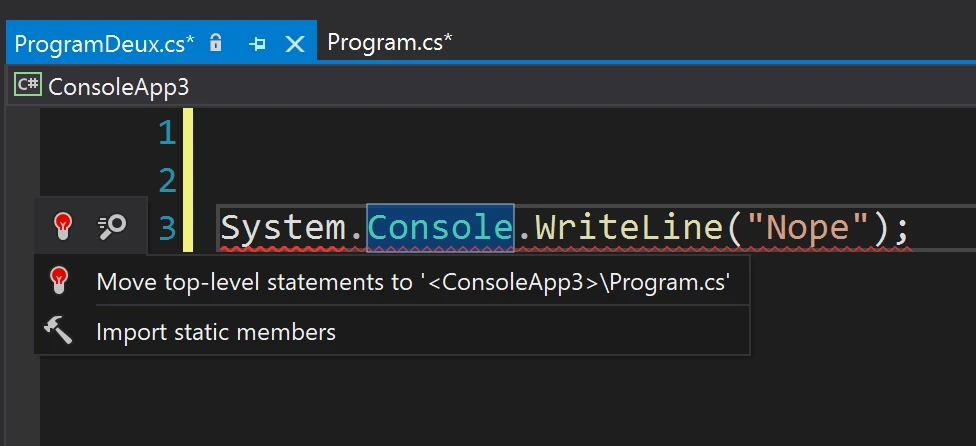
4. ReSharper

  • Description: ReSharper is a popular Visual Studio extension that provides code analysis, refactoring suggestions, and coding assistance.
    • Features:
    • Real-time code inspections.
    • Code cleanup and refactoring tools.
    • Unit testing assistance.

C# Linter (How It Works For Developers): Figure 4 - ReSharper

Integrating C# Linters into Development Workflow

Integrating C# linters into the development workflow ensures that code quality is continuously monitored and maintained. Here's a step-by-step guide:

  1. Choose a Linter: Select a C# linter based on your project requirements, coding standards, and the features provided by the linter.
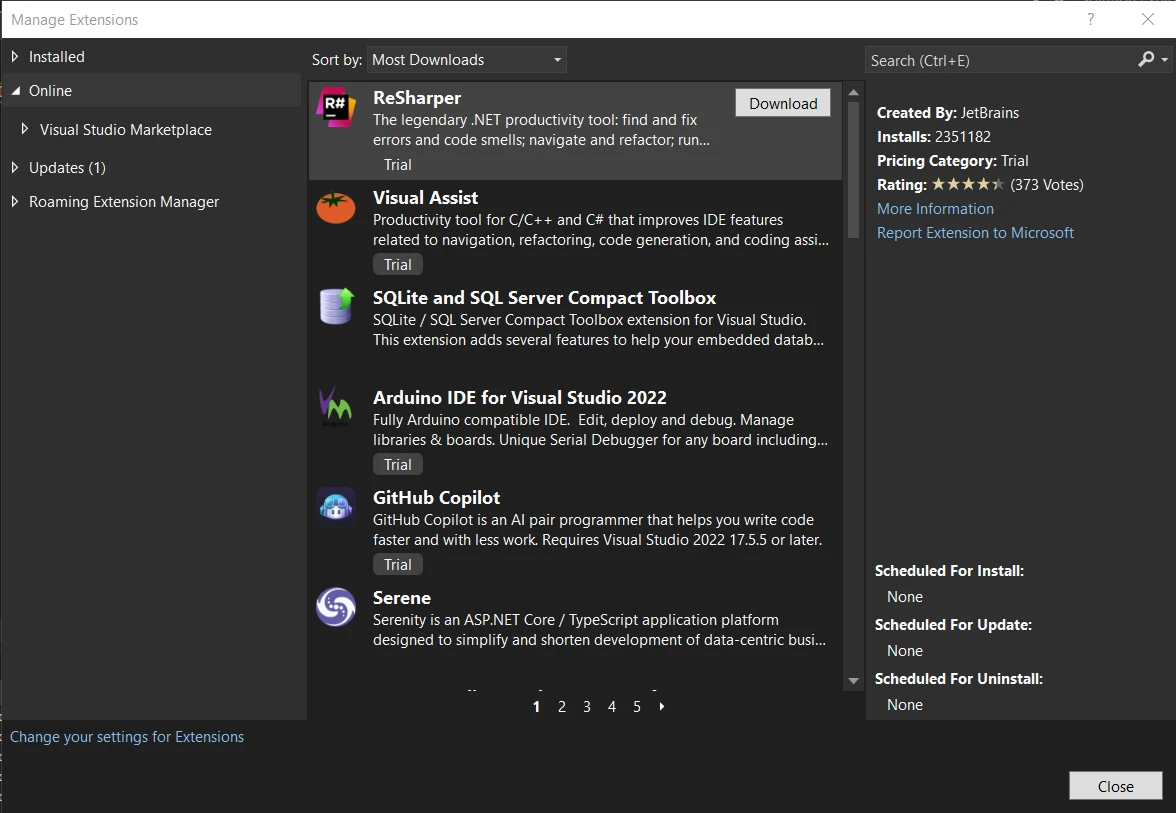
  2. Installation: Install the chosen linter through a package manager or an extension, depending on the tool. For example, Roslyn Analyzers are often included with the Visual Studio installation, while other tools may require additional setup. One such example is Resharper. You can download it from Visual Studio -> Extensions -> Manage Extensions:

C# Linter (How It Works For Developers): Figure 5 - To download and install ReSharper in Visual Studio, goto Extensions - ManageExtensions and search for ReSharper.

  1. Configure Rules: Customize linter rules to align with your project's coding standards. Most linters allow you to enable, disable, or configure individual rules to suit your needs.
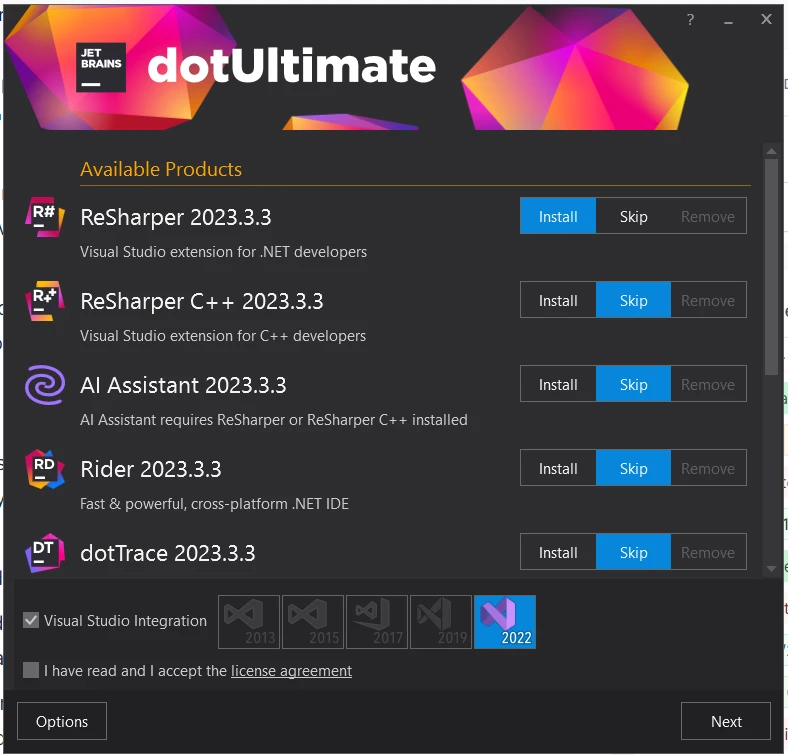
  2. Integration with IDE: Integrate the linter with your integrated development environment (IDE). Many linters seamlessly integrate with popular IDEs like Visual Studio, providing real-time feedback and suggestions. ReSharper a popular linter provided by JetBrains, can easily be integrated to any version of Visual Studio IDE.

C# Linter (How It Works For Developers): Figure 6 - ReSharper: The Visual Studio Extension for .NET Developer provided by JetBrains.

  1. CI/CD Integration: Integrate the linter into your continuous integration/continuous deployment (CI/CD) pipeline to enforce code quality checks as part of the automated build process.

Benefits of Using C# Linters

  1. Consistent Code Style: Linters enforce coding standards, promoting a consistent code style across the project. This consistency enhances readability and collaboration among team members.
  2. Early Bug Detection: By analyzing code statically, linters can identify potential bugs and issues early in the development process, reducing the likelihood of defects in the final product.
  3. Improved Code Quality: Linters contribute to overall code quality by highlighting areas that need attention, refactoring suggestions, and potential optimizations.
  4. Enhanced Developer Productivity: Real-time feedback from linters within the IDE helps developers address issues promptly, leading to increased productivity and faster development cycles.
  5. Maintainability and Scalability: Consistently adhering to coding standards and addressing potential issues identified by linters contributes to code maintainability and scalability over time.

Introducing IronPDF for C#

IronPDF is a powerful C# library designed to streamline the creation, manipulation, and rendering of PDF documents within .NET applications. This versatile tool empowers developers to generate PDFs from various sources, manipulate existing PDFs, and seamlessly integrate PDF functionalities into C# applications.

IronPDF’s standout feature is its ability to convert HTML to PDF, preserving layouts and styles perfectly. It’s ideal for generating PDFs from web content like reports, invoices, and documentation. You can convert HTML files, URLs, or HTML strings to PDF files with ease.

using IronPdf;

class Program
{
    static void Main(string[] args)
    {
        var renderer = new ChromePdfRenderer();

        // 1. Convert HTML String to PDF
        var htmlContent = "<h1>Hello, IronPDF!</h1><p>This is a PDF from an HTML string.</p>";
        var pdfFromHtmlString = renderer.RenderHtmlAsPdf(htmlContent);
        pdfFromHtmlString.SaveAs("HTMLStringToPDF.pdf");

        // 2. Convert HTML File to PDF
        var htmlFilePath = "path_to_your_html_file.html"; // Specify the path to your HTML file
        var pdfFromHtmlFile = renderer.RenderHtmlFileAsPdf(htmlFilePath);
        pdfFromHtmlFile.SaveAs("HTMLFileToPDF.pdf");

        // 3. Convert URL to PDF
        var url = "http://ironpdf.com"; // Specify the URL
        var pdfFromUrl = renderer.RenderUrlAsPdf(url);
        pdfFromUrl.SaveAs("URLToPDF.pdf");
    }
}
using IronPdf;

class Program
{
    static void Main(string[] args)
    {
        var renderer = new ChromePdfRenderer();

        // 1. Convert HTML String to PDF
        var htmlContent = "<h1>Hello, IronPDF!</h1><p>This is a PDF from an HTML string.</p>";
        var pdfFromHtmlString = renderer.RenderHtmlAsPdf(htmlContent);
        pdfFromHtmlString.SaveAs("HTMLStringToPDF.pdf");

        // 2. Convert HTML File to PDF
        var htmlFilePath = "path_to_your_html_file.html"; // Specify the path to your HTML file
        var pdfFromHtmlFile = renderer.RenderHtmlFileAsPdf(htmlFilePath);
        pdfFromHtmlFile.SaveAs("HTMLFileToPDF.pdf");

        // 3. Convert URL to PDF
        var url = "http://ironpdf.com"; // Specify the URL
        var pdfFromUrl = renderer.RenderUrlAsPdf(url);
        pdfFromUrl.SaveAs("URLToPDF.pdf");
    }
}
$vbLabelText   $csharpLabel

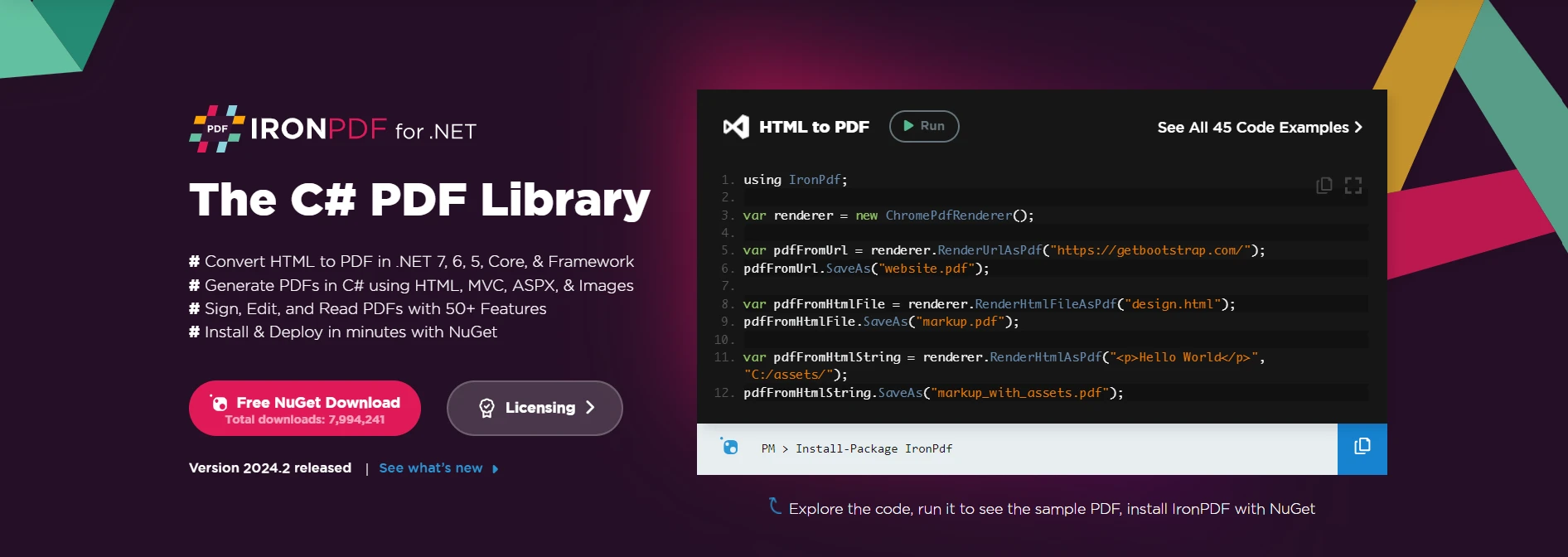
C# Linter (How It Works For Developers): Figure 7 - IronPDF: The C# PDF Library

Understanding IronPDF Basics

IronPDF provides developers with a range of features to handle PDF-related tasks, making it an invaluable tool for applications requiring PDF generation, manipulation, and rendering.

Key Features

  1. PDF Generation: Create PDFs from HTML, URLs, images, and other formats, offering flexibility in content creation.
  2. PDF Manipulation: Manipulate existing PDF documents by merging, splitting, adding watermarks, and more.
  3. HTML to PDF Conversion: Convert HTML content to high-quality PDFs while preserving styles and layouts.
  4. PDF Rendering: Display PDFs within C# applications, enabling users to view and interact with PDF content.

Getting Started with IronPDF

To incorporate IronPDF into your C# application, you can install the IronPDF NuGet package by adding the following command in the Package Manager Console (replace :ProductInstall with the actual command):

Install-Package IronPdf

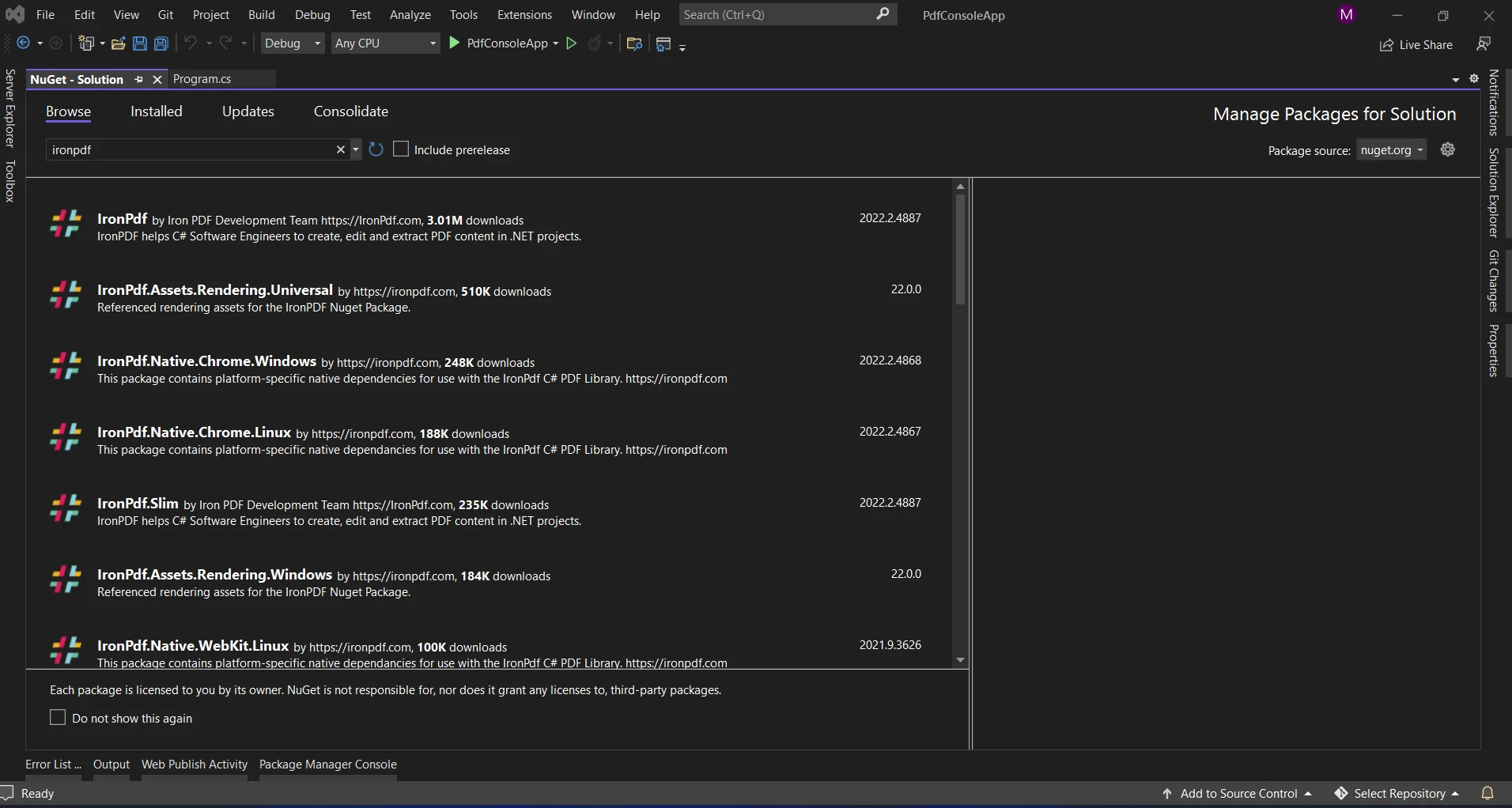
Alternatively, you can install the package "IronPDF" using the NuGet Package Manager. Among all the NuGet packages related to IronPDF, select and download the required package from this list.

C# Linter (How It Works For Developers): Figure 8 - You can also install the IronPDF package using NuGet Package Manager. Search for the package ironpdf in the Browse tab, then select and install the latest version of the IronPDF.

Once installed, you can utilize IronPDF to perform various PDF-related tasks.

Generating a PDF from HTML

Creating a PDF from HTML is straightforward with IronPDF. Here's a basic example:

using IronPdf;

var htmlContent = "<h1>Hello, IronPDF!</h1>";
var pdfRenderer = new ChromePdfRenderer();
var pdf = pdfRenderer.RenderHtmlAsPdf(htmlContent);
pdf.SaveAs("output.pdf");
using IronPdf;

var htmlContent = "<h1>Hello, IronPDF!</h1>";
var pdfRenderer = new ChromePdfRenderer();
var pdf = pdfRenderer.RenderHtmlAsPdf(htmlContent);
pdf.SaveAs("output.pdf");
$vbLabelText   $csharpLabel

OUTPUT

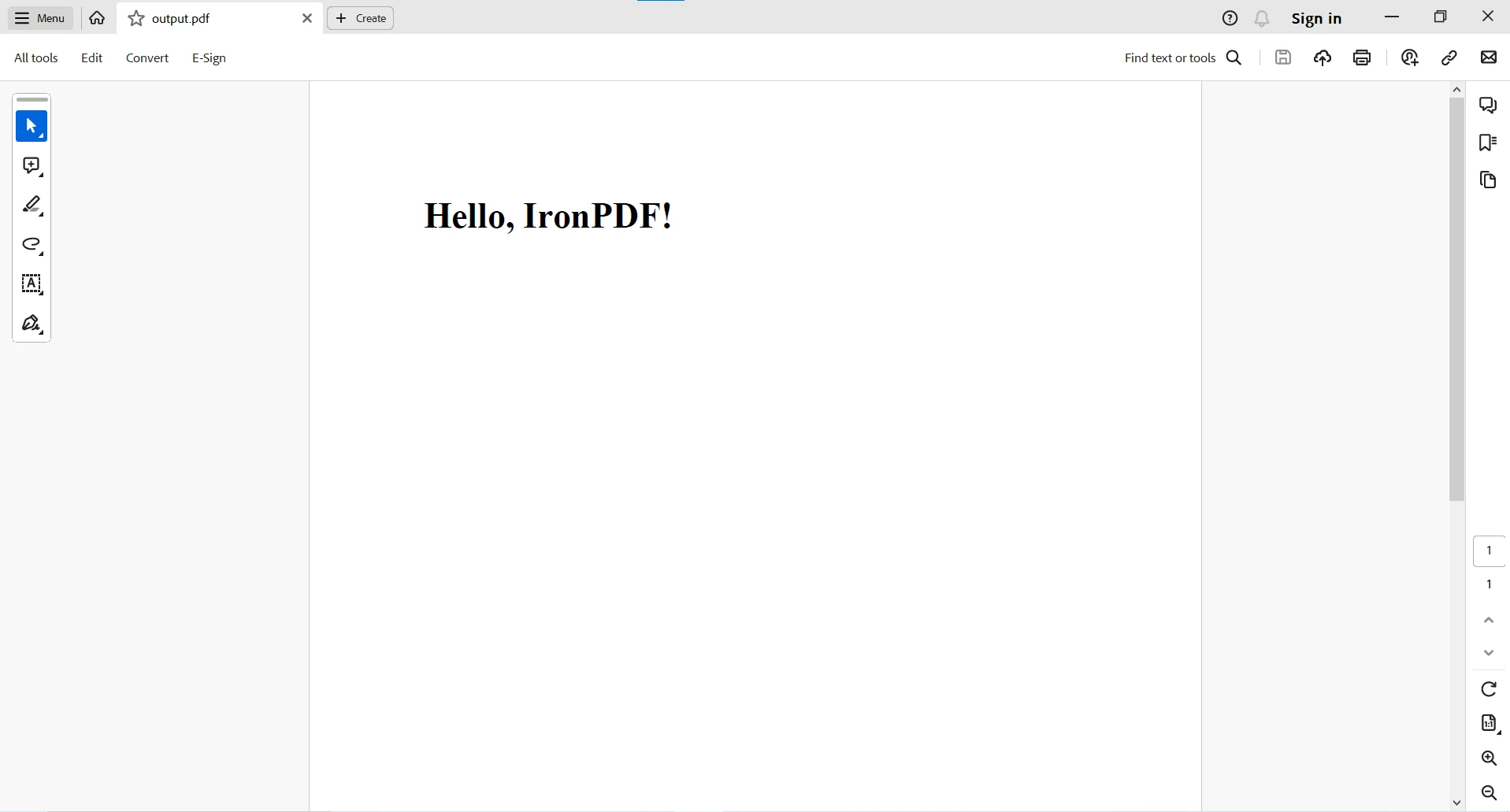
C# Linter (How It Works For Developers): Figure 9 - Generated PDF output

For more PDF-related functionalities in C# using IronPDF, please visit the code examples and IronPDF blog for further insights.

Can C# Linters Be Used with IronPDF?

C# linters, such as Roslyn Analyzers, StyleCop.Analyzers, and others, focus on static code analysis and enforcing coding standards. They primarily inspect the source code for potential issues, style violations, and adherence to best practices.

IronPDF, on the other hand, is a library dedicated to PDF-related functionalities, and its integration with linters may not be direct. Linters typically operate at the source code level, analyzing the syntax, structure, and patterns in the codebase.

While C# linters may not directly analyze or enforce standards on the content generated or manipulated by IronPDF, they play a crucial role in ensuring the overall quality and consistency of the C# code that interacts with IronPDF.

Developers can leverage C# linters to maintain a clean and standardized codebase, addressing issues related to coding conventions, potential bugs, and style consistency. Combining the power of C# linters for code quality assurance with the capabilities of IronPDF for PDF-related tasks ensures a holistic approach to building robust and maintainable C# applications.

For more information on IronPDF and its complete functionality, please visit the official documentation and API Reference.

Conclusion

C# linters are indispensable tools in the toolkit of every C# developer, providing insights into code quality, adherence to standards, and potential improvements. Whether you choose Roslyn Analyzers, StyleCop.Analyzers, SonarQube, ReSharper, or another tool, integrating a linter into your development workflow is a proactive step towards writing cleaner, more maintainable code. Embrace the power of C# linters to elevate your coding practices and contribute to the overall success of your software projects.

In conclusion, while C# linters may not specifically target IronPDF-generated content, their use is complementary, contributing to the overall quality of the C# codebase that incorporates IronPDF functionality. This combination ensures that developers can benefit from both the seamless PDF manipulation capabilities of IronPDF and the code quality assurance provided by C# linters.

IronPDF offers a free trial license. Download the library from their official website and give it a try.

자주 묻는 질문

C# 린터란 무엇이며 어떻게 작동하나요?

C# 린터는 코드를 실행하지 않고도 소스 코드의 잠재적 문제, 코딩 표준 준수 및 스타일 일관성을 검사하는 정적 코드 분석 도구입니다. 런타임 전에 버그를 식별하여 코드 가독성을 개선하고, 잠재적인 구문 오류를 수정하며, 코드 품질을 향상하는 데 도움이 됩니다.

린터는 C#에서 개발 프로세스를 어떻게 개선하나요?

린터는 코딩 표준을 적용하고 잠재적인 버그를 감지하며 코드 품질을 보장함으로써 C# 개발 프로세스를 향상시킵니다. 린터는 깔끔하고 유지 관리 가능한 코드를 작성하고 기술 부채를 줄이며 모범 사례를 홍보하는 데 기여합니다.

개발자들이 많이 사용하는 C# 린터에는 어떤 것이 있나요?

인기 있는 C# 린터로는 Roslyn Analyzers, StyleCop.Analyzers, SonarQube, ReSharper 등이 있습니다. 이러한 도구는 개발자가 코드 품질을 유지하고 코딩 표준을 준수하는 데 도움이 되는 고유한 기능과 통합 기능을 제공합니다.

개발자는 어떻게 C# 린터를 워크플로에 통합할 수 있나요?

개발자는 적합한 도구를 선택하고, 패키지 관리자 또는 IDE 확장을 통해 설치하고, 원하는 규칙을 구성하고, 지속적인 코드 품질 검사를 위해 CI/CD 파이프라인에 통합하여 C# 린터를 통합할 수 있습니다.

IronPDF는 C# 애플리케이션 개발에서 어떤 역할을 하나요?

IronPDF는 .NET 애플리케이션 내에서 PDF의 생성, 조작 및 렌더링을 간소화하는 강력한 C# 라이브러리입니다. 개발자는 HTML, URL, 이미지에서 PDF를 생성할 수 있으며 PDF 기능을 C# 애플리케이션에 통합할 수 있습니다.

C# 린터를 IronPDF와 같은 PDF 라이브러리와 함께 사용할 수 있나요?

예, C# 린터는 C# 코드의 품질과 일관성을 보장하는 데 중점을 두지만, IronPDF와 함께 사용하여 강력한 애플리케이션 개발을 지원할 수 있습니다. 린터는 IronPDF와 상호 작용하는 코드의 품질과 유지보수를 보장합니다.

린터를 CI/CD 파이프라인에 통합하는 것이 중요한 이유는 무엇인가요?

린터를 CI/CD 파이프라인에 통합하는 것은 자동화된 빌드 프로세스의 일부로 코드 품질 검사를 시행하기 때문에 중요합니다. 이를 통해 코드 품질을 지속적으로 모니터링하고 유지 관리하여 개발 수명 주기 동안 문제가 진행되는 것을 방지할 수 있습니다.

C# 개발자가 린터를 사용하면 어떤 이점이 있나요?

린터는 C# 개발자에게 일관된 코드 스타일 적용, 버그 조기 발견, 코드 품질 개선, 생산성 향상, 코드 유지 관리 및 확장성 향상을 제공하여 소프트웨어 개발의 높은 표준을 보장합니다.

IronPDF를 C# 개발자를 위한 다목적 도구로 만드는 기능은 무엇인가요?

IronPDF는 HTML, URL, 이미지에서 PDF 생성, PDF 조작, HTML에서 PDF로 변환, PDF 렌더링과 같은 기능을 제공하여 C# 애플리케이션에서 다양한 PDF 관련 작업을 처리할 수 있는 다목적 툴입니다.

커티스 차우
기술 문서 작성자

커티스 차우는 칼턴 대학교에서 컴퓨터 과학 학사 학위를 취득했으며, Node.js, TypeScript, JavaScript, React를 전문으로 하는 프론트엔드 개발자입니다. 직관적이고 미적으로 뛰어난 사용자 인터페이스를 만드는 데 열정을 가진 그는 최신 프레임워크를 활용하고, 잘 구성되고 시각적으로 매력적인 매뉴얼을 제작하는 것을 즐깁니다.

커티스는 개발 분야 외에도 사물 인터넷(IoT)에 깊은 관심을 가지고 있으며, 하드웨어와 소프트웨어를 통합하는 혁신적인 방법을 연구합니다. 여가 시간에는 게임을 즐기거나 디스코드 봇을 만들면서 기술에 대한 애정과 창의성을 결합합니다.