




업데이트됨 2026년 4월 23일
.NET에서 Microsoft.Extensions.AI로 LLM 통합 간소화
AI는 소프트웨어 개발을 변혁하고 있으나, 대규모 언어 모델(LLM)을 .NET에 통합하는 것은 지금까지 복잡했습니다. 현대에는 OpenAI 기반 PDF 파싱, 데이터 추출 및 콘텐츠 요약을 .NET 애플리케이션에 가져오는 IronPdf.AI로 AI 통합을 더욱 확장하세요.
더 읽어보기

PDF 문서를 병합할 수 있는 기능은 많은 애플리케이션에서 일반적인 요구 사항입니다. 보고서, 인보이스 또는 기타 문서 중심의 시스템을 다루는 경우, PDF 병합은 프로세스를 간소화하고 사용자 경험을 향상시킬 수 있습니다. .NET 생태계에서, IronPDF는 PDF 파일 작업을 위한 강력하고 유연한 솔루션을 제공합니다. 이 기사에서는 .NET 애플리케이션에서 IronPDF의 공식 웹사이트를 사용하여 다양한 PDF 문서를 병합하는 방법을 탐색할 것입니다.
PdfDocument.Merge() 메서드를 사용하세요.IronPDF는 .NET PDF 라이브러리로, HTML, 이미지 또는 다른 소스로부터 PDF 문서를 생성하고 편집할 수 있도록 합니다. 이것은 .NET 8, 7, 6, 5, Core, Standard, Framework와 호환되며, 암호화, 압축, 디지털 서명 및 OCR 등의 다양한 기능을 지원합니다.
IronPDF의 주요 기능은 다음과 같습니다:
HTML 파일, 문자열 또는 URL을 PDF 문서로 변환할 수 있으며, CSS, JavaScript, 이미지, 폰트 및 반응형 레이아웃을 지원합니다. 또한 페이지 템플릿, 머리글, 바닥글, 페이지 번호 및 페이지 구분을 적용하여 PDF의 외관을 사용자 정의할 수 있습니다.
기존 PDF 문서를 수정하여 페이지 추가, 삭제, 병합, 메타데이터 변경, 비밀번호 및 권한 적용, 디지털 서명 추가, 파일 크기 압축 등을 할 수 있습니다. 또한 PDF에서 텍스트, 이미지 및 폼 데이터를 추출하거나 PDF를 HTML 또는 이미지로 변환할 수 있습니다.
IronPDF를 사용하여 처음부터 PDF 문서를 만들거나, PDFDocument 클래스를 사용하여 텍스트, 이미지, 도형, 주석, 책갈피 및 양식과 같은 PDF 요소를 조작할 수 있습니다. 또한 PDFPrintOptions 클래스를 사용하여 PDF의 인쇄 설정을 제어할 수 있습니다.
IronPDF를 시작하는 것은 매우 쉽습니다. NuGet 패키지 관리자 콘솔을 사용하여 IronPDF NuGet 패키지를 .NET 프로젝트에 설치하세요:
또는 IronPDF의 설치 안내서에서 직접 설치할 수 있습니다.
IronPDF가 설치되면 .NET 애플리케이션에서 여러 PDF 문서를 쉽게 병합할 수 있습니다. 다음은 그 방법에 대한 단계별 가이드입니다:
프로젝트에서 사용하기 위해 IronPDF 라이선스가 필요합니다. IronPDF 웹사이트에서 무료 체험판 라이센스를 받을 수 있습니다.
// Assign your IronPDF license key to enable full functionality
IronPdf.License.LicenseKey = "IRONSUITE.ABC.XYZ.COM.876UTR-DEPLOYMENT.TRIAL-P45MXL.TRIAL.EXPIRES.31.JAN.2030";' Assign your IronPDF license key to enable full functionality
IronPdf.License.LicenseKey = "IRONSUITE.ABC.XYZ.COM.876UTR-DEPLOYMENT.TRIAL-P45MXL.TRIAL.EXPIRES.31.JAN.2030"이 라이센스 키를 IronPDF에서 받은 키로 교체하세요.
다음으로, 새로운 PDF 문서를 열거나 생성해야 합니다.
합칠 PDF 파일마다 IronPDF 문서를 생성하는 것으로 시작하세요. 기존 PDF를 다루든 새로운 PDF를 생성하든, IronPDF는 그 과정을 원활하게 만듭니다.
// Create an instance of ChromePdfRenderer
ChromePdfRenderer chromePdfRenderer = new ChromePdfRenderer();

// Render a URL as a PDF document and save it as PDF1.pdf
PdfDocument pdfDocument = chromePdfRenderer.RenderUrlAsPdf("https://www.adobe.com/acrobat/about-adobe-pdf.html");
pdfDocument.SaveAs("PDF1.pdf");' Create an instance of ChromePdfRenderer
Dim chromePdfRenderer As New ChromePdfRenderer()
' Render a URL as a PDF document and save it as PDF1.pdf
Dim pdfDocument As PdfDocument = chromePdfRenderer.RenderUrlAsPdf("https://www.adobe.com/acrobat/about-adobe-pdf.html")
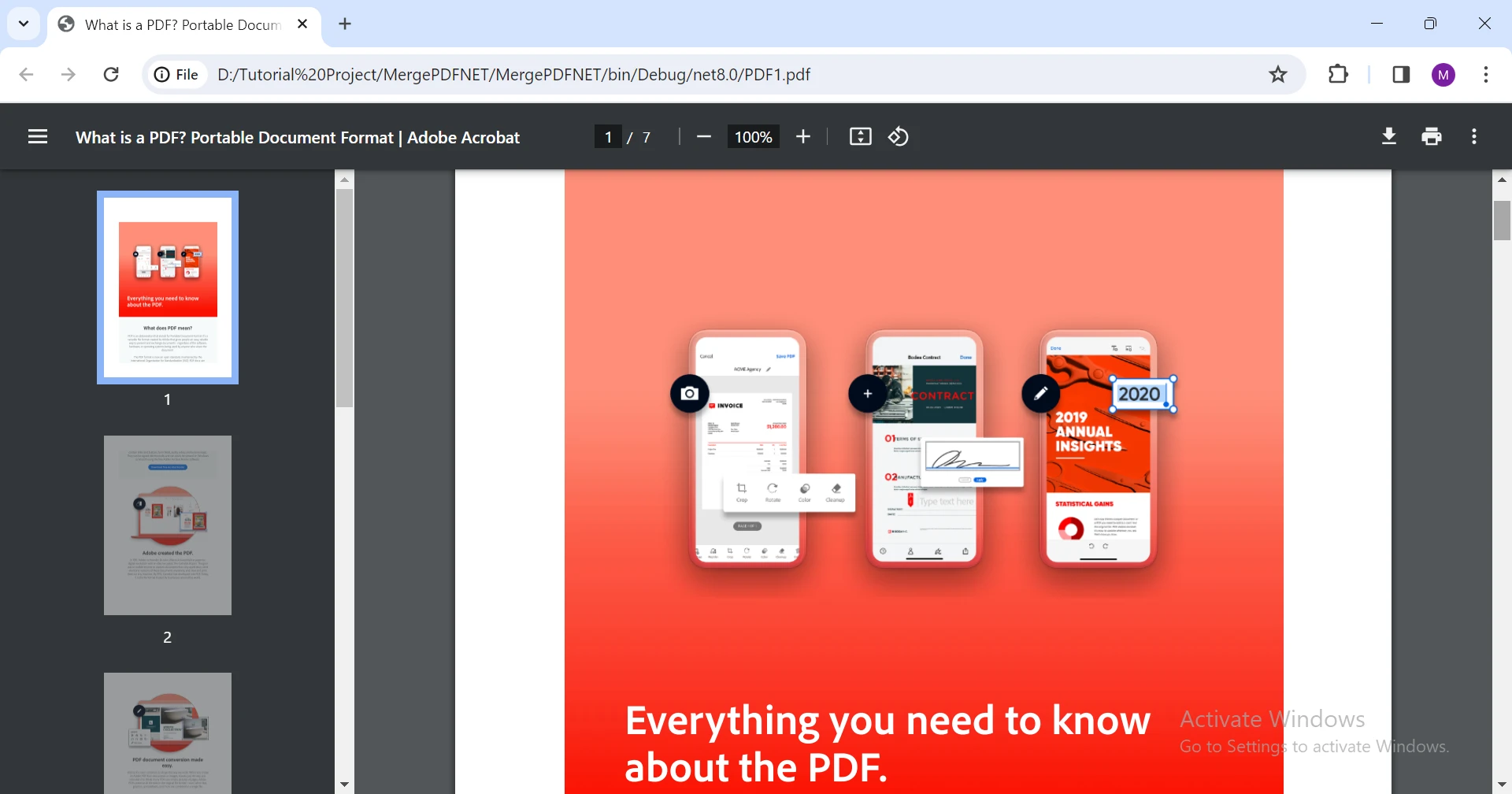
pdfDocument.SaveAs("PDF1.pdf")위의 코드는 제공된 URL로부터 새로운 PDF 파일을 생성합니다. IronPDF의 일부인 ChromePdfRenderer 인스턴스를 초기화합니다. 이후 이 렌더러를 사용하여 웹 페이지(이 경우 Adobe의 PDF 정보 페이지)를 PDF 문서로 변환하고 "PDF1.pdf"로 저장합니다. RenderUrlAsPdf 메소드는 Chrome 브라우저 엔진을 사용하여 웹 콘텐츠를 다운로드 가능한 PDF 파일로 매끄럽게 변환할 수 있게 합니다.
생성된 PDF 문서는 다음과 같습니다:
IronPDF는 새로운 PDF 문서를 생성하는 세 가지 방법을 제공합니다:
HTML 문자열에서 두 번째 PDF 파일을 만들어보겠습니다:
// Create a PDF document from an HTML string and save it as PDF2.pdf
ChromePdfRenderer chromePdfRenderer = new ChromePdfRenderer();
PdfDocument pdfDocument = chromePdfRenderer.RenderHtmlAsPdf("<h1>MY PDF File</h1>");
pdfDocument.SaveAs("PDF2.pdf");' Create a PDF document from an HTML string and save it as PDF2.pdf
Dim chromePdfRenderer As New ChromePdfRenderer()
Dim pdfDocument As PdfDocument = chromePdfRenderer.RenderHtmlAsPdf("<h1>MY PDF File</h1>")
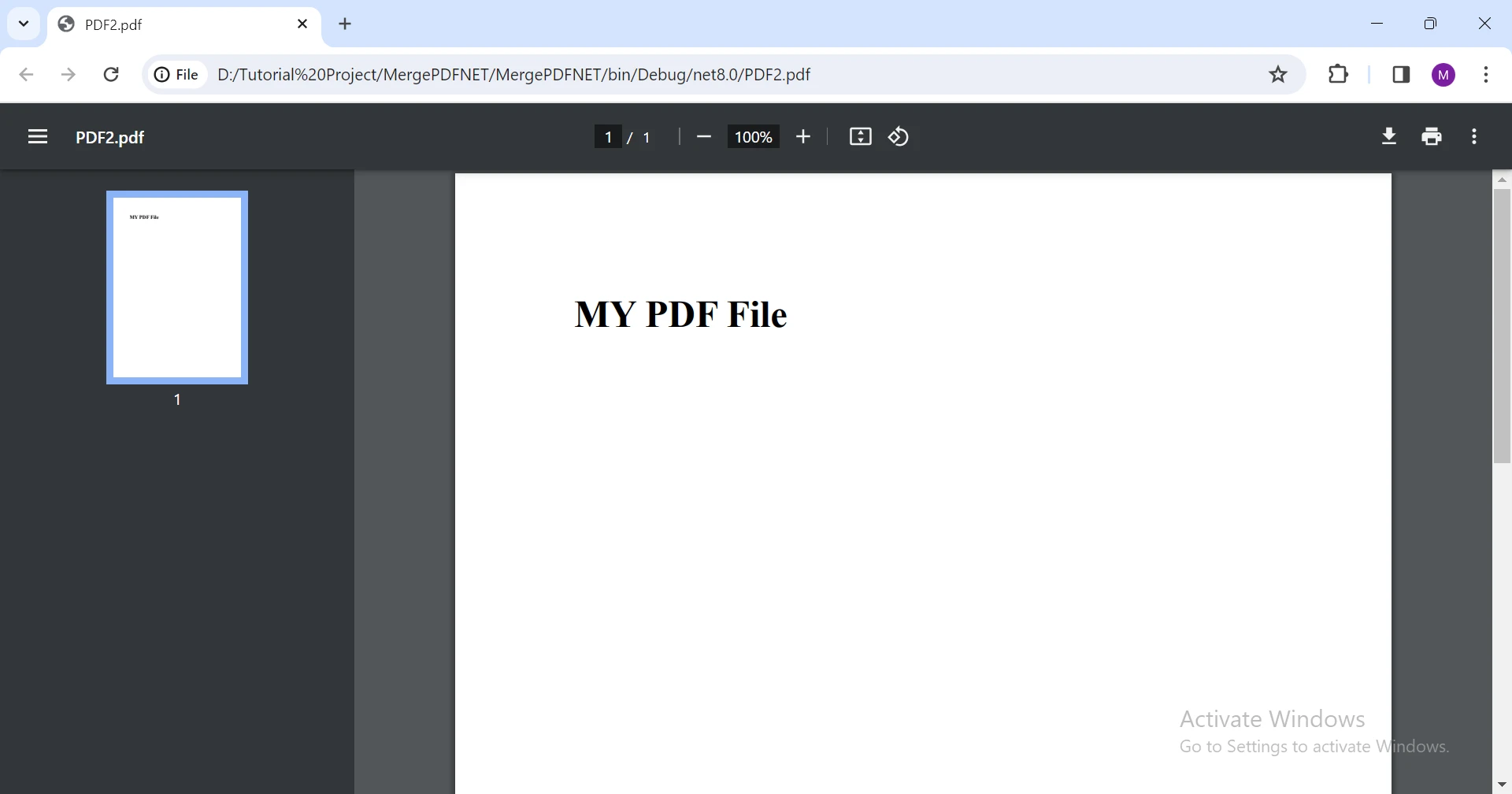
pdfDocument.SaveAs("PDF2.pdf")위 코드는 RenderHtmlAsPdf() 메소드에 제공된 HTML 문자열로부터 새로운 PDF 문서를 생성합니다.
출력된 PDF 파일은 다음과 같습니다:
이제 두 PDF가 모두 준비되었으니, PDF 파일을 병합하는 코드를 작성해봅시다.
이제 개별 PDF 문서를 얻었으니, IronPDF를 사용하여 이를 단일 PDF 문서로 병합할 수 있습니다.
// Load existing PDF files into PdfDocument instances
PdfDocument pdfDocument1 = new PdfDocument("PDF1.pdf");
PdfDocument pdfDocument2 = new PdfDocument("PDF2.pdf");

// Merge the PDF documents into a single file
var merged = PdfDocument.Merge(pdfDocument1, pdfDocument2);
merged.SaveAs("Merged.pdf");' Load existing PDF files into PdfDocument instances
Dim pdfDocument1 As New PdfDocument("PDF1.pdf")
Dim pdfDocument2 As New PdfDocument("PDF2.pdf")
' Merge the PDF documents into a single file
Dim merged = PdfDocument.Merge(pdfDocument1, pdfDocument2)
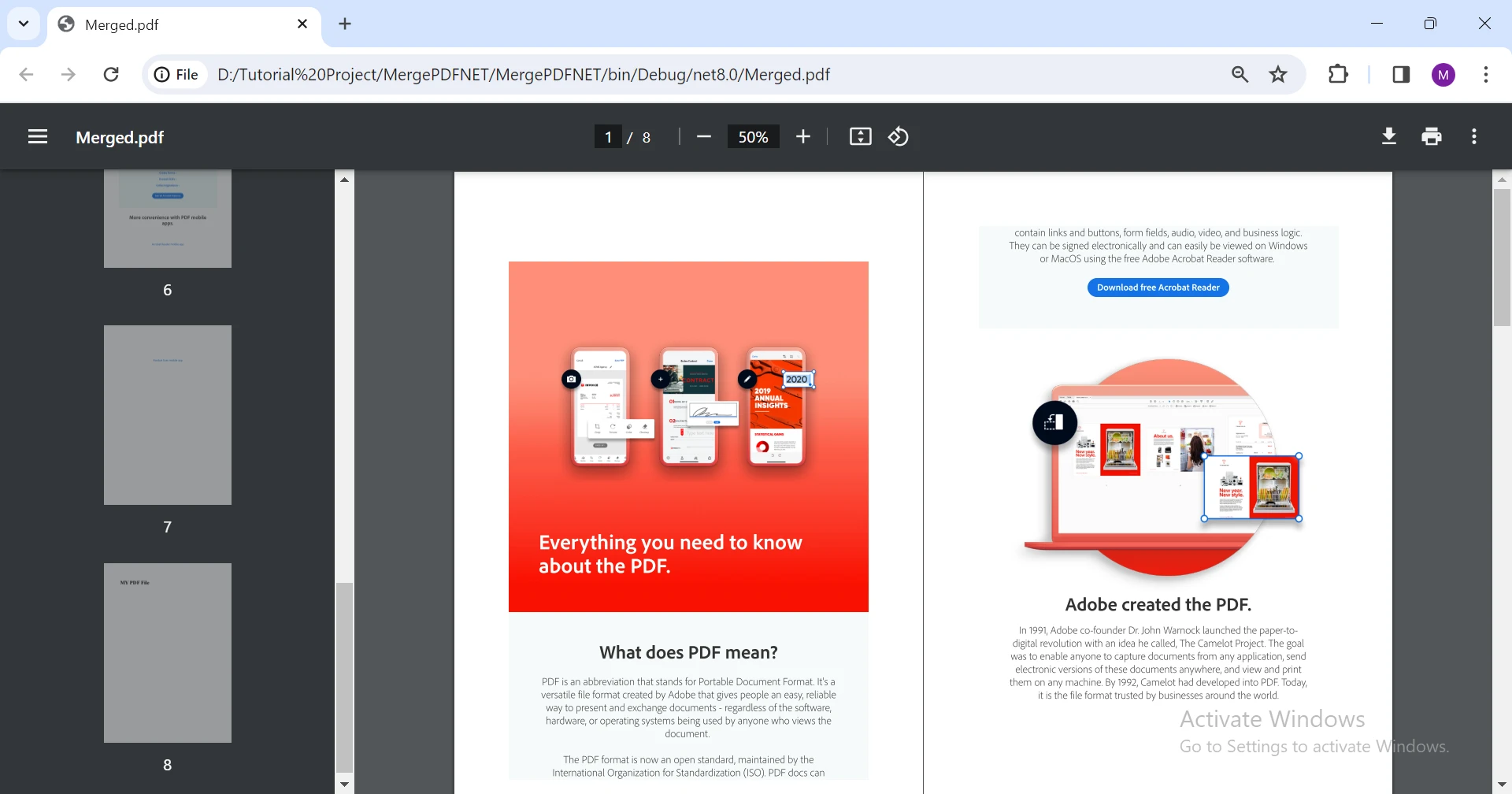
merged.SaveAs("Merged.pdf")위의 코드는 기존의 PDF 파일("PDF1.pdf" 및 "PDF2.pdf")을 로드하여 두 개의 PdfDocument 인스턴스, pdfDocument1 및 pdfDocument2를 생성합니다. PdfDocument.Merge 메소드를 사용하여 이 두 입력 PDF 파일을 단일 병합 문서로 결합한 후 "Merged.pdf"로 저장합니다. 이 예시는 IronPDF가 기존 PDF를 몇 줄의 코드로 통합 파일로 병합하는 과정을 얼마나 쉽게 만들어주는지를 보여줍니다. 이러한 방식으로 여러 PDF 파일을 매우 쉽게 병합할 수 있습니다.
병합된 PDF 문서는 다음과 같습니다:
결론적으로, .NET 애플리케이션에서 여러 PDF 문서를 병합하는 과정은 IronPDF를 사용하면 현저히 간단해집니다. 이 강력한 라이브러리는 PDF 병합을 단순화할 뿐만 아니라 PDF 생성, 편집 및 조작에 대한 놀라운 기능을 제공합니다. 고급 스타일링 옵션으로 HTML을 PDF로 변환하는 것부터 기존 PDF를 매끄럽게 병합하는 것까지, IronPDF는 개발자의 툴킷에서 다용도의 기능을 입증합니다.
이 안내서에서 설명된 단계를 따르면 개발자들은 IronPDF를 손쉽게 프로젝트에 통합하고, 문서 중심의 애플리케이션을 향상시키기 위해 그 기능들을 활용할 수 있습니다. 보고서, 청구서 또는 다른 종류의 문서를 다루든지, 페이지 추가, 삭제 또는 수정 기능을 포함한 IronPDF의 기능은 매우 귀중한 자산을 제공합니다. 또한, 라이브러리가 다양한 .NET Framework와의 호환성을 보장함으로서, 폭 넓은 프로젝트에서 적용 가능성을 제공합니다.
IronPDF는 설치와 사용이 용이하며 PDF 개발을 C#에서 시작하는 데 도움이 되는 포괄적인 문서와 예제를 제공합니다. 개발자 수, 위치, 프로젝트 및 배포 요구 사항에 따라 다양한 라이센싱 옵션과 무료 체험판을 제공합니다. 라이선스는 영구적이며 무료 지원 및 업데이트를 포함합니다.

제이콥 멜러는 Iron Software의 최고 기술 책임자(CTO)이자 C# PDF 기술을 개척한 선구적인 엔지니어입니다. Iron Software의 핵심 코드베이스를 최초로 개발한 그는 창립 초기부터 회사의 제품 아키텍처를 설계해 왔으며, CEO인 캐머런 리밍턴과 함께 회사를 NASA, 테슬라, 그리고 전 세계 정부 기관에 서비스를 제공하는 50명 이상의 직원을 보유한 기업으로 성장시켰습니다.



IronPDF는 IRON SUITE 의 일부입니다.
10개의 .NET API 제품, 당신의 사무 문서를 위해











PDF 파일을 HTML처럼 빠르게 변환해야 할 때.


