




업데이트됨 2026년 4월 23일
.NET에서 Microsoft.Extensions.AI로 LLM 통합 간소화
AI는 소프트웨어 개발을 변혁하고 있으나, 대규모 언어 모델(LLM)을 .NET에 통합하는 것은 지금까지 복잡했습니다. 현대에는 OpenAI 기반 PDF 파싱, 데이터 추출 및 콘텐츠 요약을 .NET 애플리케이션에 가져오는 IronPdf.AI로 AI 통합을 더욱 확장하세요.
더 읽어보기

파일 압축 및 아카이빙 유틸리티 분야에서는 7-Zip이 다재다능한 오픈 소스 솔루션으로 두드러집니다. 높은 압축 비율 및 다양한 아카이브 형식 지원으로 유명한 7-Zip은 효율적인 파일 관리를 추구하는 사용자들 사이에서 인기를 끌고 있습니다. 이 기사에서는 7-Zip이 무엇인지, 그것이 작동하는 방식, 주요 기능, 독특한 7z 형식, 압축 비율 및 7z 아카이브를 생성하는 데 도움이 되는 C# for .NET SDK를 탐구할 것입니다. 또한 .NET 생태계에서 IronZIP을 대안 솔루션으로 소개합니다.
7-Zip은 사용자가 파일을 압축하고 압축 해제할 수 있게 해주는 무료 오픈 소스 파일 아카이빙 유틸리티입니다. Igor Pavlov가 개발한 7-Zip은 다양한 압축 형식을 지원하여 데이터 관리 및 구성에 있어 다용도로 사용할 수 있는 도구입니다.
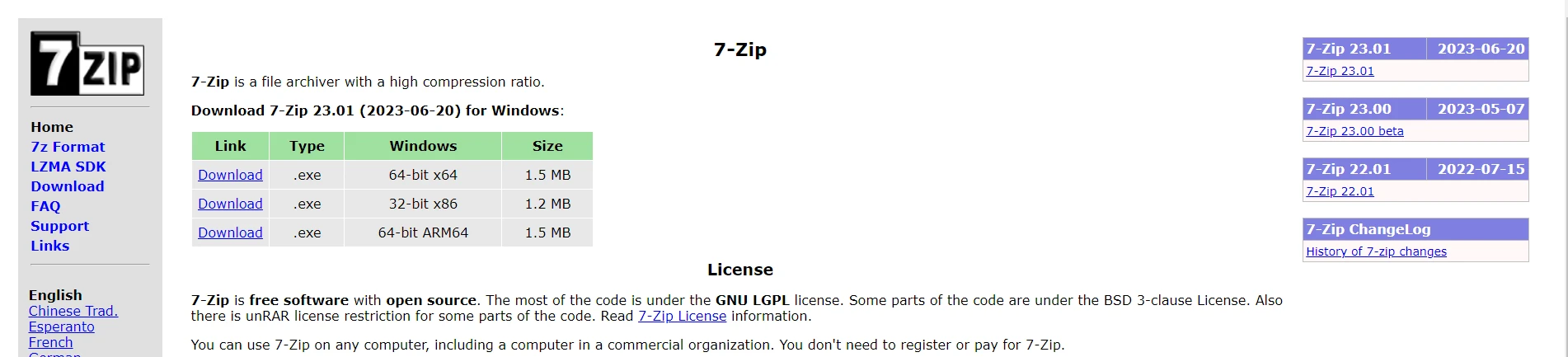
7-Zip은 파일 및 폴더의 크기를 줄이기 위해 고급 압축 알고리즘을 사용합니다. 이는 자체적인 7z 형식을 위해 LZMA (Lempel-Ziv-Markov chain-Algorithm) 압축 알고리즘을 사용하며, 이는 인상적인 압축 비율에 기여합니다. 이 유틸리티는 ZIP, TAR, GZIP와 같은 다른 일반 형식도 지원합니다.
7z 형식은 7-Zip이 아카이브에 사용하는 전용 형식입니다. 이는 우수한 압축 비율로 알려진 LZMA 압축 알고리즘을 사용합니다. 7z 형식은 솔리드 압축, 파일 분할, 자체 추출형 아카이브와 같은 기능을 지원합니다.
7-Zip은 특히 LZMA 알고리즘을 사용하는 7z 형식에서 뛰어난 압축 비율로 유명합니다. 이 효율성은 압축 파일의 무결성을 손상시키지 않고 더 작은 아카이브 크기를 가져옵니다. 7-Zip으로 생성된 파일은 일반 ZIP 형식보다 30-70% 더 잘 압축됩니다.
C#으로 작업하는 개발자를 위해 7-Zip은 맞춤 애플리케이션에 7-Zip 기능을 원활히 통합할 수 있는 .NET SDK를 제공합니다. 이 SDK는 개발자가 C# 프로젝트 내에서 아카이브된 파일을 관리하는 데 유연성을 제공하며, 압축 및 압축 해제 작업을 프로그램적으로 수행할 수 있게 합니다.
C# 애플리케이션에서 7-Zip을 사용하려면 7-Zip SDK를 사용하거나 C# 코드에서 명령어 줄 실행 파일을 사용할 수 있습니다. 여기에 두 가지 접근법에 대한 간략한 개요를 제공합니다.
7-Zip SDK는 C# 프로젝트에서 사용할 수 있는 7z.dll 라이브러리를 포함합니다. 이 방법은 프로그램적으로 압축 및 압축 해제 작업을 수행할 수 있게 합니다.
7-Zip SDK를 사용하는 소스 코드 예제입니다:
using SevenZip;

class Program
{
    static void Main()
    {
        // Specify the path to the 7z.dll library
        SevenZipBase.SetLibraryPath("path_to_7z.dll");

        // Example: Extract files from an archive
        using (var extractor = new SevenZipExtractor("archive.7z"))
        {
            extractor.ExtractArchive("output_directory");
        }

        // Example: Compress files into an archive
        using (var compressor = new SevenZipCompressor())
        {
            // Add files to the archive
            compressor.CompressFiles("archive.7z", "file1.txt", "file2.txt");
        }
    }
}Imports SevenZip
Friend Class Program
Shared Sub Main()
' Specify the path to the 7z.dll library
SevenZipBase.SetLibraryPath("path_to_7z.dll")
' Example: Extract files from an archive
Using extractor = New SevenZipExtractor("archive.7z")
extractor.ExtractArchive("output_directory")
End Using
' Example: Compress files into an archive
Using compressor = New SevenZipCompressor()
' Add files to the archive
compressor.CompressFiles("archive.7z", "file1.txt", "file2.txt")
End Using
End Sub
End Class7z.dll 라이브러리의 실제 경로로 "path_to_7z.dll"를 교체하세요. 7-Zip 설치 디렉토리에서 7z.dll 파일을 찾을 수 있습니다.
또는, System.Diagnostics.Process 클래스를 통해 C# 소스 코드에서 7-Zip 명령줄 실행 파일(7z.exe)을 호출하여 사용할 수 있습니다.
using System.Diagnostics;

class Program
{
    static void Main()
    {
        // Example: Extract files from an archive using the command-line executable
        string archivePath = "archive.7z";
        string outputPath = "output_directory";
        ProcessStartInfo processStartInfo = new ProcessStartInfo
        {
            FileName = "7z.exe",
            Arguments = $"x \"{archivePath}\" -o\"{outputPath}\"",
            RedirectStandardOutput = true,
            UseShellExecute = false,
            CreateNoWindow = true
        };
        using (Process process = new Process { StartInfo = processStartInfo })
        {
            process.Start();
            process.WaitForExit();
        }
    }
}Imports System.Diagnostics
Friend Class Program
Shared Sub Main()
' Example: Extract files from an archive using the command-line executable
Dim archivePath As String = "archive.7z"
Dim outputPath As String = "output_directory"
Dim processStartInfo As New ProcessStartInfo With {
.FileName = "7z.exe",
.Arguments = $"x ""{archivePath}"" -o""{outputPath}""",
.RedirectStandardOutput = True,
.UseShellExecute = False,
.CreateNoWindow = True
}
Using process As New Process With {.StartInfo = processStartInfo}
process.Start()
process.WaitForExit()
End Using
End Sub
End Class"7z.exe"가 시스템의 PATH에 있거나 FileName 속성에 실행 파일의 전체 경로를 제공해야 합니다.
7-Zip이 강력한 솔루션인 반면, .NET 생태계 내에서 대안을 탐색하는 개발자는 IronZIP을 매력적인 선택으로 찾을 수 있습니다. IronZIP은 C# 애플리케이션 내에서 압축, 압축 해제 및 아카이브 조작 도구를 제공하는 .NET 압축 라이브러리입니다.

IronZIP은 .NET 애플리케이션에서 ZIP 파일을 다루는 것을 간소화하는 강력한 C# ZIP 아카이브 라이브러리입니다. 사용자 친화적인 API를 통해 개발자는 IronZIP을 사용하여 ZIP 아카이브를 만들고, 읽고, 추출할 수 있습니다. 다음은 IronZIP을 사용하여 ZIP 아카이브를 생성하는 간단한 코드 예제입니다:
using IronZip;

class Program
{
    static void Main()
    {
        // Specify the path for the new ZIP archive
        string zipFilePath = "output.zip";

        // Create an empty ZIP archive
        using (var archive = new IronArchive(zipFilePath))
        {
            // Add files to the ZIP
            archive.AddArchiveEntry("./assets/file1.txt");
            archive.AddArchiveEntry("./assets/file2.jpg");
            archive.AddArchiveEntry("./assets/file3.pdf");
        }

        Console.WriteLine("ZIP archive created successfully!");
    }
}Imports IronZip
Class Program
Shared Sub Main()
' Specify the path for the new ZIP archive
Dim zipFilePath As String = "output.zip"
' Create an empty ZIP archive
Using archive As New IronArchive(zipFilePath)
' Add files to the ZIP
archive.AddArchiveEntry("./assets/file1.txt")
archive.AddArchiveEntry("./assets/file2.jpg")
archive.AddArchiveEntry("./assets/file3.pdf")
End Using
Console.WriteLine("ZIP archive created successfully!")
End Sub
End ClassIronZIP 및 그 기능 또는 코드 예제에 대한 자세한 정보를 보려면 IronZIP 문서 페이지를 방문하십시오.
7-Zip은 뛰어난 압축 비율과 함께 사용자에게 오픈 소스, 기능이 풍부한 솔루션을 제공하여 파일 압축 세계에서 여전히 지배적인 힘입니다. 다양한 아카이브 형식 지원 및 강력한 암호화 기능은 일상 사용자와 개발자 모두에게 다양한 선택지가 됩니다. .NET SDK는 C# 개발자가 커스텀 애플리케이션에 매끄럽게 통합할 수 있도록 더 많은 유용성을 확장합니다. .NET 영역에서 대안을 찾는 사람들에게 IronZIP은 C# 개발자의 특정 요구에 맞추어진 유사한 기능을 제공하는 주목할 만한 선택지로 돋보입니다.
IronZIP은 무료 체험판을 제공합니다. IronZIP 다운로드 페이지에서 IronZIP .NET Core 및 Framework 라이브러리를 다운로드하고 체험해보세요.

제이콥 멜러는 Iron Software의 최고 기술 책임자(CTO)이자 C# PDF 기술을 개척한 선구적인 엔지니어입니다. Iron Software의 핵심 코드베이스를 최초로 개발한 그는 창립 초기부터 회사의 제품 아키텍처를 설계해 왔으며, CEO인 캐머런 리밍턴과 함께 회사를 NASA, 테슬라, 그리고 전 세계 정부 기관에 서비스를 제공하는 50명 이상의 직원을 보유한 기업으로 성장시켰습니다.



IronPDF는 IRON SUITE 의 일부입니다.
10개의 .NET API 제품, 당신의 사무 문서를 위해











PDF 파일을 HTML처럼 빠르게 변환해야 할 때.


