오늘날의 디지털 세계에서 웹 페이지나 HTML 문서를 PDF 파일로 변환하는 능력은 필수적입니다. 이는 보고서 생성, 송장 작성 또는 단순히 정보를 더욱 잘 보이는 형식으로 공유하기 위해 유용할 수 있습니다. 이 블로그 포스트에서는 Node.js와 Google에서 개발한 오픈 소스 라이브러리인 Puppeteer를 사용하여 HTML 페이지를 PDF로 변환하는 방법을 탐구할 것입니다.
Puppeteer 소개
Puppeteer는 주로 Google Chrome 또는 Chromium과 같은 브라우저를 무인 상태로 제어할 수 있는 강력한 Node.js 라이브러리로, 웹 스크래핑, 스크린샷 캡처, PDF 생성 등의 작업을 수행할 수 있습니다. Puppeteer는 브라우저와 상호작용할 수 있는 광범위한 API를 제공하여 HTML을 PDF로 변환하는 데 탁월한 선택입니다.
왜 Puppeteer인가?
- 사용의 용이성: Puppeteer는 무인 브라우저를 사용하는 복잡성을 숨기고 간단하고 사용하기 쉬운 API를 제공합니다.
- 강력함: Puppeteer는 웹 페이지를 조작하고 브라우저 요소와 상호작용하는 데 광범위한 기능을 제공합니다.
- 확장 가능성: Puppeteer를 사용하면 여러 브라우저 인스턴스를 병렬로 실행하여 PDF 생성 프로세스를 쉽게 확장할 수 있습니다.
Node.js 프로젝트 설정하기
시작하기 전에 새로운 Node.js 프로젝트를 설정해야 합니다. 시작하려면 다음 단계를 따르세요.
-
아직 설치하지 않았다면 Node.js를 설치하세요 (Node.js 웹사이트에서 다운로드할 수 있습니다).
-
프로젝트를 위한 새 폴더를 만들고 Visual Studio Code나 특정 코드 편집기에서 열어주세요.
-
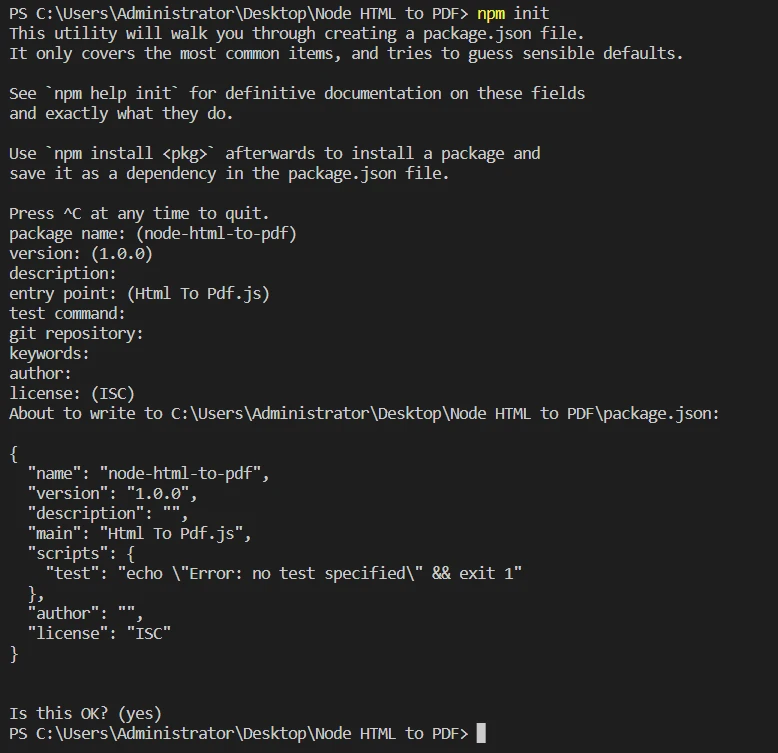
npm init을(를) 실행하여 프로젝트에 대한 새 package.json 파일을 생성합니다. 프롬프트를 따라가며 필요한 정보를 입력하세요.
-
npm install puppeteer을(를) 실행하여 Puppeteer를 설치합니다.
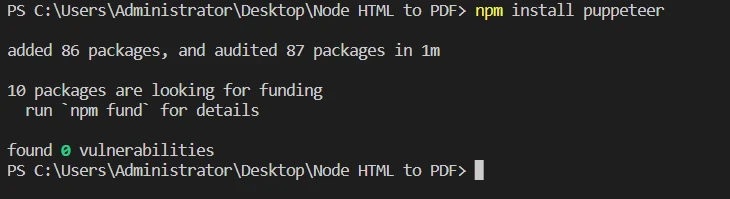
이제 프로젝트 설정이 완료되었으니, 코드로 들어가 보겠습니다.
HTML 템플릿 불러오기 및 PDF 파일로 변환
Puppeteer를 사용하여 HTML 템플릿을 PDF 파일로 변환하려면 다음 단계를 따르세요:
폴더에 'HTML To PDF.js'라는 이름의 파일을 만드세요.
Puppeteer와 fs 가져오기
const puppeteer = require('puppeteer');
const fs = require('fs');
const puppeteer = require('puppeteer');
const fs = require('fs');
JavaScript
코드는 Puppeteer, Chrome 및 Chromium과 같은 헤드리스 브라우저를 제어하기 위한 다목적 도구 puppeteer와 파일 시스템 작업을 처리하기 위한 내장 Node.js 모듈 fs 두 가지 필수 라이브러리를 가져와 시작합니다. Puppeteer는 HTML 렌더링, 스크린샷 캡처, PDF 파일 생성 등 다양한 웹 관련 작업을 자동화할 수 있게 합니다.
exportWebsiteAsPdf 함수 정의하기
async function exportWebsiteAsPdf(html, outputPath) {
  // Create a browser instance
  const browser = await puppeteer.launch({
    headless: true // Launches the browser in headless mode
  });

  // Create a new page
  const page = await browser.newPage();

  // Set the HTML content for the page, waiting for DOM content to load
  await page.setContent(html, { waitUntil: 'domcontentloaded' });

  // To reflect CSS used for screens instead of print
  await page.emulateMediaType('screen');

  // Download the PDF
  const PDF = await page.pdf({
    path: outputPath,
    margin: { top: '100px', right: '50px', bottom: '100px', left: '50px' },
    printBackground: true,
    format: 'A4',
  });

  // Close the browser instance
  await browser.close();

  return PDF;
}
async function exportWebsiteAsPdf(html, outputPath) {
  // Create a browser instance
  const browser = await puppeteer.launch({
    headless: true // Launches the browser in headless mode
  });

  // Create a new page
  const page = await browser.newPage();

  // Set the HTML content for the page, waiting for DOM content to load
  await page.setContent(html, { waitUntil: 'domcontentloaded' });

  // To reflect CSS used for screens instead of print
  await page.emulateMediaType('screen');

  // Download the PDF
  const PDF = await page.pdf({
    path: outputPath,
    margin: { top: '100px', right: '50px', bottom: '100px', left: '50px' },
    printBackground: true,
    format: 'A4',
  });

  // Close the browser instance
  await browser.close();

  return PDF;
}
JavaScript
exportWebsiteAsPdf 함수는 코드 스니펫의 핵심입니다. 이 비동기 함수는 html 문자열과 outputPath를 입력 매개변수로 받아 PDF 파일을 반환합니다. 함수는 다음 단계를 수행합니다:
- Puppeteer를 사용하여 새로운 헤드리스 브라우저 인스턴스를 시작합니다.
- 새로운 브라우저 페이지를 생성합니다.
- 제공된
html 문자열을 페이지 내용으로 설정하고 DOM 콘텐츠가 로드될 때까지 기다립니다.
- 'screen' 미디어 타입을 사용하도록 에뮬레이트하여, 인쇄용 스타일 대신 화면용 CSS가 적용되도록 합니다.
- 로드된 HTML 콘텐츠로부터 PDF 파일을 생성하며, 여백, 배경 인쇄, 포맷(A4)을 지정합니다.
- 브라우저 인스턴스를 종료합니다.
- 생성된 PDF 파일을 반환합니다.
exportWebsiteAsPdf 함수 사용하기
// Usage example
// Get HTML content from HTML file
const html = fs.readFileSync('test.html', 'utf-8');

// Convert the HTML content into a PDF and save it to the specified path
exportWebsiteAsPdf(html, 'result.pdf').then(() => {
  console.log('PDF created successfully.');
}).catch((error) => {
  console.error('Error creating PDF:', error);
});
// Usage example
// Get HTML content from HTML file
const html = fs.readFileSync('test.html', 'utf-8');

// Convert the HTML content into a PDF and save it to the specified path
exportWebsiteAsPdf(html, 'result.pdf').then(() => {
  console.log('PDF created successfully.');
}).catch((error) => {
  console.error('Error creating PDF:', error);
});
JavaScript
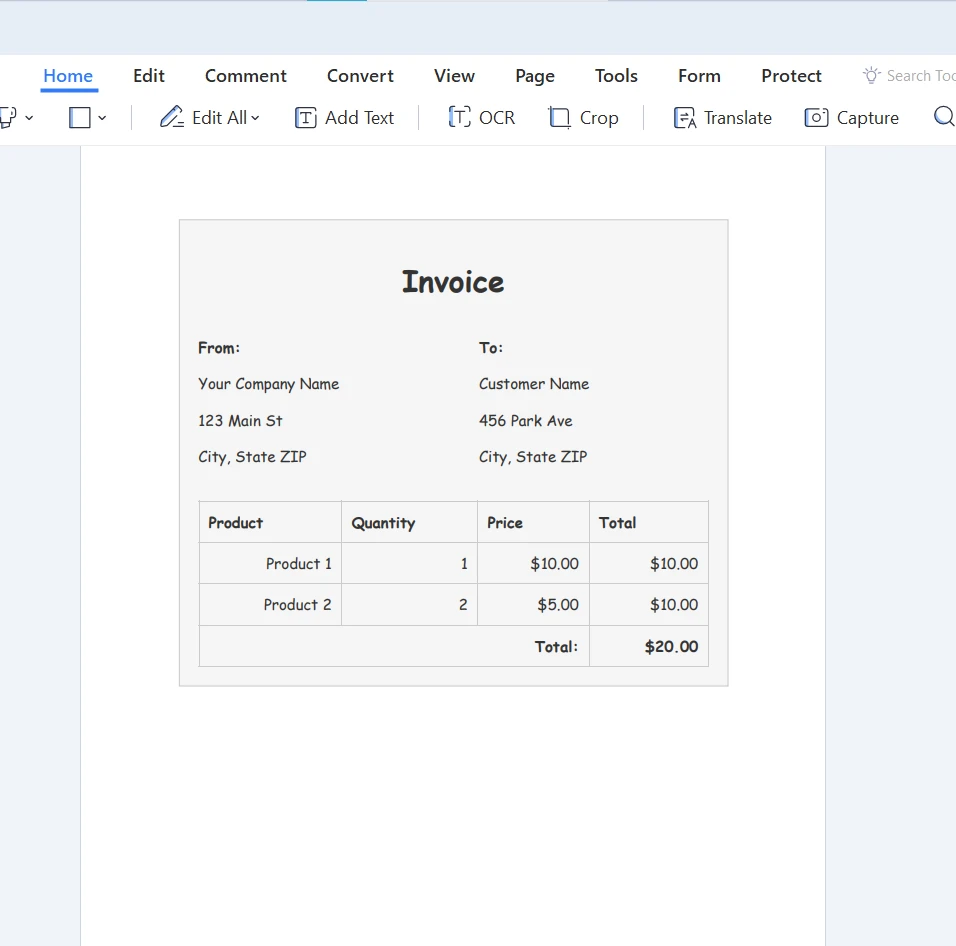
코드의 마지막 섹션에서는 exportWebsiteAsPdf 함수를 사용하는 방법을 보여줍니다. 다음 단계를 수행합니다:
fs 모듈의 readFileSync 메서드를 사용하여 HTML 파일에서 HTML 콘텐츠를 읽습니다.- 로드된
html 문자열 및 원하는 outputPath와 함께 exportWebsiteAsPdf 함수를 호출합니다.
- 성공적인 PDF 생성 처리를 위해
.then 블록을 활용하고, 성공 메시지를 콘솔에 기록합니다.
- HTML을 PDF로 변환하는 과정에서 발생하는 모든 오류를 처리하기 위해
.catch 블록을 사용하여 오류 메시지를 콘솔에 기록합니다.
이 코드 스니펫은 Node.js와 Puppeteer를 사용하여 HTML 템플릿을 PDF 파일로 변환하는 포괄적인 예제를 제공합니다. 이 솔루션을 구현함으로써 다양한 애플리케이션 및 사용자의 요구를 충족하는 고품질의 PDF를 효율적으로 생성할 수 있습니다.
URL을 PDF 파일로 변환하기
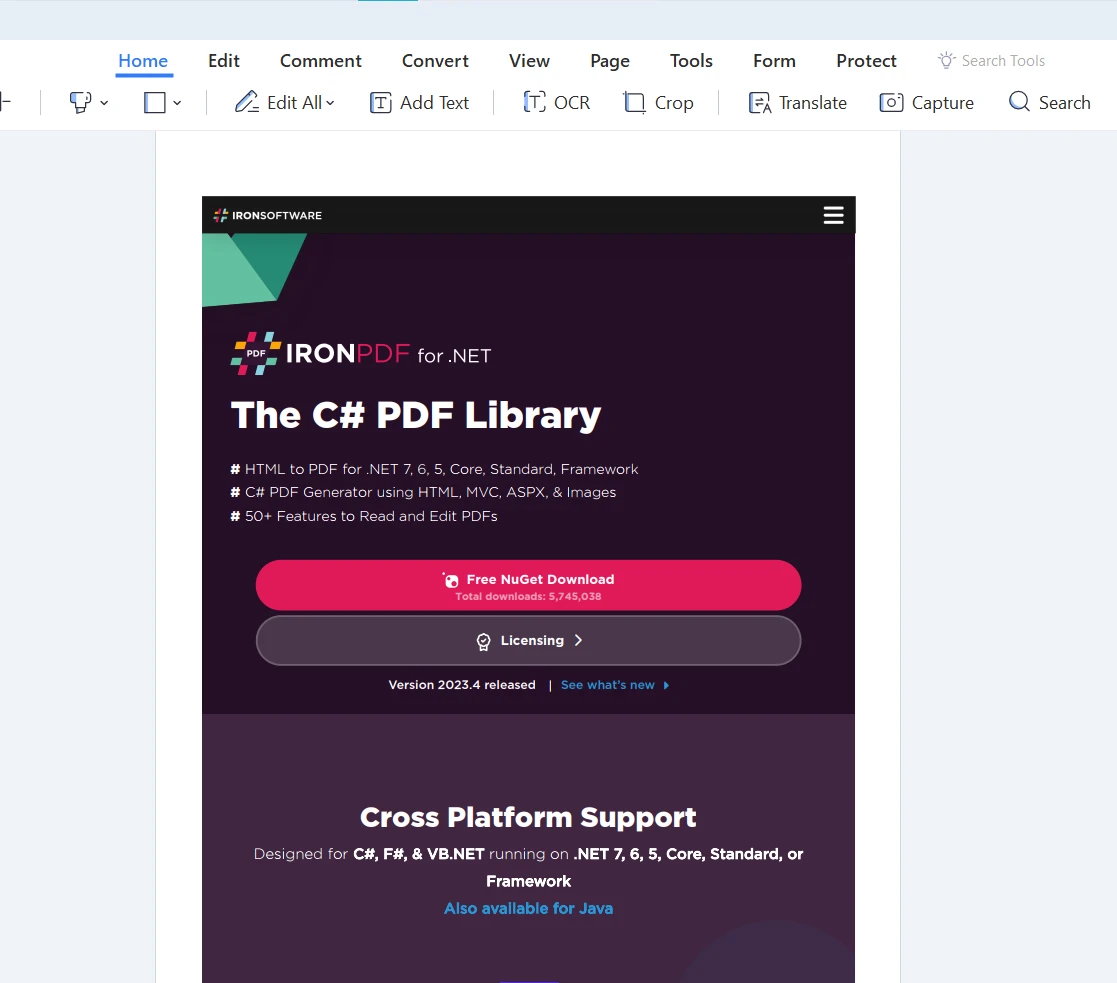
HTML 템플릿 변환 외에도, Puppeteer는 URL을 직접 PDF 파일로 변환할 수 있습니다.
Puppeteer 가져오기
const puppeteer = require('puppeteer');
const puppeteer = require('puppeteer');
JavaScript
코드는 Chrome 및 Chromium과 같은 헤드리스 브라우저를 제어하는 강력한 도구인 Puppeteer 라이브러리를 가져오는 것으로 시작합니다. Puppeteer는 HTML 코드 렌더링, 스크린샷 캡처, PDF 파일 생성 등 다양한 웹 기반 작업을 자동화할 수 있게 합니다.
exportWebsiteAsPdf 함수 정의하기
async function exportWebsiteAsPdf(websiteUrl, outputPath) {
  // Create a browser instance
  const browser = await puppeteer.launch({
    headless: true // Launches the browser in headless mode
  });

  // Create a new page
  const page = await browser.newPage();

  // Open the URL in the current page
  await page.goto(websiteUrl, { waitUntil: 'networkidle0' });

  // To reflect CSS used for screens instead of print
  await page.emulateMediaType('screen');

  // Download the PDF
  const PDF = await page.pdf({
    path: outputPath,
    margin: { top: '100px', right: '50px', bottom: '100px', left: '50px' },
    printBackground: true,
    format: 'A4',
  });

  // Close the browser instance
  await browser.close();

  return PDF;
}
async function exportWebsiteAsPdf(websiteUrl, outputPath) {
  // Create a browser instance
  const browser = await puppeteer.launch({
    headless: true // Launches the browser in headless mode
  });

  // Create a new page
  const page = await browser.newPage();

  // Open the URL in the current page
  await page.goto(websiteUrl, { waitUntil: 'networkidle0' });

  // To reflect CSS used for screens instead of print
  await page.emulateMediaType('screen');

  // Download the PDF
  const PDF = await page.pdf({
    path: outputPath,
    margin: { top: '100px', right: '50px', bottom: '100px', left: '50px' },
    printBackground: true,
    format: 'A4',
  });

  // Close the browser instance
  await browser.close();

  return PDF;
}
JavaScript
exportWebsiteAsPdf 함수는 코드 스니펫의 핵심입니다. 이 비동기 함수는 websiteUrl 및 outputPath를 입력 매개변수로 받아 PDF 파일을 반환합니다. 함수는 다음 단계를 수행합니다:
- Puppeteer를 사용하여 새로운 헤드리스 브라우저 인스턴스를 시작합니다.
- 새로운 브라우저 페이지를 생성합니다.
- 제공된
websiteUrl로 이동하고, waitUntil 옵션이 networkidle0로 설정되어 네트워크가 유휴 상태가 될 때까지 기다립니다.
- 'screen' 미디어 타입을 사용하도록 에뮬레이트하여, 인쇄용 스타일 대신 화면용 CSS가 적용되도록 합니다.
- 지정된 여백, 배경 인쇄, 포맷(A4)을 사용하여 로드된 웹 페이지를 PDF 파일로 변환합니다.
- 브라우저 인스턴스를 종료합니다.
- 생성된 PDF 파일을 반환합니다.
exportWebsiteAsPdf 함수 사용하기
// Usage example
// Convert the URL content into a PDF and save it to the specified path
exportWebsiteAsPdf('https://ironpdf.com/', 'result.pdf').then(() => {
  console.log('PDF created successfully.');
}).catch((error) => {
  console.error('Error creating PDF:', error);
});
// Usage example
// Convert the URL content into a PDF and save it to the specified path
exportWebsiteAsPdf('https://ironpdf.com/', 'result.pdf').then(() => {
  console.log('PDF created successfully.');
}).catch((error) => {
  console.error('Error creating PDF:', error);
});
JavaScript
코드의 마지막 섹션에서는 exportWebsiteAsPdf 함수를 사용하는 방법을 보여줍니다. 다음 단계를 실행합니다:
- 원하는
websiteUrl 및 outputPath와 함께 exportWebsiteAsPdf 함수를 호출합니다.
- 성공적인 PDF 생성 처리를 위해
then 블록을 사용합니다. 이 블록에서는 콘솔에 성공 메시지를 기록합니다.
- 웹사이트를 PDF로 변환하는 과정에서 발생하는 모든 오류를 처리하기 위해
catch 블록을 사용합니다. 오류가 발생하면 콘솔에 오류 메시지를 기록합니다.
이 코드 스니펫을 프로젝트에 통합하면 Node.js 및 Puppeteer를 사용하여 URL을 고품질 PDF 파일로 쉽게 변환할 수 있습니다.
최고의 HTML to PDF 라이브러리 (C# 개발자를 위한)
IronPDF 탐색은 PDF 파일에서 콘텐츠를 생성, 편집 및 추출하기 위해 사용되는 인기 있는 .NET 라이브러리입니다. HTML, 텍스트, 이미지 및 기존 PDF 문서에서 PDF를 생성하기 위한 간단하고 효율적인 솔루션을 제공합니다. IronPDF는 .NET Core, .NET Framework 및 .NET 5.0+ 프로젝트를 지원하여 다양한 응용 프로그램에 적합한 선택입니다.
IronPDF 의 주요 기능
IronPDF를 사용한 HTML에서 PDF로의 변환: IronPDF는 CSS를 포함한 HTML 콘텐츠를 PDF 파일로 변환할 수 있도록 합니다. 이 기능은 웹 페이지나 HTML 템플릿에서 픽셀 단위로 완벽한 PDF 문서를 생성할 수 있게 합니다.
URL 렌더링: IronPDF는 서버에서 URL을 사용하여 직접 웹 페이지를 가져와 PDF 파일로 변환할 수 있습니다. 이를 통해 웹 콘텐츠를 아카이브하거나 동적 웹 페이지에서 보고서를 생성하기 쉽습니다.
텍스트, 이미지 및 PDF 병합: IronPDF는 텍스트, 이미지 및 기존 PDF 파일을 하나의 PDF 문서로 병합할 수 있습니다. 이 기능은 여러 콘텐츠 소스가 있는 복잡한 문서를 생성하는 데 특히 유용합니다.
PDF 조작: IronPDF는 PDF 파일을 편집할 수 있는 도구를 제공하여 페이지 추가 또는 제거, 메타데이터 수정, PDF 문서에서 텍스트 및 이미지 추출 등을 수행할 수 있습니다.
결론
결론적으로, PDF 파일을 생성하고 조작하는 것은 많은 응용 프로그램에서 일반적인 요구 사항이며, 적절한 도구를 보유하는 것이 중요합니다. Puppeteer를 Node.js와 함께 사용하거나 IronPDF를 .NET과 함께 사용하여 HTML 콘텐츠와 URL을 전문적이고 고품질 PDF 문서로 변환하기 위한 강력하고 효율적인 방법을 제공합니다.
특히 IronPDF는 광범위한 기능 세트를 갖추고 있어 .NET 개발자를 위한 최고의 선택입니다. IronPDF는 무료 체험판을 제공하여 기능을 탐색할 수 있게 합니다.
사용자는 또한 Iron Suite 패키지에서 IronXL, IronPDF, IronOCR 및 기타 다섯 개의 전문 .NET 라이브러리가 포함된 Suite의 혜택을 받을 수 있습니다.













