저는 컴퓨터 파일 작업을 많이 하면서 PDF에 대해 몇 가지를 배웠습니다. 오늘날 PDF 및 PDF/A에 대해 배운 것을 공유하고자 합니다. 처음에는 이 파일 형식이 동일하게 보일 수 있지만 믿으세요, 여기에 더 많은 것이 있습니다! 이 기사 후반부에 IronPDF C# 라이브러리도 논의할 것입니다.
PDF 대 PDF/A: 개발자를 위한 알아야 할 정보
- PDF는 일반적인 용도로 설계되었으며, PDF/A는 장기 보관 및 보존을 위해 특별히 만들어졌습니다.
- PDF/A는 모든 글꼴을 포함해야 하며 외부 참조를 금지하지만, 일반적인 PDF는 외부 리소스에 링크가 가능합니다.
- PDF/A는 장치 독립적인 색상 공간을 요구하는 반면, 일반적인 PDF는 색상 관리를 보다 유연하게 할 수 있습니다.
- PDF/A는 광범위한 메타데이터를 요구하며, 여기에는 생성일 및 수정 정보 등이 포함되며, 이는 표준 PDF에서는 선택 사항입니다.
- 일반 PDF는 암호화되거나 비밀번호 보호가 가능하지만, PDF/A는 미래 접근성을 보장하기 위해 어떤 형태의 암호화도 허용하지 않습니다.
- 파일들은 보통 포함된 리소스 때문에 더 크지만, 일반적인 PDFs는 더 압축될 수 있습니다.
- PDF/A는 각기 다른 규칙이 있는 특정 버전(PDF/A-1, PDF/A-2, PDF/A-3)을 가지고 있지만, 일반 PDF는 보다 일반적인 버전 관리를 가지고 있습니다.
- 일반 PDF는 이미지 및 요소의 투명성을 지원하지만, PDF/A는 일관된 렌더링을 보장하기 위해 투명성을 허용하지 않습니다.
- PDF/A는 엄격한 ISO 표준을 준수해야 하는 반면, 일반 PDF는 구조와 내용에서 더 많은 유연성을 가지고 있습니다.
PDF와 PDF/A란?
PDF: 일상적인 파일 형식
PDF, 또는 휴대용 문서 포맷은 제가 기억할 수 있는 한 항상 사용해온 형식입니다. 저는 분기별 보고서를 공유하고 파티 초대장을 보내기 위해 PDF 파일을 사용했습니다. PDF 문서의 아름다움은 그 다양성에 있습니다. 매끄러운 맥북이나 오래된 윈도우 데스크탑을 사용하더라도, 전자 문서는 의도한 그대로 보입니다.
PDF의 주요 특징
- 원래의 서식 유지
- 인터랙티브 요소 지원
- 멀티미디어 콘텐츠 포함 가능
- 암호 보호 및 암호화 옵션
PDF/A: 오래 지속되는 파일 형식
업무상 중요한 문서를 보관해야 할 때 PDF/A가 제 삶에 들어왔습니다. 'A'는 Archive를 의미하며, 이 역할을 매우 진지하게 받아들입니다. 이 자기 포함 형식은 모든 폰트, 이미지 및 색상 정보를 디지털 파일 내에 포함합니다. 오래된 문서를 열 때 더 이상 폰트 누락이나 레이아웃 오류가 발생하지 않습니다.
PDF/A의 주요 특징
- 자기 포함 (필요한 모든 구성 요소 포함)
- 외부 콘텐츠 참조 금지
- 표준 색상 공간 사용 의무화
- 모든 폰트 포함 필수
- 더 나은 검색 및 카탈로깅을 위한 메타데이터 요구 사항
PDF/A vs PDF: 주요 차이점
이 형식을 더 깊이 파고들수록 PDF와 PDF/A 간의 차이를 왜 중요하게 여기는지 밝혀냈습니다.
1. 파일 내부 구성 요소
PDF는 많은 정보를 담고 있는 디지털 컨테이너와 같습니다. 내장 파일, 비디오, 인터랙티브 버튼, 실행 파일, 스캔된 문서, 웹 사이트 링크 등 - PDF 형식은 무엇이든 다룰 수 있습니다. 하지만 PDF/A 형식에서는? 더 엄격한 다이어트 계획과 같습니다. 비디오도 없고, 화려한 인터랙티브 요소도 없고, 외부 콘텐츠에 대한 링크도 없습니다.
처음에는 PDF/A가 문서의 재미를 다 빼앗아 간다고 생각했습니다. 하지만 그 다음에 '아하' 순간을 맞이했습니다. 50년 후에 내장된 비디오를 포함한 파일을 열려고 상상해보세요. 그 비디오 형식은 여전히 존재할까요? PDF/A는 이러한 잠재적으로 문제가 될 수 있는 요소를 제거하여 오늘 보이는 내용이 먼 미래에도 정확히 동일하게 보이도록 합니다. 지루함을 추구하는 것이 아니라, 미래에 대비하는 것입니다.
2. 폰트와 문자
폰트 문제는 일반 PDF 사용에서 항상 저의 골칫거리였습니다. 제 컴퓨터에서 아름다운 문서를 만들었지만 다른 사람의 화면에서는 폰트가 설치되어 있지 않아 엉망이 되었습니다. PDF/A는 이 폰트 문제에 대해 '이제 그만'이라고 말했습니다. 모든 폰트는 파일에 직접 포함되어야 합니다. 따라서 내장된 폰트를 사용하면 어떤 장치에서든 폰트 문제 없이 PDF 파일을 열 수 있습니다.
이는 2024년에 새 컴퓨터에서 파일을 열거나 2054년의 오래된 기계에서 열더라도 텍스트가 정확히 의도한 대로 보이도록 합니다. 더 이상 문자 누락이 없습니다! PDF/A는 항상 최상의 모습을 보일 수 있도록 작은 폰트 가방을 들고 다니는 것과 같습니다.
3. 색상
디지털 파일의 색상은 당신이 생각하는 것보다 까다로울 수 있습니다. 일반 PDF는 색상 관리에 대해 꽤 관대합니다. 당신이 제공하는 어떤 색상 설정도 받아들이며, 이는 다양한 화면에서 흥미로운 (때로는 의도하지 않은) 결과를 초래할 수 있습니다. 반면 PDF/A는 엄격한 색상 조정자와 같습니다.
4. 추가 정보
PDF/A는 문서화에 있어서 큰 역할을 합니다 - 눈에 보이는 콘텐츠뿐만 아니라 파일 자체에 대한 숨겨진 정보에도요. 각 PDF/A 파일이 자세한 일기를 가지고 있는 것과 같습니다. 생성 날짜는 언제였나요? 누가 만들었나요? 마지막으로 언제 수정되었나요? 이 모든 정보는 PDF/A에서 필수입니다.
5. 기준 및 버전
PDF/A는 각각의 규칙과 기능을 가진 여러 버전(PDF/A-1, PDF/A-2, PDF/A-3)으로 제공됩니다. 일반 PDF는 이러한 구분이 없어 더 큰 유연성을 제공하지만 표준화는 덜합니다.
6. 파일 크기
PDF/A 파일은 필요한 모든 구성 요소가 포함되어 있어야 하기 때문에 일반 PDF보다 크기가 큰 경향이 있습니다.
7. 암호화
일반 PDF는 암호로 보호되거나 암호화될 수 있지만, PDF/A는 암호화를 허용하지 않습니다. 이 제한은 비밀번호를 잃어버리거나 암호화 방법이 구식이 되어도 문서가 미래에 접근 가능하도록 보장합니다.
8. 투명성
PDF/A는 투명 객체를 지원하지 않습니다. 이는 제한적일 수 있지만, 미래에 렌더링 문제가 없어지며 보존될 내용을 확실히 보장하기 위해 필요합니다.
어느 것을 선택해야 하는가?
두 포맷 모두 사용해 본 경험을 통해 언제 무엇을 사용해야 하는지 배웠습니다. 항상 명확한 결정은 아니지만, 각 형식의 장점을 이해함으로써 많은 문제를 해결할 수 있었습니다.
일상적인 작업에서는 일반 PDF를 선호합니다. 오래 보관하지 않을 보고서에 사용합니다. 비디오를 포함하거나 대화형 요소를 추가하고 싶은 화려한 프레젠테이션에 적합합니다. 새 제품 출시를 위한 PDF 브로슈어를 만든 기억이 납니다 - 클릭 가능한 섹션, 내장된 제품 비디오, 심지어 고객이 작성할 수 있는 양식까지 포함했었습니다. 마케팅 팀은 그것이 매력적이고 공유하기 쉽다는 점에서 매우 좋아했습니다.
하지만, 시간이 지나도 남아야 하는 법적 문서가 필요한 경우 PDF/A가 가장 맞습니다. 2000년대 초반의 회사 기록을 열 수 없었을 때 이 교훈을 배웠습니다. 이제 법적 의미가 있거나 장기적으로 보존해야 하는 모든 것에 대해 PDF/A를 선택합니다. 세금 문서, 계약서, 역사적 기록은 저희 사무실에서 PDF/A로 처리됩니다.
PDF/A 파일 생성 (IronPDF C# PDF 라이브러리)
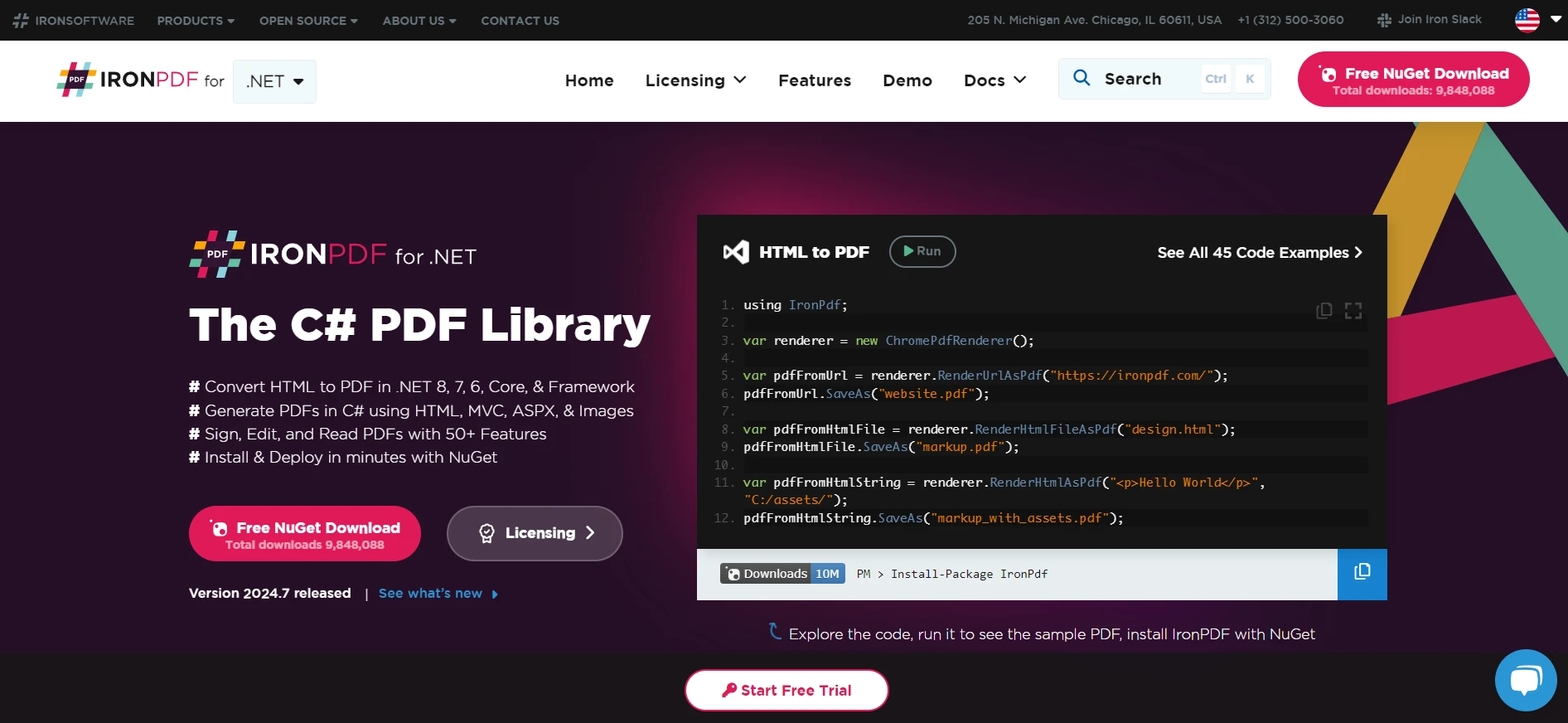
PDF 및 PDF/A를 생성하는 것은 단순히 '다른 이름으로 저장' 버튼을 누르는 것 이상의 작업입니다 - 적어도 올바르게 하고 싶다면 그렇습니다. Adobe Acrobat이 인기 있는 선택이지만, IronPDF라는 .NET 라이브러리가 PDF 조작과 특히 PDF를 PDF/A로 변환하는 데 있어 저의 삶을 훨씬 편하게 만들어 주었습니다. 이 작업에 있어 가장 선호하는 도구가 되었습니다. PDF를 PDF/A로 변환하는 데 제가 사용하는 간단한 예를 보여드리겠습니다:
using IronPdf;

class Program
{
    static void Main()
    {
        // Create a PdfDocument object or open an existing PDF File
        PdfDocument pdf = PdfDocument.FromFile("archive.pdf");

        // Use the SaveAsPdfA method to save the file as a PDF/A
        pdf.SaveAsPdfA("pdf-a3-archive.pdf", PdfAVersions.PdfA3);

        // The SaveAsPdfA method ensures compliance with the PDF/A standard by:
        // - Embedding all fonts
        // - Adjusting color profiles
        // - Adding necessary metadata
        // This ensures that the converted file is suitable for long-term archiving
    }
}
using IronPdf;

class Program
{
    static void Main()
    {
        // Create a PdfDocument object or open an existing PDF File
        PdfDocument pdf = PdfDocument.FromFile("archive.pdf");

        // Use the SaveAsPdfA method to save the file as a PDF/A
        pdf.SaveAsPdfA("pdf-a3-archive.pdf", PdfAVersions.PdfA3);

        // The SaveAsPdfA method ensures compliance with the PDF/A standard by:
        // - Embedding all fonts
        // - Adjusting color profiles
        // - Adding necessary metadata
        // This ensures that the converted file is suitable for long-term archiving
    }
}
Imports IronPdf
Module Program
Sub Main()
' Create a PdfDocument object or open an existing PDF File
Dim pdf As PdfDocument = PdfDocument.FromFile("archive.pdf")
' Use the SaveAsPdfA method to save the file as a PDF/A
pdf.SaveAsPdfA("pdf-a3-archive.pdf", PdfAVersions.PdfA3)
' The SaveAsPdfA method ensures compliance with the PDF/A standard by:
' - Embedding all fonts
' - Adjusting color profiles
' - Adding necessary metadata
' This ensures that the converted file is suitable for long-term archiving
End Sub
End Module
Imports IronPdf

Module Program
    Sub Main()
        ' Create a PdfDocument object or open an existing PDF File
        Dim pdf As PdfDocument = PdfDocument.FromFile("archive.pdf")

        ' Use the SaveAsPdfA method to save the file as a PDF/A
        pdf.SaveAsPdfA("pdf-a3-archive.pdf", PdfAVersions.PdfA3)

        ' The SaveAsPdfA method ensures compliance with the PDF/A standard by:
        ' - Embedding all fonts
        ' - Adjusting color profiles
        ' - Adding necessary metadata
        ' This ensures that the converted file is suitable for long-term archiving
    End Sub
End Module
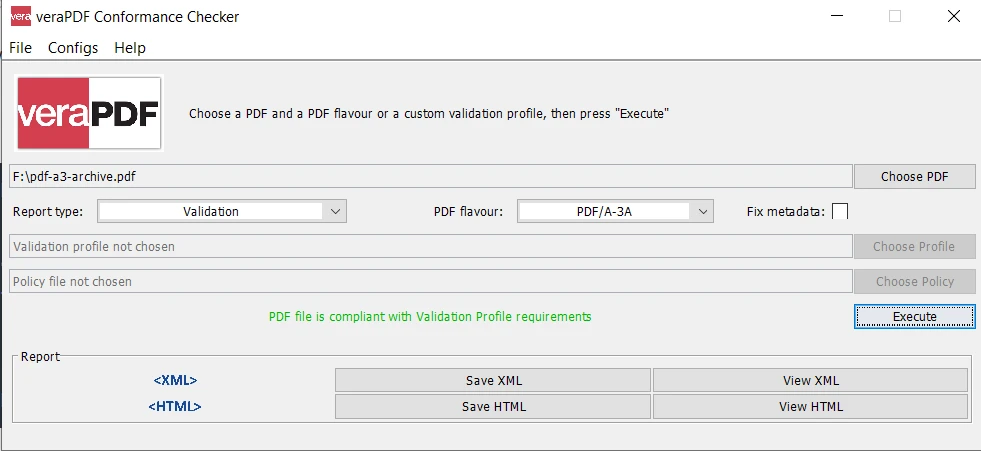
이 코드는 제가 수작업으로 몇 시간을 들였던 작업을 몇 초 만에 처리합니다. PDF/A 변환의 복잡성을 모두 처리합니다 - 글꼴을 포함하고, 색상 프로필을 조정하고, PDF/A 표준을 준수하도록 보장합니다. 다른 파일 확장자에서 PDF를 변환할 수도 있습니다, 예를 들어 DOCX 파일과 같은 경우.
앞으로의 전망
디지털 문서의 세계는 끊임없이 진화하고 있어 흥미롭습니다. 일반 PDF의 유연성과 PDF/A의 지속성을 연결할 수 있는 새로운 PDF 표준에 대한 이야기가 있습니다. 향상된 보안 기능과 같은 분야의 발전을 주시하고 있습니다 - PDF 자체의 진위를 증명할 수 있다고 상상해 보세요!
아카이브 형식에서 3D 및 CAD 데이터도 제가 흥미를 가진 또 다른 분야입니다. 가끔 엔지니어링 팀과 작업하는 사람으로서 수십 년 후에도 읽을 수 있는 복잡한 3D 모델을 보존하는 아이디어는 더더욱 놀랍습니다.
마무리: 올바른 파일 유형 선택하기
수년간 PDF와 PDF/A를 사용해 본 결과, 모든 것에 맞는 하나의 해결책은 없습니다. 요구 사항을 이해하고 적절한 도구를 선택하는 것이 작업을 완료하는 데 필수적입니다.
일상적인 전자 문서 - 보고서, 프레젠테이션, 브로슈어 - 일반 PDF가 여전히 최고입니다. 유연하며, 널리 호환되고, 내장된 전자 서명을 포함한 다양한 대화형 요소를 처리할 수 있습니다. 그러나 시간이 지나도 남아야 하는 문서 - 법적 문서, 역사적 기록, 장기적인 비즈니스 계획 - 이러한 문서를 보관하려는 경우 PDF/A가 최적입니다.
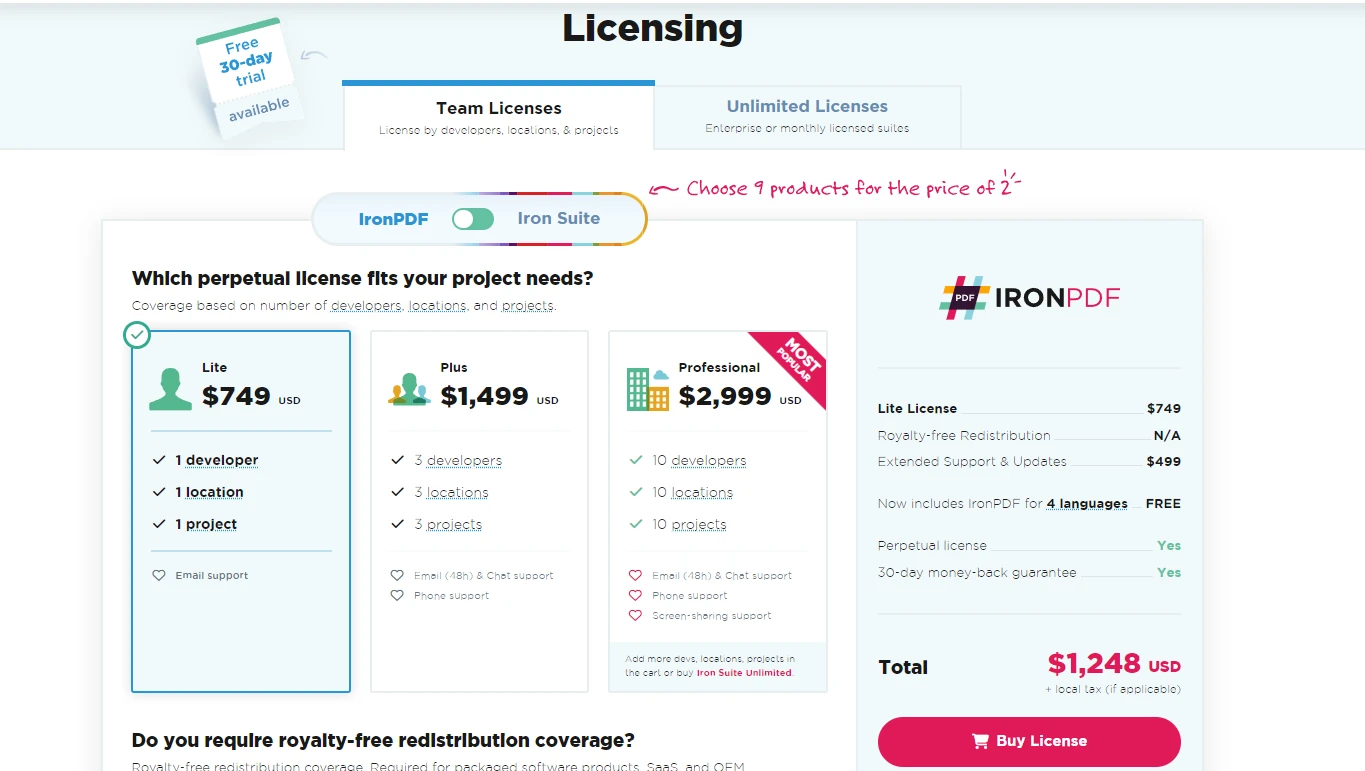
PDF 및 PDF/A를 프로그래밍 방식으로 만들기 위해, IronPDF는 무료 체험판을 제공하며, 라이선스는 $999에서 시작하여 모든 규모의 비즈니스에 비용 효율적인 솔루션을 제공합니다.
이러한 차이를 이해하면 제 직업을 향상시키고 오늘날 우리가 수행하는 중요한 작업이 내일도 접근 가능하게 됩니다. 간단한 메모든 복잡한 법적 문서든, PDF 및 PDF/A의 노하우를 알면 디지털 유산을 제어할 수 있습니다.























