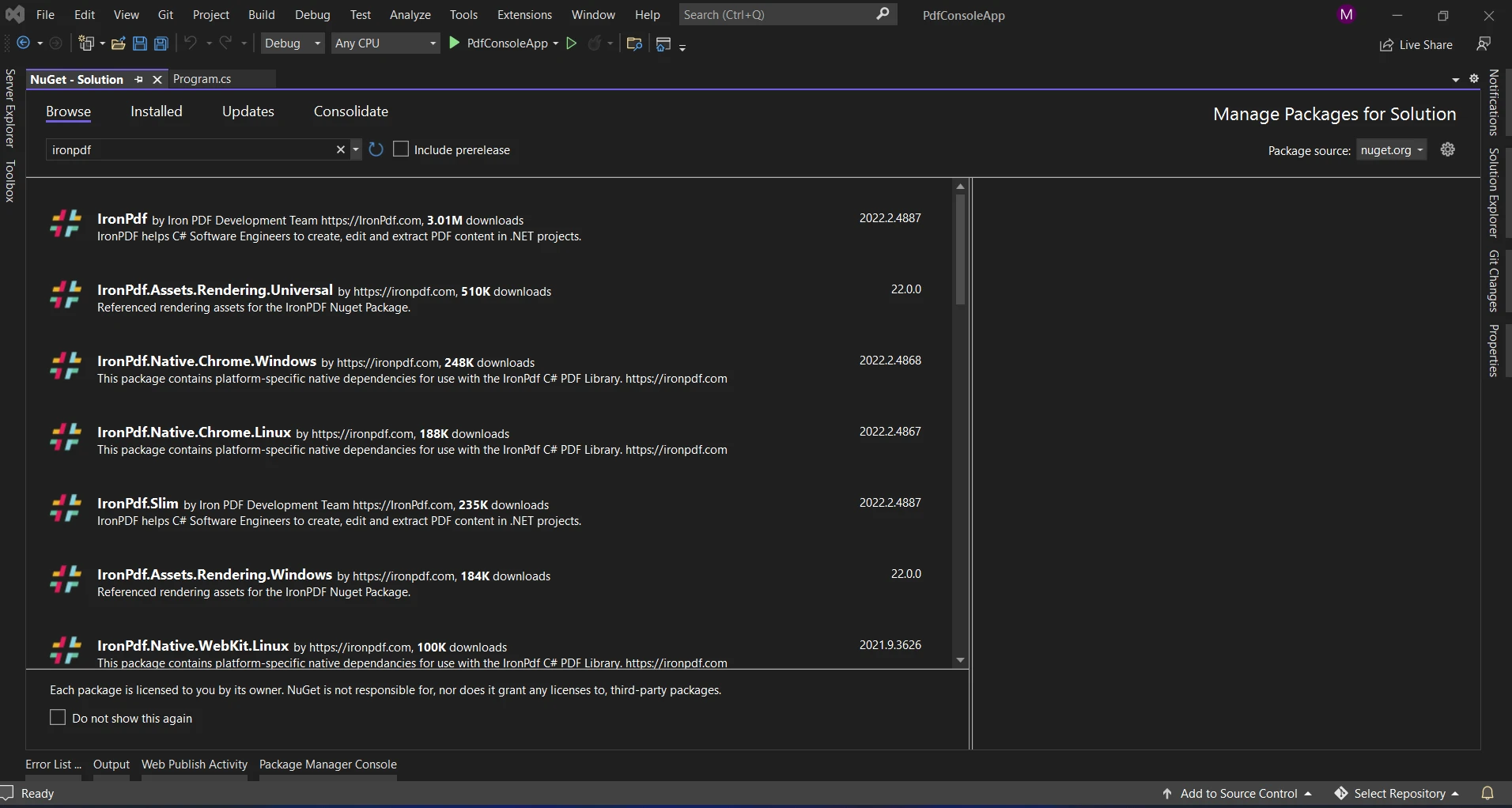
IRONPDF 사용 How to Use C# to Convert PDF to Bitmap 커티스 차우 업데이트됨:7월 28, 2025 다운로드 IronPDF NuGet 다운로드 DLL 다운로드 윈도우 설치 프로그램 무료 체험 시작하기 LLM용 사본 LLM용 사본 LLM용 마크다운 형식으로 페이지를 복사하세요 ChatGPT에서 열기 ChatGPT에 이 페이지에 대해 문의하세요 제미니에서 열기 제미니에게 이 페이지에 대해 문의하세요 Grok에서 열기 Grok에게 이 페이지에 대해 문의하세요 혼란 속에서 열기 Perplexity에게 이 페이지에 대해 문의하세요 공유하다 페이스북에 공유하기 트위터에 공유하기 LinkedIn에 공유하기 URL 복사 이메일로 기사 보내기 The capacity to modify and alter digital content is essential in the ever-changing field of software development. Files in the Portable Document Format (PDF), which are widely used and highly adaptable, frequently hold important data. Nevertheless, effective conversion to bitmap formats is necessary for utilizing PDF material for image-based tasks or integrating it into visual applications. With IronPDF, a robust C# library that enables developers to convert PDF documents to bitmap images with accuracy, speed, and control, converting PDF to BMP format and saving as a BMP file with ease. To access a world of visual possibilities, we set out to investigate the nuances of C# PDF to bitmap conversion using IronPDF in this post. How to Use C# to Convert PDF to Bitmap Create a new C# project. Install the IronPDF library. Create a PDF object and pass the HTML string. Convert the PDF object into Bitmap. Save the image and dispose of the object. Why Convert PDFs to Bitmaps? Although PDFs are great at maintaining the style and layout of documents on many platforms, there are some circumstances in which bitmaps are useful. Below are some justifications for considering bitmap conversions from PDFs. Image Processing: Bitmaps may be easily used with a variety of C# image processing tools, making it possible to perform image manipulation operations such as scaling, cropping, and filter application. Interface with Graphical User Interfaces (GUIs): A lot of C# UI frameworks are bitmap-friendly, so you can show PDF material directly in your application's windows. Data Extraction: Text extraction from scanned documents is made easier by OCR (Optical Character Recognition) algorithms, which typically work better with bitmaps than with PDFs. Explore IronPDF IronPDF is a feature-rich solution that caters to the needs of developers for manipulating PDFs in C#. It stands out for being a complete solution. IronPDF is a flexible tool for many uses since it allows developers to easily create, edit, and extract content from PDF documents. Furthermore, developers may easily convert PDF pages into bitmap pictures thanks to IronPDF's strong rendering engine, enabling high-quality PDF-to-bitmap conversion. Features of IronPDF APIs for PDF Manipulation: Developers may access and manipulate PDF files programmatically with IronPDF's APIs for parsing PDF documents and extracting text, images, and other content. PDF Rendering: During conversion, IronPDF's sophisticated rendering engine maintains fonts, images, and layout components to guarantee an accurate and authentic portrayal of PDF pages. Image Export: IronPDF gives developers the ability to export PDF pages to many image formats, such as BMP, JPEG, PNG, and TIFF. This allows for flexibility and workflow compatibility with a wide range of image processing applications. Performance Optimization: IronPDF prioritizes efficiency and performance. It does this by using parallel processing techniques and optimized algorithms to make PDF rendering and conversion activities move more smoothly. Form Filling: Filling out interactive PDF forms programmatically is supported by IronPDF. Form fields, checkboxes, and dropdowns can be filled in by developers, which makes form-filling processes more automated and enhances user experience. PDF Optimization: To minimize PDF file size without sacrificing quality, IronPDF provides optimization options. To increase speed and effectiveness, developers might reduce the size of images, eliminate extraneous components, and optimize typefaces. Platform Compatibility: IronPDF can be used with a variety of C# applications because it works with both the .NET Framework and .NET Core. IronPDF easily integrates into your development environment whether you're creating cloud-based, desktop, or web-based applications. Check out IronPDF's official comprehensive documentation on working with PDFs for the most up-to-date and accurate information. Installing IronPDF The Visual Command-Line interface is located under Tools in the Visual Studio Tools. Select the NuGet Package Manager. You need to type the following command on the package management terminal tab. Install-Package IronPdf The Package Manager approach is another option. The NuGet Package Manager option allows us to install the package directly into the solution. To find packages, use the search box on the NuGet website. All we have to do is search for "IronPDF" in the package manager, as the following screenshot shows: The image above shows the list of pertinent search results. Please make these settings so that the software can be installed on your system. The package can now be used in the ongoing project when it has been downloaded and installed. Convert PDF to Bitmap Let's now explore the code that shows how the conversion is done. Using the following example, a PDF file is loaded, transformed into a set of AnyBitmap objects (one for each page), and then saved as separate BMP images: using IronPdf; class Program { static void Main(string[] args) { // Create an instance of the HtmlToPdf class var renderer = new IronPdf.HtmlToPdf(); // Render an HTML string as a PDF document var pdfDocument = renderer.RenderHtmlAsPdf("<html><body><h1>Hello, IronPDF!</h1></body></html>"); // Convert the entire PDF document to a collection of bitmap images var bitmapPages = pdfDocument.ToBitmap(); int i = 0; // Iterate through each page bitmap and save it as a BMP file foreach (var image in bitmapPages) { i++; // Save each image as a BMP file with a unique file name image.SaveAs($"output_{i}.bmp"); } } } using IronPdf; class Program { static void Main(string[] args) { // Create an instance of the HtmlToPdf class var renderer = new IronPdf.HtmlToPdf(); // Render an HTML string as a PDF document var pdfDocument = renderer.RenderHtmlAsPdf("<html><body><h1>Hello, IronPDF!</h1></body></html>"); // Convert the entire PDF document to a collection of bitmap images var bitmapPages = pdfDocument.ToBitmap(); int i = 0; // Iterate through each page bitmap and save it as a BMP file foreach (var image in bitmapPages) { i++; // Save each image as a BMP file with a unique file name image.SaveAs($"output_{i}.bmp"); } } } $vbLabelText $csharpLabel This sample of code runs through all the pages in the PDF file that has been loaded. The bitmap representation of the page content is obtained by calling the ToBitmap method for every page, which yields an AnyBitmap object. The bitmap image is then saved using the SaveAs method, and the output filename is created using a numbering scheme. Below are the simple steps to convert a PDF to a BMP image format: The PDF file supplied is rendered using the HtmlToPdf.RenderHtmlAsPdf method from an HTML string. The ToBitmap method is called on the PDF document to convert it into a collection of AnyBitmap objects, each representing a page. The conversion for each page is conducted in the loop, where each bitmap is saved using the SaveAs function to create BMP files. Below is the output file generated from the above code. Please refer to the IronPDF example guide for using HTML to create a PDF for more information. Conclusion Finally, with IronPDF's extensive feature set for PDF manipulation, rendering, and conversion, C# developers can now fully realize the promise of PDF files. Leveraging IronPDF's sophisticated features, developers can easily convert PDF files to bitmap images for use in visual analytics projects, image-centric applications, and workflows. Gaining proficiency in PDF to bitmap conversion using IronPDF opens up a world of possibilities, promoting creativity and efficiency in software development, regardless of your application—document management systems, visual reporting, or image-based analysis. With IronPDF by your side, you can add richness to your applications and delight users by converting static PDF document content into dynamic visual experiences. IronPDF's Lite edition comes with a year of software support, upgrade options, and a permanent license. Customers have a watermarked trial period during which they can assess the product in practical settings. Learn more about IronPDF's licensing, cost, and free trial options. To learn more about the suite of products Iron Software offers, please visit Explore Iron Software's product offerings. 자주 묻는 질문 PDF 문서를 C#에서 비트맵 이미지로 변환하려면 어떻게 해야 하나요? IronPDF 라이브러리를 사용하여 PDF 문서를 C#의 비트맵 이미지로 변환할 수 있습니다. 먼저 Visual Studio의 NuGet 패키지 관리자를 통해 IronPDF를 설치합니다. 그런 다음 라이브러리의 메서드를 사용하여 PDF 페이지를 비트맵 이미지로 렌더링하고 BMP, JPEG 또는 PNG 형식으로 저장합니다. PDF를 비트맵 이미지로 변환하면 어떤 이점이 있나요? PDF를 비트맵 이미지로 변환하면 이미지 처리가 향상되고 그래픽 사용자 인터페이스와 원활하게 통합되며 비트맵 형식에 최적화된 OCR 알고리즘을 통해 데이터 추출이 개선됩니다. C#을 사용하여 PDF 페이지를 BMP 형식으로 변환하는 단계에는 어떤 것이 있나요? 단계는 C# 프로젝트를 만들고, IronPDF를 설치하고, HtmlToPdf 클래스를 사용하여 PDF를 문서로 렌더링하고, 문서 페이지를 AnyBitmap 객체로 변환한 다음, 각 페이지를 BMP 파일로 저장하는 것으로 구성됩니다. IronPDF는 다양한 .NET 플랫폼과 호환되나요? 예, IronPDF는 .NET Framework 및 .NET Core와 모두 호환되므로 데스크톱, 웹 기반 또는 클라우드 기반에 관계없이 다양한 C# 애플리케이션에 다용도로 사용할 수 있습니다. IronPDF는 PDF를 비트맵으로 변환할 때 어떻게 고성능을 보장하나요? IronPDF는 병렬 처리 기술과 최적화된 알고리즘을 사용하여 효율적이고 원활한 PDF 렌더링 및 변환 작업을 보장하며, 고성능과 정확성에 중점을 두고 있습니다. C# 프로젝트에 IronPDF를 설치하려면 어떻게 해야 하나요? IronPDF는 Visual Studio의 NuGet 패키지 관리자를 사용하여 C# 프로젝트에 설치할 수 있습니다. 패키지 관리자에서 'IronPDF'를 검색하여 솔루션에 직접 설치하세요. IronPDF는 PDF 콘텐츠 내보내기를 위해 어떤 이미지 형식을 지원하나요? IronPDF는 PDF 콘텐츠를 BMP, JPEG, PNG 등 다양한 이미지 형식으로 내보낼 수 있으므로 애플리케이션의 요구 사항에 가장 적합한 형식을 선택할 수 있습니다. PDF를 비트맵 이미지로 변환하는 일반적인 용도는 무엇인가요? 특히 문서 관리 및 시각적 보고에 중점을 둔 애플리케이션에서 이미지 처리 작업 향상, 그래픽 사용자 인터페이스에 콘텐츠 통합, OCR을 통한 데이터 추출 용이성 등이 일반적인 용도로 사용됩니다. IronPDF에는 어떤 라이선스 옵션을 사용할 수 있나요? IronPDF는 1년간의 소프트웨어 지원, 업그레이드 옵션 및 영구 라이선스가 포함된 Lite 에디션을 제공합니다. 또한 사용자가 제품의 기능을 평가할 수 있도록 워터마크가 표시된 평가판 기간을 사용할 수 있습니다. PDF를 비트맵으로 변환하는 IronPDF 사용에 대한 자세한 내용은 어디에서 확인할 수 있나요? IronPDF에 대한 포괄적인 문서, 예제 및 추가 정보는 공식 IronPDF 웹사이트에서 확인할 수 있으며, 학습 및 탐색을 위한 리소스를 제공합니다. IronPDF는 PDF를 비트맵으로 변환하는 데 있어 .NET 10과 완벽하게 호환되나요? 예. IronPDF는 .NET 10(뿐만 아니라 .NET 9, 8, 7, 6, 5, 코어, 표준 및 프레임워크)을 지원하므로 추가 호환성 레이어 없이 .NET 10 프로젝트에서 `ToBitmap()`과 같은 PDF-비트맵 변환 기능을 기본적으로 사용할 수 있습니다. IronPDF는 지원되는 플랫폼 중 .NET 10에서 실행되도록 설계되었습니다. 커티스 차우 지금 바로 엔지니어링 팀과 채팅하세요 기술 문서 작성자 커티스 차우는 칼턴 대학교에서 컴퓨터 과학 학사 학위를 취득했으며, Node.js, TypeScript, JavaScript, React를 전문으로 하는 프론트엔드 개발자입니다. 직관적이고 미적으로 뛰어난 사용자 인터페이스를 만드는 데 열정을 가진 그는 최신 프레임워크를 활용하고, 잘 구성되고 시각적으로 매력적인 매뉴얼을 제작하는 것을 즐깁니다. 커티스는 개발 분야 외에도 사물 인터넷(IoT)에 깊은 관심을 가지고 있으며, 하드웨어와 소프트웨어를 통합하는 혁신적인 방법을 연구합니다. 여가 시간에는 게임을 즐기거나 디스코드 봇을 만들면서 기술에 대한 애정과 창의성을 결합합니다. 관련 기사 업데이트됨 1월 22, 2026 How to Create PDF Documents in .NET with IronPDF: Complete Guide Discover effective methods to create PDF files in C# for developers. Enhance your coding skills and streamline your projects. Read the article now! 더 읽어보기 업데이트됨 1월 21, 2026 How to Merge PDF Files in VB.NET: Complete Tutorial Merge PDF VB NET with IronPDF. Learn to combine multiple PDF files into one document using simple VB.NET code. Step-by-step examples included. 더 읽어보기 업데이트됨 1월 21, 2026 C# PDFWriter Tutorial: Create PDF Documents in .NET Learn to create PDFs efficiently using C# PDFWriter with this step-by-step guide for developers. Read the article to enhance your skills today! 더 읽어보기 PDF to PDFA in C# (Developer Tutorial)How to Read a PDF Line By Line in C#

업데이트됨 1월 22, 2026 How to Create PDF Documents in .NET with IronPDF: Complete Guide Discover effective methods to create PDF files in C# for developers. Enhance your coding skills and streamline your projects. Read the article now! 더 읽어보기
업데이트됨 1월 21, 2026 How to Merge PDF Files in VB.NET: Complete Tutorial Merge PDF VB NET with IronPDF. Learn to combine multiple PDF files into one document using simple VB.NET code. Step-by-step examples included. 더 읽어보기
업데이트됨 1월 21, 2026 C# PDFWriter Tutorial: Create PDF Documents in .NET Learn to create PDFs efficiently using C# PDFWriter with this step-by-step guide for developers. Read the article to enhance your skills today! 더 읽어보기