푸터 콘텐츠로 바로가기
IRONPDF 사용

How to Read a PDF Line By Line in C#

You may think of PDFs as static documents, but they are becoming more and more dynamic. With the help of PDFs, you can make a document that is both interactive and shareable. You can understand the structure of the PDF by reading the "Portable Document Format Reference" in the Acrobat SDK on the Adobe website. The two most common reasons for making PDFs programmatically are:

  1. For newsletters and other digital publications that require graphics and formatting that cannot be done with print-ready PDFs.
  2. To create interactivity in ebooks or digital magazines.

Reading PDF files programmatically is a difficult task because extracting text from a PDF file is not straightforward. The structure of the PDF is complex, especially as it can also include images. So, what is the solution if developers need to get text from PDF files line-by-line without using Adobe Acrobat? The answer is the IronPDF C# PDF library. This tutorial will cover how to read PDF files programmatically in C# using the IronPDF C# library.

How to Read a PDF Line By Line in C#

The contents of this article are listed as follows:

  1. IronPDF: A C# PDF Library
  2. Steps for reading PDF documents
  3. Create a C# Project in Visual Studio
  4. Install the IronPDF library with the NuGet package manager
  5. Writing code to read PDF files
  6. Conclusion: the best library for reading PDFs

IronPDF: A C# PDF Library

IronPDF is a .NET PDF library that gives developers an easy and powerful way to generate and read PDF files. It has been designed from the ground up to be .NET Core, ASP.NET Core, and .NET Standard compatible.

IronPDF provides developers with rich APIs for creating, manipulating, and generating PDF files. Developers can programmatically create a new PDF file or open an existing one using its intuitive API. The library supports various documents, such as images, videos, text documents, and vector graphics generated in the PDF document.

Let's take a look at how we can read PDFs line-by-line using IronPDF.

Create a C# Project in Visual Studio

I'll be using Visual Studio 2022 for creating the C# project. Any version you have should work, but using the newest version is recommended for a better experience. IronPDF works well with the latest version of Microsoft's framework, .NET 6. If you need extended support and stability, using this framework is advised.

Next, follow these steps to create a C# project in Microsoft Visual Studio:

  1. Open Visual Studio 2022.
  2. Click on the "Create a new project" button at the bottom.
  3. Select the "Console Application" template for this tutorial. You can use any template according to your requirements.
  4. Give a proper name to the project.
  5. Select the .NET 6 framework because it is the latest and has extended support.
  6. Click on the "Create" button.

By following the above steps, you'll be able to easily create a C# project in Visual Studio. Now it's time to install the IronPDF library. You can use an existing project to use with the IronPDF library. You must open an assignment and install the library. In the next section, we'll learn how to install the IronPDF library.

Installing the IronPDF Library

IronPDF supports the installation of an IronPDF library in multiple ways. IronPDF is a library that allows you to use it across a variety of scenarios. You can install the program with NuGet Package and then take advantage of it through the Package Manager Console. Just run the following command, and the IronPDF library will be installed in your project:

Install-Package IronPdf

Alternatively, you can obtain the IronPDF C# library by downloading and extracting a ZIP file to any folder on your hard drive — it requires no installation. First, open the Visual Studio project where you want to install IronPDF. Once in the IDE, click on Project References in Solution Explorer and click on Add Reference. Search and select the "IronPDF" zip that we downloaded earlier. Click the "OK" button, and IronPDF will be added as a reference in the project.

Now, our project is ready for IronPDF. Let's begin writing code for reading PDF documents line-by-line.

Writing code to read a PDF file

I will now show you how to read a PDF file with just two lines of code. The IronPDF functions are excellent and very efficient. Let's take a look at a code example:

using IronPdf;
using System.Drawing;

// Select the Desired PDF File
using PdfDocument PDF = PdfDocument.FromFile("test.pdf");

// Using ExtractAllText() method to extract all text from the PDF
string line = PDF.ExtractAllText();

// Get all Images
IEnumerable<Image> AllImages = PDF.ExtractAllImages();

// View text in the console
Console.WriteLine(line);
using IronPdf;
using System.Drawing;

// Select the Desired PDF File
using PdfDocument PDF = PdfDocument.FromFile("test.pdf");

// Using ExtractAllText() method to extract all text from the PDF
string line = PDF.ExtractAllText();

// Get all Images
IEnumerable<Image> AllImages = PDF.ExtractAllImages();

// View text in the console
Console.WriteLine(line);
$vbLabelText   $csharpLabel

The above code helps us to read the PDF file. In the parameter of FromFile, we provide the path of the input PDF file. Then, the ExtractAllText function extracts text from all the pages of the test PDF. We can save the text in a text file or show it in the console. You can view more tutorials on the IronPDF text extraction examples page. We can write the following function in the form of a function to use anywhere in the program, like this:

private void Extract()
{
    // Select the Desired PDF File
    using PdfDocument PDF = PdfDocument.FromFile("any.pdf");

    // Using ExtractAllText() method to extract all text from the PDF
    string line = PDF.ExtractAllText();

    // View text in the console
    Console.WriteLine(line);
}
private void Extract()
{
    // Select the Desired PDF File
    using PdfDocument PDF = PdfDocument.FromFile("any.pdf");

    // Using ExtractAllText() method to extract all text from the PDF
    string line = PDF.ExtractAllText();

    // View text in the console
    Console.WriteLine(line);
}
$vbLabelText   $csharpLabel

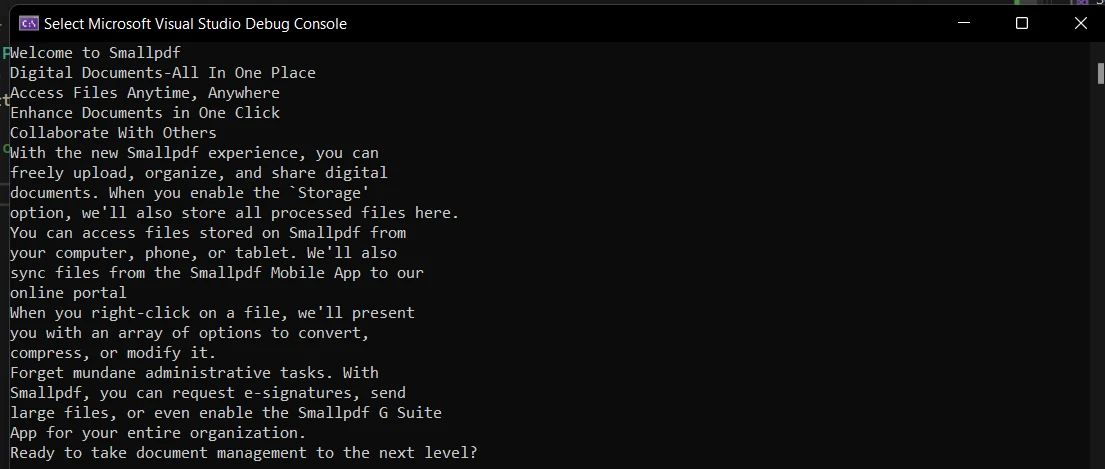
Let's look at the output generated by IronPDF.

Output Text

How to Read a PDF Line By Line in C#: Figure 1

IronPDF extracts text perfectly, without errors. The outcomes are first-class.

Conclusion: The Best Library for PDF Reading

Many developers use different PDF reading libraries in their software or other programs. Multiple libraries are available for manipulating and reading PDF files. However, IronPDF is the best library for all operations that involve PDFs.

Many industries and domains use PDF generation programs to generate and print PDF documents. Many libraries on the market such as the PDF Sharp library and many other .NET libraries allow you to create PDFs quickly with your content. But, the best library for programmatic PDF generation is IronPDF. IronPDF offers many features, including encryption, password protection, and converting MS Office formats to PDF. With IronPDF, you can easily create PDF documents using these powerful tools.

IronPDF is a free library, but you must pay to use it commercially. A 30-day trial period is available where it can be tested in production. IronPDF is available at a very affordable price, and you can also currently purchase a complete set of 5 different software for the cost of just two. You can find all the information on the pricing plan on the IronPDF licensing page.

자주 묻는 질문

C#에서 PDF 파일을 한 줄씩 읽으려면 어떻게 해야 하나요?

IronPDF를 사용하면 PdfDocument.FromFile() 메서드를 사용하여 파일을 연 다음 ExtractAllText() 메서드를 사용하여 텍스트 콘텐츠를 한 줄씩 검색하여 PDF 파일을 한 줄씩 읽을 수 있습니다.

PDF를 읽을 때 .NET PDF 라이브러리를 사용하면 어떤 이점이 있나요?

IronPDF와 같은 .NET PDF 라이브러리는 복잡한 PDF 구조에서 텍스트를 읽고 추출하는 과정을 간소화하여 개발자가 프로그래밍 방식으로 문서를 쉽게 처리할 수 있도록 지원합니다.

IronPDF를 사용하여 PDF에서 텍스트뿐만 아니라 이미지도 추출할 수 있나요?

예, IronPDF를 사용하면 PDF 내의 다양한 요소에 액세스하는 방법을 제공하는 포괄적인 API를 사용하여 PDF 파일에서 텍스트와 이미지를 모두 추출할 수 있습니다.

C# 프로젝트에 IronPDF를 설치하는 가장 좋은 방법은 무엇인가요?

NuGet 패키지 관리자에서 Install-Package IronPdf 명령을 사용하여 C# 프로젝트에 IronPDF를 설치하거나 Visual Studio에서 참조로 추가하여 설치할 수 있습니다.

.NET 라이브러리를 사용하여 PDF 파일을 보호할 수 있나요?

IronPDF는 PDF 암호화 및 비밀번호 보호를 지원하므로 C# 애플리케이션 내에서 프로그래밍 방식으로 PDF 문서를 보호할 수 있습니다.

프로그래밍 방식으로 PDF를 생성하는 일반적인 사용 사례에는 어떤 것이 있나요?

개발자는 일반적으로 디지털 출판물용 PDF를 생성하고, 대화형 콘텐츠를 만들고, 문서를 공유하고, 다양한 플랫폼에서 일관된 문서 형식을 보장합니다.

IronPDF는 다른 PDF 라이브러리와 기능 면에서 어떻게 다른가요?

IronPDF는 PDF 생성, 텍스트 및 이미지 추출, 암호화, 형식 변환 등 강력한 기능으로 높은 평가를 받고 있어 개발자들 사이에서 선호도가 높습니다.

IronPDF를 .NET Core 애플리케이션과 함께 사용할 수 있나요?

예, IronPDF는 .NET Core, ASP.NET Core 및 .NET Standard와 호환되므로 최신 .NET 애플리케이션에 원활하게 통합할 수 있습니다.

IronPDF는 .NET 10과 완벽하게 호환되나요?

예. IronPDF는 새로운 런타임 및 언어 개선 사항을 활용하여 .NET 10에서 완벽하게 작동합니다. 추가 구성 없이 .NET 10 프로젝트에서 바로 사용할 수 있으므로 PDF를 읽고, 쓰고, 변환하고, 편집할 수 있습니다.

.NET 10의 어떤 개선 사항이 IronPDF 성능에 도움이 되나요?

.NET 10은 메모리 할당 감소, 더 빠른 JIT 성능, 향상된 ASP.NET Core 기능 및 런타임 최적화와 같은 향상된 기능을 제공하므로 IronPDF가 활용할 수 있는 렌더링, 변환, 텍스트/이미지 추출과 같은 작업을 보다 효율적으로 실행할 수 있습니다. 이러한 이점은 IronPDF를 사용하는 데스크톱, 웹, 클라우드 앱 전반에 적용됩니다.

커티스 차우
기술 문서 작성자

커티스 차우는 칼턴 대학교에서 컴퓨터 과학 학사 학위를 취득했으며, Node.js, TypeScript, JavaScript, React를 전문으로 하는 프론트엔드 개발자입니다. 직관적이고 미적으로 뛰어난 사용자 인터페이스를 만드는 데 열정을 가진 그는 최신 프레임워크를 활용하고, 잘 구성되고 시각적으로 매력적인 매뉴얼을 제작하는 것을 즐깁니다.


커티스는 개발 분야 외에도 사물 인터넷(IoT)에 깊은 관심을 가지고 있으며, 하드웨어와 소프트웨어를 통합하는 혁신적인 방법을 연구합니다. 여가 시간에는 게임을 즐기거나 디스코드 봇을 만들면서 기술에 대한 애정과 창의성을 결합합니다.